RSS
 

Posts Tagged ‘Introduction’

An Introduction to Photoshop Compositing for Beginners

26 May

by Sarah Hipwell

NewImage

What is compositing? Simply, it means to combine two or more images to make a single picture.

As a photographer, I’m constantly coming up with different concepts that I feel might make a good photo. But it is not always possible to get the perfect shot in one session. There have been numerous occasions while on a shoot where the light was not bright enough for the particular shot that I had in mind. On other occasions the background was too distracting. This is where the ability to create composite imagery in Photoshop is a huge advantage.

To produce a composite image in Photoshop, you need to isolate the subjects from the background of your various source photos. When I started out, I used the pen tool to help isolate my subjects. Now, I use the ‘quick selection’ and ‘refine edge’ tools which are superb and are a much faster way of doing extractions, especially for isolating hair!

But for this tutorial, I’m going to use the pen tool to create a path which I then save this as an alpha channel selection. I believe the pen tool should never be overlooked as an excellent way for beginners to increase their proficiency level with Photoshop. If you are new to using the pen tool, it does take a bit of getting used to but after time, you will pick up speed and accuracy. The big plus side to creating paths in this way is that they are re-editable and non-destructive.

I have highlighted three key features:

  1. Selection. Good selections are critical for compository work
  2. Composition.
  3. Uniform color balance and light.

Here’s the method:

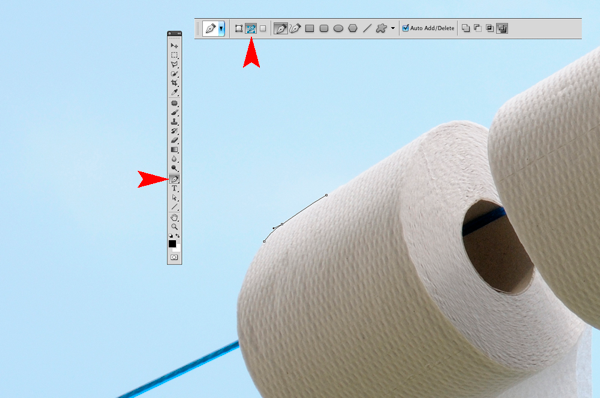
  1. The Pen Tool – With the Pen Tool selected in the toolbar, choose a starting point on the photo, click and drag around the area to be selected. This will create a path outline to be saved in the Paths Palette.
  2. Place the images – When I want to bring other images into a composite, I prefer to Place them into the file. What this means is that the image is brought into your psd file on a separate layer as a Smart Object. The photo can be moved into position, made larger or smaller without affecting the quality.
  3. Match Color – When all the elements of the photo are edited and in place, I use Match Color tool as an effective way to balance the color between the two images.

NewImage

I took the photo above for a concept shot titled ‘Recycled toilet paper’. I wanted a bright blue sky with white fluffy clouds as the background. The above shot did not have the background that I wanted. So I waited a couple of days and I got the shot I wanted. See below:

NewImage

I made my selection using the pen tool to isolate the toilet rolls and clothesline. Zoom in up to 300 – 400% to get a good outline, as shown below.
NewImage

Holding down the Alt/Ctrl key enables you to move anchor points and direction lines and again make any edits to your lines and curves.

When you have finished plotting your anchor points, you can then save this outline in the Paths Palette. This selection can then be added as a layer mask. It should resemble the black and white image on the right below.

NewImage

I imported the new sky background by going to the File menu and select Place. The image then appeared as a Smart Object and on a separate layer. I had to reduce the size but the quality of the image was maintained.

When I was happy with the position of the new sky background, I merged all the layers onto one. I used a keyboard shortcut (Cmd/Ctrl+Alt+Shift+E) to achieve this. The reason for this is that the next adjustment isn’t non-destructive so that if I want to redo this edit, I would have to delete the layer and repeat the above step again.

The final adjustment was to go to Image menu and select Match Color to make sure the color is balanced between the two images. Using Image>Adjustments>Match Color I played with the two sliders to get the color of the image more uniform in appearance. See the link below where I uploaded the final composite image to iStockphoto.com

http://www.istockphoto.com/stock-photo-6231026-recycling-toilet-paper.php?st=faf18be

See more of Sarah Hipwell’s work at her website – SarahHipwell.com

Post originally from: Digital Photography Tips.

Check out our more Photography Tips at Photography Tips for Beginners, Portrait Photography Tips and Wedding Photography Tips.

An Introduction to Photoshop Compositing for Beginners

Digital Photography School

 
Comments Off on An Introduction to Photoshop Compositing for Beginners
Posted in Photography


Canadian Travelogue – Introduction

28 Apr

PREFACE:

In 2000, as a millennium project, my good friend and noted landscape photographer Daryl Benson, and I joined forces and produced a book called “A Guide to Photographing the Canadian Landscape.”  In this tome we presented our favourite places to photograph across Canada, how to get there and showed images of what to expect once the reader arrived at that destination.  We called the book our “armchair trek” across this vast landscape.

It wasn’t long after I started contributing to Digital Photography School that personal messages started arriving from folks living in Europe (primarily) asking questions about where they should go in Canada to get good pictures.  My answer has remained steadfast over the years: The best photos are where you happen to be at that point in time.  Successful photography really is a combination of research, skill and mindset; with the later being the most important in my opinion.  However, this did not satisfy those enquiring, and follow up questions continued.

From both an aesthetic and technical perspective, much has changed since we produced that 152 page book. Daryl and I were heavy users of filters – Photoshop wasn’t yet a viable option for landscape photographers as it was still in its infancy as a software, as well as snails-pace computer hardware meant excruciatingly long wait times for various functions to complete. As you can imagine, overt filter use has gone out of favour as have many trends (sorry to say that to all us HDR proponents).  Our film cameras have essentially become antique and valueless – a Pentax 67 looks at me as I write this duly retired to its role as a bookend. And books are now delivered to the offset press as PDF files as opposed to huge CMYK sheets of film.

With all these considerations taken into account, it simply is not worthy of consideration to re-print the original book verbatim. Therefore, what I will do over the next few months is re-write the text, insert new photos, and generally re-work this book to bring it up to day’s styles and standards. The content will be posted in a systematic fashion, starting where the sun first reaches the North American coast and then eventually sets on the Pacific coast. We will take this journey from coast-to-coast-to coast (yes, I am fortunate to say I have literally dipped my toes in the Atlantic, Pacific and Arctic Oceans).

I have two requests from dPs readers:  1. Accept the fact that those initial entries in the original book written by Daryl, will be annotated in these entries as “DB” and the entries originally penned by myself will be signified with a “DW”; and 2. Let me know as we get going on this journey if you would like to see it produced as an e-book.

Other than that, I hope you enjoy this journey across what I consider the greatest country on the planet – my home, Canada.


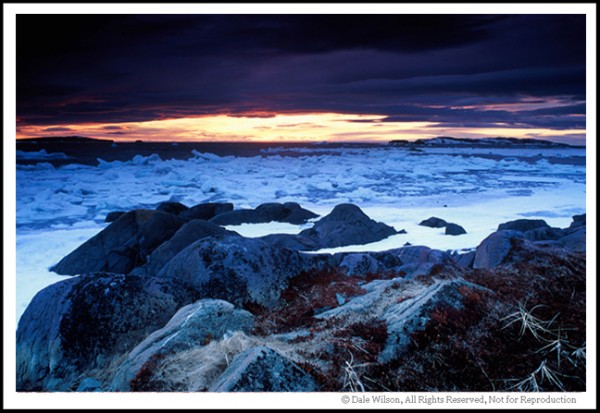
Bordered on three sides by salt water in a northern climate, ice is never far away. As the Canadian comedian Pete Soucey, aka Snook" says: We ahve nine months of winter and three to get ready for it. It's not all ice, there are also deserts and temperate rain forests. This image was made in mid-May at L'Anse aux Meadows, Newfoundland and Labrador; Canada's easternmost province.

Bordered on three sides by salt water in a northern climate, ice is never far away. As the Canadian comedian Pete Soucey, aka Snook,” says: We have nine months of winter and three to get ready for it. It’s not all ice, there are also deserts and temperate rain forests as well. This image was made in mid-May at L’Anse aux Meadows, Newfoundland and Labrador; Canada’s easternmost province.


INTRODUCTION:

“An incomplete Guide to Photographing the Canadian Landscape” was the original title for this book, but very early in the project our ace marketing, research and development team told us that no one would buy a guide book that admitted to being anything less than comprehensive. Bowing to wisdom, we re-named the book, but deep down we know that really it is incomplete.

Why so?

Well, Canada covers 9,970,610 square kilometres (second largest in the world behind Russia) and has 243,000 kilometres of shoreline (the most of any country in the world). If you could walk 20 kilometres per day, and followed the shoreline, it would take you 33 years to complete the trek. It is simply impossible to cover the vastness, the diversity and the natural beauty of Canada in any finite work.  Consequently, we know our book will forever be incomplete despite what that crack team of marketing people suggest.

A Guide to Photographing the Canadian Landscape has been created to make it easier for you to “hit the ice with sharp skates, so to speak; this is a Canadian metaphor that means, roughly, to arrive prepared. Interestingly enough, in the Russian language the same metaphor appears as “punch some vodka with a shaving device,” which is a good suggestion should your vodka be old and growing fur.

This guaranteed hair-free and clean shaven series is not intended to be a definitive photographic guide to areas that will be profiled –each one of them is worth a book itself- but merely a starting point at the head of the trail.

You are strongly encouraged to hike and explore further on your own, using the following words and information as a key to open the front door; what lies beyond is infinite.


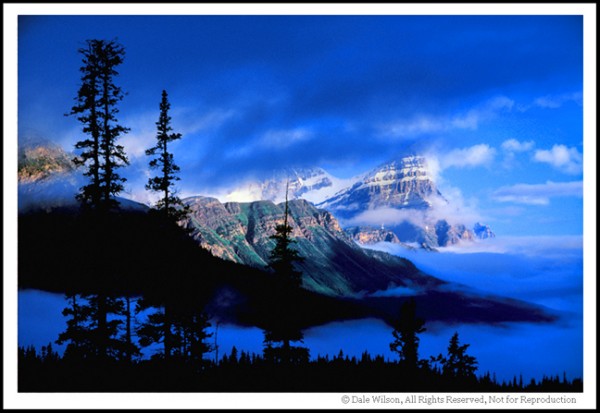
The majestic Mount Cephren rises 3,307 metres (10,850 feet) from the Mistaya River Valley at Banff National Park in Alberta. The north-south running mountain range that is also a border between Alberta and British Columbia, is a continuation of the Rocky Mountain range which originates far to the south in New Mexico.

The majestic Mount Cephren rises 3,307 metres (10,850 feet) from the Mistaya River Valley in Banff National Park, Alberta. The north-south running mountain range  is also a physical border between Alberta and British Columbia, and is a continuation of the Rocky Mountain range which originates farther to the south in New Mexico.

Post originally from: Digital Photography Tips.

Check out our more Photography Tips at Photography Tips for Beginners, Portrait Photography Tips and Wedding Photography Tips.

Canadian Travelogue – Introduction


Digital Photography School

 
Comments Off on Canadian Travelogue – Introduction

Posted in Photography


Introduction to Lightroom

22 Mar

Do you have Lightroom but feel like you’re not using it to it’s potential? Have you heard about the power of Lightroom but are not sure if you’ll be able to learn it?

The following video is the introduction from Phil Steele’s ‘Lightroom Made Easy’ video which is currently 30% off at SnapnDeals.

It’ll give you a taste for Phil’s style but also give you a good simple (and free) introduction to what Lightroom is and how it is different from many other types of photo editing software.

Pick up the full Lightroom Made Easy video course for 30% off (just $ 33) via SnapnDeals for the next few days only.

Post originally from: Digital Photography Tips.

Check out our more Photography Tips at Photography Tips for Beginners, Portrait Photography Tips and Wedding Photography Tips.

Introduction to Lightroom


Digital Photography School

 
Comments Off on Introduction to Lightroom

Posted in Photography


An Introduction to Wedding Photography

12 Feb

ref=dp_image_0.jpegI remember once being invited to photograph a friend of a friend’s wedding. I declined.
Why? At the time I had recently interviewed a number of pros who specialised in capturing that magic in the process of creating a magazine story on that occupation. Whew! Not for me I decided. Way beyond my skill set, patience, resourcefulness and energy levels.

So, it was with a sense of relief that I reviewed this book, safe in the knowledge that no-one, and I mean no-one, could or would ever put me through the trauma that wedding photography presents.

For her part, author Lorna Yabsley recalls how, when starting out as a wedding photographer in the days of film, life was so much simpler and consisted of formally staged shots made in an hour long session, the best of which ‘would ultimately be shown to the client for them to choose a set of images that would be pasted into a finished album.’

Today’s generation of wedding shooters mostly work in digital, with an endless number of shots, reviewed instantly … ‘now we have to do the job of the lab in the post production … a whole new skill base that photographers must understand and equip themselves with.’

The book heads off with a chapter entitled ‘Understanding Weddings’ and the advice that the photographer should not dominate the proceedings, be informal, develop an eye for composition, acquire a basic knowledge of photography and understand your camera.

Next we move into listing the skills necessary, how to deal with people, preplan, understand the plan of the day’s events, learn who are the most important people, etc.

And we haven’t taken a shot yet!

More ensues on getting the commission, establishing your rates, how to promote yourself, plan advertising and dealign with the couple.

You may be surprised to find that it is only when you reach the near end of the book that 12 pages are devoted to choice of camera, lenses, accessories such as flash, etc and advice is given on what computer and printer may best suit your endeavours.

While there is help on such matters as post production, editing etc that help deal with the digital nature of these images … but there are no hints on how to tweak the images, remove a boil on the bride’s bonce or a bald spot on the groom’s pate.

Aside from this there is much useful advice on securing the final print sale, album design etc. Missing is any advice on how to combine video shooting with stills work. Those brave souls who do combine the chores have probably got it all to themselves!

For those who see a business opportunity in wedding photography the book is a major helper but don’t come looking for a load of tech help.

Impressive, large photographs make the book an attractive read.

Author: L Yabsley.
Publisher: David & Charles.
Length: 160 pages.
ISBN 978 1 4463 0258 3.
Price: Get a price on An Introduction to Wedding Photography at Amazon.

Post originally from: Digital Photography Tips.

Check out our more Photography Tips at Photography Tips for Beginners, Portrait Photography Tips and Wedding Photography Tips.

An Introduction to Wedding Photography


Digital Photography School

 
Comments Off on An Introduction to Wedding Photography

Posted in Photography


The ultimate Introduction to DSLR Filmmaking | Basic Tutorial

11 Feb

A tutorial by Fenchel & Janisch Facebook: www.fb.com YouTube: www.youtube.com This introduction to DSLR video is divided into six parts. Learn how to set up your camera, shoot in daylight and at night. This tutorial shows you how to get the cinematic film look that so many people are talking about. In the fall of 2008 Vincent Laforet was the first one to use the Canon EOS 5D Mark II which was the first digital SLR capable of recording full HD video. The short film he shot mostly at night, called “Reverie”, become popular over night. Something that Canon never intended got more and more in focus of amateur filmmakers all over the world: Shooting films and commercials with a stills camera. It only took a few month and the first accessories were released. Since then a lot has happened and a lot of TV shows like “House MD” or “CSI Miami” used DSLRs on set. Philip Bloom, another pioneer in digital filmmaking, used cameras on the Lucas Film production “Red Tails”. The small body and the great image quality has fascinated international acclaimed cinematographers like Rodney Charters (“24”). In independent cinema those cameras became indispensable. Questions: www.fenchel-janisch.com ETHIC STATEMENT: Fenchel & Janisch GbR is not affiliated with any of the companies shown or named in this video. © 2012 by Fenchel & Janisch Filmproduktion GbR
Video Rating: 4 / 5


Studio Lighting with Zack Arias: 1:30 pm – Introduction & Philosophy of Studio Space

06 Feb

Full course available at creativelive.com Zack Arias leads a lively three day workshop on studio lighting featuring white seamless backdrops, stages, models, and bands with Q&A and critique rounds to fill it all out.


HDDSLR Cinema with Vincent Laforet: 10:00 am – Introduction: Still Photos vs Video

14 Jan

Full course available at creativelive.com In this course, first-time filmmakers and photographers making the transition into video will be introduced to many of the core building blocks necessary to make their first short films. Students will come away from this online workshop with a good understanding of what tools they need for their productions, and when and how to best use them.
Video Rating: 4 / 5


SLR Photography Introduction and Tips

13 Jan

LINKS: Nikon Cameras: D3100: amzn.to D5100: amzn.to Canon Cameras: T3: amzn.to T1i: amzn.to T2i: amzn.to T3i: amzn.to Lens: Nikon 50mm f/1.8 Prime Lens: amzn.to Canon 50mm EF Prime Lens f/1.8: amzn.to


Canon 320EX Speedlite Introduction and Overview

08 Jan

To learn more information about the Canon Speedlight product line visit Michael’s website at www.canontrainingvideo.com In this quick lesson Michael reviews the new Canon 320EX Speedlite. During this review he teaches you about all the cool features that this hybrid flash and video light has to offer. Some of these features include a built in LED light for shooting DSLR video, simple and easy to use controls, the remote control functions, as well as many additional functions and operations.

Learn how Ken works with his surroundings to make award-winning images and how he keeps the big day running smoothly without missing a shot.


An Introduction to Lightroom Smart Collections

03 Dec

Lightroom smart collections opener

Lightroom has two types of collections: regular Collections and Smart Collections. Smart Collections are live and they are created as a result of filtering your photos according to rules that you write. You cannot add an image to a Smart Collection by dragging and dropping it into the collection. You can’t remove an image from a Smart Collection just because you don’t want it in there – it can only be removed if it fails to meet the criteria you set up for the collection.

Smart collections are a handy way to create collections and to manage your photos and here I’ll show you how to make use of them.

Shipped Smart Collections

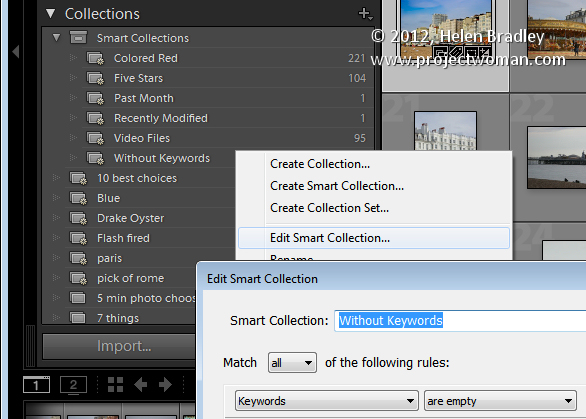
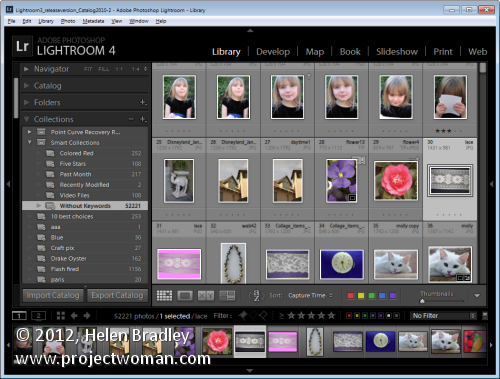
There are a few Smart Collections which ship with Lightroom. To find these, click the Collections panel in Lightroom and click on the Smart Collection Set. Click the Smart collection called Without Keywords. As its name suggests, this collection shows you all the images in your Lightroom catalog that do not have keywords associated with them.

If you’re like me you’ll want to close this one pretty quickly – it can be scary to see just how many images aren’t keyworded!

You can learn more about this collection by right clicking its name and choose Edit Smart Collection. You’ll see that the Smart Collection is configured to contain all those images for which the Keywords property is empty.

Lightroom smart collections 1

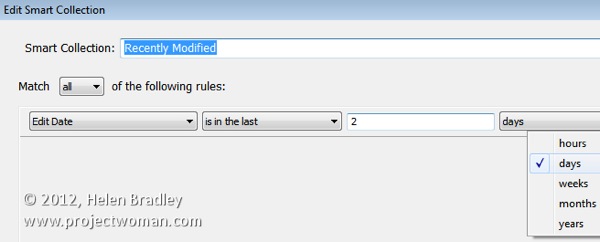
There are other collections which are shipped with Lightroom including Recently Modified which is a collection of images that have been edited recently.

You can, if desired, change the Recently Modified Smart Collection to span a different number of days. Click this collection , right click and choose Edit Smart Collection. You can see that the collection criteria is set to be Edit Date > Is in the last

When you do so, Lightroom checks the images in your catalog to determine which images meet this criteria and it displays these in this Smart Collection.

Lightroom smart collections 2

Make your own Smart Collections

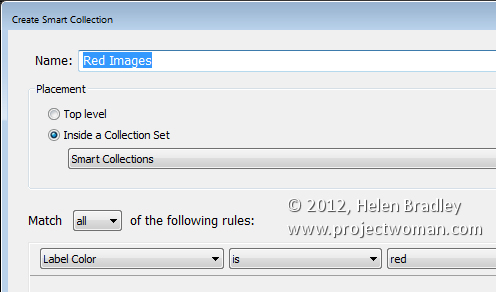
In addition to those shipped with Lightroom you can create your own Smart Collections. For example, if you color your images red meaning a certain thing you can create a Smart Collection that contains all the images which are colored red.

To do this, click to open the Collections panel, click the plus symbol and choose Create Smart Collection. Type a name for it such as Red Images, click Inside a Collection Set and choose to add it to the Smart Collections set. From the options below select Label color is red.

Click Create to create the collection – it will contain all images in your collection which have the red label color associated with them.

Lightroom smart collections 3

Remove an Image from a Smart Collection

The only way you can remove an image from a Smart Collection is to configure it so it no longer meets the criteria for the Smart Collection. For example an image will no longer appear in the Without Keywords collection if you add a keyword to it.

You can remove an image from the Red Images collection if you remove or change its color label. When it no longer has the red color label associated with it, it will no longer appear in the collection.

Similarly, if you apply the red color label to an image in Lightroom it will be automatically added to the Red Images Smart Collection.

One of the benefits of Smart Collections is that they’re continually updated by Lightroom. So Lightroom ensures that all the images which match the criteria you use to define the Smart Collection are in that collection.

How Smart Collections Differ from Regular Collections

Smart Collections behave differently to Regular Collections in a few key ways. One difference is that you cannot arrange images in a Smart Collection into your own custom order.

The collection order can only be set to one of the Lightroom default Sort Order options; Capture Time, Edit Order, Edit Time, Edit Count, Rating, Pick, Label Text, Label Color, File Name, File Extension, File Type and Aspect Ratio. Regular collections, on the other hand, can be sorted into User Order which is useful for slideshows and web pages for example.

You also cannot set a Smart Collection as the Target Collection because you cannot add images to a Smart Collection manually. It can only be added if it matches the criteria which describes that collection.

Over to you… Do you use Smart Collections in Lightroom and, if so, how do you use them? Do you use the shipped collections or make your own?

Post originally from: Digital Photography Tips.

Check out our more Photography Tips at Photography Tips for Beginners, Portrait Photography Tips and Wedding Photography Tips.

An Introduction to Lightroom Smart Collections


Digital Photography School

 
Comments Off on An Introduction to Lightroom Smart Collections

Posted in Photography