We got a sneak peek at Canon’s PowerShot G3 X at this year’s CP+ tradeshow in Japan, and now that camera is making its official debut. As anticipated, it offers a 1″-type 20.2MP CMOS sensor and F2.8-5.6 24-600mm equivalent lens, giving it the most zoom power in the large-sensor superzoom class. Read more
Tag: Introduction
-
An Introduction to DSLR Photography, the Canon EOS 70D and EF-S 18-135mm f/3.5-5.6 IS STM Lens
The very first Canon DSLR I ever purchased, about a decade ago, was the Canon EOS 10D. The very first Canon lens I bought was the EF 28-135mm f/3.5-5.6 IS USM zoom lens.
While my photography has advanced considerably over the past decade, this was an excellent starter set up for me. It was a decent DSLR for me (for the time) with a lens, which gave me a very wide range. Ultimately I upgraded bodies and got into more expensive Canon L series prime lenses, but this early set up gave me an opportunity to really experiment and try to figure out if this was a pursuit that I was going to invest more time and energy into.
About the same time I bought my original EOS 10D and EF 28-135mm lens I also purchased a set of Ping golf clubs. I thought golf was going to be something that I’d end up being interested in. I paid too much for what at the time were top of the line clubs. Unfortunately, I never did take up golf seriously and I have a very expensive set of unused Ping golf clubs that sit in my basement today. Maybe someday one of my children will take up golf.
The point of that story is, that if you are starting out with digital photography, you need something that is solid and good enough to take awesome photos, without investing $ 10,000 into your new hobby. This is why I suggest the EOS 70D and EF-S 18-135mm STM lens as an entry point for people starting out. The EOS 70D is one of Canon’s most popular DSLRs, but it’s much cheaper than the primary body I use, my EOS 5D Mark III. Although I do encourage people to use prime lenses, most people starting out don’t want to buy 5 different prime lenses with 5 different focal distances — that can get very expensive quickly.
The EF-S 18-135mm lens is a strong, high quality lens that you can use with the EOS 70D and shoot everything from wide angle landscapes, to telephoto shots of your kid’s baseball game or school play. With just a bit more range than my first EF 28-135mm lens, it’s a great way to start out. Although I don’t personally shoot a lot of DSLR video, many people do and it’s nice to have such high quality video as another option with this set up.
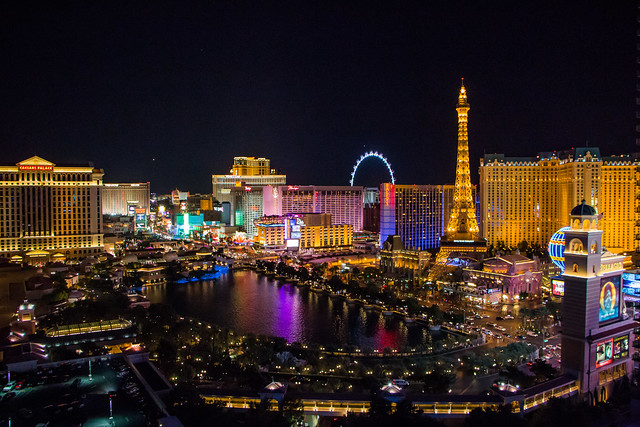
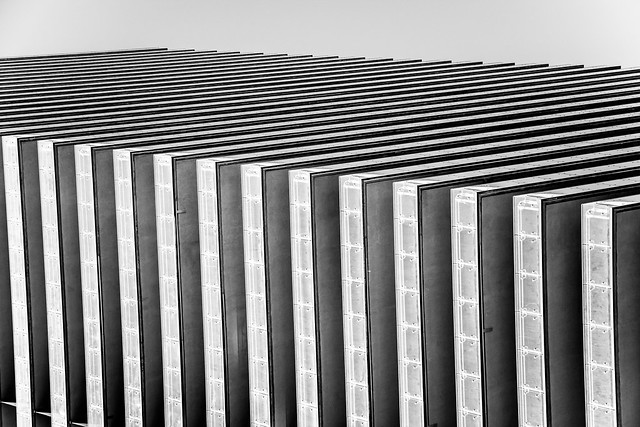
The photos in this post were all taken with this camera and this lens on my recent trip to Las Vegas.

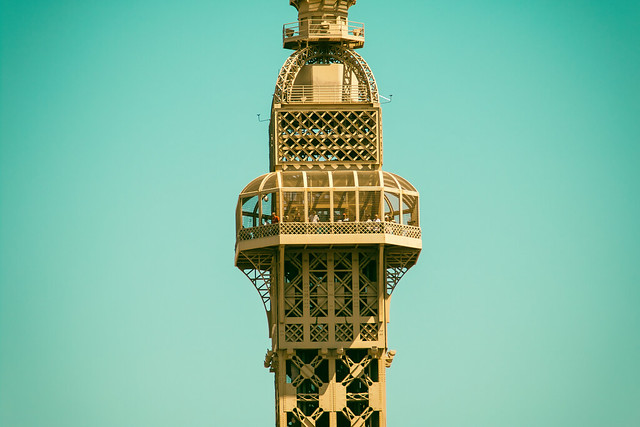
Because the EOS 70D is a cropped sensor, this lens actually has even more reach than a 135mm lens on a full frame. A cropped sensor is 1.6x times smaller than a full frame sensor — full frame sensors are the same size as traditional 35mm cameras.
Practically speaking, what you see when you look through a camera with a cropped sensor at 50mm would be equivalent to what you would see at 80mm on a camera with a full frame sensor. For this reason, if you are shooting sports or wildlife or other subject matter where you want longer reach, the cropped sensor delivers more reach.
Full frame sensors, in my opinion, do better in low light and at high iso settings and are preferable, but they are also more expensive and might not be as necessary for someone starting out.
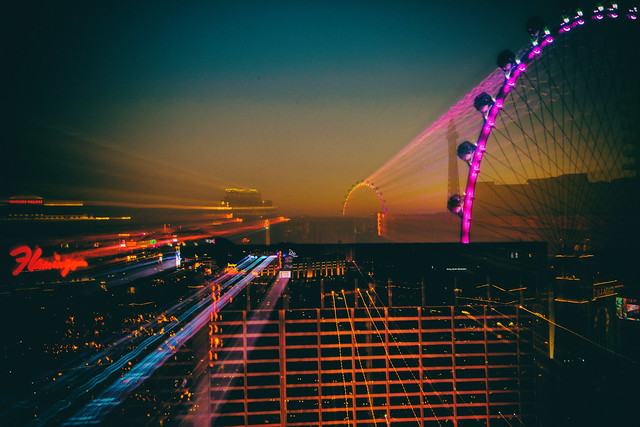
One of the fun things that I like doing with a zoom is zooming while my shutter is open on a long exposure shot. This creates an interesting double exposure zoom sort of effect that I use in some of my photographs. The disadvantage of this zoom is that it is not as fast (low aperture number) as some of the prime lenses.
If you end up starting with this sort of a combo, you might also want to consider the excellent value you get from a Canon EF 50mm f/1.8 II or EF 50mm f/1.4 USM prime lenses. Both of these lenses represent excellent value and are some of the least expensive prime lenses you can buy. You’ll have no problem using the EF-S 18-135mm lens during the day, but at night, or in a much lower light situation, you’ll appreciate being able to put on a faster 50mm prime lens that will work better in less light.
For many photographers the EOS 70D is all the camera you will ever need. Some of the best photographers I know are content to shoot with this body and never upgrade from here. To see some of the best work done with this camera body, check out these photos on Flickr all taken with the EOS 70D. Because this camera will be enough for some folks, I think this is a good place to start.
I personally use my EOS 70D as a second camera — a good backup to use in case something goes wrong with my EOS 5D Mark III and a camera I can keep at my office in case I feel like taking a break during the day and walking around town and shooting. I think it works especially well for street photography given the range you can get with the EF-S 18-135mm lens.
As your passion for photography grows though you will want to consider upgrading to a Canon EOS 5D Mark III and some of the prime lenses that I will review in some upcoming blog posts.
As a reminder, my analysis of my Canon gear is being done in partnership with Canon and I am receiving compensation for this work with them.
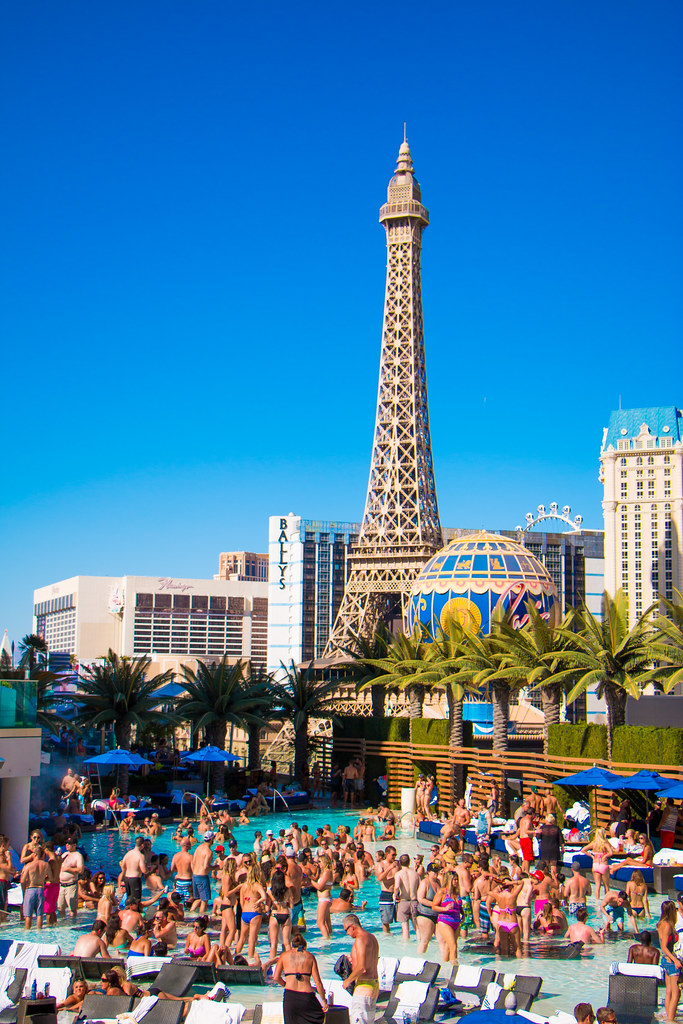


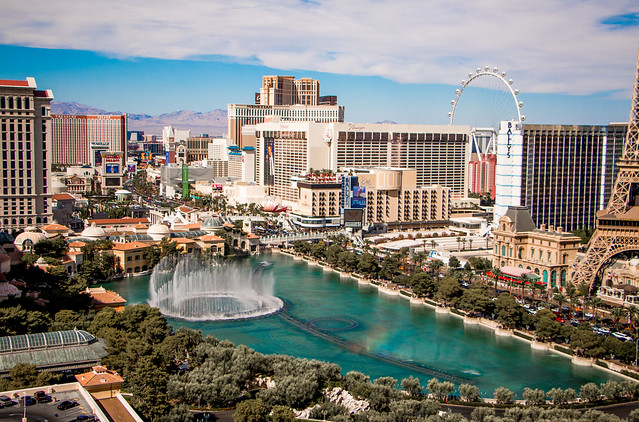

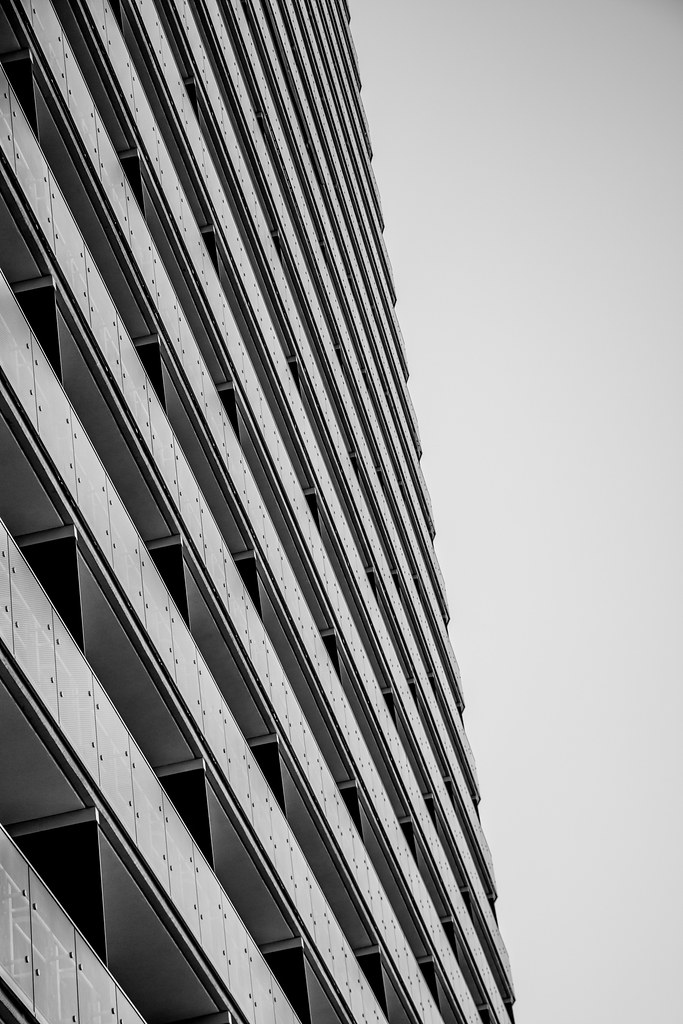
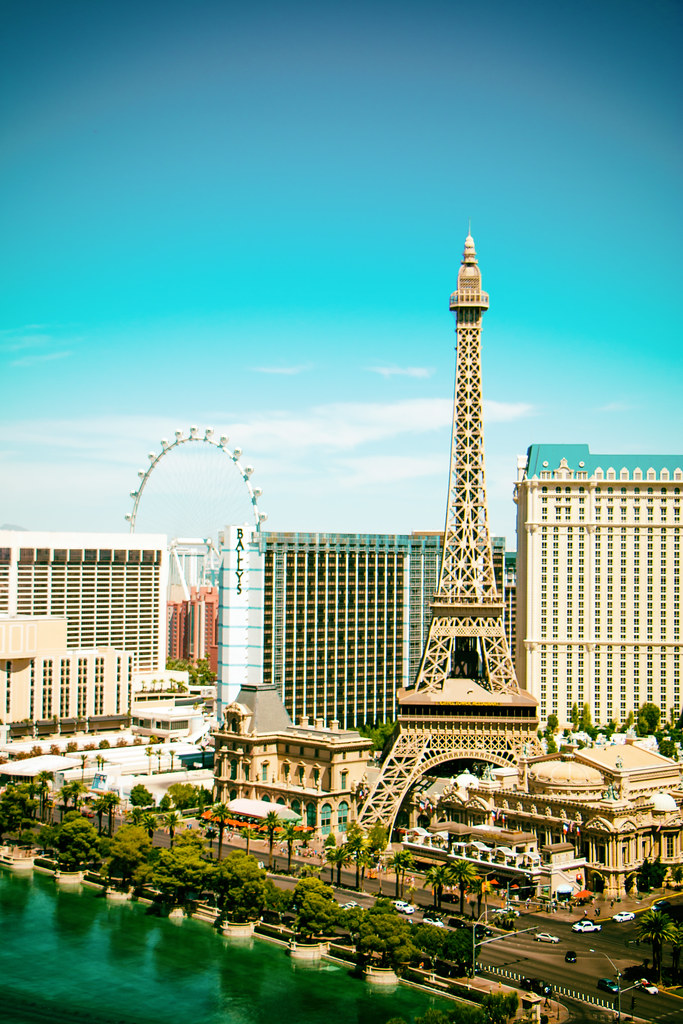
-
A Beginners Introduction to Using Layers
Using layers in your photo editing software is one of the most important things you can do to create great images. Layers are so powerful, even the most basic understanding of them can improve your photography tremendously. The good news is that using layers is extremely easy, and very quick. If you follow along with this tutorial and incorporate the techniques, you’ll see a huge difference in the quality of your images.
While there are countless things you can do with layers, it’s convenient to group them into three main categories:
- Exposure blending
- Local adjustments to specific parts of an image
- Special techniques
We’ll go through all three categories in this tutorial. Please keep in mind this guide is meant to demonstrate the power of layers and why you want to use them. It’s not a software-specific guide and the exact mouse-clicks and menu items may vary slightly among the different photo editing packages available. That said, the use of layers is very similar in all software.
EXPOSURE BLENDING
Exposure blending is one of the best techniques you can use to improve your photos. It’s critical to understand and use this skill. It’s also super-easy!
First, let’s understand why you need to blend exposures. We know that a camera has limited “dynamic range”. That means the camera has a hard time capturing very bright parts of a scene and very dark parts in a single photo. As a photographer, you would generally choose to prioritize one over the other. This is a sacrifice photographers have been dealing with for decades.
Exposure blending solves this problem.You simply take two or more photos of the scene at various exposures and blend the best parts of each exposure to produce a single image where all areas are exposed correctly. Wait you say, isn’t that HDR? In a way it sort of is. The difference between automated HDR software and this technique is that HDR software uses a computer algorithm to choose the areas of your photo to blend, while using layers gives you complete control over the final image. It can also be a much quicker process than using dedicated HDR software. Both processes can be considered “High Dynamic Range” photography, and both have their place.
So how do we do it? It’s very simple, you layer the photos with different exposures on top of each other and then manually blend them. Before we blend exposures, let’s take a quick look at how layers work.
Here we see two photos, one of the Brooklyn Bridge and one from Bora Bora.
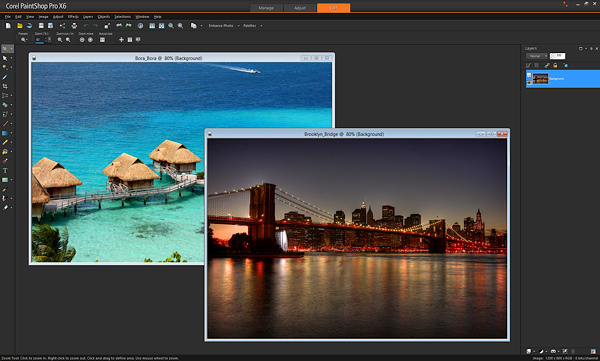
To layer them, I’ll copy-and-paste one photo on top of the other in my editing software. (There are a variety of ways to layer photos depending on the software you use. I use copy-and-paste). After I paste the Brooklyn Bridge photo on top of the Bora Bora photo, you can now see on the right of the screen, where the red arrow points, that the photos are now layered in one document (see image below).
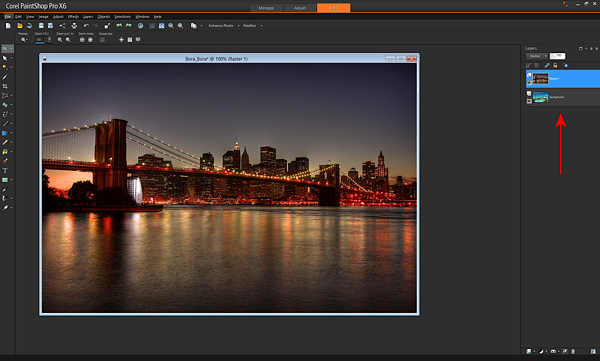
If I were to take an eraser brush and swipe it across the top layer, I will erase that top photo and “reveal” the photo below it. Here’s an example after I’ve taken a swipe with the eraser brush.
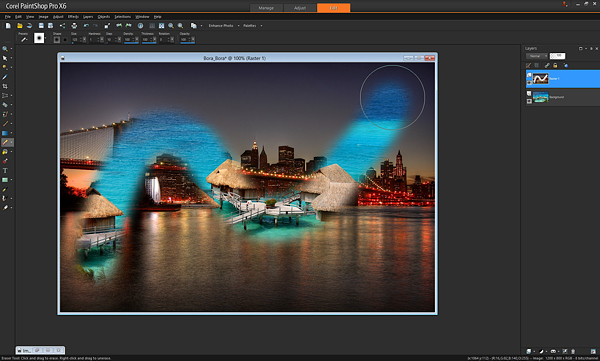
That’s all there is to understanding the very basics of how layers work. With just that little piece of knowledge, your photography can be completely transformed.
In the example above, I used the eraser brush to reveal the layer below. That’s one way of doing it, and I showed you that first because it’s an easy way to demonstrate layers. However, most people use what’s called a “layer mask” instead of the eraser brush. Don’t worry, it’s not complicated.
A layer mask is just another way of revealing the photo below. Instead of using the eraser brush to reveal the bottom photo, you create a middle layer between the two photos called a “mask layer” and you draw on it with a paintbrush – wherever you paint, the top photo is “erased” revealing the bottom photo.
To create a layer mask, just layer two photos on top of each other like I did above, then from the menu click “Create Layer Mask –> Reveal All”. Then you use the paintbrush on the mask to reveal the bottom photo. Painting with the color black reveals the layer below, and if you switch the color to white, it will “undo” wherever you’ve painted black so you can clean up any strokes you didn’t want to make (black reveals, white hides the layer below). Here is the same example below with a layer mask – you’ll see the effect is identical. Notice the new mask layer by the red arrow.
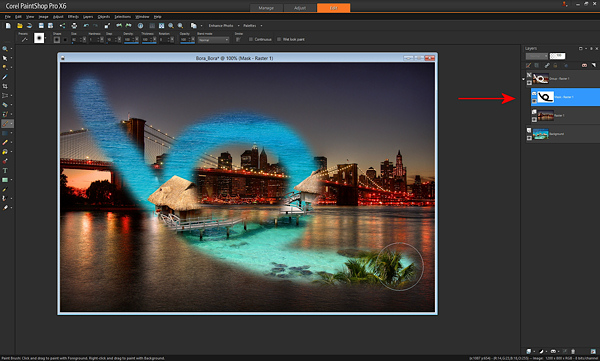
The great part about layer masks is that you can save the entire set of multiple exposures along with the masks in a single file, which you can edit later. The original exposures are left completely untouched. That’s the difference between using a mask and using the “eraser brush” directly on your photo. With a mask, you can always go back at any time and paint with the white paintbrush to undo anything you need to.
Now that you know how to use layers, exposure blending is very easy. Here’s a photo I took in Grand Teton National Park. Notice that the mountains and sky look properly exposed, but the foreground foliage is way too dark.
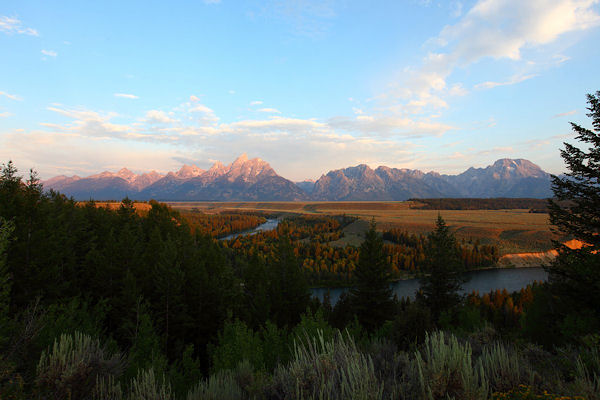
Without exposure blending, the photo above is the best I could do. However, while I was at the location, I also took another photo with the foreground exposed properly. Notice though how the sky is completely blown out and the mountains are overexposed now.
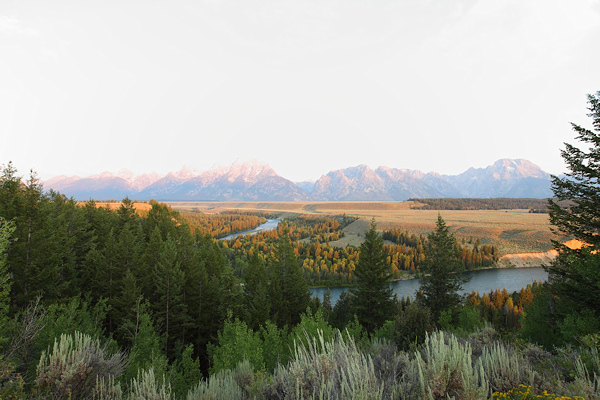
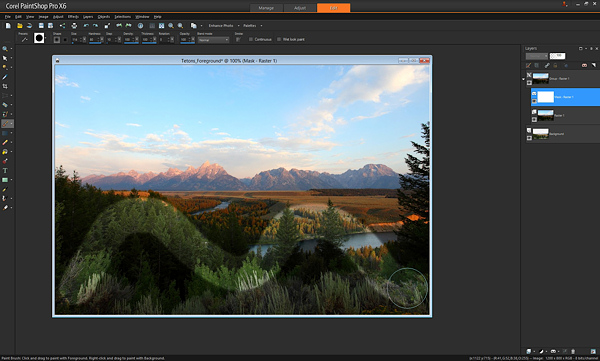
With layers, I can easily blend these two images to create the perfect combination, and it only takes a few seconds. I just take the photo with the good exposure for the mountains and paste it on top of the photo with the good exposure for the foreground. With the properly exposed foreground on the bottom, I use the brush to reveal that bottom photo wherever the leaves are too dark. Here it is after one swipe with the brush. You’ll see the better exposure is revealed below.
That’s it. After some practice, you’ll be able to do this very quickly, with the final photo looking like this.
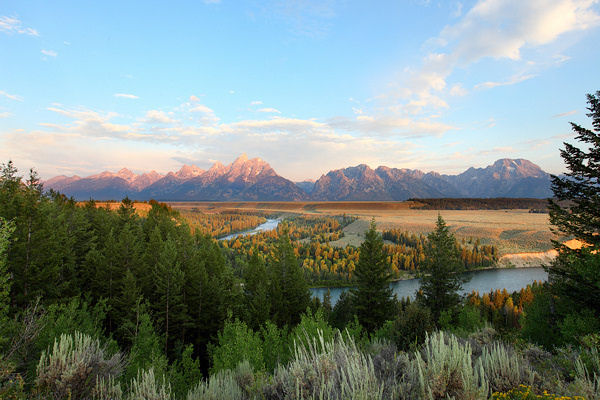
Of course there is one key thing to remember: You must take multiple exposures at varying brightnesses when you’re at the scene!
If you forget, you can sometimes fudge it and brighten dark areas in your editing software, but you can never darken the overly bright parts if you forget to take a photo with those areas properly exposed. Always make sure at least one photo has the bright areas exposed properly (nothing clipped or overexposed).
Here’s an additional example of exposure blending below. How many of us have taken this shot? Sure would be nice to see what’s outside that window.
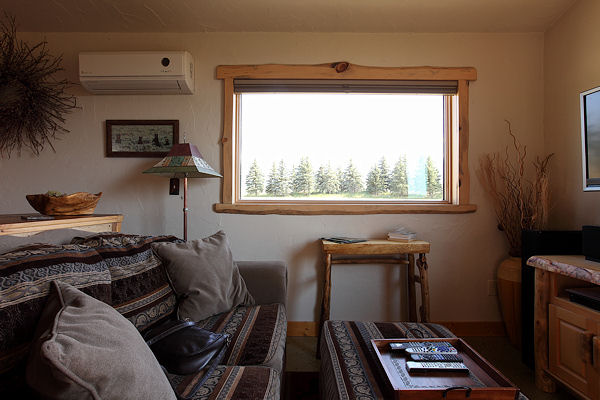
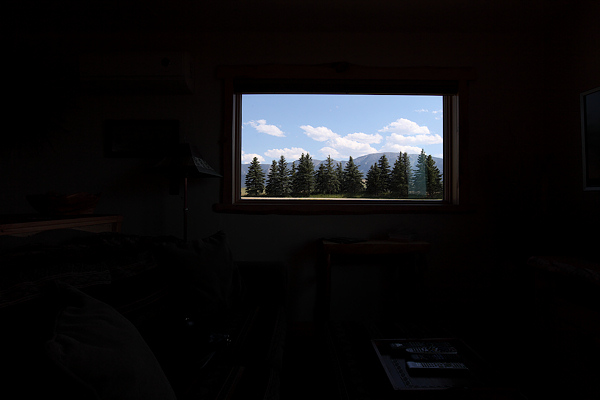
If you took another exposure with the outside properly exposed, it’s simply matter of layering the two photos on top of each other and revealing the bottom photo with the properly exposed window. Here’s the photo for just the outside.
…and the final blend looks like this.
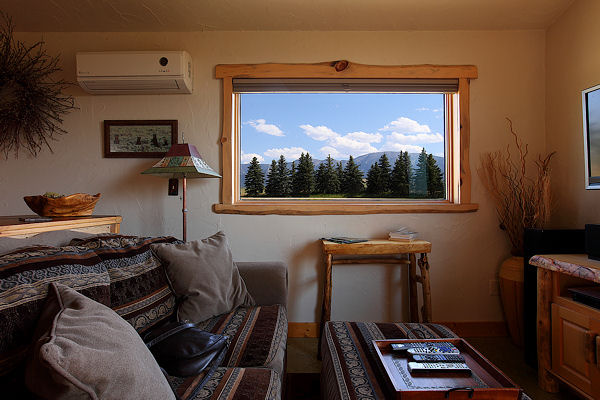
Let’s talk about the opacity and color you can use with the brush when painting on a mask layer. We know that a black paintbrush erases the top photo revealing the photo below, and that a white paintbrush is like an “undo” that puts the top photo back where needed. In addition to just the white and black paintbrush, you can also use any shade of grey. Using a grey paintbrush blends the two photos together, making the top photo slightly transparent so you see both the top and bottom photo at the same time. The darker the grey the more the top photo is erased. The lighter the grey, the more the top photo is visible. This allows for very subtle and realistic blending of the two photos. You may also see it as “opacity” in your software. When the brush opacity is 100%, the brush is at “full strength”. When you swipe the brush, it erases 100% of the top layer fully revealing the layer below. If you set it for 50%, a swipe of the brush works at half-strength.
Here’s an example of a swipe of the brush at 50% opacity or medium grey.
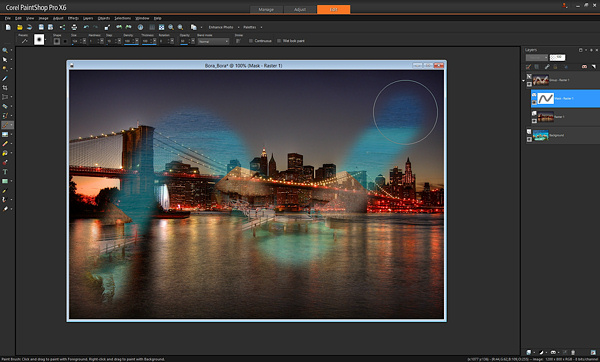
Notice how you can see both the Brooklyn Bridge and Bora Bora at the same time. Adjusting the opacity or grey-level lets you apply the effects more subtly and with more control as needed. For example, with the Grand Teton photo in the earlier example, where the foreground leaves meet the background mountains, I might use the brush with 50% opacity so it’s a nice seamless blend, that’s unnoticeable. Another way to create a seamless blend is to use a brush with a low “hardness” — that is, the center of the brush is 100% opacity while the outer edges are less strong, creating a smooth effect.
LOCAL ADJUSTMENTS
After exposure blending, one of the most important techniques you can do with layers is to make local adjustments. That just means tweaking certain parts of the photo while leaving the rest of the photo as is.
Below is a great example of using layers for a quick local adjustment. Have you ever taken a photo where different parts of the photo have mixed lighting and different white balances? In the photo below, you can see that the camera’s flash has cast an unflattering blueish tint onto the people’s faces, contradicting the warm glow of the Eiffel Tower in the background.
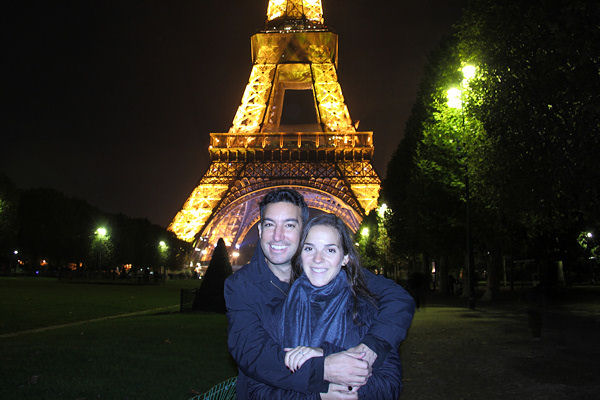
With layers, you can easily solve this problem. Here is the corrected photo.
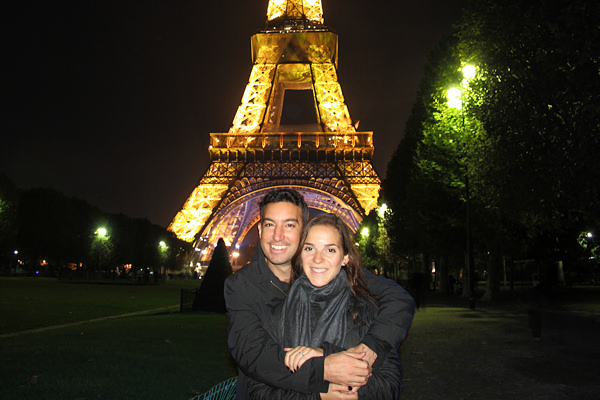
To do this requires just three quick steps:
- Create a copy of the original photo and set it aside
- Adjust the original photo paying attention only to the area that needs to be fixed (in this case adjust the White Balance of the image paying attention to the faces and ignoring everything else)
- Paste the untouched copy that you put aside on top of the adjusted photo, and “erase away” the top photo revealing the adjusted layer below, just where you want to see the adjustment.
In this example, you can see exactly where I “erased away” the bad white balance revealing the better white balance below.
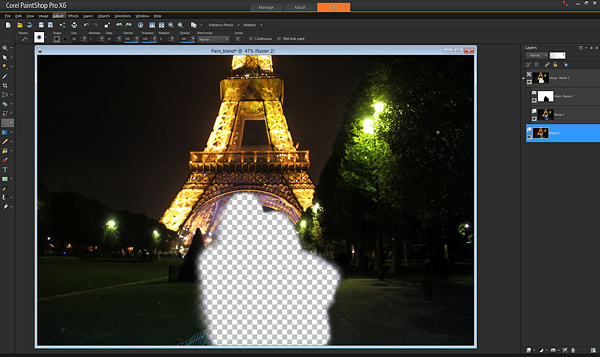
If you shoot in RAW format, you can create the two versions of the photo with the two appropriate white balances in your RAW converter. If you don’t shoot raw, just create a second copy of the original photo, change the color balance in your editing software, and layer as described above.
Using layers you can selectively apply saturation adjustments, brightness/contrast, sharpening, etc. This allows for an incredible amount of control over the final image. Just create a version of the photo with the adjustments, put it as the bottom layer, and reveal it with the brush just in the spots you choose.
For example, in this photo of the Rockefeller Center Christmas Tree in NYC, just the lights on the tree needed a levels and sharpness adjustment. You can see the difference that local adjustment makes to the entire photo in this before and after.
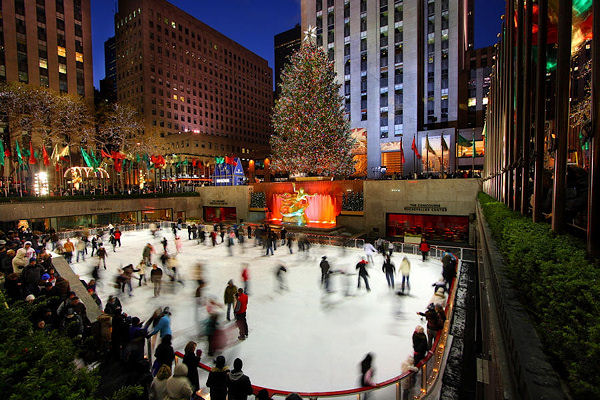
Before
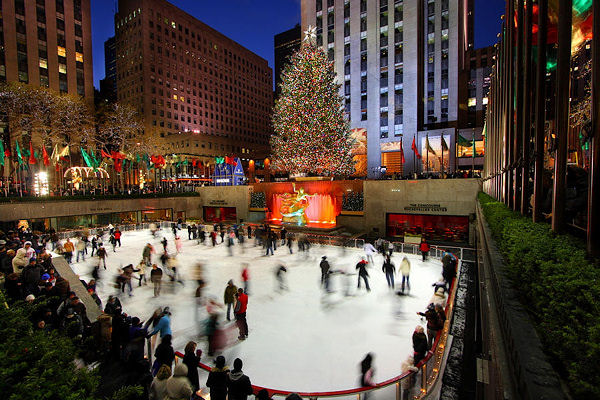
After
SPECIAL TECHNIQUES
In addition to using layers for exposure blending and applying local adjustments, you can use layers for a wide variety of additional purposes. I’ve listed some really cool techniques below.
Blinking in group portraits: Have you ever taken a group shot and there’s always one person blinking or making an odd face? Next time, mount the camera on a tripod and use your camera’s continuous shooting (i.e. rapid-fire) mode to take a few photos in quick succession. If one person is blinking in the photo you like best, just put that photo as the top layer and put another photo without him blinking underneath, and “erase” the top photo with the blink to reveal the bottom photo below with his eyes open.
For cool sports effects, use a tripod and take rapid-fire photos of the action, layer the photos, and “erase” away the top photo to reveal the person moving in the subsequent shots.
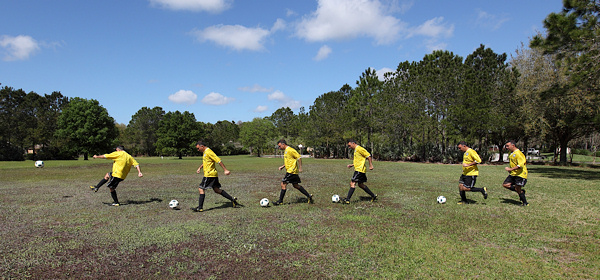
You can get really creative with this effect – here’s six of me playing a soccer game.
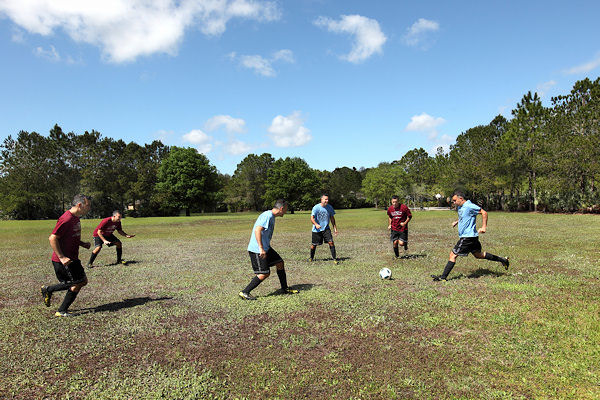
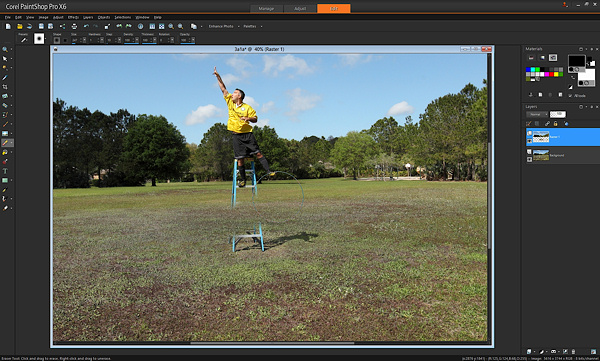
For special “flying” effects, take two photos from a tripod, one with a person on a ladder, one with the just the background (ladder and person removed). Then layer the photos and “erase” the ladder.
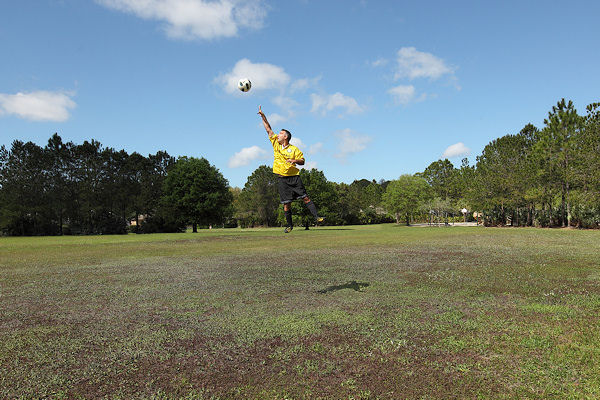
Here’s what it looked like with one swipe of the brush “erasing” the ladder and revealing the background.
Many people find that automated HDR software can produce unnatural effects. If you’ve used HDR software to create an HDR image that you like, but there are certain parts that appear unnatural (for example, the sky), blend a little bit of the original non-HDR photo using layers to make it more natural.
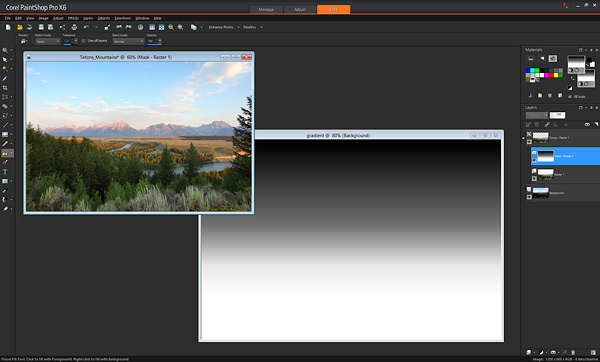
You already learned that painting with a black brush reveals the layer below. Wherever there is black, the top layer is “erased”. What if we didn’t use a brush at all, and instead used another way to paint black? This opens up a whole new set of possibilities. For example, this is a simple gradient, a pattern that goes from white to black gradually.
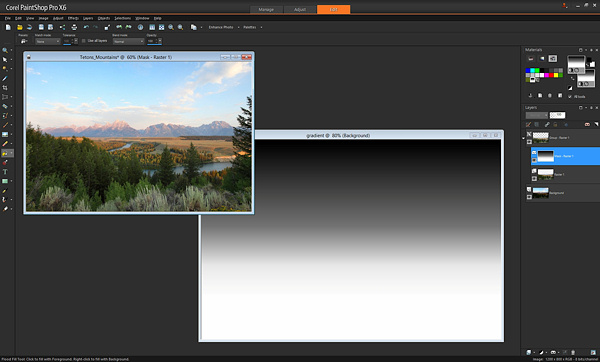
If instead of using a black brush to reveal the bottom photo, we used this gradient, we get an instant Neutral Density filter! Apply this gradient using the Fill tool on the mask instead of painting with a brush, and where the black is, the bottom photo will be revealed. Put the black part of the gradient over the area of the photo where you want to adjust exposure and you’ll have a beautiful transition.
You can also use other tools to apply black to the mask. In the earlier example with the view outside the window, rather than painting with a brush, you could use the “draw rectangle” tool to place a black rectangle over the window, revealing the view outside.
Hopefully you’ve seen just how simple it is to use layers in your work, and how powerful they are. From blending multiple exposures, to adjusting your photos and using special techniques, layers take your images to a whole new level.
Please feel free to ask any questions in the comments below.
The post A Beginners Introduction to Using Layers by Paul Timpa appeared first on Digital Photography School.
-
18 November, 2013 – Introduction to Landscape Astrophotography
In our latest tutorial, An Introduction to Landscape Astrophotography, Adam Woodworth describes many of the tools and methods that he uses to create fine art landscape astrophotographs. He focuses on capturing photos of the Milky Way with minimal star movement.
You can win an all-expenses paid photographic expedition to Antarctica, along with air fare from anywhere in the world. The value of this prize is $ 15,000.
The Luminous Landscape wants you to try any of our more than 60 training or travel videos and our new free video player. Each purchase is an entry, and an annual subscription that includes all previous as well as new videos counts as six entries. The winner of a free lifetime subscription is also chosen from each month’s entries.
Find Out More
-
An Introduction to Blend Modes in Photoshop
This week I had a number of readers email to ask about the topic of ‘blend modes’ in Photoshop. So I thought I’d see what our friends at Phlearn have on the topic with their great videos. Here’s a great introduction to the different types of blend modes in Photoshop:
Enjoy this video? Check out the tutorials Phlearn have created on their website.
Post originally from: Digital Photography Tips.
Check out our more Photography Tips at Photography Tips for Beginners, Portrait Photography Tips and Wedding Photography Tips.
An Introduction to Blend Modes in Photoshop
-
An Introduction to the Inverse Square Law
I don’t know about you, but I was never much of a math student. I needed a tutor in high school for both geometry and physics. I chose a double major in college (Journalism/English) that required no math. I practiced law for fourteen years, where any math I needed was either pretty easy or done on a calculator. Even when I ditched my briefcase for a camera bag and embarked on a new career, I felt pretty secure in the knowledge that confusing math had no place in the world of photography.
And then the Inverse Square Law reared its ugly head.
It didn’t jump out and attack me right away. No– the Inverse Square Law is much too cunning for that. It was patient. It bided its time. It waited for me to get comfortable in my new skin a professional photographer. It waited for me to feel secure in my knowledge and execution of studio lighting and off-camera flash. And then it showed itself.
We all deal with light. It is the defining element of what we do. We capture light in a box and use it to tell a story. Some photographers put themselves in the “natural light” category, while others work their magic with a firm grasp of off-camera flash. While the Inverse Square Law comes into play more often with strobes, it is absolutely a concept that applies to every light source, and therefore affects every photographer.
So, what is it? In all of its overly technical glory, the Inverse Square Law– as it applies to photography– is an equation that relates the intensity of a light source to the illumination it produces at any given distance.
Huh?
Regardless of how you classify yourself as a photographer, you already know that light travels. It can be diffused. It can be reflected. It can be deflected. But it travels. This means that over time and distance its intensity can and will diminish. What does that mean for your photography? It means that doubling the flash-to-subject distance reduces the light falling on the subject to one-quarter. Logically, we might assume that doubling the distance would reduce the power by half. In actuality, however, doubling the distance reduces the power by 75% More simply put, the Inverse Square Law is used (among other things) to determine the fall-off– the difference in illumination on a subject as it moves farther away from the light source.
Let’s take a look at a graphic that will help us get our heads around this. We are looking at a blank wall approximately ten feet long, illuminated with a single light source. Meter readings along the wall show the progression of one-stop increments. Notice how we move one stop from f/22 to f/16 in a matter of inches, yet we move one stop from f/4 to f/2.8 over the course of a few feet.
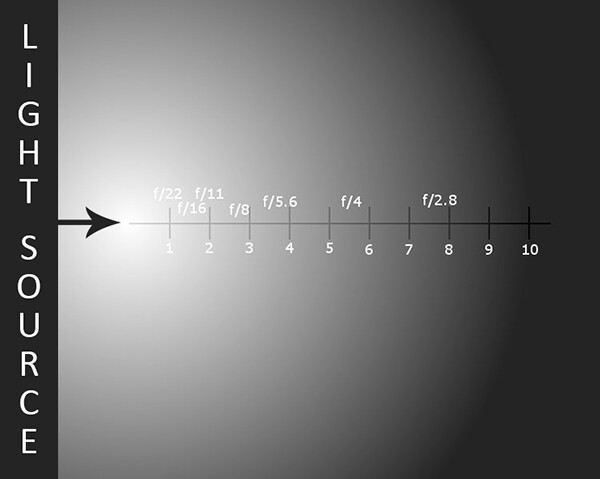
The Inverse Square Law relates the intensity of a light source to the illumination it produces at any given distance. One-stop increments are spread over a wider area the farther the light travels.
Now that we understand what the Inverse Square Law is and how it affects the intensity of light, how do we apply it to our photography? Let’s assume that we are photographing a family of four on our wall. If we position them closer to the light– let’s say in the f/8 – f//11 range– we are going to have a lot of contrast between the subjects. Those closer to the light source catch the brunt of the light and may be overexposed, while those further from it could be underexposed. The variance in the light over such a short distance means the light falling on our subjects will be very uneven. If, on the other hand, we move our family down the wall to the 7- or 8-feet mark, we have a wider area in which to achieve a more even exposure across the group.
Remember, though, that the same principles apply not only to our subjects, but to the relationship between the light source and the background as well. If we are photographing our imaginary family with a plain white wall for a background, simply moving them closer to or farther away from the wall will affect whether the wall appears white, gray, or even black.
So far, we’ve discussed what the Inverse Square Law is and how it applies to off-camera flash. But what about natural light? The same concept applies, whether you are using window light, a reflector, a sunset, or any other non-electrical light source. The principles of how light travels do not change just because the light in question has no batteries. Doubling your subject’s distance from the window, for example, is going to result in the same 75% drop in intensity that you will experience with strobes or speedlights.
So, what’s the bottom line? The best advice I can give about the Inverse Square Law is to simply be aware of it and understand its potential impact on your photos and lighting setups. The more you understand light and how it behaves, the better equipped you will be to efficiently compose and create consistent images with less trial and error.
Post originally from: Digital Photography Tips.
Check out our more Photography Tips at Photography Tips for Beginners, Portrait Photography Tips and Wedding Photography Tips.
An Introduction to the Inverse Square Law
-
Introduction to Puppet Warp in Photoshop
By Frank Wang
One of the most retouching powerful tools in Photoshop is a relatively new feature called Puppet Warp. Introduced in Photoshop CS5, it can be extremely useful when you want to bend and shape parts of your image as if it were silly putty (or, as the name implies, like a puppet). I am going to give you a quick crash-course into how to make the most out of Puppet Warp.The first step to puppet-mastery is to isolate the object you want to warp. This often involves making a selection of the object and deleting the background.
Assuming you are familiar with selection tools, I am going to start with an isolated image below. I would suggest making the object you want to edit into it’s own later after you’ve selected it (control+J or command+J). Puppet Warp works even if you don’t isolate the object from the background, but I find it less effective as you’ll end up moving background elements unintentionally. Not isolating the object will also slow things down, as you’ll be moving more pixels than necessary.
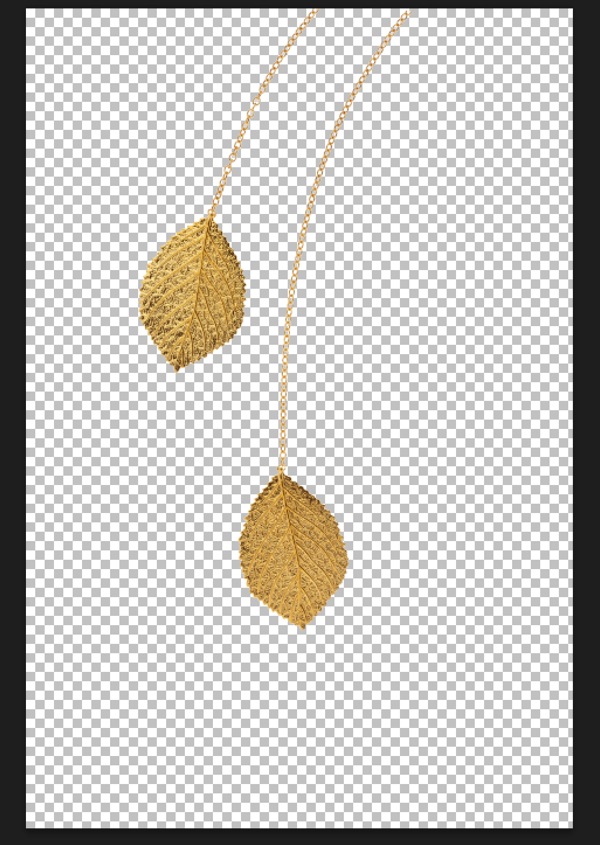
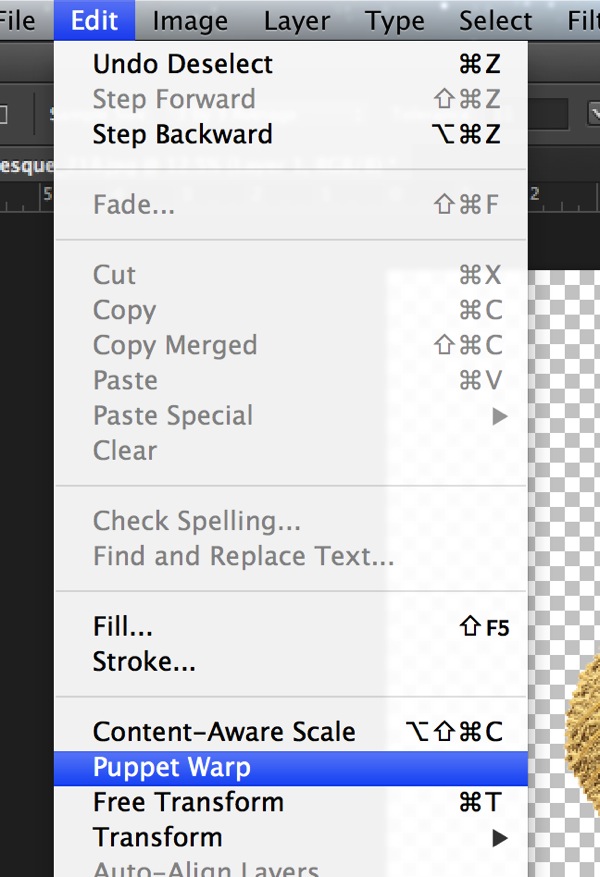
With the layer you want to edit selected, go to the Puppet Warp tool, which is found under the “Edit” menu.
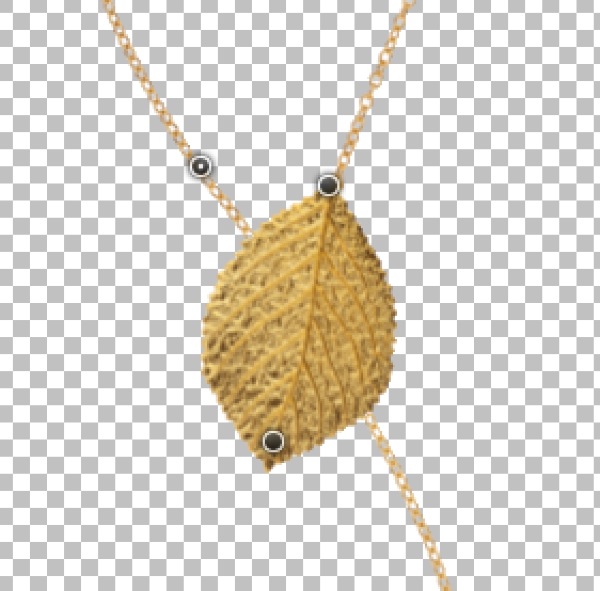
Once you’ve entered the Puppet Warp mode, you can start adding anchor points or “joints” that function both as anchors and points where you can click and drag. I’ve added some anchor points to my jewelry pieces below.
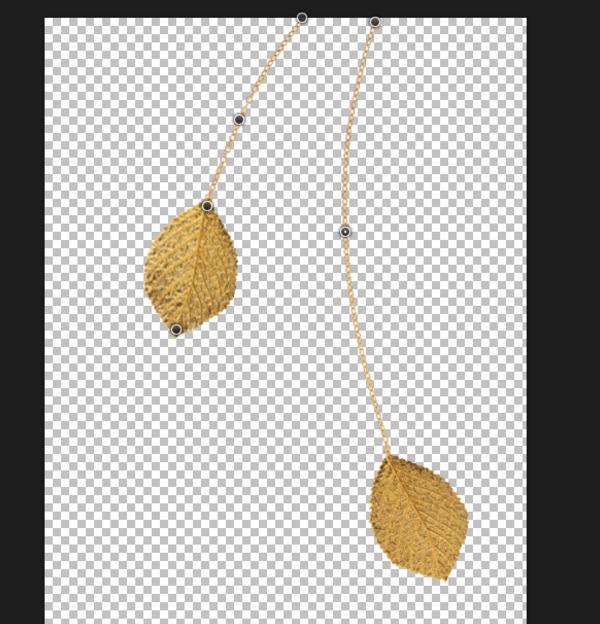
Next, select an anchor point and start dragging. Puppet Warp is a fairly intuitive tool once you’ve added some anchor points and started to move them around. The anchor points you are not dragging will stay put, while the ones you’ve selected (hold shift to select multiple points) bend to your will. Cool, right?
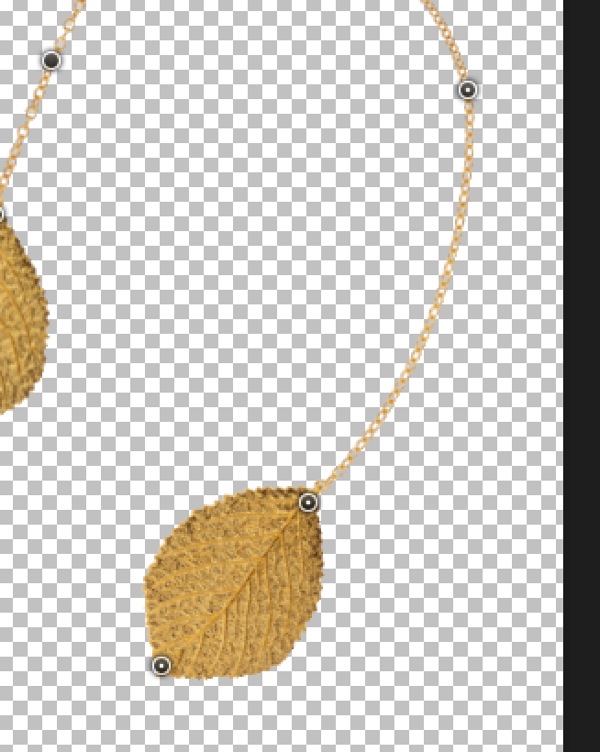
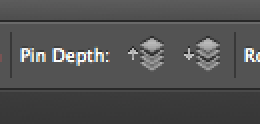
Another useful feature of Puppet Warp is the Pin Depth option. As you add anchor points and move them, you may discover you want to move one part of the object behind another. This is where Pin Depth comes into play. If I want a part of this chain to move behind the left leaf, all I have to do is to select the anchor point on the chain, click on the Pin Depth button with the “down” arrow, and voila, I can drag that part of the image behind another.
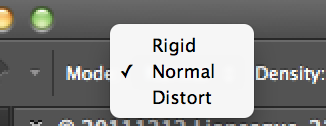
The “mode” option of Puppet Warp allows you to control how dramatic the changes to your image are when you move an anchor point. The default is Normal, which should suffice for most situations. For more dramatic changes, you can select the “Distort” option.
To delete anchor points simply select the point in question and hit the DELETE or key on your keyboard. Alternatively, you can hold down the ALT key and click an anchor point to delete it.
Puppet Warp is fairly intuitive but it takes a bit of experimenting to get a sense of how best to use it. I suggest alternating between the “Rigid”, “Normal”, and “Distort” modes to get an idea of how the tool works. Once you’ve gotten the hang of it, Puppet Warp is a VERY powerful tool.
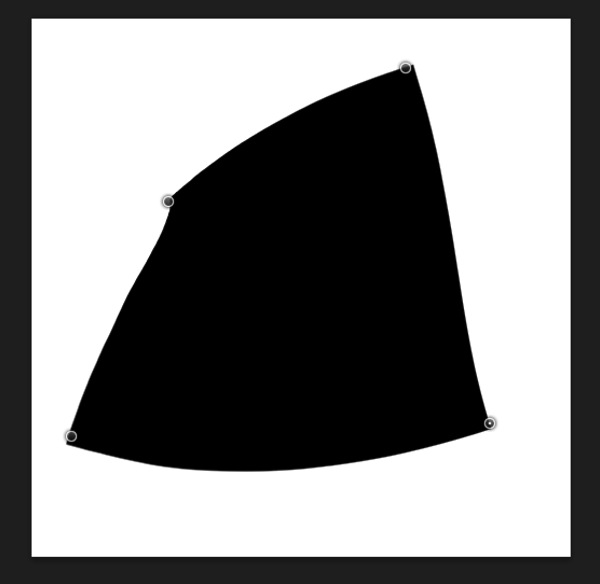
As an additional example, I am going to warp the following black square. I’ve added four anchor points at the corners.
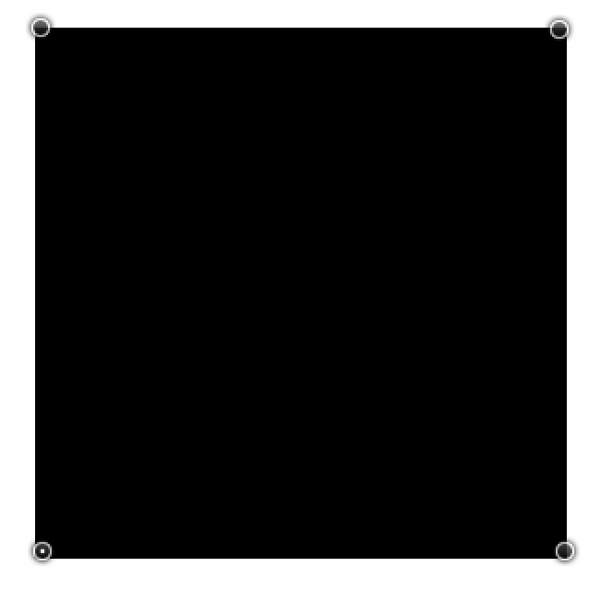
Once I’ve added the anchor points I can bend and stretch the rectangle to something else entirely.
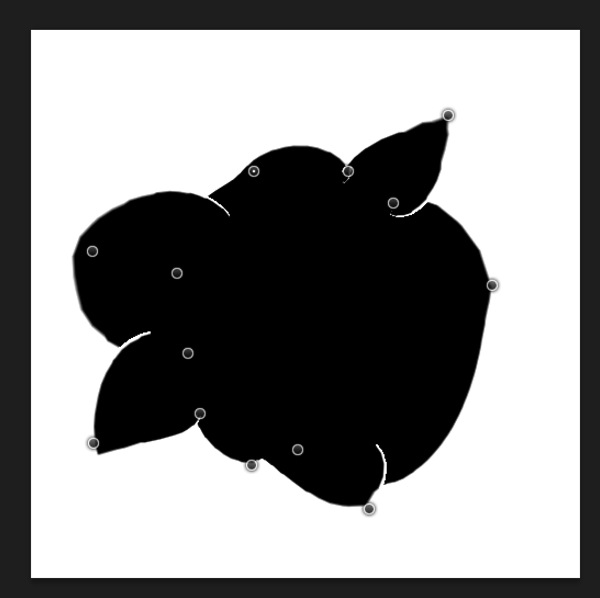
If you want to edit it further, you can add even more anchor points until you’ve warped the square to something akin to a Rorschach inkblot test. What do you see? A moth? A bird? Hm…
Frank Wang is a NYC photographer specializing in portrait and architectural photography. You can find him online at www.frankwangphotography.com and www.framephotographics.com. Connect with him via Twitter / Instagram: @frankwangphoto
Post originally from: Digital Photography Tips.
Check out our more Photography Tips at Photography Tips for Beginners, Portrait Photography Tips and Wedding Photography Tips.
Introduction to Puppet Warp in Photoshop
-
An Introduction to Buying Used Lenses
A Guest Post by Jeff Guyer.
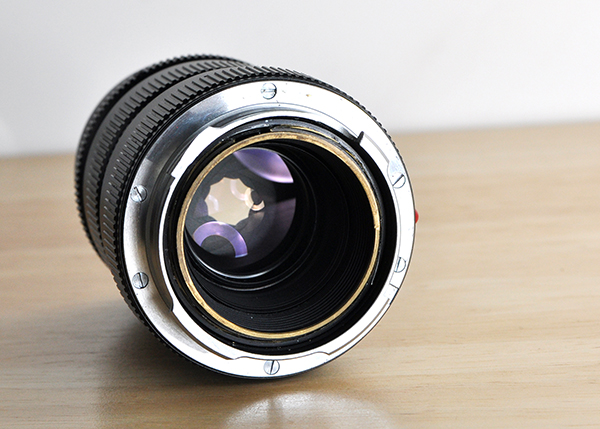
Let’s face it– photography is an expensive hobby and an even more expensive profession. Camera bodies, speedlights, reflectors, memory cards, lighting equipment, backdrops, batteries, stands, hard drives, tripods, back-ups, gear bags, hard cases, the latest gizmo or gadget-that-you-seriously-cannot-possibly-live-without…and don’t forget the glass. Next to the camera itself, quality lenses make up the most expensive part of just about any gear closet.
In an ideal world money would be no object and pesky things like gear budgets would be non-existent, paving the way for me to purchase all of the shiny, brand-new lenses I could possibly want (“Hi, Nikon? I’ll take one of everything!”). The reality, though, is that I have to balance my lust for gear against how many meals my rapidly growing 12-year-old son gets to eat each week. The truth is, the buying and selling of used lenses has almost become an industry unto itself. There are a lot of high-quality second-hand lenses out there, which means you can satisfy your “need” and still save a good bit of money if you’re smart.
Where to begin? Well, there’s nothing for you to buy if you don’t hook up with…
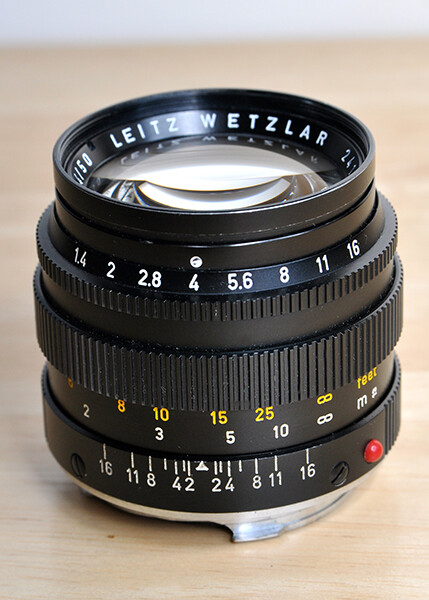
The Right Kind of Seller
Even though it should go without saying, I’m going to say it. Do your homework! It’s not enough to know everything about WHAT you want. You may have read all about the sweet spot on the Nikkor 24-70 f/2.8, or the minimum focus distance of the Canon 70-200 f/2.8 L-Series, but when you’re getting ready to drop a significant chunk of your hard-earned money on a lens, you need to find out everything you can about the person selling it.
If you’re contemplating a face-to-face transaction, ask around. Get references or referrals if you can. In this day and age of Facebook, Twitter, and Google+, chances are good that buyer and seller each know someone in common. If you’re buying on ebay, carefully check the seller’s feedback and ratings, particularly the comments. Also take a few minutes to compare the price against other auction sites and even that of a new lens.
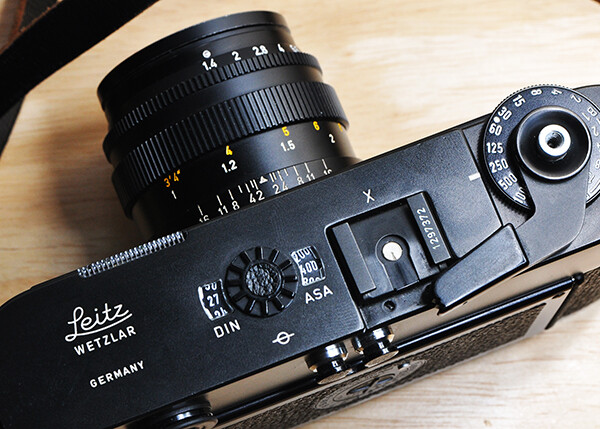
Although I have purchased lenses on ebay with excellent results, it is generally not my first choice. After all, the first time you are going to have the lens in your hands is after you’ve already paid for it. Unless the seller has blatantly lied about the condition, you’re stuck with it (and sometimes even if they have). It’s entirely possible that what has been advertised as “minor wear” is actually a much larger scratch than you’re willing to overlook. I tend to be kind of nitpicky in that department, which just one of the reasons why I recommend buying used lenses in person whenever possible.
Try buying locally if you can. First, if you and your seller travel in the same circles, you exponentially increase your odds of an honest, above-board transaction. Nobody is going to risk their reputation over a used lens. Another important benefit to purchasing locally is the fact that you can have an actual visual and physical examination of the lens before you buy it. Being able to check it out and– more importantly– put it on a camera and test it are going to be the two most important factors in your decision to actually buy the lens. Never, ever underestimate these advantages.

The Physical Exam — What to Look For
For starters, a quality lens is just going to feel good in your hands. Take a minute or two to look for anything obvious– dings, scratches, or any places where the finish may have rubbed off from excessive or careless use. Are the rubber grips on the zoom and focus rings snug and intact? Do the rings turn smoothly? How are the filter threads? Are switches intact and functioning properly? Only you can decide for yourself how much is too much, but remember that what you see on the outside is usually indicative of the care with which the original owner treated the lens. Also keep in mind that the finish on a quality lens should not rub off, regardless of age and proper use.
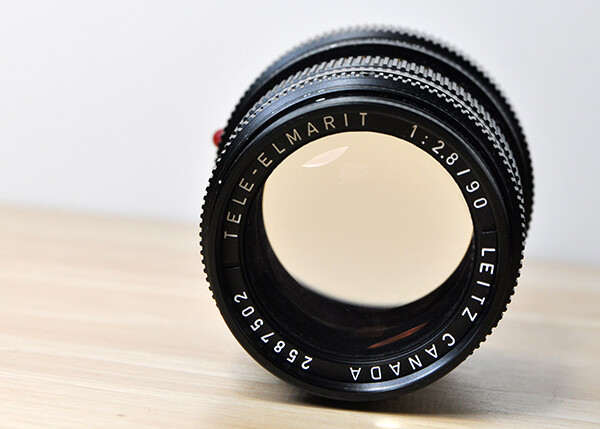
Next check the front element, preferably in bright light. Hold the lens against the light at different angles, checking the glass and coating for any scratches or other imperfections. Some of these imperfections MIGHT not necessarily affect image quality, but they should absolutely be a factor in negotiating the price. If the lens has an aperture ring, open it all the way and try looking straight through it like a telescope. Do you see any dust, mold, or anything else that shouldn’t be inside your potential investment?
Now turn it around and check the mount. Is it clean? Are there any scratches? Is it bent or seemingly out of alignment in any way? Are the contacts clean and in good condition? Remember that this point of connection is the only thing that lets the camera communicate with the lens. This is where it can all go wrong if you’re not careful. Any of the imperfections discussed so far might not necessarily be deal-breakers, but any problems whatsoever with the mount should be. Just walk away.
The Fungus Among Us
If you’ve read enough ebay auctions or classified ads for used lenses, you’ve been assured that the object of your lust and desire is free of not only dust and other particles, but fungus and mold as well. That’s great, but how would you know? The fungus/mold issue comes up most often in the case of older lenses in particularly humid climates. Early stages will resemble those dried water spots on your bathroom mirror, while more advanced stages can look like spider webs. If you see this, do not even think about attaching this lens to your camera. Fungus and mold are living organisms and can spread, both to your camera and other lenses that are subsequently mounted to it.
Test It!
If you’ve purchased used lenses before, chances are you either didn’t test it at all, or if you did test it, you probably took a few random shots in the parking lot where you met the seller to make sure the auto-focus was working and that something actually showed up on your camera’s LCD. Don’t sell this part of the process short. Take a methodical approach.
You’ve changed lenses enough times to know how it should feel. Does the lens turn smoothly or does it feel like you’re forcing it? Is it too tight? Too loose?
Now shoot. I’m not talking about two or three shots. I’m talking about 100 shots. To really put this potential purchase through its paces you need to take close, mid-range and far focus images at multiple apertures, and in small increments along the entire zoom range of the lens. Was that spot there at f/16 or only at f/2.8? A problem that shows up at 200mm might not manifest itself at 70mm. Try manual focus. Listen for strange noises. Shoot something dark. Shoot something light. Does the auto-focus sound right? Do you hear anything rattling around inside the lens?
Check The Images
Even people who are careful about testing used lenses before they buy them hardly ever think to bring a laptop with them so they can get a good look at the test shots. We all know that the LCD is an unreliable indicator of image quality when we are photographing for our clients, so why should you automatically trust it when you’re about to hand over your cash to a stranger? If the seller really is on the up-and-up they won’t mind sticking around for a few extra minutes while you check the image quality against the only standard that really matters– your own two eyes.
A Special Note to Vintage/Film Camera Collectors
When lenses sit unused for an extended period of time, the special oil used to ensure that aperture blades move smoothly can leave shiny spots on the blades and cause them to stick. It will usually be visible on the blades as you adjust the ring, but if the lens has a depth-of-field preview switch, adjust to the smallest aperture and press the DOF preview button. Properly functioning aperture blades will snap smoothly into place without sticking.
The Bottom Line
I know we all love the excitement of opening new boxes from B&H and Adorama. It would be a mistake, however, to avoid well-cared-for lenses just because they’re previously owned. Nikon, Canon, Tamron, Sigma and the others spend a great deal of time and money researching and producing lenses which are made to last. If you take a smart, methodical approach there is no reason why one of these previously used lenses can’t find a valuable, productive spot in your camera bag.
Jeff Guyer is a photographer based in Atlanta, GA. In addition to shooting portraits, architecture, sports, weddings, and just about anything else that pauses in front of his lens, he also teaches a Digital Photo Challenges class for kids. Follow him on Facebook at http://www.facebook.com/guyerphotography or on Twitter @guyerphoto
Post originally from: Digital Photography Tips.
Check out our more Photography Tips at Photography Tips for Beginners, Portrait Photography Tips and Wedding Photography Tips.
An Introduction to Buying Used Lenses
-
An Introduction to Bird photography
A Guest Post by Lithuanian Photographer Tadas Naujokaitis.
Birds are very interesting creatures, but it’s not so easy to photograph them. Wild birds usually don’t pose where you want and, moreover, it’s often difficult to get close enough to take quality pictures. But if you know some basics of bird photography, it becomes much easier to capture amazing moments of the birds’ life.
Equipment
It’s not necessary to have an expensive camera of lens, however the proper equipment lets to take bird photos easier.
Lens
Most birds are quite shy, so you need at least 200mm (300mm is better) to take pictures of them. Longer focal length not only lets to photograph birds from larger distance, it also gives more blurred background. However more millimeters (or larger aperture) means more expensive, larger and heavier lens. Knowing all that, I think that 400mm f/5.6 lens is the best, if you want to have as much millimeters as possible, not too small aperture and still want to be mobile. Of course, you can make magnificent bird images with 100mm or less, just you should find more courageous birds or compose them to landscape.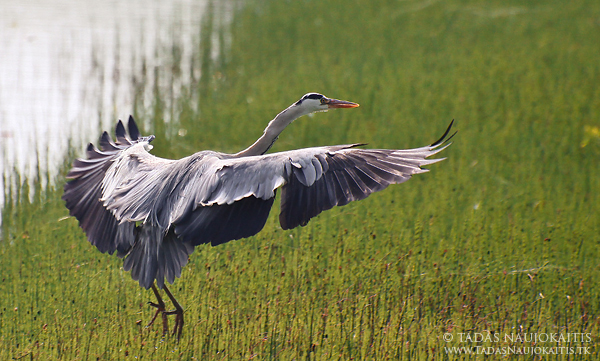
Grey Heron is landing far enough where it feels safe, but with 400mm it’s possible to capture it with all the details.
Camera
In bird photography, almost all DSLR’s will make a good job. However, if you’re planning to photograph birds in flight, pay attention to fps (frames per second), high ISO results and AF (autofocus) system’s accuracy. If you don’t have a DSLR camera, then bird photography becomes a bit more difficult (especially due to slow AF), but don’t give up – a good photographer, I believe, will make better bird photos with mobile phone than a poor one with the most expensive equipment.Tripod, monopod, flash, even remote control sometimes help much, but usually aren’t necessary.
Camera settings
It’s very important to know what settings to choose in certain situation to get most from your camera.
Exposure
In bird photography lens with long focal length are usually used, so it’s very important to set not too long exposure, if you don’t want that camera shake would cause blurry pictures. The rule is to set expose not longer than focal length of your lens. For example, if your lens focal length is 400mm, you need to set at least 1/400 exposure to get sharp images. However, it is valid only if you have a full-frame camera. If your have a DSLR with smaller sensor (e.g. APS-C DSLR – with 1.6 crop factor), you need to multiply millimeters of your lens from the crop factor. This time that would be (400 x 1.6 = 640) 1/640 exposure. If you don’t have a DSLR, you usually won’t need to multiply anything – the focal length, written on your camera lens, usually already is multiplied (actually it’s 35mm equivalent). Today, most lens or cameras have image stabilization (IS, VR…), and that helps much in low light conditions. Using it, you can set as many steps longer exposure, as you find in your lens/camera specifications, and get sharp images. For instance, if there is a 2 steps 400mm lens stabilizer, you can set 2 steps longer exposure (1/400-1/200-1/100, with APS-C camera: 1/640-1/320-1/160). When using tripod, of course, these rules to minimize camera shake are not so important.If you want so freeze action, set 1/1000 or shorter exposure, if you would like to show movement, use 1/60 or longer.
Aperture
As you may already knew, aperture controls DOF (depth of field). That means, if you want a more blurred background, set the largest aperture (the smallest number). However, when using telephoto lens, some parts of bird’s body may appear out of focus, so pay attention where exactly you are focusing (that usually is the bird’s eye). If necessary, close aperture a bit.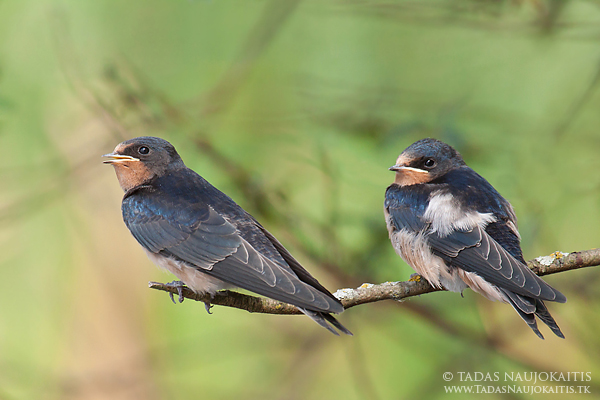
When photographing these young Swallows I needed to set f/8 aperture to get both birds in focus.
ISO
In bird photography, as in anywhere else, the lower ISO speed, the better. However, it’s much better to set ISO 800 or 1600 and get a sharp picture, than ISO 200, and get the blurry one.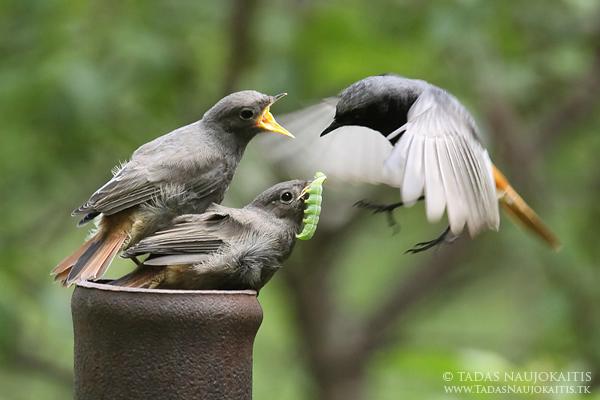
This photo of Black Redstart was made with ISO 2000, because there wasn’t much light, and I believe it was worth it.
Some other notes
When photographing birds, three modes work the best. If you want to control aperture (depth of field), choose Av (aperture priority) mode. For shutter speed controlling (especially useful when photographing birds in flight) use Tv (shutter priority) mode. If you exactly know what settings you need, choose M (manual) mode.If you photograph dark bird in light background or want to get more details from dark areas, set the positive exposure compensation value, if you want to avoid overexposed areas, set the negative one.
I recommend you to always shoot in RAW, if possible, because later you can easily fix such things as WB (white balance) with computer.Ways to photograph birds
The next step is to learn, how to get to the birds closer, so then you will be able to take quality pictures of them.
So you can:
Don’t do anything exceptional
Some birds are courageous and let you to come close enough. The best example is Mute Swans.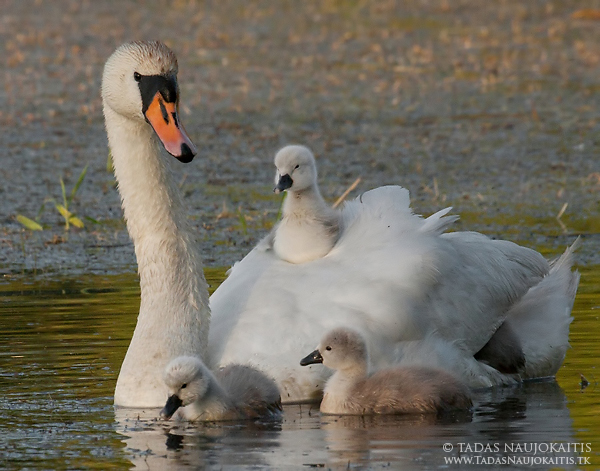
Move carefully
Many birds let you to come close enough if you simply don’t make any sudden movements.Stalk
Sometimes this really works, just make sure that bird doesn’t see you when you are getting close and then, very carefully, take picture.Lie without any movements
Birds sometimes come surprisingly close, when you lie. Just find a good place or put some food and be patient!Hide
When photographing a shy bird or wanting a small bird to come very close for a quality photo this is the best technique. You can hide using hunting blind, camouflage net or the blind you made yourself from surrounding materials. The lower is blind, the more courageous birds feel. If you use surrounding materials to camouflage the blind or to hide yourself, that is another advantage. You can hide near various objects, which attracts birds. Also, you can put some food where you want for birds to come. Sunflower’s seeds are the best food in most cases. If you want that bird would sit on the twig or something similar before taking food, put that twig above the food.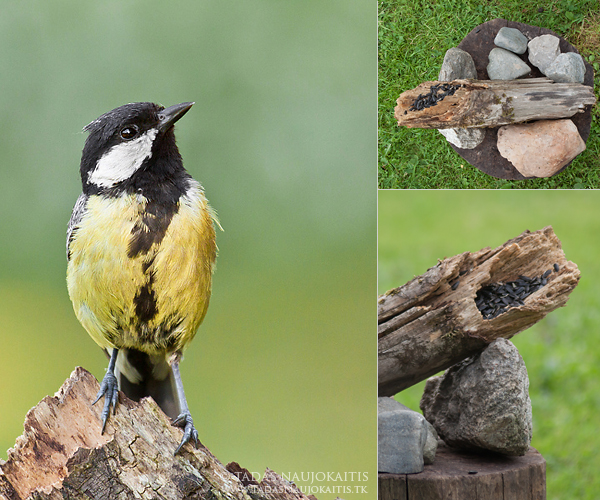
Here you can see the photo of Great Tit and how it was made.
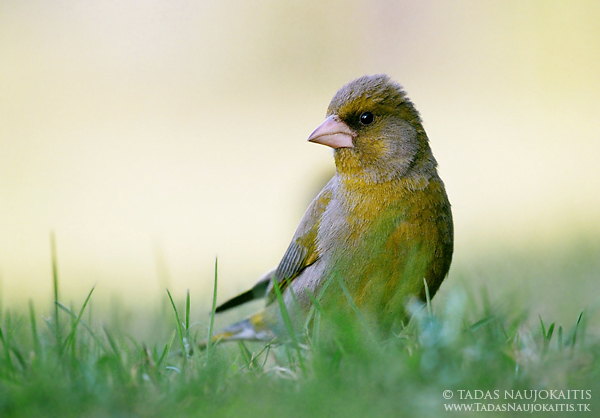
Sometimes it’s enough to put some sunflower’s seeds on the grass! And this is the result.
It doesn’t matter which way you choose, be patient. Don’t wander from one bird (birds) to other (others), if you didn’t succeeded from the first time. Sometimes it’s a good idea to go back next day and try again.
The Image
Now, lets talk about the image itself. We know what equipment we need, what camera settings to choose, how to get to the bird closer, now it’s time to find out how to make the image of the bird look attractive.
The light
Everything starts with a good light. The best time for photography is morning or evening because the light is soft and has a pleasant hue, shadows are not so distinct, it’s easier to get details from very bright and dark areas.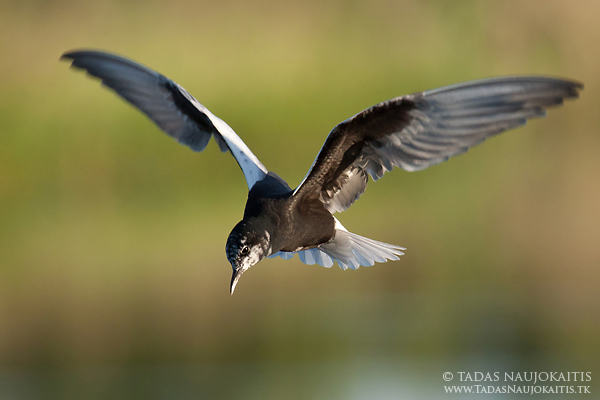
In this example you can see that this White-winged Tern has both black and white feathers, but because it was photographed in the evening, there are no pure white or black areas.
Composition
It is usual to leave some space in the direction the bird is looking or flying. Rule of thirds sometimes helps too. Simply try some different framing to see when you get the best result. In addition, try to avoid any distracting elements, when you are taking the picture. And one more thing to mention: when you are taking the photo of the bird, try to be in it’s eye level.The bird’s sitting place and the background
It’s the best, when the place, where the bird sits, shows bird’s natural habitat. It can be almost anything because birds live in very different habitats. The background shouldn’t be distracting and usually it looks better when it isn’t the sky (but not always!).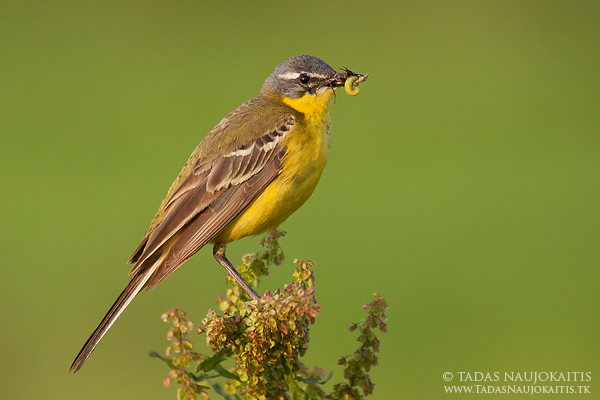
Capture something more
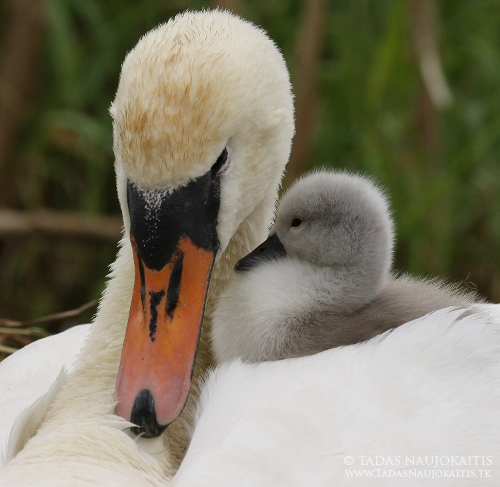
Ethics of bird photography
Birds are wonderful creatures. When you are taking photos, don’t harm them. I strongly advice you not to photograph birds near nests (except when the distance is large and bird isn’t sensitive to disturbance – there are only very few such species). Even if you don’t harm birds, you can show the place of the nest for predators. The life of bird is more important than a photo.
Conclusion
Bird photography is exciting and full of adventures. I hope after this article it will be easier for you to take beautiful bird photos.
About the Author: Tadas Naujokaitis lives in Lithuania. See more of his work at www.tadasnaujokaitis.tk and connect with him on his Facebook page.
Post originally from: Digital Photography Tips.
Check out our more Photography Tips at Photography Tips for Beginners, Portrait Photography Tips and Wedding Photography Tips.
An Introduction to Bird photography
-
Black and White Conversions: An Introduction to Luminosity
A Guest Post by Nick Rains.
 Warning – the following is quite advanced (even geeky) and I must assume the reader has a working knowledge of channels, levels, curves, blending modes, tools etc as well as how the main color models work (RGB, Lab, HSB).
Much has been written about converting colour to Black and White: we all know that there are a great many different ways to do this, some more effective than others. Differences between the various methods are usually explained in terms of visual appeal or the ability to blend the various colour channels to emulate traditional B+W filters. What has not been mentioned is exactly why different greyscale conversions give different results, and more importantly, the fact that this principle can be used to make more accurate adjustments to colour images.
This last point seems quite contradictory; what has greyscale conversion got to do with colour adjustments? Well, quite a lot really when you remember that all RGB colour images are comprised of three different ‘channels’ of greyscale information, each of which represents the lightness values of each of the three colours and that it’s the relationship between them which give us the illusion of ‘colour’.
If you alter a colour image by, say, using the dodging or burning tools, you are actually altering 3 greyscale channels at the same time and unless the relationship between those 3 channels stays exactly the same, there will be a shift of hue or saturation which is of course not the aim of the adjustment. Many of Photoshop’s tools, used at face value, operate on a composite of all three channels – not an ideal situation.
How we see Luminosity
Photoshop very rarely uses the term Luminosity. It is not Brightness in the Hue, Saturation, Brightness (HSB) colour model. It is not the Lightness channel in Lab mode and it is not the K value when you use the colour picker in Greyscale mode.
Luminosity is the perceived brightness of a colour, not it’s numerical or measured value under the above colour models. Look at this image – 3 patches of full strength RGB. Each has a 100% Brightness and a 100% Saturation, all that differs between them is the Hue. However, I think all would agree that the green is perceptually lighter, or more luminous, than the red which is in turn lighter than the blue. So, whilst the numbers show a 100% Brightness, you see quite different tones.
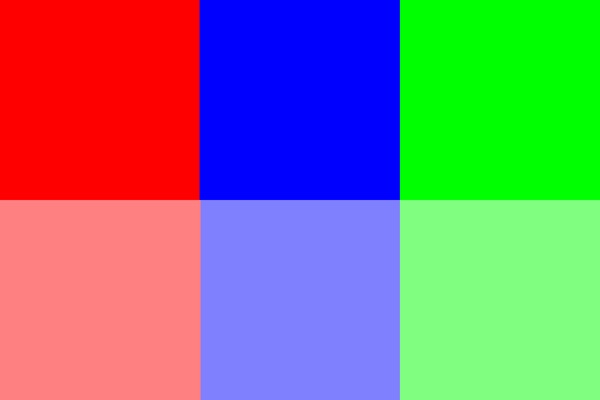
Here is the same image converted to B+W using Image > Adjust > Desaturate. All the colour contrast disappears because the Hue (colour) is removed and the new lightness of the greys in the top row is exactly 50% (127) because the Saturation and Brightness are both equal.

Here is the image converted another simple way : Image > Mode > Greyscale. This is better because the conversion is a little more like our eye sees colour with an emphasis on the Green. In fact the colour weighting is very close to 60%G 30%R and 10%B where the Green lightness as double that of the Red, much like our eyes see and tipping a nod to the fact that there are double the number of Green sensels on a camera’s Bayer array as compared to Red and Blue. The conversion still looks a little lacking in contrast however, and good B+W images really need good impact or contrast to look their best.
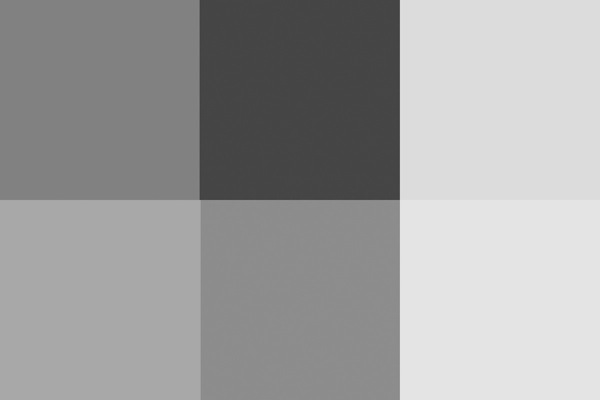
Even the Lightness channel in Lab, shown below, does not really depict the relative tones of the colours as we experience them. It is actually a lot closer to the perceived luminance but is perceptually ‘lighter’ overall than the simple Mode > Greyscale conversion.
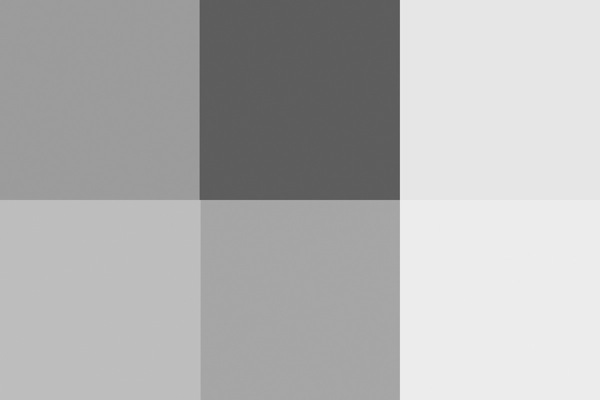
The most accurate conversion is via the Channel Mixer using these values taken from the sRGB definitions developed by Hewlett Packard (http://www.w3.org/Graphics/Color/sRGB)
71%G 21%R and 8%B.

This gives a slightly more punchy look and it is a good starting point for converting your images to B+W. The Red looks a little dark to my eye, and the Blue a bit dark, but since there is very little pure colour in nature, this combination works well in the real world.
So why the fuss? Why do we need to know all these different methods?
The point to understand is that when you are removing colour information and having your image rely only on greyscale tones you need to control how those tones relate to one another. Do you want the blue of the sky to become a darker greyscale tone than the green grass? Or vice versa.
As an example, for the Australian flag – which greyscale version looks better?



There is no definitively correct answer – it’s the one which looks best. Personally, I think the one with the darker blue looks best because it maintains the perceived brightness of the blue as well as keeping good contrast between the blue and the red.
You need to take control and make sure the colours in the original capture translate to good meaningful contrast in the B+W version. This is the secret of good B+W conversions – not the precise method, but being aware of the tonal distributions and which greyscale value a colour is converted to relative to the other colours’ subsequent greyscale values.
Just to leave you with an advanced ‘teaser’…
What if you duplicated a colour layer and added a monochrome channel mixer adjustment layer to that new layer? You could then change the new layer’s Blend Mode to Luminosity and use the Channel Mixer to adjust the Brightness and Saturation of the colours in the image without affecting the Hue in any way.
If you try doing this directly with Curves or Levels you’ll get a small Hue shift as you adjust the Brightness and Saturation. If you don’t believe me try setting the Info Tool to HSB instead of RGB and read off colours as you make a direct Curves adjustment. You’ll see all three numbers change, including the Hue.
I’ll discuss this further in a future article.
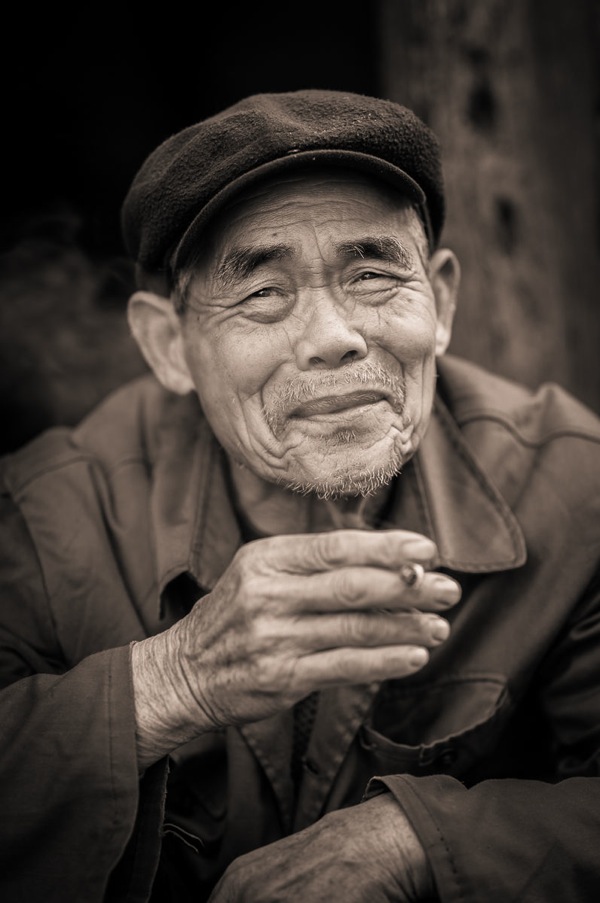
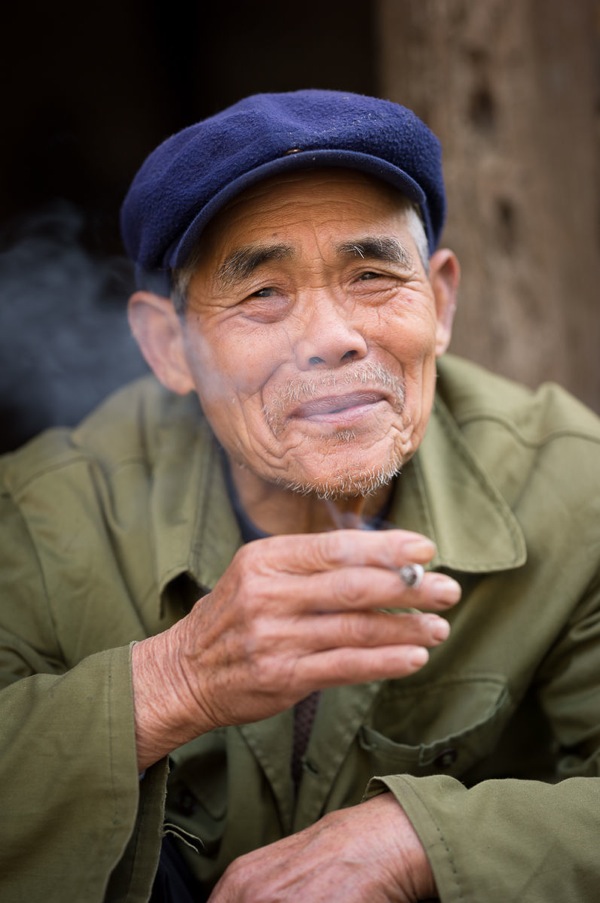
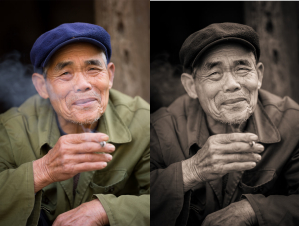
In converting to B+W the green of the jacket and the blue of the cap have darkened whilst the red skin tones have slightly lightened. The face and hands now stand out far better – a good example of a situation where the colours in the original were simply a distraction, adding nothing to the shot, and so were removed.
Nick Rains is a Queensland based photographer who has been shooting professionally since 1983 and has seen first hand many changes in the photographic industry, from manual to auto focus in the late 1980s through to the shift to digital in the past decade or so.
Nick currently shoots feature work for companies like Australian Geographic and Orion Expeditions as well as writing for magazines and blogs around the world. Nick is both a Canon training consultant and a Leica Ambassador, as well as a Master Photographer with the AIPP and a national judge. You can see more of his work at www.nickrains.com or add him to your circles on Google Plus.
For more in-depth photography writing, try Nick’s iPad app “Photique”. It’s a free download.
Post originally from: Digital Photography Tips.
Check out our more Photography Tips at Photography Tips for Beginners, Portrait Photography Tips and Wedding Photography Tips.
Black and White Conversions: An Introduction to Luminosity