Blog

  • Review: Lensbaby OMNI Color Expansion Pack for the OMNI Filter System

    The post Review: Lensbaby OMNI Color Expansion Pack for the OMNI Filter System appeared first on Digital Photography School. It was authored by Anabel DFlux.

    lensbaby-omni-expansion-pack

    What’s the best way to stand out from the crowd and exhibit some eye-catching colors? By applying some colored gels to a Lensbaby Omni effects system, of course!

    Home to some of the most unique lenses in the world (fondly called “art” lenses), Lensbaby pride themselves on developing equipment that gives you a slew of unusual in-camera effects. Their newest mind-boggling contraption, the Lensbaby OMNI Filter System, now has an expansion pack for the color enthusiast in us all.

    Review: Lensbaby OMNI Color Expansion Pack for the OMNI Filter System

    What is the Lensbaby Omni Filter System?

    If you’re an out-of-the-box photographer who hasn’t heard of the OMNI yet, you’re missing out.

    In simple terms, the Omni Creative Filter System is a metal ring that holds various effect wands in front of the glass to produce an effect. And it works by using the power of magnets. These effect wands come in the form of crystals, panels, and other doohickeys that opens a world of possibilities when used.

    The awesome thing about this product is that you can sort-of ‘make a Lensbaby’ out of any existing lens that you own.

    As you can imagine, there is a lot of room for growth with this system. This is where the brand new Color Expansion Kit comes into play.

    What does the Color Expansion Pack add to the mix?

    lensbaby-omni-color-expansion-pack

    The main original OMNI kit only includes three Effect Wands, a long arm to hold the Effect Wand, a short arm to hold the Effect Wand, two magnetic mounts (each mount holds up to two Effect Wands), and a small carrying case to tie it all together. While this is absolutely awesome, and the effect wands are great, they have the downside of, well… not having color. They are all clear wands.

    So how does one fill the gap if they have a bit of an inclination towards color and rainbows?

    Boom – the Color Expansion Kit.

    Color quickly seeps into your work via two multicolored crystals, a rainbow diffraction film, and a variety of luminescent and textured films and gels (that are held up conveniently by the Effect Wands).

    The gels and films come in a variety of colors, and depending upon your positioning of them can be very vibrant and intense or just provide a subtle light leak.

    Practical, real-life use

    Review: Lensbaby OMNI Color Expansion Pack for the OMNI Filter System

    Much like the main OMNI system, this expansion pack is self-explanatory and quite easy to use.

    There is a large-ringed, donut-shaped disc that holds the magnetic arms that, in turn, hold the effects wands. This disc, depending on your lens filter thread, can either be screwed on directly or use a step-down/step-up ring to attach to your lenses’ glass element.

    The filters and microgels are just thin strips that slide into the same effects holder as the diffraction film. This holder is solid and sturdy and ensures that your films don’t slide around. The wind picking up could not cause these to budge!

    Shallow depths of field tend to work very nicely with this particular expansion pack, and the filters turn into a part of the bokeh and spread across the frame rather than showcase their rectangular shape.

    The wider the focal length you use, the more room you have to play with each of the new components. For example, the crystals work better with 35mm frames than, say, 85mm, as the effect becomes more prominent.

    This filter set works best in bright, good lighting as opposed to low light as the filters do darken the frame quite a bit.

    Review: Lensbaby OMNI Color Expansion Pack for the OMNI Filter System

    Pros

    • A myriad of possible effects.
    • Great color range.
    • Easy to use and simple to learn.
    • Comes with a carrying case.

    Cons

    • The individual pieces are small and easy to lose? I’m grasping at straws here for a con. This expansion pack is marvelous.

    Final thoughts

    Review: Lensbaby OMNI Color Expansion Pack for the OMNI Filter System

    The Lensbaby OMNI gets your creative juices flowing, pushes you to try new things, and adds a brand new spark of life to your images. Offer your subjects something different! The addition of color only expands your horizons further.

    Can you achieve the same with a do-it-yourself method? Probably. But there is so much room for error or frustration there, versus a system that is already tried and true! I love playing with this system, and I have no doubt whoever nabs it next will too.

    They also have a Crystal Expansion Pack, and you can read a review about them here, along with the main filter system.

    Have you used any of the Lensbaby OMNI filter systems? Share your thoughts with us in the comments.

    The post Review: Lensbaby OMNI Color Expansion Pack for the OMNI Filter System appeared first on Digital Photography School. It was authored by Anabel DFlux.


    Digital Photography School

  • How to Create Twinkle Lights for Christmas Tree Portraits in Photoshop

    The post How to Create Twinkle Lights for Christmas Tree Portraits in Photoshop appeared first on Digital Photography School. It was authored by Jackie Lamas.

    how-to-create-twinkle-lights-in-photoshop

    Christmas is almost here and like you, many photographers are getting ready to photograph their holiday sessions and are likely using Christmas trees. In this article, we’re going to show you how to add a little more twinkle to your Christmas photos so that you can wow your clients. Even if your trees have lots of lights, this will show you how to create twinkle lights in Photoshop so you can add more cheer to your photos!

    Image: Learn how to add twinkle lights to your holiday photo sessions in this article.

    Learn how to add twinkle lights to your holiday photo sessions in this article.

    Step 1. Create your twinkle lights pattern

    In order to add the twinkle lights to the lights and create more lights, you’ll need to first create the brush preset. This isn’t as difficult as it seems. Of course, you could download brush presets online, but there’s nothing like having the perfect brush you’ve created for your photos.

    1.1 Create a new document. It doesn’t have to be a large document. Use a predetermined one and make sure you aren’t using artboards and that your resolution is at 300dpi. A white background will help you see what you’re doing.

    Image: Create a new document. It doesn’t have to be large since you’ll end up with a bru...

    Create a new document. It doesn’t have to be large since you’ll end up with a brush preset that can be sized after.

    1.2 Next, go into Brush Settings. If you don’t see this on the icon menus on the left (or where you have your tools), you can open it by going to Windows -> Brush Settings and the window with the settings will pop up.

    How to Create Twinkle Lights for Christmas Tree Portraits in Photoshop

    Choose the round brush with zero hardness – it should be brush 30 in the brush menu. It’s a predetermined brush.

    Here, you’ll want to select the roundness of the brush to around 8%. This will make sure your brush is flat to make the different strokes of the twinkle.

    For this tutorial, we’ve made our twinkle with 5 points, but you can get creative with the size and add in additional points if you like.

    Image: You can see how the brush is flattened.

    You can see how the brush is flattened.

    1.3 Choose the angles of your brush. Respectively, they are 90-degrees, 180-degrees, 45-degrees, and -45-degrees to make the five points. You can set a ruler to help guide you, making sure the lines intersect in the middle. For this one, I just painted with the brush by eye.

    How to Create Twinkle Lights for Christmas Tree Portraits in Photoshop

    1.4 Once you have all five points or as many points as you want for your twinkle, go back to the Brush Settings and change the roundness back to 100%. With this brush, go to the center of your star and fill in the middle with a couple of clicks to add more to the middle.

    This will give the twinkle a little more fullness and make it look like an actual light in the Christmas tree.

    How to Create Twinkle Lights for Christmas Tree Portraits in Photoshop

    1.5 We’re almost done! Finally, we’ll add in a nice Gaussian Blur to the twinkle so it looks more real in the background and the points on the starburst aren’t too harsh when you’re adding them into the images.

    Of course, this is preference and you can make one brush with the blur and another brush without so you have options. We’ve added the blur to our starburst. Go to Filter -> Blur -> Gaussian Blur and choose how much blur you want.

    How to Create Twinkle Lights for Christmas Tree Portraits in Photoshop

    1.6 Now you have a nice full twinkle light! From here, we’ll need to create the Brush Preset pattern so that you can use it in the future on any image in Photoshop. Go to Edit -> Define Brush Preset -> Change the name to what you’d like to call it and click OK.

    How to Create Twinkle Lights for Christmas Tree Portraits in Photoshop How to Create Twinkle Lights for Christmas Tree Portraits in Photoshop

    This will create your brush pattern! Now you have your twinkle light brush ready to use and you can change the color and size.

    Step 2. Clone lights to make the twinkle lights look more real

    If you add your twinkle lights to the photo, it will look oddly out of place. This is because it needs an actual light to shine off of an actual light source. The best way to do this is to clone a light in the original photo to other parts of the tree before using the twinkle light brush.

    While you could just paint on dots, they don’t have the same color and gradient as a light that is already in the tree and may look out of place.

    2.1 To do this, first create a new layer so that your twinkle lights can become moveable after you’ve added them. Also, this will keep you from cloning and using the brush on the original image in case you need to start over, you can simply delete the layer.

    How to Create Twinkle Lights for Christmas Tree Portraits in Photoshop

    2.2 Now go to the layer of your original image, click on the Stamp Tool. In the menu bar at the top, make sure that you uncheck where it says Aligned. This will make sure to only clone the light as you click on various parts of the layer.

    How to Create Twinkle Lights for Christmas Tree Portraits in Photoshop

    Click on ATL and click a light. Make sure the brush is just large enough for the light tip so you don’t clone too much of the tree/background.

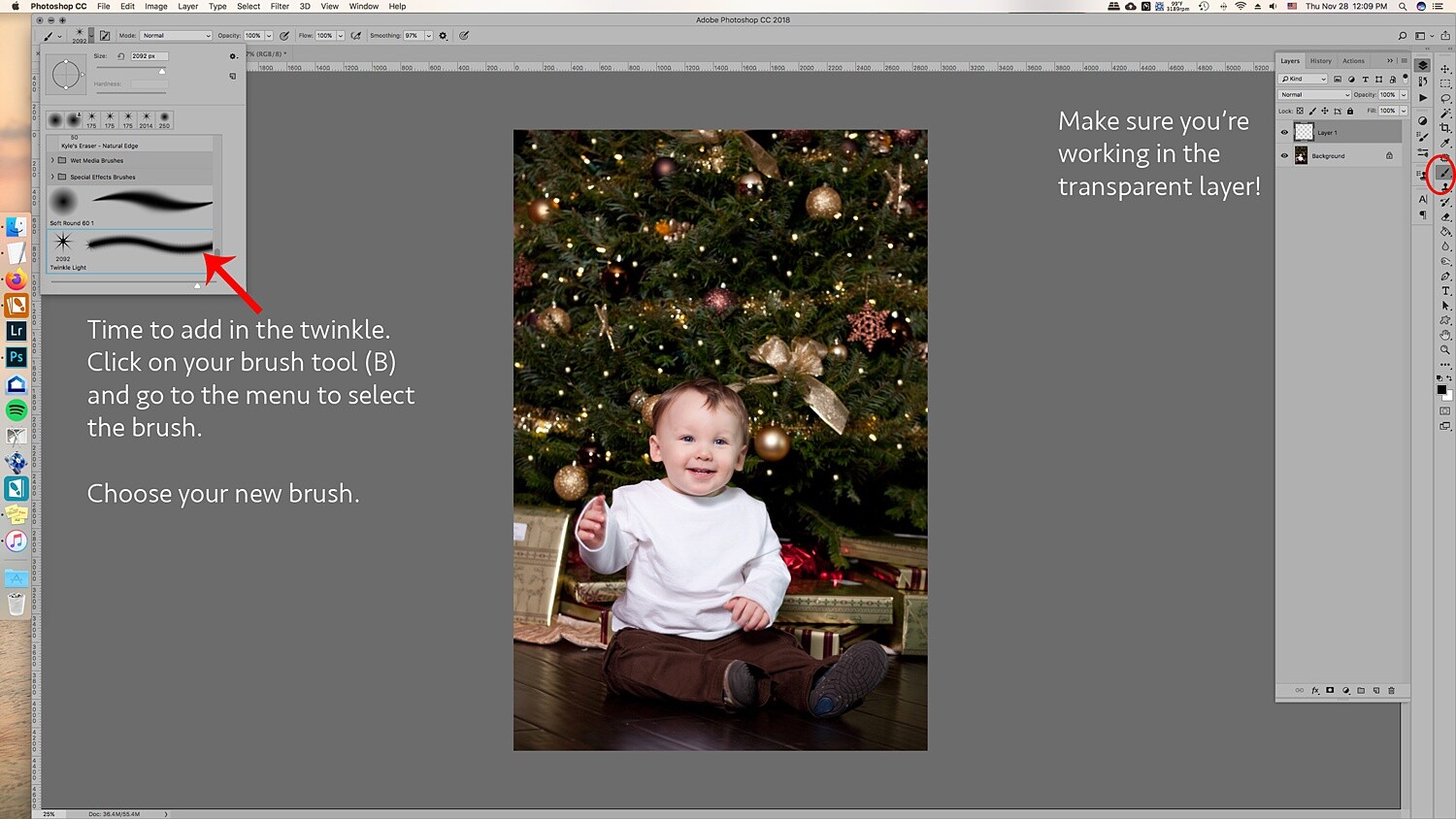
    2.3 Once you’ve made your selection of which light you’ll clone, go back to the new layer and click on the parts of the image you see that you want to add the lights in. Don’t worry, you’re not cloning on the image itself, this layer is transparent and that’s why you can see the photo in the layer below. It helps to see where you’re putting the extra lights.

    How to Create Twinkle Lights for Christmas Tree Portraits in Photoshop

    2.4 All right, now that you’ve added more lights to the tree, you are ready to add in the twinkle lights brush! Go to Brush and choose the brush you just created. Usually, new brushes show up at the end of the brush list.

    Choose your twinkle light brush. Make sure that the color for your brush is set to white. Alternatively, you can choose the color picker and get a warmer yellow color that matches the lights. It’s your choice! You can also add colored lights if you wish!

    Leave the hardness and opacity at 100%, go to your new layer where you’ve cloned the lights on. Go to each light and add in the twinkle onto it. Adding the lights and the twinkle makes the twinkle look real and not too fake.

    How to Create Twinkle Lights for Christmas Tree Portraits in Photoshop How to Create Twinkle Lights for Christmas Tree Portraits in Photoshop christmas-twinkle-lights

    Change the size for a few of the twinkles so they look more random.

    How to Create Twinkle Lights for Christmas Tree Portraits in Photoshop

    3. Add in additional colors

    The great thing about doing the twinkle lights this way is that because you’ve added them onto a transparent layer, you can move them around and resize them as you need.

    The amazing part is that you can duplicate the twinkle lights layer, move it around, and add colors to it to create colored twinkle lights. Here’s a break down of how you do that for multiple colors:

    3.1 Duplicate the twinkle lights layer.

    How to Create Twinkle Lights for Christmas Tree Portraits in Photoshop

    3.2 Move it around and transform it so that it’s not directly on top of the other twinkle lights. If you’re going to add in more colors, I suggest that you don’t add in too many twinkle lights in the original layer so that you can fill in those empty spots with the colored twinkle lights.

    3.3 Go to Layer -> New Fill Layer -> Solid Color. Choose a color. I did blue, green, and red. But you can add in any color.

    How to Create Twinkle Lights for Christmas Tree Portraits in Photoshop

    3.4 You’ll end up with a solid color onto your images. Don’t worry, right-click on the layer and choose Create Clipping Mask to clip it to the twinkle light duplicate layer.

    How to Create Twinkle Lights for Christmas Tree Portraits in Photoshop

    How to Create Twinkle Lights for Christmas Tree Portraits in Photoshop
    3.5 Go to Blending modes at the top of the layer window and choose Color. This will overlay the color on the twinkle lights and make it look more real.

    How to Create Twinkle Lights for Christmas Tree Portraits in Photoshop

    How to Create Twinkle Lights for Christmas Tree Portraits in Photoshop

    3.6 A great tip is to merge each color to the twinkle lights layer. Then add a mask so that you can go into the layer with your brush and take out the twinkle lights for that layer without having to deal with the color clipping mask and all that.

    It’ll make removing them easier. This is ideal in case you need to remove one from an ornament or face.

    How to Create Twinkle Lights for Christmas Tree Portraits in Photoshop

    You can also add a clipping mask to the original twinkle lights layer to help brush out unwanted twinkle lights as well.

    Image: Using a mask on the layer can help you to take out unwanted twinkle lights.

    Using a mask on the layer can help you to take out unwanted twinkle lights.

    And that’s it! That’s how you add in additional twinkle lights in color to your image!

    Image: Before and after with the twinkle lights in color. You can make it more subtle by adding fewe...

    Before and after with the twinkle lights in color. You can make it more subtle by adding fewer twinkle lights.

    Use in non-holiday images as well

    Use this tutorial on other images where you’d like to add in some twinkle too! It doesn’t have to just be for holiday sessions, simply just use the brush only with a color set.

    Image: Use the twinkle lights brush on other portraits that you’d like to add some sparkle to.

    Use the twinkle lights brush on other portraits that you’d like to add some sparkle to.

    Make sure you’re working on the transparent layer and play with opacity levels and additional colors.

    How to Create Twinkle Lights for Christmas Tree Portraits in Photoshop

    In a new transparent layer, I selected the twinkle lights brush and added the twinkle lights to various parts of the layer in white in different sizes. Then, set the blending mode to Overlay to get the right look. I also lowered the opacity.

    Twinkle lights with more than 5 points

    The great thing about adding in twinkle lights is that you’re creating your own brush preset! This lets you create different types of brushes, and one might be adding more points to the twinkle light.

    Image: Here’s a comparison of no twinkle lights, a five-point twinkle, and a multi-point twink...

    Here’s a comparison of no twinkle lights, a five-point twinkle, and a multi-point twinkle light.

    Go through all of the steps in Step One, only this time add more angles and add in more points. It also looks great when you change the size within the same brush.

    Image: In the close-up, you can see that the brush preset has more points than the five-point twinkl...

    In the close-up, you can see that the brush preset has more points than the five-point twinkle light brush we made previously.

    It’s really all about preference, so play around and see what look is the right one for your portraits.

    In conclusion

    Image: Before and after on another photo. This is more subtle and only uses white twinkle lights.

    Before and after on another photo. This is more subtle and only uses white twinkle lights.

    It may sound complicated the first time you give it a try, but with time it gets easier! Adding in additional twinkle lights can give your holiday photos a little more twinkle and pop that will make your clients very happy to see in their final images!

    Will you be using this tip to add in twinkle lights to your images?

    The post How to Create Twinkle Lights for Christmas Tree Portraits in Photoshop appeared first on Digital Photography School. It was authored by Jackie Lamas.


    Digital Photography School

  • Gear of the Year 2019 – Rishi’s choice: Sony FE 135mm F1.8 GM

    Photo: Dan Bracaglia

    I love shooting wide. No, really: I made a whole video about how I even shoot portraits with wide-angle lenses. Wide-angles provide a sense of depth, dramatic perspectives, a glimpse into the subject’s surroundings and even provide an intimacy to portraits by giving the perspective of an observer standing very close to the subject. So you may be surprised by my choice of Gear of the Year: the Sony FE 135mm F1.8 GM.

    Perhaps it’s just that I needed something different. Spice up my life, venture beyond 35mm, you know, my favorite ‘telephoto’ lens. Or, maybe Sony just made an amazing lens in the 135mm GM. Perhaps it’s a bit of both.

    135mm F1.8 allowed me to focus on my backlit subject, and nothing else. Look at that creamy background.

    I took the Sony FE 135mm with me on a recent trip with family and friends, enjoying time together at a cabin and celebrating three years of keeping our daughter alive.

    135mm really allows you to isolate your subject, and make it about nothing else, even if some of the environment is included. Rather than jumping around the frame from one point of interest to another, the viewer’s eye can just focus on one story which, below, is a simple one of one sibling looking up to another.

    The ‘tunnel vision’ a long focal length paired with a fast aperture provides allows you to create simplistic images that tell just one story, like the love shared between these siblings.

    That’s not to say that 135mm doesn’t allow you to portray your subject against its surroundings, it’s just that things are a bit different compared to a wide angle composition. Rather than include an expansive view of your subject’s surroundings with an enhanced sense of depth, the longer focal length allows you to compress your subject against only an isolated – and magnified – portion of its environment.

    Take the image below: A wide-angle lens would have included the foliage, the sky, the ground, and other potentially distracting elements, all situated at different depths. This creates a more complex image with an enhanced sense of, well, depth. That can certainly be nice, but sometimes I like the simplicity of the subject and the background essentially appearing at just two different focal planes.

    The 135mm focal length allowed me to ‘compress’ the scene, bringing the trees in the background closer to my subject(s), and allowing me to frame my subjects against the green foliage. The long focal length allowed me to magnify only a small portion of the background, allowing me to exclude distracting elements like the sky above or the ground below my subjects.

    Technically, the FE 135mm GM lens is superb. Optically, the lens is literally the sharpest lens our friend Roger Cicala at LensRentals has ever tested. That’s at least in part due to the XA (extreme aspherical) element designed to minimize spherical aberration.

    The Super ED and ED glass used in the elements in the front group replace traditional large and heavy negative elements commonly used to suppress longitudinal spherical aberration. The result is very little, if any, longitudinal chromatic aberration, commonly seen as purple and green fringing in front of, and behind, the focal plane, respectively.

    The 135mm focal length allowed me to easily isolate my subject in this otherwise small and busy indoor space. And thanks to the excellent optics, there’s no distracting green fringing in the high contrast ‘Title’ text behind our subject, despite the fast aperture.

    Sony’s 10 nanometer mold precision and other recent improvements ensure smooth aspherical surfaces, meaning that onion-ring bokeh is non-existent. An 11-blade aperture ensures circular out-of-focus highlights, and generally smoother bokeh, even when shooting stopped down. Sure, there’s some mechanical vignetting that leads to a ‘cat’s eye’ effect, but that’s to be expected of a lens of this type, and isn’t severe enough to result in swirly bokeh in the family portrait above.

    Just as important as optical quality is the focus performance: especially for candid portraiture. And here the FE 135mm GM is industry leading: focus is lightning fast thanks in part to its four XD (‘extreme dynamic’) linear induction motors. These motors are far faster than the previous piezoelectric design of Sony’s ‘Direct Drive SSM’ system, and are capable of moving larger, heavier elements.

    Paired with the excellent autofocus system of Sony’s recent cameras such as the a7R Mark IV, focus is fast enough that I could easily nail focus on the eyes of erratically running toddlers, even with the aperture wide open at F1.8:

    This boy was running through a wading pool and momentarily smiled at the camera. Real-time tracking (with Eye AF) coupled with the extremely fast autofocus speeds of this lens allowed me to nail this moment effortlessly.

    I’ll admit I’d rarely shot with 135mm primes in the past, typically sticking to a trio of primes (24, 35, and 85) for weddings, or 70-200mm F2.8 lenses for engagement and portrait shoots. I’ve found the 135mm F1.8 to be a different beast, requiring me to think and shoot differently, while often finding myself running further and further backward to get enough space in between my camera and my subject.

    The results were, to me, very rewarding. The ‘tunnel vision’ effect of stepping back and using a longer focal length to isolate your subject and compress it against a small portion of its surroundings yields a unique look, particularly when paired with a fast enough aperture so that the background is pleasingly blurred and not distracting. Below, you’ll see my daughter surrounded by others in a park, but by herself in the wading pool happily marching to her own beat.

    I couldn’t sum her up any better.

    Marching to her own beat.

    Note the exceedingly low magenta fringing (longitudinal chromatic aberration) around the water droplets splashing about in front of our subject, despite the magnifying glass the high resolution 60MP sensor of the a7R IV holds up to any lens’ optical aberrations.

    Sony FE 135mm F1.8 GM sample gallery

    $ (document).ready(function() { SampleGalleryV2({“containerId”:”embeddedSampleGallery_3945628308″,”galleryId”:”3945628308″,”isEmbeddedWidget”:true,”selectedImageIndex”:0,”isMobile”:false}) });


    * Of course I kid: my wedding kit always includes an 85mm, and I happily use 200mm for compression when I want to isolate my subject amidst its surroundings.

    Articles: Digital Photography Review (dpreview.com)

  • Finally, a Road Map to Taking Better Photos of People!

    The post Finally, a Road Map to Taking Better Photos of People! appeared first on Digital Photography School. It was authored by Darren Rowse.

    Finally, a Road Map to Taking Better Photos of People!

    Day 11 of dPS Holiday Deals brings you this fundamental portrait photography course like no other – and it’s from our previous long-time Editor Darlene Hildebrand of Digital Photo Mentor.

    Save $ 100 now

    If you’re feeling lost when it comes to taking photos of people then you need Portrait Fundamentals: a road-map to portrait photography skills and confidence for beginners. 

    Especially if you are disappointed by how your portrait shots turn out, or don’t even take photos of other people for fear of messing it up!

    • Unsure what camera settings to use for portraits?
    • Can’t get sharp, well-exposed images consistently?
    • So overwhelmed by all the technical stuff you struggle to focus on your subject and enjoy the portrait process?

    Then, let Darlene and her team from Digital Photo Mentor guide you. They’ll give you a plan to follow so you can start improving your portraits immediately. 

    Portrait Fundamentals Product

    This is no ordinary course, it includes over 6 hours of video lessons, a 245-page PDF notebook, 21 practice exercises, quizzes at each stage, and a private Facebook group for students to interact with each other.

    Learn to take great portraits even if you are a beginner!

    Save $ 100 and get the course now for only $ 97 USD (usually $ 197)

    Check it out before the next deal arrives in less than 24 hours.

    PS – Did you miss yesterday’s deal? You can save 50% on Andrew Gibson’s Art of Black and White in Lightroom and Beyond course. Check it out here.
    We receive an affiliate commission when you purchase from our trusted partners.

    The post Finally, a Road Map to Taking Better Photos of People! appeared first on Digital Photography School. It was authored by Darren Rowse.


    Digital Photography School

  • Fun winter photo projects for the long, dark days of winter

    With the nights and mornings pretty close together for the next few months, and the sun taking some time out to recoup, many photographers head indoors to escape the dark and the rain. Plenty of us are tempted to hang up our cameras until the Spring, with a brief interlude should a decent amount of snow make an appearance.

    Don’t be one of those photographers.

    Just because bright light and blue skies are a rarer occurrence in the winter months doesn’t mean we have to stop taking pictures. There’s still plenty you can do, provided you’re prepared to use some imagination. Here are a few ideas to keep you shooting until the better weather returns.

    Still life

    I used a gold sheet of card from a craft store to send a little warmth back into the subject from the left hand side. The diffused flash was positioned on the right, and contrasting the white light from the flash with the gold light from the reflector emphasizes the warm effect

    A good mastery of still life photography should help improve your photography across the board, and the winter months are a very good time to get some practice in. Working with a few objects on the table top with just a single light and a reflector is an ideal way to teach yourself more about lighting, exposure and composition.

    If you are new to this area I suggest starting with just an orange and a table lamp, moving the lamp around the orange to see how the direction of the light changes the way the orange looks. Once you’ve done that and looked carefully at the way highlights and shadows control the sense of three dimensions in the image you can move on to everyday objects laying around the house.

    Keep things simple by using just one or two objects in your scene, and try lighting with just one source and a couple of reflectors to moderate the shadows.

    Here I used a single LED panel at the top of the frame, and a couple of mirror tiles to the left and right of the handle to throw some light back in the opposite direction. A wide aperture created a shallow depth-of-field to draw the eye diagonally up the handle to the point of focus.

    The blueberry doesn’t need to be sharp for us to know it is a blueberry, and it is used as a counterweight to the main area of interest

    Knives, forks and spoons offer interesting shapes and compositional challenges, and natural objects saved from the autumn, like nuts or dried leaves, give you the chance to bring nature into your work. The supermarket is also filled with interesting fruit and vegetables, and home stores and hardware stores stock nice cups, glasses and industrial looking bolts, screws, springs and fascinating sheets of metal/plastic/wood that will make interesting backgrounds.

    One of the nice things about still life is that you can take your time and there is usually no rush, so you can look really carefully, try things out and try again when it doesn’t work the first time.

    Tips:

    • Work slowly and really look at the effect of the light on your subject
    • Use silver, gold, white and black cards to bounce/block light
    • When used as a reflector, mirrors throw back so much light they can save you having to buy a second flash

    Macro

    Planning ahead for your winter shooting can involve collecting interesting items from the garden during the Fall. If you didn’t manage to do that don’t worry as your local florist will almost certainly thought of it. Here a little light either side is used to demonstrate the three-dimensional qualities of the seed head and the stem, and to lift it from the black-cloth background. I used a pair of hotshoe flash units fired through mini-softboxes attached to an adapter ring

    An extension of still life, macro photography will test your ability to see details and to look more closely than usual. Successful macro photography is all about finding hidden textures, patterns and features of everyday objects as well as capturing tiny plants and animals that might otherwise escape our attention.

    Macro does require at least some specialist equipment, whether that’s a reversal ring, a coupling ring to mount one lens backwards on another or an actual dedicated macro lens. Using a lens designed for macro will make your life a lot easier and will deliver the best quality without too much effort, but high-quality macro lenses can be costly.

    Extension tubes are very affordable, and can be added to a standard lens to help you get a little, or a lot, closer, and a micro adjustment platform for your tripod head can help when it comes to getting accurate focus in the closeup range without having to move the tripod.

    Lights don’t need to be expensive. This was lit with a small pocket flashlight positioned to make these pasta shells glow in the dark. A sheet of white paper under the lens was enough to throw a touch of light back to reveal some of the details of side of the shells closest to the camera

    Cable and remote release devices will help to avoid camera shake with dramatic magnifications and tethering software will allow a bigger preview to ensure anything is perfect before you trip the shutter. How about using the long winter months to teach yourself focus stacking so you can control exactly what is and isn’t sharp in your images?

    Tips:

    • Having a dedicated macro lens will make your life easier
    • Use a tripod or support, don’t think you can do this handheld
    • Be aware that depth-of-field is tiny in macro work, so add lots of light if you need small apertures

    Window portraits

    Late afternoon light on a winter’s day softly passing through a bay window was all that was needed for this portrait. I kept the sitter well back from the window to produce nice soft contrast but still retaining enough to show the shape of her head and features. Using the white balance in Daylight mode shows the coolness of the light and lets us know this is a winter image

    It doesn’t matter what time of year it is actually – daylight gliding through a north-facing window will always provide some of the best kind of lighting for natural-looking portraiture. On rainy and overcast days the light levels might be lower but that light will also be softer and more flattering.

    Position your subject close to the window if you want more contrast and further away for less, and try turning them 3/4 against the light to get a more dramatic effect. Using a black card on the unlit side of the face can help to deepen shadows if there’s more light than you want bouncing around the room. A net curtain or sheet of thin paper across the window can diffuse the daylight on a sunny day or when you only have south-facing windows to play with.

    Positioning the subjects directly in front of a sunny window gives them this stark and very direct frontal lighting. I stood with my back to the window and pulled the shutters across to create the stripes on the groom’s jacket. The light on his face is reflected from the white top-side of the shutters.

    As he is close to the window the light drops off quite quickly, leaving his friends visible but much darker. This helps to express who is the most important player in the scene, and who are the secondary elements.

    Extra diffusion will also cut down the light making it easier to achieve a wide aperture if you want shallow depth-of-field.

    Try experimenting with white balance too, so you can create a warm or cool effect whatever the conditions outside.

    Tips:

    • Try the sitter at different distances from the window to vary contrast
    • Move your sitter between each end of the window to alter how the light wraps around their face
    • Use net curtains, bubble wrap or paper to diffuse the light even more

    Home studio

    Using quite a small soft light creates strong direction but avoids razor-sharp edges to the shadows. The small light also allows a rapid fall off, so the subject’s head is lit more brightly than her body, and positioning the light just slightly behind illuminates the front of her face while leaving the side closest to the camera dark – drawing attention to her closed eyes. A small direct light from behind her lifts her shoulders from the background and helps to create a sense of depth in the picture.

    Opera singer Golda Schultz for the BBC Proms Magazine

    When there’s not too much natural light coming through the windows, or we need more for smaller apertures and lower ISO settings, it’s a good time to think about alternative light sources. Domestic lights can be very useful for lighting in a home studio but they don’t always deliver enough power, so sometimes we need to look at flash.

    There have never been so many flash units available for photographers so we have plenty of choice. Big studio monoblock type studio flash offer the advantage of power and a modeling bulb so we can see what we are doing, but they can feel expensive for the enthusiast. A useful alternative is to use one of the host of hotshoe flash units that are available – either from the manufacturer of your camera or from one of the many independent brands that have sprung up over the last ten or so years.

    This is the set-up for the shot above. You can see that I believe in keeping things simple. The lights are Rotolight Annova Pro on the left and the Neo2 on the right. I used a Veydra Mini Prime 35mm T2.2 cinema lens – for a softer feel – on the Panasonic Lumix DC-G9

    Modern hotshoe flash units are remarkably powerful, flexible and easy to use, and with auto and TTL modes they can be set to do all the work for you. In manual mode they offer more straight forward options and with wireless control becoming the norm you don’t have to leave the camera position to make your changes – or to check the results of any adjustments you’ve made.

    What makes hotshoe style flash units so useful now is the mass of accessories and modifiers that can transform their light to be indistinguishable from that of a professional studio flash. I use adapter clamps so that my flash units can fit inside the softboxes, dishes and snoots that I use with my main studio units, and enjoy the convenience, the shorter set-up time and that they fix in smaller spaces.

    Tips:

    • Keep the flash/light source away from the camera for a more three-dimensional effect
    • Bounce light from a white wall/ceiling to create a larger/softer light
    • Use an adapter that allows you to use soft-boxes and accessories with your flash head for a wider range of lighting looks

    Summing up

    I’d find it easier to hold my breath all winter than to keep my lens cap on between the end of November and the middle of February. In fact, shooting in the winter months is exactly as exciting as shooting when the sun shines all day, we just have to think differently and to create shooting situations rather than relying on nature to do it all for us. Indoors we can still enjoy the wonders of natural light but just through a window, and when there’s black clouds we can use normal domestic lights or a pop of flash to do the same thing.

    All that’s required for winter shooting indoors is a little imagination and sometimes a tripod to support those longer shutter speeds. So take a look around your home to see what/who you can aim your camera at, and perhaps take a trip to a florist/hardware store or secondhand shop to see what treasures you can find. The cold weather and shorter days are no excuse – keep on shooting and keep those creative juices flowing until Spring.

    Articles: Digital Photography Review (dpreview.com)

  • Camera Color Spaces Explained – sRGB vs Adobe RGB vs RAW

    The post Camera Color Spaces Explained – sRGB vs Adobe RGB vs RAW appeared first on Digital Photography School. It was authored by Herb Paynter.

    camera-color-spaces-explained

    Your camera is probably able to capture color images in a variety of different color containers called “spaces.” These camera color spaces collect colors in one of several size light buckets labeled sRGB, AdobeRGB, and RAW.

    Each bucket gathers slightly increased varieties of light, similar to the way Crayola crayons are packaged and sold in increasingly inclusive collections of colors; small, large, and jumbo.

    Camera color spaces offer photographers a variety of different size boxes.

    Camera color spaces

    camera-color-spaces

    Scenes that include both brilliant colors and bright lighting are excellent candidates for capture with AdobeRGB color space.
    F/3.5, 1/1000, ISO 400, Lumix G Vario 2.8, 35mm


    A debate in the photo community usually arises over which camera color spaces to choose in the camera’s preferences. Some color spaces capture more of the hues and saturated colors than others. Pictures captured in one space may include more colors than another.

    Each space is ideally suited for certain purposes, and the question of which camera color space to choose needs a bit of explanation. In addition to the capture question, choosing a color space for post-production editing will depend on the image’s ultimate usage.

    Your camera’s color spaces involve not just color data, but additional parking space on the drive. Larger color spaces provide more bit-depth (explained below), which occupies more digital real estate on the memory card. So, the choice of which to use does have practical importance.

    What camera color space to use

    There is no singularly perfect color space choice, so let’s examine which is best for specific situations.

    camera-color-spaces

    Images that do not include highly-saturated color but contain significant detail in the shadow areas will benefit from RAW format capture and high-bit processing. F/10, 1/1600, ISO 800, Lumix G Vario 2.8, 200mm


    Unless the sole purpose of a photo is to display as a high-resolution digital image, you might want to convert the file’s original color space for a less demanding result. However, keep in mind that every time a file mutates from a larger color space to a smaller color space (RAW to AdobeRGB, or AdobeRGB to sRGB), the image’s color intensity and integrity may diminish in the process. Some imaging applications are less demanding than others.

    While copies of digital files remain identical in size and intensity to the original regardless of how many times they have been copied, when a digital file mutates to a lesser color space, it will always lose some critical color information. Your camera color spaces in general, and device color spaces, in particular, are all unique. Each serves a particular purpose.

    Image: The extreme dynamic range and saturated skies benefitted from the RAW capture and editing in...

    The extreme dynamic range and saturated skies benefitted from the RAW capture and editing in AdobeRGB. Detail buried in the shadows was possible because of the 14-bit capture. F/14, 1/300, ISO 3200, Lumix G Vario 2.8, 12mm


    It’s a matter of depth

    The difference between camera color spaces boils down to an issue called bit depth. Bit depth is a mathematical description of how many visible distinctions between shades of color can be recognized and reproduced by different devices (a techie term for scanners, cameras, computer monitors, and printing machines). Unfortunately, not all devices can reproduce all colors the same (which is the primary stumbling block amidst all color issues).

    Every device reads and reproduces color using a different process. While this sounds like a fixable problem, there is a sad and unsolvable reality behind the problem. There are at least three different interpretations of color at play in every capture-display-print cycle.

    Image: These colorful seat cushions and deep shadows were captured in RAW format, edited in AdobeRGB...

    These colorful seat cushions and deep shadows were captured in RAW format, edited in AdobeRGB, and saved in sRGB for upload to our camera club’s server for display as part of a club field trip slideshow. F/7.1, 1/320, ISO 400, Lumix G Vario 2.8, 19mm


    First, cameras capture color by recording intensities of light as electrical signals and interpreting those signals as colors. Each color is assigned a specific number.

    Second, these numbers are then sent to the computer. Here, they get translated into another process that interprets those electrical signals into a process that turns on tiny lights (called pixels) on a backlit screen.

    And third, those pixels are then sent to a printing machine that instructs those pixel values to spit tiny splatters of colored ink onto paper.

    It’s a very complicated process that color scientists have tried for years to make simple. Unfortunately, it just ain’t that simple!

    Anyway, during this hair-on-fire digital transition, different methods are employed that utilize the various color spaces in a way that transforms the colors from one device to another as accurately as possible. Sometimes the color translations don’t convey the colors as accurately as we would like, which is why sometimes the monitor colors don’t match the printer colors.

    camera-color-spaces-explained

    Science uses charts like this to plot the characteristics of camera color spaces. While these charts are referred to as “theoretical” because they are not visible to the human eye but represent what each color “bucket” can capture versus what the eye can see.


    The ultimate referee

    The only comprehensive color space that plots the full scope of what the human eye can see is what the science community calls L*a*b* (inverted horseshoe diagram) space.

    The human eye is the ultimate arbitrator in the color wars, and all device capabilities (camera, display, and printer) are defined by how they match up to the eye’s master gamut. This is why this strange horseshoe shape is referred to as the Reference Space. All other devices, whether camera, display, or printer, can only recognize and utilize portions of this “reference space,” and they usually disagree with each other.

    Color is a very diverse and dysfunctional family. Each device speaks a different dialect of a similar language. Each produces colors that cannot be faithfully reproduced on other devices. Color is a very messy topic.

    color-spaces-explained

    Crayola crayon boxes contain varying numbers of colors just as color spaces collect varying amounts of color. The lightest and darkest color crayons are the same value, but larger boxes contain more colors than smaller ones.


    Some devices can express color more completely than others. Unfortunately, no device created by humans can reproduce all the colors that can be seen by humans. Also, the colors captured by one device that fall outside the gamut (Crayola box size) of other devices, get clipped, lost, or compressed during the handoff. Those colors never come back home.

    This is the tragic truth about digital color reproduction. The trick to color reproduction is in retaining as much of the common color as possible during the process. Fortunately, this same human eye (and brain) are very forgiving about accepting the limitations of non-human devices.

    Color reproduction is a true application of the law of diminishing returns and the visual science of physics. Photographers understand this law quite well.

    Very rarely can a camera actually capture all the color and dynamics of an original scene. Moreover, nature’s color gamut extends even further than the colors that the human eye can identify. Any time a digital image gets transposed from one form into any another form, that transformation is a diminished-value exchange.

    As an image is transferred from one device to another, those pixel values located outside the color gamut of the destination device always get lost in the translation. The object of color management is to mitigate color loss and maintain as much of the appearance of the original as possible, all the way through the reproduction process.

    RGB spaces (sRGB, AdobeRGB, ProPhoto RGB)

    It all begins with the camera’s color settings that are in place when you capture the scene. All cameras capture light through red, green, and blue filters (RGB color space). While there are a number of RGB color spaces to choose from, each sports a slightly different color gamut.

    camera-color-spaces-explained

    Each device in the photography chain interprets colors slightly differently, and each responds to the individual color spaces uniquely.


    Each color space (sRGB, AdobeRGB, ProPhoto RGB, etc.) provides a unique collection of color attributes, and each space satisfies specific display and reproduction requirements.

    Gamuts are descriptions of the range of colors that a device can recognize, record, display, or print.

    Shooting a vibrant, saturated scene with the camera requires a larger color space. Using a camera color space with a smaller gamut could significantly diminish the raw, harsh emotion of the scene. This is why most photography experts encourage photographers to set their cameras to capture images in AdobeRGB.

    sRGB

    Almost all digital cameras are factory-set to capture colors using sRGB as the default color space for a plausible reason; most of the pictures we take never get printed! At best, we view them on computer monitors or social media. Quite honestly, most of the pictures we capture never make it past the initial glance at the camera’s LCD screen. Capturing those images in higher-bit color space is a total waste of disk space.

    camera-color-spaces-explained

    sRGB color space remains largely unchanged since it was defined in the 1950s to compress video images into a manageable size for broadcast. While the format has been updated slightly, the basic intent is the same.


    sRGB was developed by HP, Microsoft (and others) back in the early days of television to address the color gamut needs of most televisions (early versions of computer monitors), and the standard was set long ago. The airwaves and Internet browsers live on an sRGB diet. As such, the sRGB color space standardizes the way images are still viewed on monitors and televisions.

    Adobe RGB

    If the ultimate destination for your picture is monitor or display-based presence (presentations, Internet, or television displays), this is probably the best choice to capture images. However, if you shoot for print on paper, both AdobeRGB 1998 and ProPhoto RGB RGB contain a wider gamut of colors and are thus more suited for preparing images for print.

    camera-color-spaces-explained

    The brilliant dynamics and saturated colors are always captured best in the deepest color bucket of all – RAW. The degree of adjustments provided by RAW capture and ProPhoto RGB editing is perfect for images like this. F/6.3, 1/800, ISO 400, Lumix G Vario 2.8, 26mm


    RAW

    Actually, the most ideal bucket for capturing images actually exceeds the gamuts of all three of these camera color spaces. I’m speaking of course of your camera’s ability to capture images in RAW format. This is a format that supersedes any defined color spaces.

    RAW files capture color in the highest bit depth possible; up to 14-bits per color. RAW is not an acronym; it is more of a description. It is the recording of all the limited color depth and uncompressed dynamic range of the original scene. Start RAW and strip down from there.

    Camera color spaces explained – Conclusion

    Congratulations on sticking with this article through all the minutia.

    By now, it probably seems like camera color space is more like outer space, but it doesn’t have to remain this technical. Simply remember to capture images in RAW format (perhaps in addition to capturing them as JPG) and then transform the colors down the chain of reproduction as the need dictates.

    Edit images in the camera color spaces of ProPhoto RGB or AdobeRGB to retain as much color elbow room as necessary. Those images destined for print should be transposed to AdobeRGB, and reduce those images destined for the Internet or slideshows to sRGB. Simple, enough!

    The post Camera Color Spaces Explained – sRGB vs Adobe RGB vs RAW appeared first on Digital Photography School. It was authored by Herb Paynter.


    Digital Photography School

  • iPhone 11 models may soon support new line of third-party MFi lighting accessories

    Apple’s latest line of iPhone handsets may soon support photography accessories launched under Apple’s Made-for-iPhone (MFi) program. According to 9to5Mac, Apple has shared new specs with manufacturers who are part of the MFi program, ones that pave the way for lighting and strobe devices that connect with the iPhone using the Lightning port rather than Bluetooth.

    MFi is a licensing program that enables manufacturers to make third-party accessories compatible with Apple’s mobile devices. According to this new report, Apple recently provided these manufacturers with new MFi specs as part of a developer preview that make it possible to create lighting and strobe accessories for the iPhone.

    Unlike the Lume Cube and other existing products, MFi-compatible lighting accessories will use Lightning instead of Bluetooth in order to sync with the iPhone’s flash and to deliver or draw power to/from the handset. As well, MFi lightning and strobe accessories will likely better support third-party camera apps and will likely be able to sync with the iPhone’s native camera app shutter button.

    According to 9to5Mac, these new specs only support the iPhone 11 line of smartphones, meaning older iPhone model users would still have to use less capable Bluetooth-based accessories. Manufacturers will be able to launch their own MFi mobile lighting products once the specs are officially released beyond the developer’s preview.

    Articles: Digital Photography Review (dpreview.com)

  • Gift ideas for photographers with too much photo junk

    The tripod standing desk, just one way to repurpose an old clunky three-legged friend.

    By now you’ve pored over photo holiday gift guides that include everything from that $ 1500 lens no one will buy you to the ubiquitous camera lens mug you already have. Those lists are helpful when you’re searching for gifts for a photographer. But what about the unfortunate people around you, the ones who don’t understand this photo obsession and yet still call you first when they need ‘some pictures taken with a good camera, like the one you have?’ Isn’t it your duty to help them share your love of photography?

    Not entirely unrelated, since you did end up buying that $ 1500 lens for yourself after all, perhaps you need gift ideas that don’t cost a lot of money. Well, friend, you’re in luck! Because if you’re like us, you already own scads of photo equipment, most of which is probably in a closet or on a shelf or piled haphazardly in a corner next to five camera bags you’ve used once.

    We’re here to help you repurpose those gear gems into gifts that every non-photographer on your holiday list is sure to accept politely (and then ask someone out of earshot if maybe you’ve taken this photography thing a little too far).

    That’s no light stand, It’s a coat tree!

    Send your rickety old light stands to the hallway, because those coats have to go somewhere.

    Everyone can use a good coat tree, but few people want to buy one. Coat trees are some of the most useful and ignored furniture pieces around. All that anyone will see is the bottom two feet. That’s pretty much how we think of light stands, right? So why not turn your discarded stands into coat trees?

    Grab a handful of S hooks from the hardware store, pop them into the top of that neglected light stand and viola! You’ve got a useful coat tree that will do more than keep clothes off the floor. To ensure that the gift is ready to serve its new purpose for years, be sure to tighten up all of the knobs and joints and peel off those dingy strips of gaffer tape. At the top of the stand, unscrew the post so the open tube will accept the S hooks. If you’re crafty, you can whip up some alternative hooks using any old Manfrotto posts, clamps or pins.

    Chef’s helper

    They can always use an extra hand in the kitchen, and with some grip gear they’ll have one!

    For the chefs on your list, dig deep into that box of old lighting equipment for some creative helping hands. Join a clamp to a gooseneck or Magic Arm then finish with another clamp or clip and you have a cool kitchen tool that’s as unique as it is useful. When cook books and iPads need holding, it will be there to remind your loved one that you care. For the outdoor grillers on your list, a clamp and arm setup that holds a battery-powered light will keep them cooking late into the night. For the bakers in your life, a small clamp that can keep a beloved recipe card in sight and out of the fray will bring a smile to their flour-dappled face.

    Lens-friendly fashions

    Turn a few dozen of your tired microfiber lens cloths into useful fashion accessories.

    Everyone has lenses that could use some cleaning. As photographers we hoard lens cloths and it’s likely you have more than you need. Repurpose some of those little microfiber squares into useful items with a little needlework, and the bespectacled on your list will thank you every time they clean their specs. Sew several into a soft and colorful scarf or get really clever and stitch one into the inside of a jacket or shirt’s hem for a more discreet approach. If you are up to your neck in lens cloths, go crazy and sew a quilt! No matter how you put them together, anyone who has had to clean their glasses on the bottom of their t-shirt will appreciate your thoughtful gift.

    Camera Straps as Fashion

    That strap you wouldn’t be caught dead using can become a killer fashion accessory.

    Your kids, nieces, nephews, and possibly even grandkids love to repurpose old things into fashionable accessories. If a tangled mess of old camera straps is hiding in your closet, it’s time to turn something you will never use into Instagram gold. Your younger VSCO Girl relatives will absolutely love their CANON EOS 40D camera strap belt with body cap/lens cap buckle! Why not turn those garish Nikon D700 straps into suspenders? And don’t forget the wrist straps: that old Fuji wrist strap will look dope dangling a HydroFlask.

    Whatever they come up with as they transform your cast-off camera box clutter, you will surely end up being GOAT – the Greatest Of All Time. But you knew that, right? Yes, you are lit.

    Hip Beverage Porter

    If it will safely cradle thousands of dollars worth of lenses, it’ll do dandy keeping some beer cold.

    Never mind that a soft-goods designer spent days obsessing over the dividers in that old camera pack sitting in your closet. Your hip friend or relative will be overjoyed to see how well your retired camera bag holds a six pack of cold brews and some nosh in style. Those carefully crafted padded pockets will keep the chillest of beverages pleasingly cool as your bud rides their electric scooter or one-wheeled contraption to the beach. Larger camera packs can handle growlers, while those dedicated tripod pockets snugly pack gluten-free baguettes for the trip. Why spring for a $ 200 Yeti cooler when your old Think Tank bag will do the trick?

    SAD no more therapy lamp

    Any daylight-balanced light table or continuous light can make a SAD person very happy.

    For those of us in Northern latitudes, Seasonal Affective Disorder (SAD) is no laughing matter. The winter months bring less sunlight and moods suffer. Fortunately, daylight-balanced light sources, especially really bright ones, can serve as therapy for those stricken with SAD. Locate that long-forgotten light table from your film days and dust it off. Peel off any labels that give away its former life and replace them with fun stickers of cartoon suns. Prop it in a corner, turn it on, stare into its captivating glow, and feel the dreariness of winter melt away. You can do the same with any continuous light sources that reach daylight color temperatures (5,000 degrees Kelvin or higher).

    If the light table as therapy lamp no longer does the trick for your beloved gift recipient, they can repurpose it as a trendy place to display their craft liquor bottle collection. The uplighting will lend an air of sophistication and style to the expensive craft whiskey that many turn to when winter’s dark chill becomes too harsh.

    Read anywhere with a GorilLED-Pod

    Print books aren’t dead, and neither is that adjustable-legged piece of sculpture in your camera bag.

    We remember when the coolest-looking piece of electronics was the book-mounted reading lamp. (Yeah, we were nerds.) You could read a book late into the night without disturbing others, and the light illuminated just the pages.

    Except… the size of the book heavily influenced whether the lamp was too heavy or not. And the light bulbs heated up and burned out quickly. And you had to either string a cord to a power outlet or deal with replaceable batteries. Although we still spy reading lamps sold in discerning mail-order catalogs, we rarely see them in use anywhere.

    Clearly, the solution is to uncouple the light from the book. And you no doubt have just the pieces to do it: attach a small LED panel to a flexible GorillaPod tripod and your favorite bookworm can place that light anywhere. Wrap it around a bedpost. Perch it on the edge of a side table. Heck, clamp it to your skull and you’ll be the coolest, most literary miner in history.

    Le Tripod Lampe

    Nothing says hip more than a tripod working as a lamp.

    We know the sad, all-too-familiar sequence of events: You need a tripod, but the initial sticker shock of most models pushes you into the cloying arms of the Best Buy camera section, where tripods can be had for roughly the price of the latest discounted Adam Sandler movie. But hey, it holds a camera, right? Who needs it to be all bougie and carbon fiber?

    And then one of the tripod’s legs slowly and consistently loses its fight with gravity. Or it gets dented because you laid it gently on a soft surface. So you buy another, slightly more expensive tripod, that doesn’t quite do the job either. And then you gradually move up to one you’re mostly happy with, having spent far more than you could have spent in the first place.

    Call them “shame-pods” or whatever helps you sleep better, but we all have a few old tripods we shouldn’t have bought but we did. Instead of leaning them against a dark corner of your basement, upcycle them into trendy lamps.

    Attach a fixture to the top (we’re sure you have some clamps lying around) and a stylish lampshade (lighting umbrella perhaps?), and you’ve got yourself a lamp with photographic character. The warm light it will bring to a friend will help you feel better about buying that piece of junk in the first place.

    iMonoPod walking stick

    Pair an old monopod with an iPhone mount and you’ve got a walking stick with a kick.

    We photographers tend to accumulate monopods as well as tripods. Turns out, those not-so-handy one-footed unstable camera stabilizers make great walking sticks. Throw a smartphone mount on the top and anyone with a decent wireless plan can stream their favorite shows while they rack up some steps. Now the trekking aunt or uncle on your list can keep up with Downton Abbey while strolling their favorite scenic valley. If you really want to up the wow factor, add a Lume Cube or GoPro rig for live streaming fun.

    A Three-Legged Table that Stands on Its Own

    Did we say “lamp” earlier? Go with a less-complicated option that can hold a beverage.

    When you bought that old tripod, you scrutinized the load limit to make sure it would hold a DSLR and a 100-400mm lens. But did you properly factor the weight of a beer, phone charger, and assortment of TV remotes? Attach a plank of wood to an Arca Swiss plate and snap the whole thing to the half-stuck ballhead on the tripod to create a simple side table. As a bonus, you can pop that tabletop off when you need to press the tripod into service. And if your house or apartment’s floor is uneven, no problem: with three legs, a ballhead, and the little level bubble built into many tripods, you can ensure that your drinks stay slosh-proof.

    Adventurous Standing Desk

    Mount a small table on a tripod for the ultimate adventure desk.

    For those who must use computers for work, it can begin to feel like a ball and chain dragging them into lives of sedentary stupor. Standing desks can help, but standing in a cubicle or a basement office is only going to elevate one so far. Why not take the standing desk outside? Way outside! By screwing a base plate onto a simple plywood platform, you can turn any old sturdy tripod into a miracle of modern technology. Be sure the platform or table you create is large enough for the user’s laptop and the tripod reaches the proper height for comfortable use. When you give someone a portable standing desk you give them freedom, and that’s a gift they will never forget. If it turns out they don’t like it, they can always use it as a tripod. Or a tripod lamp!

    Repurpose for a good purpose

    Being a photographer usually comes with a serious case of GAS (Gear Acquisition Syndrome). One of the complications the syndrome brings is a feeling of guilt as you accumulate shiny things and deflate your bank account. The holidays are a wonderful time to rid yourself of some of that guilt and a lot of the stuff you shouldn’t have bought. Think of this time as a kind of GAS therapy, because everyone knows it is better to give than to receive (unless you’re talking about that sweet little prime lens no one will ever know you snuck into your cart).

    In this world of digital gift cards and two-day shipping of the newest photographic gear, people increasingly value homemade, analog gifts. And by ‘people’ we mean ‘the folks still on your list for whom you have no idea what to give.’ They’ll surely appreciate the time, effort, and sacrifice (‘if only they knew how much I paid for this originally’) that goes into your upcycled creations.

    And if they balk at your offerings, remind them that the holidays are times for selflessness, for bestowing upon them the richness of photographic history and the ongoing lineage of Chinese injection molded design. As the old adage goes, ‘One photographer’s old garbage is… someone else’s new, slightly adapted garbage.’

    Happy holidays.

    Articles: Digital Photography Review (dpreview.com)

  • The Art of Black and White in Lightroom and Beyond

    The post The Art of Black and White in Lightroom and Beyond appeared first on Digital Photography School. It was authored by Darren Rowse.

    dPS Deal 10

    Day 10 of dPS Holiday Deals brings you the Art of Black and White in Lightroom and Beyond by Andrew Gibson.

    Save 50% now

    Can you recall some of the images that have affected you and stayed with you over the years?

    It’s likely many of them are in black and white. 

    Monochrome exerts a power over the imagination – highlighting texture, contrast and shadow – which leaves a lasting impact on the viewer.

    But there’s more to creating a powerful black and white image than just stripping the colour out of your favourite photos. 

    A popular writer on dPS for many years, Andrew Gibson will teach you how to create beautiful black and white photos in Lightroom and Silver Efex Pro 2.

    The Art of Black and White in Lightroom and Beyond Video Course comprises 25 video lessons, accompanying PDF guide and 7 DNG files so you can follow along and try out the techniques for yourselves.

    Art of Black and White

    Whether it’s jaw-dropping landscapes, angular architectural photography, dramatic documentary-style shots, memorable travel pictures or personality-rich portraits you’re looking to capture, the art of black and white can elevate all of these. 

    Save $ 50 and get the guide now for only $ 49 USD (usually $ 99)

    PLUS receive $ 43 worth of bonuses (10 Black & White Assignments ebook, PowerBlack Presets for Luminar, SuperBlack Presets for Lightroom).

    Check it out before the next deal arrives in less than 24 hours.

    PS – You can still save big on over 300 presets from dPS, save 62% per set or save $ 100 on the whole bundle. Check them out here.

    We receive an affiliate commission when you purchase from our trusted partners.

    The post The Art of Black and White in Lightroom and Beyond appeared first on Digital Photography School. It was authored by Darren Rowse.


    Digital Photography School

  • DPReview TV: Hasselblad X1D II 50C Review

    Hasselblad is a legendary name in the camera industry, and NASA famously took Hasselblad cameras to the moon. Our budget wasn’t big enough to send Chris and Jordan to the moon, but we did give them a newsletter subscription and a free sandwich. Find out what they think of the camera in their hands-on review.

    Subscribe to our YouTube channel to get new episodes of DPReview TV every week.

    • Introduction
    • Sample images
    • Landscapes and portraits
    • Body and handling
    • Displays
    • Startup time
    • Autofocus
    • Flash sync speed
    • Continuous shooting
    • Video
    • Conclusion

    Sample gallery from this episode

    $ (document).ready(function() { SampleGalleryV2({“containerId”:”embeddedSampleGallery_4624263236″,”galleryId”:”4624263236″,”isEmbeddedWidget”:true,”selectedImageIndex”:0,”isMobile”:false}) });
    Articles: Digital Photography Review (dpreview.com)