RSS
 

Posts Tagged ‘Workflow’

Mastering The Digital Workflow

29 Jan

Alana Tyler Slutsky shares with the readers of FashionPhotographyBlog.com, the processes she goes through in her workflow. After revealing her tips for the photographic workflow, Alana explains that there are two types of workflow that photographers should pay attention to. In this article she will be discussing the other half of the equation, that is, the digital workflow process. Let’s jump right into it! All yours Alana!

Mastering The Digital Workflow

Digital Workflow


This applies to everything that involves a computer, bring images in from the camera to prepping for print.


– Use a card reader to bring images from your CF/SD card to your computer. (Don’t bring them over via your camera!)

– Download directly to your hard drive – do not bring in via iPhoto or another photo program – This causes problems and confusion when trying to rename and separate individual images.

– Create an organized file structure so you can find anything at a moments notice.

– Bring images into Lightroom or Bridge to review

– Bring images into Photoshop to retouch


Download Directly To Your Hard Drive:


Create a new folder > Open up the DCIM folder on your CF card > Select and drag images to new folder you just made


File Structure:


My files are meticulously organized, as pictured below:

Year > Month > Shoot date/name
Each shoot has a set of 6 folders that are worked in.  Nothing exists outside of these 6 folders.  Then consist of:


1. Capture – All images shot from the session, further broken down into folders based on look #
2. RAW Selects – ONLY the RAW files for the images I’ve selected to retouch
3. Working Files – PSD’s from the files I’ve retouched
4. Final TIFFS – Flattened, final images ready for print
5. High Res JPEGS – Flattened, final images in high-res ready to hand out to my team/client/etc
6. Low Res JPEGS – Flattened, final images sized and formatted for web use 


Photographers Digital Workflow - Saving To PDF

How I organize my files


Reviewing Images In Lightroom:


As far as reviewing images goes, there is no right or wrong way, this is just how I do it. Again, keeping with the same meticulous file structure that I use to store my images, my Lightroom is organized the same way so I can easily flip between looks from a shoot.


– Flip through all the images (by look) and “flag” or “pick” anything that jumps out at me initially by clicking “P”

– Use the filter options to view only images that have been flagged.  Further narrow down your selection, first by using 1 ? and working your way up to 4 ?‘s.

– Once I get to 4 ?‘s, I’ll view all my looks at once to determine which images work best together and mark my final selects as 5 ?‘s.


Photographers Digital Workflow - Reviewing Images In Lightroom

Making final selects


– Create a contact sheet to send to client/agency/whoever based on images rated 4 & 5 ?‘s.


To Create A Contact Sheet:


1. Select images in Lightroom

2. File > Print or Select “Print” from the menu on top right

3. Top right choose “Single Image/Contact Sheet”

4. Play with “Layout” to determine how your contact sheet is laid out

5. Save your contact sheet as a PDF to email to clients and save a copy for yourself in your newly organized file structure!


It’s helpful to add file names under the images so you know what image your client is talking about.


Photographers Digital Workflow - Print Window In Lightroom

Print Window in Lightroom


To save as a PDF, hit Print and the following menu will pop up:


Photographers Digital Workflow - Save As PDF


Photographers Digital Workflow -  Creating A Contact Sheet

Yay Contact Sheet!


Editing Images In Photoshop:


– Once you’ve made your selections, bring your image into Photoshop

– Retouch

– Save


When you put it that way, it seems so easy!


Retouching:


If you haven’t already, check out our previous post on Retouching Skin.


1. Work on the big stuff – compositing, reshaping (liquify), any more substantial fixes

2. Heal/Clone

3. Dodge & Burn

4. Apply color – color is a whole other beast on it’s own.  It’s something we’ll definitely get into in another post.


Saving Images:


1. First, save your final retouched image as a PSD file.  This takes up less room than a TIFF file when layers are involve. (Remember to ALWAYS work on layers.  NEVER EVER EVER work directly on your background layer! This is a terrible practice and if you currently do work on the background layer, break this habit now!)

2.  Flatten your image and save it is a TIFF for printing.

3. Save a high res JPEG for agency/client/whatever – TIFFs only go for print (magazine or specifically asked for. Otherwise everyone gets jpegs.

4. Save a low res JPEG for web use. For me this is typically 72 DPI with longest side around 800 pixels.


By the time you finish all this, all those folders you made in the initial file structure should be filled (that is, it you adopt the file structure I currently use). By saving all these formats up front, you won’t need to go into the file every time someone asks for it. They will already be created and will be easily found!


I’d love to hear what your workflow is. If anyone has found an even easier/more organized way to go about file management, be a pal and share it in the comments!


As always, if you have any questions, feel free to shoot me an email.


– Alana


Did you find Alana’s post useful? Please leave your comments below in the comment section. We would like to know what you thought about this post. If you enjoyed this article, do stay tuned as Alana has another post just around the corner on FashionPhotograhyBlog.comIf you want to know more about tips for a photographer’s workflow, check our post on Mastering The Photographic Workflow.


IMAGE SOURCE: 

Feature image & images 1-6: courtesy of Alana Tyler Slutsky.


Fashion Photography Blog

 
Comments Off on Mastering The Digital Workflow

Posted in Uncategorized


Mastering The Photographic Workflow

28 Jan

Alana Tyler Slutsky shares with the readers of FashionPhotographyBlog.com, the processes she goes through in her workflow. After revealing her tips for working with agency models, Alana explains that there are two types of workflow that photographers should pay attention to. In this article she will be discussing the photographic workflow process.  The stage is yours Alana!   

Mastering The Photographic Workflow

Having establish a workflow system that works for you means that you’ll be more efficient. Once you have a set routine you’re less likely to forget something or mess something up. Rather, you’ll find yourself almost on autopilot and able to get through things much more quickly.


I used to be a mess when it came to organizing my files and keeping things clean and precise. I was a workflow nightmare! But over time I’ve recognized the importance of workflow now have everything impeccably organized. What is a workflow? A sequence of steps, or a routine, that creates a sense of flow to your typical workload.


There are two types of workflow we’re going to look at here, Photographic Workflow and Digital Workflow.  Technically all of this just falls into workflow, but I’ve broken it down into two different categories to make it less overwhelming.


Photographic Workflow


Basically this entails everything that happens with your camera before you get to a computer (or if you’re working with film, before you bring the film into the darkroom). My typical photographic workflow goes as follows:


– Check File Format, Size and Color Output (you only really have to do this once depending on how you shoot.)

– Set to Auto/Manual/Aperture Priority/Whatever (Manual for life!)

– Set ISO

– Set Aperture and Shutter Speed

– Check Focus

– Shoot!


Checking File Format and Size:


Typically with cameras you can chose what file format to take pictures in. On Canon and Nikon you have two options: JPEG and RAW (Canon: CR2, Nikon: NEF). What’s the difference?


JPEG files are compressed files.  The sensor on your camera captures a scene then packs all that it sees into one nice, neat little file.
RAW files are uncompressed.  They are significantly larger files that JPEG’s because they take everything that the sensor sees and packages it into one file which then has to be converted to open.  This can be done through software that comes with your camera or a RAW converter (Photoshop has one that can be installed.)


You can also choose the size in which your camera captures an image. While I prefer to shoot full res RAW files, that is purely because of the nature of what I shoot. Someone who is shooting an event may prefer to work in JPEG because their work requires less retouching, faster capture time and more images to be captured. Because of the sheer size of a RAW file, you can’t capture nearly as many images on one CF/SD card as you can if you’re shooting JPEG (Why?  Remember… JPEG’s are compressed!)


Setting Color Output:


With Canon and Nikon cameras there are two color output, Adobe RGB 1998 or sRGB. What’s the difference?


Adobe RGB 1998 is a “larger” color space.  Essentially a color space, or “gamut,” is a range of colors that can either be seen by a camera/computer or printed by a printer.  Being that Adobe RGB 1998 is a “larger” color space, means that it contains more colors than other color spaces, such as sRGB.  Adobe RGB is becoming a common gamut to print in.
sRGB is a smaller, more condensed color space.  It’s best when an image is being used for web or something that will be viewed on a screen, rather than in print.  A good way to think of it is screenRGB.


General rule of thumb is to always start with your images in the largest color space you have access to and then convert them into a smaller color space later on.


– Alana


Did you find Alana’s post useful? Please leave your comments below in the comment section. We would like to know what you thought about this post. If you enjoyed this article, do stay tuned as Alana has another post just around the corner on FashionPhotograhyBlog.comIf you want to know about shooting with models from agencies, check our post on Tips For Working With Agency Models.


IMAGE SOURCE: 

Feature image & images 1: courtesy of Alana Tyler Slutsky.


Fashion Photography Blog

 
Comments Off on Mastering The Photographic Workflow

Posted in Uncategorized


The Workflow Process With Jonathan Skow

19 Jan

Hi FashionPhotograhyBlog.com readers,

Vince Gonzales from Vinpix has joined us again on the site, following the interview he did with Trina Turk and Jonathan Skow; the faces behind the popular Californian fashion label, “Trina Turk”, Vince takes Jonathon Skow, LA photographer and fashion celebrity, aside to find out how the photographer processes his workflow when shooting for the “Trina Turk” range. Take it away Vince… 

Vinpix Jonathan Skow Trina Turk

 Vince Gonzales:  Jonathon, tell me a little about your workflow when you are approaching these shoots when you are going to a location. Our readers are kinda nerdy and techie so you can’t get too nerdy here… obviously, you are shooting digital, but do you shoot any film?


Jonathon Skow: No, no film. All digital


Vince Gonzales: And is it 35 format or medium format?


Jonathon Skow: 35 format.


Vince Gonzales: Do you use natural light for exteriors with strobes? 

Vinpix Jonathan Skow Trina Turk

 Jonathon Skow: [I use] Pretty much all natural light. I like back lighting, yeah it’s pretty much all natural light. Sometimes we’d use the shiny board or we’d put a black cloth on one side; something that would give in a little bit of shape.


It’s pretty much [natural light], I don’t want it to look like too polished, the idea is like this natural California lifestyle so I don’t want it to feel too refined. It’s nice to me when there’s a little bit of shadow to it, or if there’s some flare or sunspots; things like that I like l welcome.


Vince Gonzales: And what’s your post process? Are you doing that or is that being handled somewhere else? 

Vinpix Jonathan Skow Trina Turk

 Jonathon Skow: No, I just have a digital tech who comes on the shoots and we use light room. Usually we have a recipe like “oh this [image] let’s try to make this a little warm or less contrast”.  Honestly, and I hate to admit this, but I am influenced a lot by Instagram, in the idea of their filters.


I came into photography from the creative side, being someone old enough to start in film and then moved into digital. I still was kinda [wary] of [digital] you know. I always thought that the film was this natural sort of process that would happen and [when] you would get it back it would be surprise but younger people would be like  “oh but why bother, why not do that yourself on digital?” And I was like “no you can’t do that” but then Instagram  made me think “oh why not put a weird filter on it and have a look”.


Not that we go super extreme but I’ll talk with the digital tech before and we’ll look at some different things and have a plan for the sort of mood of what the [shoot] is going to be. Not that we stray too far but there’s little tweaks. 

Vinpix Jonathan Skow Trina Turk

Did you find Vince’s interview with Jonathan Skow interesting? Please leave your comments below in the comment section. We would like to know what you thought about this post. If you enjoyed this post, stay tuned as Vince has another post coming up soon on FashionPhotograhyBlog.com. You can also read our article on how Trina Turk and Jonathan Skow got their clothing lines “Trina Turk” and “Mr Turk” got started here.


IMAGE SOURCE: 

Feature image & images 1-4: Stills of Trina Turk’s designs, courtesy of Jonathan Skow & Vinpix


Fashion Photography Blog

 
Comments Off on The Workflow Process With Jonathan Skow

Posted in Uncategorized


3…2…1…Actions!! A Guide to Using Photoshop Actions to Speed-Up Your Workflow

06 Jan

Do you find yourself doing the same processes in Photoshop over and over again? Do you wish you knew a way to quickly do amazing things to your photos without going through a bunch of steps? If you haven’t entered the world of ACTIONS yet, let me be your guide! I’m going to teach you how to install Photoshop Actions that you purchase or download on the web, and even better, how to create your very own Actions.

197

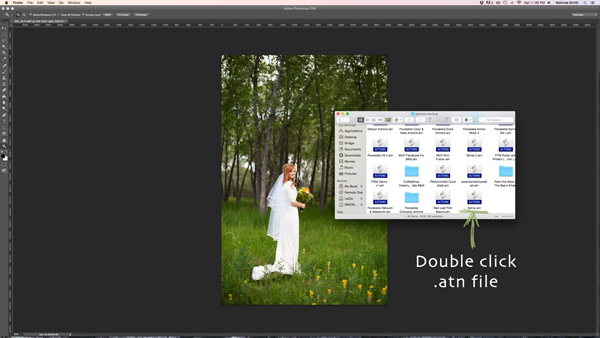
Find the “.atn” file and double-click it.

There are tons of places to find Actions on the web. Some cost a lot, some are free. There are a lot of great ones, and a lot that aren’t really worth using. I look for Actions that fit my style, and are fully adjustable. Which means that I can turn every layer off or on, adjust the opacity of each layer, and customize to fit my style and each individual photo.

Installing Photoshop Actions

Once you’ve purchased and downloaded your Action, make a backup file somewhere, just in case. Then, open the folder, find your Action (it will be a file with .atn extension), and double click it.

(You do not need to have a photo of a gorgeous bride open in Photoshop as you do this, but it never hurts!)

198

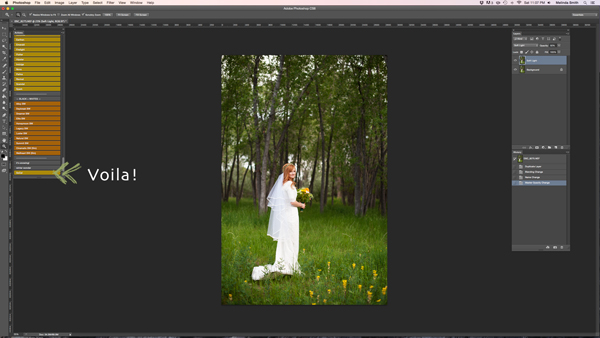
This might seem too easy to be true, but most of the time this works. It’s automatically installed into Photoshop when you double click. Easy as that! If for some reason that doesn’t work, or you like to do things the hard way, you can use the following method.

199

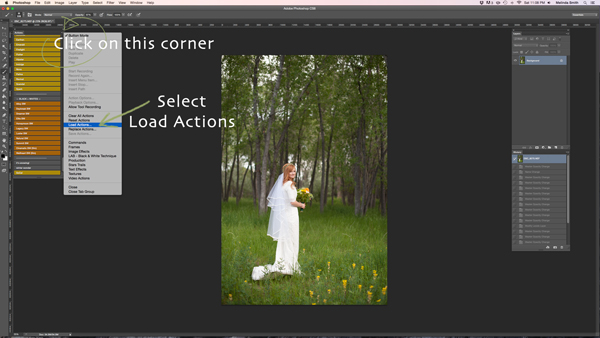
Make sure your Actions Palette is open. You can do this by clicking “Window” at the top of Photoshop, and making sure the check mark next to “Actions” is on. If you don’t see a check mark, just click on “Actions” and your Action Window will appear.

Click on the upper right hand corner of your Actions palette, and a drop down menu will appear. Select “Load Actions”.

200

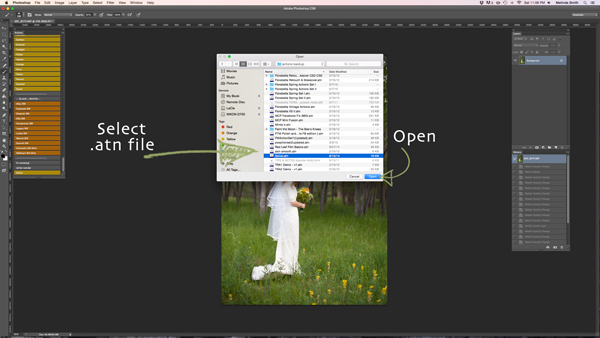
Then, you’ll navigate to find and select that .atn file, click “Open”, and it will be installed. Now your Action is ready to be used. All you have to do is open a photo, click on your Action, and it will run through a bunch of steps in a very short amount of time (running times may vary based on the number of steps in the Action and the speed of your computer). Be aware that not every Action will look great on every photo, and many times Actions need to be adjusted before they look right. Be careful not to overuse Actions. They are great tools, but can ruin a photo quickly if you don’t practice adjusting and learning what Actions work with different types of photos.

How to create Photoshop Actions

Now that you know how to install someone else’s Actions, I want to teach you how to be a Photoshop rock star and create an Action of your own. You can create Actions for so many different things, from a simple sharpening Action, to a complex multi-step stylized Action.

184

For this demonstration I’m going to show you how to make a simple “soft light” layer to add a boost to your photos. Go ahead and open Photoshop and make this Action along with me. Once you see how the steps work, you can experiment with making more Actions for all the things that you find yourself doing over and over again. You will need to have a photo open when creating your Action, so choose a beautiful bride, or any photo you’d like.

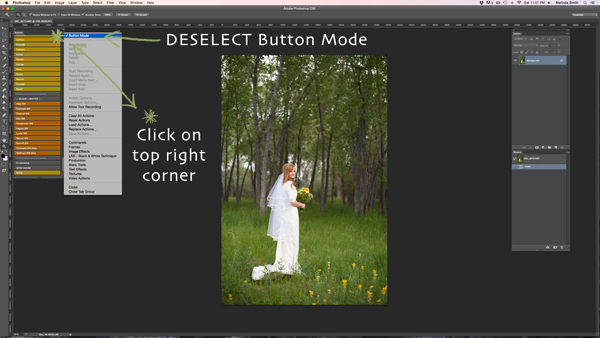
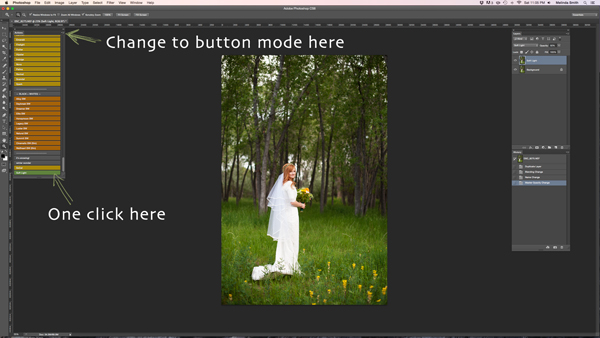
Your Actions palette may be in button mode, or it may not. I like mine in button mode for normal use, but you have to change out of button mode to create Actions. Click on the top right corner in your Actions palette, and make sure that the check mark next to “Button Mode” is deselected.

185

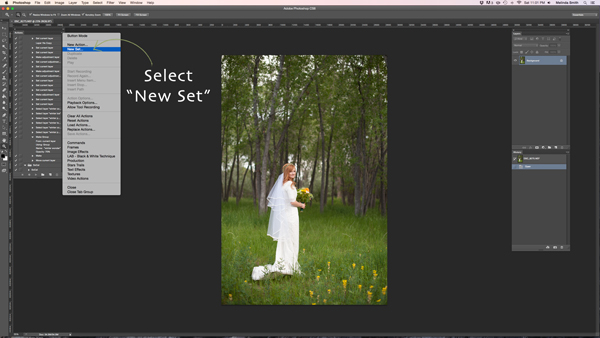
Before you create an Action, you will want to make your own Action folder set, so that everything stays organized. Select “New Set” from your drop-down menu.

186

You can name your set anything you’d like. A great set to start with would be a simple “My Actions”, so you will know which ones you created. Later you can divide them into multiple categories if you’d like.

187

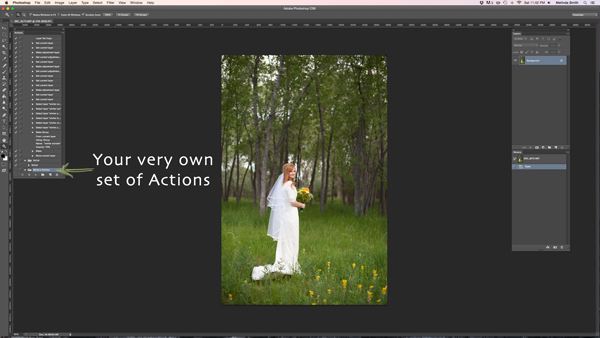
Right in the Actions palette is your very own set of Actions. You are now that much closer to Photoshop rock star status! Make sure your set is selected for the next step. If it’s highlighted, you’re ready to go.

188

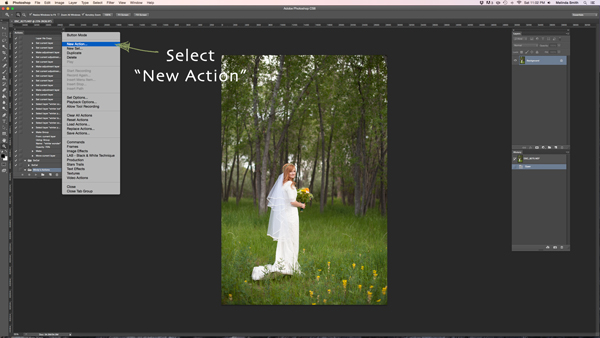
Select “New Action” from the menu. We are going to create an Action inside your Action set.

189

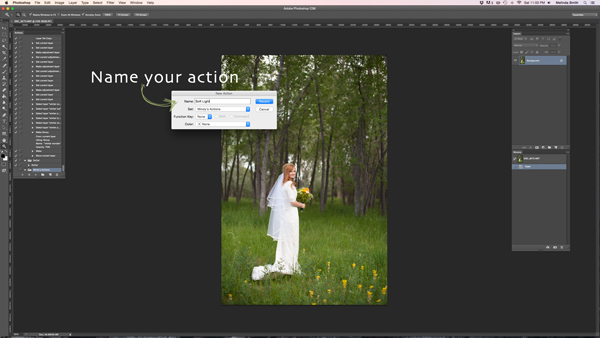
Now you’re going to name your Action. It’s good to pick a name that lets you know exactly what it does, or describes the results of the Action well, so you won’t be wondering later. Since this Action will be a “Soft Light” layer, I just named it “Soft Light”.

190

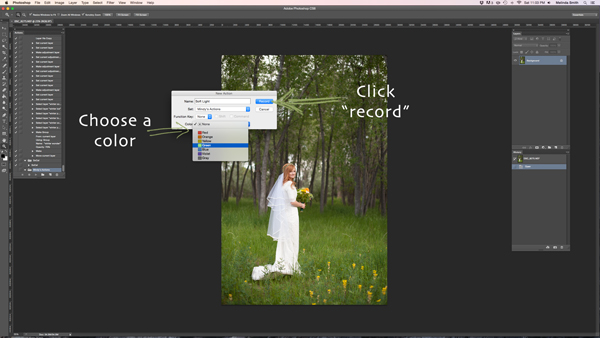
If you’d like to, you can also choose a color for your Action, this only applies if you are in Button Mode. This helps with Action organization. You can make all of your Actions within your set the same color, so you can easily find different sets of Actions, or you could only choose a color for your frequently used actions, so they are quick to find. Now you’re ready to start recording. Just click record. Don’t worry, you can go as slow as you need to. It just records the process that you are going through, but doesn’t record the time it takes you to do it. It will play much faster than it takes you to record it.

191

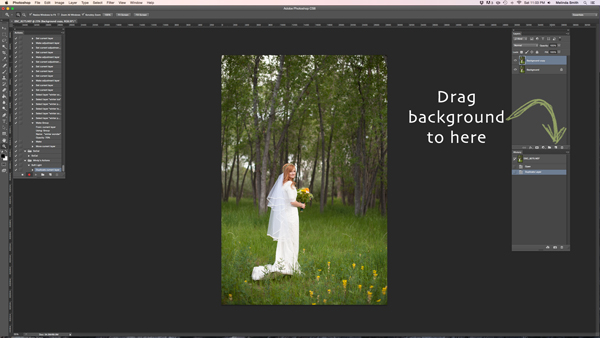
We are going through the steps of making a Soft Light layer right now. It’s super simple, but it’s a great one to make for your very first Action. Just drag your background to the “create a new layer” icon (the square with a corner folded over), and it will make a duplicate of your background.

192

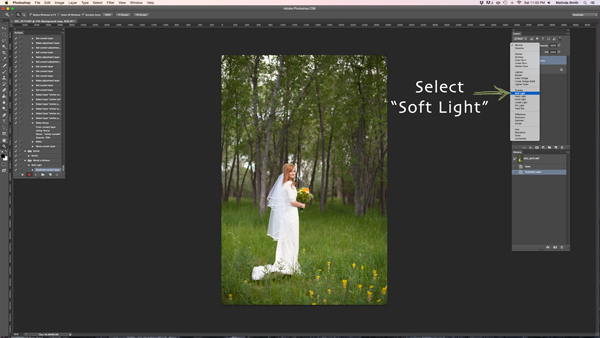
Make sure your “background copy” layer is selected, then click on the Blending Mode menu. (It will say “normal” on the button. It’s at the top left of your Layers Palette.) Find “Soft Light” and select that blending mode.

193

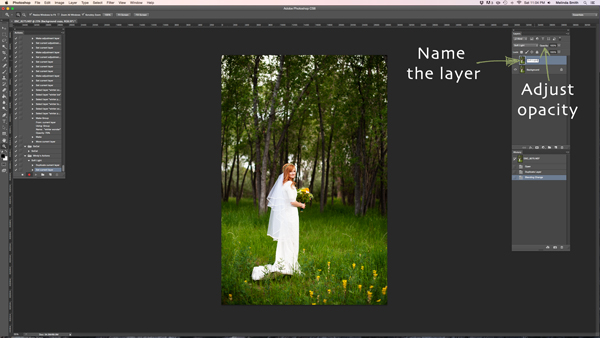
I like to name the layer when I make Actions, so that I can easily know what each layer does when I run the Action later. Just double click on the name of that background copy and type in a new name for that layer. I went with “Soft Light” because I’m very original and creative.

I also adjusted the opacity to around 50%, just because I know that on most photos I won’t want it 100% strong (adjust to your own taste and style). When you run the Action, you can always adjust the opacity to suit the individual photo, but I suggest you put the opacity at a level that you use most, because often that will save a step when you run it later.

194

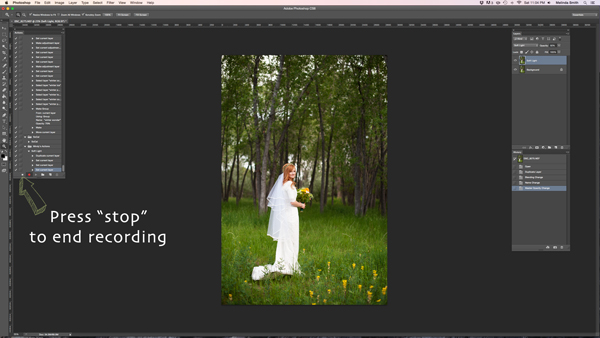
Now we are done with our Action and we just need to press “stop” to end the recording. It is the square just to the left of the red recording button.

195

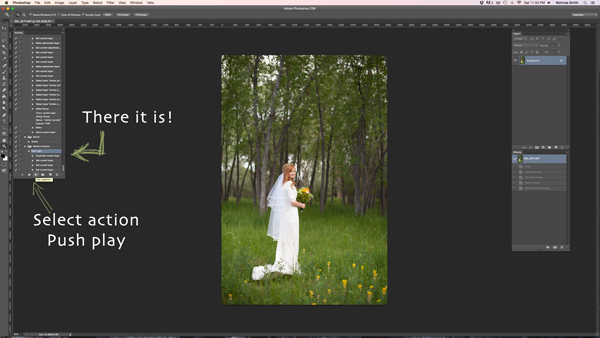
There’s your Action. Pretty exciting, isn’t it? You can try it out by making sure your Action is selected, and pushing “play” at the bottom of the actions palette. You’ll be amazed how quickly your “soft light” action goes through those steps. It doesn’t take long to do all those steps without an Action, but it’s almost instantaneous with one. Once you get a lot of your regular go-to steps turned into Actions, you’ll find that it takes a lot less time to edit each photo.

196

If you want to change back to button mode, it will really streamline things. All you have to do is click once on the Action. You don’t have to push play, or scroll a lot through open steps to find your Action. Give it a try.

Let me know how you did creating your first Action along with me. If you’re an Action-creating enthusiast, I’d love to hear what Actions you have made, and which Actions have been most helpful to your workflow.

googletag.cmd.push(function() {
tablet_slots.push( googletag.defineSlot( “/1005424/_dPSv4_tab-all-article-bottom_(300×250)”, [300, 250], “pb-ad-78623” ).addService( googletag.pubads() ) ); } );

googletag.cmd.push(function() {
mobile_slots.push( googletag.defineSlot( “/1005424/_dPSv4_mob-all-article-bottom_(300×250)”, [300, 250], “pb-ad-78158” ).addService( googletag.pubads() ) ); } );

The post 3…2…1…Actions!! A Guide to Using Photoshop Actions to Speed-Up Your Workflow by Melinda Smith appeared first on Digital Photography School.


Digital Photography School

 
Comments Off on 3…2…1…Actions!! A Guide to Using Photoshop Actions to Speed-Up Your Workflow

Posted in Photography


5 Ninja Tips to Speed Up Your Lightroom Workflow

11 Dec

Currently on for 33% OFF is Johny’s Lightroom Essentials for Landscape Photographers Course. Grab it now, only until December 23rd, 2014.

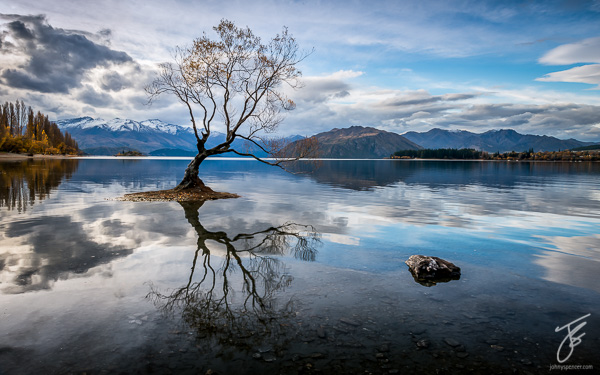
DSC 8831 Edit
Here are five things that will make a huge difference to your Lightroom workflow by making you more efficient and saving you time.

1. Solo Mode

Solo Mode

Do you get frustrated scrolling up and down the panels looking for the right adjustment or setting? If so, then your frustration is over. Right click on one of the panels and in the drop down menu, select Solo Mode. Solo Mode only allows you to have one panel open at a time, so every time you open a panel the last one you had opened, closes. This allows you to easily see all the panels at once and find what your looking for quickly.

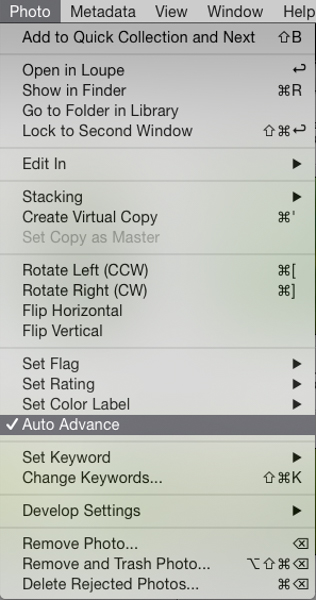
2. Auto Advance

The best way to find your keeper images after a shoot is by using flags. All you need to do is use the keyboard shortcuts; P for pick, and X for reject. This is a super fast way to power through your shoots. The problem is once you pick or reject an image you need to then click a right or left arrow key or mouse click on the next image to make the next selection. That’s where Auto Advance comes in. To turn it on make sure you’re in the Library module, then in the menu under Photo select Auto Advance. With this enabled, each time you flag an image Lightroom will move to the next image in the film strip automatically. This may not sound like a huge thing but believe me, when you have several hundred images to sort through saving one keystroke on each image will save you heaps of time.

Auto Advance

3. Quick Collections

Collections are super important in Lightroom. Using them is the best way to quickly switch between groups of images in the Develop module without switching back to the Library module and digging through your folders. Quick Collections is a term I’ve coined, but honestly this is the quickest way to create a collection. It’s really simple. Just grab a folder of images you want to make a collection from, then click and drag the folder to the collections panel. Once you see a blue bar appear, drop the folder and BOOM, instant collection.

Quick Collections

4. Turning Off Auto Show Panels

To give you more real estate on the screen it’s a great idea to hide the side panels when you are not using them. The perfect place to do this is with left panel in the develop module as most of the time everything you need is in the right panel. The problem is once it’s hidden and every time you mouse over to the left of the screen the panel pops out. That might be fine a couple of times but after a while you’ll find that it becomes annoying and starts to slow down your workflow. It’s easily fixed by right clicking on the panel disclosure triangle, and selecting manual from the drop down menu. This will stop the panel from opening automatically. When you want it back, just click on the triangle to show the panel.

Turn Off Auto Show Panels

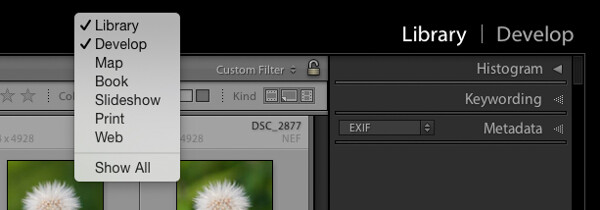
5. Decluttering the Lightroom Interface

Learning Lightroom can be very overwhelming especially when you see all the modules in the top bar and all the different panels and settings. There is so much going on in the interface, it can lead to what I call Lightroom burnout. The tip here is to turn off the modules and panels you aren’t using by cleaning up the interface. This allows you to only focus on just the things you are learning or need to use regularly. Just right click on the top bar or any of the panels, and in the drop down menu select what module or panel you want to hide, repeat the process to unhide.

Declutter

Like a lot of software there are many ways to achieve the same outcome. I encourage you to keep refining your workflow until you find the perfect system that works for you. Give these five tips a go; they will not only save you time, but help you on your way to achieve what I call Lightroom bliss. That is when you get to a place using Lightroom where there’s no more frustration or confusion, and it’s just all about having fun with your photography and creating beautiful images.

Dancing Gulls

DSC 8638

Currently on for 33% OFF is Johny’s Lightroom Essentials for Landscape Photographers Course. Grab it now, only until December 23rd, 2014.

googletag.cmd.push(function() {
tablet_slots.push( googletag.defineSlot( “/1005424/_dPSv4_tab-all-article-bottom_(300×250)”, [300, 250], “pb-ad-78623” ).addService( googletag.pubads() ) );
} );

googletag.cmd.push(function() {
mobile_slots.push( googletag.defineSlot( “/1005424/_dPSv4_mob-all-article-bottom_(300×250)”, [300, 250], “pb-ad-78158” ).addService( googletag.pubads() ) );
} );

The post 5 Ninja Tips to Speed Up Your Lightroom Workflow by Johny Spencer appeared first on Digital Photography School.


Digital Photography School

 
Comments Off on 5 Ninja Tips to Speed Up Your Lightroom Workflow

Posted in Photography


Digital Photo Editing Workflow – Better Images From Capture to Output

06 Dec

Better images from capture to output

A comprehensive look at the essential steps and principles in an effective photo editing workflow with highlights of key tools.

Have you ever tried to find a digital photo you know you worked on, but couldn’t remember where you saved it, or even what it’s called? Do you find yourself re-editing photos you’re sure you finished before? Or are you stuck, staring at an image you know could be made better, but not sure which adjustments to make, or even where to start?

We’ve all been there: hundreds of images to sort through. Files scattered all around your hard drives; photos missing, others duplicated in unnecessary versions, who-knows-what lurking in mysterious places with confusing names. And prints coming back from the lab looking, well, crappy. All the while, knowing you have photographic gems just waiting to be discovered and brought to life.
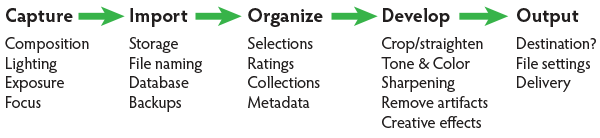
Nat coalson digital photo editing workflow image 1 diagram H

If you’re feeling overwhelmed by digital photography, you’re not alone. Capturing digital images has become so easy in recent years that it’s easy to get stressed, if only because of the sheer volume of pictures you’re making.

For every serious photographer, capturing an image is only the beginning of a complex process with numerous pitfalls. So how can you streamline this tangled mess? The key to keeping your digital photography fun and productive is to adopt, and adapt, an effective, consistent workflow.

Why workflow matters

The concept is simple – your photography workflow is the sequence of steps and actions you take to edit your photos, work them up to a result you consider finished, and share them with the world. Editing photos can be like baking a cake or assembling flat pack furniture. You start with raw ingredients, or loose parts, and use an ordered sequence of steps to put the thing together. In a good photography workflow, the end result is a perfectly crafted image, securely stored for future use, all with the least possible effort.

Efficiency is important. Without a good workflow, at minimum you’re wasting time. Worse, you run the very real risk of losing your most precious photos. Forever. A couple of years ago I knew a wedding photographer, then aspiring to become professional, who lost an entire wedding shoot because of relatively simple errors in her workflow. (In short, the mistakes derived from a convoluted importing method and totally inadequate backups.)

Maybe you’re only taking pictures for fun? If you’re planning to continue with photography, you still need to use an effective workflow. If you don’t, your photo archive will become a beast, very difficult to tame. And your images won’t look as good as they could. No fun.

When you’re starting out in digital photography, you need to develop good habits early. Even if you’ve been shooting for years, it’s never too late to improve your process.
Nat Coalson Within the Great Cloister 600px

Now it’s personal

You can craft your digital photography workflow to suit your own situation and preferences. But every effective workflow shares common tasks, proven techniques and best practices. These established methods have evolved with real-world use across all genres of photography. They apply equally to beginning enthusiasts and seasoned pros.

I first began editing photos in the early 1990s, working in a magazine publishing environment. Under tight deadlines and managing many thousands of digital assets, a good workflow was crucial. As a working photographer, I’ve been refining my own workflow for over a decade and I still make little tweaks now and then.

Continually finding ways to tighten the screws helps eliminate the risk of disaster, while also making the practice of photography more fun and rewarding. You can master your own photography workflow, too. You first need to understand the most common problems and tasks you’re likely to encounter. Then learn the best tools and techniques for dealing with them. A good photo editing workflow:

  • Uses the fewest steps possible.
  • Is non-destructive and allows you to change your mind or redo steps without losing image quality< ./li>
  • Protects your images now and for the future.
  • Provides the best looking photos.

So let’s review the essential parts of a practical photo editing workflow.
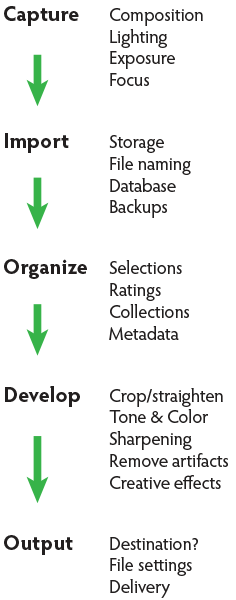
Nat coalson digital photo editing workflow image 1 diagram V

Stage 1. Capture

Whatever the end result you’re envisioning, great digital photographs begin with good data. You should always strive to make the best capture you can, and in most cases, try to finish the photo as much as possible in-camera. Work carefully to make the most accurate exposure with the ideal level of sharpness for the given scene or subject. Regardless of your capture format, you should always be working to master your camera techniques.

Stage 2. Import

Copying files from removable media onto more permanent storage is also variously called downloading, ingesting, transferring, etc., but the result is the same. Right after a shoot, copy all your images from the memory card into a new folder on at least one hard drive, then back up everything right away.

Backup. Backup. Back Up!

Every computer user knows the importance of backing up data. But too many people don’t do it, or don’t do it often enough. This isn’t a single step in the workflow; it’s something you should do frequently throughout the process. You should have your image files saved on at least three separate media sources:

  1. Your master working drive
  2. A current backup of the master drive
  3. A complete historical archive, preferably stored in a separate physical location from your master and working backups

(The topic of digital photo storage and backup is so important that we’ll revisit it repeatedly in the future!)

Stage 3. Organize

After your photos are copied onto your working storage media (and backed up!), sort through the pictures to separate your favorite images from the rest. The best way to do this is with ratings (e.g. stars) or other ranking methods (colors, flags, etc.).

Nat coalson digital photo editing workflow Image 2 selections

Whichever system you prefer, keep all the photos from a single shoot together in one folder and use the ratings attributes to annotate your selections. During this stage you should also apply and enhance the metadata associated with your files. Keywords, copyright notices and contact information are just a few of the many types of textual information you can embed within a digital image.

Escaping folder hell

In the early days of digital media, it was common practice to move files from one folder to another during the editing workflow. For example, all the original images, often scans from film, would first be put into one folder. As individual photos were selected, processed and output, the files would be copied again (or moved) into other folders representing the stage of the workflow it was in. DON’T DO THIS! It creates a very unwieldy hierarchy of files and folders and makes good organization all but impossible.

Modern imaging software, and more specifically, metadata—allows you to more effectively organize files using virtual methods (such as Lightroom’s Collections and virtual copies) without the need to ever copy or move your original images on the hard drive. In an efficient workflow, there is no need to use separate folders for different types of files.

Stage 4. Develop

This is where you apply digital processing to make each image look as good as it can to fulfill your creative vision for the picture. Like Import, this stage has different names depending on who you’re talking to. Developing is the term most often used by Lightroom users. Enhancing, adjusting, post-processing, and simply editing are other common terms to describe this stage, which itself is comprised of several distinct steps.

The ideal order of operations for developing a photo depends on the characteristics of the original capture; some images will need very different enhancements than others. Still, it’s possible to define a typical sequence of steps as below.

TIP: Work global to local

Make the biggest changes first, then work your way to smaller details. In photo editing, this means first making global adjustments (those that apply to the entire image) before working on the local adjustments. And, earlier in the workflow, apply any changes relevant for large batches of images before moving on to fine tune individual photos.

Develop steps

  1. Crop and straighten. Since it changes the composition, cropping can be the most significant change you can make to a photograph. It’s best to do it early in the process, but you need to use a method that allows you to go back and refine the crop later if you change your mind.
  2. Correct distortion. Most camera lenses introduce various amounts of distortion to a picture; some more than others. Fix distortion as one of your first, regular steps.
  3. Adjust exposure and tones. The tonal range of an image refers to the various levels of brightness of each pixel, from pure white to solid black. Tone is independent from color. Simply setting the white and black points can have a huge impact on the overall appearance of an image, so you should normally do this before moving on to color. Tonal contrast should also be handled during this step; the variation between light and dark tones determines how much impact (or punch) a picture has. Naturally, some pictures will look best as low contrast.
  4. Adjust white balance and color. White balance plays the biggest role in the color of a photo. If the photo has a strong color cast — for example, an indoor photo captured using outdoor white balance settings — you should fix it before addressing tone. But for images with white balance that seems fairly accurate, set the tone before refining the white balance. After setting white balance, consider making other color adjustments, most notably saturation and vibrance, which affect how pure and vivid the colors appear. Alternatively, convert to black-and-white or apply special color effects during this step.
  5. Apply local adjustments. These are edits you make only to small areas of the picture. Examples are dodging and burning (lightening and darkening, respectively) and selective color adjustments. In general, you should try to make local adjustments after you’ve finished the global adjustments.
  6. Apply noise reduction. Noise appears in digital images as soft colored blobs or grainy speckles. Most images can be improved with varying amounts of noise reduction. Photos captured at high ISO, made in the dark, or ones that are significantly underexposed, will need more aggressive noise reduction. You’ll normally want to deal with noise reduction after you set tone and color, because those global adjustments will affect the appearance of noise. Zoom in for larger previews when adjusting noise reduction and sharpening.
  7. Apply sharpening. Sharpening is all about contrast. The appearance of sharpness in a digital image is based on the relative lightness or darkness of neighboring pixels along the edges of lines within the picture. More contrast along the edges equals more sharpness. As such, you shouldn’t try to refine the sharpening levels until you’ve already set the global tone range, because the overall contrast of the image will have a major effect on the appearance of sharpness. Do your sharpening a bit further into the workflow.
  8. Perform retouching. Many pictures contain elements that you want to remove altogether. In some cases, these are artifacts — undesirable results of digital processing or camera characteristics including noise, chromatic aberration, fringing and sensor dust spots. Other times, there’s something ugly in the frame, like a telephone pole sticking out of your mother-in-law’s head. Retouch your photos using Lightroom’s Spot Removal tool or Photoshop’s Clone Stamp and Healing Brush.Other processing can reduce or eliminate the need for retouching, so it can be a waste of time and effort to retouch photos earlier in the workflow. For example, you could spend twenty minutes removing dust spots around the edges of a photo and then decide you want to crop the picture tighter anyway.Do your retouching toward the end of the workflow.
  9. Apply special effects. All the previous developing steps will apply to most of your photographs. After you’ve corrected the technical issues and processed the photo to an acceptable baseline quality, consider applying further stylistic adjustments and special effects.

Nat coalson digital photo editing workflow image 3 barcelona

Stage 5. Output

After you edit photos to a level of perfection you’re happy with, think about sharing and reproducing them. In the digital realm, output generally refers to the many ways you can bring your images into the real world. To do this, from your finished master image, export derivative files, specifically for each intended purpose.

Sharing online is a great start. Most web sites have some important parameters you need to know for your images to look their best (and all web site specs are not the same). Take the time to research the best file settings for your file uploads.

High quality printed reproductions — photo books, notecards, calendars, fine art prints, etc. – also require you to follow specific parameters for exporting image files from your editing software.

TIP: About resizing photos

When you’re editing photos, you should always process your master images at their native resolution. In other words, whatever the pixel dimensions of the image as it came off your camera, do all your editing at that size. Any resizing should be done at the very end of the workflow and only on copies of the master file, each exported to the specifications for the output destination. Don’t resize your master files! (Lightroom keeps this simple – since there are no controls for resizing during the editing process, you can only do it only during an export.)
Nat Coalson Flow III 575px

Conquer your photo editing workflow

When you don’t follow a good system, digital photography can become stressful. Losing pictures, redoing steps, and not getting the quality you’re hoping for are all side effects of an ineffective workflow. Who wants any of that?

Remember that everybody who’s mastered their personal photography workflow had to start somewhere. You’ve likely mastered some parts of the process already. Now, identify specific bottlenecks and key areas for improvement in your own photo workflow. Pick one aspect of the workflow that seems unfamiliar or challenging, and start there.

Crafting your ideal workflow doesn’t happen all at once, nor is it a purely linear process. With so many steps and potential traps, you’ll need to study and practice each of the different stages independently, then tie them together into a cohesive sequence.

TIP: The main reason Adobe Photoshop Lightroom is widely considered the best photo editing software is that it provides most of the capabilities you need to handle the complete photo workflow as describe above.

When you follow an optimized process for working with your pictures and develop a clear understanding of the principles behind your decisions, you’ll have more fun working on the things you enjoy, rather than struggling with tedious tasks.

Practicing good workflow techniques helps you make great photos – easier!

googletag.cmd.push(function() {
mobile_slots.push( googletag.defineSlot( “/1005424/_dPSv4_mob-all-article-bottom_(300×250)”, [300, 250], “pb-ad-78158” ).addService( googletag.pubads() ) );
} );

The post Digital Photo Editing Workflow – Better Images From Capture to Output by Nat Coalson appeared first on Digital Photography School.


Digital Photography School

 
Comments Off on Digital Photo Editing Workflow – Better Images From Capture to Output

Posted in Photography


Speed Up Your Post-Processing Workflow With Photo Mechanic

07 Nov

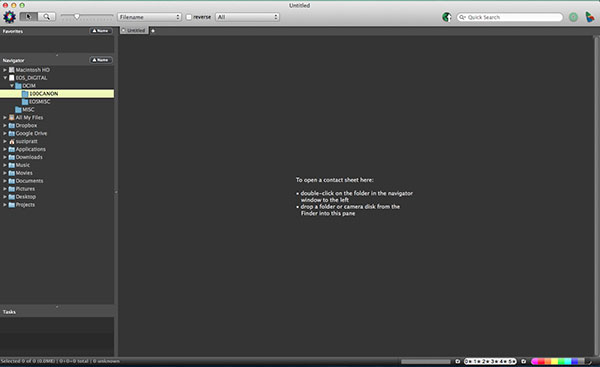
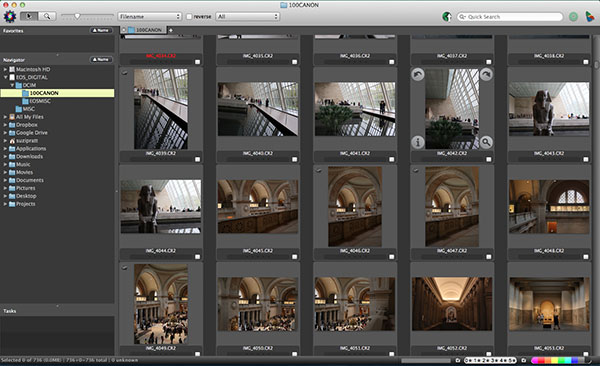
PMCleanCover-178x177Today there are a ton of photo editing software programs to choose from, but there is one in particular that is worth the investment if you’re in need of speed. Developed by Camera Bits, Photo Mechanic is a standalone image browser that offers the very basic features of previewing, selecting, and importing digital images (culling). While the software might seem like a questionable investment since all it does is cull with no photo editing capabilities, Photo Mechanic has long been vouched for by many professional photographers. In fact, it was debuted in 1998 and used by The Associated Press to accelerate its coverage of Super Bowl XXXII. Since then, Photo Mechanic has been a popular choice by professional sports shooters and photojournalists, and it has also been made available to amateurs at a price of $ 150.

photo-mechanic

Whether you are a pro or not, here is why you may want to consider looking into Photo Mechanic for your post-processing workflow:

Photo Mechanic Image Browser

The core benefit of using Photo Mechanic is its wicked fast speed and ingest utility that allows for copying files from multiple flash or SD cards cards simultaneously, as well as renaming the files and adding IPTC information to them. Photo Mechanic also has a Live Ingest feature that is ideal for shooting tethered or using remote cameras and seeing your shots as soon as they are taken.

Photo Mechanic Image Browser

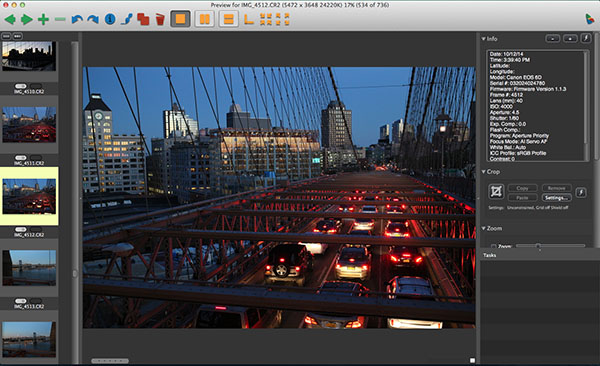
As soon as you connect your SD or CF card to your computer and pull up Photo Mechanic, you will immediately see compressed JPEG previews of all of your card’s contents on your contact page. It won’t matter if you shot a couple thousand RAW photos – each one will be almost instantly available for preview. There isn’t the three to five second delay that is common on other photo browsing programs such as Adobe Lightroom and Bridge. When you double click on a single image in the contact page, the image will enlarge in a preview screen, and you’ll be able to immediately view your photo in high resolution, including zooming in to check the focus of tiny details. All of this is done without having to load the image, meaning it happens with little to no lag time. You’ll be able to preview the entire contents of your card with the same speed.

Photo Mechanic Image Browser

Once you begin ingesting (importing) files from your cards to your computer or external hard drive, you can immediately start editing the photos. There is no need to wait until the copy process is complete. You can even initiate up to three other ingest sessions at a time, meaning up to three cards can be culled at the same time. The latest version 5 of Photo Mechanic was released in 2013 and it enhances the ingest feature by giving you the option to automatically import images when a disk is mounted to your computer.

Photo Mechanic Image Browser

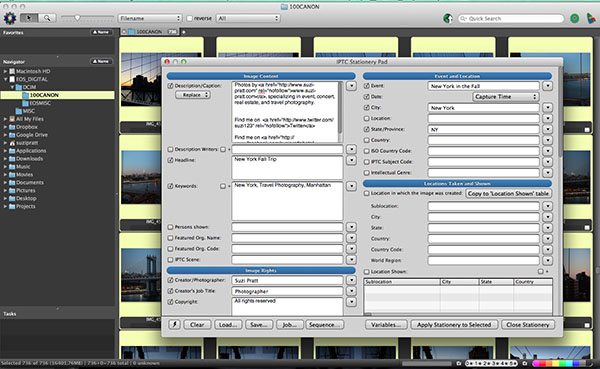
To speed up the image sorting and organizing process, Photo Mechanic includes an IPTC Stationery Pad for adding captions, credits, metadata, and copyright information to batches of images. Version 5 of Photo Mechanic includes dozens of new IPTC fields and extra sorting options including color class, rating, and tag values.

Photo Mechanic’s main disadvantage is that it does not convert RAW shots, meaning you’ll still need to use a separate program such as Lightroom or PhotoShop to perform any edits or convert RAW images into JPEGs. Some photographers might find it a hassle to go between programs, but if you’re in the market for speedy imports and downloads, then Photo Mechanic will be your preferred image browser. It also offers a free 30 day, fully functioning version if you want to test it out first.

Have you tried it of a similar solution? What are your thoughts? Please share your comments with us.

The post Speed Up Your Post-Processing Workflow With Photo Mechanic by Suzi Pratt appeared first on Digital Photography School.


Digital Photography School

 
Comments Off on Speed Up Your Post-Processing Workflow With Photo Mechanic

Posted in Photography


Photography Workflow Tips – From Memory Card to Computer and Beyond

06 Nov

Discover the best workflow protocol for safe long-term file storage, and efficient file retrieval.

“Be willing to give that extra effort that separates the winner from the one in second place” – H. Jackson Brown Jr.

MemoryCards 1

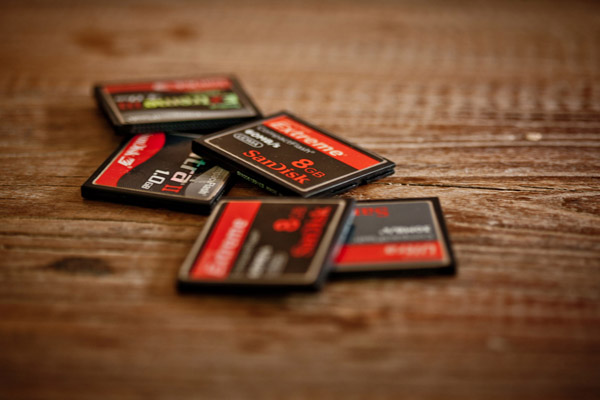
All images copyright Gina Milicia – Playing your cards right means having a consistent workflow, which leads to safer long-term file storage and efficient file retrieval. Photo credits: Promo shoot for Fat Tony and Co. Image courtesy Nine Network Australia

“Respect your efforts, respect yourself. Self-respect leads to self-discipline. When you have both firmly under your belt, that’s real power.” – Clint Eastwood

It’s very easy to become lazy and a bit sloppy with post-production workflow protocols. If you are like many people I know, then you are currently downloading your files to a folder marked “downloads” or “photos” or “John”. Inside this folder you may have hundreds, perhaps thousands of images with file names like 5U9D2496.jpeg or 5U9D2497.CR2. This is all perfectly fine if you never want to see those images again but what if in five years time you need to find those images again?

Following a constant workflow protocol will save you hours of valuable time and also prevent potential heartbreak caused from lost files.

MemoryCards 2

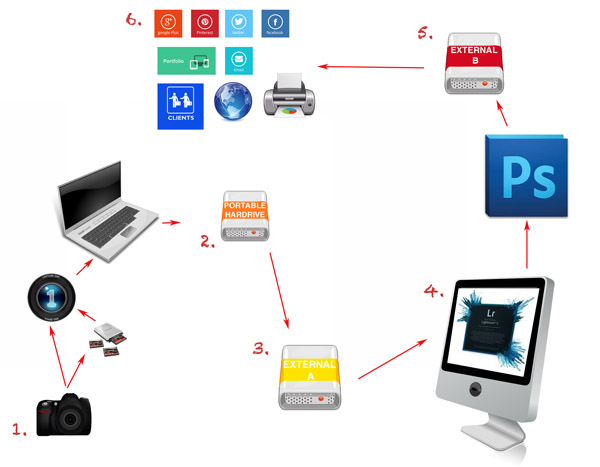
An overview of the workflow tips:

  1. Import the images from your camera (first backup)
  2. Backup to portable hard drive (second backup)
  3. Backup to external hard drive (third backup)
  4. Editing
  5. Final backup
  6. Delivery

Workflow tips – step by step

“Success is the sum of small efforts, repeated day in and day out.” – Robert Collier

Step 1: Import the images from your camera (backup #1)

You can get the images off the memory card in a few different ways. Here are the pros and cons of each method.

Memorycards 3

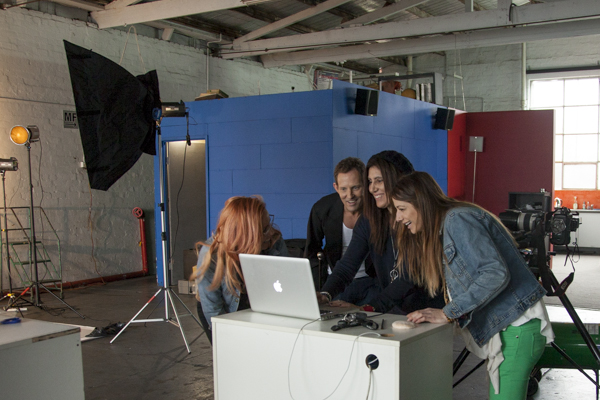
Instant gratification: In this image I’m shooting tethered on a photo shoot for Australian entertainer Todd Mckenney (pictured second from left) and makeup artist extraordinaire, Fotini Hatzis (far right) with stylist to the stars Louise Petch (far left).

Shooting tethered to your laptop

I shoot about 70 percent of my work tethered (connected to my laptop) and it’s my preferred way of shooting. I have a memory card in the camera but the images are being downloaded straight to my laptop via image capture software. The memory card is just a backup.

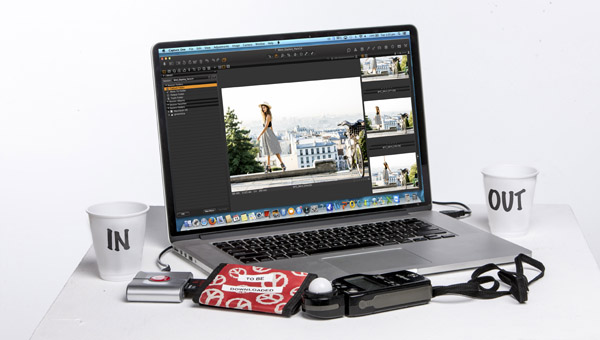
My preferred software for viewing images as I shoot is Phase One Capture One. I use Capture One to view my files because it’s very fast and I’ll often have several people crowded around the computer waiting to see the image. In these cases a couple of seconds can make all the difference.

Shooting straight to memory card

MemoryCards 5

This shoot with Australian model, Mimi Elashiry was shot on location in Paris. It was photographed at dawn to avoid the crowds and I needed to work quickly in order to get all my shots done before the light became too hard and the crowds became an issue. This is a perfect situation for me to shoot straight to card.

I will shoot straight to a memory card when I can’t have my laptop with me. Like, on remote locations, in extreme weather conditions, at press conferences, at events where I need to be mobile or I’m on stage photographing someone.

I carry a special cardholder that is clearly marked “To be downloaded” and stored away from my gear. This way, if my camera bag is lost or stolen (or the day gets a bit frantic) before I’ve downloaded all the memory cards, I won’t lose my files.

The images are then downloaded to my laptop using a memory card reader via Capture One.

I use RAW capture software at this stage because it’s crucial to check my exposures and expressions as I work. I’m also often working with art directors, magazine editors, fashion designers or publicists who want to view the images straight away.

All images stay as RAW files. This step is simply for checking, viewing and selecting (tagging) images.

MemoryCards 4

Some people will prefer to copy the images directly onto their computer desktop and use other software. I choose Capture One because for most of my shoots, my clients are right next to me and we’re making sure we’ve got the shot. I’ve also got an assistant double-checking the technical aspects of the shots.

Capture One lets me handle the process simply and quickly, and the software is easy enough for clients to use. Lightroom works just as well but when I’m shooting thousands of images, I don’t like the interface. It’s a personal preference, that’s all.

As long as you can organize, select and name your files at this point in the workflow – use whatever works for you.

The memory card that has just been downloaded to my laptop is then put aside and not reused that day. This works really well when I’m shooting across multiple cards as it prevents any card being wiped, accidentally.

I never leave a memory card in the camera, always removing the last card at the end of a shoot. This is another way of protecting my files and prevents me, or anyone else assistants, from accidentally deleting files.

Renaming images

Now back to all those images you have sitting in a folder marked “Photos” or “John” or they may be roaming free across your desktop and stored wherever they happen to land when you download them. I call this the “shoebox file storage system”. Everything gets stuffed in one place without any thought to ever having to retrieve the information again.

For the sake of your own sanity, I beg you to not ignore this section.

I rename images when I download the files from the camera to my laptop.

My shoots often have very fast turnaround times with art directors, publicists, or clients choosing their images during or at the end of a shoot. Having the files already in an organized and consistent structure saves everyone a lot of time and hassle.

  • Images for private clients are renamed as:
    Folder name: Client name + year
    Filename: Client surname_first initial+last 2 digits of year_4 digit counter
  • So my shoot for James Brown in July 2014 would be named:
    Folder name: James Brown 2014
    Filename: Brown_J14_0001.CR2
  • Images for companies are renamed as:
    Folder name: Company + job + year
    Filename: Company_job+last 2 digits of year_4 digit counter
  • So when I shoot the next Nutella® Winter campaign (Dear Nutella® I’m available and will work for product. Call me.) I would create the folder and files as follows:
    Folder name: Nutella Winter 2014
    Filename: Nutella_Winter14_0001.CR2

This naming system allows me to search by folder or file and find shoot quickly and efficiently.

Step 2: Backup to portable hard drive (backup #2)

I backup my RAW files onto a portable external hard drive every hour. During a full day shoot I may end up with 3000-5000 files so I need to make sure they are secure as I go.

Step 3: Backup in the office (backup #3)

When I get back to my office, I copy the images from the external portable hard drive I used at the shoot onto one of three working hard drives. In this case, I copy them on to working hard drive A.

At this point in my workflow I have the entire shoot in three locations: my laptop, an external portable hard drive and working hard drive A. The shoot stays in all three locations until the job is delivered.

I only use hard drives that are two or three terabytes in size because I don’t want everything on one single hard drive.

I don’t use cloud storage mainly because my files are just too big. My website has storage for my final processed images and I use my website to deliver images to my clients. I trust the business hosting my website but if anything should happen, I still have the files on two other hard drives.

Step 4: Editing

I edit my images using Adobe® Photoshop® or Lightroom, or a combination of both, and the edited versions are saved to working hard drive A.

Step 5: Archiving

Memory6_11

Once post-production is complete I copy all my files onto working hard drive B, which is stored in an off-site location for safety.

If you think this is overkill, remember: memory cards corrupt, laptops crash and hard drives fail. Protect your work with as many backups as you can.

As a minimum, save your images in two different locations. Keep one with you, and store the other in a safe location off site. This way if disaster strikes you will still have a backup copy of your precious files.

Step 6: Deliver

Nearly all my jobs are delivered as electronic files with the exception of a small percentage of clients (about 5%) who require prints.

The images they have selected are delivered via file transfer protocol (FTP), my website image archive (I use Photoshelter), DVD or an external hard drive.

Editor’s note: your version of “deliver” might look like sharing photos online in social media, emailing a couple to friends, or making prints for yourself.

What are some of your favorite workflow protocols? Do you have any great workflow, storage and delivery techniques you’d like to share? How do you safely store your memory cards before you download them? I’d love to hear about them.

The post Photography Workflow Tips – From Memory Card to Computer and Beyond by Gina Milicia appeared first on Digital Photography School.


Digital Photography School

 
Comments Off on Photography Workflow Tips – From Memory Card to Computer and Beyond

Posted in Photography


New: The dPS Guide to Portrait Post Production and Workflow

02 Oct

Our Exciting News in a Nutshell

Today I’m excited to announce the launch of a brand new eBook – Portraits: After the Shot – a Guide to Portrait Post Production and Workflow by Gina Milicia.

It’s available for a limited time with an early bird bonus of a collection of great Lightroom and Photoshop presets. Get your copy here.

The Story So Far

  • In January 2013 we released our first Portrait Photography eBook by Gina Milicia – Portraits: Making the Shot – a fantastic overview of taking beautiful portraits with soul.
  • In September 2013 we released Gina’s second eBook – Portraits: Lighting the Shot – a guide to lighting portraits with both natural and artificial light.
  • In January of this year we added to Gina’s library of eBooks with a 3rd – Portraits: Striking the Pose – an eBook all about working with your portrait subjects to get natural looking portrait poses.

Portraits ebooks

To say Gina’s first 3 eBooks have been popular would be a gross understatement. They’ve each outsold the previous one and have received fantastic reviews from many of our readers.

But we’re not finished yet. So far Gina has focused her eBooks on taking beautiful portraits. Here at dPS we’re big believers in getting the best photo you possibly can in-camera – but we also know there’s a lot you can do after you take the shot.

It’s for this reason that we’ve been working with Gina over the last 6 months on a new edition to this wonderful little collection of eBooks and today can introduce to you… Portraits: After the Shot

Portraitspostproduction

This eBook is all about giving you the confidence and skills to work with the portraits you take and bring them to life using the wonderful tools available to us today.

Inside Portraits: After the Shot you’ll discover topics such as:

  • The fundamental rules of portrait post processing
  • How keeping your processing simple can be much more profound
  • How to develop your own post processing style
  • All the gear you’ll need to support your processing
  • Storage and backup solutions
  • Detailed run though of Ginas exact workflow
  • Lightroom fundamentals and shortcuts
  • Lightroom ‘go to’ recipes
  • Photoshop essentials and recipes

There’s much more too.

See the full table of contents, some screenshots from the eBook and learn more about the early bird bonus here on our Portraits: After the Shot page.

For those of you who’ve not invested Gina’s previous eBooks you’ll also find a great bundle deal that gets you 38% off the full collection!

The post New: The dPS Guide to Portrait Post Production and Workflow by Darren Rowse appeared first on Digital Photography School.


Digital Photography School

 
Comments Off on New: The dPS Guide to Portrait Post Production and Workflow

Posted in Photography


How to Create and Use Photoshop Actions to Speed up Your Workflow

26 Jun

Photoshop_CC_icon.pngWhat are Photoshop Actions?

Photoshop Actions are very useful time savers. Should you find yourself applying the same Photoshop commands or a series of commands repeatedly to images, wouldn’t it be nice to just push one key and apply that series of commands to your image, or even to a whole folder of images? It can be done, read on.

What kind of things can you do with Actions?

Inside Photoshop, just about everything you do to enhance images can be done with an Action, ranging from: applying creative styles, resizing, converting to Black and White, sharpening, watermarking, or even compositing star trails – all with one click of the mouse or a keyboard short-cut.

Why use Actions?

The use of Actions will streamline image processing by combining multiple commands into one key stroke, or batch, which will save you lots of computer time and give you more time for shooting. Every photographer wants more time for shooting.

Create a simple Action

Okay, so perhaps you want to resize an image for the web. This simple action will resize the image to 600 pixels wide, and also add copyright and contact information to the image.

action_palette-with-callouts

Steps-by-step how to create your own Action

  1. In Photoshop , open the photo file you want to work on.
  2. Open the “Action Palette” or panel (Alt+F9)
  3. Select “Create New Action” from menu or click on the “New Action” button.new action3
  4. Name your Action; use a name that will tell you what the Action will do. In this case we will name it “Save for dPS Blog”.
  5.  Assign a key board short-cut.
  6. Assign a color to Action button. (This is optional, but can be useful to organize your Actions when you set up multiples.)
  7. Assign a set in which your Action appears. This is useful if you want many Actions for many different types of work, for example “Sizing Actions”.
  8. Start recording – select record from the menu or click the  “Start Recording” button.
  9. Now, simply apply all the Photoshop commands to your open image that you want saved in that Action.
  10. Select image size (Alt+Ctrl+I) and set to 600 pixels wide.
  11. Select File Info (Alt+Shift+Ctrl+I) and enter your Copyright information.
  12. Select “Stop Recording” from menu or click the “Stop Recording” button.If any of your commands require variable settings that need to be changed on an image by image basis, click on the pause button for that Action. Now when you run your Action, it will stop at that command for your input. Otherwise, your action will run just as it was recorded with all input being applied the same.

How to use Actions

There are three ways Actions may be used:

  1. Applying it to a single open image
  2. Applying it to a batch of images
  3. By creating a Droplet of your Actions

Explanations of how each of these work follow.

Applying to open image

You can apply your Action to an open image by simply selecting the desired Action in the Action Palette and then selecting Play from the menu or by clicking the Play button.

Applying to a batch of images:

  1. Place all the  images into one folder
  2. Select the Action you want to run
  3. Under the File menu, select Automate and then Batch (because the Action you want to run is already selected, the action field will have already been preloaded with the right one)
  4. Under Source, select the desired folder from the menu.
  5. Click on the Choose button and select the folder that contains your images.
  6. Under Destination, select Folder.
  7. Click on the Choose button and select a folder where you want the final images to be saved.
  8. Select Override Action “save as commands”
  9. Click OK and Photoshop will automatically start opening all the files in the source folder one at a time and running the Action, then saving them to the destination folder. Cool, huh!?batch

Make a Droplet from an Action:

With this method you can create an executable file, which you can be place on your desktop. Then if you want to run an Action on a file, you can just drag it to your Action Droplet and the changes will be applied to your file and saved to a specified folder.

Creating a Droplet:

  1. Select the Action that you want to use to create your Droplet.
  2. Under File menu, select Automate and Create Droplet, the Create Droplet menu will open.
  3. Under Save Droplet In: click on Choose and select a destination for your droplet. Your computer desktop is a great destination and makes the Droplet easily accessible.
  4. Under Play, since we already selected the Action in step 1, this section already contains the correct command info.
  5. Under Destination select Folder.
  6. Under Destination click on Choose and select a folder where you want the finished images to be stored.
  7. Select Override Action “Save as Commands”.
  8. Click OK and Photoshop will automatically create your Droplet.
    Now simply drag your image to the Droplet and the Action will be applied to the image and saved to your specified folder.Droplet

Actions can be used for the simplest series of commands, but after you get the hang of it you can create some very complex applications. The purpose of this article is to show just how easily you can create your own Actions and thereby simplify and speed up your work flow.

If you have other tips for using Photoshop Actions please share in the comments below.

For more on Photoshop Actions try these articles:

  • Tips for Learning to Love Photoshop Actions
  • Get Creative with Photoshop Actions
  • Lightroom Presets vs. Photoshop Actions

The post How to Create and Use Photoshop Actions to Speed up Your Workflow by Bruce Wunderlich appeared first on Digital Photography School.


Digital Photography School

 
Comments Off on How to Create and Use Photoshop Actions to Speed up Your Workflow

Posted in Photography