RSS
 

Posts Tagged ‘Workflow’

A Guide to Landscape Photography Workflow and Post-Processing

15 Apr

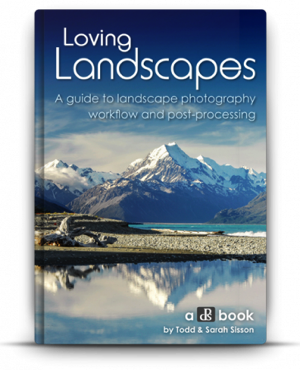
NewImageToday is an exciting day at dPS HQ because we’re releasing an eBook that has been asked for many times by readers – LOVING Landscapes, a Guide to Landscape Photography Workflow and Post-Processing by Todd and Sarah Sisson.

Early in 2013 we looked at our growing library of photography eBooks and realised that we had a big hole to fill – we were yet to publish a Landscape Photography eBook.

We began the hunt for a photographer to create a guide.

After much searching we came across the photography of husband and wife team Todd and Sarah Sisson and fell in love with their images. We began to talk to Todd about creating an eBook with us and mid last year released a guide to Landscape photography called LIVING Landscapes.

The eBook was a huge success and became one of our fastest selling eBooks ever.

That first eBook from Todd and Sarah received some amazing reviews and we still get positive feedback about it almost a year later. But alongside the praise was a request – a request for a guide to post processing landscape photos.

While the first eBook touches on some post production techniques it was not the place for comprehensive teaching on the topic – so… we began to talk with Todd and Sarah about a followup eBook that explored the topics of Workflow and Post Processing.

What they produced in LOVING Landscapes is pretty amazing. Inside you’ll find over 200 pages of practical information that leads you through 12 chapters of advice to help you bring the images that you take to life with a little post processing love.

Here’s the table of contents which will give you a feel for what’s covered.

NewImage

What I LOVE about this eBook is that it is packed with heaps of actionable information that you can apply immediately to the photos you’ve already taken.

Alongside that information are inspirational examples of the techniques in practice.

You’ll come away not only inspired but informed and ready to apply what you’ve learned.

NewImage

An Ideal Companion Bundle or a Great Standalone Guide

With the launch of Loving Landscapes we now feel like we’ve got a great complete guide to both ‘taking’ and ‘processing’ beautiful landscapes.

These eBooks are designed to be useful separately if you’re just interested in one of those topics – but together they also make an incredibly comprehensive guide through the whole topic of creating beautiful landscape images.

Grab Your Copy Today and Save 33%

Our Loving Landscapes eBook will retail for $ 29.99 but as a limited time Early Bird Special you can pick up a copy today for just $ 19.99 USD (33% off).

If you want to pick up both Living Landscapes and Loving Landscapes eBooks together you can bundle them together today for the special price of just $ 39.99 (normally $ 59.99 so today it’s also 33% off).

Want more information about this eBook? Get the full lowdown here.

The post A Guide to Landscape Photography Workflow and Post-Processing by Darren Rowse appeared first on Digital Photography School.


Digital Photography School

 
Comments Off on A Guide to Landscape Photography Workflow and Post-Processing

Posted in Photography


4 Not-so-Secret Tricks to Speed up Your Lightroom Workflow

22 Jan

Lightroom_iconDo you want to speed up your Lightroom workflow? You’re not alone – I get countless requests from people to help them optimize their photo processing workflow. However, because it is so commonly asked, it is also frequently answered and this makes it difficult to add a fresh spin on a topic that hasn’t changed much over the years.

One of the great things about dPS is the diverse nature of its writers and how we each have our own point of view, own skill set, and own way of explaining a topic. This post won’t be a groundbreaking reveal of some hidden secrets that I just uncovered in Lightroom yesterday, but rather an explanation of some commonly overlooked and ignored features of Lightroom that you’ll want to learn in order to speed up your workflow.

Speed up your Lightroom workflow

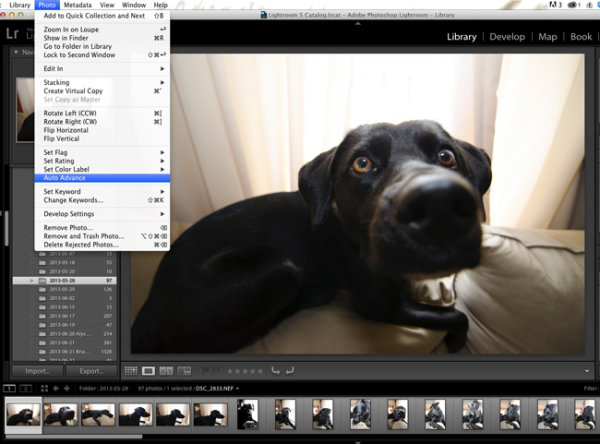
#1 – Auto Advance rating option

This is something that I would have preferred Adobe set to “ON” as default and then give you the option to turn it off if you choose. How many of you rate your photos by selecting a rating, and then pressing the arrow right key to advance to the next photo?

Do that no longer! Simply turn on Auto Advance either by selecting it from the drop down menu under ‘Photo’ or simple turn on CAPS LOCK. Once activated Lightroom will advance you to the next photo in the queue after every successful rating. It’s amazing how fast you can get through a fresh import with this option turned on.

Lightroom workflow use auto advance

#2 – Start with a YES or NO rating system

I like to think of this as keeping it simple. There are so many different rating options (from flags, to stars, to colors) and while each one serves a purpose, I think it’s best to keep it simple the first time you import a new set of photos. Remember tip #1 above and active Auto Advance, and then use the keys ‘P’ or ‘X’ to rate your photos. ‘P’ tells Lightroom that you want to keep that photo and it is flagged as a “Pick”. ‘X’ tells Lightroom that you want to reject that photo, and it is marked as such. Once you’ve made it all the way through your import, press Command + Delete (control on PC). This will remove all of your rejected photos, never to be seen again. (choose “delete from disk” to not only remove from your LR catalog but delete from your hard drive)

I find that this will help to keep your Library cleaner, and easier to manage. It will also allow you to remove a lot of the ‘maybe-I’ll-use-this-photo-sometime’ photos which in most cases just end up wasting your time.

Lightroom-workflow-keep-it-simple

#3 – Learn and use the magic keyboard shortcuts

I’ve already mentioned a couple of the keyboard shortcuts above, but the master list is only a shortcut away. Press Command / (Control / on PC)  in any panel of Lightroom and the index of everything possible within that window is displayed. It’s one thing to learn the keys, and it’s another to work them into your workflow (I’m still slowly learning to do this myself), but once you get it down you will be flying through the panels without even thinking about it.

Lightroom-workflow-learn-keyboard-shortcuts

Press: Cmd / (Control / on PC) to get this to pop up

#4 – Use Solo Mode on the side panels

Another Lightroom setting that I personally feel should have been set as a default option is the Solo Mode option for the various tool panels of Lightroom. This option allows you to automatically minimize a panel when you open another one. For example, if you’re working in the Basic Tab of the Develop Module and want to switch to work on sharpening your photo, clicking on the Detail Tab, Lightroom will automatically close the Basic Tab for you. I find that this keeps the interface a lot cleaner and easier to navigate, especially for someone who’s just starting to get their feet wet with the program (or using a small screen or laptop)

To turn it on simply right click on any of the sidebar panel names (not the triangle) and select ‘Solo Mode’ from the menu that appears. Once activated you’ll probably never go back.

Speed-up-lightroom-workflow-solo-mode

How do you speed up your Lightroom workflow?

These four tips will certainly help you become faster at working through your photos, but there are countless other ways to speed up the way you work. If you are well experienced with Lightroom, what else can you think of to add to this list?

For more Lightroom reading check out these articles:

  • How to Upload Photos to Flickr and 500px using Lightroom 5
  • Lightroom Tips for the Develop Module – the Magic Alt Key
  • Creative Ways to use Keywords in Lightroom 5
  • Use Lightroom Collections to Improve your Workflow

The post 4 Not-so-Secret Tricks to Speed up Your Lightroom Workflow by John Davenport appeared first on Digital Photography School.


Digital Photography School

 
Comments Off on 4 Not-so-Secret Tricks to Speed up Your Lightroom Workflow

Posted in Photography


Fast and portable: Using the Apple MacBook Air in a pro workflow

14 Jan

carseat.jpg

Photographers often need to find the most powerful solutions possible and cram them into the smallest places. While the MacBook Air once satisfied only the size part of the equation, the newest member of the family makes it a compelling choice for photographers. The MacBook Air provides a professional level of power in a diminutive package without sacrificing functionality. Learn more

News: Digital Photography Review (dpreview.com)

 
Comments Off on Fast and portable: Using the Apple MacBook Air in a pro workflow

Posted in Uncategorized


Fast and portable: Using the MacBook Air in a pro workflow

14 Jan

carseat.jpg

Photographers often need to find the most powerful solutions possible and cram them into the smallest places. While the MacBook Air once satisfied only the size part of the equation, the newest member of the family makes it a compelling choice for photographers. The MacBook Air provides a professional level of power in a diminutive package without sacrificing functionality. Learn more

News: Digital Photography Review (dpreview.com)

 
Comments Off on Fast and portable: Using the MacBook Air in a pro workflow

Posted in Uncategorized


Lightroom Workflow – from Setup to Finished Sunrise Photo

01 Dec

One of my favorite times of the day to photograph is sunrise. There’s just something about the peacefulness of being up before the sun, before most of the human world, that allows me to clear my head.

Sunrise photos have always been high on the list of fan favorites and I know that there are a great many DPS readers who love them as well, so I thought I’d share with you a little bit about how I made the shot above from finding the location to setting up the camera and then a step by step walk-through of my Lightroom workflow.

Lightroom Workflow Final Image

Determining a location

To begin a shoot you need a concept, and while photographing sunrise is always a great concept to start with, one of the most important things that you’ll need to do is find a location. This can be difficult to do sometimes, but if you’re struggling to find a new location, check out 5 Creative Ways to Find New Locations for Photography for some inspiration.

I can tell you that the inspiration for this photo came from my sister who saw this boat house while out on an afternoon jog. She sent me a text message demanding that I come spend a night so that I could photograph it at sunrise – and sure enough that’s exactly what I did. The key point to take away from this is, that inspiration can come from anyone and any where, so make sure that you are paying attention to your surroundings as well as what people are saying about their own.

As for getting to the location for a sunrise shoot you’re going to have to wake up early. Well before sunrise. For this reason I typically will either spend the night in a hotel or find a friend or family member who lives close enough to the location to allow me to crash for a few hours, otherwise there might not be any point of sleeping at all. Think of it like this… If you can still see stars – you’re doing it right!

Setting up the camera

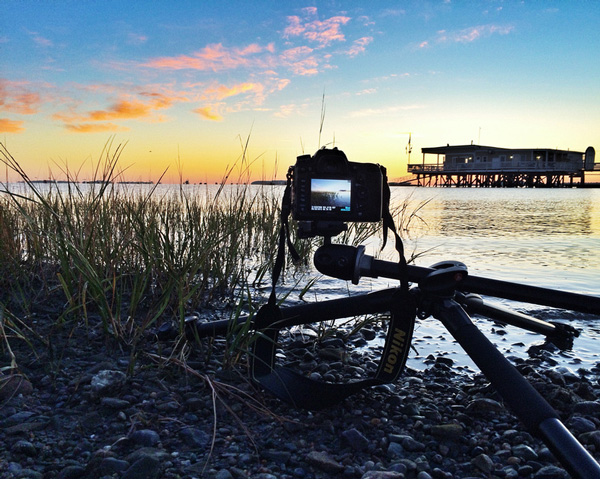
Since camera settings will vary depending on your scene I thought I’d share a couple behind the scenes shots. The first is one that my sister took of me while I was setting up my camera and tripod along the shore – notice how close to the water I get. The second shot is a close up that I took of my camera setup during the shoot, notice that for this particularity shot the tripod was nearly flat against the ground to allow me to get a very low perspective, and allow for the foreground sea grass to take up a good portion of the frame.

Lightroom Workflow - Setting up the shot

A behind the scenes shot of yours truly setting up the camera
Lightroom Workflow - Behind the Camera

A photo of the camera set up – notice how close to the water and how low to the ground I put the camera for this shot

It’s important to note that each shoot is going to be different and you must realize that with every sunrise and every location there will be challenges that you will have to overcome. While I can show you examples of how I set up the camera and my thought process behind it, when you get out to your own location it’s up to you to determine the best ways to photograph the scene.

Back home – it’s time to process the photos
Lightroom Workflow - Office

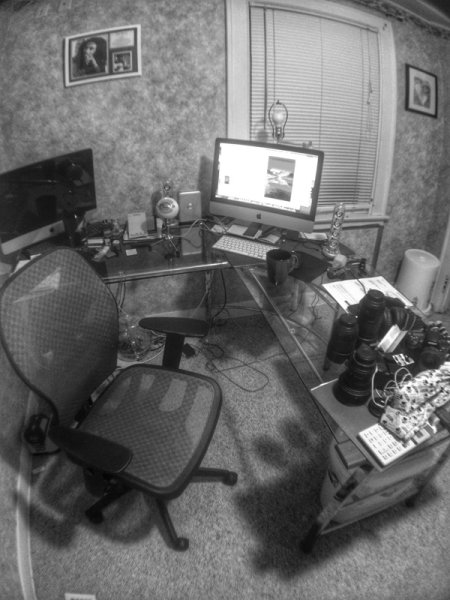
Just for fun I thought I’d throw in this snapshot of my office – What’s your desk look like?

Lightroom workflow – which frame to process?

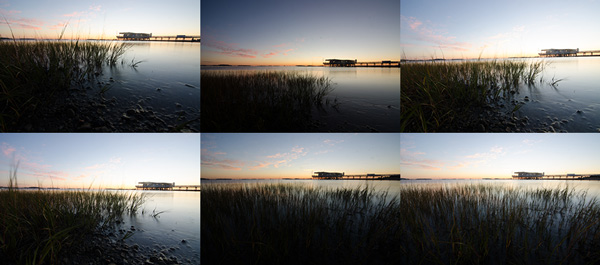
Before you can start processing you must determine which of the frames you want to use. There’s no “one-size-fits-all” way of doing this, it really comes down to the person behind the computer. Some people like to simply process everything from the start of their shoot to the end. Other people like to meticulously rate everything, fill in all the meta data and stay super organized. My own workflow usually consists of a quick browse through all the photos that I’ve captured in a particular shoot, rating each of the ones I want to edit with a 5-star rating, and leaving everything else untouched for the time being. I’ll usually come back to shoots from time to time, to see if anything I may have missed on my first go through jumps out at me on a second glance.
Lightroom-workflow-collage

Six different frames from the shoot – I chose the bottom right frame for today’s photo

Lightroom workflow – making adjustments

Now that you’ve chosen a photograph to edit, it’s time to dive into the develop panel and get started with the post production workflow.
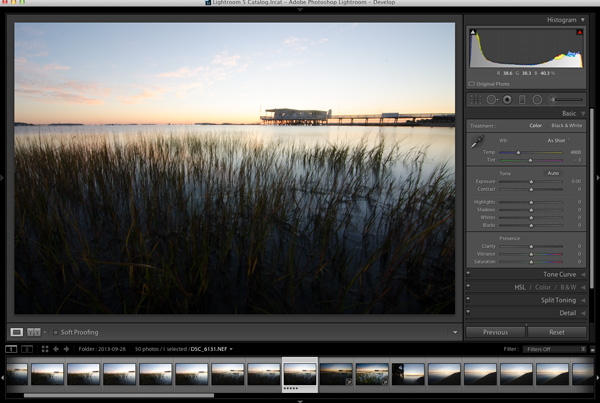
Lightroom Workflow - Oriignal

Enter the develop panel and select the photo to be edited.

Since this photograph is all about the sunrise, the first step is to make sure that you get your sky exposure as close to perfect as possible. By making a small adjustment here to the exposure slider in the basic tab you can have a great effect on the sky which will set the foundation for the rest of the photograph. It might look a bit under exposed at first, but we will be fixing this and fine tuning everything throughout the tutorial.
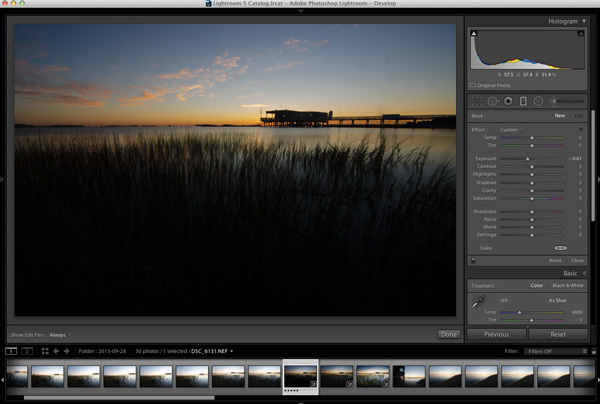
Lightroom Workflow - Expose for the sky

Adjust the exposure for the sky

To bring the foreground back into the image you will want to add a graduated filter into the frame (assuming you didn’t use one in the field of course). To do this simply press the ‘M’ key on your keyboard to open that panel in Lightroom. To apply the graduated filter drag in from the bottom of the frame and place the filter on the horizon line. Remember the filter’s effect is greatest starting from the direction you initially dragged in from so here the effect will be greatest towards the bottom of the frame.

Next to bring the exposure back into the foreground by increasing the exposure and shadows sliders (moving them to the right) of the graduated filter until you’re satisfied with the look. You will be able to fine tune the image by using the basic tab a bit later. You can always go back to this graduated filter if you need to make a minor adjustment later on, as well, simply by revisiting the graduated slider panel and clicking on the button (dot) of the graduated slider to activate it for editing.
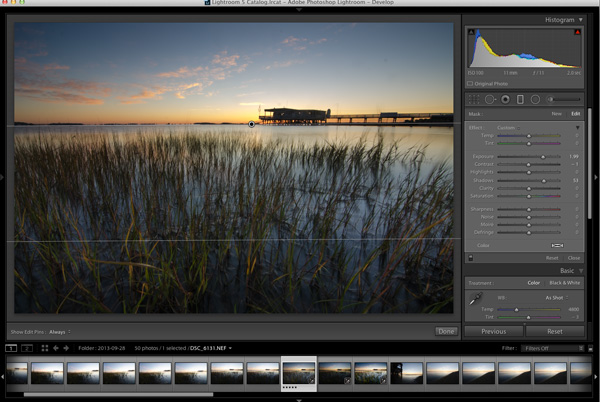
Lightroom workflow - graduated filter

Apply a graduated filter to adjust the exposure of the foreground without effecting the sky from the previous step

Now that you’ve exposed for the sky and brought back some foreground light, the next step is to add contrast, color, and clarity – all of which will help to make your image ‘pop’. This can be done by using the basic tab in Lightroom, which I’ve covered in Master These Five Lightroom Sliders and Your Photos Will Pop, if you’d like more information.
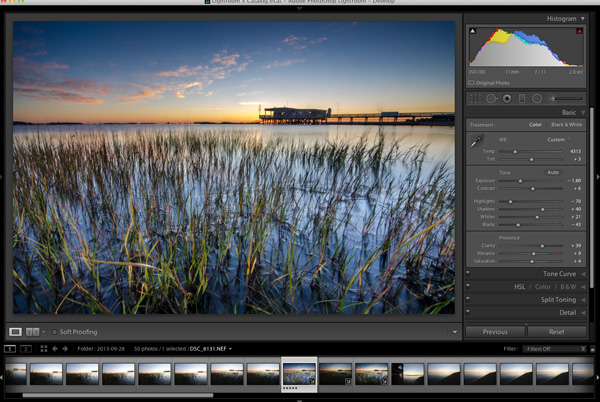
Lightroom workflow basic tab

After achieving a general evenness in the previous steps use the basic tab to add contrast, color and clarity

At some point you’ll want to clean up the dust spots or remove distracting pieces of litter or other unwanted items from your image so now’s a good time to jump into the clone/heal tool and do just that – as you can see I need to get my sensor cleaned.
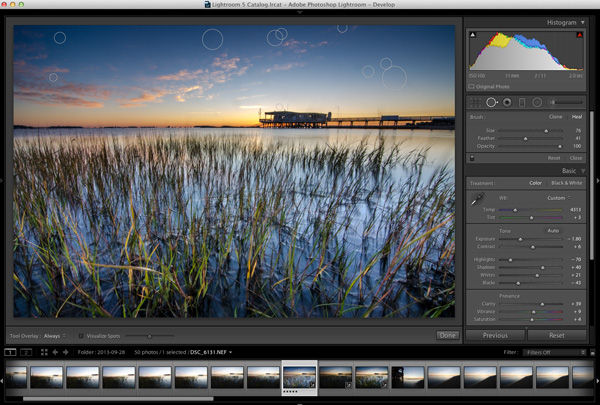
Lightroom Workflow - Cloning

Here’s a good chance to clean up those pesky dust spots by using Lightroom’s clone/heal tool

Final adjustments can be made by using a combination of different adjustment brushes. Usually you’ll want to use this tool to control specific areas of the photograph, or specific parts of the exposure. To open the adjustment brush panel press ‘K’ on the keyboard and click on your image to place a brush. If you’d like to use more than one brush you can click on ‘New’ and again click on your image which will allow you to adjust two different parts of your scene separately from one another.

In the photo below I’ve added an adjustment brush to affect the highlights, and contrast of the water at varying levels of intensity. You can control these levels of intensity by adjusting the “flow” slider of the adjustment brush which will determine how much of the effect is applied at each pass of the brush – a lower flow has less effect per pass than a higher flow.
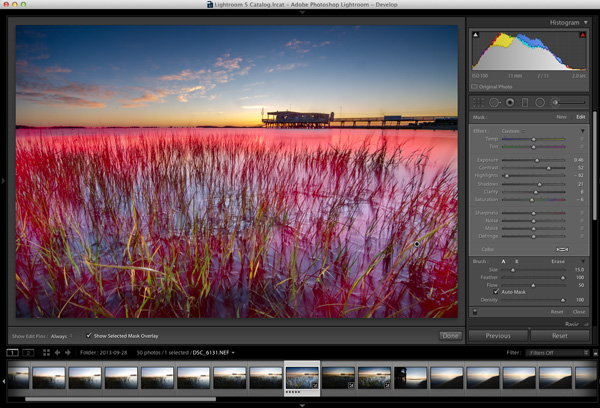
Lightroom workflow - adjustment brush

Fine tune the highlights on the water with an adjustment brush. The red overlay can be turned on and off with the check box below the photo (or ‘O’ on your keyboard)

Before you call it a day – the last step is to dive into the detail panel in Lightroom and apply some sharpening. For some more information on Lightroom’s sharpening options you can watch this Youtube video A Look at Sharpening in LR4, which is part of a weekly series I run on my channel.
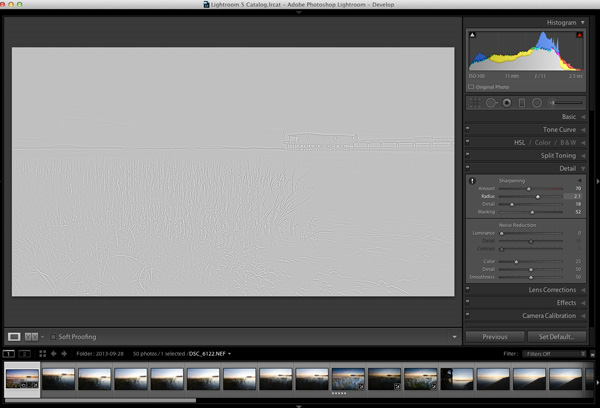
Lightroom workflow - sharpening

Apply any sharpening you wish using Lightroom’s sharpen panel.
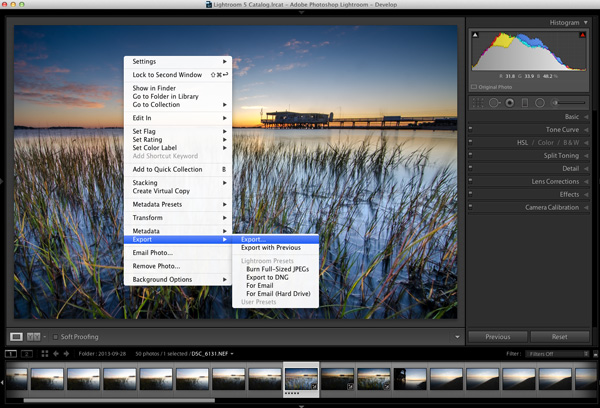
Lightroom Workflow Export

All that’s left to do now is export and share your work with the world.

Exporting and sharing

All that’s left now is to export the photo and share the results.

I hope this step by step Lightroom workflow helps you learn a bit about how to process your own photos. Share a before and after Lightroom edit in the comments below, and if you’ve got any behind the scenes shots, those are always fun to see as well. Don’t forget to let us know how you achieved the results.

Post originally from: Digital Photography Tips.

Check out our more Photography Tips at Photography Tips for Beginners, Portrait Photography Tips and Wedding Photography Tips.

Lightroom Workflow – from Setup to Finished Sunrise Photo

The post Lightroom Workflow – from Setup to Finished Sunrise Photo by John Davenport appeared first on Digital Photography School.


Digital Photography School
 
Comments Off on Lightroom Workflow – from Setup to Finished Sunrise Photo

Posted in Photography


Use Lightroom Collections to Improve your Workflow

16 Oct

Using Lightroom Collections

The main benefit of Lightroom’s Library module is that it gives you the tools you need to get organised and speed up your workflow. The end result is that you can spend more time in the Develop module – the place where you creatively process your photos.

The best way to get organised is by using Collections and Collection Sets. There seem to be as many ways of using Collections as there are photographers. I’m going to look at two in this article. The first uses Collections, and the second Smart Collections. Together they will give you an insight into how you can use Collections to improve your workflow.

Why use Collections?

You may be wondering why you should use Collections in Lightroom instead of the Folders panel. Here’s why:

1. The Folders panel is only available in the Library module.

The Collections panel is accessible from every module. Adobe wants you to use the Collections panel as it is the most practical way to organise your images.

2. Collections and Collection Sets give you far more freedom than the Folders panel.

The contents of the Folders panel mirrors the file structure of your hard drive. Let’s say you take a photo of a friend called Amy in Hong Kong. In the Folders panel, that photo can only exist in one place – the physical folder where it has been saved on your hard drive.

However, the same file can be stored in as many Collections as you like. It could be part of a Collection called ‘Amy’, another called ‘Hong Kong’, perhaps another called ‘Favourite photos’. There is no limit to the number of Collections you can add it to.

It’s a little like using Playlists in iTunes. You can add a song to as many Playlists as you like. It’s the same in Lightroom with photos and Collections.

Organise your images

Hopefully you’re now beginning to see just how flexible and convenient Collections are. Now let’s take a look at how you can use them to organise your images.

Other photographers’ methods

When it comes to learning how to use Lightroom, don’t feel that you have to figure everything out yourself. There are plenty of outstanding websites dedicated to using Lightroom, and lots of photographers who share the way they work for others to use. There’s no need to re-invent the wheel – just find a way that works for you and tweak it to suit your needs.

In that spirit, I’m going to look at two methods for using Collections I learnt from other photographers.

Technique 1: Using multiple Collections

Using Lightroom Collections

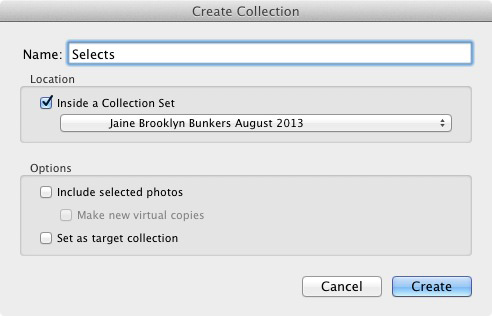
This technique is based on a method I read about on Scott Kelby’s blog. I like it because it’s simple, and the easiest way that I’ve found to narrow down the images you take in a shoot to the ones that you want to process. The quicker you can do that, the sooner you can move on to the Develop module. Here’s a brief description of how it works:

  • Create a Collection Set and give it a name relevant to the shoot (i.e. the name of the place where the photos were taken, or the person in the photos etc.)
  • Create three Collections inside that Collection Set. Name them Full Shoot, Picks and Selects.
  • Send all the photos from the shoot to the Full Shoot Collection.
  • Flag your favourite photos from the Full Shoot Collection and send them to the Picks Collection. You don’t have to be really selective at this stage. You’re eliminating the worst images rather than picking the best.
  • Use flags to mark your best photos from the Picks Collection and send them to the Selects Collection. This is where you get really picky – the aim is to select only the very best photos from the shoot, the ones you intend to process.

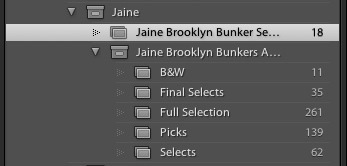
Of course, you can adapt this to you own needs. If you don’t take many photos during a shoot, you may only need two Collections to narrow them down. On the other hand, if you want to convert some of your photos to black and white, you could create an additional Collection to hold those images.

Using Lightroom Collections

As you can see, I ended up creating five Collections for the above shoot.

The process is outlined in full here.

Technique 2: Using Smart Collections

Using Lightroom Collections

The previous technique relies on you adding photos to each Collection manually. But it’s also possible to use Smart Collections that Lightroom populates automatically. Photographer Rob Knight has the following system:

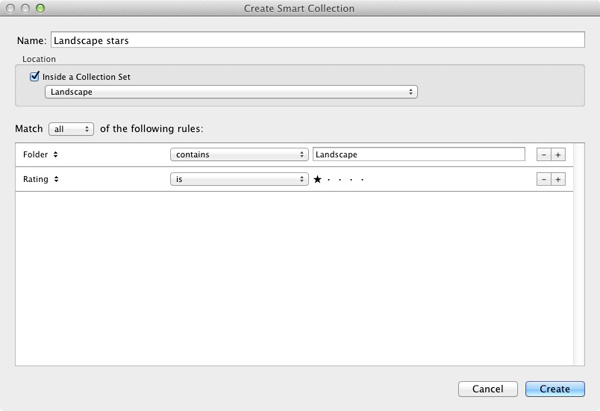
  • Create a Collection Set – give it a relevant name (in Rob’s example he uses ‘Landscape’).
  • Create two Smart Collections inside the Collection Set. Rob names his ‘Landscape picks’ and ‘Landscape stars’. All he has done here is add the words ‘picks’ and ‘stars’ to the name of his Collection Set. The article (link below) explains what rules to set.
  • Go to the Folder containing the images, and flag the best as picks. They are sent automatically to the ‘Landscape picks’ Smart Collection.
  • Go to the ‘Landscape Picks’ Smart Collection and give the best images a one star rating. Lightroom adds them to the ‘Landscape stars’ Smart Collection. This Smart Collection contains the best images from the shoot.

You can read about it  here.

Over to you

If you have an interesting way to use Collections yourself, then why not leave a comment? I would love it if readers could share some of their ideas – I’m also curious to see how other people use Collections.

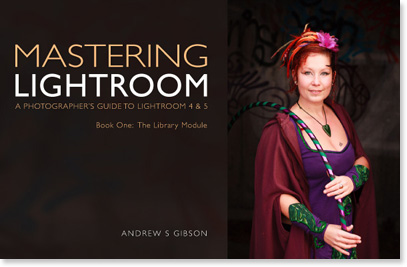
Mastering Lightroom Book One: The Library Module

Using Lightroom Collections

My latest ebook Mastering Lightroom Book One: The Library Module is a complete guide to using Lightroom’s Library module to import, organise and search your photo files. You’ll learn how to tame your growing photo collection using Collections and Collection Sets, and how to save time so you can spend more time in the Develop module processing your photos.

Post originally from: Digital Photography Tips.

Check out our more Photography Tips at Photography Tips for Beginners, Portrait Photography Tips and Wedding Photography Tips.

Use Lightroom Collections to Improve your Workflow

The post Use Lightroom Collections to Improve your Workflow by Andrew Gibson appeared first on Digital Photography School.


Digital Photography School

 
Comments Off on Use Lightroom Collections to Improve your Workflow

Posted in Photography


Tablets for photographers: A versatile tool in your capture workflow

26 Sep

tablets.jpg

Tablets may be used as versatile tools in your photographic workflow, providing instant feedback as you shoot on a much larger format screen than your camera’s tiny LCD and helping you experiment with a final look while you still have the opportunity to make major changes on set. We’re looking at tools and tips for integrating a tablet into a live shoot with a DSLR, whether you’re shooting tethered or wirelessly. Learn more on connect.dpreview.com.

News: Digital Photography Review (dpreview.com)

 
Comments Off on Tablets for photographers: A versatile tool in your capture workflow

Posted in Uncategorized


A Simple 3 Step Culling Workflow: The “Editing Out” Culling System

29 Apr

Introduction

This tutorial has been transcribed from the SLR Lounge Lightroom 4 Workshop on DVD, a 14 hour Lightroom 4 A – Z guide with over 130 tutorials for mastering Lightroom from start to finish. The Digital download can be purchased from SLR Lounge while the physical copy is available through Amazon Prime.

Overview

In this article, we will go over one of our culling systems that we use at Lin and Jirsa Photography. We currently use the “Editing In” System at our studio, but in this article, we will go over the “Editing Out” System. Both systems are fast and effective; however, the “Editing In” System works a bit better for us (We will cover that “Editing In” workflow in an upcoming tutorial). Keep in mind that there is no one right culling system, so feel free to set up one that works best for you.

Either way, it is a good idea to keep your culling system as streamlined as possible. Our “Editing Out” System is a quick way to cull through images, so keep reading to see how you can save time in your production workflow!

KISS – Keep It Simple Stupid

As mentioned before, it is best to have a simple culling system because it can save you a lot of time. In most cases, the KISS acronym is quite fitting. Keep it simple, stupid. Seconds saved per image can end up being hours by the time you work through a large image catalog. Sometimes, photographers create rather complex culling systems to try and keep their images meticulously organized right from the start. For example, they may use the 5-star rating system like the one below.

  • 5 stars = Portfolio photo
  • 4 stars = Blog photo
  • 3 stars = Average photo (delivered)
  • 2 stars = A little potential but unsure (undelivered)
  • 1 star = Reject image

While this kind of a rating system sounds great in theory, it can become too cumbersome when working from image to image since it requires you to carefully analyze each image and make too many decisions at once. “Is it good enough to keep, if so, is it blog worthy, or portfolio worthy, etc.” This is why we stress creating a simple culling system. We won’t truly know what images are blog or portfolio worthy until we are done culling, editing and finishing our images. At that point, we can scan through and quickly select and mark our blog/portfolio images in just a minute or two. Trying to make that decision during the initial culling is not only time consuming, it is impossible to make correctly.

So, let’s go over the 3 steps of the “Editing Out” System that you can adopt into your workflow to help speed things up.

The 3 Step “Editing Out” Culling Process

If you have seen our Lightroom 4 Workflow System DVD, you know that Lin & Jirsa Photography currently uses the “Editing In” System, which we mentioned earlier. In the “Editing Out” System, we will select all of our images in the catalog as a “pick” by pressing “P”. Then, we will go through each individual image and reject the images we do not want to deliver. The “Editing Out” System is simple because we now only have 1 choice : keep the image and move to the next or reject the image by pressing “X.”

Immediately, our workflow process has moved from 5 possible decisions with 5 different keystrokes, to only 1 decision and 1 keystroke.

Step 1: Flag All Images as Picks
We need to flag all images in our catalog as a Pick. Return to the Grid View by pressing “G.” Then, select all of your images by pressing “Ctrl + A.” Next, press “P” to flag all images as Picks. Then deselect your images by pressing “Ctrl + D.” This will allow us to go through our images and un-flag them during the culling process.

Step 2: Filter by Flag Status
Next, we need to filter our images, so that when we “reject” an image it disappears from view. We are going to filter by flag status, so click on the first flag, as shown below. Now, we can only see flagged images. Anytime we press “X” to mark an image as a “reject” it will disappear from view.

11_filter-flag-status

Step 3: Culling Images
While we view and cull our images, we want to have as much screen space as possible. Press “F” twice to go into Full Screen Mode. Then press “Tab” to get rid of the left and right panels. Double-click on your image to view the image in full screen. Now, we are going to start culling our images. If you want to reject an image, press “X.” Since the Filter is set to only display “Flagged” images, any rejected image will automatically disappear from the lineup. Continue moving through your images by pressing the Right Arrow on your keyboard.

With the “Editing Out” System, we only have 1 option to consider, is the photo deliverable, or is it not. Is it worth keeping, or is it not. Deciding on whether it belongs on your blog, or portfolio should really come after all the images have been finalized and edited, not during the initial culling.

If you turn off all filters, you can see that the rejected images are grayed out. If you want to look at the rejected photos, just turn on the Rejected Filter, down in Filters.

So, hopefully this article was helpful to you. In the next culling article, we will show you are simple “Editing In” workflow. Just remember to keep your culling system simple, and it will save you many hours of time!

Learn More with the Lightroom 4 Workshop Collection!

This was a sample tutorial from the Lightroom 4 A to Z DVD which is one of the DVDs in the Lightroom 4 Workshop Collection. A collection of nearly 30 hours of video education teaching everything from Lightroom basics to advanced raw processing techniques.

The LR4 Workshop Collection also includes the critically acclaimed Lightroom 4 Preset System which is designed to enable users to achieve virtually any look and effect within 3-5 simple clicks. From basic color correction, vintage fades, black & white effects, tilt-shift effects, faux HDR, retouching, detail enhancing, and so much more. Click the links above to learn more.

Post originally from: Digital Photography Tips.

Check out our more Photography Tips at Photography Tips for Beginners, Portrait Photography Tips and Wedding Photography Tips.

A Simple 3 Step Culling Workflow: The “Editing Out” Culling System


Digital Photography School

 
Comments Off on A Simple 3 Step Culling Workflow: The “Editing Out” Culling System

Posted in Photography


Save 33% on ‘The Photographers Workflow’ by Gavin Gough

28 Mar

photographers-workflow.pngOne of the most popular deals that we had in last years 12 Photography Deals of Christmas campaign was when we offered a discount on renowned travel Photographer Gavin Gough’s eBook – The Photographer’s Workflow.

Readers fed back that getting this insight into Gavins digital workflow was really valuable.

So over at SnapnDeals we asked Gavin if he’d mind bringing back the deal this week.

For the next 7 days you can again pick up this popular eBook at 33% off.

This great resource is perfect for anyone looking for a system to manage the digital photos that they take and if you’re anything like me, that’s quite the task due to the number of images that I take on a given week!

What Gavin describes is based upon use of Lightroom (an amazing tool that I use and recommend) and once you set yourself up with the principles described in this eBook you’re going to save yourself a heap of time and will also put your mind at ease your images will be safe and backed up too!

What do You Get with the Photographers Workflow?

This is more than just an eBook – here’s what you’ll receive:

  1. a 10 chapter eBook (130 pages) – a comprehensive guide to establishing a reliable and consistent digital photography workflow.
  2. 65 Lightroom 4 Development Presets to help give your processing a more consistent linear structure
  3. A series of Lightroom Smart Collections which build a step-by-step workflow for managing digital photographs
  4. Links to a series of free, online video tutorials to help you visualise what Gavin teaches in the eBook

The thing that I particularly love about Gavin’s approach is that he not only gives you the theory but he gives you tools and also scatters through his eBook practical exercises for you to DO that will help you set up your own workflow.

Not only that you get to see what he’s talking about with the videos and many diagrams and screenshots in this eBook.

The Photographer’s Workflow is Gavin’s professional workflow. It’s the system he use every day to manage his digital photographs. In it he shares the structure, principles, presets that he’s acquired over ten years as a professional photographer and it will literally save you hours of time and give you a lot of peace of mind!

Save 33% Today

The Photographers Workflow is normally priced at $ 30 but today you can pick it up with a 33% discount and get all of the above parts of this great resource for just $ 20 when you pick it up through SnapnDeals here.

Post originally from: Digital Photography Tips.

Check out our more Photography Tips at Photography Tips for Beginners, Portrait Photography Tips and Wedding Photography Tips.

Save 33% on ‘The Photographers Workflow’ by Gavin Gough


Digital Photography School

 
Comments Off on Save 33% on ‘The Photographers Workflow’ by Gavin Gough

Posted in Photography


Digital Photography 1 on 1: Episode 37: Post Production Workflow Part 1

11 Feb

This week is the first episode in a two-part series about post production workflow. In this episode, Mark will explain how to get images from the camera to the computer. Then he will show you how to keyword, group and organize the photos in Adobe Photoshop Lightroom.
Video Rating: 4 / 5