RSS
 

Posts Tagged ‘Workflow’

4 Tips to Supercharge your Lightroom Workflow

23 Nov

In this article, we’re going to look at four tips to help you supercharge your Lightroom workflow and post-processing. Then you can spend more time doing what you love, photography!

The issue

Going through several hundred pictures after a photo session can seem so daunting and time-consuming that it becomes more of a chore than an enjoyable and creative part of the photography process. It’s those late nights staring at a collection of pictures on your computer monitor, sipping the last drops from your cold mochaccino long after the whipped cream has melted away, that can suck all the fun out of photography. It can make you want to up-end your workstation, chuck your gear in the trash, and look up the price of desert island real estate so you never have to edit another picture again.

Fortunately, most image editing programs have some type of photo management built-in to help streamline your editing. Lightroom has a set of tools that have been honed over many years of iterative development to really assist you when it comes to trimming precious time from your post-processing workflow. There are four specific techniques that can help you, and those just getting started in the field. Together they can save you time and maybe bring back the artistic spark that may have been lost over the years.

You can help me save time in Lightroom? Tell me more!

Can you help me save time post-processing in Lightroom? Tell me more!

#1 – Create your own presets

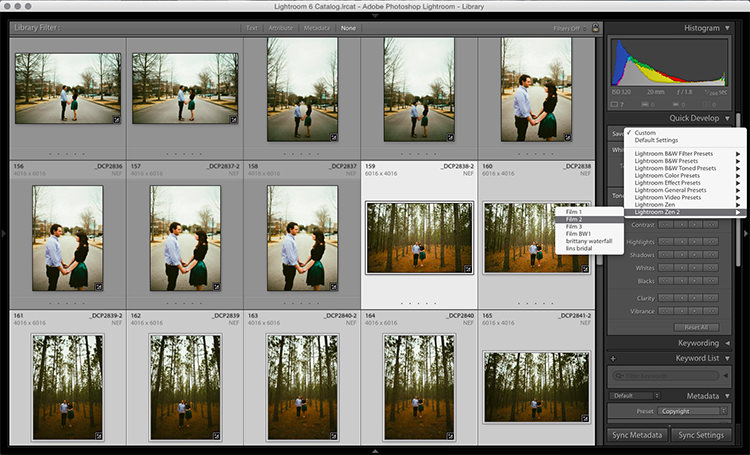
Most people know that Lightroom has a fairly extensive offering of built-in presets, and you can even buy additional sets like the ones we offer here at dPS. But as useful as those are, they might not meet your specific needs as a photographer. If you’re like me you, tend to use presets as a starting point and then tweak your images ad nauseam, but sometimes even getting to that starting point can be tricky.

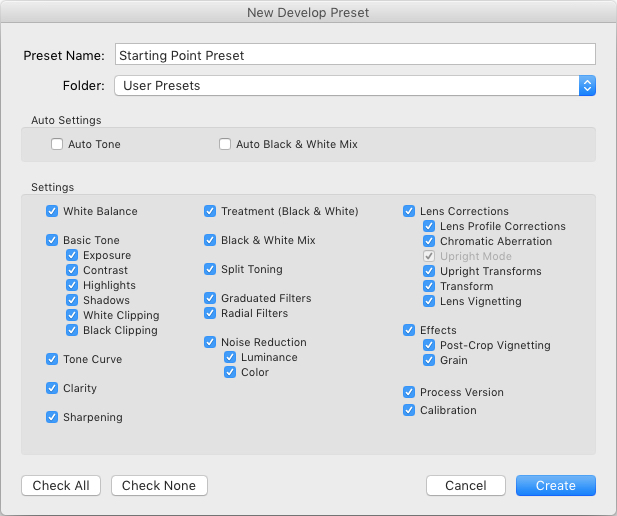
Enter the wonderful world of user-created presets! Lightroom lets you save any combination of adjustments in the Develop module as a Preset that you can apply to any photo at any time. I find this really handy when doing my initial photo imports. I like the RAW files from my Nikon D750 to have a little bit of added vim and vigor right off the bat. So upon import, I usually apply a preset I made called “Nikon RAW Import” that adjusts black, white, and shadow levels along with a few other parameters. It gives me a nice starting point for almost any image and is a great way to save time when editing.
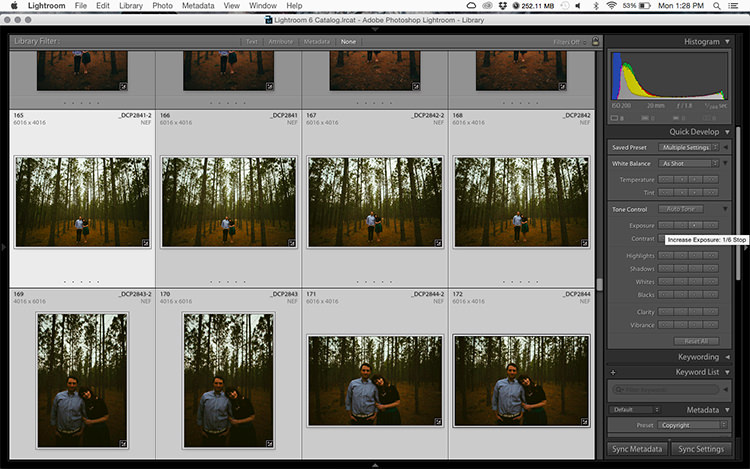
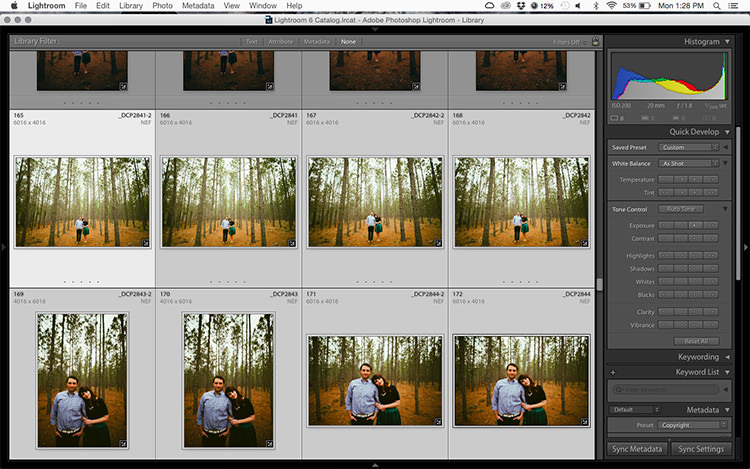
supercharge-lightroom-workflow-custom-presets

How to save your own presets

To create your own presets go to the Develop module and change the value of your sliders, adjust your tone curve, dial in your preferred level of sharpening and noise reduction, and you’re 90% finished. After you have an initial set of edits created go to the Develop menu and choose “New Preset.” Select the parameters you would like to include in the Preset and then click “Create.”

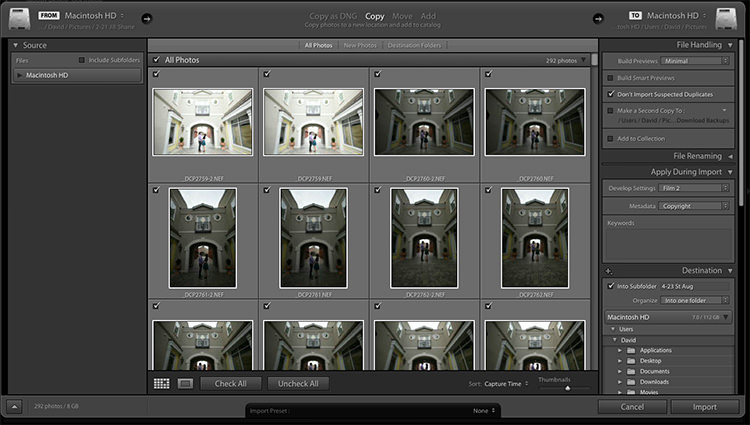
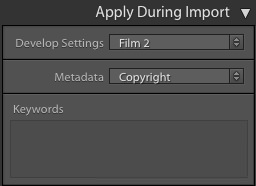
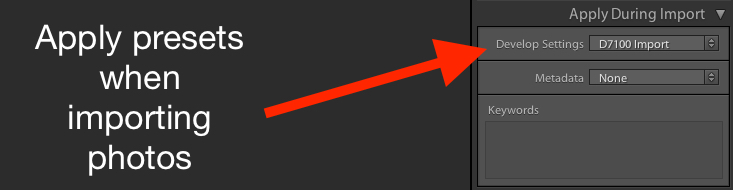
Your Preset is now ready to go and you can apply it with one click to any image, or to a batch of images. Do so by selecting them (from the thumbnails) in the Develop module, right-click on them, and choosing “Develop Settings > User Presets > [Your Preset name].” You can also apply it to all your photos on import by going to the right-hand side of the Import screen under the “Apply During Import” option. Where is says “Develop Settings” pull that menu down and find your preset from the list.
supercharge-lightroom-workflow-preset-import

As a bonus, you can even share your Presets with others by navigating to the folder on your hard drive in which they are stored (“Preferences” menu > Presets > Show Lightroom Presets Folder), copying the file with your Preset data, and sharing it with anyone you choose.

Read more here: How to Create Your Own Lightroom Presets

#2 – Sync edits across multiple photos

Photographers are going crazy over this! You can save all sorts of time in your Lightroom workflow by using this one weird trick! I know that sounds like a cheesy click-bait title from a sidebar you might see on a used car website, but in this case, it’s really true.

On many photo sessions you will end up with dozens of images that are relatively similar and thus can often benefit from the same types of adjustments. Let’s say you shoot a wedding and have 20 really nice images of the groomsmen getting ready and adjusting their superhero-themed vests in the church office. You could easily spend 5 or 10 minutes adjusting the white balance, black levels, highlights, color saturation, and noise reduction. You finally get one of the photos looking, as Goldilocks might say, “Juuuuust right,” and then realize you still have nine more to go. At which point you start looking up how much your 70-200mm lens might sell for on Craigslist because you know this is going to be another one of those editing sessions that involves way more late nights and cups of coffee than you had initially planned.
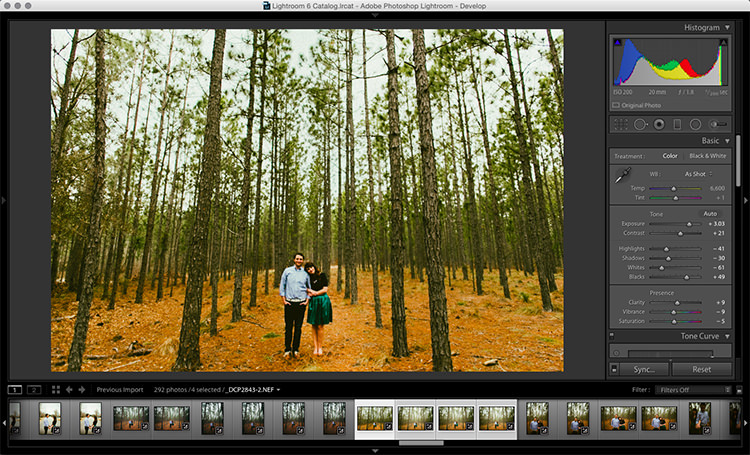
supercharge-lightroom-workflow-sync-button

How to sync your processing settings

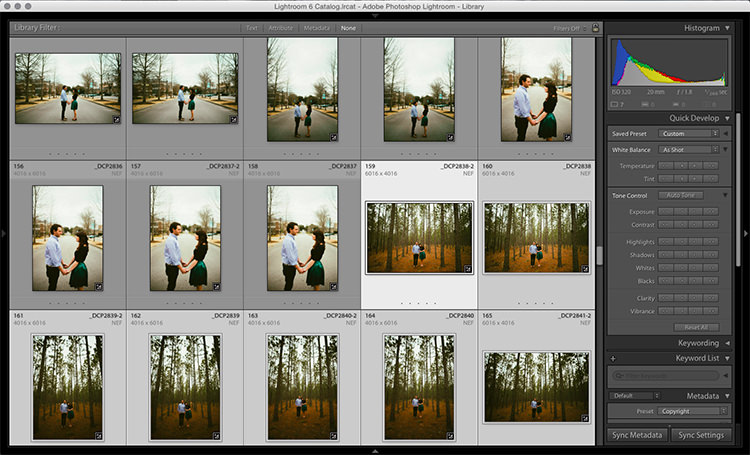
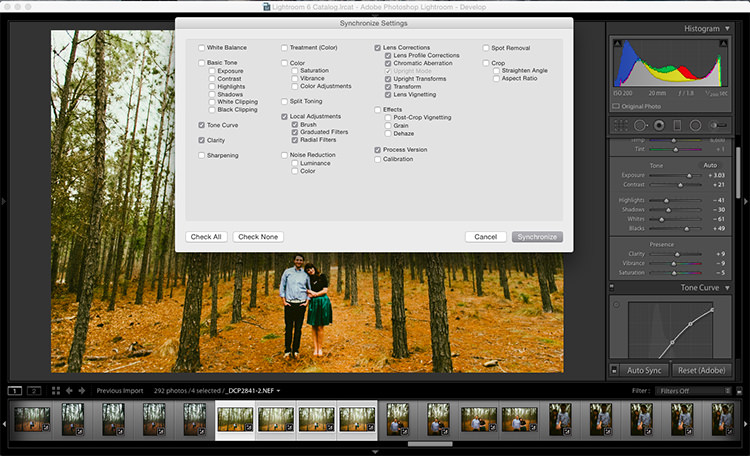
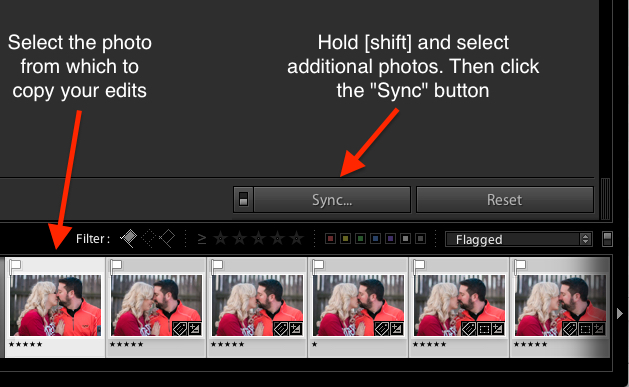
But wait, there’s hope! To instantly sync the edits from the first photo to all the rest which are similar, select the initial image in the filmstrip view at the bottom of the Develop panel. Then hold down the [shift] key while selecting all the rest and click the “Sync…” button in the lower-right corner of your screen.

You can pick and choose which edits you want to sync, and with the click of a button, all the other images are instantly edited just like the first one. BAM! Time saved: infinite. You’re welcome.

Alternatively, you could use the Copy/Paste function to copy edits from one picture to the next, but that only works with a single photo at a time. I have found the Sync option to be far more useful, you may as well.

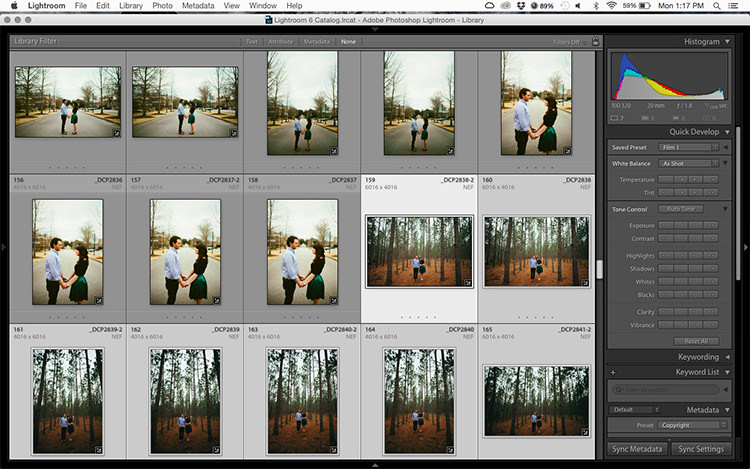
Using the Sync option saved my bacon on this photo shoot. I had so many pictures to edit that synchronizing the changes made things go much faster.

Using the Sync option saved my bacon on this photo shoot. I had so many pictures to edit that synchronizing the changes made things go much faster.

#3 – Use the White Balance Eyedropper

When I first started out with digital photography I was the kind of person who wanted to do everything myself. Auto mode? No thank you camera, I’ll set the exposure myself. Autofocus? I don’t think so. Automobile? Not me, I prefer to walk!

Over time, I learned to let go of some of these tendencies with one glaring exception. Setting the white balance on my RAW files in post-production, stuck with me far too long.

Setting the proper white balance is the foundation for almost any photo editing. If you fiddle with the Temp and Tint sliders long enough you can usually get a good result. The trouble is that takes a long time, especially when working with hundreds of images. It can take a lot of trial and error, and guesswork to dial in just the right white balance. Unless you let Lightroom do most of the heavy lifting for you.
White Balance got you down? The Eyedropper is here to help.

White Balance got you down? The Eyedropper is here to help.

Using the eyedropper

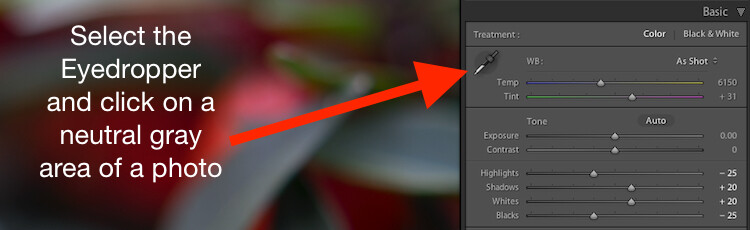
Nestled quietly on the left-hand side of the Basic panel in the Develop module is a strange icon. It looks like a medieval dagger or possibly a light saber that can’t decide whether it’s meant for a Jedi or a Sith. It’s actually an eyedropper. Using on it can help you out immensely when it comes to finding the proper white balance for a RAW file.

Click the icon and find a spot on your photo that is slightly gray (neutral). Not totally pure white mind you, but a little off-white to give Lightroom a reference point as it calculates the value of how the rest of the colors in the image should look. What it does is neutralizes any color cast or shift in that area. A half second later and voilà! Your picture is now properly white balanced, but if it doesn’t look quite right you can tweak it with the sliders. Using the eyedropper isn’t a surefire guaranteed method, but it almost always gets you right on the mark or very close to it.
One click and...bam! Instant white balance.

One click and…bam! Instant white balance.

#4 – Flag/Reject when culling images

I was just talking with a friend recently who takes a lot of pictures of his kids with his DSLR. He told me that one of the hardest things for him to do is go through his images and remove the bad ones. His solution was to simply not delete any at all.

If this sounds like you, whether you’re professional or amateur, and you just can’t quite bring yourself to tap the [Delete] key when browsing through your photo library – Lightroom is here to help.

You might do a family portrait session and get 20 pictures with just mom and dad, 50 that you took in burst mode with the kids sitting on their lap. Then a couple hundred from when the family invited their pet ferret to join the shoot. Some of your images would be easy to discard due to being out of focus, poorly composed, or overly pernicious polecats deciding to climb atop dad’s carefully crafted coiffure. But what about the rest? The ones that are all pretty good while also being quite similar?
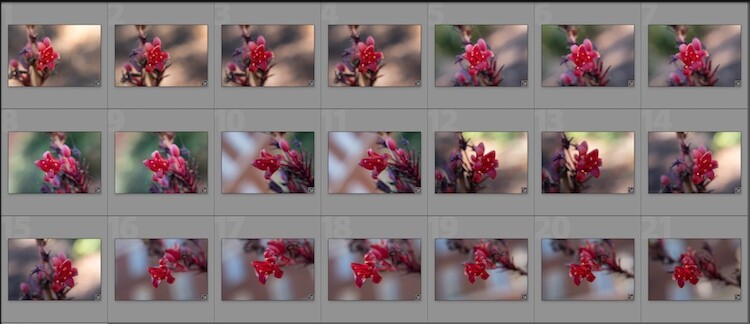
So many photos, so little time...

So many photos, so little time…

How to flag images in Lightroom

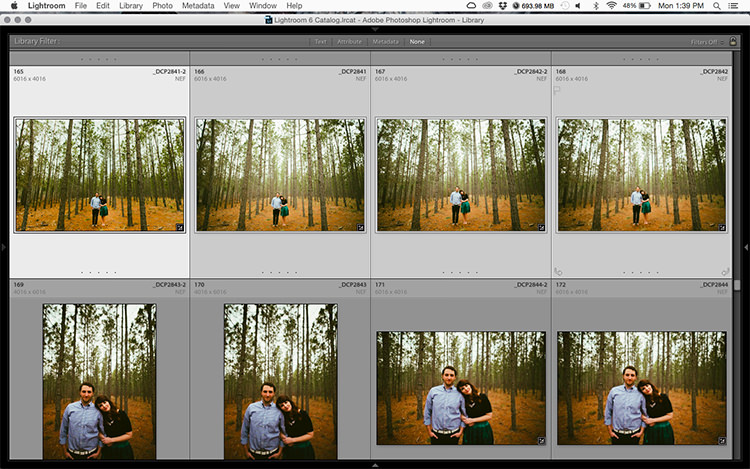
As you scan through your library in Lightroom, you can use the arrow keys to move from one image to the next, and the P and X keys to mark images as keepers or rejects. Tap P (pick) on a picture to adorn it with a  white flag, and tap X to mark it with the Tiny Black Flag of Shame denoting a rejected image.

A Flagged picture is one that you have highlighted as particularly good, while a Rejected picture is not worth your consideration. Marking an image as Rejected does not delete it so you can always go back and look at it later. But it serves as a signal to you as you are culling, that you don’t need to consider it. You can also use the filter bar at the bottom of the screen to show only those images that are Flagged, Unflagged, or Rejected by clicking on their respective icons. If you accidentally mark an image incorrectly, press the U key to remove the Flag/Rejected status.

Filter them

You can also use the filter bar at the bottom of the screen to show only those images that are Flagged, Unflagged, or Rejected by clicking on their respective icons. If you accidentally mark an image incorrectly, press the U (unflag) key to remove the Flag/Rejected status.
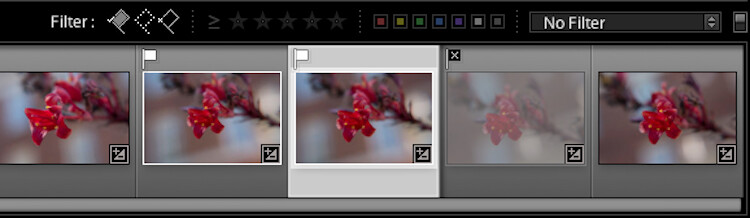
Once you mark your images as Flagged or Rejected, use the filter icons to choose which photos to display.

Once you mark your images as Flagged or Rejected, use the filter icons to choose which photos to display.

Using the Flag/Rejected markings has significantly decreased my editing time, and will likely dramatically lower yours as well. In a similar fashion you can use the number keys 1-5 to mark images with one to five stars, and numbers 6-9 to label images with different colors. I find these less handy than simply using the Flag/Rejected method when doing the initial culling, but far more useful when deciding, for instance, which images are the Best of the Best and worth printing, sharing, or showing to clients.

Over to you

I hope these tips have been helpful. Certainly, there are many more options for helping your Lightroom workflow go a little smoother that we simply don’t have the space to cover in one article. What are your favorite tips? Please share your ideas, tricks, and shortcuts in the comments below!

googletag.cmd.push(function() {
tablet_slots.push( googletag.defineSlot( “/1005424/_dPSv4_tab-all-article-bottom_(300×250)”, [300, 250], “pb-ad-78623” ).addService( googletag.pubads() ) ); } );

googletag.cmd.push(function() {
mobile_slots.push( googletag.defineSlot( “/1005424/_dPSv4_mob-all-article-bottom_(300×250)”, [300, 250], “pb-ad-78158” ).addService( googletag.pubads() ) ); } );

The post 4 Tips to Supercharge your Lightroom Workflow by Simon Ringsmuth appeared first on Digital Photography School.

Digital Photography School

 
Comments Off on 4 Tips to Supercharge your Lightroom Workflow

Posted in Photography


DxO ONE adds Raw image workflow for iOS

11 Nov

DxO announced that it has added a full Raw processing workflow to its iPhone-connected DxO ONE camera. Taking advantage of Raw image support in iOS 10, the update provides one-touch transfer of DxO ONE Raw files to the iOS photo library, from which images can be processed or shared.

Additionally, the company has introduced new Raw files that save an average of 30% space, improved responsiveness and boot time, faster application startup, full remote control of the camera using a direct Wi-Fi connection and a smart lighting feature to enhance dynamic range in difficult lighting situations.

A free update to the DxO ONE iOS app (v2.1) will be available in November, however the company did not provide a specific date.

Press release:

DxO ONE 2.1 update integrates full RAW processing workflow in an iPhone environment

DxO ONE update makes mobile an option for demanding photographers

PARIS—November 10, 2016—DxO, pioneer in digital imaging technologies, announces a major update to its award-winning DxO ONE miniaturized camera that lets demanding photographers take their mobile image making to the next level. Less than three months after the release of a 2.0 update that brought Wi-Fi as a new feature, DxO continues to extend the use of its pro-quality camera by introducing the world’s first seamless RAW workflow, direct from the DxO ONE to your iPhone or iPad. The version 2.1 update takes full advantage of RAW support in iOS 10, enabling a one-touch transfer of DxO ONE RAW files to the iOS Photos library where they can be processed on-the-go. Available to all DxO ONE users free of charge, the update also enables direct Wi-Fi remote control, and adds other performance boosting enhancements.

The DxO ONE camera revolutionized mobile photography by being the first to combine a large, high- resolution sensor and fast, razor-sharp lens in a miniaturized design that pairs directly with the iPhone or iPad. From the start, the DxO ONE has allowed photographers to store images in the RAW file format, which offers superior quality over JPEGs and considerable flexibility. Until now, post processing of RAW images necessitated they first be imported to a desktop computer. With this latest update, the DxO ONE camera can seamlessly transfer RAW photos direct to the iPhone where they can be further enhanced by Google Snapseed, Adobe Lightroom Mobile, and other popular iOS photo editing applications that have embraced support for mobile RAW image processing.

“I prefer to capture in RAW, because it gives me enhanced dynamic range, which is especially useful in bringing back details in blown highlights and deep shadows,” said professional photographer Camilla Ferrari. “Thanks to new developments by Apple and DxO, I’m now able to transfer RAW images from my DxO ONE camera right to my iPhone with a single tap, where I can process them in Adobe Lightroom Mobile and other iOS apps while I’m still on location. Welcome to the future!”

To further streamline the new mobile RAW workflow, DxO has introduced a lighter and faster recording speed for RAW files, which squeezes an average of 30% more storage space out of existing microSD cards. Overall responsiveness has also been improved, with a faster boot time for the camera, quicker application start-up, and improvements to the loading speed of the photo gallery.

The update also adds a number of other enhancements to the user experience, including a direct Wi- Fi connection that provides full remote control over the DxO ONE camera even when no existing Wi- Fi network is available. Version 2 also added a host of innovative features further extending the many uses for the DxO ONE, including the ability to tap into the Wi-Fi network that your iPhone is already logged into for remote control in-home or in-office, and a Mobile Smart Lighting feature designed to dramatically enhance the dynamic range of photos taken in tricky lighting situations. DxO also recently introduced a complete ecosystem of accessories, including a waterproof outdoor shell, ultra- compact stand and optical adapters, all intended to let photographers take their DxO ONE absolutely anywhere, without restrictions, to extend their creativity even further.

Pricing & Availability

The DxO ONE Miniaturized Pro Quality Connected Camera for iPhone® and iPad® is available for purchase at dxo.com, Amazon, Best Buy, B&H, Target and other respected retailers for $ 499 (US).

The DxO ONE 2.1 iOS app and companion Apple Watch® app will be made available in November as free software updates via the iTunes App Store®. Every DxO ONE user is invited to download DxO Connect for Mac/PC, or on Mac DxO OpticsPro for Photos – DxO ONE camera only, both of which harness the power of the DxO OpticsPro photo engine designed to make your best photos look even better.

Articles: Digital Photography Review (dpreview.com)

 
Comments Off on DxO ONE adds Raw image workflow for iOS

Posted in Uncategorized


How to Create an Effective Workflow and Image Organization

28 Aug

Lets face it, we all love to take pictures, basically to get out there and photograph what makes us happy and gets our creative juices flowing. Many of us, myself included, hate sitting in front of the computer, sorting and sifting through images from a session, wedding, or just personal work. From busy professionals to active hobbyists, having a good solid workflow and method of organizing images is crucial. I am a wedding, lifestyle and travel photographer. So my workflow is slightly different based on the type of session I am photographing, but for the most part I follow the same series of steps. Here are some tips on how to create an effective workflow that can work for your style of photography.

Memorable Jaunts DPS Article Editing and Workflow -4-2

Camera gear

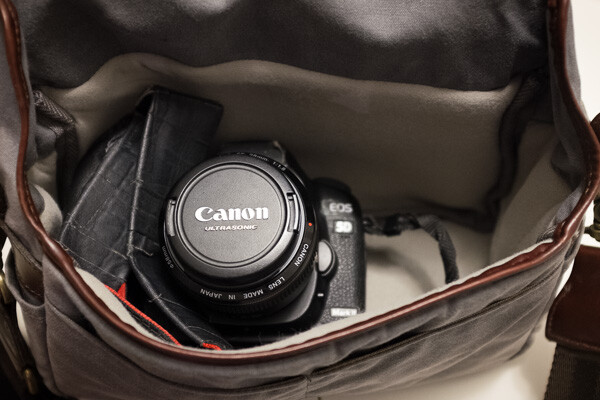
My camera of choice is a Canon 5D MKIII with a Canon 5D MKII as a backup camera. I have to admit, 90 percent of my sessions are shot using the MKIII. I very rarely use the MKII, but when I am photographing a wedding, the MKII is fully loaded and ready to go, in case I need it. I start of each session (wedding or lifestyle) with a fully charged battery and a Transcend 32GB CF card. I own four 32GB CF cards, three 16GB CF cards and two 8GB CF cards.

For weddings that are over 10 hours long, I carry all my cards with me. Each camera will start with formatted 32GB CF card. When I am traveling for work or pleasure domestically, I carry my MKIII but when I am traveling internationally I typically carry both MKIII and MKII. The night before any photoshoot (either wedding, travel, or lifestyle), I charge all my batteries (I have five batteries between my two cameras and luckily they are the same configuration) and format all my CF cards. My bag is packed and ready to go in my office.

Fits a Canon 5D Mark II with 28mm lens.

During the shoot

Depending on the photoshoot timeline, I will swap out my cards during a logical break in the shoot. For example – the bridal portraits, first look, etc., will be on one or more CF cards. I will swap out the used card before the ceremony (even if it is only partially used), so I can photograph the ceremony on a fresh card. I learned this the hard way early on, when I lost an entire session on a card that failed. Luckily it was not a wedding, but a personal shoot that I was able to recreate. Since then I don’t take any chances with failed CF cards, especially for important events like weddings. Used CF cards from a photoshoot are placed in a separate pouch, from fresh CF cards which are placed in another pouch in my camera bag.

After the shoot (local)

When I am back home from a wedding or a lifestyle shoot, the first thing I do is pack away my gear. I separate my camera bodies from my lenses, and pack them away separately. All batteries are removed, including those from my flash. I have heard horror stories where batteries, especially AAAs, have leaked into the flash socket, so I don’t want to have to deal with that mess!

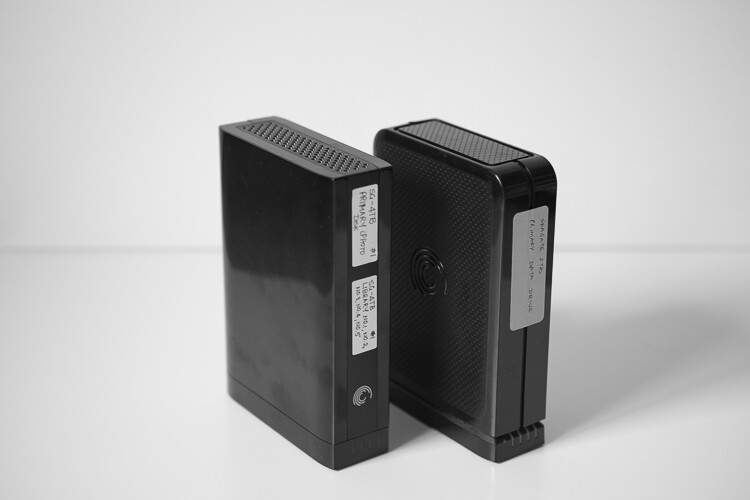
I download the images from my CF cards onto an external hard drive, that acts as a storage for my RAW images. Once the RAW images are transferred to my external hard drive, I then format the cards in camera (not via the computer). I use Seagate external hard drives to store my images. I also download my images into the Photos app on my iMac computer. The Photos library resides on another Seagate external hard drive.

Memorable Jaunts DPS Article Editing and Workflow -2

My external hard drives from Seagate are used to store RAW files from my cards and my Photos library. The RAW files are not deleted but the Photos library are deleted at the end of every year.

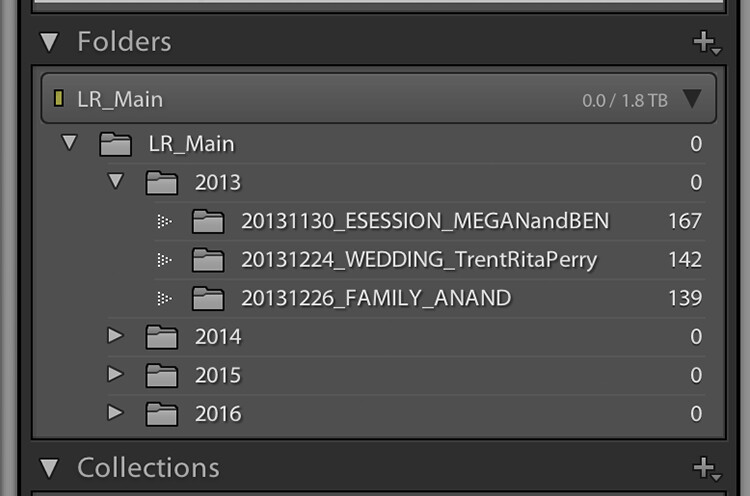
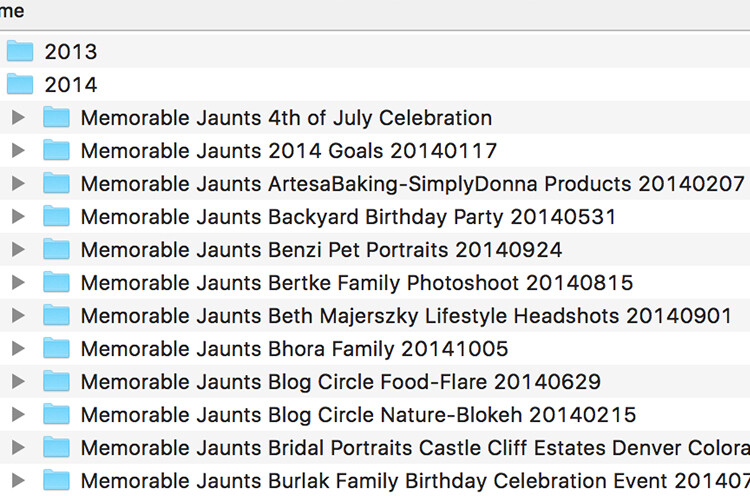
I use iPhoto (now Photos) and quickly sort through the images that I like. Those images are exported as Originals to a folder on my iMac (I name my folders based on the date of the shoot. For example: YYYYMMDD_ClientName_TypeoftheShoot. These selected images are then imported into Lightroom, my preferred editing software.

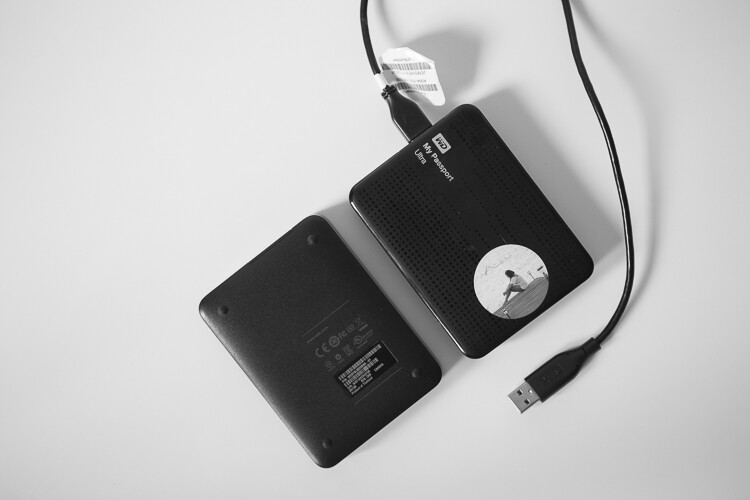
My Lightroom catalog also resides on a WD My Passport Ultra, external hard drive. I understand you may have some concerns over running a LR Catalog on an external HD, because of potential LR speed issues. So far, I have not experienced any issues with LR in terms of speed by having the catalog on an external HD. But if you are concerned about speed then your LR catalog can be put on your computer’s hard drive, and keep a backup on the external HD.

This is more portable than a Seagate and I carry it on extended trips, especially international travel. Once the images are imported into Lightroom (I retain the same name of the folder in Lightroom as well), I delete the folder containing the RAW images from my iMac hard drive. If you are keeping track, my RAW images are stored on two separate external hard drives – one that is a dump of the card and the other in a Photos catalog.

After the shoot (on the road)

When I am traveling for work or pleasure, I carry two WD My Passport Ultra external hard drives. One holds the RAW files from my CF cards, the other holds my Lightroom catalog. My original LR catalog is also backed up on one of my Seagate external hard drives. Once I copy the Raw files over, I follow the similar process as when I’m at home.

When I get home, the raw files from the CF cards used during the trip are copied over to the Seagate that houses all my RAW images, and deleted from the WD Ultra so that it is ready for my next trip. I carry my Lightroom catalog only for extended travel trips, when I know I will be editing images and posting them on social media and/or my blog. For short weekend getaways, I either carry just the WD Ultra just for the raw files or nothing at all, based on the duration of the trip.

Memorable Jaunts DPS Article Editing and Workflow -3

My portable hard drives are used to save my RAW files when I am traveling, as well as my Lightroom catalog when I am traveling for an extended period of time.

Editing and delivery workflow

80% of my editing is done in Lightroom. I use Photoshop sparingly if I have to make any advanced editing like head swapping, and or removing large objects from images. I have invested in the Adobe Creative Cloud for LR and Photoshop. It’s the bundle package deal for $ 10 per month for photographers (get both for only $ 7.99 as a dPS reader). I am able to use both on both my iMac, which is my primary editing device, as well as my MacBook Pro, which is my travel companion.

After editing is complete, I export my client images onto the same WD Ultra external hard drive as my Lightroom catalog. The client folders are also arranged by date of the session. This time my naming standard is as follows: Memorable Jaunts_ClientName_YYYYMMDD – all images will have the same naming convention as the folder, along with an image sequence number. The images are also uploaded to my portfolio site, in a gallery which is password protected. I share the password with my clients, for viewing their images and ordering any prints. I use Zenfolio to host my client galleries. I have been with them since I launched my business in 2010, and have had a very good experience with them (and no, I did not get paid to say this about them, my views are my own).

Memorable Jaunts DPS Article Editing and Workflow 01

My naming convention for my Lightroom Catalog – the folders are ordered by Year and then by date for each of my sessions

When I am traveling, I follow the same process, and edited images are saved in the same WD Ultra external hard drive. Should I need to touch-up or re-edit an image when I am back home, I simply connect the same external hard drive to my iMAC, launch the LR catalog, and I am good to go.

Client galleries are live online for two weeks, and then they are deleted. At the end of every year, I delete old client processed images from my external hard drive. I retain client session raw files for three years before I delete them from my Seagate external drives (both the original CF card download as well as the Photos catalog) to make room for new sessions. My personal images (images of my family and personal travel) follow the same process as my client sessions. Except these images are never deleted, they are too precious to me and live on forever on my external hard drives!

Client galleries are live online at Zenfolio for two weeks, and are then deleted from that site. At the end of every year, I delete client processed images from my external hard drive. I retain client session RAW files for three years before I delete them from my Seagate external drives, to make room for new sessions. This is something that I communicate with all my clients when when they receive the link for their online gallery. If any of my clients request additional time to store and/or purchase their images, that is something I will most certainly accommodate 

My wedding photography packages all include edited images on a personalized flash drive. Whereas my family portraiture clients have the option of purchasing digital images, if they want them for future use. If you don’t want to delete client images in the event that a client may come back to you after a few years (for example in case of death in the family, etc.), you can invest in a large external storage unit like Synology system for backing up, or use Amazon s3 in a cloud environment. 

Memorable Jaunts DPS Article Editing and Workflow -4

The naming convention for my processed files

Summary

As you can see, my workflow and image organization is not too complicated. I tried a few different variations, both in terms of file naming conventions, as well as file storage options, but I find working off external hard drives is fast, easy, and safe. It does require investment in external hard drives, but I typically pick some up when they are on sale.

I encourage you to use this, or some variation of this workflow, and tweak it to make it your own. Having a workflow will help you be better organized, spend less time in front of the computer, and more time out there doing what you love the most – shooting.

googletag.cmd.push(function() {
tablet_slots.push( googletag.defineSlot( “/1005424/_dPSv4_tab-all-article-bottom_(300×250)”, [300, 250], “pb-ad-78623” ).addService( googletag.pubads() ) ); } );

googletag.cmd.push(function() {
mobile_slots.push( googletag.defineSlot( “/1005424/_dPSv4_mob-all-article-bottom_(300×250)”, [300, 250], “pb-ad-78158” ).addService( googletag.pubads() ) ); } );

The post How to Create an Effective Workflow and Image Organization by Karthika Gupta appeared first on Digital Photography School.

Digital Photography School

 
Comments Off on How to Create an Effective Workflow and Image Organization

Posted in Photography


Corel PaintShop Pro X9 arrives with improved workflow

18 Aug

Corel has launched PaintShop Pro X9, the latest version of its photo editing software. With the X9 version, PaintShop Pro adds seven new features, as well as two enhancements to existing features, including new Interactive Gradients, expanded RAW camera profile support, and new Project Templates. Joining this release is PaintShop Pro X9 Ultimate, which includes the X9 software plus an add-ons collection with AfterShot 3, Corel Live Screen Capture and Athentech’s Perfectly Clear 2 SE.

PaintShop Pro X9’s new features are comprised of project templates, screenshot capturing and editing, support for Windows Real Time Stylus, a new Guided Tour, edit history exporting, Intel RealSense XDM support and Interactive Gradient fill. In addition to those new features, Corel says X9 brings a few ‘enhanced’ features: support for Windows Server 2016, 15 new camera RAW profiles, and an improved workflow that ‘streamlines many common tasks.’

PaintShop Pro X9 is available now for $ 79.99 USD/CAN, 69.99 EUR, £59.99, and $ 99 AUD. PaintShop Pro X9 Ultimate is also available for $ 99.99 USD/CAN, 89.99 EUR, £79.99, and $ 129 AUD. The software is offered in the following languages: English, German, French, Dutch, Italian, Spanish, Russian, Japanese and Traditional Chinese. 

Via: MarketWired

Articles: Digital Photography Review (dpreview.com)

 
Comments Off on Corel PaintShop Pro X9 arrives with improved workflow

Posted in Uncategorized


10 Quick Photoshop Tips to Improve Your Workflow

27 Jun

Whether you are a Photoshop newbie or a guru, there is always something new to learn or discover in this extensive image editing software. One of the joys of using it,  is that there are many ways to do the same thing in Photoshop. Here are a few tips that are useful to improve your workflow, either by speeding it up or adding a few tweaks to your process.

1. Copyright Metadata Tip

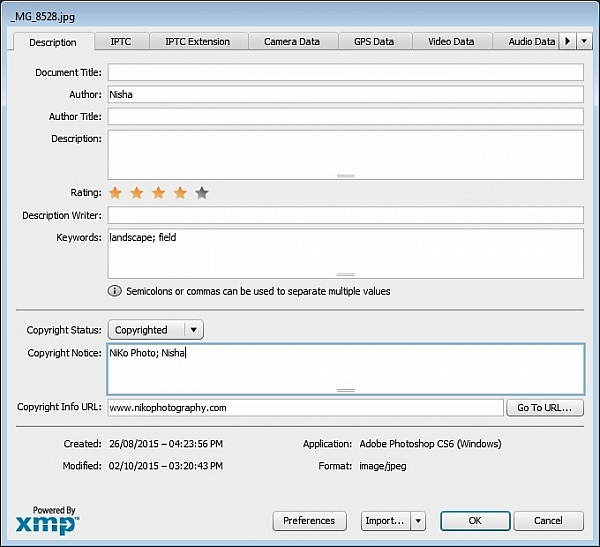
Many people use the terms watermarking and copyrighting interchangeably, but these are two different things. While arguments continue for and against watermarking images, in this digital age copyrighting your photos is still highly recommended. One of the best ways of doing this, is to embedding the copyright information right into the metadata of your image.

Follow these steps:

  1. Click Ctrl + Alt + Shift + I (Mac: Command + Option + Shift + I), or go to File > File Info to bring up the Metadata panel
  2. Click on the Description tab (left one) and enter your copyright information in the relevant fields

Copyright

2. Color Correcting with Curves Tip

As you may know, there are many way to correct color in Photoshop, and you may have even experimented with using a Curves Adjustment layer to achieve this. Sometimes, while working on this layer to color correct an image, you may inadvertently make the image lighter (or darker).

An easy fix that allows you to apply your color correction, without affecting the tonal values of the image, is to set the Curves Adjustment layer’s Blending Mode to Color.

3. Double Windows Tip

ComparativeForEdit

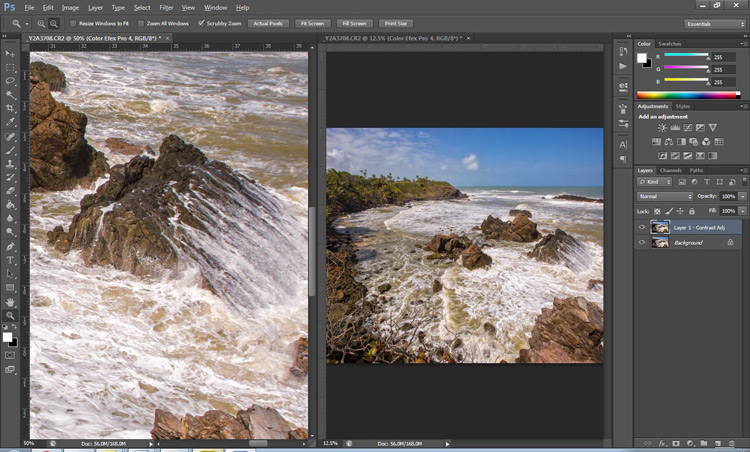
Zooming into your images can be helpful when editing details, but it can feel like a chore if you constantly have to zoom in and out to see how your changes affect the overall image. A simple solution to your problem is to open the same image in two windows. Now you will be able to put them side by side, at different zoom levels for your comparative purpose.

  1. With your image open, go to Window > Arrange > New Window for [file name of your image].  This this will open up a second window for the original image.
  2. Then, go to Window > Arrange > 2-Up Vertical and this will put your windows adjacent to each other. Now you have one zoomed out for an overall picture, and you can zoom in to edit the other.

The coolest part is that all the adjustments you make to one window, will be reflected in the other.

4. Contrast with Channel Mixer Tip

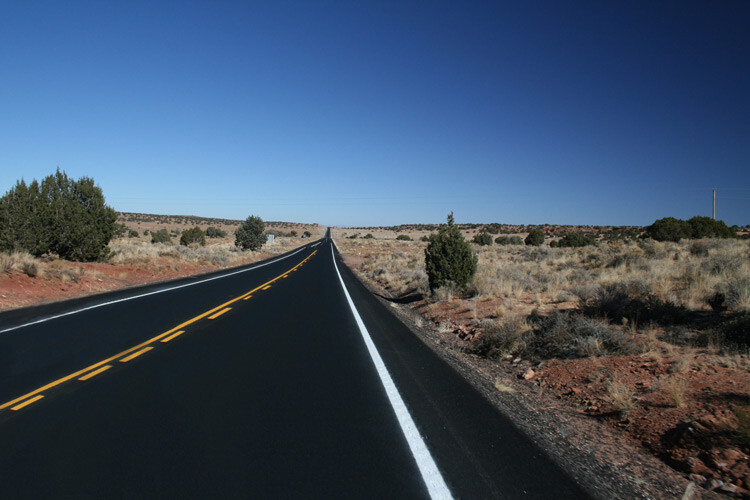
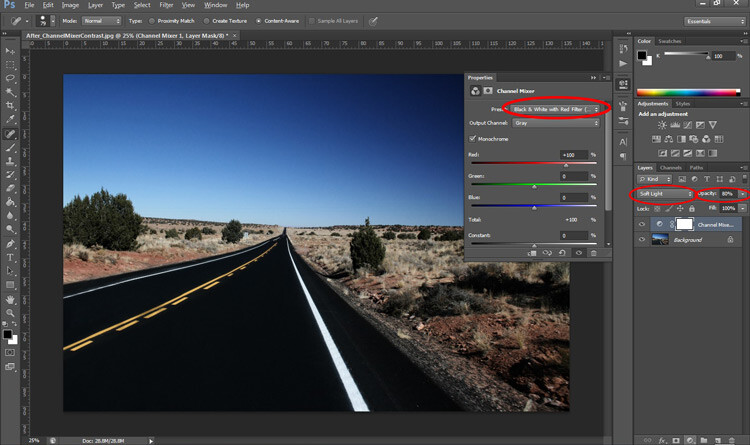
The Channel Mixer is an easy way to add great contrast to an image.

  1. Create a new Channel Mixer adjustment layer.
  2. Choose Black and White With Red Filter from the preset drop-down (in the Properties Panel).
  3. Change your blending mode for the adjustment layer to Soft Light.
  4. Play around with the opacity of the layer until you get the desired level of contrast.
Before_ChannelMixerContrast

Original Image

After_ChannelMixerContrast

Image Contrast changed using Channel Mixer

5. Content Awareness Tip

Several tools use Content-Aware, which is Photoshop’s method of examining your image, and calculating which pixels are needed to repair the selected area. At times though, even awesome tools such as the Healing tool or the Content Aware fill, do not return the best results when applied

If you are not happy with what the tool has returned, simply apply the adjustment again. Yes you read that correctly, you can apply content aware a few times and get a more desirable result the second or third time around.

6. Better Black & White Image Tip

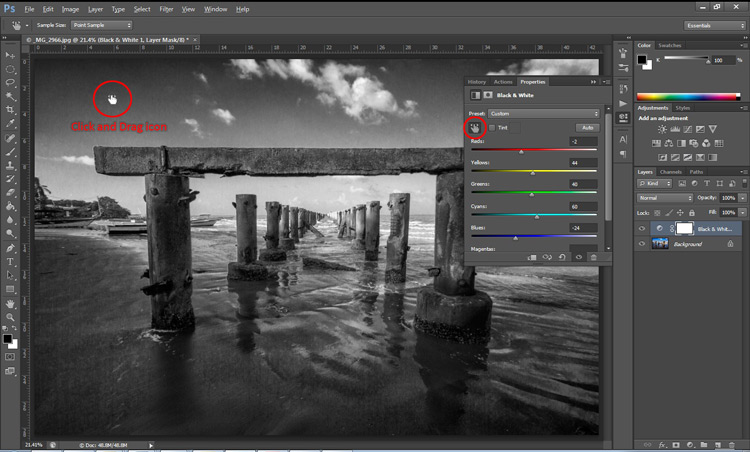
Making a black and white photo can be as easy (and boring) as desaturating your images (using Image > adjustment > desaturate). If you want to take it up a notch, try using a Black and White adjustment layer (from the Layers panel), where you can use up to six color sliders to control the main colors in your imag,e and adjust the relative brightness of each color.

While you’re there, check out the very useful click and drag (targeted adjustment tool) icon. Click it, then click and drag (hold the button in while you drag) on any area of the image that you wish to make darker or lighter— to the left for darker, right to make it lighter

BWAdjLayer

7. Getting Historical Tip

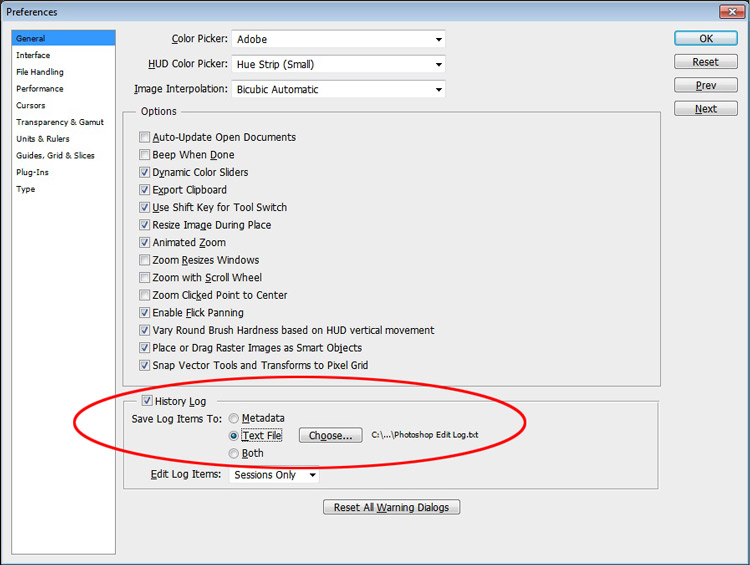
Have you ever wanted to repeat your timely editing on another image and found your memory unreliable? Photoshop’s History Log is a great feature to turn on if you want to keep a text record of every single step you have done to your image.

  • Click Ctrl + K (Mac: Command + K) to bring up the Preferences panel.
  • In the General tab check the History Log and the Text File box, and choose a location to save the file (name it for easy reference later on).

Now when you work on your image, and Photoshop will record every step you take. If you ever want apply the same steps to another image, just locate the text file and review.

HistoryLog

8. Check Spelling With Photoshop Tip

Spell check is not something that would come to mind when you think of Photoshop, but yes it can do that too. All you have to do is click on Edit > Check Spelling and your visible text layers will benefit from more accuracy.

9. Revealing Hidden Detail Tip

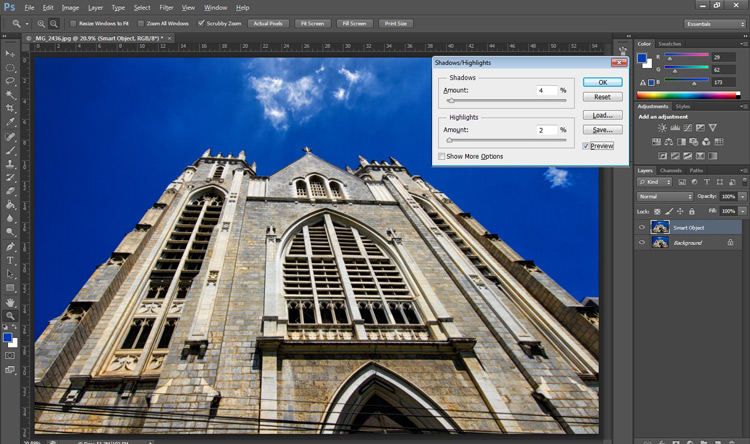
To bring out hidden detail in the shadows and highlights of your image, one of the best tools is the (you guessed it) Shadow/Highlight Adjustment. Sadly though, it is not available for application via an Adjustment Layer, so for non-destructive use, first convert your layer to a Smart Object.

Then go to Image > Adjustments > Shadows/Highlights and apply to recover those details.

HighlightsShadows

10.  Close Everything Tip

Did you know you can close all your open images at once? Simply hold down the Shift key and click the close icon on any of your image windows.

Conclusion

While there are several ways to accomplish a task in Photoshop, hopefully there was something new hidden in these quick tips. Were any of these new to you or did you discover a new way to execute an old favorite? Maybe you can share some other must-know, or time saving tip,s that you use to be more efficient at post-processing in Photoshop.

googletag.cmd.push(function() {
tablet_slots.push( googletag.defineSlot( “/1005424/_dPSv4_tab-all-article-bottom_(300×250)”, [300, 250], “pb-ad-78623” ).addService( googletag.pubads() ) ); } );

googletag.cmd.push(function() {
mobile_slots.push( googletag.defineSlot( “/1005424/_dPSv4_mob-all-article-bottom_(300×250)”, [300, 250], “pb-ad-78158” ).addService( googletag.pubads() ) ); } );

The post 10 Quick Photoshop Tips to Improve Your Workflow by Nisha Ramroop appeared first on Digital Photography School.

Digital Photography School

 
Comments Off on 10 Quick Photoshop Tips to Improve Your Workflow

Posted in Photography


4 Batch Processing Techniques to Speed Up Your Workflow in Lightroom

09 Jun

0 copy

Lightroom is a fantastic program for keeping your photos organized, but it also provides many tools to speed up your editing workflow. You can even process many photos at once with batch editing. These techniques are by far the biggest time savers Lightroom provides. Once you start using them you’ll wonder how you ever edited each image individually.

Technique 1: Applying presets on import

Presets are hugely popular, and for good reason. They allow you to apply frequently used edits and adjustments to photos, instead of having to manually adjust the settings for each new image. But did you know you can apply your favorite preset during import and cut out a lot of steps?

1 copy

Step 1: Start an import in the library module

2 copy

Step 2: On the right panel in the import dialog you’ll see the “Apply During Import” module.

Step 3: If you have a base preset, or a most commonly used one, select it here and click import to have it automatically applied to all of the photos as they are imported into Lightroom.

This not only skips a lot of clicks for you, but it applies them faster than selecting them individually in the develop module later.

Technique 2: Apply presets in the Library module

Applying presets on import is great if all the photos are similar, but you may need to use different presets on varying scenes, poses, etc. Instead of applying these one image at a time, you can select them in the library module and apply them in a group. This trick is great for weddings, or similar shoots where you may be inside then outside, or have constantly changing light conditions.

3 copy

Step 1: Click the first image in the set, then hold down the Control button and click any others to which you want to apply the same preset.

4 copy

Step 2: At the top of the Quick Develop panel, click the drop down menu under “Saved Preset” and select the new preset. It will update the settings from that preset to all the selected photos.

5 copy

Step 3: Repeat for each changing scene as needed.

Technique 3: Edit in the Library module

The Library module runs much smoother, and processes changes faster than the Develop module. Since you have already applied your presets to the images, you will mostly need to make broad adjustments to your photos now. The Library module can edit the major adjustments like white balance, exposure, contrast, and more. Even better, you can apply these adjustments to multiple photos at once, making them more consistent, and saving you a lot of time.

6 copy

Step 1: Select a group of images as above (CTRL + click to add to your selection) in the Library module.

7 copy

Step 2: In the Quick Develop panel on the right, click the arrows under Exposure, Contrast, and any other applicable options, to apply the changes to all selected photos at once.

Step 3: You can use the + and – key to enlarge or minimize the library view, allowing you to get a better view of the adjustments you are applying.

Technique 4: Sync adjustments across multiple photos in the Develop module

After applying the broad adjustments, you may need to fine-tune a few things in your images. These may include changes like a curve adjustment, add a gradient filter to fine tune a bright sky, etc. These are changes you have to make in the Develop module, but you can still apply them in batches, instead of doing them one photo at a time.

8 copy

Step 1: In the Develop module, apply the adjustments to a single photo.

Step 2: In the Develop filmstrip or Library grid view, select multiple photos (CTRL + click).

Step 3: At the bottom of the right hand panel, select “Sync”, it will be the left button beside “Reset”

9 copy

Step 4: Check the options that you want to sync with all the selected photos. These should include any adjustments you just made in the Develop module.

10 copy

Keep in mind

When batch editing, be careful you don’t sync anything that you don’t want applied to all of the selected images. If you use the adjustment brush on skin in one photo and sync that to another photo, chances are that the subject has moved slightly, and the brush will be applied to the wrong part of the image.

Stick with it!

Do you think these batch editing techniques have a spot in your workflow? For me, learning to batch edit allowed me to cut my wedding editing time down to a fraction of what it was before. You can focus on the big picture and style of each shoot, and not get lost spending 10-15 minutes on every image. Batch editing lets you get more work done in less time, and that is fantastic!

Do you have any additional tips to add? Please do so in the comments below.

googletag.cmd.push(function() {
tablet_slots.push( googletag.defineSlot( “/1005424/_dPSv4_tab-all-article-bottom_(300×250)”, [300, 250], “pb-ad-78623” ).addService( googletag.pubads() ) ); } );

googletag.cmd.push(function() {
mobile_slots.push( googletag.defineSlot( “/1005424/_dPSv4_mob-all-article-bottom_(300×250)”, [300, 250], “pb-ad-78158” ).addService( googletag.pubads() ) ); } );

The post 4 Batch Processing Techniques to Speed Up Your Workflow in Lightroom by David Childers appeared first on Digital Photography School.

Digital Photography School

 
Comments Off on 4 Batch Processing Techniques to Speed Up Your Workflow in Lightroom

Posted in Photography


Raw workflow goes mobile: Hands-on with Adobe Lightroom for Android 2.0

03 Mar

Unlike iOS, Android supports the capture and processing of Raw photos. Chances are that if you own a late model mobile device running either Lollipop or Marshmallow, you should now be able to use the Adobe DNG Raw format, the headline feature in the recently updated Lightroom for Android 2.0. We tried out the new Raw workflow, from mobile to desktop and back again. Read more

Articles: Digital Photography Review (dpreview.com)

 
Comments Off on Raw workflow goes mobile: Hands-on with Adobe Lightroom for Android 2.0

Posted in Uncategorized


Photo Editing Workflow for Travel Photography

09 Feb

Get Viktor’s Lightroom Rapid Editing System for Travel Photography Course 50% off now at SnapnDeals for a limited time only – February 9th-23rd, 2016.

A few years ago, just as I returned with 5,000 brand new photos from a driving trip to California, Utah and Nevada, I realized that I needed a completely new editing workflow. Two months later, I was not even close to being done with editing.

Photo Editing Workflow for Travel Photography Image 01

I spent the following year or so testing different approaches and systems, with the main goal to streamline, simplify, and speed up the entire process – from the moment the picture is taken, until it is published and safely backed up to the cloud.

After implementing my new workflow, using it for over a year and tweaking it along the way, I can now process and edit thousands of photos in a matter of hours. I would love to share my new workflow with you.

On the Road

The biggest change in my editing workflow happened when I practically stopped editing photos while traveling. Instead, I concentrated only on shooting, rather than wasting time on anything else.

Photo Editing Workflow for Travel Photography Image 02

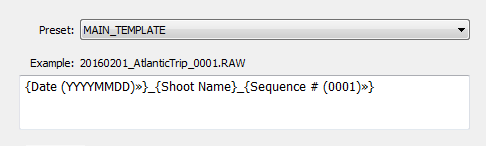
By the end of each day on the road, I import all new photos to a temporary Lightroom catalog, and during the import, I select the option to generate Smart Previews. This allows me to have access to all my photos through Lightroom Mobile on my tablet. I also rename all the images using my renaming template.

Photo Editing Workflow for Travel Photography Image 03

After renaming, my photos then have the following naming structure:

  • 20160201_AtlanticTrip_0001.RAW
  • 20160201_AtlanticTrip_0002.RAW
  • 20160201_AtlanticTrip_0003.RAW

During initial import, I also apply top level tagging based on the location, or type of photos. For example, I might apply very generic tags like “Canada” and “New Brunswick.”

But, even before I import the photos to Lightroom and generate the Smart Previews, I always have another option to access my images. Since switching to mirrorless, I can now connect to my camera using my tablet or smartphone at any time, grab a few images for a quick edit in Snapseed, and post them to social media. As I mentioned before, my editing workflow is minimal on the road.

At Home

The real processing work starts as soon I am home. Sometimes, however, it can start even sooner. If it is a long flight home, I might cull some photos on the plane using Lightroom Mobile, with the main purpose simply to refresh my memories of the trip and make notes.

Import

At home, I connect my master travel external hard drive to my desktop computer, and use the Lightroom option “Import from Another Catalog.” I then bring all the new photos to my main catalog and generate full-size previews for all of them. Because it typically takes a while to import thousands of RAW files and generate full-size previews, I often start the process before going to bed, so that when I wake up in the morning everything is ready.

Culling

Culling is the process of selecting the best photos for editing, and rejecting the bad ones. For a long time, I struggled with this step, as it was always time consuming, and quite often I would get distracted with an interesting image and start editing before finishing my selection.

Lightroom has multiple organizational features for culling that can, to be honest, be overwhelming at times. Features include: Flagging, Starring, Color Tagging, Collections, Smart Collections, Quick Collection. In the past, I tried to use all of them to design an elaborate system that was impossible to sustain for very long. Each time I failed with one system, I would come up with an even more complex scheme. Eventually, I recognized that it was time to simplify the process.

The inspiration for my new culling strategy was from the book, The ONE Thing, by Gary Keller. It states that in order to be 100% efficient you should concentrate on only one thing at a time. In other words, multitasking is evil. Inspired by the book, my process soon changed. My first goal, after importing new photos to Lightroom, is now to remove all the bad shots, the ones that can never be used (out of focus photos, for example). I quickly go through all my photos and use the keyboard shortcut “X” to flag all rejected shots. The process goes very fast even if I have thousands of photos because I concentrate on only one task.

After I finish marking the photos, I immediately delete the rejected files so they do not go to my backup system.
The next step is my favorite. I go through the photos again, and with the help of the keyboard shortcut “P” (P is for PICKED), I flag all the photos that have the potential to be processed and published (keepers). Once again, I only concentrate on a single task as I am not trying to grade picked photos or set star value. This approach allows me to identify the keepers at an incredible and efficient speed.

The next step is to make the keepers pretty.

Rapid Editing

The development of a new Lightroom editing approach was triggered by the realization that 80-90% of the edits I perform in Lightroom are identical for every edited image, and only 10-20% contributes to the uniqueness of any given photograph. The rationale was to automate the 80-90% of the editing process to save time on repetitive tasks.

In order to automate the editing, I created a two-level preset based system, one that I call Lightroom Rapid Editing. Lightroom Rapid Editing allows me to overcome the limitation of the presets, such as when any given preset produces a very different result depending on the level of exposure, lighting conditions, shadows and the dynamic range of the scene. With this two-level approach, I am able to compensate for various lighting conditions without touching the main Lightroom editing tool.

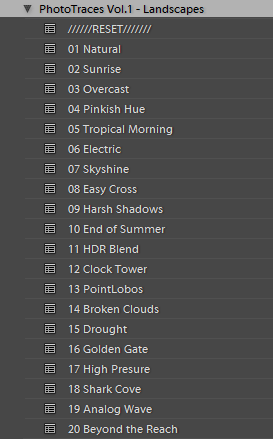
Level 1 – Style Presets. The presets that define the “LOOK” and style of the photograph. For example: cool or warm, cross processed or natural, contrasted or soft.

Photo Editing Workflow for Travel Photography Image 04

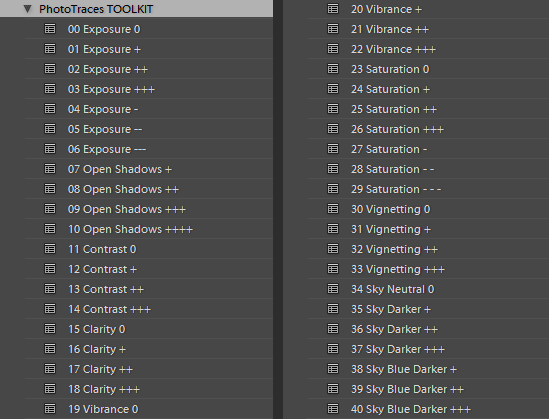
Level 2 – Adjustment Presets. The presets that allow fine-tuning of a photo without altering the style, and without the use of Lightroom editing tools. I named them the TOOLKIT.

Photo Editing Workflow for Travel Photography Image 05

Here is a real life scenario

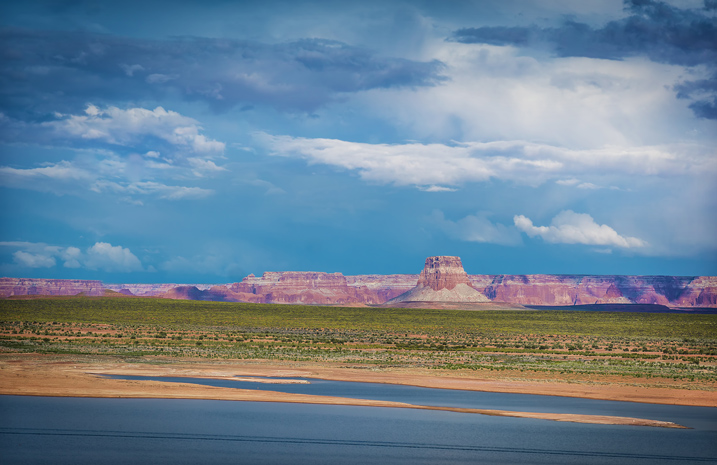
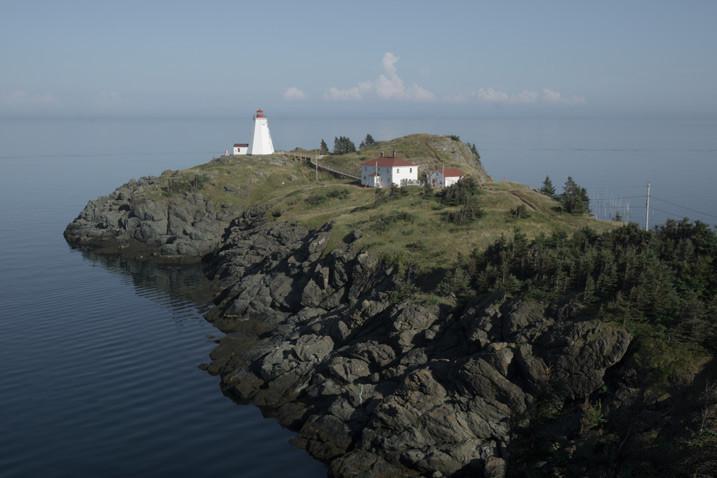
When I returned from a driving trip to Atlantic Canada, I brought back over a thousand new photos. After selecting around 10 keepers, I wanted to edit them using a similar style, and then publish them as the Atlantic Series on my travel photography blog. I started with my favorite photo from the selection.

Photo Editing Workflow for Travel Photography Image 06

I began with Level 1 of Rapid Editing by applying the NATURAL style preset to the selected image (above).

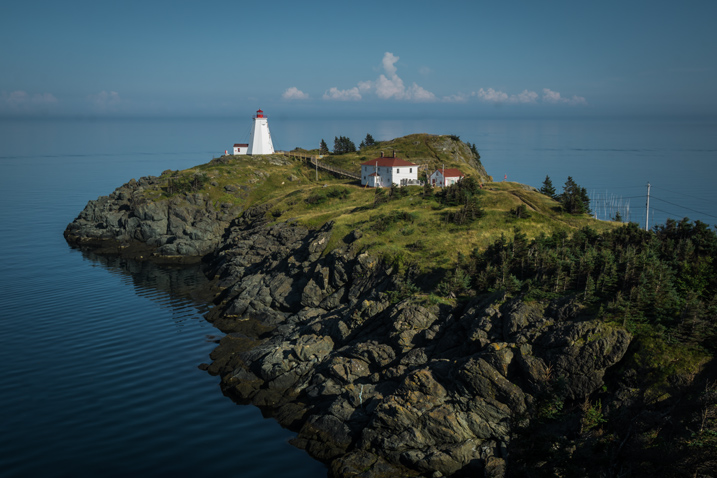
Photo Editing Workflow for Travel Photography Image 07
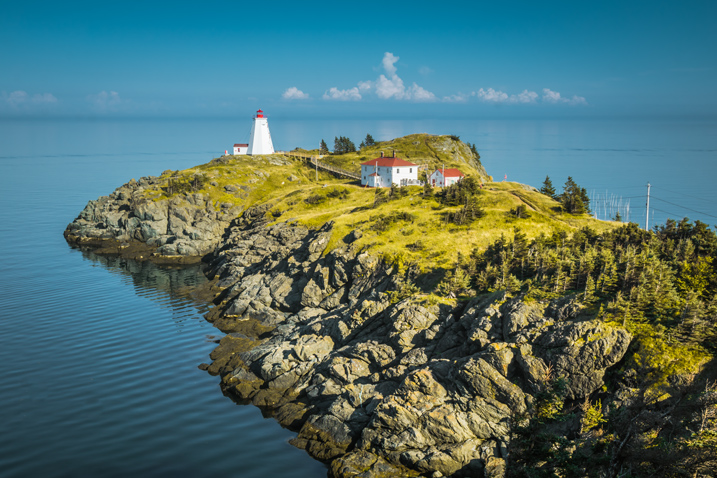
Natural style preset applied.

Even though I liked the style, the image did not look good at all, because it was too dark, with deep shadows in the background. This is when the second level of editing came into play.

From the TOOLKIT adjustment presets collection, I applied the following presets:

  • 01.Exposure +
  • 09.Open Shadow +++
  • 16.Clarity +
  • 20. Vibrance ++

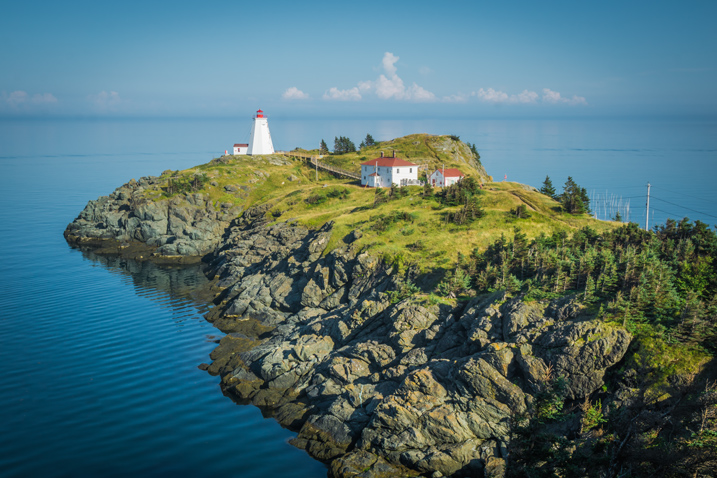
Below is the final result. It took me five clicks to go from the original unprocessed RAW image to the final edit.

Photo Editing Workflow for Travel Photography Image 08

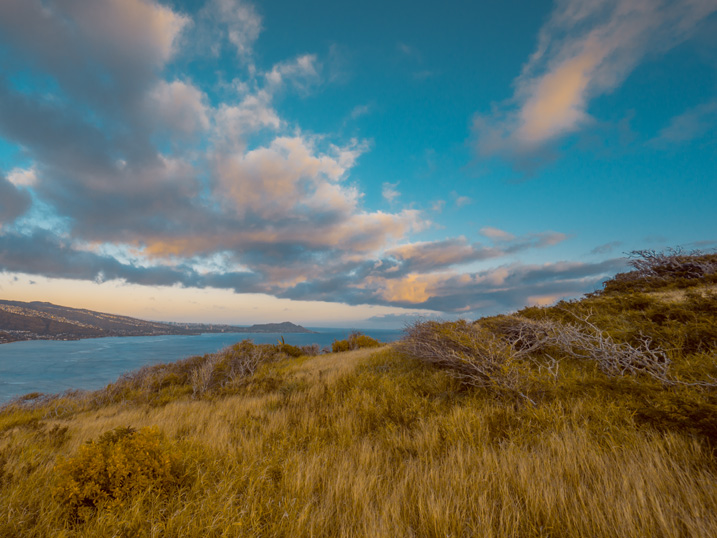
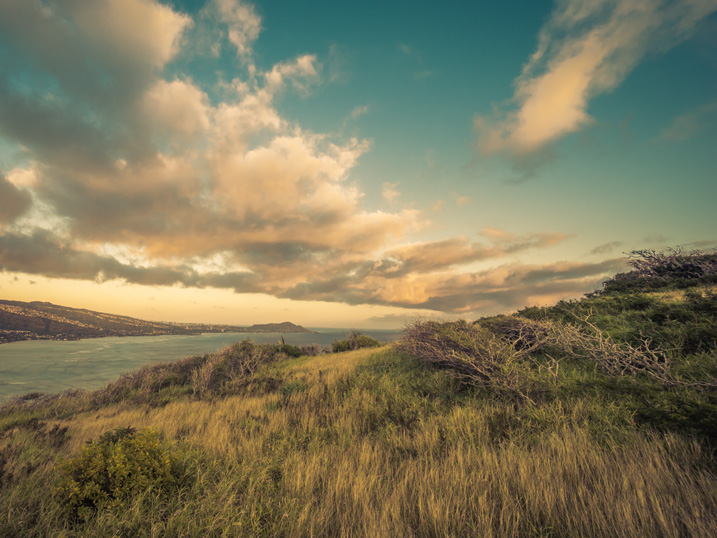
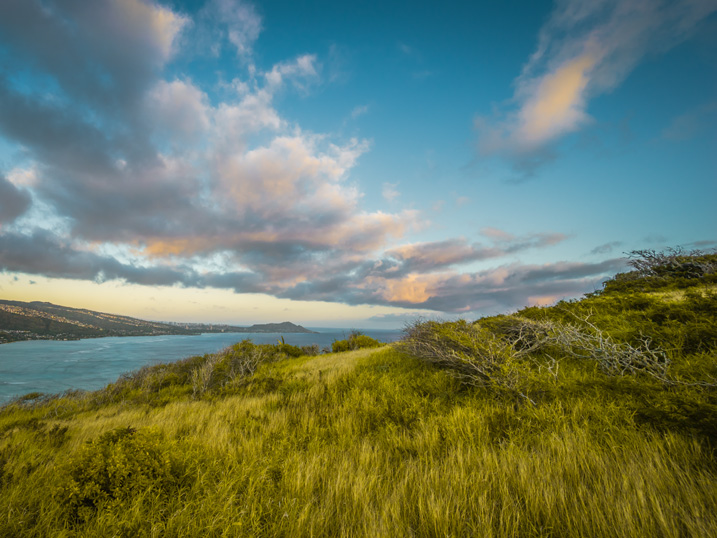
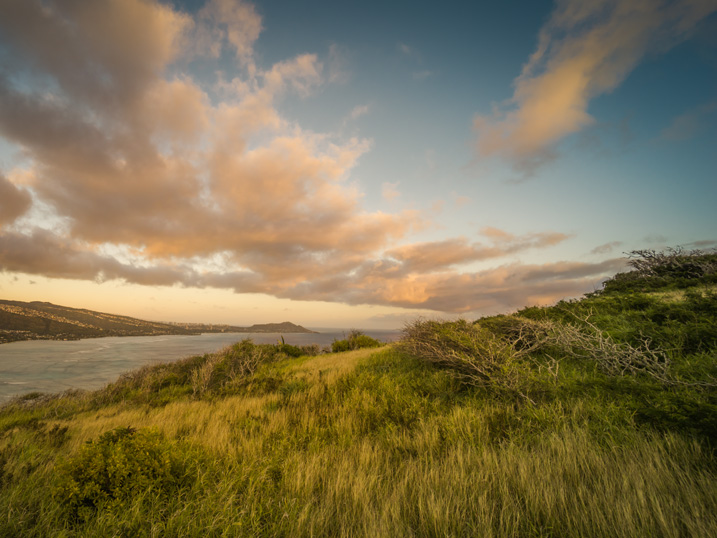
The next step was to come up with a more creative style for this particular photograph. I used the two-level Lightroom Rapid Editing process to produce three more creative versions.

Photo Editing Workflow for Travel Photography Image 09
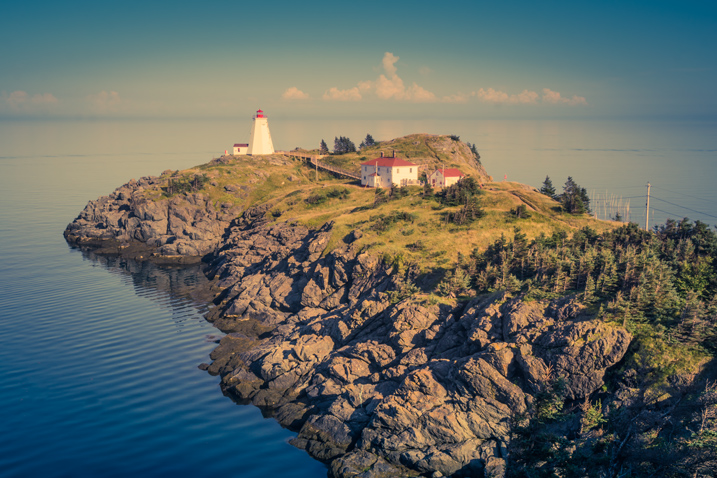
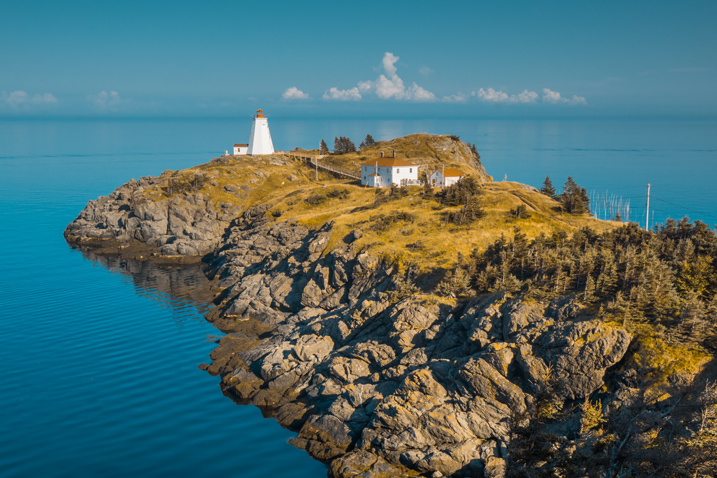
Preset: Broken Clouds

Photo Editing Workflow for Travel Photography Image 10
Preset: Drought

Photo Editing Workflow for Travel Photography Image 11
Preset: Point Lobos

During the next step, I selected the edited version I liked the best. In this particular case, I chose the image with the Point Lobos preset effect. I then used the SYNC SETTINGS functionality of Lightroom, to synchronize the editing settings with the rest of the flagged photos (the other nine keepers).

In the last step, I went through the photos one more time, using only the TOOLKIT, and focused on each photo individually. At this stage, I mostly adjusted the Exposure and Open Shadow to compensate for different lighting conditions and exposure imperfections (underexposure and overexposure). This process typically does not take long – an average of 10-15 seconds per photo.

Photo Editing Workflow for Travel Photography Image 12

Photo Editing Workflow for Travel Photography Image 13

Photo Editing Workflow for Travel Photography Image 14

Photo Editing Workflow for Travel Photography Image 15

Photo Editing Workflow for Travel Photography Image 16

Photo Editing Workflow for Travel Photography Image 17

Photo Editing Workflow for Travel Photography Image 18

Photo Editing Workflow for Travel Photography Image 19

Photo Editing Workflow for Travel Photography Image 20

At this point, I was finished with Rapid Editing. I managed to complete 80-90% of the editing process without touching any of the Lightroom editing tools. As you can see, Lightroom Rapid Editing allows me to process a high volume of photos in a relatively short amount of time, while also giving the photos a similar look and feel, that makes the set distinguished and unique.

After this two-level editing process, it was then time to perform the last 10-20% of editing that cannot be automated.
Depending on the image, I might open it in Photoshop for selective editing. In most cases, I clean the images by removing distracting elements from the composition (electric wires, debris). Another option I often use is Lightroom Adjustment Brushes for selective editing.

Publishing

The very last step of my workflow is publishing. I use the plugin functionality of Lightroom to synchronize my newly created photos with my cloud portfolio on SmugMug. With SmugMug cloud service, I have access to all my photos at full resolution, and 100% quality anytime and anywhere.

One of my favorite features of SmugMug is the ability to create custom sized images on the fly by manually changing an image URL, without using any editing tools.

Conclusion

What I learned after designing my photo editing workflow is that there is no perfect solution for travel photography that fits every photographer. Any system we put in place is in a constant state of fluctuation, and all we can do is keep adjusting it based on the type of photography and our individual habits and routines.

Do you have a workflow you’d like to share with us? Please do so in the comments section below.


If you found this helpful, get Viktor’s Lightroom Rapid Editing System for Travel Photography Course 50% off now at SnapnDeals for a limited time only – February 9th-23rd, 2016.

googletag.cmd.push(function() {
tablet_slots.push( googletag.defineSlot( “/1005424/_dPSv4_tab-all-article-bottom_(300×250)”, [300, 250], “pb-ad-78623” ).addService( googletag.pubads() ) ); } );

googletag.cmd.push(function() {
mobile_slots.push( googletag.defineSlot( “/1005424/_dPSv4_mob-all-article-bottom_(300×250)”, [300, 250], “pb-ad-78158” ).addService( googletag.pubads() ) ); } );

The post Photo Editing Workflow for Travel Photography by Viktor Elizarov appeared first on Digital Photography School.

Digital Photography School

 
Comments Off on Photo Editing Workflow for Travel Photography

Posted in Photography


How to Reduce Editing Time by Automating Your Lightroom Workflow

09 Dec

Don’t you hate when you realize that you spend more time in front of the computer than actually taking photographs? The realization is even more depressing when you are a travel and landscape photographer and, by definition, you are supposed to travel and discover the world’s beauty.

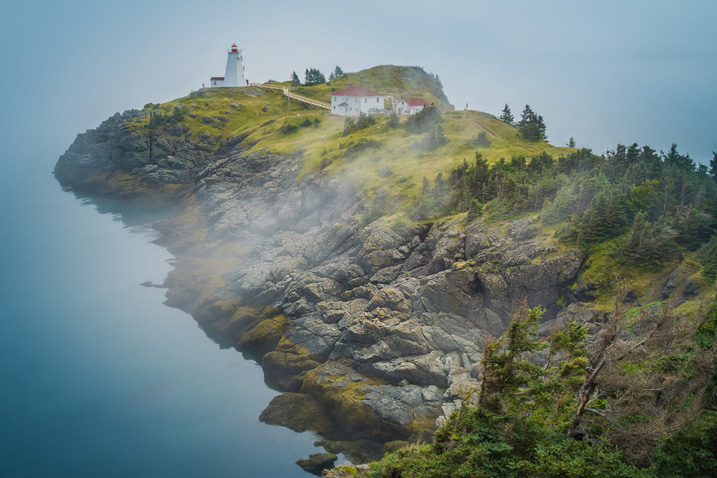
Sunset Ride (San Francisco)

The Crisis

This is how I felt about 12 months ago during my second ever processing crisis as a photographer.

The first crisis happened about 10 years ago when I became more serious about photography, and started taking more photos. This was a time when 100% of my editing was done in Photoshop, which quickly led me to feel like I was drowning in gigabytes of digital images. What I did not realize at the time was that a majority of photographers who had switched to the digital realm, shared my pain.

This is when Adobe saved us all by releasing Lightroom, an application designed specifically for digital photographers. Lightroom not only offered non-destructive photo editing but a complete digital photography workflow with streamlined digital asset management as well.

I immediately embraced Lightroom by starting with the beta version, which allowed me to cut my photo editing time in half. With every new version, Lightroom became more sophisticated and versatile, almost completely replacing Photoshop in my workflow. After Adobe released Lightroom 6, I recognized that I could complete 90% of my processing in Lightroom, and my need for Photoshop was minimal (10%).

But, sophistication and versatility had its own price. Lightroom became much slower and its complexity skyrocketed.

Another factor that contributed to my second processing crisis was my switch from a Canon DSLR, to a Sony mirrorless. The new Sony camera (A6000) had a bigger sensor and produced much bigger file sizes, which slowed my editing down even more.

After a long trip to Hawaii, California, and the Southwest, I brought back more than 5,000 brand new photos. The process of Lightroom editing was slow and painful, making it obvious that I had to come up with the completely new workflow to reflect a higher volume of larger files.

Swallowtail Light (New Brunswick)

The Solution

I started by analyzing my Lightroom editing habits, and soon enough, I made a discovery that became the foundation for my new workflow. Perhaps less of a discovery and more like a simple realization, I noticed that 80% of my edits are identical for every single photo I process, with only 20% varying from photo to photo.

The solution was obvious. By automating the 80%, I could radically reduce the time I spend in front of the computer. The use of preset functionality in Lightroom was an obvious choice.

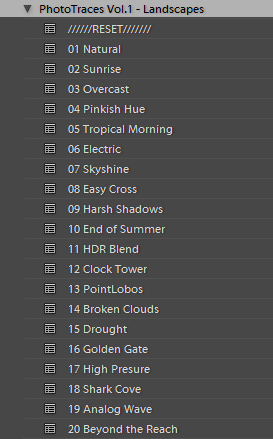
I dove into my Lightroom Portfolio Collection and selected the images that best reflected my personal style and artistic vision. I then created presets based on those selected photos.

At that point, I faced a challenge. As you have probably noticed, LR presets usually do not work out of the box; their settings are too specific for a particular photo to work with every image. Depending on the lighting condition of the scene, contrast level, shadow depth, and color saturation, the same preset can produce a completely different result across different images.

I managed to overcome this challenge by separating my presets into two categories, and using a two-level editing approach.

  • Level One: I use presets from a STYLE category, to define an artistic style or the “LOOK” in a photograph. For example: cool or warm, cross processed or natural, contrasted or soft.
  • Level Two: I use ADJUSTMENT presets to fine-tune a photo, compensating for the lighting of the scene, without changing the STYLE that I defined in the previous step.

Okay, enough theory, let’s get to the practical demonstration – here’s my new Lightroom editing workflow in action:

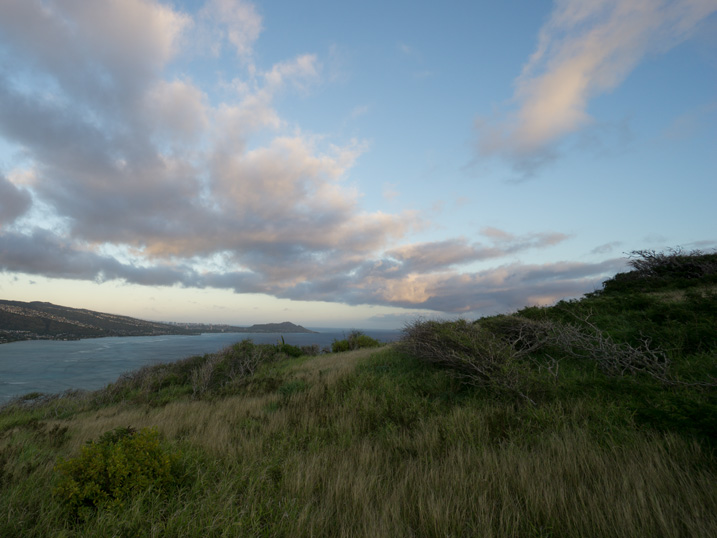
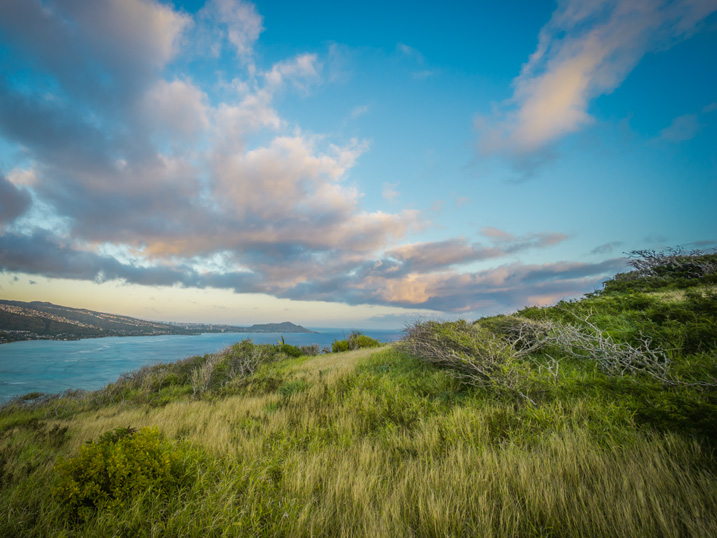
Here is a photo I took in Hawaii at sunrise. This is a typical landscape photo featuring the open sky and water, mountains, and foreground vegetation. In order to preserve the details in the highlights, I set the exposure for the sky area, as I normally do for the majority of landscapes. It resulted in an underexposed capture.

how_I_educed_my_photo_processing_time_in_half_03

The goal here is to correct the exposure, recover the shadows, and bring back the rich colors of the tropical sunrise.

STEP ONE

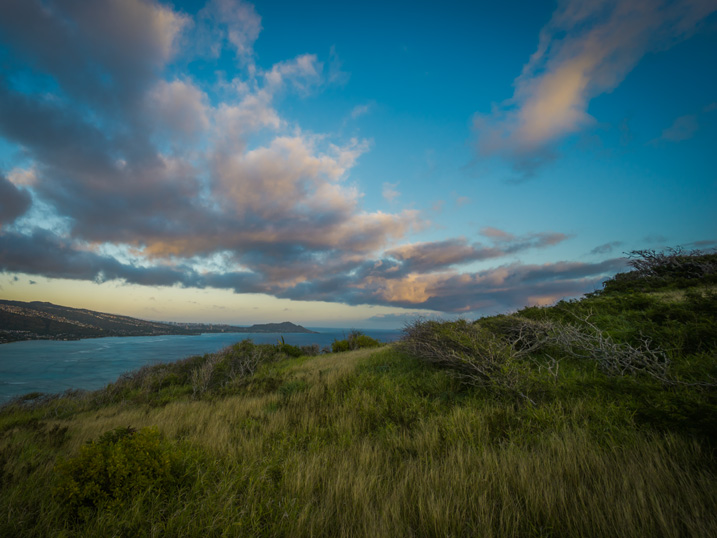
I always start my landscape editing by trying to achieve a natural look first by applying the NATURAL preset from my STYLE collection.

how_I_educed_my_photo_processing_time_in_half_04

Even though I managed to boost the colors and define the sky, the result is far from exciting, as the photo is much too dark.

how_I_educed_my_photo_processing_time_in_half_05

STEP TWO

This is when my ADJUSTMENT collection, which I call the TOOLKIT, comes into play.

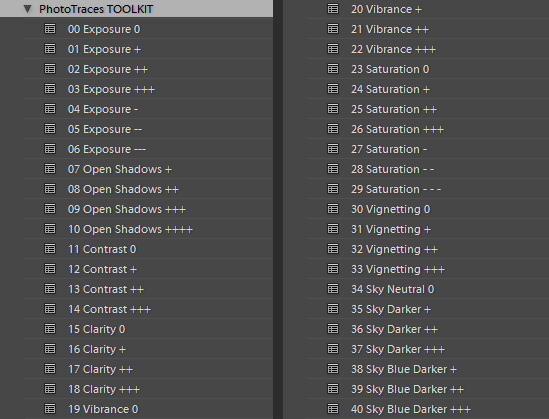
The TOOLKIT is a selection of 40 presets where each is responsible for changing only one specific parameter, without changing the style of the image. Together, they help to fine-tune different aspects of the photo.

how_I_educed_my_photo_processing_time_in_half_06

The TOOLKIT presets are stackable, which means that you can apply multiple presets to the image without the presets overwriting each other.

  • To make the image brighter, I apply preset 02. Exposure ++
  • To open up the shadows, I apply preset 10. Open Shadows +++
  • To increase the local contrast, I apply preset 17. Clarity ++

how_I_educed_my_photo_processing_time_in_half_07

This is all I had to do. As you can see, I managed to complete 80% of my entire editing in five clicks, without touching the right panel of Lightroom where all of the editing tools are housed.

STEP THREE

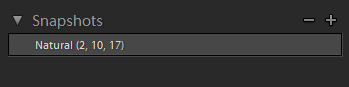
The last step is to record the editing steps. I use the Snapshot functionality of Lightroom to save my editing steps as a new Snapshot. For the name, I use “Lightroom Editing Formula”.

how_I_educed_my_photo_processing_time_in_half_08

The Lightroom Editing Formula starts with the name of the preset and follows with the numbers inside the brackets, where each number represents a specific ADJUSTMENT preset from the TOOLKIT collection.

If I edit a photo for my blog, I might stop here and export it as a JPEG; but, if I am working on a portfolio piece, I try to explore a variety of artistic styles. I follow a similar approach by going through the three steps of my workflow, but each time select a different STYLE preset.

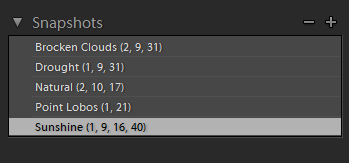
Every time I achieve a result I like, I save it as another Snapshot.

how_I_educed_my_photo_processing_time_in_half_09

By the time I am done, I might have anywhere from four to five different editing versions for the same image.

how_I_educed_my_photo_processing_time_in_half_11

how_I_educed_my_photo_processing_time_in_half_10

how_I_educed_my_photo_processing_time_in_half_12

how_I_educed_my_photo_processing_time_in_half_13

Here is the most exciting part; I get to select the most interesting version for my portfolio and perhaps another one for Instagram.

From here, I normally jump to Photoshop and perform the remaining 20% or so of the editing process. In Photoshop, I mostly clean up the image with the help of the Stamp Tool, and do noise reduction using Topaz DeNoise plugin.

Conclusion

The entire process of producing five different versions of the featured photo took me less than 10 minutes, and all without having to touch the main editing tools in Lightroom. I call it Lightroom Rapid Editing.

By streamlining and automating my Lightroom workflow, I managed to reduce the total editing time by more than half.

How can you use these tips to reduce your editing time? Do you have any other time savers you’d like to share? Please do so in the comments below.

googletag.cmd.push(function() {
tablet_slots.push( googletag.defineSlot( “/1005424/_dPSv4_tab-all-article-bottom_(300×250)”, [300, 250], “pb-ad-78623” ).addService( googletag.pubads() ) ); } );

googletag.cmd.push(function() {
mobile_slots.push( googletag.defineSlot( “/1005424/_dPSv4_mob-all-article-bottom_(300×250)”, [300, 250], “pb-ad-78158” ).addService( googletag.pubads() ) ); } );

The post How to Reduce Editing Time by Automating Your Lightroom Workflow by Viktor Elizarov appeared first on Digital Photography School.


Digital Photography School

 
Comments Off on How to Reduce Editing Time by Automating Your Lightroom Workflow

Posted in Photography


Lightroom Walk Through – Event Photography Workflow with Phil Steele

12 Apr

Phil Steele is a well-known and respected photography educator. In this video tutorial he walks you through exactly how he works through the post-processing of an event he has just shot.

Learn tips on importing, rating, culling, organizing in Collections, exporting, and delivering the photos as Phil goes through his entire event photography workflow step by step.

If you enjoyed that and want more you can check out Phil’s courses here:

  • How to Shoot Headshots and Portraits on a Budget with Small Flashes
  • Photoshop Basics for Photographers
  • Lightroom Made Easy
  • Event Photography course

googletag.cmd.push(function() {
tablet_slots.push( googletag.defineSlot( “/1005424/_dPSv4_tab-all-article-bottom_(300×250)”, [300, 250], “pb-ad-78623” ).addService( googletag.pubads() ) ); } );

googletag.cmd.push(function() {
mobile_slots.push( googletag.defineSlot( “/1005424/_dPSv4_mob-all-article-bottom_(300×250)”, [300, 250], “pb-ad-78158” ).addService( googletag.pubads() ) ); } );

The post Lightroom Walk Through – Event Photography Workflow with Phil Steele by Darlene Hildebrandt appeared first on Digital Photography School.

Digital Photography School

 
Comments Off on Lightroom Walk Through – Event Photography Workflow with Phil Steele

Posted in Photography