RSS
 

Posts Tagged ‘Without’

How to Create a Silky Water Effect in Post-Processing without Using Filters or a Tripod

17 Apr
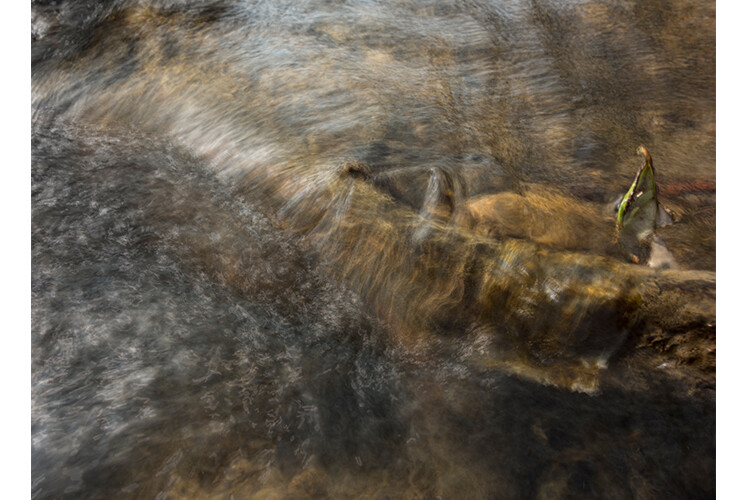
Affiniy-photo-mean-stack-mode

Smooth water effect edited in Affinity Photo using the Live Stacks feature.

Even if you don’t shoot landscape photography, photos of waterfalls with the smooth water and glassy appearance are awesome. The gist to achieving this, and I do stand corrected if I have this wrong, is as follows:

  • Slow shutter speeds – the need for a tripod
  • A remote shutter release or your camera’s timer
  • Wide angle lens and the camera settings using a small aperture of f/22, ISO 100
  • Neutral Density and/or polarizer filters, as you’ll be shooting long exposures during the day
  • Of course the scene and by all accounts patience too

However, I personally don’t own ND or polarizer filters. These type of filters are required for long exposures during the day, so that your shutter speeds are slow enough, possibly one minute or more to get that misty look. On top of which, you have to get the exposure right, which requires a bit of math and experimentation. ND filters block out the light in terms of stops.

So taking long exposures during the day is an involved process, especially if you want to create that smooth, silky water effect in-camera. But, is there a way to simulate this effect in Photoshop or other post-processing software? Yes there is! It does require that you take multiple shots. I’m not advocating that this technique in post editing is a replacement to going out and achieving long exposures out in the field, far from it. But, I hope this technique may serve as a stepping stone or inspiration to go out and capture silky waters, clouds etc., in-camera.

This article will demonstrate how you can achieve a similar result by taking a bunch of photos in continuous mode without using any filters or a tripod. Although, I would recommend you use a tripod.

First, I’ll demonstrate this effect using a manual method in Photoshop CS6 (standard version). There is an automated way to do this with the Stack Mode feature, which I believe is in Photoshop CC. If you have previous versions of Photoshop, the Stack Mode feature is only available in extended versions, not standard, unfortunately. However, Gimp has this Stack Mode feature and it’s free. Then, I will compare the manual method in Photoshop with Affinity Photo, using Live Stacks. I was really impressed with this feature.

Photoshop manual method

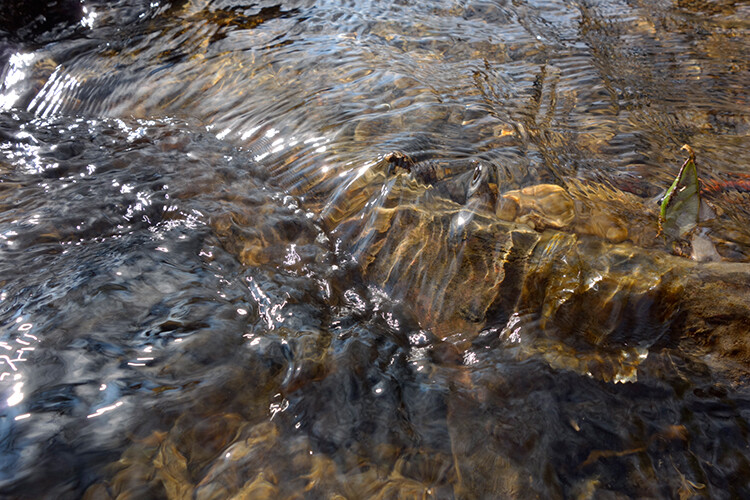
Let’s begin. On the day I took these images, I was pressed for time. So I took a series of shots in continuous mode, and handheld the camera while I focused on this part of a small river. I would recommend that you use a tripod and give yourself some time. It will be easier to align the images later.

small-river-handheld

I took a bunch of images in continuous mode of this small river, close-up deliberately for this article.

You will need to load your images as layers into one document in Photoshop, as follows:

file-scripts-load-files-into-stack

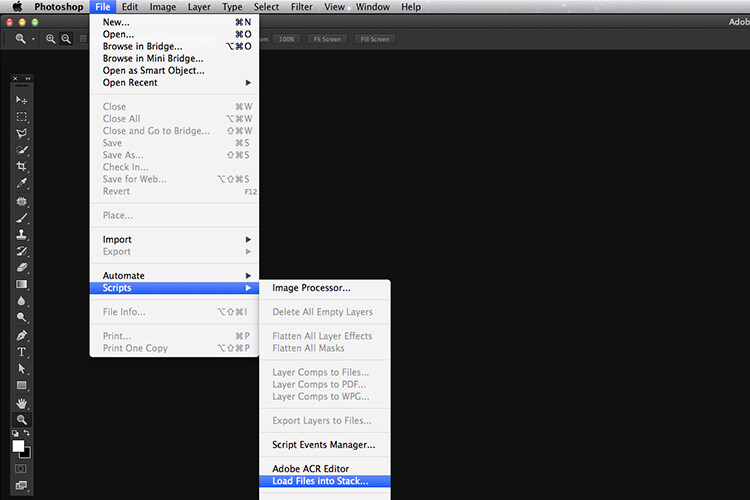
Loading multiple images into one document in Photoshop. File>Scripts>Load Files into Stack

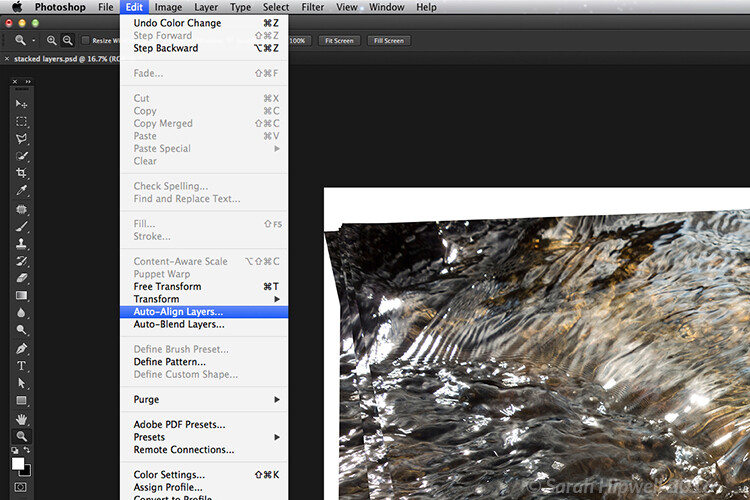
Go up to the Menu Bar > File > Scripts > Load Files into Stack. As I didn’t use a tripod, I selected all the layers to align them. Go to Auto-Align under Edit. As you can see, Photoshop had its work cut out trying to align the images.

images-after-auto-align-photoshop

I handheld my camera when I took a bunch of shots in continuous mode. As you can see from this screenshot, I needed to use Auto-Align Layers in Photoshop. If you use a tripod the alignment will be much easier.

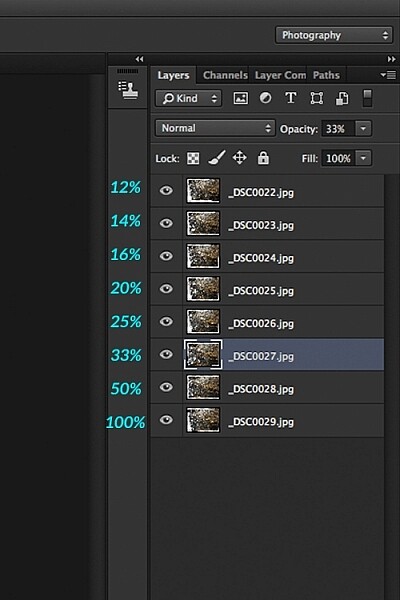
Now that the layers are stacked on top of each other. Start at the bottom and leave this layer at 100%, go to second layer above and reduce the opacity by 50%(100÷2=50). Continue with the next layer and reduce the opacity by 33%(100÷3=33).

percentages-opacity-reduced

Reducing the opacity of each layer by dividing the number of the layer into 100%. The bottom layer remains at 100%. The second layer is 50% and so on.

Therefore, depending on the amount of layers you have, and where they come in the stack, divide this number into 100. So if you had 30 images, the opacity for the top layer in the stack will be 3% (100÷30=3). Remember the bottom layer is always 1=100%. What this is doing is averaging out the layers. This may sound complicated, but in practice, it’s more straightforward. Although it is a bit more tedious than the automated way.

This is the effect of averaging out the layers in Photoshop - reducing the stacked layer's opacity by X amount. I also had to crop this image, whereas the same image when edited in Affinity Photo kept more of the image. See below.

This is the effect of averaging out the layers in Photoshop – reducing the stacked layer’s opacity by X amount. I also had to crop this image, whereas the same image when edited in Affinity Photo kept more of the image. See below.

I have been keeping a close eye on Serif’s Affinity Photo. So I took the plunge and purchased it for (€39) $ 44 USD. That was a discounted offer. At such an affordable price, I was curious to see how this software performs and what it can do.

In Affinity Photo, there is a Live Stacks feature which is similar to Stack Mode in Photoshop. It was easy and simple to use, and the process was fast.

Affiniy-photo-mean-stack-mode

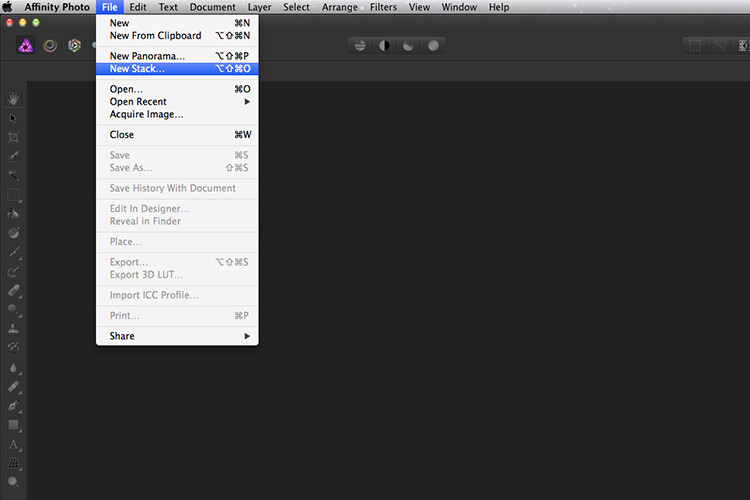
Affinity-photo-new-stack

The equivalent Stack Mode feature in Photoshop is called Live Stacks in Affinity Photo.

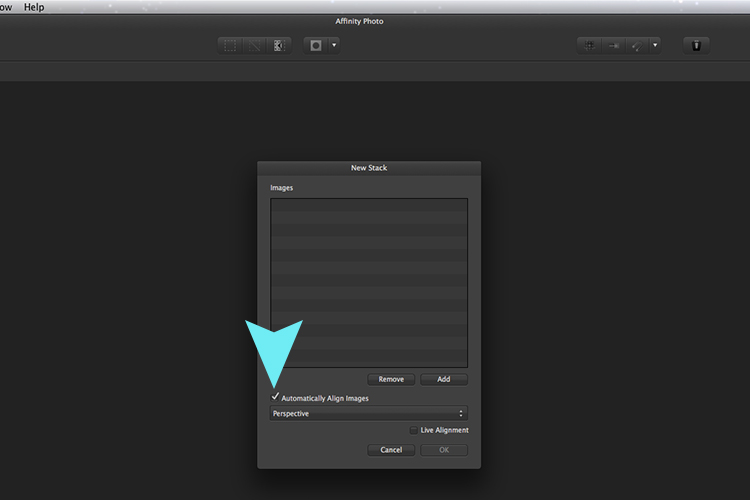
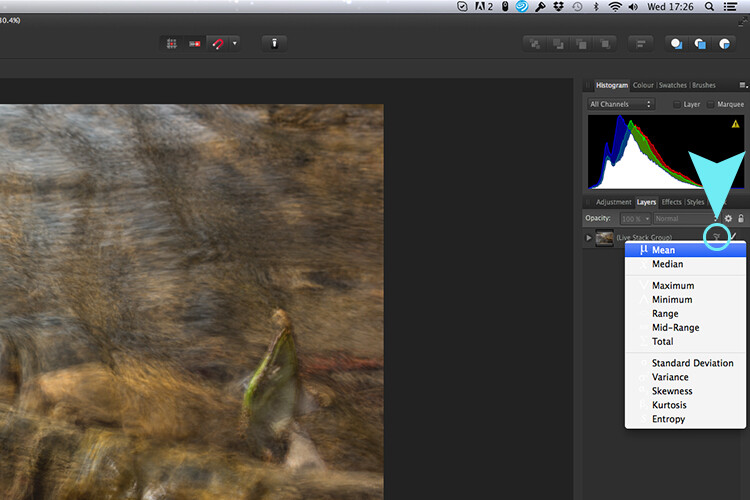
Go to File > New Stack. The pop up dialog box appears where you select your images. Make sure Automatically Align Images box is ticked. Click Ok. This takes a couple of seconds. It defaults to Median in the Live Stack Group, but scroll up to the next one and this is Mean. That’s the one you want.

Affinity-photo-auto-align-images

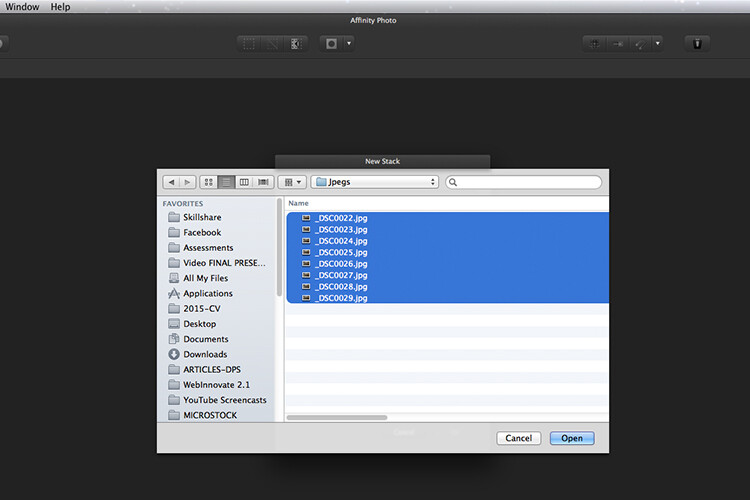
images-selected-after-new-stack

When you create a New Stack, the pop up dialog box appears. Select your images on your computer and click Open.

Affinity-photo-live-stacks-mean

The stacked images are grouped into a folder called Live Stack Group. The different stack options are located by clicking on the small icon, circled in blue. It defaults to Median but I changed it to Mean.

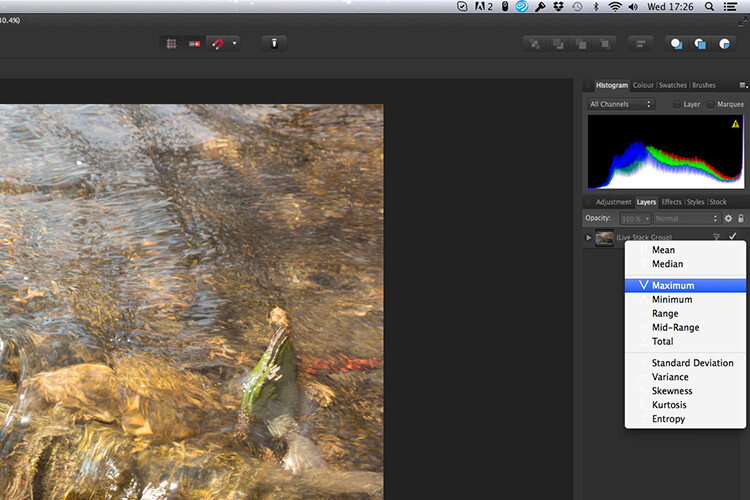
The cool thing about this feature is when you scroll through each of the different stack modes, it shows the different results live.

Affinity-photo-live-stacks-maximum

Different stack options can be scrolled through one by one, and the results can be seen live, which is impressive.

When I compared the two results from Photoshop and Affinity Photo, I could see no obvious difference, with the exception that I had to crop the image of the river more in Photoshop, whereas the auto alignment in Affinity Photo meant I didn’t lose much of the image at all.

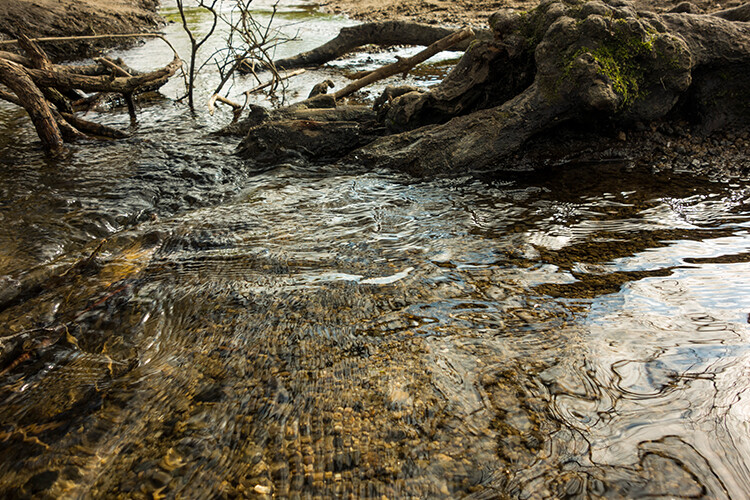
second-river-original

Here is another example of moving water.

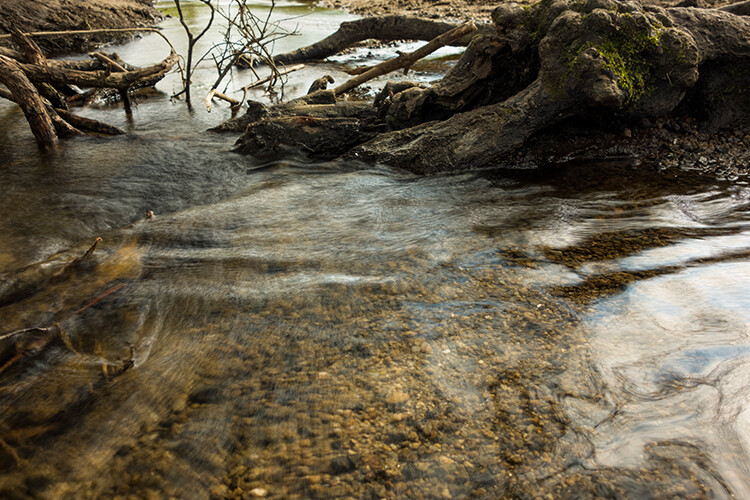
The same image as above edited in Affinity Photo using Mean in Live Stacks. I got the same result using the manual method in Photoshop.

The same image as above edited in Affinity Photo using Mean in Live Stacks. I got the same result using the manual method in Photoshop.

Take away tip:

In my examples, I didn’t use a tripod. I would recommend using one. I also took only a series of 8-10 shots. I would recommend taking at least 15 or more.

I found this technique interesting and fun, and I am now inspired to go out and take images of waterfalls. The good thing about this technique is if you don’t have ND or polarizing filters, it doesn’t prevent you from going out and taking shots of waterfalls. Then when you get back to your computer, you can create your own silky, smooth effect.

Let’s see some of your examples below.

googletag.cmd.push(function() {
tablet_slots.push( googletag.defineSlot( “/1005424/_dPSv4_tab-all-article-bottom_(300×250)”, [300, 250], “pb-ad-78623” ).addService( googletag.pubads() ) ); } );

googletag.cmd.push(function() {
mobile_slots.push( googletag.defineSlot( “/1005424/_dPSv4_mob-all-article-bottom_(300×250)”, [300, 250], “pb-ad-78158” ).addService( googletag.pubads() ) ); } );

The post How to Create a Silky Water Effect in Post-Processing without Using Filters or a Tripod by Sarah Hipwell appeared first on Digital Photography School.


Digital Photography School

 
Comments Off on How to Create a Silky Water Effect in Post-Processing without Using Filters or a Tripod

Posted in Photography


An Exercise For You to Practice Depth of Field Without Going Outside

01 Apr

lead-photo-Vickie-Lewis-Photography-for-dps

Many photographers, especially when starting out, have a difficult time understanding depth of field. I also hear quite often that photographers are waiting for nice weather to get out and shoot. So, here’s a fun exercise you can do at home, in any weather, that will help you understand the finer aspects of depth of field.

Depth of field is determined by which aperture you choose, what focal length you’re using, and the distance between the camera and the subject. In this example, we’ll explore depth of field using a 100mm lens.

To set up

Find between one and three small objects you can photograph. I found three sports water bottles with balls on the top to shoot. Next, you need some studio space. A patio door or very wide window works well.

Your next step is to set up your object, or objects, in front of the window and to place your camera in position. The object and camera should be parallel to the window.

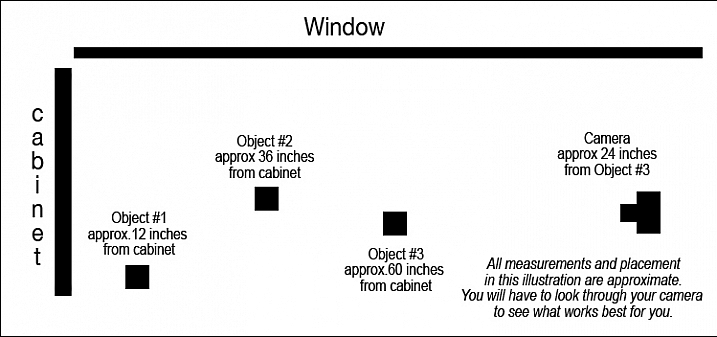
depth_of_field_illustration

This is how I set up my camera and objects.

I put the first ball, the soccer ball, about 12 inches in front of the cabinet. Then I put the second ball, the baseball, about 24 inches in front of that. I put the third object, the basketball, 24 inches in front of the next object, and finally I set my camera about two feet in front of the last object.

You’ll need to play a little bit to see what works best for you. It will vary depending on the size of the object you are shooting, and the focal length you are using. You want to be able to focus on all three objects, and take a photo of them without moving your camera, so play for a minute. Focus on the first object and make sure you can see all three objects in the frame. Then focus on the second and make sure you can still see them all. Lastly, do it with the third one, too.

Set your camera on either aperture priority or manual exposure, and use the widest aperture you have. I chose f/2.8. Your lens might not have that aperture available, if so f/4 or f/4.5 will be just fine.

Shoot wide opened focusing on each object in turn

Now, without changing anything but your focus, take a photo of each of the three objects.

200__depth_of_field_f-2.8

This photo was shot at f/2.8 while focused on the object closest to the camera, the basketball. Notice the narrow depth of field, in other words, how blurry the background is.

201__depth_of_field_f-2.8-f-2.8

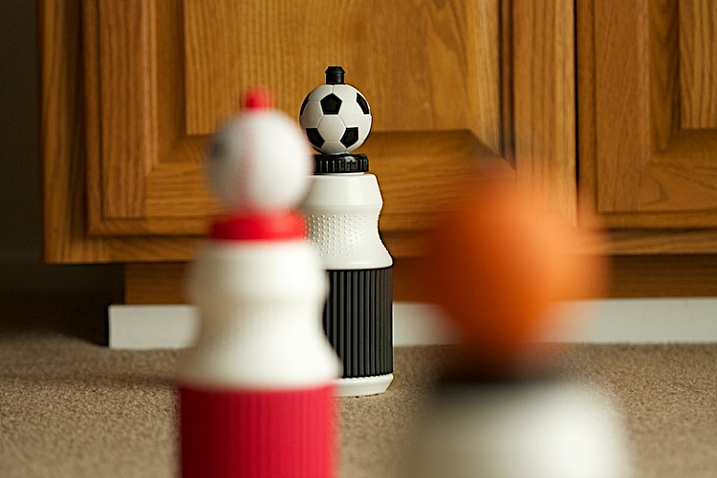
This was also shot at f/2.8, but this time, I focused on the middle object, the baseball. Notice that it is blurry in front and in back.

202__depth_of_field_f-2.8

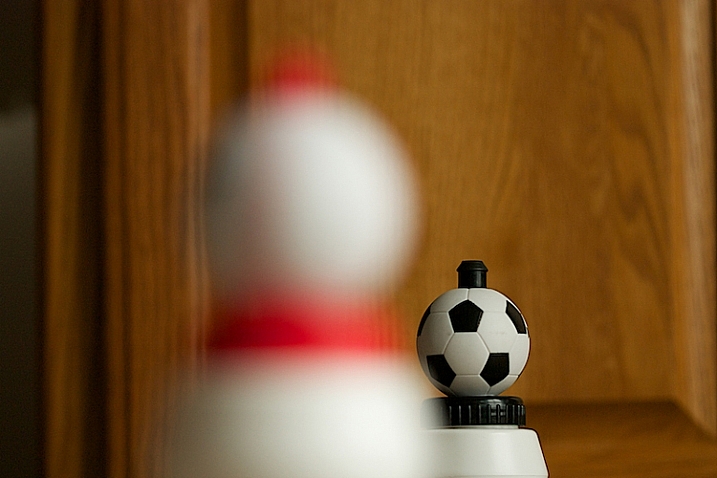
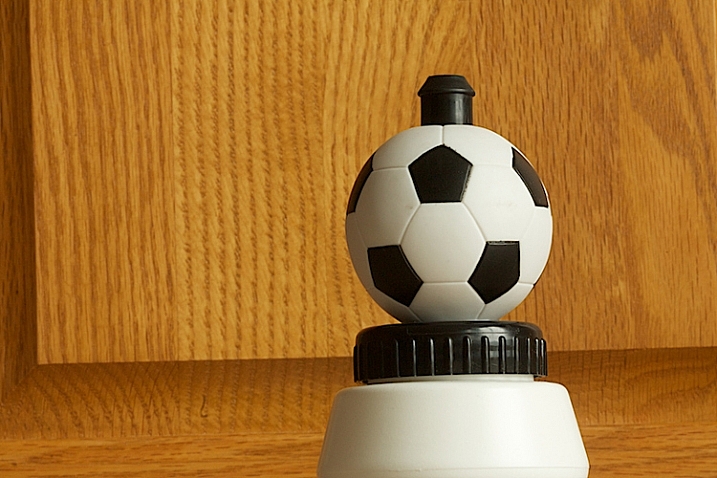
This photo was also shot at f/2.8, but I focused on the soccer ball. I did not change camera position nor did I change lenses. Notice the depth of field, but also notice the change in perspective. Can you see that more of the cabinet is in the photograph?

Next shoot with a small aperture

Now, let’s try something a little different. Instead of shooting at your widest f-stop, shoot at your smallest, which means a higher number, like f/32 or f/16.

205__depth_of_field_-f-32

Here is the same situation. The camera hasn’t moved, but the aperture is now at f/32. The focus is on the basketball, but look how much is sharp.

204__depth_of_field_-f-32

Look closely. The aperture is still at f/32, but the focus has changed to the baseball. Notice the basketball is more out of focus, but the soccer ball in the back looks pretty sharp.

203__depth_of_field_-f-32

Above is the third example. The focus is on the soccer ball.

You can practice each of these things with different f/stops to see the difference between f/4, f/8, f/11, f/16 and f/32. Each choice will change the depth of field.

Change the distance to the subject

209__depth_of_field_-f-2.8

In the above photograph, I moved the camera closer to the baseball and shot at f/2.8. Practice isolating the elements and see what happens. Notice how the baseball really stands out, and look at the background. By isolating the baseball with a very narrow depth of field, the background becomes really out of focus. This tool is very helpful to clean up backgrounds.

210__depth_of_field_-f-2.8

Then I changed my focus to the soccer ball. The aperture is still at f/2.8. What do you notice about the background?

213__depth_of_field_-f-32

In the shot above the soccer ball is still in the original position, about a foot away from the cabinet. Notice how sharp the background is – this was shot at f/32.

214__depth_of_field_-f-11

Now, notice how we start to lose detail in the cabinet behind. This image above was shot at f/11.

215__depth_of_field_-f-2.8

Finally, by shooting at f/2.8, and without moving the position of the soccer ball or the background, the background has become more out of focus and less distracting.

Take some times and practice this at home. So what you’ve learned here is a great way to practice depth of field at home–even on a rainy day! So take out your camera, find some small objects to shoot and start practicing.

Please share in the comments below how controlling the depth of field could impact how you shoot. What did you learn by doing this exercise?

googletag.cmd.push(function() {
tablet_slots.push( googletag.defineSlot( “/1005424/_dPSv4_tab-all-article-bottom_(300×250)”, [300, 250], “pb-ad-78623” ).addService( googletag.pubads() ) ); } );

googletag.cmd.push(function() {
mobile_slots.push( googletag.defineSlot( “/1005424/_dPSv4_mob-all-article-bottom_(300×250)”, [300, 250], “pb-ad-78158” ).addService( googletag.pubads() ) ); } );

The post An Exercise For You to Practice Depth of Field Without Going Outside by Vickie Lewis appeared first on Digital Photography School.


Digital Photography School

 
Comments Off on An Exercise For You to Practice Depth of Field Without Going Outside

Posted in Photography


How to Make Colors Pop in Your Portraits – Without Using Photoshop

11 Mar

Complementary Colors 2_1

There are a lot of really great tools to use in Photoshop, or Lightroom, to get the colors in your photos to pop, creating a more vibrant portrait. But, did you know that you can create color popping portraits, before you even open them for post-processing? It’s true!

By incorporating some of the simple things below ,before you take a photo, the color in your portraits will really stand out, and help you create eye catching photographs.

Make sure your background colors complement the subject

Understanding what colors complement each other, will really help the colors in your portraits pop. Complementary colors are red and green, orange and blue, and purple and yellow. Using combinations of these colors with your subject and background, will help create a flattering portrait.

It’s important to know the colors of the location where you are going to be shooting. If you know you’ll be at a location filled with yellow wildflowers, have your subject wear purple shades. If your background is lush green grass, with green trees all around, your subject will look best in pinks or reds. Know the area you will be shooting, and have your subject wear the color that complements that background. A complementary color palette will make your photo stand out!

Example images of complementary color schemes below, and top.

Complementary Colors_1

Use a neutral background

If your subject is wearing really colorful clothing, there is an easy way to make that color really stand out. A trick to get your subjects to really pop is to take a closer look at your background. Find an area that is plain, with neutral tones. Colorful, busy backgrounds can be fun, but they can also make a photo too cluttered, and draw the eye away from the subject, especially if they are also wearing bright clothing.

Neutral Background_1

Too much color throughout the photo won’t cause anything to pop out at you. Backgrounds that are more neutral will cause the eye to look directly at the subject, and the colorful clothing or accessories they are wearing. Look for a duller background such as: a dirt path, a mountain, stones, or anything that has a more earthy tone.

Neutral background 2_1

Use a colorful background

You can still make the colors really pop out in your portraits, even if the subject is not wearing colorful clothes. If they are wearing white, black, or neutral colors, find an area in your environment with rich color. Look around for flowers, or brightly colored walls to place them near. With your neutral subject next to bright color, the colors will jump out.

Colorful background_1

Eliminate anything distracting

Finally, before you press the shutter, make sure that there are no distracting objects in the background, that will pull the eye away from the subject. Are there other people in the distant background? Trash on the ground? Different colored cars in a nearby parking lot? If you can see them through your camera, you will see these distracting things in your final picture.

Recompose your subject so you don’t see those people in the distance. Pick up any trash that might be on the ground near the subject. Eliminating anything that will distract from the subject, will make the subject, and the colors they are wearing, pop even more.

Colorful background 2_1

If you have used some of these tips to plan your portrait, the colors should look pretty nice without doing any extra work in Photoshop or Lightroom. If you’d like, you can use those programs to enhance the color even more. Levels, hue/saturation or selective color are some fantastic tools for creating brighter and bolder colors in Photoshop. Play around with the different tools and see if you can get your portrait bright and colorful.

Please share your portraits and any questions or tips you may have on this topic, in the comments below.

googletag.cmd.push(function() {
tablet_slots.push( googletag.defineSlot( “/1005424/_dPSv4_tab-all-article-bottom_(300×250)”, [300, 250], “pb-ad-78623” ).addService( googletag.pubads() ) ); } );

googletag.cmd.push(function() {
mobile_slots.push( googletag.defineSlot( “/1005424/_dPSv4_mob-all-article-bottom_(300×250)”, [300, 250], “pb-ad-78158” ).addService( googletag.pubads() ) ); } );

The post How to Make Colors Pop in Your Portraits – Without Using Photoshop by Emily Supiot appeared first on Digital Photography School.


Digital Photography School

 
Comments Off on How to Make Colors Pop in Your Portraits – Without Using Photoshop

Posted in Photography


Panasonic to launch Lumix DMC-CM10 without phone functionality

20 Jan

Panasonic has announced that the next version of its Lumix DMC-CM1 smartphone will dispense with its phone functionality to concentrate on being a camera. The Lumix DMC-CM10 will initially only be available in Japan, and is very much the same as the original DMC-CM1, but while it will run on the Android 5.0 operating system it will not be equipped to make phone calls. It will, however, be equipped with LTE communication facilities, and will be able to send text messages and send and receive data via telephone networks with an appropriate SIM card in place. Panasonic will provide its own network access for users as part of its Wonderlink service, where CM1 and CM10 owners can get 3GB a month with 150Mbps download speeds for 1480 yen/£9/$ 12.50. 

The camera appears to have the same lens and sensor as the DMC-CM1, and exactly the same body and features. It will be available from 25 February in silver and only 500 will be made per month. While the price isn’t clear yet it appears from the Panasonic store in Japan that it will be around 100,000 yen/£600/$ 850. 

For more information see the Panasonic Japan website. 

Articles: Digital Photography Review (dpreview.com)

 
Comments Off on Panasonic to launch Lumix DMC-CM10 without phone functionality

Posted in Uncategorized


Maximizing Depth of Field Without Diffraction

14 Sep

So you are out shooting and you want to capture the full scene in front of you – all the way from what is directly in front of you to the background way off in the distance. You know you need a really large depth of field, and you know what you need to do to get it.

You reach for the camera’s aperture control and crank it down all the way to f/22 (or f/32 if your lens allows). That will maximize your depth of field and have your picture looking sharp from front to back.

Or will it?

What is Diffraction?

There is a phenomena in photography called diffraction that has an adverse effect on your pictures, and sets in when you use smaller apertures. What is diffraction? Let me explain.

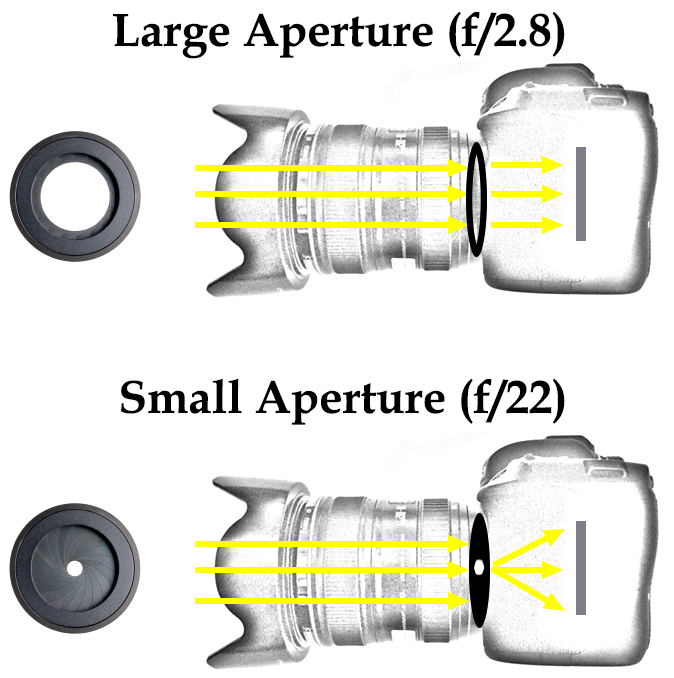
As you are probably aware, the aperture of a lens is the opening in the rear part of the lens that lets light into the camera. The body of the lens consists of optical elements that direct light toward the rear of the lens. When you use a large aperture, light freely moves through the optical elements and then through the aperture. When the aperture is very small, however, essentially the light has to bend to make its way through the aperture. That bending of light causes the waves to interfere with each other. The following graphic illustrates how this works:

Diagram showing how light enters the camera through the lens and results in diffraction at small aperture settings

What’s the result of this to your photography? In a word: softness.

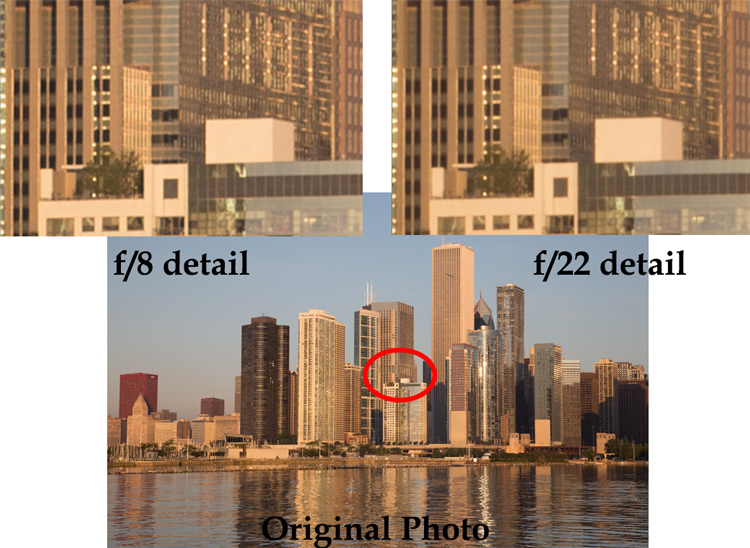
A picture shot at f/22 will not be quite as sharp as one shot with an aperture that is a bit larger. Here is an example of detail from two photos, which are identical except that one was shot at f/8 and the other at f/22:

Example of photos taken with large and small apertures to show the effect of diffraction when using a small aperture on your lens

You can probably see that the f/8 detail is sharper than the f/22 detail.

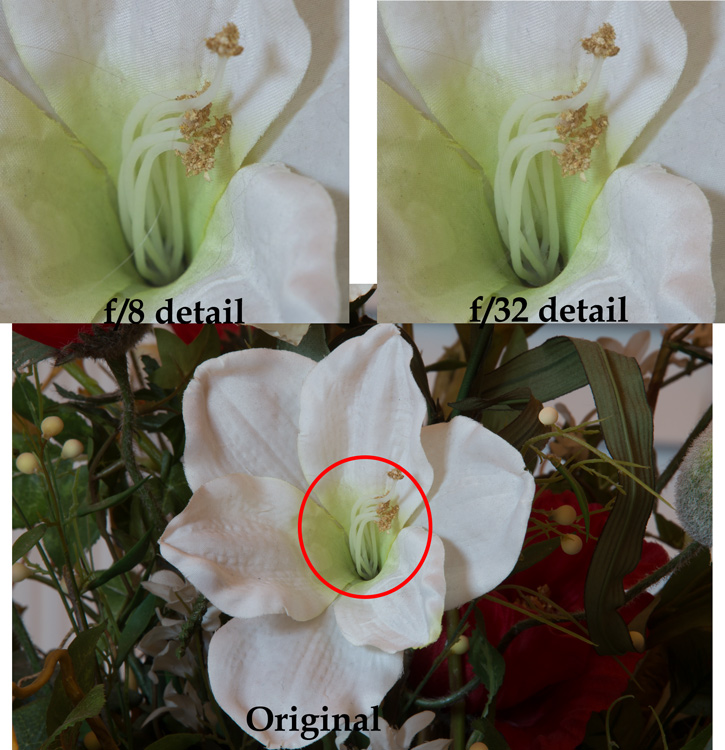
The example above was shot outdoors with a 24-105 mm f/4 lens (my favorite). To see this application in other contexts, I also created another example, this time shooting indoors with a 70-200 mm f/2.8 lens with a minimum aperture of f/32.

Example of photos taken with large and small apertures to show the effect of diffraction when using a small aperture on your lens

Again, the f/8 detail is sharper than that shot with the smallest aperture.

By looking at these examples, you can see that diffraction is not just theory, it has real affect on your photos.

Using the Sharpest Aperture

Okay, so now you see that diffraction is a real phenomenon, and you want to avoid it. What is the smallest aperture you should use? And what is the best aperture setting? Unfortunately, there is no one perfect answer. It depends on the lens. As a result, you should test your lens(es) to determine the aperture (or range of apertures) at which they work best (also known as the lens’ sweet spot).

To do so, just take the exact same picture at each aperture setting (in 1-stop increments). Be sure to use a tripod so your picture is exactly the same. In addition, make sure you are increasing (making longer) your shutter speed by an equal amount every time you change your aperture so that your exposure stays the same. After you have taken the pictures, load them onto your computer, zoom-in on each, and compare.

If you don’t want to test your lens and just want a quick rule of thumb for avoiding the effects of diffraction, generally avoid using an aperture smaller than f/11 or f/16. Most experts consider this range something of a maximum. In addition, the sharpest aperture on most lenses will be about f/5.6 – f/8, or about 1-2 stops smaller than its wide open aperture setting. When possible, default to using an aperture in this range.

Maximizing Depth of Field with Larger Apertures

You may find yourself wondering how to get a large depth of field without using a very small aperture. Keep in mind that you don’t always need to use the smallest aperture that your lens offers, to get a sufficient depth of field. If you are shooting outdoors, which is generally where you will want a small aperture and maximum depth of field, you should become acquainted with the subject of hyperfocal distance.

Despite its complex-sounding name, hyperfocal distance is just a measure of how close you can focus and still keep the background of your image acceptably sharp. You don’t necessarily need to use the smallest aperture possible, particularly when you are shooting wide-angle. For example, if you are using a full-frame camera with a 20mm lens, even using an aperture of f/8 will keep everything sharp from 5.5 feet in front of you, all the way to infinity!

This shows that you don’t always need to use an aperture like f/22. Get acquainted with hyperfocal distance (or keep a hyperfocal distance chart handy) to see how large you can make your aperture, yet still maximize depth of field.

Focus Stacking

Sometimes, however, you need to break out the heavy artillery and make sure everything – from what is right in front of you all the way to infinity – is in focus. To do that, use a technique called focus stacking.

To focus stack what you do is, take multiple pictures of the exact same thing at your lens’s sharpest aperture setting. Again, you should test your lenses to see what the sharpest setting is for each lens, but if you don’t know it will usually be in the range of f/5.6 – f/8.0. Set your lens to manual focus, and set the focus point on the closest part of the image (nearest part you want in sharp focus). Take the first shot, then repeat the process, gradually setting the focus point further and further away with each shot, until you are focused at infinity. Usually 3-5 shots will cover the entire range of the scene.

When you get your photos in your computer, you will combine the photos in Photoshop to create one file using the sharpest parts of each picture. There are a few different ways to do this:

  • Automatic: Use the Photomerge function to load your photos into Photoshop (File > Automate > Photomerge) and combine the images, making sure that the box to “blend images together” is checked. Photoshop will combine the images into one file and (usually) use the sharpest portions of each image.
  • Partial: You can also load the images as separate layers to one file in Photoshop, align your layers (Edit > Auto-Align Layers), and then have Photoshop automatically blend the layers (Edit > Auto-Blend).
  • Manually: Finally, you can do the process manually if you want complete control over it. Load the images as layers to the same file align the layers. To blend the photos, add a layer mask to the top layer (Layer > Layer Mask > Reveal All) and use a black brush to mask away everything except the sharpest point of that picture. Then merge down that layer (Layer > Merge Down) and repeat the process for each layer. This method will obviously take more time than the first two options above.

At the end of this process, you will have combined the layers such that the sharpest portion of each one is showing. The photo will be 100% sharp from front to back – with no effects of diffraction.

Application to Your Photography

You should be aware of diffraction, but don’t let it scare you away from using the aperture that you need. In particular, there is still a place for shooting with very small apertures. The effects of diffraction – while real – are not that great, and keep in mind that the examples set forth above showing the effects of diffraction were zoomed way in. If we look at the original pictures, can you tell which one was shot at the smaller aperture?

Full photos showing limited effect of diffraction

Can you see any diffraction here? In the top row, the picture to the left was shot at f/22 and the one to the right was shot at f/8. In the bottom row, the picture to the left was shot at f/8 and the one to the right was shot at f/32.

Can you see the diffraction in the images above? I can’t.

Worrying about diffraction should be reserved for those times you are dead set on absolute maximum image quality, or you know you are going to display a large version of the picture. Otherwise, you can still shoot with small apertures and you will likely not notice the difference. In other words, there is still a place for f/22 in this world.

However, on those occasions where it does matter, use a slightly larger aperture. Know your lens’ sweet spot and use that setting. Be familiar with the hyperfocal distance involved and see if you can keep the entire picture sharp at the larger aperture. Where you cannot, use focus stacking, this will ensure the sharpest pictures possible.

googletag.cmd.push(function() {
tablet_slots.push( googletag.defineSlot( “/1005424/_dPSv4_tab-all-article-bottom_(300×250)”, [300, 250], “pb-ad-78623” ).addService( googletag.pubads() ) ); } );

googletag.cmd.push(function() {
mobile_slots.push( googletag.defineSlot( “/1005424/_dPSv4_mob-all-article-bottom_(300×250)”, [300, 250], “pb-ad-78158” ).addService( googletag.pubads() ) ); } );

The post Maximizing Depth of Field Without Diffraction by Jim Hamel appeared first on Digital Photography School.


Digital Photography School

 
Comments Off on Maximizing Depth of Field Without Diffraction

Posted in Photography


How to Improve Your Photography Without Buying New Gear

11 Sep

It’s not the camera that makes good photography; it’s the photographer. How many times have you heard that? Probably a lot more times than you can count. It has become a bit of a cliché than anything, but it’s one that still rings true. You don’t need to spend thousands of dollars on brand new, state of the art camera systems and lenses, to be able to create great photos. You know that by now. There’s just one problem. All of those lenses and cameras are so, so shiny.

Most of that shininess is just a product of the camera manufacturers’ marketing departments churning out a constant onslaught of, “Buy me! Buy me! I’m so shiny! Buy me now!”

Shiny lenses are great, but are they the best investment for your photography right now?

Shiny new lenses are great, but are they the best investment for your photography right now?

The best advice? Ignore it as much as possible.

A bad photo made with a $ 5000 camera, is no better than a bad photo made with a $ 700 camera. It may be sharper and it may have a higher dynamic range, but it’s still a bad photo.

It’s okay to want new and better things, and depending on how fast you progress in your photography and what you want to achieve with it, you will eventually have to upgrade and buy new pieces of kit. There may be a few exceptions in genres like macro and wildlife photography; however, the chances are that you don’t need that several thousand dollar lens right now.

Grow out of your equipment

If you take the time to really learn and put into practice all of the various skill sets, you will eventually come to a wall you can’t pass with modest equipment. That’s when it’s time to upgrade. Take your time getting there though, and enjoy the experience. With well rounded skills, you will know that moment the instant it arrives.

Other ways to invest in your photography

However, there are places where you can invest your money that will not only help your photography, but also speed up the process quite a lot. These are education and experiences. Really, they’re both the same thing, but it’s easier to describe them in terms of two sub-categories.

Education

Everybody needs to learn. Constantly. Never stop learning; otherwise you’ll get left behind.

The Internet is full of free resources, and you should absolutely use every bit of it to your full advantage. To quickly rise to the top of the learning curve, however, you should consider adding things like books, online courses, and workshops to your shopping list.

Workshops can be great value for money and provide a boost to your skills.

Workshops can be great value for money and provide a boost to your skills as well as introduce you to new locations.

Photography books tend to be focused on a particular subject. They also tend to go much further in depth than other resources. Most importantly, they’re relatively cheap. Try to avoid books that try to encompass everything about photography, and stick to specific topics like lighting, portraits or food.

How big of a library can you put together for the cost a lens that you’ve been after?

In the same vein, workshops and seminars can deliver a huge amount of information in a very short period of time for a reasonable cost. They also have the benefit of giving you face to face tuition with someone who’s experienced in the field that they are teaching. This is often invaluable, particularly if you learn better with a hands-on approach.

When considering workshops, please do your research and be sure of what you’re buying. Just think, would you buy something from eBay without first checking a seller’s feedback?

Personally, I feel one of the most overlooked, yet one of the most valuable tools, to learn photography is monographs and coffee table books. Studying the work of accomplished photographers will show you all of the things you’ve learned in theory, put into practice. It can also help you discern your likes and dislikes and give you ideas on what to try for your own portfolios. Don’t just stick with the old masters like Edward Weston and Imogen Cunningham; include contemporary photographers like Martin Parr and Mario Testino for a more thorough reference.

Experiences

Spending money on travel can help to force you to use the gear you have.

Spending money on travel can help to force you use the gear you have.

If education is learning, then experience is the actual doing. Do you want to be a travel photographer? Then don’t upgrade your lenses, buy a plane ticket instead. Do you want to be a fashion photographer? Hire experienced models and make-up artists. Wildlife photographer? Go photograph wolves on a workshop and rent the lens you need, rather than buying it.

If that’s a bit too expensive, then consider buying things to photograph. Food, toys, flowers, whatever fits in-line with your interests, and gets you up and using the camera you have now.

Purchasing things to photograph will help you build a portfolio which is far more important in the long run.

Purchasing things to photograph will help you build a portfolio which is far more important in the long run.

You can read all the theory in the world, but if you don’t put it into practice it just stays theory. The bonus here is that by actually working toward your goal, you will probably wind up earning a bit of money to put towards that fancy kit when you do need it.

It all comes back to the “grow out of your equipment” idea discussed earlier in this article.

You already have what you need. If you have read this article through, then the chances are that you already have everything you need to go out and make photos and develop your skills.

Now, I don’t presume to know every situation out there, and my experiences are only mine. I cannot, and will not, tell you what to do, but if you’re yearning for a new piece of gear I can only encourage you to honestly answer the question, “Do I really need this for my photography to progress or do I just want it?”

googletag.cmd.push(function() {
tablet_slots.push( googletag.defineSlot( “/1005424/_dPSv4_tab-all-article-bottom_(300×250)”, [300, 250], “pb-ad-78623” ).addService( googletag.pubads() ) ); } );

googletag.cmd.push(function() {
mobile_slots.push( googletag.defineSlot( “/1005424/_dPSv4_mob-all-article-bottom_(300×250)”, [300, 250], “pb-ad-78158” ).addService( googletag.pubads() ) ); } );

The post How to Improve Your Photography Without Buying New Gear by John McIntire appeared first on Digital Photography School.


Digital Photography School

 
Comments Off on How to Improve Your Photography Without Buying New Gear

Posted in Photography


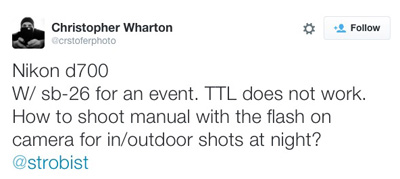
QA: How to Shoot Events Without TTL Flash

11 Aug

Technology is great. But it can also make us its slave.

For instance, TTL flash is pretty good at solving lighting problems on the run. (See, McNally? I'm open-minded…) But those problems existed long before we had TTL flash—or TTL exposure metering, for that matter.

And yet, we solved them on a regular basis. Even without feedback on the backs of our cameras. Or autofocus. While walking five miles to school barefoot in the snow. Uphill. Both ways.

Read more »
Strobist

 
Comments Off on QA: How to Shoot Events Without TTL Flash

Posted in Photography


Photographing Starry Skies for Nocturnal Landscape Without Breaking the Bank

02 Aug
Photo01

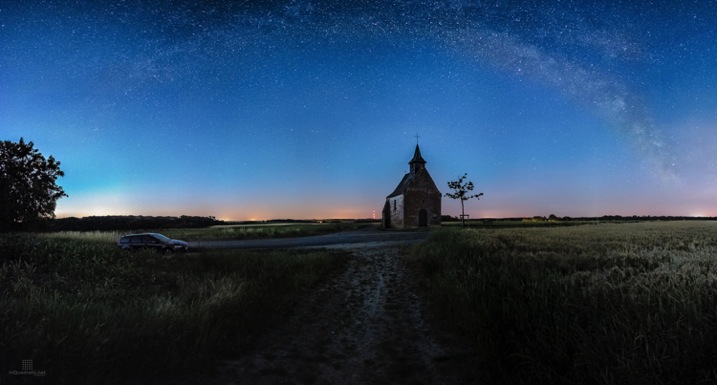
Milky Way over the Belgian countryside – Sony RX100, 28mm equivalent f/1.8 + LPR (Light Pollution Reduction) filter, ISO 6400. Panorama composed of 12×3 frames, each frame is the image average of four different photos

Photography in low-light conditions is one of the most challenging things to do with a camera. In conditions with faint, moving, distant lights it is even trickier. There is something about a starry sky that simply inspires awe in all of us. And it does so more often since light pollution is getting worst all around the world. I wonder how many children have seen The Milky Way first hand.

Recently, night photography caught my attention because, it is convenient for me. It is the time my duty as father can be left to sleep alongside my son, and the photographer in me can go out hunting starry skies. What is not convenient, is that I live in Belgium. People may know Belgium for its massive variety of beer, but also sports one of the most light polluted skies in all of Europe (dare I say the world?). Don’t believe me? Check the image below, extracted from the Dark Site Finder website.
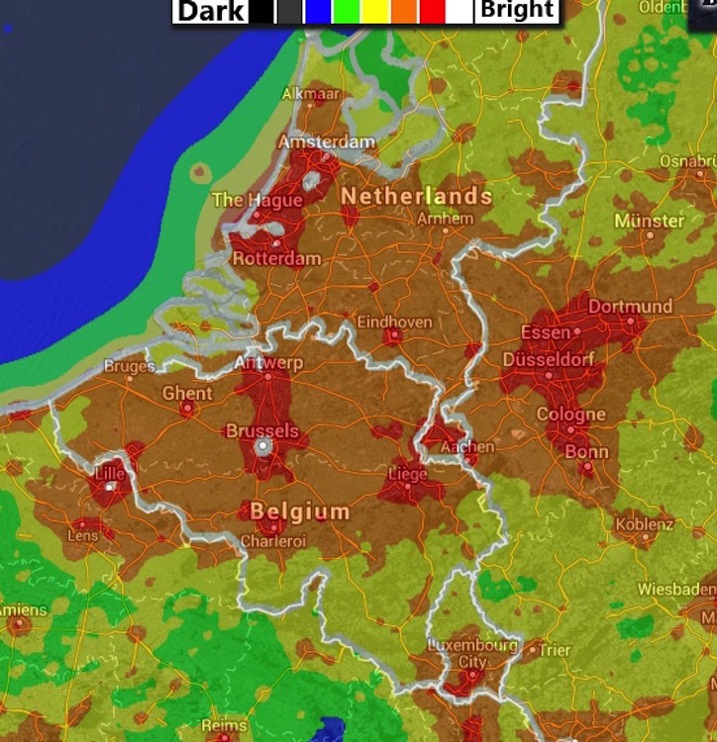
Photo02

Light pollution in Belgium (Source: Dark Site Finder)

As you can see, in Belgium the most you can hope for is a moderately dark sky, somewhere between typical urban suburbs and rural skies. This is mostly due to the presence of street lights lighting up almost all of the Belgian road network. Unfortunately, true dark skies are among the rarest gems in Europe: small, precious, and hard to find. Let me be clear here – nothing beats a truly dark sky and a clear atmosphere when it comes to photographing the stars.

But fear not – we can still get some pretty photos of starry nights with a bit of patience and the right gear.

Astrophotography versus nocturnal landscape

There are two main kinds of night photography that involve the starry sky: astrophotography and nocturnal landscape photography.

The first, in my view, is the attempt to photograph distant objects in the sky (planets, nebulae, galaxies) with no landscape. This kind of photography is usually achieved by using a camera mounted to a telescope (or to a long telephoto lens), all mounted on a motorized head on a tripod. Objects in the sky move pretty fast, so if you cannot track their movement with some sort of tracking device, you will not get many astrophotos. This kind of photography has its own challenges, but it is pretty straightforward: get a telescope, a tracking head, a sturdy tripod and you are pretty much done. A number of filters are also available to enhance the view of nebulae, planet and galaxies, as well to suppress the sky glow and punch through light polluted skies.

Nocturnal landscapes, instead, are another kind of beast entirely – the main problem is that you have the stars moving (fast!) across the fixed landscape. If your exposure is too long, stars will stop appearring as dots, and will begin to become trails. And you cannot track their movement or the landscape will be blurred. Here is the difficulty – you are trying to photograph in low light faint, distant lights and you want to do that as fast as possible (except if you do want to photograph star trails). The technical steps you have to adopt in order to capture a nocturnal landscape may vary depending if you want record star trails or not, and on the darkness of the sky above you.

What you cannot (easily) control: The ideal conditions

Ideally you want to have:

  • The darkest sky possible above you
  • A clear, moonless night (few clouds are allowed)
  • A clear and thin atmosphere
  • An interesting view or foreground

Remember, you are still doing landscape photography. A boring landscape with a dark, empty foreground will ruin even the most majestic of skies. You need to balance both parts to get a keeper.

What you can control: The ideal gear

Ideally, money is one of your last concerns and you have a digital full frame camera (oh what the heck, let’s take a digital medium format camera, even better) with excellent ISO capabilities and a set of fast (ideally f/1.4 to f/2.8) and sharp lenses to put in front of your sensor. Also, you need a sturdy tripod and head, a remote shutter, a headlamp (to see what you are doing) and strong lights (or even off-camera flashguns if you are brave enough) to do some light painting.

If you are like me, and money is a constraint, you can get away with any camera able to shoot at 3200 ISO (while still retaining some image quality) in RAW format. But you will still need fast glass (a lens with a large maximum aperture), anywhere from f/1.8 up to f/3.5.

To give you an idea, below there is the list of my current gear for nocturnal landscape photography:

  • Olympus OM-D EM–10
  • Samyang 7.5 f/3.5 UMC fisheye (Micro Four Thirds) – equivalent to 15mm on full frame
  • Samyang 12 f/2.0 NCS CS
  • Sigma 30 f/2.8 Art DN
  • Sony DSC-RX100 M2 (yes, a compact camera)
  • Manfrotto 055XPROB + ball head
  • MeFoto + ball head with uncoupled pano movement
  • Spare SD memory cards and batteries
  • Remote shutters with intervalometer

Nocturnal Landscapes with star trails
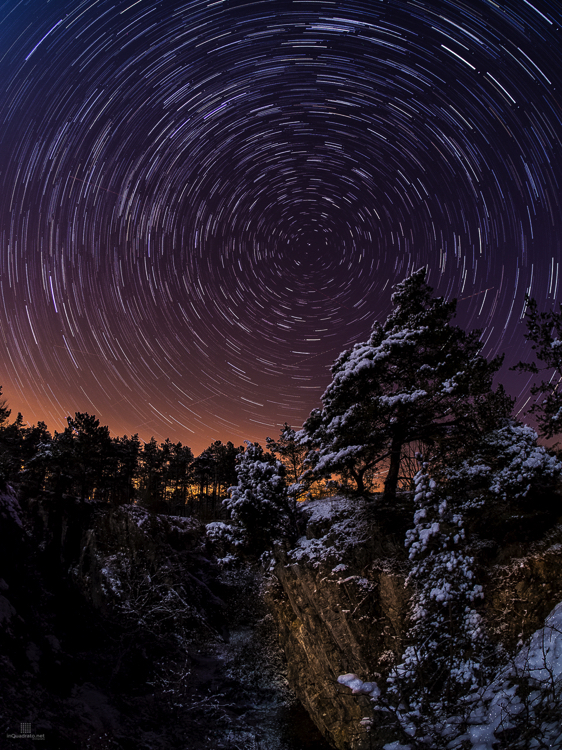
Photo03

Star trails (Stack of 60 frames taken with Olympus OM-D EM–10 + Samyang 7.5 f/3.5 fisheye lens)

The easiest nocturnal landscape you can take is one with star trails, mainly because you are not trying to fight the sky’s rotation (well, technically the Earth’s rotation). Instead, use this to your advantage to create striking images, in particular if you can get the North Star in the frame, so that you will end up having concentric star trails, all centred on the North Star (assuming you are in the northern hemisphere, of course).

In principle, all you need to do is: compose your scene, focus on infinity, set the camera in BULB mode and go grab some coffee. The longer you let the camera register the scene, the higher the number of trails you will record; and they will be longer and more continuous. Practically however, you do not want to do that because the noise due to the overheating sensor (hot pixels) will degrade the quality of the final image. You are better off by taking many shorter exposures (30 seconds each) and stack them later using software like StarStax or similar. This will allows you to keep the digital noise under control, with the downside of recording a great number of images to process later. Be sure you have a high capacity SD card that is empty, and your battery is fully charged before you start taking the sequence. An intervalometer is a must in order to set the appropriate number of shots to take, and the time interval between them. Never touch your camera until the end of the shot sequence.

In summary, get an interesting composition and fire at will. It does not require much more than that. You can even do cityscapes with star trails, like the shot below; this is a view over the city center of Brussels (Belgium), from the roof of my building.
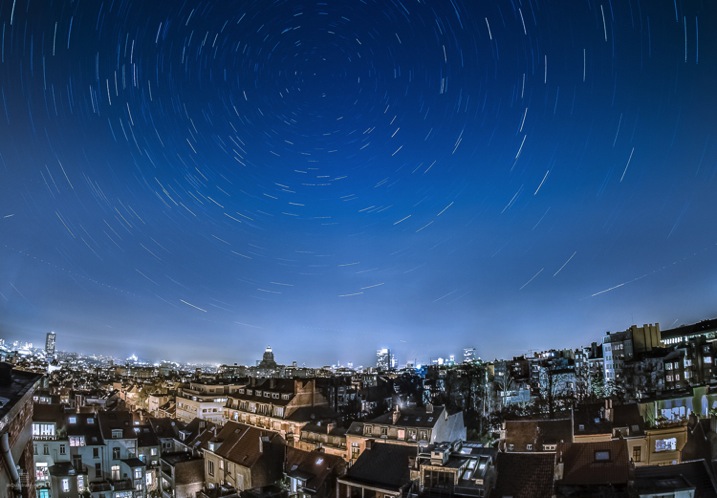
Photo04

Star trails over Bruxelles, Belgium. (Stack of 400 frames taken with Olympus OM-D EM–10 + Samyang 7.5 f/3.5 fisheye lens)

With cityscapes there is the extra difficulty of not blowing out the city lights, which are much brighter than the sky. Graduated filters may be of great help if you have a distant, flat horizon. Else, just expose (to the right) for the city and hope for the best, but some stars should show through. Mind your exposure time will be short because of the bright cityscape, so be prepare to shot a lot of frames (note the number for the shot above).

Nocturnal landscapes without star trails

Basically, the Holy Grail is getting a bright, sharp, colourful, and structured image of the Milky Way to shine across your landscape. This is the most difficult task and requires much more thinking that just doing star trails.

  • Size matters – the Milky Way is huge, so you need an ultra wide angle, or a fisheye, lens to fully capture our galaxy
  • Time matters – you want to get a sharp image of the sky, meaning you should avoid recording the stars movement. There are a couple of mathematical relations that can be used to estimate the longest time you can record the scene at a given focal length (or the equivalent in 35mm if you have a cropped sensor) before stars begins to form trails. These are called 600 and 500 rules: the longest time you can record the image is given by the following equations:Exposure time (t) = 600 / Focal Length OR Exposure time (t) = 500 / Focal LengthWhere the 500 rule is the most conservative of the two. Once you get the maximum exposure time (t) for your chosen focal length, it is just a matter of setting the proper aperture and ISO settings to match it. Usually you will need to use a larger aperture (small f-number), a good starting point for setting the proper ISO value is given by the following equation:

ISO = (6000 * f^2) / Exposure time  – f^2 means the f-number to the power of two

For example, with my Samyang 12mm f/2.0 on my Olympus OM-D (crop factor 2x), in order to get a good sky I should use a shutter speed no longer than: Exposure time = 500/(12*2) or approximately 21 seconds.

Assuming I go for the widest aperture, I should use an ISO value of about:  ISO = 6000 * (f2.0 to the power of 2 = 4) / 21 = 1142 or rounded up to ISO 1150. 

If, say, the aperture was set to f/4.0 instead of f/2.0, the ISO will need to be: ( 6000 * (4.0 ^2)  / 21 OR ( 6000 * 16 ) / 21 = 4571.

With this in mind, it is obvious that wider and faster your lens is, the easier it will be to record a good sky. This will also allow you to use a relatively low ISO, to keep the digital noise as low as possible. The shot below is one of my first attempts to capture the Milky Way. It has been done with my OM-D EM–10 with the Samyang fisheye at f/3.5, ISO 1000 with a shutter speed of 40 seconds, under a fairly dark sky (for Belgian standards).
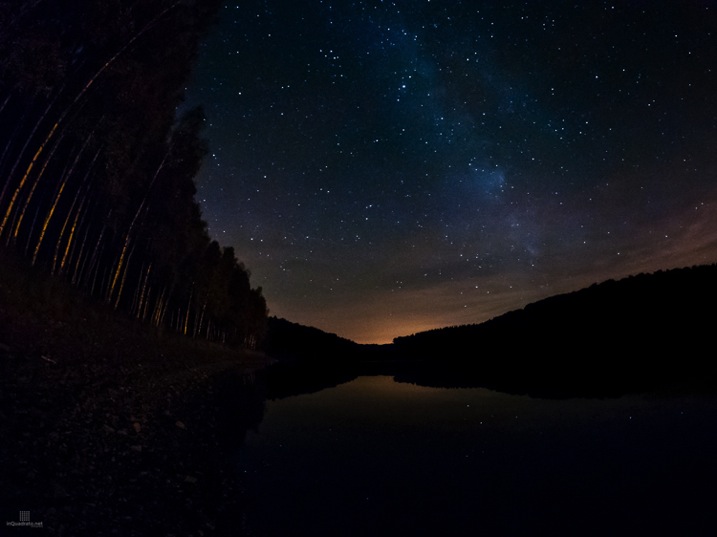
Photo05

The Milky Way in the winter Belgian sky (Olympus OM-D EM–10 + Samyang 7.5 f/3.5 fisheye lens)

Doing nocturnal landscape panoramas

As if the things were not already complicated enough, sometimes a single shot is not enough; either because it is not wide enough, or because you want to produce really large prints and you need to have a file with a resolution larger than that of a single photo. Sometimes you want to do a nocturnal panorama and that means taking different images and merging them later to form a panorama. The only difficulty is that you need to be precise in the camera movements and work as fast as possible to avoid large star movements between one photo and the next. In my experience it is also best to use a wide lens, like a 28mm (in 35 or full frame format) or wider. This because software struggles to automatically stitch together photos containing only stars and no big, fixed points, like a part of a rock or a tree, and also because longer focal lengths will require a greater number of frames to stitch together to cover the same view. For seamless stitching of the different frames, it is best to allow a superposition between the frames in the order of 30–50%.

To help you to work fast, note the vertical and horizontal angles of view for your lens and your camera before heading out. A great tool for this is the Angle of View Calculator. Once you know the vertical and horizontal angles of view you can move precisely and fast with your camera by using the graduated scales on you tripod head.
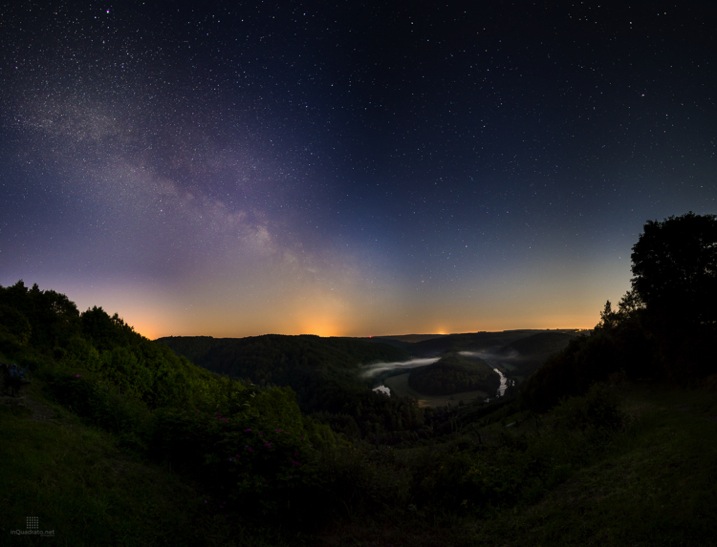
Photo06

The Milky Way over the Belgian Ardennes – Olympus OM-D EM–10 + Samyang 12 f/2.0; panorama composed of 12 (4×3) photos.

Fighting the evil orange glow: LPR filters

Light pollution is, unfortunately, a sad reality in many countries. It is not always possible to be under your dream sky and you have to try to deal with light pollution and the resulting orange glow in the sky. As I mentioned when introducing astrophotography, some filters exist to help holding back light pollution by absorbing light of specific wavelengths: in particular, broad band Light Pollution Reduction (LPR) filters try to reduce the orange glow by absorbing the light emitted by streetlights used in cities and on roadways. Those lights are from low and high pressure sodium lamps, which emit light at around 583nm; this light is cut by the LPR filters. The transmission spectrum for my Sky-watcher LPR filter is shown below.
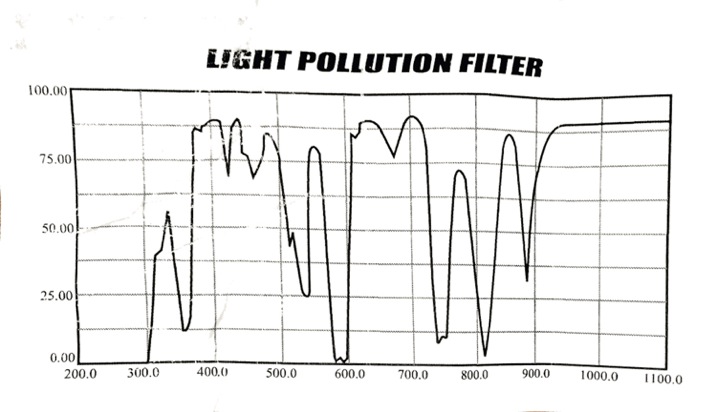
Photo07

Typical transmission spectrum of a broadband LPR filter.

There are many kinds of filters and light polluting sources so you have to find the right filter to suppress or reduce the kind of light in your location. At the moment, here in Belgium, I am happy with the Sky-watcher LPR filter. There are several manufacturers who produce different filters to suit different equipment, as well as large and small wallets. Just have a look for Sky-watcher LPR and UHC filters or Astronimik CLS filters just to name two options.

Do the filters really help in the field? It depends on the kind of light pollution, and also on the amount of pollution versus ambient light. I found that in some circumstances the filter clearly helps, and the non-filtered image cannot be saved in post processing. Other times, the filter seems to be less important. Anyway, with a polluted sky I’d say the filter does help. The image below shows the effect of the filter on street lights compared to using no filter; in both cases you can see the RAW and edited image. They should speak for themselves.
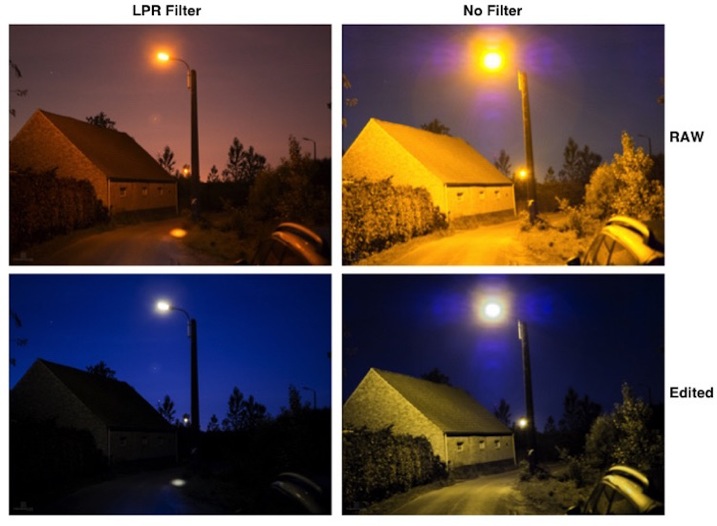
Photo08

Comparison between test shots with and without an LPR filter

Note there are some downsides to the use of this filter. First, it darkens the scene of about one stop (the images above are taken at the same exposure value by using a slower shutter speed when the filter was in use), and it does not work with wide angle lenses. This is because it is an interference filter, and cannot handle light coming in with very different angles, like when using a wide angle – it will generate banding on the image that is difficult or impossible to remove. The solution is using lenses with an equivalent focal length of about 30mm or more and shoot a panorama.

Having to deal with a one stop loss of light, and the use of lenses with a relatively long focal length is challenging, in particular if the lenses you have are not very fast, but it is worth giving the filter a shot.

A final word of caution: cheap LRP filters like mine come usually in sizes of 1.25” or 2” in diameter, and the most suitable diameter of the two is 2”, which corresponds to a 48mm threaded filter. This size suits very well many lenses for micro four thirds camera, such as the Panasonic Lumix 14mm f/2.5 and Lumix 20mm f/1.7, old Zuiko legacy lenses, Sigma 19 and 30 f/2.8 and so on. With larger lenses the amount of vignette you will get will probably make it impossible to produce a useable panorama.

Because my fastest, not too wide lens, is the wide end of the zoom on my Sony DMC-RX100 M2, which is equivalent to a 28mm f/1.8, I decided to play along and use it to photograph the Milky Way. I went to the Chateau de la Hulpe, in La Hulpe (Belgium), which is located a few miles from Bruxelles, under a heavily polluted sky (even for Belgian standards) and I made a 8×4 panorama of the Castle under the Milky Way. I fitted the camera with the LPR filter and shot 18, 20 second long, exposures at f/1.8 and ISO 6400. To contain the digital noise, each frame used for the panorama is the result of image averaging two shots. The result is shown below. I think it is not bad at all and that there is still plenty of room for improvement.
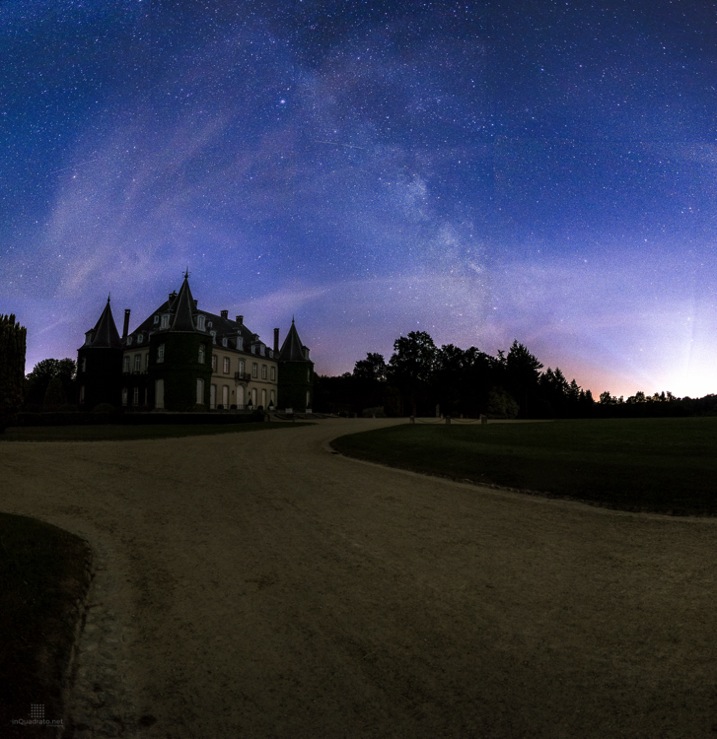
Photo09

The Milky Way in the Belgian heavily light polluted sky – Sony DMC-RX100 M2 at 10.4mm (equivalent to 28mm on full frame camera) and f/1.8 + LPR filter; panorama composed of 32 (8×4) frames.

In summary, don’t give up just yet, if you live in a light polluted area; with a bit of luck (and gear) there is hope, even in the orange glowing sky.

Disclaimer: I am not associated in any way with Skywatcher, Astronomik, Panasonic, Olympus or with any of the other brands I have mentioned in this article.

googletag.cmd.push(function() {
tablet_slots.push( googletag.defineSlot( “/1005424/_dPSv4_tab-all-article-bottom_(300×250)”, [300, 250], “pb-ad-78623” ).addService( googletag.pubads() ) ); } );

googletag.cmd.push(function() {
mobile_slots.push( googletag.defineSlot( “/1005424/_dPSv4_mob-all-article-bottom_(300×250)”, [300, 250], “pb-ad-78158” ).addService( googletag.pubads() ) ); } );

The post Photographing Starry Skies for Nocturnal Landscape Without Breaking the Bank by Andrea Minoia appeared first on Digital Photography School.


Digital Photography School
 
Comments Off on Photographing Starry Skies for Nocturnal Landscape Without Breaking the Bank
Posted in Photography


Easy Portrait Retouching Tutorial without Losing Skin Texture

18 Jun

When it comes to skin retouching, less is more. Retouching skin is tricky. You want to enhance it, not beat it to death, make it fresh and glow-y, while still keeping the integrity of the skin. You want to soften wrinkles, not obliterate them. And to bring out their eyes and natural beauty while keeping them looking like themselves. Even Continue Reading

The post Easy Portrait Retouching Tutorial without Losing Skin Texture appeared first on Photodoto.


Photodoto

 
Comments Off on Easy Portrait Retouching Tutorial without Losing Skin Texture

Posted in Photography


On the Road? Backup Without the Bulk-Up

02 Jun

I seldom review gadgets these days, but sometimes something is so useful that it's worth telling people about. Such is the case with the SD card-enabled Western Digital My Passport Wireless hard drive.

Read more »
Strobist

 
Comments Off on On the Road? Backup Without the Bulk-Up

Posted in Photography