RSS
 

Posts Tagged ‘White’

Ilford opens US lab to meet demand for black and white film development

02 Sep

Ilford-Photo-Lab-BWsq.jpg

While digital has truly swamped film for most common purposes, demand for black and white film development and printing is sufficient that ILFORD has expanded its processing and printing service to include a mail-order lab in San Clemente, California. Unlike most local labs, ILFORD’s service offers black and white printing on silver gelatin photo paper.

News: Digital Photography Review (dpreview.com)

 
Comments Off on Ilford opens US lab to meet demand for black and white film development

Posted in Uncategorized


Black and White Landscapes: Weekly Photography Challenge

10 Aug

Over the last couple of weeks we’ve been running ‘Landscapes’ challenges to celebrate the launch of our new Landscape Photography eBook – this week we’re going to continue that by nominating ‘Black and White Landscapes’ as the theme for your challenge.

Black & White

Once again – there’s a section on black and white landscapes in the eBook (see the screen shot of the first page of the section below) but whether you’ve read it or not – we think it’s a fun challenge because many photographers don’t think to take landscapes with out colour – to their own detriment.

Screen Shot 2013 08 02 at 8 47 20 PM

Don’t believe us – check out these 27 great Black and White Landscapes for some inspiration.

So grab your camera and head out and shoot some landscapes in black and white. If you’re not able to get out – how about finding an older landscape to convert?

Once you’ve taken your ‘Black and White Landscape’ photos upload your best ones to your favourite photo sharing site either share a link to them even better – embed them in the comments using the our new tool to do so.

If you tag your photos on Flickr, Instagram, Twitter or other sites with Tagging tag them as #DPSBWLANDSCAPES to help others find them. Linking back to this page might also help others know what you’re doing so that they can share in the fun.

Also – don’t forget to check out some of the great shots posted in last weeks Leading Lines challenge – there were some great shots submitted.

Post originally from: Digital Photography Tips.

Check out our more Photography Tips at Photography Tips for Beginners, Portrait Photography Tips and Wedding Photography Tips.

Black and White Landscapes: Weekly Photography Challenge


Digital Photography School

 
Comments Off on Black and White Landscapes: Weekly Photography Challenge

Posted in Photography


White House photographer on presidential Instagramming

07 Aug

Screen_Shot_2013-08-06_at_12.00.08_PM.png

As the official White House photographer, Pete Souza gets more access to the President than any other professional photographer. Souza is no stranger to photographic social media, either. His images are regularly posted on the White House’s Flickr stream, where the Obama administration has been giving insight into the daily lives of the first family since the inauguration in 2009, and he recently joined Instagram. Time recently interviewed Souza about his work, and you can read more at our sister site, connect.dpreview.com.

News: Digital Photography Review (dpreview.com)

 
Comments Off on White House photographer on presidential Instagramming

Posted in Uncategorized


Pentax unveils blue and white K-01 in Japan

04 Jul

blue-K01-s.png

Pentax Japan has unveiled a new colour variation of its Marc Newson-designed K-01 mirrorless camera, with a white body shell, blue grip covering, and black accents. There are no spec changes or updates compared to the existing K-01, which was announced early in 2012 and available in black, silver, or yellow. So the camera sports a 16MP APS-C CMOS sensor, in-body image stabilisation, 3″ 912k dot LCD, and the same K-mount as the company’s SLRs. It comes with the ultra-slim smc PENTAX-DA 40mm F2.8 XS pancake lens, and will go on sale in July.

News: Digital Photography Review (dpreview.com)

 
Comments Off on Pentax unveils blue and white K-01 in Japan

Posted in Uncategorized


Black and White Conversions: An Introduction to Luminosity

06 Jun

A Guest Post by Nick Rains.
Black and white conversion luminosityWarningthe following is quite advanced (even geeky) and I must assume the reader has a working knowledge of channels, levels, curves, blending modes, tools etc as well as how the main color models work (RGB, Lab, HSB).

Much has been written about converting colour to Black and White: we all know that there are a great many different ways to do this, some more effective than others. Differences between the various methods are usually explained in terms of visual appeal or the ability to blend the various colour channels to emulate traditional B+W filters. What has not been mentioned is exactly why different greyscale conversions give different results, and more importantly, the fact that this principle can be used to make more accurate adjustments to colour images.

This last point seems quite contradictory; what has greyscale conversion got to do with colour adjustments? Well, quite a lot really when you remember that all RGB colour images are comprised of three different ‘channels’ of greyscale information, each of which represents the lightness values of each of the three colours and that it’s the relationship between them which give us the illusion of ‘colour’.

If you alter a colour image by, say, using the dodging or burning tools, you are actually altering 3 greyscale channels at the same time and unless the relationship between those 3 channels stays exactly the same, there will be a shift of hue or saturation which is of course not the aim of the adjustment. Many of Photoshop’s tools, used at face value, operate on a composite of all three channels – not an ideal situation.

How we see Luminosity

Photoshop very rarely uses the term Luminosity. It is not Brightness in the Hue, Saturation, Brightness (HSB) colour model. It is not the Lightness channel in Lab mode and it is not the K value when you use the colour picker in Greyscale mode.

Luminosity is the perceived brightness of a colour, not it’s numerical or measured value under the above colour models. Look at this image – 3 patches of full strength RGB. Each has a 100% Brightness and a 100% Saturation, all that differs between them is the Hue. However, I think all would agree that the green is perceptually lighter, or more luminous, than the red which is in turn lighter than the blue. So, whilst the numbers show a 100% Brightness, you see quite different tones.

ColourPatch

Here is the same image converted to B+W using Image > Adjust > Desaturate. All the colour contrast disappears because the Hue (colour) is removed and the new lightness of the greys in the top row is exactly 50% (127) because the Saturation and Brightness are both equal.

ColourPatchDeSat

Here is the image converted another simple way : Image > Mode > Greyscale. This is better because the conversion is a little more like our eye sees colour with an emphasis on the Green. In fact the colour weighting is very close to 60%G 30%R and 10%B where the Green lightness as double that of the Red, much like our eyes see and tipping a nod to the fact that there are double the number of Green sensels on a camera’s Bayer array as compared to Red and Blue. The conversion still looks a little lacking in contrast however, and good B+W images really need good impact or contrast to look their best.

ColourPatchGrayscale

Even the Lightness channel in Lab, shown below, does not really depict the relative tones of the colours as we experience them. It is actually a lot closer to the perceived luminance but is perceptually ‘lighter’ overall than the simple Mode > Greyscale conversion.

ColourPatchLab

The most accurate conversion is via the Channel Mixer using these values taken from the sRGB definitions developed by Hewlett Packard (http://www.w3.org/Graphics/Color/sRGB)

71%G 21%R and 8%B.

ColourPatchChMixAdvanced

This gives a slightly more punchy look and it is a good starting point for converting your images to B+W. The Red looks a little dark to my eye, and the Blue a bit dark, but since there is very little pure colour in nature, this combination works well in the real world.

So why the fuss? Why do we need to know all these different methods?

The point to understand is that when you are removing colour information and having your image rely only on greyscale tones you need to control how those tones relate to one another. Do you want the blue of the sky to become a darker greyscale tone than the green grass? Or vice versa.

As an example, for the Australian flag – which greyscale version looks better?

Australian flag

Australian flag desat

Australian flag ChMix

There is no definitively correct answer – it’s the one which looks best. Personally, I think the one with the darker blue looks best because it maintains the perceived brightness of the blue as well as keeping good contrast between the blue and the red.

You need to take control and make sure the colours in the original capture translate to good meaningful contrast in the B+W version. This is the secret of good B+W conversions – not the precise method, but being aware of the tonal distributions and which greyscale value a colour is converted to relative to the other colours’ subsequent greyscale values.

Just to leave you with an advanced ‘teaser’…

What if you duplicated a colour layer and added a monochrome channel mixer adjustment layer to that new layer? You could then change the new layer’s Blend Mode to Luminosity and use the Channel Mixer to adjust the Brightness and Saturation of the colours in the image without affecting the Hue in any way.

If you try doing this directly with Curves or Levels you’ll get a small Hue shift as you adjust the Brightness and Saturation. If you don’t believe me try setting the Info Tool to HSB instead of RGB and read off colours as you make a direct Curves adjustment. You’ll see all three numbers change, including the Hue.

I’ll discuss this further in a future article.
Portrait 1

Portrait 2

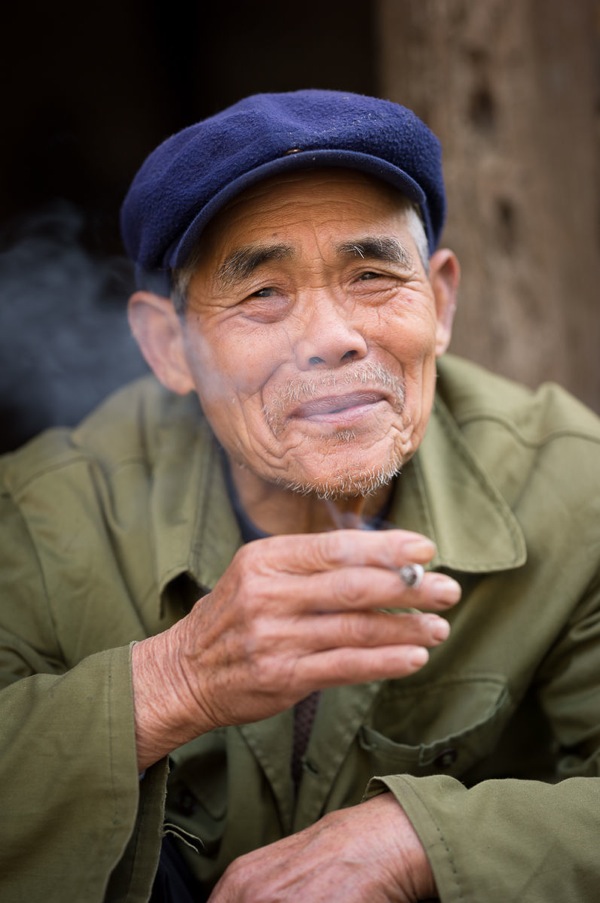
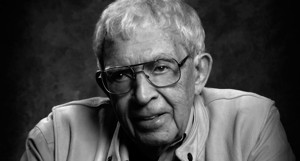
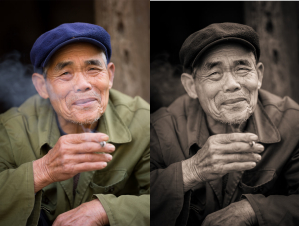
In converting to B+W the green of the jacket and the blue of the cap have darkened whilst the red skin tones have slightly lightened. The face and hands now stand out far better – a good example of a situation where the colours in the original were simply a distraction, adding nothing to the shot, and so were removed.

Nick Rains is a Queensland based photographer who has been shooting professionally since 1983 and has seen first hand many changes in the photographic industry, from manual to auto focus in the late 1980s through to the shift to digital in the past decade or so.

Nick currently shoots feature work for companies like Australian Geographic and Orion Expeditions as well as writing for magazines and blogs around the world. Nick is both a Canon training consultant and a Leica Ambassador, as well as a Master Photographer with the AIPP and a national judge. You can see more of his work at www.nickrains.com or add him to your circles on Google Plus.

For more in-depth photography writing, try Nick’s iPad app “Photique”. It’s a free download.

Post originally from: Digital Photography Tips.

Check out our more Photography Tips at Photography Tips for Beginners, Portrait Photography Tips and Wedding Photography Tips.

Black and White Conversions: An Introduction to Luminosity


Digital Photography School

 
Comments Off on Black and White Conversions: An Introduction to Luminosity

Posted in Photography


Pentax announces Efina budget compact and white WG-3 waterproof

04 Jun

pentax-efina-green-trans.png

Pentax has announced a white version of its WG-3 rugged waterproof camera and an entry-level point-and-shoot compact. The white version of the WG-3 shares all the features with the existing model but comes in a different color scheme (we’ll let you guess what that is). We’ll be testing the GPS version of the WG-3 as one of our forthcoming waterproof camera tests. Meanwhile, the ‘Efina’ is an inexpensive 14MP CCD-based camera that’s exactly the sort we thought Pentax had stopped making. Still, it comes with decorative patterns on it, which seems to be this season’s thing – so that’s something. The Efina, announce in Japan in January, will cost around £80, while the white WG-3 will retail for $ 299/£289.

News: Digital Photography Review (dpreview.com)

 
Comments Off on Pentax announces Efina budget compact and white WG-3 waterproof

Posted in Uncategorized


DISCUSS: When you Photograph People in Black and White, you Photograph their Souls

20 May

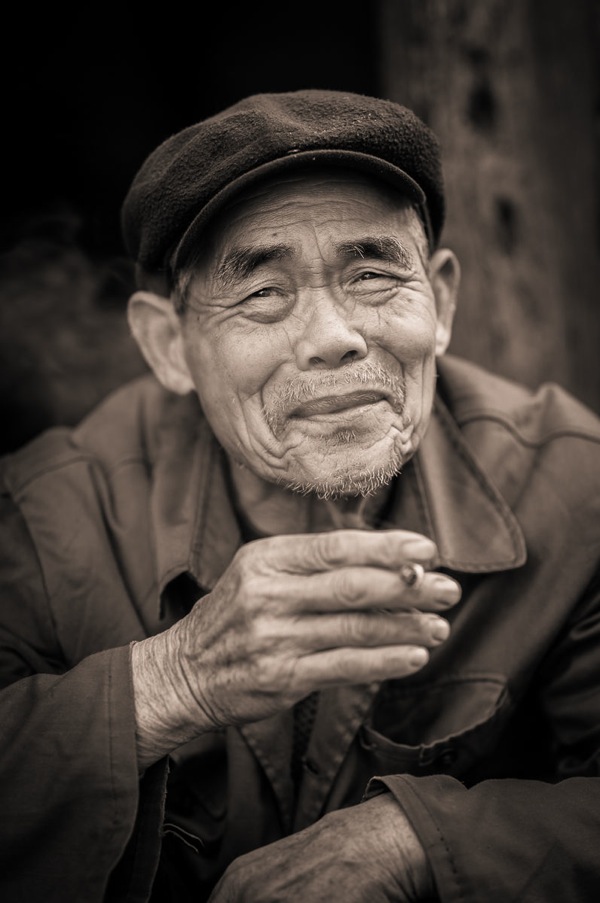
NewImageCanadian photojournalist – Ted Grant – is quoted as saying:
“When you photograph people in color, you photograph their clothes. But when you photograph people in Black and white, you photograph their souls!”

This quote often comes to mind when talking about portraiture and I thought it might make an interesting discussion starter.

Do Ted’s words resonate with you?

Post originally from: Digital Photography Tips.

Check out our more Photography Tips at Photography Tips for Beginners, Portrait Photography Tips and Wedding Photography Tips.

DISCUSS: When you Photograph People in Black and White, you Photograph their Souls


Digital Photography School

 
Comments Off on DISCUSS: When you Photograph People in Black and White, you Photograph their Souls

Posted in Photography


Adjusting White Balance in Lightroom

12 Apr

Lightroom white balance opener

Lightroom has a set of tools that you can use to adjust white balance in your images. To see these at work open an image in the Develop module. At the top of your Basic panel are the white balance adjustment tools.

White Balance Options

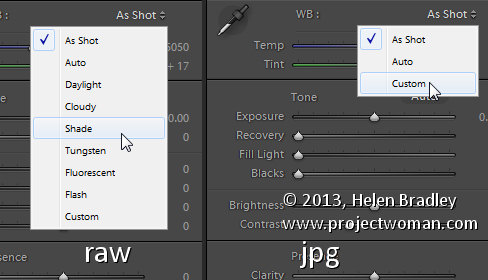
The dropdown list will show you some options for adjusting white balance – what is shown here will vary depending on how your images are captured. If you capture in raw then the white balance dropdown list will contain the same options as you have on your camera for setting white balance. If you’re capturing jpg images then there are fewer options – As Shot, Auto and Custom.

Lightroom white balance 1

On the left are the options for a raw image and on the right those for a jpeg image.

The Temperature and Tint sliders also have different units of measure depending on whether you’re working with jpgs or raw images. For jpg images both the sliders range from +100 to -100. If you’re working on a raw image then the Temperature slider shows degrees Kelvin from 2000 – 50,000 and the Tint slider ranges between + 150 and – 150.

Kelvin is a measurement of the color of light – daylight is around 5,500 degrees Kelvin. Lights we consider to be warm or pink/orange in color including tungsten globes are around 3,000 degrees Kelvin and cool lights which are blue in color such as overcast daylight are around 7,000 degrees Kelvin and higher.

Adjust White Balance

To adjust the white balance in the selected image you can select an option from the White Balance dropdown list to use to fix the image or you can use it as a starting point and then fine tune the result.

You can also manually adjust the Temp slider to add warmth or remove it from the image. Drag the sider to the left to add a blue tint to the image (to cool it down), or to the right to add a yellow tint to it to warm the image.

Use the Tint slider to balance out any excess magenta or green in the image. Drag towards the right to add magenta to the image cancelling out any green tint and drag to the left to add a green tint cancelling out any unwanted magenta.

White Balance Selector

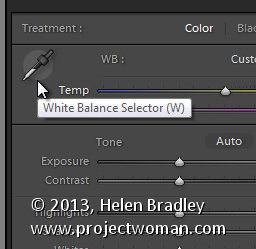
You can also use the White Balance Selector to adjust white balance. You can select the tool by clicking on it or press W.

Lightroom white balance 2

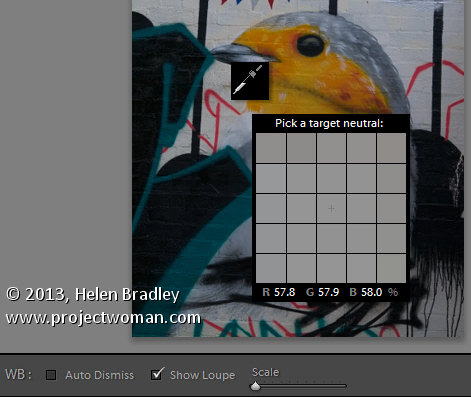
From the White Balance toolbar under the image you can select options that make the White Balance tool easier to use. I suggest you deselect Auto Dismiss as you can then click on the image in various places to attempt to fix it. If you have Auto Dismiss enabled you’ll only be able to click once before the selector is dismissed so, if that fix isn’t perfect then you’ll need to select the tool again to attempt another fix. This is a cumbersome way to work so I prefer to disable Auto Dismiss and put the tool away only when I am done with it.

If you click the Show Loupe checkbox then you’ll see a 5 by 5 pixel grid beside the mouse cursor. The center point in the grid is the pixel that you are currently targeting and which will be used to adjust the image if you click. This grid makes it easier for you to pick the correct point in the image to adjust to. The scale itself can be increased or decreased using the Scale option on the toolbar.

At the bottom of the loupe itself are the RGB percentage values of the pixel under the cursor. These values tell you if the pixel is neutral or not. If it is neutral then the percentages of R, G and B will all be equal – if they are not equal then there is color in that pixel.

Lightroom white balance 3

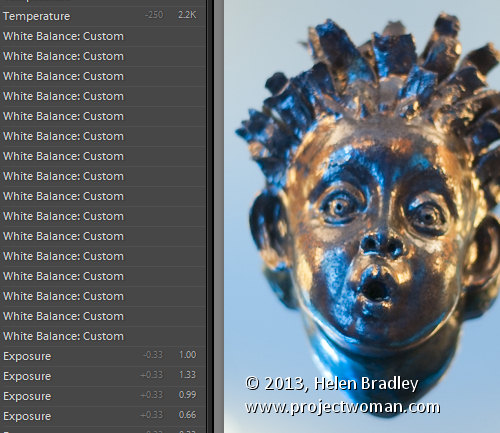
To balance the image using the White Balance selector, click on a pixel that should be neutral grey – not white or black. When you do so, Lightroom will adjust the image so that the selected pixel is a neutral grey and, as a result, all the color in the image will change. At the same time Lightroom adds an entry to the image History for that adjustment. This means that you can wind back the history to return to an earlier white balance fix, if desired.

Lightroom white balance 4

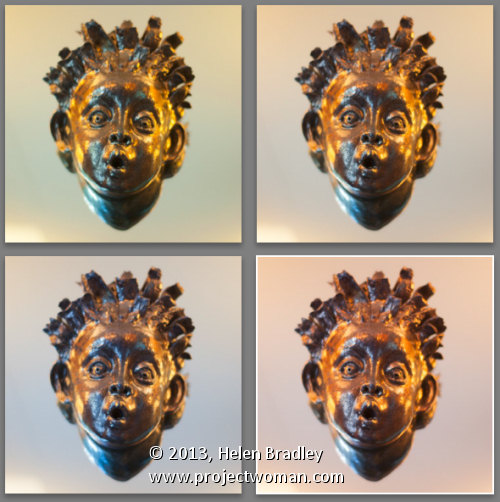
You should be aware that adjusting image white balance is to an extent a subjective assessment – so there is no one value that is “correct”. There are, instead, a myriad of different results that can be achieved so look for one that is it pleasing to you. In most cases viewers prefer to see some warmth in photos as they are more pleasing to the eye if they are warmer rather than cool.

I find that a good approach to take is to experiment with the white balance selector to see the effect on the image by selecting different pixels to adjust to. Then choose the most aesthetically pleasing result.

Post originally from: Digital Photography Tips.

Check out our more Photography Tips at Photography Tips for Beginners, Portrait Photography Tips and Wedding Photography Tips.

Adjusting White Balance in Lightroom


Digital Photography School

 
Comments Off on Adjusting White Balance in Lightroom

Posted in Photography


Revealing Historical Photos Show US White House Gutted

06 Apr

[ By WebUrbanist in Architecture & Public & Institutional. ]

white house remodel project

Imagine the state of it: the United States executive mansion after 150 years of continuous occupation. By this time, the already-aging White House had retrofit with a maze of modern amenities like plumbing, electricity and heating – none of which this expansive estate was constructed to house.

white house historic interior

Per reporter Brian Resnick, sagging ceilings, scaffolding and supports had rendered the structure an unsanitary fire hazard by the late 1940s – some suggested scrapping it entirely and starting from scratch, but President Truman lobbied to keep and rehabilitate it.

white house reconstruction photos

As these amazing photographs from the National Archives & Truman Library illustrate, the entire interior had to be ripped out. Historically valuable materials and decor were meticulously cataloged and stored, and temporary steel columns and beams erected to keep the exterior from collapsing.

white house oval office

To get equipment like bulldozers inside and clear debris required disassembling machines to avoid bursting holes in the sides of the structure – rebuilding would have been cheaper and faster, but this careful treatment preserved irreplaceable pieces of US history.

white house grand remodel

In all rooms and on all levels, lathe, plaster, brick and mortar were laid bare, giving a unique one-time view – fortunately captured in photographs – into the hidden structure and secret architecture of the most important residence in America.

Share on Facebook


[ By WebUrbanist in Architecture & Public & Institutional. ]

[ WebUrbanist | Archives | Galleries | Privacy | TOS ]


WebUrbanist

 
Comments Off on Revealing Historical Photos Show US White House Gutted

Posted in Creativity


Converting Images to Black and White Properly

31 Mar

Header Image

by: David Wahlman of Wahlman Photography

Recently I was asked about the process of converting images to black & white; namely when to know the image would be good for it. So in this post I’m going to talk about when to convert an image to black & white and then how to do it in Photoshop without loosing quality.

When To Create A Black & White Image

There are about three ideas that come to my mind when I evaluate whether I should convert an image to black & white (here on referred  to as b&w).

  1. First of all, and somewhat obviously, what is your desired outcome? Is your client specifically asking for b&w images? Are you entering a b&w photo contest? Are you doing a gallery set of b&w (because, generally speaking it doesn’t look too good to have just one or two b&w mixed in with colors. You want a good balance.)? Like I said, it should be pretty obvious that your outcome needs to be considered, but it was worth saying.
  2. Second, you should consider the value range of the image. In photography the term “value” speaks of darks vs lights. So when I say to judge the image’s value range, I’m talking about if you have deep blacks and bright whites. What’s your dynamic range like? For the most part, ‘flat’ images don’t look very good in b&w. Traditional b&w have good contrast and well spread value all across the histogram. So, if your image has these elements, then it may be a good choice for converting into a b&w.
  3. I’ll be doing a post soon on color theory and color relationship, but if you have odd colors or colors that don’t work well together, then it may be a good candidate for being converted to b&w. Let’s just face it, some colors don’t really work well together. B&w may be a good way to avoid these colors but keep the great shot.
  4. Just a tip, if you squint your eyes while looking at an image, you will see less color and more of the total value. This can be good for getting an idea of if your image has good value range.

How To Convert A Color Image To Black & White

Alright, now lets talk about how to convert your image, because there is a right and wrong way. You may get the same result, but if you do it wrong you actually loose quality (to be technical, you sacrifice bytes of information). For this article I’m going to be talking about using Adobe Photoshop. There is conversion software that you can buy, but for all intensive purposes, why pay extra when you can do it in Photoshop really easily.

Step 1

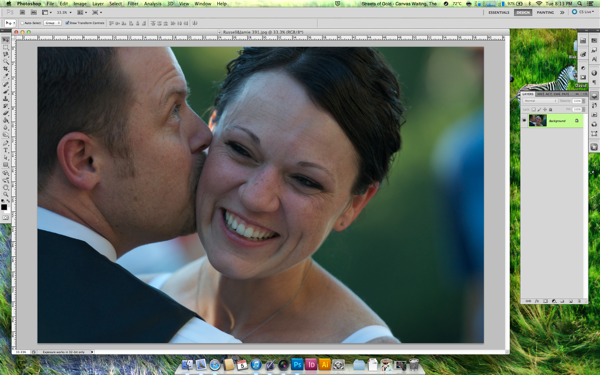
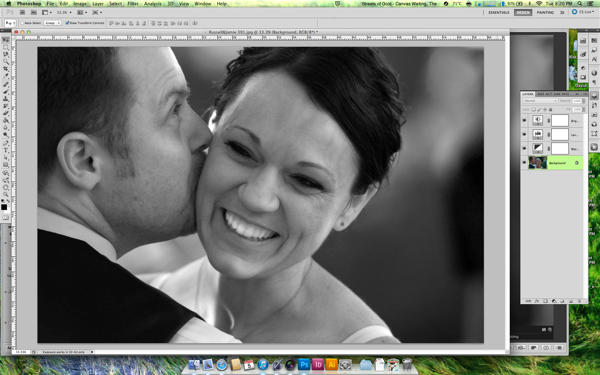
If you found an image that you want to convert, then step one would be opening the image in Photoshop. For my example, I’m using one of my wedding photographs that you may have seen on my website. It was shot during the first dance and I just really love this photo in b&w.

Screen Shot 2013 03 05 at 8 13 48 PM

Step 2

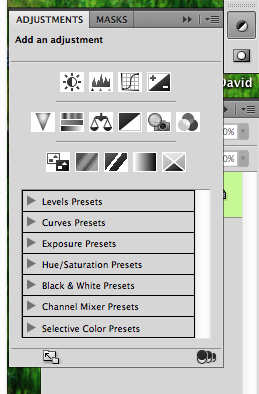
Screen Shot 2013 03 05 at 8 13 57 PMNext, most people would try to go to the top menu, go to Image>Mode and change the color profile to “Grayscale.”

Don’t do this!

Long story short, you’re actually changing the color profile, which means you will lose pixel information in your colors. You don’t want that; you want to retain as much information in your image as possible.

What you want to do is use the black & white adjustments. You can access this either by going to the top menu to Image>Adjustments>Black&White or in your side bar click on the adjustments button (as shown in picture) and then click on the b&w icon, which is the black and white box divided diagonally.

Step 3

Screen Shot 2013 03 05 at 8 14 10 PMOnce you’ve clicked this, you should see adjustments for the value of each color (see image). Notice that Photoshop has kept track of colors in the image. It’s just displaying them as b&w, but your keeping the information in tack.
This also gives you more control on editing your b&w cause you can adjust it by color section now. Be aware, that you don’t want to push the limits on these colors too much, you’ll start to see ‘clipping’ in gradient colors such as skies. You’ll see it in your preview as you do it, then you’ll know what I’m talking about.

Step 4

After this, you can use these other adjustments (which act as smart layers, if you know what that means. It’s a good thing) to adjust the image how ever you need; exposure, contrast, levels, curves, filters, etc.

Step 5

After you’ve done all the editing you feel you need to do you should hopefully have an image you’re pleased with as a final. From you there you can save it however you need and depending on your desired outcome. 

Screen Shot 2013 03 05 at 8 20 12 PM

If you found this article helpful or interesting, please share it with friends and family by using the media share buttons below. Thanks

David Wahlman is a wedding and portrait photographer from Redding, CA. He works all around California and is aiming to get into destination photography. You can see his best work at www.wahlmanphotography.com and follow his updates on his facebook page.

Post originally from: Digital Photography Tips.

Check out our more Photography Tips at Photography Tips for Beginners, Portrait Photography Tips and Wedding Photography Tips.

Converting Images to Black and White Properly


Digital Photography School

 
Comments Off on Converting Images to Black and White Properly

Posted in Photography