RSS
 

Posts Tagged ‘White’

Weekly Photography Challenge – Black and White

14 Jun

Earlier today I professed my love of black and white photography and shared a collection of some powerful B&W images and some articles on tips for making your own B&W images.

So now it’s your turn to show us your images. The weekly photography challenge this time around is black and white.

A few images to inspire you

By Marco Calabrese

By Yasin Hassan – ????? ???

By Chris JL

By { pranav }

By Simon & His Camera

By gato-gato-gato

By gato-gato-gato

By Greg McMullin

By i k o

By i k o

Need help converting to Black and White?

  • How to Convert Photos to Black and White in Lightroom
  • 3 Tips for Better Black and White Conversion using Lightroom
  • Converting Images to Black and White Properly
  • Tips for Shooting and Processing Better Black and White Photographs
  • An Adjustable Black and White Conversion in Photoshop Elements
  • How to Create a Black and White High Contrast Sky from a Colour Image

Show use your Black and White images

Simply upload your shot into the comment field (look for the little camera icon in the Disqus comments section as pictured below) and they’ll get embedded for us all to see or if you’d prefer upload them to your favourite photo sharing site and leave the link to them. Okay, ready to impress us?

The post Weekly Photography Challenge – Black and White by Darlene Hildebrandt appeared first on Digital Photography School.


Digital Photography School

 
Comments Off on Weekly Photography Challenge – Black and White

Posted in Photography


A Collection of Powerful Black and White Images

13 Jun

I have a background in black and white photography – using actual film and processing in a darkroom. The entire first year of my two year college photography program was spent doing black and white photography only, nothing else. I came to love working in the darkroom and seeing the image appear on the paper was magic.

Now in the digital age, making black and white is a choice you can make after you shoot the images – which gives you options we didn’t have in the film days. So I wanted to share some B&W images to get you thinking about the possibilities.

For some some tips on shooting and converting to B&W try these:

  • Tips for Shooting and Processing Better Black and White Photographs
  • Black and White Conversions: An Introduction to Luminosity
  • 3 Tips for Better Black and White Conversion using Lightroom
  • How to See in Black and White [and how HDR can be a Powerful Tool for the Monochrome Photographer]

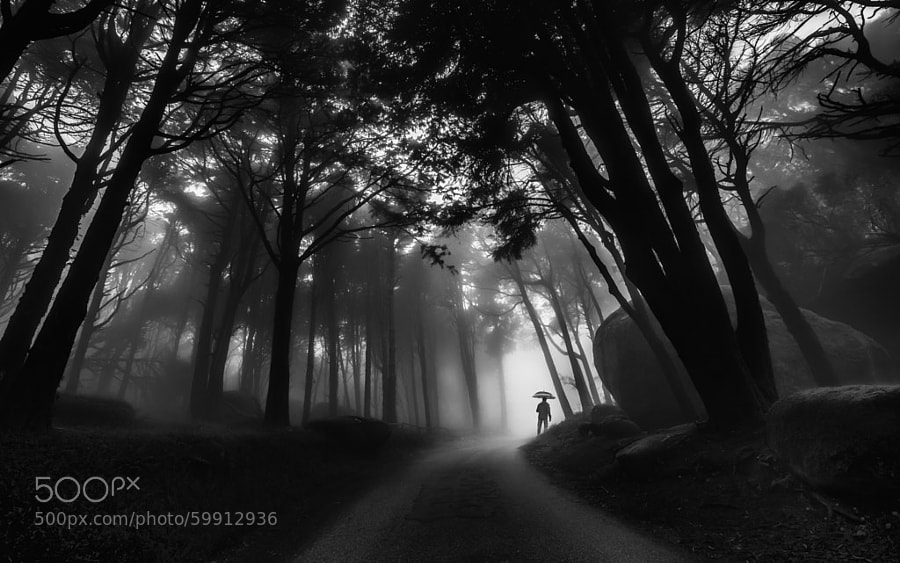
Photograph Through the mist by Paulo Mendonça on 500px

Through the mist by Paulo Mendonça on 500px

Photograph The Old Bridge by Mostafa Hamad on 500px

The Old Bridge by Mostafa Hamad on 500px

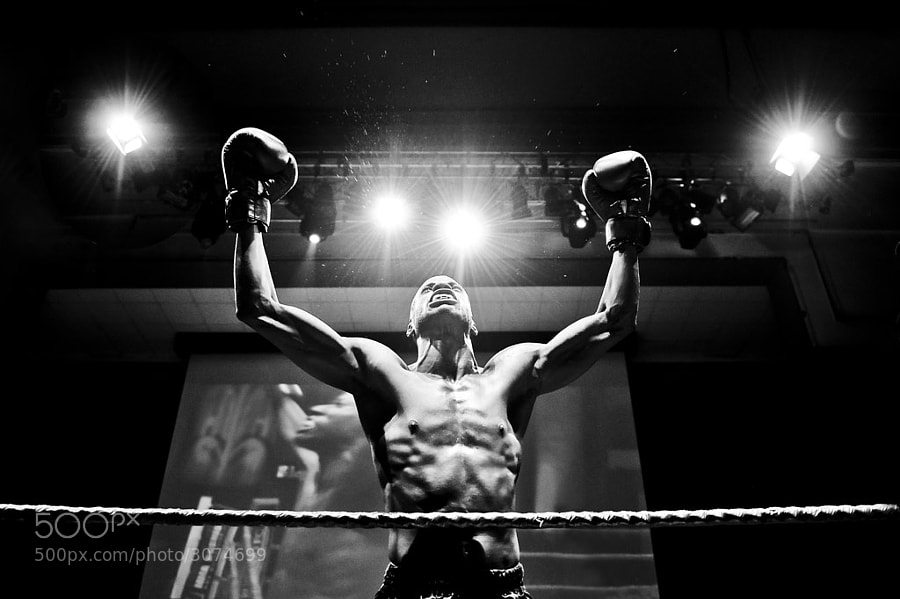
Photograph The Winner by Andrius Petrucenia on 500px

The Winner by Andrius Petrucenia on 500px

Photograph Untitled by enzo farina on 500px

Untitled by enzo farina on 500px

Photograph City of Fog by Johannes Burkhard on 500px

City of Fog by Johannes Burkhard on 500px

Photograph Winter in the Ore mountains II by Daniel ?e?icha on 500px

Winter in the Ore mountains II by Daniel ?e?icha on 500px

Photograph Milford Sound, Fiordland National Park, Southland, New Zealand by Russell Pike on 500px

Milford Sound, Fiordland National Park, Southland, New Zealand by Russell Pike on 500px

Photograph Darkness Peaks by Simon Pouyet on 500px

Darkness Peaks by Simon Pouyet on 500px

Photograph La Familia by Luis Beltrán on 500px

La Familia by Luis Beltrán on 500px

Photograph Fisherman Wanderer by Joel Santos on 500px

Fisherman Wanderer by Joel Santos on 500px

Photograph Corpus Christi at Night by Joe V on 500px

Corpus Christi at Night by Joe V on 500px

Photograph Ancient Light of Wisdom by Joel Santos on 500px

Ancient Light of Wisdom by Joel Santos on 500px

Photograph *** by Ann Nevreva on 500px

*** by Ann Nevreva on 500px

Photograph Black is my colour.. by Marianna Roussou on 500px

Black is my colour.. by Marianna Roussou on 500px

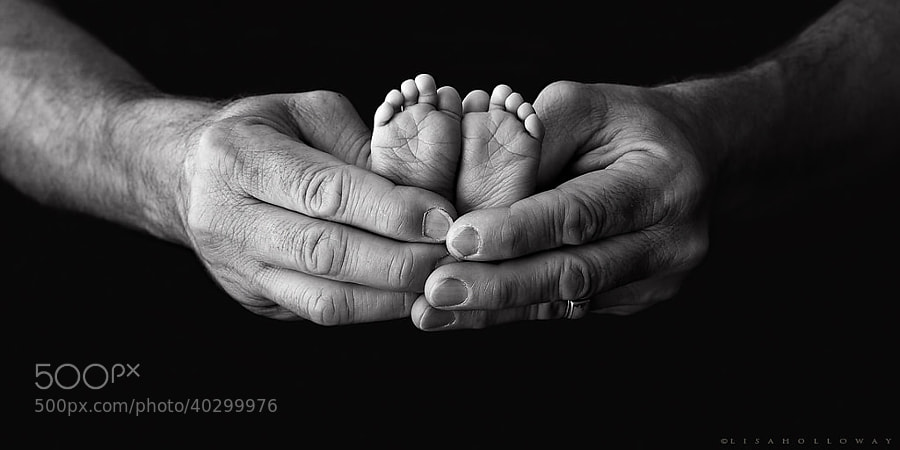
Photograph Tiny Feet by Lisa Holloway on 500px

Tiny Feet by Lisa Holloway on 500px

Photograph A Sea of Stars by Lisa Holloway on 500px

A Sea of Stars by Lisa Holloway on 500px

Photograph Daisy codera by Rainer Ressmann on 500px

Daisy codera by Rainer Ressmann on 500px

Photograph Almost closed by Kimhwan SEOULIST on 500px

Almost closed by Kimhwan SEOULIST on 500px

Photograph Paint Noir by András Sümegi on 500px

Paint Noir by András Sümegi on 500px

Photograph shielded from the danger of the outside world by David Mar Quinto on 500px

shielded from the danger of the outside world by David Mar Quinto on 500px

Photograph Alone by Ana Grama on 500px

Alone by Ana Grama on 500px

Photograph Go, go by Edwin Leung on 500px

Go, go by Edwin Leung on 500px

Photograph Breakfast by La Mo on 500px

Breakfast by La Mo on 500px

Photograph 77.2013 - Canary Wharf ... by Pawel Tomaszewicz on 500px

77.2013 – Canary Wharf … by Pawel Tomaszewicz on 500px

Photograph Building in the Building by Roman K on 500px

Building in the Building by Roman K on 500px

Photograph Mantis by Arnaud Bratkovic on 500px

Mantis by Arnaud Bratkovic on 500px

Photograph Hammer by Enrico Panina on 500px

Hammer by Enrico Panina on 500px

Photograph BB King by Ken Stewart on 500px

BB King by Ken Stewart on 500px

Photograph Rocks JK by Daniel Czerwinski on 500px

Rocks JK by Daniel Czerwinski on 500px

Photograph Recursion by Frank Wijn on 500px

Recursion by Frank Wijn on 500px

Photograph A monochrome end of fall by Felicia Simion on 500px

A monochrome end of fall by Felicia Simion on 500px

Photograph Behind the old Window by Adrian Limani on 500px

Behind the old Window by Adrian Limani on 500px

Photograph Havana Life by Liban Yusuf B&W on 500px

Havana Life by Liban Yusuf B&W on 500px

Photograph Broken B&W by Liban Yusuf B&W on 500px

Broken B&W by Liban Yusuf B&W on 500px

Photograph M o t i o n   BW by Liban Yusuf B&W on 500px

M o t i o n BW by Liban Yusuf B&W on 500px

**I just love this guy’s images of Cuba, inspires me to do more night shooting when I go back in January. So I had to share a few of his shots.

Photograph Kissed by light by Bipphy Kath on 500px

Kissed by light by Bipphy Kath on 500px

Photograph Angel....please give me your light... by Ines van Megen-Thijssen on 500px

Angel….please give me your light… by Ines van Megen-Thijssen on 500px

Photograph No sigh, immured tears by regis boileau on 500px

No sigh, immured tears by regis boileau on 500px

Photograph Ballerina III by Vanessa Paxton on 500px

Ballerina III by Vanessa Paxton on 500px

Photograph Ex ospedale psichiatrico di Mombello by PierSparrow  on 500px

Ex ospedale psichiatrico di Mombello by PierSparrow on 500px

The post A Collection of Powerful Black and White Images by Darlene Hildebrandt appeared first on Digital Photography School.


Digital Photography School

 
Comments Off on A Collection of Powerful Black and White Images

Posted in Photography


8 Reasons to Use Silver Efex Pro 2 for Your Black and White Conversions

13 Jun

Silver Efex Pro 2 review

You can convert colour photos to black and white in Photoshop and Lightroom (or your Raw conversion software of choice). But the last few years have also seen an increase in the number of plug-ins built to do nothing else, other than convert photos to monochrome.

Today I’m going to look at what many people consider to be the best black and white plug-in around – Nik Software’s Silver Efex Pro 2. Rather than provide a comprehensive review of the software, I’m going to look at some of the things you can do with it that you can’t (or would be much more difficult) in Photoshop or Lightroom.

1. Presets

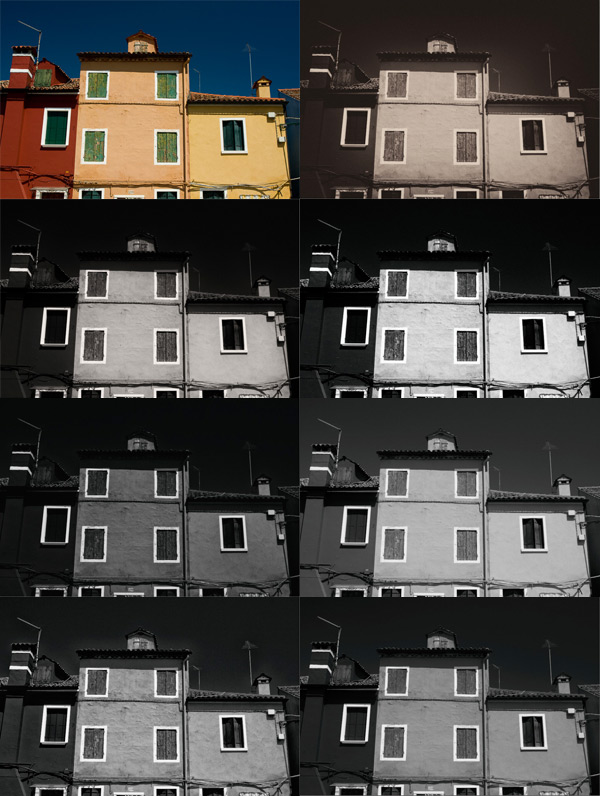
Silver Efex Pro 2 has 38 presets that you can use as starting points for your processing work, including vintage looks as well as modern ones. This places the plug-in ahead of Photoshop, and probably ahead of Lightroom too. You can buy Develop Presets for Lightroom, but it will be difficult to find some that give you as many options as those in Silver Efex Pro 2.

Here’s a sample of some of the presets. The original colour photo is shown top left.

Silver Efex Pro 2 review

2. There are more tools for enhancing texture

Silver Efex Pro 2 review

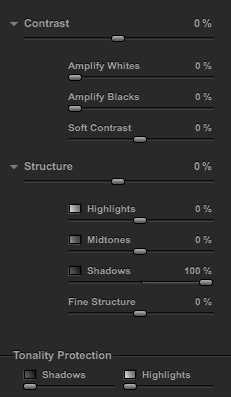
The full set of Contrast and Structure sliders in Silver Efex Pro 2.

One of the elements that makes black and white photos so effective is texture. You can enhance texture in both Photoshop and Lightroom (the Contrast and Clarity sliders are my favourite tools for this) but Silver Efex Pro 2 takes it several steps further.

The Contrast sliders

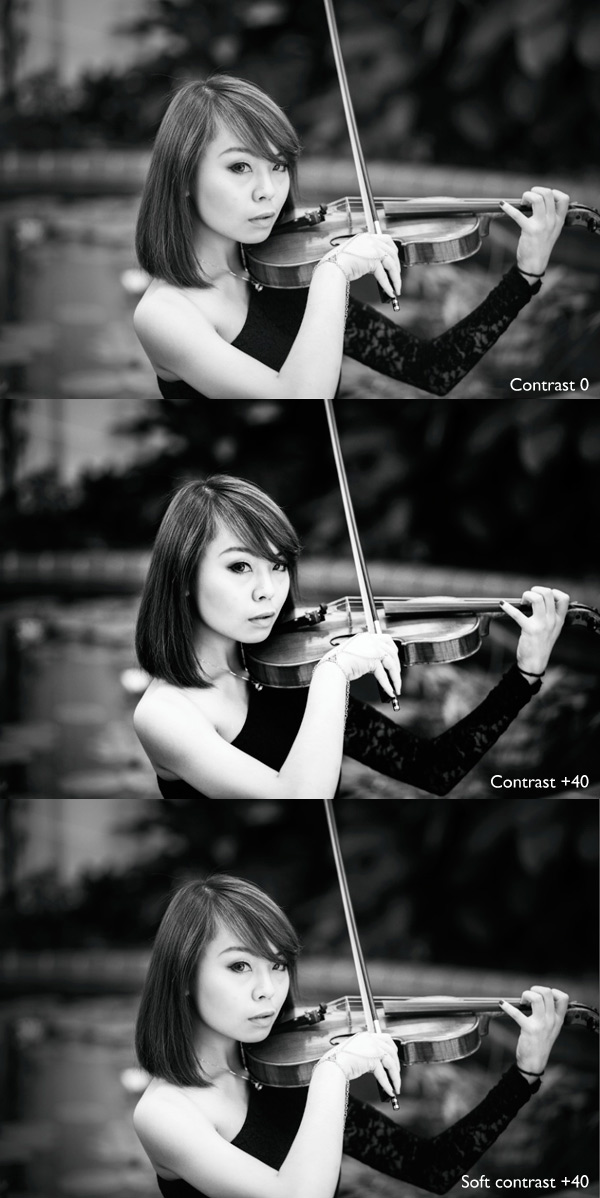
Silver Efex Pro 2 has four sliders for adjusting contrast. The Contrast slider is the same as the one in Lightroom or Adobe Camera Raw. The Amplify Whites and Amplify Blacks sliders let you increase Contrast in the highlights and shadows respectively. There’s also a Soft Contrast slider that increases contrast but in a less aggressive way, almost as if there is an overlay of gaussian blur. This slider is very useful for portraits.

If you get carried away with the Contrast sliders you can lose detail in the highlights and shadows. So, in addition to the four sliders already mentioned, there are two Tonality Protection sliders used to bring back detail in clipped areas.

Silver Efex Pro 2 review

These portraits show the difference between Contrast and Soft Contrast. Soft Contrast is ideal for portraits, while Contrast is better for subjects like architecture and the landscape.

The Structure sliders

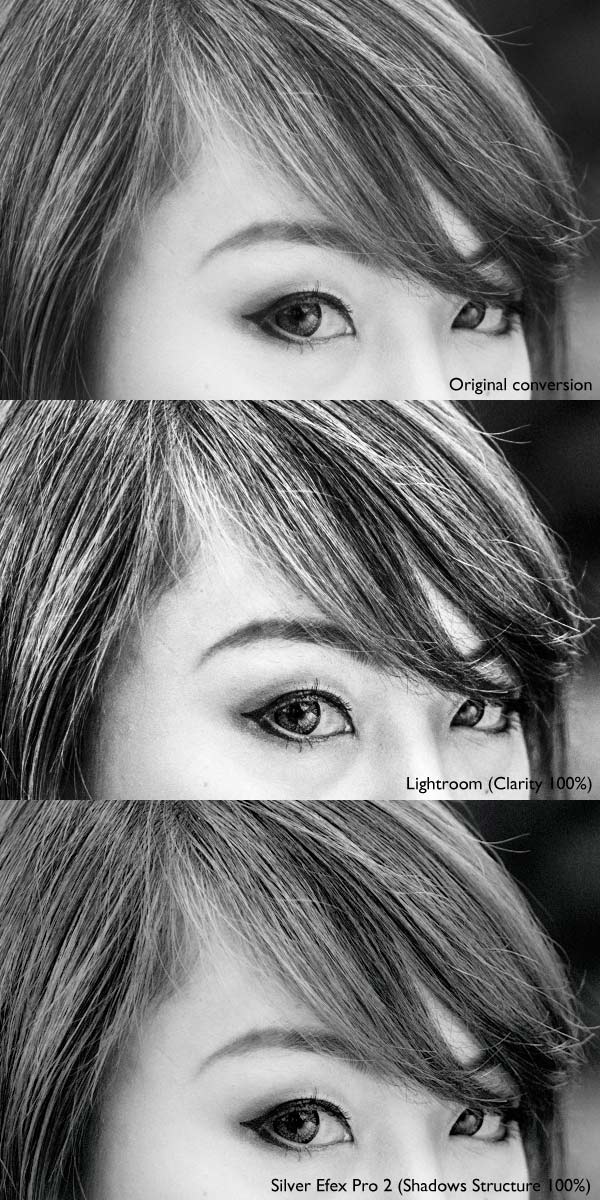
Structure slider is similar to Clarity in Lightroom and Adobe Camera Raw. But while in those programs the Clarity slider affects all the tones in the selected area, in Silver Efex Pro 2 you can choose to adjust Structure independently in the shadows, midtones and highlights. There is also a Fine Structure slider for increasing mid-tone contrast in areas of fine detail.

Silver Efex Pro 2 review

The above photo shows three close-ups of the same portrait used earlier.

Top: A neutral black and white conversion, with no increase in Clarity.

Middle: This is what happens when you increase Clarity to 100% in Lightroom (note that you wouldn’t normally push it that far for a portrait, I did it here to show you the effect). Clarity is increased uniformly across the frame, affecting the skin tones as well as the hair.

Bottom: Shadows Structure set to 100% in Silver Efex Pro 2. Only the shadows are affected, leaving the midtones and highlights alone. This brought out the detail in the model’s hair and eyes, but left her skin untouched. You would have to use a selection or a mask in Photoshop or the Adjustment Brush in Lightroom to achieve the same effect.

3. Control Points make local adjustments easy

Just like in Photoshop and Lightroom you can apply adjustments locally as well as globally, using a system called Control Points.

A Control Point is the centre of a circle within which you can make tonal adjustments. The adjustment is applied to tones similar in brightness and colour to the pixels underneath the Control Point itself. For example, if you place a Control Point over a dark tone, then increase the brightness, only the dark tones within the circle are adjusted. Light tones remain untouched.

Silver Efex Pro 2 review

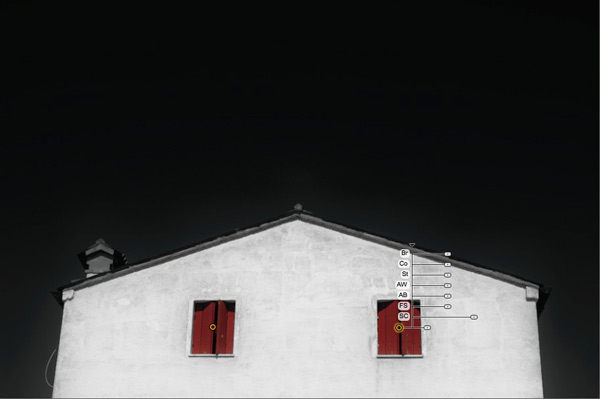
The yellow and black dot marks the Control Point. Adjustments are made to pixels matching the colour and brightness of the pixels underneath it. There are seven sliders you can adjust: Brightness (Br), Contrast (Co), Structure (St), Amplify Whites (AW), Amplify Blacks (AB), Fine Structure (FS) and Selective Colorization (SC).

It may sound complicated but it only takes a little practice to understand how it works. You can use as many Control Points as you want in an image, and group them together to cover areas that don’t conform easily to a circular shape.

4. Selective colouring is easy

Selective colouring is the technique of converting an image to black and white while leaving part of it in colour. This is easy with Silver Efex Pro 2 as all you have to do is place a Control Point over the area where you want to retain colour.

I used two Control Points in the following example, one on each coloured shutter:

Silver Efex Pro 2 review

5. The History panel is excellent

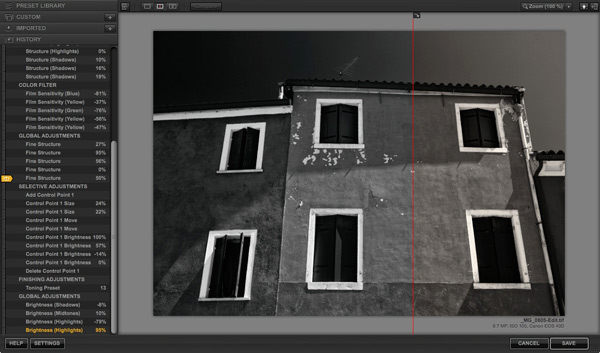
Silver Efex Pro 2 has the best History panel I’ve seen in any software. Every adjustment you make to your photo is listed.

Silver Efex Pro 2 review

The History panel works together with the Compare view. The yellow tab on the left indicates the photo used for the Before view, and the entry used for the After view is displayed in yellow text. This simple method lets you compare any two entries in the History panel.

6. The Zone System

Silver Efex Pro 2 can show you where the tones in your photo fall within the eleven zones of the Zone System. One useful application of this is that you can use it to see which areas of your photo may block up in print because they are too dark or too light.

This screenshot shows the tones which fall into zone 3. They are indicated by the brown diagonal lines.

Silver Efex Pro 2 review

7. Black and White film emulation

The Film Types panel gives you a choice of 18 different black and white films. When you choose one the plug-in emulates the tonality and grain structure of the selected film. It’s an easy way to get the film look without having to shoot, develop, and scan black and white film.

8. Silver Efex Pro 2 comes bundled with other software

Silver Efex Pro 2 is part of the Nik Collection, which includes seven applications and costs $ 149. That works out to less than $ 25 a plug-in.

Note: If you’re on a tight budget, the standalone version of OnOne Software’s Perfect Photo Suite 8 represents even better value at $ 79. Click the link to learn more.

Further resources

You can learn more about Silver Efex Pro 2 at these links:

  • Silver Efex Pro 2 official page
  • Silver Efex Pro 2 tutorials
  • Silver Efex Pro 2 videos on YouTube

Your turn

What software do you use for black and white conversions? Do you prefer Photoshop, Lightroom, another Raw conversion program or a plug-in? Let us know in the comments – what would you recommend to other readers?

The post 8 Reasons to Use Silver Efex Pro 2 for Your Black and White Conversions by Andrew S. Gibson appeared first on Digital Photography School.


Digital Photography School

 
Comments Off on 8 Reasons to Use Silver Efex Pro 2 for Your Black and White Conversions

Posted in Photography


Lessons you can learn from master photographers – Minor White, Ansel Adams, and Syl Arena

09 Jun

The reason I have put pen to paper (fingers to keys) is to share with you some simple tips and knowledge that can be gained from taking a look at some notable photographers. Some would even argue that these people are among some of the most creative and artistically idolized craftsmen who have ever captured light with a box. If you’re just starting out on your photographic journey these tips from some of the masters will hopefully help you along.

Minor White

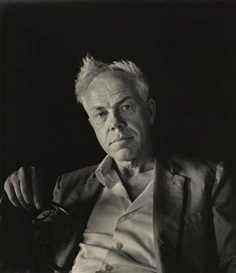
Minor White by Imogen Cunningham

Portrait of Minor White by Imogen Cunningham

Born during the summer of 1908 in Minneapolis, Minor White held jobs as a waiter, bartender, and even worked in military intelligence during World War II. He was a very spiritual man and his beliefs spilled over into his photography. Co-founder of Aperture magazine along with Ansel Adams and other notable photographers, Minor was also an early advocate of the Zone System pioneered by Adams and Fred Archer. An early practitioner of infrared photography, White ventured into an array of subject matter but his work with the small, and often overlooked scenes and objects, such as frost on glass and dilapidated structures remain some of his most acclaimed.

Lessons you can learn from Minor White:

Make photographs all the time, even if you don’t have a camera.

Minor said that he was “always mentally photographing everything as practice”. This is solid wisdom for any photographer of any skill level. Unfortunately, the realities of most of our lives limit the time we get to spend with a camera in hand. The good news is that our artistic mind is never absent. Think about which exposure would blur that passing train just right. What aperture would give me enough depth of field to put that entire table into focus? You’ll be more prepared next time when you have your camera handy.

Don’t overlook small objects and details.

Some of Minors’ most celebrated works were of seemingly mundane or otherwise less than notable subjects. Be on the lookout for details and textures of things that you see every day. This is especially useful if you have an interest in abstract photos.

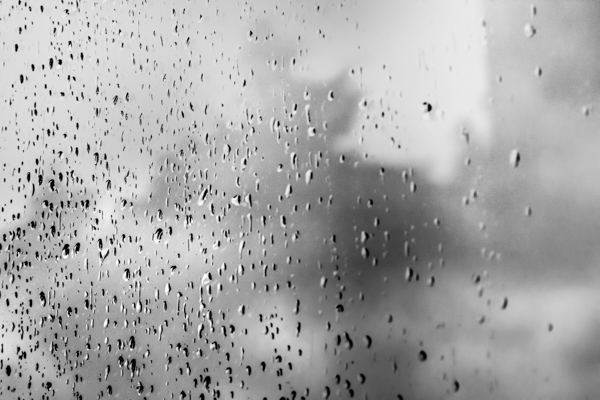
Drops of rain on my back door glass. Easily overlooked.

Rain on glass small

Simple occurrences made more interesting with a little creative thinking.

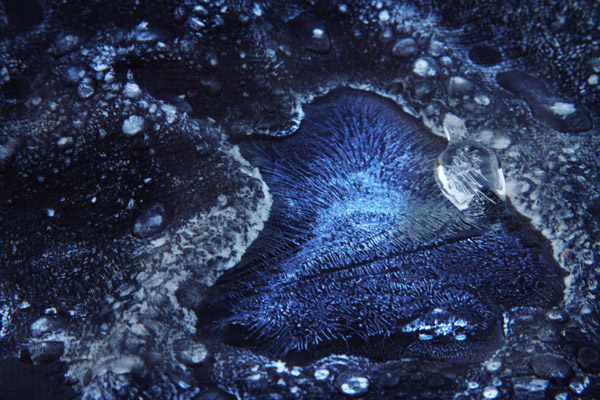
Ice on Firepit small 1

The early morning blue hour made this frost and ice on the cover of my fire pit look otherworldly.

Ansel Adams

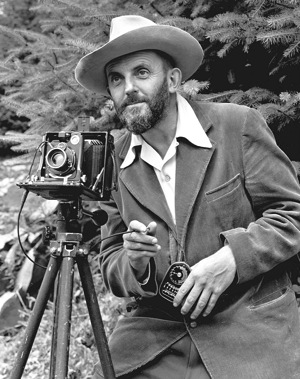
Ansel Adams self portrait

The portrait of Ansel Adams taken by J. Malcolm Greany around 1947

Chances are, you have heard at least something about Ansel Adams, even if that something is that he was a famous early photographer. It’s true, he is considered by more than a few to be one of the best photographers of the twentieth century. There have been volumes filled with the ins and outs of this photographic master. Born on February 20th, 1908 into a well established family in San Francisco, Ansel Adams discovery of photography was unplanned. Ansel was a gifted piano player. An exceptional piano player in fact, so exceptional that he was set to become a professional concert pianist until he decided to commit himself fully to photography. Honestly, the next sections could be titled “What can Ansel Adams NOT teach you?”. The man was such a force in the early days of modern photography that it almost seems unfair to point out only a few practices that will help you improve your own work. However, I have managed to list some basic tips from Ansel Adams that you can put into action in order to make you a better photographer right now.

Lessons you can learn from Ansel Adams:

Slow down

I’m sure you’ve heard this before and possibly have read about the importance of slowing down and making your photographs with more deliberate intentions. Our crushingly convenient modern era of virtually unlimited and relatively low cost film (i.e. digital photography) has lent itself to making us potentially sloppy in our shooting. We sometimes press the shutter button entirely too often in order to get a suitable image for processing. I will shamefully raise my hand and admit that I too am guilty of this spray and pray method of shooting, more so in my earlier photography days right after I made the leap from analog to digital.

I did myself a favor, that I also encourage you to do for yourself, and decided to take things more seriously. Ansel would consider all aspects of his composition: from the elevation and tilt of his camera, the perspective of his lenses, the cast of shadows, even the future effects of the wind on the clouds. There will be times when you are racing against a sunset or you will be trying to catch some specific or fleeting moment and at those times you must shoot quickly and intuitively. Usually, however, we rush for no perceivable reason and often overlook or forget small changes that can make or break an image. So the next time the muse slaps you across the face to make an image, calm yourself down and work the problem. Think about what it is you are trying to do. Put yourself into the correct mindset to make better images and you might find, strangely enough, that your images become better also.

Teach yourself to see the finished product before you make the exposure.

The act of seeing or visualizing is another subject that has been touted by the photographic community many times. Visualization is one of those things that really can’t be brought about by technical instruction in the traditional sense; meaning there are no classes on visualization. Ansel Adams himself remarked that visualization cannot be taught, it is be learned. Think about that concept.

It’s undeniably true that some people learn faster than others when it comes to visualizing finished prints. However, it is equally true that no one started out being able to see in their mind’s eye the final result of a photo. Like most things, it takes practice, as well as patience, and more than a healthy helping of sheer determination. When you begin to see the print before it is made, then really all that stands between you and your vision is the selection of techniques which, similarly, require just as much determination and commitment to master.

Use a tripod

To reiterate, please, use a tripod whenever and wherever possible. A tripod is one of the single most important tools you can use to increase the focal clarity and sharpness of a photograph. Minimizing camera shake and vibration is key to making crisp images, period.

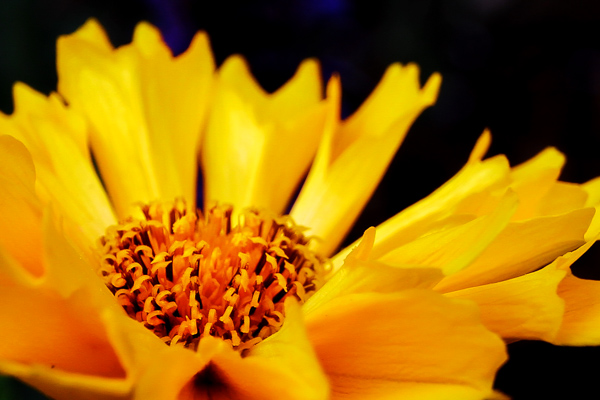
Colorflowersmall

By using a tripod I eliminated the need to worry about vertical camera movement in the macro shot above. Ansel tells us that the ideal tripod is “a cubic yard of solid concrete with a 1/4″ X #20 bolt head sticking out of the top”. If you don’t have a huge block of cement lying around to attach your beloved camera to, then the next best thing is to obtain a quality tripod and use it.

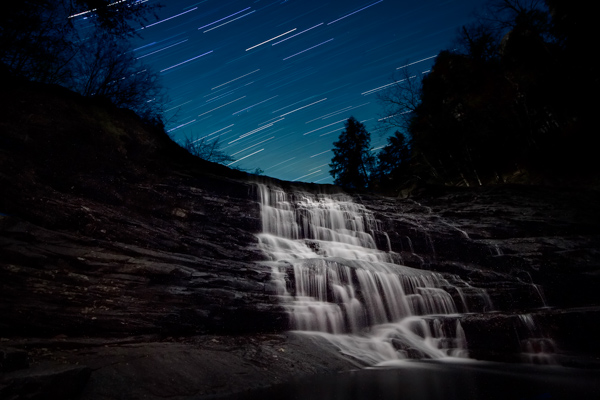
Having some way to keep your camera absolutely still is essential when working with long exposures like the image below.

Cane Creek Cascades Star Trail Color3

Exposure time: approximately forty seven minutes. This long exposure time would not have been possible without the use of a tripod.

Using a tripod (correctly) also forces you to, again, slow down and think about the photograph you are intending to make. dPS has a superb article on tripod employment that can be found here.

Syl Arena

Syl Arena

Photo by Vera Franceschi

Syl Arena, is a uniquely humble and genuine person, author, teacher, lecturer, and a speedlite Jedi. He is a magician of sorts when it comes to creating and moulding light. Syl currently resides on the west coast around San Luis Obispo, California. His biography is brief and barely mentions any notable achievements of which there are many. The lessons I learned from him actually lean more towards the philosophical than the technical. That being said, you will find this section contains no real insight from Mr. Arena concerning artificial light manipulation or photographic technique in general. For that I would highly suggest you check out his blog or his new Q&A site for loads of information.

My first introduction to Syl was through the gift of one of his books (thanks Mr. Veneman), “LIDLIPS: Lessons I didn’t learn in photo school“. In that book, this highly educated, highly skilled, highly successful, highly haired photographer simply and truthfully listed page by page the things he was never taught. They ranged from personal revelations on the photographic process to small background stories of some of his location shoots. He mentioned nothing about technique or gear really, just lessons from his life as a picture maker, unpretentious and sincere.

Lessons you can learn from Syl Arena:

Don’t be afraid.

Your limited gear, your perceived skill level, your lack of obvious subject matter, your lack of confidence, fear of trying something new; don’t be afraid of any of these things, or anything else for that matter. You will never have the all of the best gear so don’t let it worry you. Instead, learn to make the best use of what gear you have. You will never learn all there is to know about making photographs so learn what you can, where you can. Feeling like you’ll never get an image just right? You are your own worst critic, so don’t hide your work from the world.

Be inspired, not intimidated.

This is one of the hardest things to overcome, especially if you are just beginning to learn about photography. It’s easy to feel envious or even jealous of other photographers work. This can sometimes lead to convincing yourself that your work has no merit. Chances are, that image you’re envying and ogling over is a product of hard work, patience, diligence, determination, perseverance, and many other great words that the thesaurus can produce.

Viewing other artists work is one of the best ways to grow your own creativity.

Take the work as seriously as you want, but not yourself.

As you grow and learn as a photographer, remember that we all started out understanding absolutely nothing about photography; so keep that in mind the next time someone asks you a question about one of your photographs in a less than learned way. Most likely, you have learned something from someone who was nice enough to teach you. Please pay it forward.

Have you learned any lessons from other master photographers? Who is your mentor? Please share in the comments below.

The post Lessons you can learn from master photographers – Minor White, Ansel Adams, and Syl Arena by Adam Welch appeared first on Digital Photography School.


Digital Photography School

 
Comments Off on Lessons you can learn from master photographers – Minor White, Ansel Adams, and Syl Arena

Posted in Photography


Tips for Shooting and Processing Better Black and White Photographs

01 Jun

Photography, as you know, is fundamentally the capturing of light; you are not taking pictures of objects as much as you are recording the light that is bouncing off of them. In the early days of photography, the only medium available to capture this light was monochromatic film, commonly known as black and white. In the 1930s, the invention of Kodachrome, the first successfully mass-produced color film, ushered in an age of color to the art form.

Bw article3 NEW

Instead of fading away, however, black and white photography remained throughout the birth of color, and even increased in popularity in the following decades, due to its simplicity and ability to display tones more dramatically than color usually can.

What makes black and white photography retain its timelessness? A compelling picture is always based on the same fundamentals; lighting, tonal range, shapes, patterns and textures. A black and white photo breaks these fundamentals down to their basics, and is not hindered by the distraction and complexity that color can sometimes contribute. It is truly an art form. The reality of a scene depicted in color is transformed into an artistic interpretation when shown in shades of grey.

So what do you need to understand in order to produce a great monochrome photo?

Visualize in Black and White

One of the most helpful things you can do is something that takes place before you even click the shutter button. Training yourself to envision a scene in black and white will help determine if it will work in that state, or if it would be better left to color. Since you won’t have color in the final shot, you’ll need to visualize the core of the scene instead:

  • How is the light behaving on the objects in the scene?
  • What forms are involved?
  • Are there lights, darks, and shades in between, giving you a good tonal range?

Scenes that contain contrast and texture will usually provide a good end result when converted to black and white. Fortunately, you can apply monochrome to almost any type of photography, including landscape, portrait, and street photography. The resulting feel of the image depends on the subject; landscape shots of the ocean will have more highlighted textures of the waves, and street portraits done in black and white can have a grittier, more dramatic feel.

031814 siestaguarshack2 sized

Taking the Shot

Many of the basic principles of photography apply when shooting for black and white as well. You’ll need to compose the scene properly, utilizing the rule of thirds where applicable, and properly expose the shot. As always, you’ll want to shoot in RAW, so that any necessary adjustments can be made such as exposure and levels before you begin post-processing.

When composing, pay special attention to the lines and shapes in the image. These components are even more important when the photo is desaturated.

Finally, you may benefit from using a polarizing filter. This lens attachment will reduce, or remove, reflections that may be apparent in water or other shiny surfaces. Since these reflections could take away focus from your subject matter, it’s best to do this during the shooting process rather than post-production.

040613 siesta feet sized

Post-production

The most important step in this process is actually converting the shot into black and white. While almost all DSLRs have the ability to shoot in black and white initially, you’re losing an important advantage; the photo will permanently be monochrome. Photographers sometimes think that a poor image can somehow be “saved” by being converted into black and white; this is not always the case. If you shoot in JPG format and the black and white (monochrome) setting on your camera, you’ll be producing a black and white JPG image, and lose the ability to convert to color or take advantage of RAW adjustments. BUT if you shoot in RAW in this mode you will still have all the colour data but have the advantage of seeing a black and white preview on the camera screen.

Black and white conversions in an image editor such as Photoshop can usually be categorized in two ways; destructive, and non-destructive. Obviously, destructive methods actually modify pixels and cannot be easily adjusted. Converting directly to greyscale is a long-used example of this method. Preferably, you want to use a non-destructive method that will allow you to make continued adjustments to the image until you have the tone and shading desired.

The easiest method (and the one that I prefer) is to use the Hue/Saturation/Luminosity tab in the RAW importer in Photoshop (the HSL panel in Lightroom also does the same thing). Alternatively, you can accomplish the same thing (albeit with a bit less control) by using a Channel Mixer adjustment layer after you’ve imported the RAW file into Photoshop.

Converting to Black and White with the RAW HSL Controls

Not only does this method offer more control than simply desaturating the image, it keeps the color profile loaded into the RAW (.CR2) file, allowing you to reopen and adjust it as you see fit. To convert using this method follow these steps:

  • Select the RAW file you wish to convert and open it. The file will open within Adobe’s RAW import dialog.

Bw article ps1 FINAL

  • Click the HSL/Greyscale tab on the right side of the dialog box (this should be the 4th tab).

Bw article ps2 FINAL

  • Tick the “Convert to Greyscale” box.

Bw article ps3 FINAL

  • You will be presented with eight color sliders. Adjust these sliders individually (ensure the “Preview” checkbox is ticked near the top) to see real-time changes in those color channels, and how those changes impact your desaturated image. With a color image, moving the “yellow” slider would modify the yellow in your image, but here, it will make the portions of the image that were yellow change in shading, either lighter or darker depending on which direction the slider is moved.

Bw article ps4 FINAL2

That’s it, you’re all done. Few accomplishments in photography are as satisfying as producing a well-done black and white image. You have discarded color, and envisioned your story instead with shapes, lines, shadows, and textures. You’ve opened up a new world of imagery to yourself, and exponentially expanded your repertoire.

Now…what will you do with it? Share in the comments below if you have anything to add or would like to show us your new black and white images.

The post Tips for Shooting and Processing Better Black and White Photographs by Tim Gilbreath appeared first on Digital Photography School.


Digital Photography School

 
Comments Off on Tips for Shooting and Processing Better Black and White Photographs

Posted in Photography


PURE WHITE With Yannick Wolff

29 May

Yannick Wolff on Fashion Photography Blog showcasing images from his PURE WHITE photo shoot (FashionPhotograhyBlog.com)

Yannick Wolff returns to FashionPhotographyBlog.com with a stunningly gorgeous shoot with model, Agneta Kuhne, entitled “PURE WHITE“. In this angelic series, Yannick shows, yet again, another side of his photographic versatility depicting clear fashion, but also both the strength and vulnerability of the model in his photos.

The inspiration behind PURE WHITE was the collaboration between the photographer and Tina Hoffmann, the make-up artist, Yannick explained his process, “We thought about a new fashion editorial story. We had searched for several pictures to create our own mood board. The whole styling was done by Tina herself and I found a great location to shoot in.”

Yannick Wolff on Fashion Photography Blog showcasing images from his PURE WHITE photo shoot (FashionPhotograhyBlog.com)

When asked about how this fashion series differs from his previous shoots Yannick pointed out that the contrast between the styling and the setting with the natural light streaming in makes this editorial shoot so enchanting, “I think this golden, warm color tone and the contrast from these pure white clothes to the quite industrial location creates a special flair with what is going on through the whole series.”

Based on what Yannick shared with me the shoot came together well, it was like as though it was meant to be. Agneta Kuhne, the model, was a friend of a friend of Yannick‘s who also was a photographer, and assembling the team after being on many shoots together was relatively simple he explained “That’s quite easy, in general, because over time you create your own pool of connections of make up artists, stylists and assistants, but for this shoot, Tina Hoffmann, asked me if I´m interested in a photo shoot like this, so we came together for this project.”

Yannick Wolff on Fashion Photography Blog showcasing images from his PURE WHITE photo shoot (FashionPhotograhyBlog.com)

It seemed like the only hardest part of the shoot was finding the perfect location and it’s a common issue for Yannick on his shoots as he expressed that “Finding good locations is one of the hardest things for me – especially in Germany it is very hard to find topical or even beach like locations.“ So the photographer is constantly challenged to think outside the box and make do with the settings around him, and aren’t we glad that he found the industrial warehouse setting for this shoot that adds just the right amount of rawness that contrasts the purity of the model’s facial features and the styling so well. Does anyone else see a bit of Cate Blanchett here in these pictures?

Utilizing the surroundings around him, Yannick takes advantage of the natural light penetrating through the industrial windows. The photographer revealed that “I´ve used mostly the incoming sunlight with a Profoto reflector. On some other sets I used a simple two light setup to light up the scenery a little bit.” For this shoot, Yannick used two Priolite MB 500 flash lights with several light formers, a Profoto reflector and a Nikon D800 with the Nikkor 85mm lens.

Yannick Wolff on Fashion Photography Blog showcasing images from his PURE WHITE photo shoot (FashionPhotograhyBlog.com)

To find out more about Yannick Wolff’s work or to contact him you can visit his website www.yannickwolff.com as well as on his Facebook fan page www.fb.com/yannickwolffphotography, Twitter and on Instagram @yannickwolff. What do you think of Yannick’s latest shoot? Check out his behind the scenes video below. Feel free to post your comments in the comments section underneath.

PHOTO CREDITS:

Photographer – Yannick Wolff

Make-up/Styling – Tina Hoffmann

Model – Agneta Kuhne

Assistant – Admir Suljanovic


Fashion Photography Blog

 
Comments Off on PURE WHITE With Yannick Wolff

Posted in Uncategorized


Turn Your Photos IntoIncredibly Large Black & White Prints

27 May

Extra photos for bloggers: 1, 2, 3

Engineer Prints are big big big (big) photo prints made on large format printers normally used for architecture and engineering plans.

The unique, lo-fi characteristics of the Engineer printing process has made it a favorite amongst the creative community, and us!

Streaked, striated and wacky black and gray tones combine to create a super unique look that’s no ordinary photo print.

Our Engineer Prints are inked on 4-feet wide (!) 20lb bond paper that’s so light it’s easy to pin or tape anywhere, no frames or nails!

We’ve made it a cinch for you to have one of your very own. No printer proofs, resolution wrangling or printer research required!

Make Your Own Engineer Print
$ 25 flat w/ free shipping, at the Photojojo Shop


© laurel for Photojojo, 2014. |
Permalink |
No comment |
Add to
Incredibly Large Black & White Prints”>del.icio.us

Post tags:


Photojojo

 
Comments Off on Turn Your Photos IntoIncredibly Large Black & White Prints

Posted in Equipment


Step By Step How to Do a Head Shot on a White Background

14 May

Today you are going to come ride along with me as I shoot head shots for a client in San Diego, California. I was hired by a company to create simple head shots of their instructors in the San Diego area.

There is a very big market for head shots and quite a few people want them shot on a white infinity backdrop. There are many ways to do this but I’m going to take you along on a shoot with me and show you how I do it:

Step by step how to do a head shot on a white background

Digital-Photography-School-Steven-Head-Shot-Thumbnail

First off, what is a seamless backdrop?

It’s a giant roll of paper – thats it! I used an 8-foot long roll in ‘alpine white’ color. Again, it’s just a big white roll of paper. When properly lit, this roll of paper gets ‘blown out’ or overexposed, so it appears as a perfectly white void on which your subject sits/stands in the middle. This white void makes the viewer focus on your subject rather than a cluttered background.

Setting up the seamless backdrop

As you can see in the animated GIF below, I start by finding an open area at least 8 feet wide. This is easier to set up with two people, but on this corporate shoot it was just me.

To make this easier to set up by yourself just lay the roll of paper on the ground and position the light stands on either side of the end of the roll of paper at their lowest height. Make sure the paper is set to unroll from underneath the back of the roll ,and not over the top and front of the roll.

When you pull from the back of the roll the natural curl of the paper will let the paper roll straight to the floor then curl toward your camera  into the room. This will provide a smooth curved transition from the vertical roll of paper into the floor and toward you so the background and floor will appear seamless. If the paper is pulled from overhand when it hits the floor it will want to curl backwards toward the back of the room. This won’t create seamless transition as you pull the roll into the room.

Run the cross bar through the center of the paper roll – the cross bar will stick out about 2 inches on either side of the roll. The cross bar has 2 slots at each end and the light stands have two vertical screws. Lift up the roll and place these two slots into the two vertical screws and then screw in the included wing nuts to secure the roll onto the light stands.

Raising the seamless backdrop

Now that we have the paper roll secured on the light stands at their lowest height, it’s time to raise it up. The light stands have two sets of clamps and two sets of vertical poles that raise up. With two people you can simply raise the paper roll at the same time to the desired height and lock the clamps down to secure the paper roll at your desired height. With only one person you have to slowly raise one side, then the other, until you get the roll to the desired height. Check out the GIF below and try not to laugh at the CEO jumping in during setup.

Digital-Photography_School

Unrolling the backdrop

Now that we have the bar to the height we want it, we can unroll the backdrop. I always keep little clamps on each end of the roll to keep it from unrolling on its own. Unclamp the little A-clamps on either side of the paper roll and slowly pull the roll down. If you don’t pull slowly the roll can gain momentum, unroll really fast, and go much further than planned! Since we were only doing head shots I just pulled the backdrop down to the floor. Once the roll is at the desired length clip the A-clamps back in place to keep the roll from unrolling further on its own like you see below.

seamless backdrop, studio lights, corporate headshots

Lighting the shoot

The way to make lighting easy is to light in layers, one step at a time. In this case I’m going to light the backdrop first. Once I get that done I’m going put a subject in front of the backdrop and light them separately. Once that is lit correctly we are ready to rock!

Lighting the backdrop

Now that the backdrop is set up properly we want to light it so that it appears solid white. I placed an Alien Bees 1600 studio strobe 3 feet away from the backdrop on the left side and angled it to shoot across the backdrop. The light had a reflector on it to contain the direction of the light. This will make the light rake across the middle of the backdrop to light it up white.

Dialling in the camera settings

I set my camera to f/8 aperture as it’s a good middle ground depth of field to start. The studio lights will give me all the light I need so I set the ISO low at 200. I then set the shutter speed to 1/160 which is the maximum shutter speed sync my camera allows. In this room a 1/160 shutter speed is fast enough that none of the lights on the ceiling would register – essentially I’m killing any ambient light in the room so the only light that shows up in the photo is from the studio strobes.

I take a guess and set the studio strobe light at 1/4 power. I do a quick test at f/8, ISO 200, 1/160 shutter speed and get this:

corporate headshots, white seamless backdrop, studio strobes, lighting setups

Looks pretty good to me! You can see the area closest to the light is perfectly blown out white, but as you move to the right the light is becoming weaker and the white backdrop appears more grey. Because the light is weaker on the right side it’s also showing the wrinkles in the paper. Because I’ll be placing people several feet in front of the light stand and zooming into the middle of the backdrop I’m not concerned with the right side of the backdrop. If I were shooting a wider shot I would add another light on the right side of the backdrop to light up that side, but that isn’t necessary for this shoot.

Lighting the subject

Now that we have the backdrop dialled in it’s time to light the next layer – the subject. I place an Alien Bees 800 studio strobe to the right of the backdrop, about six feet in front of the first light. I put an umbrella on the light which spreads the light out (diffuses it) as it passes through the umbrella and gives it a nice, soft appearance. I set the light at 1/4 power, at a 45 degree angled downward, and raised to about 8 feet high to test it out.

I step in front of the backdrop like the goofball that I am and get this:

studio lighting, seamless backdrop, corporate headshots

The backdrop still looks good, but I (the subject) am overexposed. This means the umbrella light is too strong. I reduce the power from 1/4 power to 1/8th power, have the CEO grab two nearby Nerf guns, step back in for a test, and get this:

seamless backdrop, studio lights, corporate head shots

Looking much better!

The light hitting the white background is bouncing onto the back of the subject and wrapping around his body too much. To correct this I need to move the subject a few feet toward the camera so the light bouncing off the background falls off before it reaches him. When I do this I also need to move the umbrella light the same distance toward the camera to keep the same exposure.

I also want more room to the right to compose my subjects so I move the umbrella light two feet camera-right, and one foot toward the camera. I then have the subject move two feet camera-right and one foot toward the camera so the background light won’t reach the subject as much.  I take another test and get this:

seamless backdrop, corporate headshots, digital photography school, seamless backdrop

This looks great to me. The background layer is blown out white, the subject layer is properly exposed, and as a bonus just enough light is bouncing off the backdrop to give some backlighting to the subject. Here is a closer crop to see what we are working with:

studio lights, seamless backdrop, corporate headshots

The only thing I should do to improve this is have the subject turn his body to face the umbrella so there isn’t so much shadow on the camera-left side.

Positioning the subject

headshot, seamless backdrop

The client wanted simple head shots of their instructors for use on their website profiles. I had the subject stand in the same place, square up their shoulders to face the umbrella light, and smile. You’ll notice that the umbrella placed up above the subject and pointed down at 45 degrees leaves a nice catch light (the white reflection of the light) in the top right corner of the subject’s eyes. When you can place a catch light at the ten or two o’clock position (like on an analog clock) in the subject’s eyes it brings them to life. Here is what we end up with:

 Quick positioning tip

To keep everything consistent, place some tape on the floor where you want people to stand. I didn’t have any tape with me but I did have an extra umbrella. I simply placed the umbrella at a diagonal angle and told the subjects to place their toes against the umbrella. This squared them up with the light so each portrait was consistent.

Wrapping it up

Overall it was a very quick setup, shoot, and breakdown. We shot 45 different instructors in about 45 minutes! Once everything was dialled in we just photographed one instructor after the next. The shoot was fun, the client was happy, and the instructors loved their head shots!

Digital-Photography_School-Portaits

Would you like to see more real shoots?

Did this post help you and did you enjoy seeing some behind-the-scenes info on real client shoots? If so sound leave me a comment below. If it would help I’d love to start sharing more live client shoots to show everyone how they come together!

For more portrait tips using a white background see these articles on dPS:

  • 4 Tips for a Perfect White Background in High Key Photography
  • White Seamless – Studio How-To
  • Awash In Light: High Key Portraiture

The post Step By Step How to Do a Head Shot on a White Background by Mike Newton appeared first on Digital Photography School.


Digital Photography School

 
Comments Off on Step By Step How to Do a Head Shot on a White Background

Posted in Photography


Canon USA brings white EOS Rebel SL1 to America

13 May

20140513_hiRes_eossl1white_front.png

After being introduced in Japan and Europe, the white Canon EOS Rebel SL1 (EOS 100D) has made it to American shores. To avoid color clash, Canon also includes a matching EF-S 18-55mm F3.5-5.6 STM lens along with this compact DSLR. The white EOS Rebel SL1 will be available in June for $ 749.

News: Digital Photography Review (dpreview.com)

 
Comments Off on Canon USA brings white EOS Rebel SL1 to America

Posted in Uncategorized


Guide to Creative White Balance for Landscape Photography

16 Apr

If you’ve been using a digital camera for any length of time, you’ve probably heard about White Balance. You may still be wondering exactly what it is, and how to use it; or you may be using it right now and be wondering how it can possibly be something “creative”.
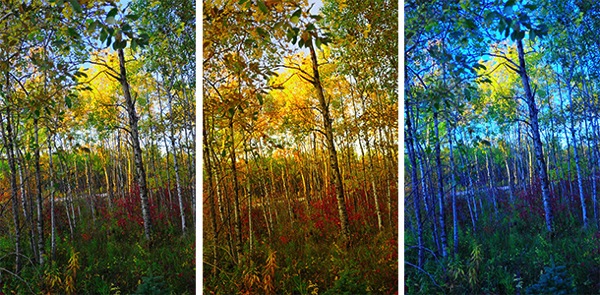
Creative white balance landscape photography

Different white balance settings create different looks

I’m going to show you some of my techniques for using White Balance to creatively enhance your landscape photography and with a few simple steps you can unlock the remarkable power of creative White Balance. Don’t worry, this is not a technical discussion, there are lots of references about that aspect of White Balance online. This article explains a simple shooting technique you can start using right now.

The Color of Light

Creative white balance landscape photography daylight

Daylight setting

Have you ever taken photos in an office, and been dismayed to see that your results had a sickly green cast to them? Or taken photos under cloudy, lifeless, skies only to see your images appear cold, flat and a little blue?

This happens because light comes in a variety of colors. The reasons for these colors is a result of wavelengths of light and the light spectrum. But we’re not going to get into this too deeply here. Just know that all light has different colors, and even the sun has different colors at different times of the day. Every landscape photographer knows about the “sweet light” or the “magic hour” – the times around sunrise and sunset when the color of the light is perfect for photography.

The crazy thing is that your eyes usually adjust to compensate for these color shifts, especially the subtle ones, so you won’t necessarily perceive these color differences, and in some cases your eyes are not as sensitive to color shifts as are the sensors in your camera. So you snap that office photo and the result isn’t as great as you had expected. Because of the color, those fluorescent bulbs cast a green pall over everything but you didn’t see it because your eyes “adjusted” the color for you.

This is where your White Balance settings play an important role in correcting potential problems by adjusting the color of the light in the camera. It is really important when you’re taking images of people, because the skin tones will be unattractive and far from natural looking.

But, if you are a landscape photographer, armed with the knowledge that light has color and your camera has a tool that can change the color of light, you can use this knowledge to do more creative landscape photography.

White Balance for Landscape Photography

Creative white balance landscape photography hicolour fluorescent daylight

Fluorescent setting

I shoot a lot of landscapes, in fact I pretty much ONLY shoot outdoors. Thankfully I almost never have to deal with those ugly green fluorescent lights. But what I do deal with are sunsets, sunrises, autumn colors, mountains, flowers, etc. – all those good things we find in nature.

I noticed that sometimes my sunset images just didn’t pack the punch the way I SAW it at the location. Sure, I could go back to my computer and make adjustments. Or, without degrading any pixels, I could punch up my images in camera by purposely fooling it into using a different White Balance. In other words I don’t use White Balance to correct color casts, I use it to ADD color casts! I deliberately use the “wrong” White Balance setting.

Landscapes created at sunset or sunrise, snow and winter scenes, and those with night sky dominating lend themselves well to creative White Balance techniques.

Sunsets can become more warm, or more soothing, with violet overtones if you use the Cloudy White Balance setting. Autumn foliage pops with yellow and orange when you use Shade as your White Balance! The Aurora Borealis (Northern Lights) becomes a rich alien green, rolling through a deep royal blue sky, by changing your White Balance setting to Incandescent or Tungsten. Please note, that you use these settings regardless of actual light colour.

Creative white balance landscape photography hicolour fluorescent daylight

Fluorescent daylight camera setting

Creative white balance landscape photography customA3 M3

Custom white balance setting A3 M3

Creative white balance landscape photography auto

Auto white balance setting

Creative white balance landscape photography direct sun

Daylight white balance setting

Creative white balance landscape photography shade

Shade white balance setting

How to use Creative White Balance

To use creative White Balance, there are just a few things to understand about using White Balance in general.

Since White Balance is designed to correct color casts, the setting on your camera will compensate, or change the light, to be the opposite of the shooting situation. In other words, incandescent lights are too warm (orange), so changing your White Balance setting to Incandescent or Tungsten will add a blueish tinge. The light in the shade is blueish, so changing the White Balance setting on your camera to Shade adds warmth, orange and red.

To get creative with White Balance you’ll need to find the dial or menu for changing your White Balance settings. Most cameras have presets for Flash, Shade, Cloudy, Incandescent (Tungsten), Fluorescent, Sunny (or Daylight), and Auto.

Look for the ICONS – a cloud (cloudy), a house (shade), a sun (full sunlight), a fluorescent bulb – long and skinny (fluorescent), an old school light bulb (incandescent or tungsten), a lightning bolt (flash), and AUTO or A for automatic.

Next you’ll need to know how to set your White Balance for a specific type of shot. The best way is to experiment by trying all of your White Balance settings for the same scene. So if you want to ramp up your warm colors, say in an autumn scene or sunset, change your White Balance to Shade, Flash, and Cloudy! Compare your results.

Shooting the night sky or the Aurora Borealis, change to Tungsten or Incandescent to make the colors cooler, make that Aurora really pop! The added blue tones give the night sky a rich royal blue tone, while the green light of the Aurora turns an eerie alien glowing green.

Here’s a handy chart I made for you – so you can literally “dial it in”. All you need to do is change your settings according to the type of landscape scene, using the chart. This will give you a great place to start.

Chart

Supercharge your Creative White Balance

Depending on your camera, you may also be able to fine tune and supercharge your custom White Balance once you find one that provides the boost you like.

In Nikon DSLRs you may see this graph that enables you to make your own custom White Balance presets. It’s typically in your shooting menu under the White Balance tab. Consult your camera manual to see if your camera has this option, and how to apply it.

2customWB1

1customWB

Custom white balance in camera

By selecting a specific color balance presets, you can ramp up the warmth and impact for sunrise and sunset, as well as boost the coolness for winter snow landscapes.

Easy Experimentation

If you shoot RAW, and can’t switch White Balance in the field, you can also easily adjust your White Balance in post-production. Lightroom, Photoshop, Nikon Capture and most other image editing programs have a RAW White Balance setting. Nikon shooters note that you’ll get the best results adjusting RAW [NEF] White Balance if you use Nikon Capture, as Nikon encrypts its White Balance “formula”. Other software can only read parts of the White Balance data so your results may not be as high impact as they could be.

If you have some landscape sunset or sunrise shots on your computer, give creative White Balance a try right now. Here are few of my Lightroom White Balance edits so you can see how much control you have over the drama and mood of your lighting.

Creative white balance landscape photography auto

Auto white balance in Lightroom

Creative white balance landscape photography cloudy custom

Cloudy custom white balance in Lightroom

Creative white balance landscape photography auto adjustments 2

Auto white balance adjustment in Lightroom

Creative white balance landscape photography auto adjustments3

Auto white balance adjustment in Lightroom

Do you have some other tips you can share on using White Balance creatively? Please tell us about them in the comments below and share your images as well.

For some other landscape photography tips try some of these articles:

  • 5 Steps to Help you Take Better Landscape Photos
  • 10 Most Common Mistakes in Landscape Photography – and How to Overcome Them
  • So you Want to Shoot Landscapes? [Top 12 dPS Landscape articles from 2013]
  • Living Landscapes – A Guide To Stunning Landscape Photography – a dPS ebook
  • Loving Landscapes A guide to landscape photography workflow and post-production – a brand new dPS ebook by the authors of Living Landscapes

The post Guide to Creative White Balance for Landscape Photography by Alex Morrison appeared first on Digital Photography School.


Digital Photography School

 
Comments Off on Guide to Creative White Balance for Landscape Photography

Posted in Photography