RSS
 

Posts Tagged ‘White’

Weekly Photography Challenge Black and White Portraits

06 Sep

Last week’s challenge was also black and white and in keeping with the them, earlier today I shared a set of black and white portraits. Your challenge this week, if you choose to accept it, is do photograph a real person and do a portrait in black and white.

By Sean Molin

There are lots of articles here on dPS to help you with that and get some inspiration including:

  • Create Better Black and White Photos Using Local Adjustments in Lightroom 5
  • How to Convert Photos to Black and White in Lightroom
  • How to See in Black and White
  • DISCUSS: When you Photograph People in Black and White, you Photograph their Souls

Here are a few more example black and white portraits:

By Sean McGrath

By Ben Raynal

By Neil Moralee

By stephane

By Ronn aka “Blue” Aldaman

By Dietmar Temps

By Nicolas Alejandro

By Gustave Deghilage

By Dietmar Temps

By i k o

By Fadzly Mubin

If you want to learn more about black and white grab a copy of the newest dPS ebook The Essential Guide to Black and White Photography at early bird pricing only until September 13th.

black-white-ebook

Share your black and white portrait images

Simply upload your shot into the comment field (look for the little camera icon in the Disqus comments section as pictured below) and they’ll get embedded for us all to see or if you’d prefer upload them to your favourite photo sharing site and leave the link to them. Show me your leading lines using pathways and roads in this week’s challenge.

The post Weekly Photography Challenge Black and White Portraits by Darlene Hildebrandt appeared first on Digital Photography School.


Digital Photography School

 
Comments Off on Weekly Photography Challenge Black and White Portraits

Posted in Photography


Readers’ Showcase: Black and White photography

31 Aug

While it’s easy to get swept up in the stream of product announcements at this time of year, it’s also a good idea to remember why we buy that gear – to make great photos. What better way to do it than to showcase the excellent work of our own community? This week we asked users of our Black and White Photography forum to submit their favorite shots for inclusion in our Readers’ Showcase. As usual, the photos submitted were of a very high quality. See gallery

Articles: Digital Photography Review (dpreview.com)

 
Comments Off on Readers’ Showcase: Black and White photography

Posted in Uncategorized


Some Punchy Black and White Landscape Photos to Oooo and Aaah Over

30 Aug

Recently we released our newest dPS ebook The Essential Guide to Black and White Photography. 

So I thought it would be fitting if we had a look as some great black and white images. I don’t know what it is but I’m really attracted to a great black and white image. It’s something about the contrast and the style and makes you really focus on the light and composition in the image – there’s no tricks it’s just an image is the simplest form.

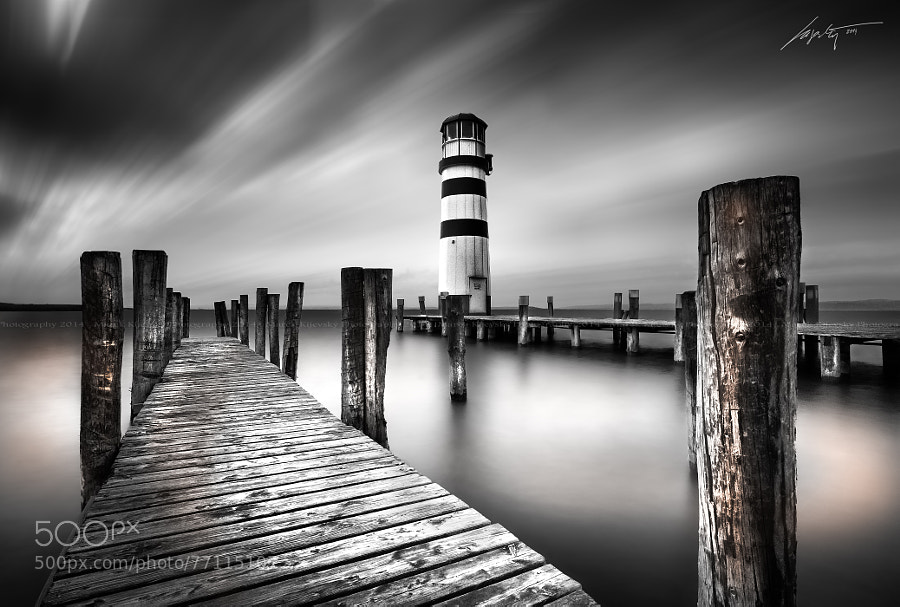
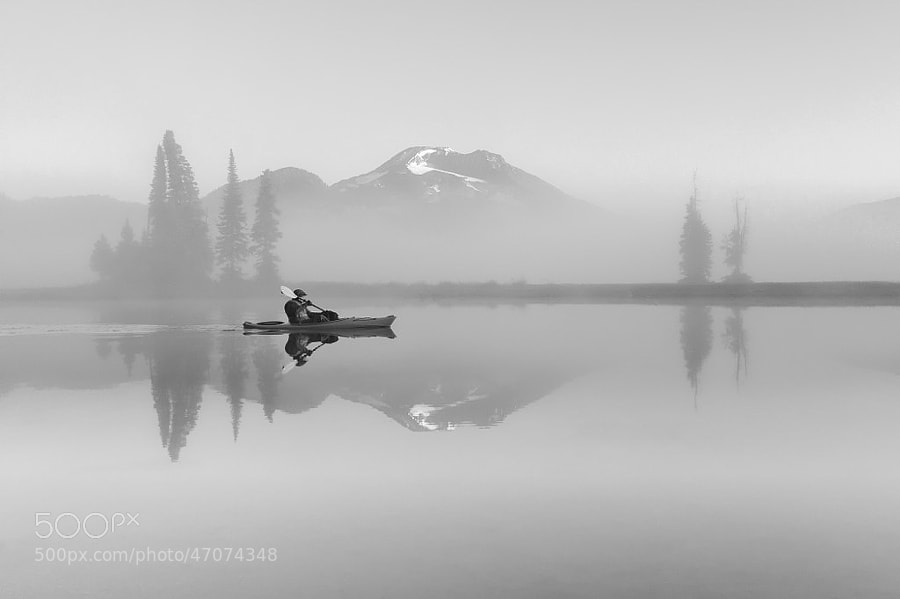
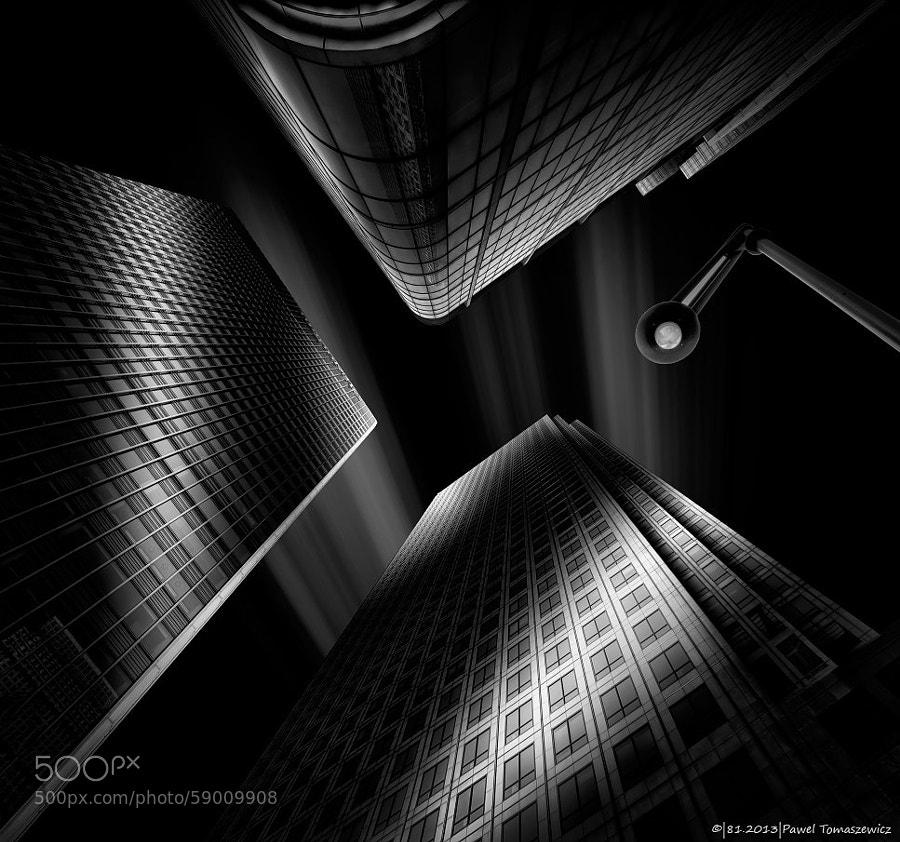
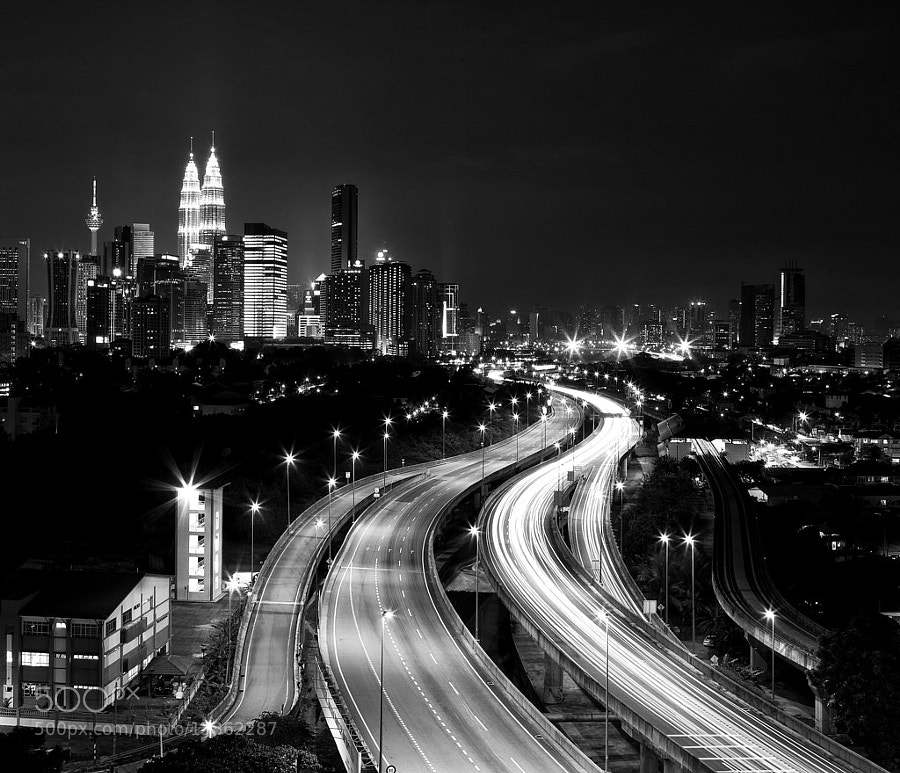
So in this set I’ve found some amazing black and white landscape photos for you to enjoy – please let the oooing and aaaahing commence!

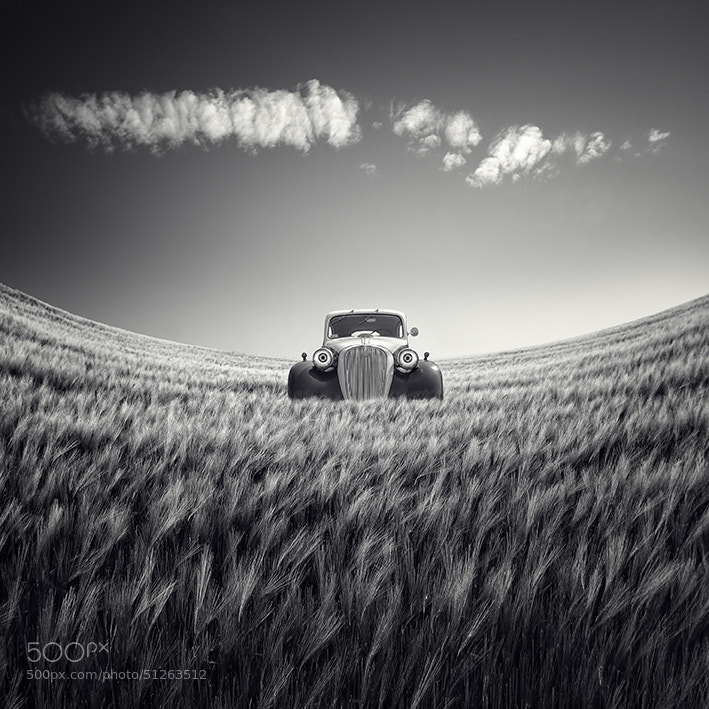
Photograph The Last Ride by Rob Dweck on 500px

The Last Ride by Rob Dweck on 500px

Photograph Dignity by Martin Mattocks on 500px Dignity by Martin Mattocks on 500px

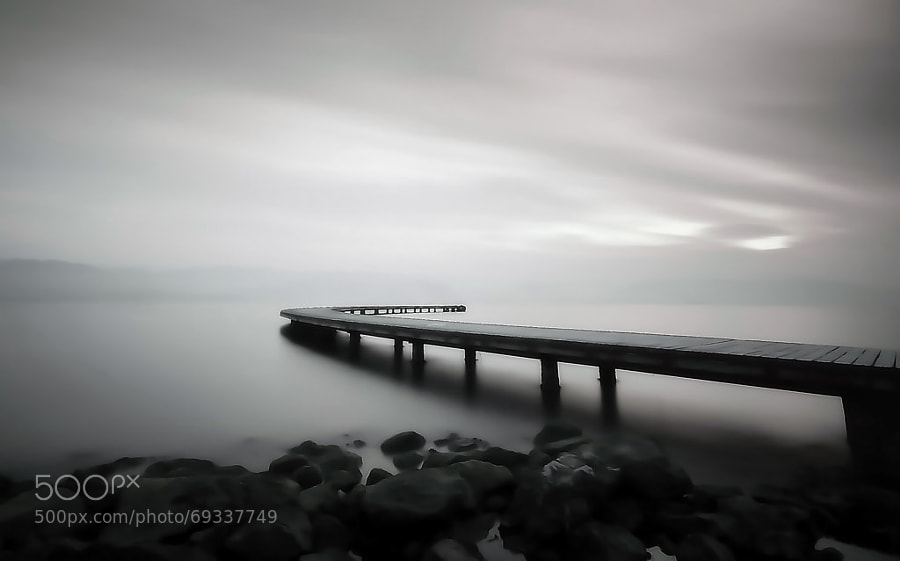
Photograph road by ömer yücel on 500px

road by ömer yücel on 500px

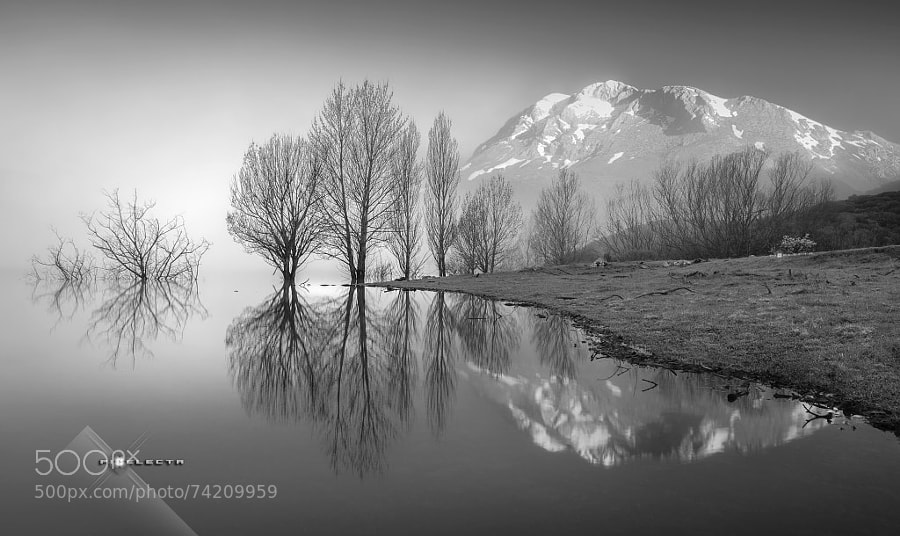
Photograph "MAGIC IN ESPIGÜETE" / "MAGIA A LOS PIES DEL ESPIGÜETE" by Juan PIXELECTA on 500px “MAGIC IN ESPIGÜETE” / “MAGIA A LOS PIES DEL ESPIGÜETE” by Juan PIXELECTA on 500px

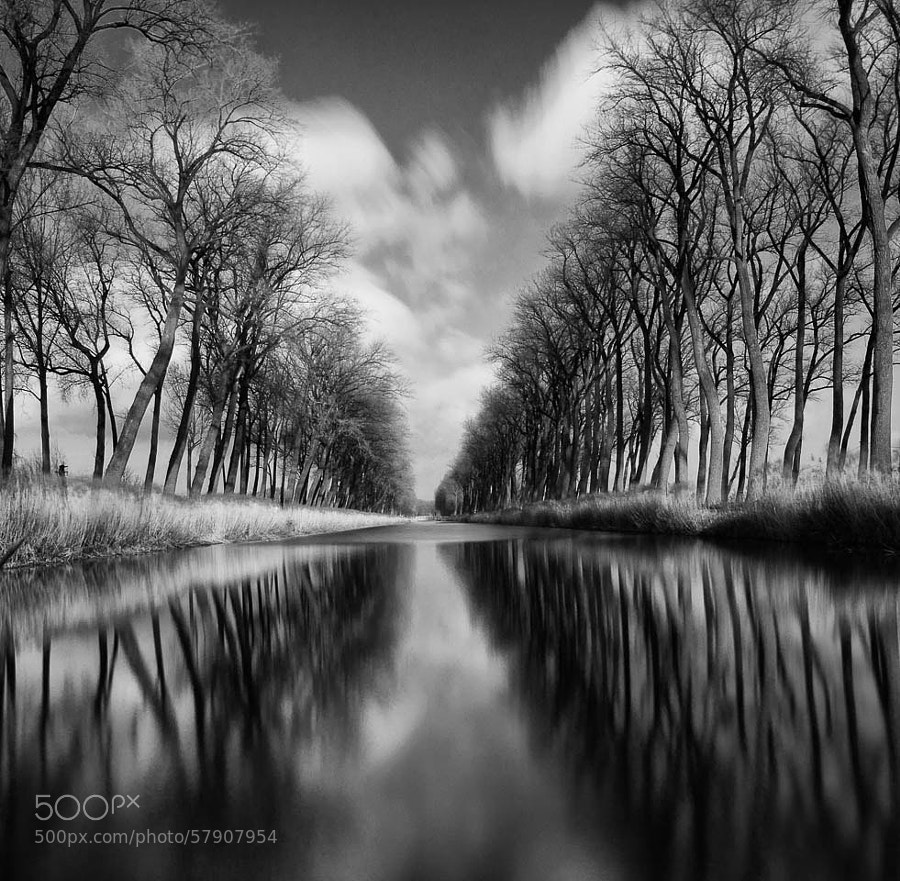
Photograph Smooth River by Johan Vanreybrouck on 500px

Smooth River by Johan Vanreybrouck on 500px

Photograph Silver Reflections 2 by Joe V on 500px Silver Reflections 2 by Joe V on 500px

Photograph Tree & Clouds by Carsten Meyerdierks on 500px

Tree & Clouds by Carsten Meyerdierks on 500px

Photograph Age Old by Chris Fletcher on 500px Age Old by Chris Fletcher on 500px

Photograph Untitled by Luis Beltrán on 500px

Untitled by Luis Beltrán on 500px

Stop for a minute

I’m going to stop you for a second. If you’re scrolling through these quickly, stop. Take the time to really look at each one – one at a time. Do you see the common thread here?

  • Simple
  • Clean
  • No distractions

    Okay, carry on!

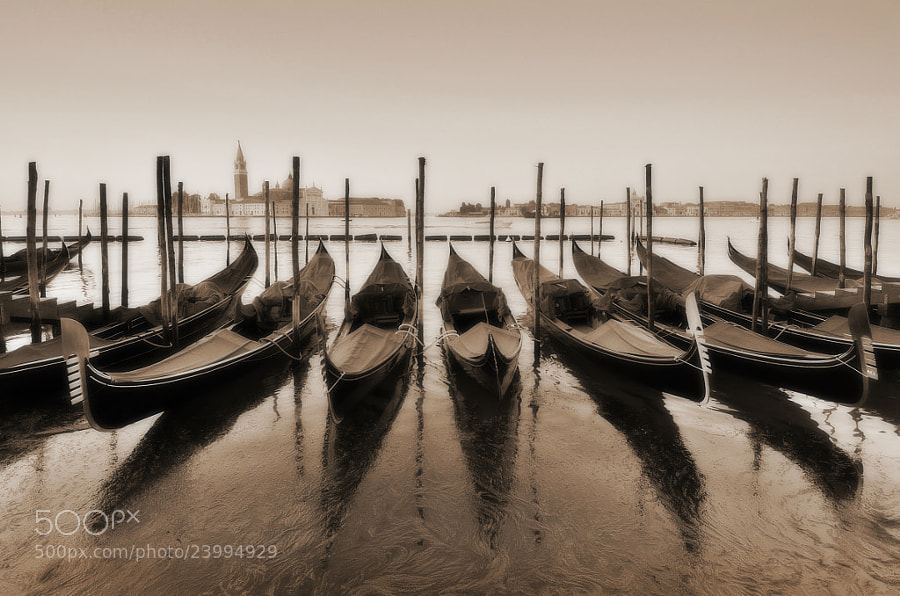
Photograph Venice Nostalgia by Csilla Zelko on 500px Venice Nostalgia by Csilla Zelko on 500px

Photograph In the Days Still Left by Rob Dweck on 500px

In the Days Still Left by Rob Dweck on 500px

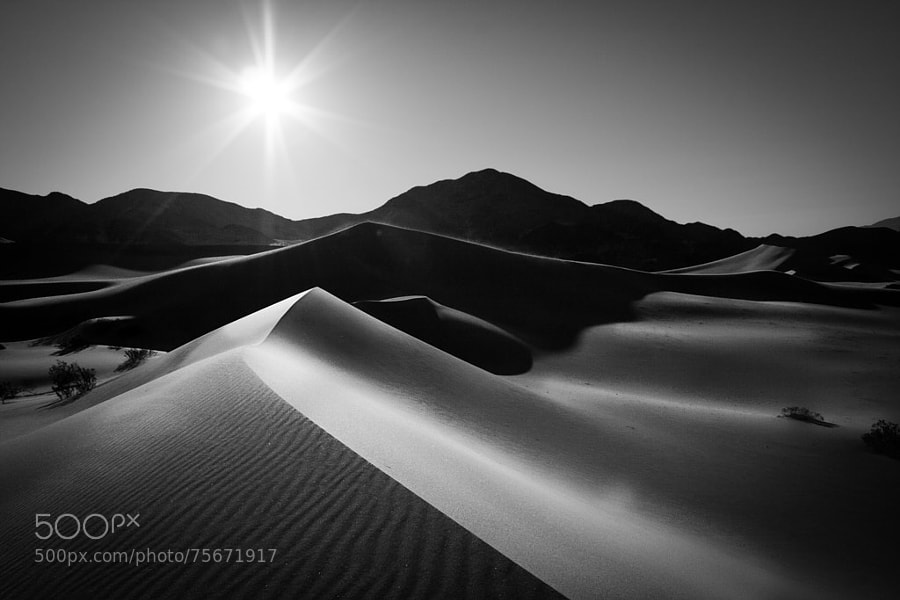
Photograph Ibex Sunrise by Grant Thompson on 500px Ibex Sunrise by Grant Thompson on 500px

Photograph Parched by James Crawford on 500px

Parched by James Crawford on 500px

Photograph Herringfleet by George Johnson on 500px Herringfleet by George Johnson on 500px

Photograph Moment by Majeed Badizadegan on 500px

Moment by Majeed Badizadegan on 500px

Photograph --In Motion-- by Marek Kijevský on 500px –In Motion– by Marek Kijevský on 500px

Photograph Tranquil Dawn by Majeed Badizadegan on 500px

Tranquil Dawn by Majeed Badizadegan on 500px

Photograph Tranquility of Morning by Abi Arga Hadityarista on 500px Tranquility of Morning by Abi Arga Hadityarista on 500px

Photograph B e a c h e d by Chris Oliphant on 500px

B e a c h e d by Chris Oliphant on 500px

Photograph on the road by adam smigielski on 500px on the road by adam smigielski on 500px

Photograph A rural morning by Margareta   on 500px

A rural morning by Margareta on 500px

Photograph 81.2013 - B&W- Light Reflections ... by Pawel Tomaszewicz on 500px 81.2013 – B&W- Light Reflections … by Pawel Tomaszewicz on 500px

Photograph named by lennon baksh on 500px

named by lennon baksh on 500px

Photograph dark master´s crown by Ronny Behnert on 500px dark master´s crown by Ronny Behnert on 500px

Photograph NYC thoughts by RACKHAM  on 500px

NYC thoughts by RACKHAM on 500px

Photograph Kuala Lumpur by Tashi_Delek Nakata on 500px Kuala Lumpur by Tashi_Delek Nakata on 500px

Photograph Dark#04# by Andreas Paehge on 500px

Dark#04# by Andreas Paehge on 500px

Photograph SZEMPONT by Shady S. on 500px SZEMPONT by Shady S. on 500px

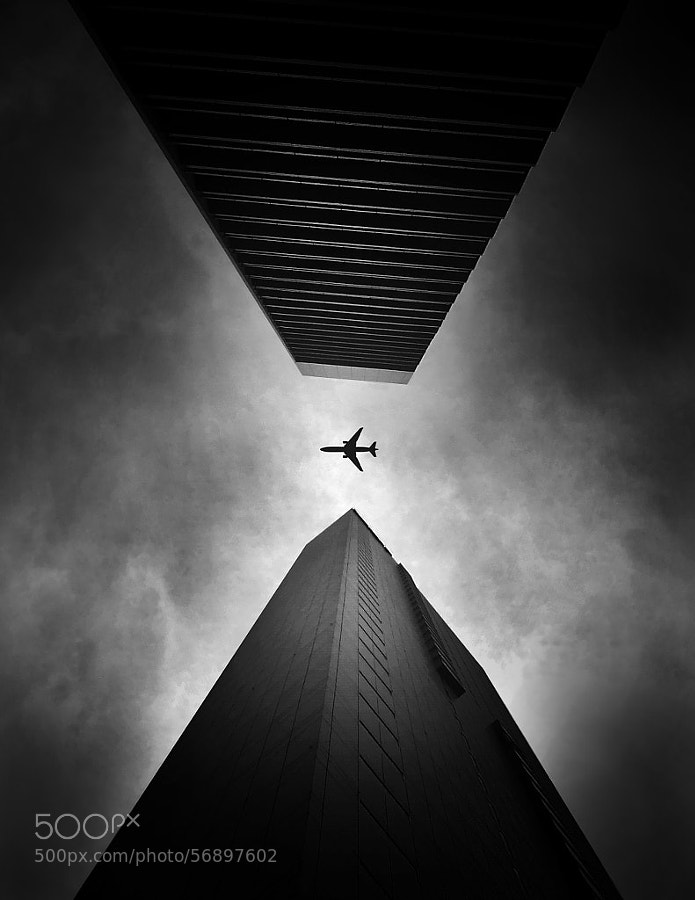
Photograph Chrysler Building II by pixeldreamer  on 500px

Chrysler Building II by pixeldreamer on 500px

Photograph entrap by tet bautista on 500px entrap by tet bautista on 500px

Photograph One Light Only by Sam Commarato on 500px

One Light Only by Sam Commarato on 500px

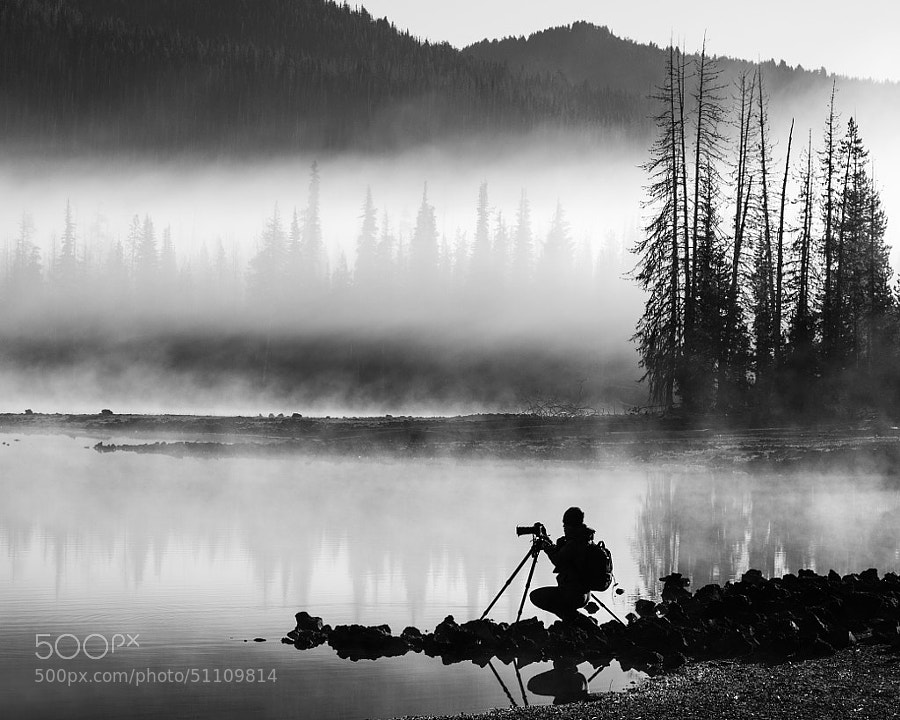
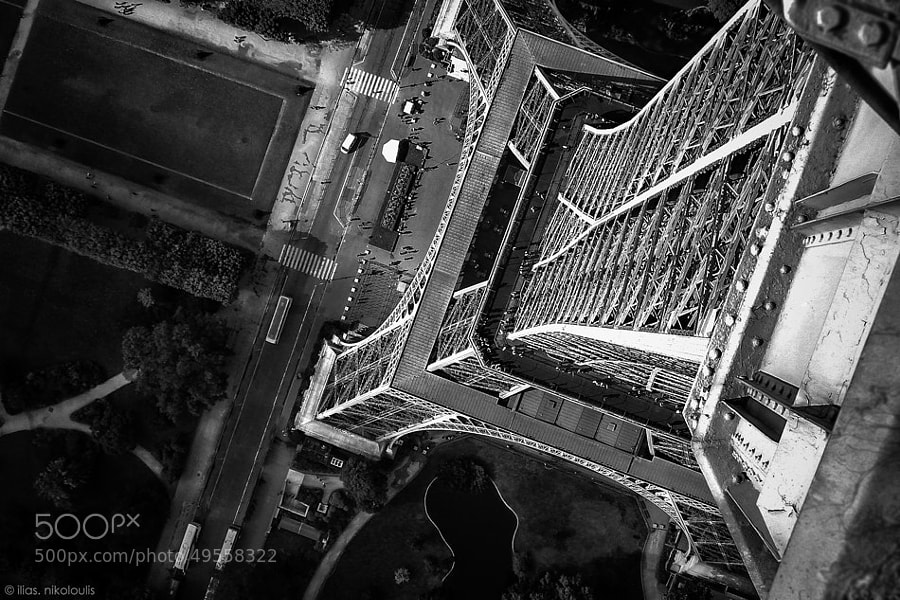
Photograph ..on The 'Tripod' by ilias nikoloulis on 500px
..on The ‘Tripod’ by ilias nikoloulis on 500px

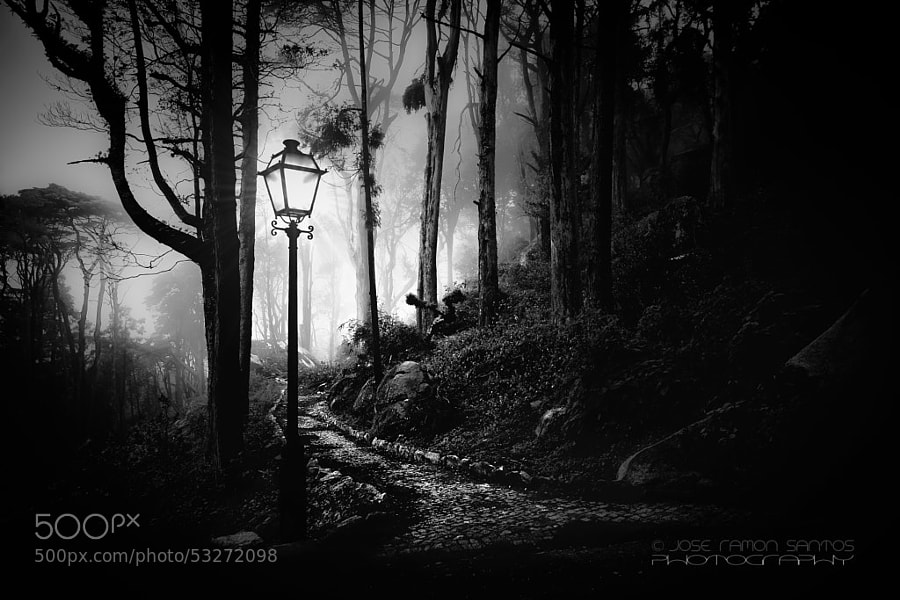
Photograph Foggy path by Jose Ramon Santos Mosquera on 500px

Foggy path by Jose Ramon Santos Mosquera on 500px

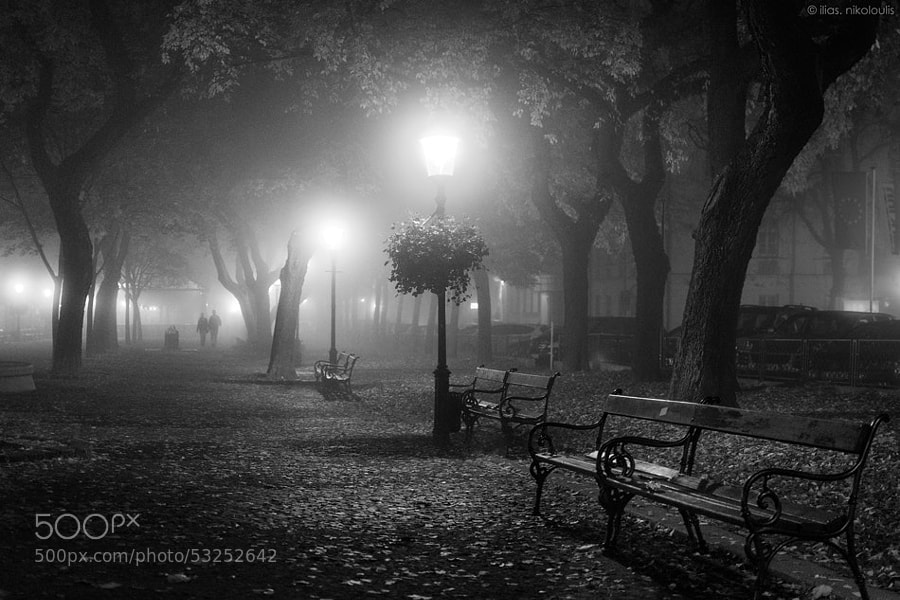
Photograph Foggy Day by ilias nikoloulis on 500px
Foggy Day by ilias nikoloulis on 500px

Photograph Dark Beauty by Jayme Hagen on 500px

Dark Beauty by Jayme Hagen on 500px

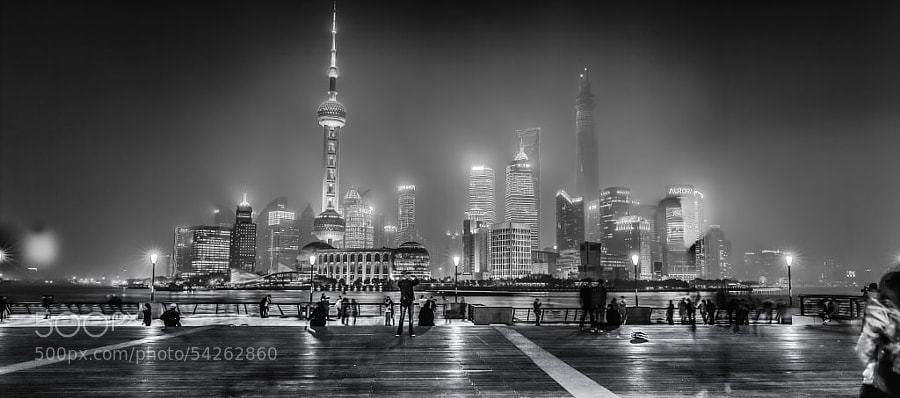
Photograph Shanghai- Bund by Hill Gas on 500px
Shanghai- Bund by Hill Gas on 500px

Photograph Mutianyu by John Crux on 500px

Mutianyu by John Crux on 500px

The post Some Punchy Black and White Landscape Photos to Oooo and Aaah Over by Darlene Hildebrandt appeared first on Digital Photography School.


Digital Photography School

 
Comments Off on Some Punchy Black and White Landscape Photos to Oooo and Aaah Over

Posted in Photography


Weekly Photography Challenge – Black and White Landscape

30 Aug

Earlier today I shared a bunch of stunning black and white landscape images.

Now I want you to show me what  you got in this week’s challenge:

Weekly photography challenge – black and white landscape

Here are few more to get your creative ideas flowing. Keep in mind a landscape can be urban or natural.

By Wendell

more words

By Jason Mrachina

By Nana B Agyei

By Thomas Hawk

By Jason Mrachina

By Jason Mrachina

By L.

By howpin

By Jesse Clockwork

By Pam Link

By Tiago Vidal Dutra

By Mark Stevens

If you check out last week’s collection – flowers – you’ll find some good black and white ideas in there too.

Share your black and white landscape images

Simply upload your shot into the comment field (look for the little camera icon in the Disqus comments section as pictured below) and they’ll get embedded for us all to see or if you’d prefer upload them to your favourite photo sharing site and leave the link to them. Show me your leading lines using pathways and roads in this week’s challenge.

More tips – a new dPS ebook

For more tips on shooting and processing great black and white images, check out our newest dPS ebook The Essential Guide to Black and White Photography.

black-white-ebook

The post Weekly Photography Challenge – Black and White Landscape by Darlene Hildebrandt appeared first on Digital Photography School.


Digital Photography School

 
Comments Off on Weekly Photography Challenge – Black and White Landscape

Posted in Photography


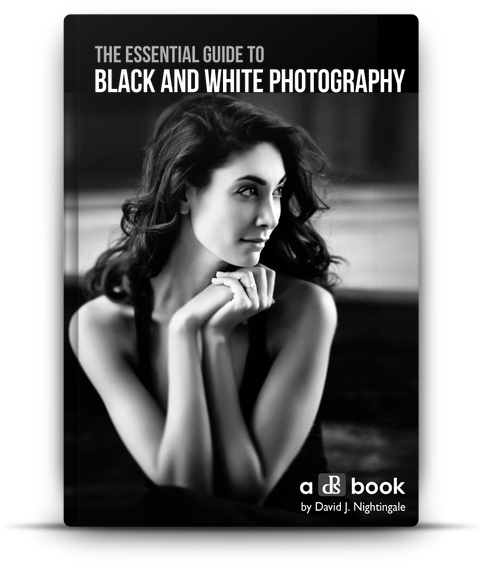
The Essential Guide to Black and White Photography

14 Aug

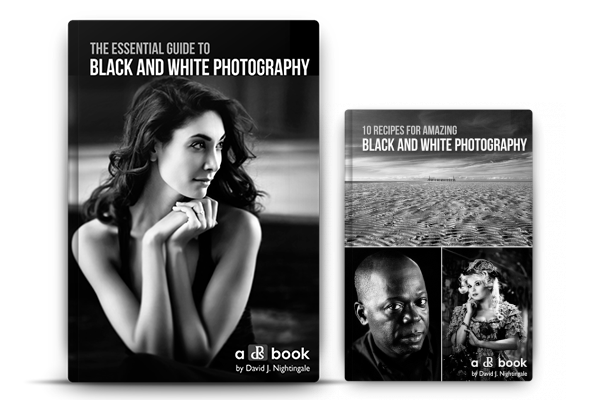
There has been a real buzz of excitement around dPS headquarters this past week because today we’re launching a new eBook that we’re really proud of – The Essential Guide to Black and White Photography – an eBook that will walk you through everything you need to know to take beautiful black and white images!

Blackandwhitephotographycover

My first love with photography was with black and white photography. It was in a high school. The class that I remember sitting in a darkroom with two friends, watching images appear in front of me on paper, sitting in a chemical bath.

At first they were faint grey outlines of the image, but as the chemicals did their work, tone, shade and contrast were added to the image until it had fully appeared.

While our family photos were all shot in colour from the time I was born, as a teenager I would spend hours gazing into those first black and white images that I’d shot and developed. I’m not exactly sure what it was about them but there was a timeless, classic and magical quality to them that I still love today.

It turns out that many of us here at dPS have similar memories and love for the black and white image, and so when we started to talk about putting together this new eBook on the topic we did so with real anticipation and energy.

We looked around for a photographer to author this guide 12 months ago and came across the work of David Nightingale. David not only shoots beautiful images but he’s the creator of one of the most successful courses on the topic so we knew we’d found our dream author and set out to convince him to partner on the project.

Thankfully he agreed and after many months of preparation today we’re excited to announce The Essential Guide to Black and White Photography is available for you to purchase with a very special Early Bird Offer.

The eBook walks you through everything from learning to ‘see’ and take beautiful black and white images, to advice on gear right through to processing your images to perfection.

NewImage

Early Bird Special

NewImageWhen you purchase The Essential Guide To Black And White Photography you’ll also receive a free copy of 10 Recipes for Amazing Black And White Photography.

This bonus eBook contains all the ingredients you’ll need for shots such as an Ansel Adams Landscape right through to vintage images and classic black and white portraits.

These recipes helps you take the amazing teaching in the essential guide, and put it into action in a variety of situations – it’s the perfect companion!

Normally this would cost you $ 9.99 USD, with our new essential guide it’s FREE – but for a limited time only.

Grab Your Copy Today

These two eBooks are yours today to download for just $ 19.99 USD.

They have straight forward explanations and tricks for all skill levels. Anyone wanting to take better black and white photos will get something out of this book.

Pick up yours here today.

The post The Essential Guide to Black and White Photography by Darren Rowse appeared first on Digital Photography School.


Digital Photography School

 
Comments Off on The Essential Guide to Black and White Photography

Posted in Photography


Demystifying White Balance

03 Aug

White Balance (WB) is one of the most challenging camera settings for beginners to learn. White Balance can also be difficult to fix later when you are shooting in JPG format. In this post I’m going to discuss what WB is and how to use it properly when shooting JPGs. I am a food photographer, but keep in mind the WB principals apply the same way, to anything you are shooting.

01White Balance Eggs

The image on the left has a cooler, or bluer, color temperature than the image on the right.

White Balance is one of the most important camera settings because it hugely affects how the colors look in your photos. The White Balance setting is used to tell the camera what type of lighting you are using for your shot, or in what type of scenario you are shooting. White Balance, also known as color temperature, is measured in degrees Kelvin, so I will be referencing that as well. The main reason White Balance is so hard to grasp is because our eyes are so good at filtering light, and our eyes make everything look “normal” under almost any lighting condition. We don’t see the blue or yellow sunlight. It just looks like white light. As you learn more about light and its color temperature, you will start to actually see these slight differences throughout the day.

Where to find the White Balance camera setting

Not all cameras access the WB setting in the same way. Some have a little button on the body of the camera with a “WB” under it, while other cameras make you access this setting in the camera menu. Below is how to find the WB menu for the Canon 5D Mark II. In most Canons the WB menu is located here.

02White Balance camera menu 1

The White Balance is inside the camera settings menus on most cameras.

03White Balance Menu

Here are all the WB settings available for the Canon. Yours make looks slightly different.

If you can’t find your White Balance setting, look it up in your manual or google it for your camera model. If you are having a hard time finding it, make sure you are on the “Manual” camera mode setting, or one of the other modes that your camera will allow you to adjust the WB. Depending on your camera, certain modes will lock you out of the WB menu.

What the WB setting icons represent

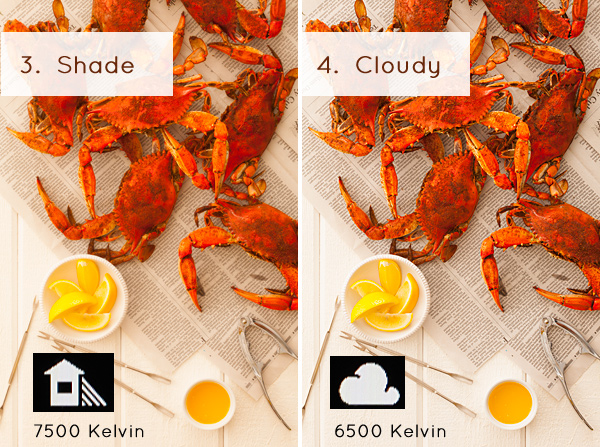
To make things easier, camera manufacturers have come up with some standard icons that represent the most common lighting scenarios. When you set your camera to one of these settings, you are setting it to a specific color temperature, or degrees Kelvin. Depending on your camera, you might only have the first six settings. Advanced cameras have settings 8 and 9.

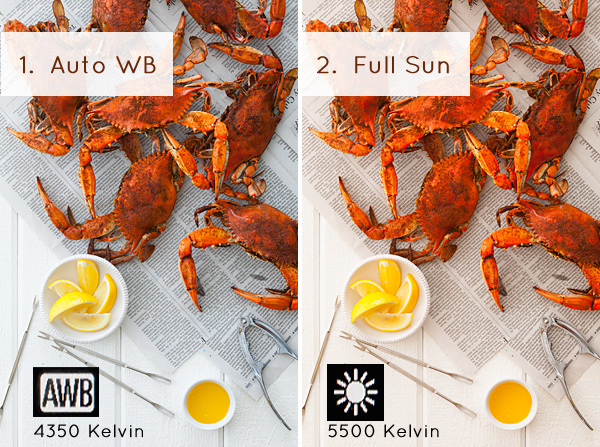
  1. Auto White Balance (AWB) – the camera will analyze the light in the scene that you are shooting, and pick a setting for you. Depending on your camera it will be set anywhere between 2,000 and 10,000 degrees Kelvin.
  2. Full Sun – this is for a bright sunny day, hardly any clouds, with a blue sky, and you are shooting in direct sunlight. Degrees Kelvin will be in the 5000-5500 range.04White Balance 1
  3. Open Shade – the icon is showing a house with shade on the right side. This setting is for when you are taking a picture in the shade, no direct sun, and the sky is blue. This blue sky is actually color contaminating your shot. This setting will “warm” up your shot to counteract the blue light that is coming into your scene. Degrees Kelvin will be 7000-7500.
  4. Cloudy Day – this setting is for when you are shooting on a day when the sky is white with cloud coverage – no blue sky is coming through, the light is very neutral so you don’t need to counteract any blue light contamination. Degrees Kelvin will be 6000-6500.05White Balance 2
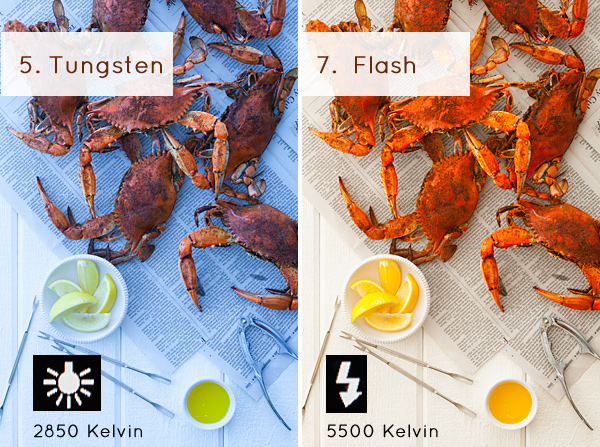
  5. Tungsten Light – this is your standard household light bulb, or studio hot lights. Degrees Kelvin will be 2800-3200.
  6. Fluorescent – this type of light is generally found in commercial spaces. It has a wild array of different colors and temperatures, and some cameras will have multiple choices in this category. Fluorsescent light also makes images look very green so this setting counteracts that by adding a magenta (pinkish) color to balance the shot. Degrees Kelvin is around 3400-3800 – please note – I did not take a shot with the Fluorescent setting because it would just be flaming magenta.
  7. Flash or Strobe Light – this type of light is emulating daylight so usually this setting is the same as full sun and sets the camera to 5000-5500 degrees. If you have a pop-up flash, your camera might change to this setting automatically.06White Balance 3
  8. Custom White Balance – this option is for creating a custom setting for your scene by photographing a white card (or a grey card), having the camera analyze the light on that card, and then setting your camera to this new custom color temperature number.
  9. Manually Set Degrees Kelvin – this setting is for the shooter who fully understands WB and wants to manually control the color temperature in camera.

Numbers 8 and 9 are more advanced, for those shooters who are making custom WB settings to either neutralize light that might be mixed colors, or to use the WB setting creatively. I use number 9 all the time to warm up my food images. I always like to set this to a “warm” setting. So if I am shooting in daylight (and depending on the time of day), I might put my setting at 7000 or 7500 degrees Kelvin to really warm up the shot, as I am always shooting in open shade, using natural light at my studio.

For those of you who are just starting out here in Digital Photography School, it’s very important to learn about your camera’s White Balance setting when shooting only JPGS. As I’ve mentioned above, adjusting the White Balance on JPG images can be challenging and not nearly as easy as RAW files. It simply doesn’t look as nice as when you tweak RAW files. Below you can see the difference in Lightroom between the White Balance adjustments for JPG versus RAW files. It’s on the very top with “Temp” and “Tint”. When you shoot JPGS, you are limited to a slider (left image below) that goes from blue to yellow with a scale range that does not relate to the actual color temperature in degrees Kelvin. On the right side, you can see that the “Temp” scale has degrees Kelvin right next to it so you can easily customize your images.

07Lightroom WB Setting

The image on the left is the editing tab for JPG files and the one on the right is the editing tab for RAW files.

Your assignment, should you choose to accept it

If you are still shooting JPGS, I suggest you give yourself an assignment to really get a feel for White Balance. This assignment is going to be called:

Natural Light White Balance Bracket Test

A bracket is a range of images of the same subject where each image has a setting that has changed. Figure out a shot you can take, preferably on a tripod to make this easier, when you have some time to do this. It doesn’t have to be a studio shot. This could be a landscape or a portrait taken outside. Figure out what your exposure should be. Then find where your White Balance setting is in your camera and take the same shot several times, each time changing the WB setting on your camera – TAKE NOTES. The point here is to learn what each setting looks like. Make notes of where you are shooting, the time of day, and your camera exposures.

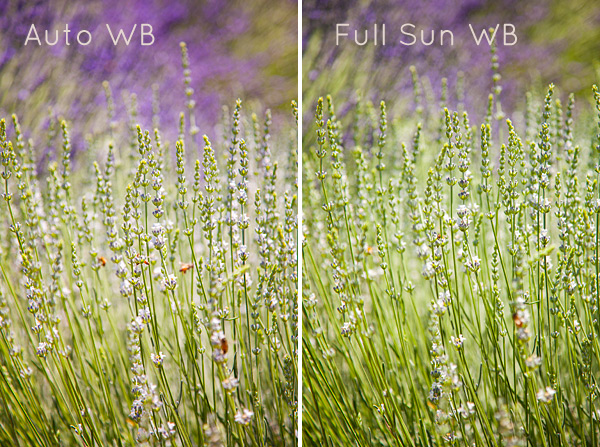
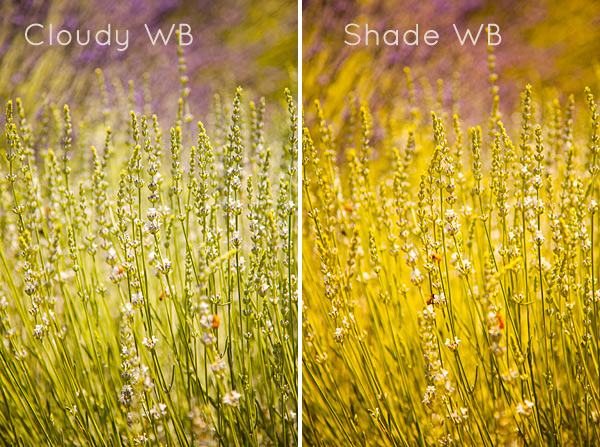
Now, for your bracket test – shoot in the following WB settings: Auto, Full Sun, Shade, and Cloudy. Download your files and have a look – which color do you like the best? Make a note of that for future reference. Try to bracket with different shots too. While you are learning photography, if you are shooting a scene that has mixed lighting or it’s just a moment you are capturing at an event or something, then the Auto WB setting will probably be fine for that. I do use Auto a lot if I’m shooting at a farm or something similar where I just don’t have time to fiddle with it.

A few precautions

I have to mention something here – when shooting outside it can be extremely hard to see your camera’s LCD screen, so you might not even see the difference on the LCD when you take the pictures with the different WB settings. You HAVE to look at these on the computer you edit your files on. Here’s the other thing that’s a total drag. Your camera’s LCD screen is very inaccurate for color and many times for exposure too, especially when you are looking at it outside in daylight. It’s very hard to know if you have the correct exposure or not. I’m assuming that you haven’t learned about your camera’s histogram yet for judging exposure, so until then, for this assignment, try to do this in a situation where you can download your files right away to make sure your exposures are good.

Do some test shots, download, adjust if needed, then shoot your bracket. After downloading your image, name each shot the WB setting it was taken in so you don’t get confused. This is why you took your notes. Some software will tell you what your settings are. If you don’t know whether yours does this or not – write down your info so you can just look up your shot number with your notes. Your assignment should look something like this:

08Lav Test 1

09Lav Test 2

When I took these shots above, it was a bright sunny day with a blue sky and white billowy clouds. Time of day was about 2:45 P.M. I prefer the “Full Sun”, or daylight WB. Now, keep in mind that with shots like these, the “correct” color balance can be very subjective and some people might like the warmer shots and some people might like the cooler shots. I think we can all agree that the shot taken in “Shade” is way too yellow for this scene. Until you learn how to edit RAW files, here is what I suggest you do. Set your WB to Auto if you are still nervous about this, OR match the WB to the lighting condition of your scene. If you have time with the shot, take a bracket of your settings.

What I always suggest to new students is to set your camera, if possible, to shoot in JPG and RAW files. The camera will actually create two images of the same exact shot, one as a JPG and the other as a RAW file. They will have the same image number, with a different file extension. Work on the JPG for now, then when you learn how to edit RAW files, you will have these to go back to, and you will be so happy that you did that. On Canon bodies, the menu settings to change the file format look like these below. Notice I am also picking the largest file size I can for each file type. I always do that in case I ever want to print anything.

Canon Quality Menu

Canon Quality Menu

Alright, now go out there, play with the White Balance and see what it does. Get control of that camera and take your photography to the next level.

The post Demystifying White Balance by Christina Peters appeared first on Digital Photography School.


Digital Photography School

 
Comments Off on Demystifying White Balance

Posted in Photography


Create Better Black and White Photos Using Local Adjustments in Lightroom 5

08 Jul

Local adjustments in Lightroom

I showed you how to convert your photos to black and white in Lightroom in an earlier article. But, considering it dealt purely with global adjustments, the piece only gives you half the story. Global adjustments get you started, but in order to get the best black and white conversion possible you need to make local adjustments as well. This article will show you how to do this.

First, a couple of definitions:

Global adjustments: Any adjustments (to brightness, contrast etc.) that affect the entire image.

Local adjustments: Adjustments that affect only part of the photo.

Before I show you how to make local adjustments, let’s think about why you would do so. Certain things pull the eye more than others. For example, when you look at a photo with people in it, your eye will go straight to them, even if they are small in the frame. This is probably down to human curiosity more than anything, but it works.

Two other things that pull the eye are highlights and contrast. The idea behind making local adjustments is that you can alter the brightness or contrast of certain areas in the frame to influence where the eye goes. This creates a better, more beautiful photo.

Dodging and burning

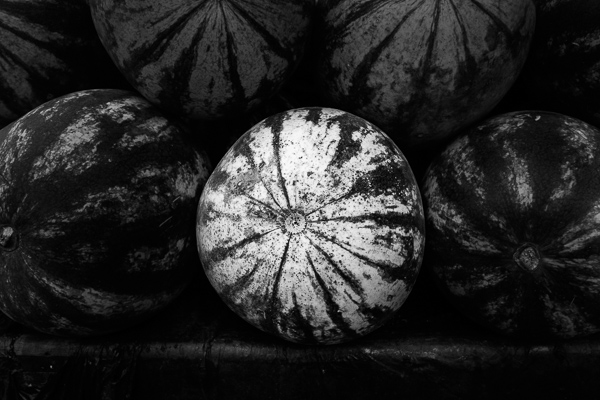
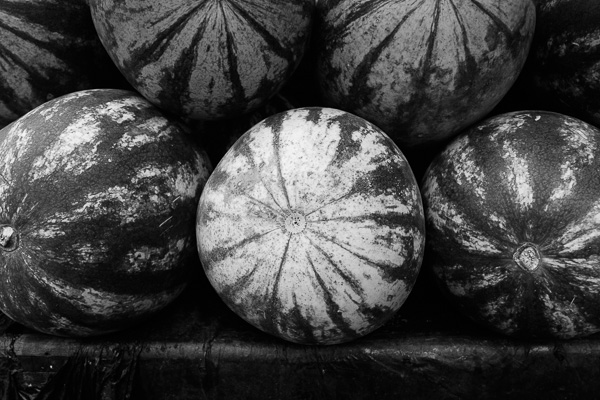
Here’s the photo we’re going to work with in today’s article. I’ve already converted it to black and white using global adjustments.

Local adjustments in Lightroom

As you can see, it lacks a focal point. It also contains lots of beautiful textures which will look great in black and white if we can bring them out.

In order to make effective local adjustments you need to decide what you want to achieve before you start. Here, I decided to make the central watermelon the focal point of the composition. Decision made, it’s just a question of how to achieve it.

Dodging and burning

Although Lightroom itself doesn’t use these terms, you will find them referred to time and again in post-processing. Dodging is the act of making part of the photo lighter, and burning is the act of making it darker. They originated in the chemical darkroom and are also done in photo editing programs like Photoshop.

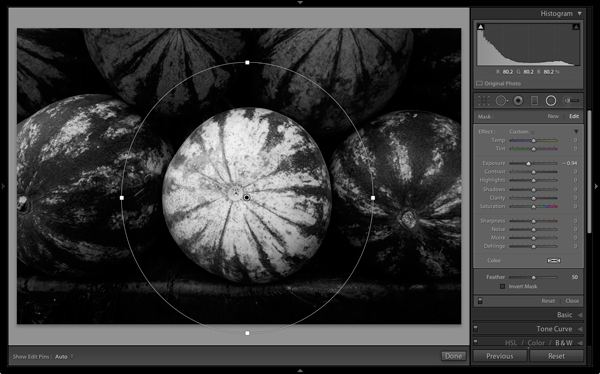
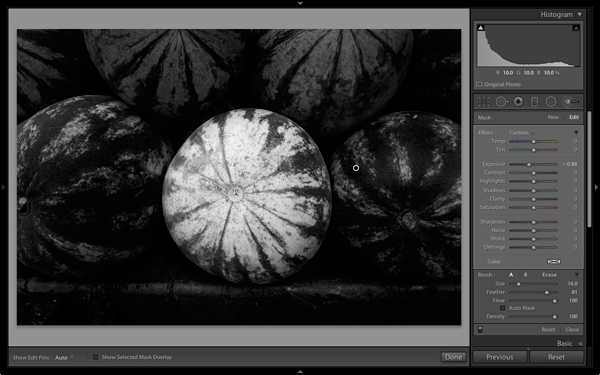
The first step to achieving my aim of making the central watermelon the focal point, is to make the rest of the photo darker. I did that by placing a Radial Filter over the central watermelon and moving the Exposure slider left.

Local adjustments in Lightroom

Note: The Radial Filter is new to Lightroom 5. If you have an earlier version of Lightroom, you can use either Post-crop Vignetting or the Adjustment Brush instead.

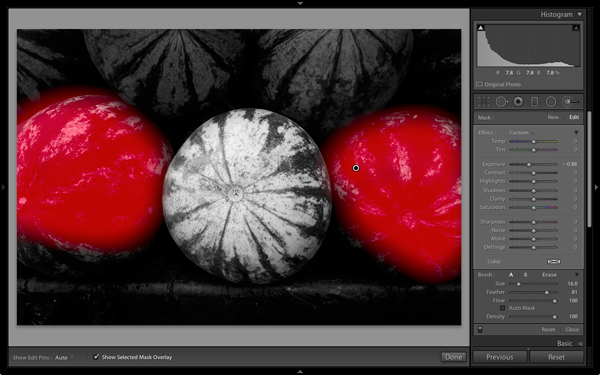
The two watermelons either side of the central one are a little too bright. So I used the Adjustment Brush to select (mask) them and moved the Exposure slider left to make them darker. The screenshot below shows the area covered by the mask. Note how I only painted the top parts of the watermelons as the bottom part was already dark.

Local adjustments in Lightroom

This is the result of the local adjustment.

Local adjustments in Lightroom

Contrast and Clarity

The next step is to improve the appearance of the central watermelon. I can do that by increasing contrast to bring out the beautiful textures of its skin.

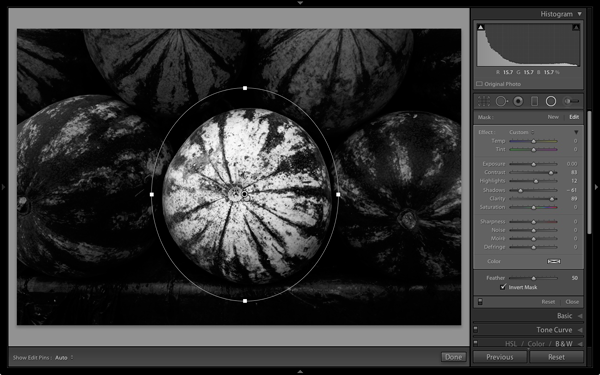
I placed another Radial Filter over the watermelon (you could also use the Adjustment Brush) and ticked the Invert Mask box so the adjustment was applied inside, rather than outside, the filter. Then I increased Contrast and Clarity, and moved the Highlights slider right and the Shadows slider left. The result is a big increase in contrast, bringing out the texture of the watermelon’s skin. Here’s the result.

Local adjustments in Lightroom

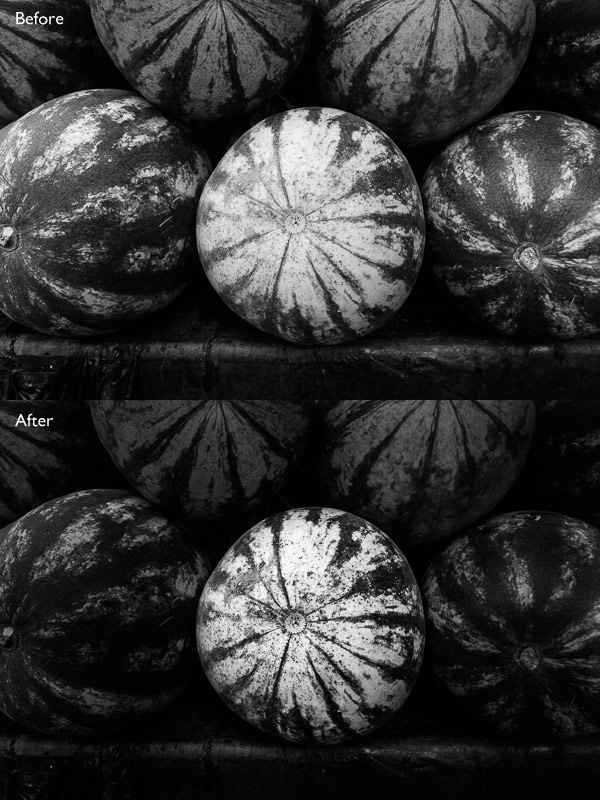
Here are the before and after views so you can see the difference, which is entirely down to the local adjustments.

Local adjustments in Lightroom

That completes my overview of using local adjustments in Lightroom. As you can see, the local adjustments turned an average photo into a much stronger one. There is nothing overly complicated about it, it’s more a matter of training your eye to see in black and white and then deciding how to use the tools that Lightroom gives you to realize your vision.

I’m curious to hear how you use local adjustment when you convert your photos to black and white. Please let us know in the comments.


Mastering Lightroom: Book Three – Black & White

Masterlng Lightroom: Book Three – Black & White by Andrew S GibsonMy ebook Mastering Lightroom: Book Three – Black & White goes into the topic of black and white in depth. It explains everything you need to know to make dramatic and beautiful monochrome conversions in Lightroom, including how to use the most popular black and white plug-ins. Click the link to visit my website and learn more.

The post Create Better Black and White Photos Using Local Adjustments in Lightroom 5 by Andrew S. Gibson appeared first on Digital Photography School.


Digital Photography School

 
Comments Off on Create Better Black and White Photos Using Local Adjustments in Lightroom 5

Posted in Photography


Ebook Review – From Basics to Fine Art Black and White Photography

07 Jul

Ebook Review: From Basics to Fine Art

If you’re interested in black and white photography, the names Joel Tjintjelaar and Julia Anna Gospodarou will probably need no introduction. The work of both photographers has helped define, and push the boundaries of long exposure photography, a relatively new genre in the fine art world.

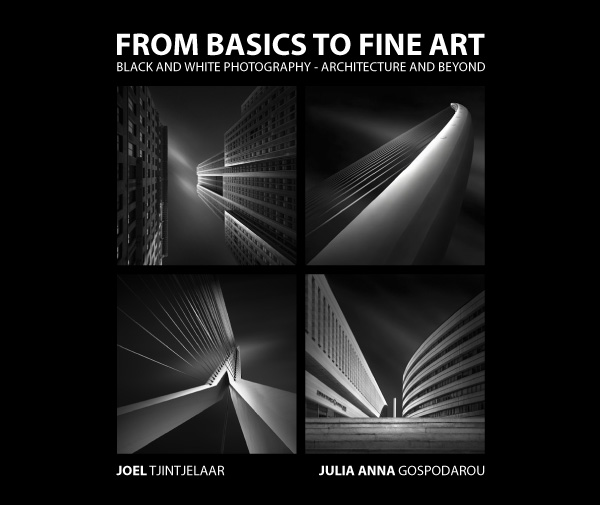
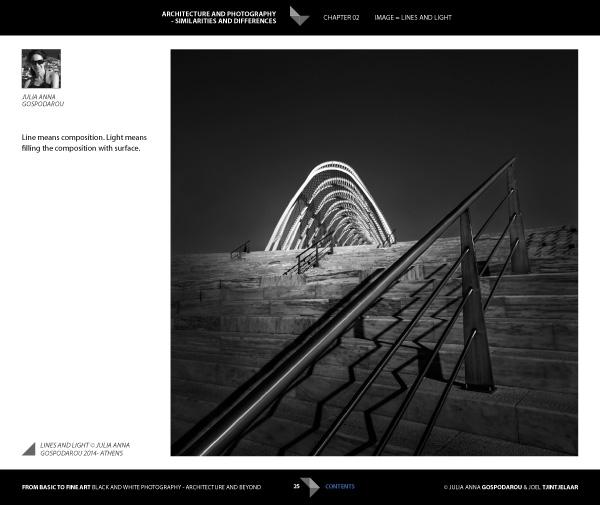
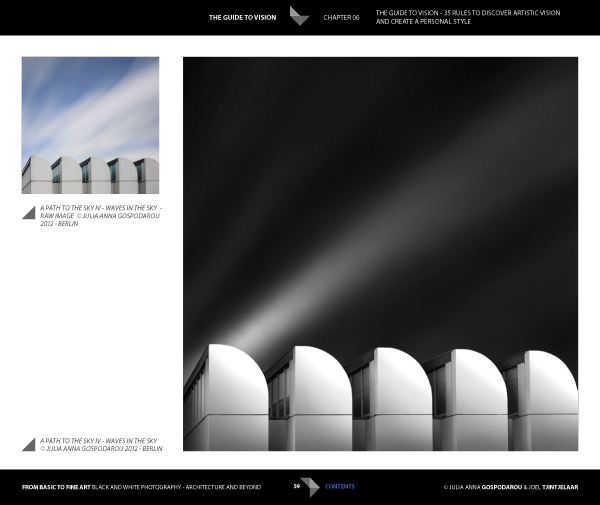
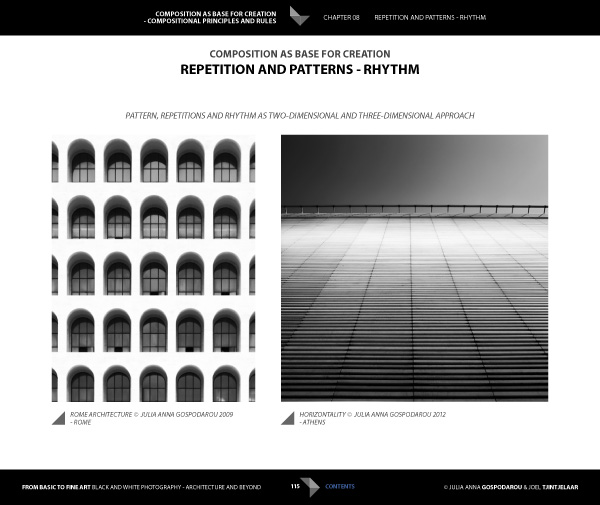
Julia and Joel have joined forces to write a new ebook called From Basics to Fine Art: Black and White Photography – Architecture and Beyond. It is principally aimed at photographers interested in using long exposure techniques to photograph buildings, with some chapters being more general and having a wider appeal.

Ebook Review: From Basics to Fine Art

The contents

The ebook starts with personal statements from the authors exploring their interpretations of the word vision as it relates to architectural black and white photography. For me, the most interesting concept here is expressed by Joel. He talks about long exposure black and white photography as being several steps removed from reality. It is an interpretation, not a reproduction. The intent is not to capture the scene as it looked to the eye, but to present it in a way that represents the artist’s vision.

This theme is continued in the later chapters where Joel explains his post-processing techniques. Take a good look at his photos (follow the link to see some) and think about whether you could achieve similar results. The likely answer is no, because Joel has developed his processing techniques beyond the level that most photographers achieve. Be warned – Joel takes a long time to process his photos and this section of the ebook reflects that. If you’re looking for quick fixes or shortcuts you will need to look elsewhere.

Ebook Review: From Basics to Fine Art

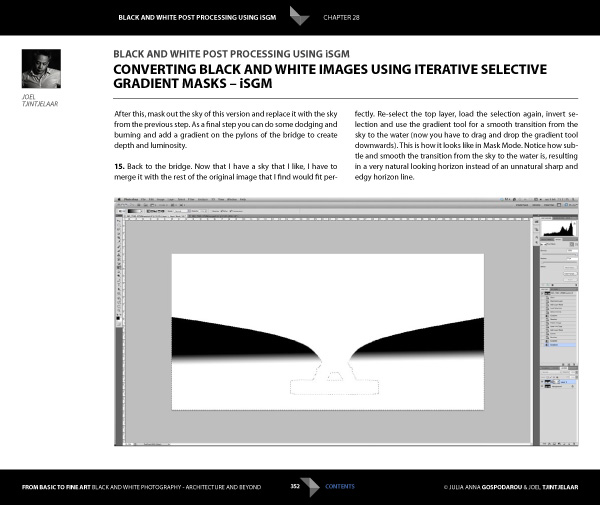
But if you’re looking for a detailed explanation of black and white post-processing techniques that you won’t find anywhere else, then you’re in the right place. Joel explains his workflow, demonstrating how he uses Lightroom and Photoshop, along with plug-ins such as Silver Efex Pro. Most importantly, he shows you how to use what he calls Iterative Selective Gradient Masks, a technique he developed himself, to create the unique look of his black and white images.

He also explores fairly complex techniques modelled on what the calls: the 10 monochromatic commandments for good black and white photography. The idea is that you can create presence and depth in photographs by altering contrast, tonal relationships and defining edges in a way that adds volume, depth and luminosity to the subject.

Don’t be surprised if you don’t understand what this means as it’s an intricate topic that represents a fairly new way of looking at black and white photography. Joel is ahead of everybody else in this respect so you won’t find this information anywhere else. However, the examples in the ebook, and the clear presentation, makes it simple. By the way, the 10 monochromatic commandments I just mentioned are essential reading for anybody interested in black and white photography, regardless of genre.

For me, the aspects covered in the previous paragraphs are the most interesting part of the ebook. There’s more, including some interesting thoughts from Julia (a trained architect) on using light to render the form and volume of buildings. She draws on techniques used in drawing and applies them to photography to get you thinking in a new way about rendering three-dimensional objects in photography.

Ebook Review: From Basics to Fine Art

There’s also an extensive chapter from Joel about long exposure photography, and the equipment (including a detailed look at neutral density filters) and techniques required to get results.

Included is more of the usual stuff that you would expect from a book about architectural photography, including composition, the practical aspects of photographing architecture and a chapter on using tilt-shift lenses. There’s also a useful chapter on pricing your work that will be of interest to professionals (or aspiring professionals).

A niggle: the discussions about composition contain a heavy emphasis on rules that continues throughout the ebook. I’m always suspicious of anybody that claims a certain way of things is a rule, and I’m certainly not convinced of the veracity of using (just to give an example) Fibonacci spirals and then stating that there’s a rule attached to it. I’m a strong believer in principles, rather than rules, and I don’t think Fibonacci spirals are going to help readers improve their composition. This minor complaint aside, there is plenty of good and practical information in this ebook.

Ebook Review: From Basics to Fine Art

Conclusion

I came away from reading this ebook with mixed feelings. On one hand, you have two photographers whose work I admire immensely explaining how they create their images, from their general philosophy to the specifics of long exposures and post-processing.

If you’re ever looked at their photos and wondered how they achieved the results they do then this ebook has the answers. It’s a tremendous act of generosity and sharing. No one else seems to be doing this stuff yet, or at least doing it and teaching it, so that makes some of the content unique. If you’re a fan of either of these authors, and want to learn the secrets behind their work, then it’s a must buy.

Ebook Review: From Basics to Fine Art

My main misgiving comes from the price. It’s an expensive ebook and it would be a shame if this information reaches a limited audience because of that. I realize that expense is a relative concept; the ebook is much cheaper than taking a workshop and you will learn things here that you wouldn’t from any other source. It’s a unique resource, and ultimately the buying audience will decide whether it has a fair value.

I have to admit that what I’d really like to see is a print version of this ebook, properly designed to give precedence to the photos of both authors. Their images would be better enjoyed on the printed page, and a book has the potential to become a lasting testament to their body of work and teachings.

From Basics to Fine Art: Black and White Photography – Architecture and Beyond

You can learn more about or buy From Basics to Fine Art: Black and White Photography – Architecture and Beyond by clicking the link. The price is €49 for those of you in the Eurozone, £39 for anybody in the UK and $ US59 for the rest of the world.

The post Ebook Review – From Basics to Fine Art Black and White Photography by Andrew S. Gibson appeared first on Digital Photography School.


Digital Photography School

 
Comments Off on Ebook Review – From Basics to Fine Art Black and White Photography

Posted in Photography


How to See in Black and White

25 Jun
Andrew’s book Mastering Lightroom: Book Three – Black & White is on sale now at Snapndeals for 40% off. This is a limited time offer, so grab it while it’s available.
 
How to see in black and white

In my previous article I showed you how to convert colour photos to black and white in Lightroom. However, no matter which technique you use, good monochrome photography starts in your mind. If you can learn to see in black and white, you can create beautiful monochrome images. Here are some tips to get you started.

Understand the appeal of Black and White

Colour photography is very literal. It depicts the world as it really is. Black and white, on the other hand, gives us a new way of seeing. Removing colour takes us a step away from reality and towards creating an artistic interpretation. Shape, form, tone and texture are revealed to the eye, rather than overpowered by colour.

But the appeal of black and white photography goes deeper than that. The monochrome image, at its best, is beautiful. It’s art. It captures the beauty and soul of the subject. It moves people. It’s powerful and it endures.

Learn to see tonal contrast

Tonal contrast happens when there is a clear difference in brightness between your subject and the background. Here are two examples.

How to see in black and white

The photo on the left shows a white sticker pasted on a door. There is tonal contrast between the light and dark tones. In this image you find a light tone (the sticker) surrounded by dark tones (the door), a type of tonal contrast that works very effectively in Black and White.

The photo on the right shows a dark statue against a near white background. This is the opposite type of tonal contrast, where a dark toned subject is shown against a light background.

Tonal contrast is the basis of many successful black and white photos. Images that make good use of tonal contrast convert to monochrome with little effort. Let’s take a look at a couple of practical examples.

How to see in black and white

In this portrait I positioned the model against a dark background to take advantage of the difference in brightness between the light falling on her and the light falling on the trees behind her (which were in shade). If you want to create powerful black and white portraits, this style will serve you well.

How to see in black and white

Here I took advantage of the difference in brightness between the twigs in the home-made broom and the dark stones. You can see the same principle in action as in the portrait, a light toned subject against a dark toned background. I knew this would make a strong black and white image because it contains two things that look good in monochrome: texture and tonal contrast.

You can learn more about tonal contrast in my article Improving Composition with Tonal Contrast.

Simplicity and negative space

All the photos I’ve shown you so far have two more things in common. One is that the composition is very simple. I’ve deliberately moved in close to the subject and framed it in such a way to eliminate distracting elements. An added benefit is that the tonal contrast becomes much stronger when the composition is simplified.

Here’s another example.

How to see in black and white

I moved in close to crop everything but the vendor’s hand and the Chairman Mao pocket watch in this photo taken in an antique market in Shanghai. The simple composition emphasises the texture of the watch and hand as well as the difference in brightness between them and the background.

Negative space is the area surrounding your subject. It is negative space if it doesn’t contain much detail. In black and white, it would be an area of white, black or grey that creates a kind of frame for your subject, giving it room to breathe within the composition.

How to see in black and white

This portrait is a good example of using negative space. The model’s face (a light tone) is surrounded by an area of dark space that contains just enough detail for you to see what it is (his shirt and the wall behind him). In this portrait you can see the principles of tonal contrast, negative space and simplicity of composition working in harmony together.

My article Composition and Negative Space goes into this topic in more detail.

Monochrome previews

How to see in black and white

So far we’ve looked at some of the elements that contribute to strong Black and White images, but that may not be a great help when you’re faced with a colourful subject and the colours are so strong that you can’t visualize how it will turn out in Black and white. Don’t worry if this happens to you – it takes time and practise to learn to see in monochrome.

One thing you can do to help you visualize the subject in Black and White is switch to your camera’s monochrome mode. The key is to select the Raw format, so that the image is recorded in full 12 or 14 bit colour (essential for good Black and White conversions).

But when you play back your images on the camera’s LCD screen, they will be presented in Black and White. If you have a camera with an electronic viewfinder it may even display the scene in black and white as you look through it. This helps you see how the colours in the scene translate to the grey tones that make up a monochrome image. If the image is a little flat, which will happen if you’re not shooting in bright sunlight, increase the contrast to add some pop.

My article Mastering Monochrome Mode goes into this in more detail.

Over to you

Hopefully these tips will help you see in black and white and create better monochrome images. Do you have any tips for seeing in black and white? Please add them in the comments below.


Mastering Lightroom: Book Three – Black & White ebook coverMastering Lightroom: Book Three – Black and White

Andrew’s book Mastering Lightroom: Book Three – Black & White is on sale now at Snapndeals for 40% off. This is a limited time offer, so grab it while it’s available.

The post How to See in Black and White by Andrew S. Gibson appeared first on Digital Photography School.


Digital Photography School

 
Comments Off on How to See in Black and White

Posted in Photography


How to Convert Photos to Black and White in Lightroom

18 Jun

Andrew’s book Mastering Lightroom III is on sale now at Snapndeals for 40% off. This is a limited time offer, grab it while it’s available.

Black and white conversions in Lightroom

Today I’m going to show you just how easy to use, and effective Lightroom is, for converting colour photos to powerful black and white images.

The key to getting the best out of it is to use the Raw format rather than JPEG. The extra bit depth means they contain far more information for Lightroom to use. The end result is that you have more options and get smoother conversions.

This article concentrates on global adjustments – those that affect the entire image (I’ll leave local adjustments to another article).

There are two ways to convert an image to black and white in Lightroom:

  1. Set Treatment to Black & White in the Basic panel
  2. Go the B&W tab in the Color/HSL/B&W panel

Let’s take a look at each of these in turn.

Set Treatment to B&W in Basic panel

A good way to start is with a colour image that has already been processed. Before you start, set Saturation and Vibrance to zero, and adjust the White Balance sliders to give a neutral colour balance (the Auto setting works well most of the time).

Black and white conversions in Lightroom

This preps the image for the conversion. Here’s my starting image.

Black and white conversions in Lightroom

And this is what it looks like with Treatment set to Black & White.

Black and white conversions in Lightroom

The next step is to refine the conversion using the Tone sliders. These are the most useful ones, working in order from top to bottom:

Exposure – sets the overall brightness of the image. Adjust this first. If you started with a processed colour image, you may not have to.

Contrast – sets the overall contrast. Most black and white images benefit from higher contrast than you would use for colour processing. Set Contrast second.

Shadows – adjusts the darkest tones in the photo independently of the others. Use this to make the shadows lighter or darker.

Highlights – adjusts the lightest tones independently of the others. Use it to make the highlights lighter or darker.

With my photo I increased Contrast, moved the Highlights slider left to make the model’s skin darker, revealing texture, and the Shadows slider left to darken the shadows and add drama. Here’s what it looks like so far.

Black and white conversions in Lightroom

There are three other sliders you may find useful:

Clarity – increases mid-tone contrast, emphasizing sharpness and texture. A side effect is that the image often becomes a little darker when you increase Clarity, so you may need to return to the Exposure or Shadows sliders to lighten the photo.

My article Four Ways to Improve Your Photos With the Clarity Slider in Lightroom goes into the topic in more depth.

White Balance – after you have used the other sliders, you can go to the Temp or Tint sliders and move them to see the effect they have on your conversion. These sliders change the colour balance in the original photo, which in turn alters the tones in the image. Experiment with these to see if they improve the tones in your image.

These three images show the difference it can make. Moving the Temp slider altered the skin tones (see second image), and moving the Tint slider mostly affected the green background (see third image). The differences are subtle, you may have to look closely to see them.

Black and white conversions in Lightroom

Activate the B&W tab in the Color/HSL/B&W panel

The second option for converting photos to black and white in Lightroom is to go straight to the B&W tab in the HSL/Color/B&W panel.

Black and white conversions in Lightroom

Again, it is a good idea to start with a processed colour photo with a neutral colour balance and Vibrance and Saturation zeroed.

Black and white conversions in Lightroom

The eight sliders under this tab let you make the tones corresponding to the colours in the original photo lighter or darker.

For example, if you move the Blue slider left Lightroom makes any grey tones converted from blue darker. Move it right and it makes them lighter. The most obvious use of this slider is for making blue skies go dark and dramatic in black and white.

Black and white conversions in Lightroom

The other coloured sliders work the same way. Alternatively you can use the Targeted Adjustment Tool. To do so, click on the Targeted Adjustment Tool icon (see below red arrow on the left) and move the mouse over the grey tone you wish to adjust in the image. The Targeted Adjustment Tool icon and a cross-hair appear (see below, arrow on the right). Hold the left mouse button down and pull the mouse down to make the tones underneath the cross-hair darker, or up to make them lighter. Lightroom analyses the colours under the cross-hair and moves the appropriate colour sliders accordingly.

Black and white conversions in Lightroom

Be careful not to move the colour sliders too far or you will introduce unwanted artefacts and haloes into the image. The point at which this happens depends very much on the content of your photo. The best approach is to get in the habit of zooming to 100% and checking to make sure that there are no haloes around edges, and that the transitions are smooth in the affected colours.

This screenshot shows what happens when you push the sliders too far (in this case the Blue slider to -58). The edge of the sculpture is marked by a thin halo that isn’t present in the original photo:

Black and white conversions in Lightroom

Note that the initial position of the colour sliders in the B&W tab depends upon a setting in the Presets tab in Preferences. If the Apply auto mix when first converting to black and white box is unticked, the sliders will be in their zeroed positions.

If it is ticked, then Lightroom sets them according to what it calculates will make a good conversion. My preference is to have the colour sliders zeroed, and it’s what I advise you to do. If you’d like to see Lightroom’s conversion, you can press the Auto button at the bottom of the B&W tab at any time.

Black and white conversions in Lightroom

After you have finished in the B&W tab you can go to the Basic panel and make further adjustments with the sliders as explained above. Of course, if you elected to go to the Basic panel first, you can then go to the B&W tab to make changes there. In reality you may find yourself switching between the two panels as you refine the image.

How do you know which panel to go to first? That depends on the image. If it’s a photo with strong colour, then the B&W tab will probably be the most useful. But if the colours are not so strong, then the Basic panel may be better. It’s a judgement call that becomes easier with experience.

I’ve only touched on the topic of black and white conversion in this article. Now you have learnt how to make global adjustments. In my next article I will show you how to make local adjustments to really bring your black and white images to life.

Andrew’s book Mastering Lightroom III is on sale now at Snapndeals for 40% off. This is a limited time offer, grab it while it’s available.


Mastering Lightroom: Book Three – Black & White
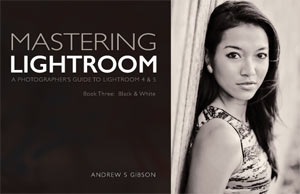
Masterlng Lightroom: Book Three – Black & White by Andrew S GibsonMy ebook Mastering Lightroom: Book Three – Black & White goes into the topic of black and white in depth. It explains everything you need to know to make dramatic and beautiful monochrome conversions in Lightroom, including how to use the most popular black and white plug-ins. Click the link to visit my website and learn more.

The post How to Convert Photos to Black and White in Lightroom by Andrew S. Gibson appeared first on Digital Photography School.


Digital Photography School

 
Comments Off on How to Convert Photos to Black and White in Lightroom

Posted in Photography