RSS
 

Posts Tagged ‘White’

How to Choose a Black and White Plug-In

02 Sep
Best black and white plug-ins

Photo converted to black and white in Topaz B&W Effects 2.

While Lightroom and Photoshop are sophisticated, advanced Raw converters and image editing programs, there are still many things that they don’t do as well as third party applications. One of these is converting photos to black and white. But, there are so many plug-ins available that it can be difficult to know which one to buy. This guide will help you decide.

Why buy plug-ins?

A common theme with black and white plug-ins is that they contain many more ways to emphasize texture than Lightroom and Photoshop. This is important with black and white, as texture is an important part of the composition. In Lightroom and ACR (Adobe Camera Raw) you can use the Clarity slider to emphasize texture, but it’s a blunt instrument compared to the options available in these plug-ins.

Another feature of most of these plug-ins is that they come with an extensive set of presets that you can use as a starting point for your black and white conversion. Just browsing through the presets and seeing what you can do to your photos will inspire you.

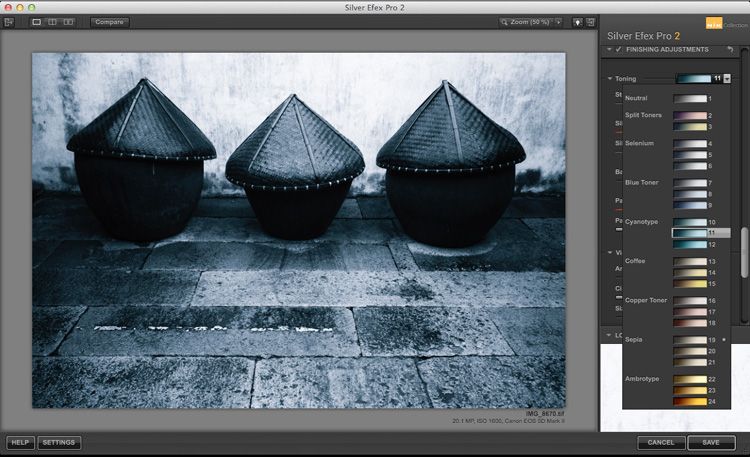
Some presets imitate old printing processes such as cyanotypes and wet plate photography. Others emulate black and white films, some of which are no longer available.

Silver Efex Pro 2
Best black and white plug-ins

Split toning in Silver Efex Pro 2.

Silver Efex Pro 2 is made by Nik software and regarded by many photographers as the ultimate black and white conversion plug-in. You can buy Silver Efex Pro 2 along with the other applications in the Nik Software range in a bundle for $ 149. While you can’t buy Silver Efex Pro 2 as a stand-alone application, it also means that you get the rest of Nik software range included with it.

Who is Silver Efex Pro 2 for?

Silver Efex Pro 2 is for the professional, or advanced hobbyist photographer, who wants to take black and white processing to the ultimate level. If you are serious about black and white photography, you will love this plug-in.

Reasons for buying Silver Efex Pro 2:

  • It has more options than Lightroom or Photoshop. There are more ways of adjusting tonal values, toning images, and adding borders. The Structure, Fine Structure, Dynamic Brightness and Soft Contrast sliders in Silver Efex Pro 2 provide a lot of ways to enhance texture, an important element of many black and white images.
  • It has a good workflow. The History in Silver Efex Pro 2 makes it easy to see where you’ve been and where you are going with your black and white conversion.
  • It comes with a number of good presets that help you obtain good black and white conversions right away.
  • It mimics black and white film grain. If you are interested in creating images that look like they were taken with film, Silver Efex Pro 2 lets you imitate the grain structure of 18 commonly used black and white films.
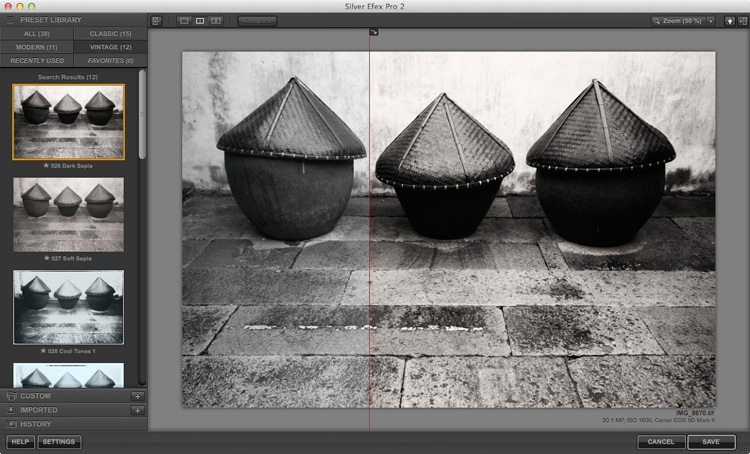
  • It has the standard Before and After view. It also has a Split View that I rather like. You can move the red dividing line to see more of one version or the other (see below). You can also zoom-in to view the differences in fine detail.
Best black and white plug-ins

Exposure

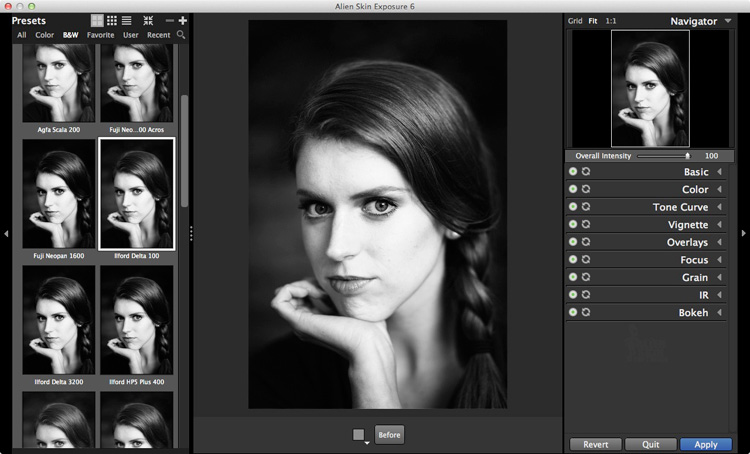
Exposure by Alien Skin Software is a plug-in designed to give your digital photos an analog look. It comes with hundreds of black and white and colour presets that imitate the look of film and antique processes. Alien Skin Software are not merely imitating though – a lot of research has gone into replicating the grain structures of all the film types featured in their software. Where the film wasn’t available, they used photo archives.
Best black and white plug-ins

Just like Silver Efex Pro 2, the presets are a starting point, and tools are provided to make adjustments, including an Intensity slider that lets you fade the effects created by the plug-in. You can create and save your own presets for future use.

Who is Exposure for?

Exposure is for photographers who want to mix the look of analog photography, with the speed and convenience of digital. If you yearn to make your photos look like they were shot with film rather than a digital camera, then this is a good plug-in to use.

Exposure is used by a lot of photographers to create effects that you can’t create in Lightroom, or would take a long time in Photoshop. While it seems mainly pitched at portrait, fashion and wedding photographers, you can apply the filters to virtually any type of photo. It’s a lot of fun to use.

Reasons for buying Exposure:

  • It lets you emulate the look of black and white film. There are over 20 film presets (plus variations) that let you apply an analog look to your digital photos.
  • Exposure is for colour as well as black and white. While this isn’t a concern if you are only interested in the plug-in for black and white conversions, there are some beautiful colour presets and film emulations to use.
  • It lets you add creative borders, light leak effects and scratches to your photos.
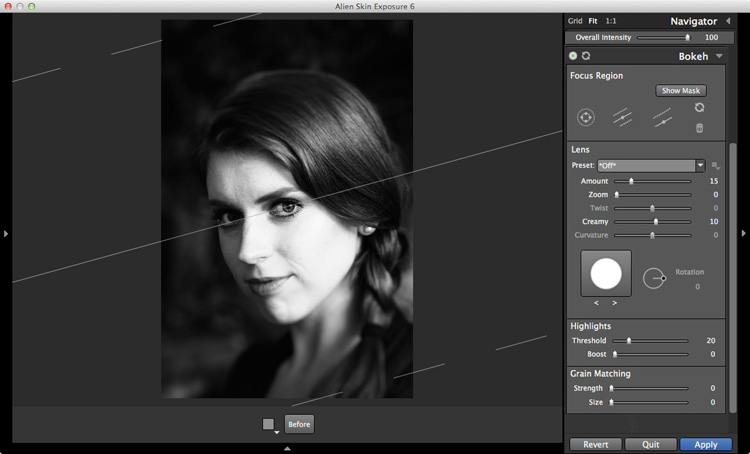
  • Exposure lets you add sophisticated lens blur effects to your images, emulating the look created by using specialist lenses such as tilt-shifts and Lensbaby optics (see bel0w).
  • It has an easy to use batch processing tool that makes processing multiple images very quick and easy.
Best black and white plug-ins

Perfect Black & White

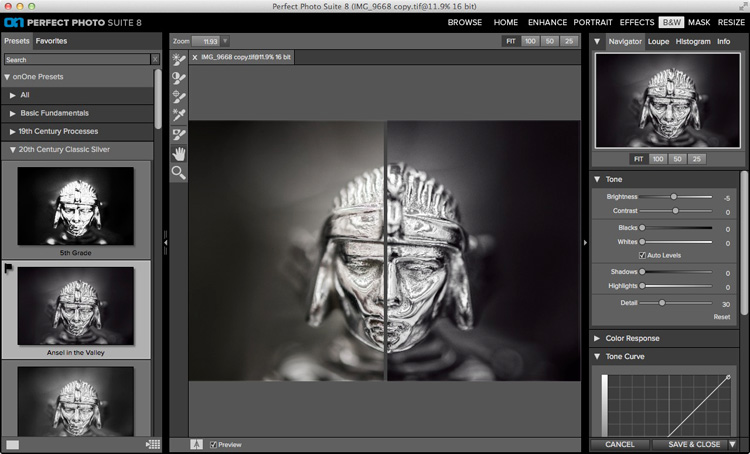
Perfect Black & White comes as part of OnOne Software’s Perfect Photo Suite. There are six modules within the suite, giving you the use of the additional ones if you buy it.

Another benefit of Perfect Photo Suite is that it comes with built-in layers. When you convert a photo to black and white it is placed on a layer with an Opacity slider that lets you merge it with the original colour image. While this feature is of limited use for black and white conversions, it may come in handy with the other programs included in the suite.
Best black and white plug-ins

Who is Perfect Black & White for?

This software is ideal for the photographer who wants to experiment with black and white photography and take advantage of the other programs that come with the suite. You will only appreciate the power and potential of this software by using it and experimenting with all the tools.

Reasons for buying Perfect Black & White:

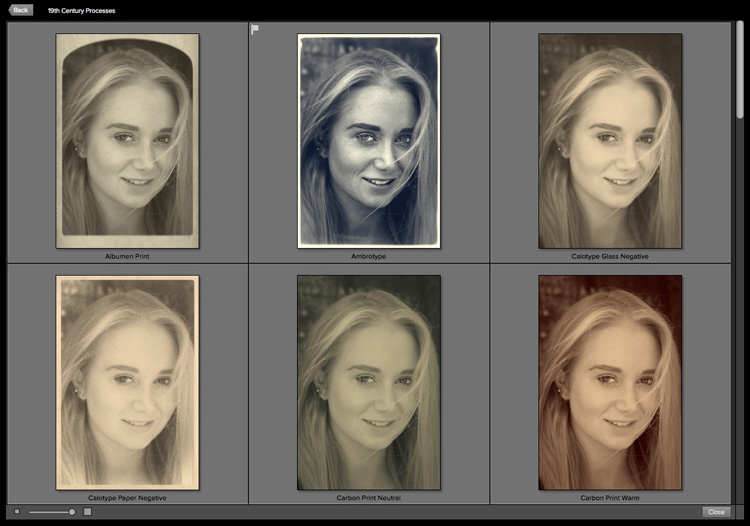
  • It has presets that emulate old photographic processes such as 19th century processes such as the Albumen Print and Ambrotype (see below).
  • There is a good selection of creative borders that you can add to your images.
  • The Sharpening options in it are more advanced than those in Lightroom and Photoshop. There are three types of sharpening to choose from: High Pass, Progressive and Unsharp Mask. High Pass is the most aggressive, while the others let you apply Sharpening in a more subtle fashion.
  • It works in conjunction with the other modules in Perfect Photo Suite. For example, you can use Perfect Portrait to retouch portraits before (or after) converting them to black and white. Or Perfect Resize to enlarge your photo files to a suitable size for making large prints. Or add textures to your photos using layers.
Best black and white plug-ins

Some of the antique process presets available in Perfect Black & White.

B&W Effects 2

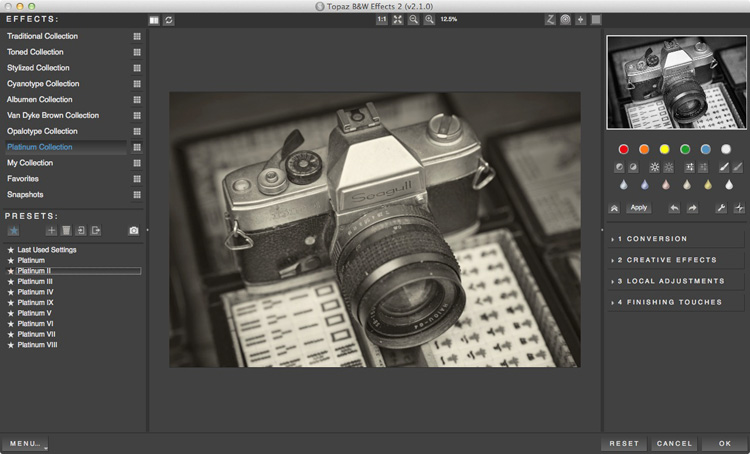
B&W Effects 2 is a Lightroom plug-in made by Topaz Labs. The main strength of this plug-in is its strong collection of presets, many of which imitate old processes. There are over 200 to choose from, and many of them have an interesting look which you don’t get from the presets in the other plug-ins mentioned here.
Best black and white plug-ins

Who is B&W Effects 2 for?

B&W Effects 2 is for photographers who want to take advantage of its extensive preset range as a basis for creative black and white conversions. The Snapshots feature gives you a history function that most of the other plug-ins lack, albeit one that you have to activate yourself by taking Snapshots at important points in the processing stage. B&W Effects 2 is also good at increasing detail in mid-tone areas and bringing out texture, an important part of a good black and white conversion.

Reasons for buying B&W Effects 2:

  • Lots of presets for emulating old printing processes. Have you ever wanted to try out cyanotype, albumen, van dyke brown, opalotype or platinum printing? The cost and impracticality associated with these processes puts them out of reach of all but dedicated enthusiasts. But B&W Effects 2 has all these and more.
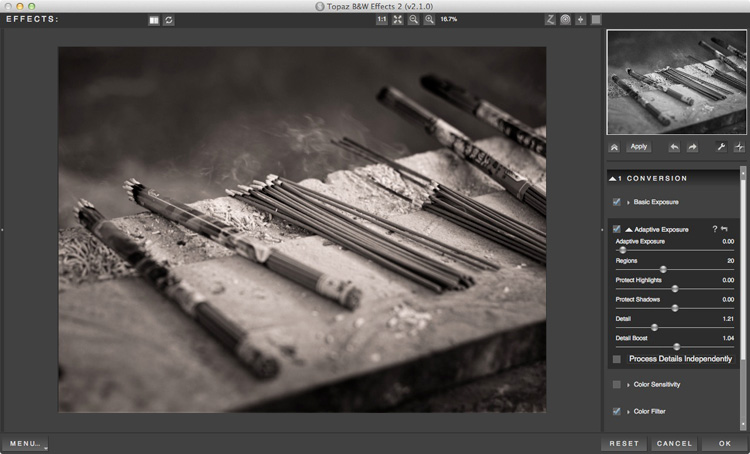
  • It uses Adaptive Exposure technology to add mid-tone contrast in a way that can’t be replicated in Lightroom or Photoshop. It works by analyzing the image, breaking it into regions and applying the adjustment to each region individually. The best way to appreciate what this tool can do is to try it out for yourself.
  • The Detail and Detail Boost sliders bring out details and texture, completing the work done by the Adaptive Exposure sliders. You’ll be amazed by how much detail and texture you can bring out with these sliders.
Best black and white plug-ins

DxO FilmPack

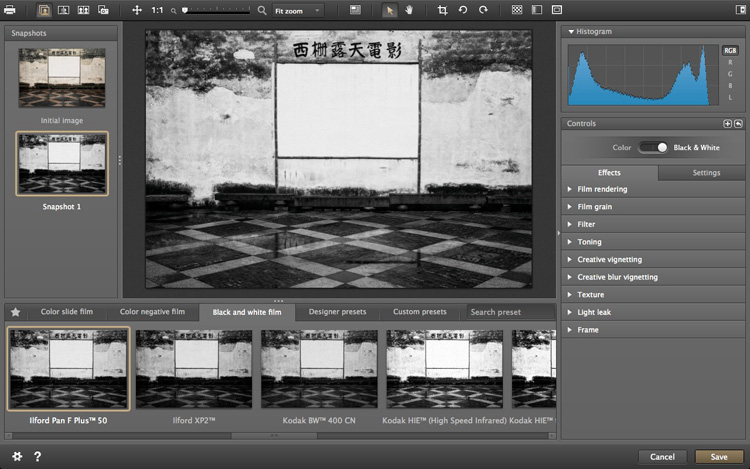
All the plug-ins we’ve looked at so far include some sort of film simulation, but DxO have taken it a step further with their FilmPack plug-in. According to their website, DxO FilmPack lets you, “Perfectly reproduce the quality, style, colours, and grain of the most famous analog films.”

Like Exposure, DxO FilmPack works in both colour and black and white.
Best black and white plug-ins

Who is DxO FilmPack for?

DxO FilmPack is for photographers who want to process their digital images so that they look as if they were taken on film. But it goes further than that, and offers a variety of creative effects that you will find useful in creating emotive monochrome images.

Reasons for buying DxO FilmPack:

  • Lots of film emulation presets, based on an analysis of the films themselves.
  • Features shared by most of the plug-ins listed here – the ability to add borders and textures, toning, light leaks effects and creative blur.

Tonality Pro

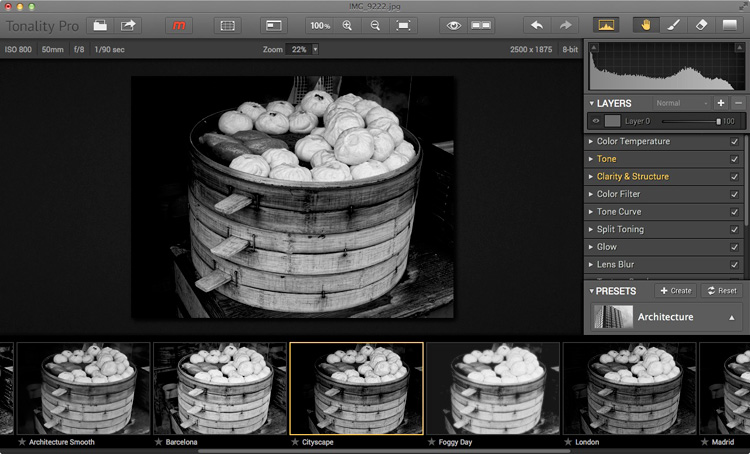
MacPhun is a company that makes plug-ins for Apple Mac computers (sorry Windows users!). Tonality Pro is a relatively recent addition to its stable of software and even though it will only be of interest to some of our readers I’ve included it here because it is a very good piece of software.

MacPhun’s aim with Tonality Pro was to create the best black and white plug-in available. I’ll leave it up to others to decided whether they have achieved that, but there’s no doubt it’s a powerful application with lots of useful tools for converting your photos to monochrome.
best-black-white-plugins-10

Reasons for buying Tonality Pro:

  • Tonality Pro has over 150 presets. There is also an Opacity slider that lets you control the strength of the preset, so you can make the effect as strong or subtle as you wish.
  • Tonality Pro has layers. None of the other presets mentioned here do, except for Perfect Black & White (and then not within the plug-in itself). Layers mean that you can apply an effect to your photo, then use brush mode to create a mask so the effect is applied selectively. Layers add a level of creative potential that allows you to use the plug-in’s tools with nearly unlimited freedom.
  • The clarity and structure tools help you emphasize texture and bring out detail in a way which simply isn’t possible in Lightroom or Photoshop.

Your turn

For me, one of the best things about plug-ins is that they give you a chance to play. They open up new ways of processing that you may not have considered before. Above all they are fun, give you chance to get creative, and find new ways of expressing yourself.

So, here’s a challenge. Download the trial version of one of these plug-ins. Then have a play with some of your favourite images and see what you can do with them. Does the new software give you some creative options that you had never considered before? Let us know how you get on in the comments.


Mastering Lightroom: Book Three – Black & White
Masterlng Lightroom: Book Three – Black & White by Andrew S GibsonMy ebook Mastering Lightroom: Book Three – Black & White goes into the topic of black and white in depth. It explains everything you need to know to make dramatic and beautiful monochrome conversions in Lightroom, including how to use the most popular black and white plug-ins. Click the link to visit my website and learn more.

googletag.cmd.push(function() {
tablet_slots.push( googletag.defineSlot( “/1005424/_dPSv4_tab-all-article-bottom_(300×250)”, [300, 250], “pb-ad-78623” ).addService( googletag.pubads() ) ); } );

googletag.cmd.push(function() {
mobile_slots.push( googletag.defineSlot( “/1005424/_dPSv4_mob-all-article-bottom_(300×250)”, [300, 250], “pb-ad-78158” ).addService( googletag.pubads() ) ); } );

The post How to Choose a Black and White Plug-In by Andrew S. Gibson appeared first on Digital Photography School.
Digital Photography School

 
Comments Off on How to Choose a Black and White Plug-In

Posted in Photography


How to Compose Brilliant Black and White Photos

30 Aug

Composition in black and white photography

Brilliant black and white photos are created in two steps. The second of these is post-processing, and is very important. But before you get to that stage, you have to learn how to see and compose photos in black and white. This is just as important as processing – it doesn’t matter how creative or clever you are in Lightroom or Photoshop, if the image is badly composed, or the subject just isn’t suitable for black and white, then you are going to struggle to make a half-way decent monochrome conversion, let alone a great one.

I thought it would be interesting for you to look at some of my favourite black and white photos and learn why they work in terms of composition.

Wooden boats – Puerto Aysen, Chile

Composition in black and white photography

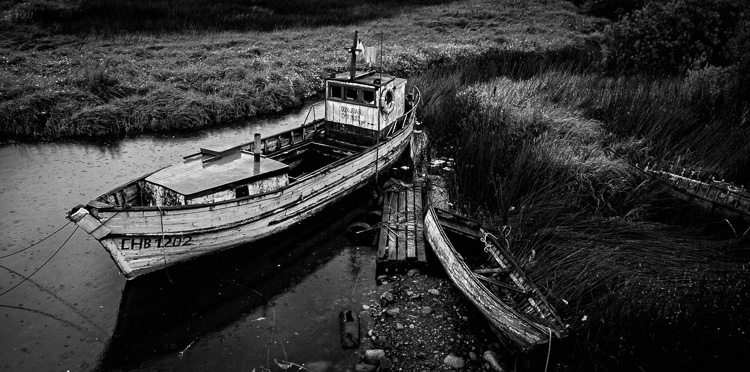
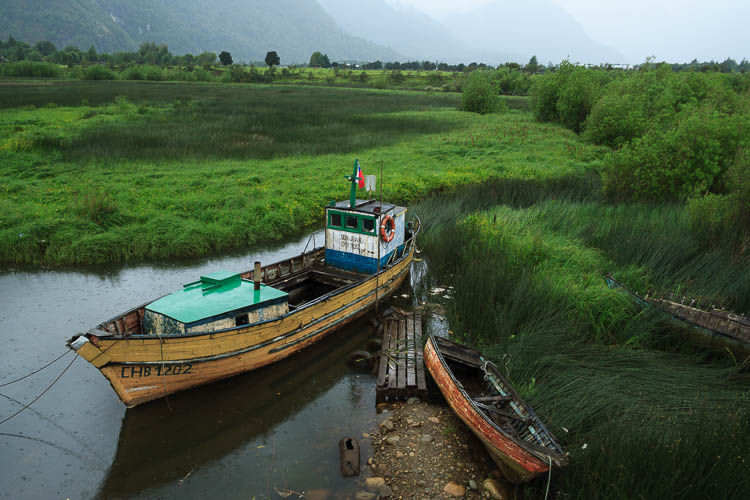
Puerto Aysen is a small port town in south-west Chile. The weather is often cold and miserable, even in summer. It rains a lot. I was wandering around the outskirts of the town when I came across these old wooden boats. Initially I was attracted to the atmosphere of the scene – there was a soft rain, and in the original uncropped photo you can see the hills on the horizon fading through the drizzle. The scene worked in colour (see below), but in the post-processing stage I also realized that it would come out beautifully in monochrome.

Composition in black and white photography

The reasons the image works well in black and white are:

  • Tonal contrast: The boats are painted light tones and the background is mainly comprised of dark tones. The eye is naturally pulled to the largest boat in the scene which becomes the focal point of the photo.
  • Texture: The weathered surfaces of the boats and the grass are beautiful textures which tend to be more effective in black and white than colour. This image wouldn’t have worked nearly as well if the boats were brand new.
  • Lines: The position of the boats in the scene creates two diagonal lines. The first moves from the bottom left through to the top right, and the second line, formed by the rowboat, creates a second diagonal line that meets the first. Diagonal lines pull the viewer’s eye through the photo and help add a sense of movement to the composition.
  • Panoramic crop: I decided the hills in the distance were a distraction and cropped the photo to concentrate attention on the boats. This took place in post-processing and strengthened the composition by focusing attention on the boats.

Chairman Mao watch – Shanghai, China

Composition in black and white photography

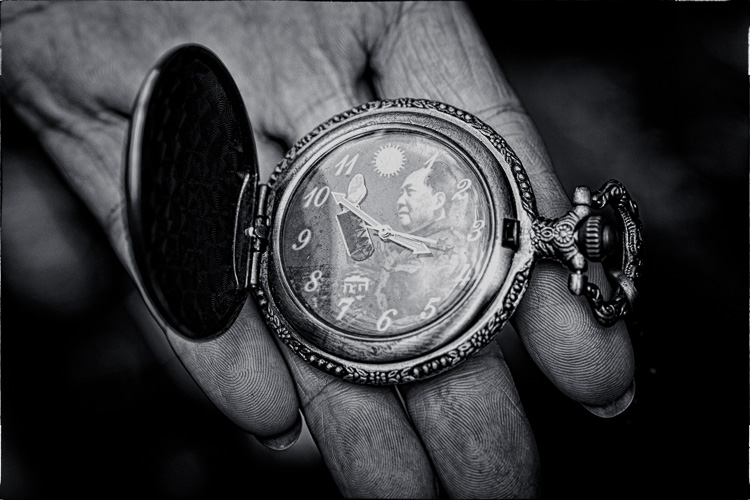
I went to Dongtai Road antiques market in Shanghai, an open-air street market comprised of stalls and shops where you can buy a variety of genuine and fake antiques, plus kitsch ornaments and souvenirs. I found the watch that this vendor was offering quite amusing. I didn’t want to buy the watch, but I asked if I could take a photo. The answer was yes.

Why the image works in black and white:

  • Strong use of shape: The watch face is a circle. It is placed in the centre of the composition and dominates it.
  • Lots of texture. The textures of the watch and the vendor’s hand are very strong.
  • Strong diagonal lines. The vendor’s fingers create lines that pull the viewer’s eye up from the bottom of the frame. I deliberately framed the photo so the fingers ran at an angle across the frame rather than parallel with the edges. This creates a more dynamic composition.
  • Simple composition. I moved in close to create a simple composition that emphasized shape, line and texture, the dominant elements of the photo. Another benefit of moving in close and using a wide aperture was that the background went out of focus, eliminating potential distractions.

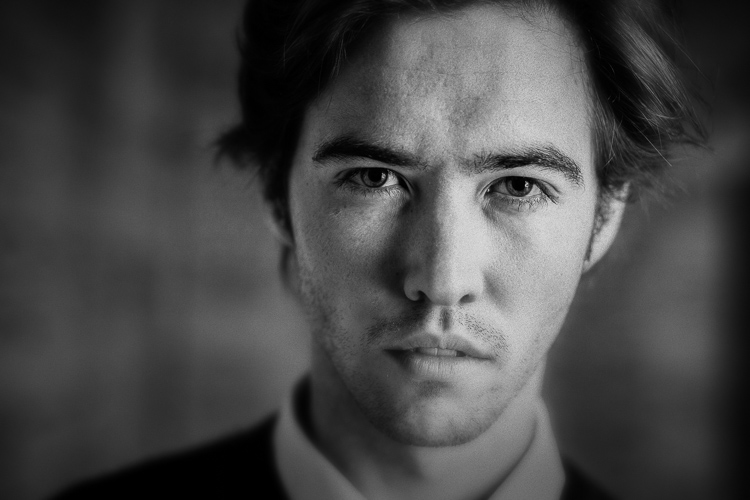
John – Wellington, New Zealand

Composition in black and white photography

I got in contact with John via Model Mayhem and we arranged a portrait shoot. The setup was simple – I used an 85mm lens (with a full-frame camera) and a wide aperture of f/2.8 to blur the background. The portrait is lit by natural light – John stood underneath an archway so the light fell from his left (camera right).

Men can be great subjects for black and white portraits because there is no pressure to retouch skin. Black and white emphasizes texture – the texture of skin can be a beautiful thing that doesn’t (or perhaps shouldn’t) need retouching as often as some people think it does.

Why this photo works in black and white:

  • Strong eye contact. The strength of this portrait is in the eye contact. John is gazing directly at the camera which creates a powerful connection with the viewer. His face is level with the camera so I could use a wide aperture to defocus the background, while keeping both eyes in sharp focus.
  • Texture. The texture of John’s skin, especially in the sharpest areas around his eyes, renders beautifully in black and white. The background is out of focus and lacks texture, and this sets up a contrast between the sharp areas of the model’s face and the heavily blurred background.
  • Tonal contrast. The model’s face is a lighter tone than the background. Light tones pull the eye, and the tonal contrast here (combined with the strong eye contact) establishes the model’s face as the focal point of the composition. The side lighting effect, created by asking the model to stand in an archway, means that one side of his face is lighter than the other. This creates depth, by revealing the shape of this face.

Common themes

Analyzing these photos is a simple exercise but it brings up several elements that work well in most black and white photos – texture, line, shape, tonal contrast, and simple composition. When you find a subject where these elements come together, you know you have the potential for a great black and white photo.

What do you think is important for a brilliant black and white photo? Please let us know in the comments. I’m looking forward to hearing what you think.

Editor’s Note: We recently ran a series of articles this week featuring black and white photography tips. Look for more on this topic below.

  • 5 Simple Ways to Create Expressive Photos in Black and White
  • Tips for Black and White Wildlife Photography
  • 7 Tips for Black and White Portrait Photography
  • 28 Images with Strong Black and White Compositions
  • Weekly Photography Challenge – Black and White Techniques
  • Tips for Black and White Wildlife Photography
  • How to Convert Images to Black and White and Add a Color Tint in Photoshop
  • Shooting all Black and White for a Day to Improve Your Photographic Eye
  • Split Toning Black and White Images in Lightroom
  • Processing Black and White Photos with OnOne Perfect B&W
  • Color or Black and White for Street Photography?

Mastering Composition ebookMastering Composition

My new ebook Mastering Composition will help you learn to see and compose photos better. It takes you on a journey beyond the rule of thirds, exploring the principles of composition you need to understand in order to make beautiful images.

googletag.cmd.push(function() {
tablet_slots.push( googletag.defineSlot( “/1005424/_dPSv4_tab-all-article-bottom_(300×250)”, [300, 250], “pb-ad-78623” ).addService( googletag.pubads() ) ); } );

googletag.cmd.push(function() {
mobile_slots.push( googletag.defineSlot( “/1005424/_dPSv4_mob-all-article-bottom_(300×250)”, [300, 250], “pb-ad-78158” ).addService( googletag.pubads() ) ); } );

The post How to Compose Brilliant Black and White Photos by Andrew S. Gibson appeared first on Digital Photography School.

Digital Photography School

 
Comments Off on How to Compose Brilliant Black and White Photos

Posted in Photography


A Guide to Black and White Conversion in Lightroom

24 Aug

Vintage, retro, moody, classic are all adjectives that might be used to describe black and white photographs. It may seem counter-intuitive in an age where cameras are lauded for their abilities to render colors and skin tones in super accurate or pleasing ways, to just go and eliminate all the colors in post-processing. Nevertheless, the timeless qualities of grayscale images continue to persist, and the alluring beauty shows no sign of subsiding.

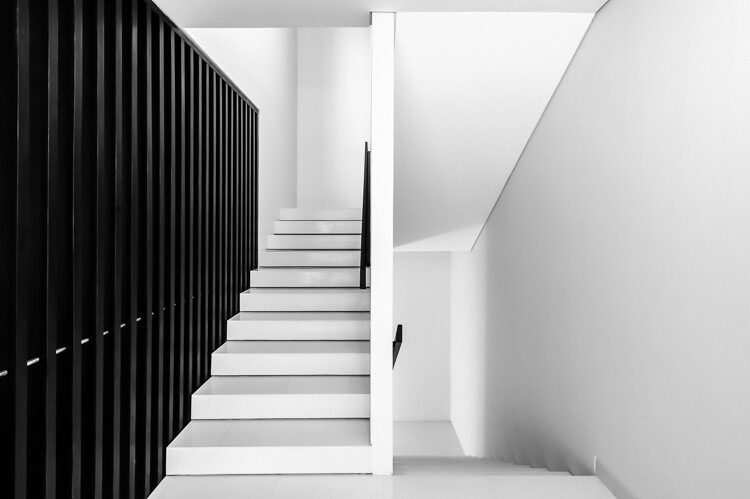
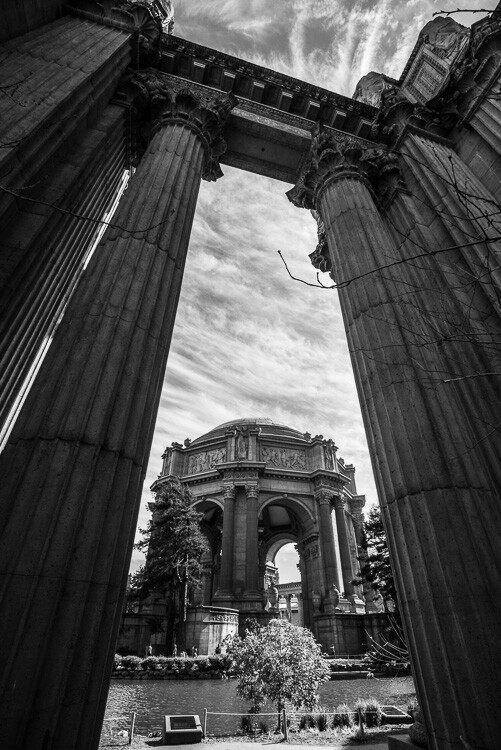
A black and white architectural photo

Since most of us see in color, black and white images seem to be inherently abstract.

In Lightroom (LR), the transformation of a photo from color to black and white is simple – drag the Saturation slider all the way to the left. The end.

I’m only half-joking. Although this will drain all of the color from the photo, there are many other considerations to mull over, various entry points to begin the process, and an immense amount of control and fine-tuning to explore.

Image Selection

Naturally you will need to start with a photo, so the decision as to which photo is a good candidate to make the transformation to black and white is your first task.

There are a few characteristics in a photo that would make it qualify as a good candidate. Obviously any photo that has strong colors, which add strength or appeal may not make the cut. You would be doing yourself a disservice by taking a beautiful, saturated sunset shot only to rob it of its finest feature.

I prefer to convert photos which have a lot of repetitive detail, high contrast, or have an inherent look that would be accentuated by converting to black and white. Architectural shots work well, and sweeping landscapes with puffy clouds against a blue sky stretching off into the horizon can be dramatized tastefully.

Without any colors to lean on, black and white images must have other strengths. Your black and white images just may have to rely a tiny bit more on the subject, composition, emotion or lighting. This is a good thing. Thinking in black and white can help train your eye to look for other photographic strengths which will make your color images that much stronger as well.

Where to Start

In Lightroom there are several features built-in that enable you to control the look of your black and white images. Let’s take a look at their dedicated black and white converter.

LR-bw-conversion

The B&W sub-panel gets your images to grayscale in one click.

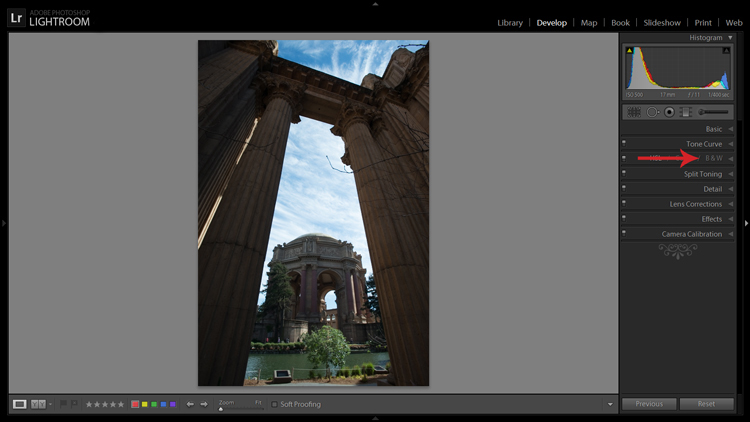
If you simply click on the B&W panel in the Develop module, LR converts the image to gray scale. The same thing can be accomplished at the top of the Basic panel where it says Treatment by selecting Black & White.

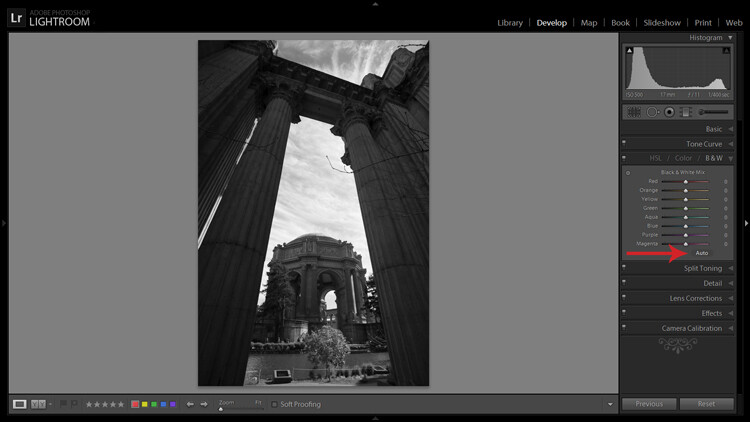
Note that when you do this the eight Black & White Mix sliders are all zeroed out. You may also note that there is a curious little oval-shaped Auto button hanging out underneath the sliders. What might this do? In case you didn’t guess, LR will use its own infinite wisdom to evaluate your image and adjust the color tones to what it thinks is appropriate. I’ve never clicked that button and said “wow” but you never know.

LR-bw-conversion-2

The Auto button adjusts tones as LR sees fit, but I find further editing is usually necessary.

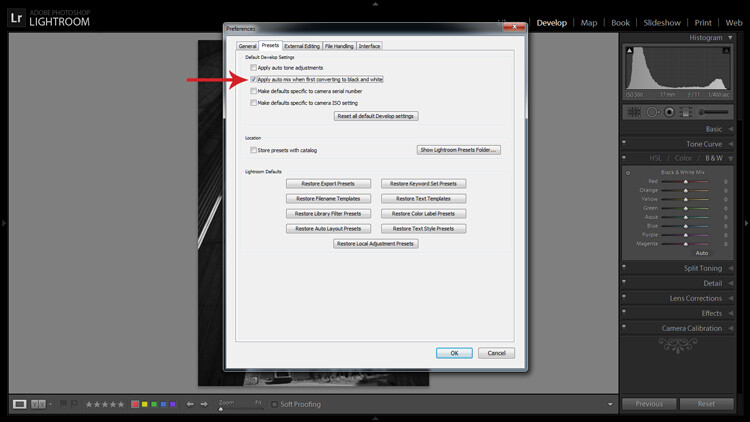
If you like the settings that LR chooses for you with the Auto setting you can have it applied automatically every time you convert an image to black and white by navigating to Edit>Preferences and under the Presets tab, check the box that says: Apply auto mix when first converting to black and white, as shown below.

LR-bw-conversion-3

You can have LR instantly apply its automatic black and white settings upon conversion by navigating to Edit>Preferences and checking the appropriate box.

Filters

Before you open Pandora’s Box and start dragging sliders all over the place, let’s see what other kind of shortcuts LR has to offer.

Within the Navigator panel is the handy Presets menu. The first three selections are dedicated black and white preset menus including Filter Presets, Presets and Toned Presets. The 25 presets found within these menus are pretty cool and are way more powerful one-click options than the Auto button.

A sample of LR's black and white filters

LR is loaded with 25 black and white presets to give you some quick conversion options.

The filters can also be used as jumping-off points from which to work in your editing endeavours.

Start with the Basics

I would like to preface this section with something to keep in mind when converting an image to black and white and processing it: LR edits that may appear to affect colors only, also effect tones and contrast in grayscale images. For example, although I never change them in my black and white processing, the White Balance and Tint sliders are active, and can be used to alter tones in your black and white photo.

The rest of the sliders, in both the Basic and Tone Curve panels, do the same for a black and white image as they do for a color one. You can be more zealous with contrast since there are no colors to be over/under saturated. I also find that the Clarity slider works especially well to tease out tons of detail in black and white images. Beware, however, that it can be unkind to wrinkles and blemishes in portraits, unless that is the look you are going for.

Simply increasing the Clarity on a black and white image can add a lot of drama. No other edits have been made to the above photo except increasing the Clarity to 100 per cent.

Simply increasing the Clarity on a black and white image can add a lot of drama. No other edits have been made to the above photo except increasing the Clarity to 100 per cent.

The HSL/Color/B&W Panel

I briefly touched on this earlier when mentioning the the Auto setting. So what happens when you start messing around with all of those sliders? Well, if you’re anything like me when I was fumbling my way through LR back in the day, you’ve already gone through and started indiscriminately throwing sliders all over the place.

What they do is increase or decrease the luminosity of the corresponding color in the original image, which is now represented in various shades of gray. If you’ve already applied one of LR’s black and white filters these sliders may not be zeroed out any longer.

In addition to adjusting the individual sliders, there is also a click and drag (target adjustment) tool similar to the one found in the Tone Curve panel, and it’s pretty sweet. Once you activate the tool, click on an area in your image and start dragging, you will notice that LR will not only adjust one slider, but will combine multiple sliders to pinpoint the tones you wish to adjust.

LR-bw-conversion-4

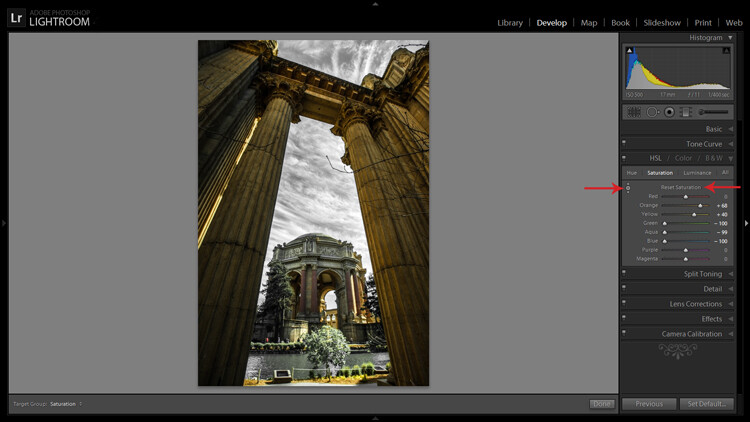
The Targeted Adjustment Tool (left arrow) works well to isolate colors to desaturate. Holding the Alt key presents you with the option to reset all the sliders at once to start fresh (arrow on the right) – this option is available in many of LR’s adjustment panels.

Another approach to this whole black and white post-processing thing can also be initiated in the HSL/Color/B&W panel. If you select HSL and choose the Saturation sub-panel, you will be presented with another set of eight color sliders.

These sliders provide you a quick and easy way to achieve selective color effects. You can start by dragging all of the sliders down to -100 and then add the colors you want to preserve. You also have a click and drag tool that works the same sort of magic as the one mentioned earlier.

You can also select the All sub-menu which reveals all of the Hue, Saturation and Luminance sliders. Adjusting the Luminance sliders gives you control over the brightness of individual colors now represented in black and white.

Utilizing the controls found within the Camera Calibration panel can give you similar, yet much more limited, control over your black and white tones.

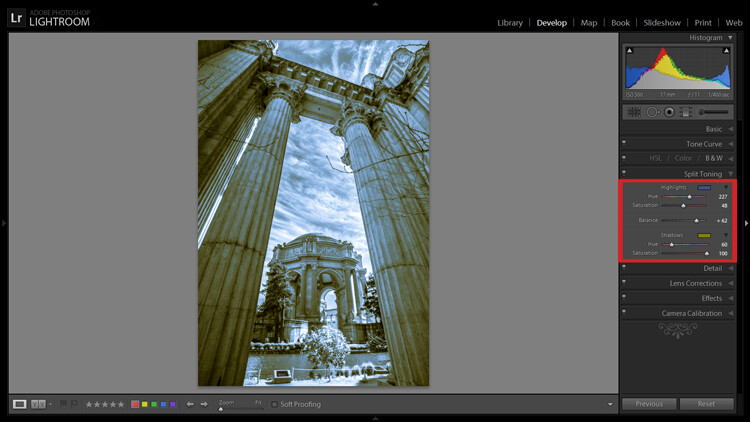
Split Toning

If you’re looking to add a radical tint to your black and white images, the Split Toning panel is where you want to be. Okay, so it doesn’t have to be too radical but a little tinting can help alter the mood of your image.

The tool gives you control over the intensity of highlight and shadow tint colors, and the ability to balance the two however you wish. Subtle use of this effect can be a fantastic way to sneak a hint of color back into your photo, while still maintaining the charm of black and white.

Split Toning allows you to tint an image's highlights and shadows different colors.

Split Toning allows you to tint an image’s highlights and shadows different colors.

The Split Toning panel is also where you can apply, and fine-tune, sepia toning effects to get that warm antique look that gives images a grungy and elegant look at the same time.

As you have probably found out by this point, LR does a pretty thorough job at giving you a ton of control processing black and white images – from big global adjustments to small tweaks to tease out just the look you are going for. Don’t forget that you can get really creative by throwing the Adjustment Brush and Gradient tools into the mix, not to mention the plethora of plugins available on the market that give you even more options.

Have you been met with some success in black and white conversion with Lightroom? Show off your results in the comments below.

googletag.cmd.push(function() {
tablet_slots.push( googletag.defineSlot( “/1005424/_dPSv4_tab-all-article-bottom_(300×250)”, [300, 250], “pb-ad-78623” ).addService( googletag.pubads() ) ); } );

googletag.cmd.push(function() {
mobile_slots.push( googletag.defineSlot( “/1005424/_dPSv4_mob-all-article-bottom_(300×250)”, [300, 250], “pb-ad-78158” ).addService( googletag.pubads() ) ); } );

The post A Guide to Black and White Conversion in Lightroom by Jeremie Schatz appeared first on Digital Photography School.

Digital Photography School

 
Comments Off on A Guide to Black and White Conversion in Lightroom

Posted in Photography


Color or Black and White for Street Photography?

19 Aug

First, let’s assume that you are shooting with a digital camera and the choice of color or monochrome treatment can be made at the post-processing level. The decision of choosing color or black and white if you are shooting film is a different story, and requires a different frame of mind, as it is usually made before you leave the house.

So, the questions is this: Is street photography better in color or black and white? There is no right or wrong answer to this question, it is definitely a personal preference. Some photographers only shoot in color, others prefer black and white for all their work. For my part, I let the subject dictate the choice and that decision is usually made before I press the shutter.

Here is some of the reasoning behind that decision…

Why black and white may be a better choice:

B&W will work best if your subject already has a timeless look.

B&W will work best if your subject already has a timeless look.

You may like to use black and white for its timeless quality. If your subject also has a timeless look, a black and white processing will make your image stand the test of time, and often give it a more artistic look. This is even more true when no element in your frame dates your photograph (such as mobile phones, cars, etc.). Other times, the black and white processing will even help hide those elements.

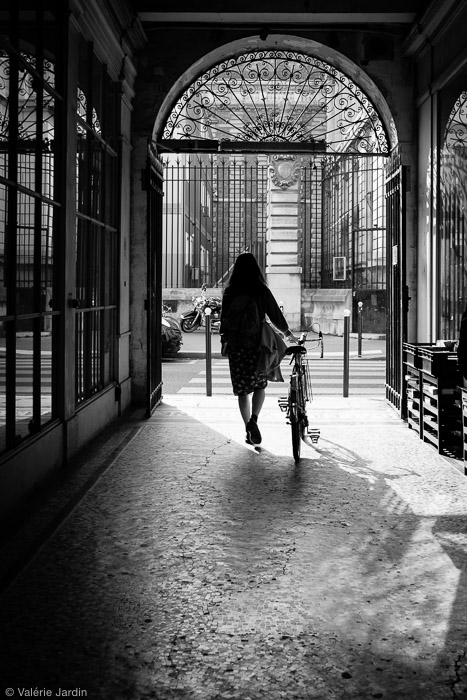
Silhouette photographs are often stronger in black and white than in color. The human element featured should be well-defined, and there needs to be some separation to identify the shape of the body. Removing the color will help make your subject stand out more, especially if it is small in the frame. The eye will automatically be drawn to the human shape.

B&W often works best when photographing silhouettes.

B&W often works best when photographing silhouettes.

There are also some strategic reasons to favor black and white over color. As street photographers we usually do not remove elements from the frame in post-processing. Our job is to record an authentic moment in time, that never happened before, and will never happen again. A skillful street photographer makes quick decisions, and is able to remove distracting elements from the frame by moving in closer and positioning him/herself correctly, before pressing the shutter. Most of us would not resort to using post-processing tools to remove objects. There are times when bright colorful elements such as stop signs, trash cans, or cars are inevitable, and will draw the attention away from the subject. By removing the color, you are able to bring the attention back to the human element.

Compare these two images:

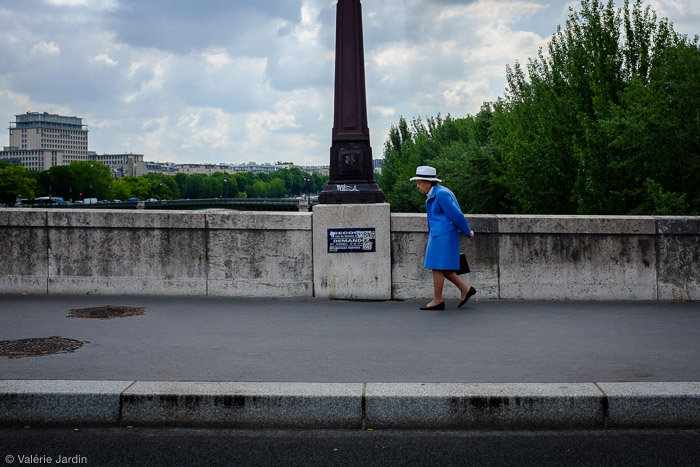
In this frame the subject is interesting but your eye is immediately drawn to the red and blue street signs.

In this frame the subject is interesting but your eye is drawn to the colors of the street signs.

By removing the color distraction you have a much stronger image by bringing the attention right to your subject.

By removing the color distraction it’s a much stronger image, bringing attention right to the subject.

By shooting in RAW you retain all the color information in your file, which allows you to play with the color sliders in Lightroom and turn a distracting color into a light or dark grey tone to fine-tune your final image.

There are other times when the color is amazing but also overpowering, and risks becoming the subject because the human element is lost in the chaos.

Why color may work better:

When is color preferred? The color can be an integral part of the story, which also means that a black and white conversation would take away the most important component of the image, and it would not make any sense.

Here a B&W conversion would not make any sense and the subject would lose interest.

Here a B&W conversion would not make any sense and the subject would lose interest.

Finding a great background, such as a textured wall or a colorful storefront, is a great way to anticipate a shot, by waiting for the right subject to enter your frame. It may be even more important to get the right subject in a color shot than in a black and white picture. Color harmony plays an important role in making, or breaking the image. Most importantly, color should not overpower your subject. It should be part of the story, not a distraction from it.

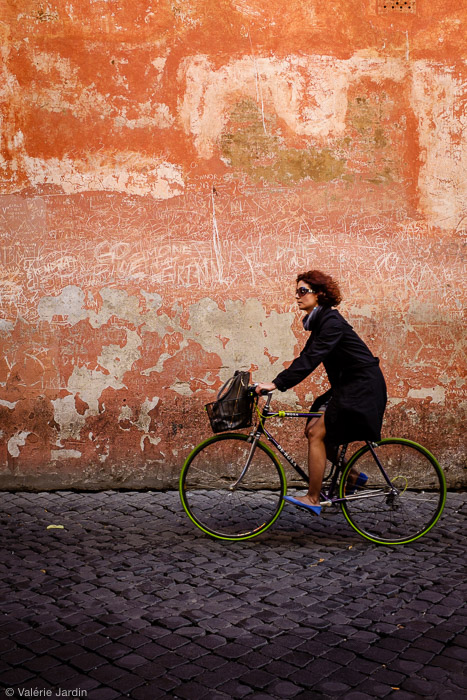
Finding a textured colorful background and waiting for the right subject to enter your frame makes for a strong color street photograph. The green tires and blue shoes  completed the shot.

Finding a textured colorful background and waiting for the right subject to enter your frame makes for a strong color street photograph. The green tires and blue shoes completed the shot.

Color will also often give a sense of place or time in street photography. It will evoke the feeling of a season, for example, or the time of the day – from the warm glow of the golden hour, to the cool tones of the blue hour.

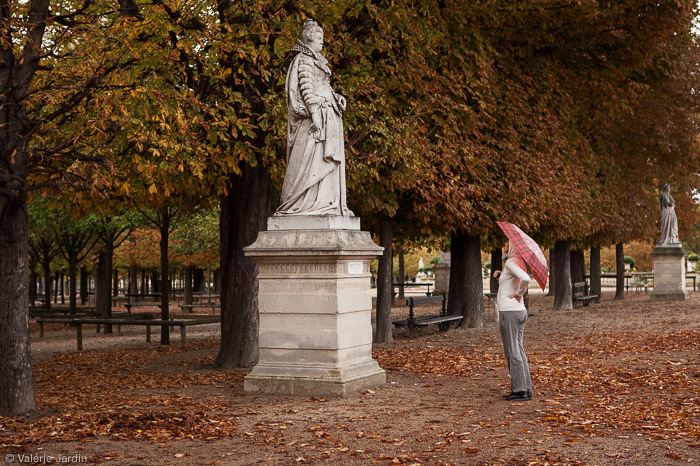
Autumn in Paris would not be as well conveyed in a B&W photograph.

Autumn in Paris would not be as well conveyed in a B&W photograph.

Going out on a photo walk with a specific color in mind is also a fun way to approach street photography. You will be surprised at the creative ways you will see the world around you by focusing your vision on one color. Try it!

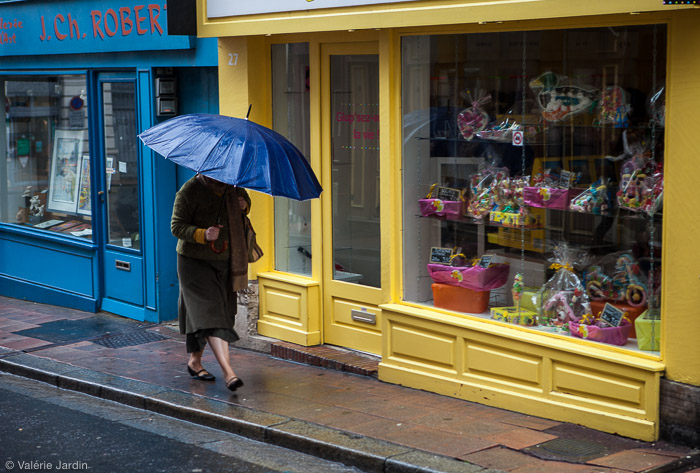
Choosing a color theme then you are out on a photo walk can be a fun project. Here my color theme was blue!

Choosing a color theme then you are out on a photo walk can be a fun project. Here my color theme was blue!

Conclusion:

Don’t forget that it’s your vision, and you are shooting street photography for yourself first. Don’t get stuck, try new things! If you always shoot in color, go out and train yourself to see in grayscale for a few days. If you favor black and white, take another look at the world around you and learn to appreciate and use the colors it has to offer. You may discover a whole new way to see, and you will undoubtedly grow in the process. Have fun!

This short video about Color versus B&W is part of my Street Tips series called Hit the Streets with Valerie Jardin

Editor’s Note: This is last of a series of articles this week featuring black and white photography tips. Look for earlier ones below.

  • 5 Simple Ways to Create Expressive Photos in Black and White
  • Tips for Black and White Wildlife Photography
  • 7 Tips for Black and White Portrait Photography
  • 28 Images with Strong Black and White Compositions
  • Weekly Photography Challenge – Black and White Techniques
  • Tips for Black and White Wildlife Photography
  • How to Convert Images to Black and White and Add a Color Tint in Photoshop
  • Shooting all Black and White for a Day to Improve Your Photographic Eye
  • Split Toning Black and White Images in Lightroom
  • Processing Black and White Photos with OnOne Perfect B&W

googletag.cmd.push(function() {
tablet_slots.push( googletag.defineSlot( “/1005424/_dPSv4_tab-all-article-bottom_(300×250)”, [300, 250], “pb-ad-78623” ).addService( googletag.pubads() ) ); } );

googletag.cmd.push(function() {
mobile_slots.push( googletag.defineSlot( “/1005424/_dPSv4_mob-all-article-bottom_(300×250)”, [300, 250], “pb-ad-78158” ).addService( googletag.pubads() ) ); } );

The post Color or Black and White for Street Photography? by Valerie Jardin appeared first on Digital Photography School.


Digital Photography School

 
Comments Off on Color or Black and White for Street Photography?

Posted in Photography


Processing Black and White Photos with OnOne Perfect B&W

18 Aug

Black and white photography is classy and powerful. When properly done, it can be enticing and dramatic. In fact, a great portion of fine art photography hanging in galleries is monochromatic. In the age of film, all it took was to load black and white film into your camera, but nowadays most digital camera sensors are recording images in color and with that, if you want to explore the black and white world, you’ll have to convert your images in the post-processing stage.

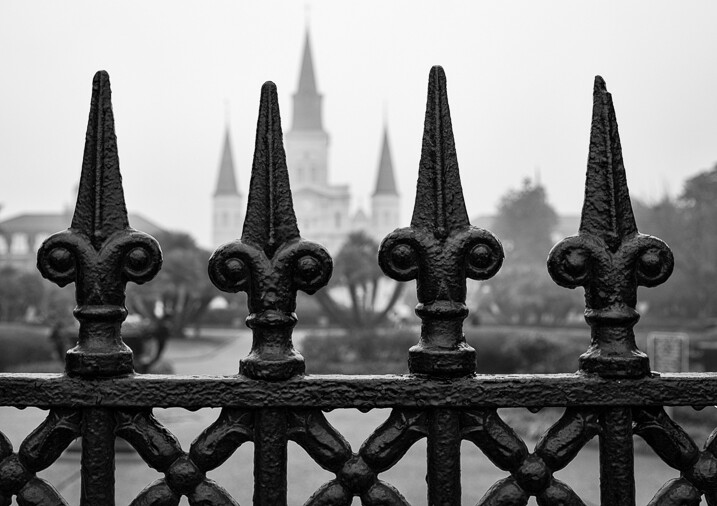
Close up of iron fence around Jackson Square in New Orleans with the St. Louis Cathedral behind.

When it comes to converting and processing photos to black and white, there are a number of options. If you are a Lightroom user, there is a black and white option within the Basic Develop panel as well as some presets that come preloaded. All you need to do is click on them, and tweak the sliders until you get the desired effect.

Processing-black-white-photos-onone-perfect-bw-2

There are also, of course, more sophisticated alternatives that could help make your work easier. Among those, Perfect B&W from OnOne Software is one of my favorite options. This application can be used as a plug-in with Adobe Photoshop, Lightroom, Photoshop Elements, Apple Aperture, or as a standalone app. OnOne offers a full set of applications called Perfect Photo Suite, Perfect B&W is included in it, but it can be also purchased separately as a standalone application.

The idea behind this product is to help you to easily enhance your photos. There are controls to adjust tone, curves, color response via filters, and borders – and of course, it also comes with different types of presets. You’ll also be able to create your own presets and save them as well.

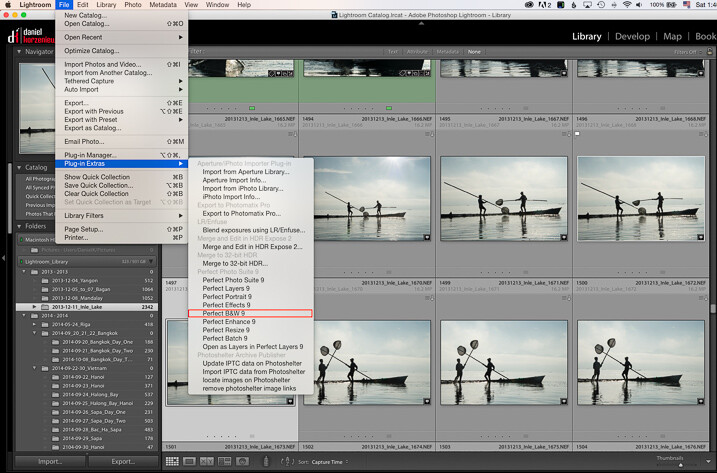
As I am an Adobe Lightroom user, I’ll demonstrate some of the features of the product by opening it from there. To launch the application, you need to select an image from the Library or Develop Module and go to the File Menu, then select Plug-In Extras and navigate to Perfect B&W 9.

Processing-black-white-photos-onone-perfect-bw-3

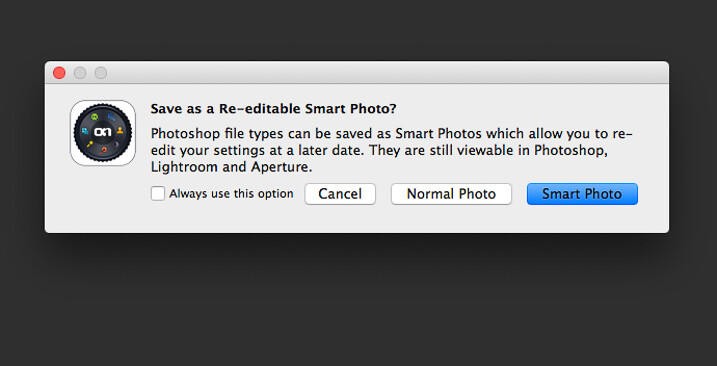
One of features that you’ll probably like is the possibility to save all your changes as a Smart Photo. It means that even after your edits are done, you’ll be able to come later and redo your settings. This way, you are working in a nondestructive way. The application will pop up a dialog box when you launch it, asking if you want to edit in this work mode.

Processing-black-white-photos-onone-perfect-bw-4

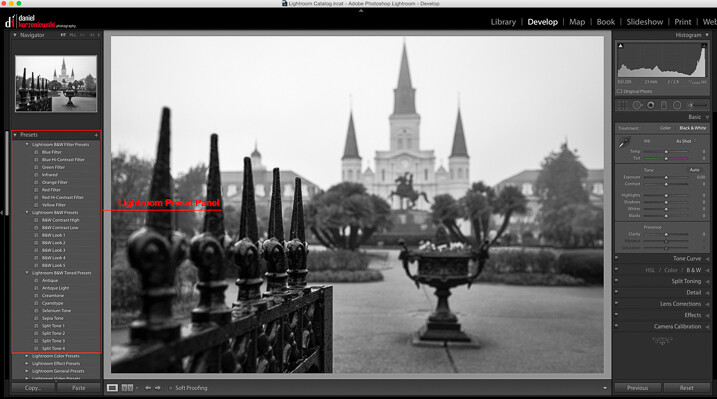
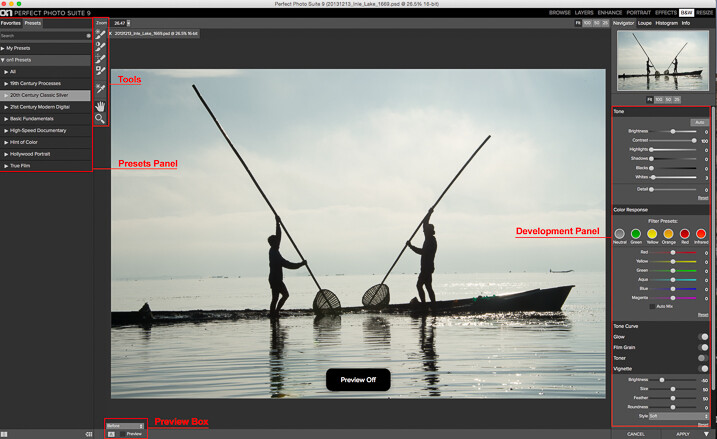
Once the applications opens, the layout is similar to what you find inside Lightroom. The preset panel is on the left and the develop options are on the right. There is also a set of tools that let you selectively add more contrast, brightness, or even mask entire areas in case you want to do a selective color treatment.

Processing-black-white-photos-onone-perfect-bw-5

Once you are ready to work, you have the option to start by selecting the different presets, or just working with the sliders in the development panel. You need to be sure that you have selected the preview option at the bottom to see the effect on the image; you can toggle back and forth to show the before and after.

My preferred way of working is to use one of the presets as a base or staring point, then modify it to my liking with the sliders. The presets are divided into eight categories, as follows:

  • 19th Century Processes
  • 20th Century Classic Silver
  • 21st Century Modern Digital
  • Basic Fundamentals
  • High Speed Documentary
  • Hint of Color
  • Hollywood Portrait
  • True Film

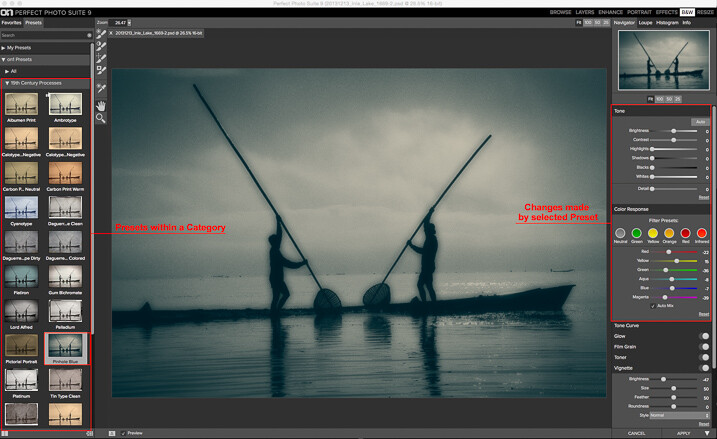
The names are pretty much self-descriptive, and if you click on them, you’ll see all the presets within that category with previews on the side panel itself.

Processing-black-white-photos-onone-perfect-bw-6

As you can see in the image above, the application also allows for duotone images by combining the use of color filters, so you are totally flexible on the type of look you can create. For example, if I click the Pinhole Blue preset from the 19th Century Process, the software will create that effect, and you’ll see how some the sliders from the Develop Panel changed to create it.

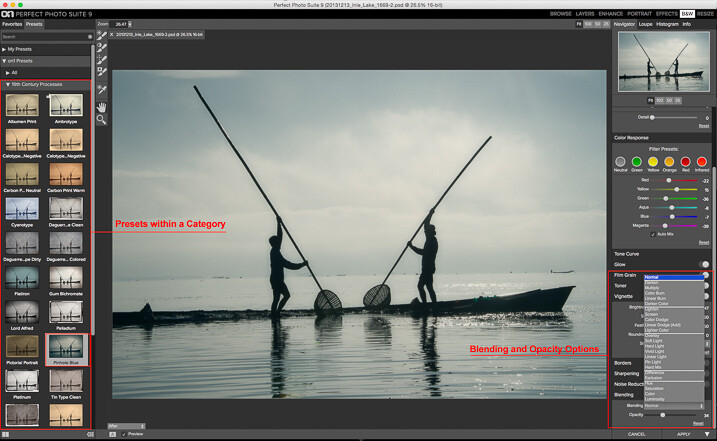
From there you can pretty much tweak the image any way you want, and there is also an option where you can select the blending mode, exactly the same way layers work in Photoshop. You can also drop the opacity for a more subtle effect. In the example below I reduced the opacity to 34 percent.

Processing-black-white-photos-onone-perfect-bw-7

The different old century presets are great to create all the vintage looks that are so popular today, with just a few clicks and without the need to know more complicated software.

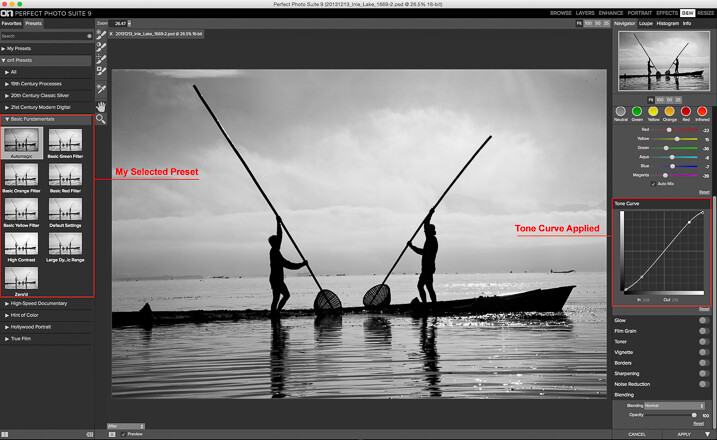
For my final image, I selected Automatic from the Basic Fundamentals, then added contrast by adjusting the Tone Curve. I also moved the Detail slider to 15 so the ripple effect on the water was more noticeable; it also helped to add some drama to the sky.

Processing-black-white-photos-onone-perfect-bw-8

As I knew I wanted to re-crop the image, I didn’t add any other effect here, so I went back to Lightroom cropped the image, then added a vignette.

Processing-black-white-photos-onone-perfect-bw-9

OnOne Perfect B&W is a well-rounded application and a powerful tool for black and white conversions. I believe the best way to judge it is to give it a try. The good thing is that the company is offering a thirty-day trial, so it won’t cost you to play with it; moreover, you can download and test the full suite if you want. The regular price for the standalone application is $ 59.95 and the complete suite is $ 149.95. They can be downloaded straight from the OnOne website.

Editor’s Note: This is second last of a series of articles this week featuring black and white photography tips. Look for earlier ones below and the last one later today.

  • 5 Simple Ways to Create Expressive Photos in Black and White
  • Tips for Black and White Wildlife Photography
  • 7 Tips for Black and White Portrait Photography
  • 28 Images with Strong Black and White Compositions
  • Weekly Photography Challenge – Black and White Techniques
  • Tips for Black and White Wildlife Photography
  • How to Convert Images to Black and White and Add a Color Tint in Photoshop
  • Shooting all Black and White for a Day to Improve Your Photographic Eye
  • Split Toning Black and White Images in Lightroom

googletag.cmd.push(function() {
tablet_slots.push( googletag.defineSlot( “/1005424/_dPSv4_tab-all-article-bottom_(300×250)”, [300, 250], “pb-ad-78623” ).addService( googletag.pubads() ) ); } );

googletag.cmd.push(function() {
mobile_slots.push( googletag.defineSlot( “/1005424/_dPSv4_mob-all-article-bottom_(300×250)”, [300, 250], “pb-ad-78158” ).addService( googletag.pubads() ) ); } );

The post Processing Black and White Photos with OnOne Perfect B&W by Daniel Korzeniewski appeared first on Digital Photography School.


Digital Photography School

 
Comments Off on Processing Black and White Photos with OnOne Perfect B&W

Posted in Photography


Split Toning Black and White Images in Lightroom

18 Aug

It can at times seem difficult to make our images unique, or at the very least more interesting. During our workflow we sometimes even discard photos because we feel they aren’t interesting, or that we have failed at an exposure or composition. What we often forget is that we can actually make our images stand out from the rest, and become less mundane, just by being slightly creative with our editing. Sometimes we can even go so far as to salvage an image that might otherwise have been introduced to the delete button. Just by using some powerful, yet simple, post-processing techniques we can discover hidden gems within our images.

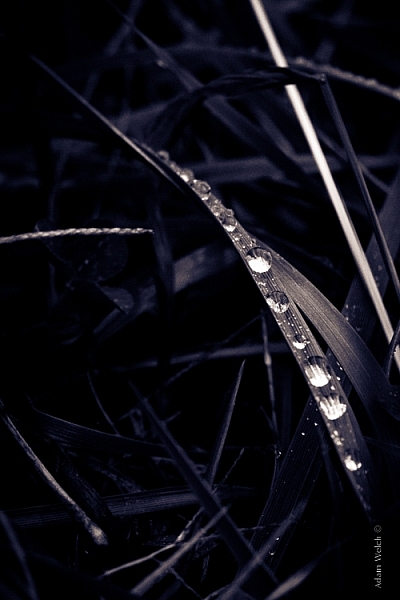
Rain-on-Grass.jpgIntroducing split toning
One such technique which can add uniqueness and strength to an image, is the process of split toning. Most likely, you have already viewed many images that were split toned, even if you didn’t know anything about it. Many of the vintage looking photographs, that seem to be trending at the moment, almost always employ split tone processing to some extent. That’s not to say that split tone images are something new, in reality, the situation is actually quite the opposite. Split toning has its roots in film photography and dark-room printing. Before we begin to learn just how easily you can convert your images to split tone, let’s first take a brief look at what split toned images are, and examine (even more briefly) a little bit of the history behind the process.

What is split toning?

Split toning is quite simply a process by which color tone is added to the highlight and shadow areas of an otherwise monochromatic photograph. Traditionally, the photo being processed with split tones begins its life as a black and white image capture. After the print has been fully made and developed, it is then introduced to other chemicals, which affect the image tones in different ways, depending on the relative compositions of the chemistry involved. In our world today, digital darkrooms now allow us to carry-over this technique of selective toning to our color prints. Color split tone images are quite possible and are often very pleasing. However, for our purposes here, we will keep the discussion limited to the process of using split toning as it relates to black and white photos exclusively.
History of split toning

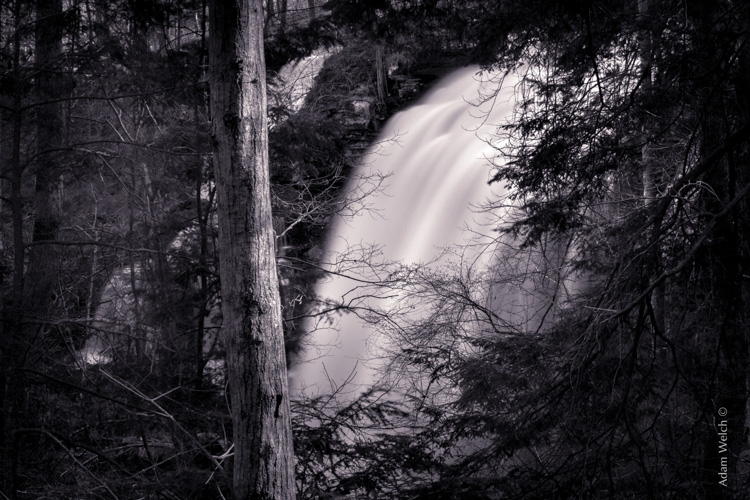
Virgin Falls

It all started with the birth of the photographic process itself in the mid 1800s. The images produced during that era of early experimentation into the medium were very delicate, and extremely susceptible to degradation from physical touch, atmospheric conditions, as well as exposure to light post-development. As photography evolved, the pioneers of the art found they needed a way to make their finished prints more durable and longer lasting. This lead to the introduction of toners in the darkroom printing process. Essentially, most toners replace the metallic silver present in the print with a more stable silver compound.

The finished print tone of course depended on the type of toner used. A readily identifiable example of this is sepia tone. We’ve all seen them before; the warm and golden hues that look predominately old fashioned and can lend a sense of nostalgia to an image. Originally, sepia toned photographs were a result of a chemical process in the darkroom. The process involved treating the finished print with chemical compounds that converted the silver present into a silver compound called silver sulfide, which made for a much longer lasting finished print.

The split toning processes came about by using different toning agents in different stages, in different proportions. A photographer might treat a photo with one type of toner and then stop the process at a desired stage, leaving only the highlights unreacted. Then, another and different type of toner might be introduced, which would react with the remaining silver present in the shadows left over from the previous treatment. Thusly, the tones visible within the image would be split – hence split toning.

Roots

Ansel Adams, one of the most influential photo makers of the our time, also employed the use of split toning in his masterworks. This in itself is quite interesting since Adam’s was a realist in all ways. Meaning that he promoted straight photography with minimal manipulations in the darkroom aside from his own adjustments, using mostly dodging and burning. Ansel choose primarily selenium based toning agents for his work, which added a very slight blue hue to the shadows of most of his prints. He called the color tones eggplant, and indeed the coolness of bluish blacks produced images that are still counted among some of the most magnificent examples of photographic art ever made.

How to apply split toning in Lightroom

Now that you have an understanding of what the split tone processing is all about, we can move on to the fun stuff. Let’s take a look at how you can easily make your black and white images really stand out using split toning feature in Adobe Lightroom 6 (the split toning feature is also available in other image processing software including LR CC, Photoshop and ACR).
Let’s begin with a color image that we feel would benefit from being converted to black and white. Photos which transition well to black and white more often than not possess stark contrasts between the light and shadow areas, and have great texture within the subject matter.

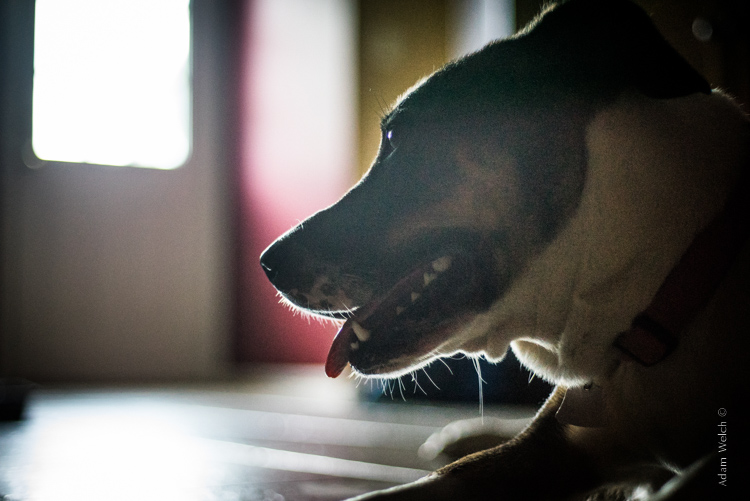
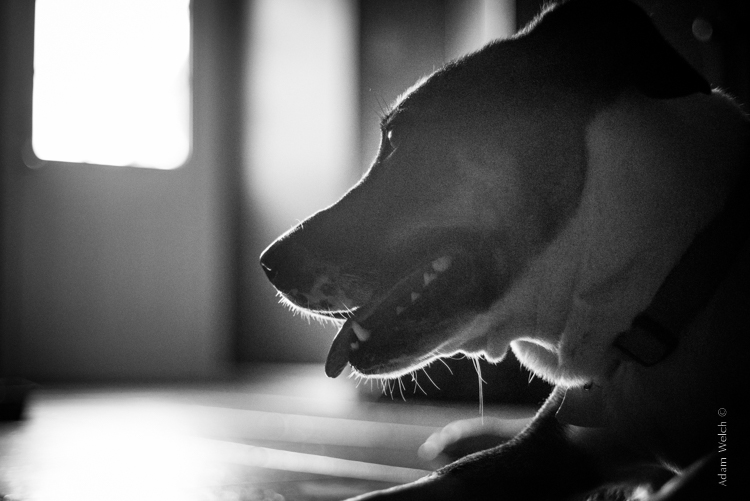
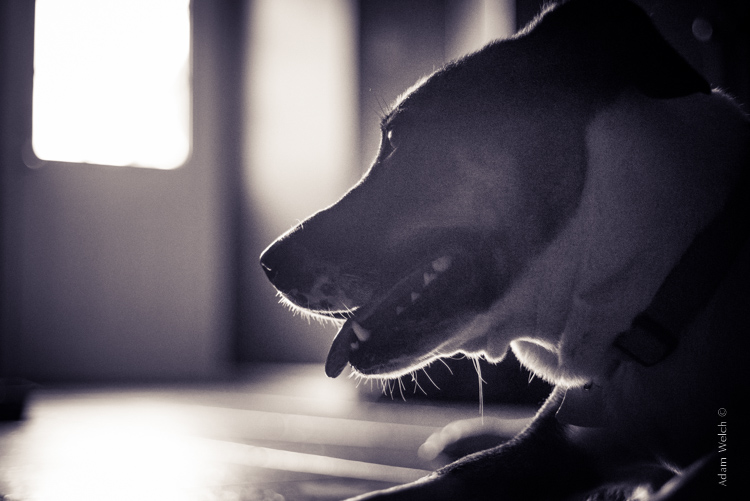
This is quick snapshot of my dog Leia. The bright light coming through the door casts her profile nearly in silhouette and the high ISO made for a slightly grainy image, but really no remarkable color of which to speak. So I chose to convert it to black and white and use the grain in order to produce a gritty, and spontaneous look to the photo.

Leia Original

Original color image

Leia Original BW

This is the image after converting to black and white.

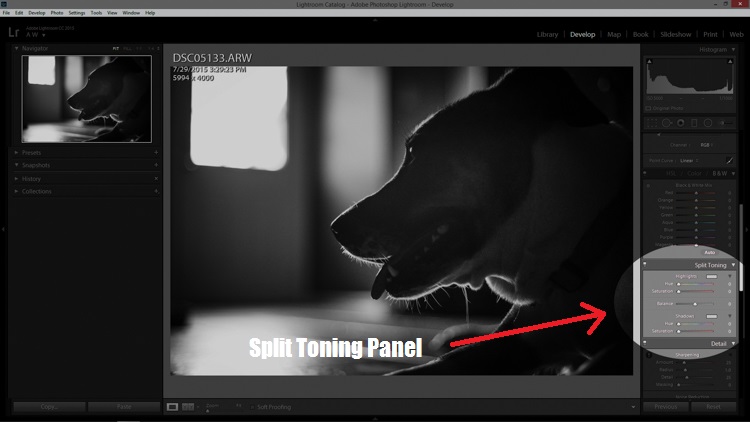
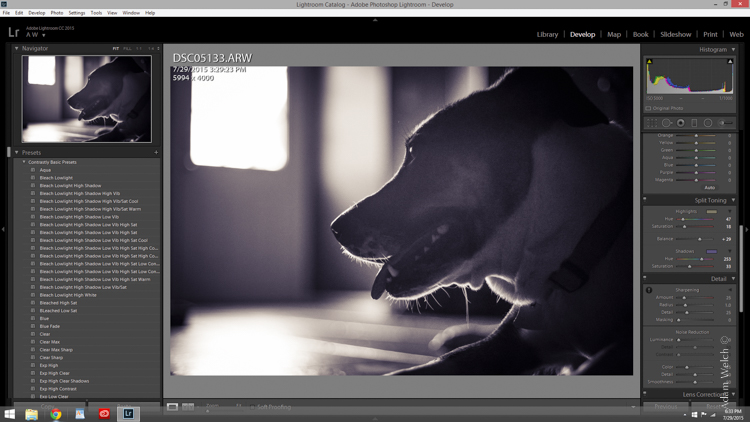
But, I still wanted more than just a black and white photo, so I decided to apply some slight split toning. Here we have the same photo of Leia opened in LR 6. The Split Tone panel is highlighted.

Split Tone Panel

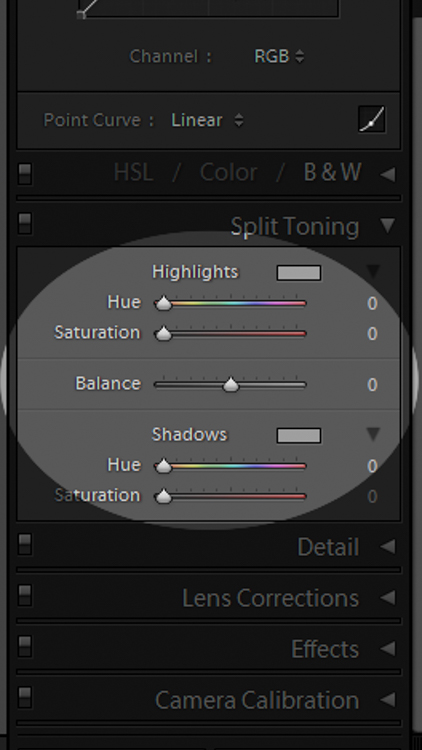
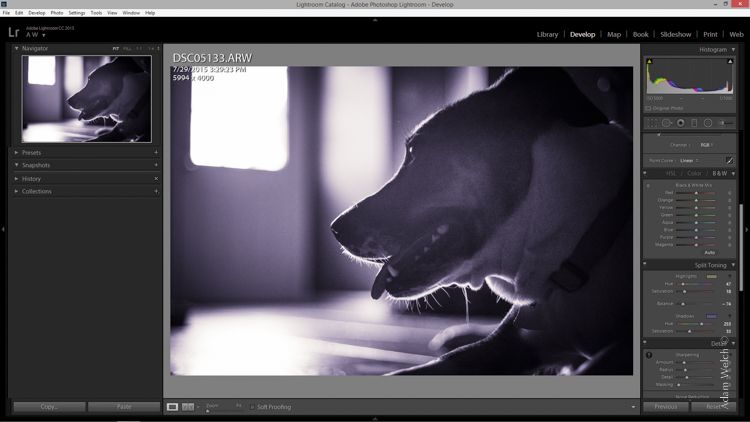
You’ll see a few options for controlling the highlight and shadow tonality, along with a hue and saturation slider for each. There is also a balance slider. The balance slider controls how the color tones are applied in relation to one another.

Split Tone Panel 2

I adjusted the tones to make the highlights into a yellow hue, while the shadows I changed to a bluish-purple. I simply kept adjusting each slider until I achieved the look I wanted for the image.

Split Highlights

Here is the edit with the balance slider favoring the highlights.

Split Shadows

Here we see it balanced to favor the shadows.

Leia Split Tone

Here is the finished image after split toning. From beginning to end the processing took less than five minutes.

Applying split toning to your black and white photographs can be an easy way to move beyond merely converting your photo to black and white. It adds interest to your shot, and helps to make it stand out from the ordinary. Luckily, digital photography has given us enormous range to experiment with our images, apply edits, and see the effects in real-time.
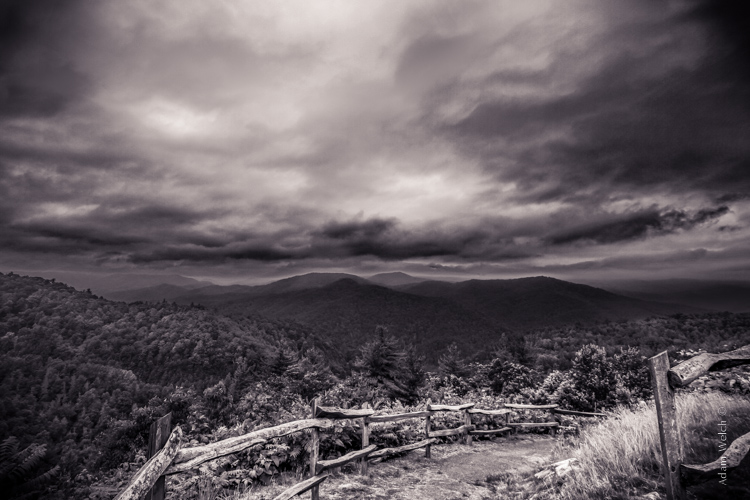
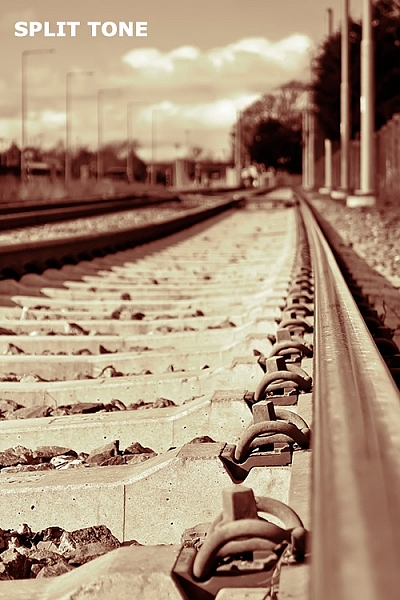
Here is another example of an image which has been processed using split toning (see others throughout the article as well). Try some split tone processing techniques for yourself and see what your black and white photos can become!
Cataloochee Valley Overlook

Editor’s Note: This is one of a series of articles this week featuring black and white photography tips. Look for earlier ones below and more daily over the next few days.

  • 5 Simple Ways to Create Expressive Photos in Black and White
  • Tips for Black and White Wildlife Photography
  • 7 Tips for Black and White Portrait Photography
  • 28 Images with Strong Black and White Compositions
  • Weekly Photography Challenge – Black and White Techniques
  • Tips for Black and White Wildlife Photography
  • How to Convert Images to Black and White and Add a Color Tint in Photoshop
  • Shooting all Black and White for a Day to Improve Your Photographic Eye

googletag.cmd.push(function() {
tablet_slots.push( googletag.defineSlot( “/1005424/_dPSv4_tab-all-article-bottom_(300×250)”, [300, 250], “pb-ad-78623” ).addService( googletag.pubads() ) ); } );

googletag.cmd.push(function() {
mobile_slots.push( googletag.defineSlot( “/1005424/_dPSv4_mob-all-article-bottom_(300×250)”, [300, 250], “pb-ad-78158” ).addService( googletag.pubads() ) ); } );

The post Split Toning Black and White Images in Lightroom by Adam Welch appeared first on Digital Photography School.


Digital Photography School

 
Comments Off on Split Toning Black and White Images in Lightroom

Posted in Photography


Photographing in Black and White for a Day

17 Aug

I love to set myself little exercises to stretch my photographic muscles. I thought I might share one that has been most beneficial to me, photographing a familiar place or subject you would normally do in color, in only in black and white for a day, with the aim of getting a new perspective that could prove helpful when you go back to color.

black-and-white-photography-1

This possibly doesn’t sound like much of a challenge, and won’t be if you shoot mainly in black and white already, but for those of us used to color, it can be a real challenge not to cheat by shooting in color and converting later, or quickly switch settings back to color every now and then. I confess to failing the challenge pretty much every time, but the exercise has proven fruitful regardless.

Why black and white?

Because once you take the color out of the picture your awareness of other compositional elements such as tone and contrast increase. It also makes you photograph differently and look at your subject in a different way.

I first did this exercise some years ago during my regular walk along local beaches. It’s a stunning place with white sands and crystal blue water. You don’t have to be a fantastic photographer to capture a pretty image when surrounded by the beautiful colors of the water and the skies in this place.

Taking black and white photo's in a location you would normally shoot in color can help you to see things differently

It’s really a challenge sticking to black and white when in a location like this, full of gorgeous colors.

Once you challenge yourself to let go of the beauty of the colors in your usual color subjects your approach can change dramatically. It becomes more about tones, patterns, contrast and mood. You can end up photographing your regular subject entirely differently when you start to play more with shapes, patterns and designs you might otherwise not have noticed when color is involved.

By doing this simple exercise both my beach subjects and compositions changed. Some images I would normally take that looked lovely in color looked washed out and a bit nothing, and vice versa, something that just didn’t look so wonderful no matter how many times I color photographed them, suddenly worked. Things like graininess became a bonus rather than something to avoid.

Change your perspective by shooting your color subjects in black and white!

I had photographed this rocky part of the local beach a few times as a landscape image, always included the area’s amazing colors. A day of black and white changed my perspective. This image and the first one in this article where later commissioned for a guitar duo’s album artwork. A surprising result from a simple exercise.

Why a familiar place or subject?

Because you will be less tempted to switch to color when you can always go back and shoot color next time. If you are constantly tempted to switch back, you will keep seeing and thinking in terms of color and the point of the exercise is to see your familiar subject differently and hopefully start seeing it in a way that will then help you out with your color photography.

Whether you are a landscape, portrait or any other type of photographer it can be fun and beneficial to take a slightly more restricted approach. Much like a free form poet suddenly attempting a haiku, the limitations of the haiku format insist on a completely different attack requiring a stretching of creativity.

You might not be keen to try it again but it can be a learning experience and you might just get a decent photograph out of the experience.
For this article I tried the exercise again at another familiar place I have photographed many times. An artists studio where I often work on collaborations.

Maybe try a day of black and white photography at a friend or family members place you visit regularly.

It doesn’t matter where you try this exercise, just as long as it is a familiar place or subject so you can always go back and do color versions later after seeing it through a black and white perspective.

An added benefit of shooting at this location being that the artist, Randall Sinnamon, is also an art teacher so I asked him for some tips on working in black and white.

“Contrast is the balance between the extremes of black and white, with tone being the gradation of black and white, you use them both to create form. It’s the placement of these elements that creates your composition. If you get these things right then the picture works. It’s often good to have some larger shapes of light or dark in a composition.”

tone and contrast , important to both painting and photography

Photographing in black and white for a day can help you see tones and shapes better, which you can then apply to compositions in your color photography.

“I often look at my paintings in the moonlight, the low light allows you to see the balance of shapes. You can also to this by squinting, or turning your image upside down. Considering I often work with charcoal and ink I tend to do a lot of black and white. It’s nice to just do a drawing and not worry about the color. Sometimes color can be an unnecessary complication. There is a lot of beauty in black and white, with so much color photography we still see a lot of black and white work, obviously there is something appealing about it. It simplifies things.”

Black and white can simplify things, and improve the mood of an image.

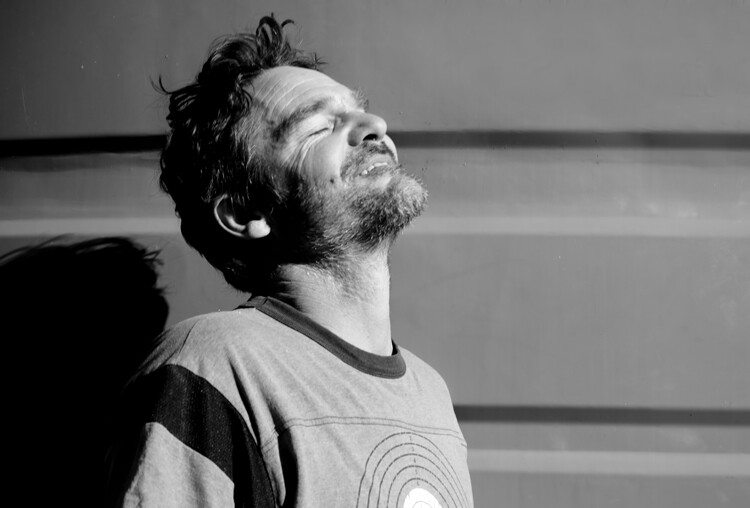
Portrait of artist Randall Sinnamon. As he said, “Black and white simplifies things”. The colors in this image were distracting, they bounced around too much, where as in black and white it calmed things down and we are more able to focus on the mood, the joy of his smiling face in the sun.

You might notice when trying this exercise that an image that can look like a busy mess in color can become elegant in black and white. Photographing outdoors in the middle of the day can work well too, we color photographers so often prefer the softer light of morning or evening, midday light can add harsh shadows or too much contrast, but black and white photography loves contrast. It also loves patterns and repetition.

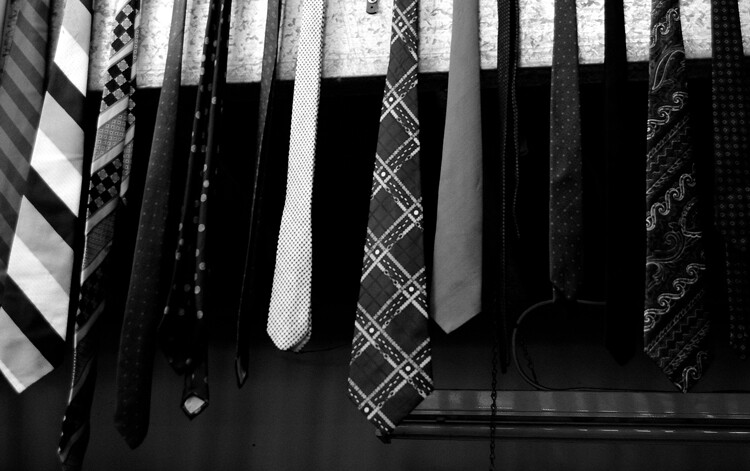
Black and white photography works well with striking patterns and repetition .

I’ve photographed this tie collection in the artists studio before in color, but this time without the distration of color, it became about the patterns and repetition and worked much better.

Of course sometimes it just makes sense to photograph in color. But this exercise can help with working out what does and doesn’t work in either camera setting.

Photographing in Black and white helps you with your compositions by not distracting you with color.

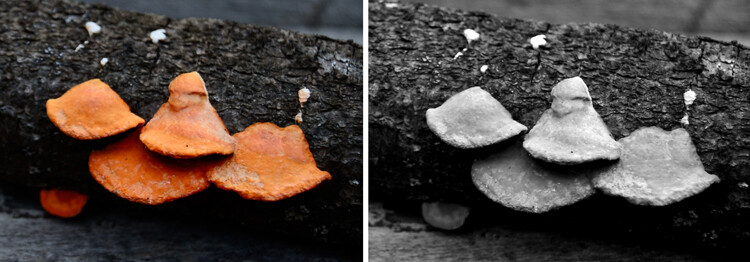
I cheated. Again. I’d like to pretend it was for the purpose of this article, but really I couldn’t say no to that orange color. Yet when photographing this fungus outside the studio, the orange was distracting, and when I looked at the black and white version, I realized composition wise, things could have been better.

So set your camera to black and white, and head out, or even photograph your own home or backyard. No cheating. OK, maybe a little cheating if the color is just too hard to resist. I wouldn’t want you to miss out on a brilliant shot. But do try to stick to it, keeping your eye out for situations with patterns, tones, shapes, contrasts without thinking about color can really make a difference to how you later compose your images. Remember this is just an exercise, you don’t have to get the perfect shot here, relax and enjoy the change. It’s as good as a holiday so they say.

If you do try the exercise, please share you favorite results in the comments below. Or perhaps you have some other simple exercise idea you’ve tried that you would like to share with our readers.
Happy photographing.

googletag.cmd.push(function() {
tablet_slots.push( googletag.defineSlot( “/1005424/_dPSv4_tab-all-article-bottom_(300×250)”, [300, 250], “pb-ad-78623” ).addService( googletag.pubads() ) ); } );

googletag.cmd.push(function() {
mobile_slots.push( googletag.defineSlot( “/1005424/_dPSv4_mob-all-article-bottom_(300×250)”, [300, 250], “pb-ad-78158” ).addService( googletag.pubads() ) ); } );

The post Photographing in Black and White for a Day by Lea Hawkins appeared first on Digital Photography School.


Digital Photography School

 
Comments Off on Photographing in Black and White for a Day

Posted in Photography


How to Convert Images to Black and White and Add a Color Tint in Photoshop

17 Aug
Split-tone-ACR

Landscape scene in south of France using split-tone effect in ACR

So why would you bother with black and white imagery when we live in a world full of color? There are many reasons why, but a simple answer is that a black and white image can be quite powerful.

A close up of a man’s or woman’s face, heavily lined from age, photographed in black and white may elicit a stronger emotion than the same image in color. The viewer focuses in on the texture and contrast of the image.

A heavy fog or mist over a landscape is much spookier in monochrome than in color. That’s why those old black and white movies are so good.

Converting to Black and White in Photoshop

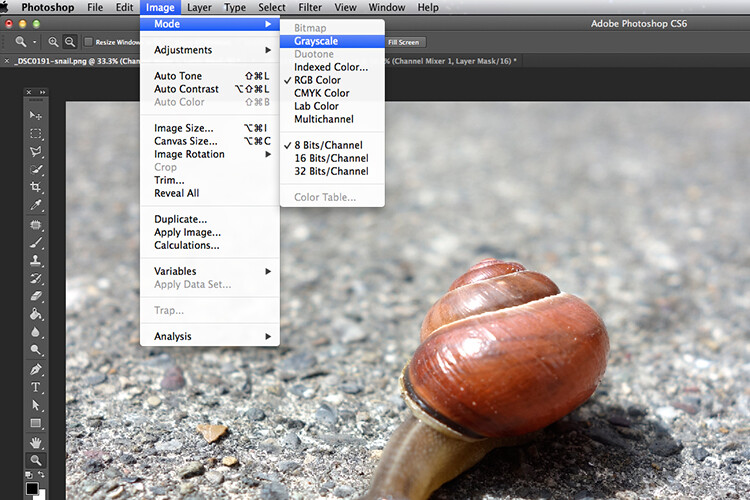
Converting a color to black and white in Photoshop is a relatively easy task. Open the image that you want to convert to black and white. Choose from the Image Menu>Mode>Grayscale. A dialog box appears, asking you if you want to, “Discard color information?”. Click Discard, but I would not recommend this method. All the color information has now been lost.

Snail-grayscale

A simple way to converting a colour image to black and white in Photoshop, but not the recommended way.

Channel Mixer

Instead, I’m going to show you a more effective way for converting your images to black and white in Photoshop. I like to use the Channel Mixer method. In Photoshop, choose the Channel Mixer icon from the adjustments palette or you can choose Layer>New Adjustments>Channel Mixer and click OK.

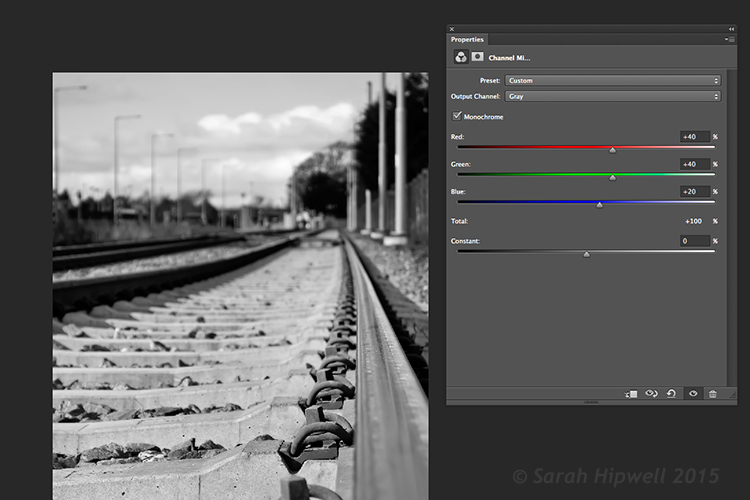
There is a check box next to the word Monochrome, on the lower left side in the Channel Mixer box. When you click on that, your image will turn to grayscale. The default settings are Red 40%, Green 40% and Blue 20%. See screenshot below. However, this is where I like to make my own changes.

Channel-mixer-default-settings

Using the Channel Mixer to convert a color image to black and white. The default settings when you click on the Monochrome box are Red 40%, Green 40% and Blue 20%.

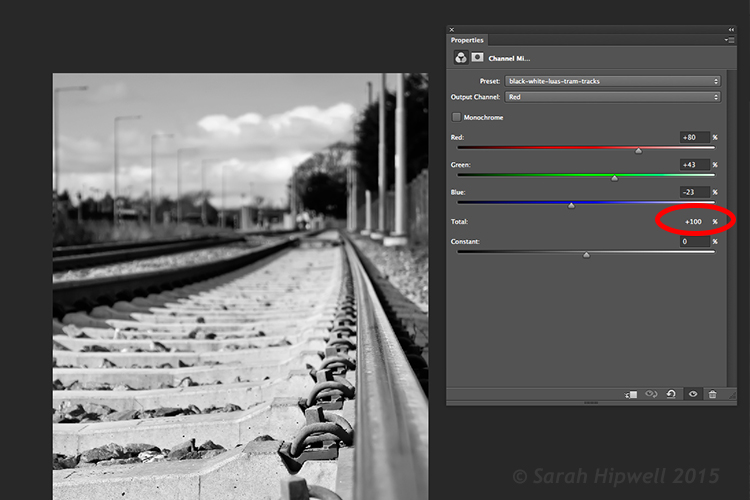
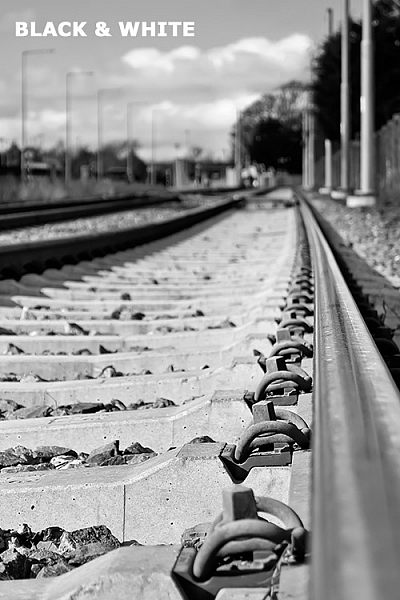
The Red channel holds the most detail. The blue channel holds the most noise. The look that you’re after will depend on your choice. For this image, I moved the red slider to +80%, the green slider to +43% and the blue to -23%. The general rule of thumb is that the percentages should total to 100% (80+43-23=100).

Channel-mixer-custom-settings

The ability to adjust each of the Red, Green and Blue sliders gives you more control over how you want your grayscale image to look. Try and keep the percentage totals equal to 100%.

Adding a Color Tint

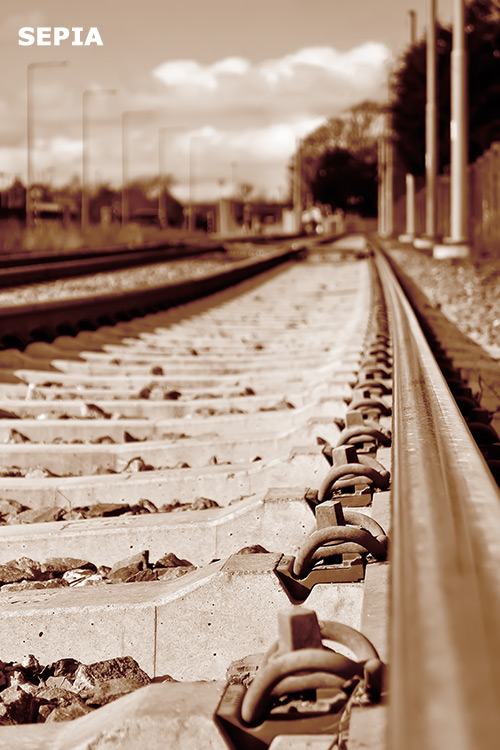
Next, let’s add some color to a black and white image, or rather a tint. Let’s start with a sepia tone, which is a reddish-brown color that gives those old vintage photos that classical look.

Sepia

Using the same image that you have just converted to black and white using the Channel Mixer – add another new adjustment layer, Color Balance. Similar to the Channel Mixer, choose Layer>New Adjustments>Color Balance

Name this layer, Shadows. In the properties panel, click to the right where it says Tone, it defaults to Midtones but you have the option of two others, choose Shadows, as you only want the color to effect the shadows. Move the red slider over to 55%, then move the yellow slider to the left -40% to give the image that classic reddish brown look. See the animated gif below.

Black-and-white sepia-tone

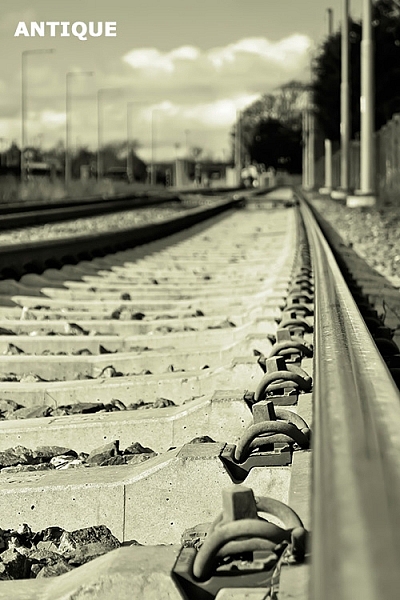
Antique

Now if you want the color to affect only the highlights. First, turn off the layer visibility on the Shadows layer. Add another Color Balance layer, choose Layer>New Adjustments>Color Balance and name this one Highlights. Same as above, click to the right of Tone where it says Midtones and choose Highlights. Move the yellow slider to the left -55%. This gives the image an Antique look. See image below left.

Antique tone split-tone

Split toning
Turn the visibility for the Shadows layer back on and you now have a split-tone look, as you have just added two different hues to the highlights and shadows. See image above right.

Split toning in ACR
To achieve this same effect in Adobe Camera Raw (ACR) it’s even easier. With your image open in ACR, having done the basic edits. Click the HSL/Grayscale tab, then check on the Convert to Grayscale box. Similar to the Channel Mixer adjustment layer in Photoshop the color sliders can be adjusted to make your own custom changes.

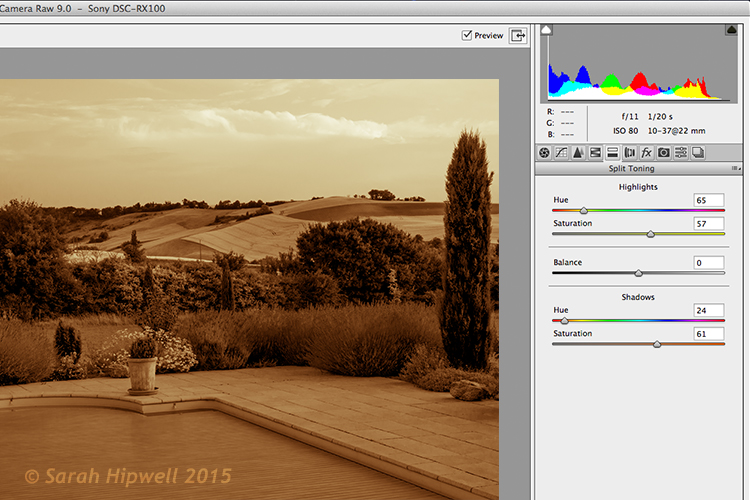
Click the Split Toning tab. Move the Highlights Hue to yellow and the Saturation over to the middle to start. Move the Shadows Hue to a red tone, and the Saturation to the middle as well. Then adjust the Saturation for the Shadows (I used 61) and the Highlights (I used 57).

Split-tone-ACR

Editing an image using the Split Toning tab in ACR

Gradient Map

As with most techniques in Photoshop, there are many ways of achieving the same results. It comes down to preference, and most importantly, time. So here’s a really quick, and very effective way, to convert your color photo to black and white and add a sepia tone, or even a duotone.

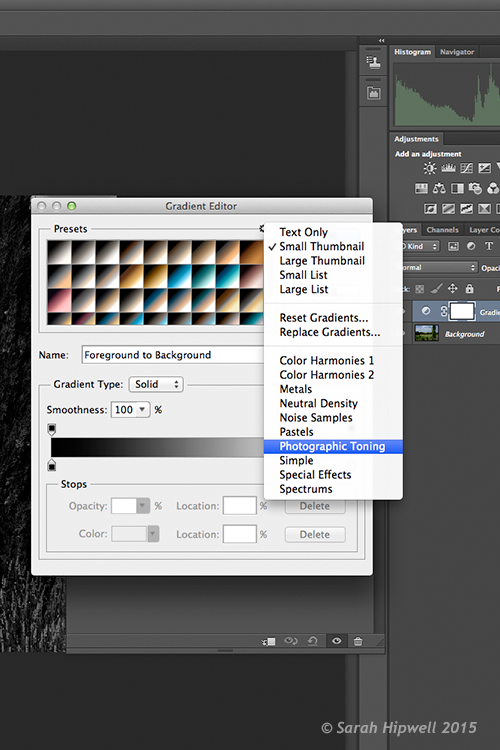
Normally, I don’t bother or rave about the presets that come bundled with Photoshop. But in the Gradient Editor, I beg to differ. There is a set called Photographic Toning, which consists of 38 presets in total, and I think these do an amazing job! Here’s how I applied this duotone effect to this image.

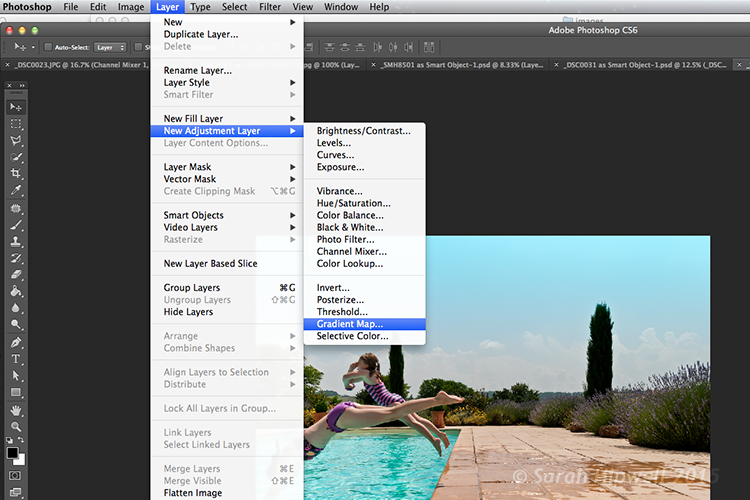
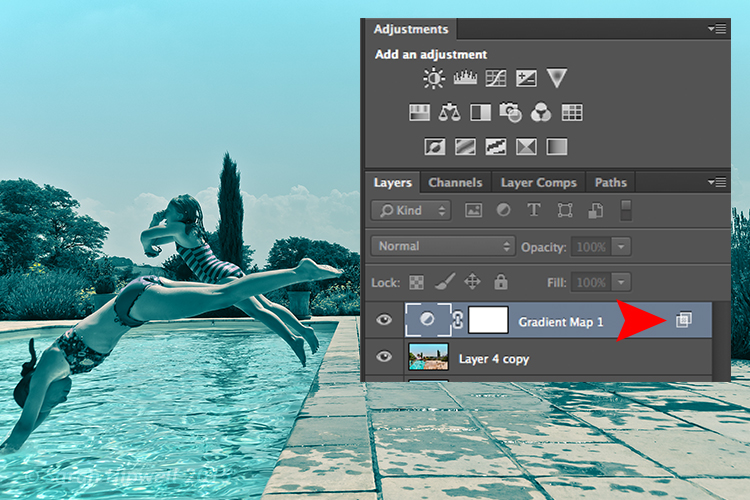
Go to Layer>New Adjustment Layer>Gradient Map or you can click on the last icon in the bottom row of the Adjustments panel. Ensure your Foreground and Background colors are set to Black and White. This will apply the default gradient, which is foreground to background and turn your image to black and white.

Layer-new-adjustment-layer-gradient-map

How to add a Gradient Map as an adjustment layer in Photoshop

Click on the gradient and the Gradient Editor menu appears. Click on the gear icon at the top right corner of the Presets section, and another pop-up menu appears. Photographic Toning is down near the bottom of the list. When you click on it, a dialog box appears asking you to replace the current default gradients with the ones that you are loading. Just click Ok.

Gradient-editor-photographic-toning

How to find the Photographic Toning presets in the Gradient Editor in Photoshop

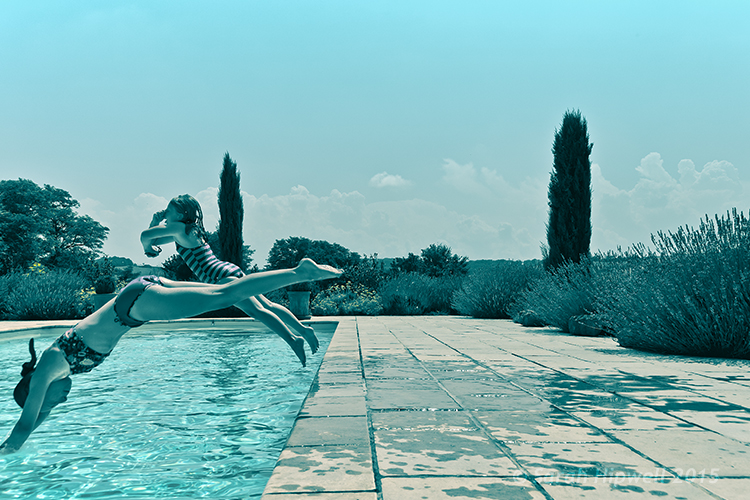
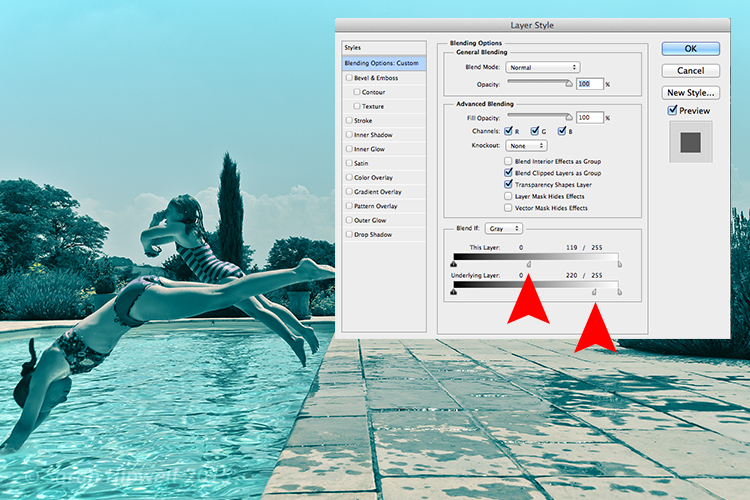
I chose Blue2 (the sixteenth one) to give it this greenish, turquoise color. As with any adjustment layer, you can lower the opacity or change the blend mode, but in this case, I did a slight Blend-if on both layers. By right-clicking on the layer, this brings up the Layer Style pop-up menu with the different blending options.

Layer-with-blending-options

Blending-options-Blend-if

Go down to the Blend-if section. You will see ‘This Layer’ and the ‘Underlying Layer’ . Both of these options have a white slider. Hold down the Alt key, which splits it into halves, and slide the left portion to the left (as shown above). This brings back some of the highlights to give the image a more cross-processed look. See image below.

There is a great range of Sepia presets to choose from which are worth trying out too.

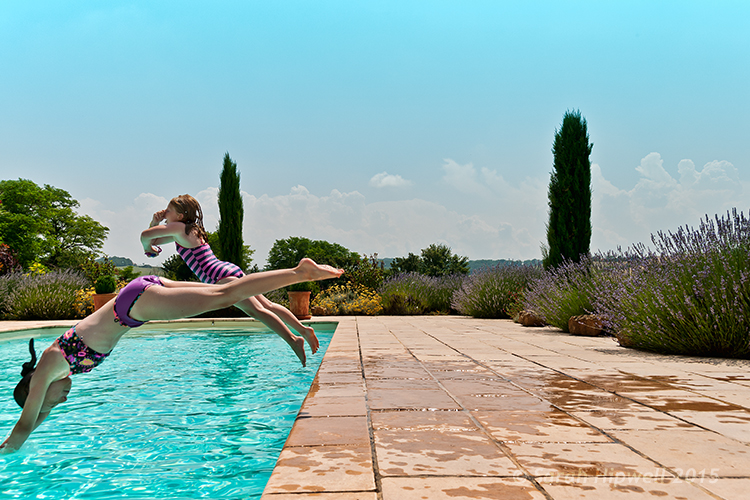
Original-before-duotone

Color image before I applied a duotone effect from one of the presets in the Gradient Editor in Photoshop

Duotone

‘Blue2′ one of the presets in the Gradient Editor in Photoshop to give that ‘Duotone’ effect

Have you converted your color photos to black and white? What techniques did you use? If so please share in the comments below.

Editor’s Note: This is one of a series of articles this week featuring black and white photography tips. Look for earlier ones below and more daily over the next few days.

  • 5 Simple Ways to Create Expressive Photos in Black and White
  • Tips for Black and White Wildlife Photography
  • 7 Tips for Black and White Portrait Photography
  • 28 Images with Strong Black and White Compositions
  • Weekly Photography Challenge – Black and White Techniques
  • Tips for Black and White Wildlife Photography

googletag.cmd.push(function() {
tablet_slots.push( googletag.defineSlot( “/1005424/_dPSv4_tab-all-article-bottom_(300×250)”, [300, 250], “pb-ad-78623” ).addService( googletag.pubads() ) ); } );

googletag.cmd.push(function() {
mobile_slots.push( googletag.defineSlot( “/1005424/_dPSv4_mob-all-article-bottom_(300×250)”, [300, 250], “pb-ad-78158” ).addService( googletag.pubads() ) ); } );

The post How to Convert Images to Black and White and Add a Color Tint in Photoshop by Sarah Hipwell appeared first on Digital Photography School.


Digital Photography School

 
Comments Off on How to Convert Images to Black and White and Add a Color Tint in Photoshop

Posted in Photography


28 Images with Strong Black and White Compositions

16 Aug

This week on dPS it’s all about black and white photography. We are featuring a series of tips and articles around that topic. You can earlier ones below and more daily over the next few days.

  • 5 Simple Ways to Create Expressive Photos in Black and White
  • Tips for Black and White Wildlife Photography
  • 7 Tips for Black and White Portrait Photography

Now, let’s take a look at some images that use this medium to their advantage in strong black and white compositions:

Photograph The great migration by Nicole Cambré on 500px

The great migration by Nicole Cambré on 500px

Photograph Awoken Despair by Alexandre Deschaumes on 500px

Awoken Despair by Alexandre Deschaumes on 500px

Photograph Snowy Owl by Kevin Pepper on 500px

Snowy Owl by Kevin Pepper on 500px

Photograph Biorhythms (2011) by Nik Barte on 500px

Biorhythms (2011) by Nik Barte on 500px

Photograph Farewell, dear friend! by Victoria Ivanova on 500px

Farewell, dear friend! by Victoria Ivanova on 500px

Photograph Story_IV by ? DrakSpirit ?  on 500px

Story_IV by ? DrakSpirit ? on 500px

Photograph Silhouette by mahmood Al-jazea on 500px

Silhouette by mahmood Al-jazea on 500px

Photograph Magical forest by Damian Cyfka on 500px

Magical forest by Damian Cyfka on 500px

Photograph Hide by  PortraitsBySam on 500px

Hide by PortraitsBySam on 500px

Photograph Art of road surface 2 by Junichi Hakoyama on 500px

Art of road surface 2 by Junichi Hakoyama on 500px

Photograph Six Steps by Dave MacVicar on 500px

Six Steps by Dave MacVicar on 500px

Photograph Lone Tree by Phil Buckle on 500px

Lone Tree by Phil Buckle on 500px

Photograph K. by pkfruen  on 500px

K. by pkfruen on 500px

Photograph pray by Muhammad Berkati on 500px

pray by Muhammad Berkati on 500px

Photograph Street Noir by András Sümegi on 500px

Street Noir by András Sümegi on 500px

Photograph Cold morning by Junichi Hakoyama on 500px

Cold morning by Junichi Hakoyama on 500px

Photograph Parisian Morn by Cubz Cubbon on 500px

Parisian Morn by Cubz Cubbon on 500px

Photograph Onwards and upwards by Lex Schulte on 500px

Onwards and upwards by Lex Schulte on 500px

Photograph *** by Turgut Kirkgoz on 500px

*** by Turgut Kirkgoz on 500px

Photograph LoaD IN # by Guillaume Rio on 500px

LoaD IN # by Guillaume Rio on 500px

Photograph Blues by Pascal-Ludovic Saissi on 500px

Blues by Pascal-Ludovic Saissi on 500px

Photograph Glass B&W by jenrygraphy on 500px

Glass B&W by jenrygraphy on 500px

Photograph Capitolio by Liban Yusuf B&W on 500px

Capitolio by Liban Yusuf B&W on 500px

Photograph I won't forget my roots by Cimone  on 500px

I won't forget my roots by Cimone on 500px

Photograph The Eye by John Steven Fernandez on 500px

The Eye by John Steven Fernandez on 500px

Photograph La batalla by alfonso maseda varela on 500px

La batalla by alfonso maseda varela on 500px

Photograph HERBAL TEA by Acken Li on 500px

HERBAL TEA by Acken Li on 500px

Photograph Taj Mahal - India by Christophe Paquignon on 500px

Taj Mahal – India by Christophe Paquignon on 500px

googletag.cmd.push(function() {
tablet_slots.push( googletag.defineSlot( “/1005424/_dPSv4_tab-all-article-bottom_(300×250)”, [300, 250], “pb-ad-78623” ).addService( googletag.pubads() ) ); } );

googletag.cmd.push(function() {
mobile_slots.push( googletag.defineSlot( “/1005424/_dPSv4_mob-all-article-bottom_(300×250)”, [300, 250], “pb-ad-78158” ).addService( googletag.pubads() ) ); } );

The post 28 Images with Strong Black and White Compositions by Darlene Hildebrandt appeared first on Digital Photography School.


Digital Photography School

 
Comments Off on 28 Images with Strong Black and White Compositions

Posted in Photography


Tips for Black and White Wildlife Photography

16 Aug

South African photographer Heinrich van den Berg once said, “I believe that if black-and-white photography is done correctly, it can convey much more emotion and a deeper meaning than color ever could. It’s as if by subtracting color, the viewer is forced to add his own emotion to the images. Color photography is like a novel that spells everything out in detail, whereas black-and-white photography is like poetry—its strength isn’t in what’s said; it’s in what’s left out.”

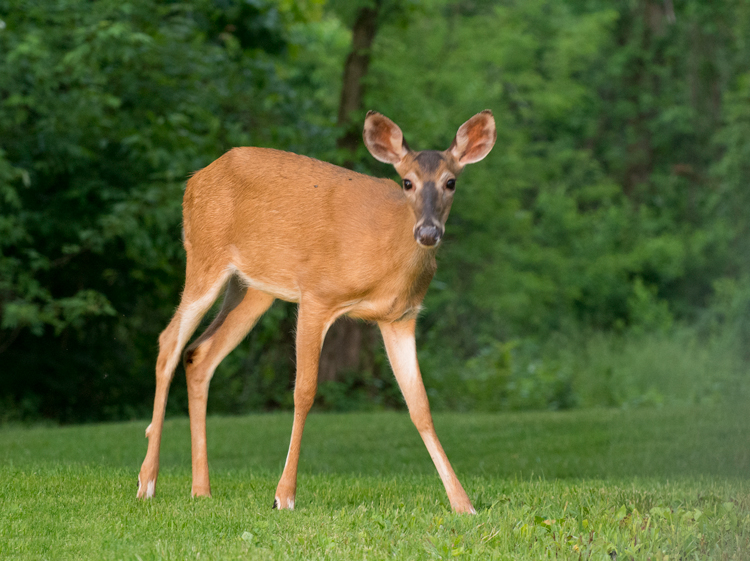
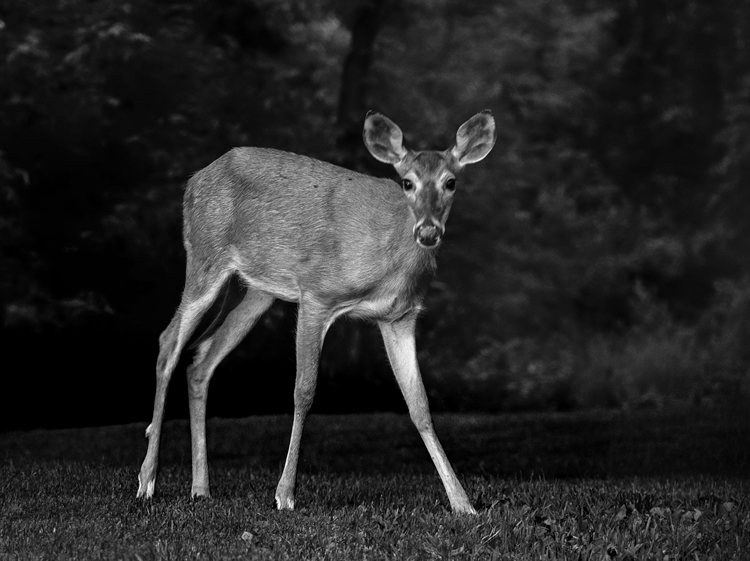
Close your eyes for a moment and imagine a deer standing in a forest. Was the image you imagined in color? Most people will visualize the image in color. But are the colors necessary to produce an image of the deer? Let’s take a look at some advantages of wildlife photography in black and white.

Deer image

Original color image

Black and white deer

The black and white processing in Nik Silver Efex Pro 2 in this image converted the green foliage into a dark background.  Now the emphasis is on the deer and the texture of its coat.

Why Black and White?

Color, though admirable, may be a distraction that interferes with the viewer’s ability to see the textures, lines, patterns, and contrasts within an image. Often your wildlife subjects are surrounded by lush green foliage and blue sky backgrounds, and in color photos, the trend is to saturate them. With black and white photos we take the attention away from those colors, and draw it to the wildlife subject. Colorful images may tell a story, while black and white can reveal a more emotional portrait of the wildlife. Color may show the actuality of a scene, black and white is a perception of the captured reality. Black and white can add drama to your wildlife images that color will hide from the viewer.

It is important to note that not every image will make a great black and white one, some images and subjects will require color to make an impact. If color is the purpose of an image –  say, for instance, your subject is a red-headed wood pecker, then black and white may not work for that subject. Some photographers hold the opinion that an image lacking color is a good candidate for black and white conversion; however, even very colorful images may be hiding a dramatic black and white image.

Hawk Eye

The textures, lines and contrast of the feathers create a dramatic portrait of this Broad-winged Hawk.

DSC_5418-Edit-Edit

Shooting

Without color, the key ingredients to shaping your image are light, composition, contrast, and tones. When photographing for black and white, lighting can transform an image. Black and white works well in all ranges of lighting conditions. Even the harsh midday sun, (difficult lighting for color shots) can products some fantastic results. How many times on a gloomy, rainy day have you grumbled about terrible lighting? Well, maybe for color photography it isn’t ideal, but the great thing about shooting for black and white results, is that even overcast days can produce some great images. It can allow you to capture the tones and textures of your wild animal subject, features which may be hidden in a color image, shot on a bright sunny day.

Of course, the morning and evening glow hours are going to work great when the low angle of light brings out the textures and lines of wildlife. If you are just starting to develop your skills shooting for black and white wildlife, or you are having problems visualizing your images as you shoot, here is a helpful tip. Most DSLR cameras with allow you to set your picture style to monochrome when you are shooting in RAW. The preview will appear in black and white, but your RAW file will still contain all the image’s color information, that you can use later as you convert to black and white. Stripping out all the color from the preview will help you see the forms of the image without the distractions of color. Use this process to help train your eye to see in black and white.

Bison Portrait

In this image, the harsh mid-day sun still produced a dramatically lit portrait of a Bison.

Swan on the lake

When exposing this image to keep the detail in the swan’s white feathers, the background was exposed to nearly black. Converting to black and white required very little processing.

Composition

Composition is even more important in black and white than in color. While a colorful image sometimes hides poor composition, black and white enhances and brings out the composition of your wildlife shot. Use shallow depth of field to isolate the subject, making a dramatic portrait and bringing out the textures of the fur or skin. Remember to use the KISS theory of composition. (Keep It Simple Silly)

Fox

Original image

black-white-wildlife-photography-fox-final

Without the distractions of color this image becomes a moody and detailed portrait.

Processing

There are too many ways of converting images to black and white to mention them all. But Photoshop, Lightroom and Silver Efex Pro 2 are the three processing means I use the most. Whichever program you use for your conversion, you must learn to take control of the process. Instead of stripping the color out, use the tool in your editing program to turn colors into controlled shades of gray. Different processes applied may produce different emotional reactions to a single image.

As illustrated by the photo of the grazing zebras below, high-key processing creates a cheerful or upbeat image, while a low-key interpretation of the same image reveals a more somber or mysterious aspect to the image. Though a high-key image is very light, it should still have black areas; and conversely, a low-key image is mainly dark but should also contain some white areas.

  • Photoshop: Use a black and white adjustment layer to fine-tune how each color tone is converted to a shade of gray. This is a great starting point, but you may also want to adjust contrast, and dodge or burn areas to dramatize the subject. If you use Photoshop to convert your images to black and white, don’t be afraid to experiment. Never just use the Image Mode – Grayscale to convert your image, that is like “throwing away the baby with the bath water”! You will throw out too much useful color information that could be used to create the mood you are looking for in your image.
  • Lightroom: Using the black and white tab, similar to Photoshop, you can also adjust how each color tone is converted to shades of gray.
  • Nik Silver Efex Pro is a very powerful black and white software. One of its greatest features is the preset effects already preloaded into it. Use one of those presets as a starting point, and follow up with the powerful adjustment panel to really fine tune your images.
High Key processing

High-key processing in Lightroom creates a cheerful image of zebras grazing in a field. The same image was then opened in Photoshop and the layer was duplicated adding a motion blur.  The layer blend mode was changed to Overlay and a layer mask was added to keep the zebras from being blurred. This gives an artistic effect to the grass.

Low Key Processing

Low-Key processing in Lightroom creates a more mysterious effect.

Conclusion

The next time you are out photographing wildlife, look for opportunities to shoot black and white images. What wildlife do you like to photograph? Get out there and discover some stunning black and white wildlife opportunities!

Editor’s Note: This is the second article in a week full of features on black and white photography. Look for 5 Simple Ways to Create Expressive Photos in Black and White earlier today and more daily over the next week.

googletag.cmd.push(function() {
tablet_slots.push( googletag.defineSlot( “/1005424/_dPSv4_tab-all-article-bottom_(300×250)”, [300, 250], “pb-ad-78623” ).addService( googletag.pubads() ) ); } );

googletag.cmd.push(function() {
mobile_slots.push( googletag.defineSlot( “/1005424/_dPSv4_mob-all-article-bottom_(300×250)”, [300, 250], “pb-ad-78158” ).addService( googletag.pubads() ) ); } );

The post Tips for Black and White Wildlife Photography by Bruce Wunderlich appeared first on Digital Photography School.


Digital Photography School

 
Comments Off on Tips for Black and White Wildlife Photography

Posted in Photography