RSS
 

Posts Tagged ‘Ways’

30 Ways to Become a Better Photographer in 30 Days

23 Feb

So you want to be a better photographer, and fast, right? Here are thirty things that you can do in 30 days to make your work a LOT better. Remember that while there are rules, the most important thing is to experiment and see what looks great to you. Day 1. Read your camera’s manual. Test every single little button Continue Reading

The post 30 Ways to Become a Better Photographer in 30 Days appeared first on Photodoto.


Photodoto

 
Comments Off on 30 Ways to Become a Better Photographer in 30 Days

Posted in Photography


10 Ways to Improve Your Travel Photography

20 Feb

How to improve your travel photography

Get the most out of your travel photography and capture the moment with these 10 simple tips. Most of these tips are pretty basic and some of them are useful for traveling in general.

1 – Focus on faces

Sounds obvious I know, but whether it’s wildlife or people, it’s often best to focus your lens on the face of of your most important subject. We are naturally drawn to eyes, so that’s where you’ll usually want to focus.

10 Ways to improve your travel photography

2 – Shoot fast

Photographing people in fascinating cultural situations requires a totally different mindset to shooting landscapes.

Forget your tripod, forget low ISO settings and think less about image quality and more about capturing the moment. Be ready, by relying on your autofocus and fast shutter speeds to freeze the action. Handheld is the way to go because you just don’t have the time to be fiddling around with tripods.

In bright sunlight you’ll get away with ISO settings between 400 and 1000 but when the light starts to get low, don’t be afraid to crank that ISO way up into the thousands.

Use wider apertures like f/2.8 to achieve faster shutter speeds and get a pleasing shallow depth of field to accentuate your main subject. Shooting in Aperture Priority mode (AV) lets you quickly dial in the desired aperture while your camera decides on the shutter speed.

If your lens has some kind of vibration reduction be sure to switch that on when going handheld.

Travel Photography tips

3 – Learn the lingo

Take at least a few hours while traveling to learn the basic language skills for your location. Knowing how to say ”Hello, excuse me, please, thank you, sorry, yes, no,” etc., goes a long way even in countries where English is spoken in tourist areas.

Having some basic language skills can make a huge difference to the type of access you’ll get, and the things you’ll get to see. Language opens doors that would otherwise be closed to the average tourist.

4 – Hire a translator or guide

Getting access to people’s everyday lives is often difficult if you don’t know any locals, especially if it’s your first time at a particular location. Consider hiring a guide or translator so that you can communicate with locals on a deeper level than just knowing the basic phrases.

I’ve done this a few times and you sometimes get to make great friends with your guides, who will be happy to introduce you to interesting people and places.

Travel Photography Tips

5 – Smile and make friends

When taking pictures of strangers or communicating with locals, don’t be a dour faced tourist. Smiling is universal and softens what might otherwise be an intimidating approach to people who have little experience with adventurous foreigners.

If you want people to like you, a smile is a good place to start.

6 – Ask for permission whenever possible

If you’re able to ask a person for permission to take their picture, you should. In many countries there is no legal obligation to do so but it’s just good manners, and some people may have religious reasons why they’d really prefer not to have their picture taken.

Conversely, don’t interrupt a delicate social situation if there’s a chance it might be socially awkward. This picture I took at the very famous What Pho in Bangkok is a good example. The monks were taking an exam in front of hundreds of tourists under a high pressure situation so I’m hardly going to walk up and interrupt.

Wat Pho Thailand - Travel Photography Tips

7 – Choose the right lenses

When it comes to capturing atmospheric cultural shots, I’ll choose prime lenses that offer a lovely blurred bokeh effect while keeping my main subject sharp. Typically these will be in the 35mm, 50mm or 85mm, range on a full frame camera. These types of lenses will give you that lovely cinematic look that all-in-one zoom lenses just can’t deliver.

You can achieve a similar look with big telephoto lenses but those are less portable. Smaller primes also make you look more low-key and have great image quality.

Best lenses for travel photography

One of my favourite lenses for travel photography is the Sigma 85mm 1.4 prime.

8 – Carry two cameras

This goes back to what I said about shooting fast. With people and animals you often won’t have time to switch lenses, so consider carrying two cameras that have lenses for different purposes. Let’s say a wide angle lens on one camera, and a lovely 85mm prime for portraits on the other. This way you’ll be able to cope with most situations at a fast pace.

If you are going to carry two cameras, try and keep one in a small bag at all times. If you look too much like a paparazzo it might intimidate some people.

9 – Step out of your comfort zone

I’m not advising you to put yourself in danger. You should always use common sense, but consider doing things you might otherwise find yourself saying NO to. That’s where you’ll find the best photo opportunities.

An example of this would be my recent visit to a mountain cave in Thailand called Phra That Cave in Kanchanaburi Province. The cave has no lights, claustrophobic tunnels and thousands of bats, some of which you’ll have flying right in your face. To me, that’s fun, but to others it’s a living hell.

10 Travel photography tips

”Bats, you say? Thousand of bats?”

10 – Take responsibility for your ownsafety

Third world countries (and even some first world countries) have a very vague concept of Health and Safety. Modern day westerners are raised in a bubble of relative safety that can sometimes result in us having a misplaced sense of responsibility.

Use common sense when traveling, and don’t assume that those hastily built steps you’re about to climb have been passed by a safety inspector.

Got Your Own Tips?

I’d love to hear your travel photography tips. From always carrying toilet paper to having your lawyer’s phone number on speed dial, please share your hard earned experiences and let’s grow this tip list.

googletag.cmd.push(function() {
tablet_slots.push( googletag.defineSlot( “/1005424/_dPSv4_tab-all-article-bottom_(300×250)”, [300, 250], “pb-ad-78623” ).addService( googletag.pubads() ) ); } );

googletag.cmd.push(function() {
mobile_slots.push( googletag.defineSlot( “/1005424/_dPSv4_mob-all-article-bottom_(300×250)”, [300, 250], “pb-ad-78158” ).addService( googletag.pubads() ) ); } );

The post 10 Ways to Improve Your Travel Photography by Gavin Hardcastle appeared first on Digital Photography School.


Digital Photography School

 
Comments Off on 10 Ways to Improve Your Travel Photography

Posted in Photography


6 Ways to Use Shutter Speed Creatively

05 Feb

In many ways, shutter speed is an inaccurate term. I read an article a few years ago and the photographer referred to shutter speed as shutter time. The logic was spot on. A shutter always opens or closes at the same “speed”. The key value is how long the shutter stays open, hence shutter time. On Canon cameras the shutter speed function (shutter priority) on the mode dial is abbreviated to Tv, which stands for “Time Value”, and is a more accurate description of what this article is about. I am going to refer to shutter time as opposed to shutter speed, it sounds crazy, but it will make more sense. The reason this definition is important is because, we are going to be looking at how you can use the time that the shutter is open (and gathering light onto the sensor) creatively.
Waiting for an image to unfold requires patience

In a sense, shutter time is a bit like time travel. You camera’s shutter can open and shut in 1/8000th of a second. Think about that. Take one second, divide it by 8000 and one of those units is the time your shutter was open. That is very quick. On the other end of the spectrum, you can shoot super long exposures of 20 or 30 minutes. That means the shutter stays open for that length of time. Again, amazing. Think of all that light falling onto the sensor during that time, and the images that can be created doing so.

The shutter time becomes more than simply a moment in time, it could be a split second (literally) or a few seconds. The resulting image will capture and freeze the moment or, with a longer shutter time, there will be blurred movement. This is the fun part of photography. In many ways, your camera can “see” events that happen which you cannot. The camera can capture a frozen moment and suspend your subject in that moment forever, this is like magic. The compelling images are amazing to see and are reasonably easy to make, so let’s take a look at a few of them and see how they are done.

6 Ways to Use Shutter Speed Creatively

1. Freezing the moment

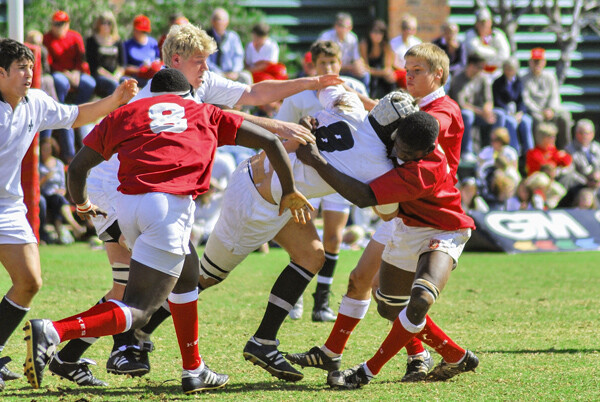
These are the images we all know about; ones that have captured a frozen moment in time. Normally these are sports images, the winning goal, or the knockout punch connecting. They are intriguing to most people and are compelling because we can’t freeze the moment in our eyes. We see a moving, continuous rendition of the events happening in front of us. You have seen “slo-mo” shots of the winning goal; the frozen moment image is that equivalent.

These images take a bit of practice to get right. Lets assume for a moment, you are photographing a soccer match. It is great to get action shots, but you will want to get any shots of the teams scoring goals. You will then need to have the correct lens. In sports photography, it will be a pretty long zoom or telephoto lens. Most sports photographers will use 400mm and longer. You will also need to keep your camera steady. A tripod in these cases is somewhat impractical as you need to be able to move the camera quickly and easily to follow the game. A monopod is normally what works best.
freeze action 2

Depending on the lighting conditions you need to make sure you have a shutter time that captures the players in mid-action. You also need to take the lighting into consideration. If you are shooting in an outdoor arena, the natural light may be sufficient, but if you are in an indoor arena, you might need to be more aware of your exposure. In that case, you may need to push your ISO up high enough to allow you to freeze your subject. In most sports 1/1500th of a second is the starting point for freezing action. In very fast sports like ice hockey, soccer, rugby and so on, you may need to be shooting at even faster speeds than that. This is how you set up the shots.

Technique

How to do it: Set your aperture to an aperture setting of f/2.8 or f/4.5. This will allow for a quicker shutter time, which will in turn freeze the action. If you are shooting a sporting event in the sunlight, you may need to have your shutter time set to 1/1500 or faster. If this is still not freezing the action, make the shutter time even quicker. Try and anticipate the action and release the shutter at the moment you think it will happen. Be aware that your focus will need to be spot on. With a wide aperture, you run the risk of misfocusing and missing a shot. I once heard a sports photographer say this ” If you see the goal in your viewfinder, you missed the shot”. When you do get that shot though, it will be worth it.

2. The decisive moment

Henri Cartier-Bresson coined the phrase, “The Decisive Moment”. Do a google image search on Cartier-Bresson and the decisive moment, you will see many of his great images. He was well known as a street and people photographer, and he believed that you need to choose the precise moment when something happens to hit the shutter release. As you can imagine, this is not easy. Sometimes this might mean you need quick reflexes. Freeze actionMost of the time, it requires patience. He would often set up the shot, get the framing right and then wait. You don’t want to wait for hours, but be patient, sit there for 20 or 30 minutes and watch the scene. Take note of how people are moving into, and out of your frame. When time is right, or the perfect subject (person, vehicle, animal, whatever you choose) moves into the best position, release your shutter at that moment. This will take practice and more than a few shots to get it right, but when you do, you will be ecstatic. The shot will look candid, but you will know what it took to get that image. Many people assume Cartier-Bresson’s images were simply shot quickly from the hip, but much of the time they were planned and he waited patiently for the decisive moment.

Technique

How to do it: You need to think of a scene you would like to capture, visualize it. You may want to capture the comings and goings at a coffee shop in your city. You may want to have someone with a red coat sitting outside, sipping coffee. You should then set up and frame your shot, then sit there until the scene unfolds. Someone with a yellow jacket may sit down, which might work too. So be flexible, but be patient, sooner or later the shot will unfold.

3. Abstract and creative blur

As I said earlier, shutter time is a bit like time travel. You can capture an infinitesimally small slice of a moment, and in other cases you can capture seconds, or even minutes. When the shutter is open, light is coming through your lens and falling onto the cameras sensor. If you allow this to happen for a long enough time, some part of your image will blur. Sometimes blur in an image is unwanted. This happens when your shutter time is too long, your camera moves unintentionally, and the image is ruined.
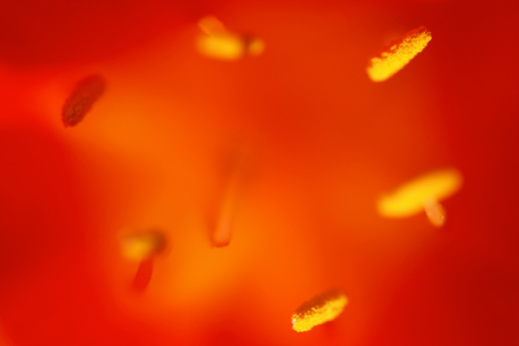
A close up image of a flower, shallow depth of field blurs the background, but the yellow stamens are in focus

A close-up image of a flower, shallow depth of field blurs the background, but the yellow stamens are in focus.

The kind of blur I am talking about here is intentional blur. This technique can be used to make slightly, or completely, abstract images, depending on the shutter time. The longer the shutter time, the more movement there is, and the more blur you will see. Blurring can be the result of your subject moving, you moving the camera, or both. If your subject is moving and the camera moves, the blur can be very dynamic. If your camera is on a tripod and the subject moves, this creates a sense of speed.

Technique

How to do it: Set your aperture to f/5.6 or higher (smaller opening). Attempt this in low light conditions, just before and just after sunset. Set your shutter time to 1/10th of a second or longer. Release the shutter and move the camera quickly from left to right. You can rotate the camera, move it up and down, or even just shake it in your hand while the shutter is open. In this technique, you will be moving the camera and the scene could have moving elements in it too (i.e. a car or a bus could be driving past, or people could be walking in the scene). The results will be random and unusual, but with practice, you can create some pretty compelling abstract images.

Camera swirl, this image was made by rotating the camera anti-clockwise while the shutter was open

Camera swirl, this image was made by rotating the camera anti-clockwise while the shutter was open

4. Low light exposures

The goal in low light exposures is to have the scene in focus, and only one part in the scene moving. This is particularly interesting at night when you get light trails from a vehicle driving through your scene. You can do this in the early evening or evening if it has become dark. These images are compelling because the light trails from the vehicle seem to hang magically in the air while the vehicle itself is invisible. Another great time to shoot longer exposures is during the blue hour; the 20 to 30 minutes of soft blue light that fills the sky after the sun has set. This is a great time to do longer exposures too as the sky will look blue and your subject (a city or a landscape scene) will be well lit.

Technique

How to do it: Set your camera up on your tripod. Select an aperture setting of f/8 to f/11. Set your shutter time to expose correctly for the scene. Depending on the light your shutter time could be anywhere from 1/10th of a second to three or four seconds. As it gets darker, your shutter time will need to increase. Set yourself up in a position where something will be moving – cars, boats or even people can work well for this. Take a few shots to see how it is all working and make any adjustments. The important technique here is timing. If you want to get a shot with the car lights streaming through your shot, time it so that you release the shutter as the car is in the best place in your scene, similar to the decisive moment.
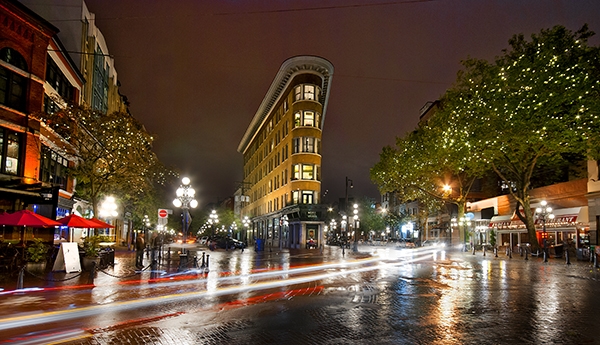
This scene works well because the light trails add some dynamic interest to the image

This scene works well because the light trails add some dynamic interest to the image

5. Long exposures

As the name suggests, these are longer shutter times. In some cases, they may be 20-30 seconds long, but for some really interesting images, you will want keep the shutter open for 15-20 minutes. Long exposures require the use of a 10 stop Neutral Density filter. This filter will block out the light sufficiently to allow you to open your shutter for long periods of time. The results can be amazing. You can use the ND filter in the day to make your shutter time longer. “Why would I want to do that?”, you might ask. You might have a scene with a windmill in it and you want to blur the movement of the windmill as it rotates. You might also want to create a seascape scene where the waves look silky and smooth. In these cases, an ND filter will be very useful.

Technique
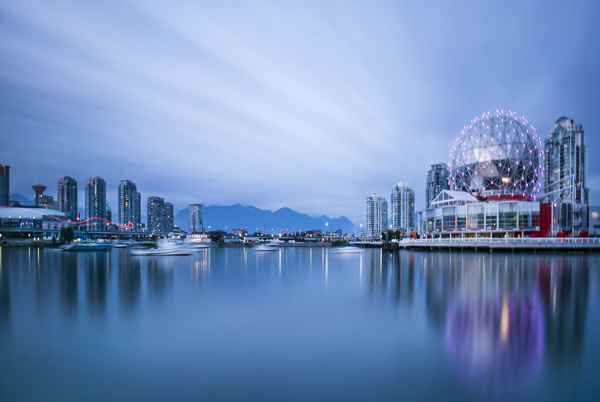
Long exp 2

ISO 100, f/11, just under 13 minute exposure.

How to do it: Set up your camera on a tripod. Set your aperture to anywhere between f/11 and f/16. In these images, you will want to have an exposure time of 15-30 seconds and longer. You will need a cable release to go beyond 30 seconds on your exposure. You want a lot of movement in the scene, whether it is light trails or clouds moving across the sky. The longer you have the shutter open, the more surreal the image will become.

If you have an ND filter, set up your shot first, use autofocus to get everything in focus, then switch your camera to manual focus. The reason is, once you put the ND filter on your lens, the scene will become very dark. If your camera is on autofocus, it may struggle to find a focal point. If that happens, your lens will “hunt” for something to focus on and you won’t be able to get the shot, or it may be out of focus. So, once you have focused your image, switch to manual focus and mount the ND filter onto your lens to make the shot. Be aware, long exposure photography can really eat up battery life, so carry spare batteries if you have them, especially on cold winter evenings!
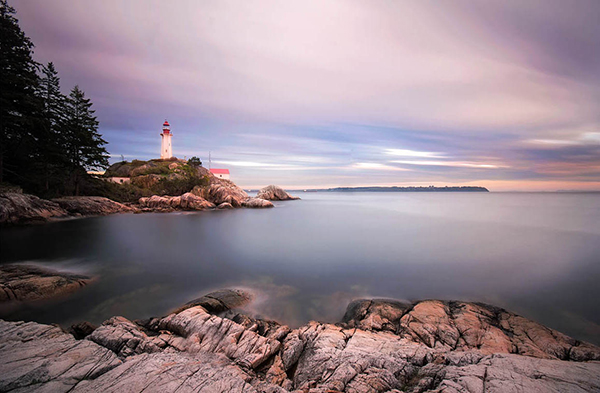
This image was exposed for 4 minutes, which softened the water and the clouds

This image was exposed for four minutes, which softened the water and the clouds

6. Panning

This technique, when done correctly, can produce amazing results, but it’s not easy. Panning is when you focus on a subject that is moving, and you move your camera in a horizontal plane with them. During that movement, you will release the shutter. Your exposure time will depend on the subject and the light, but in this technique you don’t want to freeze the action, you want to suggest movement. A longer shutter time is preferable, so you may be shooting at 1/30th or slower. To pan effectively, you will need to practice a few shots, here are some pointers.

Technique

How to do it: Firstly, stand with a wider stance than normal. When you pan with your subject, move your body from the hips up. Timing is key, release the shutter when you think the subject is in a good position in the frame. Follow through, don’t stop the movement when you release the shutter, keep moving with your subject (and at the same speed as the subject) until the shutter closes (think golf swing).
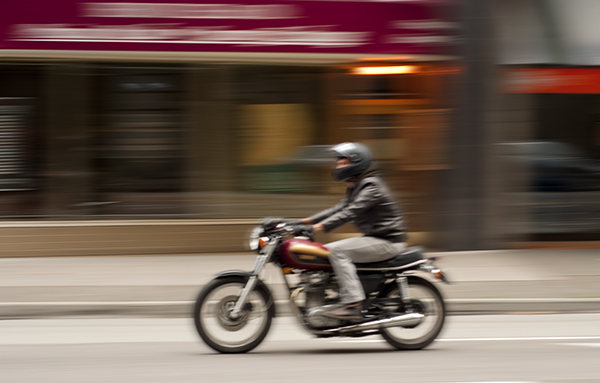
A panning shot creates a very unique sense of movement

A panning shot creates a very unique sense of movement.

The next step is to go out there and get these shots. I would recommend you make an effort to try at least 20 to 30 shots of each of these techniques. Play with the settings, see what works and what doesn’t. Let me know what you think and maybe even put some of the results in the comments, lets see what you get.

googletag.cmd.push(function() {
tablet_slots.push( googletag.defineSlot( “/1005424/_dPSv4_tab-all-article-bottom_(300×250)”, [300, 250], “pb-ad-78623” ).addService( googletag.pubads() ) ); } );

googletag.cmd.push(function() {
mobile_slots.push( googletag.defineSlot( “/1005424/_dPSv4_mob-all-article-bottom_(300×250)”, [300, 250], “pb-ad-78158” ).addService( googletag.pubads() ) ); } );

The post 6 Ways to Use Shutter Speed Creatively by Barry J Brady appeared first on Digital Photography School.


Digital Photography School
 
Comments Off on 6 Ways to Use Shutter Speed Creatively

Posted in Photography


3 Simple Ways to Take Better Photos on Your Next Trip

04 Feb

I love to travel. To me, nothing compares to living on the road and waking up to new places every day. All the different photographs I’ve made during my journeys are the most rewarding part of it all.

Making photos while traveling or on vacation has a special quality because you’re seeing your subjects often for the first time. Travel also presents unique challenges, though – unfamiliar landscape, climate, and culture can easily throw you off. However, it is those very things that can also make beautiful, one-of-a-kind photographs!

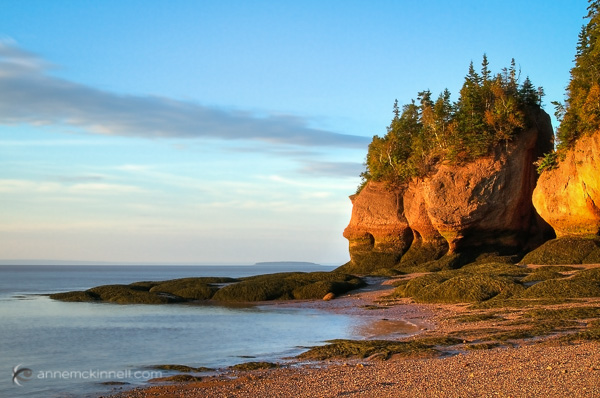
Bay of Fundy, New Brunswick

Bay of Fundy, New Brunswick

When travelling to new places, you want to create photos that express the way you feel about the place. You also want to make unique images that are unlike anyone else’s. The sense of wonder you feel when seeing beautiful places for the first time can easily translate into the images that you make with these three simple tips to help you take better photos.

1. Plan, plan, plan

Once you decide where you’re going, read up on the area and educate yourself about the place and what kind of conditions you can expect. What will the weather be like? Are there any special events taking place? Will the flowers be blooming? If you’re traveling internationally, is there a language barrier? If so, try to learn a few key words and carry a phrase book with you. No matter where in the world you go, locals are always more helpful when you make an effort to speak to them in their own language – even if it’s just a few words.

Find out what else is around that you might be able to see during your visit. If you’re photographing nature, you can find great locations by studying maps. Photography websites and forums are full of advice and examples of interesting places to shoot. Learning about the location’s history and culture will also help direct you to unique and interesting subjects.

Sanibel Island, Florida

Sanibel Island, Florida

Find out as much as you can about the places and subjects you’ll be photographing, so you can prepare for them. For instance, if you’re going to be shooting in the desert, near the ocean, or in very cold, wet, or humid environments, you’ll know to bring protective gear to shield your camera from damage caused by moisture, salt, and sand. If you expect temperatures lower than -10c or higher than 40c, extra batteries will be needed as they drain quickly at extreme temperatures. You might consider renting a particular type of lens that is perfect for your subject like a super-telephoto or a tilt-shift. You’ll also need to know what sort of clothes to wear for the weather.

Big Bend National Park, Texas

Big Bend National Park, Texas

2. Don’t let your gear drag you down

No matter where you’re headed, there are some things you’ll need no matter what. When packing your gear, make a checklist to ensure you don’t forget anything important. It should include:

  1. Your main camera
  2. A backup camera
  3. A normal focal length lens (around ~50mm)
  4. A long focal length lens (~100mm or more)
  5. A wide-angle lens (~35mm or less)
  6. Your favourite, most-used lens
  7. A polarizing filter
  8. A battery charger
  9. Spare batteries and memory cards, and a place to backup images (computer, external drive, the cloud)
  10. A lens cloth and/or air blower to keep your equipment clean
  11. A comfortable camera bag – preferably one that doesn’t stand out as a camera bag to avoid making yourself a target for thieves.
  12. A good, sturdy, but lightweight tripod. Many manufacturers such as Manfrotto, Giottos, and Benro (among others) make special travel tripods that are made of strong, light carbon fibre and fold up into a small carrying case.
Strathcona Provincial Park, British Columbia

Strathcona Provincial Park, British Columbia

Be selective with your packing. Don’t bring things you probably won’t use because camera bags can get very heavy, very fast. Use lightweight luggage and never check your camera bag, since checked luggage can be mishandled or lost. If you are flying, check the size and weight restrictions of carry-on luggage so you don’t get an unwelcome surprise at the airport. If you leave your home country, purchase travel insurance that will cover your precious equipment from loss, damage, or theft while abroad.

3. Seek the unique

When traveling, try to avoid the mass-marketed tours and biggest attractions. Not only are they full of people that get in the way of your shot, but they’re also full of people getting almost the exact same photos that you are. Instead, search for places that are beautiful but overlooked. You may be able to find this information online, but the best way is to be open and talk directly to the people who live there – start with your hotel staff, be friendly, and ask locals where the most beautiful places are that most people don’t see.

Goblin Valley State Park, Utah

Goblin Valley State Park, Utah

This can even start when booking your accommodations – instead of staying in a generic chain hotel, look for places with more character such as cabins, villas, or bed and breakfasts. Or, if you’re like me, you can find an RV site right in the midst of the beauty to call home base. This way, the place you spend the most time can present its own photographic opportunities.

Remember to give yourself time to experience the place before you start photographing. Give yourself a chance to find out what is special about the place first, and then try to convey that in your images. If you are photographing something common like a famous monument or national park, try to find a new perspective.

Joshua Tree National Park, California

Joshua Tree National Park, California

It’s easy to become overwhelmed by the exotic nature of new places. But always remember that good light is a photographer’s best friend. A new place may look fascinating to you in the middle of the day, but it will look magical during good light.

googletag.cmd.push(function() {
tablet_slots.push( googletag.defineSlot( “/1005424/_dPSv4_tab-all-article-bottom_(300×250)”, [300, 250], “pb-ad-78623” ).addService( googletag.pubads() ) ); } );

googletag.cmd.push(function() {
mobile_slots.push( googletag.defineSlot( “/1005424/_dPSv4_mob-all-article-bottom_(300×250)”, [300, 250], “pb-ad-78158” ).addService( googletag.pubads() ) ); } );

The post 3 Simple Ways to Take Better Photos on Your Next Trip by Anne McKinnell appeared first on Digital Photography School.


Digital Photography School
 
Comments Off on 3 Simple Ways to Take Better Photos on Your Next Trip

Posted in Photography


4 Ways to Use the Warp Command in Photoshop

27 Jan
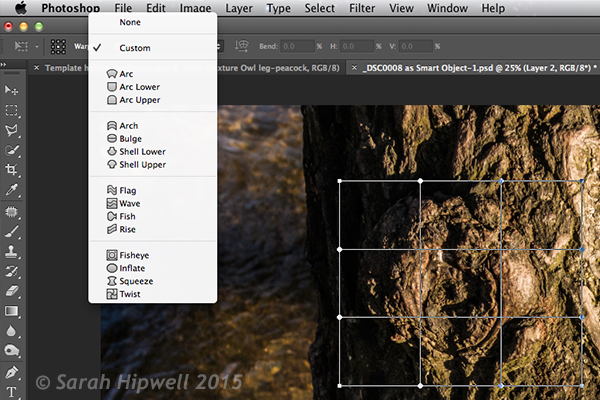
Custom-mode-warp-command

Warp command in Photoshop, showing the grid over a selection and the presets

What is Warp?

The Warp command was introduced in Photoshop CS2 along with Vanishing point feature. This meant an image, or part of one, could now be distorted or transformed into a new shape. You may have seen popular online tutorials where the warp command was used to create a realistic page curl in Photoshop?

How useful is the Warp Command as a photographer?

Honestly, to answer this question it will depend on the type of photography you specialize in, and to what degree you post-process your images. For a lot of photographers, the less time in front of the computer editing the better. I include myself in this group. That said, I rarely get that perfect in-camera shot that requires minimal processing after the fact. If you composite images together, do a lot of retouching, or you just simply want to know what this command does in Photoshop, then read on. I’ve put together five tips that you may find useful.

How do you access the Warp Command?

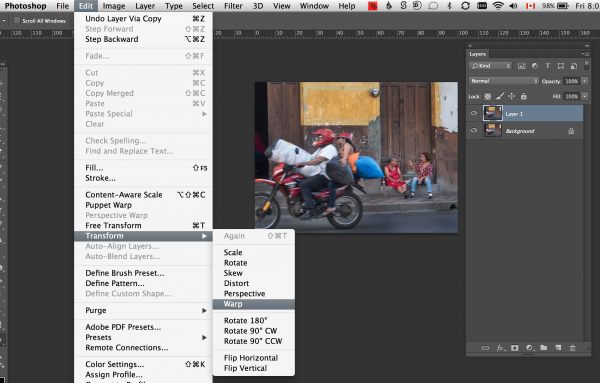
To access the Warp Command, you need to first have a selection or a layer selected (you cannot use your background layer, you must duplicate it first). Go up to Edit>Transform>Warp.

Screen Shot 2015-01-09 at 8.02.21 PM

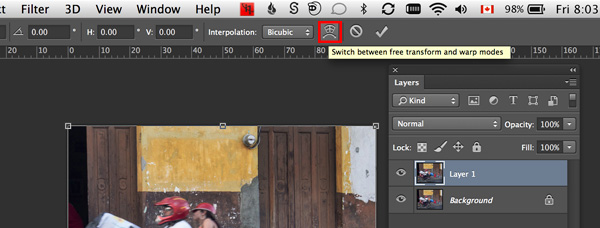
Alternatively, CMD+T on a Mac or CTRL+T on a PC. This brings up the Free Transform command. Click on the Warp mode button in the tool Options bar or right click within the Free Transform bounding box.

warp-mode-toggle

A grid with nine boxes appears with control points on the perimeter. The four corner square control points are similar to the bezier handles when using the pen tool. As you drag on those points, the handles appear. You can drag on the other points, and within the boxes to change the shape of the selection in any direction. There are also a number of built-in presets (see below).

Custom-mode-warp-command


Are the Puppet Tool or Liquify Filter alternatives to the Warp Command?

Well not exactly. Both have their merits when it comes to distortion but each have their own characteristics and differ again to the Warp Command. The Puppet Warp tool allows you to place points or pins systematically around a displayed mesh (polygons) which will create bending or warping points. The object or subject selected must be isolated from the background first. Puppet Warp can also be applied to a Smart Object.

The Liquify Filter will work on ordinary layers but If you convert your layer to a Smart Object, then the Liquify Filter won’t work in Photoshop versions up to CS6. However, Liquify does work with Smart Objects in Photoshop CC. The Liquify filter takes a bit of getting used to. When you open it, a separate dialog box appears, like a plug-in of sorts with its own set of warp tools. It works on pushing and pulling the pixels around, similar to a smear effect.

4 Ways of using the Warp Command

1. Wrapping

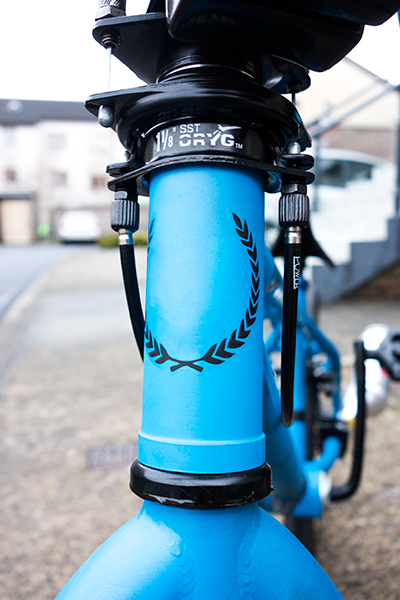
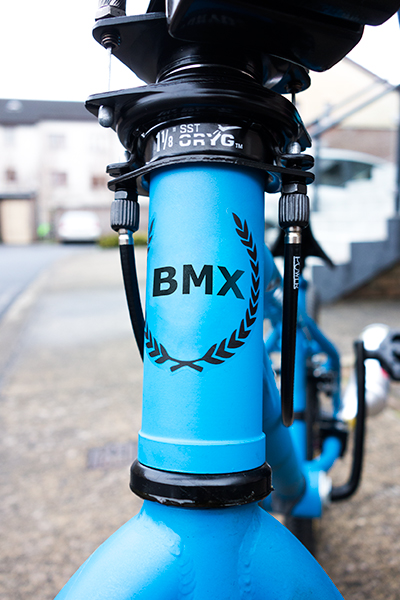
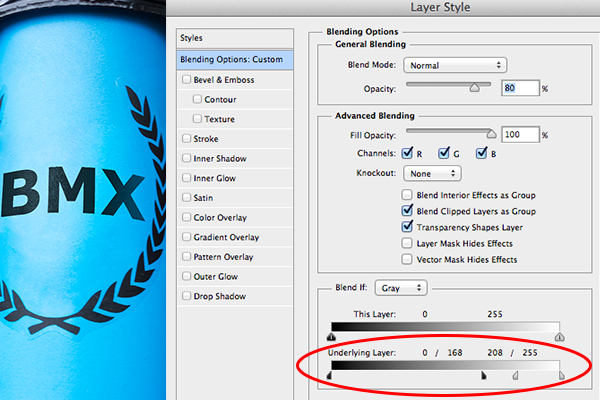
The Warp Command is great for wrapping text, logos, or even textures around cylindrical objects such as bottles to give it that 3-D look. For example, a bike has a lot of cylindrical shapes on it, the front forks, frame, etc. So any logos on a bike will look bendy to fit the shape it sits on. In the photo of the BMX bike which I deliberately shot wide(focal length-10mm) to emphasize the cylindrical shape of the tube. I removed part of the existing logo to illustrate how I wrapped some text around the front tube. Type ‘BMX’ on a separate later and convert this to a smart object. You will need to do this to access the custom mode of the Warp Command. By using the existing Logo as a guide, I was able to warp ‘BMX’ in place. I then applied the Blend-if layer style to the underlying layer to give it a more authentic look.

bmx-bike

A wide angle shot of a BMX type bike

bmx-logo-removed

I removed the centre part of the logo on the bike

text-wrapped-bmx-bike

I wrapped the letters ‘BMX’ around the front tube area of the bike using the Warp Command

Blend-if-mode-applied-to-BMX

Holding down the ALT key on Mac, Option key on a PC, will split the slider arrows to get a finer adjustment.

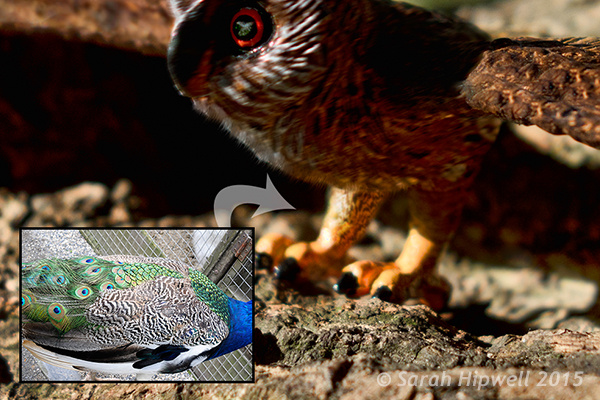
The Warp Command can also be used to wrap texture around an object.

Owl-peacock-texture-wrapped-around-leg

I used an image of a Peacock to add texture and realism to the owl’s leg

2. Duplicating a similar element in an image and distorting it to make it look different

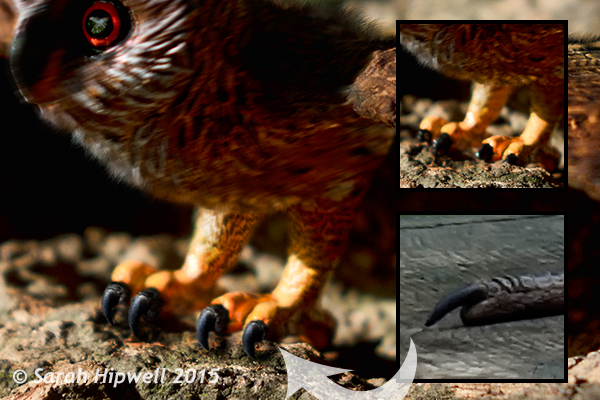
When you use the Clone Tool to replicate a similar object or element in an image, it does a fantastic job. However, if you don’t want the cloned look, this is where the Warp Command is great for changing the shape of a duplicated element in an image, to give the appearance of a completely different one. I found this particularly useful when I used the same heron claw to replicate four Owl’s talons.

Owl-with-Heron-talons

I used the same heron claw to manipulate four owl talons

3. Retouching – adding elements

Retouching an image can mean many things. Usually, it means removing or taking away parts of a photo so that the final image looks better. This includes removing imperfections and blemishes from a model or subject’s skin. It could also mean removing distracting elements from a photo, and the list goes on.

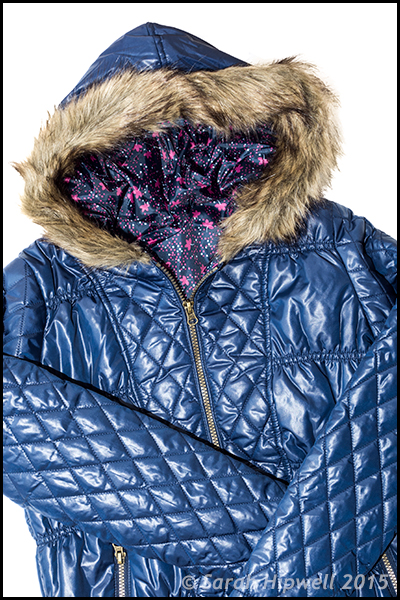
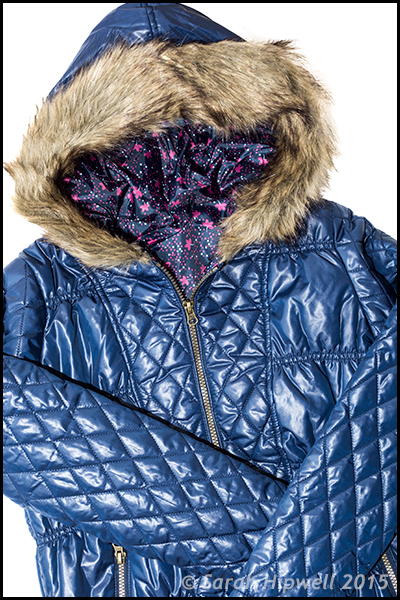
But what about adding to an image to enhance it? For example, you have a shot of a subject but you want to add volume to his or her hair. You can do this using the Warp Command by selecting part of their existing hair. Put the selection on a separate layer, make sure you convert that layer to a Smart Object (working non-destructively). You will then need to apply a layer mask to hide hard seams or obvious cloned areas.

Jacket-original

Photo of a jacket with a fur hood

Jacket-hood-fuller

This is the same jacket but I’ve added more volume of fur to the hood by using the Warp Command

4. Retouching – removing things

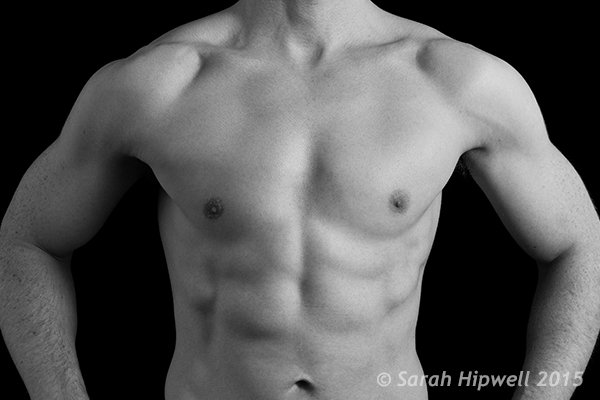
The Liquify Filter is a choice for many retouchers. It is very powerful, but as I mentioned before, it does take a bit of mastering and Smart Objects cannot be applied to this filter, unless of course you use Photoshop CC. I find the Warp Command quick and easy to use. It does a great job of slimming areas on the body. Sometimes due to the angle of how a model or subject was photographed, it might require that you raise or lower a shoulder, for example to give symmetry or balance to the shot.

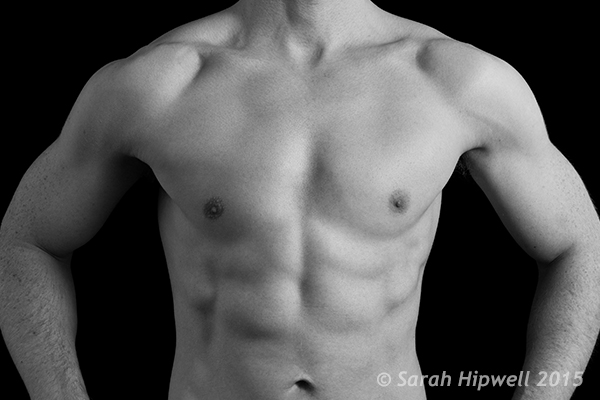
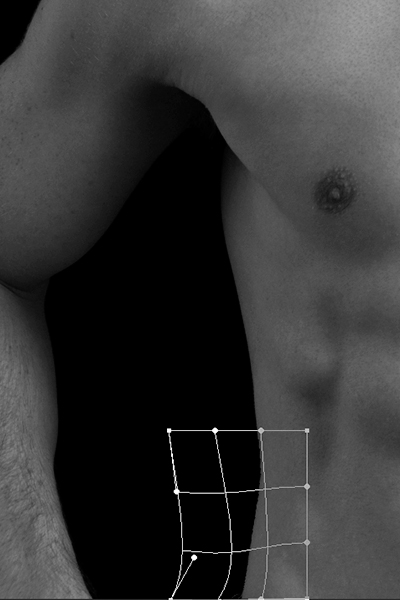
Take the Love Handles for example in the photo below. Make a quick selection using the Marquee Tool. Use CMD+J on a Mac or CTRL+J on a PC. This puts the selection on its own layer. Right click on the layer and convert it to a Smart Object. Hit CMD+T/CTRL+T, to bring up the Free Transform Tool, then click on the Warp mode button in the Options bar. Distort just enough to keep it real. Add a layer mask to hide any hard seams.

Love-handles

Even sport models can have slight ‘Love Handles’

Love-handles-removed

Love Handles removed using Warp

Warp-grid-love-handles

Careful nudging of the Warp Command to get rid of Love Handles

When using any of the distortion tools or commands in Photoshop, do so with restraint. A slight adjustment is often all that is required. It is this small change that can sometimes add a big difference to your image.

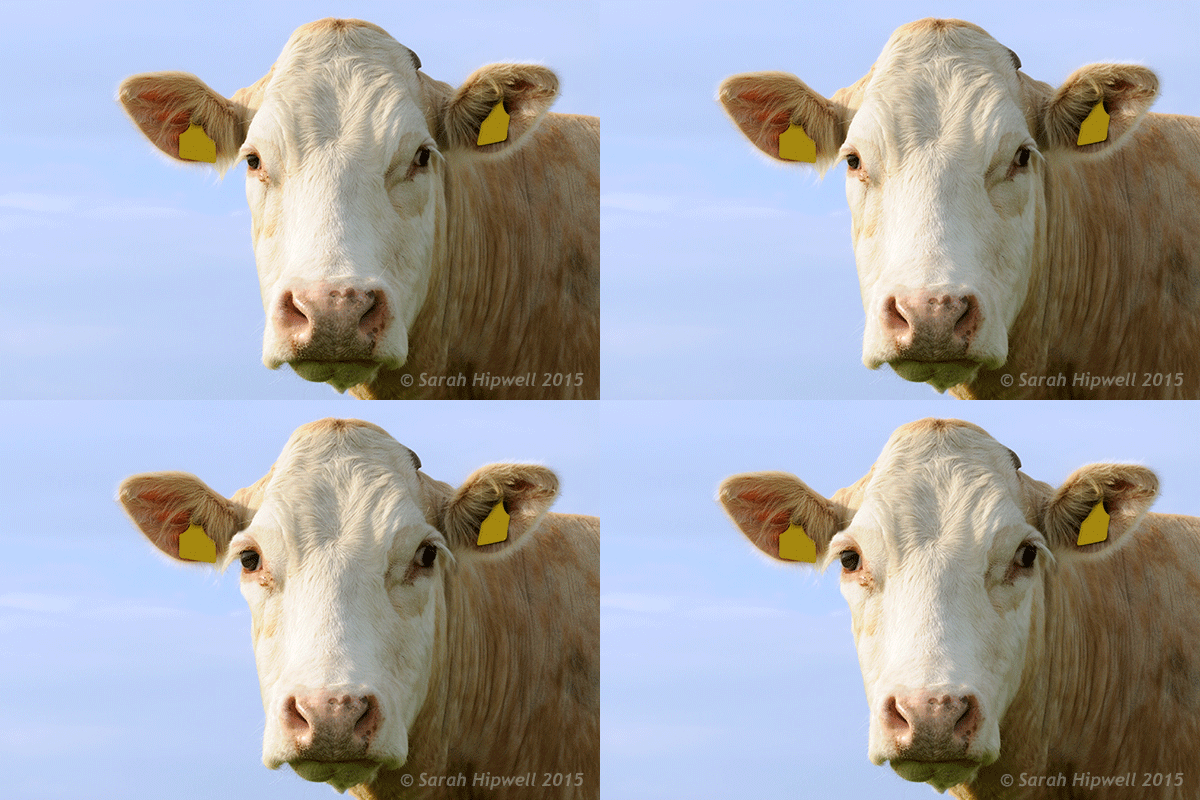
Just for a bit of fun, I produced the animated cow.gif to illustrate a slight adjustment where I made the nose smaller. I then went on to show no restraint by enlarging the eyes and making the jowls slimmer!

cow

googletag.cmd.push(function() {
tablet_slots.push( googletag.defineSlot( “/1005424/_dPSv4_tab-all-article-bottom_(300×250)”, [300, 250], “pb-ad-78623” ).addService( googletag.pubads() ) ); } );

googletag.cmd.push(function() {
mobile_slots.push( googletag.defineSlot( “/1005424/_dPSv4_mob-all-article-bottom_(300×250)”, [300, 250], “pb-ad-78158” ).addService( googletag.pubads() ) ); } );

The post 4 Ways to Use the Warp Command in Photoshop by Sarah Hipwell appeared first on Digital Photography School.


Digital Photography School
 
Comments Off on 4 Ways to Use the Warp Command in Photoshop

Posted in Photography


38 Images of Different Ways to Bring in the New Year

02 Jan

What does a starting a new year mean for you? Is it about parties and drinking cocktails? Or maybe fireworks and celebration in a loud way (like here in Nicaragua)?  Perhaps you sit at home and watch it all on TV as the apple drops in NYC over Times Square.

Or maybe you take some time to reflect and meditate on what you achieved over the last year and think about your goals, dreams and plans for the next 12 months? Does it slip past midnight quietly with you tucked snugly into your bed?

Holiday time and new year can mean many different things to different people, including how it is celebrated. So I rounded up a set of images that represent some of the different options. How did you celebrate or spent you New Year’s eve?

One door (2014) closes and another opens (2015).

How will you get started in 2015?

Photograph Balloons pink and white background by Jesper  Hilding Klausen on 500px

Balloons pink and white background by Jesper Hilding Klausen on 500px

Photograph Champagne glass by Vadim Kolobanov on 500px
Champagne glass by Vadim Kolobanov on 500px

Photograph Sydney NYE Fireworks by Night Raven on 500px

Sydney NYE Fireworks by Night Raven on 500px

Photograph Happy New Year by Ahmad Jasem on 500px
Happy New Year by Ahmad Jasem on 500px

Photograph The Wish by La Mo on 500px

The Wish by La Mo on 500px

Photograph "No Light Painting...no party!" by Paolo Lombardi on 500px
“No Light Painting…no party!” by Paolo Lombardi on 500px

Photograph Champagne and Strawberry by Emily  Soto on 500px

Champagne and Strawberry by Emily Soto on 500px

Photograph AVIVA (Platinum - Pink Gold - Gold) by David Vega on 500px
AVIVA (Platinum – Pink Gold – Gold) by David Vega on 500px

Photograph Greetings by Gynt S on 500px

Greetings by Gynt S on 500px

Photograph Celebrate with champagne by Paulo Gonçalves on 500px
Celebrate with champagne by Paulo Gonçalves on 500px

Photograph Bubbling Champagne in a Glass by Brent Hofacker on 500px

Bubbling Champagne in a Glass by Brent Hofacker on 500px

Photograph Champagne by Leanid Grushetsky on 500px
Champagne by Leanid Grushetsky on 500px

Photograph Inception by Sarah Karjalainen on 500px

Inception by Sarah Karjalainen on 500px

Photograph Watching Television by Chris Frear on 500px
Watching Television by Chris Frear on 500px

Photograph H'mong inside by Arnaud Foucard on 500px

H’mong inside by Arnaud Foucard on 500px

Photograph Man watching TV by Nemanja Bodroza on 500px
Man watching TV by Nemanja Bodroza on 500px

Photograph Woman in bed with popcorn by Rob Byron on 500px

Woman in bed with popcorn by Rob Byron on 500px

Photograph Woman at gym. by Ron Chapple on 500px
Woman at gym. by Ron Chapple on 500px

Photograph Meditation by Nasser Al-Ghanim on 500px

Meditation by Nasser Al-Ghanim on 500px

Photograph Urban Serenity by Nadav Jonas on 500px
Urban Serenity by Nadav Jonas on 500px

Photograph Meditation by Alex Z on 500px

Meditation by Alex Z on 500px

Photograph Bear Introduction by Jeff Lewis on 500px
Bear Introduction by Jeff Lewis on 500px

Photograph Let the Game Begin by Arthur Schroeder on 500px

Let the Game Begin by Arthur Schroeder on 500px

Photograph Seahawks x Saints by Jordan Gerdes on 500px
Seahawks x Saints by Jordan Gerdes on 500px

Photograph Epic Incomplete Pass by Ryan Sims on 500px

Epic Incomplete Pass by Ryan Sims on 500px

Photograph Gloomy Sunday - San Francisco, CA by Kyu Kim on 500px
Gloomy Sunday – San Francisco, CA by Kyu Kim on 500px

Photograph Seahawks Russell Wilson scambles by Matt McDonald on 500px

Seahawks Russell Wilson scambles by Matt McDonald on 500px

Photograph Times Square by night by Fabio Nodari on 500px
Times Square by night by Fabio Nodari on 500px

Photograph Soul by Tatyana Nevmerzhytska on 500px

Soul by Tatyana Nevmerzhytska on 500px

Photograph Vintage Dreams III by Sarah Van Dyck - Moore on 500px
Vintage Dreams III by Sarah Van Dyck – Moore on 500px

Photograph Future 500 pixer by Kevin Cook on 500px

Future 500 pixer by Kevin Cook on 500px

Photograph Best Buddy by Mike Wölfle on 500px
Best Buddy by Mike Wölfle on 500px

Photograph Erin by Berit Alits on 500px

Erin by Berit Alits on 500px

Photograph Thinking Gears by Cade Martin on 500px
Thinking Gears by Cade Martin on 500px

Photograph Meanwhile in Finland by Miska Lehto on 500px

Meanwhile in Finland by Miska Lehto on 500px

Photograph believe it or not by Sebastian Freitag on 500px
believe it or not by Sebastian Freitag on 500px

Photograph doors ... by Paladyan Konstantin on 500px

doors … by Paladyan Konstantin on 500px

Photograph Reflections in the street by Edgar Monzón on 500px
Reflections in the street by Edgar Monzón on 500px

googletag.cmd.push(function() {
tablet_slots.push( googletag.defineSlot( “/1005424/_dPSv4_tab-all-article-bottom_(300×250)”, [300, 250], “pb-ad-78623” ).addService( googletag.pubads() ) ); } );

googletag.cmd.push(function() {
mobile_slots.push( googletag.defineSlot( “/1005424/_dPSv4_mob-all-article-bottom_(300×250)”, [300, 250], “pb-ad-78158” ).addService( googletag.pubads() ) ); } );

The post 38 Images of Different Ways to Bring in the New Year by Darlene Hildebrandt appeared first on Digital Photography School.


Digital Photography School
 
Comments Off on 38 Images of Different Ways to Bring in the New Year

Posted in Photography


7 Ways to Handle High Contrast Scenes

02 Dec

Perhaps the greatest challenge you will face in outdoor photography is the high contrast created by the sun and the bright sky versus a darker foreground. That is one of the reason photographers try very hard to shoot at dawn or sunset. Otherwise, the sky is virtually always so much brighter than anything on the ground that it is hard for your camera to deal with the contrast. Either your camera exposes the sky correctly, which makes everything on the ground look black, or the camera exposes the foreground correctly resulting in a blown out (or pure white) sky. If you try to expose in the middle, you will have problems with both highlights and shadows.

The challenge is constant and great, but there are some things you can do to create great pictures no matter what the light. This article will walk you through some ideas for doing that.

1. Fix it in Post-Production

GiantsCauseway

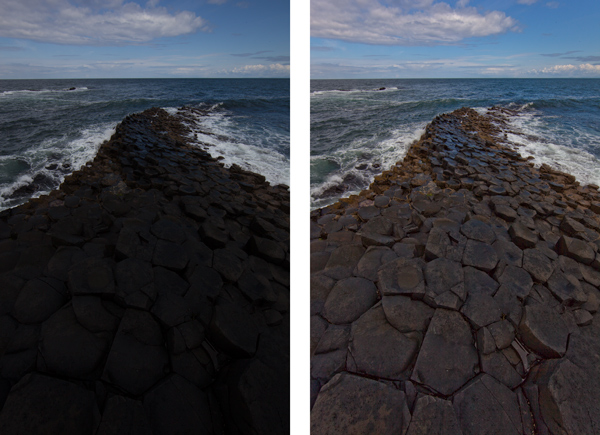
The first thing you can do is try to fix the problem in post-processing. Both Lightroom and Adobe Camera Raw (used in Photoshop and Photoshop Elements) have sliders that can help bring your sky back or add detail to a dark foreground. They won’t bring back a truly blown out sky or pitch black foreground, but you might be surprised at what they can do.

For an overly bright sky, try pulling the Highlights slider down (in other words, pull it to the left). That will usually add detail. If you have blue portions of your sky, another trick is to target the blue portion and make that darker, while keeping the clouds white.  To do that, go to the HSL/Color/B&W panel in Lightroom, or the HSL/Greyscale tab in ACR, and find the Blue slider.  Click on the Luminance tab, and pull the Blue slider down (to the left). That will preserve good highlight tones in the clouds but darken the blue tones to make the sky look much better.

If your foreground is too dark, you can brighten it up using the Shadows slider in the Basic tab of Lightroom or ACR. Pull that slider up (to the right). That will brighten up the darker tones.  You may find, however, that lightening the shadows in this fashion makes the foreground look too flat or washed out. There is a simple cure for that though. Find the Blacks slider, which is just below the Shadows slider, and pull the Blacks slider down (to the left) a little bit. It may seem counter-intuitive to darken the Blacks since you just lightened the Shadows, but this adds contrast back to your foreground. So the foregound will be lighter due to the increase you made to the Shadows, but will still have contrast because of the decrease you made to the Blacks.

2. Consider Converting to Black and White

Horse

The problem you’ll encounter most of the time when you convert your pictures to black and white is a lack of contrast. Very often, photographers convert their pictures to black-and-white only to find that they look dull and flat. You want tones ranging from pure white all the way to pure black. The high contrast you are combating can actually be an asset in black and white photography.

One problem with shooting with a bright sky or at midday, of course, is usually the high contrast. In addition, people are just plain used to seeing the middle of the day, so when they see a picture taken at midday viewers can find it uninteresting. Converting to black and white can solve both of these problems. As mentioned above, the high contrast can be an asset in black and white. Further, black and white is not how people are used to seeing the world, so the photo may look more interesting to them. Of course, this is not a cure-all, and a blown out sky is still a blown out sky, but converting to black and white can occasionally save a really high contrast picture. So, try converting toblack and white if your picture is overly contrasty.

3. Use Fill Flash

People often think about using a flash only in low-light situations. But perhaps a better use for flash is in very bright situations like those we are talking about here. It doesn’t seem to make sense at first, but what you are doing is letting the flash fill in some of the harsh shadows and thereby deal with your high contrast problem.

If you use fill flash, set your camera’s exposure settings so that the sky is properly exposed. You might take a shot or two without the flash to make sure you have it set properly. Then add the flash to brighten up the foreground and keep it from being black. Dial back on the power of the flash unit or the flash exposure compensation to make it look more natural. That should result in a properly lit subject with a sky or background that looks good as well.

4. Use a Graduated Neutral Density Filter

MarinCo

The scenes we are talking about in this article stem from an overly bright background and a dark foreground. The previous tip addressed a way for you to brighten the foreground. Now let’s reverse that and talk about a way to darken the sky so that it is roughly the same exposure as your foreground.

To do that to, you will want to buy a graduated neutral density filter. These are square filters that fit in holders attached to the front of your lens. The top portion of the filter is dark, and it fades to clear glass at the bottom. That way it darkens the sky while having no effect on the foreground. Use one to darken the sky and keep the brightness values within the dynamic range of your camera.

5. Blend Your Exposures

GrandCanyonAll

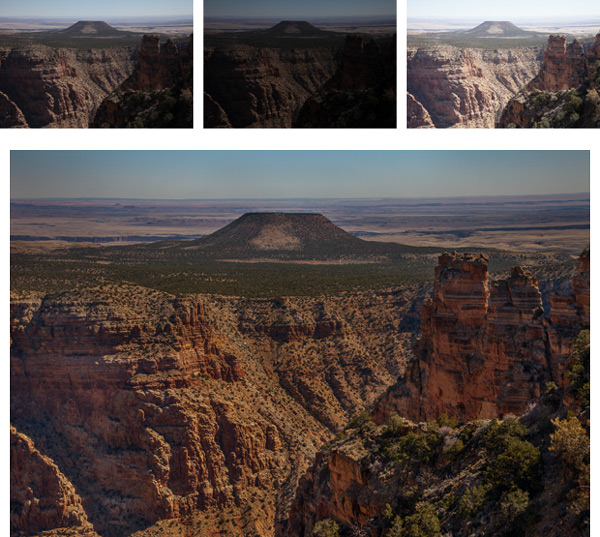
Another way to deal with contrast that goes beyond the dynamic range of your camera is to bracket your pictures and blend them later. Most cameras have a function in the menu that allows you to set the amount you would like to overexpose or underexpose your pictures. That way when you press the shutter button it will take three pictures: One at normal exposure, one underexposed, and one overexposed. Some cameras will actually allow you to take five or even seven photos.

You can blend these three pictures later in Photoshop by using parts of each exposure for your final photo. For example, you may want to use the sky from the darker, underexposed photo. You may want to use the foreground from the brighter, overexposed photo. There may be elements of each that you want to take from the normally exposed picture. By blending them all together in Photoshop, you will have a picture that is properly exposed across the board.

To accomplish the blending, here’s a quick primer on the process:

  1. Open all your files as layers in the same picture. You can accomplish this in Lightroom by selecting your photos, and then going to Open as Layers in Photoshop (either Photo > Edit In > Open as Layers in Photoshop or right-click and select Open as Layers in Photoshop).  If you don’t have Lightroom, there is a similar function using Adobe Bridge. In addition, in Photoshop you can select photos and open them as layers by choosing File > Scripts > Load Files into Stack, and then using the resulting dialogue box to select the photos you want.
  2. From there, add a layer mask to your top layer (Layer > Layer Mask > Reveal All). The white layer mask you just created does not change anything, and all of this top layer will still show up in your picture. But you have created a mechanism to change that.
  3. To have Photoshop apply portions of the layer below, select your brush tool and set the color to black. Then just brush in where you want the layer below to appear. Remember, anywhere the mask shows white the top layer will show; anywhere the mask shows black it will reveal the layer underneath.
  4. If you want to combine a little of each layer, reduce the opacity of your brush to a lower percentage. Often this process works best by  setting the opacity very low (under 10%) and brushing in the layer below where you want it gradually with a large brush.
  5. When you are done with that process and the photo looks the way you want, merge these layers (Layer > Merge Down). Then repeat the process for the layer below, revealing whatever portions of that layer you want in your final picture.

6. Blend into an HDR File

Thus far, I’ve avoided the option of using High Dynamic Range (HDR) software to deal with the dynamic range problem you face. Of course, you can bracket your photos (as set forth above) and process them using Photomatic Pro, HDR Efex Pro, Photoshop, or other HDR software. That is a topic in and of itself.

For purposes of this article, consider using an HDR file as part of the blending process discussed above. In other words, first bracket your exposures. When you are in front of your computer, create an HDR file using your preferred method. Now, bring your original three exposures and the HDR image into Photoshop using the method outlined above. When you bring them all in, you should have four layers showing.

Then just do the blending process described above. Put the file you think looks the best on top. Next, follow the process set forth above for blending in each of the other layers. If it turns out you don’t want to use one of the layers you can just delete or hide it. Using this method, you should have complete control over the exposure levels in your picture. In addition, this process will provide you the benefit of HDR software without that HDR-look that many photographers try to avoid.

7. Work with it

Tree

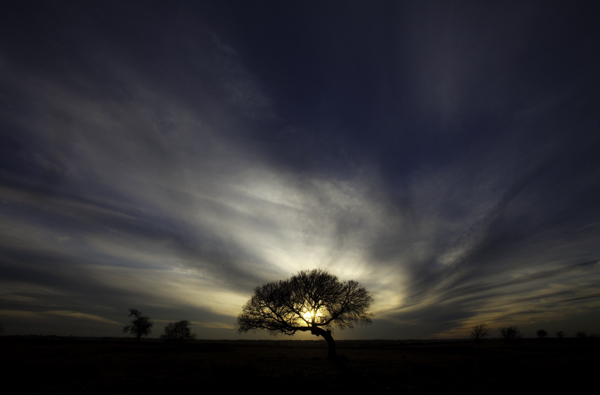
This might sound like giving up, but you might consider using the high contrast for effect. For example, you can use the brightness by adding sun’s rays into the picture. You can use the darkness by creating a sillouette. Think about effects like these at the time you are shooting. Sometimes you can turn a problem into an interesting feature of your photograph.

Or, if there is no way to use the high contrast as an effect, you can sometimes minimize it by shooting away from the sun. Not having the sun in your picture will keep the sky from being too bright.  If you are lucky, the sun will lighten up the foreground enough to keep it within the dynamic range of your camera without creating any harsh shadows.

Your Greatest Challenge

Dealing with this problem of dynamic range is perhaps the greatest challenge of the digital photographer. Unless you have thousands of dollars to buy a medium format camera and get the increased dynamic range that the larger sensor size offers, you will need to take steps such as those above when you are shooting outside. Use these tips to overcome this obstacle and make your photos stand out.

The post 7 Ways to Handle High Contrast Scenes by Jim Hamel appeared first on Digital Photography School.


Digital Photography School
 
Comments Off on 7 Ways to Handle High Contrast Scenes

Posted in Photography


5 Festive Ways to Craft Your Engineer Prints

17 Nov
Extra photos for bloggers: 1, 2, 3

Want seriously impressive seasonal decor?

Some lo-fi black and white Engineer Prints may be just what you’re looking for!

They’re super BIG (3 feet x 4 feet!) but lightweight and therefore perfect for decorating/crafting.

So check out our five ideas on how to use your prints around the house this holiday season. They’ll look amazing whether you keep them larger than life or cut ‘em down in size.

5 Ways Your Prints Can Spread Cheer This Season

p.s. Know a friend who loves crafts as much as we do? Put a smile on their face by putting an Engineer Print Gift Kit under their tree!

(…)
Read the rest of 5 Festive Ways to Craft Your Engineer Prints (614 words)


© Taylor for Photojojo, 2014. |
Permalink |
No comment |
Add to
del.icio.us

Post tags:


Photojojo

 
Comments Off on 5 Festive Ways to Craft Your Engineer Prints

Posted in Equipment


3 Simple Ways to Create Stunning Eyes in Your Portrait Photography

03 Oct

EYE MONTAGE

Image model credits, clockwise from top left: Chris Milligan/Fremantle Media, Rachael Lever, Danny Spannerz/East Brunswick Tattoos, Tiffany Diaz

“Here’s looking at you, kid.”

Reclusive Hollywood legend Marlon Brando would always close his eyes when paparazzi tried to take his photo. He knew that without his eyes open an image wasn’t worth publishing.

The eyes are the single most important feature of any portrait. Beautiful eyes can make even the dullest portrait mesmerizing. Poorly lit, out of focus eyes, or eyes that lack connection, will weaken the impact of a portrait.

Here are my three favorite techniques to make eyes really stand out in your portraits.

#1 – Light

Light makes photography. Embrace light. Admire it. Love it. But above all, know light. Know it for all you are worth, and you will know the key to photography.” – George Eastman

Eyes look best when they are lit well, with beautiful catch light. Catch lights are the reflection of a light source in the eyes. The size, shape, and brightness of your catch lights depend on the light source you use.

WindowLight

Two large, frosted windows from my studio create beautiful catch lights. Model: Bryana Karanikos

Naked Flash on camera

Diffused flash on-camera creates a slightly softer, rectangular catch light.

Med Soft off camera

Medium softbox, off-camera, positioned at 2 o’clock gives a soft, natural catch light.

ChasingLight 2250

Poorly lit eyes without catch lights look cold, and a bit creepy.

#2 – Expression

You are what you think. All that you are arises from your thoughts. With your thoughts you make your world.” – Anon.

EyesBA

In the image on the left (above), Tiffany’s eyes are cold, and she looks nervous. After I gave Tiffany a visualization exercise, her eyes appear warm, confident, and connected (right image above) Model: Tiffany Dias

How you communicate, connect, and direct your model is key to capturing a great expression in the eyes. If your model’s smile isn’t genuine, his or her eyes will appear cold and dull-looking. If your model is nervous or distracted, this too will be reflected in his or her eyes.

One technique I use to create a great expression is visualization. I ask my model, If you could be anywhere doing anything right now, where would that be? Tell me about that moment. Who is there? What does it feel like? Once they are in the moment of their visualization, their entire body language and expression changes.

#3 – Post-production

Be willing to give that extra effort that separates the winner from the one in second place.” — H. Jackson Brown Jr.

Post-production can lift your images from good to great, when it’s done well. The key to great post-production is not overdoing it. It’s easy to get excited with all the tricks and enhancements that post-production software offers. It’s addictive and much like opening a jar of Nutella – very difficult to control yourself once you’ve begun.

I try and use the overnight rule when it comes to retouching. Once I’ve worked on an image, I won’t look at it again for at least a day. I find my eyes constantly adjust to the modifications I’m making, so it’s more difficult to see when I’ve gone too far (much the same way I dressed in the ’80s).

Here’s a step-by-step technique to enhance eyes using Adobe Lightroom:

EYESBP 10

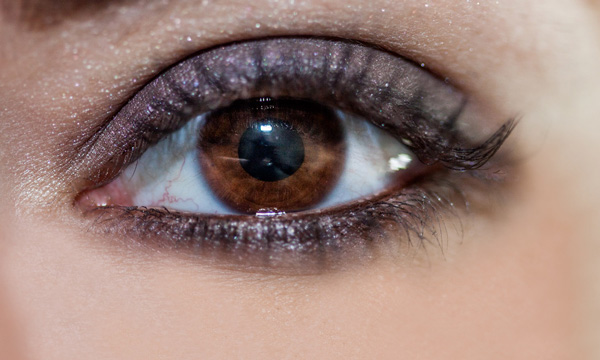
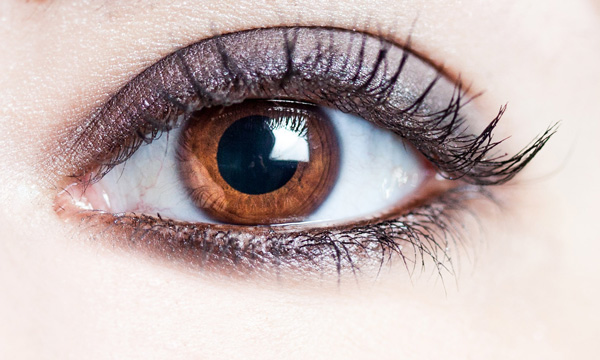
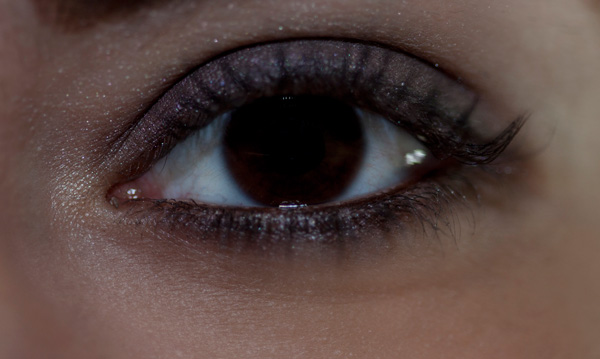
Before and after: I’ve used Lightroom to make the eyes sharper and brighter and enhanced their color.

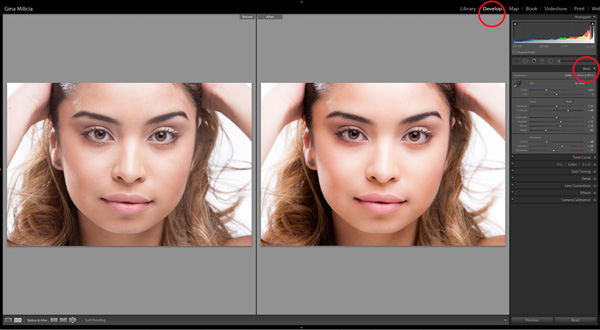
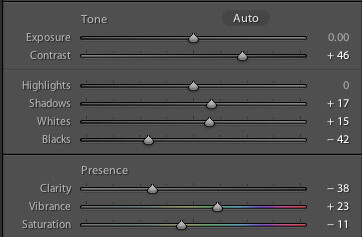
a) Import your image into Lightroom and use the basic development panel to develop the shot. In this case, I’ve used one of my own beauty presets.

EyesBP 2

EyesBP 2B

Here are the basic adjustments I’ve made for this image.

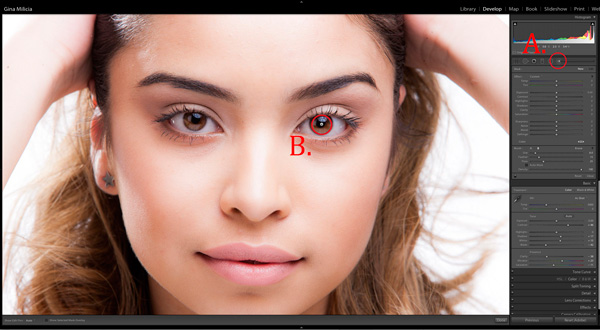
b) Zoom in to the eyes (B.) and select the adjustment brush tool (A.) You can also select the brush using keyboard shortcut K. See image above.

EyesBP 4

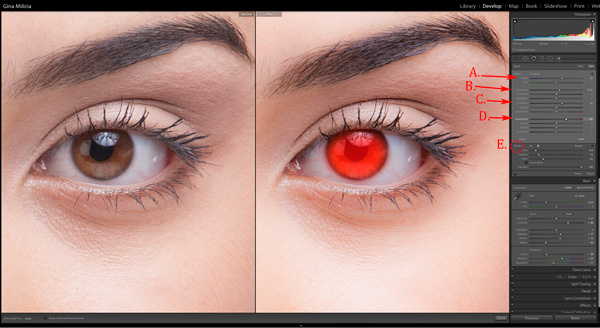
c) The next step is adjusting the eye color:

EyesBP 5

  • Increase the temperature slider (A.) to make the eyes appear warmer in tone.
  • Increase the exposure slider (B.) to brighten the iris.
  • Increase the shadow slider to bring more detail into the shadow area (C.)
  • Increase the sharpness slider to make the eyes appear more detailed.

Adjusted only the colored part (the iris) of her eye (highlighted in red) and set the brush to have a slight feather and low flow so you can build up your adjustments slowly.

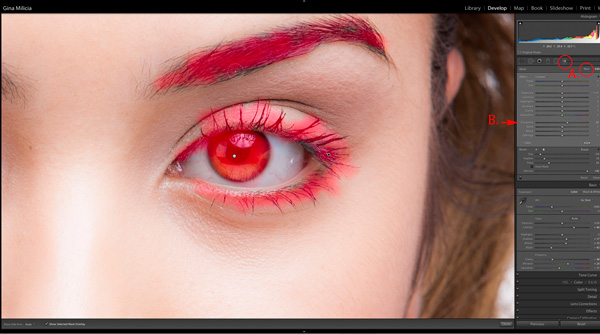
d) Next, select a new adjustment brush (A.), increase the sharpness slider (B.) by +22 and paint over the colored part of the eyes, eyelashes, and eyebrows. This will really make the eyes stand out.

EyesBP 6

e) Finally, select a new adjustment brush. Set the exposure slider to -29 and increase the clarity to +10. Paint around the edge of the iris. This will darken the area slightly and give the eye more definition.

f) The final image has been imported into Adobe® Photoshop®, where I have done a basic skin retouching to remove a few small blemishes.

EyesFINAL

I’d love to hear about your techniques for enhancing eyes and see some examples.

Gina has a new dPS ebook just released – Portraits: After the Shot – check out out here!

The post 3 Simple Ways to Create Stunning Eyes in Your Portrait Photography by Gina Milicia appeared first on Digital Photography School.


Digital Photography School
 
Comments Off on 3 Simple Ways to Create Stunning Eyes in Your Portrait Photography

Posted in Photography


3 Ways to Combat Photography Boredom

01 Oct

Boredom is one of the most powerful and inescapable forces on this world and photography is not immune to it. A bored photographer will likely stop to photograph or start producing boring images, which in turns will bore the viewer or client, who will likely stop following or buying the photographer’s boring work. Fighting boredom is, therefore, an absolute priority.

Photo6

When you specialize in a certain kind of photography, after a while you will probably master it. You will know what lens and settings best suit the scene you have in front of you, to get this or that particular mood or effect in the final image. This is all as good as gold, don’t get me wrong, but at the same time you are also building up your comfort zone, together with your style, and producing a solid stream of consistent images.

The downside of staying too long in the comfort zone is that you may get bored; bored of the subjects you are used to photographing or bored because of lack of ideas. It is at this time, when you are looking at your portfolio and all you get is that same old same old vibe, that you need to step outside your comfort zone. Do something different, either by stepping into a new field or by changing the way you look at the subjects you are already familiar with. In one way or another, you have to bring some sparks back into your work, something that let’s you say wow once again when reviewing your own work.

I am an enthusiast urban and landscape photographer. If you are like me, chances are you have an enthusiast kit or semi-pro gear, built for the kind of photography you are interested in. Stepping outside your comfort zone and embrace a whole new photographic genre can be troublesome, both economically and for your self-esteem. Moving from landscape to portraiture, for example, may require you to buy flash guns, triggers, soft boxes and diffusors, and zoom or prime lenses that are probably not in the regular Joe’s (the landscape photographer) equipment. Then there is the self-esteem part. Chances are you will produce nothing new in the field and, if you compromise too much with the equipment, you may produce nothing more than an average portrait of a model. I think a more interesting way to step out from your comfort zone is to remain in your regular field but spice it up by adopting a different approach. This way you have the advantage of knowing the subject, and the rules to do this, before start twisting and bending them in a new and refreshing way.

Three easy ways to fight back photography boredom

Go mobile

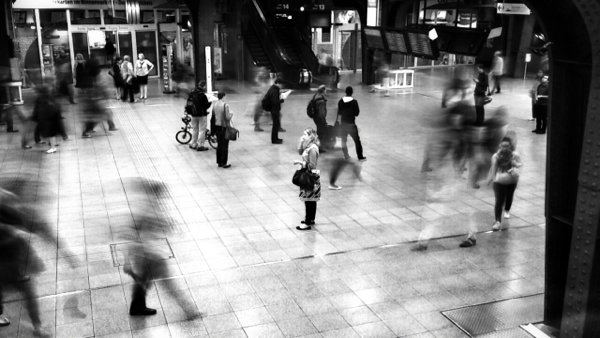
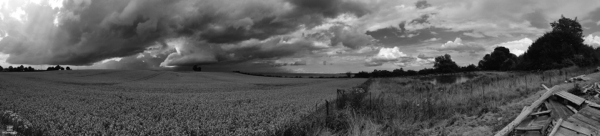
Today’s mobile phones are equipped with decent cameras the can easily compete with many point and shoot cameras, with the plus side of having tons of apps to add extra functionalities (such as: slow shutter speed, in-phone HDR, filters and effects, panorama mode, burst mode) along with the ability to edit your photos on the fly. If you have one of these devices, use it to photograph your usual subject. It is challenging because of the intrinsic limitations of camera phones with respect to DSLR or mirrorless systems, but the results can be just as rewarding. It is a bit like forcing yourself to shoot with a single prime lens (forget the zoom of a camera phone). Having quite a short (35mm equivalent) focal length (the iPhone 5 is about 31 mm equivalent) makes camera phones suitable for landscape and street or urban shooting. Of course, you can alway zoom in and out by walking farther away or toward the subject. Here some photos taken from an iPhoneography project (where photos are taken and edited exclusively on my iPhone).

Photo1

Using an app to control the shutter speed, allows you to be creative with crowded places like stations.

Photo2

Panoramas are great to capture the full drama of a storm rushing in over the countryside.

Photo3

HDR apps can extend the dynamic range of your phone’s camera.

For my mobile phone tips check out the dPS eBook: iPhone Photography or 8 of the Best Smartphone Accessories.

 Play with the invisible light

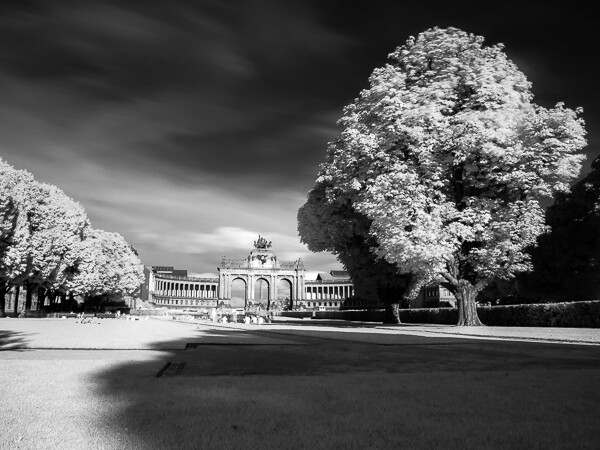
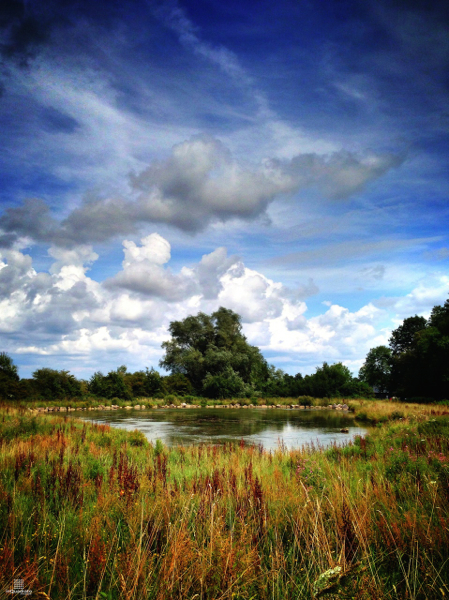
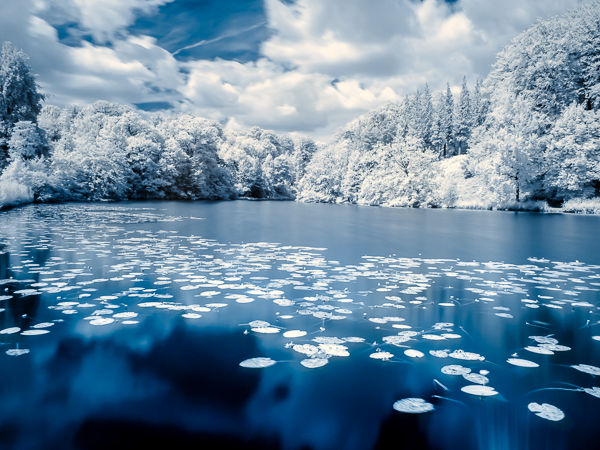
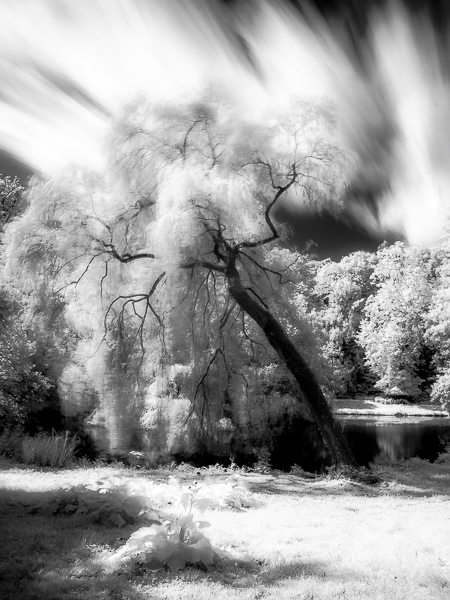
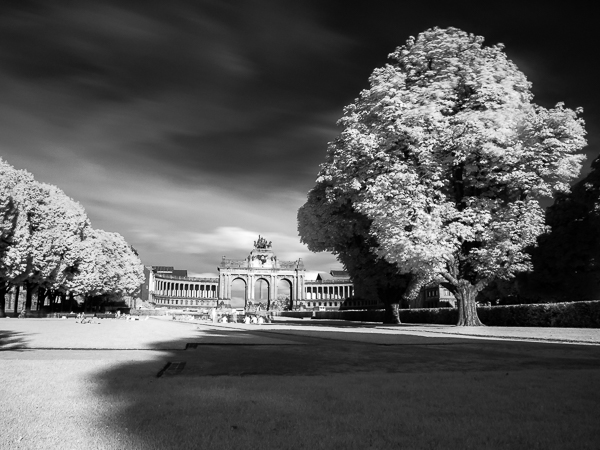
Infrared photography was a revelation for me. If you are not living or travelling in the great wilderness but are based in, say, the same-old-same-old sleepy European countryside, you can forget about all those great and dramatic scenes you love which are featured in many magazines like National Geographic. Nevertheless, if there’s something that can add a spark to an otherwise boring countryside or city garden it is to capture the scene in infrared. This because infrared light is absorbed and reflected by different subjects quite differently than visible light. For example, green grass and leaves will appear white in an infrared photograph, while clear blue sky and water will be rendered almost pitch black. The result is usually quite surprising. Your photo will likely capture the viewer’s attention and, because of the intrinsic challenges of infrared photography, will spark your enthusiasm as well. When you start with infrared photography, chances are you will photograph trees and puffy clouds, but you may soon be asking yourself; okay, what else? You will probably start to photograph other objects in infrared, like the city, or even people.

The best and cheapest way to try out infrared photography is to already have a camera that is sensitive, to some extent, to infrared light. Manufacturers place a filter right in front the sensor to cut infrared light, but if you are in luck, it will not do a perfect job. If you can see and photograph the light coming from the infrared emitter of a TV remote control, chances are you are good to go. Next, you will need an infrared filter to place in front your lens. Ideally this filter should cut all the visible light while letting only the infrared pass through. A good filter to start with is the HOYA R72, which allows also some visible red light to pass, making it easier to frame and compose your shot. One downside is that your shutter speed will be greatly reduced. Under the bright midday sun, you may need an exposure of a few seconds in order to get a properly exposed image. This means hand-held shots are not possible and a tripod is required. A welcome side effect is that a moving crowd in front your subject will be almost, or completely gone. Also, if you are dealing with trees, in particular if they are close to you, it is best to photograph with little or no wind, so as to avoid blurring them too much. All these limitations aside, great black and white and false-colour infrared scenes can still be captured with out-of-the-box cameras and with little financial investment. Here few of my best infrared photographs using my unmodified Panasonic Lumix DMC-GF2 with a HOYA R72 filter screwed on the Panasonic 14-42mm kit lens.

Photo4

False-colour infrared photography of a pond in a park near Brussels. A quite common view is turned into a very interesting winter-like scene.

Photo5

Fast moving clouds and an interesting tree can make for a great infrared image.

Photo6

Infrared photography can also be successful in the city like this image of the Triumph Arch in the Parc du Cinquantenaire, in Brussels. The moving crowd disappeared because of the long exposure emptying the scene.

For more information on shooting the processing infrared with your camera read these dPS articles:

  • How to do Surreal Digital Infrared Photography Without Expensive Gear or Camera Conversions
  • 5 Creative Ways to Process Infrared Photographs in Photoshop

Introduce distortion

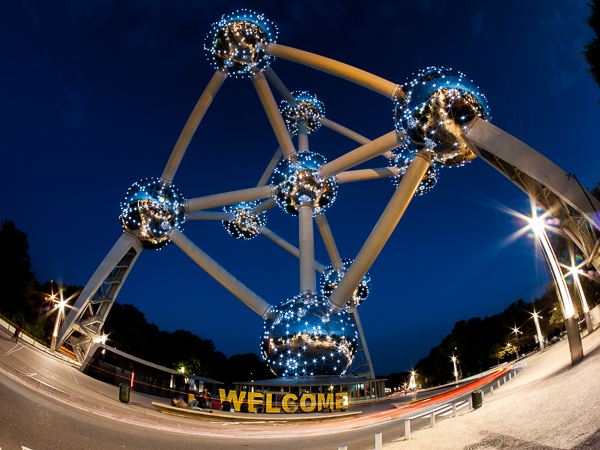
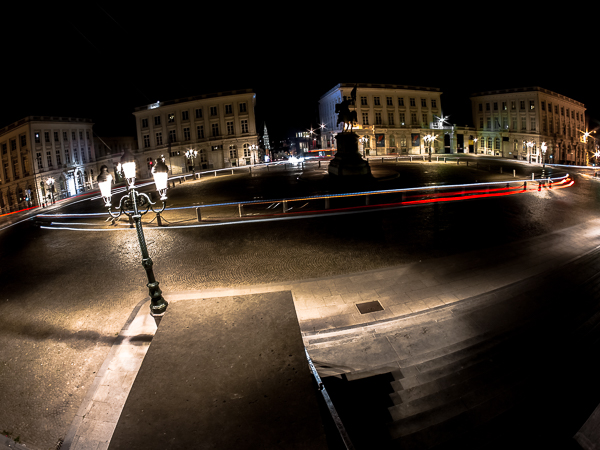
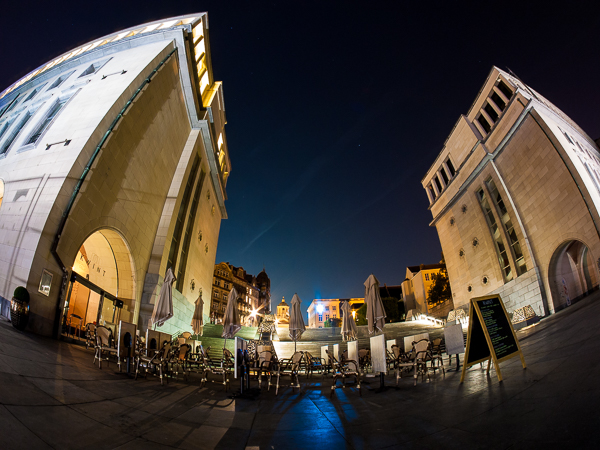
With a bit higher financial investment, you could consider buying a fisheye lens (please avoid fisheye lens converters because the infrared image quality is usually poor). Invest in a real fisheye lens; the fully manual (and relatively cheap) Samyang, Rokinon, and Vivitar lenses are in my opinion, the best way to start out. They are cheap, small, super sharp, relatively fast, with a great field of view. You can set the focus around the two meter mark (6.5 feet) and never touch it again as long as you stop down (use a smaller aperture than wide opened) your lens a bit.

Fisheye lenses produce very particular images. I suggest you to read about them and research as much as possible before buying one; see if the images you can create with a fisheye lens suit your photographic taste. I have recently purchased a Samyang 7.5mm f/3.5 for my Lumix and it simply blew me away. I got this lens only a few weeks ago, but boy I love its compactness, lightness, how sharp it is, and the huge field of view (15mm equivalent on full frame) at a fraction of the price of an ultra wide angle lens. Of course, this comes at the cost of having some distortion, but if you like it and you can work it to your advantage, it is a great deal, and is a killer lens for travel photography too.

Work your fisheye lens – tilt it upward to have a concave horizon and tall buildings bending and looming over the scene. Tilt it downwards to have a convex horizon, accentuating Earth’s curvature. Keep the horizon levelled or tilt the camera to see how the scene changes. Get down low by kneeling, or up high by raising the camera on a high vantage point (yes, even mounted on your monopod held high above your head). Accentuate distortions, or reduce them keeping straight lines towards the edges or towards the centre of the frame. Notice how objects at the edges of the frame are magnified with respect to those at the centre. Mix and match those distortions to create some unconventional, striking, and definitely not boring photographs. Below are some examples from my first photo walks in Brussels (Belgium), a very touristic city with very famous and well photographed landmarks.

Photo7

The Atomium: huge monuments and landmarks can easily be squeezed into the frame and be portrayed in a quite a dynamic way.

Photo8

Frame a busy roundabout by night from a high vantage point to capture great urban merry-go-rounds.

Photo9

Thanks to the fisheye’s distortions, even an empty square becomes interesting.

Bonus tips

  • Get out during unusual times of the day (dawn and night)
  • Experiment with HDR and exposure fusion for more dramatic or gritty and punchy image
  • Go out with bad or stormy weather to take advantage of the dramatic sky

Do you have any other tips for shaking it up and combating photography boredom? Share in the comments below.

The post 3 Ways to Combat Photography Boredom by Andrea Minoia appeared first on Digital Photography School.


Digital Photography School
 
Comments Off on 3 Ways to Combat Photography Boredom

Posted in Photography