RSS
 

Posts Tagged ‘Ways’

6 Ways of Using Reflector to Take Better Portraits

03 Jul

I’ve been making my living as a photographer for over 20 years, and have accumulated thousands of dollars of gear over time. I have the latest Canon SLRs, a full complement of lenses, strobes, light stands, gels, filters, soft boxes, tripods, and even some video and audio gear. But the one thing that often makes the biggest difference in the quality of my portraits is a simple $ 20 reflector. I never leave home without it and neither should you.

When shooting outdoor portraits, the first thing many photographers think about is the background, but the pros consider the quality of the light first and foremost. They know, for example, that a portrait with nasty overhead lighting is not going to work, no matter how cool the background.
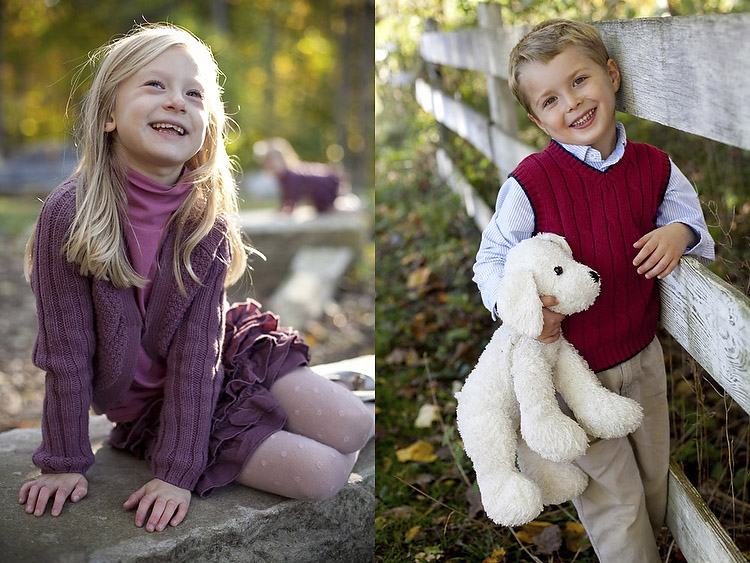
Photo12

A reflector can help you salvage bad light, and turn okay light into something magical. You can use your reflector from below to fill in shadows, or from above to block distracting light. You can bounce the sun from the silver reflector to create a main light, or you can use a reflector with a black side to create deeper shadows. You can even sit on your reflector to keep your pants clean when shooting outside, or pop it open dramatically to dazzle young children.

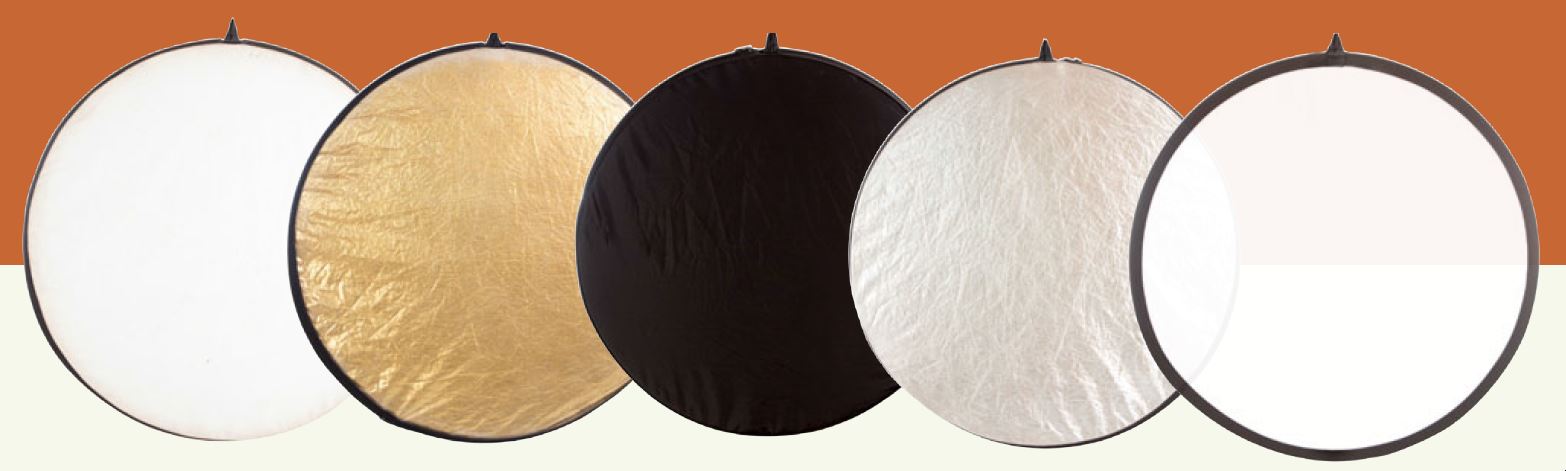
Most of the photos in this article were shot with a 5-in-1 reflector you can buy for less than $ 20. 5-in-1 refers to the fact that the reflector and cover can combine to give you five different options: white, silver, gold, and black sides, as well as a diffuser.

Here are 6 tips to help you use this versatile tool, a reflector, to transform your photos.

1. Using a Reflector for Fill Light

The most traditional use of the reflector is to simply reflect light into the shadows. I took my wife Karen out into our local park to demonstrate this.
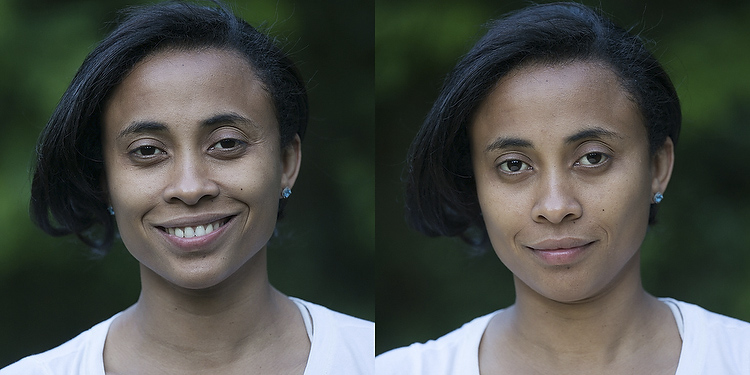
Photo1

In the photo on the left (above), she is photographed in nice soft light, but there are still pretty deep shadows under her eyes and chin. In the photo on the right, she is holding a reflector at her waist. The shadows on her face are noticeably lighter and there is a subtle catch-light (reflection of the reflector) in her eyes. If she were an older person with more textured skin, the contrast would be even more dramatic.
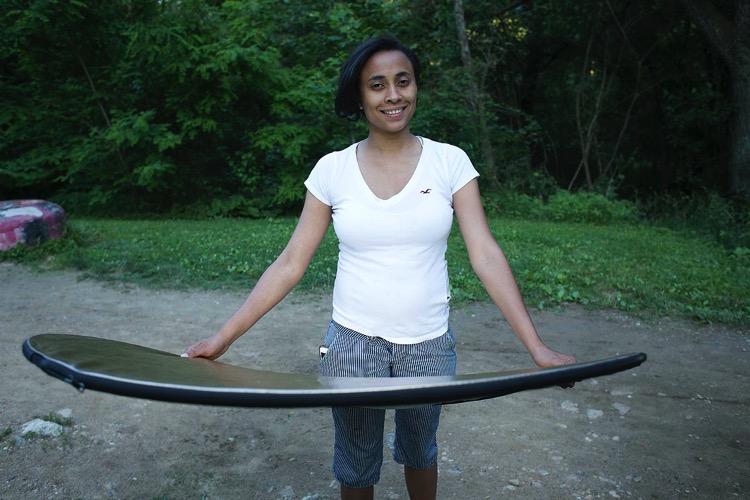
Photo2

Of course, you may not always want to fill in the shadows in this way, but if you are trying to flatter someone it almost always helps. You don’t even need an official photo reflector. Anything that reflects light will work. In a pinch I’ve used everything from old newspapers to a nearby person wearing a white shirt.

2. Using a Reflector as the Main Light Source

This is one of my go-to reflector moves, and an easy way to wow your friends and family. You place your subject with the light hitting them from behind, then use a reflector to bounce the light back into their face. You will get nice soft light on their face, with a dramatic rim light on the back of the subject’s head. The only trick is positioning yourself so the light doesn’t go straight into your lens and create lens flare (unless you like that look, of course).
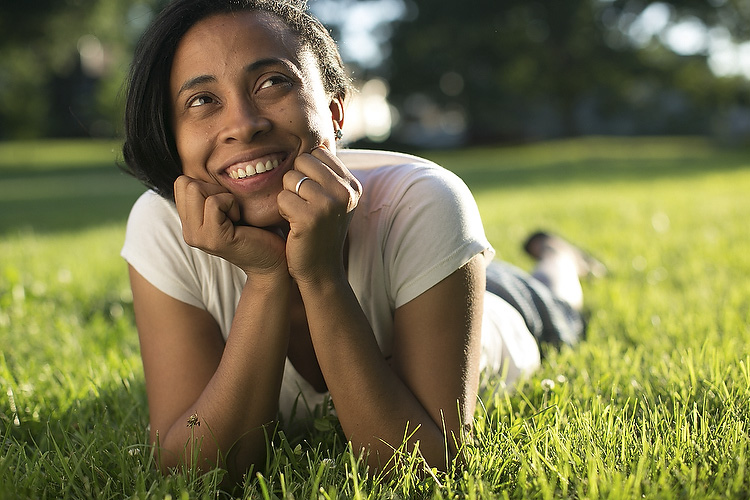
Photo3

In the photo above the is sun hitting the left side of her face and arm. The light from a reflector is bouncing back some of the sun to light up her face.

You may also notice the shallow depth of field in this photo. If you are lighting with a reflector, you can jack up your shutter speed as much as you like to allow for a wide aperture (this photo was shot at 1/1250th of a second at f/2.0, with a 50mm lens). If you were using flash to create this same effect, you would have to lower your shutter speed (to 1/250th or whatever matches your camera’s maximum) to sync with the flash, requiring a larger aperture and greater depth of field (killing the whole look).

Yes, yes, some of you are no doubt thinking, “What about high speed sync?!” Well, yes, that could give you the same effect if you had the right equipment (and know how to do that). Or, you know, you could just use an old newspaper.
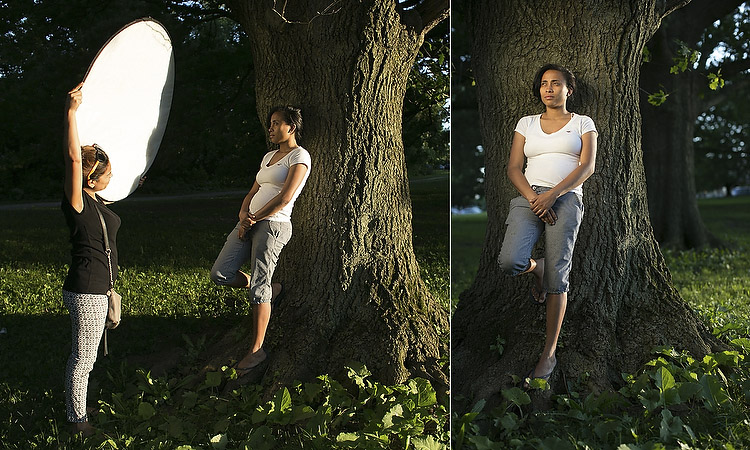
Photo4

In the next example above, we positioned Karen against a tree and had her cousin Claudia reflect a spot of sunlight on her from about 10 feet away. At this distance, the light from the reflector looks more like it is coming from a grid spot or snoot (hard light) – in other words, it’s a focused and dramatic beam (notice the fall-off of light on her legs). It’s a cool look that you can recreate with a reflector, a few feet of aluminum foil, or your bathroom mirror. Your friends will be wowed, and ask what fancy gear you used for the shot (and your family will ask what happened to the bathroom mirror).

Using a slight variation of this technique, we moved the reflector slightly behind the subject (relative to the camera) to created a dramatic rim light on the face in a profile shot (see below).
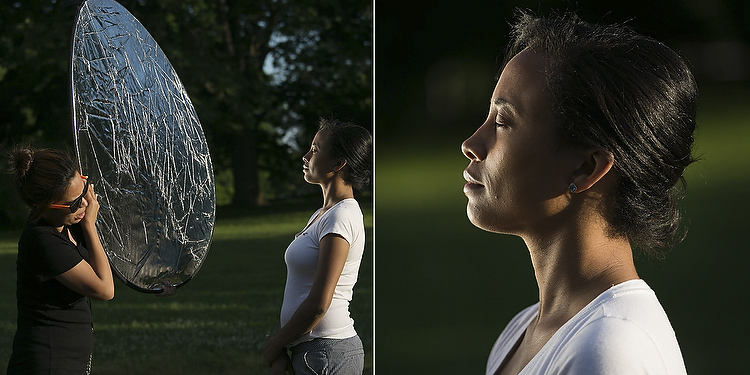
Photo4a

3. Using a Reflector to Block Light

Sometimes you’ll find yourself in some beautiful shady light under a tree, except for that pesky sunbeam that finds its way through the leaves to light up your subject’s left ear. When this happens, turn your reflector into a light blocker (sometimes called a flag or gobo).

A few years ago, I was doing a maternity portrait in a local park, when a newspaper photographer snapped my picture using just this technique. If you look at the reflector, you can see the bright spots of sunlight that it’s blocking (imagine how those spots would have ruined the final image if we didn’t block them).
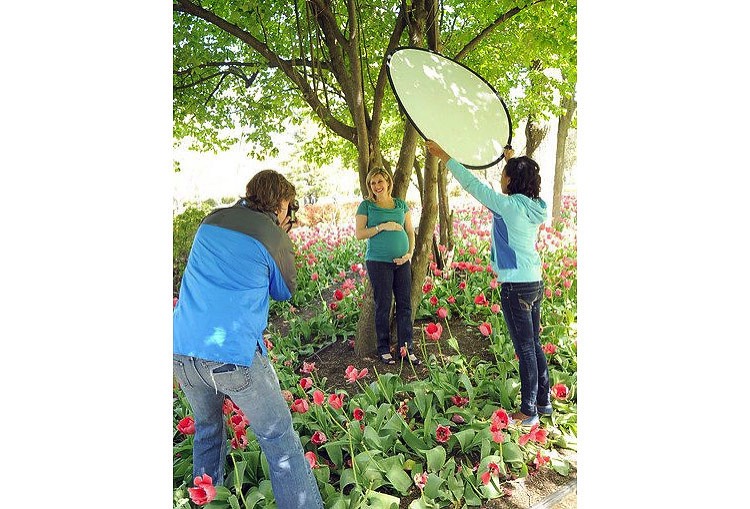
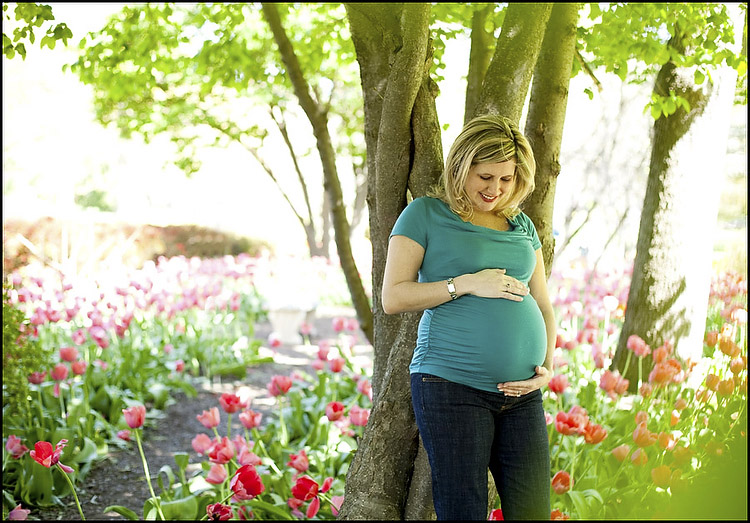
Photo5

Photo6

4. Using a Black Reflector to Create More Dramatic Shadows

Sometimes you actually want to deepen the shadows. I use this technique all the time in my headshot studio. Below is a photo of me with a white background. In one shot, I have a silver reflector opposite the main light, sending light back towards my left cheek. In the other, the reflector has a black cover on it, gobbling up reflected light, leaving a dark shadow on the cheek.
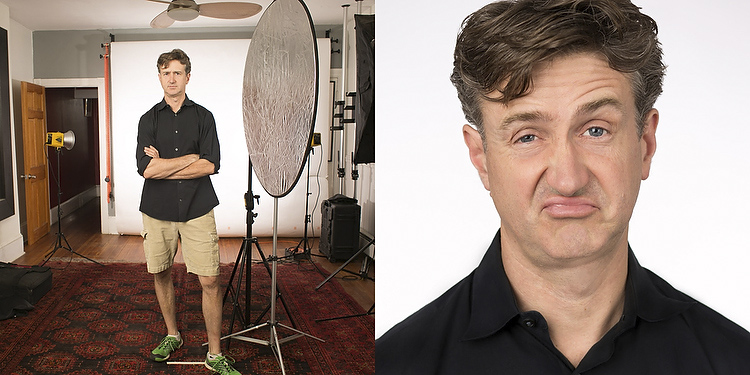
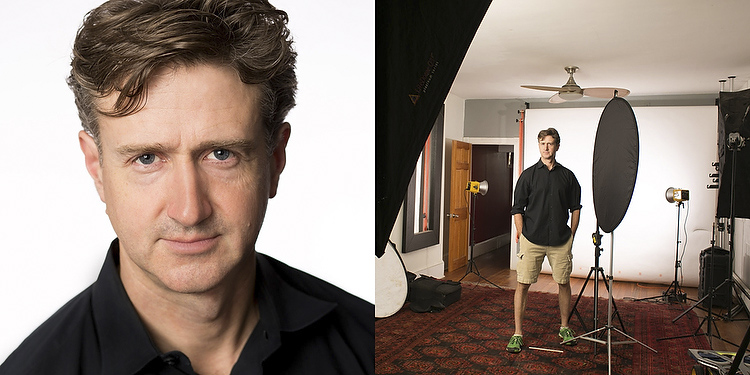
Photo7

Photo8

Except for the small change of literally flipping the reflector from one side to the other, the lighting setup is identical, but as you can see the difference is pretty dramatic. (For you studio lighting enthusiasts out there, my key light here is a large soft box, and there are two bare heads pointing at the background to make sure it is nice and bright white).

This is the same technique used in the famous Steve Jobs portrait where he has his hand on his chin. In addition to creating a little drama, you can also use this technique to give someone a photographic face-lift by trimming pounds from the dark side of their face and under their chin.

5. Who Holds the Reflector?

You may be saying to yourself, “But, I don’t have an assistant! Who’s going to hold the reflector for me?”. I usually don’t have an assistant either, but there is usually someone nearby who is more than happy to help, be it a family member, passerby, intern, wedding guest, etc. Sometimes you can even have the subject of the photo hold the reflector themselves (as in the photo of my wife holding the reflector at her waist in the photo above). Of course if you’re in the studio, or outside on a day without too much wind, you can just pop your reflector onto a light stand (like in the studio shots of me above).

In the photo below, I was shooting wedding portraits on a beach in the Florida Keys. My reflector assistant that day was one of the bridesmaids, who truly enjoyed helping her friends out with their portraits.
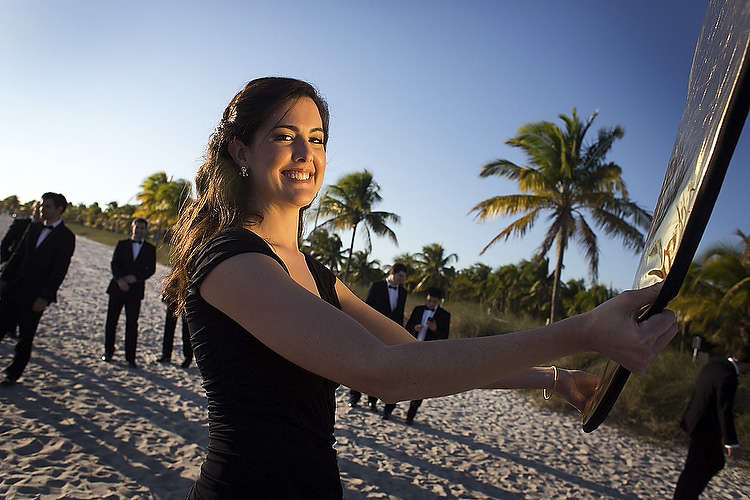
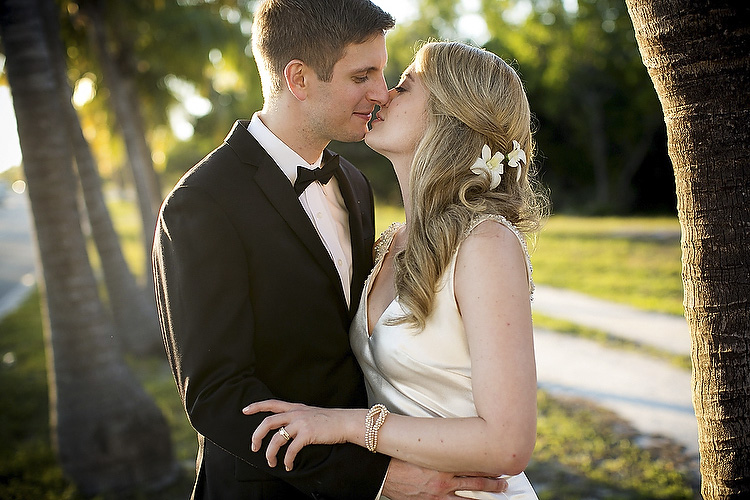
Photo9

Photo10

6. Reflectors in the Environment

Once you get the hang of reflectors, you’ll probably start noticing reflected light everywhere. Ever see a white building getting blasted by the sun? Well that’s nothing but a giant reflector! Depending on what’s around it, you may have found yourself a giant studio, with no rental fee.

Mind you, anything that reflects enough light can work as a reflector. A brick building, large truck, flock of seagulls flying by at just the right moment…

Final Notes

Although they may not be as sexy as strobe kits, reflectors can often yield similar, or superior results for your portraits, and are cheaper and easier to use. I will leave you with a few more assignment photos, shot using nothing more than a reflector.

In the child portraits below, note that there is light behind the kids in both cases, but there is still beautiful light on their faces. Same goes for the athlete portraits.
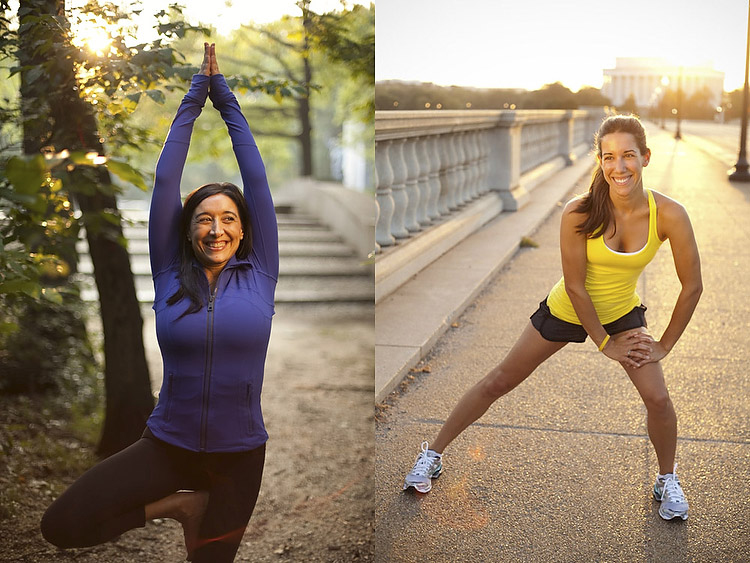
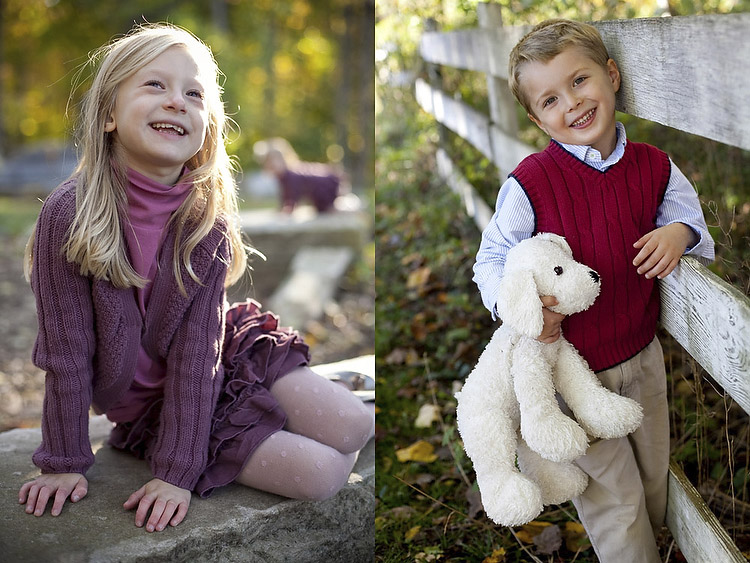
Photo11

Photo12

As a final image, I leave you with a group of wedding guests who were so enamoured of my reflector that they wanted a picture with it. Hopefully you will soon have similar feelings towards your own reflector!
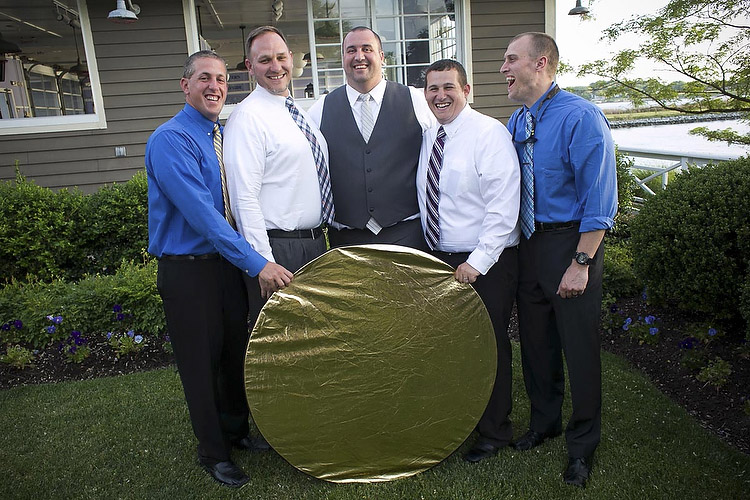
Photo13

Do you have any additional reflector tips to add? Please do so in the comments below.

googletag.cmd.push(function() {
tablet_slots.push( googletag.defineSlot( “/1005424/_dPSv4_tab-all-article-bottom_(300×250)”, [300, 250], “pb-ad-78623” ).addService( googletag.pubads() ) ); } );

googletag.cmd.push(function() {
mobile_slots.push( googletag.defineSlot( “/1005424/_dPSv4_mob-all-article-bottom_(300×250)”, [300, 250], “pb-ad-78158” ).addService( googletag.pubads() ) ); } );

The post 6 Ways of Using Reflector to Take Better Portraits by Dennis Drenner appeared first on Digital Photography School.
Digital Photography School

 
Comments Off on 6 Ways of Using Reflector to Take Better Portraits

Posted in Photography


3 Ways to Simplify and Learn Photography Faster

30 Jun

It’s not always easy to be a photographer, seeing all of the great photo opportunities around us, and wanting to capture them all. Recently, I was working with a student of mine, and she wanted to know how to handle changing settings quickly from one situation to another.  Her example was trying to go from photographing landscapes, to trying to focus on a bird or other wildlife that may quickly enter the scene. While some seasoned photographers may be ready for a situation such as this, it’s certainly not easy, and for someone just learning, I would argue that it shouldn’t be attempted at all.

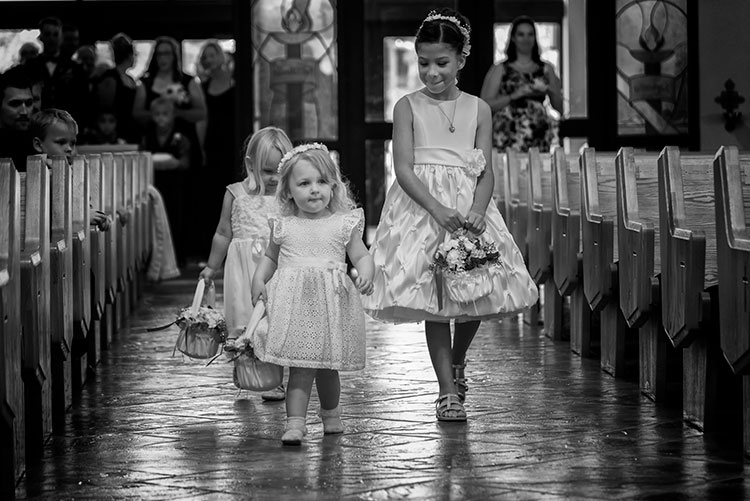
24-120mm. Shot at 120mm, 1/160, f/4, ISO 1400. Knowing how the lens behaves at both ends of the zoom, I knew I could use this lens for wide angle shots in close, but zoom in as the flower girl was coming down the aisle and still get an interesting shot.

24-120mm, shot at 120mm, 1/160, f/4, ISO 1400. Knowing how the lens behaves at both ends of the zoom, I knew I could use this lens for wide angle shots in close, but zoom in as the flower girl was coming down the aisle and still get an interesting shot.

While many of the camera manufacturers want to make photography sound easy (anyone remember “So advanced, it’s simple”?), the fact is, photography is a craft, that despite the advances in technology, takes some time to master. Different photographic situations call for different settings, different lenses, or even a completely different approach to the subject matter. If you’re a hobbyist with only one camera, it can be impossible to be ready for all of the possibilities as they happen.

So here are three ways to keep it simple while you’re learning photography, and stop the overwhelm.

#1 – Focus on one subject at a time

I’m a strong advocate for keeping things simple. First off, if you’re planning to photograph landscapes, wildlife, or portraits, stick with that one goal.  It is easy to get distracted by other subjects that come along. Those opportunities can seem like gold when they pop up, and they can be, but if you’re already set up to shoot a landscape photo at ISO 100, f/16 aperture, and 1/20th shutter speed, quickly switching to settings suitable for capturing a bird in flight is not an easy process. It will likely end in you being frustrated, capturing photos that don’t quite meet your expectations, or worse, don’t come out at all.

Even now, 20-plus years after beginning my photography career, I try not to do too much at once with a camera. I focus on what my goal was when I first decided to pick up the camera and head out. If I’m planning on photographing a landscape at sunset, that’s what I do. The only time I will try to be ready for two separate subjects, is when I have two cameras. For instance, if I’m photographing a landscape, but there are waterfowl nearby and I want to be ready for that, I have a second camera set up with a telephoto lens, so I can grab it and try and get the shot. Even this requires me to at least temporarily put my initial subject, the landscape, aside for a bit.

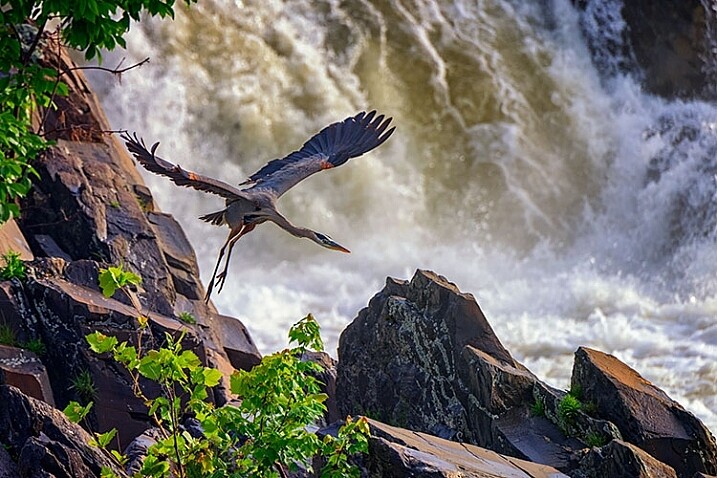
Wildlife image taken using a fast shutter speed and a telephoto lens.

This shot of the blue heron was taken with a 400mm lens, using continuous AF, and 1/1250 shutter speed.

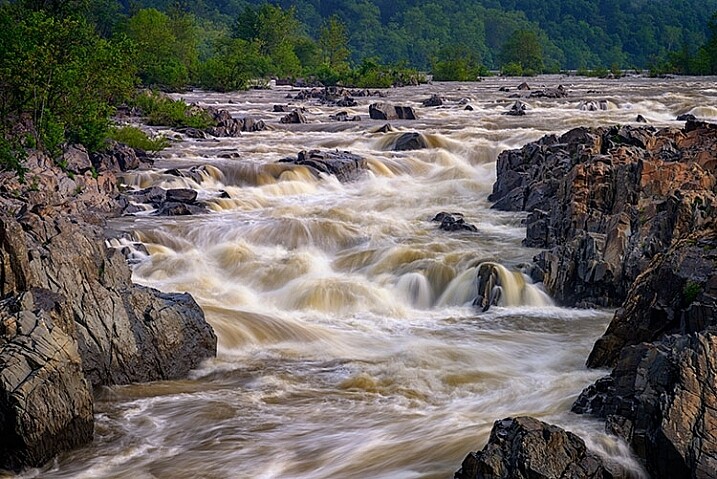
The image of the waterfall (below), and the image of the great blue heron (above), were both taken at the same location.  However, for the shot of the waterfall, I needed to use a neutral density filter to slow down the exposure. There is no way I’d have been able to remove the filter, and be ready to photograph the heron, even if both shots could have been captured with the same lens. Not only would my shutter speed have needed to be drastically faster to stop the flight of the heron, I would also have needed to use continuous AF to capture its flight sharply, while I always use one-shot AF when photographing landscapes.

Knowing there may be wildlife nearby, I mounted a Nikon 80-400mm lens on one camera (on a strap on my shoulder), while I had a second camera with a shorter lens, set up on a tripod to capture the waterfalls. If I only had one camera, I would have needed to choose between one subject or the other, and then move on. Rare is the occasion when you can jump so quickly from one subject to a completely different one using only one camera.

Landscape image using a slow shutter speed and wide angle lens.

This shot was taken with a 16mm lens, using one-shot AF, and a 0.6 second shutter speed.

If you’re working with only one camera, don’t try to do too much.  Pick one subject and work that until you feel you’ve accomplished what you wanted, then move on to another subject. Yes, it’s difficult to be set up to catch a sunset and watch a beautiful snowy egret land nearby and start fishing, leaving you itching to try and catch it, but chances are it will fly away again while you’re still fiddling with your settings. Meanwhile, the sun is still setting, the color is fading, and you’ve likely missed a shot or two there as well.

#2 – Use only one lens

Back when I took my first photo course in college, my professor was adamant that each student use only a 50mm lens. I didn’t understand why at the time, but I do now. It’s important to understand how your lenses behave, so you’ll know which one is right for the job. As photographers, many of us become gear collectors, always wanting another lens, to allow us to photograph the way we saw another photographer do it. But before you start collecting lenses, it’s important to recognize what each lens can do for you, and to truly understand that, you’ve got to use each lens extensively.

Wide angle lenses expand perspective.

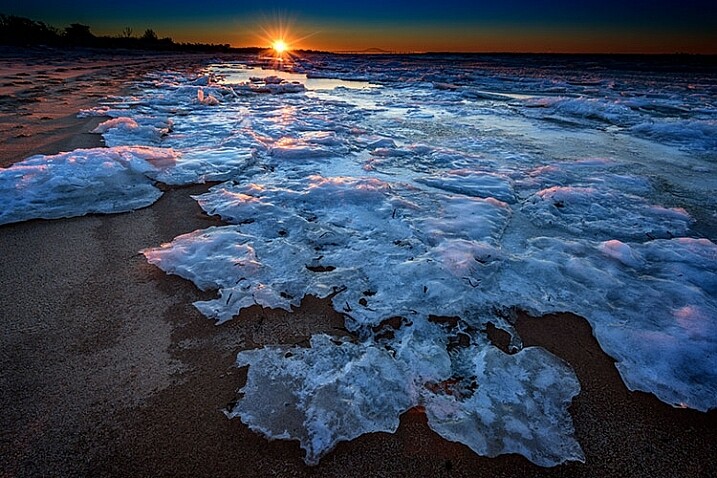
Using a wide angle lens, I was able to emphasize the ice in the foreground, while pushing the bridge to the background at the top center of the frame.

I currently have seven camera lenses in my kit right now. At any given time, there may be four or five in my camera bag when I’m out photographing, depending on what my planned subject is, or what contingencies I want to be ready for. But, as usually happens, it’s rare that most of those lenses will see the outside of my bag once I get where I’m going. While each situation is different, I often find that one lens will usually handle what I want to do when I get to a location. So unless it’s one of those rare times when a situation calls for both a telephoto and a wide angle look, usually only one of those lenses gets mounted on the camera. While in the above example I broke this rule and used two cameras with two different lenses, that is not usually the norm for me.

When you pull your camera out of the bag next time and select lens to use, stick with that one lens. Really get to know it. If it’s a zoom, shoot at only one end of it. The next time you use it, use the other end. Learn how to make that lens really sing. Find out what it’s really good for, and what it’s not good at. Do this with every lens you own, if you own more than one. When it comes time to purchase new glass, you’ll have a much better understanding of where your kit comes up short, and what you need to buy. In addition, you’ll also be building on my first point, focusing on one subject. Too often, new photographers miss opportunities because they are busy changing lenses because they think they need one over another. If changing lenses is not an option, you won’t waste time with it, and can focus on making great photos with whichever lens you find on your camera.

Telephoto lenses compress perspective.

Telephoto lenses compress perspective. Want to make the sun or moon look really big in relation to a building or structure? Back away from your subject a bit and use a telephoto lens to compress the perspective and distort the size relationship.

In the two images shown above, the same bridge can be found in both, and both shots were taken from roughly the same spot. One was taken with a 16mm lens, and the other, with a telephoto lens at 290mm. Wide angle lenses expand perspective, emphasizing the foreground and pushing background objects back, while telephoto lenses minimize foreground and tend to flatten perspective. Using only one focal length will also help you to compose more effective images. Zooms can at times make you lazy. Zooming from a wide angle to a telephoto lens changes the image profoundly, and it’s important to understand what effect that can have on your image.

Telephoto lenses compress perspective, while wide angle lenses enhance it, and each perspective communicates something different to the viewer. There are reasons to use both wide and telephoto lenses, but only working with them extensively will help you recognize the situations where each is most effective.

#3 – Don’t accessorize

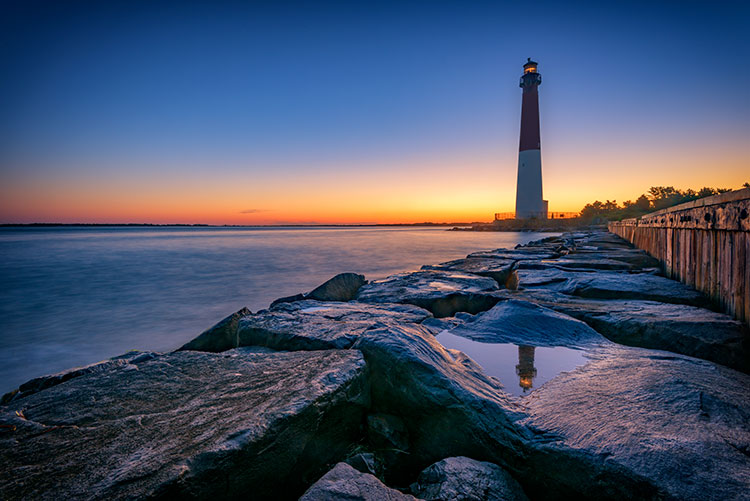
For the lighthouse image- Shot at 16mm, f/16, 15 seconds, ISO 64. I simplified my composition down to two elements, the reflection in the foreground, and the lighthouse in the background. Knowing the lighthouse would be there regardless of where I stood or how I zoomed, I focused on getting the reflection right, and letting the rest of the composition fall into place.

Shot at 16mm, f/16, 15 seconds, ISO 64. I simplified my composition down to two elements, the reflection in the foreground, and the lighthouse in the background. Knowing the lighthouse would be there regardless of where I stood or how I zoomed, I focused on getting the reflection right, and letting the rest of the composition fall into place.

One of the great things about digital photography, and today’s technology, is the many cool new tools available to help with your picture-taking endeavors. It’s great to be able to connect to a camera from your smartphone, and do things such as time lapse or long exposures, but often times, these accessories are one more thing that can go wrong, or distract you from actually taking photos.

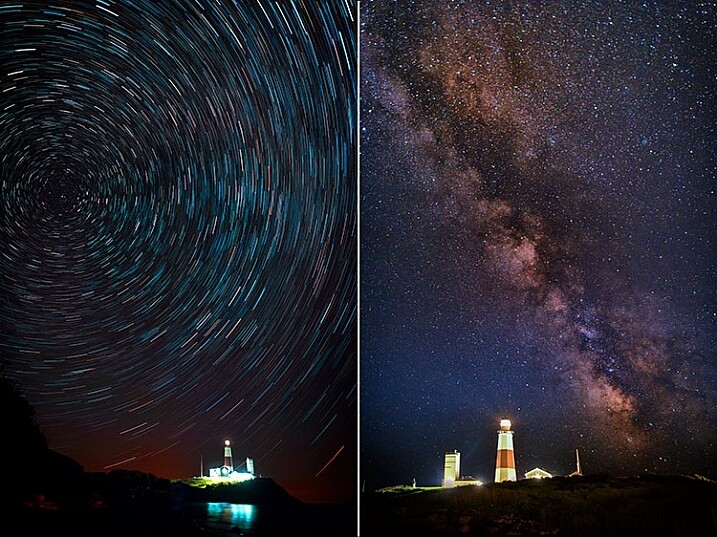
There are only three accessories that I use regularly. One is a time controller that plugs into my camera directly, second is a tripod, and finally, a set of neutral density and graduated neutral density filters, used to help control exposure. I didn’t even begin using the filters until a few years ago, more than 15 years into my photography career. Both images below used nothing more than a remote shutter release. In the case of the Milky Way image, on the right, I set my camera to manual for a 15 second exposure and used the remote release as I would the shutter button, simply to avoid touching the camera. For the image on the left of the star trails, while that becomes a bit more complicated in processing, in reality, it’s just a lot of 30-second exposures. I simply set my camera to continuous drive, and locked the shutter button on the remote down. Simple.

Minimize accessories

Even for images such as these, the only accessory I used was a time controller, with only the shutter button locked down.

It’s important, when learning photography, to focus on the basics – aperture, shutter speed, and ISO, and understand how they affect your images. It’s too easy to get caught up in all the bells and whistles and how cool they are, and forget that the end result is what matters. In my mind, if the accessory isn’t contributing in a way that affects the final image, then I don’t need to use it. I’m not saying that accessories are bad, or even unnecessary, but if you aren’t sure how to achieve a proper exposure yet, put off purchasing that shiny new toy, and really learn your camera.

I would even advise you to stay away from the special modes on your camera, such as HDR, or star trails mode (I do that manually in post-production), or multiple exposure mode. Yes, they can look cool, and do great things, but again, understanding the basics of exposure is paramount. If you don’t understand basic exposure, using the bells and whistles won’t help you make music.

I find that simplifying the process as much as possible helps me come away with the best images possible. What do you do to help simplify your photographic process?

googletag.cmd.push(function() {
tablet_slots.push( googletag.defineSlot( “/1005424/_dPSv4_tab-all-article-bottom_(300×250)”, [300, 250], “pb-ad-78623” ).addService( googletag.pubads() ) ); } );

googletag.cmd.push(function() {
mobile_slots.push( googletag.defineSlot( “/1005424/_dPSv4_mob-all-article-bottom_(300×250)”, [300, 250], “pb-ad-78158” ).addService( googletag.pubads() ) ); } );

The post 3 Ways to Simplify and Learn Photography Faster by Rick Berk appeared first on Digital Photography School.

Digital Photography School

 
Comments Off on 3 Ways to Simplify and Learn Photography Faster

Posted in Photography


4 Easy and Unique Ways to Light and Photograph Wedding Rings

10 Jun

Snapdeals Sale: If you’d like to learn more about how David and Patrick photograph weddings you may want to check out their 14 hour tutorial on all things wedding photography. It’s currently $ 100 off at SnapnDeals.

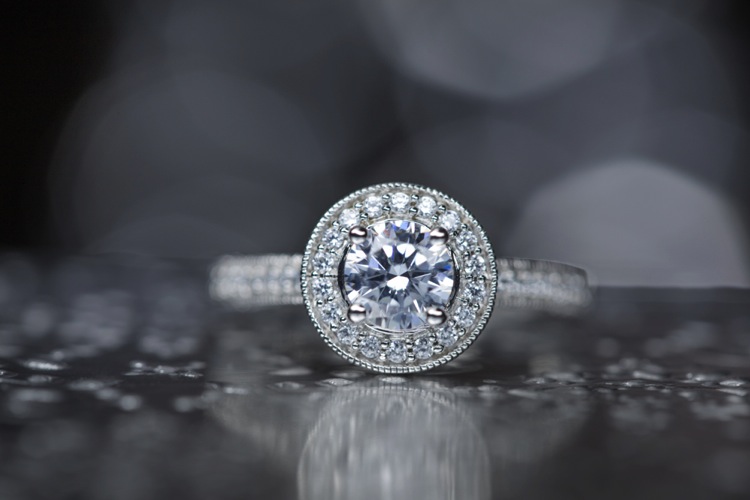
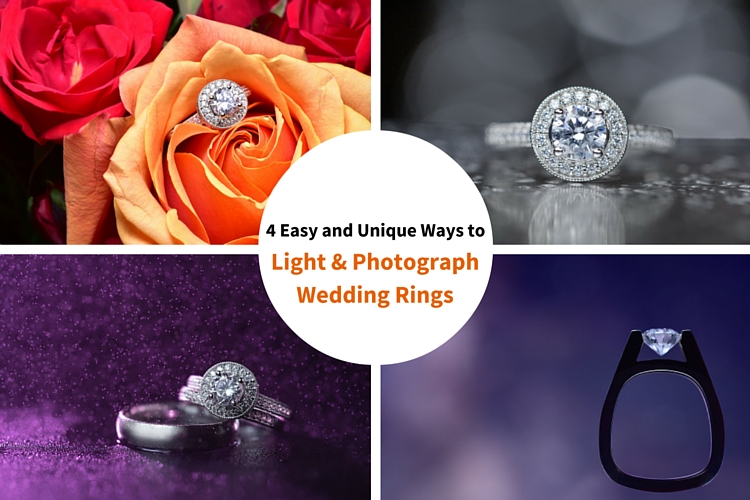
Wedding photographers are expected to capture every aspect of a wedding day and in many cases we only have a couple minutes to work. The wedding rings are an important detail that many photographers either overlook completely or over think. Over the years I’ve taught some practical ways to improve your wedding business and shooting skills. Let me show you four quick and unique ways to photograph the wedding rings.

4 Easy and Unique Ways to Lightand Photograph Wedding Rings

You’ll Need a Macro Lens

04.jpg

To capture wedding rings properly you’re going to need a macro lens. Without one, you simply won’t be able to zoom in and focus close enough. Yes, you could shoot wider and crop in but you will be losing tons of resolution. Luckily basic macro lenses are not that expensive.

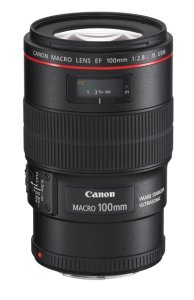
If you’re shooting Nikon I would suggest the Nikon Micro 55mm f/2.8 or the Micro 60mm f/2.8. These lenses are very small and will easily fit in your bag. If you’re shooting Canon I would suggest the 100mm f/2.8L IS USM Macro. This one actually does have auto focus.

If you’re anything like me, you’re not going to use a macro lens very often, so you won’t want to spend a ton of money on extra features like vibration reduction (image stabilization). If you want to save even more money, buy the lens used. Amazon is actually great for used lenses. Simply click used at the bottom of any description on Amazon. You can get them cheap and they will hold their value for years to come.

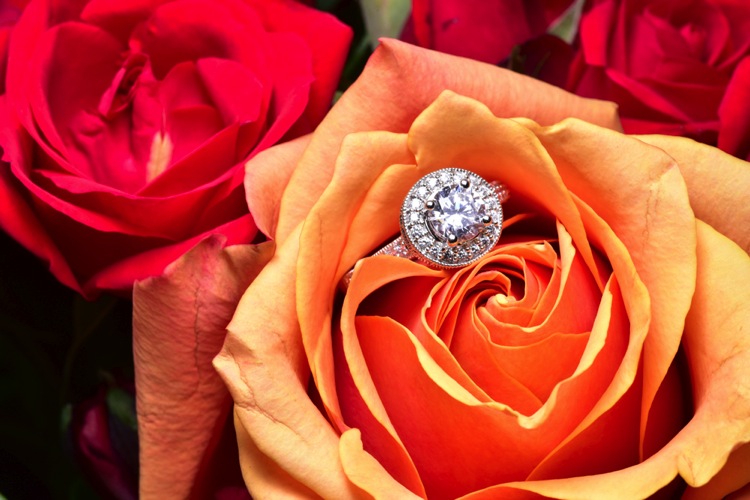
Technique #1 Wedding Rings in Flowers

The absolute easiest shot to capture, and one that I’m sure to get at every single wedding I photograph, is one or more of the wedding rings placed inside, or on top of flowers. I don’t think I’ve been to a single wedding where flowers weren’t easily available. This shot is overdone and boring to a lot of photographers, but keep in mind that your clients will (hopefully) only get married once. So, to them, this shot is unique. It shows off the wedding rings, and it also captures the flowers, which they spent a lot of time and money picking out.

Sometimes I will use the bouquet of flowers and lay them down on the table, but I usually find it easier to work with flowers that are standing up. For this I will often use a vase of flowers, usually found in center of the tables at the reception.

For lighting this first shot I’m going to use a speedlight, any type will work. If you don’t have enough money to buy a name brand-name speedlight, then I would highly suggest checking out Yongnuo flashes, the base version is only 70 bucks. If you shoot Canon, you may want to spend a bit more, and buy the YN600EX-RT, that will communicate with radio signals for $ 129.

1 flowers direct flash

Holding the camera in one hand and the flash in the other, you can see that we can get a decent result (image above), but it would be much better if we could soften the light.

If you didn’t bring a modifier with you, you can use anything nearby that’s white. I’ve used a white plate, paper napkin, white t-shirt, and a tablecloth in the past. For this shot we will use a white paper towel. By bouncing the light off of, or through the paper towel, we can get much larger, softer light.

Having my assistant move the flash with each picture I take, ensures that we will get a lot of variety, without wasting time looking at each shot individually. Remember, this is all taking place during a wedding, so I really don’t want to spend more than a minute or two on these shots. After taking 10-20 shots in rapid succession, I can quickly review them and confirm that I have a keeper.

2 moving soft light

I consider this to be my safety shot because I can get it in under two minutes at every wedding I do, and the client always loves it. After I knock it out, if I have time, I’ll try some more complicated and creative shots.

Adding Multiple Lights and Water

For this next shot we are going to complicate things a bit in terms of gear, but we are also going to be able to do it without the help of an assistant.

First, find an interesting surface to place the rings. It could be a tablecloth, wood grain, granite, or anything you find around the reception site. We took our picture on a black, glass-top table.

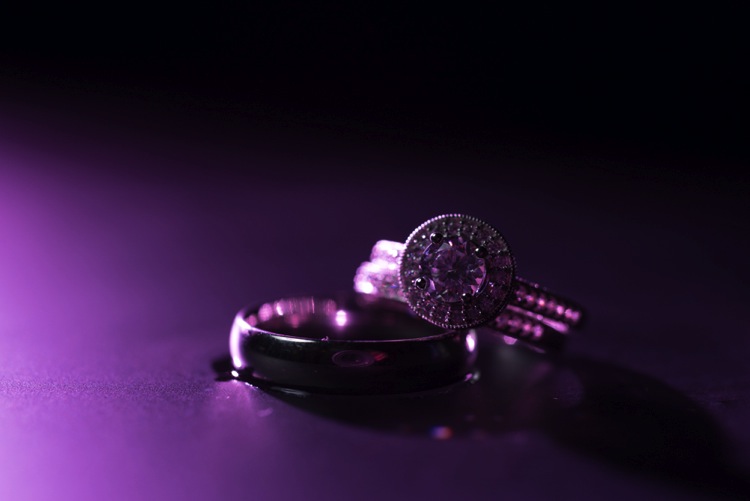
First I setup the camera up on a tripod so that I could keep my hands free. From behind the ring, I added the first speedlight, to create a rim light on the back of the subject. To add a bit of interest I used a purple gel, and to confine the light, the Magmod grid.

3 Final Back Light Only

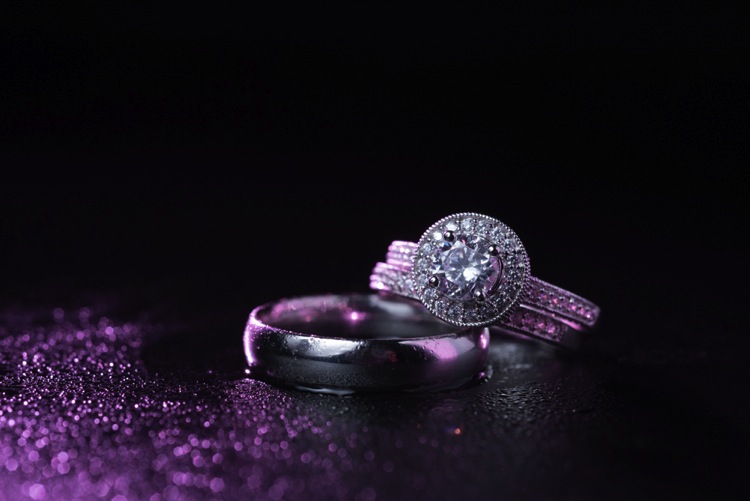
Now it’s time to light the rings from the front. Instead of using a paper towel, I decided to use the Fstoppers FlashDisc. It’s basically a collapsible softbox that can used with just one hand. When it’s collapsed down, it’s small enough to fit in your pocket, which makes it extremely convenient at weddings.

Read: Review: Flash Disc Lighting Modifier by Fstoppers for more information on this product.

4 Final backlight and flashdisc

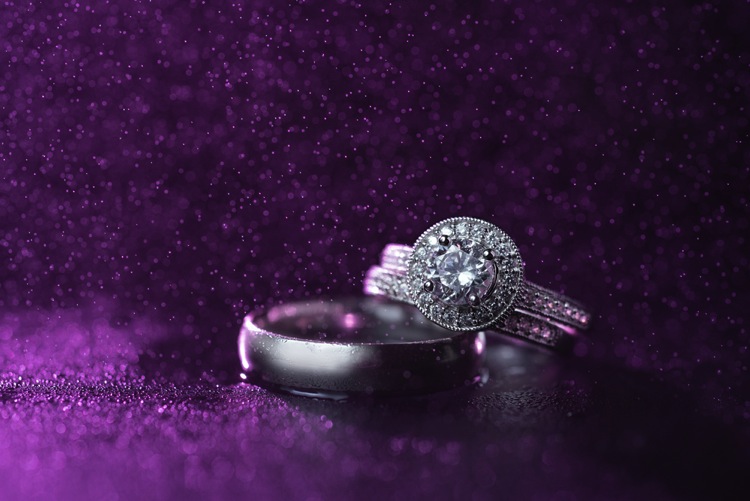
To add one more interesting aspect to this shot, I used a miniature spray bottle to add mist behind the rings. The purple light coming from the back, lights up the water, and takes this shot to the next level.

5 Final best 1 retouched

Building Your Own Set and Using Continuous Lighting

If you like to be prepared for any situation, you’re going to want to travel with a few props that you know you can work with, if the items around a wedding aren’t cutting it as a background. I travel with a pack of metallic foils that can be used to place the rings on. I also brings along cheap reflective jewelry that I can use to create bokeh effects.

Instead of using a strobe for this shot, a cheap LED panel was used as a continuous light source. These panels can be extremely handy, but keep in mind that you will probably want to use a tripod if you are going to use them to light the rings so that you can keep everything sharp (the shutter speed may be slow). If you want extremely blurry bokeh, you’re also going to want to shoot at a wider aperture than you normally might.

6 Final Image 2

Using a Screen to Create Your Own Background

For this final shot, we are going to use a computer screen to create our own background. If you don’t travel with a laptop, you could use an iPad, or maybe even a smartphone screen instead.

I would suggest practicing this shot at home before you ever get to a wedding. You don’t want to be fiddling around with your setup, or searching for different backgrounds while the wedding is going on. If you are prepared though, this shot can be extremely easy to pull off.

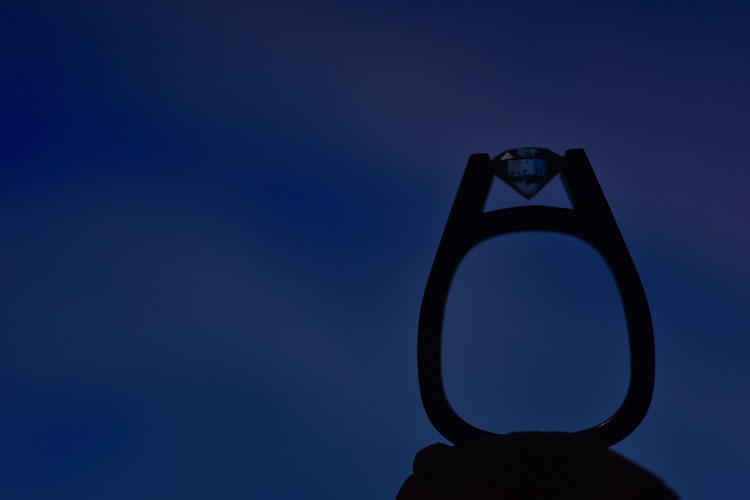
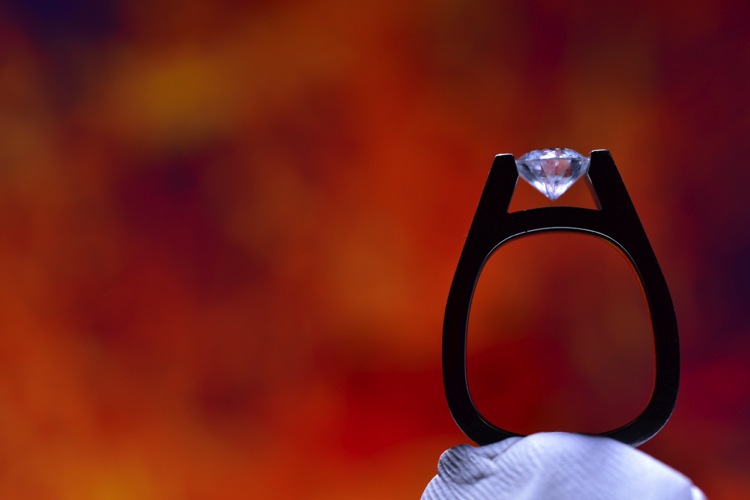
First I placed the ring on bit of putty to get it to stand up. I then set my computer screen to its brightest setting, and exposed for the screen itself. At this point the shot is a silhouette of the ring.

7 Screen backlit

To light the ring itself you could use your smartphone’s flashlight, or you could use any cheap LED flashlight. If your flashlight doesn’t dim, you can simply move it closer or farther away from the ring to get a correct balance of light, with the screen in the background.

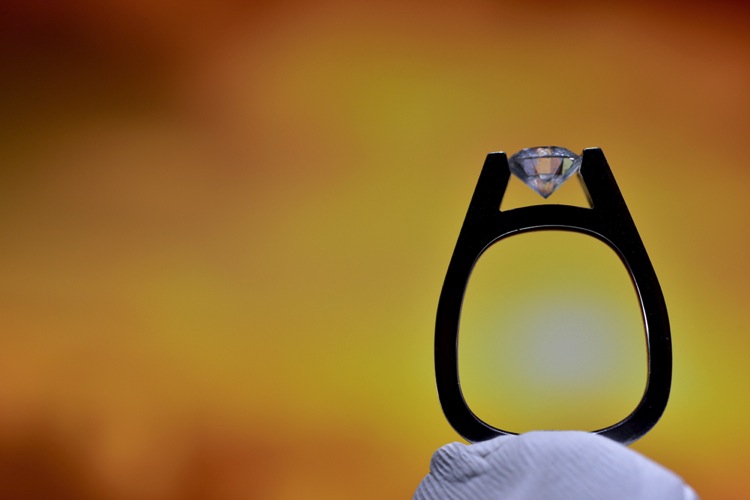
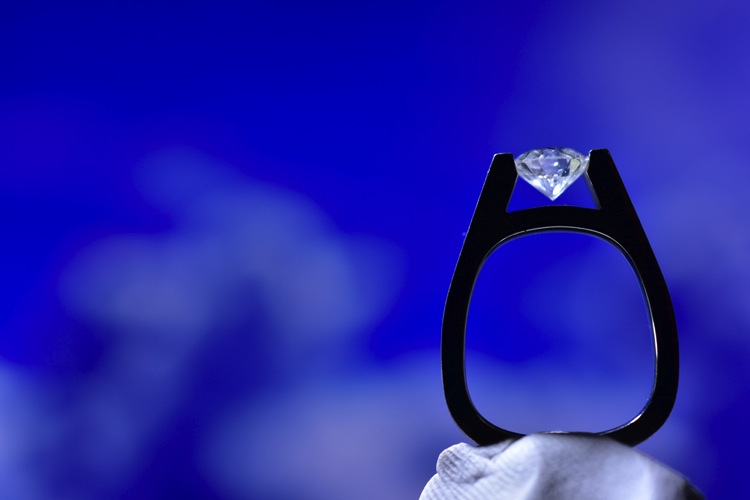
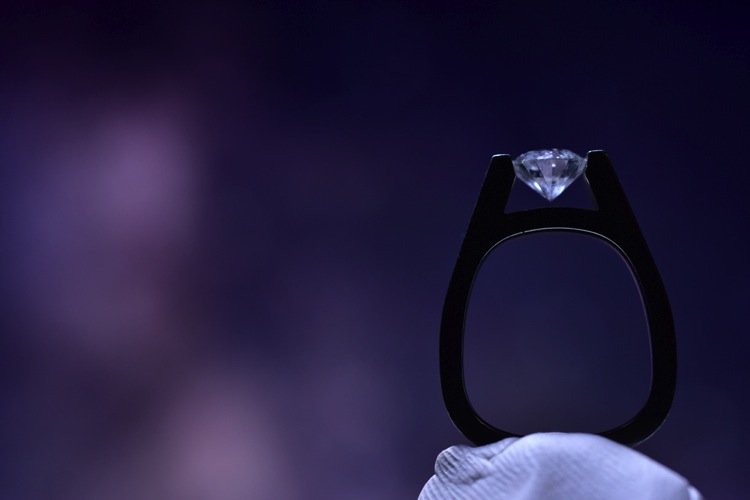
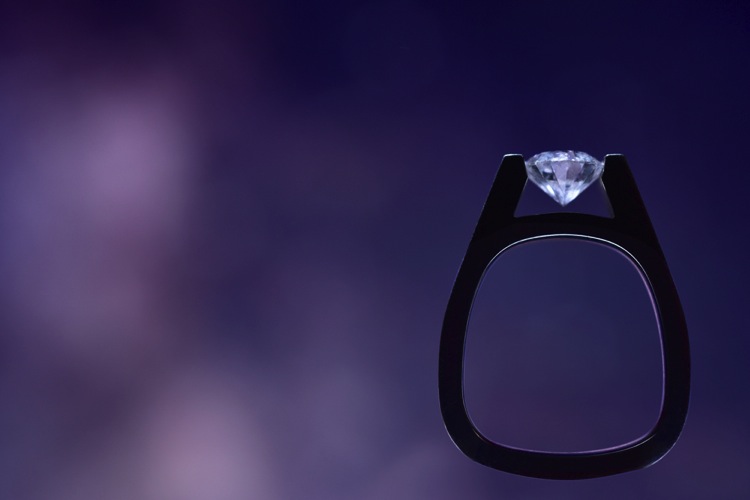
Because your background will be so blurry, it really doesn’t matter what is on the screen in the background, you are basically looking for certain colors, and large shapes that will create an interesting mood.

8 screen shot 1

9 screen shot 2

10 screen shot 3

11 screen shot 4

In the post-production you can either zoom-in past the putty (crop it out) or you can Photoshop the putty out and have a floating ring effect.

12 Final Edit 4

You can also watch us go through these techniques in the following video:

Snapdeals Sale: If you’d like to learn more about how David and Patrick photograph weddings you may want to check out their 14 hour tutorial on all things wedding photography. It’s currently $ 100 off at SnapnDeals.

googletag.cmd.push(function() {
tablet_slots.push( googletag.defineSlot( “/1005424/_dPSv4_tab-all-article-bottom_(300×250)”, [300, 250], “pb-ad-78623” ).addService( googletag.pubads() ) ); } );

googletag.cmd.push(function() {
mobile_slots.push( googletag.defineSlot( “/1005424/_dPSv4_mob-all-article-bottom_(300×250)”, [300, 250], “pb-ad-78158” ).addService( googletag.pubads() ) ); } );

The post 4 Easy and Unique Ways to Light and Photograph Wedding Rings by Lee Morris appeared first on Digital Photography School.


Digital Photography School

 
Comments Off on 4 Easy and Unique Ways to Light and Photograph Wedding Rings

Posted in Photography


7 Ways Custom Photo Backdrops Can Promote Your Business

13 Apr

How could you photograph a love story in Paris having less than $ 50 at your disposal? Or make local moms stand in line at your photo studio without running an expensive marketing campaign? That’s totally possible if you pay attention to one single element of your studio setup – background. Read on to find out how other photographers are successfully Continue Reading

The post 7 Ways Custom Photo Backdrops Can Promote Your Business appeared first on Photodoto.


Photodoto

 
Comments Off on 7 Ways Custom Photo Backdrops Can Promote Your Business

Posted in Photography


2 Quick Ways to Add a Sunflare in Photoshop

28 Feb

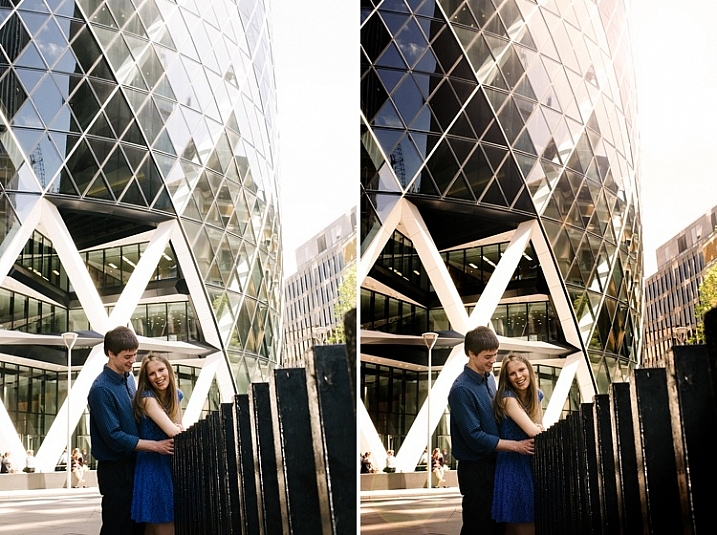
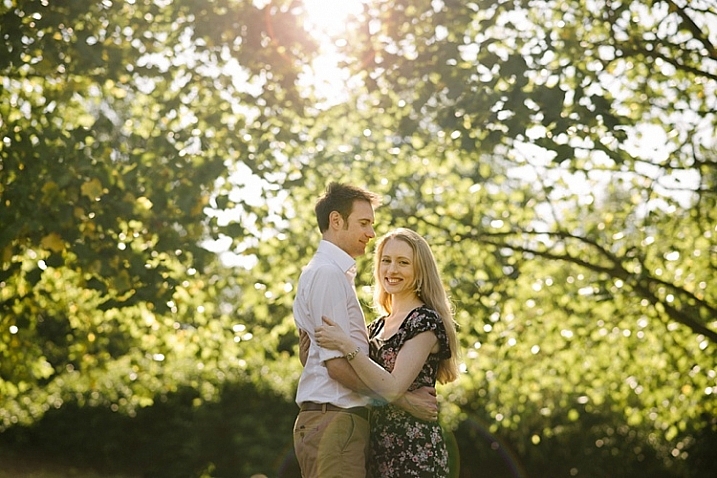
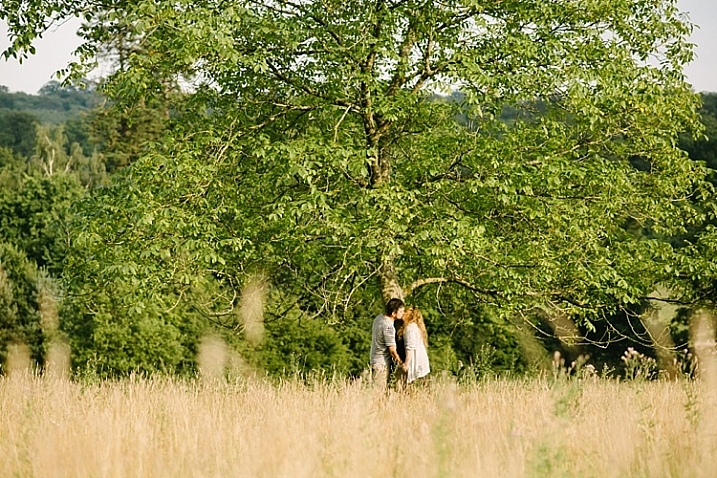
Sunflares can make an otherwise dull image, look pretty dramatic. It’s very tricky to get good images of a sunflare in-camera, especially when using natural light only, as the contrast between the light and dark parts of the image is often too great that no amount of Active-D lighting can fix. Thankfully, we have Photoshop and many special effects like sunflares can be magically created, added, or enhanced, using this software’s mind-blowing functionality.

special-effects-sunflare-photoshop-tutorial

Why add a sunflare?

Special effects, such as a sunflare, ultimately boil down to the photographer’s personal taste. Here are a few reasons why sunflares may be added in post-processing.

  • To exaggerate the sun’s rays.
  • To enhance contrast and inject drama.
  • To hide unwanted clutter.
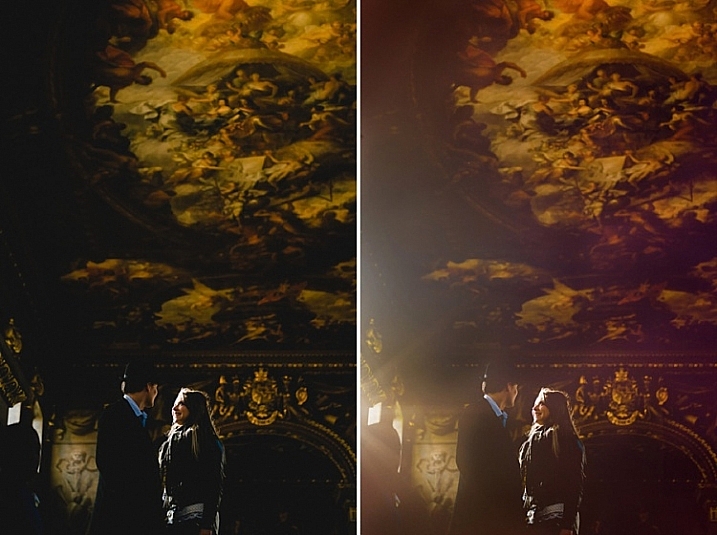
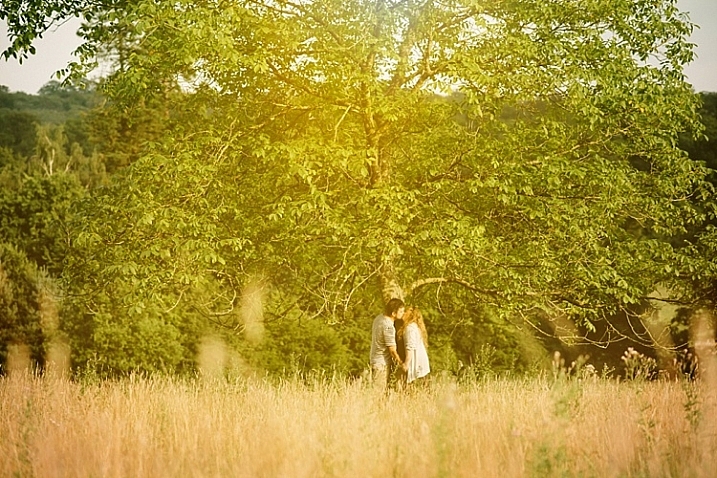
  • To achieve artistic effects, for example if you are aiming for a dreamy and romantic effect, or soft and hazy ambience, such as the image above right.

When not to add a sunflare?

When you discover the magic of Photoshop, you can easily get carried away by the excitement of adding special effects, and there’s the danger that you add it on all your images, even when completely out of context, out of place, or totally unnecessary. I suggest avoiding sunflares when:

  • There is no sun at all or any large light source, in the shot.
  • When it makes the image look completely fake, when you really mean for it to look natural.

How to add flare in Photoshop

As is the usual case in Photoshop, there are always several methods to do something. This tutorial focuses on two ways of adding a sunflare.

special-effects-sunflare-photoshop-tutorial (1)

1. Method one: Using the LensFlare filter

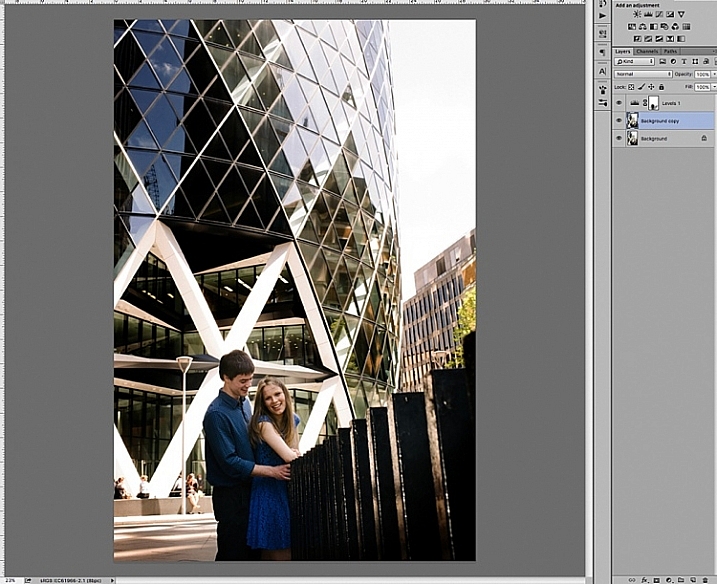
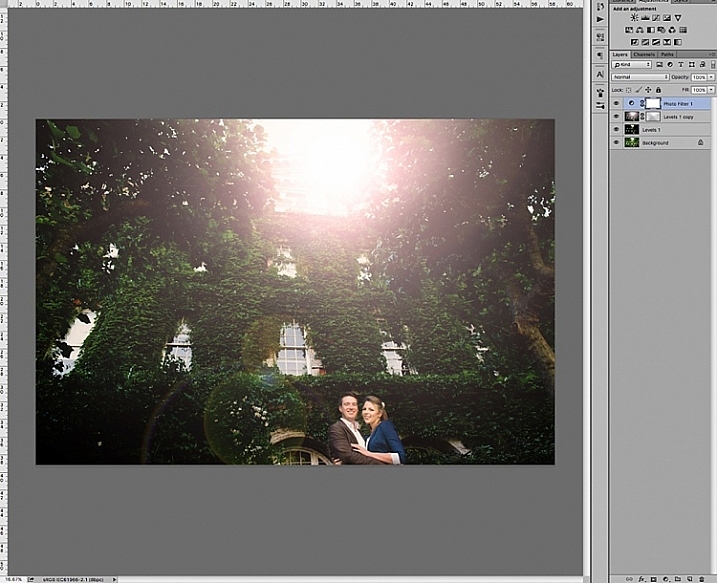
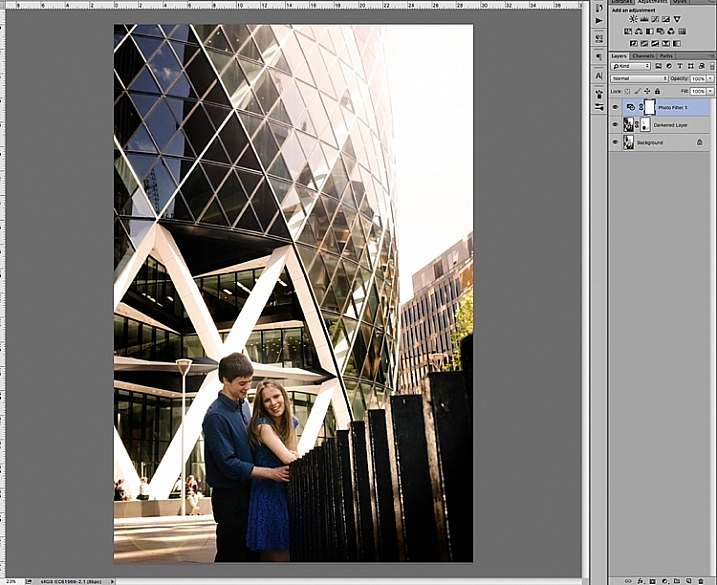
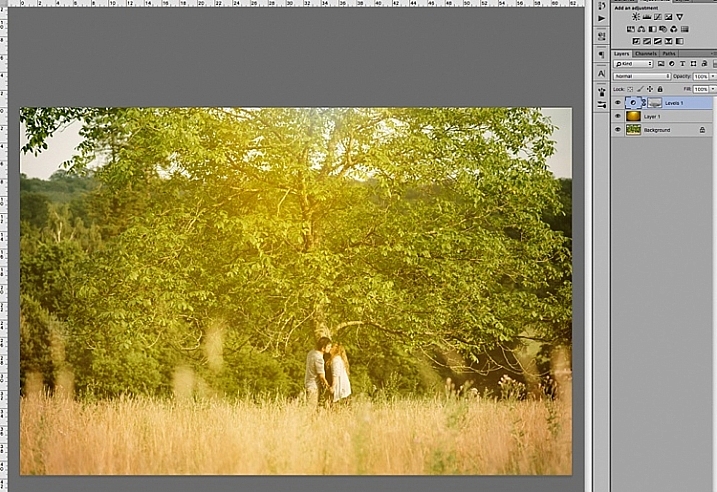
Adding a bright sunflare to the image above won’t make much difference to an already washed out sky and part of the building. First of all you would need to create contrast by darkening the image. Copy the image on a new layer using CMD/CNTRL + J, and darken it using a Levels adjustment layer.

special-effects-sunflare-photoshop-tutorial (12)

Merge the background copy layer with the levels layer, by selecting both layers and typing CMD/CNTRL + E to merge them. Now you have a new darkened layer. Make another copy of the new darkened layer, then work on this new layer with the sunflare.

When you add sunflare, it is automatically added on the layer as part of the image, and not on a new layer by itself. So to be safe, keep a copy of the darkened layer which you don’t touch. Always work on the new copy with the sunflare, so in case you make mistakes or need to reposition your sunflare, then you won’t need make a darkened layer all over again. You can just delete the layer you are working on, and duplicate your untouched dark layer, to start adding a new sunflare.

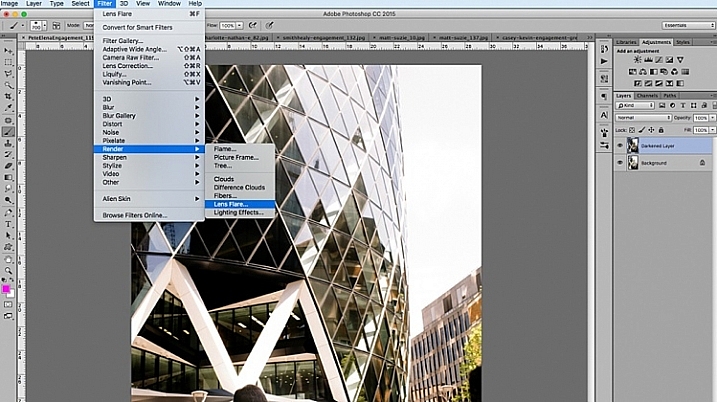
In Photoshop, bring up the Lens Flare from the top menu bar using the Filter>Render>LensFlare drop down menu.

special-effects-sunflare-photoshop-tutorial (1)

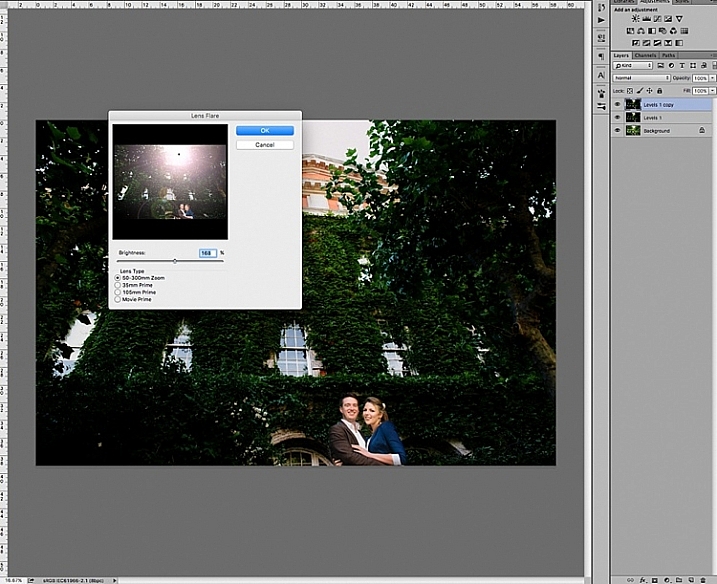
You can experiment which type of lens flare you want to add, by clicking the circles next to the type of sunflare option, and adjusting the brightness intensity by moving the slider. Click OK when you’re happy with your choice, and the sunflare will be superimposed on your image on the same layer.

special-effects-sunflare-photoshop-tutorial (8)

Once the sunflare is applied to the image, add a layer mask, and using a soft black brush, remove some of the sunflare from areas you want to protect such as faces (make sure to paint on the mask, not on the layer).

special-effects-sunflare-photoshop-tutorial (9)

special-effects-sunflare-photoshop-tutorial (14)

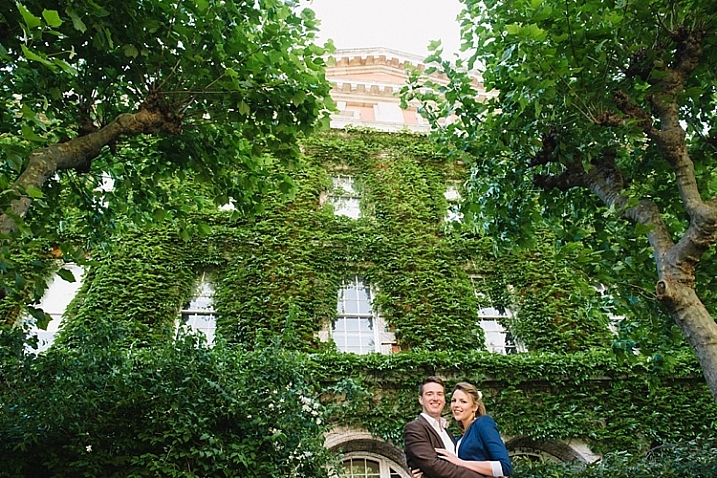
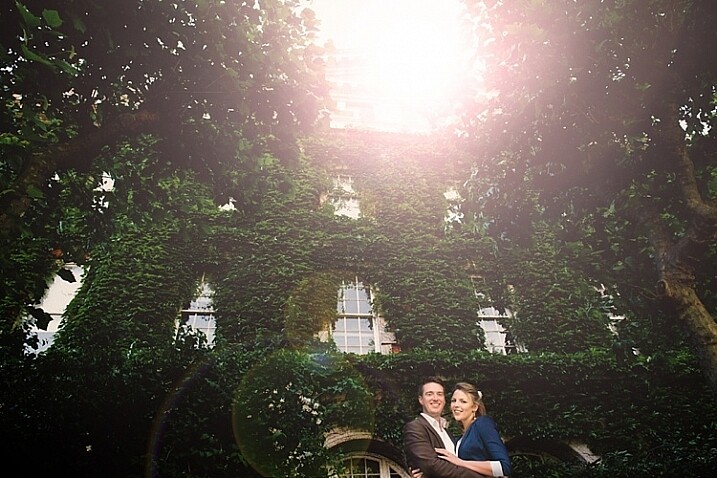
To finish, I added a photo filter on top, to warm up the image. Below is the image before and after the sunflare has been added. It is always a good practice to save the image with sunflare as a new JPG file, and always save your Photoshop file (PSD) with all the layers in tact, in case you need to revisit it again in the future.

special-effects-sunflare-photoshop-tutorial (3)

special-effects-sunflare-photoshop-tutorial (2)
2. Method two: Using overlays

The built-in sunflares in Photoshop have very limited choices, as you have seen above. There are far more interesting sunflares of all shapes and colours available, in the form of overlays.

Below is an example of an image with a faint sunflare added in Photoshop, using one of the built-in choices above. I don’t think this is dramatic enough. In this example, I am exaggerating the sunflare by adding a sunflare overlay.

special-effects-sunflare-photoshop-tutorial (5)

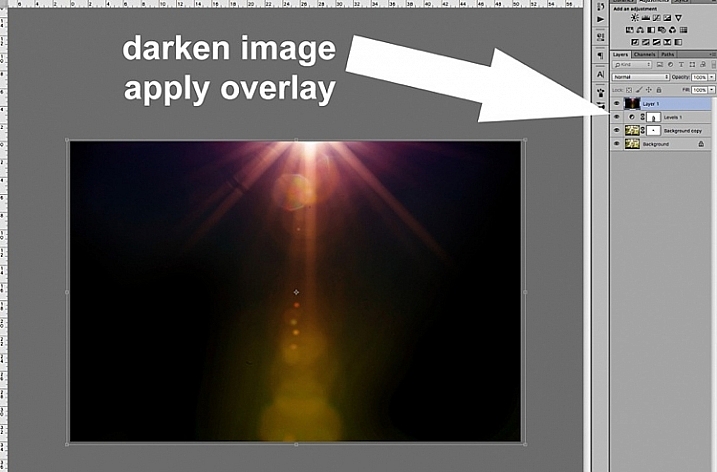
First darken the image with Levels, as in the first method above, using a layer mask to protect areas you don’t want to be darkened. Then apply the overlay on the entire image, as shown below.

special-effects-sunflare-photoshop-tutorial (11)

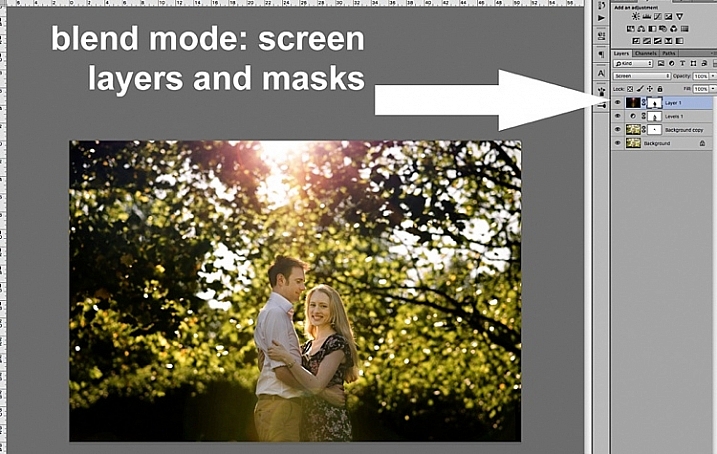
Change the layer blend mode to Screen, which makes all the dark areas of the overlay disappear, and you will only be left with the light areas superimposed on your image.

special-effects-sunflare-photoshop-tutorial (10)

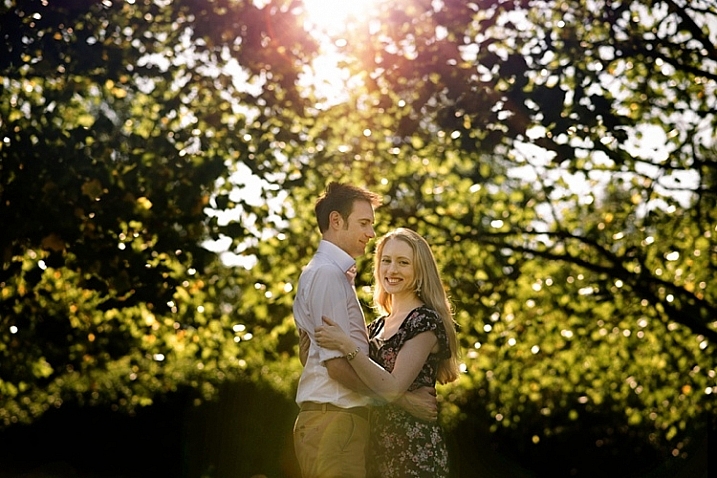
Below is the final JPG image with the new sunflare overlay, with the whole image darkened for more contrast.

special-effects-sunflare-photoshop-tutorial (4)

Below is another image about to be treated with a sunflare overlay, but this time way more exaggerated than the example above.

special-effects-sunflare-photoshop-tutorial (7)

The overlay is so strong, as you can see on Layer 1 below, I have applied a levels layer to brighten it a little, and a layer mask to gradually remove some of the overlay from areas I wanted to protect.

special-effects-sunflare-photoshop-tutorial (7)

Below is the final image with an exaggerated sunflare overlay, that looks like it has been photographed through a warm filter over the lens.

special-effects-sunflare-photoshop-tutorial (7)

A few things to note when applying special effects

  • Be subtle and experiment with the opacity to achieve the desired effect.
  • Darken surrounding areas to emphasize flare, especially on a very bright image.
  • Mask off special effects from faces, and areas that clearly do not need it. The built-in sunflares in Photoshop have circular flares that appear too perfect and hard-edged. You can always mask some of this away to take the edge off, and soften the flare effect.

I hope you have enjoyed this little tutorial in adding a sunflare special effect in Photoshop. Do you have other tips and ways to add sunflares in post-processing? Please share them in the comments below.

googletag.cmd.push(function() {
tablet_slots.push( googletag.defineSlot( “/1005424/_dPSv4_tab-all-article-bottom_(300×250)”, [300, 250], “pb-ad-78623” ).addService( googletag.pubads() ) ); } );

googletag.cmd.push(function() {
mobile_slots.push( googletag.defineSlot( “/1005424/_dPSv4_mob-all-article-bottom_(300×250)”, [300, 250], “pb-ad-78158” ).addService( googletag.pubads() ) ); } );

The post 2 Quick Ways to Add a Sunflare in Photoshop by Lily Sawyer appeared first on Digital Photography School.

Digital Photography School

 
Comments Off on 2 Quick Ways to Add a Sunflare in Photoshop

Posted in Photography


10 Ways to Use a 5-in-1 Reflector

27 Feb

ten-ways-to-use-reflectors-1803

In photography books, magazines, and websites, references to reflectors are often and many. They’re a quintessential tool for modifying light in just about every genre, and they’re an indispensable part of many photographers’ toolkits.

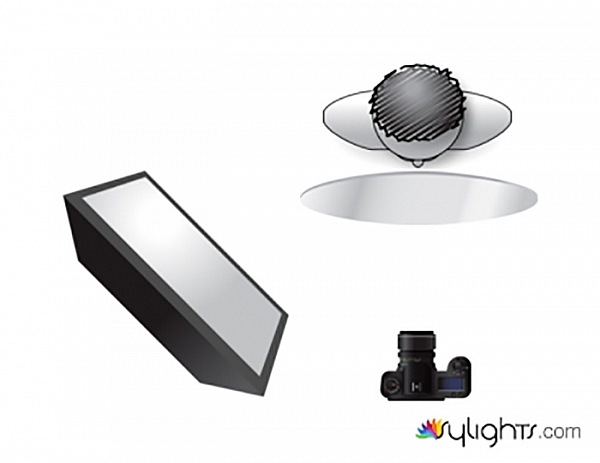
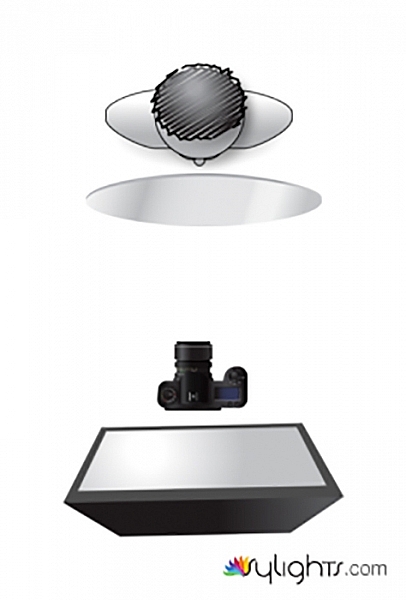
If you’re new to the idea of using reflectors, or new to photography in general, the problem with reflectors is that, although they seem self-explanatory in use, their effects can often be too subtle to be noticed if you lack experience using them. To combat this, and make the learning process easier, this article will give you examples of 10 common uses for a 5-in-1 reflector. It will also show you what the reflector is doing in each instance, as well as provide diagrams for you to repeat the exercise in your own time.

The best way to take full advantage of the information in this article, is to duplicate all of the following setups, using your own equipment and subjects. Once you understand the basics outlined here, you can start experimenting, and altering variables, to see how small changes can affect your images.

What is a 5-in-1 reflector?

5in1reflector


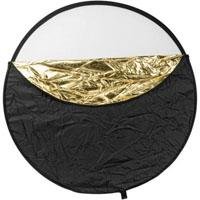
A 5-in-1 reflector is a nifty gadget that incorporates several different types of reflector, into one portable and easy to use package. These include white, silver, gold, black reflectors (or flag), and a diffusion panel.

05-westcott-photo-basics-reflectorThe way they are put together is that the four reflector sides are sewn into a sort of pouch, that fits around the diffusion panel; making a change to a different color as simple as unzipping it, removing the diffusion panel, turning the pouch inside out, and replacing it over the diffusion panel.

Clarifications

This article focuses on practical uses for 5-in-1 reflectors, but to use and understand them most effectively there a couple things to keep in mind.

Quality of light

When referring to the quality of light, this term has nothing to do with whether light is good or bad. The word quality refers to the physical properties, traits, or characteristics of the light. These properties include the softness or hardness, the shape, the color, and the intensity of the light.

A little confusing, I know, but it’s just one of the many quirks of the English language. If it helps, try to remember there is no such thing as good or bad light; only light more suitable for a different subject.

Softness, hardness and intensity

In terms of reflectors, it is important to understand how they modify your light.

Softness and hardness are affected by the apparent size of your light source. If you move your reflector closer to your subject, you get softer light. If you take it further back, you get harder light. The same applies to different sized reflectors. A larger reflector, at the same distance from the subject as a smaller one, will produce softer light, while the smaller one (in the same position) will produce harder light. However, if you put the larger one farther away from the subject, and the smaller one closer – they may become equal.

When swapping between the colors on your 5-in-1 reflector, from white to silver for example, the properties of the light you are altering are the color and the intensity. Providing that the reflector hasn’t moved, a silver and a white reflector will give the same softness/hardness of light. However, a silver reflector will reflect more light than a white one, thereby providing more intensity. Because of this, anytime you change out your reflectors, you will also need to alter your exposure settings.

Additionally, using a different colored reflector will change the color of the light and you may need to alter your white balance settings. The exception to this is when using a gold reflector which is often done to intentionally add a color cast to the image.

Exercises

Exercise One – white/silver on the side

ten-ways-to-use-reflectors-diagramA

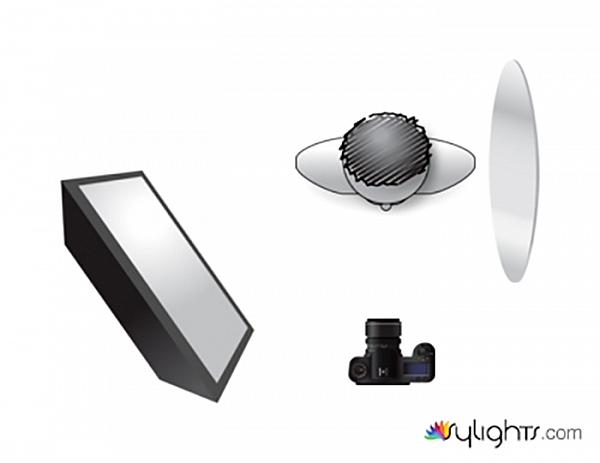
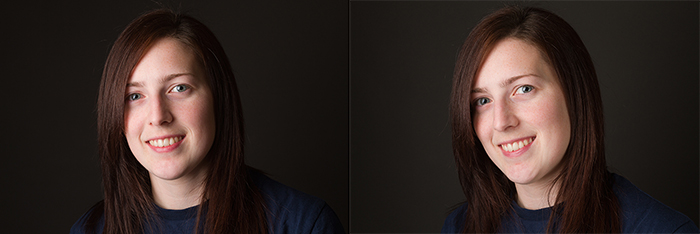
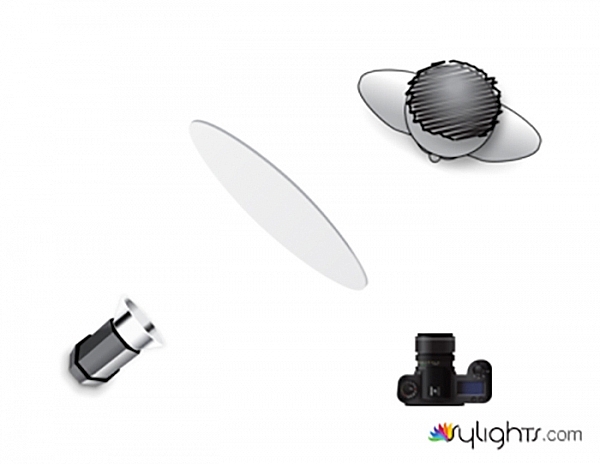
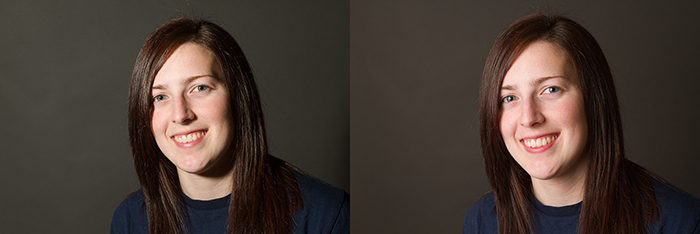
This first example may be the most common way to use a reflector. The light is illuminating the subject from camera left. This is causing dark shadows on the subject’s face at camera right. While these shadows can often be pleasing and acceptable, at other times you may choose to fill them in with additional light. This is where the reflector comes into play.

To do this, place your reflector, either silver or white, to the side and close to your subject, facing the light. This will fill in the shadows, brightening up the frame.

Note: You can also vary the intensity of the light reflected by moving the reflector toward, or away from the subject. Move it closer to brighten the shadows more, move it away to have less fill-light and darken the shadows.

ten-ways-to-use-reflectors-A

Left: without reflector. Right: with reflector

Exercise Two – white/silver from below

ten-ways-to-use-reflectors-diagramB

This setup is also very common, and is a slight variation on exercise one above. Here, the reflector is placed underneath your subject, and is filling in shadows from below.

ten-ways-to-use-reflectors-B

Left: no reflector. Right: with reflector.

Note: be very careful doing this on a subject that is heavy-set or has a double chin, as it will highlight that and make it stand out more – not overly flattering for them. You could also light up the nostrils so be conscious of that as well.

Exercise Three – white/silver bend it

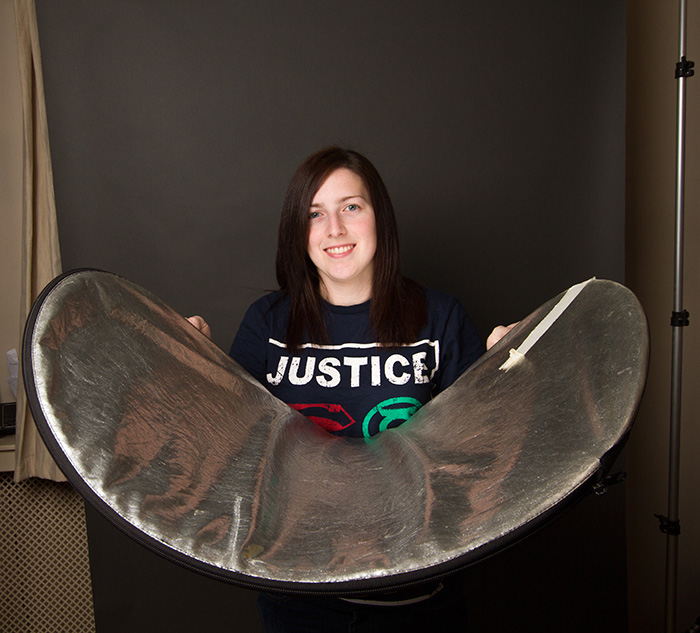
You can also take advantage of a 5-in-1 reflectors lack of rigidity, by shaping it. This will allow you to mould your light, to fill in shadows that may not have been affected by a flat reflector. To do this, simply hold two opposite sides of your reflector and bend it inwards, thus creating a curved surface that will fill in shadows that a flat surface could not reach.

ten-ways-to-use-reflectors-diagramG

ten-ways-to-use-reflectors-1817

ten-ways-to-use-reflectors-G

Left: no reflector. Right: reflector in place bent to fit.

Exercise Four – white/silver

In this example, the light source is coming from behind the subject. The reflector is used parallel to the light source in order to bring detail into the heavy shadows caused by the backlighting technique. While it is possible to use this technique for portraits, it can be tricky. However, it comes into its own in food photography and other still life situations.

ten-ways-to-use-reflectors-diagramC

ten-ways-to-use-reflectors-C

Left: no reflector with strong backlight. Right: with reflector.

Exercise Five – white/silver

If your light source is small, and the light is too hard for the effect you are trying to achieve, 5-in-1 reflectors offer a few options to help you soften the light.

Here, instead of lighting your subject directly with the light source, bounce the light off of the reflector. Doing this effectively increases the size of your light source, thereby softening it. You will lose some of the intensity of the light doing this, and you will need to meter for the reflected light, rather than the output from your flash.

ten-ways-to-use-reflectors-diagramJ

ten-ways-to-use-reflectors-J

Left: direct, small light source. Right: light bounced off white reflector.

Diffusion

Exercise Six – diffusion panel

Another way to soften hard light with a 5-in-1 reflector, is to use the diffusion panel. Simply place the diffusion panel somewhere between your light source and subject, making sure that all of the light is hitting the reflector. Diffusion panels do come with an inherent loss of light. Many are designed to cut down two stops of light, but this will depend on your exact reflector. As such, you will want to calculate your exposure with the diffusion panel in place, before taking any images.

Where this technique really comes into its own, is that you can move the diffusion panel anywhere between your light source and the subject, without altering your exposure. This allows you to manipulate the shape and quality of your light in moments, without having to further alter your settings.

ten-ways-to-use-reflectors-diagramI

ten-ways-to-use-reflectors-I

Left no diffusion, small hard light source. Right with diffusion panel in place, softens the light.

Black reflector

Exercise Seven – black reflector or flag

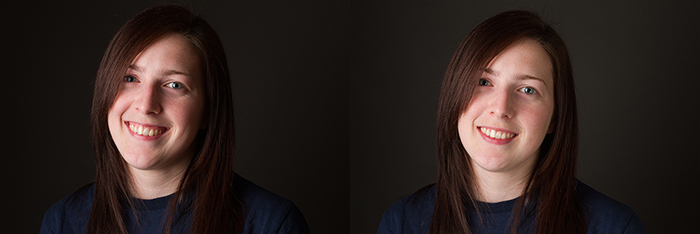
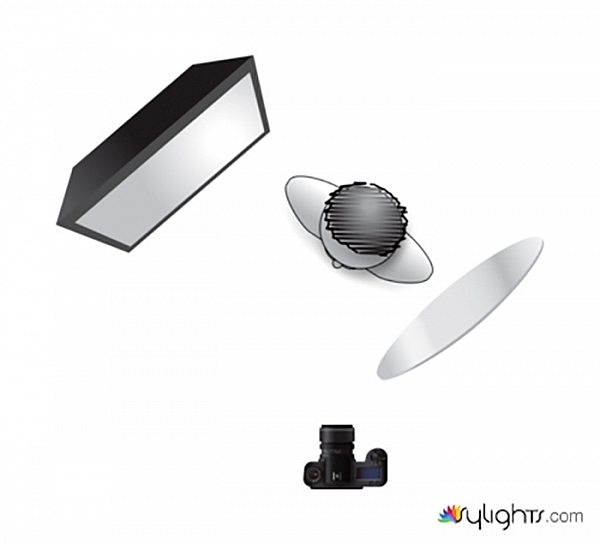
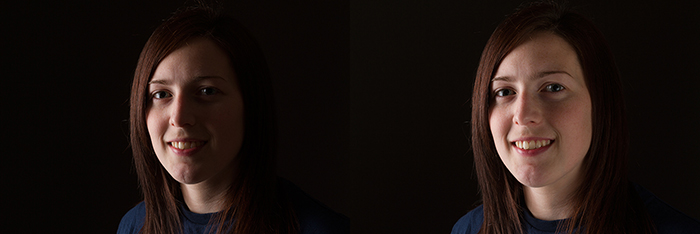
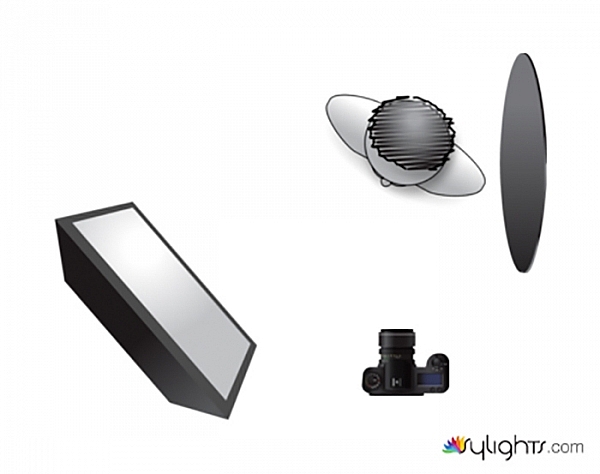
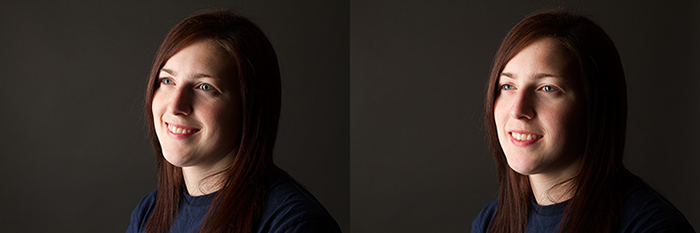
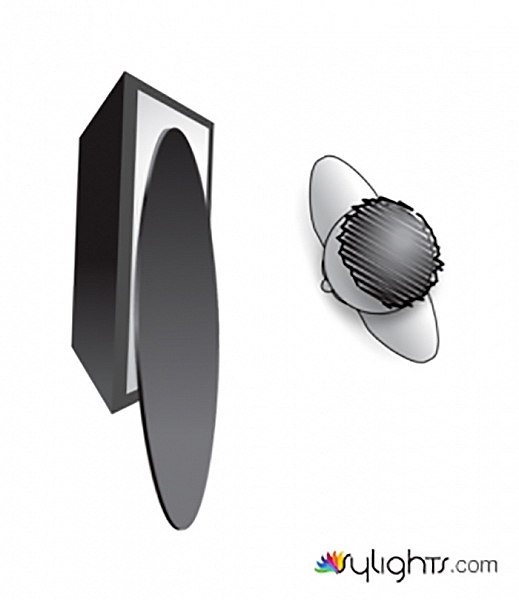
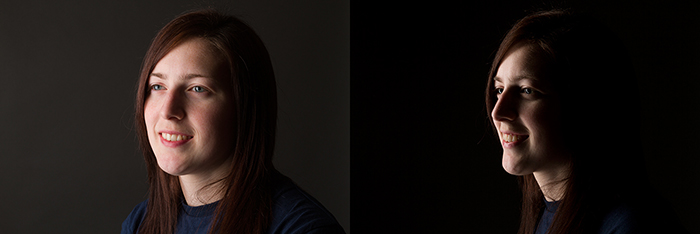
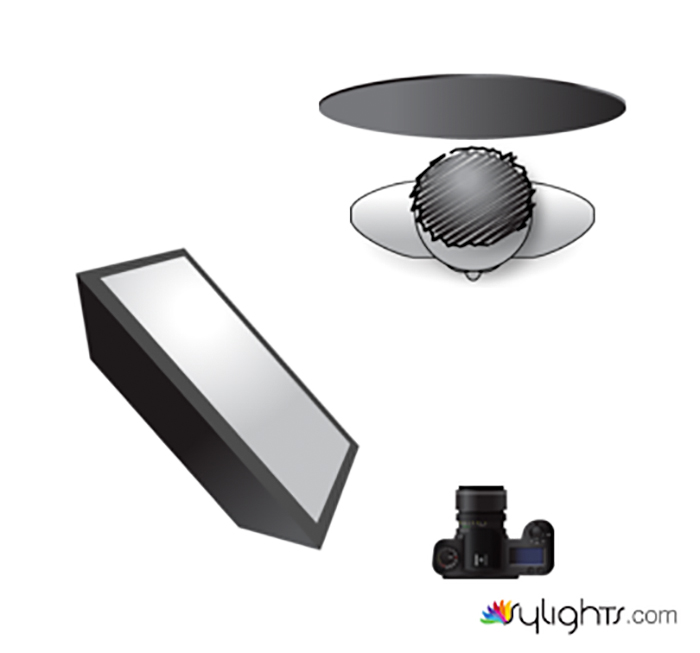
For the first use of your flag, use it as you would a white or silver reflector, as in example one above. Doing this with the black side of your reflector will help to deepen, and intensify the shadows on your subject. This technique isn’t as common as the others, but it can be used to great creative effect.

ten-ways-to-use-reflectors-diagramE


ten-ways-to-use-reflectors-E-700

The difference is subtle but look at the shadows.


Exercise Eight – black reflector or flag

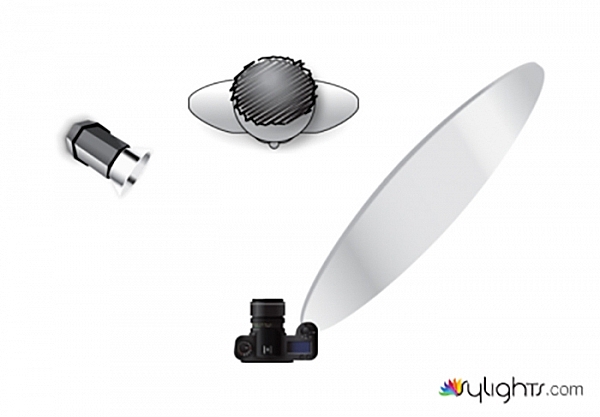
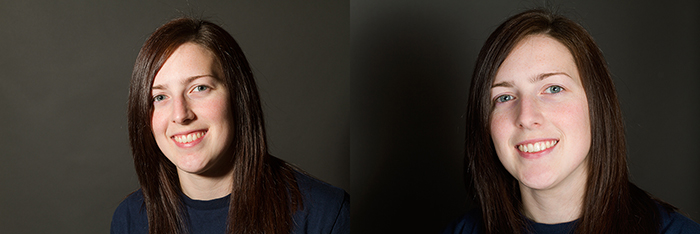
Instead of reflecting light, you can also use your flag to block, and shape the light in your scene. With the black side of the reflector facing your subject, hold it so that it obscures a large portion of your light source. This technique can be use in lieu of time consuming modifier changes, and can allow for some dramatic lighting effects without a great deal of equipment.

ten-ways-to-use-reflectors-diagramF

ten-ways-to-use-reflectors-F

Left: before. Right: after.

Exercise Nine – black reflector or flag

ten-ways-to-use-reflectors-diagramD

Another use for your flag is to use it as a background. You probably won’t do this very often, as it isn’t an ideal solution in most cases, but in a pinch you can get rid of messy backgrounds with ease.

ten-ways-to-use-reflectors-D

Gold reflector

Exercise Ten – gold

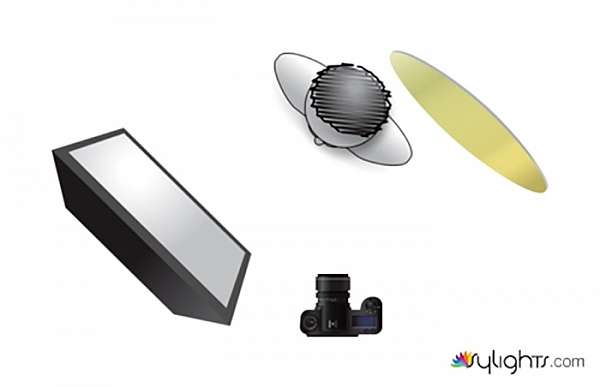
To be honest, you will probably never want to use a gold reflector. The effect, and the color cast they provide are often far too intense for most purposes. However, with judicious care, they can be used to provide a warm colored rim light. Here, the reflector is placed behind the subject and is reflecting light back onto her hair.

ten-ways-to-use-reflectors-diagramH

ten-ways-to-use-reflectors-H

Left: before. Right: after. Notice the warm tone added to her hair, it’s very subtle.

Just the beginning

These 10 examples barely scratch the surface of what can be accomplished with a 5-in-1 reflector. However, by going through these exercises a number of times, with a variety of subjects, you will quickly begin to notice how reflectors modify light in a given situation. From there you will be able to employ them effectively in your photography. Do you have any other uses or tips for using one? Please share in the comments below.

googletag.cmd.push(function() {
tablet_slots.push( googletag.defineSlot( “/1005424/_dPSv4_tab-all-article-bottom_(300×250)”, [300, 250], “pb-ad-78623” ).addService( googletag.pubads() ) ); } );

googletag.cmd.push(function() {
mobile_slots.push( googletag.defineSlot( “/1005424/_dPSv4_mob-all-article-bottom_(300×250)”, [300, 250], “pb-ad-78158” ).addService( googletag.pubads() ) ); } );

The post 10 Ways to Use a 5-in-1 Reflector by John McIntire appeared first on Digital Photography School.

Digital Photography School

 
Comments Off on 10 Ways to Use a 5-in-1 Reflector

Posted in Photography


4 Quick Ways to Add a Vignette to Your Images in Post-Processing

21 Feb

What is a vignette?

way-to-add-vignette-tutorial
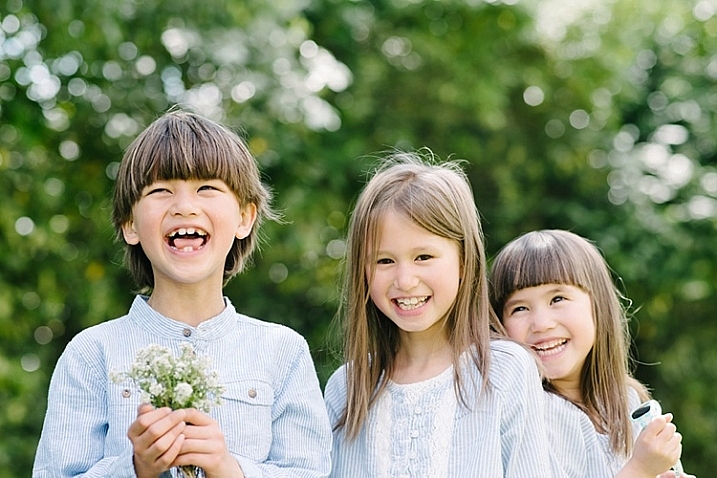
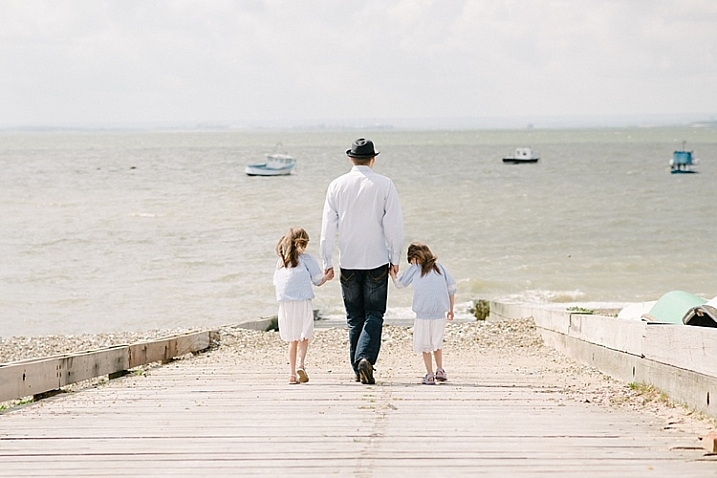
The word vignette comes from the root word vine, which originally was taken to mean a decorative border on a page. In photography, this translates to a border around the edge of the image. This border is caused by a reduction of light from the center of the image, or a light fall-off. Light fall-off can be due to a variety of reasons: the amount of light hitting the sensor, the type of lens used, or an intentional addition in post-production. This article will focus on the latter.

In adding vignettes in post-processing, you have two choices: darker or lighter, and soft-gradual or hard-edge.

Why add a vignette?

way-to-add-vignette-tutorial

The addition of a vignette in post-processing comes down to your personal taste. It would also largely depend on your photography style, and the type of image you are editing. Generally speaking, high-key images do not need a dark vignette. If you want to add a vignette to bright images, most often a lighter one looks better, but I would still be very careful about adding one.

A vignette helps draw the viewer’s eye to the center of the image. This is particularly useful if the image has plenty of clutter, or distracting elements around the edges. Similarly, if the edges are pretty bare which makes the image look flat, a vignette adds an illusion of foreground, or another layer to the image, giving it more depth.

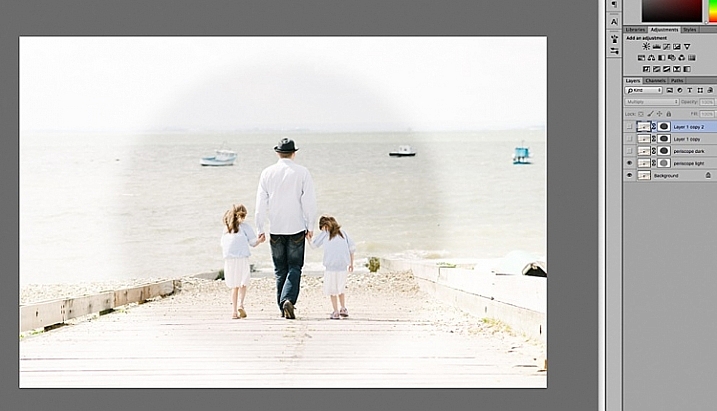
Be gentle and sparing when adding a vignette, it can enhance or ruin an image. What works often, and best, is a gradual and very subtle vignette, especially for portraits. More exaggerated vignetting may be required on some artistic images – the choice is yours. If you want to add a spotlight effect to an image, then adding vignettes can be essential. A hard-edged vignette, if done unintentionally, makes your image look like a view through a periscope and can burn your image, like a moth to a flame.

Here are four quick ways to add a vignette

In Adobe Camera Raw

The quickest and easiest way to add a gradual and gentle vignette in your image is via Adobe Camera Raw (this works in both Photoshop and Lightroom).  My previous article on batch editing with Bridge and Adobe Camera Raw explains how you can open your file in Camera Raw and make your initial edits.

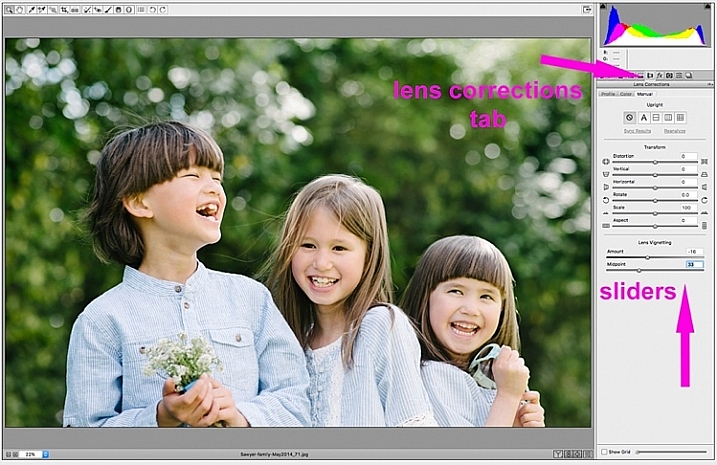
1. Using the lens correction tab

On the image below, you will see the lens vignetting slider under the lens correction tab. Move the sliders along to add, and remove vignettes to your image, according to taste.

way-to-add-vignette-tutorial

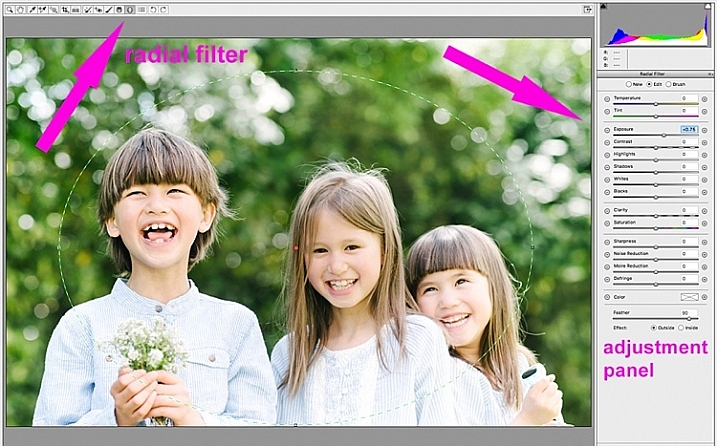
2. Using the radial filter tool

You can also add a dark or light vignette using the radial filter tool. On the adjustments panel, you need to specify where you want the vignette added – whether inside or outside the radius, then adjust the exposure to lighten or darken the vignette (with this method you can even add blur, lower highlight, or change the color of it if you like – anything on the sliders). This is a really handy feature in ACR because it acts like a layer mask, although you can’t easily do fine tuning with this tool like you can in Photoshop.

way-to-add-vignette-tutorial

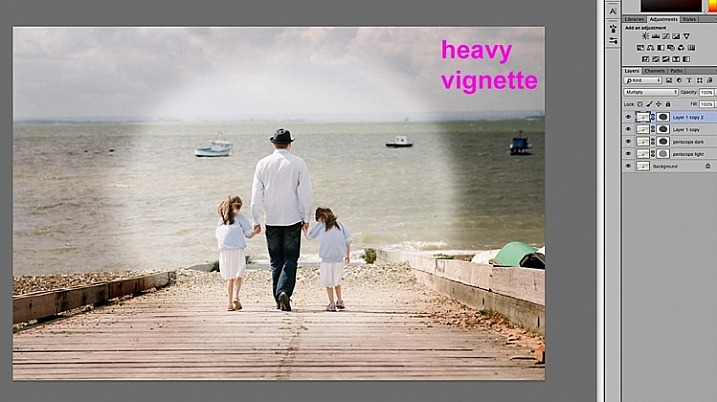
Below is an image with a pretty dark and heavy vignette. In my opinion it’s too much, and takes away from the image, rather than enhancing it.

way-to-add-vignette-tutorial

Below is the same image with a bright vignette; this doesn’t look right to me at all.

way-to-add-vignette-tutorial

On this version below, I think the vignetting is just right, as it enhances the natural look of the photograph, which was my aim.

way-to-add-vignette-tutorial

In Adobe Photoshop

If you skip Adobe Camera Raw and open your file in Photoshop, there many ways to add a vignette. Below are the two quickest ways I have found. Before attempting to add a vignette in Photoshop, in order to perform non-destructive edits to your images, I recommend you learn to use layers and masks.

1. Using blend modes

The first quick way  of adding vignettes in Photoshop that I found is by duplicating the background layer using CMD/CNTRL + J. You need to make all your adjustments on the layers above your background layer, in this case the duplicated layer, so that your original file is safe and untouched.

way-to-add-vignette-tutorial

With your duplicate layer selected, change the mode to darken or multiply to add a dark vignette, or to screen or lighten to add a light vignette. Now add a layer mask to the duplicate layer. If you choose to paint the vignette on, make sure the mask is blacked out. Select a big soft brush, using the brush tool set to a very low opacity, and paint with white on the vignette around the edges.

Alternatively, you can choose to remove the vignette instead of painting it on, which in this case would be my preference. With your duplicate layer superimposed on the background layer, add a white layer mask. Choose a big soft brush set to a higher opacity and start painting the layer mask black, starting from the middle and ever so gently radiating outwards until all the vignette is removed from the center, and only a touch on the edges is left. Adjust the opacity of the layer to suit your taste.

Below are two examples of exaggerated vignetting added in Photoshop using this method.

way-to-add-vignette-tutorial

way-to-add-vignette-tutorial

Manually painting, or removing the vignette by hand, gives you flexibility as to where to apply the vignette, how far in, and to what degree, depending on what’s required for each image.

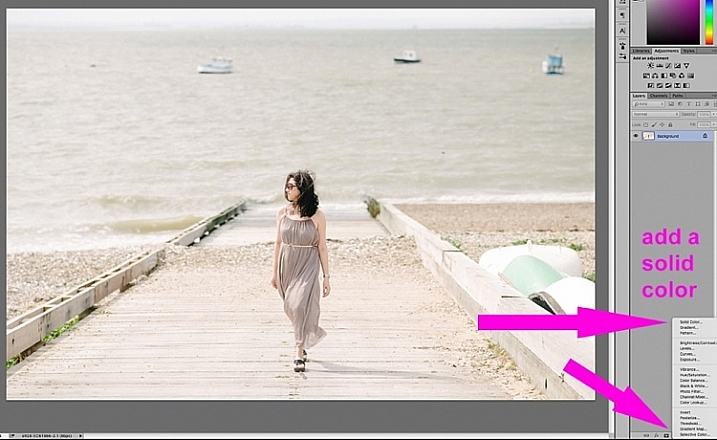
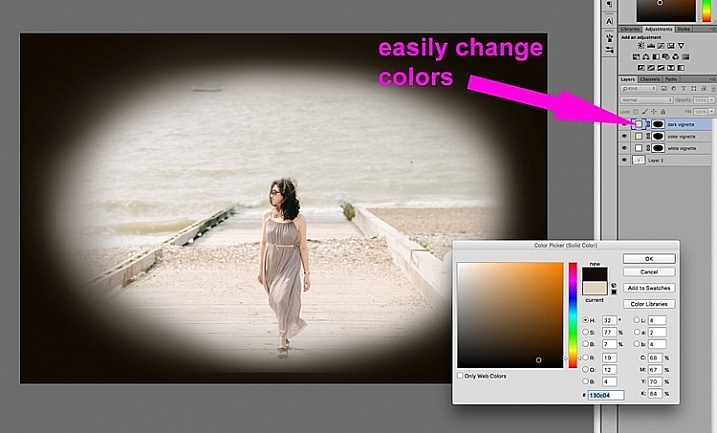
2. Using a solid color layer

Another quick way is to add a solid color. This method allows you to be more experimental, as it’s very easy to change the colors with a click of the eyedropper tool.

way-to-add-vignette-tutorial

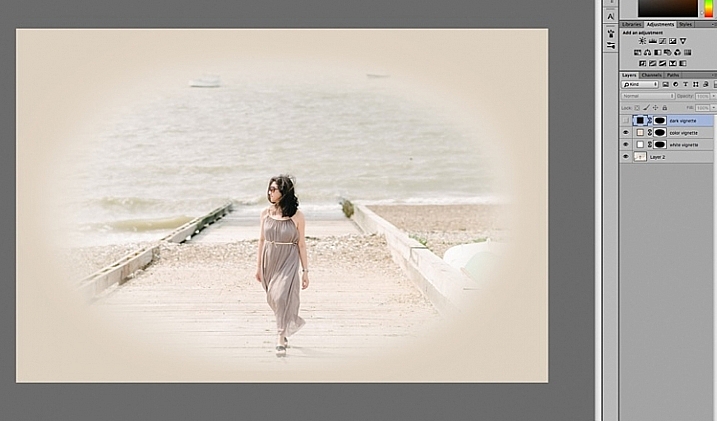
The solid color will sit on top of your image, so all you will see is a flat rectangular block of color. You need to add a layer mask, and start removing some of the color beginning at the center and radiating outwards. Again, use a soft large black brush to remove the color. If you do this kind of vignetting, as in the two images below, it has to be intentional as these do not give you a natural look to the images at all. They may work for a scrapbook, or other specific purposes, but this is not the look I would give to my clients.

way-to-add-vignette-tutorial

On the image below, the vignette was added using the same solid color method as above. You can then play around with the blend modes to see what looks best.

biege - color-burn

This was done using the same solid color as above but Color Burn Blend Mode.

way-to-add-vignette-tutorial

This one is done with a black solid color added, masked, and Overlay Blend Mode with the layer at 80% opacity.

This one is done with a black solid color added, masked, and Overlay Blend Mode with the layer at 80% opacity.

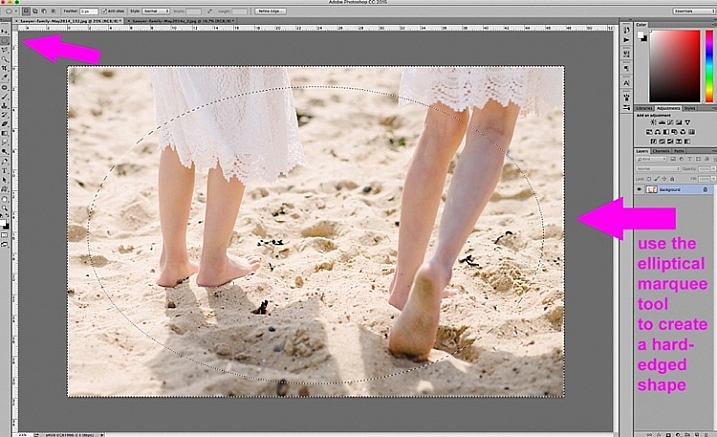
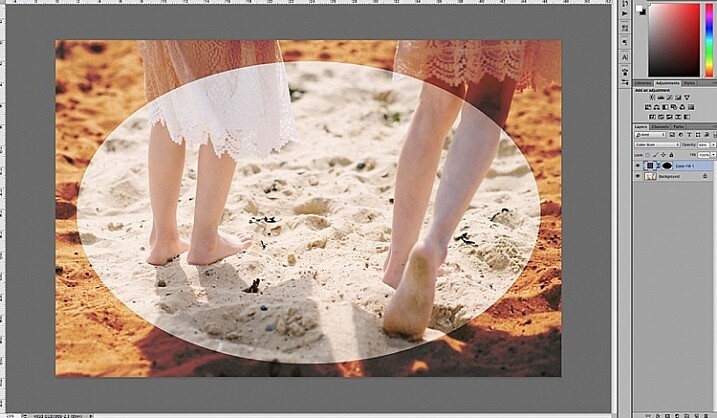
You can also make shapes as vignettes, using the marquee tool.  The elliptical marquee tool was used for the image below, creating a hard-edged vignette. Make your shape by dragging this tool on your image, and you will see marching ants around the shape you have just created. You must immediately invert it using CMD/CNTRL + shift + I so the outside of the shape will be selected and would now be the area surrounded by the marching ants (as below).

elliptical marquee

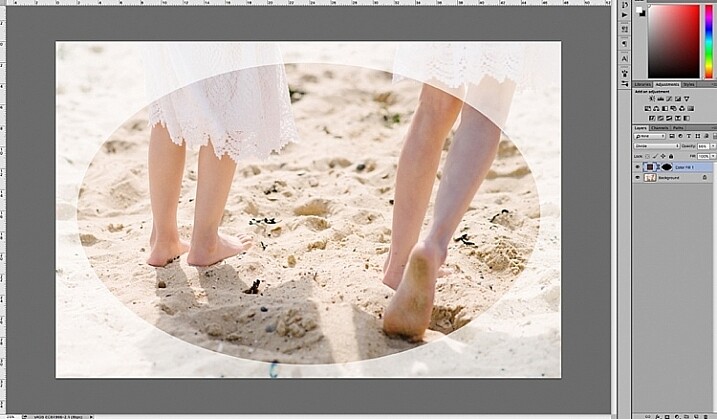
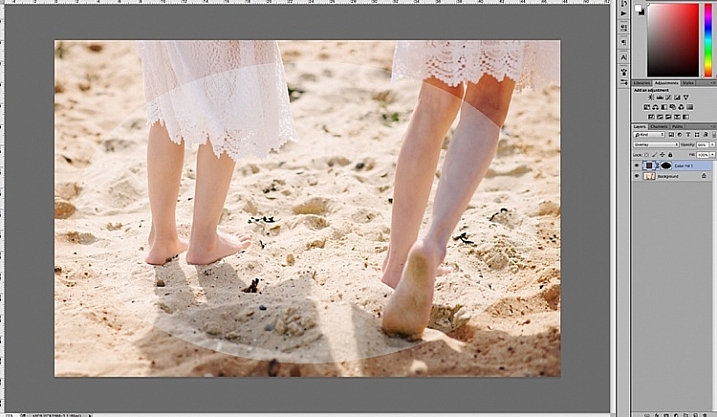
Click on the solid color icon and select a color. A new layer with your shape filled with the solid color will automatically be created. Select this layer and play around the the blend modes and the layer opacity. You will see below what the Divide, Color Burn and Overlay modes look like.

Color Burn Blend Mode

Color Burn Blend Mode

Divide Blend Mode

Divide Blend Mode

Overlay Blend Mode

Overlay Blend Mode

You will want to feather the mask on your color layer, or blend the edges manually using the brush tool so that you do not see the edge of the vignette so well-defined. I’ve left it like this for demonstration purposes so you can see what the vignette layer is doing.

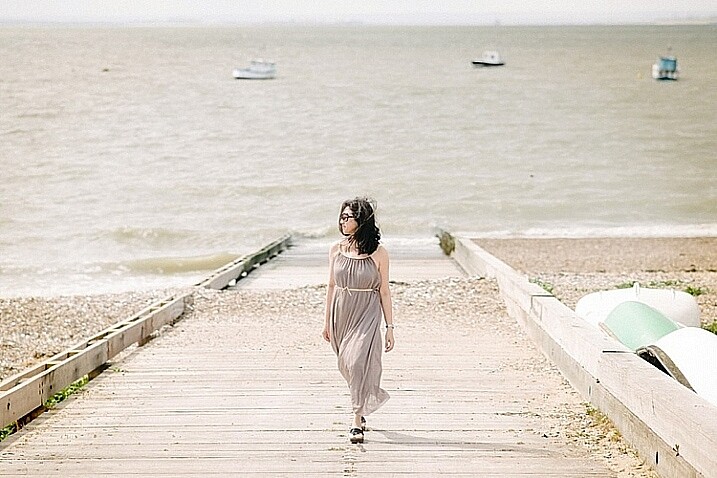
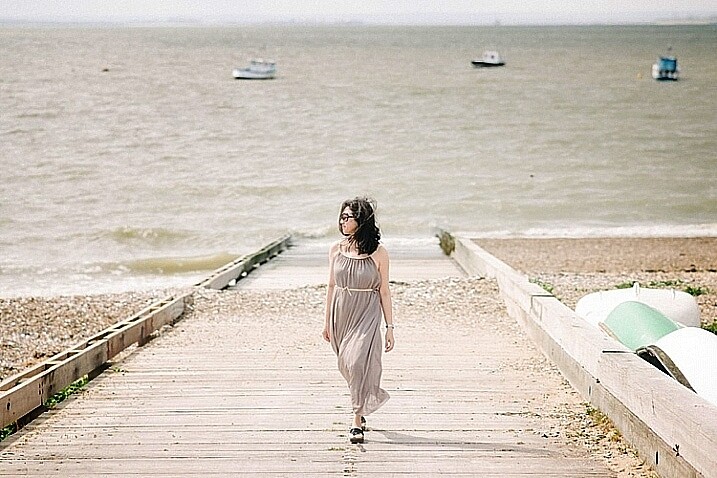
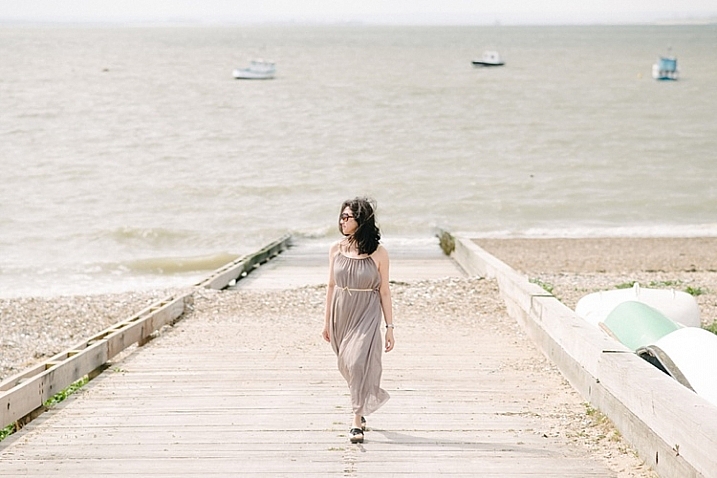
Below is the final image with only a hint of vignette on the edges, just to take the edge off the brightness of the scene.

way-to-add-vignette-tutorial

I hope this tutorial has given you some new ideas on how to enhance your images using vignettes. Do you have other quick ways of adding vignettes to your images? Share them here.

googletag.cmd.push(function() {
tablet_slots.push( googletag.defineSlot( “/1005424/_dPSv4_tab-all-article-bottom_(300×250)”, [300, 250], “pb-ad-78623” ).addService( googletag.pubads() ) ); } );

googletag.cmd.push(function() {
mobile_slots.push( googletag.defineSlot( “/1005424/_dPSv4_mob-all-article-bottom_(300×250)”, [300, 250], “pb-ad-78158” ).addService( googletag.pubads() ) ); } );

The post 4 Quick Ways to Add a Vignette to Your Images in Post-Processing by Lily Sawyer appeared first on Digital Photography School.

Digital Photography School

 
Comments Off on 4 Quick Ways to Add a Vignette to Your Images in Post-Processing

Posted in Photography


10 Ways That Understanding Your Camera Leads to Better Images

02 Feb

Perhaps you’ve heard this one before, or said even it yourself: I could take great pictures too, if I had your camera. But saying pictures are great because of the camera is like saying Michael Jordan was great because of his shoes. Sure, the camera determines an image’s resolution, but give a $ 7,000 camera to a toddler and you’ll have Continue Reading

The post 10 Ways That Understanding Your Camera Leads to Better Images appeared first on Photodoto.


Photodoto

 
Comments Off on 10 Ways That Understanding Your Camera Leads to Better Images

Posted in Photography


8 Creative Ways to Make Money with Your Photography

30 Nov

Photography doesn’t just have to be a hobby, in fact, it can be a brilliant way to gain some extra money – and quite a lot at that! I’ve put together a list of my favourite ways of making money through photography, and with the ideas ranging from a couple of hours a week to a part-time project, you may find something that catches your eye.

1. Shoot Microstock

Picture 0

Stock image – © Olly Stabler

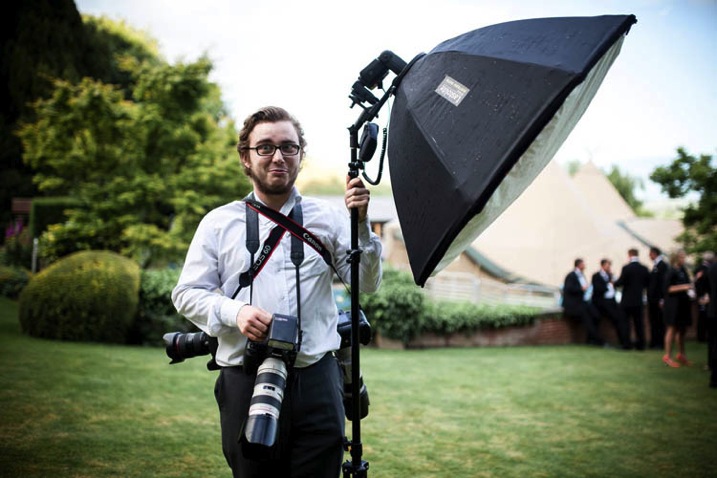
There are many different microstock sites out there, including Shutterstock and iStock Photo, and by uploading your images you may well be able to earn some extra money. If you excel at taking commercial images, this will be a great idea for you as these are the types of photographs that sell the most. If you are considering this option, make sure you don’t let your passion for photography die out, through a focus on sales statistics and selling stock shots.

2. Network to be a Second Shooter

Through networking using social media, events, and photography clubs, you can build relationships with other photographers. Opportunities will often arise through the relationships you have built, such as requests to work as a second shooter on a project. It may be that a fellow photographer is working an event, and needs you to join them to take photos to build a complete portfolio of photographs from the day. Weddings are probably the most common occasions that require second shooters, so keep an eye out for these jobs.

Picture 1

Me as a second shooter – © Scott Choucino

Alternatively, those you have networked with may have to turn down work that is too low-budget for them, and will ask you to work on them instead. Never underestimate the job opportunities that will become available to you through networking. This article tells you everything you need to know about the importance of being a second shooter.

3. Sell Prints

Picture 2

The first of my photos to make it to print – © Olly Stabler

There are many different ways you can sell prints; choose framed copies for larger amounts of money, print on canvases to create a professional look, or prints on their own for those who want to spend less. This will also open up the opportunity to place your work in stores and exhibitions. Having hard copies of your photographs will prove helpful whether you have already received sales, or are searching for prospects.

If you shoot in a studio, I would advise hanging your prints on display, and the larger the prints, the better. Your clients will always take note of them hanging in your studio and these prints will showcase the work you can create, encouraging sales. Upselling to your clients can create big money, with bigger prints bringing in big profit margins. To ensure that your photos print perfectly, check out Image Size and Resolution Explained for Print and Onscreen.

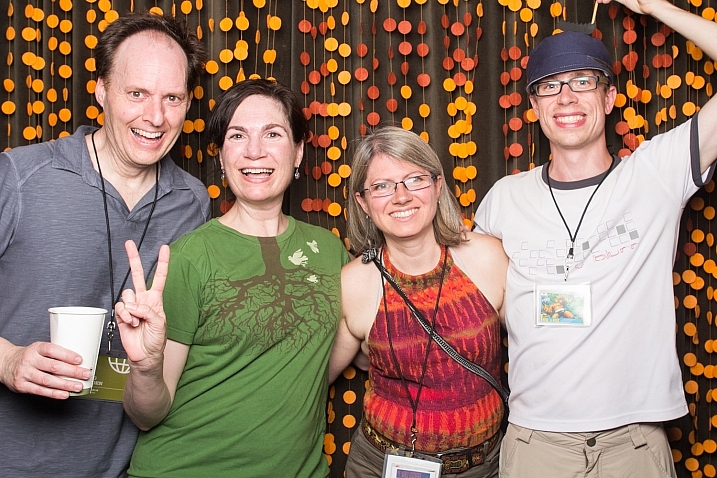
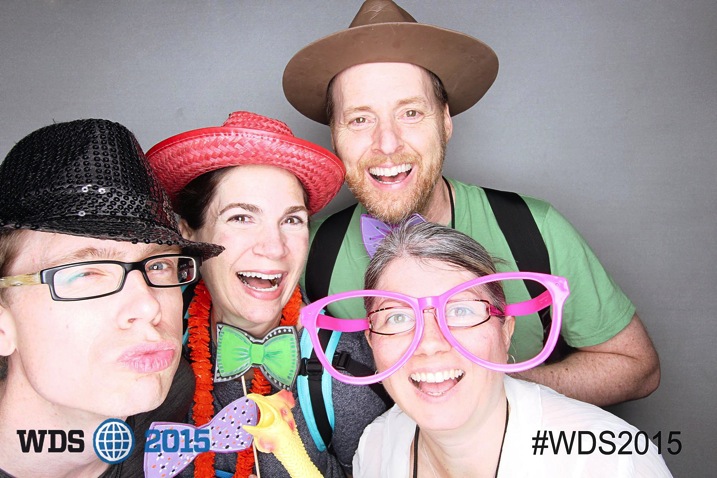
4. Become a Photo Booth Service

Photo booths are a similar price to a full frame DSLR body plus lens, and are extremely easy to operate. There are an unlimited amount of events and options available if you choose this route including parties, weddings, corporate affairs and events. Offering a photo booth service might not be the best option for a budding photographer as artistic photo opportunities are extremely limited, but nevertheless, it is a surefire way to earn money through photography.

Chris Guillebeau

By Chris Guillebeau – Yes that is your very own Managing Editor Darlene Hildebrandt in a Photo Booth at an event in Portland in 2012

IMG 0653

Same group, same event – 2015!

5. Sell an eBook

If you want to share your passion with others by talking about your experiences and discussing hints and tips, creating an eBook may be the way forward for you. This idea will involve little costly investment, but will require a lot of time. There are many benefits of writing an eBook including the fact that it will help you to make a name for yourself within the industry. The best way to encourage the success of your publication would be to outreach to bloggers and ask for reviews; the power of word of mouth is invaluable.

6. Hold a Portrait Party

Picture 3

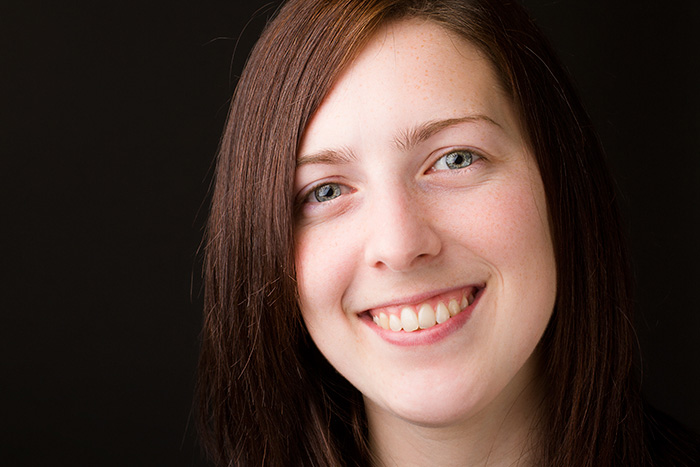
A headshot taken in my studio – © Olly Stabler

The idea is simple. Invite friends, bloggers, colleagues, and clients to your studio and tell them to bring a couple of friends. This concept will also work in your lounge, your friend’s front room, or pretty much any location you fancy. Shoot portraits of them all throughout the night, you can even put on a show with entertainment and food.

You can then give them the option to buy their photographs, or book a session. Giving out a few free prints will also work in your favour, as you are thanking them for their time; this will also give them examples of your work to show people they know, and could end up resulting in a lot of business.

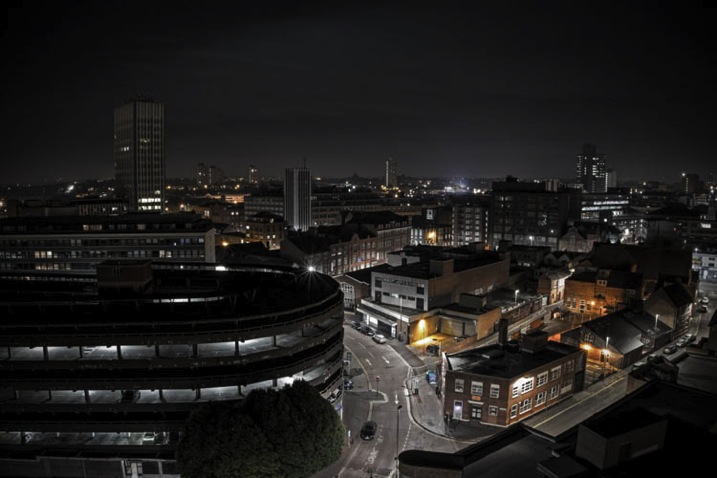
7. Photograph in Nightclubs

Picture 4

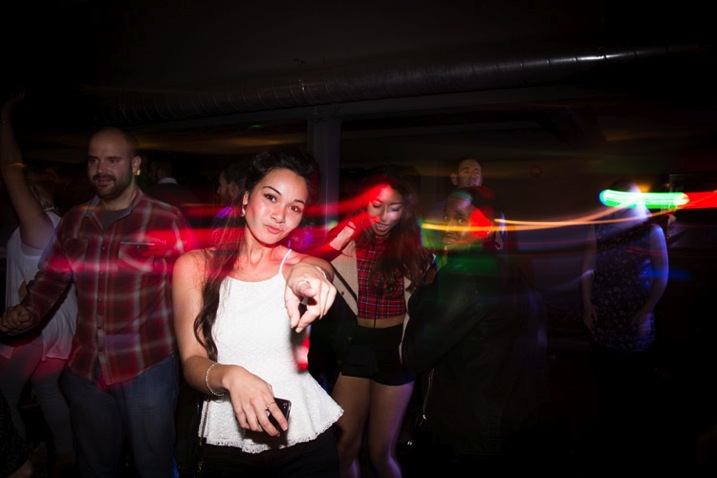
A photograph taken from my nightclub days – © Olly Stabler

Photographing in clubs will help you to learn a lot of skills that you will need for higher paid and more complex jobs. If you are reasonably new to photography, and want to earn extra money as well as build your skill set, this is the one for you. Although the pay isn’t brilliant, you can end up earning a decent amount if you photograph a few student nights a week in university towns and cities. This will also help you to build confidence as a photographer as you will be forced to interact with a lot of people at the same time – an essential quality for a photographer.

Becoming a nightclub photographer is extremely easy to get into, you just need to make sure you have a flash – you can find my recommended products on Amazon.com. The cheaper versions of these flashes do not work with ETTL, which means you will learn how to control flash manually, giving you a full understanding of how flash lighting works – something that is essential if you want to move into higher paying work.

8. Enter Competitions

There are plenty of photography competitions floating around, all with various prizes dependent on those running the feature. Try looking for those that offer a cash prize and enter as many as you can. If you are regularly photographing, you should have a portfolio of images you can enter into competitions. You only need to spend an hour each day searching and applying for these, which may make this option a favourite if you only have a small amount of time to spare. A good place to start is by utilizing databases such as this photo competition website. Remember though, this idea does not guarantee a payout and can be an unpredictable way of making money.

Editor’s note: be sure and read How To Evaluate Photo Contests Before Submitting Your Images And Cash before you enter any contests.

So those are just a few ways you could use your photography to make a little extra money, or start to make the move towards full-time professional. Do you have any other ideas or things you’ve tried? Please share in the comments below.

googletag.cmd.push(function() {
tablet_slots.push( googletag.defineSlot( “/1005424/_dPSv4_tab-all-article-bottom_(300×250)”, [300, 250], “pb-ad-78623” ).addService( googletag.pubads() ) ); } );

googletag.cmd.push(function() {
mobile_slots.push( googletag.defineSlot( “/1005424/_dPSv4_mob-all-article-bottom_(300×250)”, [300, 250], “pb-ad-78158” ).addService( googletag.pubads() ) ); } );

The post 8 Creative Ways to Make Money with Your Photography by Olly Stabler appeared first on Digital Photography School.

Digital Photography School

 
Comments Off on 8 Creative Ways to Make Money with Your Photography

Posted in Photography


5 Ways to Use Lightroom Virtual Copies Better

20 Nov
Virtual Copies in Lightroom

Virtual Copies in Lightroom

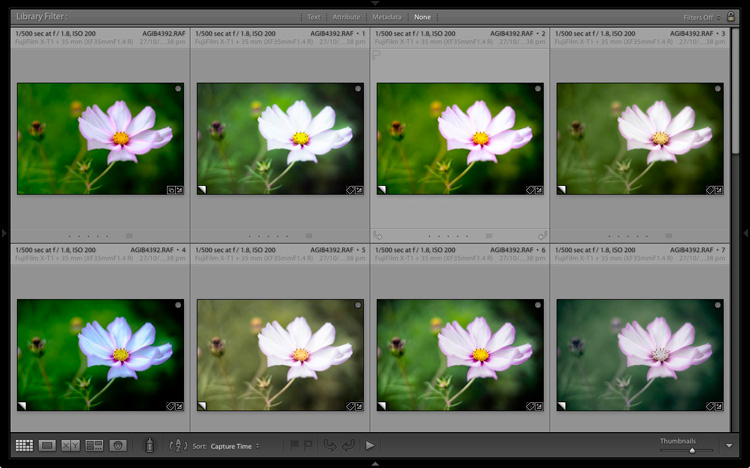
Imagine that you have just processed a colour image and you are happy with the result, but you’d also like to experiment with it a little. Perhaps you’re curious to see how it will look if you convert it to black and white. Maybe you’d like to apply a Develop Preset or two, or crop to the square format, or even all three.

It’s easy in Lightroom. All you have to do is make a Virtual Copy and experiment.

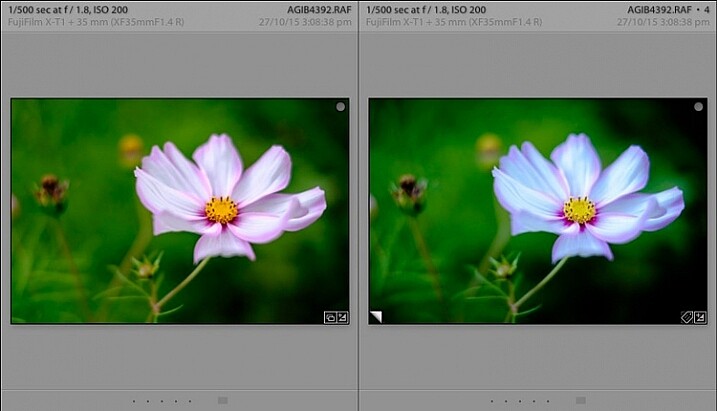
A Virtual Copy is an exact replica of the original photo, including all edits made in Lightroom. Once you have made a Virtual Copy you can process it any way you like without affecting the original.

Virtual Copies are a fantastic tool because they let you make multiple copies of a single image, while using very little hard drive space (it only makes a new thumbnail it doesn’t duplicate your image file). You can try out different techniques, and keep all the results. Each Virtual Copy exists as a set of text commands in the Lightroom Catalog, an addition measured in kilobytes rather than megabytes.

You can review this by reading A Brief Introduction to Lightroom if you are unsure how it works.

Are you making the most of Virtual Copies? Here are five ways to use them better in Lightroom.

Creating Virtual Copies

There are four ways to create a Virtual Copy.

Start in Grid View in the Library module (press the G key to go there from any part of Lightroom). Select the image (or images) that you want to make Virtual Copies of:

1. Go to Photo > Create Virtual Copy. Lightroom creates the Virtual Copies and places them in the same Collection as the original images.

2. Alternatively, use the keyboard shortcut. If you’re using Windows press Ctrl plus apostrophe (Ctrl + ‘), on a Mac press Command plus apostrophe (Cmd + ‘).

3. Alternatively, right click on one of the selected photos and choose Create Virtual Copy.

Virtual Copies in Lightroom

When you create a Virtual Copy it appears alongside the original in Grid View, and is identical in every way. You can make as many changes to the Virtual Copy as you lik,e without affecting the original.

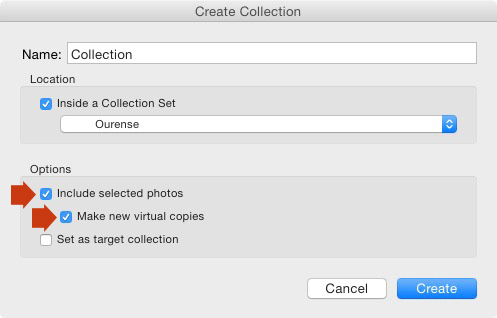
4. The fourth way is to go to Library > New Collection. The Create Collection window opens. Under Options, tick the Include Selected Photos and Make New Virtual Copies boxes. Lightroom creates a new Collection (with the name you give it), and adds Virtual Copies of the selected images.

Virtual Copies in Lightroom

Using Virtual Copies Better

Now you know how to create Virtual Copies, let’s look at some ways you can use them better in Lightroom.

1. To create multiple versions of the same photo

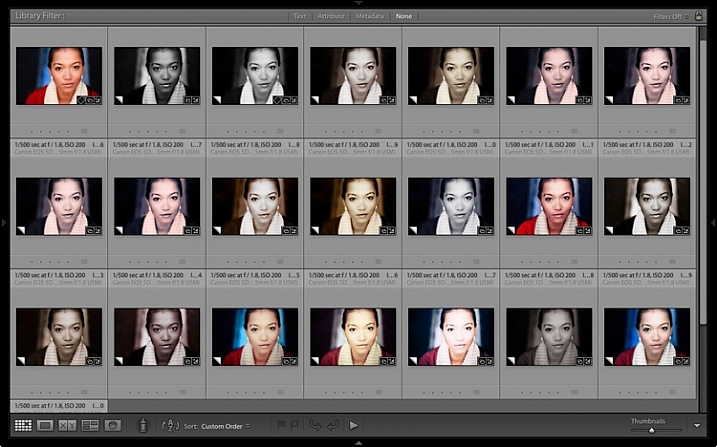
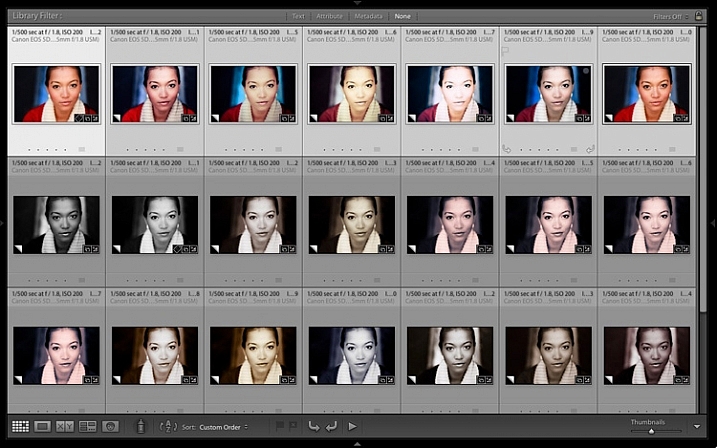
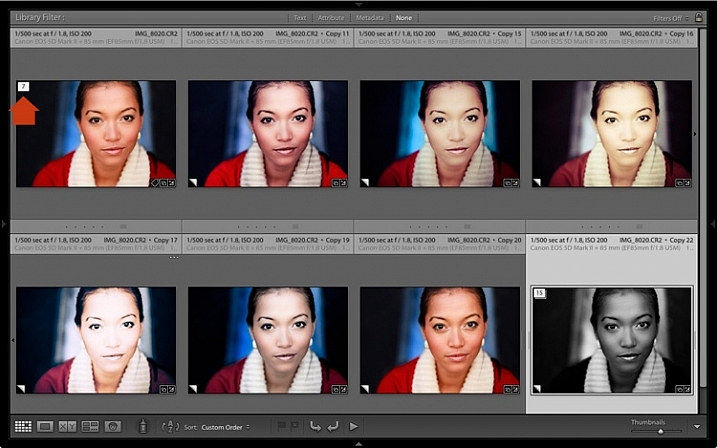
This is the main reason that you would want to create Virtual Copies – so you can process the same photo, a number of different ways. The photo shown below is a great example. I created a colour version first, then made a Virtual Copy and converted it to black and white. Then I made some more Virtual Copies and experimented with different Develop Presets and split tones. I ended up with 22 different versions in a mixture of colour and black and white.

Virtual Copies in Lightroom

2. Stacking Virtual Copies

You can use Stacks to simplify the thumbnails displayed in Grid View. In this example I’m going to create two Stacks – one containing colour photos, and the other black and white.

  • Select the photos you want to place in the same stack. Click and drag thumbnails to rearrange them in Grid View if you need to. Here, I grouped all the colour photos together.

Virtual Copies in Lightroom

  • Go to Photo > Stacking > Group into Stack. You can also find this option by right-clicking a thumbnail. Or use the keyboard shortcuts, Ctrl+G (Windows) or Cmd+G (Mac).

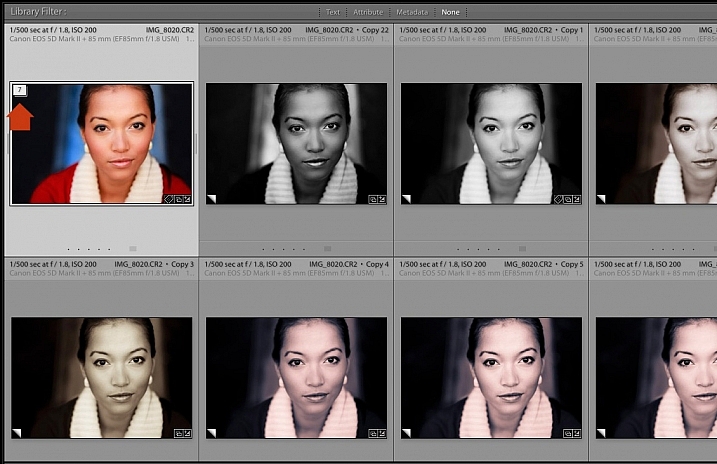
Lightroom places the photos into a Stack. The first photo in the selection is used as the cover image. The Stack icon is displayed in the top left corner of the thumbnail (marked below). The number inside tells you how many photos are in the Stack.

Virtual Copies in Lightroom

Repeat if you want to group other Virtual Copies into another stack. Below, you can see that I did the same with the black and white versions.

Virtual Copies in Lightroom

To view the photos in a Stack, click on the Stack icon in the thumbnail. Click it again to hide the stacked photos.

Virtual Copies in Lightroom

3. For working with plug-ins and Photoshop

If you want to send a photo to a plug-in or Photoshop, the recommended approach is to process it in Lightroom first (applying at least basic settings such as Camera Calibration, Lens Corrections and tonal adjustments in the Basic panel).

Before the export, make a Virtual Copy and send the Virtual Copy to the plug-in or Photoshop. Then, when you return to Lightroom, you can compare the two. You can also make more Virtual Copies from the original to send to other plug-ins, or to work on in Lightroom.

4. Set up View Options to show which images are Virtual Copies

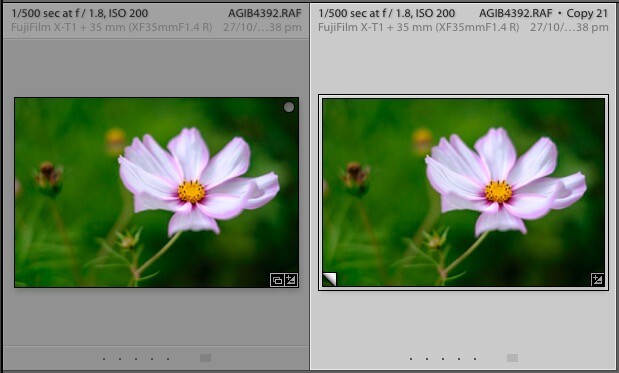
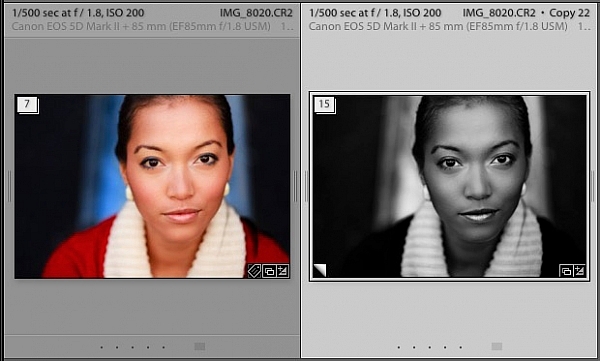
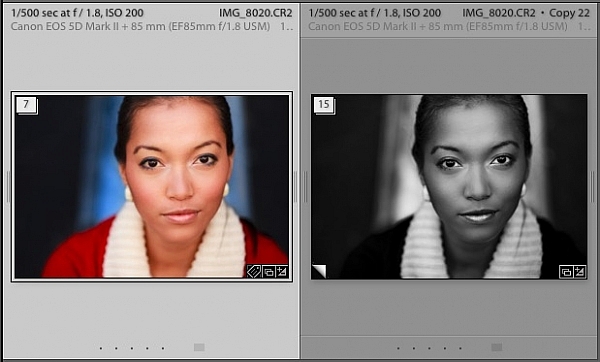
In the screen shot below, you can see that the image on the right is a Virtual Copy as it is labelled Copy 22. The image on the left is the original and just has the file name.

Virtual Copies in Lightroom

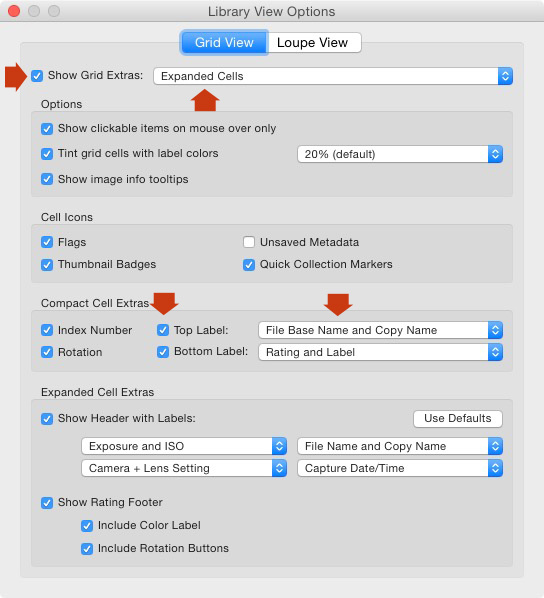
You can set this up in View Options (View > View Options or Ctrl+J/Cmd+J). Tick the Show Grid Extras and Top Label boxes (marked below). Set Show Grid Extras to Expanded Cells and set Top Label to File Base Name and Copy Name (the other options in the same section do a similar thing).

Virtual Copies in Lightroom

5. Use the Excessor plug-in to create a Collection of photos processed with different Develop Presets

The Excessor plug-in creates Virtual Copies and applies a different Develop Preset to each one. This is how to use it:

  • Go to the Capture Monkey website and download the Excessor plug-in. It is available on a shareware model – you can download and use it, and if you find it useful, you are encouraged to pay a one time registration fee of $ 10. Add it via the plug-ins manager (my article Useful Lightroom Plug-ins explains how – scroll to the bottom for instructions).
  • Select the photo you want to work with. Go to Library > Plug-in Extras > Excessor.
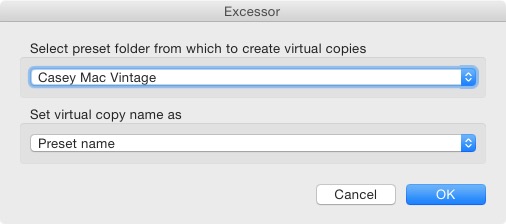
  • The Excessor window opens. Use the top menu to select a Develop Presets folder. Select Preset name from the bottom menu to give each Virtual Copy the name of the Develop Preset used to process it. Press OK.

Virtual Copies in Lightroom

  • Lightroom creates a Virtual Copy for each Develop Preset in the selected folder.

Virtual Copies in Lightroom

Tip: Create Preset folders containing your favourite Develop Presets. You can create different folders for different subjects: e.g., a folder for portraits, another for landscapes, another for black and white, another for vintage presets, and so on. Then you can use the Excessor plug-in as a shortcut to applying your favourite presets to a photo.

Your turn

These are my five suggestions for using Virtual Copies better in Lightroom, but how do you use them? Have you come up with anything that I haven’t thought of? Let me know in the comments.


The Mastering Lightroom CollectionMastering Lightroom ebook bundle

My Mastering Lightroom ebooks are a complete guide to using Lightroom’s Library and Develop modules. Written for Lightroom 4, 5, 6 and CC  they  show you how to import and organise your images, use Collections, creatively edit your photos and how to work in black and white.

googletag.cmd.push(function() {
tablet_slots.push( googletag.defineSlot( “/1005424/_dPSv4_tab-all-article-bottom_(300×250)”, [300, 250], “pb-ad-78623” ).addService( googletag.pubads() ) ); } );

googletag.cmd.push(function() {
mobile_slots.push( googletag.defineSlot( “/1005424/_dPSv4_mob-all-article-bottom_(300×250)”, [300, 250], “pb-ad-78158” ).addService( googletag.pubads() ) ); } );

The post 5 Ways to Use Lightroom Virtual Copies Better by Andrew S. Gibson appeared first on Digital Photography School.

Digital Photography School

 
Comments Off on 5 Ways to Use Lightroom Virtual Copies Better

Posted in Photography