RSS
 

Posts Tagged ‘Versus’

Lens Comparison 24-70mm f/2.8 – Canon Versus Tamron

25 Jul

If you’re looking to upgrade from your kit lens the 24-70 f/2.8 lens is a common choice. It’s got a good range zoom and wide largest aperture of f/2.8 for the entire range. But which one to choose? Brand name or third party?

In this video Matthew Gore does a really comprehensive lens comparison between the brand name Canon brand name version, and the Tamron third party one. He takes a look at focusing and how much noise each produce, sharpness at different focal lengths and apertures and chromatic aberration.

There is a significant price difference, as he mentioned. Take a look at both:

  • Canon EF 24-70mm f/2.8L II USM Standard Zoom Lens – $ 1899 USD
  • Tamron SP 24-70mm Di VC USD – $ 1299 USD

Also available are:

  • A Nikon version – the Nikon 24-70mm f/2.8G ED AF-S Nikkor – $ 1887 USD
  • A Sigma version which can be purchased for many different camera bodies (as can the Tamron) – $ 385 USD (make sure you read some reviews on this lens if you decide you want to go for this option)
  • Sony 24 -70mm f/2.8 Carl Zeiss Vario Sonnar T Zoom Lens – $ 1998 USD

At $ 600 more (almost 50% higher) is it worth it to you? See which he recommends in the video and which he would purchase and why.

Do you own one of these lenses? Which one and why did you select it? Please share your thoughts in the comments on whether you feel the third party lenses measure up to brand name ones.

googletag.cmd.push(function() {
tablet_slots.push( googletag.defineSlot( “/1005424/_dPSv4_tab-all-article-bottom_(300×250)”, [300, 250], “pb-ad-78623” ).addService( googletag.pubads() ) ); } );

googletag.cmd.push(function() {
mobile_slots.push( googletag.defineSlot( “/1005424/_dPSv4_mob-all-article-bottom_(300×250)”, [300, 250], “pb-ad-78158” ).addService( googletag.pubads() ) ); } );

The post Lens Comparison 24-70mm f/2.8 – Canon Versus Tamron by Darlene Hildebrandt appeared first on Digital Photography School.


Digital Photography School

 
Comments Off on Lens Comparison 24-70mm f/2.8 – Canon Versus Tamron

Posted in Photography


Natural Versus Artificial Light: Which Do You Prefer Working With?

16 Jul

Many photographers at one point or another are faced with this question; is it better to use natural or artificial light when taking photos? There is definitely not a right or wrong answer, although as a photographer, you’re sure to have your own strong opinions. In this article, we’ll review the key differences between natural and artificial lighting sources, as well as the pros and cons of using them.

Defining Natural and Artificial Light

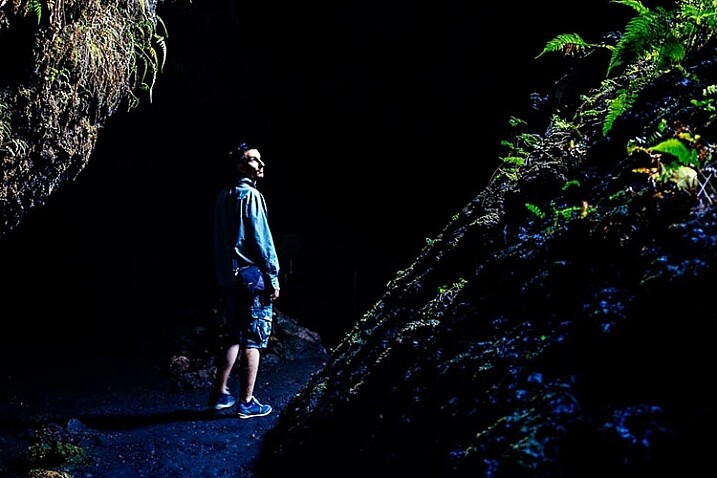
To begin, let’s clarify the definitions of natural and artificial lighting. To keep things simple, natural lighting can also be thought of as available light, such as that produced by the sun or the moon. Artificial lighting is produced via another source, such as a studio strobe, speedlight, LED light, your camera’s pop-up flash, or even a streetlight or lamp.

Natural light2

Benefits of Using Natural Light

The biggest benefits of using natural lighting is that it is free, abundant, and very easy to find. There’s no need to make huge investments in lighting equipment to find gorgeous natural light to pull off brilliant shots. All you need is a camera and some sun or moonlight, and you can begin shooting immediately! If you ever choose to upgrade your natural lighting approach, the tools of the trade are also very cheap, consisting mainly of reflectors and diffusers to bounce or manipulate the available light. Due to the ease of use and acquisition of natural lighting, it’s generally recommended that beginning photographers start experimenting with natural light before introducing artificial light to help understand how light works.

Cons of Using Natural Light

While natural lighting is abundant and easy to incorporate into photography, it can be challenging for the simple fact that sunlight varies greatly. Depending on location, season, weather, and time of the day, natural lighting can produce differing colors and contrast in your images. For example, midday sun tends to produce neutral white colors and extremely high contrast, while golden hours of sunrise and sunset have very warm colors and medium contrast. Thus, the look you’re going for will determine the time and location of your photo shoot, unless you harness additional tools such as reflectors, diffusers, and lens filters.

Natural light1

Benefits of Using Artificial Light

If you’re a fan of being able to manipulate and control every aspect of your photo shoot, artificial light will better suit your needs. Since artificial lighting has little to do with natural sources, it is a ceaseless light source that is available at any time of the day, meaning you don’t necessarily have to plan your photo shoot around the weather, or availability of sunlight. Depending on the artificial light source you choose, sunlight or even moonlight can be replicated, creating images that appear to have been shot with natural light, but at a time of your choosing.

While artificial light may have a reputation for sounding complicated and expensive, there’s a wide range of lighting gadgets available for photographers; ranging from cheap DIY solutions to top-of-the-line professional grade strobes, and lots of options in between. Some lights can have tricky settings, but many are relatively straightforward, especially continuous lighting sources such as LED lights that have simple dimming switches.

Off camera flash portrait photography

Off-camera flash portrait photography

Cons of Using Artificial Light

Even though artificial light sources offer you more control over photo shoots, it comes with the burden of needing more gear, and time to set it all up. Unlike the sun, artificial lighting costs money, even if you opt for DIY solutions such as candles or desk lamps. Professional grade artificial lighting sources will also need to be held in place with light stands, and possibly even modified with umbrellas, beauty dishes, and soft boxes.

Depending on the photo you have in mind, you may need multiple artificial light sources to balance your image out. There are also other accessories needed such as batteries or power cables and plugs, and you’ll need a dedicated studio or space to set your lights up. Long story short, artificial lighting can adds lots of extra moving parts to your photo shoot, that cost additional time and money, not to mention require lots of practice.

When to use Natural or Artificial Lighting?

What type of lighting you use will ultimately come down to your personal preference and experience as a photographer, as well as your budget and the ideal image you’re trying to create. Artificial lighting typically takes some time and practice to begin using properly; whereas natural lighting is much easier to get started with from the get-go. There are of course exceptions to these rules, but generally natural lighting is usually easiest to use for documentary, street, or run-and-gun photography when you don’t have a lot of time to set up a controlled photo shoot. On the flip side, artificial lighting is usually preferred for commercial, product, and fashion photography when there’s both a budget, and ample resources to create the photo.

Off camera flash portrait photography

Which do You Prefer?

As noted earlier, there are very strong opinions for and against using natural and artificial lighting for photography. Which camp do you fall into, and why?

googletag.cmd.push(function() {
tablet_slots.push( googletag.defineSlot( “/1005424/_dPSv4_tab-all-article-bottom_(300×250)”, [300, 250], “pb-ad-78623” ).addService( googletag.pubads() ) ); } );

googletag.cmd.push(function() {
mobile_slots.push( googletag.defineSlot( “/1005424/_dPSv4_mob-all-article-bottom_(300×250)”, [300, 250], “pb-ad-78158” ).addService( googletag.pubads() ) ); } );

The post Natural Versus Artificial Light: Which Do You Prefer Working With? by Suzi Pratt appeared first on Digital Photography School.


Digital Photography School

 
Comments Off on Natural Versus Artificial Light: Which Do You Prefer Working With?

Posted in Photography


The Photographers Ephemeris (TPE) Versus PlanIt! for Photographers

22 Jun

Note: I have no affiliation with either program.

TPE is probably the best known ephemeris application used by photographers. There is, however, a new kid on the block, PlanIt! for photographers.

While TPE does a good job of being a basic ephemeris, it ends there.

Shortcomings or challenges with TPE

Like all good photographers, you’re planning a future shot of the moon rise. You consult TPE for the rise time at your selected location and, in due course, set off with plenty of time to prepare your gear. Comes the appointed time and the moon doesn’t show! TPE got the moon rise time over the horizon right, but didn’t note the hill in the way. TPE can, however, find the hill. It’s a fairly complex process that involves many steps and some calculation on your part, and the potential for getting it wrong is high.

How PlanIt! picks up the slack

PlanIt!, on the other hand, goes much further. Not only does it give you the rise and set times of moon, sun, Milky Way and many stars but it lets you know if there is an obstruction and when the desired celestial object will clear that obstruction. All you need to do is read the information off the screen.

Moon over Half Dome

There are three major menus in PlanIt!: Ephemeris Features, Tools, and Backgrounds. By combining the features of these menus there are more than 500 possible variations of the information available to you, the photographer. All the features in Planit! are location and time specific. You set them to your requirements.

With 12 separate Ephemeris Features, see below, PlanIt! pretty well has it all covered.

Ephemeris menu

With a few exceptions, the Ephemeris Features are self-explanatory.

Milky Way:

By zooming out on the map you will be able to use the Milky Way Center and Finder functions. In the Milky Way Center function you will see the times of visibility, the angle above the horizon and the bearing of the centre. If it is visible at the time and place entered, you will see an arc of red dots with a row of green dots representing the center of the Milky Way. The Finder function, on the other hand, will produce a list of times, between starting and ending dates, when the Milky Way will be visible at the selected location.

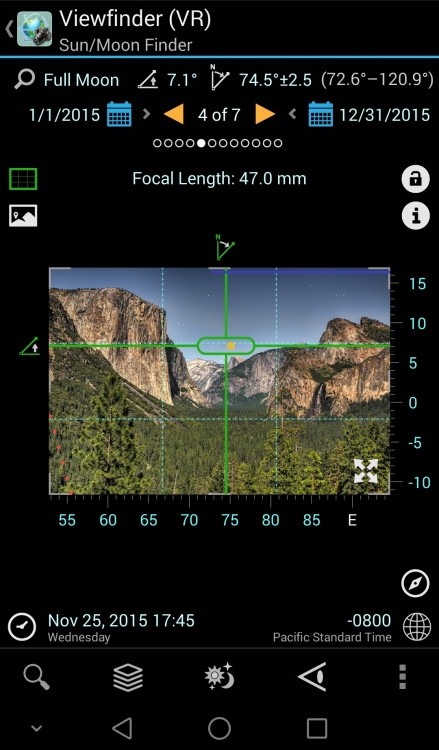
The screen shot below shows the Milky Way over the Half Dome. This screen shot is in Panorama mode with the background in Viewfinder (VR) and graphically shows the relative heights of the mountains in the background. The broken lines at the bottom of the picture tell you that with a focal length of 24mm, a resulting field of view of 40 degrees, and an overlap of five degrees you will need five shots, at the centres shown, to create this panorama.

Milkyway

Dark Sky:

This function uses the 1-9 Bortle Scale to indicate where you are most likely to get the best showing of stars. A one on the scale indicates a very dark sky, in other words no city lights and lots of stars, while nine means forget the star shots and photograph the brightly lit buildings instead.

Time-lapse:

Calculates the various parameters for a time-lapse film strip. You insert up to three of the four criteria, and PlanIt! calculates the rest. If you are doing star time-lapse, and the sun or moon will affect your plans, then PlanIt! will alert you to the fact and correct your timings.

Time lapse

The example above reads, from right to left, as: To make a 30 fps clip of 10 seconds duration, and you decide to take a shot every three seconds, it will take you 15 minutes in total and 300 photos will be taken.

Exposure:

Calculates the exposure triangle based on current light conditions as detected by your phone. Various Neutral Density filter values, and light measuring methods, are available via a drop-down menu.

Light and shadow:

Light and shadow gives you a graphical representation of where the light and the shadows will fall on a scene.

That covers the ephemeris part.

On my Samsung phone, pressing the bottom left key brings up, among other things, the Settings Menu. Scroll all the way down until you come to the Camera Settings. By entering your camera type, especially the sensor size, you enable the full strength of the scene planning features of PlanIt!.

These features are selected in the Tools Menu and, coupled with various ephemeris and background features, a whole new world of scene and equipment planning is yours.

Tools

Tools menu

Once again the menu items are mostly self-explanatory.

Location:

Allows you to enter a location by name or latitude – longitude. Provided you have internet coverage, and have enabled location services on your phone, PlanIt! will centre the map on your selection and, if necessary, automatically correct the time zone to the new location.

Distance:

Calculates the distance between the camera and scene icons. If the view is obstructed the green sight line will include a red section indicating where the obstruction is located. This feature gives you the opportunity to reframe your shot before going on location. The screen shot below shows the camera (the blue pin) just west of Yosemite Creek. The scene pin (red one) is off-screen but still located at the Half Dome. The shot cannot be made from this location because the ridge marked Yosemite Point rises higher than the sight line, hence the red section.

Distance  obstructed  view

The scene pin shown here with an exclamation mark indicates that the actual pin is off-screen. The camera pin will also be shown this way if it is off screen. Both pins can be left floating (will always be shown on-screen) or can be locked to their selected positions on the map, as is the case above.

Focal Length:

Part of planning your shot is knowing what lens to use. Here is where PlanIt! really shines.

In the screenshot below, the green shaded area represents your Field of View for a given focal length. By altering the width of that view, PlanIt! immediately calculates the focal length necessary to achieve the shot. Conversely, altering the focal length will change the Field of View. So, by using PlanIt! you will always have the correct lens in your kit for any shot. Coupled with focal length, you can also see Depth of Field, and hyperfocal distance.

Focal Length Horizontal

Depth of Field:

The aperture setting is ignored in every setup except Depth of Field. Here you are able to alter the aperture setting, and read off the Depth of Field limits as you do so.

Panorama:

As the name suggests, it calculates the number of shots, the focal length, the Field of View, and the overlap required to produce a cohesive set of shots with which to create your panorama.

Backgrounds

PlanIt! uses Google Maps as the basis for its various displays. This means the usual Google Map functions are available, plus a few others.

Backgrounds menu

The Map (Picture) background allows you to use a downloaded, or photographed map, e.g., a picture of a tourist map in a park. This requires correct orientation of the map to be of any real use.

The various Viewfinder backgrounds allow the scene to be depicted in a number of ways, each giving different details of the scene. The (Picture) option actually uses the phone viewfinder as the background. Obviously this requires you to be on location, and your phone to have compass and GPS capabilities.

It goes without saying, in such a comprehensive piece of software, that camera orientation, portrait or landscape, can be selected and this, in turn, affects the view presented. The change between horizontal and vertical focal length being a classic example.

Compare the almost bewildering array of possibilities in Planit! with the ephemeris features of TPE and I think there is a clear winner. Planit! for photographers is available for Android 4 and above in Google play store and has recently been ported to iOS. My thanks to David Qiao of Yingwen Technologies for the screenshots.


googletag.cmd.push(function() {
tablet_slots.push( googletag.defineSlot( “/1005424/_dPSv4_tab-all-article-bottom_(300×250)”, [300, 250], “pb-ad-78623” ).addService( googletag.pubads() ) ); } );

googletag.cmd.push(function() {
mobile_slots.push( googletag.defineSlot( “/1005424/_dPSv4_mob-all-article-bottom_(300×250)”, [300, 250], “pb-ad-78158” ).addService( googletag.pubads() ) ); } );

The post The Photographers Ephemeris (TPE) Versus PlanIt! for Photographers by John Sharples appeared first on Digital Photography School.


Digital Photography School

 
Comments Off on The Photographers Ephemeris (TPE) Versus PlanIt! for Photographers

Posted in Photography


What Defines an Amateur versus a Professional Photographer?

02 Feb

If you’ve been taking photos for a while, this question will undoubtedly cross your mind at some point: “Am I a professional photographer or an amateur?” The idea of what separates an amateur from a professional sparks many debates, and there are many ways of looking at it.

Bob Prosser

By Bob Prosser

What the Dictionary says

Perhaps the most straightforward way of separating amateurs from professionals is looking in the dictionary. By definition, an amateur is “a person who engages in a pursuit or activity for pleasure rather than for financial benefit.” On the other hand, the definition of a professional is a little less straightforward. Sources define a professional as simply as “one who earns a living for their occupation,” or as vague as “a person who is expert at his or her work.” Clearly, it’s this vagueness of what a professional is that is at the root of many debates. Still, by using dictionary definitions, we are left with the notion that if you are not pursuing photography for profit, then you are considered an amateur, and the reverse is true for professionals.

Tax Credits

By Tax Credits

What the Government says

Regardless of how you personally classify yourself as a photographer, it’s more important to understand if the government sees you as a professional or an amateur. Depending on where you live and conduct your photo shoots, there may be certain rules and regulations you need to abide by if you are a professional photographer. For example, American citizens who make money through photography are subject to paying federal and state income taxes on either an annual or quarterly basis, depending on the amount of income earned. There are also state and federal business licenses that must be obtained, and depending on the type of photography you do, you may even need to collect sales tax from your clients.

However, one bright side to being a professional photographer in the government’s eyes is the ability to write-off certain photography expenses to lower your overall tax obligations. These licenses, fees, and taxes will vary according to where you live, but it’s important to do your research and make sure you are operating within the laws to avoid future penalties. I recommend consulting with a local tax professional to make sure you are squared away. Bottom line: most governments say that if you are collecting a paycheck for your photography work, then you are considered a professional, and with this designation comes responsibilities.

EpSos .de

By epSos .de

As a Professional, Think of Yourself as a Business

Dictionary and government definitions aside, another way to distinguish yourself as a professional is to confidently present yourself as a business, not just a photographer. Think of any small businesses you patronize regularly, and all of the aspects that make them a respectable commercial entity. Everything from customer service and marketing, to accounting and operations are vital pieces that should be part of your own photography business.

One aspect that is particularly important for separating yourself as a professional photographer is the way you handle new client inquiries. Have a comprehensive process in place, such as a form or worksheet, that helps your client thoroughly and efficiently present the scope of work they have in mind. Also have your own rate sheets, contracts and invoices set up and ready to be filled out.

Photography inquiry form

Example work flow:

  1. Incorporate inquiry forms on your website’s contact page that allows clients to submit photo project details ahead of time to help prequalify them. Also, have a predetermined rate sheet that you can easily refer to if you need to come up with a price on the spot. Remember that confidence is key, especially when asserting your rates.
  2. Have a quote and contract for every job. Based on project scope, send the client a proposed photography evaluation form and a contract that outlines the services you can offer and includes details such as usage rights, delivery options, and proposed timelines. Get the contract signed by the client to confirm agreement.
  3. After the job is complete, send client an invoice using your accounting software or an invoice template you keep on hand. Also be prepared to send over any tax-related documents such as w-9 if the client requests it.

By making the initial inquiry process easy for your client, you are not only gaining their trust in you, but also making your own work flow easier.

So what do you think? How do you define the difference between a professional photographer and an amateur?

googletag.cmd.push(function() {
tablet_slots.push( googletag.defineSlot( “/1005424/_dPSv4_tab-all-article-bottom_(300×250)”, [300, 250], “pb-ad-78623” ).addService( googletag.pubads() ) ); } );

googletag.cmd.push(function() {
mobile_slots.push( googletag.defineSlot( “/1005424/_dPSv4_mob-all-article-bottom_(300×250)”, [300, 250], “pb-ad-78158” ).addService( googletag.pubads() ) ); } );

The post What Defines an Amateur versus a Professional Photographer? by Suzi Pratt appeared first on Digital Photography School.


Digital Photography School

 
Comments Off on What Defines an Amateur versus a Professional Photographer?

Posted in Photography


DSLR versus Mirrorless: Guide to help you decide which is right for you?

07 Dec

Recently there has been a great deal of buzz in the photographic community regarding a few terms that might sound a little odd or strange, like “mirrorless” or “micro four thirds.” These refer to different types of cameras that might not be as popular as standard DSLR models right now, but many think are the future of photography. However, just understanding what everything means can be an exercise in frustration, especially when all you likely want to do is buy a camera you can enjoy using.

Nadir Hashmi

By Nadir Hashmi


To that end, I’m going to try and dispel a bit of the confusion regarding mirrorless cameras and hopefully give you some information so as to make an informed choice the next time you are in the market for a new piece of photography gear. We’ll explore some of the history of how cameras are constructed, as well as discuss some of the benefits and drawbacks to this new technology, but I’m going to stop short of making the subjective judgement call about whether mirrorless cameras are better than DSLRs. For me it’s not about which camera is better than the other, it’s about finding one that works with your style and lets you shoot the photographs you want. You can debate all this in the comment section if you like, but what I’m here to do is simply present information and try to be as unbiased as possible.

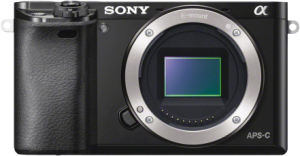
a6000

The Sony a6000 mirrorless camera has all the features of most standard DSLRs, but is much smaller and weighs far less. (Image courtesy Sony)

What is a mirrorless camera?

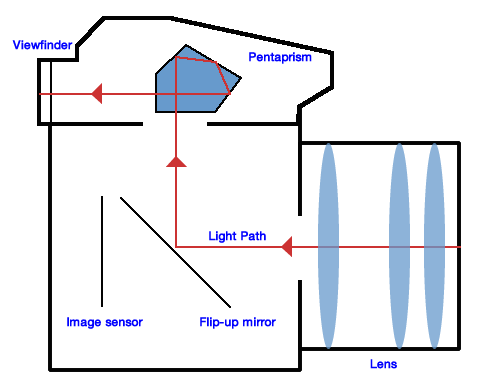
To understand the word mirrorless it helps to know a bit about the way most DSLR cameras are built. Almost all Canon, Nikon, Sony, and Pentax interchangeable-lens cameras share a similar industrial design: light enters through the lens and gets bounced off a mirror, through a special prism, to end up at the viewfinder. When you click the shutter button, the mirror flips up, which allows light to hit the actual image sensor on the camera, and voila your photograph is taken. This process might seem like a high-tech solution, but it’s actually a bit of an anachronism. Long before digital cameras existed, most of their film-based counterparts employed this same method to get light to the viewfinder, because it was a useful way to compose your photo before clicking the shutter. But thanks to advances in modern technology, this flip-up mirror method is no longer necessary, and a whole new breed of cameras is beginning to make inroads into modern digital photography. These new models have no flip-up mirror, and thus the term “mirrorless” was born.

There are many different types of mirrorless cameras on the market: some have interchangeable lenses, others offer a single built-in lens, and some with their own types of image sensors and other characteristics that are suited to more niche markets. But the one thing they all have in common is the absence of a flip-up mirror.

CameraDiagramDPS

Believe it or not, you probably already own a mirrorless camera. All smartphone cameras are mirrorless, as are most point-and-shoot models. Instead of a tiny little viewfinder that you hold up to your eye, you can see a preview of your image right on the phone or on the back of the camera itself. And if you like shooting your DSLR in “Live View” mode, where you look at the rear LCD screen to compose your shots instead of the viewfinder, you are essentially using it as a mirrorless camera already. (The click you hear when you enter Live View is the mirror flipping up. It stays like that until you exit Live View.) In fact, many of the higher-end mirrorless cameras have even gone so far as to replicate the traditional eyepiece viewfinder, but instead of reflecting incoming light from a mirror, it simply shows a very tiny version of what would normally be displayed on the back of the camera.

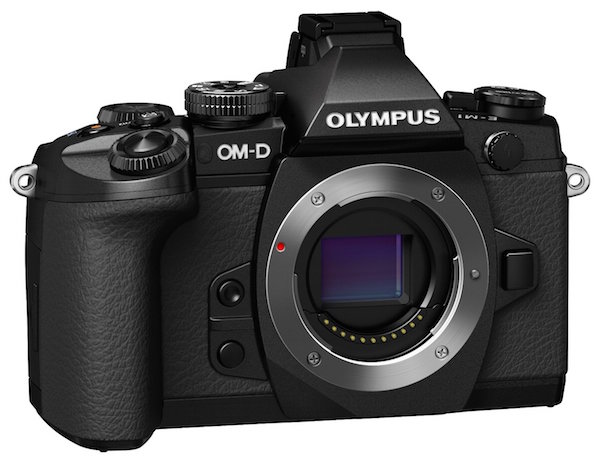
OMD-EM1

The Olympus OM-D EM-1 is a mirrorless camera that also includes a traditional-style viewfinder. (Image courtesy of Olympus)

Sensor size

Another component of mirrorless cameras that is a bit more technical in nature, but just as important to understand, is that of sensor size. In digital cameras the image sensor is essentially a piece of digital film that captures light, in much the same way actual film does. Full-frame DSLR cameras have image sensors that are the same size as a piece of 35mm film, but most consumer-grade DSLRs, and virtually all mirrorless models, are crop-sensor cameras. This means that the image sensor is smaller, which has two notable implications:

  1. They are not as sensitive to incoming light as full-frame cameras.
  2. They affect the way lenses behave when it comes to focal lengths and depth of field.

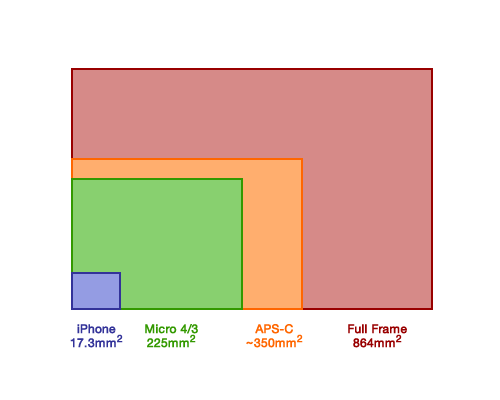
The most common format of mirrorless cameras are in a category developed by Olympus and Panasonic called Micro Four Thirds, which refers to the size and shape of the image sensor itself as well as the types of lenses that can be used on these models. Other mirrorless cameras use an APS-C sensor, which is the same size sensor used in common DSLRs such as the Canon Rebel T5i and Nikon D3200 (however, even Canon and Nikon use slightly different image sensor sizes), but there are some models such as the Sony A7R that use full-frame sensors as well.

SensorSizeDPS

In terms of surface area, full frame image sensors reign supreme. But cameras with smaller sensors are still quite capable, and there is more to a camera than the size of its sensor.

While it’s doubtful we will see crop-sensor cameras (whether micro four thirds or APS-C) reach the same high ISO sensitivities as full-frame models, many of them today are perfectly capable of shooting at values such as 3200 or 6400 without too much degradation in image quality.

As for the lens behavior, shooting on a crop sensor camera means that your focal lengths will not look the same as on a full-frame camera. For example, on a micro four thirds camera a 30mm lens behaves similar to a 60mm full-frame lens. A 100mm lens acts like a 200mm, and so on. For most people this is fine, and they learn to adapt to the differences in lens behaviour over time. For some photographers this a significant detriment that, combined with how depth of field behaves a little different on crop versus full frame cameras, ends up being a deal breaker.

As I mentioned earlier, it’s not about finding out which type of camera is better – that question is unanswerable. Instead, it’s important to simply know the various details of micro four thirds and other mirrorless cameras, in order for you to make an informed decision if you are thinking about purchasing new gear.

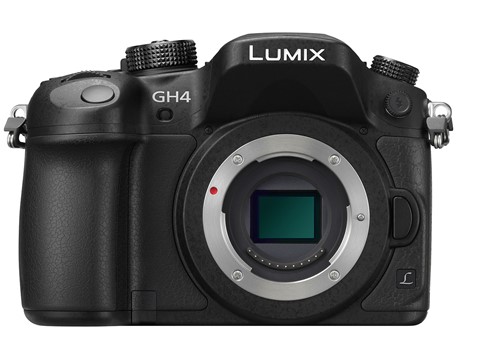
lumix-gh4

Even though the Panasonic Lumix GH4 is uses a smaller micro-four-thirds sensor, it produces photos on par with most APS-C sensors and even shoots 4K video. (Photo courtesy of Panasonic)

However, one benefit of crop sensor cameras that is important to note is their price; they are significantly cheaper than their full-frame counterparts. The cheapest full-frame camera costs around $ 1500 and they can easily cost many times that amount. On the other hand, some micro four thirds models start at a couple hundred dollars which makes them much more affordable for most people. It’s important to know that mirrorless cameras are not just for beginners, or those who like to shoot in Auto. Many photographers are buying these cameras, and some professionals have even switched entirely from heavy, expensive, DSLR models to their much lighter and more portable mirrorless counterparts.

As you can see, thanks to advances in modern technology the age-old flip-up mirror design in most cameras is not really needed anymore, but we are still a little way off from mirrorless replacing traditional DSLR designs entirely.

Benefits of mirrorless cameras

These new types of cameras offer some significant benefits over traditional DSLRs, but come with some important limitations as well. Remember, we’re not here to discuss which one is better – that’s something that only you can answer, given your unique needs as a photographer. It is important to know that mirrorless cameras do have some notable selling points, but also some drawbacks as well.

Size

K?rlis Dambr?ns

By K?rlis Dambr?ns

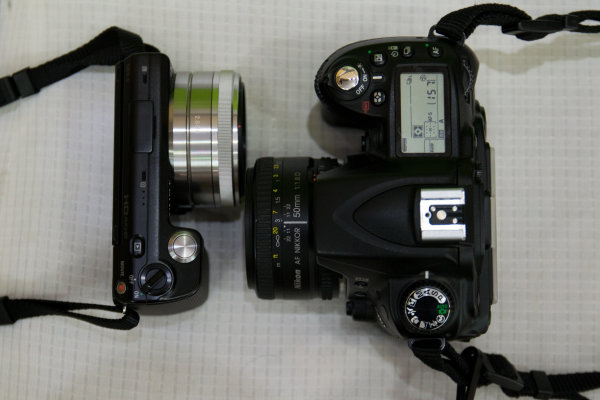
Perhaps the most significant difference between mirrorless and traditional DSLRs is their size: because the flip-up mirror mechanism, combined with the light-reflecting prism, are no longer needed these cameras are typically much smaller in size and weigh less too. This can be important if you are someone who likes to take your camera with you wherever you go, especially if the weight of your DSLR starts to drag you down after a day of shooting. It also means the lenses are smaller too, so you can fit several in your camera bag whereas before you might have only had room for one or two.

More accurate image preview in the viewfinder

Another benefit that mirrorless cameras enjoy over DSLRs, is a viewfinder that displays a more accurate representation of what your final photograph will look like. If you look through the viewfinder of your DSLR and adjust settings like ISO, aperture, and shutter speed, you might notice that the image in the viewfinder doesn’t change. It’s not until you actually take a photograph that you see what effect your alterations had on the photograph. At that point you can look at the picture on the rear screen and judge whether you need to change things for subsequent pictures. Because mirrorless cameras use electronic viewfinders, you can see in realtime the effect that things like aperture and ISO adjustments will have on your pictures before you press the shutter. This can have a dramatic effect on how you shoot, as it removes some of the guesswork with your camera settings.

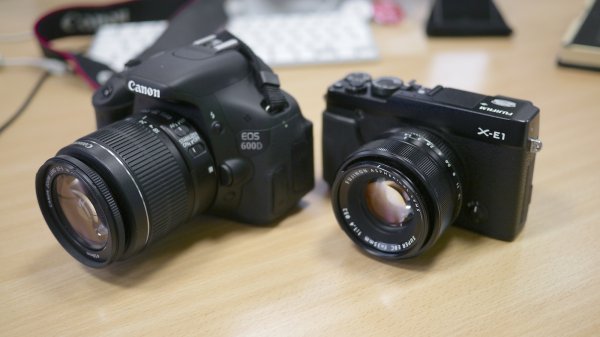
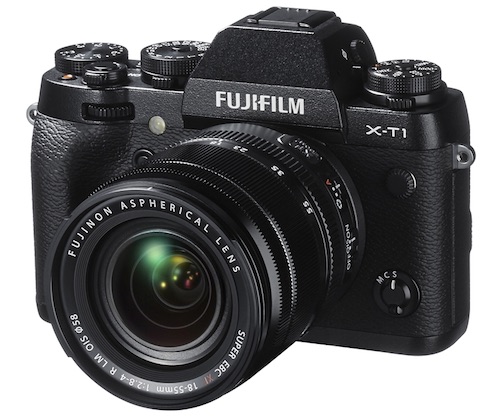
The mirrorless Fuji XT1 uses an APS-C size sensor but is much smaller than traditional DSLRs, making it a compelling option for photographers who value portability along with excellent image quality.

The mirrorless Fuji XT1 uses an APS-C size sensor but is much smaller than traditional DSLRs, making it a compelling option for photographers who value portability along with excellent image quality. (Photo courtesy of Fujifilm)

Focus peaking and sound

There are other benefits to mirrorless cameras as well such as focus peaking (the ability to see, when focusing manually, the exact pixels on your image that are in focus), quieter operation due to the lack of a flip-up mirror, and fewer overall moving parts which means a longer theoretical lifespan. But in order to get an accurate view of the situation, let’s take a look at some of the disadvantages as well.

Drawbacks of mirroless cameras

Things are looking quite promising over in Mirrorless Land, but it’s not all sunshine and roses just yet. There are some notable drawbacks to this technology, and if you don’t look at all the details you might end up with a camera that is ill-suited to your needs as a photographer.

Battery life

Currently one of the most significant limitations is that of battery life: they just don’t last as long. The only time a traditional DSLR draws power, when not in Live View mode, is when it is actively metering the scene or writing picture data to the memory card. No power is used at all if you hold the camera up and look through the viewfinder, and because of this it is fairly common to get up to a thousand pictures or more on a single battery charge. Power usage is a bit different on mirrorless cameras for two reasons. First, batteries are smaller because the cameras themselves are smaller, and second they essentially operate in live view mode 100% of the time. Mirrorless cameras generally get a couple hundred shots on a single battery charge, which is nothing to sneeze at, but nonetheless a significant difference between them and their old-school brethren.

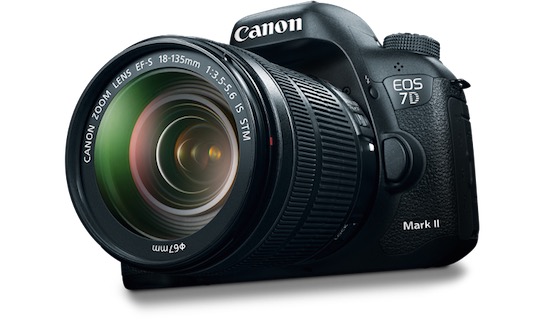
Canon7DMarkII

DSLRs might be based on old technology, but don’t count them out just yet. They are preferred by many photographers, and still have some advantages over mirrorless cameras. (Photo courtesy of Canon)

Focusing system

Another limitation that is worth mentioning is the focusing system. Most mirrorless cameras use a technology called contrast detection, which is simply not as fast as the traditional phase-detection method used in DSLRs. While the former gives you access to a wider area of the frame in which to focus, it simply cannot match the speed of the latter which limits the appeal of mirrorless camera for things like sports and fast-moving wildlife photography. Some manufacturers are starting to utilize phase detection in their mirrorless models, as well as hybrid systems that offer the best of both worlds, but for now it’s safe to say that standard DSLRs are generally better suited for sports, wildlife, and other types of action photography.

Other

Of course there are other limitations such as fewer lens options, LCD screen refresh rates that can’t always keep up with DSLR viewfinders, and more, but as technology advances much of this is being addressed.

Which is best for you?

Will mirrorless cameras ever reach full parity with DSLRs? Some think so, but others are not fully convinced. The important thing to remember is it’s not about what other people think; it’s about what matters to you. If you find a camera you like, and it serves your purposes as a photographer, then it really doesn’t matter whether it’s a DSLR, micro four thirds, full frame, medium format, or plain old 35mm film camera. If it can take the pictures you want to take, then it’s probably the right camera for you.

googletag.cmd.push(function() {
mobile_slots.push( googletag.defineSlot( “/1005424/_dPSv4_mob-all-article-bottom_(300×250)”, [300, 250], “pb-ad-78158” ).addService( googletag.pubads() ) );
} );

The post DSLR versus Mirrorless: Guide to help you decide which is right for you? by Simon Ringsmuth appeared first on Digital Photography School.


Digital Photography School

 
Comments Off on DSLR versus Mirrorless: Guide to help you decide which is right for you?

Posted in Photography


Finding the Balance: Capturing Memories Versus Making Memories

27 Oct

CM3

I am more than a little obsessed with capturing and preserving memories for my family. We have a photo wall that’s regularly updated. We print photo books, both from Instagram and of photos from my “real” camera. My girls know that twice a year, we go out to a field nearby our house, and I do a mini photo session with them. I’m the type of person who easily had 5,000 photos in the first year after my daughter was born, and that’s just what I decided to keep. So whenever I see a mom taking photos of her kids at the park, or a dad taking pictures at his son’s soccer game, I want to run over and give them a high five. I want to tell them that I think they are awesome, and that capturing those memories for their family is something priceless. They’re images that will be pulled out during graduation parties, played on wedding slideshows, and – God forbid – treasured after the loss of a loved one. It’s important work, and it is work that I feel absolutely passionate about.

But there’s a catch. If you’re anything like me, it can be easy to become so focused on capturing memories for our family and of our kids that we can sometimes tend to forget to be part of making memories WITH our family. It can be hard to find a balance, so here are a few tips that I have picked up along the way that can help you find that sweet spot of capturing those important moments, while also being present for them as well.

1. Do a dry run

CM

Halloween is coming up later this month, and my oldest daughter Lizzy wants to be Merida (from Pixar’s Brave). I absolutely want a non-phone photo of her all dressed-up in her costume. This is non-negotiable. But, I know that on the day of Halloween Lizzy will be excited (and probably a little hopped up on sugar), and trying to have a little photo session with her on that day would probably be fighting a losing battle. So, we did a dry run. We do this every year, and it works out so well for us because I can take a few photos of her to stick in the scrapbook in a no-pressure environment, and then on Halloween night, I can leave the camera at home and just be present with my family. We all get a good outcome, and in my book that’s a win. Does it really matter that the photo was taken the weekend before the event? Not to me in this instance, because the memory that I’m actually interested in capturing was the fact that at age four-and-a-half, Lizzy thought that Merida was the coolest of all the princesses, and that she wants to be strong, independent, and brave just like Merida is.

This tip is SO easy, but it has made such a big difference for our family, and it isn’t just for Halloween – this same idea would work for any occasion in which you want a photo of your kids either in a special outfit or with a particular person, opposed to during an event. For example, doing a dry run would be a good fit for capturing your daughter in her ballet outfit, taking a photo of your kids with Mom for Mother’s Day, or even to catch your kiddos in their Christmas pajamas.  As a bonus, doing a dry run lets us know if there are any costume or clothing  issues (dress is too itchy, shoes too tight, needing six cans of red hairspray instead of one) that need to be addressed before the big day as well.

2. Make good use of your camera’s creative modes

CM5

I have several friends who are currently learning how to shoot in manual. One of them was told by her mentor that the creative modes on her camera are cheating and that she should quit using them cold turkey and shoot in full manual, all the time, if she wants to be a real photographer. When she told me all this, I audibly groaned.

Here’s the deal – learning to shoot in manual is awesome and worthwhile. But as far as I’m concerned, if trying to shoot in full manual means that you spend all of your daughter’s soccer game (or birthday party) behind the camera trying to figure out appropriate settings rather than participating in the event itself, that’s a bummer. In my opinion, you would have been better off to stick your camera in Program mode or any other creative mode that you are very familiar with, take a few photos you love, and then be able to set the camera down and enjoy the rest of the time with your family. I’m not saying that you shouldn’t play around with settings or experiment at all, I’m simply saying that at special events like birthdays, weddings (in which you are not the official hired photographer), anniversaries, once-in-a-lifetime vacations, and graduations are the types of events where it is just as important to be a part of making the memories with your family as it is to be capturing those memories. If using one of your camera’s creative modes can help you in that way, go for it!

3. Don’t feel the need to photograph everything

CM2

Such an easy thing to say, and such a difficult thing to put into practice! The reality is that I don’t need to photograph all three times my daughter will go to the pumpkin patch this month between school field trips, family, and friends. The reality is that I don’t need to photograph every time my kids go out to the backyard to play. Sometimes, pulling out the camera while they play is an awesome time for me to practice and play around, but it can also really frustrate my kids if I do it too often (EVEN if I’m not asking them to, “Look here and say cheese!”).

So, for my sanity and theirs, whenever my gut instinct is to grab my camera, I try to stop and ask myself when the last time I photographed this particular event or activity was. If it has been less than a month, that’s a good cue for me to pause and consider whether or not I really need to bring the camera along that day. I really encourage all you moms and dads out there to choose a similar pause point for your family – maybe it’s weekly, maybe it’s monthly, but however frequent it is, it gives you and your kids some built in grace.

4. Get IN the picture sometimes

This is the only photo with me in it from my daughter's first birthday. It's a little blurry, but it went in the album nonetheless, and it's one of my daughter's favorite photos from the day.

This is the only photo with me in it from my daughter’s first birthday. It’s a little blurry, but it went in the album nonetheless, and it’s one of my daughter’s favorite photos from the day.

If you’re the photographer of the family, chances are that there are a lot fewer photos of you in the family album than there are of anyone else. I think this is something that we ALL struggle with. Or maybe you’ve even tried to pass the camera off to someone else and have been disappointed by the blurry, too light, too dark, weirdly cropped results. I get it, and I’ve been there.

One thing that I’ve noticed is that if I’m quickly handing the camera off to a friend or family member that isn’t familiar with photography, I get the best result if I pass the camera off in AV mode, with the aperture set at least at the number of people that will be in the photo, and the center focal point selected. So, if there will be four people in the photo, make sure the aperture is set to at least f/4 when you hand it over. I usually have my 50mm lens on my camera, so if I hand the camera over in Program mode, there’s a chance that it will elect to shoot at f/1.8 or f/2.2, which would probably not yield the best results for a photo of four or five people. If you’re shooting with a kit lens that isn’t capable of shooting that wide open, it may be just as beneficial to pass off the camera in Program mode. This is just one simple thing that will help yield better results when passing the camera to someone else, but trust me when I say that when it comes to family photos, the important thing is that you’re there, not that you’re well composed and perfectly in focus.

Do you struggle with the balance between capturing memories and making them? Do you have any other tips you’d like to share?

The post Finding the Balance: Capturing Memories Versus Making Memories by Meredith Clark appeared first on Digital Photography School.


Digital Photography School

 
Comments Off on Finding the Balance: Capturing Memories Versus Making Memories

Posted in Photography


Macphun’s Tonality Pro Versus Lightroom 5 for Black and White Conversion

13 Sep

Tonality Pro vs. Lightroom

MacPhun Software recently released Tonality Pro (use this link to get 20% off, for dPS readers only), a powerful black and white converter for Mac. In this article I’m going to compare it to Lightroom so you can see how the conversion process differs between the two programs.

Windows users please don’t stop reading now – I’ll look at some other black and white plug-ins at the end of the article, all of which are cross-platform.

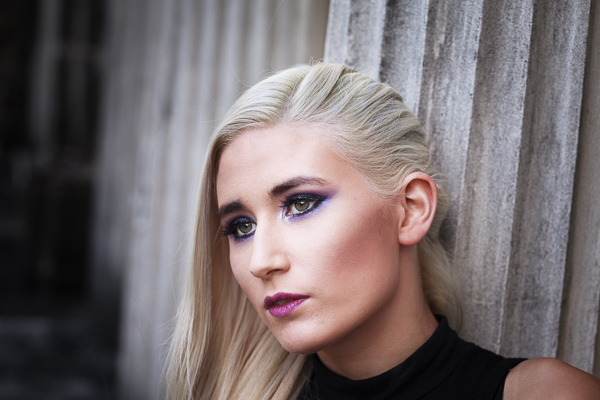
To start, here’s the colour photo that I’m going to convert to black and white.

Tonality Pro vs. Lightroom

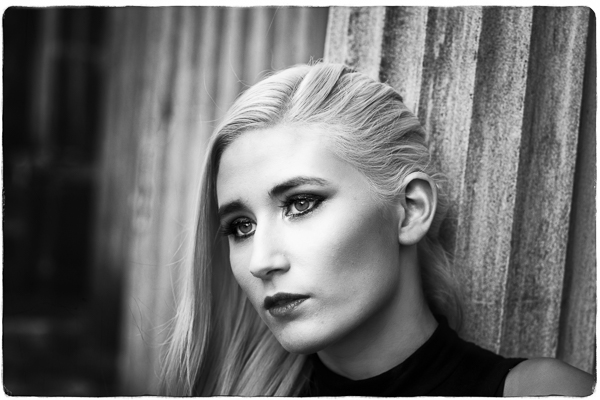
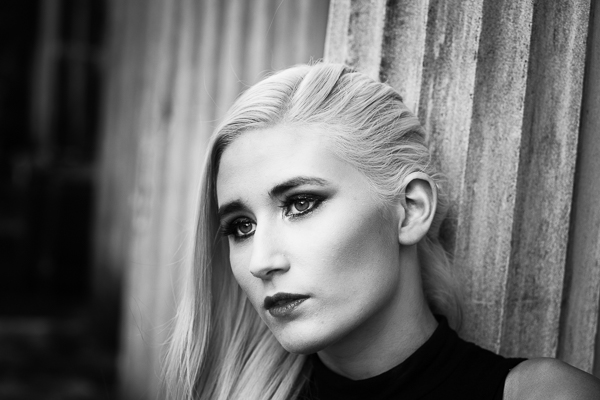
Here’s the black and white version I created in Lightroom.

Tonality Pro vs. Lightroom

It’s a fairly straightforward conversion. I increased Clarity and Contrast, and added a vignette using the Radial Filter. I didn’t touch the Black and White Mix panel, and I didn’t add Split Toning.

All these tools will be familiar to Lightroom users. So, how does Tonality Pro differ? Let’s take a look.

Tonality Pro uses presets

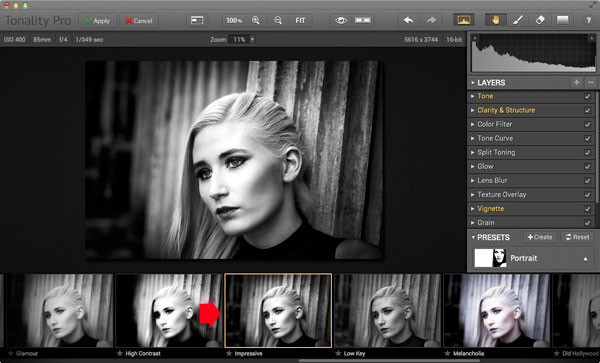
Tonality Pro’s presets give you a variety of ready made black and white conversions. Of course, not all of them will be suitable for your photo, but with over 150 to choose from, you are bound to find at least a few that do good things for your images. If you don’t like using presets, just skip them and go straight to the other panels to do your work.

Tonality Pro’s presets are similar to Lightroom’s Develop Presets. The main difference is that Tonality Pro comes supplied with a full set, while Lightroom only has a limited range of built-in monochrome presets. If you want a decent set of black and white presets for Lightroom, you will have to buy them.

Tonality Pro’s presets have two features that make them a very powerful and versatile feature.

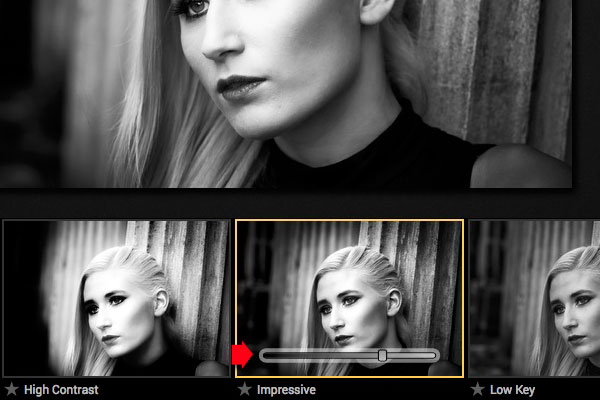
The first is a slider that lets you adjust the strength of the preset. This is useful because the number one problem with presets of any sort is that they can be too strong. A subtle touch is better when it comes to post-processing and many presets are far from subtle. The opacity slider in Tonality Pro helps you deal with that. Let’s say you apply the Impressive preset to your photo. Here’s how it looks.

Tonality Pro vs. Lightroom

Too strong? It’s easy to reduce the strength of the effect until it looks just right.

Tonality Pro vs. Lightroom

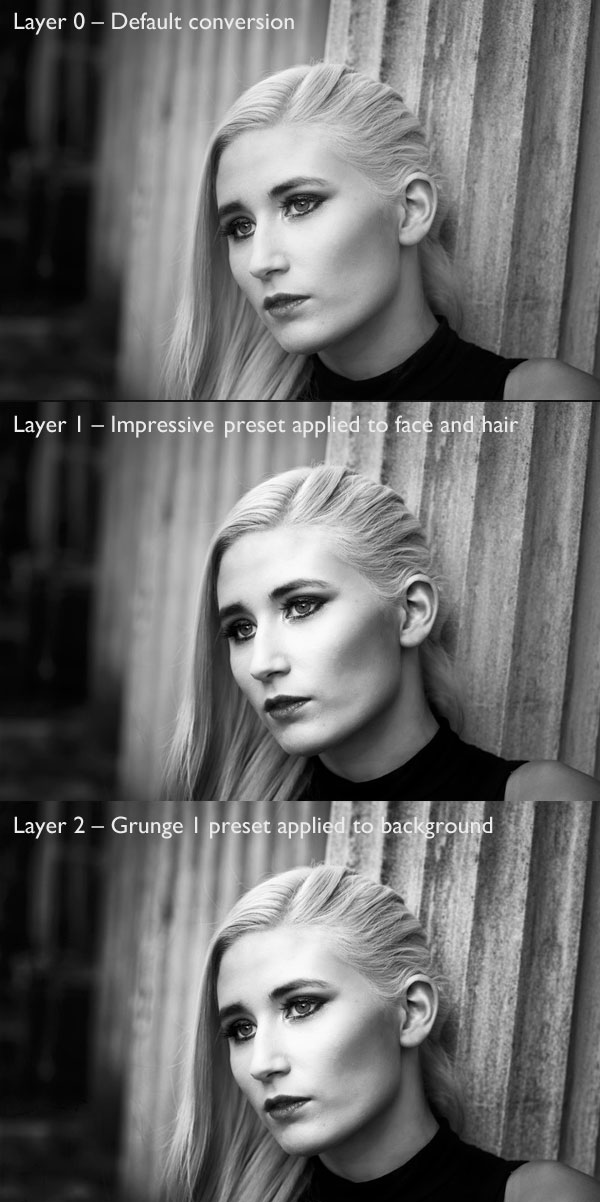
The second feature (I’m really excited about this) is that Tonality Pro has layers. With layers, you can apply a preset on a new layer, then create a mask using Brush mode so that the preset is only applied to part of your image.

Take a moment to think about what that means. For example, you could apply one preset to the subject (in this case the girl in the photo) on one layer, and another to the background on another layer. It’s got the potential to be very powerful, and it’s something that I haven’t seen in any other plug-in.

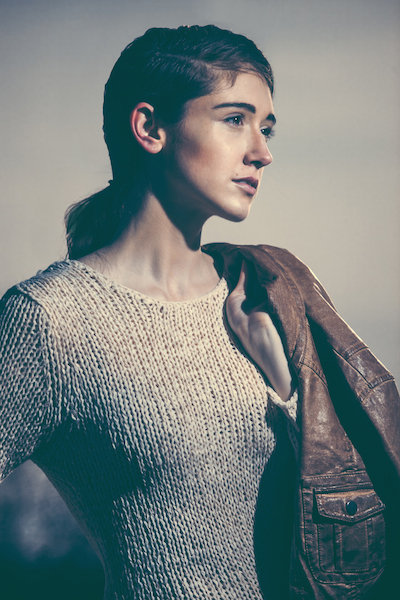
Here’s how it works. In these examples I’ve applied the Impressive preset to the model’s face, and the Grunge 1 preset to the background using layers. I used the opacity sliders to keep the effect subtle. These three images show the result.

Tonality Pro vs. Lightroom

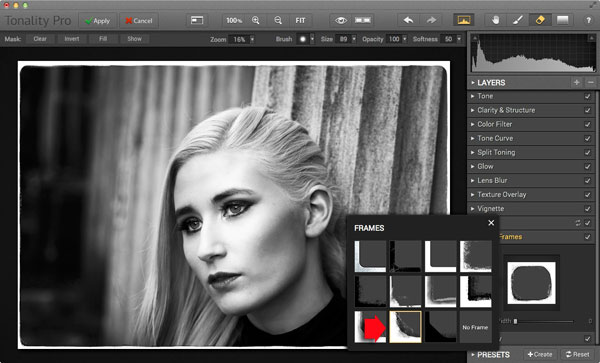
Next I added a frame.

Tonality Pro vs. Lightroom

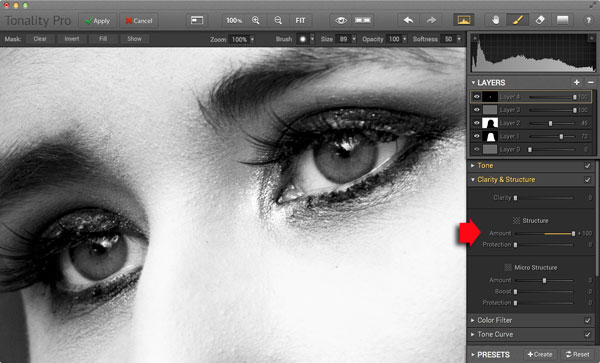
Finally I added some Structure to the eyes, and increased Adaptive Exposure a little to compensate for the way Structure tends to make things darker as well as add detail. You can achieve a similar effect in Lightroom with Clarity, but you will be interested to know that you can adjust Structure in Tonality Pro as well as Clarity (Structure is better than Clarity for bringing out detail).

Tonality Pro vs. Lightroom

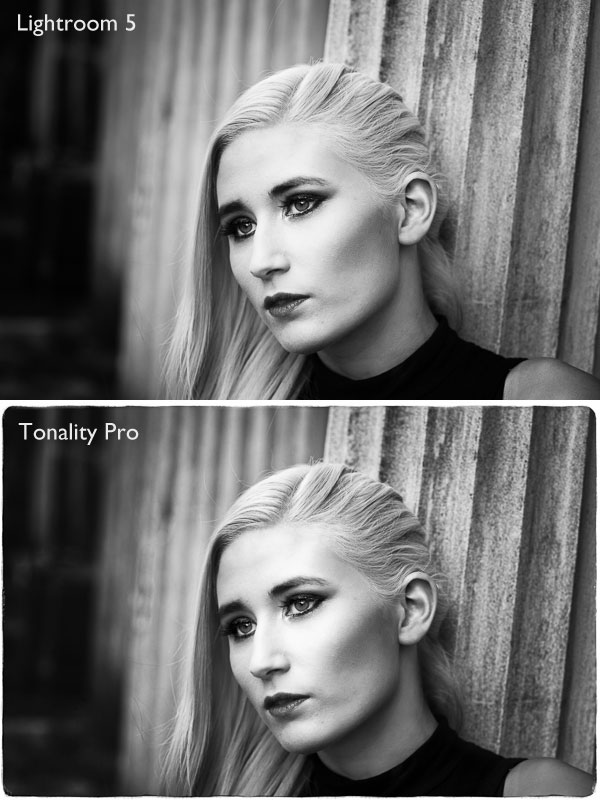
Here’s the final comparison of the two versions of the photo.

Tonality Pro vs. Lightroom

As you can see, apart from the border, most of the differences are subtle. But the way I got there, the editing process itself, was very different.

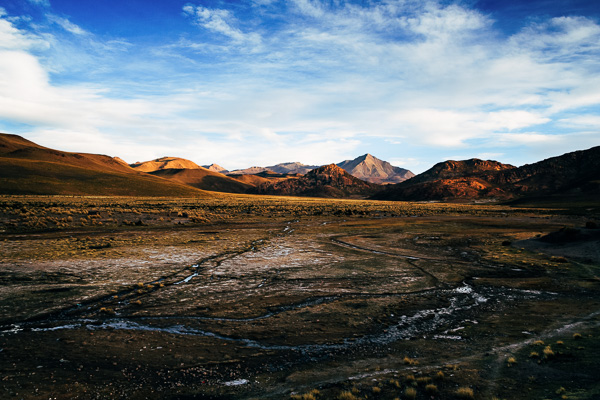
Now I’m going to show you another application of Tonality Pro that you definitely can’t do in Lightroom. Here’s the original colour photo.

Tonality Pro vs. Lightroom

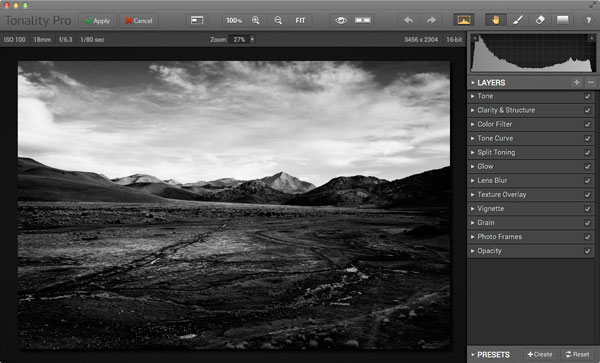
Here’s the initial black and white conversion:

Tonality Pro vs. Lightroom

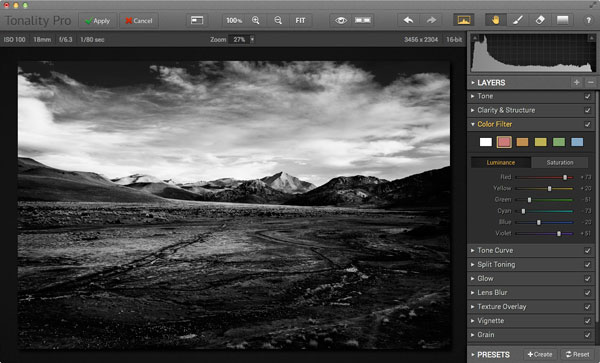
This is the same photo processed in Tonality Pro with a red colour filter applied to darken the sky and add drama to the distant mountains.

Tonality Pro vs. Lightroom

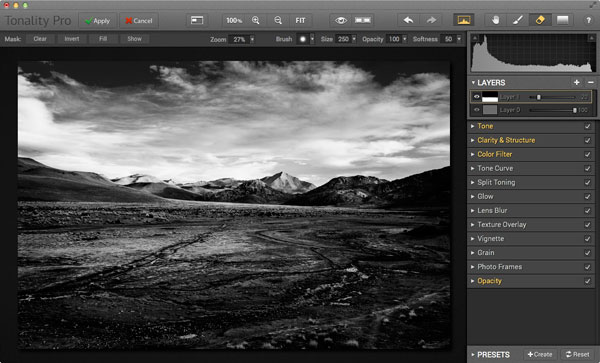
Here I’ve added another layer and applied the El Captain preset, reduced the opacity of the layer to 20 (to keep the effect subtle), and used a mask to apply the preset to the foreground only, not the mountains or sky.

Tonality Pro vs. Lightroom

All this took just a couple of minutes to carry out.

The verdict

This is a simple demonstration but hopefully it’s given you a taste for what Tonality Pro can do, and how it compares to Lightroom.

I’ve only scratched the surface in this article, Tonality Pro has lots more interesting features. Another dPS writer,  Phillip VanNostrand has done a full review here, it covers the software in more depth, so check that out also. In the meantime, if you want to test out Tonality Pro for yourself, or learn more about the program, then you can do so at MacPhun’s website (get 20% off for dPS readers using this link).

How Tonality Pro compares to other plug-ins

Tonality Pro isn’t the only black and white plug-in out there, and you may be interested to know how it compares to some of the others. Don’t forget they all have different features and strengths, and the best one for you depends on what you want to do with your black and white images. You can download trials of all the plug-ins to help you make your mind up. Here’s a brief guide:

Silver Efex Pro 2

Until Tonality Pro came along this was the single best black and white conversion plug-in you could buy. To be honest, I haven’t used Tonality Pro enough yet to say whether it is better than Silver Efex Pro 2. But, there’s no doubt that the layers feature in Tonality Pro means that it is a versatile program that gives Silver Efex Pro 2 a good run for its money.

Silver Efex Pro 2 is more expensive (more than double the price) but it does come as part of the Nik Collection, so you do get the benefit of the other programs within it (Viveza, Color Efex Pro and so on). Silver Efex Pro 2 also has a powerful history function that Tonality Pro lacks.

Alien Skin Exposure 6

One of my favourite plug-ins, Exposure 6 is designed to give your digital photos an analog look. You can use it for both black and white and color photos, and in my opinion it’s stronger on the colour side than monochrome. But it’s still a powerful black and white converter.

It’s more expensive than Tonality Pro, but you get the advantage of being able to use it to process colour photos too. It can be used as stand-alone program as well as a plug-in (as can Tonality Pro).

Topaz Black & White Effects 2

Black & White Effects 2 is a nifty black and white plug-in. Its main benefit is an extensive range of creative presets, including several sets that imitate old processes such as cyanotype, albumen and van dyke brown. It’s also good for emphasizing detail and texture.

Perfect Black & White

onOne Software’s Perfect Photo Suite includes the Perfect Black & White module. Like Silver Efex Pro 2, you get the benefit of the other modules in the suite. But unlike Silver Efex Pro 2, all the modules work together and you can switch seamlessly from one to the other.

One of my favourite modules is Perfect Mask. I use it to blend two versions of landscape photos, one processed for the sky and the other for the foreground. Combined with Perfect Black & White it helps you create powerful and dramatic black and white landscapes. It also works as a stand-alone program.

Discussion time

In my review of MacPhun’s Intensify Pro one reader gave an opinion that photographers who use plug-ins instead of Photoshop are lazy. It’s an interesting topic for discussion, so please let us know what you think in the comments. Do you use plug-ins to process your photos? If you do, which are your favourites and why? Or do you agree with the view that plug-ins are for lazy photographers?


Mastering Lightroom: Book Three – Black & White

Masterlng Lightroom: Book Three – Black & White by Andrew S GibsonMy ebook Mastering Lightroom: Book Three – Black & White goes into the topic of black and white in depth. It explains everything you need to know to make dramatic and beautiful monochrome conversions in Lightroom, including how to use the most popular black and white plug-ins. Click the link to visit my website and learn more.

The post Macphun’s Tonality Pro Versus Lightroom 5 for Black and White Conversion by Andrew S. Gibson appeared first on Digital Photography School.


Digital Photography School

 
Comments Off on Macphun’s Tonality Pro Versus Lightroom 5 for Black and White Conversion

Posted in Photography


High Speed Sync Versus a Neutral Density Filter to Overcome Bright Sunlight in Portraits

11 Sep

ND3

For several years now I have used high speed sync (HSS) in order to light portraits in full sunlight at a wide aperture. If you’re unfamiliar with HSS, it allows you to shoot at shutter speeds that are higher than the native sync speed of your camera (usually 1/200 or 1/250 of a second, read your camera and flash manual to find yours) while still using speedlights. The reason this ability is so enticing is that you can shoot flash-lit images at wide open apertures in full sunlight, allowing for a shallow depth of field. Normally if you were using a flash, your maximum shutter speed would be at 1/200 or slower, meaning that you would need to close your aperture down in order to get a proper exposure in the sun.

ApertureOnly

Raw image shot at f/29

How HSS works is that the flash will begin pulsing light, just before the shutter opens, since the exposure is so short. The problem with this is that much of the output of the light is lost in the pulsing process, meaning that you need more flash units to achieve a decent output. For example, when I am shooting at 1/8000th of a second, I need to combine four flashes, on one stand, in order to light a subject that is about five feet away. And that is without any modifiers, like an umbrella or soft box. The other issue with HSS is that not just any flash and trigger system will do the trick. You need to have gear that will communicate information from the camera to the flash.

A couple systems that can do that are the PocketWizard Flex TT5 and Mini TT1, or the RadioPopper PX system. Since most photographers don’t already own one of these triggers systems, this means starting from scratch, which isn’t cheap. I personally opted for the RadioPopper system, since the PocketWizard Flex system for Canon was super glitchy. The RadioPopper system wasn’t perfect either. Just the amount of batteries alone, for four Canon Speedlites with triggers, including a ST-E2 transmitter for the camera, required 27 batteries. Even though they were mostly all rechargeable (the ST-E2 required the hard to find 2CR5 battery), imagine trying to troubleshoot a misfire. Did the batteries need changed in one of the transceivers or was the speedlite misaligned, obscuring the sensor? Or imagine that one of the speedlites’ batteries may be slightly more drained than another, causing only three of four lights to fire. This made the overall exposure fluctuate with every frame.

HSS1

Raw image unlit

HSS2

Raw image, 1/8000 @ f/2.8

I recently decided to compare HSS against using a variable neutral density (ND) filter. ND filters screw on to your lens and cut down the light that hits the sensor, thus allowing for a wider aperture in bright light. This allowed my shutter speed to stay at or below the sync speed cutoff, allowing the full strength of the Speedlite to light my subject. This meant that I wouldn’t need to transmit ETTL information (sell the RadioPoppers) and it meant that I would need fewer Speedlites (less batteries).

After setting my ISO as low as it would go (50), my shutter speed as high as was allowed (1/200th on the Canon 5D MarkII), and my Speedlites at their full output, I dialled down the variable ND until the ambient light perfectly balanced with the light from the flash.

ND1

Raw image unlit

ND2

Raw image, 1/200 @ f/4

Some people have pointed out that there could be the issue of a color cast with certain brands of ND filters. I have not experienced any issues with the ProMaster brand. However, it’s important to keep in mind that if you are shooting directly in to the sun, there will likely be glare in your image, causing a possible color cast or the image to appear washed out.

Note that this experiment was done using Canon 430EX Speedlites with RadioPopper PX triggers. I’ve since sold them all, opting for the cheaper, sturdier and more powerful LumoPro LP180 with PocketWizard PlusX triggers. Now with one bare bulb flash, and a variable ND filter, I can effectively cut the ambient light while fully lighting a subject at f/1.4 in full sunlight.

The post High Speed Sync Versus a Neutral Density Filter to Overcome Bright Sunlight in Portraits by Nick Fancher appeared first on Digital Photography School.


Digital Photography School

 
Comments Off on High Speed Sync Versus a Neutral Density Filter to Overcome Bright Sunlight in Portraits

Posted in Photography


Fuji X-T1 Versus X-E2 – Which Comes Out on Top?

31 Aug

This video by Munetake Kayo over at BigHeadTaco compares some of the features of both of these popular Fuji mirrorless cameras.

If you’re considering getting a more compact camera and downsizing from a DSLR, or maybe upgrading from a point and shoot camera – you might end up looking at one of these Fuji cameras.

I know for me, as a previous film shooter, the X-T1 has a lot of appeal and it currently sitting on my list to get. So I was interested to see this comparison and it actually solidified my choice.

Check out the Fuji X-T1 versus X-E2 in the video review and see what you think

Not convinced? Here’s a review of the X-T1 by dPS writer Paul Burwell.

So are you ready to get either of them? What are you shooting with?

The post Fuji X-T1 Versus X-E2 – Which Comes Out on Top? by Darlene Hildebrandt appeared first on Digital Photography School.


Digital Photography School

 
Comments Off on Fuji X-T1 Versus X-E2 – Which Comes Out on Top?

Posted in Photography


Luminosity Masks Versus HDR Software For Creating Natural Looking HDR Images

27 Aug

Jimmy’s Luminosity Masks Tutorials – Art of Digital Blending Course For Photoshop is on sale now at 15% off over at SnapnDeals. Only until September 6th, grab it now!

If you type the term ‘HDR’ into google images you’ll very quickly see why HDR photography has a bad reputation. While we all differ in our tastes, in recent years, those strongly saturated, blurry and noisy HDRs have fallen out of fashion, even amongst HDR photographers.
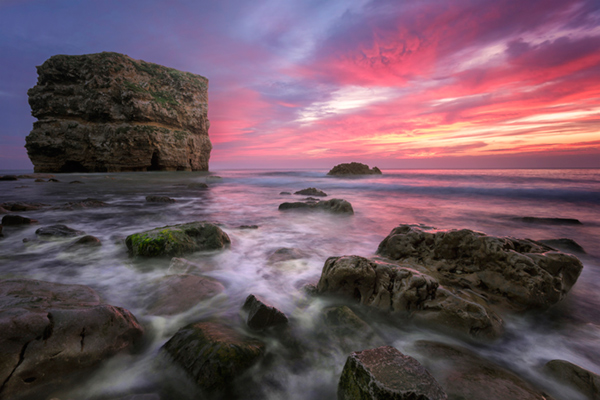
Pink seascape

Luminosity Masks Versus HDR Software For Creating Natural Looking HDR Images

The goal, among many, is now a clean HDR look. HDR programs are attempting to tidy up their processes to meet the needs of the demanding HDR photographer. However, a large number of photographers are beginning to take the blending process into their own hands, and produced beautifully balanced HDRs using luminosity masks, probably the cleanest alternative to HDR software.

In fact, luminosity masking has become an exciting buzz-term in the world of digital photography, and there’s good reason for that.

If you’re new to luminosity mask exposure blending, you can see a beginner’s tutorial on dPS in my previous article: Exposure Blending Using Luminosity Masks Tutorial

In this article we’ll take a look at the benefits and challenges of luminosity masks versus HDR software.

Benefits of Luminosity Masks

1. Image quality

We’ve all seen over-saturated, noisy, messy, HDR images. One guaranteed way to avoid the poor image quality we normally associate with HDR is to manually blend your exposures in Photoshop using luminosity masks.

When exposure blending with luminosity masks, you’re working only with the RAW files to restore highlights and shadows. You do not affect any other part of the image. In other words, your final blended image will be, more or less, exactly the same image quality as your RAW files.

You do not affect any colour changes, you retain absolute sharpness, you don’t flare up noise (which means you can shoot at a much higher ISO), and you will not exaggerate chromatic aberration.

This is the major reason why so many are turning to luminosity masking to create natural, balanced HDRs.
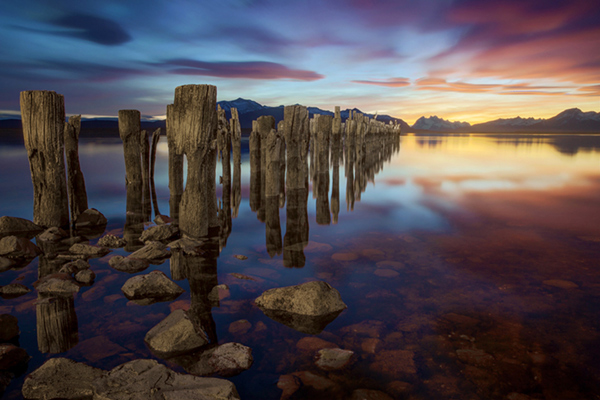
Chilean sunset

Sunset at Puerto Natales, Chile

2. Complete control over what we blend

Artists of any genre fight for complete control over their ability to express themselves. And so it is in photography. One of the problems with using HDR software is that we have very little control over the blending process.

We rely on an algorithm to choose which areas to blend with which exposures. Then we’re given some sliders to adjust. Although this gives us greater control over the process, it isn’t giving us 100% control.

Through luminosity masking, we begin with a base exposure, and we then decide for ourselves which exposures we wish to use in the blending process, and which areas we wish to adjust, and at what opacity.

The image below is a good example of how you can make very precise changes with luminosity masks.
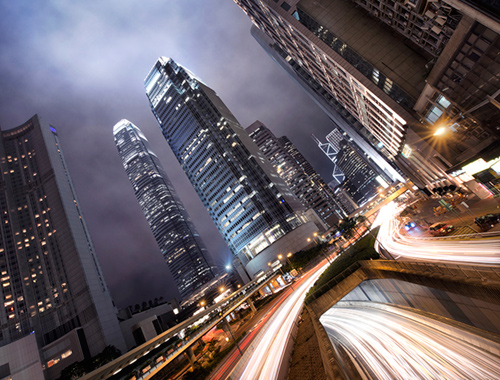
Hong Kong Light Trails

Hong Kong Light Trails

This image is made up of 11 exposures; six of which were used for the light trails, four were used for exposure blending, and one was used as the base exposure. You can learn how to create light trails like this here: How To Add Dramatic Car Trails To Your Photos In Photoshop

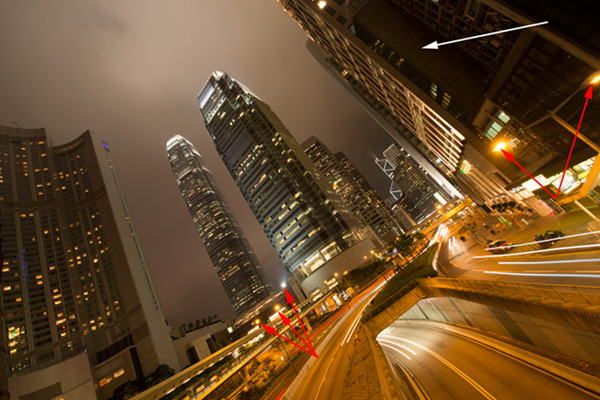
Below you’ll see the RAW file used for the base exposure.
HK Light Trails

Base Exposure

The only highlights I wanted to control in the image were the street lights, and even then I still wanted them to be bright. Through bright lights like this night cityscapes are able to give off a lot of energy and dynamism.

I very gently blended in three darker exposures to gain a little bit of control in those areas, without darkening them too much. If I ran my exposures through an HDR program, all of the highlights in the image would have been affected to some degree, which is exactly what I didn’t want.

For the darker areas, I only wanted to bring back information in one area, the side building to the right, which is noticeably dark. I used an exposure two stops brighter and, with luminosity masks, I easily painted details back into this area.

#3. No more halos and fewer ghosts

Halos simply don’t exist in luminosity mask exposure blending if you’ve done it correctly.

As for ghosts, you will rarely encounter a moving object that is difficult to blend. Since you use a base exposure, which will be done for most of your images, and simply reduce specific highlights and shadows, there shouldn’t be any ghosting.

The only challenge you may have, which is also a challenge when using HDR software, is if you have moving leaves on trees, for example, between exposures. Then the blending process is a little bit trickier.

#4. Become a better photographer
Mesa arch

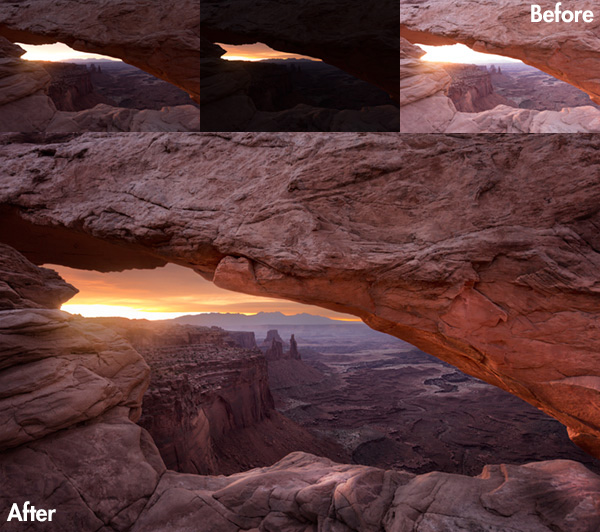
Mesa Arch, Before and After Exposure Blending With Luminosity Masks

In my early days I was a die hard tone mapper. I’d approach a scene and think, “this would be a cool HDR subject”. I’d fire off some brackets and take them into Photomatix when I got home. I had a predefined routine of what to do, what result I wanted, and how to get there. I had tunnel vision.

When I began exploring luminosity masks, everything changed. I began to read a scene, not as an HDR subject, but in terms of its unique beauty and mood. I started to grasp more fully the use of light in controlling mood, whereas previously I was simply relying on getting the ‘HDR effect’ each time.

Rather than shooting off a set of automatic brackets, for a complex scene I will often bracket manually, changing the aperture, ISO and shutter speed to capture different elements of the scene. Then I’ll blend in each of the elements to hopefully get the best out of that scene.

In the Hong Kong Light Trails image above, the base exposures and brighter exposures, the light trails, and the darker exposures were all shot manually with different settings to achieve different effects.

It is through using luminosity masks, and taking my imagery into my own hands, that I have pushed myself in the field to achieve more.

#5. Combine with other HDR processes

One of the beautiful things about luminosity masks is that you can combine them with other exposure blending methods to complete the blending process. 32-bit processing is becoming an interesting way of blending exposures cleanly, but we are a long way off before the process is good enough and our monitors can handle true 32-bit files.

However, we can overcome the limitations of 32-bit processing by combining it with luminosity mask exposure blending. The tutorial below will show you exactly what I mean. The video is taken directly from the Art of Digital Blending course:

Challenges with Luminosity Masks

HDR software is simpler

Luminosity masks require more patience and a steeper learning curve than HDR software. The concept takes a little bit of time to get used to, and it will certainly challenge you to re-learn a few things.

While HDR software will take all of the leg-work out of it for you, luminosity masks require you to really think about your exposures and deepen your workflow.

Luminosity Masks don’t work on every occasion

Every now and then you’ll come across an image where luminosity masks won’t create a smooth blend between exposures. This happens because there isn’t enough contrast between the areas you wish to blend and the areas you don’t wish to affect.

In which case, using 32-bit processing or HDR software would be a good alternative.

Luminosity masks work in 8-bit mode

Like all live selections in Photoshop, luminosity masks work in 8-bit mode. They don’t affect the bit depth of your image, so if you’re working at 16 bits that won’t change. But there may be a chance of posterization in some cases.

A quote from Photoshop staff on the Adobe forum claims:

“The selection mask is 8 bits, regardless of the document precision. That fact has no affect on the precision of the image.

No, it won’t change the image or cause future posterization — the image data is still the same precision as it always was.”

So while this shouldn’t be an issue, it is something to be aware of.
Hong kong the peak view

Conclusion

HDR images don’t have to be messy, garish and overdone. There are many ways to cleanly blend exposures to create a beautifully natural and balanced HDR. Having luminosity masks in your arsenal, will give your workflow a superb cutting edge, that can quite literally change your imagery over night.

It will require a little bit of extra work on your part, but often the best things in life do.

Jimmy’s Luminosity Masks Tutorials – Art of Digital Blending Course For Photoshop is on sale now at 15% off over at SnapnDeals. Only until September 6th, grab it now!

  • Getting Real with HDR – a Step by Step Tutorial for Realistic Looking HDR
  • Is the Death of HDR Photography Coming?

The post Luminosity Masks Versus HDR Software For Creating Natural Looking HDR Images by Jimmy McIntyre appeared first on Digital Photography School.


Digital Photography School
 
Comments Off on Luminosity Masks Versus HDR Software For Creating Natural Looking HDR Images
Posted in Photography