RSS
 

Posts Tagged ‘Versus’

Photoshop Versus Lightroom Which is Right for You?

24 Aug

As a photographer, whether it be professional or hobbyist, you have several skill sets to juggle and many hats to wear; you’ll need to be an artist when composing your photo’s scene, technically proficient with your camera and settings, and in the case of professionals, an adept businessperson who can maintain a business and satisfy clients consistently.

Lightroom versus photoshop

One of the most important roles you play as a photo enthusiast is that of image editor. Rarely do our images come straight out of the camera exactly as we had envisioned, so before release we are required to put our shots through the post-processing phase; this is where our raw photos are enhanced, adjusted, toned, and sharpened to give us the final image we want to deliver.

Although we have many tools at our disposal these days to help us through this phase of processing, the industry juggernaut has undoubtedly been Adobe Photoshop since its first version’s release in 1990. The software has been used by amateurs and professionals alike year after year, and is considered an essential part of most photographer’s toolboxes.

Through the following years, and the popularity surge of digital photography, Adobe realized the need for a tool more targeted for photographers, and in 2007, released Lightroom. This workflow-centric and management software has become incredibly popular in its own right, and maintains a massive following in today’s industry.
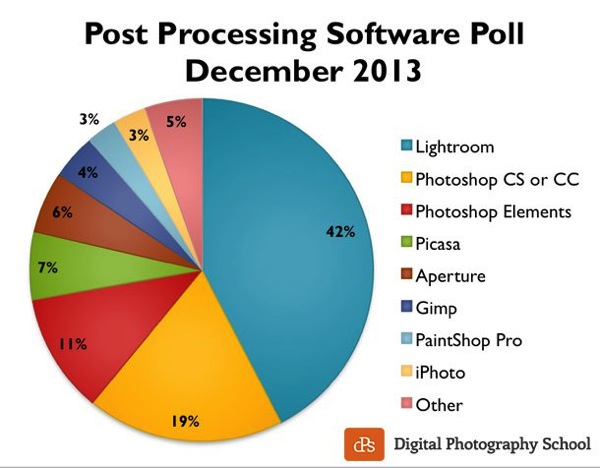
Post processing poll 2013 dPS

Click to see more on the survey results

So the obvious question is, as a photographer, which software package do you need? Both titles are excellent and carry their own strengths and weaknesses, so let’s drill down and examine them in a bit more detail to discover which one is right for you!

What we require in post-processing software

Rarely do we get a perfect result in camera that allows us to bypass the post-processing workflow, and even then, some editing is almost always required to prepare the photo for different mediums.

Generally, photos will need to be altered in size, adjusted for exposure and contrast, edited for blemishes or other imperfections, and possibly toned or have their appearance altered through filters, presets or other means. The file then needs to be exported in its final format, ready for the client, printing, or for web use.

Photoshop’s strengths

  • Pixel-level editing – images created or opened in Photoshop are comprised of pixels, which are the small physical points in a raster image, and are the smallest addressable elements in a photo. The software allows for editing even at this tiny level, meaning limitless manipulation is possible. Raster and vector images can be created from scratch.
  • Layers – Photoshop allows for multiple layers to be stored within a master file, meaning that you can keep different images or edits on separate layers, and then hide, modify or enhance any of those layers independently.
    3a

    Photoshop’s layers

    4a

    Layer blending modes in Photoshop

  • Actions  – an extremely useful feature, actions allow manipulation steps to be chained together and recorded, letting you recreate an entire editing process with a click of the mouse.
  • Compositing and blending – because of the ability to layer components within an image, it is possible to blend those layers together in unique ways. Masking allows you to protect specific parts of the photo from any adjustments being made down to the pixel level, simply by painting out the area you’d like to keep.
  • Huge toolbox – each progressive release of Photoshop seems to bring more and more useful tools into the mix. From content-aware filling, reducing camera shake effects, photo filters, and automatic panoramic image stitching, there is a tool for almost every task a photographer would need.
5

Photoshop Actions

Photoshop’s weaknesses

  • Steeper learning curve – with great power comes… a steep learning curve. Although you have a massive array of tools at your disposal, mastering them is something that takes time and practice.
  • No built-in RAW editing – unlike Lightroom’s native ability to manipulate RAW files directly from your camera, Photoshop must rely on a plugin like ACR (Adobe Camera RAW) or something similar in order to import and modify these files.
  • No image management – Photoshop is built from the ground up to be a powerful image creation and editing tool. Although there are batch import and export tools available to make some aspects of the process easier, there isn’t a fully-recognized  built-in management or workflow system for photographers.
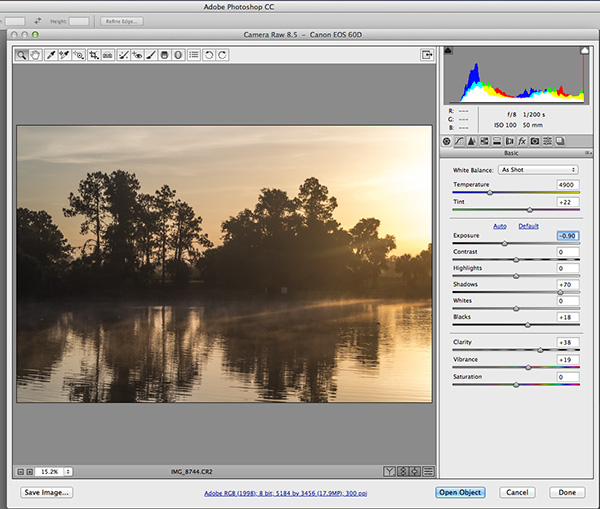
6

Adobe Camera Raw must be used for processing RAW files in Photoshop

Lightroom’s strengths

9

Built-in RAW processing in Lightroom

  • Built-in RAW editing – no plugin required! Lightroom natively accepts RAW files straight from your camera, and allows all of the editing you’d expect from within the software.
  • Image management and workflow centric – Lightroom was born from the desire to give photographers something better to manage their photo libraries with.  The entire program is based on creating a solid, consistent workflow that will help you make the most of the post-processing phase.

    8

    Lightroom’s image management system

  • Simple and easy to use – since Lightroom doesn’t have the huge toolbox found in Photoshop, there is MUCH less to learn. Everything from the tools available, to the interface itself, is simple and easy to manipulate.
  • Presets – a photographer’s dream; imagine having the ability to string together exposure levels, contrast, and toning, and then save those to a handy file. Then imagine you can have unlimited variances of these, and apply them to any photo with a click of the mouse. Welcome to Lightroom’s presets! Photographers around the world share these online as well, giving you limitless potential options for your photo’s look and feel.
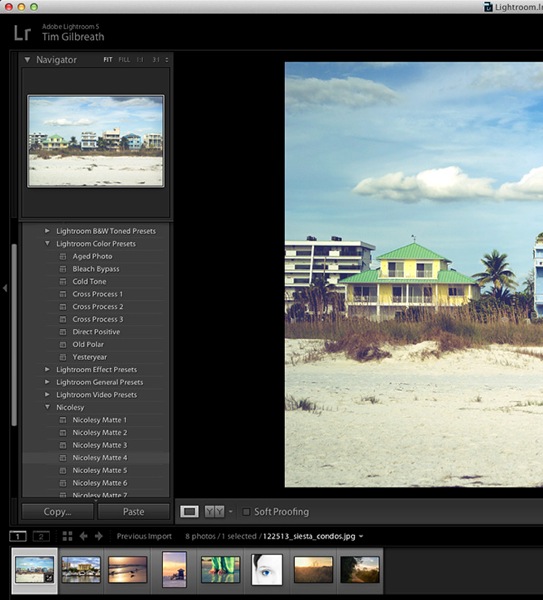
10

The power of Lightroom’s Presets

Lightroom’s weaknesses

  • No advanced editing tools – because Lightroom wasn’t intended as a full-on raster editor, most of the editing functions Photoshop users take for granted are not present here. With the exception of a few basic tools, you’ll want to use Photoshop in situations where heavy image editing is necessary.
  • No layer management – the powerful layer system in Photoshop is non-existent as well. Effects and modifications can be stacked on an image, but there is no real separation of image segments or any ability to use blending modes.
  • Photos only – again, Lightroom is intended as a workflow system for photographers, meaning you’ll only be able to import existing photos and modify them; there are no raster or vector image creation tools to be found here as there are in Photoshop. Lightroom is assuredly one-track minded.


Adobe Creative Cloud logotype with icon RGB vertical

Creative Cloud and pricing models

?Up until fairly recently, Photoshop would have had one additional disadvantage compared to Lightroom, and that would be price. In the past, purchasing Photoshop could set you back $ 400 to $ 900, depending on the version and any discounts you could use.  Comparatively, Lightroom could be had for less than $ 100. The huge up front cost made buying Photoshop outright a financial strain for budding photographers on a slim budget.

Those days are gone, thanks to Adobe’s awesome cloud and subscription program. As of the last release, all of Adobe’s main products have been converted to cloud-based programs and are all rooted in the new Creative Cloud subscription model. Generally, $ 20 per month will give you unlimited access to one Adobe title, such as Photoshop or Lightroom, and ample cloud storage, enabling you access to your files regardless of where you were. $ 50 per month will give you access to Adobe’s entire Creative Cloud suite, which is quite a deal.

This year, however, Adobe unveiled their Photography Program, and if you haven’t already gotten involved, you might want to take a look. For less than $ 10 per month, Adobe gives you Photoshop CC AND Lightroom CC, along with the aforementioned cloud storage. It’s an unbeatable deal, and eliminates the need to pick and choose which image program to use.

Which one is right for you?

Since pricing is no longer an issue, the choice as to which program to use for your photography work comes down to what is most important to you.

Use Lightroom if…

You value a smooth clean workflow more than infinite control over the editing of your images. Having said that, Lightroom is no slouch when it comes to processing photos, and you can recreate almost any look using the controls available to you in this software.

The presets provide an endless array of styles, and thousands more are available on the internet. Lightroom’s clean, efficient interface will allow you to process those multiple wedding or portrait shots quickly and consistently, and make managing all of those photos simpler than you could have imagined.

Use Photoshop if…

You need more control over your images. Photoshop can do it all, but of course the cost of that is a higher learning curve. Quick presets are not what the program does best; instead, it offers complete image editing with masks, layers, and a multitude of other tools, giving you all of the options you could ever need.

At the end of the day…

BOTH titles can be an integral part of the post-processing workflow.  Like anything else they both have strengths and weaknesses.  Fortunately, with Adobe’s wonderful new Creative Cloud subscription model, you can enjoy both programs, and employ the advantages of each within your workflow, without breaking your bank.

For more information and tutorials on both programs check out these dPS articles:

  • Save Tons of Editing Time with Lightroom Presets
  • A Concise Guide to Lightroom Develop Presets
  • 4 Quick Tips For Getting The Most Out of Lightroom Presets
  • How to Convert Photos to Black and White in Lightroom
  • Improve Your Images with the Lightroom Graduated Filter Tool
  • 3 Easy Steps Using Photoshop to Making your Images POP
  • Ten Go-to Editing Tips for Using Photoshop
  • 6 Commonly Used and Confused Tools in Photoshop Explained
  • Changing Color in Photoshop
  • Photoshop Tutorial: How to Color, Brighten and Sharpen Eyes

The post Photoshop Versus Lightroom Which is Right for You? by Tim Gilbreath appeared first on Digital Photography School.

Digital Photography School

 
Comments Off on Photoshop Versus Lightroom Which is Right for You?

Posted in Photography


Umbrellas versus Softboxes – Which are Best?

09 Aug

By Andreas-photography

There are many different types of light modifiers on the market. The two most common are umbrellas and softboxes. So when might you choose each?

These videos will give you a look at the umbrella versus softbox debate and information on the difference between the two, what they do, and which one to use.

This first one by Phlearn shows a few options and talks about the relative size and distance to your subject as well.

Next up is Michael from Smoking Strobes with a video from an outdoor workshop where he talks about the pros and cons of umbrellas versus softboxes when working on location outdoors.

If you want to check out some options for both head to Adorama.com:

  • Umbrellas
  • Softboxes
  • Light stands
  • For you DIY folks, how to do it on a budget

So which do you use? Do you use them both? Why? Tell us in the comments below.

The post Umbrellas versus Softboxes – Which are Best? by Darlene Hildebrandt appeared first on Digital Photography School.


Digital Photography School

 
Comments Off on Umbrellas versus Softboxes – Which are Best?

Posted in Photography


Raw Versus JPG – Why You Might Want to Shoot in RAW Format

16 Jul

If you have ever shared a photo by email, or posted one online, you might have seen a three or four-letter extension at the end of the file name that looked like “.jpg” or “.jpeg”. Almost every camera – from cell phones to point and shoots to expensive DSLRs takes pictures in this format – with good reason. You can fit thousands of JPG photos on a memory card, and they are generally good quality and easy to view on a computer or mobile device. You don’t need any special software to open a JPG file, and if you do want to edit one, almost any application from iPhoto to Photoshop can do it. However, all DSLRs, and even some point-and-shoot cameras, are able to shoot in another format called RAW which has some incredible benefits for you. Some people swear by the RAW format, others use JPG, and some use both. There is no correct answer in terms of which one is better, instead it’s important to find a solution that works for you. To illustrate why you might want to show in RAW format, here are a few reasons I use it instead of JPG.

Sapstring

1. Adjusting the White Balance

Different types of light (such as sunlight, fluorescent bulbs, or a camera flash) affect how colors show up in real life. Our brains are aware of these differences and adjust our perception of the colors accordingly, but your camera doesn’t always know what to do in these various situations. To fix this, it has something called a White Balance setting, which usually contains values like Auto, Daylight, Cloudy, Tungsten, and Flash. Unless you set the White Balance properly, your photos will often have a yellow or blue tint that is not always easy to fix. This is an important limitation of the JPG format, which tosses most of the data it deems unnecessary for a given photo and can make fixing the White Balanc a little tricky. Fortunately, in RAW the White Balance can be easily adjusted to suit the photograph because all the color data is saved.

When you snap a photo in RAW mode, the camera uses one of its White Balance settings as a starting point, but you are free to adjust it however you wish on your computer. Programs such as Lightroom, Photoshop, and Aperture have simple controls for adjusting the White Balance, and even though modern cameras are much better at getting it right on their own I still find myself tweaking the white balance quite often. For example, my camera calculated a White Balance for this photo of a child’s lamp at a value that I thought was far too yellow. Shooting in RAW gives me the flexibility to fix this, and with a few adjustments, I was able to get an image that was much more pleasing to me than the one my camera originally produced.

Little one original

My camera applied a White Balance setting to the RAW file, but I didn’t really like it.

Little one fixed

Using editing software I was able to change the White Balance to a cooler tone that was much more pleasing to my eye.

2. Fixing the exposure

Shooting in RAW not only gives me the freedom to adjust the colors you see, but also to adjust the colors you don’t see. When a JPG photo is too bright or too dark (i.e. overexposed or underexposed), there is not much that can be done to save it because much of the data that was captured by the image sensor no longer exists. Cameras have all sorts of ways to help us get the right exposure when we take a picture, but sometimes things just don’t work out, and you might find that some of your most precious memories were either too dark or washed out. Since RAW keeps all the data when an image is captured, you have much more leeway in adjusting images after the fact.

Tree flowers original

The original photo was way too dark to be usable.

Tree flowers fixed

RAW allowed me to boost the exposure significantly to create a much better photo.

When I shot this picture of some flowers on a tree, I noticed after I got home that it was far too dark to be usable. If this was a JPG I would have been mostly stuck with the results. But, because I shot in RAW I was able to brighten the dark areas and produce a much better image. In JPG, the data from the dark areas would have been just that, dark. The same can be done for overexposed images too; if a picture is too bright or washed out, it can often be saved if it was shot in RAW.

3. General color adjustments

A third reason I shoot in RAW is that I often like to make adjustments to specific colors in a photo. JPG stores 8 bits of information per color for Red, Green, and Blue–each of the three primary colors of light that make up every pixel in a given photo. Don’t get too caught up in the math here–all you need to know is that those 8 bits (2 to the power of 8, or 2x2x2x2x2x2x2x2) really mean that a JPG stores information for 256 individual shades of each of the primary colors. RAW, on the other hand, stores 4096 or 16384 shades of information per color, depending on whether your camera supports 12 or 14-bit files. These numbers might not mean a lot, but it’s easy to see that either of the latter numbers is far greater than 256. This means that since RAW gives us so much more information to work with, we have a lot more flexibility when editing the colors of our image.

This photo of a family friend (below) turned out fairly well, but I was not happy with a few elements. Her eyes were too dark and and the colors were not as vibrant as I would have preferred. Thankfully, RAW gave me the freedom to edit the picture in order to create an image that was not only more pleasing to look at, but more accurately reflected what I saw when I captured it. This is much more than simply throwing a filter over an existing image; RAW gives you access to the original color data, which allows for far greater control over the finished product.

Garden portrait original

The original is not bad, but not as good as it could be.

Garden portrait fixed

Shooting in RAW meant I had so much color data available that I was able to adjust the colors to create a more pleasing final picture.

Of course shooting in RAW has downsides too, most notably the file size. RAW files can easily take up 10 times as much space on your memory card as JPG files, which seems like a lot of wasted space if you don’t do a lot of editing or post-processing. To be honest, if you are just shooting pictures of a nature hike or your kids in the park, RAW might be overkill. It’s not that JPG files can’t be edited–they certainly can, as anyone who has ever used an Instagram filter will attest. They can be manipulated in Photoshop and other image editing programs as well, and there is enough color information in most JPG files for some editing wiggle room. But RAW gives you much more freedom to work, and even though the file sizes are much greater, the tradeoff is worth it, in my opinion.

You will have to make the decision for yourself, but whatever you decide, try to resist getting drawn into a RAW versus JPG debate–neither format is objectively better. The important thing is that you find a workflow that fits your shooting style and goals. At the end of the day, as long as you are taking pictures you like, that’s all that really matters.

Skateboarder

I won a photography contest with this picture…and I shot it in JPG.

You might be just fine with shooting in JPG, and if that suits you, then don’t let me or anyone else tell you different. But if you have ever wanted to experiment with more advanced editing techniques or just coax a little more out of your photos than you might otherwise be used to, RAW might be just the ticket to a whole new world of photography awesomeness.

The post Raw Versus JPG – Why You Might Want to Shoot in RAW Format by Simon Ringsmuth appeared first on Digital Photography School.


Digital Photography School

 
Comments Off on Raw Versus JPG – Why You Might Want to Shoot in RAW Format

Posted in Photography


Light Tent Comparison – DIY Versus Kit Tents

27 Mar

A light tent is an invaluable photography tool for shooting smaller objects and items and for achieving even, near-shadowless lighting. In our earlier post, we looked at How to Use a Light Tent for Product-Style Photography, which covered the basics for using and shooting with a light tent. In this post, we will take a look at a head-to-head comparison between buying a light tent kit versus making your own DIY version.

The light tent contenders

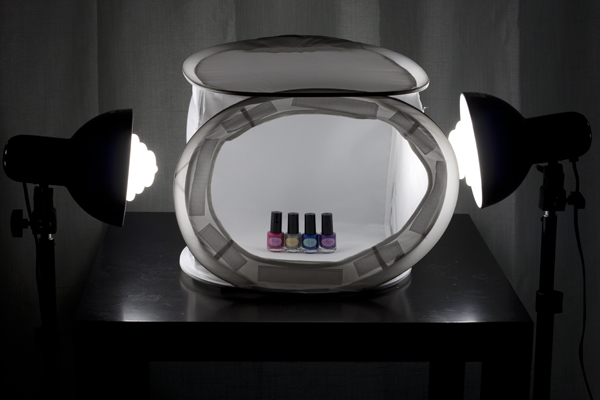
In this corner, we have the Square Perfect SP500 Platinum Photo Studio In A Box. This kit contains: two pop-up light tents (one 30 inch cube and one 12 inch cube – 12 inch shown below); two lights with adjustable stands; two 30W, 5400K daylight fluorescent bulbs; a tripod; a carrying case; and two sets of four colored fabric backdrops (white, black, red, and blue) sized for each light tent.

light tent kit, Square Perfect, photography, setup

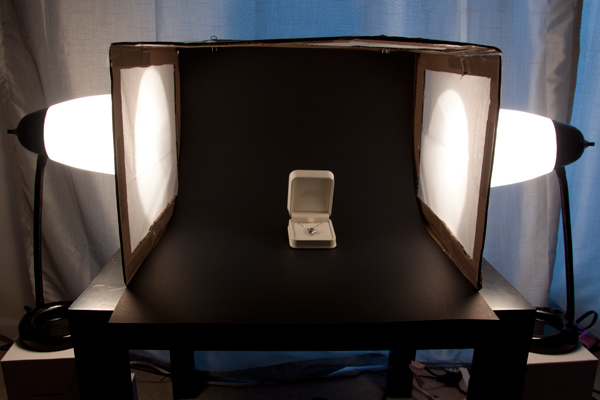
And in this corner, we have the DIY Light Tent, built using these specifications: Foldable DIY Photography Light Tent. This light tent will be lit by means of two adjustable desk lamps and 60W, 2900K halogen bulbs. The backdrops are made from standard poster board and cut to size. You can purchase daylight-rated light bulbs for your DIY kit as well, but you may need to order them online from a photography or home improvement site.

light tent, DIY, how to, photography

To make this an even test, we will be comparing the 12 inch kit cube against the 12 x 16 x 18 DIY tent. The first set of comparisons will feature each set as described above (the lights that come with each kit), while the second set will put the two up against each other using the same lighting set up for both kits.

Light tent comparison: using their own lights

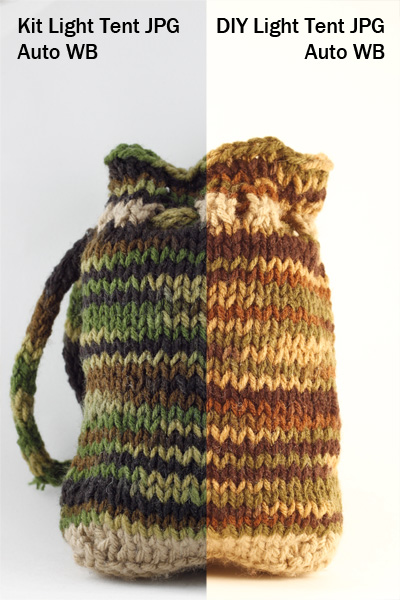
light tent, product photography, knit bag, photography, how to, light tent

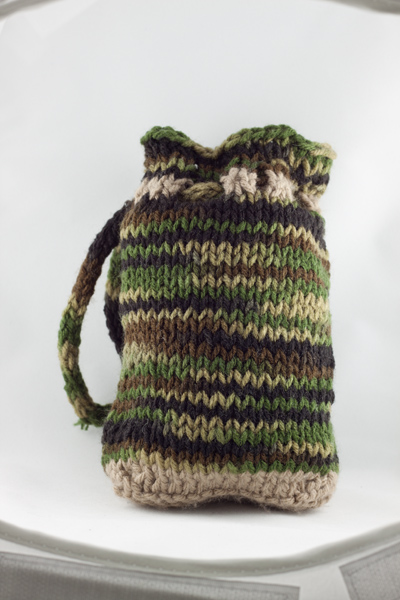
For this first photo-face-off, each light tent will be evaluated using its own lights (daylight fluorescents for the light tent kit and halogen bulbs for the DIY light tent). A major consideration when shooting with a light tent is controlling or choosing the correct white balance to match the lights being used. You want your white backdrop to look white and not have any color tint from the lights used. Read more about that issue in: How to Use a Light Tent for Product-Style Photography.

These shots show SOOC (Straight out of Camera) JPG files for the kit and DIY light tents using auto white balance.The kit’s light gives a cooler (more neutral) look to the background, and the colors of the knit bag are much truer to life, while the DIY lights impart a yellowish hue to the bag and the background. Setting your camera on “Tungsten” white balance for the DIY table lamps may give you a more neutral color, or you can also do a custom white balance using a gray card or even the white backdrop as a test shot. Consult your camera manual for how to perform a custom white balance with your camera.

compare-bag-autoWB-darker

This image is a little dark on purpose so you can see the color tint of the background more easily

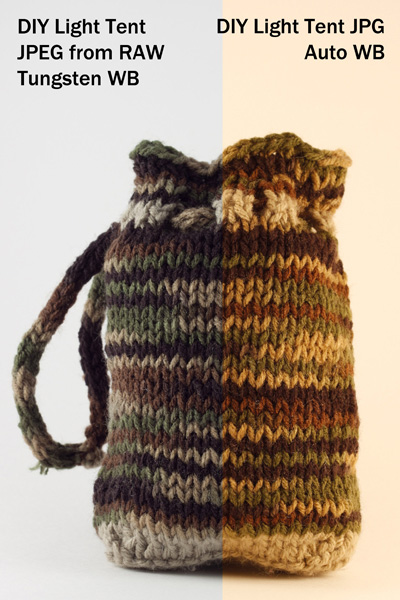
If you want perfectly clean whites and neutral blacks, then I would recommend shooting in RAW, which will give you greater flexibility regarding the white balance in post-processing. These images (left) show a comparison of the same image of the bag with a Tungsten white balance setting as compared to the Auto. The Tungsten white balance was selected in post-processing from the RAW image file, or it can also be selected as a white balance preset on the camera when shooting, especially if using JPG format.

Light intensity

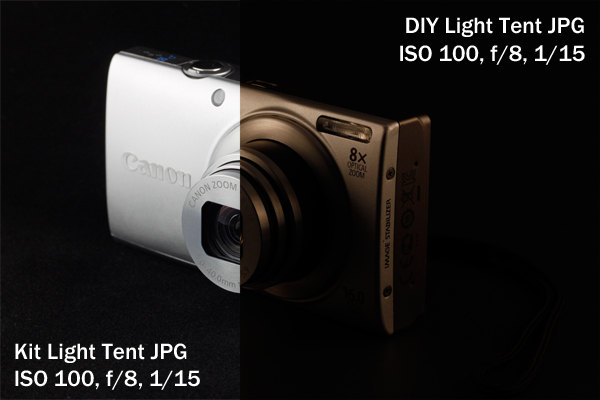
As you can see by the image below the DIY lights are considerable less intense (not as bright), which will mean you will either need to use a much longer exposure (shutter speed) to get a correct exposure, or increase your ISO. If working on a tripod (recommended for this type of set up) exposure time shouldn’t be an issue though so just stay at ISO 100 and adjust accordingly.

light tent, product photography, camera, Canon, point and shoot, Canon A4000IS

Light tent comparison: using the same lights

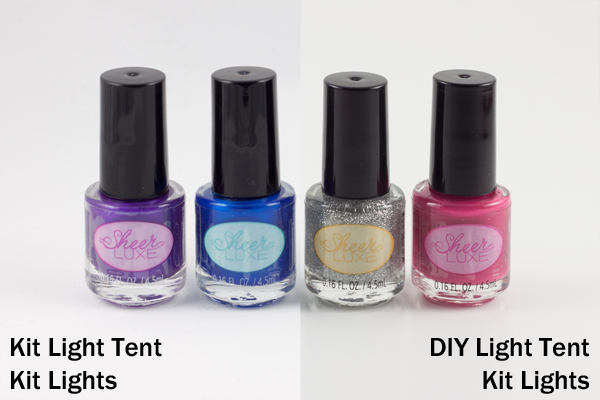
A final test was done to see whether this difference in light was due to the different light bulbs being used or to a difference in the light tents themselves.

light tent, product photography, nail polish

Left image shot at 1/25th – right image at 1/13th

These two shots were taken using the daylight lights from the light tent kit with both the kit tent and the DIY tent (again, in aperture priority, ISO 100, f/8). The kit light tent shot was taken at 1/25th of a second, and the DIY light tent shot was taken at 1/13th of a second, which is a full full stop difference. This means that even with the same lights, the DIY light tent blocked more light than the kit light tent and required longer shutter speeds to shoot the same exposure. The background also came out a little more gray than the kit light tent.

Light tent comparisons: practicalities

There are many other considerations to keep in mind when deciding which kind of light tent would be best for you. Think about how much room you have to devote to gear use and storage, as well as how much the benefits of a pricier kit outweigh the cost investment.

Use of ease

light tent, product photography, knit bag, how to

Notice edges of tent showing in places

The lighting stands that come with the light tent kit have greater range and reach than a typical desk lamp, but they cannot get down as low. This makes it difficult to use the kit lights for shooting with the 12-inch cube sitting on a table top, as the lights are too tall to sit beside it on the table and too short to reach up from the floor. A coffee table seems to be the ideal height. For the desk lamps, they work well when sitting on a table next to the light tent, but they will need to be placed on a stack of boxes or books if shooting from something like a coffee table (as shown earlier).

The 12-inch cube also has a lip around the edge, making the functional shooting space a bit smaller, as you want to avoid the edge appearing in your frame. This is far less of a problem with the 30-inch cube. One workaround is putting a book underneath the backdrop to raise the bottom up. The benefit here of the DIY box is that you can make it the size you want for the subject you have, and there is no lip to shoot around, so you can shoot straight-on at your subject.

Backdrops

Backdrops require careful handling and attention, and the poster board DIY versions are much easier to replace than the fabric ones from the kit. If you are going to be shooting something potentially messy or greasy, consider using a poster board backdrop regardless of which light tent you use.

light tent, how to, photography, fabric, backdrops

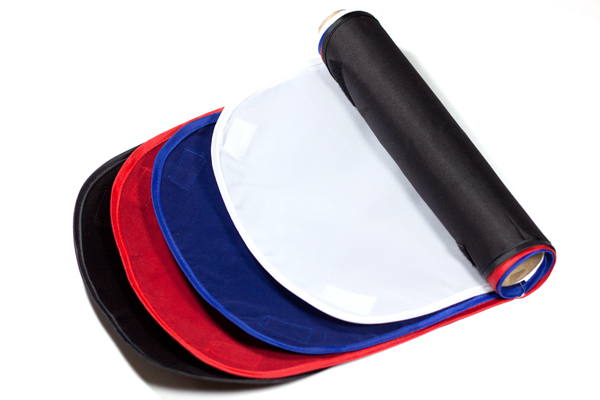
Care for your fabric backdrops by ironing out the wrinkles before hanging. If you roll them up on a cardboard tube when you are finished shooting, you should be able to reuse them again without having to iron every time. Keep a lint roller or clear tape on hand to deal with any dust or lint, and save yourself the time of editing it all out in post-processing.

Portability

The light tent kit has the edge in portability, as it comes with its own carrying case. The case is not particularly sturdy or padded, however, so you would not want to travel with it other than carefully placing it in your car (without stacking anything on top of it).

Storage

The DIY light tent folds down flat for easy storage, and you can simply put your two desks lamps back where you borrowed them from, until the next time you are shooting. The light tent kit takes up significantly more space, and the process of folding the light tents back down into themselves is a little complicated and requires some practice, though there are plenty of “how to” videos online. There is also the risk of deformation if you leave the tents stored too long in their folded down state.

Cost

The DIY light tent is the clear winner in the cost department, particularly if you already own a desk lamp or two, which are the priciest elements. The cardboard box and tissue paper should not set you back more than about five dollars. The light tent kit is currently listed at $ 143, a very discounted price on Amazon, which makes it reasonable to consider as an investment.

Final verdict: which light tent to choose?

There are a lot of different variables to consider when making the final choice about whether a DIY light tent will serve your needs or whether you should invest in a light tent kit. If you are looking at exploring what a light tent can do and whether it would be useful, then definitely build your own to experiment with. Keep the white balance in mind and shoot in RAW. But if you are shooting JPG, remember to adjust the white balance setting when shooting by using a preset or doing a custom white balance.

If you know that you will be consistently shooting a lot of this style of shots, perhaps for selling jewelry or crafts online or for displaying directions for your own DIY projects on a blog, then you should consider investing in a light tent kit. The time savings of having bulbs that match your white balance is considerable if you are doing a lot of light tent photography. You will also have significant flexibility with a kit that offers different sizes of light tents and a better range of motion and height for the lights and light stands.

Do you shoot with a light tent? Do you prefer a light tent kit or a DIY version? Share your thoughts in the comments below.

The post Light Tent Comparison – DIY Versus Kit Tents by Katie McEnaney appeared first on Digital Photography School.


Digital Photography School

 
Comments Off on Light Tent Comparison – DIY Versus Kit Tents

Posted in Photography


Light Tent Comparison – DIY Versus Kit Tents

23 Mar

A light tent is an invaluable photography tool for shooting smaller objects and items and for achieving even, near-shadowless lighting. In our earlier post, we looked at How to Use a Light Tent for Product-Style Photography, which covered the basics for using and shooting with a light tent. In this post, we will take a look at a head-to-head comparison between buying a light tent kit versus making your own DIY version.

The light tent contenders

In this corner, we have the Square Perfect SP500 Platinum Photo Studio In A Box. This kit contains: two pop-up light tents (one 30 inch cube and one 12 inch cube – 12 inch shown below); two lights with adjustable stands; two 30W, 5400K daylight fluorescent bulbs; a tripod; a carrying case; and two sets of four colored fabric backdrops (white, black, red, and blue) sized for each light tent.

light tent kit, Square Perfect, photography, setup

And in this corner, we have the DIY Light Tent, built using these specifications: Foldable DIY Photography Light Tent. This light tent will be lit by means of two adjustable desk lamps and 60W, 2900K halogen bulbs. The backdrops are made from standard poster board and cut to size. You can purchase daylight-rated light bulbs for your DIY kit as well, but you may need to order them online from a photography or home improvement site.

light tent, DIY, how to, photography

To make this an even test, we will be comparing the 12 inch kit cube against the 12 x 16 x 18 DIY tent. The first set of comparisons will feature each set as described above (the lights that come with each kit), while the second set will put the two up against each other using the same lighting set up for both kits.

Light tent comparison: using their own lights

light tent, product photography, knit bag, photography, how to, light tent

For this first photo-face-off, each light tent will be evaluated using its own lights (daylight fluorescents for the light tent kit and halogen bulbs for the DIY light tent). A major consideration when shooting with a light tent is controlling or choosing the correct white balance to match the lights being used. You want your white backdrop to look white and not have any color tint from the lights used. Read more about that issue in: How to Use a Light Tent for Product-Style Photography.

These shots show SOOC (Straight out of Camera) JPG files for the kit and DIY light tents using auto white balance.The kit’s light gives a cooler (more neutral) look to the background, and the colors of the knit bag are much truer to life, while the DIY lights impart a yellowish hue to the bag and the background. Setting your camera on “Tungsten” white balance for the DIY table lamps may give you a more neutral color, or you can also do a custom white balance using a gray card or even the white backdrop as a test shot. Consult your camera manual for how to perform a custom white balance with your camera.

compare-bag-autoWB-darker

This image is a little dark on purpose so you can see the color tint of the background more easily

If you want perfectly clean whites and neutral blacks, then I would recommend shooting in RAW, which will give you greater flexibility regarding the white balance in post-processing. These images (left) show a comparison of the same image of the bag with a Tungsten white balance setting as compared to the Auto. The Tungsten white balance was selected in post-processing from the RAW image file, or it can also be selected as a white balance preset on the camera when shooting, especially if using JPG format.

Light intensity

As you can see by the image below the DIY lights are considerable less intense (not as bright), which will mean you will either need to use a much longer exposure (shutter speed) to get a correct exposure, or increase your ISO. If working on a tripod (recommended for this type of set up) exposure time shouldn’t be an issue though so just stay at ISO 100 and adjust accordingly.

light tent, product photography, camera, Canon, point and shoot, Canon A4000IS

Light tent comparison: using the same lights

A final test was done to see whether this difference in light was due to the different light bulbs being used or to a difference in the light tents themselves.

light tent, product photography, nail polish

Left image shot at 1/25th – right image at 1/13th

These two shots were taken using the daylight lights from the light tent kit with both the kit tent and the DIY tent (again, in aperture priority, ISO 100, f/8). The kit light tent shot was taken at 1/25th of a second, and the DIY light tent shot was taken at 1/13th of a second, which is a full full stop difference. This means that even with the same lights, the DIY light tent blocked more light than the kit light tent and required longer shutter speeds to shoot the same exposure. The background also came out a little more gray than the kit light tent.

Light tent comparisons: practicalities

There are many other considerations to keep in mind when deciding which kind of light tent would be best for you. Think about how much room you have to devote to gear use and storage, as well as how much the benefits of a pricier kit outweigh the cost investment.

Use of ease

light tent, product photography, knit bag, how to

Notice edges of tent showing in places

The lighting stands that come with the light tent kit have greater range and reach than a typical desk lamp, but they cannot get down as low. This makes it difficult to use the kit lights for shooting with the 12-inch cube sitting on a table top, as the lights are too tall to sit beside it on the table and too short to reach up from the floor. A coffee table seems to be the ideal height. For the desk lamps, they work well when sitting on a table next to the light tent, but they will need to be placed on a stack of boxes or books if shooting from something like a coffee table (as shown earlier).

The 12-inch cube also has a lip around the edge, making the functional shooting space a bit smaller, as you want to avoid the edge appearing in your frame. This is far less of a problem with the 30-inch cube. One workaround is putting a book underneath the backdrop to raise the bottom up. The benefit here of the DIY box is that you can make it the size you want for the subject you have, and there is no lip to shoot around, so you can shoot straight-on at your subject.

Backdrops

Backdrops require careful handling and attention, and the poster board DIY versions are much easier to replace than the fabric ones from the kit. If you are going to be shooting something potentially messy or greasy, consider using a poster board backdrop regardless of which light tent you use.

light tent, how to, photography, fabric, backdrops

Care for your fabric backdrops by ironing out the wrinkles before hanging. If you roll them up on a cardboard tube when you are finished shooting, you should be able to reuse them again without having to iron every time. Keep a lint roller or clear tape on hand to deal with any dust or lint, and save yourself the time of editing it all out in post-processing.

Portability

The light tent kit has the edge in portability, as it comes with its own carrying case. The case is not particularly sturdy or padded, however, so you would not want to travel with it other than carefully placing it in your car (without stacking anything on top of it).

Storage

The DIY light tent folds down flat for easy storage, and you can simply put your two desks lamps back where you borrowed them from, until the next time you are shooting. The light tent kit takes up significantly more space, and the process of folding the light tents back down into themselves is a little complicated and requires some practice, though there are plenty of “how to” videos online. There is also the risk of deformation if you leave the tents stored too long in their folded down state.

Cost

The DIY light tent is the clear winner in the cost department, particularly if you already own a desk lamp or two, which are the priciest elements. The cardboard box and tissue paper should not set you back more than about five dollars. The light tent kit is currently listed at $ 143, a very discounted price on Amazon, which makes it reasonable to consider as an investment.

Final verdict: which light tent to choose?

There are a lot of different variables to consider when making the final choice about whether a DIY light tent will serve your needs or whether you should invest in a light tent kit. If you are looking at exploring what a light tent can do and whether it would be useful, then definitely build your own to experiment with. Keep the white balance in mind and shoot in RAW. But if you are shooting JPG, remember to adjust the white balance setting when shooting by using a preset or doing a custom white balance.

If you know that you will be consistently shooting a lot of this style of shots, perhaps for selling jewelry or crafts online or for displaying directions for your own DIY projects on a blog, then you should consider investing in a light tent kit. The time savings of having bulbs that match your white balance is considerable if you are doing a lot of light tent photography. You will also have significant flexibility with a kit that offers different sizes of light tents and a better range of motion and height for the lights and light stands.

Do you shoot with a light tent? Do you prefer a light tent kit or a DIY version? Share your thoughts in the comments below.

The post Light Tent Comparison – DIY Versus Kit Tents by Katie McEnaney appeared first on Digital Photography School.


Digital Photography School

 
Comments Off on Light Tent Comparison – DIY Versus Kit Tents

Posted in Photography


Smartphones versus DSLRs versus film: A look at how far we’ve come

04 Jan

strangecameras.jpg

Just how far have we come since film? One photographer sets out to try and find the answers by comparing the results of several DSLRS, two leading smartphones and some Fuji film in both bright sunlight and low light conditions. See the results and judge for yourself at connect.dpreview.com.

News: Digital Photography Review (dpreview.com)

 
Comments Off on Smartphones versus DSLRs versus film: A look at how far we’ve come

Posted in Uncategorized


Smartphone versus compact camera: Which is best when it comes to zoom?

13 Nov

1020vsS120_2.jpg

Nokia says it ‘reinvented zoom’ with its Lumia 1020 smartphone, but how does it stack up to the zooming prowess of a compact camera? We put Nokia’s flagship phone up against Canon’s PowerShot S120 in our zoom showdown today on connect.dpreview.com. Click through for more, you may be surprised by the results.

News: Digital Photography Review (dpreview.com)

 
Comments Off on Smartphone versus compact camera: Which is best when it comes to zoom?

Posted in Uncategorized


Physical Filters Versus Digital Filters! Which One Wins the Battle?

09 Sep

The age old battle between physical and digital filter stirs once more. It’s difficult to pick a   winner because both are integral to the entire photographic process, and, individually, each has its advantages for different effects that you’re trying to achieve. Some view the physical filter as an unnecessary piece of baggage, needlessly weighing down your kit, as you Continue Reading

The post Physical Filters Versus Digital Filters! Which One Wins the Battle? appeared first on Photodoto.


Photodoto

 
Comments Off on Physical Filters Versus Digital Filters! Which One Wins the Battle?

Posted in Photography


Aesthetics versus truth: DW Akademie examines ethics of manipulating documentary images

10 May

beforeafter2.jpg

How do you balance the demands of aesthetics and documentary truth? Image manipulation of documentary photographs is nothing new, but it is certainly much easier now than ever before. DW Akadamie has published a feature examining the challenges faced by photojournalists and picture editors in creating attractive and atmospheric images, without compromising their authenticity. Click through for extracts from the article, images and a link to the full feature at www.dw.de.com.

News: Digital Photography Review (dpreview.com)

 
Comments Off on Aesthetics versus truth: DW Akademie examines ethics of manipulating documentary images

Posted in Uncategorized


Canon 7D vs Hacked Panasonic Gh1 – 1080P 24fps versus comparison – Bundled lenses

14 Feb

First test of the Panasonic Gh1 vs the Canon 7D. Both cameras use the bundled lenses for the comparison. This is also going to be the first in a new set of videos showing how to setup as use the GH1.