RSS
 

Posts Tagged ‘Using’

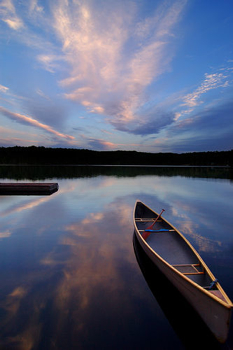
Using Water to Lighten Landscape Photos

17 May

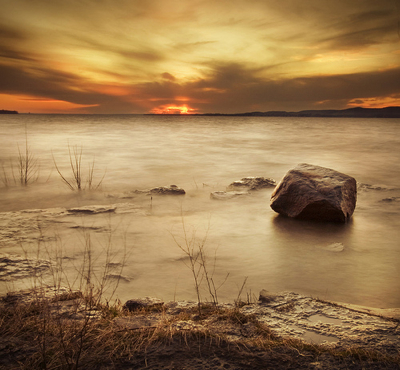
Water-LandscapePhoto by peter bowers

Most Pro landscape photographers recommend shooting either at (or around) dawn or dusk in order to capture their scene in the ‘golden hours’ when the light is at it’s best (in fact some will rarely shoot at any other time of day).

However, one of the problems associated with shooting at this time of day is that while the sky will often have enough light in it the foreground of your images can sometimes end up being a little underexposed and featureless.

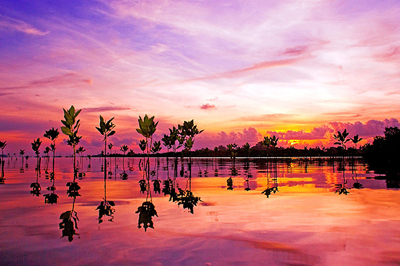
One way to get around underexposed foregrounds is to include water in that area of your shot and to get it reflecting light from the sky.

This is a particularly effective technique at sunrise or sunset when there’s color and interesting cloud formations in the sky (and reflections in the water).

It may take a little experimentation with different positions to shoot from in order to get the right part of the sky in the reflections but with a little trial and error the effect can be quite stunning and a much brighter and more balanced image.

Even if you don’t get perfect reflections the light coming from the water can help balance the shot and help you overcome underexposed foregrounds.

Landscape-WaterPhoto by IrenaS

LandscapePhoto by Bram & Vera

Post originally from: Digital Photography Tips.

Check out our more Photography Tips at Photography Tips for Beginners, Portrait Photography Tips and Wedding Photography Tips.

Using Water to Lighten Landscape Photos


Digital Photography School

 
Comments Off on Using Water to Lighten Landscape Photos

Posted in Photography


Apple patent hints at ‘social camera flash’ using multiple iOS devices

16 May

applelogo.jpg

A patent filed by Apple in 2011 and discovered this week by aoppleinsider.com seems to hint at a ‘social camera flash’ system, allowing multiple iOS devices to be connected and used as secondary strobes for impromptu flash setups. The patent is filed as an ‘illumination system’ and describes ‘initiating a master-slave relationship between the image capture device and at least one secondary device’. Click through for more details.

News: Digital Photography Review (dpreview.com)

 
Comments Off on Apple patent hints at ‘social camera flash’ using multiple iOS devices

Posted in Uncategorized


Creepy Portraits Made Using DNA from Gum & Smokes

09 May

[ By Steph in Conceptual & Futuristic & Technology. ]

DNA Portraits 1

The chewed gum, fingernail clippings and cigarette butts you leave behind in public places could say a lot more about you than you’d like to imagine. Artist Heather Dewey-Hagborg makes this abundantly clear with her series, ‘Stranger Visions’, which reproduces people’s faces using DNA extracted from such forensic evidence collected in New York City and Brooklyn.

DNA Portraits 2

Dewey-Hagborg is a PhD student studying electronic arts at Rensselaer Polytechnic Institute in Troy, New York. After extracting the DNA from her samples, she focuses on specific genomic regions, sequences them and then enters the data into a computer program, which produces a model of the face of the person who tossed that item onto the ground.

DNA Portraits 3

From those models, Dewey-Hagborg produces sculptures of the faces using a 3D printer. These life-sized portraits, which look similar to death masks, hang on gallery walls, often beside wooden boxes holding the original samples and showing photographs of where they were found.

DNA Portraits 4

The artist learned about DNA extraction from a course in molecular biology at Genspace, a do-it-yourself biology lab in Brooklyn where she does some of her work. She uses standard DNA extraction kits ordered online to analyze the DNA. The results are shockingly detailed; a mask of her own face made using the same technique shows just how accurate the results can be. However, there’s no way to tell age from DNA, so the computer produces a 25-year-old version of the person. Learn more about the process at Smithsonian.

Share on Facebook


[ By Steph in Conceptual & Futuristic & Technology. ]

[ WebUrbanist | Archives | Galleries | Privacy | TOS ]


WebUrbanist

 
Comments Off on Creepy Portraits Made Using DNA from Gum & Smokes

Posted in Creativity


How to Easily Create Selective Color Using Lightroom

11 Apr

This is a guest post by: John Davenport

Selective color photography has been around for ages. It’s something that has been used in the movies – Schindler’s List and Sin City come to mind – and more recently Chase Freedom and Budweiser have used it in their ad campaigns to highlight their products. So even if you dislike selective color, or if haven’t given it much thought, you have to admit it’s a great technique to use when you’re trying to draw attention to a certain subject and is something useful to have in your tool belt.

Today I’m going to show you how to create simple selective color images using only Lightroom as your processing software.

What Makes a Good Selective Color Image?

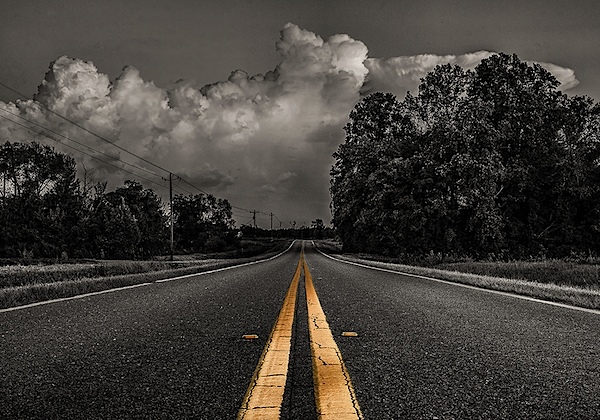
Double Yellow.jpg

First we need to make sure we know what to look for when we’re out photographing our subjects because selective color photography is not something suited for every situation. Whether you’re a landscape photographer, a portrait photographer, or someone shooting on the city streets it’s important to keep the idea in the back of your head that selective color shouldn’t be forced.

Typically you’ll want to pull a vibrant color out of a rather drab scene so fall foliage can work really well, blue eyes in portraits are a very common theme, bright dresses and clothing work well too.

One final point is that you should make sure that whatever you’re keeping in color adds value to the photograph and isn’t something that will detract from the overall scene.

How to Create Selective Color in Lightroom

One of the limitations of Lightroom is that it does not have the ability to do true layers like Photoshop does. We can get around this for selective color processing by working with the HSL tab and working with the Adjustment Brush tool. In short, what we’re going to be doing today is turning the saturation down on all the colors and areas of the photograph that we don’t want color in. The following is a step by step guide on how I created the image at the top of this post.

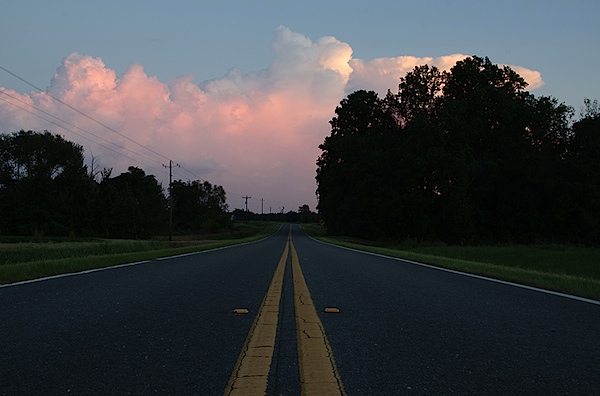
Here’s the original image for your reference.

original.jpg

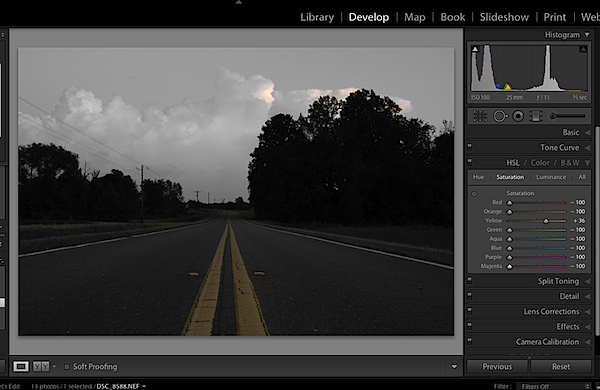
The first step would be to go into the HSL tab in Lightroom and remove the saturation from all the colors you don’t want in your photograph. In my case I wanted to keep yellow so all the other sliders have been pulled to the far left.

Screen Shot 1.png

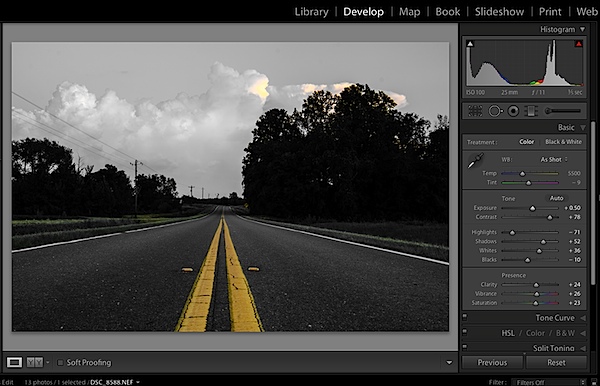
Next step would be to tune the image to your liking – this is a rough tuning just something to get you close to where the final image will be. Simply go into the Basic editing tab of Lightroom and get the overall image set up how you like. You might notice as you do this, some colors start creeping back into the photograph, that’s okay we’ll fix this in the next step.

Screen Shot 2.png

Cleaning up any colors that have reappeared after your tuning process can be done easily with the Adjustment Brush. Simply create a new adjustment brush layer and turn the saturation to the far left. Paint anywhere you don’t want color. If you accidentally paint over something you want to keep switch to the erase mode and go back over that area until you get it right.

Screen Shot 3.png

After you get to this point it’s up to you to finalize the photograph for your own unique look with final touches and cropping.

I find that this workflow does a good job at creating selective color images without the confusion and time consuming nature that dealing with layers in Photoshop has. Of course it should be noted that with a program like Photoshop you’ll have a lot more control over your selective color processing, but for many of us this Lightroom trick is a great alternative.

Let’s Hear From You

Now that we’ve learned how to perform selective color edits I’d love to hear what your opinions are of this kind of processing do you use it? Do you hate it? Have you ever done this kind of thing in Lightroom before?

John Davenport is an avid amateur photographer who shares daily photos on Facebook. For more tips on Lightroom editing check out John’s weekly series which focuses on how to edit photos in Lightroom.

Post originally from: Digital Photography Tips.

Check out our more Photography Tips at Photography Tips for Beginners, Portrait Photography Tips and Wedding Photography Tips.

How to Easily Create Selective Color Using Lightroom


Digital Photography School

 
Comments Off on How to Easily Create Selective Color Using Lightroom

Posted in Photography


Free Online Tool creates ‘Hyperlapse’ videos using Google Street View

11 Apr

google.png

Online user experience company Teehan + Lax has created a free tool for creating ‘hyperlapse’ videos using Google Street View. The term ‘hyperlapse’ describes timelapse videos which incorporate camera movement – something that is typically extremely difficult and time-consuming to perfect. The team at Teehan + Lax began experimenting with Google Street View as a guide for choosing locations, but realised that it could be used as source material. Click through for more details. 

News: Digital Photography Review (dpreview.com)

 
Comments Off on Free Online Tool creates ‘Hyperlapse’ videos using Google Street View

Posted in Uncategorized


Using the Sun As A Compositional Element

29 Mar
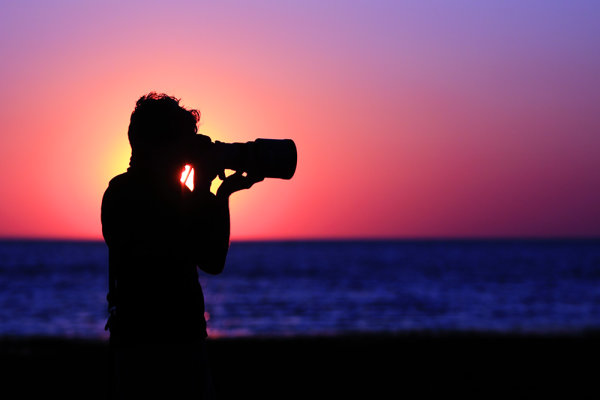
As the sun set on Massachusetts Bay, I turned and saw my buddy Joe lining up a shot. I walked around him until the sun was directly behind his head, and dialed my exposure way back to -2 stops to create the sihouette. Canon EOS 50D, EF 70-200 f/2.8L IS USM. ISO 100, 1/6400, f/2.8. Shot in Av mode at -2 exposure compensation.

As the sun set on Massachusetts Bay, I turned and saw my buddy Joe lining up a shot. I walked around him until the sun was directly behind his head, and dialed my exposure way back to -2 stops to create the sihouette. Canon EOS 50D, EF 70-200 f/2.8L IS USM. ISO 100, 1/6400, f/2.8. Shot in Av mode at -2 exposure compensation.

For the most part, as photographers, we avoid shooting into the sun for fear that we’ll get some unsightly flaring.  The sun DOES present some exposure challenges, and of course, flare is a concern, but by carefully composing your shot, and properly exposing, including the sun in your images can create stunning results.

The first secret to using the sun is about positioning.  When you can, position the sun behind something else in your image. In the image of the photographer above, this gives the effect of a halo, helping create the silhouetted image.  By using exposure compensation to darken the exposure, I kept the sun from blowing out, and darkened the main subject into the silhouette. I then adjusted the white balance and color saturation to get the final result. Because the image was shot at f/2.8, the sun appeared as a giant ball in the image. In another example, the image of the daisies, a wide angle lens was used to make the sun smaller in the image, and was then positioned just behind the stem of the daisy. Because the image was shot at a smaller aperture, f/22, the sun appears as a star rather than a ball.  One of the cool things that happens when shooting into the sun with a wide angle lens at a small aperture is that the light falls off in the areas away from the sun, creating dramatic skies that go from near white by the sun, to deep blue in the corners.
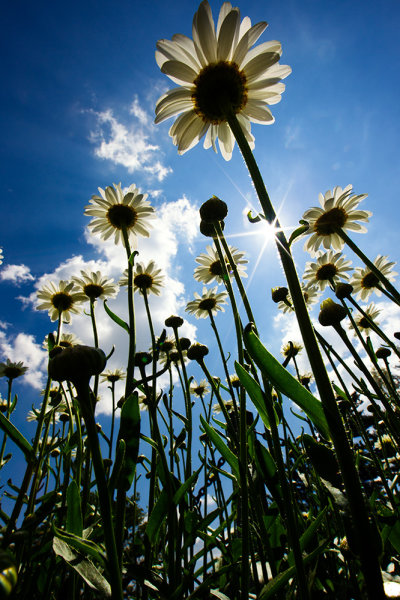
This image of daisies was shot with the EOS-1D Mark IV and EF 14mm f/2.8L II. Exposure was 1/100, f/22, ISO 100. Aperture Priority.

This image of daisies was shot with the EOS-1D Mark IV and EF 14mm f/2.8L II. Exposure was 1/100, f/22, ISO 100. Aperture Priority.

Shooting into the sun does pose some exposure challenges.  Shooting into such a bright light can cause underexposure.  That’s not necessarily a problem if you’re going for a silhouette, but if you want some detail in the subjects that are backlit by the sun, you’ll need to dial in some exposure compensation to counter the brightness of the sun.  In the image of the Elm In Cook’s Meadow, the image at what the camera said was the proper exposure was a bit dark, and devoid of shadow detail.  Thankfully, for this image, I shot several images at varying exposures (also called bracketing). The image you see here was shot at +1.6 exposure compensation, in aperture priority mode.  This allowed for a level of detail in the shadow areas, while not allowing the highlights to blow out.
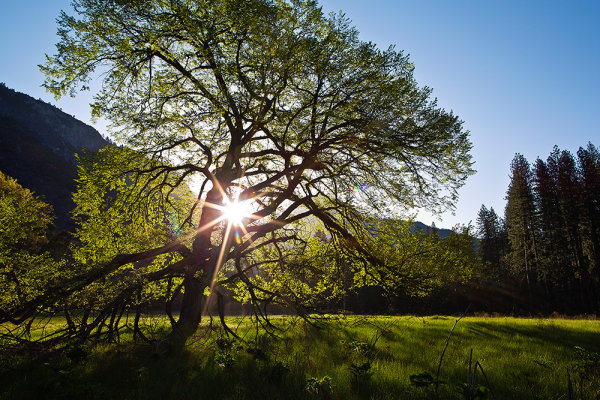
For this shot in Yosemite National Park, I shot in Aperture Priority, with exposure comensation set to +1.6.  EOS 5D Mark III, EF 24mm f/1.4L II. ISO 100, 1/30, f/16.

For this shot in Yosemite National Park, I shot in Aperture Priority, with exposure comensation set to +1.6. EOS 5D Mark III, EF 24mm f/1.4L II. ISO 100, 1/30, f/16.

By bracketing your exposures, you can see how changing your exposure will affect the look of the image.  Normally, I set my aperture and bracket my exposures by changing shutter speed, as I will generally know what I want my depth of field to be.  There are times to try it the other way, setting your shutter speed and adjusting your aperture. This will affect your depth of field, however, so be aware of what’s in focus and what’s not.  Your final option is to adjust the ISO.  The risks here are that when you raise the ISO to achieve the overexposure, you run the risk of introducing unwanted noise into your image, depending on how high you set the ISO.  This technique can give your several options when working with the contrast ranges you deal with when shooting into the sun.

Don’t be afraid to include the sun in your shots, using it as a strong compositional element. Too often we forget to use the sun in the image, simply using its light.   Including the sun in the shot creates new possibilities that can make for some dramatic images.
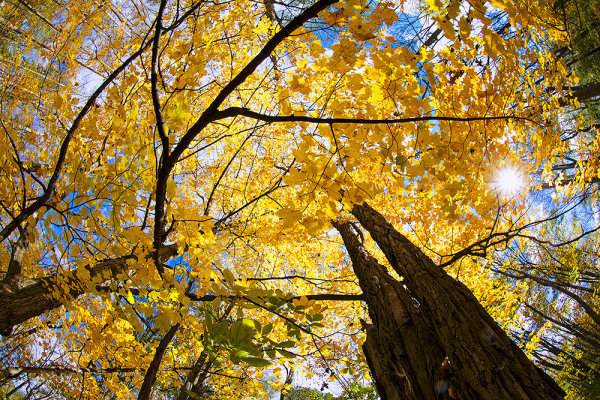
This shot of the canopy of autumn leaves in upstate NY was taken with a fisheye lens. The sun shining through the gap in the leaves added just the touch of drama I needed. EOS-1D X, EF 8-15mm f/4L.  1/60, f/16, ISO 100.

This shot of the canopy of autumn leaves in upstate NY was taken with a fisheye lens. The sun shining through the gap in the leaves added just the touch of drama I needed. EOS-1D X, EF 8-15mm f/4L. 1/60, f/16, ISO 100.

Post originally from: Digital Photography Tips.

Check out our more Photography Tips at Photography Tips for Beginners, Portrait Photography Tips and Wedding Photography Tips.

Using the Sun As A Compositional Element


Digital Photography School
 
Comments Off on Using the Sun As A Compositional Element

Posted in Photography


Using a perspective control lens for wedding photography

16 Mar

Fstoppers-Tilt-Shift-Lens.jpg

Arizona-based wedding photographer, Trevor Dayley, is taking a unique approach to his portraiture by using a perspective control lens, the Canon TS-E 90mm F2.8. In an article he wrote for FStoppers, he explains why it has become his favorite lens and discusses the challenges and rewards of adding a tilt-shift lens to his arsenal. (via FStoppers)

News: Digital Photography Review (dpreview.com)

 
Comments Off on Using a perspective control lens for wedding photography

Posted in Uncategorized


6 March, 2013 – Using the NEX-7 as an M Leica Surrogate

06 Mar

What’s a Leica M lens user to do while waiting for the new Leica M (240)? Put his lenses on a NEX-7, of course, and that’s what I’ve been doing for the past few months while living and shooting in Mexico this winter.

How has that worked out for me? Read Waiting For The New M and find out.


You may also wish to check our Sean Reid’s subscription web site Reid Reviews. He has just published today a review of the Sony RX-1, my favourite new camera of the past six months. He also has


The Luminous Landscape – What’s New

 
Comments Off on 6 March, 2013 – Using the NEX-7 as an M Leica Surrogate

Posted in News


Using Gobos To Create Dramatic Lighting

25 Feb

When lighting a subject, one of the things you want to try to do is create drama, or a context, using the light. This often means modifying your light source. One of the easiest ways to modify your flash to create a context, or drama, is to use a gobo.

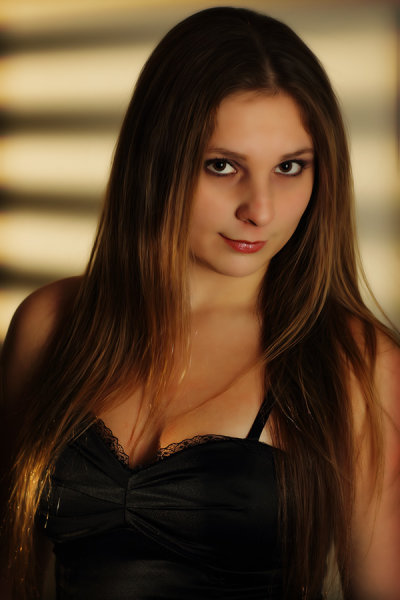
In this shot, the gobo was used on the background light, to create the illusion of light shining through window blinds. The off camera flash was a Canon 580 EX II, with the gobo positioned in front of it. The light on the model was a 580 EX II in a Westcott 18x42 strip box.

In this shot, the gobo was used on the background light, to create the illusion of light shining through window blinds. The off camera flash was a Canon 580 EX II, with the gobo positioned in front of it. The light on the model was a 580 EX II in a Westcott 18×42 strip box.

Gobos are templates that go in front of your light source (“Goes Between” your light source and the subject)  that have patterns cut out that control the shape of the light.  They can help add mood, create the idea of a setting or context, and add interest.

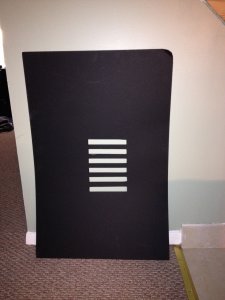
This is my homemade "windowblinds" gobo.  It's probably a bit larger than it needs to be, but this helps ensure that it blocks out any unwanted stray light. You want to use flat black oak tag or mat board, as the black minimizes any reflecting light.  Using a lighter colored material would reflect light that may not be wanted in the image.

This is my homemade “windowblinds” gobo. It’s probably a bit larger (about 20×30) than it needs to be, but this helps ensure that it blocks out any unwanted stray light. You want to use flat black oak tag or mat board, as the black minimizes any reflecting light. Using a lighter colored material would reflect light that may not be wanted in the image.

Gobos can be purchased, but often times, the available patterns may not fit your need.  In addition, they are relatively easy to make yourself and thus customize as needed.

Simply go to the nearest arts and crafts store, choose a piece of black oak tag, and a razor blade or exacto knife, and cut the desired pattern out.  The pattern doesn’t need to be too large, keep in mind how large the flash beam is going to be at the point that it hits the gobo. 

You may need to experiment a bit with the size and distance before getting the desired effect.

I will place the flash on a light stand, and then simply use a second light stand and use an A-clamp or two to hold the gobo in place.  This way I can experiment easily with how far the gobo should be from the flash, and how far from the subject or background.  A magic arm attached the light stand holding the flash will also work for holding the gobo.

For the accompanying photos, I wanted to create a night time mood, light projecting through the window blinds onto the wall from a street lamp.  So I simply took the piece of black oak tag and cut a series of rectangles in it. When projecting flash through it, it resembles light shining through window blinds.

There are myriad other patterns that could be used to create various moods and effects.  Play around and see what you come up with!

You can also use the gobo to modify light projected onto your main subject. In this instance, it creates an air of mystery about the subject.

You can also use the gobo to modify light projected onto your main subject. In this instance, it creates an air of mystery about the subject.

Post originally from: Digital Photography Tips.

Check out our more Photography Tips at Photography Tips for Beginners, Portrait Photography Tips and Wedding Photography Tips.

Using Gobos To Create Dramatic Lighting


Digital Photography School

 
Comments Off on Using Gobos To Create Dramatic Lighting

Posted in Photography


Controlling Ambient Light Using HSS (High-Speed-Sync) – a Flash Photography Tutorial

08 Feb

Controlling Ambient Light Using HSS (High-Speed-Sync) – a Flash Photography Tutorial A video tutorial by Randy Rock www.RandyRockVisual.com
Video Rating: 3 / 5