RSS
 

Posts Tagged ‘Using’

How To Paint With Light using Rainbow Flash Filters

15 Sep
Extra photos for bloggers: 1, 2, 3

Hey you! Yes, hue!

Color your world one photograph at a time by painting with light.

Our guide will show you how to amp up your photos with color in a flash, without any fancy equipment or software.

Follow the light, friends. A whole chroma of possibilities await.

Learn How To Light Paint With Rainbow Photo Filters

WHY IT’S COOL

You’ve always wanted to take these photos but didn’t have the know how – ’til now. Also, color rules! Beige drools.

INGREDIENTS

before

  • Colorful Flash Filters (like these, or any see-through colored plastic)
  • Camera or Phone Camera
  • Tripod
  • Flashlight
  • External Flash
  • A room that is nice and dark

GET SET

To give yourself enough time for these effects, set your camera’s shutter speed to around 5 seconds (5″) and adjust the aperture and ISO accordingly. You can either do this on your camera’s Manual (M) mode (you set the aperture), or Time Value (TV) mode (it’ll choose aperture for you).

To make sure your image is sharp, mount your camera on a tripod or put onto a flat surface. Using the self timer option is also a good idea, to avoid shaking your camera when you press the shutter button.

COLOR CAMERA ACTION

beforePress that button and get ready. When the shutter opens, you’ve got 5 seconds to work!

Fire the flash to the left of your subject with your first colored filter, then (QUICKLY!) switch filters and fire a second flash to the right of your subject. Experiment with even more flashes in different part of the scene for an even more psychedelic result.

If you don’t have an external flash, don’t despair. You can use a bright flashlight by turning it on and off quickly.

DRAW SOME ATTENTION

beforeTime to get your drawing on, Da Vinci.

Grab your flashlight (or your phone’s flashlight mode) and cover it with a color filter (we used 2 flashlights with different color filters simultaneously to get this effect).

While the shutter is open, do a dance and move your arms around like crazy. Or write a message, or draw a love heart. Either or.

GHOST FACES

beforeEver thought your photos need more of you? We’ve got your back. Or front.

Starting from one side of the scene, fire the filter covered flash (or flashlight) around your subject’s face, then ask them to move sideways. Repeat with different colors until you run out of time and/or space.

Ooooohhhhoohh.

TAKING IT FURTHER

  • Combine flash to light up your face and flashlight to draw at the same time
  • This app for your phone can be used in the same way as a flashlight + filter. Use it to draw or hold it still over the part of the scene you want to illuminate in color
  • Flash filters aren’t just reserved for your flash or flashlight. For a super quick and easy effect, just slip a filter right in front of your lens

© Erika for Photojojo, 2014. |
Permalink |
No comment |
Add to
del.icio.us

Post tags:


Photojojo

 
Comments Off on How To Paint With Light using Rainbow Flash Filters

Posted in Equipment


Mirage Muralist: Street Artist Bends Surfaces Using Illusion

12 Sep

[ By WebUrbanist in Art & Street Art & Graffiti. ]

street art subtractive wall

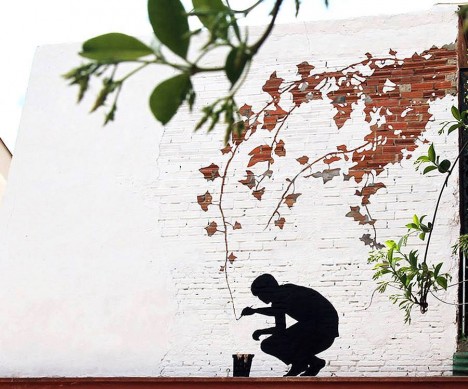
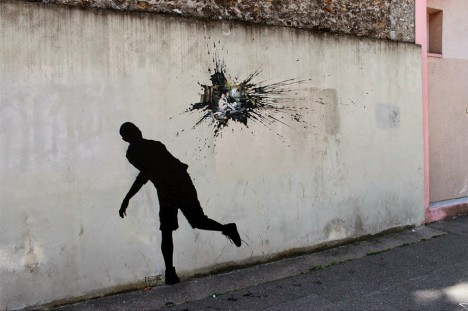
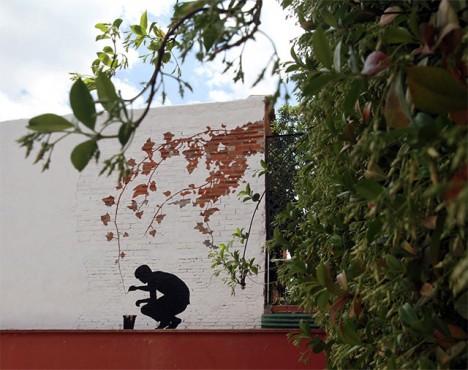
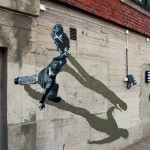
With works often requiring second looks or sanity checks, artist Pejac bends reality in his use of paint and other materials to create sublime art from walls, streets, sidewalks and gutters.

street art splatter paint

street art painting scene

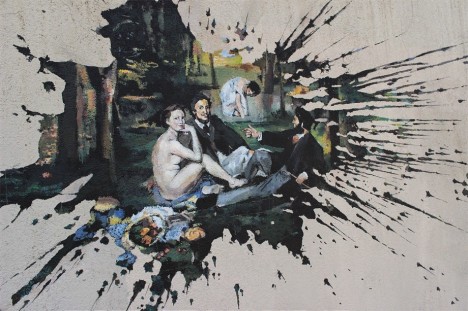
His newest works in Paris, shown above and below, play with our sense of surface and depth, revealing a hidden world beyond the wall in each case. If the close-up scene looks familiar, you may recognize it as The Luncheon on the Grass by Manet.

street door silhouette drawing

street art door illusion

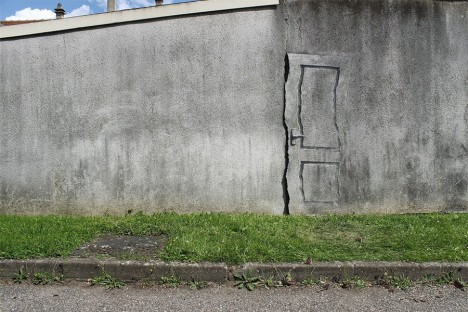
Likewise implying something secret is this silhouette of a door – at a glance, it is hard to tell what part is a real crack in the concrete and which pieces are simply painted on top.

street art world flow

In previous projects, he has also played with the arts of subtraction and illusion in other clever ways – letting the world, for instance, slowly melt, drip and trickle toward the drain.

street art brick removal

street art paint closeup

Some of these works are quite time-intensive and incredibly detail-sensitive, like this final piece in which the artist carefully chipped away at the white paint on a brick wall to selectively reveal the red surface below it.

Share on Facebook


[ By WebUrbanist in Art & Street Art & Graffiti. ]

[ WebUrbanist | Archives | Galleries | Privacy | TOS ]


WebUrbanist

 
Comments Off on Mirage Muralist: Street Artist Bends Surfaces Using Illusion

Posted in Creativity


How to Edit Newborn Photos Using Lightroom

04 Sep

Cole’s Newborn Photography Workshop is on sale now at Snapn Deals. Save 72% until September 16th, grab a seat now!

BW.jpgNewborn photography requires a tremendous amount of patience, skill, a willingness to be okay with accidents, and even stronger photo editing skills as these precious little newborns often have numerous skin imperfections that can cause you to spend a significant amount of time editing and retouching the photos.

Until recently, to truly excel at editing newborn photos you had to be quite proficient using Photoshop, but now with Lightroom 5′s newest tools you can get great results with far less time!

Here are my top 6 tips for quicker and more effective newborn photo editing in Lightroom:

1. Slightly Overexpose in Camera

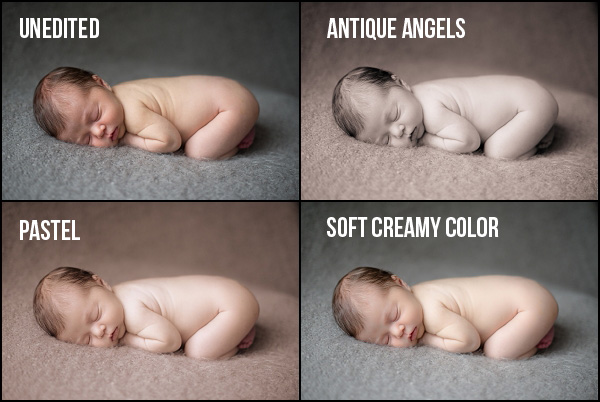
To get amazing final edited newborn photos you first need to focus on getting your exposures as close as you can in camera. Since newborns often have some redness to their skin, the best way to help minimize that is to slightly overexpose your photos while shooting. Doing so will help you achieve that soft, creamy and bright skin that we all love!

Slight Overexpose

2. Shoot RAW

I always shoot in the RAW file format. There are many advantages of shooting in RAW, but for newborns which require a lot of touching up and white balance changes, shooting in RAW will help keep the color tones of your images as natural as possible – even when making big adjustments.

3. The Magic “C” Sliders

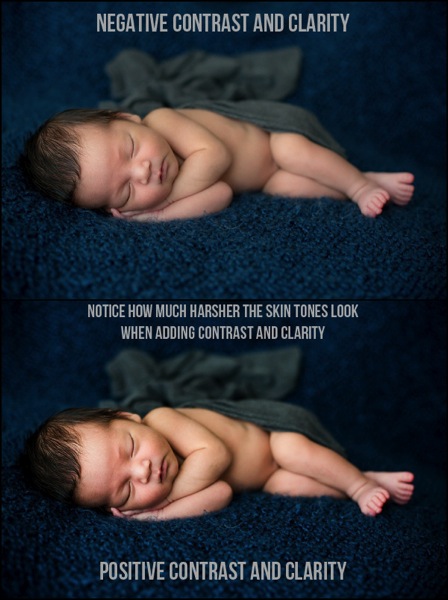
If you’re after soft and creamy skin tones, the two sliders in Lightroom that will help you the most are the contrast and clarity slider. By reducing contrast you will smooth out the tonality of the image (just watch the histogram when you change contrast) and it will help remove the dark shadow areas or even bright highlights. Remember, for most of us, the goal with newborns is soft, airy photos – rather than edgy high contrast imagery. Adjusting the clarity slider downward a bit will help give you the “creamy” factor. Just be very careful to not remove too much clarity! I recommend somewhere between -10 to -20.

Contrast and clarity sliders

4. HSL Sliders for Adjusting Skin Tones

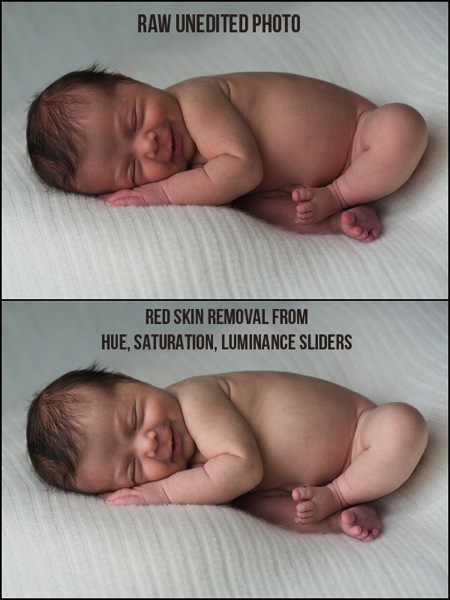
Adjusting the white balance will only get you so far, sometimes you need some fine tuning on the skin tones and that is where the HSL sliders can really help. While you can manually adjust each color slider, the real trick is to use the targeted adjustment tool on each element (Hue, Saturation, and Luminance) to fine tune your skin tone corrections. Simply click on the targeted adjustment tool, go over a part of the image with the skin tone color you want to fix, click (and hold) then adjust with your mouse up or down and you’ll see the sliders adjust.

HSL Sliders

Tip: if you are trying to remove redness, click in the photo where there the skin is red, and follow this sequence with each slider using the targeted adjustment tool:

Hue: move the mouse up and the red/orange sliders will move to the right
Saturation: lower the mouse and the sliders will shift to left lowering saturation
Luminance: raise the mouse to adjust the targeted color sliders to the right, raising the luminance (brightness) of those tones in the photo.

See below for video tutorial of this technique if you are a visual learner.

5. Choose Wraps, Blankets and Props Wisely

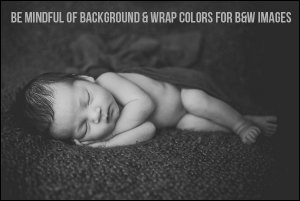
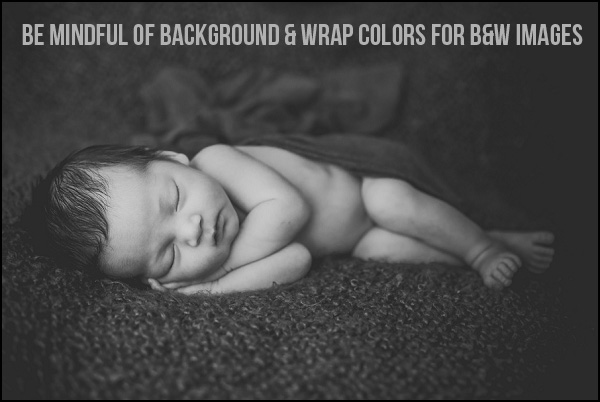
Extremely light colored wraps or blankets can be so cute, and can look great with color images. But, if you are a fan of classic, timeless, black and white images I’d urge you to stay away from blankets or wraps that are too light, or even white in color. There simply isn’t enough contrast in color between the baby and the blankets for an effective, and attractive black and white image, and your photo will often look too washed out.

B W

6. Presets for Speed and Consistency

Once you find an edit or a look that you love, make sure to save it as a preset so you can use it on other photos that were taken with similar lighting and settings. Not only are presets vital for saving you a ton of time while editing, but they also will help you create a consistent look to your photos.

Specifically for newborn photography, I created a complete Lightroom presets collection that make soft, creamy and dreamy newborn photos with the simplicity of just one-click.

Newborn Lightroom Presets

I sure hope that you can put these six tips into use right away and start editing your newborn photos quicker, with better results. If you have any questions at all, just let me know down below, I’d love to hear from you.

Cole’s Newborn Photography Workshop is on sale now at Snapn Deals. Save 72% until September 16th, grab a seat now!

The post How to Edit Newborn Photos Using Lightroom by Cole Joseph appeared first on Digital Photography School.


Digital Photography School

 
Comments Off on How to Edit Newborn Photos Using Lightroom

Posted in Photography


Robotic Printer Creates Artist’s Portrait Using His Blood

28 Aug

[ By Steph in Art & Drawing & Digital. ]

Robotic Blood Printer 1

Blood streams from Ted Lawson‘s arm into a CNC printer, which uses it like ink or paint to robotically create the Brooklyn-based artist’s image. ‘Ghost in the Machine’ is a life-sized nude self-portrait rendered in just about the most graphic way possible, the whole process captured on video as an alarming amount of blood is applied to a blank white surface.

Robotic Blood Painting 2

Visibly drained by the process, Lawson sits beside the machine as it works, replenishing himself with juice as his blood streams out in little squiggles. At first, the image is abstract, slowly coming together as the robot follows the guidelines of the illustration.

Robotic Blood Painting 3

“I’m generally not into doing selfies, particularly nude ones, but when I came up with the idea to connect my blood directly to the robot (CNC machine), it just made too much sense to not try one as a full nude self-portrait,” Lawson told the Associated Press.

Robotic Blood Painting 4

“In this series I’m really just trying to make a good drawing, which requires a lot of process and spontaneity to achieve. I do consider these works to be drawings and not prints, in that I allow the robot to make certain mistakes or leave in certain glitches on purpose.”

Robotic Blood Painting 5

The final print will be on display at the Joseph Gross Gallery in New York City from September 11th through October 4th as part of Lawson’s solo exhibition, “The Map Is Not the Territory.”

Share on Facebook


[ By Steph in Art & Drawing & Digital. ]

[ WebUrbanist | Archives | Galleries | Privacy | TOS ]


WebUrbanist

 
Comments Off on Robotic Printer Creates Artist’s Portrait Using His Blood

Posted in Creativity


Using Humor In Street Photography

26 Aug

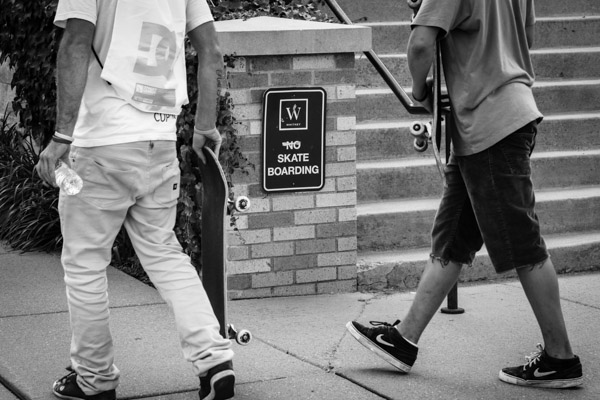
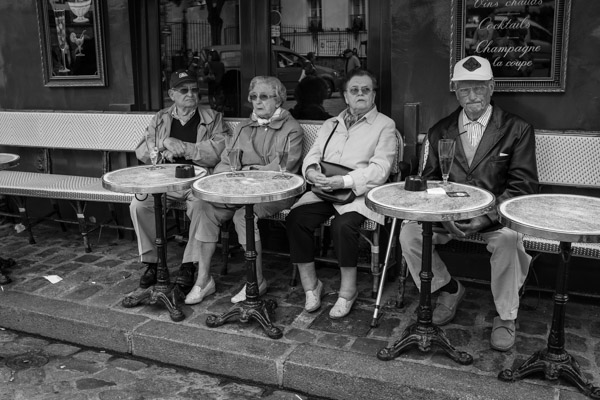
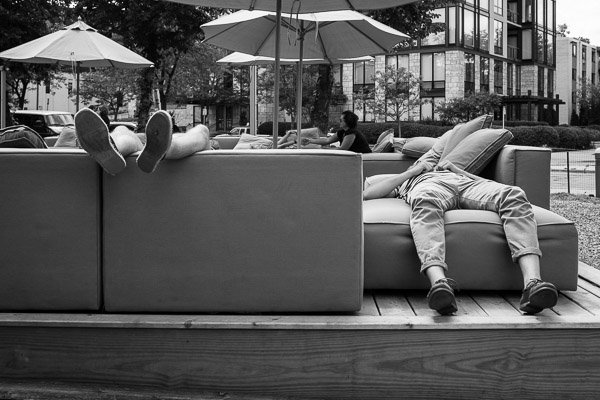
Humor may very well be the toughest assignment the street photographer will take on. It takes a keen eye to see humor in the streets and some skills to capture it in a fraction of a second. Here are a few things to consider before you head out on a quest to photograph humorous situations in the streets:

Humor can be subtle ©Valerie Jardin

Humor can be subtle ©Valerie Jardin

Story in a frame

Just like a good joke, no explanation should be necessary. A catchy caption should suffice to enhance the humor conveyed in the image. Many newspapers used to have a ‘feature’ picture in every issue. Many still do. Think of it as a visual treat for the reader. Its purpose is to provide a break from all the dreary news that fill the newspaper pages.

Cultural differences

Different cultures have a very different sense of humor. What may be funny in one country, can be interpreted entirely differently in another. What one photographer finds funny in one part of the world, can even be considered offensive in an other. Yet, thanks to the Internet, those cultural boundaries are becoming softer, as one is exposed to the world at large with the simple click of a mouse.

Tired Tourists ©Valerie Jardin

Tired Tourists ©Valerie Jardin

Funny is a personal thing

‘Funny’ is very subjective and personal. What I find funny may leave you completely unresponsive. This is not only a cultural difference, but also a personal one, based of life experiences. Age, gender, culture, education, etc., will all play a part in what qualifies something as funny.

Practice seeing first

How do you practice? Instinct and the ability to anticipate are skills the street photographer acquires with experience, and a lot of practice. The more you walk those streets with your camera, the more in tune you will be with the world around you. As a street photographer you constantly scan your surroundings. No expression or gesture escapes you, the challenge is to record that story in a frame.

Humor adds another level of difficulty to your street photography. The opportunities are there but they are often very subtle and extremely fleeting. I recommend practicing ‘seeing’ first and become proficient at telling a story in a frame, before you add a new dimension to your street photography with the element of humor.

Legs ~ ©Valérie Jardin

Legs ©Valérie Jardin

Funny versus Ridicule

Is everything that looks funny also fair game? I believe that the number one rule in street photography is respect. Humor is great, making ridicule of your subject is going too far. Turn it around. If it were you in the picture, how would you feel? Would you mind it being posted on social media for everyone to see? If the answer is yes (you would mind), then you should probably think twice about using the image.

Caption this! ©Valerie Jardin

Caption this! ©Valerie Jardin

What works

In general, contrasts will make people smile, so will extreme situations or juxtapositions. The unexpected and the unusual are also often winners in conveying humor. Sometimes several components come together in a fleeting moment and you only have a fraction of a second to record it. This requires some quick thinking and a very good knowledge of your gear so that it doesn’t get in the way. Ideally, it should become an extension of your vision. Other times, a bit of planning, a certain degree of patience and some luck will all come together and give you the shot you envisioned. Setting a stage as a way to gain some control of the situation is a great way to capture some funny situations. You can position yourself in front of a billboard that will make the situation funny when the right protagonist enters the frame.

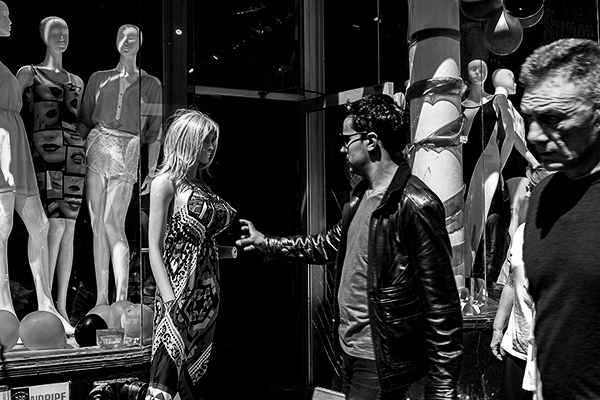
This mannequin was the perfect opportunity for a fun shot. During my NYC street photographer workshop, one of my students managed to capture this shot. She found her stage, envisioned the shot, was prepared and grabbed the opportunity when the right subject entered the frame. Well done Yevette! ©Yevette Handler

This mannequin was the perfect opportunity for a fun shot. During my NYC street photography workshop, one of my students managed to capture this shot. She found her stage, envisioned the shot, was prepared and grabbed the opportunity when the right subject entered the frame. Well done Yevette! ©Yevette Handler

It is often better to let your camera do some of the work. Practicing street photography is not the best time to show your skills in full manual mode, you’ll probably miss the shot!

It is clearly impossible to set out with the expectation of capturing humor in the streets every time you go on a photo walk. You can certainly train yourself to see better and work at increasing your response speed to a situation. Serendipity will play a big part in the outcome of your quest to find humor in the streets. The more you train yourself to observe the world around you, the more prepared you will be to get the winning shot.

I highly recommend you check out the work of amazing photographers such as Martin Parr and Elliot Erwitt among others for some inspiration.

Now get out there and shoot! Please share your images in the comment section.

The post Using Humor In Street Photography by Valerie Jardin appeared first on Digital Photography School.


Digital Photography School

 
Comments Off on Using Humor In Street Photography

Posted in Photography


Using Depth of Field as a Compositional Tool

05 Aug
In a scene like this, you want all the trees in focus, a deep depth of field is necessary

In a scene like this, you want all the trees in focus, a deep depth of field is necessary

There are many written and unwritten “rules” in Photography. Mostly, they are guidelines, I am not sure that there are rules about any art form, but some guidelines help us out. You have probably heard of the rule of thirds as it relates to composition. You have heard about the golden mean for composition, but have you thought about how depth of field affects your composition?

Composition is one of the easiest techniques to use to improve your images, it is also one of the most overlooked. You may never think about it, but perhaps you really should. Your composition can make a mediocre image strong, just by moving your camera.

Composition has been used by painters for hundreds of years. Many of our current composition tools come from the art world. The master painters worked out how people look at a painting and put a system together that would cause people to stare into their paintings. They used techniques like leading lines, S-curves, symmetry and pattern, repetition and other techniques, to make their paintings more dramatic and compelling. Something they also used was perspective. Perspective gave a three dimensional feel to the painting and made a two dimensional scene seem three dimensional. Leonardo da Vinci mastered this technique and used it to great effect in some of his masterpieces, most notably, The Last Supper and the Mona Lisa. In some ways, Leonardo used depth of field to compose his paintings.

A deep depth of field emphasises the large vista of the scene

A deep depth of field emphasizes the large vista of the scene

1. What is depth of field?

Depth of field is the transition from sharp focus to soft, out of focus areas in the image. The zone of sharp focus, and how much is in focus, is known as the depth of field. You will hear photographers speak of a shallow depth of field or a deep depth of field. The latter means that most or all of the image is in sharp focus. A shallow depth of field means that a small portion of the image is in focus.

How does this work? If you are photographing a landscape scene, you will likely want all of that scene to be in sharp focus. This is called a deep depth of field, and means that the whole scene is in focus. This is good for some forms of photography. At other times you will want only a small portion of your overall image to be in focus. For example, in a close up shot of a flower, you will want the flower to be in focus and everything else to be softly out of focus, this is called a shallow depth of field.

In a city scene, a deep depth of field is good as you want everything in focus.

In a city scene, a deep depth of field is good as you want everything in focus.

2. How does depth of field impact your image?

You have seen images where the one part of the flower is in super sharp focus and the rest is soft and blurry. Some portrait shots also look like this, the person is in sharp focus and the background is out of focus. Why would you want to do that?

The biggest reason is that your eye will naturally go to whatever is in focus in a photograph. So, if you are shooting a wedding and you have a photo of the bride and groom, but they are out of focus and the people behind them are in focus, where do you think viewers will look? They will look at the people behind the couple of course. We assume that if something is out of focus, that we aren’t supposed to look at it. So you can use shallow depth of field to force your viewer to look at your subject. Make sure that whatever your subject is (flower, rock, insect, bride etc) that it is sharp and in focus. If the rest of the image is out of focus, that part of the image will stand out and people will immediately look there.

Everything in focus makes this scene compelling

Everything in focus makes this scene compelling

3. How do I get a shallow depth of field?

Depth of field is determined by the aperture setting on your camera. Your aperture setting is called the F-Stop. Technically speaking, the F-Stop is the focal ratio of the lens. It is the ratio of the lens’s focal length to the diameter of the entrance pupil. Technical, I know, but not critical.

What is critical is that you need to know how the “F” number works. The basic rule of thumb is as follows, the lower the number (i.e. f/2.8, f/4) the shallower the depth of field or only a small amount of your image will be in focus. If you have a higher number (i.e. f/8, f11) the more of your image will be in focus. So if you want the look of having a small part of your image in focus then use an F-Stop of 2.8 or 4.  If you have a lens that goes down to f/2.8 or even f/4 give this a try:

  • Set your camera in manual mode
  • Put your camera on a tripod so that it will be easy to take the shots without moving the camera
  • Focus on a flower or something that will be perfectly still
  • Compose your image, get in as close as you can
  • Set your aperture to f/2.8 and take a shot
  • Then set your aperture to f/4, take a second shot,
  • Then f/5.6 and take a third shot
  • Then two final images, one at f/8 and one at f/11
  • Adjust the shutter speed accordingly to make sure you expose them all correctly

Now take a look at the images, what you will notice is that the f/2.8 image will have a small part of the image in focus, the f/8 and f/11 images will have most of the scene in focus.  This now becomes a compositional choice. You can decide on every image what should be in focus and what can be blurred.

Shallow depth of field isolates the grass and makes it the focal point

Shallow depth of field isolates the grass and makes it the focal point

4. How is this a compositional tool?

As a photographer you have the ability to determine what you want people to look at. By using a shallow depth of field and having only part of the scene in focus, you will make sure that there is no doubt about what the subject is and where you want your viewers to look. A deep depth of field is also important in some images. In landscape photography, you will want a deep depth of field, a shallow depth of field in a landscape image might be confusing. Use your depth of field to determine where you want your viewers to look. Once again, with lots of practice and seeing the results, depth of field will be come an invaluable compositional tool.

I find that the most well known “rules” of composition are a good place to start. Once I have a scene set up, I then think about what I want to be in focus and what I want out of focus, or more precisely, what is my subject or focal point. From there I look at exposure, light, etc., and then I make the image. For me, depth of field has become an important creative tool that I use as often as I can to define my subject. Let me know what you think? Do you use depth of field as a compositional tool or not? If not, will you try it out? Let me know your comments below.

A shallow depth of field isolates the leaves from the soft background

A shallow depth of field isolates the leaves from the soft background


The post Using Depth of Field as a Compositional Tool by Barry J Brady appeared first on Digital Photography School.


Digital Photography School

 
Comments Off on Using Depth of Field as a Compositional Tool

Posted in Photography


Ten Go-to Editing Tips for Using Photoshop

28 Jul

PS CC launch

The recent release of Adobe Photoshop Creative Cloud (CC) 2014 (which is the 15th release of the product) got me thinking about my own workflow. Photoshop is an amazing piece of software. I have been using it commercially since version 5. However, I don’t necessarily think the latest version is the best one. I’ve just recently upgraded to CS6 and I’m loving it but I can’t see myself going the CC route just yet, as it doesn’t suit my business model.

The beauty of this software is the power that it can bring to your images, but it is a complex piece of software and coming to grips with it as a beginner can be daunting. Time and practice will be your allies in learning Photoshop.

As a photographer, Photoshop is the main editing software package I use in my photography workflow. Every photographer or designer has their own unique approach to editing images using Photoshop. I find this fascinating.

I’m constantly refining, and tweaking my editing workflow. I get such a buzz when I find an alternative method or a shortcut, that I wasn’t aware of before, which makes things more efficient. Having said that there are a lot of the features in Photoshop I wouldn’t use, and there are some that I use more than others.

Before I start editing my images in Photoshop, I open them with Adobe Camera Raw (ACR) since I shoot RAW format. I need to make basic adjustments such as exposure, white balance, correcting chromatic aberration and any lens distortion. From there, I take my images into Photoshop as Smart Objects.

The following tips for using Photoshop are my regular editing techniques in no particular order. These can be used in most versions of Photoshop. These are a small set of useful tips. I could have extended it by a dozen more.

Ten go-to editing tips for using Photoshop

1. Duplicating Layer Masks for other Adjustment Layers

To save time when you need a copy of a mask from one layer to another adjustment layer; when you’ve used the brush tool to create a mask. Simply hold down the Option key on a Mac or CTRL key on a PC, click on the layer mask and drag it to the adjustment layer in question. This makes a copy of the layer mask without having to redo the same again.

Gorilla duplicating masks on other adjustment layers

2. Add a Curves Adjustment Layer with a Difference

Normally in the Curves adjustment, you adjust points on the curve line which affect the image’s tonal range. The S-shaped curve is a classic tonal tweak for boosting contrast and color saturation. However, if you add a curves adjustment layer, change the blend mode to Soft Light and reduce the Fill down to approximately 55% (the reduction amount will depend entirely on your image & preference), this gives a similar boost to color and contrast. For demonstration purposes, I have left the Fill at 100%, so that you can see a difference as outlined within the white square.

Field in France curves softlight

3. Dodge and Burn

Create a separate layer, change the blend mode (Mode) to Overlay and fill the layer with 50% gray. Name this layer “Dodge and Burn”. The Dodge and Burn tools are my go-to method for making selected areas of an image lighter or darker. Dodge is for lightening and the Burn tool is for darkening an area. Use a soft Brush and set Exposure to between 6-12%. In most cases, I leave Range set to Midtones. If you find that you have overdone it in the specific areas, just reduce the Opacity on the layer. The image on the right (below) shows the areas where I used the Burn tool to darken his arm, his face, and the bright spots in the background, and also where I lightened his back shoulder.

Secret Agent Dodge Burn

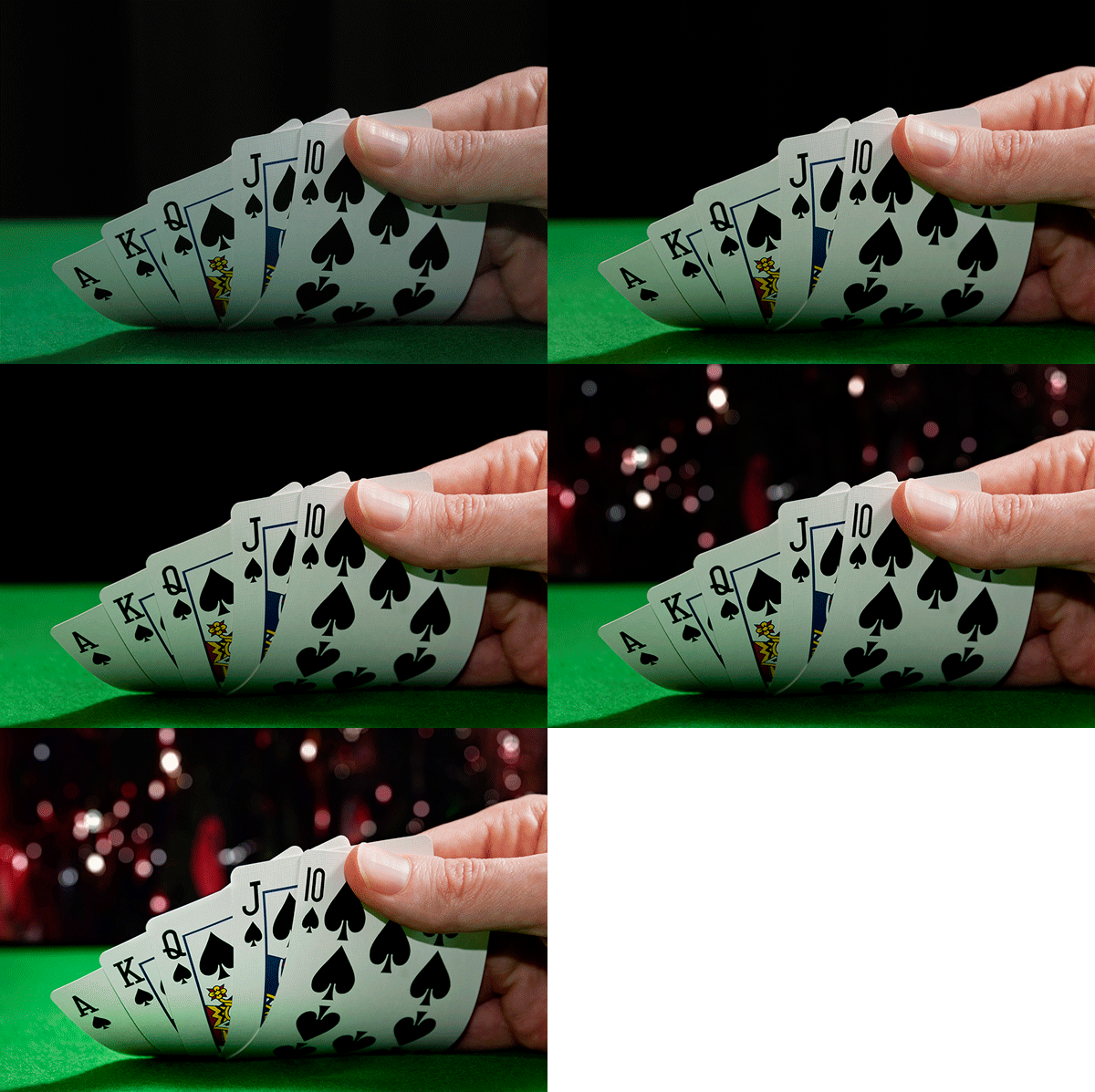
4. Layer Comps

I find the Layer Comps feature in Photoshop invaluable. It is a useful guide to the different editing stages as a before and after comparison. It is so easy to overdo it and get carried away with over-editing your image. This has five stages from straight out of camera, to the final image.

Poker

5. Stamp Visible

Cmd+Shift+Alt+E (Mac) or Ctrl+Alt+Shift+E on a PC is the command to keep all the layers in a Photoshop file and make a merged copy on top of them. I find this particularly useful, especially at the end of my editing process, where I apply some sharpening or contrast by using a Topaz effect (plug-in for Photoshop).

6. The “Place” Command

This is found under File>Place. I normally work with multiple images in the same document. Therefore, I find using this method really handy as it imports the image as a Smart Object automatically, which is great for resizing the image without any degradation.

7. Patch Tool

The Patch Tool was my favorite of the Healing Brush Tools in Photoshop CS5. But now that I’ve upgraded to CS6, the Patch tool has just gotten even better. You can now use the Patch tool to fill using the Content-Aware on a new empty layer. I prefer to set the Adaption to Loose. Make sure Sample All Layers has been ticked. The Healing Brush also feels more intuitive to use than before.

Ringbuoy Patch Tool

8. CMD+T or Transform

I seem to use this shortcut a lot. If I’m working on multiple images in the same document, I may need to resize one or two of the images accordingly. As I import my images using the Place command, this means they are converted to Smart Objects, so the resolution of the images isn’t affected when transforming or resizing.

9. CMD+T+Warp Tool

Similar to the above point, the Warp tool is great for fine-tuning an element of an image, especially if you are working on composites. In the image below, I was using my own stock photo of Heron’s talons to replicate the Owl’s talons for the purpose of realism.

Owl Warp tool

10. Opening a Second Window for the Same Document

When you are retouching your image to get rid of dust and blemishes and so forth, you may need to zoom in as much as 300% or more. Open another window for the same document by Window>Arrange>New window for new_filename.PSD but keep it at 25% (or fit to window). This way, instead of zooming back out to see how the image looks and then zooming back in to resume your retouching, just click on the second window where you have the same document viewed at 25% (or fit).

Do you have another other go-to Photoshop tools or tips you’d like to share? What is in your workflow? Please share in the comments.

The post Ten Go-to Editing Tips for Using Photoshop by Sarah Hipwell appeared first on Digital Photography School.


Digital Photography School

 
Comments Off on Ten Go-to Editing Tips for Using Photoshop

Posted in Photography


Get Intimate With Depth of Field: Using Depth of Field Creatively

28 Jul

Controlling your camera’s exposure is not only a fundamental topic to achieve good photographs, but it also becomes essential knowledge to be able to explore the creative possibilities of photography. You might have heard of aperture, shutter speed and ISO. These are the camera controls that directly affect exposure and, finally, how the picture turns out. You can use many Continue Reading

The post Get Intimate With Depth of Field: Using Depth of Field Creatively appeared first on Photodoto.


Photodoto

 
Comments Off on Get Intimate With Depth of Field: Using Depth of Field Creatively

Posted in Photography


How to Create a Vintage Look using Lightroom

21 Jul

How to create the vintage look in Lightroom

Before you create a vintage look using Lightroom, you have to decide what characteristics you think that look should have. It may mean different things to other people, but here’s my version. Photos with the vintage look are nostalgic, evoking the look of faded photos taken decades ago. There may be a colour cast or faded blacks, and they should look as if they may have been taken with film.

What is your definition of the vintage look? Whatever it is, once you have arrived at it, you can think about how you can achieve that look in Lightroom.

Using Lightroom Develop Presets

The easiest way to create a vintage look is to buy Develop Presets or download free ones. Don’t worry, I will explain how you can create the vintage look yourself, without buying somebody else’s presets, in the second part of this article. But I think it’s wise to acknowledge that sometimes the easiest path is to let someone else do the hard work of figuring out the mechanics, and buy into their expertise.

By the way, if you are new to presets, my article A Concise Guide to Lightroom Develop Presets will give you an introduction to the subject.

Free Vintage Develop Presets

An easy place to start is with onOne Software’s free Develop Presets for Lightroom. I recommend Nicolesy’s Matte Presets for Adobe Lightroom 5 and the onOne Signature Collection Presets (available for Lightroom 4 and 5). There are also some presets for Lightroom 2 and 3 if you are using those versions.

You can also try these free vintage presets from Presets Heaven.

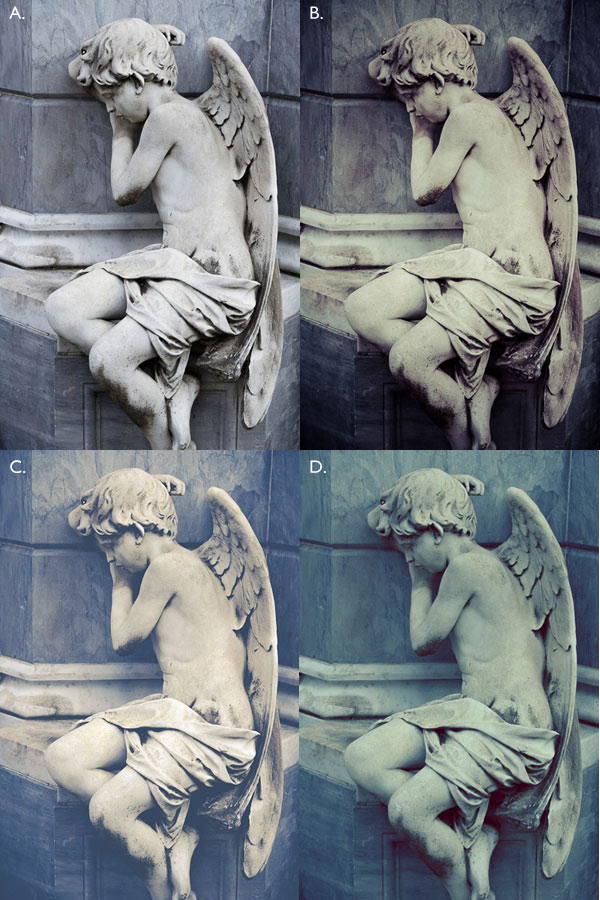
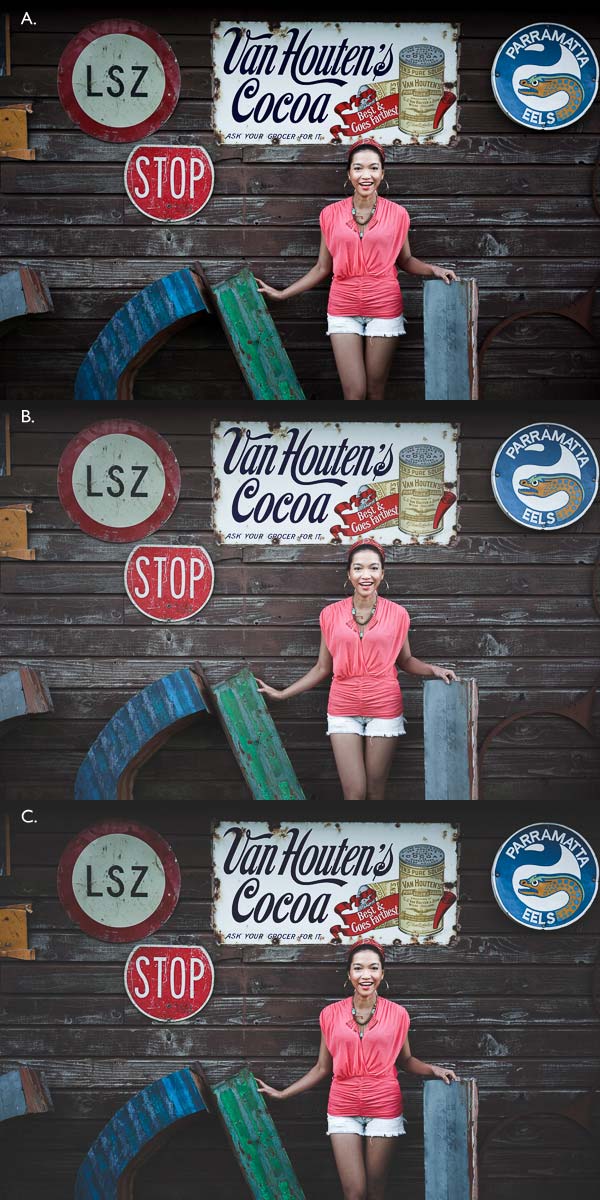
This comparison shows you some of the effects you can create with these presets. Please remember that the best way to use Develop Presets is as a starting point. Once you have applied the preset you can then go to the right-hand panels and tweak the settings to get the most out of your photo (something I haven’t done with these examples as I wanted to show you how they work straight out of the box).

How to create the vintage look in Lightroom

A. Original photo B. onOne Signature Collection: Vintage – Grandma’s Lemonade preset C. Nicolesy Matte Lightroom Presets: Nicolesy Matte 2 preset D. Presets Heaven: PH Vintage IV preset

Best Paid Vintage Develop Presets

Not everybody wants to pay for Lightroom Develop Presets (my article Are Lightroom Develop Presets Worth the Money? asked that question) but there are certainly some great preset collections out there if you don’t mind doing so. I recommend (and have personally bought and used) the following:

Nicole S. Young’s Vintage Fade presets. These are the least expensive out of all these preset packs. The set includes Photoshop Actions and ACR presets as well as Lightroom Develop Presets.

Lightgram Instafade presets. These presets emulate the beauty and nostalgia of film. I like Lightgram’s presets a lot. They also have some free presets you can try out.

Really Nice Images Faded Films presets. These are the more expensive than the others, but you get nearly twice as many presets plus a toolkit to help you tweak the settings. But most importantly they are really good.

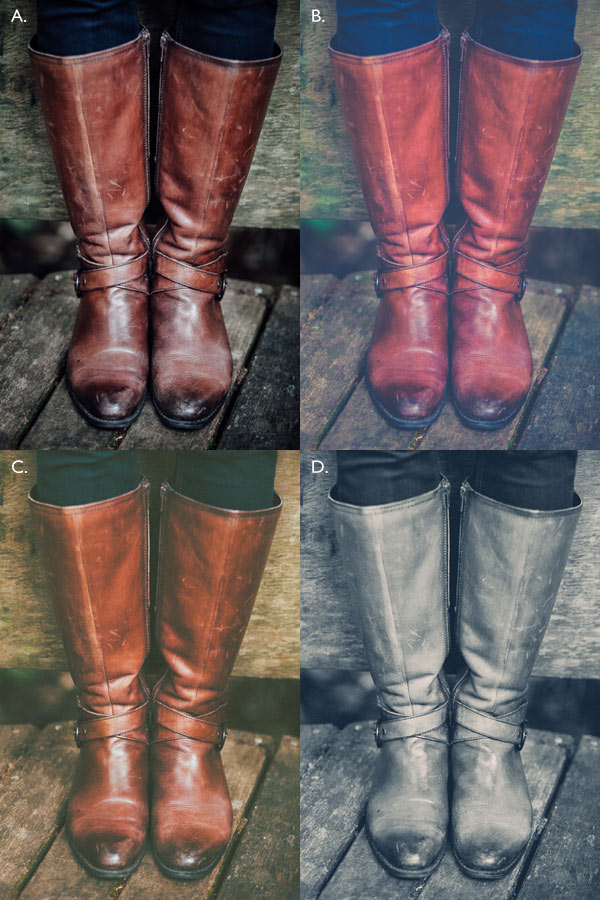
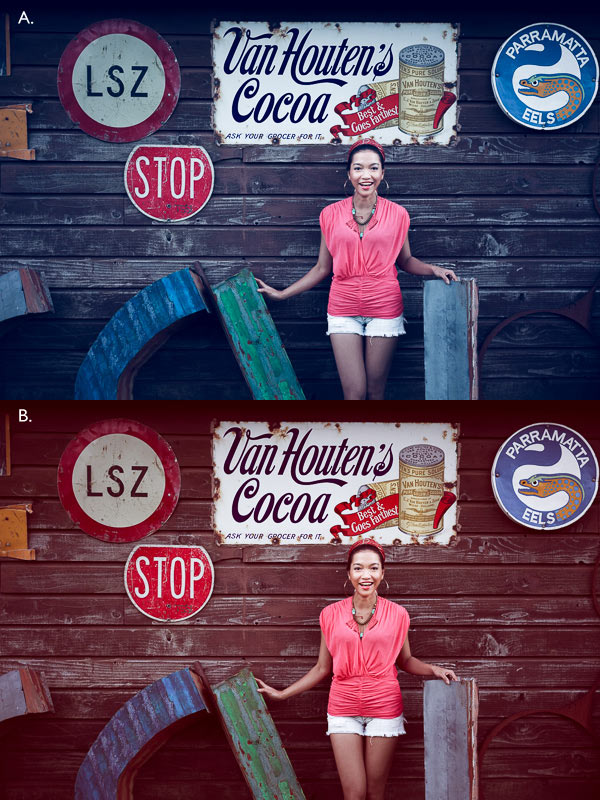
How to create the vintage look in Lightroom

A. Original photo B. Nicolesy Vintage Fade: Rainfall preset C. Lightgram Instafade: Lightgram Faded 12 preset D: Really Nice Images: Faded Films – Utah Monochrome preset

How to create the vintage look yourself

Now it’s time to take a look at a few of the techniques you can use to create the vintage look yourself in Lightroom.

1. Fade out with the Tone Curve

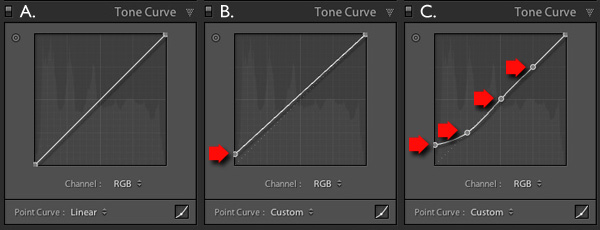
Go to the Tone Curve panel and raise the left side of the RGB curve upwards. Doing so removes true black from the photo, making the darkest tones lighter. How far you move it is up to you – the best way is to judge the effect by eye.

You’ll get the best results when the RGB curve starts from its linear position (a straight line from bottom-left to top-right). If you are planning to use the Tone Curve to create a matte effect, it is best to carry out tonal adjustments such as increasing contrast in the Basic panel. You may also wish to reduce Saturation or Vibrance to weaken the colours in the photo, emphasizing the vintage look created by the matte effect.

Alternatively, click on the RGB curve three times (where the lines intersect it on the grid) before lifting the left-hand corner. This gives a slightly different look. Experiment with both techniques to see which one suits your particular photo best. This is what the curves look like.

How to create the vintage look in Lightroom

A. Linear curve B. Entire curve raised. C. Left-hand side of curve raised only.

This is how those curve adjustments affect the photo.

How to create the vintage look in Lightroom

A. Linear curve B. Entire curve raised. C. Left-hand side of curve raised only.

Using the RGB Tone Curve applies a matte effect without affecting the colour. However, you can play with the colour curves as well. If you use the same technique on a colour curve, it affects the colour of the photo as well as the contrast. Here are a couple of examples.

How to create the vintage look in Lightroom

A. Blue curve raised. B. Red curve raised.

2. Split toning

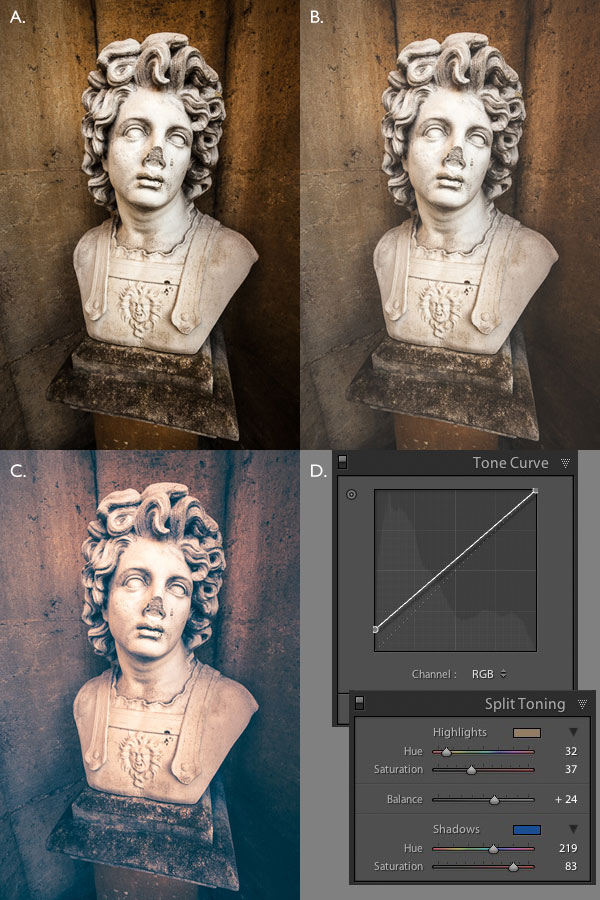
Another way to add colour is with split toning. The basic concept is simple. Apply a warm colour to the highlights (such as orange, red or yellow) and a cool one to the shadows (for example blue, dark green or teal). You may be aware that warm colours appear to move towards the viewer, and cooler ones away. Split toning builds on that principle.

How to create the vintage look in Lightroom

A. Original photo. B. RGB Tone Curve raised (neutral colour). C. Split tone applied. D. The Tone Curve and Split Toning settings used for these photos.

Conclusion

Now you know how to create a vintage effect in Lightroom. If you have any other tips for creating a vintage effect, please leave them in the comments below.


Mastering Lightroom: Book Four – The Photos ebookMastering Lightroom: Book Four – The Photos

My new ebook Mastering Lightroom: Book Four – The Photos takes you through ten beautiful examples of photography and shows you how I processed them step-by-step in Lightroom. It explores some of my favourite Develop Presets and plug-ins as well as the techniques I use in Lightroom itself. Click the link to learn more.

The post How to Create a Vintage Look using Lightroom by Andrew S. Gibson appeared first on Digital Photography School.


Digital Photography School

 
Comments Off on How to Create a Vintage Look using Lightroom

Posted in Photography


Using Composition to Create More Powerful Portraits

18 Jul

As part of my series on portrait photography, in this article, I will discuss composition, one of the most important aspects of creating a good portrait image.
F11A6332 1

  • Are there any laws regarding framing a portrait?
  • Can I leave hands, fingers, or part of the head out of the frame?
  • Does a portrait have to include a face?

I will answer these questions that my students often ask. It is important to keep in mind that as in all aspects of art, there are no “rules” or “must dos” here, because you can do anything as long as it works for you. So, I will describe techniques that work for me and I hope that they will work for you, resulting in much stronger portrait photography portfolio.

What is a good portrait?

A good portrait is an image of a person that manages to tell a story. A good portrait evokes emotion. A good portrait tells us something about the person in the image, and composition is a key element that helps us create a storytelling portrait.

How can I create a storytelling portrait with the help of composition?

I think good composition is a combination of the scene on the ground and the scene within your head. It combines the available with the desirable.

Here are a few examples of portraits I made recently (using natural light only) with explanations of the thinking process and goals in terms of composition. As Ansel Adams said, don’t forget that every image has two people behind it. the photographer and the viewer. So you might not feel the same emotions as I do with the images I created. But that’s okay, because photography is both an art and a science.

Choosing how much background to include
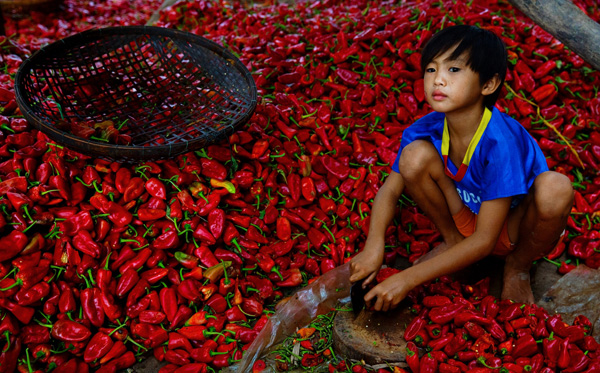
F11A3496 Exposure 1

Focal length 24mm

I met this boy cutting Paprika in rural Cambodia. It was summer vacation and he was there with his family and other villagers. What’s my visual narrative in one line? “Small boy, big work.”

I immediately knew two things: one, the background is a significant element and two; I wanted to capture the boy working alone. So, I started with the background and decided on a high angle in order to capture this “mountain” of Paprika. It was important for me to show the boy’s entire body with some space above his head so that the viewer could compare (remember my one line story?) the size of the boy to the size of the work.

I even included that basket in the composition to add balance to the entire frame. After I set up my composition, I waited about 20 minutes to capture the boy looking up. I knew that if he was working with his head and eyes down, the whole story would fall apart. I think the wait was worth it.

For me, this is one of the most complex decisions in photography: to identify visual storytelling potential and decide how much time you’re willing to wait until the story materializes.

Story 56 the kid 1

Focal length: 17mm

I used the same technique here in Kyrgyzstan, for this shot of six year old Aytinger, which I made for National Geographic Traveler magazine. Visual narrative in one line, “Small boy, big world”.

Here, I made the background much more dominant compared to the previous image. Here the boy is very small compared to the land. Imagine if I framed this image with only his face? I would lose the entire story, because his face alone doesn’t tell the story I want to portray. It was important for me to “include” the path and the big cloud in the horizon, to add sense of an “epic” feel to the image.

Web11 1

Focal length: 70mm

Here, you can see a different kind of portrait framing. Visual narrative in one line – “Quiet, peaceful, youth”.

I wanted to evoke peace and harmony. So I focused only on the face of this young monk, and included almost no background, in order to avoid interference from the environment. Also, note how the central composition (the subject is in the center of the frame) is balanced with the two orange frames on the sides.

I used soft natural light (coming from the right side of the frame) in order to create a sense of something religious and pure.

Cropping in tight

42 1

Focal length: 70mm

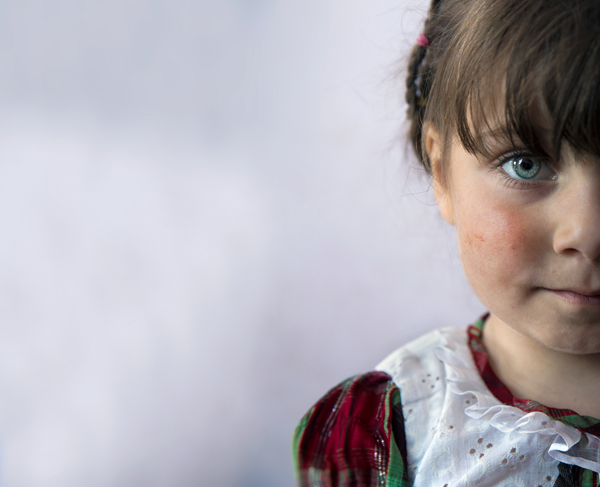
This is the type of framing that I’m asked many questions about by my students: whether it is allowed to cut off part of the head like this. Sure, as long as it helps the visual story you want to tell. Visual narrative in one line, “A sad reflection”.

Apollo’s wife died not long before I met him in the hills of northern Laos. In the image, Apollo’s face and the feeling of something tilting or shifting in his world is the only important thing. By framing his face on the right, while he was looking down and to the right, I wanted to create a feeling of an “unbalanced world”. Compare the very low key, dim lighting (with negative exposure compensation) in this image to the previous one of the monk. I was using the dark part of his house to evoke this story.

TheAccess 4photography people

Focal length: 85mm

This framing is even more radical than the previous one. Please note that this is the composition I did on the ground (no cropping) for a story I did for National Geographic Traveler magazine on Western China. Visual narrative in one line, “Strong and wise”.

Leaving space

When I saw the eyes of this man, the oldest man sitting in the back of a teahouse in remote western China, I knew I didn’t need anything else but his blue eyes. So I made it the dominant factor of my composition.

Story 35 alone 1

Focal length: 24mm

Now you might ask, is this a portrait too? Well, yes, for two reasons: one, do you see a person, and two, do you feel a sense of story?

What’s my visual narrative? It was a particularly hot afternoon. Dozens of worshipers left the mosque. I paused for a moment, trying to change lenses, as I noticed this guy. It seems that he was not affected by the hustle passing him by. He remained alone, continuing to read the prayer book. At first, my initial thought was “wow, what loneliness”. But then I thought, ”wow, what strength”.

I used the empty spaces of the place to enhance the sense of loneliness, but the balanced; “by the rules” composition (rule of thirds) should give the sense of power I was aiming for. The reason I chose to use negative exposure compensation and thus create a silhouette was to not compete with red color in the background and give it a sense of harmony.

Put it all together

You may be asking – “Okay, I understand the thought process. But honestly, do you really think about it before the creation of the frame or only afterwards?”.

Well, I do believe that good portrait photography is an outcome of a thinking process. Should I add the background or not? Should I crop the head or leave it full? Sometimes by over-thinking, the subject might lose patience. It has happened to me more than once. But for me, having the time to think, to plan, and to achieve the story I wanted is part of the fun.

Feel free to leave questions and comments below.

Note: the author would like to thank Nicholas Orloff for his help of writing this article.

The post Using Composition to Create More Powerful Portraits by Oded Wagenstein appeared first on Digital Photography School.


Digital Photography School

 
Comments Off on Using Composition to Create More Powerful Portraits

Posted in Photography