RSS
 

Posts Tagged ‘Using’

Create Your Own Font Using Tools and Tips

25 Oct

Here are a list of online font tools to use:

PaintFont
FontStruct
FontForge
BitfontMaker
Type light
gbdfed Bitmap Font Editor
Font Constructor
Raster Font Editor

Here are some tips for creating fonts:

Steps to creating a font by FontForge
My First Font – How to make your own font
Create Your Own Font – Wired How-To Wiki

Back to Top

BlogPhoto

 
Comments Off on Create Your Own Font Using Tools and Tips

Posted in Equipment


Quick Review: Using Iconosquare to manage and grow your Instagram following

15 Oct

Instagram’s straightforward user interface is geared for posting and viewing photos, but if you’ve got an eye on growing or managing a large following, you’ll soon run into the app’s limitations. Iconosquare aims to give Instagram users basic metrics about their content and help manage large groups of followers. We tried the service out to see how it works and how useful it is. Read more

Articles: Digital Photography Review (dpreview.com)

 
Comments Off on Quick Review: Using Iconosquare to manage and grow your Instagram following

Posted in Uncategorized


5 Tips for Photography Using Natural Light Indoors

14 Oct

Indoor Portraits Using Backlight Window Light

You would probably love to have ideal lighting conditions for every shoot, especially if you are strictly an outdoor, natural light photographer. However there are many situations when the lighting is not ideal. Think winter, rain or even harsh midday sun. Sometimes you are stuck indoors, or your client wants to have a photoshoot inside their home. When used correctly, natural light indoors can be just as pleasing as outdoor lighting and can also provide opportunity for some creative portraiture with contrast, shadows, and drama. Here are some tips to get the most out of your photography using natural light shoot.

#1 Know your environment and know the light

Like any situation, do your research before you start photographing indoors. Many times the direction of the house, the position of the windows, along with the time of year plays an important part in the amount of light coming through. Is your house North-South facing or East-West? What are sunrise and sunset times where you live, or where you are going to be photographing? Does the room have a sunroof that lets in additional light? Light also changes depending on the time of day.  As light changes, so does the color of light. This directly affect the white balance (WB) of the image. If your camera has the ability to shoot in RAW use it, as white balance can then be adjusted in post-processing. If you really want to get it right in camera, experiment with the Kelvin scale.

When planning a shoot in your home, take several shots the day before to analyze what time is best for the light.  Sometimes this is not possible especially if you are going to a client’s home or photographing a venue. But this is where a little prep work goes a long way. Don’t be afraid to ask these questions or even google the venue to check it out online.

Indoor Portraits Using Window Light From the Side Angle Memorable Jaunts

#2 Know how to use window light to your advantage

One of the best sources of natural light indoors are windows. Learn how to use them to your advantage. In general, the closer you are to the window, the more light you will have to use and work with. Where you place your subject in relation to the window light will affect the image dramatically. There are three different scenarios for using window light:

  • Sidelight with the window: Here the subject is parallel or at a slight angle, to the window. Depending on the time of day and amount of light, this may yield images that have more contrast especially with midday sun streaming through the window.
  • Backlit by the window: Here the subject is sitting with their back to the window facing the photographer. You will need to meter for the subject and blowout the highlights to properly expose the image for the person. The other option is to expose for the highlights, as in the window and get an indoor silhouette. You can also use a reflector to pop light back onto the subject’s face.
  • Front lit by the window: Here the subject is directly facing the window, you are between the window and your subject. This type of lighting position produces the most even light of all the three.

Indoor Portraits Using Window Light From a Back Angle Memorable Jaunts

Indoor Portraits Using Window Light From the Front Angle Memorable Jaunts

#3 Know your settings and equipment

Remember your exposure triangle; the relationship between ISO, f-stop (aperture) and shutter speed. This plays an important role in indoor photography. Choosing a fast enough shutter speed will eliminate any camera shake if you are not using a tripod. Choosing a wide aperture (low f-stop number) will provide a shallow depth of field and blur out the background (particularly useful if there is some clutter around the house). Choosing a larger ISO provides more light; particularly useful if there isn’t much natural light coming indoors. Most of the newer DSLRs have a large range of ISO and handle high ISOs really well. Plus there are tools to help reduce noise in the image during post-processing if you want a less grainy look.

#4 Use open hallways, doors, or even the garage to emulate a situation of open shade

If for some reason you are not able to use window light to illuminate the subject (due to inaccessibility to a window ), you can use open hallways, doorways or even a garage to emulate a situation of open shade. Have the subject sit close to the edge of the doorway and face the light.

Indoor Portraits Using Open Shade From A Garage Memorable Jaunts

#5 Know when to use a reflector and a diffuser

A reflector and diffuser are great tools to use for indoor portraits. A diffuser softens the window light just like a white curtain or blinds. It is particularly useful for windows that have harsh midday sun streaming through. A reflector used in conjunction with window light, can add just the right amount of light bounce-back to dramatically improve your indoor portraits (especially for sideand backlit images).

Indoor Portraits Using Diffusers and Reflectors to bounce light back Memorable Jaunts
The next time the weather gods decide to ruin all your perfectly laid out plans to have an outdoor, natural light, photoshoot, don’t rush to reschedule your session. Try and experiment with natural light indoors and diversify your portfolio. If you want to use other forms of indoor lighting check out the article from the dPS archives on creating indoor portraits without flash.

For another dPS writer’s tips for using natural light read Melinda Smith’s Tips For Great Indoor Portraits Using Natural Light.

Do you have any other tips for using natural light indoors? Please share those and your images in the comments section.

The post 5 Tips for Photography Using Natural Light Indoors by Karthika Gupta appeared first on Digital Photography School.


Digital Photography School

 
Comments Off on 5 Tips for Photography Using Natural Light Indoors

Posted in Photography


Smarter Sharpening in Photoshop using Adobe Camera Raw

13 Oct

sharpen-in-Photoshop-using-Camera-raw-opener

Sharpening in Photoshop has traditionally involved a compromise between applying it to the places in the image that you want to sharpen and avoiding those that you don’t want affected. Both Lightroom and Adobe Camera Raw have always had a much better sharpening tool which not only lets you see what you are doing more clearly, but also includes a very smart mask that lets you limit sharpening to detail areas.

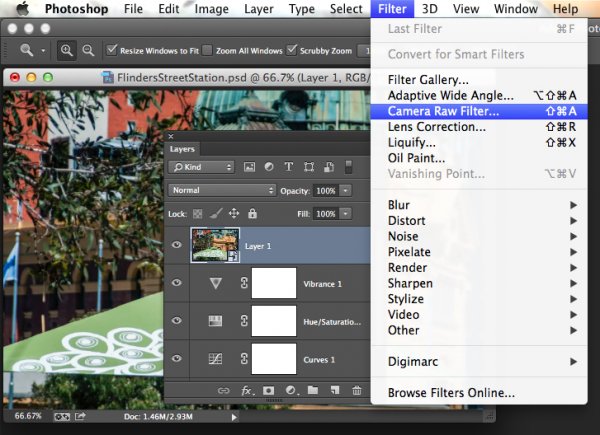
In Photoshop Creative Cloud a Camera Raw filter was added. This opens up a world of possibilities for sharpening images better and more easily and at the completion of your Photoshop editing workflow.

So now, in Photoshop CC as you can do in Lightroom and Adobe Camera Raw, you can take advantage of this better sharpening tool. So you can sharpen a photo of a building and apply the effect to the building but not to the sky above it. This is important because blue sky is typically an area of flat color which may contain noise that you certainly don’t want to sharpen and make even more obvious!

In the video below I show you how to sharpen an image from inside Photoshop CC using the new Camera Raw filter.

Before you do this, if your image contains layers, you need to create a flattened version of the image to sharpen it. To do this, select all the layers in the image and choose Filter > Convert for Smart Filters so you are operating on the entire image. Alternately, click the topmost layer of the image and press Shift + Control +Alt +E (Shift + Command + Option + E on the Mac) to make a new layer containing a flattened version of the photo. Lastly, convert that to a Smart Filter and you’re ready to go:

Do you have any other sharpening tips?

The post Smarter Sharpening in Photoshop using Adobe Camera Raw by Helen Bradley appeared first on Digital Photography School.


Digital Photography School

 
Comments Off on Smarter Sharpening in Photoshop using Adobe Camera Raw

Posted in Photography


How to Improve Your Composition Using Juxtaposition and Contrast

09 Oct

Juxtaposition and contrast in composition

Today I’d like to explore two complementary elements juxtaposition and contrast, to help you improve your composition.

Juxtaposition occurs when you place two contrasting subjects side by side. The difference (i.e. the contrast) between the two subjects creates an interesting photo.

A classic example

A great example of this is the Annie Leibovitz portrait (bottom of page linked) of jockey Willie Shoemaker (4’ 11” tall) and basketball player Wilt Chamberlain (7’ 1”). Placing the two men side by side (juxtaposition) emphasizes the difference in their height (contrast). As we’re not used to seeing an extremely short person standing next to a very tall one, the difference in height appeals to our sense of curiosity.

Juxtaposition and contrast in action

Here are some more examples, this time using my own photos, showing how you can use juxtaposition and contrast to improve the composition of your images.

Juxtaposition and contrast in composition

I took this photo in the remote village of Iruya in north-west Argentina. It was late afternoon and I wandered beyond the boundary of the village towards a pass through the mountains. I saw two people walking down a path cut between the rock, one of them leading a donkey.

The juxtaposition here is between the human figures and the mountainside. The contrast is one of scale – the difference in size between the people and the landscape they are passing through.

Juxtaposition and contrast in composition

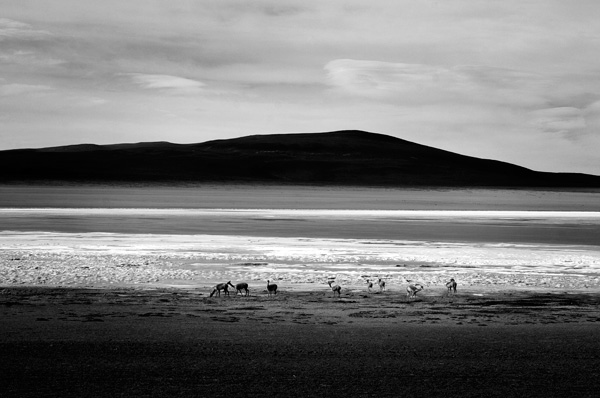
This photo was also taken in South America, this time in south-west Bolivia. The juxtaposition is between the guanacos in the middle distance and the mountain in the background. The contrast in size gives a sense of distance and scale to the landscape.

This photo is interesting because there is also strong tonal contrast, formed by the light and dark horizontal bands crossing the photo. The effect is emphasized because I used a short telephoto lens (the 55mm end of an 18-55mm kit lens on an APS-C camera), which compressed the landscape and flattened the perspective.

Juxtaposition and contrast in composition

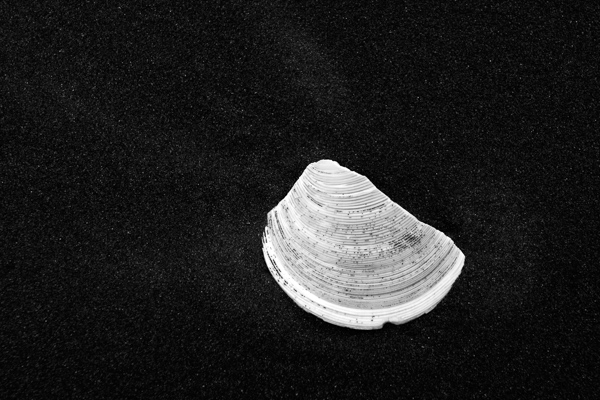
This photo is a simple close-up of a seashell on a beach. The juxtaposition of the white shell against the black sand emphasizes the difference between them. It’s not a coincidence that I chose to convert this photo to black and white. Sometimes, good black and white photography is created simply by juxtaposing a black subject with a white one.

Juxtaposition and contrast in composition

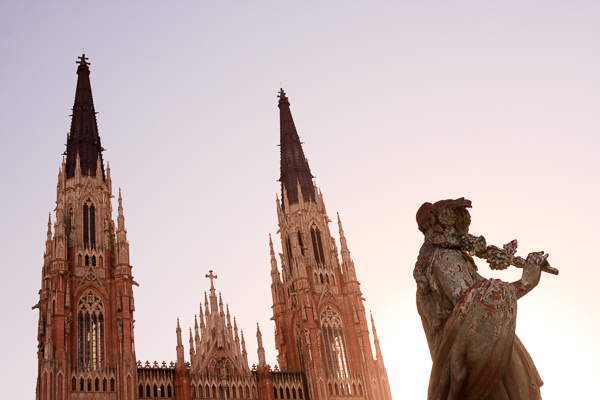
I took this photo at sunset in the Argentinian city of La Plata. The cathedral is one of the largest in the Americas and was only completed in the 1990’s. The juxtaposition here is between the statue in the foreground and the spires of the cathedral. You can’t tell from this photo but the statue is located in a square in front of the cathedral. The two are some distance apart, separated by a road. By finding a position from which I could include both the statue and cathedral together, I created a composition that is more interesting than one containing either the cathedral or the statue alone. There is also a contrast between the gothic architecture of the cathedral and the weathered stonework of the statue that encourages the eye to move between the two.

Juxtaposition and contrast in composition

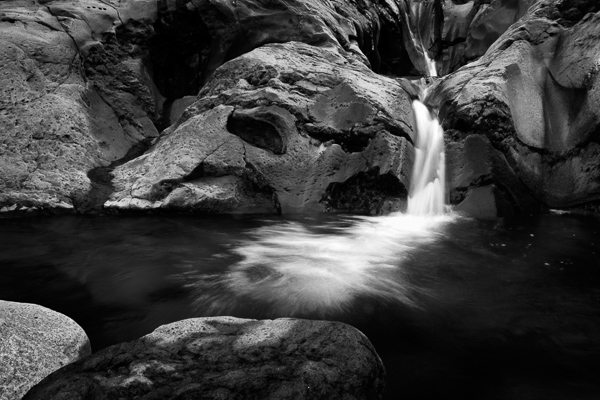
I photographed this waterfall on the side of Mount Taranaki, a conical volcano on New Zealand’s North Island. I used a tripod to support the camera and a shutter speed of 1/3 second to blur the water.

The juxtaposition here is between the rock and the water. The rocks are still, hard, and have a beautifully textured surface. The water is moving, soft and blurred. This type of contrast is the basis of many long exposure photographs.

Juxtaposition and contrast in composition

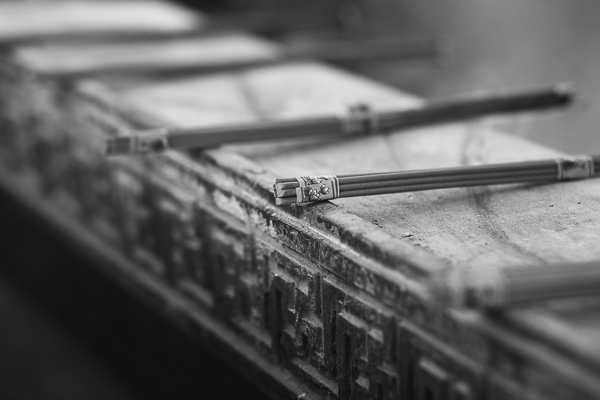
Finally, this photo taken in a temple in Shanghai, China, shows a different type of juxtaposition – the power of line. It’s a photo comprised of intersecting lines. The lines created by the incense sticks are perpendicular to the one created by the edge of the burner.

There is another type of contrast too. The line formed by the edge of the burner is much bigger than the sticks of incense. It’s another type of contrast of scale, as seen in some of the earlier photos.

Your turn

Can you think of any other examples of juxtaposition and contrast? Please let us know in the comments, and feel free to add your photos so we can all see what you have done.


Mastering Photography

Composition and line

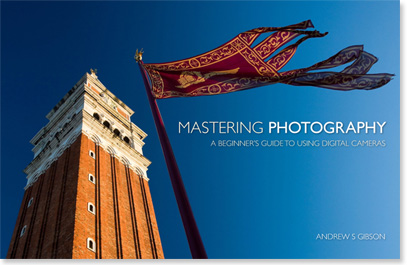
My latest ebook, Mastering Photography: A Beginner’s Guide to Using Digital Cameras introduces you to digital photography and helps you make the most out of your digital cameras. It covers concepts such as lighting and composition as well as the camera settings you need to master to take photos like the ones in this article.

The post How to Improve Your Composition Using Juxtaposition and Contrast by Andrew S. Gibson appeared first on Digital Photography School.


Digital Photography School

 
Comments Off on How to Improve Your Composition Using Juxtaposition and Contrast

Posted in Photography


How to do Great Black and White Conversions Using Photoshop

08 Oct

Black-and-white-in-photoshop-1

Some photos that you take you’ll want to convert to black and white. Photoshop has some tools that you can use to convert your photos to black and white and I’ll show you what these are and the best way to do the conversion.

Why you should shoot in color and convert to black and white

If your camera saves photos as jpeg images, even if it can capture in black and white, it’s advisable to avoid this setting and instead shoot in color and convert later. The reason is that when you capture in jpeg and have the camera set to black and white, all the color information is discarded when the image is saved and you can never get it back. So you will only ever have a black and white image. On the other hand if you capture in color you will have the choice to convert the photo to black and white, but you will also have a color image in case you decide it looks better that way.

Black and white conversions in Photoshop

You have a couple of choices when converting to black and white in Photoshop. You can desaturate the image by choosing Image > Adjustments > Desaturate. This removes the color from the image but you have no control over how it is converted.

Black-and-white-in-photoshop-2

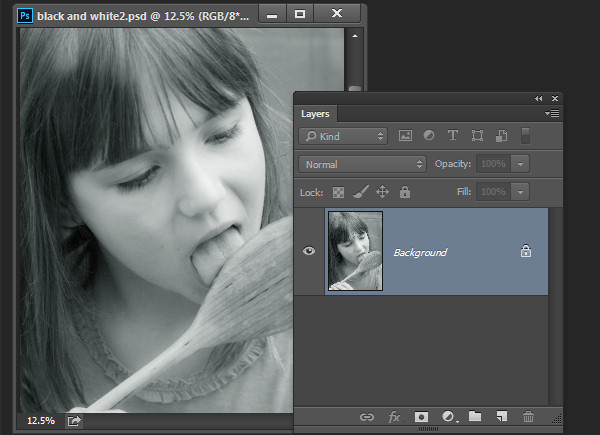
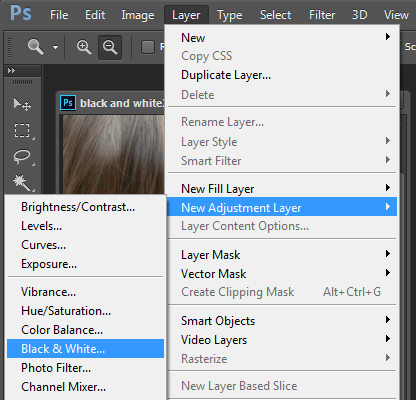
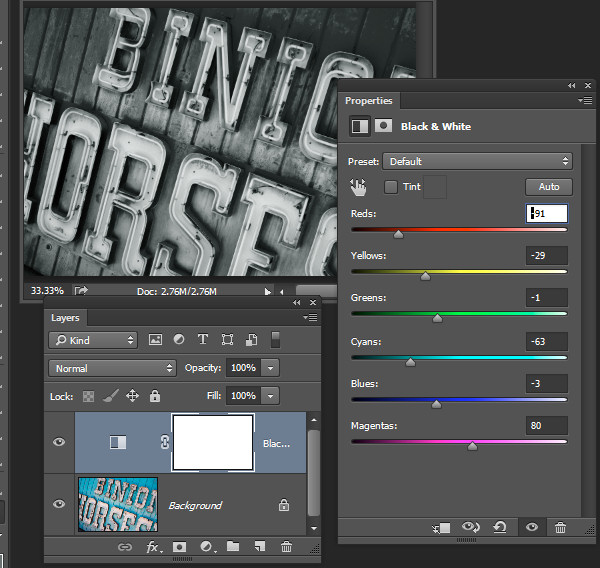
A better way to convert an image is to use a black and white adjustment layer. So choose Layer > New Adjustment Layer > Black & White and click Ok to create the new adjustment layer.

Black-and-white-in-photoshop-3

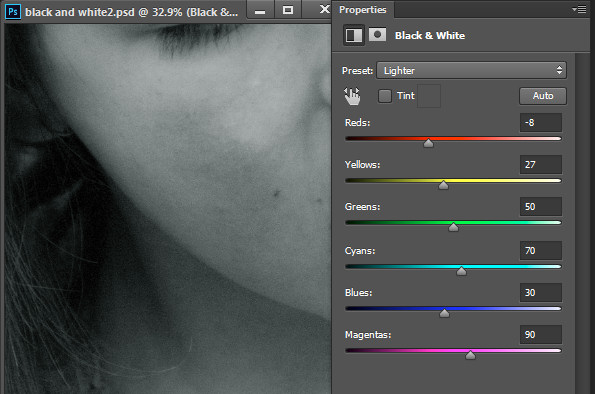
When the Properties dialog appears you will see sliders for red, yellow, green, cyan, blue and magenta. You can use these to control how the colors in the photo are converted. Drag a color slider to the left to darken areas in the image which are that tone and drag to the right to lighten them.

Black-and-white-in-photoshop-4

In some cases you may see little or no change when you drag a slider – this will happen if there is little or none of that color in the image.

The sliders allow you to create a custom black and white conversion for your photo and you can also adjust how similar value colors are converted. In this image the girl’s pink shirt and the green background convert to a similar shade of grey – but adjusting the green slider to the left darkens the background and creates a more pleasing black and white image.

Black-and-white-in-photoshop-5

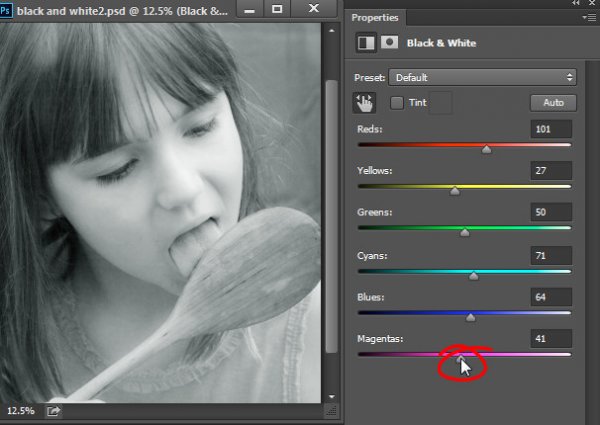
In addition to adjusting the sliders you can also use the targeted adjustment tool by clicking its icon in the Properties panel (circled in red below). You can then click on a specific area of the image and then drag to the left or to the right to adjust the color under the eyedropper. Drag to the left to darken the color, and to the right to lighten it. You should be aware, that this will, of course, adjust every occurrence of that color in the image, not just the area of color underneath your cursor.

Black-and-white-in-photoshop-6

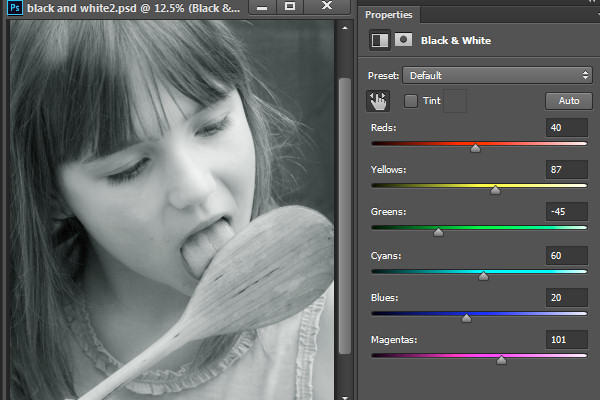
As you adjust the sliders take care to avoid dragging adjacent sliders in completely opposite directions. You are adjusting colors which are likely to be found in close proximity to each other in opposite directions – making one color light and the other dark. The risk is that you will create areas of mottled darks and lights in the image which won’t be aesthetically pleasing as in this image below:

Black-and-white-in-photoshop-7

Instead, adjust adjacent sliders so their values are closer to each other for a smoother and more pleasing result as in this next image:

Black-and-white-in-photoshop-8

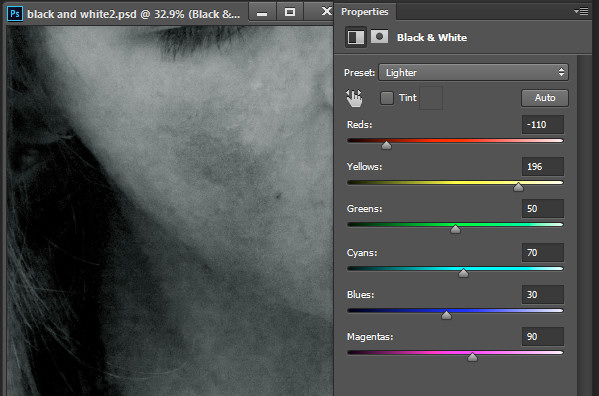
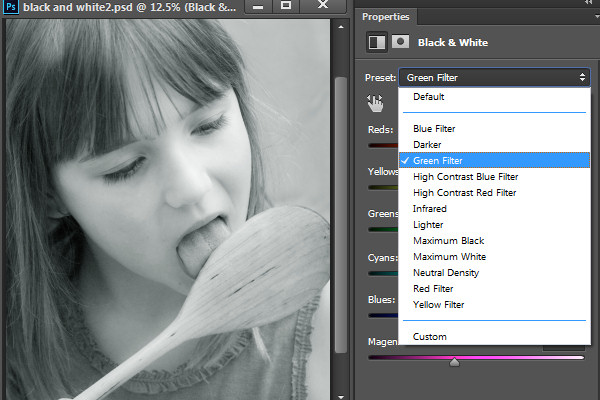
There are also presets options available from the Properties dialog that you can use as a quick start converting your image to black and white. Click a preset in the list to apply it. If you find one you like you can use it as is, or continue to adjust the sliders to fine tune the result.

Black-and-white-in-photoshop-9

Although you can apply this black and white conversion directly to the image using Image > Adjustments > Black and White, I suggest you use the adjustment layer method instead. The reason for this is that, when you use an adjustment layer you can double click the adjustment layer thumbnail to fine tuning the result at any time.

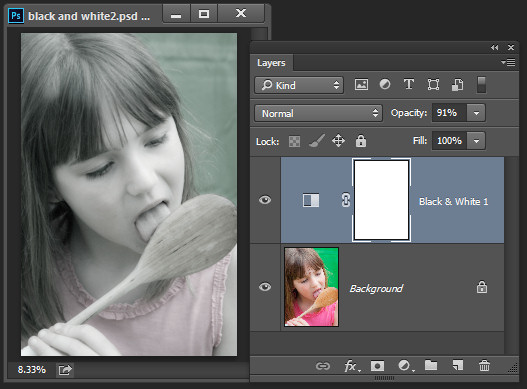
If you apply the adjustment as an adjustment layer you can blend it into the image below by reducing its opacity. Here I reduced the opacity of the black and white adjustment to reveal some of the original color image to give an almost hand tinted look to this image.

Black-and-white-in-photoshop-10

You can also, as I will explain below, add multiple black and white adjustment layers and use the built in masks to control how each adjustment layer affects the image.

Tinting a black and white image

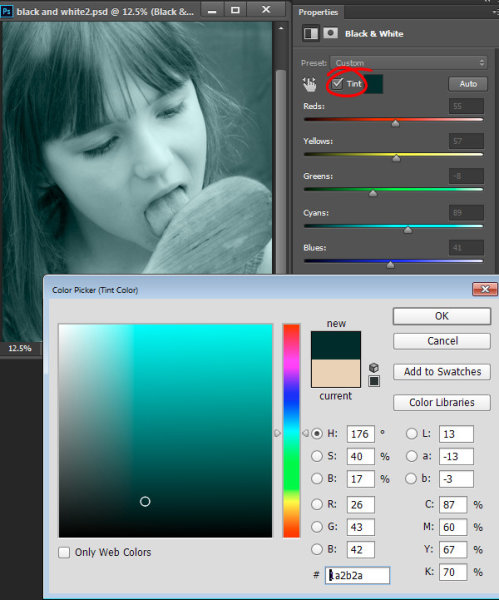
The Black and White Adjustment Layer Properties dialog also gives you the option of tinting the black and white image. To do this click the Tint button and click the color selector which allows you to choose a color to tint the image. Choosing a bright color will result in a brighter and more colorful tint and choosing a darker color will give a more subtle tone to the image.

Black-and-white-in-photoshop-11

Multiple black and white adjustments

Occasionally you may want to treat two areas of similar color in a photo in different ways. For example you may have an image that has a blue sky as well as other elements which are also blue. If you adjust the image using a single black and white adjustment layer all the blues in the image will be converted to a similar grey value and this may not be the effect that you want.

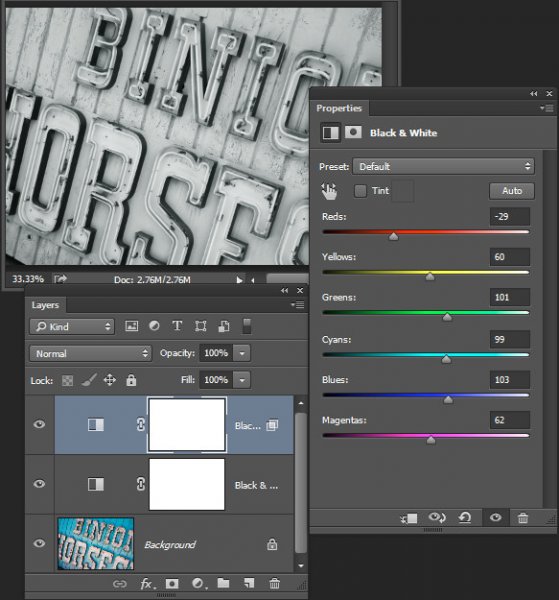
When you need to adjust two areas of similar color in an image in different ways you can apply two separate black and white adjustment layers. To do this, add the first black and white adjustment layer and use it to adjust the image the way you want it to look for one area of color. In this example I’ve adjusted the top of the image.

Black-and-white-in-photoshop-12

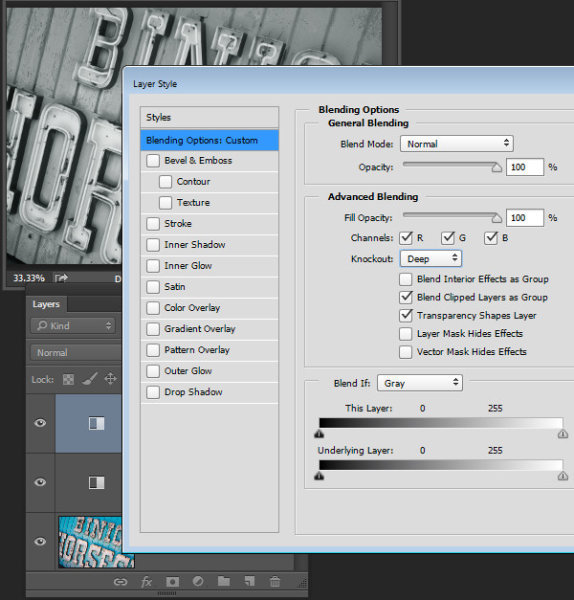
Then add a second black and white adjustment layer to the image. At this point you may notice that making changes using the second adjustment layer has no effect on the image at all. This is to be expected – a black and white adjustment layer won’t have any effect when applied over the top of what is basically a black and white image. You can change this behavior by selecting the new adjustment layer and choose Layer > Layer Style > Blending Options. From the Knockout dropdown list select Deep and then click Ok.

Black-and-white-in-photoshop-13

Now you can use the new black and white adjustment layer to fine tune the image. In this case I used it to adjust the image so the bottom part looked the way I wanted it.

Black-and-white-in-photoshop-14

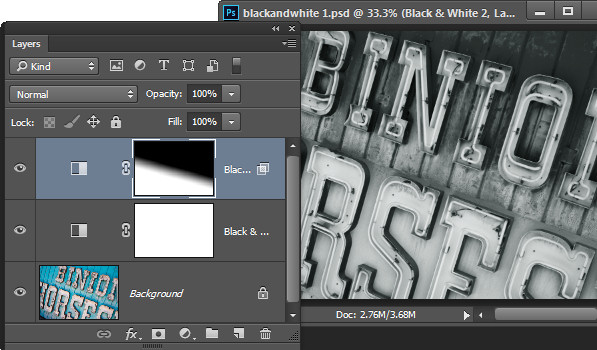
To finish the image you can blend the two adjustments using the masks on one or both adjustment layers.

For this example I targeted the mask on the topmost adjustment layer and filled it with a black to white linear gradient using the Gradient tool. I dragged down at an angle across the middle of the image so the gradient would follow the angle of the sign. The result is that the top most black and white adjustment layer no longer has any effect on the topmost part of the image (the mask is black in that area).

Black-and-white-in-photoshop-15

This process has allowed me to convert two areas of the photo, both of which contain a similar blue color to different tones of gray, one light and one dark.

If you prefer to watch a video showing these adjustments see below for the same steps:

This second video shows how to craft custom black and white images in Photoshop:

For tips on using Lightroom for your black and white conversions try these:

  • Tips for Shooting and Processing Better Black and White Photographs
  • How to Convert Photos to Black and White in Lightroom
  • Create Better Black and White Photos Using Local Adjustments in Lightroom 5
  • 3 Tips for Better Black and White Conversion using Lightroom

Do you have any other tips for black and white conversion using Photoshop?

The post How to do Great Black and White Conversions Using Photoshop by Helen Bradley appeared first on Digital Photography School.


Digital Photography School

 
Comments Off on How to do Great Black and White Conversions Using Photoshop

Posted in Photography


5 October, 2014 – Pentax 645z Astrophotography Using the iOptron SkyTracker

05 Oct

The night sky holds wonders for photographers. If you live near or have access to a site where there are dark skies; dark enough to see the Milky Way, it’s possible to explore our galaxy with your camera.

In Pentax 645z Astrophotography Using the iOptron SkyTracker I describe how to produce extreemly high quality deep-sky images. There are many approaches to this. I chose to use the new Pentax 645z with its very high image quality as well as extreemly clean high ISO capability. A moderately priced tracking accessory and a sold tripod and clear skies are otherwise all that’s needed.


The Luminous Landscape – What’s New

 
Comments Off on 5 October, 2014 – Pentax 645z Astrophotography Using the iOptron SkyTracker

Posted in News


Tips For Great Indoor Portraits Using Natural Light

05 Oct

192

You don’t have to have an amazing dedicated photography studio to get great shots indoors. Most homes have at least one or two spots that work just fine. You don’t have to have a lot of additional equipment, in fact, these tips will help you take indoor photos with just your camera and natural window light (and even incandescent light in a pinch).180

Seek the best light

Take a tour of the home you are going to shoot in to scout out the best light. I’ve done newborn sessions in a kitchen multiple times because that’s where the light was best. Often times bedrooms are little havens of sunshine as well. It might not be the room with the prettiest furniture, but that’s okay. Light is most important to me, and the other things in the room are secondary.

Eliminate clutter or simplify

Once you’ve found some nice light, do all that you can to eliminate clutter in the area you are going to shoot. Move distracting objects if possible; it’s much easier to move them before you shoot than to try to take them out later in post-processing. If you can’t avoid clutter, try getting in close to your subject.

200

Shooting in low light

Most of the time I shoot indoors with my 50mm f/1.4 lens on a full-frame body (try a 35mm lens on an APS-C or cropped sensor). It gives me enough space to get everything in the photo that I want, and gives me the ability to open the aperture wide enough to take photos in poorly lit rooms, if needed. Other lenses can work just as well, depending on what you are trying to achieve, but this is the lens that I have found has the most versatility for my indoor shooting.

You will often need to push the ISO higher if you don’t have a lot of natural light coming in. I prefer some noise, or grain, to the look of a flash, so this doesn’t bother me too much. Ideally you’ll want to shoot on days with plenty of sunlight, and a time of day when you have plenty of light indoors. This isn’t the situation to shoot in the golden hour, right before sunset. You might want to try late morning or early afternoon for more natural light.

185

Direction of light is important to create mood

When you are shooting with natural window light, pay attention to the direction the light is coming in, just as you would when shooting outdoors with the sun. You can have a beautiful hazy backlit photo, or a dimensional dramatic side-lit photo, or a flattering crisp photo lit directly from the front. Decide what mood you’d like in your photo, and also pay attention to the space you have to maneuver, and any clutter that may be in the background. 451

Mixed lighting situations

Sometimes you have to just work with what you’ve got. If you’re forced to shoot with incandescent lighting, you can still get some meaningful photos. Try not to have incandescent lighting and natural window lighting fighting to light your subject at the same time. It usually creates a crazy white balance issue, and it’s hard to make right, unless you just convert the photo to black and white. I’ll usually turn overhead lighting off, unless there is absolutely not enough light without it, or I’m shooting in a situation where I don’t have control over where the action happens.

456

Fitting it all in the shot

At times I have had to be very creative to get everything in the photo that I need to include. You can always use a wider angle lens, but that can distort things, and you might not want that look. I’ve stood on counter tops in the kitchen, on beds (watch out for ceiling fans-I’ve had a couple of close calls when I wasn’t paying attention), and wedged myself behind furniture. Anything for a good shot, right?

183

Finally

One last tip: Sometimes you may not be sure exactly where the best spot is for the lighting you’re hoping for. Don’t be afraid to experiment, and move your subject around until you’re happy with the way everything looks. If I have a newborn on a blanket, it’s a simple thing to rotate the blanket around until I like the way the light rests on his face.

Don’t be afraid to get your camera out indoors! With some practice and experimentation, you’ll find lots of ways to make great photos without any extra equipment.

171


The post Tips For Great Indoor Portraits Using Natural Light by Melinda Smith appeared first on Digital Photography School.


Digital Photography School

 
Comments Off on Tips For Great Indoor Portraits Using Natural Light

Posted in Photography


How to Soften the Light When Using Flash

29 Sep

Same Flash mounted in a Photo Flex Light Dome

Why do flash images look harsh?

Recently, a number of dPS readers have asked the question on Facebook, “How do I use a flash and not have my images look so harsh?”.

Let us first understand the difference in using natural or ambient light and using a flash. With natural light you have little control over intensity, direction, or color. With a flash, you have a lot more control if you can grasp the fundamentals of light and exposure. Using a flash you can control the direction, intensity, color and distribution of the light.

A good understanding of how your flash affects the way the subject is lit, and how it will appear in the final image is important.

Understanding light

The properties of light include: quality of light, quantity of light, and also color of light, but we will exclude that from this article.

Brightness: is a relative expression of the intensity of energy output of a visible light source.

Contrast: is the difference in light between parts of an image.

Shadows and highlights: consider that the absence of light is shadow, so shadows are parts of your subject that are not lit, and highlights are the parts that are lit.

The quality of light: here we use the terms “hard” and “soft” to define the quality of light. Hard light is found on a bright, sunny day. It creates very bright and very dark areas in the same scene. Another good example of hard light is an on-camera flash. When it is used as the only light source it results in a brightly lit subject and a very dark background. Soft light on the other hand can be defined as smooth, diffuse and evenly distributed. This type  of light creates few shadows. Cloudy days and shaded areas are examples of this quality of light.

Size of the light:  small light sources produce hard light while large light sources produce soft light.

Distance: the farther the light source is from the subject, the harder the light it will produce.

Example: although the sun is very large, its relative size to us is small and it produces a hard light. However, on a cloudy day the light becomes a relatively large light source and the sun is no longer a hard light. Not only do the clouds make the light source relatively larger, they take that bright light source and diffuse it. As a result there is no direct light falling on anything in the scene you are photographing.
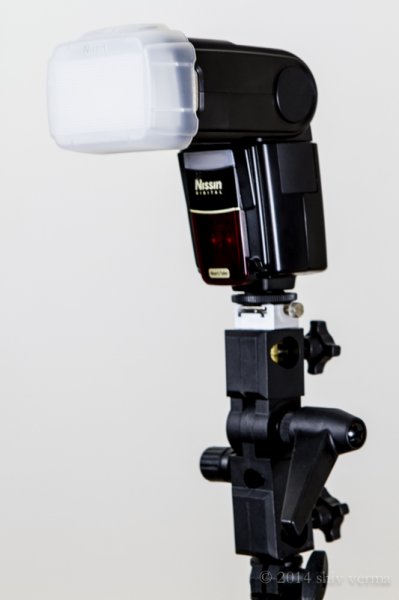
dps4-1

Nissin Flash with Diffuser

You can conclude that on a cloudless day, the light source is small, it is distant, it is bright and therefore is hard light. This light will create sharp shadows that define high contrast. On a cloudy day the relative size of the light source is large, it is much closer (the cloudy sky), less bright, and diffused. This light will create soft shadows and thereby lower contrast.

Photographing different types of subjects require different types of light. In response to the question asked, lets consider people photography. Your portraits will be far more pleasing when they are photographed with less contrast using a soft light. Yet in some cases, like for dramatic portraits of actors, high contrast looks great. High contrast using hard light is good when you want to show texture of the skin in older people. Contrast will exaggerate texture and facial features as the shadows are well defined. Less contrast, or the use of soft light (diffuse light), will deemphasize the texture and give skin a smoother appearance. This is what you are looking for, particularly with the female portrait.

When you use a flash, on or off camera, you are using a relatively small, hard, directional light source. This is a problem, since you end up with high contrast and a harsh appearance to your portrait. To solve this problem you have to make the light softer by making it larger. Remember, soft light is a large, light source, so the key to making your light softer is to make it larger.

Modifying light from the flash

On-camera flash

Here are some ways to make the on-camera flash into a soft light source. We will start with the simplest without using additional products, and move on to the more complex options using modifiers.

Bounce the flash: Bouncing is one way to make the light source larger but the light will also lose intensity. By bouncing the light off of walls and ceilings, the light falling on your subject will originate from a much larger area as compared to a directly aimed flash. Outdoors this may not be possible so you may have to find other means to bounce the flash. You can use large white foam core boards, umbrellas or you can buy a reflector. Reflectors come in various sizes and can have multiple surfaces that bounce or reflect the light. These can be twisted and folded into very compact and portable bags.  If all you have is a white business card or an index card on hand, use an elastic band and affix the card to the top of your flash.  This will serve as a small bounce and help provide catch lights in the subject’s eyes.

Tips:

  • Since bouncing the light reduces light intensity you will need to adjust your flash for higher output.
  • Bouncing off colored walls or ceilings will impart the same color cast on your subject
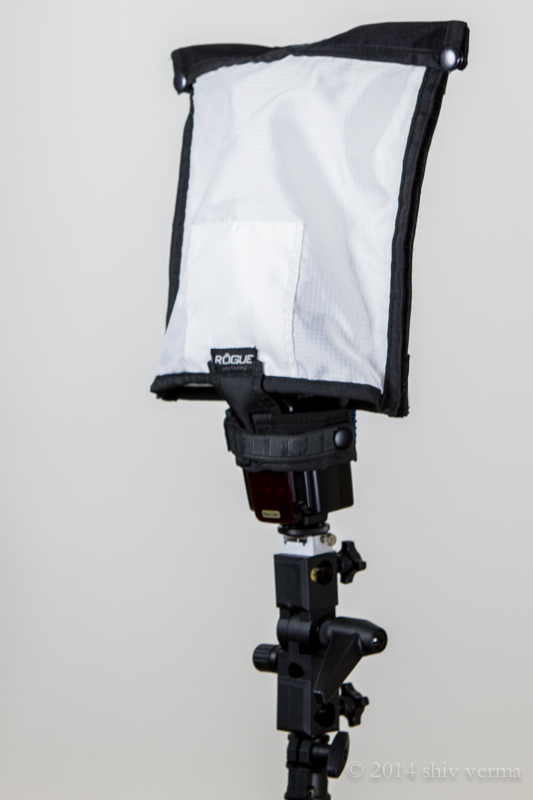
dps4-2

Rogue FlashBender Large

Use a Diffuser: The simplest diffuser is a piece of tissue paper taped in front of the flash lens. Plastic diffusers that either fit over the flash head or are fastened using Velcro or elastic bands, are the next step up. Stofen makes these diffusers in various sizes to fit most flash heads. A number of products that will bounce and diffuse light are available – Rogue Flash Bender products are a good example.  A number of manufacturers make small portable soft boxes designed for use with a flash.

Diffusers work well for indoor flash photography but are not that useful when outdoors. In addition, just as when using bounced light, diffusers also require higher power to achieve the same exposure.

There is one other problem that needs solving – flat lighting. The on-camera flash sits near the axis of your lens, so when you use a diffuser the light will still be coming from the same angle and you portraits will have little dimensionality. The images will appear flat. It gets worse if there is no diffuser. You will get red-eye or the deer in the headlights look.

Off- camera flash

The position and direction of the light source has a great impact on the appearance of your subject. We covered contrast and how contrast is defined, but the visibility of this contrast (visibility of shadows and highlights) depends on the position of the light source, be it diffused or not.

Any subjects, no matter how much texture and dimension it may have, when lit and photographed from the same angle will look flat as shown in the diagram below left. In order to show dimension and texture, the flash direction and the angle of the camera lens must not be coincidental, as shown below right.

Lighting-1 Lighting-2

The maximum dimension theoretically would be when the light source and the camera are at 90 degrees. However, this is a bit extreme. See the diagram below.Lighting-3
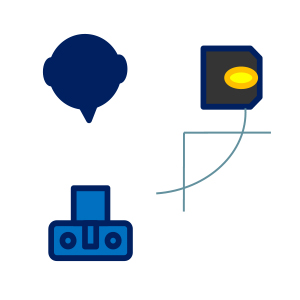
If the flash is mounted on-camera the camera will see and capture the side of the subject that is blasted with head-on light. As a result there are few if any shadows and you get the appearance of a harshly lit subject.

It may not always be possible to use the flash off-camera. Even small extensions using flash brackets to either side or above will help. A flash mounted on a light stand and controlled via wireless trigger is ideal. Flash heads mounted in small softboxes (see below) or with a Rogue Flash Bender style product will defuse the light well.
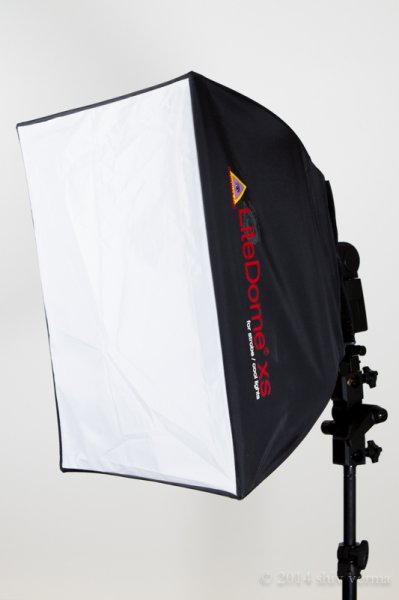
dps4-3

Photoflex LiteDome XS

If you are in a studio like environment or even at home you can increase the relative size of your flash by directing it through a translucent (white not clear) shower curtain. You can build a PVC pipe frame and drape a shower curtain over it, or buy ripstop nylon and use it as diffusion material.

Finally, remember that the closer the light source is to your subject, the softer the light. The edge of the light source is softer than the center. Keep these tips in your arsenal. Armed with the information in this article you will hopefully make better portraits when using a flash and have a better understanding of controlling the light from your speedlight.

The following two portraits were shot in a casual setting with a white foam core board serving as a fill from the left side of the camera.  For the first image a diffuser that comes with the flash head was used.  As you can see that despite the use of a diffuser the light source is still small and relatively harsh.  The second portrait was shot using the light dome.  Notice how much softer the light is on the subject.  Both images are straight from the camera – no post-processing was done.
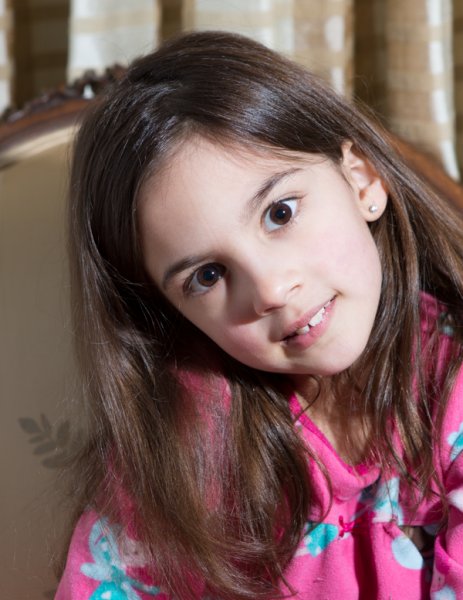
Single Flash with a manufacturer supplied Diffuser

Single flash on-camera using a manufacturer supplied diffuser
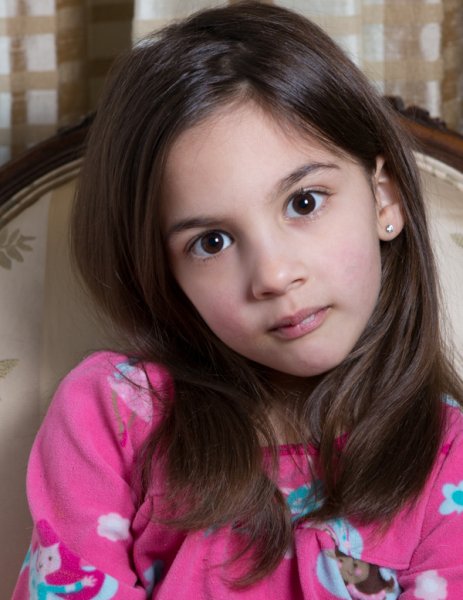
Same Flash mounted in a Photo Flex Light Dome

Same flash mounted in a Photoflex LiteDome XS Softbox

The post How to Soften the Light When Using Flash by Shiv Verma appeared first on Digital Photography School.


Digital Photography School

 
Comments Off on How to Soften the Light When Using Flash

Posted in Photography


Tip for Using a Reflector for Portraits

24 Sep

When it comes to portrait photography, one of the simplest and easiest things you can do to improve your images coming straight out of the camera, is using a reflector. There are many different sizes and shapes of reflectors, and the type of photography that you do most often will often dictate which size and shape you should purchase. For example, if you like to practice street or travel photography, it may be most beneficial to consider a round reflector that’s about 20″ wide so that you can hold it with one hand, and shoot with the other, without being intrusive in a small location like someone’s home. On the other hand, if you think you’d like to use a reflector for wedding photography, it is best to go for something rectangular and much larger (such as a 48×72″) so that the light you’re reflecting can reach everyone in the bridal party during portraits.

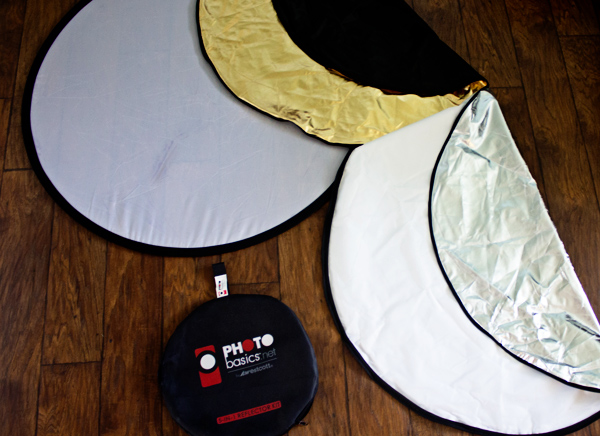
Reflector Kit

What kind of reflector should you buy?

I suggest a 5-in-1 round reflector that’s between 40-43″ across because I have found this size reflector to work exceptionally well for individual or small group portraits. Do keep in mind that with this size reflector, you will probably need either an assistant or a stand to hold the reflector during portraits.

5-in-1 reflectors typically come with a pop-up diffuser, and then a reversible zippered pouch to fit over the diffuser that includes white, silver, gold, and black sides. When you’re first beginning to use the reflector, the most difficult part can often be deciding which color reflector is best to use. As is often the case in photography, although there are some rules about when exactly to use each color reflector (my first photography professor in college used to tell us that a gold reflector was for indoor, studio portraits ONLY), the reality is that which color you should choose will vary based on your own style of photography and personal preference, and may or may not always follow the rules. I have found it most helpful to practice frequently with my reflector in a variety of settings so that I’ll have a better idea of a starting point when it comes to a real session.

All that said, I’m a visual learner, and need to actually see something in order to understand it best. So yesterday afternoon, I borrowed my sister Courtney and went to the backyard to take some photos so that you can see what each color reflector looks like in a portrait setting. Each photo was shot in manual mode with exactly the same settings, and every image in this post is straight out of the camera so you can really see the difference a reflector makes without any post-processing. These photos were taken at about 2 p.m. I live in Oregon and we perpetually deal with smoke from forest fires in the summer, so that was the case here as well, but this is also a good example of the difference that a reflector can make on a slightly overcast day.

Reflectors do just what they say—they reflect the light. So, because the direction of light will change depending on the time of day and the objects around you, you will want to experiment with placing the reflector in front of your model, as well as at head-height (often angled up slightly) on either side of your model. In this example, I had my model hold the reflector at chest-level in order to bounce catch-lights into her eyes and eliminate green color casting from the grass below. However, angling the reflector to bounce light from below can draw attention to the neck and chin and may not always be the most flattering way to light every subject. So, experiment with holding the reflector at different heights and angles in order to see what is most flattering on your particular model with your particular source of light.

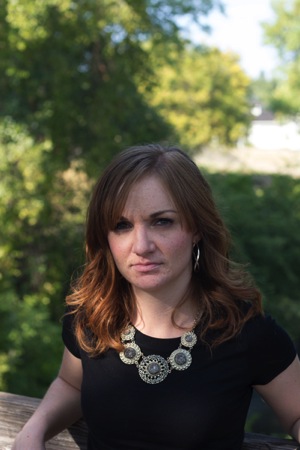
First up, here’s Courtney with no reflector (below left). It’s not a bad photo, but it also isn’t a very dynamic photo either. I can absolutely add some “boost” in post-processing, but let’s make it better in camera, if we can.

Reflector 1 Reflector 2

White reflector

I started by having Courtney hold the white side of the reflector under her face, about chest-high (above right). As you can see, this really bounced a lot of neutral light up into her face. If you like this look but find that it’s a bit too much light (as I think it is here), you can have your model continue to lower the reflector away from their face until you achieve a more natural light.

Gold reflector

Then we flipped the reflector to the gold side, and had Courtney hold the reflector at waist-height under her face (below left). You can see that this option brought a significant amount of warm light into her face, compared to the image with no reflector. The gold side of the reflector can be tricky, as it can easily make people look a bit radioactive if the reflector is placed too close to the model. I find that I use the gold side of the reflector almost exclusively in backlit sunset portraits, but if you tend to prefer a warmer look to portraits, you may want to reach for this one more frequently.

Skin tone is also particularly important when it comes to the gold side of the reflector, and you will generally find the most success when using the gold side of the reflector on olive skin tones or people who are very tanned. Conversely, the silver or white reflector may be most flattering on people who have blue undertones in their skin.

Reflector 3 Reflector 4

Silver reflector

Next, I unzipped the reflector, flipped it inside out, and turned it to the silver side. I had Courtney hold the reflector under her face at waist-height (image above right). I tend to prefer the coloring here best, but I also need to say that the silver side of the reflector is by FAR the most difficult to work with, as the sheer brightness can essentially be very difficult for a model to look at, resulting in portraits that look like this:

Reflector 5

So, even though I personally tend to like the coloring of the silver side best, I most often elect to begin with the white reflector, simply because the silver side tends to be very difficult for my clients unless they have had lots of modelling experience.

Reflector 6

Black reflector

The black side isn’t a reflector at all; rather than reflecting light, it eats it up. I don’t use the black side of the reflector very often, but it can be useful for increasing shadows in very dramatic images. Can you tell where I was holding the black reflector in the image above? For more on how to use a black reflector to block light readt this dPS article: How to use a Gobo to add Depth to Your Portraits with Subtractive Lighting.

Diffusion part of the reflector

The part of the reflector that I end up using more than any other is actually the diffuser. The diffuser comes in handy when you’re in situations that may have mottled light, or direct sun overhead.

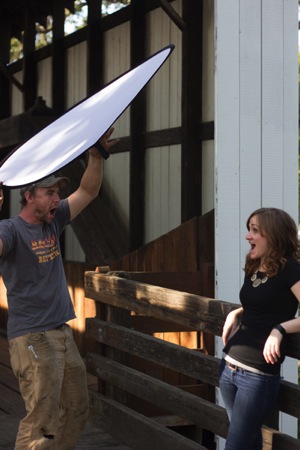
Do you see here how the tree is creating mottled light on Courtney’s face (below left)? In other words, some parts of her face are very light while other parts tend to be shadowed. The easiest thing to do to avoid mottled light is to put the light behind your subject. But, since that’s not always possible, a diffuser is a great thing to have in your bag of tricks as well.

Reflector 7 Reflector 8

The image above right is a pull-back of my husband holding the diffuser over Courtney’s head (and both of them just generally being silly). Notice the shadows on the diffuser – without it, they would be on her face. Instead, the diffuser blocks those shadows, creating more even light and a much more pleasant portrait overall.

Reflector 9

I hope that seeing examples of different colored reflectors used in the same setting has been helpful. I’d love to know, do you own a reflector? How (and which color) do you find yourself using it most often in your favorite style of photography?

The post Tip for Using a Reflector for Portraits by Meredith Clark appeared first on Digital Photography School.


Digital Photography School

 
Comments Off on Tip for Using a Reflector for Portraits

Posted in Photography