RSS
 

Posts Tagged ‘Using’

How to Create a Rim Light Effect Using Photoshop

20 Jan

Lighting is a huge integral part of a movie’s success. The same applies to photography. It’s all about the light or lack of it to create the drama in an image. Rim lighting, as the term suggests, is also called edge or back lighting. In this article I will show you how to create this dramatic style of lighting.

how to create a rim light effect in Photoshop

A rim light effect created in-camera and an Inner Glow effect added in Photoshop.

Rim lighting adds drama

There’s a particular scene in the movie Alien (1979) in which the character played by Harry Dean Stanton goes to find Jones the cat. That scene had me glued to my chair with both hands up to my mouth and fingers lodged between my teeth. You just knew something bad was going to happen but it was drawn out with unbelievable tension.
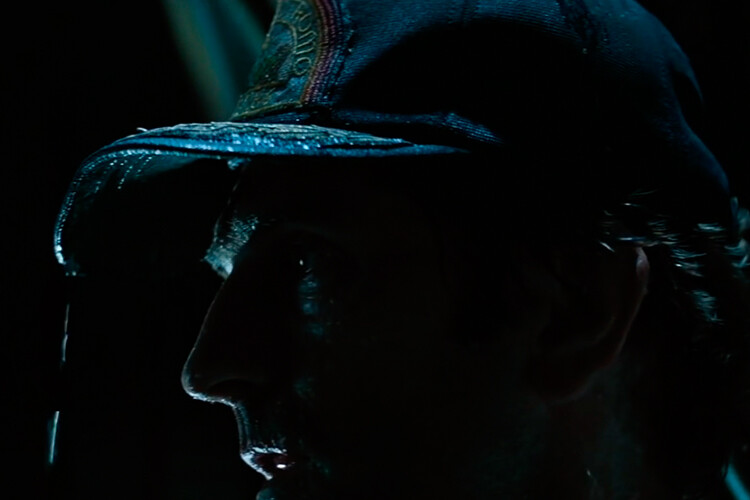
How to Create a Rim Light Effect Using Photoshop Alien

Alien Courtesy of 20th Century Fox

The lighting throughout the movie was low key to give that moody atmospheric feel.

A good example of rim lighting is using two side lights or one light from behind the subject, as in the image below.

How to Create a Rim Light Effect Using Photoshop

In this photo the light is behind the subject creating an edge or rim light around the subject’s head. This is also called a hair light.

Before I demonstrate how to create a rim light effect in Photoshop. I want to show you just how easy it is to get a rim light effect in-camera, so you can try it out in the comfort of your own home.

Create a rim light effect in-camera at home

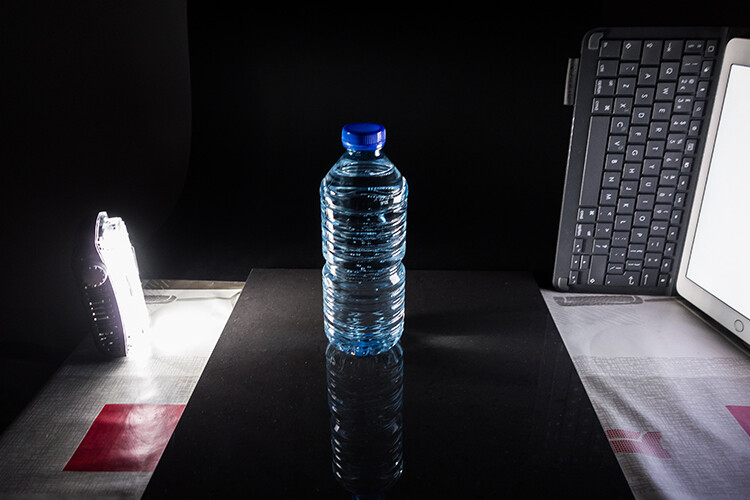
I used the following setup to create my rim light:

  • One bottle of water
  • One glossy black tile
  • Two lights
  • A camera mounted on a tripod

I picked up a sample black glossy tile from a local tile shop, where I was able to purchase just the one. As for the lighting, strip softboxes are ideal for this type of rim lighting. You place a strip softbox on each side, and slightly behind (closer to the background), the subject.

Unlike standard softboxes, strip softboxes are narrow and rectangular in shape. But, for the purpose of this article so that you can easily do a similar setup in your own home, use whatever light sources that you already have at your disposal.

Using my iPad placed vertically to one side of the bottle, I opened the Soft Box app which is free to download and set it to white. I placed an LED light on the other side of the bottle. My kitchen table was used for the setup.

As you can see in the photo below, I was able to angle the lights so that I could control the rim light hitting the bottle. My camera settings were: ISO 2000, 1/60th of a second, at an aperture of f/5.6.
How to Create a Rim Light Effect Using Photoshop

A simple setup that you can do at home to create a rim light effect in-camera using a black glossy tile, a prop, and two lights.

NOTE:

If you don’t want to use two lights and you have a regular softbox, try placing it directly behind the object and cover the center of the softbox with a strip of black card (that will become your background). You will need to experiment to get the rim lighting around the object.

how to create a rim light effect in Photoshop

This is the bottle of Water straight out of the camera.

Let’s dive into Photoshop.

Creating a rim light effect in Photoshop

The key to adding the rim light effect in Photoshop is Layer Styles and having the subject isolated from the background. Before any layer style can be applied, it is necessary that the image that you are applying the style to has been carefully cut out. Use whatever selection tool you want but I would recommend using the pen tool.

Layer style

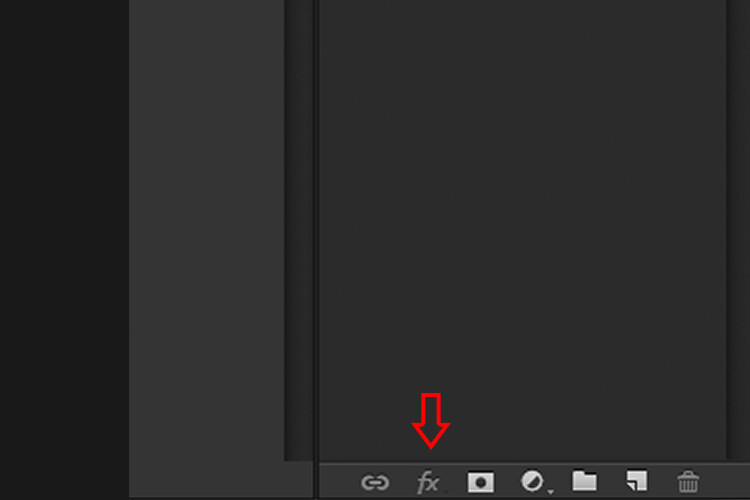
Let’s take a look at Layer Styles. With Photoshop open, go over to the Layers Panel. Scroll down to the bottom and you will see a group of icons. You will see this icon, fx second to the right. Click on that and a pop-up dialog box will appear with different preset style options.
How to Create a Rim Light Effect Using Photoshop layer styles

The Layer Styles presets are accessed by clicking on the fx icon located at the bottom of the Layers Panel.
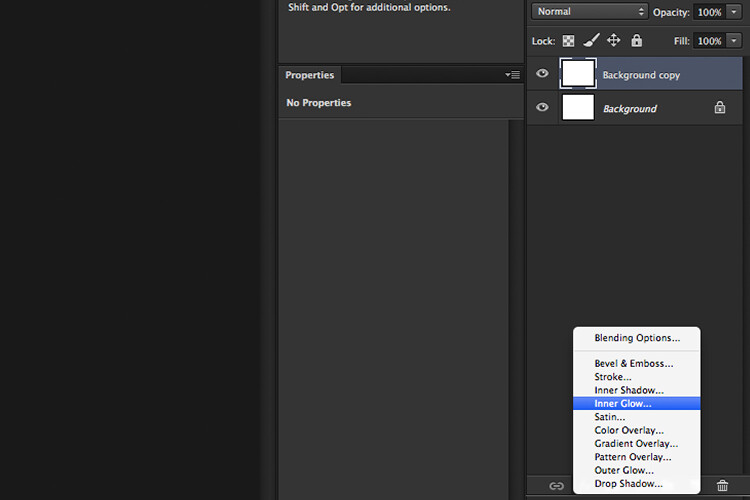
How to Create a Rim Light Effect Using Photoshop - The Inner Glow preset

The Inner Glow preset

Alternatively, you can access the Layer Styles by going back to the top right corner of the Layers Panel and clicking on the downward arrow icon with horizontal lines beside it. Scroll down to where it says Blending Options. The same Layer Style option box appears and just click on Inner Glow.
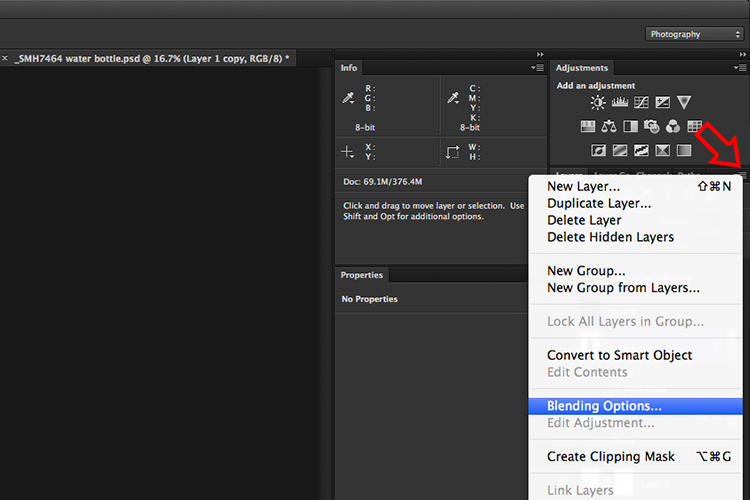
How to Create a Rim Light Effect Using Photoshop

When you click on any of the Layer Style options, the settings are all preset options, but they can be easily edited. In this example, leave some of the settings as they are and only adjust the following three:

  1. Choke – similar to feathering
  2. Size
  3. Opacity

Experiment until you get the desired effect, then click the OK button.
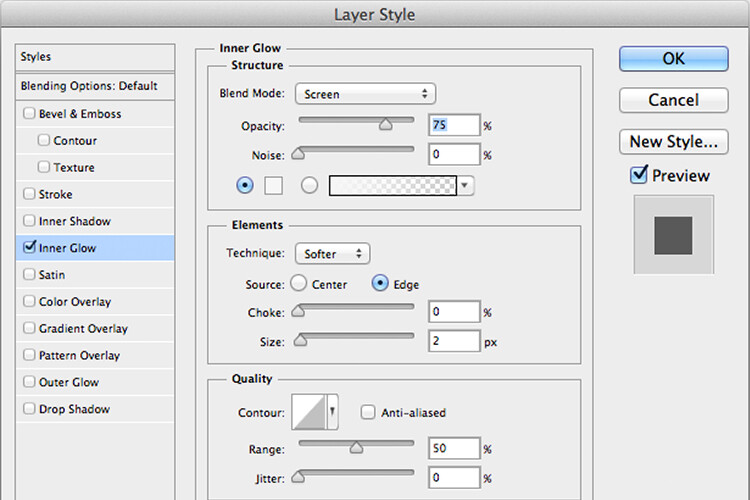
How to Create a Rim Light Effect Using Photoshop

The Layer Style pop-up dialog box with the default settings.

adding a rim light effect in Photoshop

A rim light effect is added in Photoshop using Inner Glow from the presets in the Layer Styles.

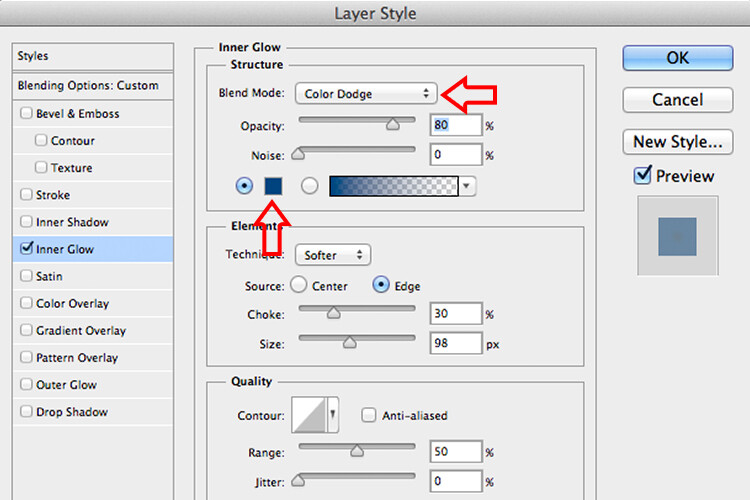
Using Color Dodge Blend Mode instead of Screen

My preference when using this Layer Style technique is to change the Blend Mode from Screen to Color Dodge. I used this on the bottle of water in the title shot. To illustrate the subtle differences between the two Blend Modes, see the two photos below. The first image is the Inner Glow with Screen as the

The first image is the Inner Glow with Screen as the default setting. For the second image, I changed the Blend Mode to Color Dodge.
alt=

Changing the Blend Mode to Color Dodge
How to Create a Rim Light Effect Using Photoshop inner glow

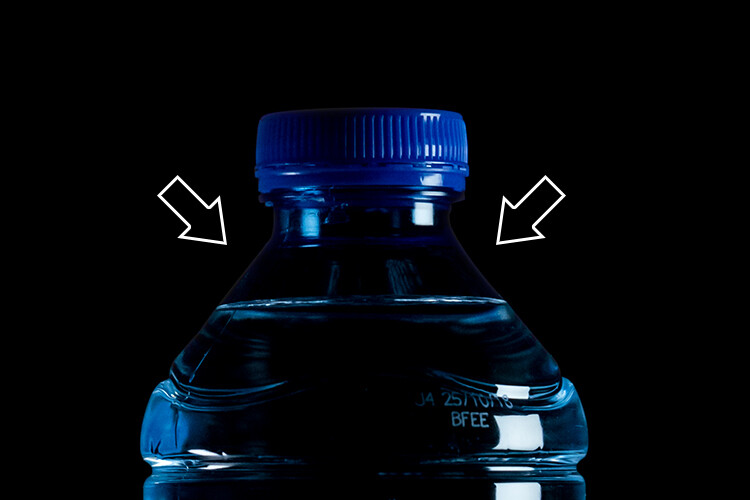
Rim light effect created in Photoshop using Inner Glow from the presets in Layer Styles.

How to Create a Rim Light Effect Using Photoshop

This rim light effect is created using Inner Glow from the Layer Style presets but I changed the Blend Mode to Color Dodge.

Creating a rim light from scratch using Photoshop

However, this technique really does shine when you have to create the rim light effect totally in Photoshop. For example, take this Owl Butterfly image that I got from www.pixabay.com. It has no rim light effect on it at all.

How to Create a Rim Light Effect Using Photoshop owl

Owl Butterfly from Pixabay 1668956 – dowload the image if you want to follow along.

I isolated the Owl Butterfly from the background using the Pen Tool and placed it against a different background shot to which I added a Gaussian Blur.

How to Create a Rim Light Effect Using Photoshop owl

Wheat from Pixabay 8244_1920

As I had the Butterfly on its own separate layer, I added an Inner Glow from the Layer Styles and changed the Blend Mode to Color Dodge and chose a darkish yellow. I wanted a backlight to appear on the wings of the Butterfly caused by the setting sun in the background.
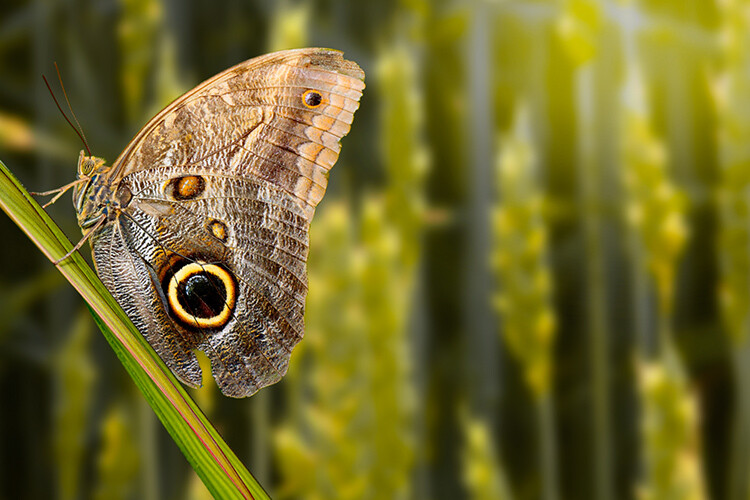
How to Create a Rim Light Effect Using Photoshop owl before

The Owl Butterfly was cut out using the Pen Tool in Photoshop and placed it against another background image. I blurred the background using Gaussian Blur.

I put this Layer Style effect on its own separate layer. Then I applied a layer mask and brushed in the yellow glow on the wings to give it a more realistic look. I did a bit more retouching by adding a gradient Overlay and then applied the Filter>Blur>Average to blend the colors from the two images.
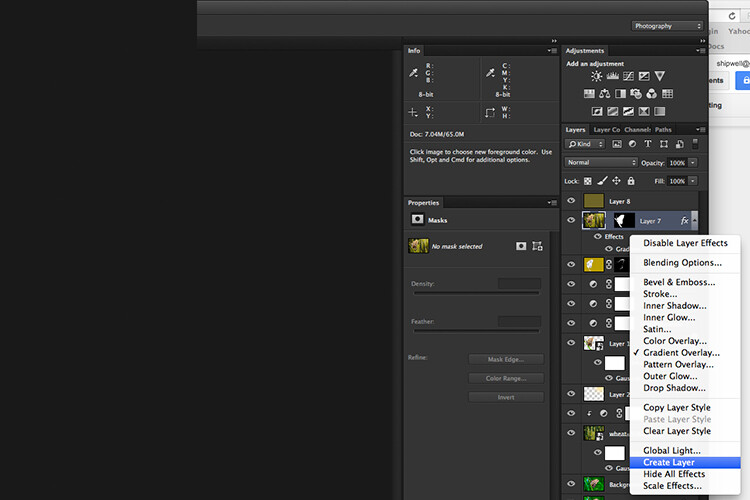
How to Create a Rim Light Effect Using Photoshop layer style

By placing the Layer Style effect on its own separate layer. I was able to apply a layer mask and brush the Glow effect onto to the wings of the Butterfly.
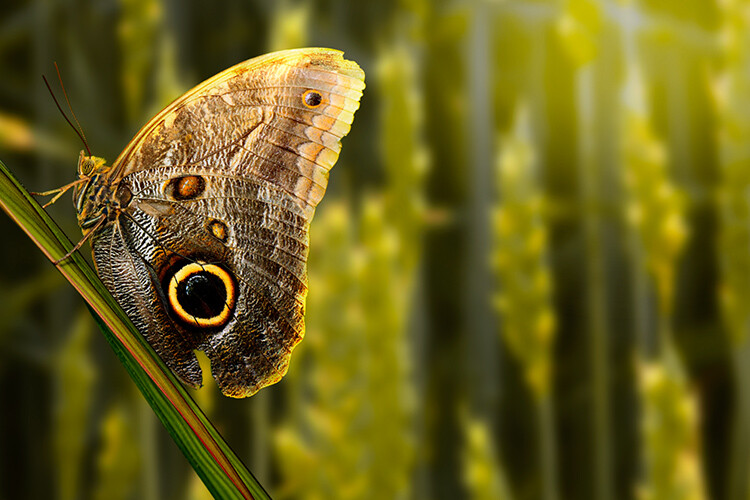
How to Create a Rim Light Effect Using Photoshop owl after

An Inner Glow was added using the blend Mode set to Color Dodge. I then added a Gradient Overlay to darken the bottom part of the Butterfly and I applied an Average Blur to blend the color of the two images.

Your turn

I hope I have been able to show you how effective creating a rim light in Photoshop can enhance your images. Do you use this effect on your images? Feel free to give it a try and post your results below, I will try to answer any questions and would love to see your images.

googletag.cmd.push(function() {
tablet_slots.push( googletag.defineSlot( “/1005424/_dPSv4_tab-all-article-bottom_(300×250)”, [300, 250], “pb-ad-78623” ).addService( googletag.pubads() ) ); } );

googletag.cmd.push(function() {
mobile_slots.push( googletag.defineSlot( “/1005424/_dPSv4_mob-all-article-bottom_(300×250)”, [300, 250], “pb-ad-78158” ).addService( googletag.pubads() ) ); } );

The post How to Create a Rim Light Effect Using Photoshop by Sarah Hipwell appeared first on Digital Photography School.


Digital Photography School

 
Comments Off on How to Create a Rim Light Effect Using Photoshop

Posted in Photography


Chipotle sued for $2.2b for allegedly using womans photo without permission

10 Jan

Mexican fast-food restaurant chain Chipotle is being sued for $ 2.2 billion by a customer who claims a photo of her has been used in advertising without her consent. According to the lawsuit, photographer Steve Adams took Leah Caldwell’s photo in mid-2006 while she was dining in a Denver area Chipotle restaurant. Caldwell claims she refused to sign Adams’ release form before leaving the restaurant, but that her refusal didn’t stop Chipotle from using the photo in some promotional materials.

Both Adams and Chipotle CEO Steve Ells are named as defendants in the lawsuit. Caldwell states that she became aware of the photo’s usage in Chipotle promotional materials in December 2014 in Orlando, later seeing the photo in multiple California locations in 2015. She also claims the photo was edited to include alcoholic items on the dining table.

Chipotle has declined commenting on the pending litigation, but the lawsuit alleges that Chipotle bought and used the Adams’ photo without confirming whether Caldwell has signed a release. Due to the lengthy span of time that the photo was in circulation, the lawsuit is seeking a massive $ 2,237,633,000, the amount that Chipotle allegedly profited from the photo.

No doubt it’s a reminder to photographers everywhere that getting models to sign a release form is an absolute must. Will Chipotle end up paying over $ 2 billion as a result of the oversight? It seems unlikely. Let us know what you think in the comments.

Source: The Denver Channel

Articles: Digital Photography Review (dpreview.com)

 
Comments Off on Chipotle sued for $2.2b for allegedly using womans photo without permission

Posted in Uncategorized


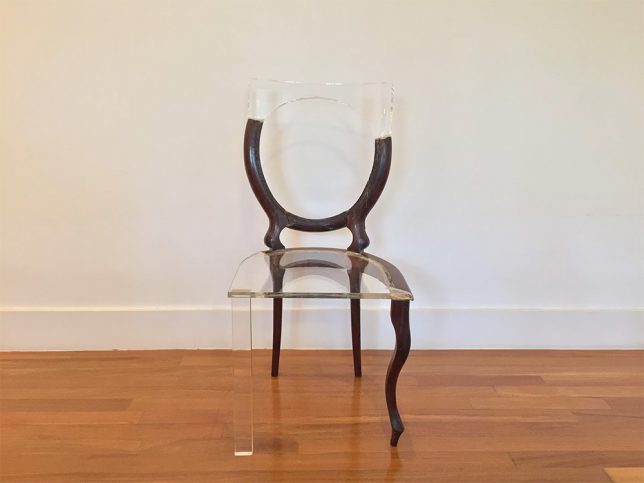
Invisible Repairs: Artist Fixes Broken Wood Furniture Using Clear Infill

24 Dec

[ By WebUrbanist in Art & Sculpture & Craft. ]

wooden-chair-replacement-art

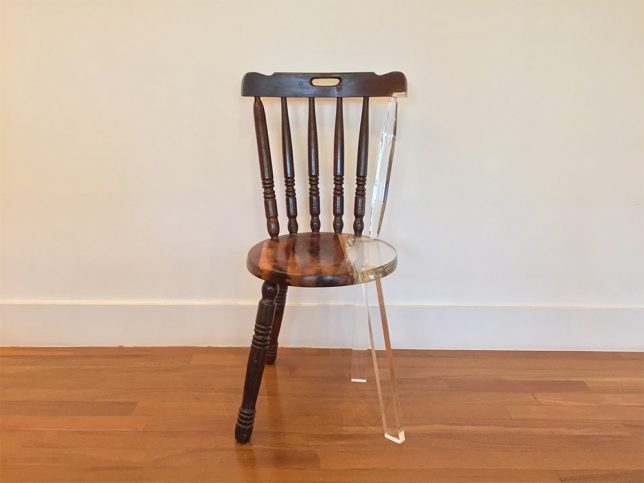
Wooden furniture remnants stand out clearly against their subtle replacement parts in this series of artistic chair and bed repairs. Translucent acrylic fills in the gaps of these pieces, parts of My New Old Chair and Dear Bed collections by artist Tatiane Freitas. Mirroring the construction methods used for the two materials, the missing lathe-spun wooden parts are replaced by simplified acrylic geometries.

wood-chair-lines

chair-repair

The approach follows a certain vein of old-versus-new expressionism also found in fields of design and architecture — added elements are clearly distinguished from existing ones in order to make the time period differences legible at a glance.

wood-acrylic-art-chairs

wood-chair-intervention

As with repair-oriented designers, there is a functional component here as well: the old chairs are able to be useful again thanks to these careful interventions.

bed-headstand-repair

wood-chair-plastic-infill

More about the artist: “In her day to day before graduating from Fashion school Tati Freitas was already looking into ways to create objects which could be both confortable and admired. Craft wood is her most common material, and that which gives her objects its forms, but she’s also been developing with more brute substances, like cement, and the sensible acrilic.”

Share on Facebook


[ By WebUrbanist in Art & Sculpture & Craft. ]

[ WebUrbanist | Archives | Galleries | Privacy | TOS ]


WebUrbanist

 
Comments Off on Invisible Repairs: Artist Fixes Broken Wood Furniture Using Clear Infill

Posted in Creativity


3 Video Tutorials – Portrait Retouching Tips Using Lightroom

06 Dec

Many of our readers use Photoshop to edits portraits, but what if all you have is Lightroom? Or you don’t know Photoshop as well? You can certainly do most of your portrait retouching using Lightroom.

Here are some video tutorials that walk you through a complete edit of one portrait from start to finish, using only Lightroom. I have also included one that I myself did too.  Every photographer has their own style, so take what works for you from each and apply that to your own editing style.

#1 Extended Lightroom Portrait Edit by Adam Lerner

Photographer Adam Lerner walks you through his portrait editing process from start to finish. He will give you some tips and tricks and great hidden gems inside Lightroom that you can use.

#2 Full Lightroom Portrait Editing by Photos in Color

Ed Gregory from Photos in Color processes a portrait using Lightroom from end to end. He makes a very different looking end result so if you’re looking for some style ideas and tips this might be a good one for you. See what he does the same and differently than Adam above, and myself below.

#3 Portrait retouching in 10 minutes using Lightroom

This is my version. Having taught Lightroom in the classroom and done portraits for over 20 years, I may have some good tips for you that you didn’t already know. I’ve been using Lightroom since the beta version 0.9 or so, and it’s my go-to image editor.

I almost never pull an image over to Photoshop unless I need to do layers for something. For portraits, that may be a head swap or something where I have to blend images. But otherwise, I pretty much use Lightroom for everything, even skin, eye and lip retouching.

Your turn

How do you use Lightroom to process and do your portrait retouching? Do you have any other tips the three of us missed? Please share in the comments below.

googletag.cmd.push(function() {
tablet_slots.push( googletag.defineSlot( “/1005424/_dPSv4_tab-all-article-bottom_(300×250)”, [300, 250], “pb-ad-78623” ).addService( googletag.pubads() ) ); } );

googletag.cmd.push(function() {
mobile_slots.push( googletag.defineSlot( “/1005424/_dPSv4_mob-all-article-bottom_(300×250)”, [300, 250], “pb-ad-78158” ).addService( googletag.pubads() ) ); } );

The post 3 Video Tutorials – Portrait Retouching Tips Using Lightroom by Darlene Hildebrandt appeared first on Digital Photography School.


Digital Photography School

 
Comments Off on 3 Video Tutorials – Portrait Retouching Tips Using Lightroom

Posted in Photography


4 Tips to Leverage Natural Light Using Just your Camera and One Lens

29 Nov

In photography light is everything. Without light, whether that be artificial or natural, there is no photography. The problem is that sometimes there is just too much or too little, and in both cases, artificial light may need to be added. But what if you don’t have any artificial light available to you? And what if all you have is literally a camera with a lens and nothing else? This article focuses on how you can leverage natural light using just one lens and working without a reflector or a speedlight.

#1 Position your subject in relation to the light

Let’s take a look at these photos below. It was a very sunny day and I wanted to capture the blueness of the sky and the sea as well as the people in the shots. I had a D700 which has a base ISO of 200 and the 50mm 1.4 lens. I have provided the settings below for each photo.

creative-ways-available-light-with-the-50mm_0000

f/5.6 ISO 200, 1/2000th

creative-ways-available-light-with-the-50mm_0000

f/5.6 ISO 200, 1/1250th

creative-ways-available-light-with-the-50mm_0000

f/6.3 ISO 200, 1/2000th

These settings are okay on a very sunny day if you shoot with the sun positioned behind you shining towards your subject. In this case the sea and sky, which also illuminated the people that I wanted to be in the photo.

Lighting position

While these photos are fine, there are a few issues. First, put simply, when this is the lighting position, anyone, and any camera can take these types of photos. You can shoot in automatic mode and the photos would look the same. Mobile phones nowadays can take even more amazing photos in this situation where there is a huge amount of light hitting the subject and the background directly.

I love these types of photos for travel photography, high contrast shots and snapshots that would make me remember such scenes. But if I am after portraits, would I hire a professional photographer who would give me photos that anyone can take? Definitely not! Sure, the occasional lifestyle snapshot in this lighting is acceptable such as this one directly below shot at f/2.5 ISO 200, 1/2500th. But I would not want proper portraits of my family to be taken in this lighting situation.

creative-ways-available-light-with-the-50mm_0000

creative-ways-available-light-with-the-50mm_0000

creative-ways-available-light-with-the-50mm_0000

Harsh shadows

The second issue is the harsh shadows. As a professional photographer, this would never be my lighting position for people or portraits. Even if the sun was coming in at a side-angle, undiffused sunlight directly hitting the subject still produces harsh shadows and hotspots. I would prefer for the sun to be behind the subjects, also known as backlighting, rather than directly in front of them.

If your intention is to take nicely lit portraits with a background that is not blown out, for backlighting to work, you would need to have a big enough flash or reflector to illuminate your subject to avoid silhouettes. Conversely, you can simply expose for your subject but you will have to blow out (overexpose) the background. Therefore, you end up with a white sky rather than a blue sky.

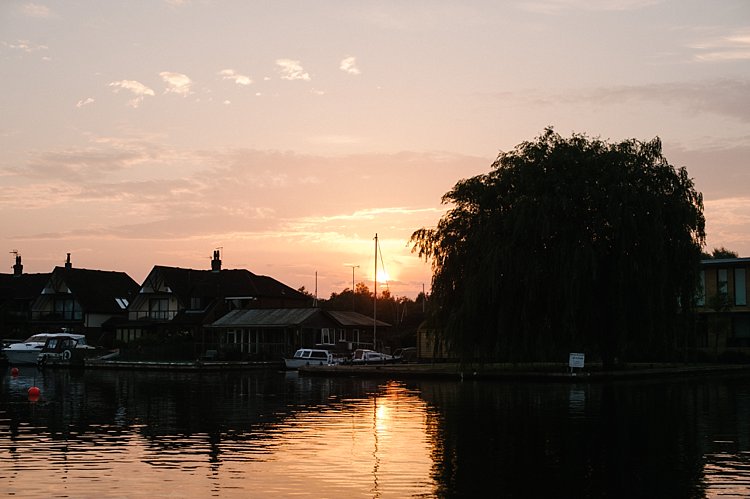
An example of backlighting is this sunset photo below. The houses and the boats were not illuminated. I was too far away for my pop-up flash to be of any help, and I didn’t have a tripod for a long exposure and smaller aperture. But I still wanted to capture some of the soft sky color along with the sunset. Balancing the exposure was tricky and I ended up shooting this image with the following settings; f/5, ISO 200, 1/320th. While the ambient light of the sunset was captured, the other elements in the photo were too dark and ended up almost like silhouettes.

creative-ways-available-light-with-the-50mm_0000

What if you have nothing else but a camera and lens with you? You do not want all your photos to be silhouettes when shooting backlit, or too dark when shooting in the shade. So what you can do is leverage your surroundings by positioning your subject carefully in relation to the light. If you have to shoot backlit portraits in a situation similar to above, shoot an intentional silhouette or use your flash for fill light (more on this below).

If you’re doing portraits where you want to focus on well-exposed faces, avoid positioning your subject where they are facing the sun which results in harsh light and shadows. On a very sunny day, you may want to wait for the golden hour – the time shortly after sunrise or before sunset –  when the sun is much lower on the horizon and the light is much softer. This yields a light that is much more flattering for portraits. If it is a bright but overcast day, the clouds act as a huge diffuser and the shadows are not as harsh so it is easier to photograph portraits in those conditions.

#2 Look for ideal light

Ideal light is often indirect, reflected, or subtractive light. This can take various forms:

  • Indirect lighting can be the soft diffused light coming from a window.
  • Reflected light can be that bouncing off a white floor, wall, bright sand, or from white or light-colored clothing you are wearing.
  • Subtractive light can be achieved by blocking the light with a diffuser, umbrella or a flag (any flat black object large enough to block any direct light hitting your subject).

Get out of the sun

As this article does not involve any equipment other than your camera and lens, instead of blocking the light, I positioned my subject in the shade. So that instead of subtracting light from my subject, I subtracted my subject from the light and put her in the shade.

In this example below, it was a very bright day and I did not want any direct light falling on my daughter’s face. I put her completely in the shade but deliberately next to the caravan wall which was light beige. There is some reflected light from the side that helps illuminate her face and the generally shadowed area we were in.

creative-ways-available-light-with-the-50mm_0000

In this photo below taken in the zoo, there was no natural light at all. A fluorescent light illuminated the box where the snake was. You can see this white light reflected on the top part of the snake’s eye (catchlight). I waited for the snake to get into this position and used the light which was bouncing from the ceiling onto him to get this shot.

creative-ways-available-light-with-the-50mm_0000

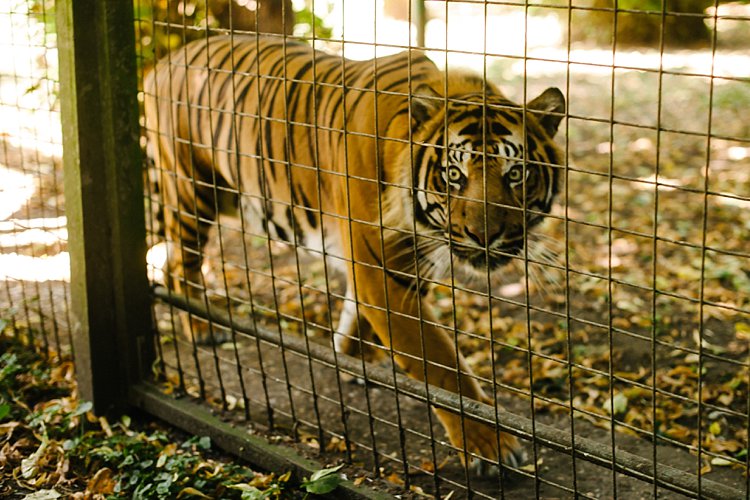
In this photo below, there was no ideal light! We were in a pretty darkly shaded area and the enclosure was mottled with spots of sun and shade. I positioned myself where I knew I could catch a good close up of the tiger in complete shade and waited for it to pass by.  The contrast between the light and shade was so strong that had I taken the photo of the tiger with his body in half sun and half shade, it would not have come out well at all.

creative-ways-available-light-with-the-50mm_0000

#3 Use your pop-up flash as fill light

Now I know that photographers are sometimes funny (and snobby) about using the camera’s built-in pop-up flash. I am one of those photographers, with good reasons. The camera’s pop-up flash blasts light directly onto your subject. It gives you a rather flat and unflattering light with a harsh shadow around the jaw and head to boot. Unless your intention is to shoot like this such as some fashion houses do (and they do it so professionally by the way), then this is a no-no in portrait photography. Ideally, you want the light bounced and angled – anything but aimed directly from the camera toward the subject.

However, I do use my pop-up flash quite a bit! In fact, I use it when I don’t have a flash gun (speedlight) and I’m shooting backlit, especially when the sun is strong. And I have no qualms using it as a direct light in this situation because the camera’s flash is not strong enough to overpower the sun anyway. So the most you get out of it is a little bit of fill light.

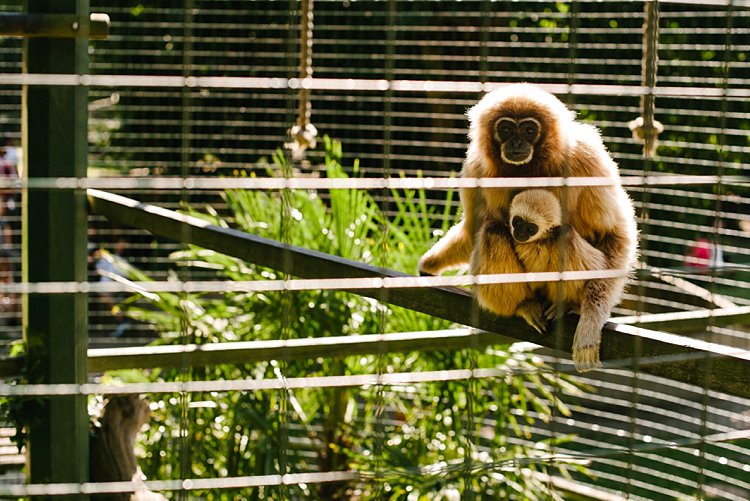
Take this photo of the monkeys below. Had I not used my pop-up flash, there would have been no detail captured on the monkey’s face at all. The sun was too powerful that the pop-up flash could never have flattened the face and created harsh shadows anyway, and I was also too far away from the monkeys for that to happen.

creative-ways-available-light-with-the-50mm_0000

Using the pop-up flash is a fast and easy way to add light. Just be mindful of the caveats and be circumspect when using it.

#4 Try long exposures to capture natural light

Shutter speed has everything to do with ambient light regardless of whether you are doing long exposures or using on-camera, off-camera, or pop-up flash. In fact, with regards to the latter three, flash exposure is completely unaffected by shutter speed.

With long exposures, you can take photos even when very little light is available. You need a tripod, or something steady and flat to rest your camera on like a table or chair, and you’re good to go. So why would you want to slow down your shutter speed and when must you do it? Do it when you want to capture the ambient light.

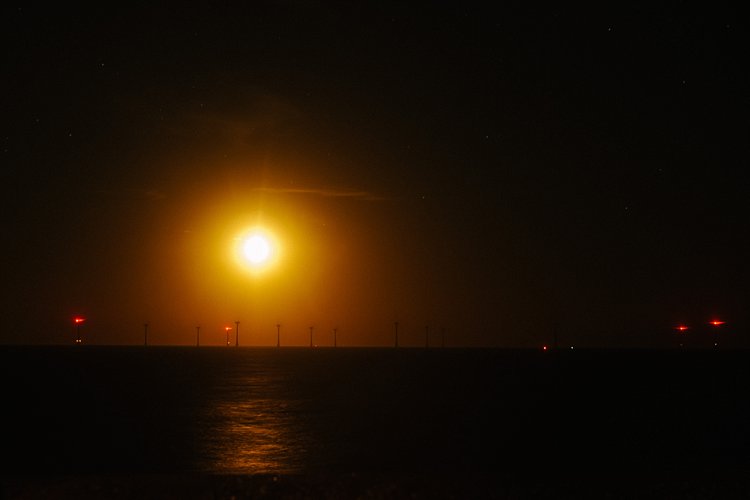
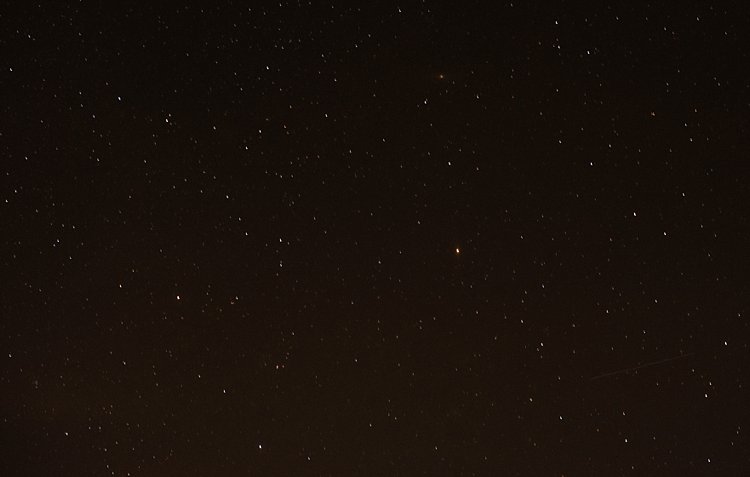
Armed with just a 50mm and the camera placed on a steady surface, I slowed my shutter speed right down to a few seconds using the bulb setting. I may have captured the moon rising but the sky is pitch black and not enough ambient light was captured. My shutter speed might have been slow but not slow enough. Ambient light was very crucial here because there were stars in the sky.

creative-ways-available-light-with-the-50mm_0000

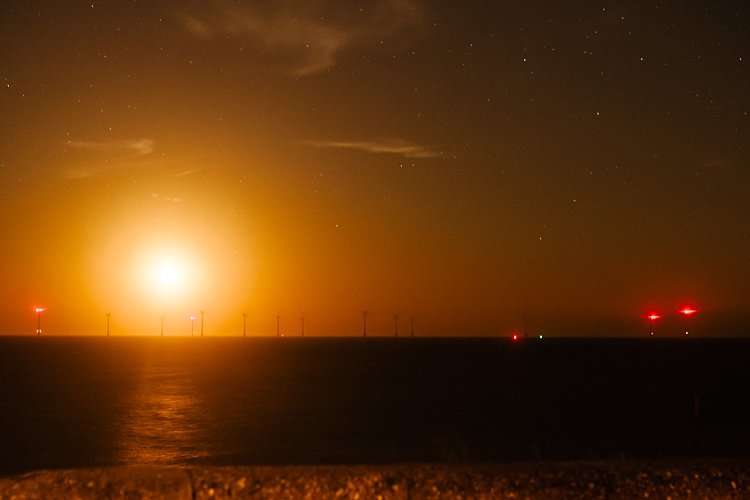
In contrast to the above, the photo below is the same scene photographed with a much slower shutter speed so that the stars are visible.

creative-ways-available-light-with-the-50mm_0000

Even with just the 50mm you can photograph the starry sky such as below. However, don’t go over 10 seconds as you would then start capturing the star trails.

creative-ways-available-light-with-the-50mm_0000

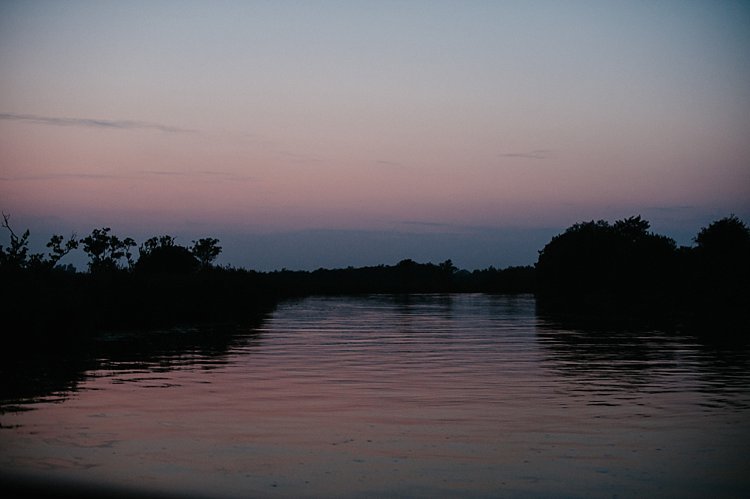
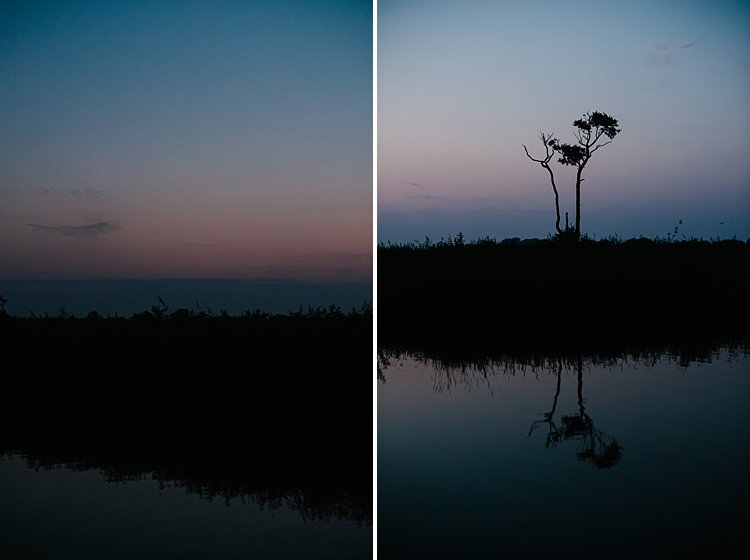
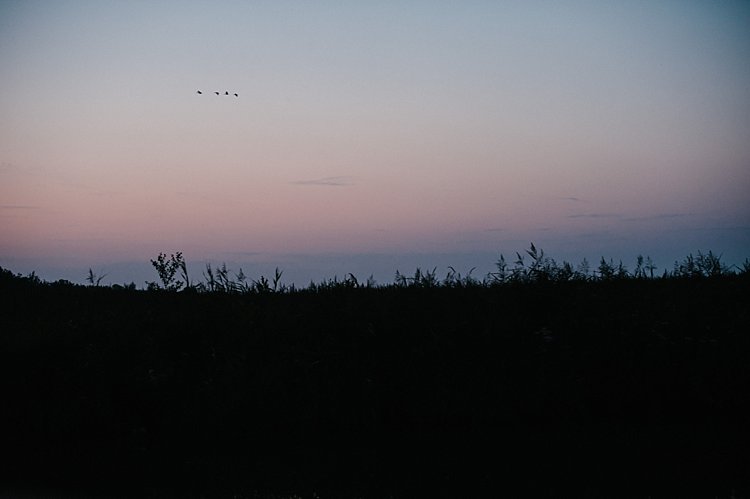
Using shutter speed wisely and skillfully is a great tool for capturing mood, color, and ambient light, even when there is very little of it. There is some light you don’t ever want to kill such as the soft evening light just after sunset. These photos were taken simply with a camera with a 50mm lens at a slow shutter speed, a wide aperture, and a fairly high ISO (as I was on a slow moving boat). These images were shot at;  f/2.5, ISO 2500, 1/100th. A faster shutter speed would have killed this light and rendered the sky pitch black. Too slow I would have run the risk of blurry photos due to the moving boat.

creative-ways-available-light-with-the-50mm_0000

creative-ways-available-light-with-the-50mm_0000

creative-ways-available-light-with-the-50mm_0000

creative-ways-available-light-with-the-50mm_0000

googletag.cmd.push(function() {
tablet_slots.push( googletag.defineSlot( “/1005424/_dPSv4_tab-all-article-bottom_(300×250)”, [300, 250], “pb-ad-78623” ).addService( googletag.pubads() ) ); } );

googletag.cmd.push(function() {
mobile_slots.push( googletag.defineSlot( “/1005424/_dPSv4_mob-all-article-bottom_(300×250)”, [300, 250], “pb-ad-78158” ).addService( googletag.pubads() ) ); } );

The post 4 Tips to Leverage Natural Light Using Just your Camera and One Lens by Lily Sawyer appeared first on Digital Photography School.

Digital Photography School

 
Comments Off on 4 Tips to Leverage Natural Light Using Just your Camera and One Lens

Posted in Photography


How I Processed This Photo Using Only Lightroom

24 Nov

An advantage of using the Raw format is that it gives you a tremendous amount of freedom when it comes to processing. This, combined with Lightroom’s powerful processing engine, opens up lots of possibilities for the creative photographer. I’d like to show you how I processed a Raw file using only Lightroom.

Photoshop users will also be able to follow along with most of it, as Adobe Camera Raw shares many of Lightroom’s sliders and functions. This is the original Raw file, as it came out of the camera.

Lightroom processing

And here’s the finished result after post-processing.

Lightroom processing

The story behind the image

As you can see there’s quite a difference between the before and after images. But before we look at how I achieved this in Lightroom I’d like to share the back story of the photo. This is important because it guided the way that I decided to process it.

I took the photo in a blacksmith’s forge in the English town of Spalding earlier this year. The forge is remarkable because they use working practices that date back over a hundred years. It’s open to the public and they have demonstrations where you can take photos. The forge is small and you can get quite close to the blacksmith, which allows you to take intimate portraits like this one.

The light was coming from windows in front of the blacksmith and behind him, as well as from the hot piece of metal he is hammering. There was also overhead fluorescent lighting. The end result is that the light is fairly flat and boring, which is something I wanted to change in Lightroom.

A blacksmith’s forge should be lit by a combination of cool natural light and the fiery orange glow from the fires, not fluorescent light. I wanted mysterious shadows in the photo, not every detail visible. Points like these are important because they help you work with a destination in mind, rather than aimlessly pushing sliders around to see what happens.

lightroom-before-after

First steps – color corrections

The first steps involve getting the colors right, as this affects the look of the photo and everything you do from this point forward. The most important setting is in the Camera Calibration panel. A lot of people gloss over this panel as if it’s not so important. This isn’t helped by its placement at the bottom of the right-hand side in Lightroom’s Develop module.

When I took the photo I had the color profile set to Velvia, which gives high contrast and strong, saturated colors on my Fujifilm X-T1. It doesn’t matter what your color profile settings are on your camera if you’re shooting Raw as you can change them in Lightroom. I wanted softer, more subtle colors, so I changed the setting to Classic Chrome.

Note: This setting is only available on some Fujifilm cameras. The settings you see in the Camera Calibration panel depend on your camera model.

Next, I went to the Basic panel and set the White Balance to Auto. This tells Lightroom to decide how to set the color temperature to give the image neutral colors. How successful Lightroom is at this depends on the content of your photo. If you have mixed lighting sources, as this photo does, even Lightroom’s powerful algorithms aren’t going to give you anything other than an educated guess. It’s not possible to get rid of all color casts with mixed lighting.

Regardless, Auto White Balance gave me a good starting point. This is what the photo looks like so far. You can see it’s already quite different from the starting image which was quite orange.

Lightroom processing

Auto White Balance applied.

Tonal adjustments

The next step was to start making the transition from an image that is too bright to one that is dark and moody.

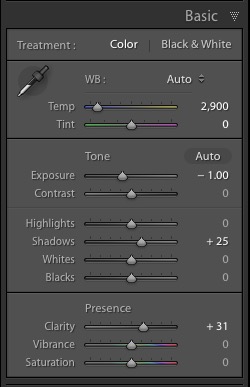
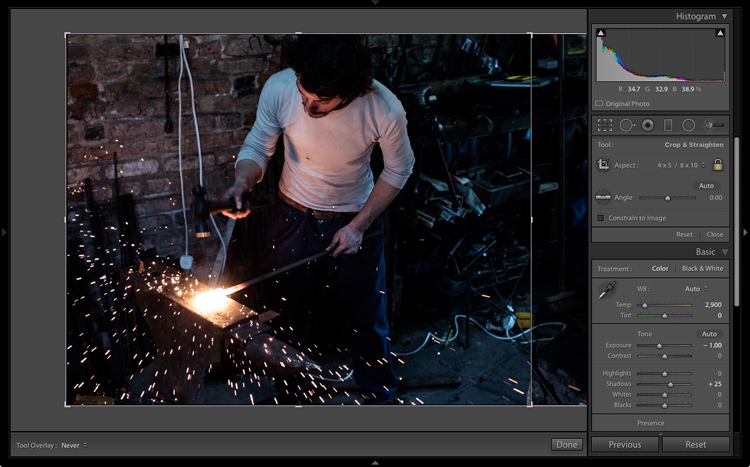
I did this by setting the Exposure slider to -1.0. This made the shadows too dark, so I brightened them by setting the Shadows slider to +25. I also set Clarity to +31 to bring out the gritty textures in the scene. See my settings below:

Lightroom processing

As you can see now that the image is darker the blacksmith’s face is lit by the glow from the hot metal he is working with. This was lost in the original.

Lightroom processing

Tonal adjustments and Clarity applied.

Cropping to remove distractions

Now I can see that the photo has a major problem. There is too much empty space on the right-hand side, and the blue plastic is a major distraction. In hindsight, the composition would have been better if I had placed the blacksmith in the center of the frame. However, we can compensate for that by cropping the image.

I activated the Crop Overlay (keyboard shortcut R), set the Aspect to 4×5 / 8×10, and cropped the image. This cuts out the distractions on the right-hand side and brings the attention back to the blacksmith.

Lightroom processing

Lightroom processing

This is the result after the image has been cropped.

Refining the image with local adjustments

So far the adjustments made have all been global. That is that Lightroom applies them equally to the entire image. Now it’s time to refine the tonal values with some local adjustments.

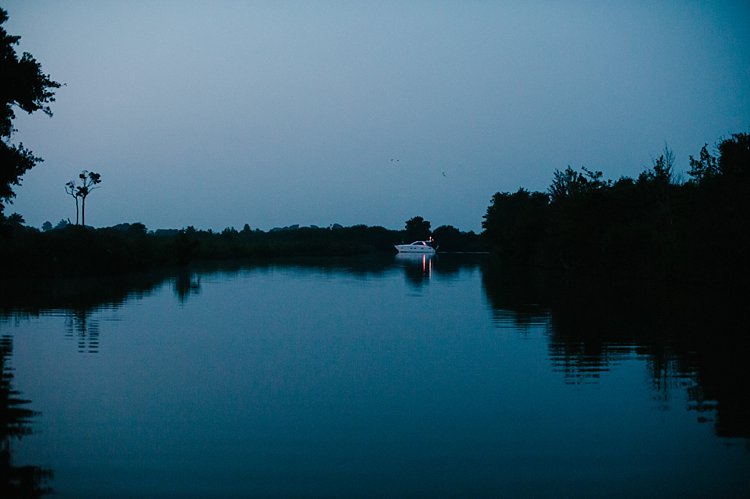
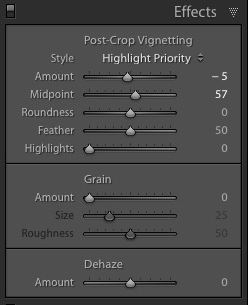
I started by adding a slight vignette using the Post-Crop Vignetting tool in the Effects panel. This darkened the corners slightly.

Lightroom processing

Next, I decided that I wanted to make the background even darker. This is going back to the earlier decision to make the image dark and moody as if the blacksmith is working in a much darker environment.

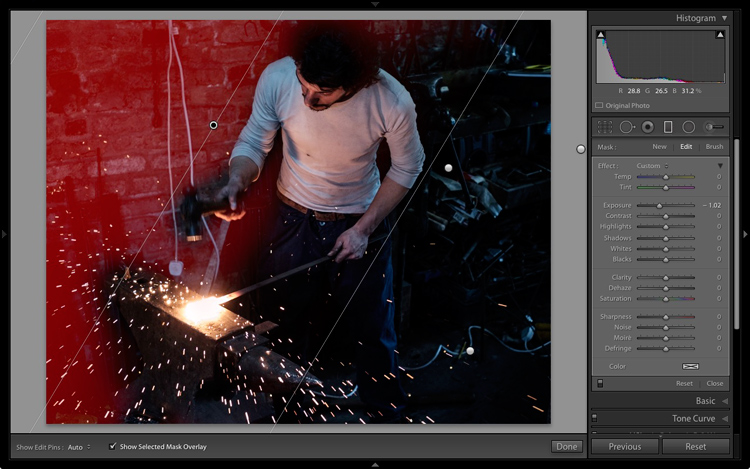
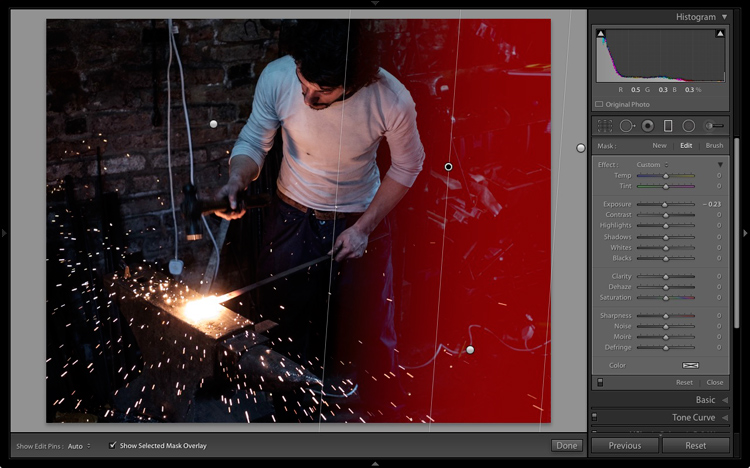
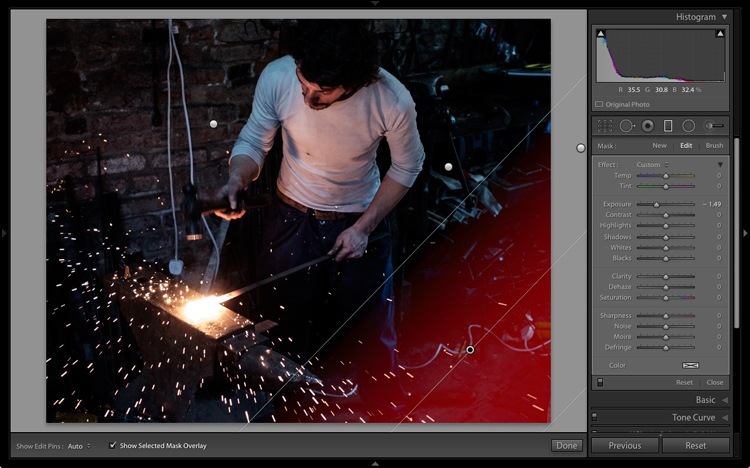
I added three Graduated filters to darken the edges. The screenshots below show the placement of the filters and the settings used.

Lightroom processing

Graduated Filter #1 applied on the upper left of the image.

Lightroom processing

Graduated Filter #2 applied on the right side of the image.

Lightroom processing

Graduated Filter #3 applied on the lower right corner of the image.

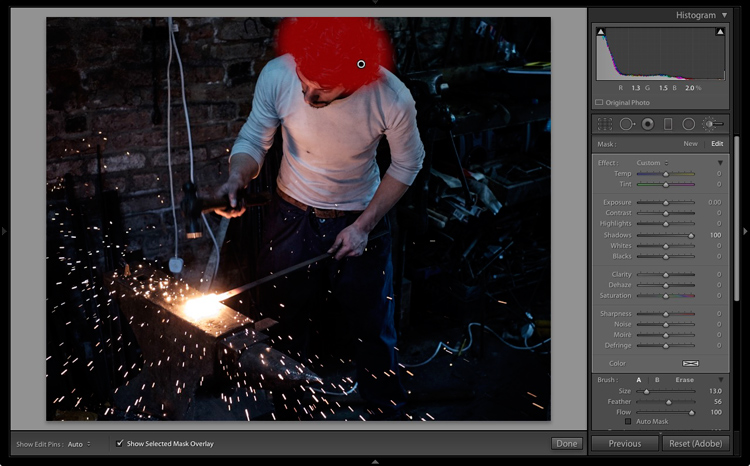
Then I used an Adjustment Brush and moved the Shadows slider right to make the blacksmith’s hair lighter and bring out the detail.

Lightroom processing

Adjustment Brush applied to his hair to bring out detail.

This is what the image looks like now with these adjustments.

Lightroom processing

After local adjustments have been applied.

Split toning for color grading

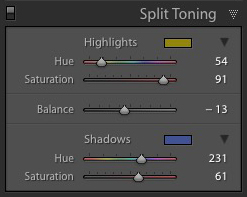
Lightroom processingFinally, I decided that the mood could be further enhanced with a split tone applied: blue to the shadows and an orange tone in the highlights.

The idea was to emphasize the difference in color temperature between the orange light from the hot metal and sparks, and the background, which in my imagination is lit by daylight (but in reality was also lit by fluorescent light). I did that in the Split Toning panel with these settings.

Here is the final result.

Lightroom processing

Final image after split toning applied.

Final thoughts

As you can see, even though the final image looks remarkably different from the starting Raw file, the steps involved in the processing were quite simple. It didn’t take long to get from the starting point to the end photo. This is mostly because I had a firm idea of what I wanted as the end result before I started processing the file.

If you have any questions or thoughts to share about the processing I did on this image then please let me know in the comments.


If you’d like to learn more about processing your photos in Lightroom then please check out my ebook Mastering Lightroom: Book Two – The Develop Module.

googletag.cmd.push(function() {
tablet_slots.push( googletag.defineSlot( “/1005424/_dPSv4_tab-all-article-bottom_(300×250)”, [300, 250], “pb-ad-78623” ).addService( googletag.pubads() ) ); } );

googletag.cmd.push(function() {
mobile_slots.push( googletag.defineSlot( “/1005424/_dPSv4_mob-all-article-bottom_(300×250)”, [300, 250], “pb-ad-78158” ).addService( googletag.pubads() ) ); } );

The post How I Processed This Photo Using Only Lightroom by Andrew S. Gibson appeared first on Digital Photography School.


Digital Photography School

 
Comments Off on How I Processed This Photo Using Only Lightroom

Posted in Photography


5 Steps to Achieve the Look of Black and White Film Using Lightroom

10 Nov

As a hobbyist, amateur, or professional photographer, you may be interested in achieving the look and feel of black and white film without the hassle and investment in equipment and gear. You can edit a digital image using Lightroom with this goal without having your hands smell like rotten eggs (developing chemicals). If you shoot black and white film often, as I do, then you might actually love that smell. If not, then you might want to read on.

Look feel black white film Lightroom01

The feel of black and white film – research first

The objective here is to provide you with a few basic steps to get you started on the path to edit your digital images to look like they were shot on black and white film, without the mess. If you are not familiar with the qualities of film images or have not examined them closely, it would be a good idea to do so. Try to pick up and look closely at some actual prints on photographic paper. You might find these in your grandmother’s attic or your local museum. Photography books or online searches will yield many reprinted or scanned examples as well.

First, consider the subject of style as it relates to film photography. Film photographs generally have a certain nostalgic or vintage look and quality to them that distinguish them from the clarity and realistic look of a well-composed digital image. Film tends to render subjects and scenes in a more abstract manner. Although you can make tack sharp and very realistic looking images using today’s film and gear, that’s not really the role of film photography.

Look feel black white film Lightroom02

If you want clean, shoot digital. Film should look old, slightly out of focus, and definitely grainy. All film has some or a lot of grain and it is basically the equivalent of digital noise. While you may prefer some of your images to look super sharp and smooth, you may also find it pleasing to add a little (or a lot) of grain from time to time.

Film adds an air of mystery

You might want to experiment with this more abstract style or look of film that comes with a distinctive aesthetic. One advantage of presenting this style of image is that the viewer is given the task of filling in the blanks, so to speak. Subjects in your image that are not entirely in focus or even blurry can be representative of anything or anyone. Your image can be more open to interpretation by the viewer as compared to an image that was sharply composed with a subject that is obvious. In other words, you might want to leave some room for mystery in your images. Film photography, or working towards the look and feel of film, can do that for your images.

Look feel black white film Lightroom03

Like digital, film is really just another medium in which we can express ourselves as artists and photographers. I love many things about both film and digital and each has a place in my professional and personal photography life.

5 steps to getting the look and feel of film using Lightroom

If you shoot digital and are looking to achieve the look and feel of film, below are five easy steps using Lightroom.

1. Set your ISO high

ISO should be set to somewhere between 1600 and 6400. Digital noise is the modern day equivalent of the grain in film. The grain or digital noise creates atmosphere and the look or aesthetic that you are trying to emulate.

2. Make an image of something interesting

Look feel black white film Lightroom04

Choose a subject. Framing and composition should be pleasing, and be careful to avoid too many distractions. Emotion is usually a good idea to include if there are people or animals in your photo. Any additional compositional techniques can be applied to the image. The subject could be in focus or blurry. This is completely up to you and your vision.

3. Convert the image to black and white

To convert your image to black and white, press V or use another method for black and white conversion in Lightroom. You can stay in color, but the look and feel of color film is more difficult to achieve and will require some additional steps.

4. Open the Develop module in Lightroom

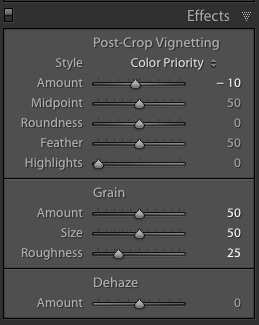
Look feel black white film Lightroom11In the bottom panel of the Develop module called Effects, make the following adjustments:

  • Using the sliders, set the Post-Crop Vignetting to -10. Older camera lenses tended to impart some vignetting onto the image. This will give the image an authentic older film quality to it. Ansel Adams famously burned (darkened) the edges to all of his prints.
  • Set the Grain Amount slider to 50.
  • Adjust the Grain Size to 50.
  • Set the Grain Roughness to 25.

5. Review your image and make the finishing touches

Adjust the sliders to increase or decrease the three Grain options to achieve your vision for the given image. You can also dial in or out the vignette as well. All images are different and all digital image files will respond differently to these adjustments based on the sharpness and ISO settings.

Look feel black white film Lightroom05

You may want to consider the following questions to evaluate your adjustments at this point. Do these edits help the image? Does it assist in the presentation of the image as more abstract so that it might connect better with the viewer? Did the adjustments achieve the look at feel of film that you were gong for? You can decide on the answers to these questions and make editing decisions as you see fit or recruit a friend to provide a critique.

If you like your results and would like to explore this topic further, there are free online software programs such as Analog Efex Pro that are part of Google’s Nik Collection. Presets are also available that will aid you in this process and even help you to achieve the look and feel of color film. You might want to consider making your own presets and applying them en masse to a given photo shoot or batch of images as well.

Look feel black white film Lightroom06

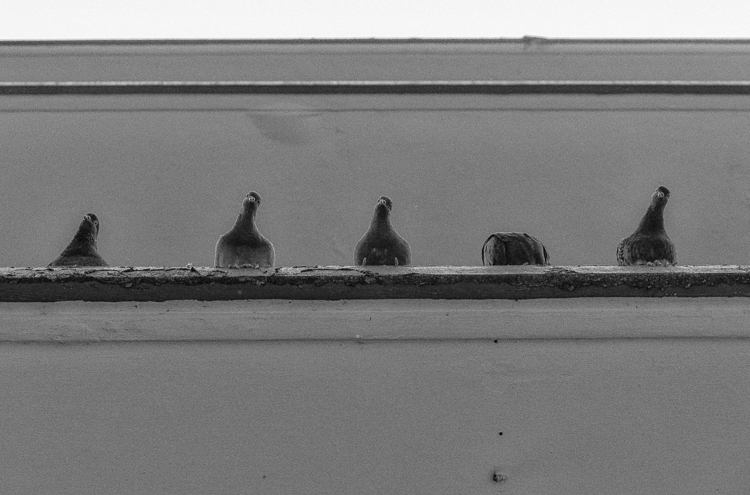
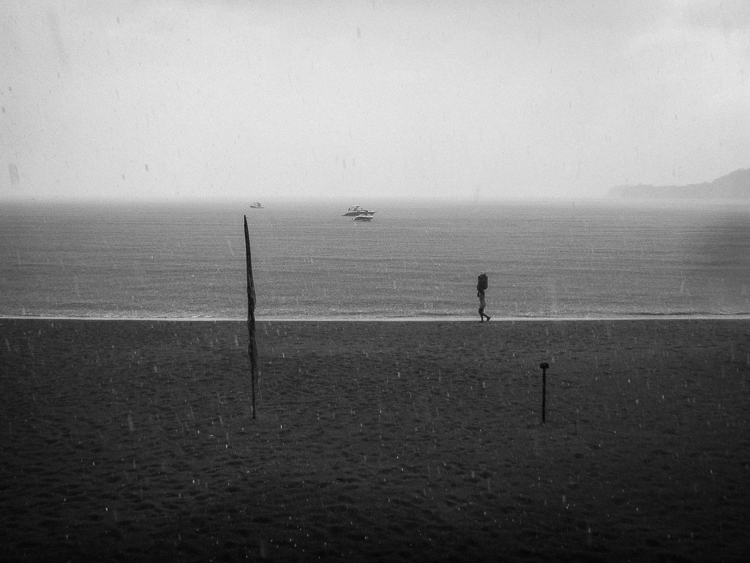
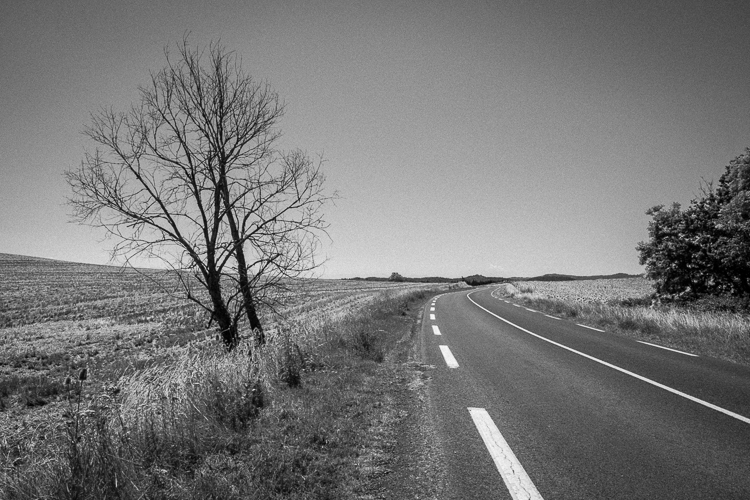
Below are a few images representing multiple genres that I made with a digital camera then edited to achieve the look I was going for using the settings in the Effects panel above.

Look feel black white film Lightroom07

Look feel black white film Lightroom08

Look feel black white film Lightroom09

Look feel black white film Lightroom10

Do you enjoy shooting film or reproducing the look of it using digital methods? Do you have a favorite way to achieve it? Please share in the comments below.

googletag.cmd.push(function() {
tablet_slots.push( googletag.defineSlot( “/1005424/_dPSv4_tab-all-article-bottom_(300×250)”, [300, 250], “pb-ad-78623” ).addService( googletag.pubads() ) ); } );

googletag.cmd.push(function() {
mobile_slots.push( googletag.defineSlot( “/1005424/_dPSv4_mob-all-article-bottom_(300×250)”, [300, 250], “pb-ad-78158” ).addService( googletag.pubads() ) ); } );

The post 5 Steps to Achieve the Look of Black and White Film Using Lightroom by Jeremy H. Greenberg appeared first on Digital Photography School.


Digital Photography School

 
Comments Off on 5 Steps to Achieve the Look of Black and White Film Using Lightroom

Posted in Photography


How to Make Beautiful Portraits Using Flash and High-Speed Sync

04 Nov

The scene: Outdoors with full sunlight. The gear: Your camera, lens, and flash. The problem: You find that your flash only works at 1/200th or below so you need to be at f/16 or f/22 to get the shot. Everything is in focus, including all the cars and other distractions in the background. Those dust spots you keep meaning to clean are also perfectly visible. Why won’t it work with a higher shutter speed so you can have a wider aperture? Well, it’s all down to the issue of sync speed, more specifically using flash and high-speed sync.

A typical portrait shot with off camera flash. To overpower the sun and stay below the camera’s sync speed, you’re forced to use a narrow aperture. Here we’re at f20 just to stop the backlight overpowering the hair and stop the sky blowing out. The resulting aperture means that everything is pretty much in focus, leaving the background looking cluttered. This shot is for example only, you should generally make a point of choosing clutter free backgrounds

A typical portrait shot with off-camera flash. 

To overpower the sun and stay below the camera’s sync speed, you’re forced to use a narrow aperture. Here I’m at f/20 just to stop the backlight overpowering the hair and the sky from blowing out. The resulting aperture means that everything is pretty much in focus, leaving the background looking cluttered. This shot is for example only, you should generally make a point of choosing clutter-free backgrounds

Sync Speed

Sync Speed is the fastest shutter speed where the camera exposes the whole frame at once. When you fire any shot below this speed, the first shutter curtain opens fully, revealing the entire sensor to light. At the end of the exposure time, the second shutter curtain moves across the frame to finish the capture. Both curtains then reset together (this means you get no light leaking in).

Generally, the sync speed varies between 1/125th and 1/250th, depending on your camera. You’ll find some quoted sync speeds are not indicated correctly. For instance, the Canon 5D series are rated at 1/200th but often show a black band at the bottom of the screen at this speed when it’s used with flash.

When you go above the sync speed, the second curtain starts to move before the first one has completed its journey. As your shutter speed gets shorter and shorter, the gap between these curtains narrows to a tiny slit. Despite this, all parts of the sensor receive light, and a full exposure is made. On a bright day, with a prime lens, you can easily shoot at 1/8000th at f/1.4 and have a perfect exposure. All parts of the frame still receive light, because it’s continuous throughout the exposure.

The Sync Speed Problem

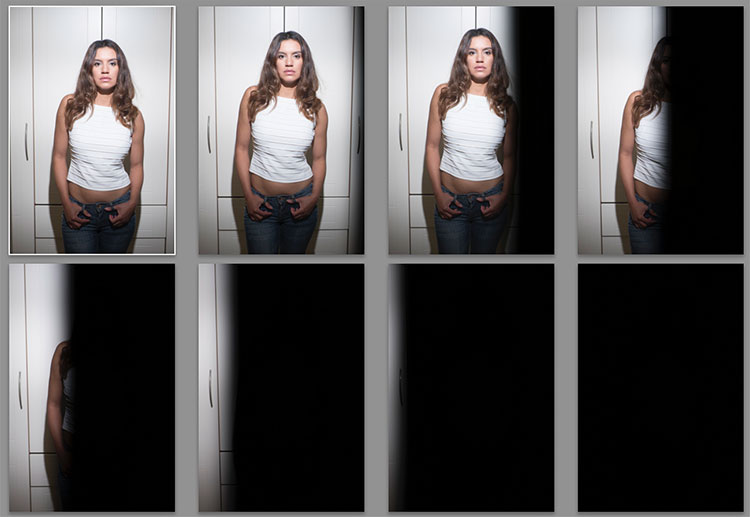
It’s when you introduce flash that you start to have problems. You see, when a flash is fired (usually when the first curtain is opened) all the light from it comes out in a very short space of time (in order of milliseconds). When you go above (faster than) the sync speed, the position of the curtains doesn’t reveal the entire frame at the time the flash fires. The means the shutter curtain blocks part of the flash and prevents it from reaching the sensor. Any ambient light will expose normally, but the flash gets hidden in part of the frame. As your shutter speed gets faster and faster, more and more of the flash is blocked until it’s no longer visible in the shot.

portraits with flash and high-speed sync

Here’s a set of images taken at 1/3 stop increments with a flash. Shot on the Fuji X-T2, the first is at 1/250th, the native sync speed of the camera. In order (left to right, top to bottom) 1/250th, 1/320th, 1/400th, 1/500th, 1/630th, 1/800th, 1/1000th, and 1/1250th. Even 1/320 is useable if the subject being lit is away from the edge.

Everything in Focus

Normally when you use flash outside in daylight, you end up having everything in focus. Remember the Sunny f/16 Rule? If your subject is in direct sunlight during the day, you can set your aperture to f/16 and your shutter speed will be one over your ISO value. So if your ISO is set to 100, your shutter speed would be 1/100sth (and f/16). As another example, if your ISO is 200, then the shutter speed would be 1/200th. To get a richer sky, you’d really need to be at f/22, making it a tough job for your flash. Because you can’t get faster than 1/250 (sync speed), you have to increase the aperture to expose the shot correctly.

portraits with flash and high-speed sync

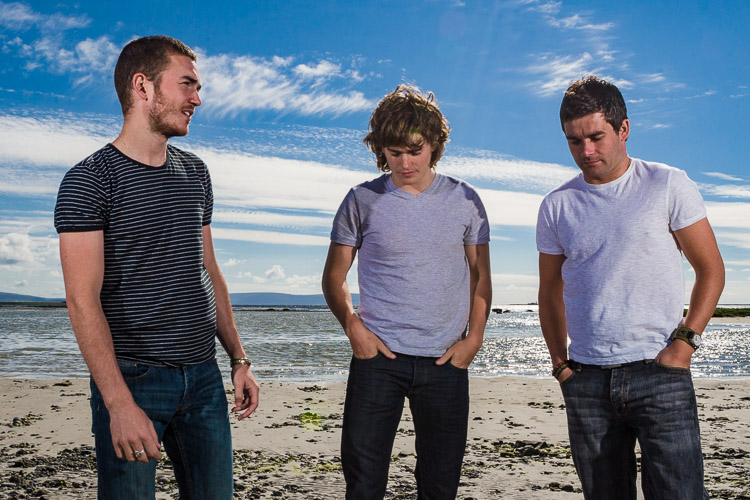
Shooting at f/20, 1/160 to get a richer sky for this band promo shot. It’s quite an old shot, so there were few options for reducing the aperture at the time. Even the hills in the background are in clear focus. The beach isn’t exactly pretty either.

portraits with flash and high-speed sync

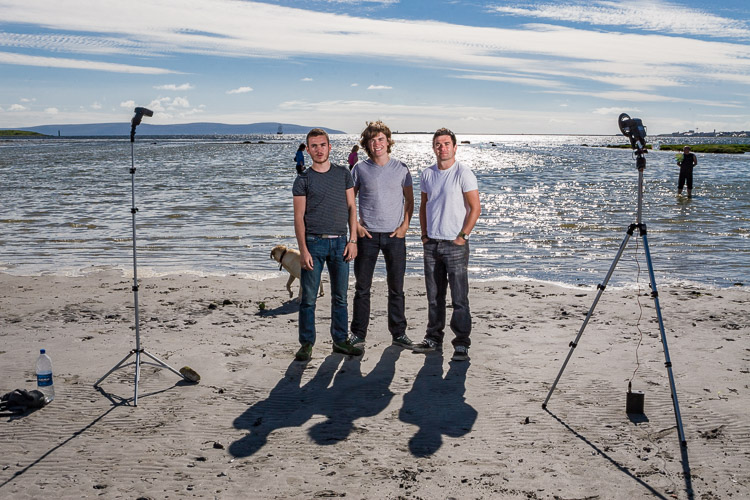
A behind the scenes shot – two flashes on full power.

Softer light

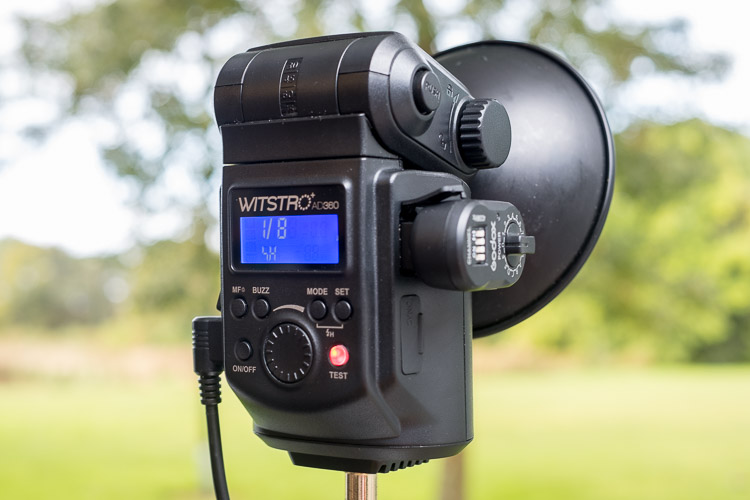
Most speedlights at full power, bare bulb, in close, can give you just enough power to look natural at these settings. Bare flash is not flattering, though it can add character. If you want softer, more flattering, light, you need more power. Most modifiers that give soft light will take two stops of power compared to the bare flash. That’s a lot of power. You could use a more powerful light, like the Godox AD360, the Elinchrom Quadra, or the Profoto B1. Alternatively, you could use a bracket that takes multiple speedlights. Either option allows you to get soft, flattering, light while outdoors.

portraits with flash and high-speed sync

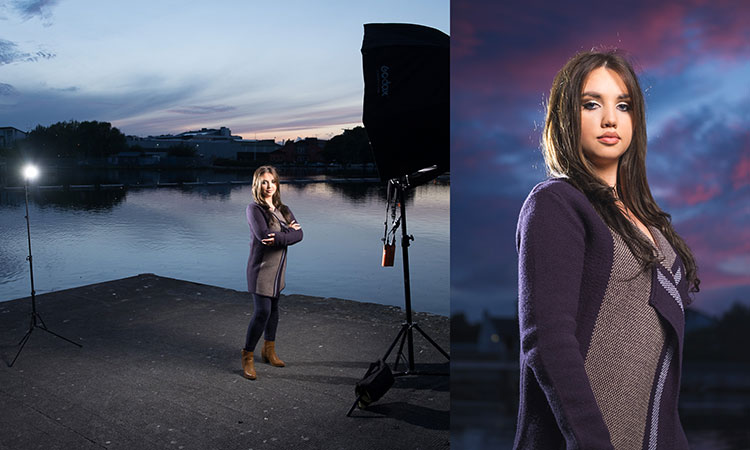
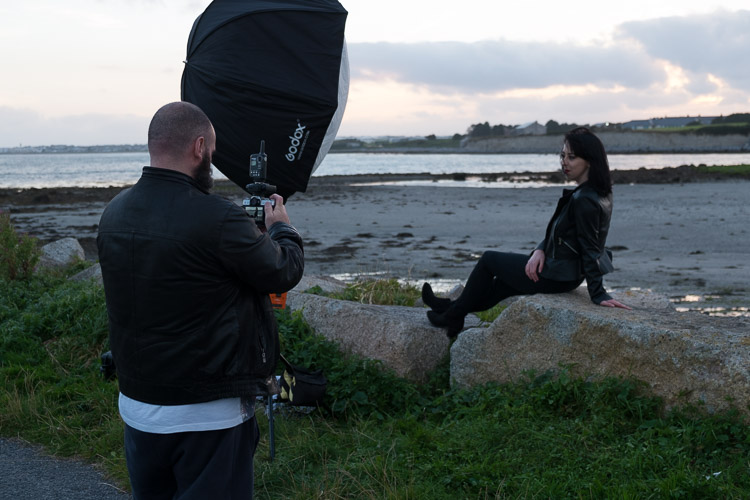
A higher power option is the Godox AD360. This is coupled with the Godox 120cm Octa for softer light. This is shot at f/2.8, ISO200 and 1/125th. Because it’s after sunset, you can easily get wider apertures. just one of the options you have for the shallow depth of field look.

This solves the soft light issue, but it doesn’t solve your aperture issue. For creamy bokeh (the soft out of focus background look), you need to get our aperture down. If you’re shooting in the early morning or late evening, you can do this easily, but during the day it’s an issue.

The Solution: High-Speed Sync

You’ll need to find a way to get around the issue of sync speed for daytime shooting. Fortunately, there is a solution. It’s not perfect, but it does work. It’s called High-Speed Sync, also known as Focal Plane Sync. High-Speed Sync (HSS) works in a unique way. Instead of firing the flash at the start of the shot, HSS pulses the flash throughout the whole exposure, trying to simulate the effects of a continuous light.

portraits with flash and high-speed sync

The AD360 set to High-Speed Sync. Usually, there’s a single button hold, or a double button combination to turn HSS on.

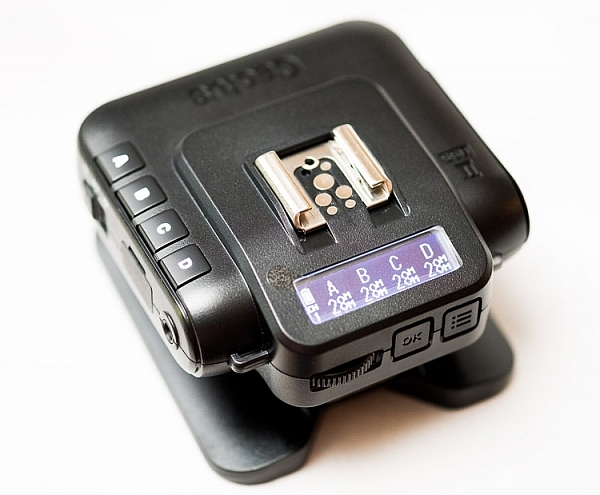
It works well, but it comes at the expense of power, and heat. HSS works the flash really hard. After a few shots, the flash may even shut down for cooling. For HSS to work, you need the camera to transmit HSS to flash, and for the flash have HSS built-in. All major brands allow it, though Fuji only just introduced it. Cactus Image makes a trigger called the V6II which allows you to use any HSS flash with any camera. Read my review of the Cactus V6II trigger here.

portraits with flash and high-speed sync

The Cactus Image V6II allows power and zoom control over a wide range of speedlights, as well as offering High-Speed Sync abilities.

The Look of HSS

You can use HSS to go over the sync speed barrier, so settings like 1/4000th at f/1.4 are achievable with flash. You get the complete control of the light using flash, but with the wide aperture you usually associate with natural light photographs. Yes, please!

Photographers like Dylan Patrick use this technique to create cinematic portraits. By shooting wide shots with shallow depth of field, you really have the option to create images that look like they were stills from the silver screen.

Settings for High-Speed Sync

Let’s look at a typical setup and settings for a shoot using HSS. This shoot happened to be done on an evening, but I really wanted shallow focus. The camera was set to f/1.4 for super shallow depth of field. To get the clouds properly exposed, I had to drop the shutter speed to 1/4000th. To get the flash (an AD360) to work I had to set it to HSS. Using a Cactus V6II trigger, I could easily get my Fuji X-T10 to shoot with HSS.

portraits with flash and high-speed sync

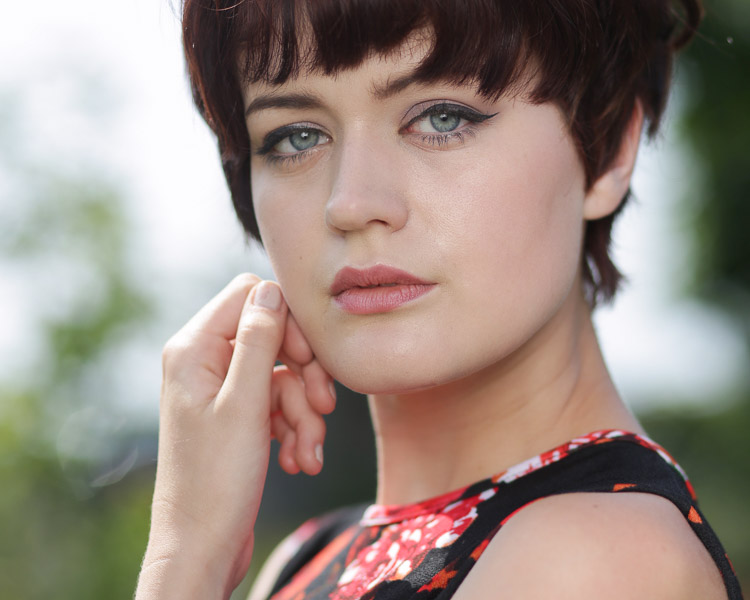
An evening HSS photo shot at 1/4000th, ISO200, f/1.4. Notice the shallow depth of field in the image.

portraits with flash and high-speed sync

The BTS, an AD360 with 120cm Octa, shot by my assistant Ola.

If you use Canon, the Cells II trigger provides HSS with the AD360. It would also work speedlights like the v850.

portraits with flash and high-speed sync

Using HSS on the AD360, I captured this shot at about 3:00 in the afternoon with the sun high in the sky. Shot with an 85mm lens at 1/2000th at f/2.5, ISO100 on a Canon 5DIII. The sun acts as a second light in the shot. Again the background is nicely out of focus.

Another High-Speed Sync portrait example.

portraits with flash and high-speed sync

1/1000th, f/4, ISO800. An issue with shooting outdoors on overcast days is your shutter speeds can be low enough to cause camera shake. By bumping up the ISO, you can get a faster shutter speed, keeping you safe from camera shake. Using HSS then lets the flash do the work. I’ve shot to keep the flash looking as natural as possible here.

The Alternative

High-Speed Sync isn’t the only way, you’ve got other options. The first has been mentioned. Shoot at the beginning or end of the day. You can get great sky color and you’re not fighting strong sunlight. Of course, if you’re doing any work, even as favors, you often have to work to the subjects schedule rather than your own. So, you may have to shoot at midday to suit them. That leads to the next option.

portraits with flash and high-speed sync

A shot of the band Drown for The Thin Air magazine. The evening light makes the shot. I needed a higher aperture to get the whole band in focus, so opted not to use HSS here.

Using Neutral Density Filter

If you shoot landscape photography, you will be familiar with Neutral Density (ND) filters. This filter allows you to slow the shutter speed down to get nice silky water. Neutral means that it adds no color, while the density part refers to blocking light. You can get them in a range of values from 1 stop to 16 stops.

For portraits, these allow you to drop the aperture down instead of shutter speed. So a 4 stop ND would take you from f/16 to f/4. The drawback is that as you block light, focusing can become harder. Another potential issue is that not all ND filters are actually neutral. Some tend to have a color cast. I have a Firecrest 10-stop for landscapes, which is neutral, but the older 4-stop I have from the same company is slightly pink.

portraits with flash and high-speed sync

Without the ND filter applied, the entire scene is in focus. ISO 200, f/16, 1/250th.

portraits with flash and high-speed sync

With the 4-stop ND filter applied, the background can be rendered out of focus. The flash is still at the same power as the shot above without the filter. The filter does have a color cast, which is hard to remove completely. ISO 200, f/4, 1/250th.

Conclusion

I hope this gives you some options and ideas for how you can make portraits outdoors even when the sun is bright, by using flash and high-speed sync. Please put your questions and comments below, and share your high-speed sync portraits as well.

googletag.cmd.push(function() {
tablet_slots.push( googletag.defineSlot( “/1005424/_dPSv4_tab-all-article-bottom_(300×250)”, [300, 250], “pb-ad-78623” ).addService( googletag.pubads() ) ); } );

googletag.cmd.push(function() {
mobile_slots.push( googletag.defineSlot( “/1005424/_dPSv4_mob-all-article-bottom_(300×250)”, [300, 250], “pb-ad-78158” ).addService( googletag.pubads() ) ); } );

The post How to Make Beautiful Portraits Using Flash and High-Speed Sync by Sean McCormack appeared first on Digital Photography School.


Digital Photography School

 
Comments Off on How to Make Beautiful Portraits Using Flash and High-Speed Sync

Posted in Photography


500 Leagues: using the Nikon D500 underwater

04 Nov

$ (document).ready(function() { SampleGalleryV2({“containerId”:”embeddedSampleGallery_9719478425″,”galleryId”:”9719478425″,”isEmbeddedWidget”:true,”standalone”:false,”selectedImageIndex”:0,”startInCommentsView”:false,”isMobile”:false}) });

By Adam Hanlon – Editor, www.wetpixel.com

The arrival of Nikon’s new DX camera, the D500, created a stir among wildlife and underwater photographers.

At Wetpixel.com we set out to thoroughly review the camera and we’ve been shooting it for over a month continuously during the Wetpixel Raja Ampat Expedition on Damai 1, the Wetpixel/Alex Mustard Lembeh Macro workshop at Lembeh Resort and in the UK’s Farne Islands with Farne Islands Divers. In the course of the past few weeks we have produced just under 9,000 images in a wide variety of conditions and photographic genres.

 Nauticam NA-D500 housing, Zen 170mm dome port and Inon Z240 strobes

Underwater, the D500 produces very pleasing images straight out of the camera, with sharp details and vibrant colors.

The DX sensor delivers a 1.5 X crop factor which makes wide-angle lenses less wide and macro lenses more magnified. It also increases depth of field. The latter makes producing wide angle images with acceptable corner sharpness easier when behind a dome port and removes some of the need for shooting at high ISO sensitivities.

Traditionally, one of the advantages of FX cameras underwater has been their low light, high ISO performance. Light levels are significantly reduced underwater. This is further complicated by the need to maintain apertures of F11 or so (on FX cameras) in order to provide sufficient depth of field to ensure that the whole curved image produced by a dome port is in focus.

With a DX camera, the additional depth of field inherent in the smaller sensor size does reduce this problem somewhat, and as far as high ISO image quality is concerned, the D500 is competent to at least ISO 2000, with clean images possible beyond this point, especially after Raw post-processing. The D500’s low light performance, while not a par with the D810 or D5, is very impressive.

Autofocus

Nikon has introduced a new autofocus system in the D5 and D500 cameras, with a dedicated CPU that processes only AF data.

AF shooting modes are a matter of personal preference to some extent, and I tend to use Continuous AF (AF-C) in either 3D or 153 point Dynamic area focusing area mode. 3D Tracking uses color information from the camera’s Scene Recognition System to track the subject around the frame. It does take something of a leap of faith to trust it, but it is almost infallible, even in very low light.

Extreme low light focusing…. Bigfin reef squid, Lembeh Straits, Indonesia. D500, Nikon 60mm f2.8, 1/250 @ F6.3, ISO100.

My experience is that the D500’s AF performance is simply the best that I have ever used. With 3D tracking, following reef fish’s movements around the frame is almost too easy. It simply does not miss. Of the nearly 8,000 images shot for this review, there are no more than 20 that are are unusable due to missed focus. I should clarify though – that not all of those remaining 7920 images are focused exactly where I wanted them to be. However until the camera can read my mind, I’m confident that this is user error, not camera error!

I have found that newer AF systems are more accurate than my eye and in situations where they fail (the complete darkness inside a submerged wreck for example) locking off the autofocus at a known distance in the light zone prior to entering the darkness is a viable technique. With super macro wet lens attachments, the AF is racked in to its closest focus and then sharpness achieved by rocking the whole camera back and forth.

Ergonomically, the D500 is similar to previous Nikon DSLRs, but the ISO button has moved from the left hand side of the top-plate, over to the right near the shutter release. Although this makes perfect sense for shooting on land, it presents a challenge for housing manufacturers. It would be nice to see Nikon address this by allowing more customization of controls in a future firmware release.

Nauticam’s response to Nikon moving the ISO button is to add a lever that rests under the right thumb, just behind the shutter release.

For those coming from the D800 series, the D500’s battery life seems less. It is easy to get a day’s shooting out of a battery, which is all that is really needed, but not much more. For those used to the seemingly inexhaustible batteries of the FX models, this can seem limited. Practically, it is wise to have a few spare batteries around. 

The D500 takes the ubiquitous EN-EL15 Li-ion batteries, but older versions can cause issues. If you have a collection of EN-EL15 cells from previous-generation Nikon DSLRs, make sure that they’re marked ‘Li-ion20’ on the underside.

Whilst the touch screen is of limited value underwater, it does allow for quick and easy image reviews (you can even two finger pinch to zoom in), as well as efficient input of text into the camera’s copyright, image comments and IPTC settings. The latter is another new feature, previously only available on the newer single digit D series cameras. IPTC information can also be loaded from a PC using either Nikon’s app (which needs Silverlight) or the free IPTC Preset Editor

Speed

The D500 is capable of shooting at up to 10 frames per second, with a buffer of 200 frames. When paired with a fast XQD card, it can shoot almost indefinitely. I cannot seem to make the buffer fill. It is so much faster than the D810 that it makes the latter feel pretty stodgy.

Speed test showing the performance of a Lexar 64GB 2933X Professional XQD card using a Lexar Professional Workflow XR2 XQD 2.0 USB 3.0 card reader.

Of course, when shooting with strobes their recycle times will effect shooting speed far more than the camera. In this instance, the lack of a a pop up flash is actually an advantage. Using electrical connections or the excellent electro-optical converters like that in Nauticam’s D500 housing will allow some of this camera’s potential speed to be used.

For shooting big animals underwater and fast action without a strobe, this camera is blazingly fast. In conjunction with the speed and accuracy of the AF mentioned above, I expect that this camera will be responsible for some very impressive images during the course of its product lifespan. In a world where getting the shot is crucial, this camera sets new standards.

Summing up

To sum up, the D500 is, in my opinion, the best camera that Nikon currently make for underwater use. To be sure, there are some specific things that it does not do as well as some of the other models in Nikon’s product range, but if I had to select one camera to do it all, I’d pick the D500.

The level of detail that is possible to capture can be seen in this image of a mantis shrimp with its eggs. D500, Nikon 60mm f2.8, 1/250@f20, ISO100

It is perhaps unfair to compare the two in terms of pure image quality, but if I was planning to solely shoot large wide angle reef scenes, the D810 combined with big powerful strobes like the Seacam Seaflash 150s or Ikelite DS161 would still be my tool of choice. That said, the D810 needs to be paired with expensive lenses and large (and also expensive) ports to really deliver its potential. It is both simpler and significantly cheaper to shoot with the D500.

For macro use, the D800/D810 allows for more cropping while retaining acceptable resolution. For shy or skittish subjects, this can be an advantage. However, the D500 offers a 1.5 X crop factor, which gives macro lenses more reach by definition. The D500’s amazing AF performance will do a better job of keeping those subjects in focus too!

For those already shooting the D7200, the D500 offers significantly better AF, improved low light performance, a more rugged build quality and faster shooting. The downside, of course, is the cost of the camera and a new housing.

For underwater photographers still shooting with a Nikon D300 or D300s, now is the time to upgrade. The performance enhancements will allow you to capture images that your existing setup simply will not. The ability to properly use ISO as an aid to exposure, the improved image quality, the AF performance and its overall speed are all persuasive arguments for the D500 becoming your next camera.


Thanks to Phoebe Lu of Nauticam for supplying their NA-D500 housing and 45° magnified viewfinder to me for use with this review. Many thanks to the crew, staff and my fellow guests on all the trips. Visit www.wetpixel.com for the latest in underwater photography news and reviews.

Articles: Digital Photography Review (dpreview.com)

 
Comments Off on 500 Leagues: using the Nikon D500 underwater

Posted in Uncategorized


500 Leagues: using the Nikon D500 underwater

04 Nov

$ (document).ready(function() { SampleGalleryV2({“containerId”:”embeddedSampleGallery_9719478425″,”galleryId”:”9719478425″,”isEmbeddedWidget”:true,”standalone”:false,”selectedImageIndex”:0,”startInCommentsView”:false,”isMobile”:false}) });

By Adam Hanlon – Editor, www.wetpixel.com

The arrival of Nikon’s new DX camera, the D500, created a stir among wildlife and underwater photographers.

At Wetpixel.com we set out to thoroughly review the camera and we’ve been shooting it for over a month continuously during the Wetpixel Raja Ampat Expedition on Damai 1, the Wetpixel/Alex Mustard Lembeh Macro workshop at Lembeh Resort and in the UK’s Farne Islands with Farne Islands Divers. In the course of the past few weeks we have produced just under 9,000 images in a wide variety of conditions and photographic genres.

 Nauticam NA-D500 housing, Zen 170mm dome port and Inon Z240 strobes

Underwater, the D500 produces very pleasing images straight out of the camera, with sharp details and vibrant colors.

The DX sensor delivers a 1.5 X crop factor which makes wide-angle lenses less wide and macro lenses more magnified. It also increases depth of field. The latter makes producing wide angle images with acceptable corner sharpness easier when behind a dome port and removes some of the need for shooting at high ISO sensitivities.

Traditionally, one of the advantages of FX cameras underwater has been their low light, high ISO performance. Light levels are significantly reduced underwater. This is further complicated by the need to maintain apertures of F11 or so (on FX cameras) in order to provide sufficient depth of field to ensure that the whole curved image produced by a dome port is in focus.

With a DX camera, the additional depth of field inherent in the smaller sensor size does reduce this problem somewhat, and as far as high ISO image quality is concerned, the D500 is competent to at least ISO 2000, with clean images possible beyond this point, especially after Raw post-processing. The D500’s low light performance, while not a par with the D810 or D5, is very impressive.

Autofocus

Nikon has introduced a new autofocus system in the D5 and D500 cameras, with a dedicated CPU that processes only AF data.

AF shooting modes are a matter of personal preference to some extent, and I tend to use Continuous AF (AF-C) in either 3D or 153 point Dynamic area focusing area mode. 3D Tracking uses color information from the camera’s Scene Recognition System to track the subject around the frame. It does take something of a leap of faith to trust it, but it is almost infallible, even in very low light.

Extreme low light focusing…. Bigfin reef squid, Lembeh Straits, Indonesia. D500, Nikon 60mm f2.8, 1/250 @ F6.3, ISO100.

My experience is that the D500’s AF performance is simply the best that I have ever used. With 3D tracking, following reef fish’s movements around the frame is almost too easy. It simply does not miss. Of the nearly 8,000 images shot for this review, there are no more than 20 that are are unusable due to missed focus. I should clarify though – that not all of those remaining 7920 images are focused exactly where I wanted them to be. However until the camera can read my mind, I’m confident that this is user error, not camera error!

I have found that newer AF systems are more accurate than my eye and in situations where they fail (the complete darkness inside a submerged wreck for example) locking off the autofocus at a known distance in the light zone prior to entering the darkness is a viable technique. With super macro wet lens attachments, the AF is racked in to its closest focus and then sharpness achieved by rocking the whole camera back and forth.

Ergonomically, the D500 is similar to previous Nikon DSLRs, but the ISO button has moved from the left hand side of the top-plate, over to the right near the shutter release. Although this makes perfect sense for shooting on land, it presents a challenge for housing manufacturers. It would be nice to see Nikon address this by allowing more customization of controls in a future firmware release.

Nauticam’s response to Nikon moving the ISO button is to add a lever that rests under the right thumb, just behind the shutter release.

For those coming from the D800 series, the D500’s battery life seems less. It is easy to get a day’s shooting out of a battery, which is all that is really needed, but not much more. For those used to the seemingly inexhaustible batteries of the FX models, this can seem limited. Practically, it is wise to have a few spare batteries around. 

The D500 takes the ubiquitous EN-EL15 Li-ion batteries, but older versions can cause issues. If you have a collection of EN-EL15 cells from previous-generation Nikon DSLRs, make sure that they’re marked ‘Li-ion20’ on the underside.

Whilst the touch screen is of limited value underwater, it does allow for quick and easy image reviews (you can even two finger pinch to zoom in), as well as efficient input of text into the camera’s copyright, image comments and IPTC settings. The latter is another new feature, previously only available on the newer single digit D series cameras. IPTC information can also be loaded from a PC using either Nikon’s app (which needs Silverlight) or the free IPTC Preset Editor

Speed

The D500 is capable of shooting at up to 10 frames per second, with a buffer of 200 frames. When paired with a fast XQD card, it can shoot almost indefinitely. I cannot seem to make the buffer fill. It is so much faster than the D810 that it makes the latter feel pretty stodgy.

Speed test showing the performance of a Lexar 64GB 2933X Professional XQD card using a Lexar Professional Workflow XR2 XQD 2.0 USB 3.0 card reader.

Of course, when shooting with strobes their recycle times will effect shooting speed far more than the camera. In this instance, the lack of a a pop up flash is actually an advantage. Using electrical connections or the excellent electro-optical converters like that in Nauticam’s D500 housing will allow some of this camera’s potential speed to be used.

For shooting big animals underwater and fast action without a strobe, this camera is blazingly fast. In conjunction with the speed and accuracy of the AF mentioned above, I expect that this camera will be responsible for some very impressive images during the course of its product lifespan. In a world where getting the shot is crucial, this camera sets new standards.

Summing up

To sum up, the D500 is, in my opinion, the best camera that Nikon currently make for underwater use. To be sure, there are some specific things that it does not do as well as some of the other models in Nikon’s product range, but if I had to select one camera to do it all, I’d pick the D500.

The level of detail that is possible to capture can be seen in this image of a mantis shrimp with its eggs. D500, Nikon 60mm f2.8, 1/250@f20, ISO100

It is perhaps unfair to compare the two in terms of pure image quality, but if I was planning to solely shoot large wide angle reef scenes, the D810 combined with big powerful strobes like the Seacam Seaflash 150s or Ikelite DS161 would still be my tool of choice. That said, the D810 needs to be paired with expensive lenses and large (and also expensive) ports to really deliver its potential. It is both simpler and significantly cheaper to shoot with the D500.

For macro use, the D800/D810 allows for more cropping while retaining acceptable resolution. For shy or skittish subjects, this can be an advantage. However, the D500 offers a 1.5 X crop factor, which gives macro lenses more reach by definition. The D500’s amazing AF performance will do a better job of keeping those subjects in focus too!

For those already shooting the D7200, the D500 offers significantly better AF, improved low light performance, a more rugged build quality and faster shooting. The downside, of course, is the cost of the camera and a new housing.

For underwater photographers still shooting with a Nikon D300 or D300s, now is the time to upgrade. The performance enhancements will allow you to capture images that your existing setup simply will not. The ability to properly use ISO as an aid to exposure, the improved image quality, the AF performance and its overall speed are all persuasive arguments for the D500 becoming your next camera.


Thanks to Phoebe Lu of Nauticam for supplying their NA-D500 housing and 45° magnified viewfinder to me for use with this review. Many thanks to the crew, staff and my fellow guests on all the trips. Visit www.wetpixel.com for the latest in underwater photography news and reviews.

Articles: Digital Photography Review (dpreview.com)

 
Comments Off on 500 Leagues: using the Nikon D500 underwater

Posted in Uncategorized