RSS
 

Posts Tagged ‘Using’

How to Simulate Venetian Blinds Lighting Using Photoshop

16 Apr

When you’re having a romantic dinner you light it with candles and not a bright reflector, right? That’s because light contributes to forming an atmosphere. When you’re making a photograph, measuring the right exposure is not the only thing that matters. Wouldn’t you agree that manipulating that light is what makes it or break it?

In this tutorial, I’ll show you how to simulate light coming in through a window, so that your photo has a warmer ambiance.

Venetian Blinds Lighting Effect Photoshop Tutorial Intro

Getting started

In this case, we’re going to make the effect of sunlight passing through a window with Venetian blinds. This is why the first thing you need to do is delineate the spacing in between the blinds. To make this task easier you can turn on the rulers, just go to Menu > View > Rulers so you can make the spaces more evenly.

Make a new empty layer by going to Menu > Layer > New Layer. Then select the Rectangle Marquee Tool and start tracing. They don’t have to be perfect just try to keep more or less the same width and the same spacing in between. The amount is up to you, for this example, I’ll do 8.

NOTE: Hold the Shift key down to add multiple rectangular selections.

Marquee Selection Venetian Blinds Through Window Light Photoshop Tutorial

Adding the light

Next, you need to fill the selections with white. You can either select the Paint Bucket Tool and click inside each of the rectangles, or you can go to Menu > Edit > Fill which will bring out a pop-up window. Just make sure the content is set to white and all the selected areas get colored at once when you click OK.

Edit Fill Venetian Blinds Through Window Light Photoshop Tutorial jpg

This doesn’t look very realistic yet, but don’t worry, we’ll make it better. To start, you need to give it some perspective to make it fit your image. For this, you can go to Menu > Edit > Transform > Perspective. Find the real light source and make the light (the white bars) smaller on that side. Then turn it and drag it until it feels as if the strips are coming out from that source.

Free Transform Venetian Blinds Through Window Light Photoshop Tutorial jpg

Tweak the light beams

Once it fits you need to make the white bars look more like light beams by smoothing them using a blur filter. Go to Menu > Filter > Blur > Gaussian Blur.

A pop-up window appears and you can set how blurred you want it by dragging the Radius slider. Make sure the preview option is checked so that you can see how your adjustment looks before you apply it. I’m leaving it at around 50 pixels but this is up to you. When you’re happy just click OK.

Gaussian Blur Venetian Blinds Through Window Light Photoshop Tutorial jpg

Then change the blending mode of the layer where your stripes are so that it integrates better with the background image. You can do this in the drop-down menu on top of the layers panel. Open it and select Soft Light blend mode.

SoftLigh Blend Mode Venetian Blinds Through Window Light Photoshop Tutorial

Apply a gradient

It’s already looking much better, there’s just one final touch that needs to be done. Because the light will obviously be stronger closer to the source and slowly fade away; you need to apply a gradient to achieve this effect.

Add a Layer Mask by clicking on the button that looks like a rectangle with a circle in the middle, located at the bottom of the layers panel. While the mask is selected, go to the Gradient Tool that is hidden behind the Paint Bucket Tool. Then from the top sub-menu, choose the one that goes from black to transparent.

Apply the gradient by dragging your mouse across your image. Follow the lines and make sure the white part of the gradient is at the end of the image where you want the light the brightest. If it’s not, you can just invert the layer mask, or undo it and try again.

Graded Layer Mask Venetian Blinds Through Window Light Photoshop Tutorial jpg

Finishing up

There you go, light passing through Venetian blinds from the window onto your subject without even needing a window!

Venetian Blinds Lighting Effect Photoshop Tutorial After

Applying the effect to the background only

This, of course, works if your subject is lit by the same source as the background, but what happens if you have two different light sources? Let’s do an example where we want only the background to receive the light from the window and the subject will be lit by a different light source.

Venetian Blinds Lighting Effect Photoshop Tutorial Before2

Start by doing exactly the same as you did in the previous example. When you’re done with that you have to add one more step. Duplicate the subject that you want to be in front of the Venetian blinds lighting effect.

You do this by selecting the object. It doesn’t matter which tool you use. In this case, I used a combination of the Quick Selection tool refined later in the Quick Mask. Once you have your selection go to Menu > Layer > New > Layer via Copy. A new layer will be created duplicating the subject that you selected onto an empty background; drag this layer to the top.

Venetian Blinds Lighting Effect Photoshop Tutorial Duplicate Layer

That’s it, your subject will be in front of the lighting effect and therefore won’t be affected by it. Give it a try and show us your results in the comment section below.

Venetian Blinds Lighting Effect Photoshop Tutorial After2

The post How to Simulate Venetian Blinds Lighting Using Photoshop appeared first on Digital Photography School.


Digital Photography School

 
Comments Off on How to Simulate Venetian Blinds Lighting Using Photoshop

Posted in Photography


How to Add or Remove a Vignette Using Lightroom

11 Apr

You have likely seen photos on the internet which are well-exposed at the center, but the brightness starts reducing towards the edges. If you are not familiar with the name of this effect, it is called an edge vignette or image vignetting.

Interestingly, a vignette is an effect which occurs naturally but can also be achieved intentionally during the post-processing stage. Not everyone likes the vignetting effect in their photos, for some, it is a useful technique and for others, it is a disaster. Honestly, a well-done vignette can help draw viewer’s attention towards the subject placed in the center. You can use it to your benefit if you are a portrait, wildlife, or a wedding photographer.

How to Add or Remove a Vignette in Adobe Lightroom

But vignetting could also make your photos unappealing if you are a landscape, interior, or commercial photographer, as you would not want the edges of your photos to be too dark.

Causes of Vignetting

There are multiple reasons why the vignetting effect gets applied to your photos when using a digital camera. One of the main causes of vignetting is the use of wide aperture openings such as f/1.4 or f/1.8. But if you increase the aperture value by 2-3 stops, you can easily eliminate the vignetting effect in your photo.

Another cause of vignetting could be the use of a longer focal length, but as you go wider the effect starts getting less visible. Some low-end lenses are also more likely to have an edge vignette than their more expensive counterparts.

Using multiple lens filters or mounting low-quality lens filters can also result in strong vignetting, as they can block the amount of light entering through the lens from various angles. Did you know that even a third-party lens hood can result in a vignette? So make sure you buy the correct hood compatible with your lens to avoid any vignetting in your photos.

How to remove a Vignette using Lightroom

If your camera has captured a photo with the vignette effect due to one of the reasons mentioned above, you can easily remove it using Adobe Lightroom. This method is very impressive and the first time I used this feature in Lightroom I was happy with the fact that I can get rid of vignetting anytime I wish in the post-processing stage.

NOTE: You can use this technique of removing vignetting only if you are processing RAW files in Lightroom.

How to Add or Remove a Vignette in Adobe Lightroom

RAW file with a slight edge vignette captured in-camera.

How to Add or Remove a Vignette in Adobe Lightroom

Vignetting removed using “Enable Profile Corrections”.

As you can see in the screenshots above, the RAW format file had a hard vignette as this photo was shot using 50mm lens at f/1.8. In the second image, the vignetting has almost been removed with the help of one of the Adobe Lightroom’s handy features called “Enable Profile Corrections”.

This feature automatically detects the lens make, model, and profile, if it is available in the Adobe database. Lightroom has the lens profiles of almost every manufacturer, except for a few such as Samyang. This magical feature then corrects the vignette as well as distortion in your photo automatically. You can manually adjust them as well using the sliders. Isn’t that cool!?

To access this feature in Lightroom, you must be in the Develop module and the Enable Profile Corrections checkbox can be found under Lens Corrections tab on the right-hand side panel.

With just a click you can remove vignetting from your photo with Lightroom. Just make sure you are using the RAW format file only as this feature is not applicable for JPEGs.

How to add a Vignette with Lightroom

1) Using the Post-Crop Vignetting Feature

How to Add or Remove a Vignette in Adobe Lightroom

One of the easiest ways of adding a vignette to a photo is by using the Post-Crop Vignetting feature in Lightroom. You can find this tool located under the Effects drop-down menu. To keep it simple, you can start with moving the Amount slider towards the left (a negative number) in order to add the vignetting effect. Then you can adjust the Midpoint slider to define the spread of vignetting effect in the photo as per your desire.

The Roundness slider further allows you to define the shape of the vignette on the photo and the feather slider lets you define the falloff or how gradually it fades to the edges. The Highlights slider allows you to retain the highlights from the parts of the photo where you have applied the vignetting effect.

The only limitation of this approach is that you can not adjust the placement of the area where the vignetting effect starts. It only gets applied from the edges of the image moving towards the center (the vignette is centered).

2) Using the Radial Filter

How to Add or Remove a Vignette in Adobe Lightroom

The best thing about using the Radial Filter to add a vignette is that unlike the post-crop vignetting tool, you can change the position of the area where the effect gets applied. This means that you can select a particular area which remains unchanged as shown in the image above, and the vignette effect can be applied to the rest of the image.

As you can see in the image above, the Radial Filter tool gives you the freedom to play with much more diverse adjustments such as White Balance, Shadows, and Clarity. To start with you need to click and drag to select the area outside which you wish to apply the vignetting effect. Once that’s done you then can get started by adjusting the sliders.

Initially, you will have to bring down the exposure to darken the area selected, then you can play with the sliders to get the desired result.

Conclusion

Do you have any other alternatives for adding or removing vignettes in your images? Feel free to share them in the comment section below.

The post How to Add or Remove a Vignette Using Lightroom appeared first on Digital Photography School.


Digital Photography School

 
Comments Off on How to Add or Remove a Vignette Using Lightroom

Posted in Photography


How to Make Fake Shallow Depth of Field Using Photoshop

11 Apr

Do you see your photo and wish the subject stood out a bit more? Does your photo look somewhat flat? Or maybe the background has people or objects that are unappealing? All of these can be fixed with one simple thing: a shallow depth of field.

In this tutorial, you will learn how to achieve this in post-production using Photoshop.

Fake Depth of field tutorial

Let’s start by clarifying that depth of field is the area of your photograph that is in focus, it’s also called focus range. There are three factors that affect your depth of field.

First is the aperture or f-number. The smaller the number, the smaller the focal range and vice versa, so f/5.6 will have a shallower depth of field than f/22. The second and third factors are very linked together; the focal length and the distance to the subject.

If you are using a telephoto lens and you can, therefore, stand farther from the subject you’ll have a shallower depth of field than standing closer with a wide-angle lens. You can learn more about this relationship and its effect on depth of field in my previous tutorial, How to Use Still-life Subjects to Understand Focal Lengths.

However, if you didn’t manage to set up these things when you were shooting, or you still need more (blur in the background) you can also fake the effect of shallow depth of field in post-production. Here are two techniques to do it using Photoshop.

Technique #1 – When the subject and the background are separated

Before Focus Range Fake Depth of Field Tutorial

Before image example.

With your image already opened in Photoshop, start by duplicating the layer by going to Menu > Layer > Duplicate Layer, then make the canvas bigger. You can do this by going to Menu > Image > Canvas Size.

It doesn’t matter the size of the canvas or the direction because you’ll be cropping it later. However, it’s important that there’s enough room for your main subject to be dragged into it on the next step.

Duplicate Layer Canvas Size Blur Background Tutorial

Then select your subject. It doesn’t have to be precise so you can simply use the Lasso tool and draw a selection around it. Now change to the Content-Aware Move tool which you’ll find hidden behind the Healing Brush on the tools panel. Next, drag your selection out of the image into the empty canvas size that you created before.

Content Aware Move Tool Blur Background Tutorial

Once you drag it out, Photoshop’s algorithm will fill the space you’re leaving empty with the information from the surrounding area. If you skip this step and blur the background with the subject still on it, the colors will spill out so it’s important that you do this part.

Drag Content Aware Move Tool Blur Background Tutorial

Now you can crop out the extra background, including the subject you dragged out and change the canvas back to its original size. Your background is now ready for you to blur it. Go to Menu > Filter > Blur > Field Blur. When the blur applies, a wheel appears in the center with a percentage on how strong the blur is. Adjust it to your liking.

Field Blur Filter Fake DepthofField Tutorial

With this blurred layer still selected, add a layer mask to it by clicking on the button that looks like a rectangle with a circle in the middle on the bottom of the Layers Panel. Then paint on the mask with a black brush, over the subject you want to keep sharp from the original image.

Layer Mask Fake DepthofField Tutorial

The part that you painted black is now transparent so the layer beneath it, which is your original image will be visible. Finally just flatten your image and you’re done!

After Focus Range Fake Depth of Field Tutorial jpg

Technique #2 – When the objects are closer together

The technique you just learned is very useful if your subject is separated from the background, but what happens if you want a shallower depth of field because the objects are closer together? Or because it’s the same subject but you only want a part of it in focus?

In these cases, you need to create an effect that is graduated (fades from one end to the other). To do this here is another technique.

Before Shallow Depth of Field Tutorial

First of all, you need to duplicate the layer by going to Menu > Layer > Duplicate Layer like you did in the previous example, or use the shortcut by dragging the background layer into the Duplicate layer button on the bottom of the panel (or hit Ctrl/Cmd+J).

Then apply a Layer Mask to the new layer by clicking on the mask icon. Inside the mask, you will use the Gradient tool to mark where you want the sharp areas. In this case, I used the circular one but you can use a linear one or whichever is best for your image. I turned off the background layer so you see what I mean.

Grading Layer Mask Fake DepthofField Tutorial

Now go to Menu > Filters > Blur > Lens Blur and a new window will pop-up. Here you’ll see your image with the filter applied and a panel for adjustments on the right side.

Lens Blur Filter Fake Depth of Field Tutorial

It’s important that you set Layer Mask as the source, that way the gradient selection that you did before is what will determine how the filter gets applied.

Once you do that, the Blur Focal Distance slider will be enabled and you can start adjusting it to your liking. I also adjusted the radius and blade curvature, but you should move all the settings to get a feeling for the effects until you’re satisfied.

Finishing up

Hit OK to apply and flatten the image to finalize the result. That’s it!

Remember that every image will need a different treatment to look realistic because there are many things that determine the depth of field so keep experimenting and show us the results in the comments section.

The post How to Make Fake Shallow Depth of Field Using Photoshop appeared first on Digital Photography School.


Digital Photography School

 
Comments Off on How to Make Fake Shallow Depth of Field Using Photoshop

Posted in Photography


Using Scanography to Create Images of Plants

30 Mar

black and white flower - How to Create Images of Plants With Scanography

Since its inception, photographers have found weird and wonderful ways to create photographic images in amazing styles and mediums. The first photograph, or more specifically, the earliest known surviving photograph made in a camera, was taken by Joseph Nicéphore Niépce in 1826 or 1827. He used a polished sheet of pewter coated with a thin layer of bitumen, a naturally occurring petroleum tar, which was dissolved in lavender oil, applied to the surface of the pewter and allowed to dry before use.

As cameras developed, the popularity of photography increased and the possibilities of the medium grew, opening new artistic avenues.

How to Create Images of Plants With Scanography - leaves

We’re a creative bunch, so it’s only natural that as technology progressed into the contemporary climate, advances in office technology such as the printer presented a whole new realm of artistic possibilities. Printers not only allowed for new aesthetics but provided the opportunity for more economical distribution too.

It’s the same with scanners. Modern scanners are considered the successors of early telephotography and fax input devices. The first modern scanner developed for a computer was a drum scanner built in 1957 at the US National Bureau of Standards. Led by a team headed by Russell A. Kirsch, the first image ever scanned on this machine was a 5cm square photograph of Kirsch’s then-three-month-old son, Walden.

Companies such as Acer, Microtek and HP began offering flat-bed scanners in the late 1980s, although hi-res (600 DPI or more), color versions didn’t become popular until the mid-1990s. Once the technology moved into mainstream use, people began experimenting with the flatbed scanner’s artistic potential. What they discovered was a new form of digital photography, called scanography.

How to Create Images of Plants With Scanography

Making your own scanography

The process of scanography is as simple as arranging objects on the scanner and capturing the resulting image. But a few extra steps can help refine the process for more successful images.

What you’ll need

  • Computer
  • Flatbed scanner
  • Objects to scan (flat, mailable objects like plants make great subjects)
  • Glass cleaner and cloth
  • Square of glass approximately A4 in size
How to Create Images of Plants With Scanography

For this image, I have combined two scanned images together and included the duct-tape frame that was on the piece of glass I used to compress the branches flush against the scanner bed.

Before you start

Because the scanning surface is made of glass, you’ll have to take care that the bed doesn’t get scratched or cracked. If you are particularly concerned about marking your scanner, try using a layer of glad-wrap as an extra barrier between your objects and the glass. Keep in mind that a scanner bed can only hold so much weight and exceeding this weight will break the scanner.

Method

First, open your flatbed scanner and give it a good wipe-down with glass cleaner and a cloth. This will reduce the amount of dust that will show up in your scanned image. Next, arrange your objects face-down directly on the scanner glass. For a nice, sharp image, I place a layer of glass over the top of my objects so they are flush with the scanner bed.

The depth of field of most scanners is very limited, usually no more than half an inch (12 mm), but the built-in light source provides excellent sharpness, color saturation, and unique shadow effects on objects pressed close to the bed. This is why flat objects like plants produce the most successful scanographic results.

How to Create Images of Plants With Scanography

Using a pane of glass will help keep your subject flush with the scanning bed, emphasizing detail. I’ve included the duct-tape border of the glass to create a more dynamic image.

The next step depends on whether you would like a black or white background for your image. For a white background, simply close the scanner lid and activate the scanner. For a black background, leave the lid of the scanner open and activate the scanner in a dark room. Once your scanner has finished processing, observe the results on the computer screen and make any necessary adjustments until you are happy with the finished result.

Post-processing

Once you are happy with your scanned image, open it up in Photoshop for a better look. Photoshop will allow you to remove any pesky dust marks or scratches that appear on your image. Personally, I don’t mind a few imperfections in the capture, as it embraces the quirks of the medium.

How to Create Images of Plants With Scanography

Experiment!

Once you have the technique down, the possibilities are endless. Why not try “branching out” and scanning some other objects?

How to Create Images of Plants With Scanography

Here are several scanned images of my pet rat that I’ve combined in Photoshop. I think it makes an interesting (and cute) study of movement, detail, and the scanner technology itself.

How to Create Images of Plants With Scanography

This creepy wavy effect was done by slightly moving my hands from side-to-side as the scanner arm passed over my fingers.

The post Using Scanography to Create Images of Plants appeared first on Digital Photography School.


Digital Photography School

 
Comments Off on Using Scanography to Create Images of Plants

Posted in Photography


How to Create Silky Split Toned Black and White Photos Using Luminosity Masks

22 Mar

Have you ever found it hard to choose between processing an image in color or black and white? It can be a tough decision. Enriching colors that instantly captivate your attention versus a timeless black and white photograph full of texture and complex shadows.

There’s every chance you’ll process both versions because you can’t have the best of both worlds, right? Well, with split toning, maybe you can – sort of.

1 How to split tone black and white images using luminosity masks

Split Toning 101

At its core, split toning is a pretty simple editing technique. You can create a split tone effect by simply introducing color into the highlights and/or shadows of your photograph.

It’s often used by photographers (and extensively by film makers) to recreate a film look and to create a consistent style across a series of images. In recent years, it’s become renowned for creating the ever so popular “orange and teal” look.

These days, the mere thought of split toning your photograph is greeted with groans of “not another Insta-image”. But for all of its popularity on social media platforms, perhaps split toning is most effective when applied to black and white photographs. This is where its subtle tones combine with texture and luminance to create sumptuous results.

2 How to split tone black and white images using luminosity masks

Black and White Versus Color

Colors are powerful. Not only do they add excitement and interest, but they also set the tone for your images. By default, colors come with a little extra baggage – they’re moody, symbolic and represent a preconceived tone.

3 How to split tone black and white images using luminosity masks

Tones such as reds, yellows, and oranges are usually associated with warm, gooey feelings of love and comfort.

4 How to split tone black and white images using luminosity masks

Whereas the cooler tones such as blue, cyan and magenta are typically associated with melancholic feelings of calmness and reflection.

You could almost think of color as a way of spoon-feeding the viewer with the tone, style, and mood of your images. Essentially, colors can make your job of storytelling a lot easier.

With this in mind, you’d be forgiven for wanting to enhance the emotion of your photographs by pumping up the saturation of your colors. But there’s a consequence. They’re too powerful.

Color Can be a Distraction

For all of their excitement and emotional qualities, colors have the potential to be overly dominant and cause major distractions. I’m not going to pretend I know the science behind why this is, but have you ever noticed that black and white photographs appear to offer a little more oomph? A particular grittiness.

It’s almost like they have a 3-dimensional quality that seduces your eyes and encourages them to roll around in the graduating tones. Okay, maybe it’s just me.

The theory goes that the presence of strong color can make it more difficult for your eyes to detect luminance, perceive depth, and absorb the finer detail in your images. A problem black and white photographs need not worry about.

5 How to split tone black and white images using luminosity masks

You may notice that your primary focus flickers from color to color instead of exploring the shapes and textures of the building in this image.

6 How to split tone black and white images using luminosity masks

Removing the color helps your eyes to journey through the maze-like building to explore the textures, lines, and shapes.

Enter Split Toning

Without color, your eyes turn into luminance seeking missiles as they journey deep into your image to revel in silky graduating tones, land on interesting shapes, and explore complex textures.

So how do you combine the moody nature of color with the textural qualities of a black and white image?

This is where split toning makes its grand entrance. Applying a subtle color to the highlights and shadows of your black and white photographs gives you a slice of the emotional qualities that color can offer, without disguising the depth and texture of your black and white photograph.
Who said you can’t have the best of both worlds?

7 How to split tone black and white images using luminosity masks

Basic Color Theory 101

Before you dive in and start splashing color around as if you’re celebrating the Holi festival, it’s a good idea to have a basic understanding of color theory. Then you’ll know exactly what colors to combine when you split tone your black and white photographs.

The Adobe color wheel is a great tool that represents the relationship between primary, secondary, and tertiary colors. Photographers, designers, and artists often apply basic color theory to the color wheel to create visually appealing color palettes for their work.

8 How to split tone black and white images using luminosity masks

Here are three common color schemes you can use to develop a subtle, harmonious, or contrasting color palette for your split toned black and white photographs.

Analogous Color Scheme

An easy way to understand the analogous color scheme, which also avoids you having to pronounce it, is to think of it as a really good set of next-door neighbors.

9 How to split tone black and white images using luminosity masks

Analogous color schemes use colors that are directly next to one another on the color wheel. They are naturally harmonious and can often be found in nature.

Triadic Color Scheme

10 How to split tone black and white images using luminosity masks

Triadic color schemes use colors that are evenly distributed around the color wheel. This type of color scheme is typically more vibrant and interesting than an analogous one.

Complementary Color Scheme

11 How to split tone black and white images using luminosity masks

Colors that are directly opposite one another on the color wheel are known as complementary colors.

If you have watched almost any movie in the last 10 years or scrolled through your Instagram feed in the last 10 minutes, it’s highly likely you would have noticed a strong presence of orange and teal colors. This is a perfect example of a complementary color scheme.

Brief Recap

So far I have briefly covered the advantages of color and black and white photographs and how, in theory, it’s somewhat possible to combine their qualities to get the best of both worlds using a split toning technique. I’ve also introduced a basic level of color theory, so you will know how to create visually attractive color combinations in your split toned images.

At this point, you might be wondering how to apply all this wonderful information and actually split tone your photographs. So, let’s dive in and bring it all together.

How to Create a Silky Split Tone Effect

A common and very easy way to split tone your images would be to use the Lightroom Split Toning tab in the Develop Module.

12 How to split tone black and white images using luminosity masks

This allows you to select a specific hue for the highlights and shadows, adjust the saturation, and the balance of the effect.

13 How to split tone black and white images using luminosity masks

While this method is extremely fast and produces acceptable results, it lacks the ability to infuse your images with a triadic or analogous color scheme. More importantly, it doesn’t allow you to control how the split toning effect is applied to the different tones in your image.

Using Luminosity Masks in Photoshop

Having more control can help you to create a silky split toned black and white photograph that makes you want to instantly hit print and proudly publish it for all to see. To gain this level of control you’ll need to take a deep breath and join me as we take a big brave step into Photoshop.

Step 1: Creating Luminosity Masks

To get started you’ll need to open up Photoshop and load a series of luminosity masks.

If you’ve just exhaled that deep breath with a, “Huh!? What is that!?” there’s no need to run a “What’s a luminosity mask?” Google search. All the basic information you need (and a free action that does all the work for you) is available right here.

Originally developed and thoroughly documented by Tony Kuyper, luminosity masking is regarded as one of the most effective techniques to control your images in Photoshop.

Despite its complex sounding name, luminosity masking is a relatively easy technique you can use to apply subtle adjustments to your images in a clean and effective way.

14 How to split tone black and white images using luminosity masks

Several tonal adjustments were applied to this image using luminosity masks to gradually build contrast and depth in this image.

Luminosity masks are commonly used among landscape and architecture photographers to seamlessly blend bracketed exposures, gradually build contrast, and create silky black and white photographs. They work by creating a series of selections that isolate the highlights, mid-tones, and shadows on a granular level, which allows you to target specific tones based on their luminance (brightness) value.

Sadly, the process of creating luminosity masks is nowhere near as fun as using them. So, to save you (and me) from:

  • Death by 100 confusing screenshots detailing how they are created
  • Spending 15 minutes creating luminosity masks every time you want to split tone an image in Photoshop

Here’s a link to download a Photoshop Action that includes all the information you need to install and create luminosity masks in a just a few clicks.

15 How to split tone black and white images using luminosity masks

Luminosity masks in Photoshop.

Essentially, having a selection of luminosity masks at your disposal gives you ultimate control over your photographs. It means you’re able to work with the highlights, mid-tones, and shadows independently of one another. Which, if you’re partial to the odd black and white photograph, provides you with the perfect system to create a beautiful split toning effect.

Step 2: Create a Color Palette

With your luminosity masks created, head over to the Adobe color wheel to create a visually attractive color palette. Note down the hex value of your desired colors, as you will need these in the next step. For this example, we’ll create a complementary color scheme.

16 How to split tone black and white images using luminosity masks

Step 3: Apply your Shadow Color

Create a Solid Color Adjustment Layer and enter the hex code of the color you’d like to introduce into your shadows.

17 How to split tone black and white images using luminosity masks

Step 4: Color Blending

Change the blend mode of the Solid Color Adjustment Layer to “Color”. As you do so, you’ll notice that your entire image will be colorized with the hue you selected. Now select the default white layer mask and delete it by dragging it to the trash can icon.

18 How to split tone black and white images using luminosity masks

Step 5: Select a Luminosity Mask

Navigate to the Channels tab and locate the luminosity masks you created using the Photoshop action in step one. You’ll notice that seven luminosity masks with varying degrees of intensity have been created for your highlights, likewise for your shadows, and two luminosity masks will target the mid-tones of your image.

15 How to split tone black and white images using luminosity masks

Luminosity masks are stored in the Channels tab.

The aim here is to apply one of these luminosity masks to the Solid Color Adjustment Layer you just created. This will restrict the effect of the adjustment layer to only appear in specific areas of your image.

Clicking on each of the luminosity masks allows you to preview the target areas of your image.

Luminosity masks work much in the same way as regular masks. The white areas of the mask will reveal the effect and the black areas of the mask will conceal it. The grey areas of a luminosity mask will partially reveal the effect which helps to create a subtle and clean finish.

19 1 How to split tone black and white images using luminosity masks

Clicking on a luminosity mask allow you to preview what areas of your image it targets.

The general aim is to select a luminosity mask with just enough white (and gray) in the areas where you’d like the color to be visible. As a rule of thumb, when choosing a luminosity mask to add color into your highlights, selecting the “Lights 2” or “Lights 3” mask usually works well.

If you intend to introduce a color into the shadows of your image (like in this example), then you may find that using the “Darks 2”, “Darks 3” or “Darks 4” luminosity masks will provide you with a silky-smooth finish.

19 2 How to split tone black and white images using luminosity masks

The white areas represent where the blue tone will be revealed.

Step 6: Load Luminosity Selection

With your chosen Luminosity Mask selected click on the “Load mask as selection” button at the bottom of the Channels panel. Upon doing so, you’ll notice that the marching ants appear to indicate the selection.

20 How to split tone black and white images using luminosity masks

Step 7: Create a Layer Mask

Navigate back to your layers tab, select your solid color layer and click the “Add Layer Mask” button. This will create a layer mask using the luminosity selection which will restrict the Solid Color Adjustment Layer to only be visible in the white areas of the mask.

In the example, you can see that the blue color tone is now only visible in the darker areas of the image.

21 How to split tone black and white images using luminosity masks

Loading the “Darks 4” luminosity mask helps to restrict the effect to the shadow areas only.

Step 8: Refine Your Color

At this stage, there’s every chance the effect will look a little too strong and not very subtle. This is where working with adjustment layers and masks gives you complete control.

To refine the effect, double-click on the Solid Color Adjustment Layer to reduce the saturation and brightness. If need be, you can also adjust the overall opacity of the Solid Color Adjustment Layer to soften the effect.

22 How to split tone black and white images using luminosity masks

Reducing the saturation and brightness helps to create silky smooth shadows.

If your effect is still too strong then you may want to consider deleting the layer mask and repeating steps 5 and 6 to select a luminosity mask with a softer selection.

Step 9: Housekeeping

To help keep your layers neat and tidy, you can rename the Solid Color Adjustment Layer to “Shadows”.

23 How to split tone black and white images using luminosity masks

Step 10: Mid-tones

Repeat steps 3-8 to apply your desired color to the mid-tones. Only this time, when you get to step 5, you’ll need to select the “Midtones 1” luminosity mask.

25 How to split tone black and white images using luminosity masks

Note: When you load the “Midtones 1” luminosity mask as a selection, Photoshop will display a warning which states “No pixels are more than 50% selected. The selection edges will not be visible.”

24 How to split tone black and white images using luminosity masks

You can safely ignore this warning. Your mid-tones will still be selected, this message is just Photoshop’s way of saying, “Woah there! You are making a selection so subtle that the marching ants can’t show you where it will apply.”

Step 11: Highlights

Finally, you can now introduce a color into your highlights.

26 How to split tone black and white images using luminosity masks

To do this, you’ll need to repeat steps 3-8, modifying step 5 to select a “Light” luminosity mask. Often the “Lights 2” or “Lights 3” masks will create subtle results.

27 How to split tone black and white images using luminosity masks

Here’s an example of the shadow, mid-tone, and highlight layers combining to split tone the image.

28 How to split tone black and white images using luminosity masks

Before and After

14 How to split tone black and white images using luminosity masks

Here is the image prior to applying the split toned effect.

1 How to split tone black and white images using luminosity masks

Here is the image after applying a complementary split toned effect.

As you can see, the subtle toning helps to add a little emotion to the cityscape without losing the sense of depth of the original black and white image. And because the toning has been applied with luminosity masks and layers, you’re able to tweak and control the precise tone until it has a silky quality that makes you want to jump inside the image and roll around in its graduating tones.

Examples

Here are a few examples of different color schemes applied to the cityscape using the exact same process.

Warm Analogous Color Scheme

29 How to split tone black and white images using luminosity masks

Warm analogous color palette created with the Adobe color wheel.

30 How to split tone black and white images using luminosity masks

A Cool Analogous color scheme

31 How to split tone black and white images using luminosity masks

Cool analogous color palette created with the Adobe color wheel.

32 How to split tone black and white images using luminosity masks

Triadic color scheme

33 How to split tone black and white images using luminosity masks

A vibrant Triadic color palette created with the Adobe color wheel.

34 How to split tone black and white images using luminosity masks

Conclusion

Whether you are looking for a way to add a little more emotion into your black and white photographs or simply trying to work out if you prefer an image in color or monochrome, you may find that split toning a black and white image can often give you the best of both worlds.

35 How to split tone black and white images using luminosity masks

And besides, in a world full of heavy saturation, smartphone filters, and HDR, it can be refreshing to strip away excess color and produce a sumptuous split toned black and white photograph.

I hope this encourages you to play with the color wheel and experiment with split toning effects. If you decide to give it a try, I’d be delighted to see your photographs in the comments below.

The post How to Create Silky Split Toned Black and White Photos Using Luminosity Masks by William Palfrey appeared first on Digital Photography School.


Digital Photography School

 
Comments Off on How to Create Silky Split Toned Black and White Photos Using Luminosity Masks

Posted in Photography


8 Benefits of Using a Wireless Remote for Your Photography

22 Mar

Shooting with a wireless remote adds a lot of extra flexibility and scope to your options. Touching your camera is sometimes not practical or possible. Something as simple as pressing the shutter button with your hand can cause vibration and shake which compromises the image quality.

Benefits of Using a Wireless Remote for Your Photography

Being able to engage your camera to shoot while physically distant from it has a lot of benefits. There are cabled options which may be more cost-effective, but you are still limited by the range of the cable, and there are safety concerns. No one wants to trip over a cable and pull your tripod and camera over to smash on the ground!

Wireless remotes are a more expensive option but it offers up much more freedom with your shooting choices.

Benefits of Using a Wireless Remote for Your Photography

Top view with the module mounted on the hotshoe and plugged into the camera port.

Benefits of using a Wireless Remote

1. Macro photography

When working with a very small depth of field as in macro photography, sometimes measured in millimeters or less, you have to get your focus point exactly right to get the image sharp. The absolute slightest vibration can interfere with the focus accuracy.

When I shoot I make sure I am sitting some distance away from my tripod and I am very stable and grounded. Sometimes I even hold my breath.

Benefits of Using a Wireless Remote for Your Photography

Live View engaged, and the wireless remote is on the surface where I am positioning the cupcake, ready to go.

Sharper images

Two changes that I made to my macro shooting workflow made a massive difference in improving the number of sharp shots I was able to obtain. First was getting a wireless remote. The second was shooting in Live View mode, with the view zoomed in.

This allowed me to focus very accurately, sometimes on auto, and sometimes with manual focus. Then by using the remote, it takes vibration out of the shot in two ways – not touching the camera shutter means no movement is introduced. Second, when shooting in Live View, when the lens initially engages, it moves the tiniest amount. By half pressing the remote button, it engages the lens and everything moves a tiny bit and then holds there until the remote button is fully depressed and the shot is taken.

This method has reduced the number of shots taken to capture a sharp image to around 3-5 with around a 50% sharpness rate. Previously over 20 images could be taken and none in focus.

Benefits of Using a Wireless Remote for Your Photography

Cupcake being staged, camera set up with Live View for accurate focus and the wireless remote is within reach to take the shot.

My Canon 100mm F2.8 IS L Macro lens gets used for macro, food, flower and still life photography this way. It allows me to shoot much quicker as fewer shots are taken, and I have a much better feel for how good the shots are when using Live View. It’s a real time saver.

2. Self-Portraits

My work in fine art self-portraiture got a whole lot easier once the ability to shoot at a distance from the camera appeared in my hand, literally, in the form of a wireless remote. It still allows you to shoot using a time delay. So you can click the remote to start the timer, and then drop the remote out of the frame but within easy reach to experiment with different poses and angles.

This is also potentially useful for any portrait shots of pets or children, where it might be necessary to use your hands to attract their attention and direct their eyes toward the camera.  It also allows you to walk away from the camera to fix hair, adjust the fall of a dress or veil for a wedding, and other portrait style shots and still capture candids.

Benefits of Using a Wireless Remote for Your Photography

My first ever experiment shooting with myself as the model – this was extremely difficult to do before I had the remote.

3. Long Exposures

My Canon 7d Mark II has a built-in Bulb mode that shoots over 2 hours, so for me, a remote is not needed for long exposure photography.  However many cameras only shoot up to 30 seconds on Bulb mode, and so require you to either hold the shutter down manually or use a remote (cabled or wireless).

Minimizing camera shake is ideal, so not touching the camera is preferred. A remote allows you to hold the shutter open manually for as long as needed. Or as long as you are prepared to hold onto the button (some remotes will time the shot for you, or have a locking button so you don’t have to hold it).

Benefits of Using a Wireless Remote for Your Photography

A long exposure that was taken under the light of the full moon. Mote the shadow of the photographer in the bottom left-hand corner – it was so dark I didn’t see it on the shots on the camera. Next time I will know to walk out of frame.

4. Wildlife

Perhaps you are setup in a hide or near a preferred perch, with the camera all prefocused, ready to get the shot, but the critters are staying away. By having the option to move away from the camera and minimise human presence near the scene, it may help you to get the shot you want. Perhaps it might not be safe for you to be in the position, so you could shoot from the safety of a vehicle instead.

5. Using an intervalometer

An intervalometer is a special kind of remote with extra functionality built-in which allows more advanced photography options including shooting time-lapse, light trails, astrophotography, and lightning. Wired and wireless options exist and they do the basic features described in this article as well as offer more control over other options.

Time-lapse requires a sequence of shots taken over a period of time. The intervalometer allows specific control of the interval between shots, and the time period over which the shots are taken.

Light trails and astrophotography are often taken using similar techniques with a longer exposure to allow for vehicle or star movement. Because they are usually done at night, with minimal light, the shutter needs to be open for a lot longer, hence the need for an intervalometer. Plus you can sit in the warmth of your car or the tent for several hours while the camera does its thing.

Having more control over how long the shutter is open and when it is open is a key factor for successful lightning photography if you are not using a lightning trigger and shooting manually.

Benefits of Using a Wireless Remote for Your Photography

Learning how to do light trails would have been a lot easier had I longer than 30 sec to play with at a time!

6. High-speed photography

For those seriously into high-speed photography, they will probably invest in a triggering device, that will operate by sound or breaking a laser beam. For those of us wanting to experiment at home, using a remote and timing it with the event is a more affordable option initially.

You may have to repeat the thing – like bursting a balloon or water droplets – many hundreds or thousands of times to get the perfect shot, and timing is the key. If you are working alone, then a wireless remote is a key tool to enable you to pull off this kind of experiment and get the shot you are after.

Benefits of Using a Wireless Remote for Your Photography

I haven’t yet played with high-speed work so instead, have some nice Christmas lights.

7. Landscape photography

Minimizing camera vibration is a key to getting sharp shots. My camera has a custom function to lock up the mirror and hold for two seconds before taking the shot. This allows me to press the shutter button, let go and walk away and the camera does its thing. Another option is to not touch the camera at all, and use a remote, although you may also like to have a mirror lockup and pause in your process as well.

It’s also useful for getting your shadow out of the bottom of the frame, something that occasionally gets picked up when shooting with an ultra wide-angle lens like the 10-22mm.

Benefits of Using a Wireless Remote for Your Photography

A light show in winter that required long exposure experimentation to get the right time to get the best color display.

8. Physical issues

It may be physically difficult for to you get into a particular pose that is necessary to get your eye up to the camera for a long time. Lying on cold wet ground may be unpleasant or even dangerous in winter environments.

Your safety may be at risk for a variety of reasons, so being able to be away from the camera but still shoot, is a key benefit to wireless remotes in these situations.

Pros of wireless remotes

  • Shoot at the exact moment required.
  • Enables you to shoot some distance from the camera.
  • Reduces vibration.
  • Safety.
  • Allows for creative experimentation.
  • Frees up your hands for other purposes.

My Wireless remote (right) and the module that plugs into the camera (left with cable).

Cons

  • They’re expensive.
  • Fiddly bits that require lots of batteries to function.
  • Remote is easily lost.

Summary

Since getting a wireless remote it has completely changed the way I shoot and vastly improved the quality of my work while allowing many fewer shots to be taken. The freedom to shoot while away from the camera has allowed for a lot of very creative self-expression in the fine art space. Having my hands free while doing food photography makes it much quicker to tweak compositions by small amounts.

The next phase on my journey to shoot wireless will be going to a device like a Cam Ranger, which not only would allow me to shoot via my phone or iPad but to see what the camera is seeing. That’s especially useful for my self-portrait work and easier to view on a much bigger screen for eyes that don’t focus as well as they used to.

However such a device is quite expensive, and a wireless remote is a much more affordable option and allows you a lot of flexibility to try many new things.

So a wireless remote might be for you if you are frustrated with not getting sharp macro shots, or want better control over how you shoot, improve your keeper rate, or just try something new that you couldn’t do before. Maybe you just want to be warm when shooting in wet/cold weather? Get yourself a wireless remote and enjoy experimenting with some different shooting styles.

The post 8 Benefits of Using a Wireless Remote for Your Photography by Stacey Hill appeared first on Digital Photography School.


Digital Photography School

 
Comments Off on 8 Benefits of Using a Wireless Remote for Your Photography

Posted in Photography


5 Tips for Using a Tripod in Landscape Photography

14 Mar

Over the years I’ve learned some hard lessons when it comes to landscape photography and the obligatory use of a tripod. Love them or loath them, tripods are an essential piece of kit for landscape photography. With these 5 simple tips I hope to help you love your tripod and improve your photography experience.

1 – How to shoot vertical with your tripod

When you need to shoot a vertical image you’ll find it much more comfortable to tilt your camera to the left (counter clockwise) when using a ball head. If you tilt it to the right (counter clockwise) you’ll discover that things get really cramped, especially if you want to get your camera low to the ground and you can’t physically fit your arm in the space you’ve got left.

How to go vertical on your tripod - 5 Tips for Using a Tripod in Landscape Photography

Tilt the tripod head to the left!

Most cameras also have the battery compartment under the hand grip on the right side so when you need to change batteries you’ll find it much easier if your camera is tilted to the left (counter clockwise). If you look at the image above you’ll notice all of the camera controls are easily accessible on the top of the camera.

2 – Don’t force it

Don't force tha camera on the tripod - 5 Tips for Using a Tripod in Landscape Photography

An example of the camera being forcibly adjusted. Instead of stressing the clip, simply adjust the ball head.

I often see my beginner students trying to use brute strength to reposition the camera on their ball head tripod. The result will eventually be a broken ball head, and on one extreme occasion I actually watched the camera pop out of the clip and plummet to its untimely death.

So if you need to reposition your camera simply loosen one of the locking mechanisms on the ball head, reposition it, and then tighten the locking mechanism. You’ve paid for all of that engineering, you might as well use it.

3 – Let go of the tripod

Hands off your tripod - 5 Tips for Using a Tripod in Landscape Photography

Unless you’re worried it’ll blow away, let go of your tripod!

Sounds obvious right? I’ve been shooting professionally for a few years and yet I still occasionally do this. It makes sense to hold on to your tripod when shooting in gale force winds. But in most circumstances you won’t need to do that and you’ll capture much sharper images without the vibration of your hands touching the tripod.

The purpose of a tripod is to keep your camera perfectly still so that you capture a beautifully sharp image. Touching it defeats the purpose – so hands off!

4 – Make sure everything is locked down tight

Tighten Up Your Tripod - 5 Tips for Using a Tripod in Landscape Photography

A common problem with tripods is that the screw which attaches the clip mount to the ball head can often work itself loose. Be sure to always carry the correct hex key for those rare but vitally important moments when you’ll need it.

I also recommend that you make sure that all of the other locking mechanisms on your tripod are firmly locked down. If there’s even the slightest amount of play in any of these you’ll have problems later during post-processing if your images don’t line up and you planned on blending multiple exposures.

Check that the legs lock securely as well – the screws may need to be tightened from time to time. Sometimes the legs work themselves loose and can slowly close in on themselves causing movement during your exposure, or worse – the entire tripod to collapse.

5 – Empty the water out of the tripod legs

If you do a lot of shooting in rivers, lakes, and oceans, you’ll discover that your telescopic tripod legs magically suck in and store water. To avoid a surprise drowning of your camera, be sure to remove the camera before you pick up the tripod and tip it upside down as water from the legs will pour out of the top of the tripod – all over your precious camera.

It’s also a good idea to do this before putting the tripod back in your car, tent, or camera bag. The last thing you want is a soggy tent.

Want more tripod tips?

I’ve got more tips where these came from so please let me know if you’d like to see more. If you’ve got your own tips to add please post a comment and let me know what tripod lessons you’ve learned the hard way.

The post 5 Tips for Using a Tripod in Landscape Photography by Gavin Hardcastle appeared first on Digital Photography School.


Digital Photography School

 
Comments Off on 5 Tips for Using a Tripod in Landscape Photography

Posted in Photography


A Quick Guide to Using Bounce Flash for More Natural-Looking Photos

09 Mar

Creating a portrait using flash is a whole lot more than just pointing your flash at your subject and taking the shot. Learning how to use flash creatively opens up a variety of new lighting options – which you can use to make the picture you envision in your head show up on your camera’s LCD screen. In this article, we’re going to look at using bounce flash.

Bounce flash is a handy trick you can use in a pinch to improve both the quality and amount of light in your finished picture using a flash unit right on top of your camera.

A photo taken using bounce flash to light the subject

The soft lighting for this image was created using a single flash, positioned on the camera and pointed directly up at the ceiling.

What is bounce flash?

Bounce flash is exactly what it sounds like. You aim the flash unit on your camera at a ceiling or nearby wall so that the light reflects off it and then back towards your subject.

This may seem like a really roundabout way of providing illumination, but there are a number of excellent reasons why you would want to bounce your flash, such as:

  • It quickly creates soft light.
  • It can be used to create directional light.
  • Helps you avoid the drawbacks of direct flash.

Let’s go through each of these points in more detail to get a better sense of how to use bounce flash to improve your photography.

Left: On-camera flash rotated to bounce off a wall to the side. Right: Built-in flash that cannot be rotated or bounced.

1. How does bounce flash create soft light?

One of the most important factors in determining how soft the light in your image will be is the apparent size of the light source. Notice I said “apparent size” – not “actual size”.

Your pop-up flash or attached speedlight are small light sources – so if you aim them directly at your subject you get harsh lighting. This is why photographers often use softboxes, umbrellas or other modifiers to create a larger source of light – which makes the light softer.

You can use this same concept to quickly create a larger apparent light source by bouncing your flash off a roof or wall and spreading out the light.

Direct flash is that which is aimed right at the subject.

Direct flash – not flattering to the subject and creates a harsh shadow on the wall behind.

Flash aimed at the ceiling to bounce the light and soften it.

Flash bounced off the ceiling – much more even and softer lighting.

2. How can bounce flash create directional light?

Understanding the direction from which the light is coming – and using that to your advantage – can have a huge impact on the quality of your photos.

Without flash, you’re at the mercy of whatever ambient lighting is available. When you are indoors in a dimly lit room, that ambient light is often rather unpleasant as the light usually comes from the ceiling overhead. This casts deep and dark shadows under people’s eyes – not at all a flattering look for a portrait.

By setting up near a wall, you can bounce your flash off it and effectively create a new light source that sweeps in from the side. Think of it as creating a new window to add more light to the scene. This new light will fill in those ugly shadows for a much more pleasing look.


The result of the flash being bounced off the wall to camera left is more directional light as seen here.

3. How does bounce flash improve on direct flash?

Sometimes a direct flash can significantly improve an image. Sometimes it results in redeye, awkward shadows, and a deer-in-headlights look.

Using bounce flash solves the red-eye problem since that is caused by light reflected directly back at the camera from the back of the eyeball. When your main light is bouncing in from overhead or from the side, you can also say goodbye to large shadows cast by your subject onto the background.

Lastly, direct flash creates boring lighting that flattens facial features and textures. Bounce flash results in more sculpted light that can be used to accentuate features and show depth.

Example of a photo taken using direct flash as the key light

This portrait was taken with direct flash, causing a harsh shadow on the back wall and a bad case of red-eye (Settings: 1/80th, f/3.2, ISO 500)

Example of photo taken without using any flash, high ISO

Without using flash, I had to bump the ISO up to 6400 in order to keep the right exposure. The colors are dull and there is a lot of noise in the shot (Settings: 1/80th, f/3.2, ISO 6400)

Example of a photo taken with bounce flash

With bounce flash, the light on the model is soft and even. There is a glimmer of catch-light in the subject’s eyes and no shadow on the back wall. (Settings: 1/80th, f/3.2, ISO 500)

What do you need to get started with bounce flash?

In order to shoot bounce flash, the bare minimum you will need is an external flash unit with a head that can swivel and tilt.

If you are planning on buying a new flash, make sure to research how it can be maneuvered. Some cheaper models will provide more flash power than your standard in-camera pop-up flash, but if they can’t be adjusted to tilt and swivel then you won’t be able to use them for bounce flash lighting.

Get a flash that can both rotate (swivel) and tilt (up and down) in order to do bounce flash.

Balancing the light

When shooting with flash in a bright room, you need to perform a balancing act in order to keep the light looking natural. This is the case with bounce flash as well.

A flash picture essentially has two exposures:

  1. The ambient, or available light, which is all the light from windows, light bulbs, candles, chandeliers, etc.
  2. The light from your flash.

As the photographer, you need to balance these two exposures to create the image you want. Fortunately, this doesn’t mean that you need to go around flicking light switches until you get the exact amount of brightness needed for each shot – your camera settings can control how much light will be in the final shot.

In this image, the flash is too strong and the exposure is not well-balanced with the ambient light in the room. Exposure here was: 1/125th, f/4, ISO 250, flash was ETTL with +2 Flash Exposure Compensation.

Aperture:

Opening up the aperture will allow more light in, effectively increasing the flash power and also making the camera pick up more of the ambient light

ISO:

Increasing your ISO means the sensor “collects” more light. Again, this effectively increases the power from your flash as well as the influence of the ambient light.

Shutter Speed:

Here’s where a lot of control comes in. As long as you stay within your camera’s maximum sync-speed, your flash will influence the final shot regardless of the shutter speed. On the other hand, a long shutter speed will collect a lot of ambient light, and a short shutter speed will collect less, often drastically affecting the final image.

It may take some time to get used to this balancing act with aperture, ISO, and shutter speed so that your bounce flash shots give you well-lit subjects with natural-looking lighting.

The inside of a car, lit by bounce flash

Firing a flash into the roof of the car creates soft, bounced light that really makes all the surface details shine.

Other details to keep in mind

Flash Power

Since the light from your flash has to travel the extra distance to bounce off a wall or ceiling before reaching the subject, you can’t use your camera’s ETTL metering as is to determine the amount of power needed. Your camera assumes that you are using direct flash, so if you don’t make any adjustments, the flash power will always be a bit too low.

Increase your camera’s flash exposure compensation depending on the distance to the surface you are using to bounce the light. For a typical ceiling in a home, this might be an adjustment of +1/3 or +2/3. If you are photographing in a hall with high ceilings, you may need to boost your flash by +1 or even more.

A young man photographed using bounce flash

A seamless background and soft light from bouncing the flash off a slanted ceiling gives this picture the type of quality you might expect from multiple flashes and a studio setup.

Color

Important question: What color is going to be reflected back at you if you shoot a flash into a pink wall?

Yup, you guessed it – it’s gonna be pink. The light from your flash is going to take on whatever color it bounces off. So unless you’re going for that funky, unnatural pink look, you’ll want to make sure you bounce your flash off neutral-color surfaces like whites, grays or blacks. (Alternatively, you can shoot or convert to black and white.)

Don’t blind people!

As you start to discover how fun it is to swivel your flash around and create dramatic and interesting light, it can be easy to forget where your flash is pointed. If an unfortunate passerby steps between the wall and your flash just as you fire off a shot, they might get an unwelcome blast of light. It’s a good idea to check and make sure the coast is clear before snapping each shot.

Give it a shot!

Bounce flash is a handy trick in your arsenal to help you land that perfect shot when the situation allows for it. So tilt your flash up and give it a try!

The post A Quick Guide to Using Bounce Flash for More Natural-Looking Photos by Frank Myrland appeared first on Digital Photography School.


Digital Photography School

 
Comments Off on A Quick Guide to Using Bounce Flash for More Natural-Looking Photos

Posted in Photography


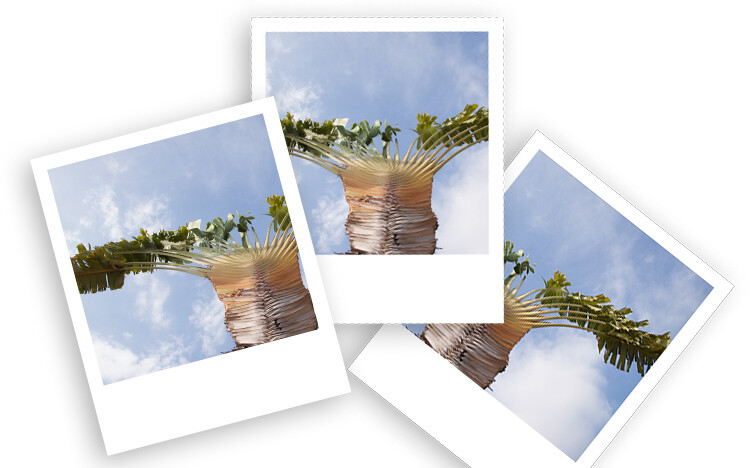
How to Make Your Digital Photo Look Like a Polaroid Using Photoshop

06 Mar

Nostalgic for the printed photos? Polaroids are coming back as trend as are many vintage things. Do you want to achieve this effect while still maintaining the advantages of the shooting digital? In this tutorial, I’ll show you how to make your digital photo look like a Polaroid and even like a stack of Polaroids in a very easy way using Photoshop.

From digital to Polaroid effect intro

Make a new document in Photoshop

The size of the image in an original Polaroid (just the image without the white frame) is 3.1 inches by 3.1 inches. Therefore, you need to open a new document in Photoshop with those measurements. If you are going to keep the result digital then you can leave it at 72 dpi (dots per inch). If you want to print it then set it to 300 dpi. Make sure the background color is black and then click OK.

Polaroid effect tutorial size document

Double-Click on this background so that you make it a layer, that is by default called Layer 0. Then make a new empty layer by going to Menu > Layers > New Layer.

Add the white frame

Now you need to do the outer frame which is the white border of the Polaroid. In order to make sure it’s centered, you can do it in two steps. First, go to Menu > Image > Canvas Size and this will open a pop-up window. The original Polaroid has a width of 3.5 inches, regardless you put it as both width and height. Make sure the point in the grid below is on the center square.

Polaroid effect tutorial canvas size white frame

Now you just need to make the bottom part of the frame larger. For that, go again to the Canvas Size but this time the point should be in the top square. Now fill this layer with white color by going to the paint bucket tool, make sure white is the foreground color and then click on the layer.

Polaroid effect tutorial canvas size white frame2

Add the background and a drop shadow

Create a new layer that will be your background. It can be white for now, but you can also add a texture like wood, for example, if you want to make it look like a table top, and so on. Go to Canvas Size and make it bigger once again. You can choose the size that’s best for you, here I’m doing 5.5×6.5 inches.

Select the layer that contains the frame (the white rectangle) and click the Add a Layer Style button at the bottom of the palette (fx). Select Drop Shadow and in the window that will pop-up, you can choose your settings. I’m using a 45-degree angle, with a distance of 30, a size 10, and setting the opacity to 29. You can set all these however you want, just move them around until you like how it looks. Make sure the preview option is ticked so that you see what you’re doing.

Polaroid effect tutorial drop shadow

Put your image inside the frame

Up until now, you have prepared your Polaroid and you can use this process for any photo or save it as a template.

To put your photo inside the frame you need to open your raw image and make the adjustments you want until you are satisfied, as you would do normally.

Now open the image as a Smart Object by holding Shift to make the Open Image button turn into Open Object and click on that. Another way to do it is to click the link at the bottom of the image window and in the pop-up window tick the option “Open in Photoshop as Smart Object”.

For more information about Smart Objects you can see my previous article on that topic here: How to Create with a Good Workflow Using Smart Objects in Photoshop.

Polaroid effect tutorial open as smart object

Now drag the thumbnail of that image into the layers palette of the Polaroids document you’ve been working on and it will be added as a Smart Object there as well. Now you can choose the image and keep working on the Polaroids.

Make sure the Smart Object (your image layer) is on top of all the other layers (with your black square directly underneath). Right-click on the image layer and select Create a Clipping Mask from the menu. Then use the Move tool to position the image to best compose it within the square.

Polaroid effect tutorial clipping mask

Oops, notice my layers are in the incorrect order here. Make sure your image is on TOP of the black square.

Try out some backgrounds to make it more interesting!

How to make a stack of Polaroids

If you want to make a stack of Polaroids follow these directions.

Select all the layers except the background and put them into a group by going to Menu > Layers > Group Layers. Now make as many copies of it as you’d to have like in your stack. You can do this just by dragging the group into the New Layers button at the bottom.

Finally just give a little twist to each one (use Edit > Transform > Rotate). There you go!

Digital to Polaroid Stack Effect tutorial

Digital to Polaroid Effect tutorial

Or you can play around with the composition. Remember you can also change the image that appears in each frame.

Digital to Polaroid Stack wide Effect tutorial

Extra effects

If you like to give your digital photo a printed quality but you don’t want to do a Polaroid, try curling the corner as if it was a page turning in only three steps.

1. Draw a square selection in the corner and draw a Gradient inside it with the Gradient tool set to go from black to white.

Tutorial Curl Turn Page effect 1

2. Go to Menu > Edit > Warp and drag the corner to create a curl.

Tutorial Curl Turn Page effect 2

3. Add a Drop Shadow like you did with the Polaroids.

Tutorial Curl Turn Page effect

Give it a try

So have fun making Polaroids in Photoshop and share your questions, comments and Polaroid compositions in the comments section below.

The post How to Make Your Digital Photo Look Like a Polaroid Using Photoshop by Ana Mireles appeared first on Digital Photography School.


Digital Photography School

 
Comments Off on How to Make Your Digital Photo Look Like a Polaroid Using Photoshop

Posted in Photography


How to Create Colorful Artistic Images Using Oil and Water

28 Feb

Colors are the smiles of nature. We see colors all around us and it makes us feel happy and alive. Just imagine a life without color, where everything is simply in black, white and in between, how dull and boring it would be. Luckily, our beautiful world is full of colors.

In this article, you’ll learn how to create some colorful images using just water and oil to make your world even more beautiful.

Oil in Water 17

I am sure you have seen oil and water images on the internet before and may have even tried to photograph it. But this is your lucky day, as you are going to learn a very easy technique where you don’t need any flashes or artificial lights and your pictures will come out beautiful and vivid.

Are you ready for this? Okay, let’s move on.

What you need

Like any other kind of photography, first, you need a camera. You can use any DSLR or compact camera or even your mobile phone. There is no restriction on lens choice as well.

Second, you need a glass dish. Just look in your kitchen and you will find one. If it’s square, that will work great otherwise, a round dish will work too.

I took some photos using a glass bowl but found a little problem. Bowls usually have a smaller bottom compared to the top and this shape affects the picture. Also, bowls may not be 100% transparent, so I went to a local aquarium shop and had them make an 8×12 inch glass tray with one-inch depth. You can also get the same for yourself.

How to Create Colorful Artistic Images Using Oil and Water

Background

Next, you need background images and there is a super simple trick. Go to Google and search for “colorful wallpaper” images. You’ll find lots of wallpapers that you can download and use. Download whichever ones you like, just make sure they have lots of colors and patterns.

Now send these photos to your iPad or tablet (or Google directly on the iPad and save). You will use these pictures as a background instead of a printed one, so you don’t need any lights and the colors will be very bright. If you don’t have a tablet, you may lay your computer monitor or laptop down and use it.

NOTE: If you do this, please do so at your own risk and take all safety precautions.

Other than this, you’ll need water, vegetable oil, dish soap, a plastic sheet to cover your tablet and two boxes about six inches high.

Setup and camera settings

Okay, place the two boxes about 8 inches apart so you can place your tablet between them. Now put your glass tray on top of the boxes. If you are using a glass bowl and it’s small in size, put two metal rulers on the boxes and place the bowl on them.

Now pour some water in the tray and add 4-5 tablespoon vegetable oil to it. When it’s ready, set up your camera. You may fix it on a tripod or you can shoot handheld, but it’s always better to use a tripod and get your hands free to do other tasks.

Set the ISO to 200, aperture to f/5.6, and your shutter speed will be around 1/25th (depending on the brightness of your screen). If you have a wide aperture lens like a 50mm f/1.8, it’s better to use that (you don’t need a lot of depth of field for this type of shot).

Since the water and oil bubbles are on the same focal plane, even if you use an aperture of f/1.8, the entire picture will be in focus. The background will be more blurred which is actually a good thing. So, just go with the widest aperture your lens allows and change the other settings on the camera accordingly.

Now place your tablet below the glass tray. It should be around six inches below the tray. Make sure you wrap it in plastic so if you accidentally drop some water or oil on it, it will be safe.

How to Create Colorful Artistic Images Using Oil and Water

Workflow

Now relax because the hardest part is already done and all you have to do now is change the image on the tablet and take some pictures. When you shoot one image, use a spoon to stir the water gently, let it settle down and take another shot. After four or five shots, change the image on the tablet and repeat the process.

You’ll find that oil drops are very big in size. Don’t worry about it and take some shots. When it’s complete, put a few drops of dish soap or any other liquid soap into the water, mix it well and voila, the oil drops have now become smaller. Don’t try to understand the science behind this, just change pictures on the tablet and shoot three or four pictures, change the photo again, and repeat the process.

Large oil droplets.

Smaller droplets created by adding soap.

Even smaller yet.

Post-processing and finishing up

There is no need for heavy post-processing, just levels, sharpening, and cropping is enough.

Okay, call your friends and tell them that you’ll be busy next Sunday because you’re creating some extraordinary beautiful images. Just do it, share with them and don’t forget to share in the comments below too.

The post How to Create Colorful Artistic Images Using Oil and Water by Ramakant Sharda appeared first on Digital Photography School.


Digital Photography School

 
Comments Off on How to Create Colorful Artistic Images Using Oil and Water

Posted in Photography