RSS
 

Posts Tagged ‘Using’

How to Make a Dramatic Portrait with Light Painting Using Items Found in Your Home

28 Feb

In this article, I’ll show you how to do a fun project you can do with friends and a little light painting. You can do this, using things you likely already have in the house.

It’s always fun to experiment with different and creative ways of using light in photographs. It’s also a lot of fun to take some risks and experiment with a technique that may or may not produce good results. The reality is you can learn from every photographic experience. It doesn’t matter if the results are perfect or not. Each time you pull out a camera you create something that adds to your knowledge base and helps you to grow as a photographer.

Learning lessons

In the case of a project I did recently with light painting and live models, several lessons were learned. The first was the importance of finding enthusiastic people to assist with my projects. The second was the importance of a reflector in adding light to a photograph.

Lastly, the third lesson involved pushing the limits of human abilities. I asked my friends to hold very still for these images, sometimes in some slightly awkward poses. How much was too much for my models?

How to Make Dramatic Light Painting Effects with Items Found in Your Home

This was our final image of the evening. It took a lot of trial and error to reach this point.


The light painting project

The whole concept for the photo project was inspired by the light painting of Eric Pare. He creates dramatic images in stunning locations with the help of dancer Kim Henry. Eric uses an easily created light tube and a strong flashlight. It’s winter here in Canada, and at -30c it’s not reasonable to ask a friend to pose outside in a landscape while wearing skimpy clothing.

So using his idea of long shutter speeds, it was time to craft a different project. The goal was to create dramatic images that you could easily reproduce within your home at a fairly low cost.

The following images were created in my kitchen using a large piece of black velvet (a black sheet will also work) draped across my portable backdrop stand, a reflector, an extension cord, and a string of Christmas lights. Of course, three friends were also recruited to assist with the project. They were more than willing to participate in the fun. In the end, there were a lot of laughs, and everyone was quite dedicated to the effort to get the images correct.

How to Make Dramatic Light Painting Effects with Items Found in Your Home

A terrible grainy image but my friend was having so much fun she needed to take a quick selfie.

The Setup

Setting up was very easy. A backdrop was attached to the narrow walls of my kitchen. Black velvet is a lovely fabric for absorbing light and creating true black in photographs. I love black velvet and I’ve used it to create some very dramatic still life images and portraits in the past.

Wait until the fabric is on sale or pick remnants. The only trick to black velvet is to use a lint brush to remove white fuzzy bits. These show up quite easily in images, and it’s a pain to clone out all those little white spots.

How to Make Dramatic Light Painting Effects with Items Found in Your Home

Here we set the lights and the background. The kitchen is pretty narrow so it was a challenge to set up the backdrop. In the end, part of the backdrop was taped to the wall.

How to Make Dramatic Light Painting Effects with Items Found in Your Home

A shot from above. My friend stood on the countertop to spin the lights. As you can see they were loosely draped over the fan.

How to Make Dramatic Light Painting Effects with Items Found in Your Home

The reflector was placed just below the model’s belly button and the light was directed up towards the face.

After setting up the backdrop using tape and the cross piece from my backdrop kit, we then hung the Christmas lights from the ceiling fan.

In the original plan, we intended to turn on the fan and let it spin. It’s a good thing we realized that the lights would tangle around the fan and cause an issue. So it then became the job of one person to spin the fan 340 degrees during the exposure manually.

The Camera Gear

We used a Canon 5D Mark III mounted on a tripod and the 2-second self-timer. That allowed the person manning the fan to begin spinning the lights.

How to Make Dramatic Light Painting Effects with Items Found in Your Home

This image is getting better. It’s still soft. My exposure time wasn’t quite correct yet here.

The Procedure

It was time to establish the proper exposure for the whole project.  The trick here was to balance the exposure so that there was a long enough shutter speed (exposure time) to blur the lights but we also needed to keep the models in focus.

It’s awfully hard to stay still for even just a few seconds. In fact, it’s almost impossible. After several experiments and through trial and error the final exposure used was 0.8 of a second at f/3.2 with an ISO of 100. We also used a large reflector to bounce the light back up towards the models face.

How to Make Dramatic Light Painting Effects with Items Found in Your Home

This one is a little better. I ran it through a sharpening editor to help. It’s not perfect but I love the way the lights curved around their hair.

The whole experiment required us to use two people to create the photo and one or two people as models in each shot. The photographer triggered the camera timer as well as held the reflector, while the fan operator stood on the countertop and spun the fan at the proper moment.

How to Make Dramatic Light Painting Effects with Items Found in Your Home

This image didn’t turn out as planned. You can see how important timing and communication are to this kind of project.

The Keys to Success

The keys to a successful photograph were quite simply communication and timing. The lights had to be spun at exactly the right moment, and the photographer needed to communicate timing to everyone else.

It took a lot of tries to get the whole thing correct, but in the end, we were able to produce the desired images.

How to Make Dramatic Light Painting Effects with Items Found in Your Home

The creative person in me is able to ignore the slight ghosting from motion because I love how the lights spin above and below her eyes.

The goal was to create dramatic images with a neat light painting effect. I wanted to encircle the model with light, almost as if she were standing within a light tube. There were many failed attempts.

Sometimes our timing was off, and the lights did not spin around the model or got caught in her hair. Other times the lights moved too slowly and didn’t make it all the way through the image. Other times the issue was the lights themselves. Sometimes the lights spun right across the model’s eyes. I like a few of these images, but at the same time, some ran across the face in a way that was not attractive.

Have fun with it

The whole experiment was a lot of fun. It made for a great night out and some fun pics to post on social media. My friends were happy to post the pics to show their friends. As an artist and a professional photographer I also wanted to see if I could use the technique for other purposes.

Is it possible to use this technique to create some interesting fine art images or perhaps for some interesting portraits? The answer is yes! There’s a lot that can be done with this technique. It’s well worth experimenting with and seeing what kind of results can be created.

How to Make Dramatic Light Painting Effects with Items Found in Your Home

In this one, we achieved exactly what I was hoping to do. She is standing in a circle of lights.

The post How to Make a Dramatic Portrait with Light Painting Using Items Found in Your Home by Erin Fitzgibbon appeared first on Digital Photography School.


Digital Photography School

 
Comments Off on How to Make a Dramatic Portrait with Light Painting Using Items Found in Your Home

Posted in Photography


7 Tips for Creating Natural-Looking HDR Landscapes Using Aurora HDR

27 Feb

Aurora HDR is one of the best and easiest photo editing programs available for quickly creating HDR images. With that said, it has a wide range of tools and filters to help you achieve your HDR goals. To help you sort through them all, this article will highlight seven tips for creating natural-looking HDR landscapes in Aurora HDR 2018.

1. Keep HDR editing of sunsets and sunrises to a minimum

Everyone knows that sunrise and sunset provide optimal landscape photography opportunities. Golden hour bathes everything in a beautiful, often colorful natural light. As a result, it’s best to take a more subdued editing approach to keep the scene as natural looking as possible, especially when dealing with HDR. Otherwise, you risk over-processing your image.

7 Tips for Creating Natural-Looking HDR Landscapes Using Aurora HDR

Original starting image (the middle exposure of a 5-image bracketed set). Image courtesy dPS Managing Editor, Darlene Hildebrandt.

NOTE: On that note, many of the tips below will include editing tools and sliders that have been pushed to their extremes. This is meant as a demonstration to show what you could do by using these tools at their maximum, but it’s not suggesting you should do this.

2. Intelligently bump contrast and color with HDR Enhance

7 Tips for Creating Natural-Looking HDR Landscapes Using Aurora HDR

One of the first tools you should utilize is called HDR Enhance. Found in the HDR Basic panel, it’s a newer feature available in Aurora HDR 2018 and it serves as a replacement for the clarity slider. When activated, HDR Enhance brings out the details and textures in your image while minimizing any residual artifacts such as image noise that might be introduced in the process.

In the example below, the HDR Enhance slider has been pulled to the extreme for demonstration purposes. Notice how the contrast in the foreground and the distant rocks have increased significantly, and the color in the sky really pops.

7 Tips for Creating Natural-Looking HDR Landscapes Using Aurora HDR

HDR Enhance at 100.

7 Tips for Creating Natural-Looking HDR Landscapes Using Aurora HDR

But adding too much HDR Enhance is like adding too much clarity. The rocks and sand in the foreground have so much contrast and clarity that they look unreal, and the rocks and hills in the background now have a halo effect (generally considered undesirable).

To reduce these effects and thus make your landscape appear more realistic, tone down HDR Enhance significantly (or use the masking brush to apply or erase the effect wherever you choose). By having the slider at 36 as opposed to 100, there’s still a nice pop of details and color.

7 Tips for Creating Natural-Looking HDR Landscapes Using Aurora HDR

HDR Enhance scaled back to 36.

3. Bump up the contrast

To make your image appear less flat, bump up the contrast. Going to extremes results in lots of shadows, reducing details in any dark areas. It also saturates color in the sky and in the reflection on the water.

7 Tips for Creating Natural-Looking HDR Landscapes Using Aurora HDR

Contrast at 100.

By lessening contrast to about 20, shadows are still enhanced, but the details are better preserved. Note that the trees on the hill are still visible.

7 Tips for Creating Natural-Looking HDR Landscapes Using Aurora HDR

Contrast scaled back to 20.

4. Use Smart Tone to brighten up an image

7 Tips for Creating Natural-Looking HDR Landscapes Using Aurora HDR

Since increasing the contrast introduced more shadows to the image, brighten it up again by using the Smart Tone filter. Dragging the slider to the right brings more light to areas of the image that are dark, without dramatically affecting parts of your image that are already bright.

Below, you can see an extreme version of the Smart Tone slider in action. Notice how the shadowed areas are brightened, revealing lots of detail, particularly in the hill on the right. This is what you can do with Smart Tone, but it’s not necessarily what you should do since the image now appears very flat without any shadows or contrast, and the dreaded halo has appeared again.

7 Tips for Creating Natural-Looking HDR Landscapes Using Aurora HDR

Smart Tone at 100.

To appear more realistic, pull back Smart Tone to about 22. This gives a hint of detail to the trees in the right, similar to what a reflection on the water might cause. It also brightens that patch of sand to the right.

7 Tips for Creating Natural-Looking HDR Landscapes Using Aurora HDR

7 Tips for Creating Natural-Looking HDR Landscapes Using Aurora HDR

Smart Tone dialed back to 22.

5. Enhance Saturation, Vibrance, and Color Contrast

At this point, let’s turn our attention to the colors. Play with the Temperature slider in the HDR Basics panel to add some warmth to images like this sunset. Then scroll down to the Color panel and tweak the Saturation and the Vibrance sliders.

7 Tips for Creating Natural-Looking HDR Landscapes Using Aurora HDR

Depending on your image, you may need to bump these either up or down. Just avoid taking them to their extremes; generally, somewhere between 5-20 will be a good range. You can also bump up the Color Contrast slider, which controls the contrast between primary and secondary colors.

7 Tips for Creating Natural-Looking HDR Landscapes Using Aurora HDR

Saturation, Vibrance and Color Contrast boosted.

6. Use Image Radiance for an ethereal effect

7 Tips for Creating Natural-Looking HDR Landscapes Using Aurora HDR

Now we’re looking at a few finishing touches that you can add to your HDR landscape shots, and one option is Image Radiance. This adds a soft, dreamy glow to your photo, and it is best used on sunset or sunrise images. In this particular scenario, Image Radiance seems particularly important since it can contribute a soft, hazy effect typical of ocean shots.

Increase the Image Radiance slider to about 37. Doing this will introduce some shadows to your image, but that can easily be fixed with the Brightness and Shadows slider in the same panel. You can also adjust Vividness and Warmth here too if you see fit.

7 Tips for Creating Natural-Looking HDR Landscapes Using Aurora HDR

7. Add a subtle Vignette

7 Tips for Creating Natural-Looking HDR Landscapes Using Aurora HDR

The final edit that you might do to an HDR landscape image is to add a vignette. In the case of a sunrise or sunset, a vignette can be particularly helpful to add a subtle frame around the subject, drawing more attention to the focal part of the scene, the setting sun.

Within Aurora HDR, the Vignette panel is at the very bottom. You can control not only the size, amount, roundness, and feathering of the vignette, but also the inner brightness. As well you can adjust the placement of the vignette, meaning you can easily create a vignette that is not centered on the image – very handy if your subject is following the rule of thirds and is off-center.

When adding a vignette, note that the amount is a negative number for a dark (black) vignette and a positive number for a bright (white) one.

7 Tips for Creating Natural-Looking HDR Landscapes Using Aurora HDR

Final image with the vignette added.

Bonus tips

In addition, Aurora HDR also has tools for correcting Chromatic Aberration and Lens Distortion. It also comes loaded with several “Realistic HDR” presets that you can use to get started, and then just tweak the settings to your liking.

Over to you

There you have it, seven tips for processing landscape HDR photos in Skylum’s Aurora HDR. If you were inspired to create your own HDR landscapes, please share them in the comments below along with your post-processing tips and tricks.

Disclaimer: Skylum (formerly Macphun) is a dPS advertising partner.

The post 7 Tips for Creating Natural-Looking HDR Landscapes Using Aurora HDR by Suzi Pratt appeared first on Digital Photography School.


Digital Photography School

 
Comments Off on 7 Tips for Creating Natural-Looking HDR Landscapes Using Aurora HDR

Posted in Photography


How to Create with a Good Workflow Using Smart Objects in Photoshop

25 Feb

Do you want to make sure you get the most details out of your shot? How about making sure none of your post-processing is destructive? It sounds like a really smart way to set up your workflow right?

A workflow is a process that goes from initiation to completion. In the case of photography, that implies from the time of shooting to post-processing. So the first thing you need to do is to ALWAYS shoot in RAW mode. This is a format that changes file extension with every manufacturer but they all share one common thing: raw files store all the un-processed and un-compressed data received on the sensor of your camera when you make a picture.

Intro before after - How to Create with a Good Workflow Using Smart Objects in Photoshop

Why shoot RAW?

What is the point of that? Well this means that your file can tolerate more post-processing adjustments and that you can alter some of the settings from the image in a non-destructive way.

As I mentioned before, RAW files have different file extensions and therefore need special software to process them. Your camera surely came with a software that handles your files. However, in this article, I am going to show you how to get the most out of them in Photoshop which supports most raw formats either by default or by using a plug-in.

When you open a RAW file in Photoshop you will see that you can adjust the image with the sliders on the tool palette on the right. Start moving those around to recover the most detail you can from both the highlights and the shadows so you can even out the exposure as much as possible. You can also control the tone of the white balance, the saturation and vibrancy of the colors, and so on.

Raw Window - How to Create with a Good Workflow Using Smart Objects in Photoshop

Tweak the image using the sliders and local adjustments in ACR

Once you have the overall settings adjusted, you can start working the settings in different areas to fine-tune your image.

Use the Adjustment Brush that you’ll find in the Menu bar on the top; you can change its settings like size and hardness on the right. Whatever adjustments you make to contrast or exposure will be applied only to the part where you paint with the brush. This is very useful when you are processing images with a lot of contrast. You can keep going with the other tools like the gradient for other local adjustments.

Raw Brush - How to Create with a Good Workflow Using Smart Objects in Photoshop

Open as a Smart Object

If you are already familiar with processing RAW files, these are likely your normal post-processing steps, after which you would click the Open Image button so that the photo opens in Photoshop with the applied adjustments. However, there is one more step you can add to your process to really make your images pop. You can open your photo as a Smart Object.

Open Object - How to Create with a Good Workflow Using Smart Objects in Photoshop

Here’s how to do it. Instead of clicking Open Image, just press the Shift key and that same button will become Open Object, now you can click it. Having done this, the image will open in Photoshop as a Layer. Now right-click the layer thumbnail and choose New Smart Object via Copy and a second layer, containing a second smart object will be created.

IMPORTANT: Don’t just duplicate the layer or you won’t be able to process them independently; every adjustment would be applied to both smart objects!

You can now rename the layers to identify which adjustments you are going to do in each one. For example, I’m doing Highlights and Shadows for my image but maybe for another image, it’s better to call the layers Background and Foreground, it depends on your image and what it needs.

Double processing

Double processing - How to Create with a Good Workflow Using Smart Objects in Photoshop

The cool part about Smart Objects is that when you double-click the layer, it will open again in the RAW editor, which means that you are back to all the data to keep processing without loss. You can make the adjustments that you need for a specific part of the image.

Finishing up

Now that you have done the best post-processing for each part is time to integrate it all into one amazing picture! Add a mask to the top layer by clicking the Layer Mask button on the bottom of the Layers Palette. With the layer mask selected you can start hiding the parts you don’t need. Remember that whatever appears in black on the mask means that you will see the layer underneath; whatever is white will show the top layer. I’ll turn off the bottom layer so that you can see what I mean below.

Layer Mask - How to Create with a Good Workflow Using Smart Objects in Photoshop

If you find it necessary, you can keep going with your adjustments, as you would normally do in Photoshop. You can add a filter or adjustment layer by clicking on the buttons at the bottom of the Layers Palette. Have a look at these before and after examples!

Before- How to Create with a Good Workflow Using Smart Objects in Photoshop

Before

After - How to Create with a Good Workflow Using Smart Objects in Photoshop

After

Before2 - How to Create with a Good Workflow Using Smart Objects in Photoshop

Before

After2 - How to Create with a Good Workflow Using Smart Objects in Photoshop

After

The post How to Create with a Good Workflow Using Smart Objects in Photoshop by Ana Mireles appeared first on Digital Photography School.

Digital Photography School

 
Comments Off on How to Create with a Good Workflow Using Smart Objects in Photoshop

Posted in Photography


How to Turn Your Photo into a Cartoon Drawing Using Photoshop

17 Feb

Photography can be traced back all the way to the camera obscura; which was an aid for artists who could then draw their subjects from the projection created by the light passing through the pinhole. Following that tradition, in this tutorial, I’m going to show you how to create a drawing by outlining the subject from your digital photo to create a fun, cartoon-like image.

Deer cartoon - How to Turn Your Photo into a Cartoon Drawing Using Photoshop

Getting started

You can use this technique on any photo you want and apply it to any subject you like. However, I find it best, especially for your first attempt, that the subject is well defined or isolated so it’s easier for you to outline it. I also personally prefer and recommend that the image is not too busy. So, once you have chosen your photo, open it in Photoshop.

Outline the subject

To trace your subject you are going to use the Pen tool. The way it works is that you create anchor points with each click. A straight line then connects those points. Do this all around the subject.

Once you have this, change the Pen tool to the Convert Point Tool, which you can find by holding down on the Pen until the drop-down menu opens. With the Convert Point, you can curve the straight lines to make it fit the silhouette best. Just click on the anchor point and start dragging it. From each anchor point, you will have to handles, each one to control the line in each direction of the anchor.

Pen Outline - How to Turn Your Photo into a Cartoon Drawing Using Photoshop

This will help you get a smoother silhouette and avoiding unnecessary bumps that you would get if you only trace by adding anchor points.

Straight lines - How to Turn Your Photo into a Cartoon Drawing Using Photoshop

A straight line.

Curve - How to Turn Your Photo into a Cartoon Drawing Using Photoshop

Using curved lines.

Create your outline

Once you have outlined the silhouette of the subject, create a new layer. You can do this by going to the top Menu > Layer > New Layer. You can rename it as “silhouette” or “outline” just to keep things tidy, as you will be creating more layers further along.

What you’re going to do next is turn this path into a drawing, more precisely, the line that borders your drawing. Therefore, you can choose which color it will be and how thick you want it. To set it you need to go to the Brush tool and select a hard brush as thick as you want. I’m doing 8px in this case.

You can also choose the color by clicking on the foreground color at the bottom of the tool palette, for this example, I’m using black. Turn off the background layer (click the little eye icon) so you can see how it will look like and then choose your settings.

Silhouette - How to Turn Your Photo into a Cartoon Drawing Using Photoshop

Now that you have this ready, leave the new layer active go to the path palette. If it’s already opened you can open it by going to the top Menu > Windows > Path. In there you will see that a Work Path has been created, the icon will show the image as a grey rectangle and the path is the silhouette you traced.

Next, right-click on the Work Path and choose Stroke Path. A pop-up window will appear, make sure the Brush option is selected and click OK.

Stroke Path - How to Turn Your Photo into a Cartoon Drawing Using Photoshop

Adding details

You have a border or a silhouette now, but you still need details. Each one will be a new layer and a new path, that way you have it separated and can, therefore, control it more precisely.

If you want two details on the same layer, for example, to keep the two ears in one layer so that any changes apply equally, then you keep working in the same layer. But you do need to create a new path for each one.

Notice here that I have my background layer which is my original image; a Layer 1 that corresponds to the Work Path which is the outline; and a Layer 2 that contains Path 1 and Path 2 which are the two details of the ears. This is why I suggested earlier that you should rename the layers and the paths to keep track of them easier. Continue doing this as many times as you need to finish your drawing.

Layers and Paths - How to Turn Your Photo into a Cartoon Drawing Using Photoshop

Apply a filter

Once you’re finished with this, duplicate the background layer. With this new layer active, go to the Work Path (the one that has the outer line of the drawing) and right-click it. From the drop-down menu, choose Make Selection. This will select your subject so that the filter you’ll apply next doesn’t affect the background, otherwise the entire will turn into a cartoon.

Now go to the top Menu > Filter > Filter Gallery. A window will appear with all kind of filters that you can apply and a preview image. In this case, you’re going to select the one called Cutout from the Artistic Filters. On the right side there are sliders to refine the effect, just move them around until you are satisfied. I’m going to do it as Number of levels 7, Edge simplicity 5 and Edge fidelity 2. When you’re done just click OK.

Cutout - How to Turn Your Photo into a Cartoon Drawing Using Photoshop

Other tricks

You can also multiply your cartoons, apply modifying layers to change colors or saturation, and anything else you can think of! And the best part is that you can do this to any kind of photo, here are some other examples; share yours as well in the comments!

Three deers - How to Turn Your Photo into a Cartoon Drawing Using Photoshop


The post How to Turn Your Photo into a Cartoon Drawing Using Photoshop by Ana Mireles appeared first on Digital Photography School.


Digital Photography School

 
Comments Off on How to Turn Your Photo into a Cartoon Drawing Using Photoshop

Posted in Photography


Adobe RGB Versus sRGB – Which Color Space Should You Be Using and Why

11 Feb

How frequently have you been to your camera settings to switch between Adobe RGB and sRGB color space? Are you even aware of what these terms mean, or what exactly is a color space? Even I was unaware of these technical terms until a few years back but I quickly realized their importance.

What is a color space?

A color space is a part of the color gamut, which is basically the universe of color tones. So you can assume different color spaces to be planets of different sizes. Out of many planets, Adobe RGB and sRGB are two most commonly used color spaces in photography.

Depending on your preferences, you can choose the desired color space and get the best possible result out of it.

Adobe RGB Versus sRGB - Which Color Space Should You Be Using and Why

By The original uploader was Cpesacreta at English Wikipedia [Attribution or CC BY 2.5], via Wikimedia Commons

What are Adobe RGB and sRGB color spaces?

Adobe RGB is a bigger color space than sRGB as it is comprised of many more variations of color tones. This is one of the reasons that Adobe RGB monitors are vastly used by photographers – they can display more colors as compared to an sRGB monitor.

Monitors and printers

Adobe RGB monitors are used by a majority of modern day printer operators as well because they are capable of showing what a CMYK (cyan magenta yellow and key or black) printer color profile can produce. This helps the printer operator to ensure that colors that are being displayed on the Adobe RGB monitor shall be very close to the print that comes out of the CMYK color space printer (used for magazines and publications).

So being a photographer it makes sense that you use an Adobe RGB monitor so that you can edit your photos and see the actual colors that will come out in the prints.

Whereas, if you are sure that you will not get your photos printed in the near future then it does not make any sense to use an Adobe RGB monitor. If you only take photos for yourself or to upload them to the web, then an sRGB monitor is ideal for your purposes.

Adobe RGB Versus sRGB - Which Color Space Should You Be Using and Why

Camera shooting color space

But in order to view the actual colors of Adobe RGB or sRGB color space on your monitor, you need to capture the photo in that particular color space in the first place.

Unless you capture a photo in the required color space, be it Adobe RGB or sRGB, you cannot use that photo to its full potential. Shooting photos in the larger Adobe RGB color space allow you to capture more color tones, thus helping you see accurate colors on Adobe RGB monitors and in the prints. Whereas clicking in sRGB color space allows you to upload images to the web without any change in colors.

While shooting in one of these two color spaces each has their own advantages, there are few disadvantages as well.

Adobe RGB Versus sRGB - Which Color Space Should You Be Using and Why

Setting your camera color space.

Advantages and Disadvantages of shooting in Adobe RGB

Advantages:

  1. You get to capture a wider range of color tones in your photos.
  2. This color space is capable of displaying color tones that come out of a CMYK printer, thus ideal color space if you print your photos.

Disadvantages:

  1. When you upload a photo captured in Adobe RGB color space on the web, the colors get desaturated (and can look “off”).
  2. Adobe RGB monitors are costly, so in order to edit Adobe RGB color space image, you need to invest a lot in a monitor.

NOTE: You can convert an Adobe RGB color profile image into sRGB color space using software such as Photoshop and Lightroom.

Adobe RGB Versus sRGB - Which Color Space Should You Be Using and Why

Left: While exporting photos in Lightroom, you get the option to choose the color space. Right: In Photoshop, you can go to Color Settings and select the required option as your working color space.

Advantages and Disadvantages of shooting in sRGB

Advantages:

  1. When you upload a photo shot in sRGB color space, the colors remain the same and do not get desaturated, unlike an Adobe RGB image.
  2. A majority of monitors in the world use the sRGB color space and are not that expensive, unlike Adobe RGB monitors. This ensures that the colors that you experience on your monitor would be almost the same on any other sRGB monitor.

Disadvantages:

  1. As the color tones in sRGB are less compared to Adobe RGB, you do not get accurate colors in your prints.
  2. If you submit your photos for photography contests, there are chances that those photos will be viewed on an Adobe RGB monitor. This might reduce your chances of winning as a photograph captured and edited in Adobe RGB will look more pleasing to the judges.

Conclusion

Adobe RGB or sRGB, which color space to choose while shooting?

If you are a photographer who prints your photos often and you want to ensure that the colors are accurate in your prints, then you must shoot in Adobe RGB color space. Shooting photos in sRGB color space might give you a variation in colors that you see on your monitor and in the final prints. Also if you participate in online photography contests, it is safe to capture and edit photos in Adobe RGB color space.

But if you only capture photos to upload them on the web, then shooting in the sRGB color space is the ideal choice for you. If you upload Adobe RGB color space photos to the web, you will notice that colors get desaturated.

Adobe RGB Versus sRGB - Which Color Space Should You Be Using and Why

Left: This is how your photo gets desaturated when you upload Adobe RGB color space photo to the web. Right: When you upload sRGB color space photos, you get correct colors as seen here.

Nonetheless, to be on the safe side you can shoot photos in the Adobe RGB color space. If needed you can always use the file for prints, and if you wish to upload to the web then you can simply convert the color space using Adobe Photoshop or Lightroom.

The post Adobe RGB Versus sRGB – Which Color Space Should You Be Using and Why by Kunal Malhotra appeared first on Digital Photography School.


Digital Photography School

 
Comments Off on Adobe RGB Versus sRGB – Which Color Space Should You Be Using and Why

Posted in Photography


How to Geotag Your Photos Using Lightroom and a Smartphone App

10 Feb

As a landscape and travel photographer, it is important to be able to track where you traveled and note exactly where a specific picture was taken. Sound complicated and expensive? It’s not if you have a smartphone and a geotag app that will track your GPS location. In this article, I’ll show you how to use Lightroom and the Geotag Photos Pro app to mark your photos locations.

Geotag Your Photos Easily in Adobe’s Lightroom with the help of Geotag Photos Pro App

How to Use Lightroom’s Map Module and the Geotag Photos Pro App

Geotagging is the process of pinpointing the location you took your picture with the aid of a GPS unit. There are a few ways to collect GPS information from a camera. A GPS unit can be built-in to your camera, an accessory to your camera, or a smartphone app like Geotag Photos Pro.

All of these GPS accessories will add EXIF data to your photo files. This data usually consists of the file name, folder location, city, GPS coordinates, as well as the date and time the image was captured. This feature can be very useful if you are a travel or landscape photographer who would like a record of your travels and photo shoot locations.

How does it work?

Your camera records the picture information each time you take a shot, including the time each photo was captured. All the while, you will have the Geotag Photos Pro app running on your phone to record your exact position at the time the photo is taken. It’s all tracked based on the time the image was shot. The fun comes later when you merge all of the data in Lightroom.

Geotag Photos Pro app

Using GPS attachments on an SLR can be expensive and cumbersome. The Geotag Photos Pro app might be a good solution for you. It will work with whatever capture device you prefer to use, a DSLR, a mirrorless camera, a compact point and shoot, or a mobile phone.

Available in both IOS and Android versions, the app records your position while you are taking photos. It then creates a “.gpx” file that you export to Geotag Photos Pro desktop app or other apps and services like Lightroom, Flickr, and Apple Photos.

It’s all tracked by synchronizing the clock on the app with the clock on your camera. It will create a track log with custom interval settings that you set up. The best part is you can bring it into the Lightroom mapping module and it will create a map of your shoot with thumbnail images along the route.

Setting up the app

Before you start your photo walk, make sure that your camera and your cell phone are synced at the same time. There is no need to have internet access to use the app, it works through a GPS signal which is available anywhere for free. First, start the Geotag Photo Pro App.

How to Use Lightroom’s Map Module and the Geotag Photos Pro App
In the settings, set the desired time for Geotag Photos Pro for your logging interval – 2 minutes is the optimal time interval. That way you can create a balance between the battery life of your cell phone and the accuracy of the app without using up all of your power. If you’d like it to track at faster intervals, you can set it up that way or manually set a point on your track.

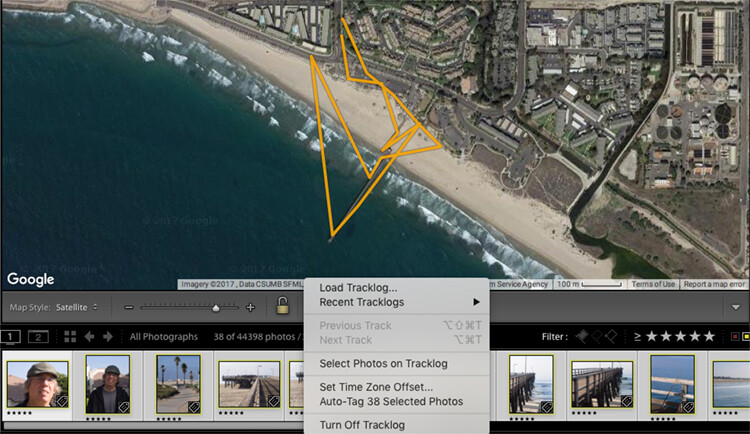
You don’t need to hold on to the phone or watch the app once you have initiated your photo walk and you are happy with the interval settings. It will create a map similar to the one below when you are done. Your map may create an odd route as if you were walking in the ocean like this one, but there is actually a pier which doesn’t show up on this map.

How to Use Lightroom’s Map Module and the Geotag Photos Pro App

After your walk

When you have finished your walk, Complete the track on the app and share the track log to your Dropbox, iCloud, or Google Drive account and download the track to your computer.

Once you have downloaded the .gpx file track log, import your images into Lightroom and select the images in the filmstrip that you would like to geotag. Then open the map module of Lightroom.

How to Use Lightroom’s Map Module and the Geotag Photos Pro App

Just below the map window but above the filmstrip, there is a squiggly line that is the track log menu (circled in red above). Hover over it, navigate to your saved .gpx file and load into Lightroom. Once you open the file, you will see the track start to load on your map.

How to Use Lightroom’s Map Module and the Geotag Photos Pro App

Once you see a map similar to this (below), it is time to geotag your images.

How to Use Lightroom’s Map Module and the Geotag Photos Pro App

Geotagging your images

Look at your filmstrip and navigate to the images you would like to include in the track log. Click on the first image and shift-click the last image in the sequence to select them all. Then click on “load track logs” and select “Auto Tag the select photos”.

Now the photos and location will load to the track. If the track doesn’t look 100% correct, you can move the location of the track to put the images in the right place.

How to Use Lightroom’s Map Module and the Geotag Photos Pro App

Now you will have a track log of the images you took located on the map. Hover over the picture icons, and your images will pop up in the location where they were photographed. How cool is that?!

How to Use Lightroom’s Map Module and the Geotag Photos Pro App

In conclusion

What a great tool for you as a landscape and travel photographer! As GPS gets more advanced, it will be included in more cameras and make this process a little easier. But for now, an app like this is fun and easy to use and adds another handy element to your photo toolbox.

Give it a try on your next trip!

The post How to Geotag Your Photos Using Lightroom and a Smartphone App by Holly Higbee-Jansen appeared first on Digital Photography School.


Digital Photography School

 
Comments Off on How to Geotag Your Photos Using Lightroom and a Smartphone App

Posted in Photography


How to shoot Log video using DJI’s D-Log color profile

09 Feb

One of the challenges of shooting video with a drone is dealing with high dynamic range lighting situations. Fortunately, many of DJI’s drones offer a useful picture profile called D-Log. It’s DJI’s implementation of a Log gamma curve, designed to capture as much tonal information as possible.

DJI’s standard picture profiles can be vivid and punchy, but similar to shooting JPEG format on a stills camera, using them can make it impossible to recover highlights or shadows if clipping occurs in high contrast scenes.

If you don’t need to shoot Log to capture the dynamic range of a scene, it may not be
the best choice

Using D-Log can give you more flexibility in your post-production by retaining a wider tonal range, allowing you more latitude to apply your color and style choices during editing. However, there’s no such thing as a free lunch; shooting in Log can reduce image quality by trying to compress too much tonal information into a limited number of bits in the file. If you’re shooting a high dynamic range scene that tradeoff may result in a net benefit. But if you don’t need to shoot Log to capture the dynamic range of a scene, it may not be the best choice.

In this article, I’ll show you how to set up the D-Log profile, how to expose for it, and provide some examples of what you can achieve by shooting in D-Log and using color lookup tables, or LUTS, to color grade the final footage.

Set up your DJI drone to shoot in D-Log

To set your Mavic Pro, Phantom, or Inspire to shoot in D-Log, make sure you’re in video mode and navigate to your camera settings. You’ll find D-Log under the ‘Color’ settings, along with all the other color profiles. Once selected, you’re ready to shoot in D-Log.

To set up D-Log using the DJI GO app, simply navigate to the Color settings in video mode and select the D-Log profile. I also recommend going to the Style settings and creating a custom style with sharpness, contrast, and saturation set to -3 to give yourself more flexibility in editing.

I also recommend going to the ‘Style’ settings and creating a custom style with contrast, sharpness, and saturation all dialed back to -3. This can give you a bit more flexibility in post-processing since you’re not baking things such as the default sharpness level into the file.

Your drone should now be set up and ready to record footage in the D-Log profile. Keep in mind that the image above is from the DJI GO 4 app using the Phantom 4 Pro; menus may look slightly different on different models, but it should be the same basic procedure.

Setting exposure in D-Log

Now that your drone is set to shoot in D-Log, let’s discuss some best practices and tips for properly exposing your footage. We’ll be using my screenshot below to point out some key settings.

When shooting D-Log, I’ve had good experience using the expose to the right (ETTR) technique in order to get more shadow detail while preserving highlights.

There are different schools of thought on how to best expose when shooting in Log, but I’ll share what has worked consistently for me.

In the image above, note that my histogram is exposed as far to the right side of the scale as possible without clipping my highlights. This is a technique called expose to the right, or ETTR. Exposing this way for D-Log allows for less noise in the shadows while maintaining highlights as much as possible. For the way I shoot, it’s the ‘sweet spot’ for maximum dynamic range retention.

Alternatively, you can optimize exposure for the mid-tones when shooting in D-Log. However, note that D-Log footage can get very noisy if underexposed. If exposing for the mid-tones means using a lower exposure than the ETTR method, it will result in more noise in the shadows in exchange for better highlight retention in the brighter regions of your image. I suggest trying both methods to see what works best for you.

The other key thing to note about my settings is the fact that ISO is set to 500. It’s the lowest ISO that DJI D-Log can be shot in on the current Phantom 4 Pro firmware. That means you can go higher than ISO 500 if you’d like, but never below ISO 500. I recommend leaving your ISO at 500 to get the best results.

Using LUTs to color grade D-Log footage

Recording your footage in D-Log offers many benefits, but one of the things that you have to do in order to reap those benefits is to devote more time to post-processing. Straight out of the camera, Log footage looks very flat since it’s designed to cram as many tonal values into the available space as possible.

The first step in grading your D-Log footage will be to make it look like something more recognizable. To do this we’ll use a LUT, or lookup table, to apply a different gamma curve (tone curve) to our footage using our video editing software.

A LUT is essentially a matrix of numerical data that describes how to modify our footage from the profile it was shot in, to a profile we want to work with.

All of this work with LUTs typically takes place in your video editing software. I use DaVinci Resolve, but the same basic process can be performed in other editors like Final Cut Pro X or Premiere Pro. Once your footage has been imported, you can apply a D-Log to Rec.709 LUT, which converts our D-Log footage to the standard color and tone response for HD video. At this point, our footage should more closely conform to the standard color output we’re used to seeing.

Having the flexibility to push and pull colors and exposure in editing is worth
the added effort for me

DJI used to provide a LUT for this conversion but has stopped offering it since the Phantom 4. I like to use Blackmagic’s DaVinci Resolve because it has a D-Log to Rec.709 LUT built in, but other third-party plugins like Filmconvert also offer them with their color grading tools as well.

From here it’s possible to finish color grading manually if you wish. Alternatively, you can use another LUT to apply a new ‘look’ to your Rec.709 footage, such as one that emulates a film stock or provides a specific cinematic look, to achieve the output you’re going for.

When editing in DaVinci Resolve it’s easy to apply a D-Log to Rec.709 LUT to convert my footage. The general workflow is similar in programs like Final Cut Pro X or Premiere Pro, though you may have to add a D-Log to Rec.709 LUT to your software.

One of my workflows is to use the ‘D-Log to Rec.709’ LUT in DaVinci Resolve, followed by a cinematic LUT from the Elektra series from Polar Pro.

To be clear, Elektra LUTs are intended to convert your D-Log footage directly to a cinematic look, and they absolutely work in that respect. However, after some experimentation I’ve found the results can sometimes be more pleasing – to me, at least – when I apply these LUTs to footage after applying a D-Log to Rec.709 LUT. Both methods work, and it’s really a matter of personal taste and the look you want to achieve.

There are other sources of LUTs designed for DJI drones as well, including collections from Ground Control, and even D-Log LUTs created by the user community (just do a bit of searching online).

I like to go through my library of available LUTs and try them until I find the one that suits the project. I’ve put together a short sample reel of some D-Log footage from a flight at Seattle’s Gasworks Park, so take a peek at the video for some examples of different looks.

This video shows a number of looks I was able to create from the same shoot using different LUTs.

Keep in mind that LUTs don’t eliminate the need to do manual color grading; they’re a starting point that allows you to apply a consistent look across your footage, but you’ll likely still need to do a bit more work to get the precise result you seek.

Conclusion

Now that you know how to set up your DJI drone to shoot in D-Log, expose it for maximum dynamic range, and color grade it using LUTs, you’re ready to create your own cinematic aerial films. I’ve found that the additional workflow required to shoot in D-Log has given me enough benefit in post-production to continue using it. Having the flexibility to push and pull colors and exposure in editing is worth the added effort for me.

Granted, I probably wouldn’t employ this process for casual shooting, but for important productions where use of a high contrast color profile would risk clipping a lot of highlights or crushing shadows straight out of the camera , shooting in D-Log is definitely a must. DJI has even created a handy guide to getting started with setting up and shooting in D-Log as well, so if you’d like more information on the process, take a look at that guide here.

Articles: Digital Photography Review (dpreview.com)

 
Comments Off on How to shoot Log video using DJI’s D-Log color profile

Posted in Uncategorized


How to Easily Simulate a Tilt-Shift Effect Using Photoshop

03 Feb

You might not know it, but even if you’ve never heard of tilt-shift photography you have probably seen a photograph that was captured in just such a way. A few years ago tilt-shift photos exploded into the mainstream with oddly miniaturized images of cities, cars, and even landscapes going completely viral seemingly overnight.

How to Easily Simulate a Tilt-Shift Effect Using Photoshop

Tilt-shift photography, in itself, is nothing more than a literal optical illusion. Essentially, it is nothing more than adding a strip of sharp focus to an otherwise blurred image. Even the name itself refers not to the type of photograph but rather the camera or lens movements needed to achieve the effect.

Yes, tilt-shift photos have their roots in large format photography but don’t worry, I’ll only touch on that as much as needed to in order to get the point across. What I will focus on (get it?) is showing you how the tilt-shift photo effect can be very closely and easily simulated using Photoshop. Oh, and don’t think that in-camera tilt-shift photos can only be made with large format cameras. There are quite a few tilt-shift lenses available for your SLRs and DSLRs.

What is Tilt-Shift?

The best way to understand the concept behind tilt-shift photography work is to understand what “tilt” and “shift” actually mean as they relate to photography. As I mentioned earlier, they refer to the movements of a large format camera.

The tilt aspect refers to the physical tilting, either forward or backward, of the front or rear part of the camera. This tilt impacts the focus plane.

How to Easily Simulate a Tilt-Shift Effect Using Photoshop

Front and rear tilts demonstrated with a large format camera.

Without going too far into large format camera movements, tilting the front and/or rear of the camera allows for very selective depth of field control.

The “shift” is less important for our purposes today, but since I like being thorough, shifting the front or back of the camera simply means it is moved from side-to-side (or up and down) and literally shifts the image from left to right or up and down.

How to Easily Simulate a Tilt-Shift Effect Using Photoshop

Right and left shift movements on a large format camera.

The tilt effect is what you’re about to learn how to simulate in Photoshop right now.

How to use the Tilt-Shift Filter in Photoshop

To begin, first, select an image that is conducive to the tilt-shift effect. Photos which have a relatively isolated subject with large areas of foreground and background usually work best. Make most if not all of your basic edits before you start your tilt-shift, including sharpening. Here is my image after I’ve made some core adjustments.

How to Easily Simulate a Tilt-Shift Effect Using Photoshop

Open the image in Photoshop

I like to start off in Lightroom and then pitch the image over to Photoshop as a Smart Object to apply the tilt-shift effect. I’ll show you why in just a bit.

How to Easily Simulate a Tilt-Shift Effect Using Photoshop

Now that you have the image opened in the loving hands of Photoshop the fun can begin! Yes, I think this is fun….

Duplicate the Layer

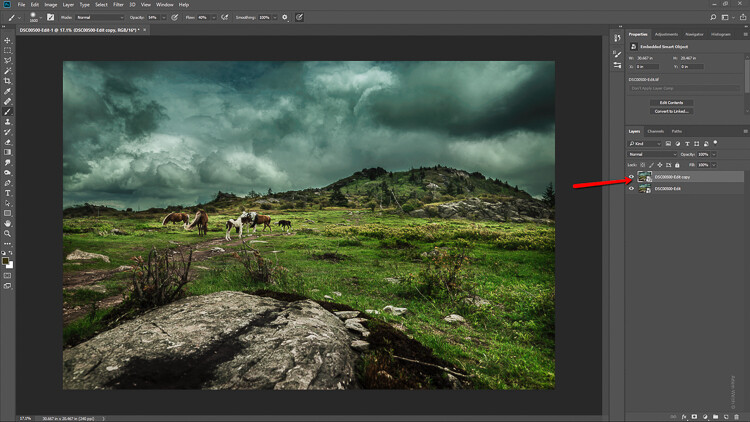
The first step in applying the tilt-shift effect is to duplicate the base image layer. Use the keyboard shortcut Ctrl/Cmd+J. It’s this duplicate layer to which you’ll apply the tilt-shift blur.

How to Easily Simulate a Tilt-Shift Effect Using Photoshop

Applying the Blur

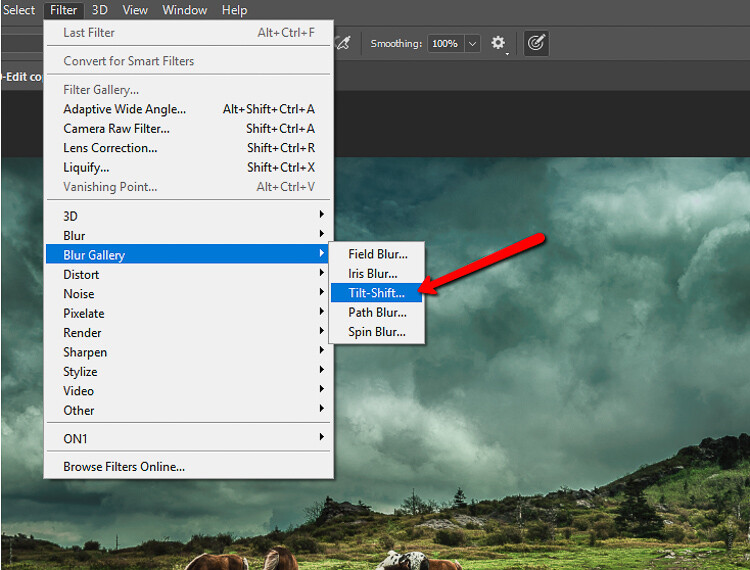
Tilt-shift is essentially a blurring effect, so it makes sense that it is located along with the other blur filters in Photoshop. Click on Filters > Blur Gallery >Tilt-Shift.

How to Easily Simulate a Tilt-Shift Effect Using Photoshop

This brings you into the tilt-shift blur module of Photoshop. You’ll notice that you can also add other forms of blur here, but ignore all that as we are just going to work with tilt-shift.

When the module opens you will see a masking tool already on top of your image. It resembles a dual graduated filter tool. In fact, it works very similarly to the graduated filter. The effect will feather out to the top and bottom from the central axis dot in the center of the filter. The solid lines control the border of the effect with the dotted lines determining the feathering. Here’s a breakdown.

How to Easily Simulate a Tilt-Shift Effect Using Photoshop

The tilt-shift filter overlay.

The intensity of the blur is controlled by the Blur slider or by adjusting the intensity dial. Keep in mind that the entire filter can be moved either simultaneously or the top and bottom portions can be moved and adjusted separately. This happens to be the final position of my tilt-shift filter.

How to Easily Simulate a Tilt-Shift Effect Using Photoshop

Click Ok and allow Photoshop to render the blur.

A few tips for you

While we’re waiting…this is a good time to go over a couple of things that will help make your tilt-shift more effective.

Always remember that, if you’re going for realism, an accurate tilt-shift simulation should adhere as closely as possible to the optical principles of photography. This means that since tilt-shift controls the depth of focus, your effect should also follow those rules. Be careful you don’t have significant irregularities at the borders of the blurred areas. Also, pay special attention to the elements within your photo and their spatial relationship to one another to avoid an overly artificial appearance.

Keep in mind that there are quite a few other sliders to be seen here in the tilt-shift module; namely those for distortion, bokeh, and light range. (Of course if you’re feeling adventurous then, by all means, try out those sliders but I generally leave them as is for virtually all of my work.) Distortion can be added to varying degrees to the blurred areas as well as bokeh enhancement/coloration. The light range slider allows control over blur based on specific luminance values. However, in most cases, the default settings for these sliders will be just perfect for your image.

After your tilt-shift effect is complete the image will automatically reopen in the main Photoshop window with your edits applied.

Tweaking the Effect

Just because you have to loosely adhere to some rules of optics doesn’t mean you are totally bound by them. I actually attempt to never use the word “rules” when it comes to photography. If you find you need to adjust the tilt-shift effect just remember that this is Photoshop after all and you, the intrepid post-processor, wield great power!

Remember how you imported your image as a Smart Object earlier? Well, this is where having your image available as a Smart object really comes in handy.

How to Easily Simulate a Tilt-Shift Effect Using Photoshop

You’ll notice the tilt-shift has already been scooped into its very own layer mask. So now, you are free to paint the blur effect in or out until it is just right. This allows you to go beyond the constraints of filters in the tilt-shift module. With this image, I used a little judicious painting on the Smart Filter layer mask to make the effect look a little more natural.

How to Easily Simulate a Tilt-Shift Effect Using Photoshop

Finish in Lightroom

After I’m completely finished with the tilt-shift I kick the image back over to Lightroom. I add in one last edit to help harmonize the tilt-shift and that is a graduated filter at the bottom of the frame to darken it ever so slightly.

How to Easily Simulate a Tilt-Shift Effect Using Photoshop

And that’s it! You should now have a genuine imitation tilt-shift image. Have a look at the before and after.

Before

After

Final Thoughts on the Tilt-Shift Filter…

Tilt-shift photography in Photoshop is easy and can add some amazing effects to your photos. As with most post-processing effects, it’s important to keep things within the realm of reality unless your goal is to deliberately skew things.

The effects achieved in Photoshop aren’t perfect, of course, but you can get very close to the look and feel of real tilt-shift photography. All this without needing to use a real tilt-shift lens or moving into large format photography. Experiment with the tilt-shift blur in Photoshop and keep these important tips in mind:

  • Remember tilt-shift is just a manipulation of depth of focus.
  • Try not to break the rules…I mean, the guidelines of optics.
  • Pick images that have larger areas of foreground and backgrounds with isolated subjects.
  • Don’t forget to tweak the tilt-shift effect or even add additional edits.

Try out the lessons in this article and stretch your creative legs with tilt-shift blur in Photoshop. And as always remember to have fun with your editing and please share your results and any questions you have in the comments area below.

The post How to Easily Simulate a Tilt-Shift Effect Using Photoshop by Adam Welch appeared first on Digital Photography School.


Digital Photography School

 
Comments Off on How to Easily Simulate a Tilt-Shift Effect Using Photoshop

Posted in Photography


How to Make 5 Different Looks using Aurora HDR 2018

31 Jan

Aurora HDR 2018 has plenty of tricks up its sleeve, and one of those is versatility. It’s not a one-trick pony when it comes to creating your HDR look. The range of different tools really allows you to create a huge variety of looks really easily. Part of that is knowing what your available tools do. The other part is just playing around and exploring your own creative side!

In this article, you’ll see five different looks in HDR and how you can recreate them – but on top of that, you’ll also get them in preset form to use yourself. You’ll also get to see some of the new Lens and Transform options inside Aurora HDR 2018.

Plug it in

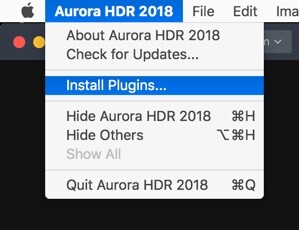
Aurora HDR 2018 doesn’t have a way to manage files, but can easily be used from other applications including Lightroom. In fact, you’ll even be able to process the files using Aurora’s built-in HDR processor, so you’re not trying to combine three already rendered files. To run Aurora HDR 2018 from inside Lightroom, you’ll need to run the standalone version first. From the Edit menu on PC or the Aurora HDR Menu on Mac, choose the Install Plugins.. menu item.

How to Make 5 Different Looks using Aurora HDR 2018

From the dialog that appears, choose the host applications that you want to use.

How to Make 5 Different Looks using Aurora HDR 2018

Back in Lightroom, once you’ve selected the bracketed exposures you want to edit, go to the File menu and from the Plug-In Extras menu, choose Transfer to Aurora HDR 2018.

How to Make 5 Different Looks using Aurora HDR 2018

Getting Started in Aurora

Aurora HDR 2018 will load up with your selected bracketed sequence. I’ve chosen these photos specifically because they have lens distortion and a crooked horizon, which you’ll see how to correct shortly.

Once the files have loaded, you can set about working with alignment and ghosting settings. You’ll see the sequence and the bracketing interval in the photos. To align the photos if you’re not on a tripod, click Alignment. To access the other settings, click the cog you see on the bottom left (see below).

How to Make 5 Different Looks using Aurora HDR 2018

If you’ve got photos with moving objects in them, such as waves, trees in the wind or moving people, turn Ghost Reduction on. Choose your preferred reference image, and how strong you want the reduction to be. Color Denoise helps remove noise but increases the time your HDR takes to render. Finally, turn on Chromatic Aberration Removal to automatically get rid of color fringing on your photo.

How to Make 5 Different Looks using Aurora HDR 2018

How to Make 5 Different Looks using Aurora HDR 2018

Lens and Perspective Corrections

In the Filters header, you’ll see two icons. The first is for Perspective corrections or Transform (including rotation) and the second for Lens corrections.

The little odd looking shape is for Perspective and the round one is Lens Corrections.

You can fix rotation here (or using Crop as well) by clicking the Perspective icon. Rotation of 24 and Scale of 50 correct this image nicely.

How to Make 5 Different Looks using Aurora HDR 2018

Transform sliders correcting perspective.

Your penultimate step before going to the individual HDR looks is to fix the bow in the horizon caused by the wide-angle lens. A setting of 18 looks good for this photo. It also reveals that 24 was too much in the previous step, which you can always fix by going back to Perspective correction. 19 looked better zoomed in.

Lens Correction fixing distortion caused by wide lenses.

As the photo is a little underexposed, boosting the Exposure before going to create your looks is probably a good idea. While you may need to change this for each look, an additional stop is a good start here.

How to Make 5 Different Looks using Aurora HDR 2018

#1 Photo-Realistic

For your first look, something photo-realistic is the best approach. You’re not trying to get anything gritty, or super desaturated, or over saturated here. We’ll get to that later.

For this look, use HDR Basic, Color, and HDR Denoise. In HDR Basic, smooth out the dynamic range by reducing Highlights and increasing Shadows. Smart Tone of 44 also helps it along. HDR Enhance (formerly Clarity) brings up some nice detail, 50 is looking well here. Your aim is to get the best looking photo you can before tweaking the look – this will be true of all looks.

How to Make 5 Different Looks using Aurora HDR 2018

The color is a little flat so in the Color panel, you can boost both Saturation and Vibrance to +20. Color contrast, which controls the contrast between the primary and secondary colors looks good around 20 as well. You’re not aiming for extremes here, just to get a good looking photo.

How to Make 5 Different Looks using Aurora HDR 2018

You’ve probably noticed the noise in the clouds at this point. This is where HDR Noise comes in. Setting this to around 25 softens up the noise.

How to Make 5 Different Looks using Aurora HDR 2018

And that makes your first look, a photorealistic HDR photo.

How to Make 5 Different Looks using Aurora HDR 2018

#2 Gritty HDR

With the basic look out of the way, it’s time for the more surrealistic to take over.

Start by using the History Panel to reset everything to your original starting point AFTER increasing the Exposure +1 and applying your Perspective and Lens Corrections. The History Panel records every action you take in Aurora HDR in chronological order, so simply select the last action after the ones you’d like to save, then begin the next edits. The History Panel will begin recording any edits from there leading to your Gritty HDR look!

Now it’s pretty flat and bleak, so you’re going to take it even further in that direction.

How to Make 5 Different Looks using Aurora HDR 2018

Set your HDR Enhance to +100 to get the bleak and gritty ball rolling. Smart Tone of -50 darkens the photo as well, and a hint of Vibrance (+15) gives color to the sky, while leaving the rest of the photo muted.

How to Make 5 Different Looks using Aurora HDR 2018

To complete your gritty look, go to the HDR Structure panel. In the top section, set Amount to 25 to begin to increase detail in the photo. Increasing Softness (+80) makes the detail more realistic, while Boost accentuates it (+75). The latter two sliders might seem at odds, but a quick play shows they complement each other rather than compete.

HDR Microstructure boosts micro contrast, while Softness makes it more realistic. By increasing Amount to 71 and Softness to 28, you’ll get even more detail. You may even like the noise that this processing adds to the photo. I think it’s a big part of the look.

How to Make 5 Different Looks using Aurora HDR 2018 - gritty HDR look

And now you have your classic gritty HDR look!

How to Make 5 Different Looks using Aurora HDR 2018

#3 Warm Ethereal

At the opposite end of the spectrum is a soft and ethereal look. There are two different variations you can have on this, and they depend on using Image Radiance or Glow (and combinations of each). So with a reset to your basic corrected photo, let’s begin again!

A good beginning would be for a warmer look, so set your Temperature in HDR Basic to 10. While Image Radiance does have a Warmth slider, Temperature is much more effective. This look is all about Image Radiance. Set your Amount to 75 to really give the image a glow. Smoothness affects the softness of the image, and in this case, you’ll probably agree, it’s a little too soft, so set it to -50.

Overall at this point, the photo is too bright, so a reduction in Brightness to -76 helps. Darkening Shadows also helps. Finally, for Image Radiance, an addition of +61 Vividness to boost the saturation, while Warmth just adds another hint of yellow tones in a more controllable way than with Temperature.

How to Make 5 Different Looks using Aurora HDR 2018

There’s a lot of warmth in the photo (in a good way), but you may want to add a little contrast of color into it. By using the Polarizing Filter, you can add more blue to sky, emulating a real circular polarizer.

How to Make 5 Different Looks using Aurora HDR 2018

The final thing for this look is for you to introduce a little global detail using HDR Detail Boost. As you can guess Small affects the fine detail, Large affects the global contours of the photo, while Medium controls the details between Small and Large.

To sharpen the global edges, you can push Large. This firms up the edges while retaining the softness that Image Radiance has created. Protection protects fine detail while Masking controls where the effect is applied with 30-70 being optimal.

How to Make 5 Different Looks using Aurora HDR 2018

So that’s your first ethereal look.

How to Make 5 Different Looks using Aurora HDR 2018

Warm Ethereal

#4 Soft Glow

Your second ethereal look uses Glow. Reset your photo again to the settings at the start of the looks. Because Glow works on the Highlights, it’s probably a good idea to reduce your Exposure down to 0.60. Now, go to Glow and set the Amount to 50. A fog settles over the photo. This would work better on a dark evening scene that a sunny day, but you get what it does.

Now that you know what Glow looks like, it’s time to get a little wacky. Start by setting your Smart Tone to -100, and HDR Enhance to 56. This reduces some of the Glow, so set that Amount to 94. You probably want to go a bit wilder with Color, so set Saturation at 50 and Vibrance much higher, at 70. A hint of Color Contrast gives even more of a boost at 30.

How to Make 5 Different Looks using Aurora HDR 2018

For the final part of this look, add +30 Amount from Image Radiance to enhance the glow.

And that’s look #4.

How to Make 5 Different Looks using Aurora HDR 2018

Soft Glow

#5 Nitty Gritty Black & White

And now for something completely different – a nice gritty Black & White. Again, begin with a reset. Now, in Color, turn the Saturation down to -100.

Before going for grit, you’ll need to get contrast right. A few tweaks will get it to a workable point. It’s not set in stone at this point though.

How to Make 5 Different Looks using Aurora HDR 2018

And now you get to go for grit! You can use all the tools from previous looks that gave more detail, so HDR Enhance, HDR Structure, and HDR Details Boost apply. Go wild. This is definitely one for your own taste. The settings used here were HDR Enhance 40, HDR Structure Amount 40, Softness 20 and Boost 50. HDR Microstructure is Amount 47 and Softness 50. HDR Details Boost has Small 31 and Large 50.

How to Make 5 Different Looks using Aurora HDR 2018

Here’s the final look.

How to Make 5 Different Looks using Aurora HDR 2018

Nitty Gritty Black & White

Presets

And here are the five presets for you to use:  HDR-5-Looks-Presets. Download the file and unzip it, then save it on your hard drive.

To install the Presets, open the standalone version of Aurora HDR 2018. From the File menu select Show Presets Folder. Drag the new presets folder (you must unzip it first) into that one. Restart the program to have the presets show up in Aurora HDR 2018 (look under User Presets).

Go out there and have a bit of fun with your HDR images, and post your results in the comments below.

Disclaimer: Macphun, soon to be Skylum, is a dPS advertising partner.

The post How to Make 5 Different Looks using Aurora HDR 2018 by Sean McCormack appeared first on Digital Photography School.


Digital Photography School

 
Comments Off on How to Make 5 Different Looks using Aurora HDR 2018

Posted in Photography


Tips for Using Your Wide-Angle Lens Better

26 Jan

One thing I see beginners make mistakes doing when they first get into photography is using a wide-angle lens. Many think it’s just for getting more stuff to fit into your image, but there’s a lot more to it than that.

Here are three videos to help you understand wide-angle lenses and use them better so you can create more dynamic and effective images.

#1 – 5 Reasons you need a wide-angle lens

First up is this video from DigitalRev TV. It’s a few years old now but the information is still good, and the tips are solid.

Kai can be a bit unorthodox, but the tips here are good. Here’s a quick summary:

  1. Get closer
  2. Push things away and pull other things near
  3. Cool lines
  4. Expand spaces
  5. Reality distortion field (as he calls it)

#2 – How to use a wide-angle lens

In this video from Tom Greenwood, learn how using a wide-angle lens can help you tell a story and create a powerful connection between the subject and the viewer. Plus get tips on shooting wide angle portraits, action shots, and landscapes.

#3 – Three tips for using a wide-angle lens

Finally, three more tips for using a wide-angle lens from Matt Wallace in this video from Adorama TV. The one he emphasizes the most is to get close to the subject – that a wide-angle lens is for close-up photography. I personally could not agree more!

  1. Make sure you have an obvious and predominant subject in your frame
  2. Get closer to the subject
  3. Use leading lines

If your pictures aren’t good enough, you aren’t close enough.– Robert Capa

Need more help?

If you still need more help and tips for using your wide-angle lens try these dPS articles:

  • How to Use a Wide-angle Lens with Wildlife for a New Perspective
  • 10 Tips for Photographing Wide-Angle Landscapes
  • How to Create Compelling Wide-Angle Portraits Using One Off-Camera Flash
  • 7 Ways to Get More Out of a Wide-angle Lens

The post Tips for Using Your Wide-Angle Lens Better by Darlene Hildebrandt appeared first on Digital Photography School.


Digital Photography School

 
Comments Off on Tips for Using Your Wide-Angle Lens Better

Posted in Photography