RSS
 

Posts Tagged ‘Understanding’

Understanding the Basic Sliders in Adobe Camera Raw

26 Jan

In this short video tutorial by Tuts+ you can get a quick overview of how the basic sliders work in Adobe Camera Raw. It has a great demonstration using a white to black grayscale image which shows what each slider does, and which parts of your image each are affecting. There is also a good indicator of why you want to be shooting RAW format instead of JPG, showing the same corrections done on both formats and the difference the the larger RAW file makes.

Enjoy the video:

For more Photoshop tips check out our post-processing section. The Basic sliders in Lightroom do pretty much the same thing, but they have slightly different names. Give it a try yourself and see if this helps make sense of the basic panel.

googletag.cmd.push(function() {
tablet_slots.push( googletag.defineSlot( “/1005424/_dPSv4_tab-all-article-bottom_(300×250)”, [300, 250], “pb-ad-78623” ).addService( googletag.pubads() ) ); } );

googletag.cmd.push(function() {
mobile_slots.push( googletag.defineSlot( “/1005424/_dPSv4_mob-all-article-bottom_(300×250)”, [300, 250], “pb-ad-78158” ).addService( googletag.pubads() ) ); } );

The post Understanding the Basic Sliders in Adobe Camera Raw by Darlene Hildebrandt appeared first on Digital Photography School.


Digital Photography School

 
Comments Off on Understanding the Basic Sliders in Adobe Camera Raw

Posted in Photography


Understanding Depth of Field for Beginners

12 Nov

DOF
You may have heard the term depth of field (DoF), but if you are new to photography you may not yet be taking advantage of how DoF can enhance your photos. A basic definition of depth of field is: the zone of acceptable sharpness within a photo that will appear in focus. In every picture there is a certain area of your image in front of, and behind the subject that will appear in focus.

This zone will vary from photo to photo. Some images may have very small zones of focus which is called shallow depth of field. Others may have a very large zone of focus which is called deepdepth of field. Three main factors that will affect how you control thedepth of field of your images are: aperture (f-stop), distance from the subject to the camera, and focal length of the lens on your camera. Here are some explanations and answers to other common questions concerningdepth of field.

How does aperture control depth of field?

Aperture refers to the access given to light from the lens to the camera sensors. The size of your aperture (the diameter of the hole through which light enters the camera) controls the amount of light entering your lens. Using the aperture (f-stop) of your lens is the simplest way to control your depth of field as you set up your shot.

Large aperture = Small f-number = Shallow (small) depth of field
Small aperture = Larger f-number = Deeper (larger) depth of field

It may be easier to remember this simple concept: The lower your f-number, the smaller your depth of field. Likewise, the higher your f-number, the larger your depth of field. For example, using a setting of f/2.8 will produce a very shallow depth of field while f/11 will produce a deeper DoF.

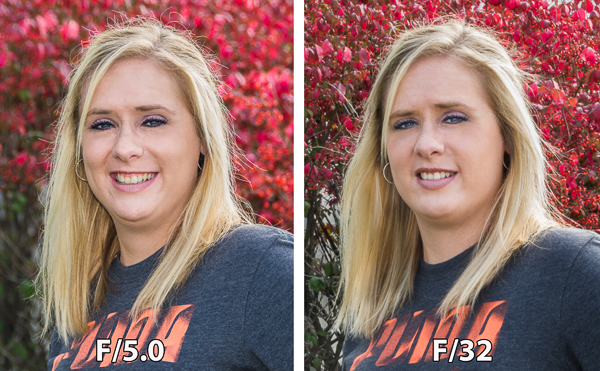
The image on the left was captured at 250th of a second at F5.0 which resulted in a very shallow depth of field,

The image on the left was captured at 250th of a second at f/5.0 which resulted in a very shallow depth of field.  Because of this the background is out of focus allowing the subject to stand out. The image on the right was captured at 1/5th of a second at f/32 which created a deep depth of field and a sharper background.

How does distance control depth of field?

The closer your subject is to the camera, the shallower your depth of field becomes. Therefore, moving further away from your subject will deepen your depth of field.

How does the focal length of a lens control depth of field?

Focal Length refers to the capability of a lens to magnify the image of a distant subject. This can get complicated, but the simple answer is that the longer you set your focal length the shallower the depth of field. Example: Your subject is 10 meters (33 feet) away, using a focal length of 50mm at f/4; your depth of field range would be from 7.5 -14.7 meters (24.6-48 feet) for a total DOF of 7.2 meters (23.6 feet). If you zoom into 100mm from the same spot, the depth of field changes to 9.2-10.9m (30.1-35.8′) for a total of 1.7m (5.7′) of depth of field. But if you move to 20m (66′) away from your subject using the 100mm lens, your depth of field is almost the same as it would be at 10 meters using a 50mm lens.

Image of a swan hiding in the tall grass captured  from about 5 meters with 300 mm focal length created a DOF only about 5cm.

This image of a swan hiding in the tall foliage was captured from about 5m (16′)  with a 300mm focal length lens. This combination of focal length and distance created a depth of field of approximately 5cm (2″).

What if I just have a point and shoot camera, or don’t know how to change those settings?

Even with a point and shoot camera, there are ways to control your depth of field. In the Scene Modes menu, look for a symbol of a human head, which is the setting for portraits. This will give you a narrow depth of field. In the same menu there is also a mountain symbol, which is a setting for landscapes, which will give you a deeper depth of field.

If you are a beginner with a DSLR there are some simple ways you can control depth of field and still use and automatic shooting mode. By choosing Aperture Priority mode you can set your aperture to get the depth of field that you want, and the camera will automatically set the shutter speed.

Can I set the depth of field exactly for each situation?

Yes, but because changing your aperture affects your shutter speed, the result may not meet the needs of your image. For instance, if you are trying to increase your depth of field by reducing aperture size you will also need to increase (slow down) your shutter speed which could make your image blurry. Understanding how all these settings work together can increase your control over depth of field.

Is depth of field equally distributed in front and back of my focus point?

No, it’s usually about one third in front and two thirds behind your focal point, but as your focal length increases it becomes more equal.

How will understanding depth of field improve my images?

Managing depth of field is one of the most important tools at your disposal, because having tack sharp images is one of the most important factors to getting that great shot. Knowing how to make the parts of your image you want sharp and the parts you want to be out of focus, is a great artistic tool to create great images.

Getting the right DOF for your shot can make the difference

Getting the right depth of field for your shot can make all the difference.

When should I use a shallow depth of field?

Using a shallow depth of field is a good way to make your subject stand out from its background and is great for portrait photography. Shallow DoF can also be useful in wildlife photography, where you want the subject to stand out from its surroundings. This is also useful because many wildlife photo opportunities are low light situations, and increasing your aperture size will give you more light. Shallow depth of field is also effective for sports photography where many times you want to separate the athlete from the background to bring attention to them. The result of this should also help give you a fast enough shutter speed to freeze the action.

This image captured at 300mm focal length and F/  produced a very shallow DOF. Because of this very shallow DOF it is important to set your focal point on the eye. Notice how the bird appears to pop out from the background.

This image captured at 300mm focal length and f/5.6 produced a very shallow depth of field. Because of this, it is important to set your focal point on the subject’s eye. Notice how the bird pops out from the background.

When should I use deeper depth of field?

In landscape photography it is important to get as much of your scene in focus as possible. By using a wide angle lens and a small aperture you will be able maximize your depth of field to get your scene in focus.

In this landscape captured at 50mm at F/16 Focus point was set at 8 meters which made everything from 4 meters to infinity in focus

This landscape was captured with a 50mm focal length at f/16. The focus point was set at 8 meters, which made everything from 4 meters to infinity in focus.

How can you determine depth of field?

There are several on-line sites that will provide depth of field charts for your camera and lenses. Also, there are a number of apps available for smart phone users that can calculate it for you while you’re in the field. Most cameras have a DoF preview button which will give you a preview as you look through the eye piece. (This is probably the easiest and most under-utilized method.) Using this button may cause your image to appear darker as you view it through the eye piece, but not to worry. Your image will be properly exposed as long as you have the correct exposure settings.

Can depth of field be adjusted to get everything in focus?

Yes, using what is called the hyperfocal distance. When you are focused at the hyperfocal distance, your depth of field will extend from half the distance to your focal point to infinity. Use a DOF calculator to find your hyperfocal distance. If you don’t have a DoF calculator, a good rule of thumb is to focus a third of the way into the scene. Using an aperture of about f/11 or higher with a wide angle lens will maximize your depth of field.

What about depth of field in macro photography?

Because most macro images are produced in low light and with a longer focal length, the depth of field is often very shallow. Adjust your lens to the smallest aperture that the light will allow. It may also be necessary to increase your ISO to allow you to properly expose the image and to maximize your depth of field. Still, in many macro images your DoF may be very minute. With this very narrow focus it becomes necessary to use a tripod, because even the slightest movement of the camera will move your macro subject outside your depth of field.

120 mm Marco at F8 still is a very shallow DOF with the lens only 15 cm from the focal point on the front flower.

This 120 mm macro even at f/8 still has a very shallow depth of field.

What is bokeh?

Bokeh (boh-ke) comes from the Japanese word meaning blur. This effect is produced by the out-of-focus areas in your image that are beyond the depth of field. Bokeh commonly refers to the pleasing circle shapes caused by the shape of the lens aperture. Usually created when shooting with your aperture wide open, such as f/2.8, bokeh can also be created with smaller apertures if the background is distant enough.

Bokeh in this image caused by the distance from the subject to the background which fell well beyond the DOF

Bokeh in this image was created by the distance of the subject to the background, which fell well beyond the depth of field.

To summarize controlling depth of field:

Increase depth of field

  • Narrow your aperture (larger f-number)
  • Move farther from the subject
  • Shorten focal length

Decrease depth of field

  • Widen your aperture (smaller f-number)
  • Move closer to the subject
  • Lengthen your focal length

Take control of your depth of field. Understanding how these adjustments control your it will greatly improve your photography. What questions do you have about depth of field? Please share your photos and comments.

The post Understanding Depth of Field for Beginners by Bruce Wunderlich appeared first on Digital Photography School.


Digital Photography School

 
Comments Off on Understanding Depth of Field for Beginners

Posted in Photography


Understanding Masking in Photoshop

31 Aug

Header

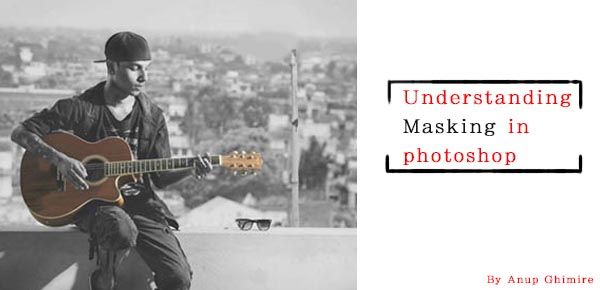
Masking is one of those techniques that will change the way you use Photoshop. Understanding this technique can help you to jump from being a beginner level Photoshop user, to a more advanced one. In this article, I will explain how masking really works in Photoshop, its few key concepts, and how Masking helps you to perform non-destructive editing.

The skills you need to get started masking in Photoshop are being able to use the brush tool to paint color, understand two colors black and white, and knowledge of how layers work in Photoshop, which I assume you have very sound knowledge on.

What is masking what does it do in Photoshop?

If you can relate the word masking with the mask, it may make some sense. Why do we use a mask, to cover the face, right? So why would we use masking on a layer, to cover or uncover the content of any layer. With a mask you can control the transparency of a layer. But that is what opacity and fill is for, right? Yes, opacity and fill do control the transparency, but it works for whole layer. What if you would like to have only the right part to be transparent and the left part to be completely visible? That’s when masking comes into play.

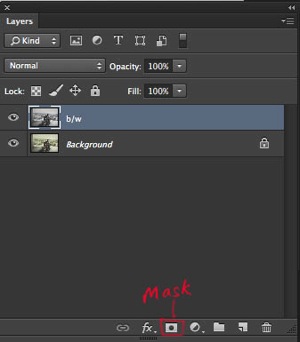
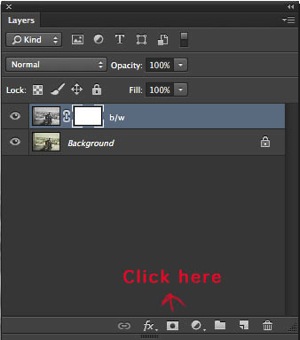
Masking works in two ways. First, you simply add a mask on any layer by clicking the third option on the bottom of layer palette. The other way is by using adjustment layers, which always comes with a mask.

Background without mask

This image shows a layer with no mask applied. I have highlighted the third option on the layer palette. That is where you add a mask.

Adding mask white

Clicking on the mask option will create a white layer mask on the layer selected.

Adjustment layer

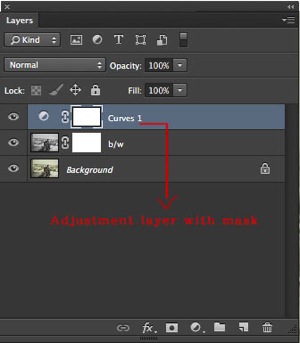
This image shows an adjustment layer. They help you to perform non-destructive editing, and every adjustment layer created this way, comes with a white mask.

Adjustment layer with white mask

This shows that a new curve adjustment layer has been applied with the white mask.

While working with masking please remember that white shows the content where as black hides. If your mask is white, the mask is transparent and the layer is fully revealed, whereas if the mask is black it is opaque and the layer below will show through. Below are a few examples that will help you to understand masking better.

A handy saying to help you remember: white reveals, black conceals

White mask

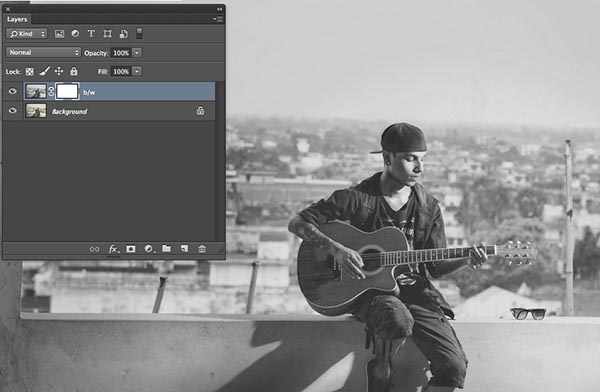
The image above shows, that the white mask reveals the content of the layer it is affecting. I duplicated the background layer and desaturated it with Shift+Command+U on a Mac (Shift+Control+U on PC).

Black mask

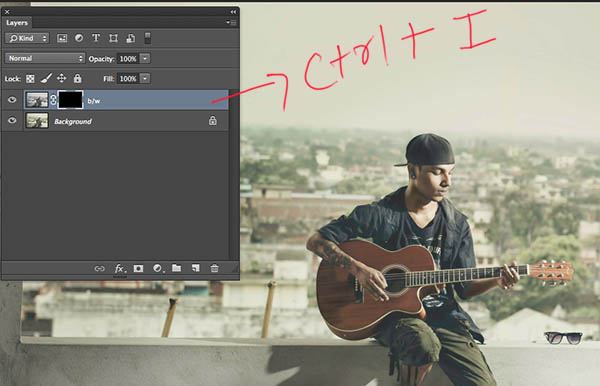
With Ctrl/Cmd+I, you can invert the white mask into a black one. Since black hides the effects, the image has now been changed from back and white to color, from its original state (the layer below is now visible)

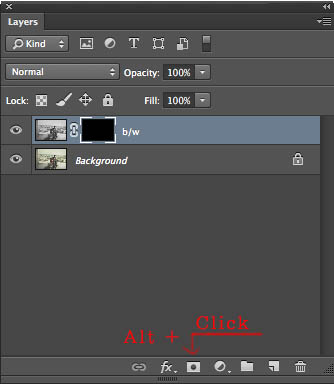
When you first add a mask it will initially be white, but you can change it into black either by inverting the mask, Cmd/Ctrl+I, or you can fill with black or white. Alternately, by simply pressing Alt while clicking to create the mask would also result in a black mask.

Creating black mask

Additional tip

  • Step 1. First click D on your keyboard (default), which will fill your background color with white, and foreground color with black.
  • Step 2 Select the mask
  • Step 3 Press ALT+Backspace to fill with the foreground color (black) and Ctrl+Backspace for to fill with the background colour (white). You can use X to swap the foreground and background colors.

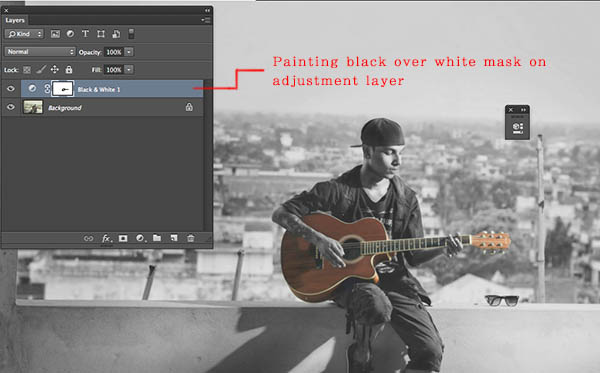
You can now paint on the mask with the brush key selected. Make sure your foreground color is opposite to the color of the mask. If you are painting with black on a white mask, the content of that part of layer is becoming transparent while the white parts remain as is. If you are painting white over a black mask, then that part would be back to its original form. You can play around with the percentage of fill and opacity to get more control over your workflow.

Painting with black on mask

Here I painted the guitar with a black brush over the white mask, resulting in the visibility of color from the layer below.

Additional tip

Simply press your number on the number pad and your opacity will change as per. If you press shift plus the number, then its fill will change.

  • 4=40%
  • 4+9= 49%
  • 0+4 = 4 %

Do you have any other masking tips and tricks? Please share in the comments below if you do, or if you have any questions.

The post Understanding Masking in Photoshop by Anup Ghimire appeared first on Digital Photography School.


Digital Photography School

 
Comments Off on Understanding Masking in Photoshop

Posted in Photography


Getting Sharper Images – an Understanding of Focus Modes

14 May

The longer you shoot, the larger the repertoire of subjects and assignments you photograph becomes. You start off photographing flowers in the garden, your neighbour’s dog, your sister’s kids, your friend’s wedding and then before you know it you’re doing product shots for your friend’s new company. All this happens over time and there is one pretty fundamental skill that must remain paramount throughout out your process, properly focused images. Sure we’ve all been there, we’ve all taken that shot once in while which is slightly soft (a polite photographer’s term to describe out-of-focus images). But, it’s a great shot so we keep it anyway, even tho we would still have preferred it to be tack sharp.
MG 3504flat

In focus images have been one of the most fundamental rules of photography right from the dawn of the craft. In the early 1900s it was a craft in its own right, but in the 1960s Leica introduced a rudimentary autofocus system that changed everything. Since then, autofocus has developed dramatically and it’s no longer a feature on cameras, it’s a given.

So, bringing autofocus up-to-date you have a few options to choose from in your modern DSLR. Those are some of the features I will cover in this article, along with when to use them. Both Canon and Nikon have very similar settings, albeit incorporating different technologies the results are very similar. There are also other brands like Sony and Olympus etc., that also follow suit, but here I will be discussing the four main focus modes in Canon and Nikon.

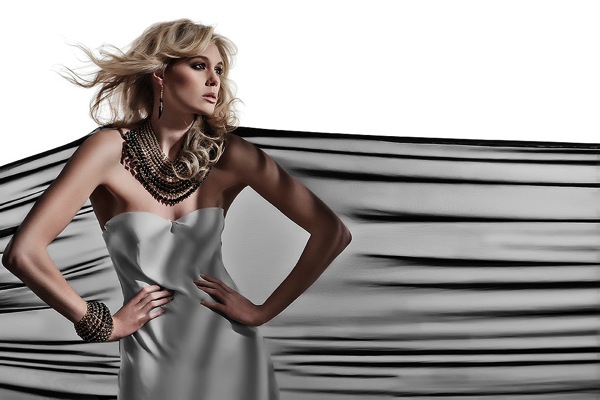
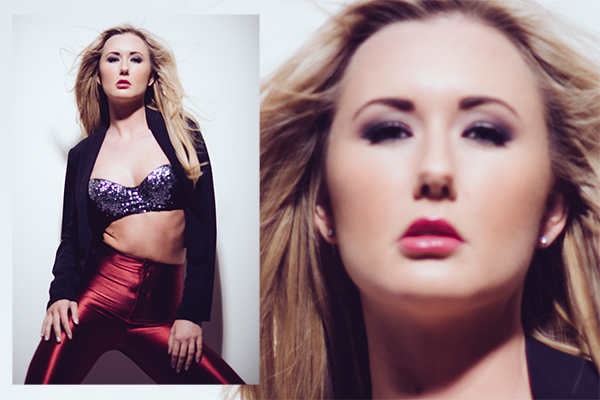
This image above was shot utilizing the AF-S (Nikon) or One Shot (Canon) autofocus mode on the camera. Here I focused on the models eyes and then recomposed my image so that she was over to the left of the frame, allowing for more space in the image in the direction she is looking.

Single Shot Mode

First off, you have the mode that’s probably been around the longest – Canon’s One Shot and Nikon’s AF-S. Both of these will do pretty much the same thing. This mode is predominantly used for stationary objects like model shoots (most of the time – more on when not to use it for model shoots later) and anything that doesn’t require your subject to move around too much in the frame. You half press the shutter in this mode, and then you can recompose the image. For example, you focus on the model’s eyes, then recompose to put her on the left hand side of the image. This autofocus mode will get you through most situations.

Active or Continuous Focus Modes

Next we have the step up from the single focus to Canon’s AI Servo, and Nikon’s AF-C modes. Essentially what this setting does is to continuously track your initial focus point and readjust the focus accordingly. This setting is ideal for moving subjects like active children, and pets that are constantly on the move.

Auto Modes

Finally out of the autofocus settings we have Canon’s AI Focus, and Nikon’s AF-A. Both of these settings actually leave it up to the camera to decide which is best out of the other two focusing modes to use. In this mode it will either choose to continuously track your chosen subject should it decide to move, or focus lock if you would like to recompose. In theory, then I needn’t of bothered explaining the other two settings as surely this is the best of both worlds? Not quite. I personally have tested this mode a fair amount with stop-start subjects and although the camera does a good job of keeping up with them it’s always more accurate to use continuous focus mode. The same also goes for its ability to determine when a subject has stopped and when to focus lock for recomposing. Personally I never use this mode as although it has the best of both, it also has the worst of both.
Infocus600px

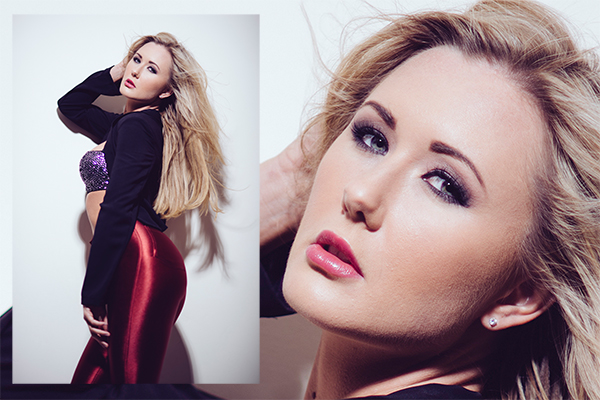
Image above taken with an 85mm f/1.8 prime lens using manual focus. Shooting in manual focus negates the need to recompose and loose focus in autofocus modes.

So, although I have just covered the three basic settings here very briefly, there is, of course, a whole of host other technological advancements in autofocus that I haven’t covered. I know Nikon has extensive, matrix and 3D autofocusing features. As well most modern DSLR have incorporated the “back button autofocus” which also helps with focus locking. But going over all of that is not the purpose of this article.

Manual Focus Mode

The last focus mode I wanted to cover and one that is rarely used is the Manual focus mode. This mode strikes fear into the heart of nearly all modern photographers and that’s simply because they’ve probably never used it. Do you ever need to use it? That is something that only you can decide and is probably based on the type of photographs you take. If you only ever take portraits of energetic kids or fast paced sports, then autofocus is probably always your go-to mode. If however you shoot still life, architecture, landscapes and other detailed, relatively motionless subjects, then manual focus is probably a good way to go.

There are a few reasons for this. Landscape photographers will want to find the hyperfocal distance of their scene to maximize the amount of in-focus points (depth of field) in the image. This is based on an equation so autofocusing on a specific object is not always the way to go. Still life photographers will usually have their camera locked-down on a tripod so they will not want to focus and recompose once they’ve set up the shot, so it’s just far easier to focus manually. There is also another reason to want to use manual mode on some cameras and certain situations, and that was the catalyst for this article.
Outoffocus600px

This version of the image was shot using the autofocus mode AF-S/One Shot, and meant that after I had focused and recomposed the shot, the model’s eyes were left out of focus.

I recently purchased an 85mm f/1.8 prime lens, and I wanted to test the lens out and see what the sharpness was like at f/1.8. I predominately only photograph models so I set up my test and went about taking some shots at f/1.8 using my usual AF-S/One Shot autofocusing mode. When I got my shots back to the computer to take a look, I was surprised to see that most of them were very soft. It took a few minutes to realize my error and since then I’ve adjusted how I shoot with these parameters.
Recompose600px

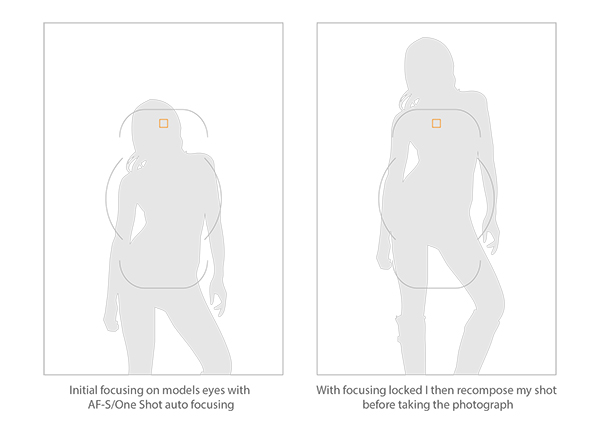
Here you can see that the selected focal node is still situated in the middle of the viewfinder even though I have elected the outer most one when shooting in the portrait format.

I haven’t done a lot of very shallow depth of field shots up until this point so I hadn’t seen the now exaggerated results of my
poor focusing technique previously. At f/1.8 you have a very, very shallow amount in focus (depth of field). For example, a head shot with the eyes in focus, the tip of the subject’s nose will be out of focus. For the test I was photographing the model at 3/4 length and shooting up at her so my camera height was probably about her waist height. I was about 6 feet (2 meters) away from her and I was focusing on her eyes with my focal point in camera then recomposing my shot to capture the 3/4 length crop. The problem with most cameras is that although they have a lot of focusing points, they’re all clustered in the centre of the viewfinder so even though I chose the outer most focal point I still have a dramatic amount of recomposing to do.
Focusstack600px

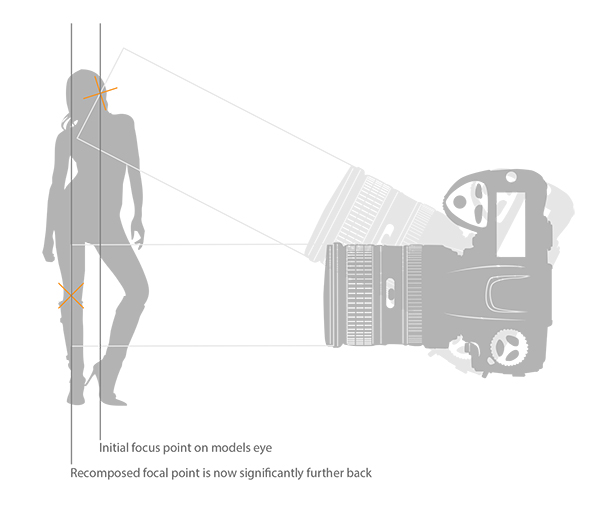
The diagram above clearly illustrates what’s actually going on when you recompose an image after focusing in AF-S/One Shot autofocus mode. The actual part of the image that was in focus, is now out of focus.

This isn’t normally a noticeable problem when recomposing at f/16, but at f/1.8 that dramatic shift in the focal plane means the resulting image is very soft around the model’s eyes. As I recomposed it actually repositioned my focal point further back behind the model, meaning the back of her head and hair were in focus but not her eyes.

There aren’t too many ways around this pesky little issue, especially as you may not notice it on the back of the camera’s little screen. One thing that did resolve it though was by switching to manual focus. I could then compose my shot and manually focus on the model’s eyes, resulting in a fantastically sharp image where I wanted it to be sharp.

Granted there were a few things conspiring together here to really exaggerate the issue. Firstly, I was shooting at f/1.8, that’s always going to rely on critical sharpness. Secondly, I was down low shooting up. This always exaggerates the focal plane shift when recomposing and lastly I was stuck with limited focal nodes. There are many technical reasons why modern DSLRs don’t allow focal nodes towards the edges. A lot of smaller frame cameras like the mirrorless, APS-C and micro 4/3 cameras all have selectable focal nodes covering the viewfinder, but alas, DSLR technology isn’t there yet. Until it is, it’s a good idea to be aware of what’s going on in autofocus modes on your camera, and be prepared and ready to switch to manual focus when required.

Good Luck!

The post Getting Sharper Images – an Understanding of Focus Modes by Jake Hicks appeared first on Digital Photography School.


Digital Photography School
 
Comments Off on Getting Sharper Images – an Understanding of Focus Modes

Posted in Photography


Understanding and Working With Natural Light to Get Stellar Pictures Every Time

24 Mar

Understanding the different forms of light is one of the keys to achieving good photographs, as photography is all about light. For most photographers, the most available light, the one that is free, is natural light. To learn how to get the most of natural light requires a lot of observing and practicing, but once you understand how to work Continue Reading

The post Understanding and Working With Natural Light to Get Stellar Pictures Every Time appeared first on Photodoto.


Photodoto

 
Comments Off on Understanding and Working With Natural Light to Get Stellar Pictures Every Time

Posted in Photography


Understanding Flash Metering Modes

19 Mar

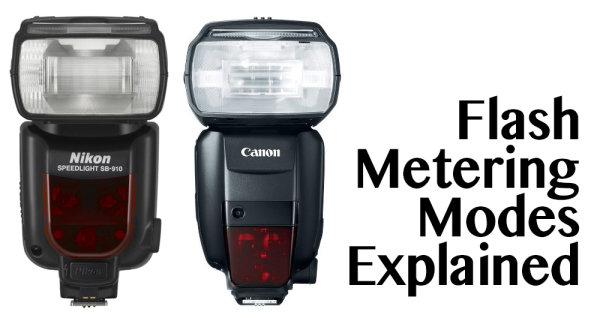
flash-metering-modes

Flash Metering Systems TTL, A-TTL,  E-TTL and E-TTL II

Terms used in this article are Canon specific but there are the same or similar terms for Nikon, Sony, Olympus and other camera manufacturers. _J6L0002-Edit-Edit

When you use your camera’s metering system, the meter will measure the reflected light from your subject (see Metering Modes and How Your Camera Meter Works).  This is not the case when you use your camera with a flash, either a pop-up or mounted on your camera’s hot shoe and set to one of the TTL modes. (TTL is an acronym for Through The Lens) Irrespective of which TTL flash mode you choose, the exposure is not based on reading the ambient light,  (see: Balancing Flash and Ambient Light with a Light Meter)  it is based on the flash output. Measuring flash output can be achieved by either measuring a fixed output pre-flash and evaluating the exposure, or by measuring the flash output as it is fired. This data is then used to calculate the flash output required to expose the scene correctly.

So on to understanding flash metering modes . . .

There are three flash metering modes

TTL or through the lens metering

This is the standard metering mode, typically used when your camera has a pop-up flash or a dedicated external flash heads. The exposure is based on the flash firing. The quantity of the flash output is monitored through the lens by a flash sensor that is mounted below the mirror.

Keep in mind, that when you use a flash the maximum (fastest) shutter speed is the sync speed of your camera (check your manual to check what your camera sync speed is, most are 1/200 or 1/250th). You must never attempt to use faster shutter speeds unless your flash supports “High Speed Sync”.  Since the shutter speed is fixed at the sync speed or slower (in Aperture priority mode: Av on Canon, A on Nikon) the camera will automatically set it at the sync speed.  In Manual (M) mode you must set the shutter speed to the sync speed or slower otherwise you will get black bands in your image.  This is because the shutter starts closing before the flash has had a chance to fully expose the sensor.

In TTL mode the flash will read the exposure from the light bouncing off your subject and the flash sensor will turn off the flash when it believes the image has been exposed correctly. In this TTL mode changes to the aperture setting will typically affect the exposure of the areas of your image that is lit with just the ambient light.

TTL Flash in modes other than Aperture Priority or Manual:

flash-metering-modes

P – is the Program mode  or Program auto mode.  In this mode the camera manages all the settings. Some cameras have an “A” or full Auto mode. Canon cameras may also have a “CA” setting for Creative Auto mode. In these modes the camera sets shutter speed at the sync speed, and the aperture based on the ambient light. When using TTL the flash fires and turns off when the auxiliary sensor tells it to based on the evaluated exposure of the flash.

For TTL the flash power and duration is based on the ISO and the aperture setting. In most cameras the ”through the lens“ flash exposure reading is taken from the same area as your focus point. For TTL flash metering there is no pre flash.

A-TTL (Advanced through the lens)

This metering mode performs in the same basic manner as TTL. It will read the exposure through the lens, from the area of focus and trigger the flash to turn off when the appropriate exposure is achieved. The main difference is that this method uses a pre-flash. This pre-flash is used to determine f-stop based on the distance to the subject that reflects the flash output. The pre-flash is fired when the camera’s shutter is half depressed, the camera evaluates the readings and sets the aperture. Now when the shutter is fully depressed the flash fires to correctly expose for the subject. Based on the model of your flash, the pre-flash can be an actual white light flash or an infrared flash.

nikon-flash

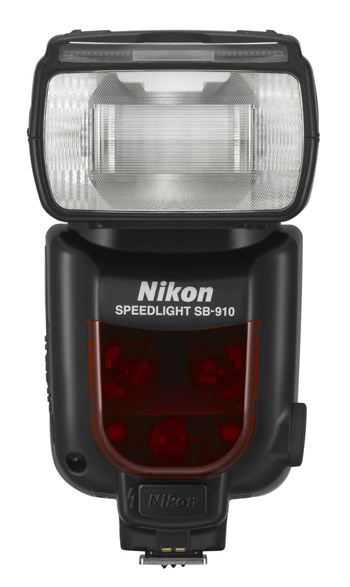
Nikon’s latest, the SB910

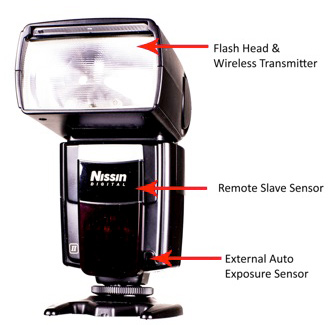
In all cases the main flash is fired as a pre-flash if the flash head is oriented in any position other than directly at the subject. This pre-flash can be an annoyance. The pre-flash is measured by the flash unit and the evaluated data is communicated back to the camera. If you use your camera in Program or Automatic mode with A-TTL, ambient light exposure and flash based exposure are collectively evaluated and the camera attempts to resolve the lighting to establish the f/stop (aperture) for the best exposure. Since the sensor that evaluates the pre-flash is located on the flash unit instead of the camera’s sensor, using a filter on the camera lens will cause inaccurate readings.  This is because the sensor on the flash is not covered with an equivalent filter.

E-TTL (evaluative through the lens)

As with A-TTL, E-TTL also uses a pre-flash. However, the flash exposure is not measured by the dedicated flash sensor but the main sensor that is used for ambient light exposure readings. This is similar to the exposure calculations and focus locking that occurs before the shutter opens.  This is true for images captured in ambient light when your camera is in Aperture, Shutter Priority or Program mode. E-TTL has far greater exposure accuracy than TTL or A-TTL modes. The pre-flash in E-TTL mode is not triggered when the shutter is half depressed but when the shutter is fully depressed. Since flash durations are very short the pre-flash is not visible to the naked eye. The pre-flash measures the distance and reflectivity, and calculates the appropriate flash output. All this is accomplished just before the shutter actually opens.  The pre-flash is fired immediately before the main flash except when your camera is set for 2nd curtain sync. In addition, if FEL (flash exposure lock) is used, the pre-flash is fired only when FEL is established.

41Dl+k0z0pL

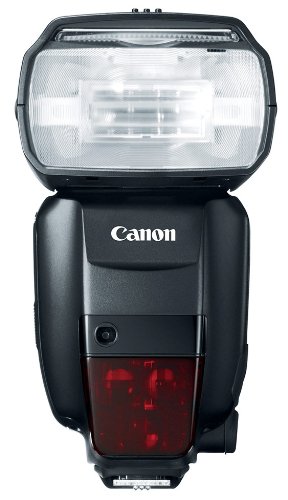
Canon’s newest speedlite the Canon 600EX-RT

E-TTL II

This is the new standard in Canon EOS systems.  It is a firmware enhancement that uses the camera and not the flash to do all the evaluation. Fortunately it is compatible with older E-TTL flash units.  E-TTL II uses the camera’s evaluative metering zones before and after the pre-flash. In this process, areas with small changes in brightness are then averaged for flash metering. This method prevents the issue where highly reflective materials result in specular highlights. With ETT-L II the  flash metering system is not linked to the selected focus area. This allows focus and recomposition without affecting correct flash exposure. Overall the E-TTL II system allows for much more natural exposures with out the harsh appearance typical of direct flash photography.

The post Understanding Flash Metering Modes by Shiv Verma appeared first on Digital Photography School.


Digital Photography School
 
Comments Off on Understanding Flash Metering Modes

Posted in Photography


Understanding Aspect Ratio

15 Oct

apect-ratio

It seems that clients are becoming more and more knowledgeable every day regarding the various facets of what we do as professional photographers. Maybe it’s because we live and work in the most highly tech-savvy society ever, or maybe it’s because anyone with a smart phone and a few good photo apps can turn out amazing results (for which I applaud them, by the way). High-quality DSLRs, mirrorless cameras, and fast lenses are available and well within the reach of  the average photographic consumer. Even those not necessarily interested in taking their own photos still know all the buzzwords. “Excuse me– Is that a full-frame camera?”  Or there is always that old refrain, “We don’t want albums or prints. We just want the RAW files.”  Our clients are learning our language, even if they don’t always completely understand it.

One concept they still don’t seem to grasp, however, is aspect ratio. And with good reason– we’re not doing a very good job of educating them on the subject. Even photographers will often get that glassed-over look in their eyes when their clients ask why what looks great as a 5×7 makes an awful 8×10. This is not a blanket statement about all photographers. When pressed, though, many are only able to offer a partial explanation. They know that it has something to do with proportions– that a 5×7 doesn’t look the same as an 8×10, for instance– but they don’t know why.

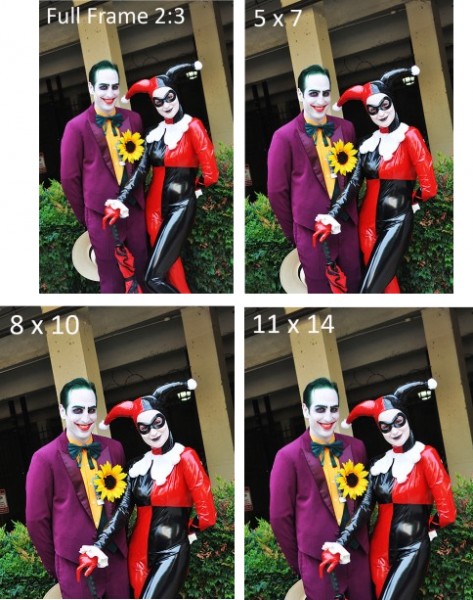
Aspect ratio is nothing more than a size relationship between the long and short sides of a photo. The most common aspect ratio in DSLRs today is 2:3, which is based on that of 35mm film. A 35mm negative is actually 24mm x 36mm. Simplified, this becomes 2×3, or 2:3 when expressed as a ratio. Several print sizes can be made from the 2:3 aspect ratio without any cropping of the image (e.g., 4×6, 8×12, 10×15, 12×18, 16×24, 20×30, etc.).  Many of the most popular print sizes, however, cannot be simplified the same way. That is why 5×7, 8×10, and 11×14 all require a crop of the original 2:3 photograph. This results in a loss of part of the image, from either the long or short side, depending on the image and the crop.

In the examples above/below I retained the top edge of the photo in all four aspect ratios in order to illustrate the dramatic effect that each crop can have, relative to the original 2:3. Remember that everything you see in the full frame image will appear in a 4×6, 8×12, etc. But when we start cropping with ratios that can’t be simplified or reconciled with the 2:3, we see an obvious loss along the bottom edge of the frame. There is not at much of a difference between the 8×10 and the 11×14 relative to each other, but it is clear that you can lose a significant portion of your image when it’s time to order prints if you aren’t careful with your composition.

apect-ratio

By using either the Joker’s hat or Harley Quinn’s knee as reference points, you can see for yourself just how important it is to not only compose your photos based on your own personal aesthetic, but also with an eye towards how you or the client might intend to print and eventually display the image.  The simplest solution is to compose your shot and then either zoom back out (or take a step or two back if using primes) before you actually press the button. Shooting a little bit loose will give you more options when it’s time to order prints.

Aspect ratio is a basic concept which can have some pretty significant ramifications if you don’t properly plan your shot. Make sure to give yourself enough room in the frame that you don’t have to worry later about whether the client wants an 8×12 or an 11×14. After all, it will be much easier to give them the sizes they want, rather than explain to them why you can’t.

Post originally from: Digital Photography Tips.

Check out our more Photography Tips at Photography Tips for Beginners, Portrait Photography Tips and Wedding Photography Tips.

Understanding Aspect Ratio

The post Understanding Aspect Ratio by Jeff Guyer appeared first on Digital Photography School.


Digital Photography School

 
Comments Off on Understanding Aspect Ratio

Posted in Photography


9 September, 2013 – Understanding The Left and Right Brain

09 Sep

Most photographers pay little attention to the psychological aspects of image perception. Yet how we perceive things and the way the brain’s different hemispheres interpret what we’re seeing plays a huge role. Find out more in Sharon Tenenbaum‘s new article – Understanding The Left and Right Brain.

"Having been to Antarctica with Michael and Kevin, I would say after having traveled the world and shot nearly my entire life as an exhibiting photographer,  it was one of my highlights in my life and I talk about it, all the time.  The images and experience of seeing something visionary and nearly extinct from the world, to see and experience the wildlife and scenery that does not fear humans is amazing.  The images I shot there won me two Smithsonian awards and nearly 18 other international awards". – Tim Wolcott

 Find Out More Now
These Expeditions Will Sell Out Quickly. They Always Do


The Luminous Landscape – What’s New

 
Comments Off on 9 September, 2013 – Understanding The Left and Right Brain

Posted in News


9 September, 2013 – Understanding The Left and Right Brain

09 Sep

Most photographers pay little attention to the psychological aspects of image perception. Yet how we perceive things and the way the brain’s different hemispheres interpret what we’re seeing plays a huge role. Find out more in Sharon Tenenbaum‘s new article – Understanding The Left and Right Brain.

"Having been to Antarctica with Michael and Kevin, I would say after having traveled the world and shot nearly my entire life as an exhibiting photographer,  it was one of my highlights in my life and I talk about it, all the time.  The images and experience of seeing something visionary and nearly extinct from the world, to see and experience the wildlife and scenery that does not fear humans is amazing.  The images I shot there won me two Smithsonian awards and nearly 18 other international awards". – Tim Wolcott

 Find Out More Now
These Expeditions Will Sell Out Quickly. They Always Do


The Luminous Landscape – What’s New

 
Comments Off on 9 September, 2013 – Understanding The Left and Right Brain

Posted in News


Understanding Evaluative Metering on Your EOS Camera

14 Jun

01

Photo by Flickr user MiNe

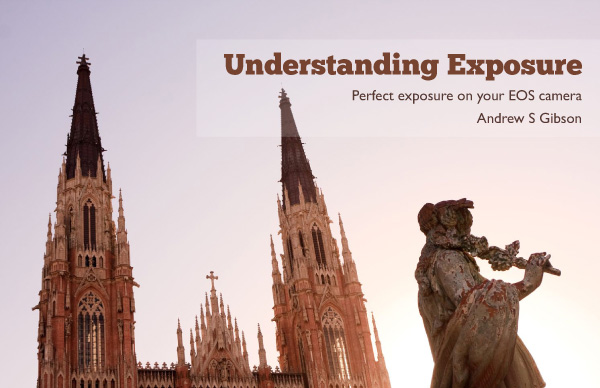
By Andrew S. Gibson – the author of Understanding Exposure: Perfect Exposure on Your EOS Camera (currently 36% off at SnapnDeals).

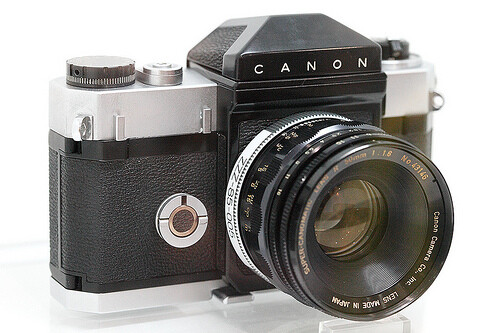
Imagine that it is early 1959. Alaska has just been admitted as the 49th state in the USA. Fidel Castro has become premier of Cuba. Elvis Presley and Buddy Holly are in the charts. And Canon releases the Flex – its first SLR camera in a time when only eight other SLR camera models were in existence.

The Flex (pictured above) was so basic by today’s standards that it didn’t even have a built-in light meter. Instead, it used an external selenium photocell coupled to the shutter speed dial for metering. Most photographers back then used external light meters and dialled the exposure settings into their cameras, so I guess to some folk even this primitive system seemed like magic.

The first Canon camera with through-the-lens (TTL) metering came in 1965. The Pellix had just one way of reading light levels – a 12% spot meter in the centre of the viewfinder.

Centre-weighted averaging came along later and served photographers well until the evaluative metering system we are familiar with today was invented in the late eighties.

Evaluative metering arrives

The first Canon camera to feature evaluative metering was the EOS 650, released in March 1987. It was also the first Canon camera to use the newly designed EOS mount.

The EOS 650 had a six zone evaluative metering mode. Evaluative metering has come a long way since then, and now most EOS cameras use a 63 zone metering system and advanced micro-processors to analyse the information gathered.

02

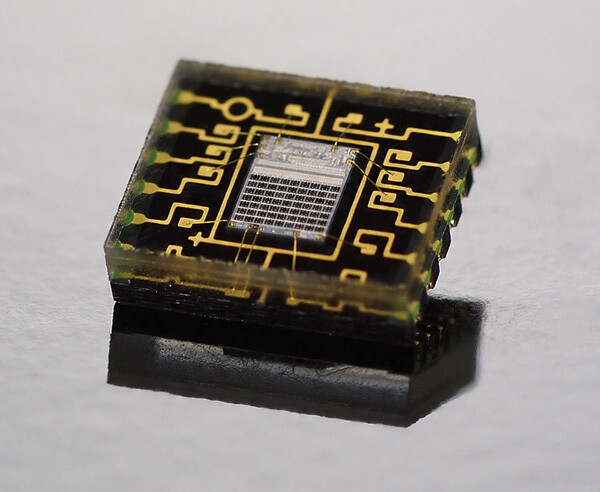
The auto exposure sensor from the EOS 60D. Note the grid of seven by nine black squares in the centre. These are the 63 metering zones of the EOS 60D’s iFCL evaluative metering system.

Understanding evaluative metering

Evaluative metering is the most sophisticated metering mode on your EOS camera. As it is the one you are most likely to use at any time, it’s useful to know how it works. Indeed, if you use your EOS camera in any fully automatic mode, it is the only metering mode the camera lets you use. You can only switch to one of the others in Program, Shutter Priority, Aperture Priority or Manual modes.

Other metering modes

Most EOS cameras have four metering modes: evaluative, partial, spot and centre-weighted metering (One series cameras also have multi-spot metering).

Partial, spot and centre-weighted metering all have a single characteristic in common – they take an exposure reading from the centre of the viewfinder.

03

This is fine if, as in the photo above, that’s where your main subject is.

04

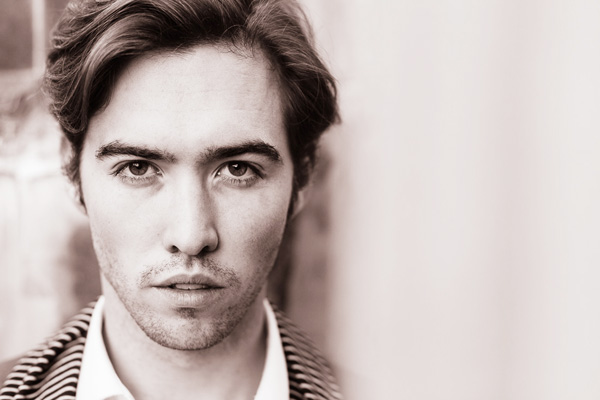
But if your subject is off-centre, like in this portrait, you have to point the centre of the viewfinder at your subject, press the shutter button half-way to lock in the exposure setting, then recompose. This is bit of a pain to say the least and wastes time.

Evaluative metering was developed as a way of accurately metering off-centre subjects. It works by dividing the viewfinder into zones, each giving a separate reading that the camera analyses to calculate exposure. It also co-operates with your camera’s autofocus system. The reading is weighted towards the active autofocus point on the basis that it is most likely to be covering the main subject.

05

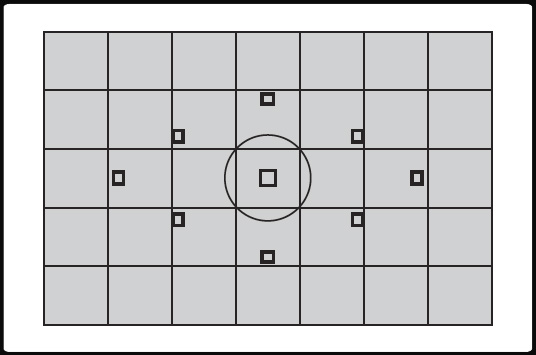
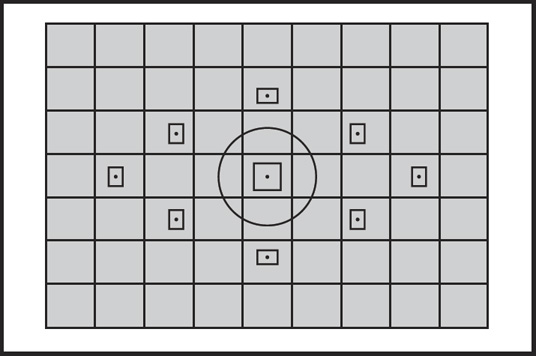
This is the 35 zone evaluative metering pattern used on the EOS 300D, 350D, 400D, 450D, 500D, 1000D, 10D, 20D, 30D, 40D, 50D, 5D and 5D Mark II. Note how each AF point occupies a different square.

iFCL evaluative metering

Canon introduced Intelligent Focus, Colour and Luminance (iFCL) evaluative metering on the EOS 7D. It has been included on every new EOS camera since then (excluding One series models).

The premise behind this new system is that exposure meters that react to the brightness of the subject only are more sensitive to the red light than the human eye. They may think that a red coloured subject is brighter than it really is and return a false reading that underexposes the subject.

06

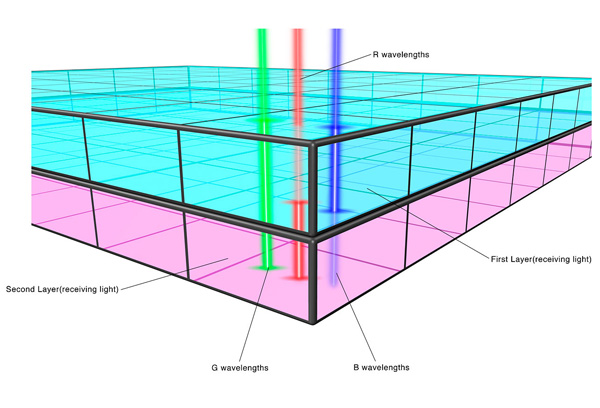
To counter this, the exposure meter used by iFCL evaluative metering has two layers. The top one is sensitive to green and blue light and the bottom one to green and red. Each layer measures the colours that it is sensitive to and the camera combines the readings to calculate exposure settings.

In addition, iFCL metering uses information from multiple autofocus points. It knows which AF points have achieved focus, and which ones have nearly achieved focus, and weights the exposure reading towards the zones those AF points are in on the basis they are likely to be covering the subject.

07

The 63 zone evaluative metering pattern used by the EOS 100D, 550D, 600D, 650D, 700D, 750D, 1100D, 60D, 7D and 6D. All but the last two models use the 9 point AF pattern in the diagram.

Evaluative metering and Speedlites

Evaluative metering really comes into it’s own when used in conjunction with a portable Speedlite flash unit. It is important that the camera meters the light reflected from the subject in order to accurately calculate the exposure required from the flash. Centre-weighted, spot or partial metering can only do this if the subject is in the centre of the frame. Evaluative metering can cope regardless of which part of the frame the subject occupies.

Understanding Exposure

08

That’s a brief overview of how evaluative metering works on your EOS camera. Hopefully it helps you understand how your camera’s metering system works and will help you take better exposed photos.

If you’d like to learn more about how exposure works on your EOS camera my ebook Understanding Exposure is available on special now over at Snapndeals.

Post originally from: Digital Photography Tips.

Check out our more Photography Tips at Photography Tips for Beginners, Portrait Photography Tips and Wedding Photography Tips.

Understanding Evaluative Metering on Your EOS Camera


Digital Photography School
 
Comments Off on Understanding Evaluative Metering on Your EOS Camera

Posted in Photography