RSS
 

Posts Tagged ‘tools’

Four Under-Used Tools in Lightroom’s Lens Correction Module

30 Aug

hacking photography, mike newton, architecture,

Almost every lens changes the way your image looks by warping it in some way. Each lens can create barrel distortion, vignetting at big apertures, chromatic aberration, and more.

Some lenses have more distortion than others. Let’s look at four tools in Lightroom’s lens correction module that are a lifesaver

1. The easy button – lens profile corrections in one click

Before lens corrections:

lens corrections, lightroom

Brick wall at 16mm, f/2.8, ISO 1250. You can see the ‘bulge’ in the middle because the horizontal lines are not parallel. Also notice the dark corner vignetting from shooting wide open at f/2.8

After one-click lens correction:

hacking photography, brick wall, lens correction, barrel distortion

Same settings as above but with lens profile correction applied. Note the parallel horizontal lines and no more dark corners.

I shot this wall on a 16-35mm f/2.8 lens at f/2.8 to illustrate the ‘bulge’ in the middle and vignetted corners. These are distortions from the Canon 16-35mm f/2.8L II lens.lightroom 5 lens profile corrections,

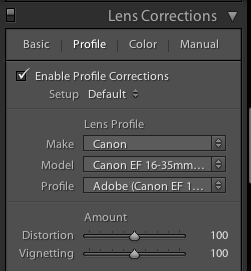
Lightroom is already loaded with profile corrections for this specific lens! Just click “enable profile corrections” in the “Profile” section of the Lens Correction module and Lightroom will fix the distortion for the lens you used!

Finding your lens profiles on older versions of Lightroom

As Lightroom keeps rolling out newer versions, it rolls out profiles from newly released lenses. If you are using Lightroom 3 from 2010 but have a lens that hit the market in 2012, Lightroom won’t have it in there.

You can go download Adobe Lens Profile Creator to look up your lenses, grab their profiles, and manually add them to Lightroom.

I use the profile corrections on almost all of my images

Unless you have a very specific reason to manually deal with it, I suggest that you just use Lightroom’s built-in profile corrections most of the time.

While you can certainly change all these lens corrections manually, in most cases it makes more sense to let Lightroom do the hard work for you.

2. The vertical slider

Pizzeria Mozza San Diego, architecture photography, keystoning, hacking photography

The problem

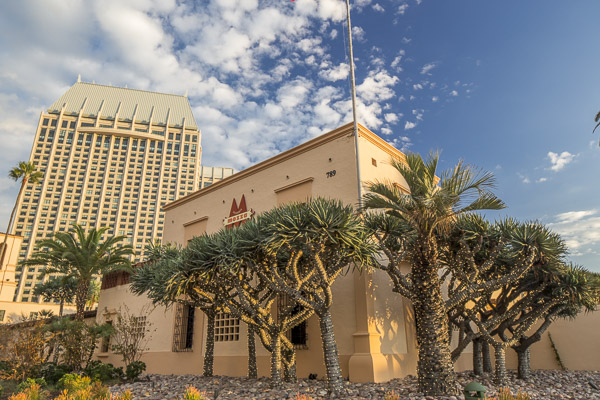
I photographed this shot above for a commercial builder. Notice how the building in the back is falling over, and the one in front has vertical lines that aren’t parallel? Rather than repeat this excellent DPS article (Why are my Buildings Falling Over? A Short Guide to Perspective Distortion and Correction in Photography) that describes why this happens, I’ll show you how to correct it.

The solution

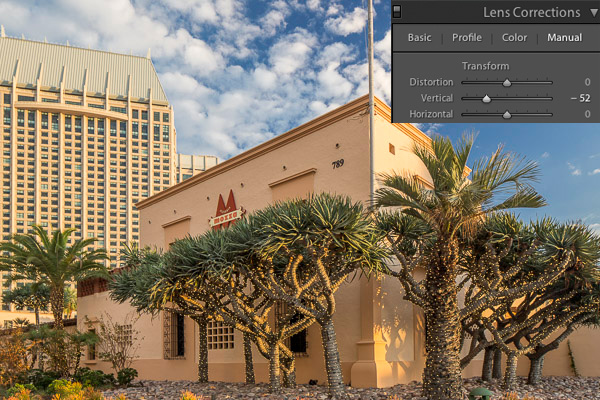
I pull the vertical slider to the left until the lines are parallel.

hacking photography, architecture photography, pizzeria mozza, lens correction, lightroom 5

Crop it

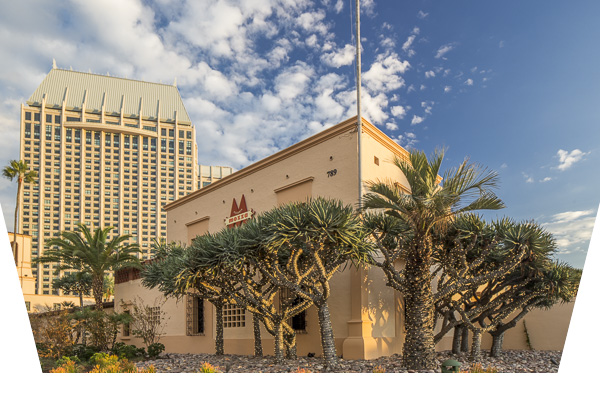
Notice anything weird? When you shift the vertical axis you lose some of the image. Architecture photographers use tilt-shift lenses to correct this in camera without losing any of the image.

Since I didn’t have one at the time, I corrected it in Lightroom by cropping the white part out.

tilt-shift, hacking photography,

3. The horizontal slider

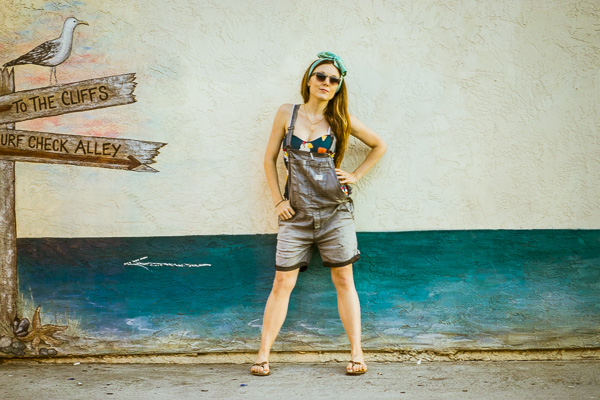
Sometimes you might be in a hurry and shoot a photo that needs to be slightly shifted horizontally in post. I did this during a fashion shoot.

Hacking Photography, model, horizontal shift

The problem

I took the photograph without realizing I was slightly positioned to the side of the wall vs. straight on. If you look closely, you can see the line where the wall hits the ground, and that it slightly angles from bottom left to top right.

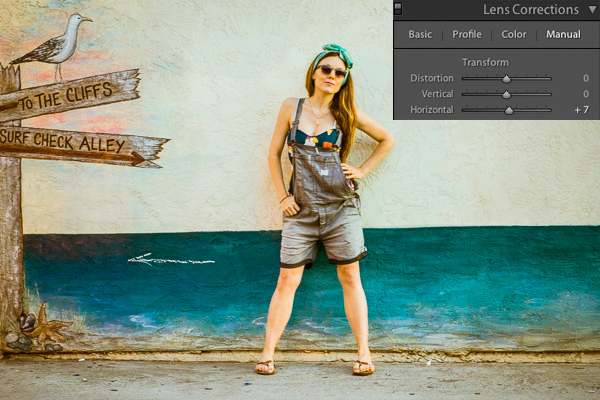
The solution

Using the horizontal slider and shifting it slightly to the right will tilt this photo so the right side appears to come closer to the viewer and the left side moves further away from the viewer. The result is that now the photo is perfectly square with the wall and the line along the bottom is level.

hacking photography, lens corrections

4. Vignette slider

The problem

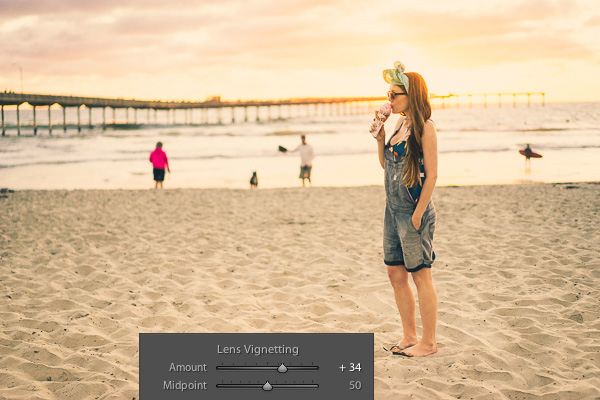
When shooting at big apertures most lenses create some form of vignette, meaning dark corners in the photo. Sometimes these can be attractive, but sometimes you don’t want them.

I shot this photo at f/1.8. Do you see the dark corners? I want to remove those.

hacking photography

The solution

Simply pull the vignette slider in the Lens Correction manual module to the right to reduce a vignette.

vignette, hackingphotography.com

Vignettes are a matter of personal preference. I don’t think the first photo looks bad with the vignette, I just wanted it without it. You can use the vignette slider to create or enhance a vignette by pulling the slider to the left.

Pro tip: if you’ve cropped the image at all, you will want to use the post-crop vignetting tool in the “effects” dialog box. The vignette slider in the lens corrections module affects the original image size, regardless if you’ve cropped it.

If you want to see these tools in action, check out the video below:

I hope you found this helpful – happy editing!

The post Four Under-Used Tools in Lightroom’s Lens Correction Module by Mike Newton appeared first on Digital Photography School.


Digital Photography School

 
Comments Off on Four Under-Used Tools in Lightroom’s Lens Correction Module

Posted in Photography


Corel unveils PaintShop Pro X7 with new tools and a fresh design

29 Aug

This week Corel has unveiled PaintShop Pro X7 and PaintShop Pro X7 Ultimate, two new versions of its image editing software for Windows. This update features extensive changes to the user interface as well as a claimed 30 percent improvement in brush performance, including the Paint Brush, Airbrush and various retouching tools. Speed improvements have allowed for new instant previews of effects before they are applied to images and the 64-bit architecture allows fast performance with larger or multiple images. Read more

Articles: Digital Photography Review (dpreview.com)

 
Comments Off on Corel unveils PaintShop Pro X7 with new tools and a fresh design

Posted in Uncategorized


3 Essential Photoshop Tools for New Portrait Photographers

29 Aug

Opening Photoshop for the first time is kind of like going on your first date; your hands sweat, your eyes glaze over, you completely lose all sense of direction and time. At least that was the scenario for me.

Portrait

Photoshop is an incredibly complex program that can be used as an artistic tool for positive enhancement, or gross distortion when it comes to portraiture. It’s all too easy to over-edit, get carried away with the sheer number of the tools at your fingertips, or attempt elaborate cover-up schemes for poorly shot images when first starting out. There are certain tools I grasped at the beginning of my learning curve, however, that were essential for editing clean and simple portrait images. Three years after my initial dumb-struck encounter, and countless hours of reading and practicing later, there are three tools that I still use in almost every photo I push through Photoshop. I’ve since discovered that users at every stage continually apply these tools to their photography workflow, as well.

Everyone has to start somewhere, so if you know nothing else about it yet, start by familiarizing yourself with these three Photoshop tools and you’ll build a solid foundation for taking your portrait photography editing to the next level.

1. Curves

The “S-curve” is one of the most common techniques in editing that packs an instant punch. I guarantee that a large majority of photographers working on everything from landscapes, to boudoir images, use this tool at some step in their Photoshop workflow. There are many different effects that you can achieve using the Curves tool, so the trick is to just play around with it a little to see what works best per image; there’s no specific settings within the tool that will always achieve great results. Much of it is about preference. You can achieve bold, colorful, contrast or a soft matte finish, simply by just readjusting the points on the curve. Extreme curves will give some strange discolorations, though, so for clean portrait editing, stick to small adjustments.

Curves

before-after-curves

2. Clone (stamp) Tool

Clonetool

This is especially helpful for fixing blemishes or small imperfections on skin, but has countless other applications as well. To use, just hover your mouse over the area you want to copy, press the Option key for Mac (Alt for Windows) and click. This “clones” the area you want to replicate. Release the option/alt key, navigate your cursor over the area you wish to fix, then click again. This will replace the “bad” area with the “good” area.

Lesson learned: don’t try to do all your skin smoothing with the clone tool. It will look way over-done and it’s far too time-consuming to match up every pixel. This was clearly not my smartest idea, I admit. Save yourself the trouble—there are better ways!

As I got better with my precision of this tool, I was able to use it for things like removing stray hairs, filling in patches of sand or grass, and other little pesky details as well. It really is a crucial tool to master.

Before after clone

3. Dodge and Burn

Dodge and burn

Dodge and Burn are technically two different tools but are often used in conjunction with each other. They are a power duo with subtle but impressive impact. I use it most commonly on eyes to give them that extra sparkle. To understand the function of each, think of it this way: when you “dodge,” you’re dodging the shadows in order to brighten your highlights and when you “burn,” you’re burning in the shadows and making them darker.

Befor eafter dodge burn

When I use these tools for eyes, I decrease the opacity to about 30% and “dodge” the iris, then I “burn” the shadows in the ring around it as well as the eyelashes. Again, make sure you don’t go overboard and give your client ghostly bright eyes, but a little adjustment goes a long way in those close-up shots! You can also use these tools to add color and contrast to skies, or add interesting light to specific areas of your image.

As with all the Photoshop tools, the successful edit hinges on the user knowing what to use when, and how to use in moderation. If you are a beginner, I hope this helps give you some direction about where to begin and rid you of the deer-in-the-headlights look for good!

The post 3 Essential Photoshop Tools for New Portrait Photographers by Leah O’Connell appeared first on Digital Photography School.


Digital Photography School

 
Comments Off on 3 Essential Photoshop Tools for New Portrait Photographers

Posted in Photography


6 Commonly Used and Confused Tools in Photoshop Explained

11 Aug

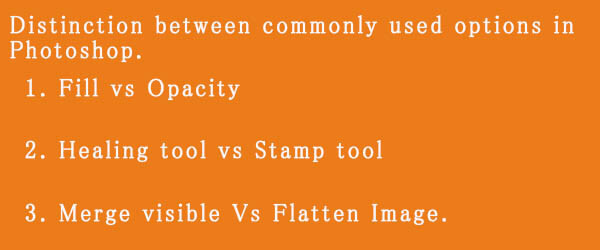
There are lots of tools in Photoshop that are sometimes a bit confusing due to the similar nature of their functionality. With subtle differences, these tools have been a topic of confusion between a lot of Photoshop enthusiasts. In this article I am going to share a distinction between Fill and Opacity, the Healing brush and Stamp tool, and “Merge Visible” and “Flatten image”. I hope it will help you one understand these tool a little better.

Distinction

Fill versus Opacity

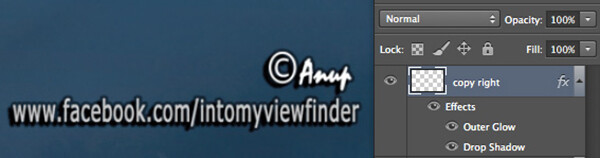
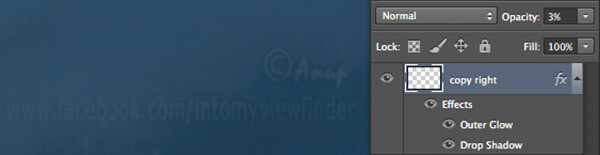
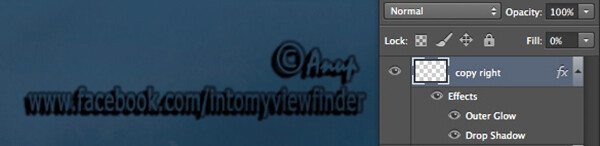
Both Fill and Opacity control the transparency of a layer. They work exactly same except for the layer styles. When you reduce the percentage of opacity the layer starts to get transparent and at 0 % the layer is completely invisible, even if layer styles likes drop shadow, stroke, inner glow etc., are applied. Where as, if you reduce the fill, the layer starts to get transparent, but layer style stay the same. Keeping it simpler:

Opacity = Takes away both layer content + layer style

Fill= Takes away only layer content – but leaves the layer style as it is

Additionally there are eight blending modes that react differently with Fill and Opacity. These are called special eight groups. These 8 blending modes are Color Burn, Linear Burn, Color Dodge, Linear Dodge, Vivid Light, Linear Light, Hard Mix, and Difference. When these blending modes are applied, the 50% Fill will have different effect than 50% Opacity.

The below images should help you understand the concept better.

Opactiy 100 fill 100

I added text and then applied two layer effects, outer glow and a drop shadow. Opacity and Fill both are both at 100%

Opacity 3 fill 100

Now I have reduced the opacity to 3 percent, you can see the layer is almost invisible. If I reduce the percent to 0%, the layer would be completely invisible.

Fill 0 opacity 100

Now, I have changed the Opacity back to 100% and reduced the Fill to 0%. You will see, the layer content became transparent, but the layer style remains the same.

Healing Brush versus the Stamp Tool

Healing brush captures the texture of the area you sampled and blends with the color tone of the area you are painting. Another option: Spot-healing brush is more like content aware. It analyzes the texture around the brush and fills in the center, blending with the color tone.

Stamp tool is more like a copy and paste. It copies the area you sampled and pastes over the area you are healing.

So when is each tool will be most appropriate to use?

I mostly use the Healing Brush whenever I have to remove the blemishes of the skin, remove the mark or any texture (pimples, wrinkles) but like to have the same natural skin color tone. This helps my image remain evenly colored.

I use Stamp tool, when I want to remove something from image. For example, if I want to remove the hanging clock on the wall, light bulb or anything whose both texture and color both need to be removed.

Below is an immage of skin with blemishes. I used Healing Brush to remove the pimple by sampling a clean area and painting over the blemish.

Pimple2 copy

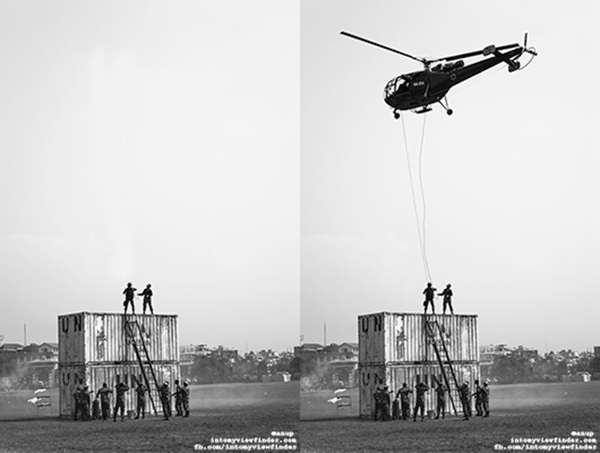
Here in the image below I have used the Stamp Tool to remove the helicopter. This is the after and before version of an image.

Compositional balance

Merge Visible versus Flatten Image

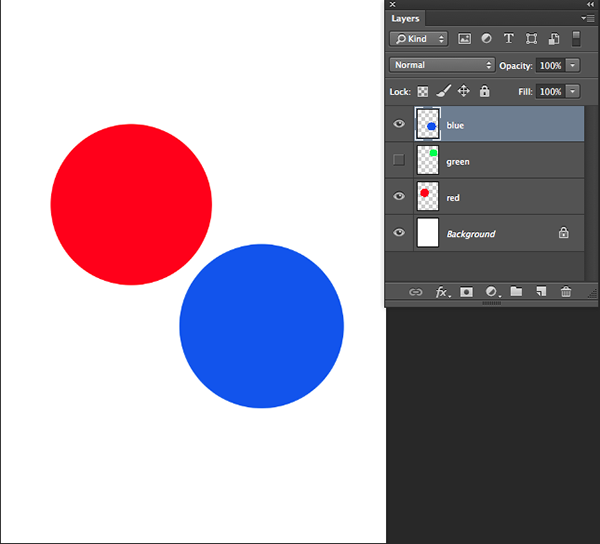
This is a very simple technique we regularly use whenever we work in layers, but a lot of photographers are still confused about the distinction between these two options. If you are working with multiples layers and apply Merge Visible, only layers will be merged which are visible or with eye icon turned onon. Where as Flatten Image merges all layers together, discarding the invisible layers.

The images below should help you understand better:

3 layer with one hidden

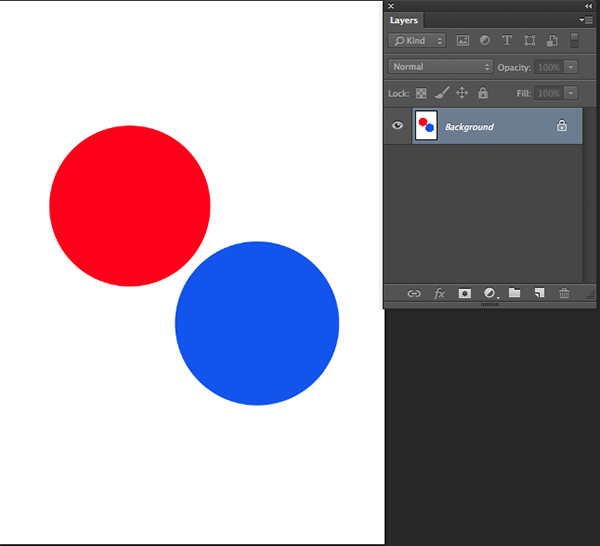
I created three layers with only two currently visible (blue and red)

Merge visible

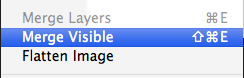
Apply Merge Visible by going to: Layer> Merge Visible

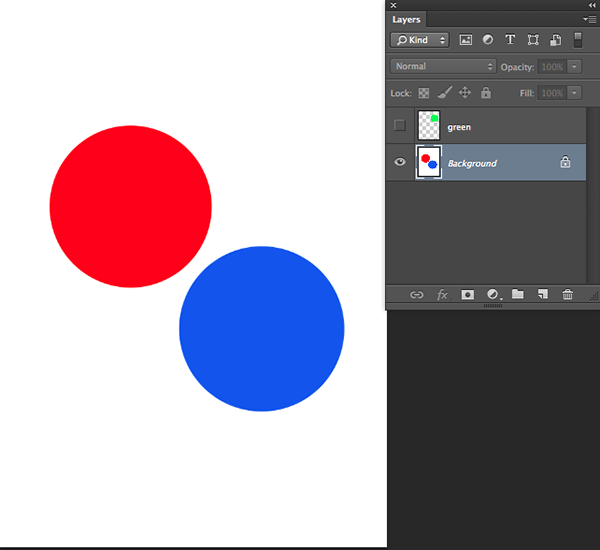
Merge visible applied

You can see that only the visible layers have been merged, leaving the hidden layer alone. Now we will apply Flatten Image.

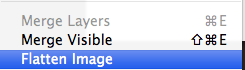
Flatten image

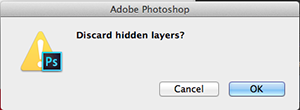
If there are any hidden layers when you apply Flatten Image, you will get this dialog box:

Discard hidden image

Now if I click OK in the dialog box, the hidden layer will be deleted and all visible layers will be merged like this:

Flattened image applied

Have you used these tools before? If you’ve had some confusion over the subtle differences I hope that has helped clear that up. Please share if have any questions or comments on these tools.

For more Photoshop tips and tutorials see here.

The post 6 Commonly Used and Confused Tools in Photoshop Explained by Anup Ghimire appeared first on Digital Photography School.


Digital Photography School

 
Comments Off on 6 Commonly Used and Confused Tools in Photoshop Explained

Posted in Photography


Insiders Only: 70+ Best Online Marketing Tools for Photographers

16 Jul

As a beginner photographer with over 5-year background in the Internet Marketing, I understand the importance of establishing a firm online presence. I surely need to master my shooting and retouching skills, but I also pay attention to the business side of my hobby to ensure that there’s a market for my product and it’s growing along with the quality Continue Reading

The post Insiders Only: 70+ Best Online Marketing Tools for Photographers appeared first on Photodoto.


Photodoto

 
Comments Off on Insiders Only: 70+ Best Online Marketing Tools for Photographers

Posted in Photography


36 of the Best Online Tools to Boost Your Photography Business

04 Jul

As a beginner photographer, I put most of my time and energy into the product side of my business. I need to practice, improve my shooting and post processing skills, and just grow as a photographer. However, I have a strong intention to make photography my full-time job and be successful in it, which is hardly possible without a business strategy. Besides, with over five years of experience in social media and content marketing, I know for sure that establishing a sound online presence and effective marketing channels may not show you the money today, but it will shape your business in the long run.
35 photography marketing tools

In this article, I’m sharing the results of my recent research on the online marketing and workflow organizing tools for photographers. I use some of these services on a daily basis; others are carefully stored in my bookmarks, eagerly waiting for the moment to come in handy. Each tool category includes several noteworthy options (both big players and lesser known tools), so that you can use this article as a catalog to refer to in your marketing pursuits.

Photography Website Builders

1. MotoCMS

Since I was looking for a self-hosted solution with no additional costs for the tools I don’t need just yet, this one worked perfectly for me. For $ 139, I got a modern website template based on the quite powerful MotoCMS. Among the key features are advanced drag-and-drop website editor, SEO & social media tools, e-commerce widget, etc.

2. Squarespace

Squarespace offers 25 modern-looking templates with e-commerce integration, custom domains (no self-hosting, though), mobile-ready websites and support. There’s no free plan, but prices start from $ 8 per month, and you have 14 days to give it a try for free.

5. Portfoliobox

There’s a free account option allowing you to select a clean template and fill it with up to 40 images. A $ 6.90/month Pro plan (paid yearly) with Portolfiobox includes more design and marketing options, as well as a custom domain name and email.

6. Wix

The free plan includes a wide gallery of templates, unlimited pages and hosting. Premium plans start from $ 4.08/month, but your website will carry Wix brand ads both on desktop and mobile.

7. Pixpa

Pixpa offers hosted portfolios with private galleries, ec-ommerce with Fotomoto, custom domains, social media sharing and other features. All-inclusive plans start from $ 4.00/month (billed annually) with a 50% discount available for students.

8. Portfolio Lounge

A custom domain is included in Portfolio Lounge’s free plan, which is nice! Upgrading to the Pro ($ 7.99/month) and Max ($ 16.99/month) will get you extra storage space. This is quite a simple service with no pricing gimmicks and overwhelming feature sets.

9. Folio Websites

Folio Websites templates are based on WordPress, which is quite a benefit these days. There’s just one plan available – $ 175/year, and your decision to sign up may only be based on examples and promises since there’s no trial period offered.

10. Carbonmade

Carbonmade is a kinda hipster among portfolio builders – its design is funky, the words are fun, and the service is on trend. Opting in for the free “Meh” plan, you get a 35-image portfolio on the carbonmade.com domain. Upgrade to the $ 12/month “Whoo!” plan, and you get 500 images and 10 video slots, domain binding, ad-free site, private projects and tech support.

10b. Zenfolio (added by the Editor)

Editor’s note: I personally use Zenfolio for my portfolio, and have for several years. The benefits of choosing something like Zenfolio over just a portfolio site is that they also offer a way to sell your images, preview them for clients, have locked or private galleries and even a blog element. Their Basic Plan is only $ 30/year but if you want unlimited uploads, and the ability to price your own work go for the Premium at $ 140/year. This can also act as you backup as well with unlimited storage of images. They do offer a free trial.

By DAVID MELCHOR DIAZ

Have you ever wondered why crappy photographers do better than you? It’s because they know that both creative and business sides of photography are critical for success.

Cloud Storage and Media Library

11. Flickr

With a colossal 1TB of free storage on the table, Flickr remains a first-class service for photographers of all levels. I’m using it to store my photos, too. However, I really hope their sluggish interface will be updated very soon.

12. Streamnation

Streamnation supports a pile of photo file formats, including RAW and C2R – a feature any photographer would appreciate. 20GB of storage is free. The price varies from $ 4/month for 100GB to $ 19/month for unlimited space biled annually.

13. Dropbox

While Dropbox’s experience for photographers still feels half-baked, it’s definitely a solution to consider since, unlike your average cloud hosting startup, the established service provides welcome peace of mind.

14. Google+

You can store up to 15GB in Google+ Photos, Gmail, and Google Drive for free and then pay for additional storage (up to 16TB) as your account grows. A neat thing about Google’s offer is that, unless your photos exceed 2,048 pixels by width, Google won’t count them against your total amount of available space.

15. Crashplan

A neat feature about Crashplan is that you can recover a deleted file no matter how much time has passed. Prices for unlimited online backup to the Crashplan cloud start at $ 5/month with annual billing.

16. Zoolz

Unlike most cloud hosting services, Zoolz is a long-term storage unit designed for storing your data on the cloud for a lifetime. With a 5-year subscription you can have your photos reside on reliable Amazon AWS servers for as low as $ 2/month.

16b. Zenfolio

Editor’s note: see above for Zenfolio info under the website section, also works for image backup.

By Anca Mosoiu

Image Proofing and Selling Prints

17. Pixieset

Pixieset is my number one tool to create beautiful client galleries. It has all the key features to help you deliver, proof, and sell your work (unlimited galleries, proofing system, instant download, password protection, audio, just to name a few). The best part is that all this is available in their free plan. If you’d like more space and a custom domain, you can upgrade your plan (prices range from $ 8/month for 10GB to $ 40/month for 1TB).

18. Nextproof

Nextproof a pay-as-you-go service with a $ 0 plan (1GB of space and a 15% transaction fee) on the table and a free 30-day trial available for every paid plan (ranging from $ 9-99/month).

19. OnlinePictureProof

There’s a single, $ 29/month plan you can buy. Among the key features are slideshows, mobile app and a shopping cart. Online Picture Proof is a simple yet professional picture proofing and sales solution.

20. ProofBuddy

If your website runs on the WordPress platform, you can make use of this free WP plugin, ProofBuddy, to activate a fully-functional proofing system built to show your proofs and accept orders from clients.

21. ShootProof

With ShootProof, you can create public or private galleries that work equally well on desktop and mobile devices. The great feature is that each visitor’s activity is displayed in detail to you. ShootProof has a flexible payment plan (commission-free $ 10-50/month) as well as a free plan allowing up to 100 uploads.

20b. Zenfolio

Editor’s note: see above for Zenfolio info under the website section, also works for image proofing and sales.

By zizzybaloobah

Scheduling

22. Setmore

Getting started with Setmore is very easy thanks to a clean, intuitive interface and wizard-like design. Standard features are free to use and include unlimited appointments, services and customers, as well as the ability to add up to 20 staff members to your account. Upgrading to $ 25/month brings you to the premium level with Google Calendar sync, unlimited SMS (text) reminders and recurring appointments.

23. Ubooq

Ubooq makes it easy for clients to schedule an appointment with an easy-to-use, online reception page. Appointment ticket and reminders help avoid no-shows. You can schedule up to 30 appointments in Ubooq for free, and then, if you like it, pick a plan that suits your needs. There is a 5-grade plan system, with prices starting at $ 19 for the monthly service.

24. BookedIn

A pretty cool feature in BookedIn, that I didn’t see on similar services, is that you can add a booking app to your Facebook timeline. Payment plans include a pay-as-you-go model (you purchase a block of booking for 50 cents each) and a monthly plan costing $ 20/month. You can try out the complete set of features for free during 30 days.

Note: other free options: Calendly and TimeTrade (also have a paid version for more appointments)

By keso s

CRM (Customer Relationship Management) System

25. Simply Studio

For $ 29/month (billed annually) with Simply Studio you get a full-fledged, web-based CRM system with client-money task management, accounting, invoicing and bookkeeping, online proofing, polls and email marketing. All features are included in a free trial version available for 15 days. My workflow of a newbie obviously does not require such software yet, but I surely love the features-price ratio of Simply Studio, as well as the simplicity of its interface. So Simply Studio is already in my bookmarks waiting for my photography business to grow and call for it.

26. StudioCloud

StudioCloud is free desktop software for photography studios. Standard features include cloud syncing, a client database, scheduling, billing, order management and other business-management tools. While the basic functionality (which is quite rich, though), is free to download, some extra tools, such as multiple users, online proofing and automatic client reminders, will cost you between $ 10-60 per month.

27. ShootQ

ShootQ offers the most comprehensive list of management tools, which naturally reflects in pricing. There are three all-inclusive and monthly plans to choose from, and prices range from $ 39.95 to $ 79.95 depending on the desired number of users, pages and amount of storage.

Organization and Automation

28. IFTTT

This brilliant service saves me lots of time for shooting. Using IFTTT’s straight-forward formula, you can automate a variety of tasks, such as tweeting your new blog posts or notifying you of the latest dPS posts.

29. Buffer

A dead simple, yet useful tool, to schedule your social media posts. If you’re a heavy social network user, Hootsuite might work for you better, but if you just don’t want your Twitter and Facebook get dusty while you’re on vacation, Buffer has you covered.

30. Nutcache

Nutcache enables you to easily create unlimited number of invoices, do estimates, and track time. Great tool to operate your photo business in the cloud. It’s also multilingual.

By Staffan Scherz

You won’t believe how many tasks you can manage with some organization and system put in the process.

Mobile Client Galleries

31. Myphotoapp

Myphotoapp boasts the widest library of tools among mobile photo gallery builders. Client email collection, integration with MailChimp and advanced app analytics are some really neat features that make this service my number one choice. I hope, though, the usability of the administrative panel will be soon revised towards a simpler and more intuitive interface.

32. StickyAlbums

Create mobile photo apps that your clients can save on their iPhones, iPads and most Android devices using Sticky Albums. Features include custom branding, built-in Facebook sharing, password protected albums, photo album hosting and sharing via SMS. Prices start at $ 19/month with a free, 14-day trial available.

33. ProImageShare

If you’re a Lightroom diehard, it’s an easy winner here. ProImageShare lets you publish and host your own web app that can be downloaded on iOS devices with the appearance of a custom app. With a one-time payment of $ 69, you can publish as many apps as you want to your own unlimited, shared-web host.

Photograph Rings on her toes by Vanessa Kay on 500px

Rings on her toes by Vanessa Kay on 500px

Brides will definitely appreciate a custom app with their wedding pictures. Expect referrals to come your way!

Multi-platforms and Services

34. Photoshelter

I bet you’ve heard about Photoshelter, as it’s one of the industry’s “big dawgs”. Portfolio websites, integrated e-commerce, cloud storage and client-proofing system are the tools you can find under this shelter. Prices vary from $ 9.99/month for the basic feature set, to $ 49.99/month for the premium toolbox.

35. Zenfolio

Zenfolio is another giant in the field of digital marketing for photographers. The number of features here is impressive, too. One of the recently added ones is Photo Books (order and sell). Prices start from $ 30/year with a free, 14-day trial on hand.

36. Queensberry Workspace

Built around Quensberry’s range of print products, Workspace enables you to create, organize, and market your online presence, as well as order and sell photo books, albums, frames, etc. Its basic version is available for free and you can upgrade from $ 4 monthly.

Editor’s note: once upon a time I was a consultant for Queensberry Albums (for 9 years) and I can attest to their dedication to quality albums, products and software. They also make Photojunction, a powerful album design tool.

Another biggie in this area is SmugMug. Slightly more than Zenfolio with many of the same features.

Last Click

Defrozo

I didn’t include Defrozo on the round-up because currently it’s a private beta, but the features listed on the “coming soon” page make it so worth mentioning.

Website builder, Media Library, Image Delivery and Proofing, Scheduling, E-commerce, CRM system, and Websites for Clients make the initial toolbox Defrozo is going to deliver from the start. Moreover, photo book design tools and retouch services are scheduled to be added to the products’ following updates. How do I know that? Well, I subscribed for early access and received an invitation from the Defrozo team to join the focus group of photographers from 30 countries worldwide. I recommend that you sign up, too, since a new player on the market will likely offer something extraordinary to attract users. There are good chances that it’s gonna be a freemium or at least offer extra benefits to early adopters.

By Pascal

Defrozo seems to have a potential to be the ultimate weapon for your business to reach zen.

What’s in your digital toolbox?

I hope my research will come in handy, and I’m sure there are a lot of other tools and services worth mentioning here that I missed. What do you use to manage your photography workflow and business? Is there any all-in-one tool out there you could recommend? Please share your suggestions and experience in the comments below.

The post 36 of the Best Online Tools to Boost Your Photography Business by Julia May appeared first on Digital Photography School.


Digital Photography School
 
Comments Off on 36 of the Best Online Tools to Boost Your Photography Business

Posted in Photography


5 Photoshop Tools to Take Your Images from Good to Great

03 Jul
Seascape image - Before and After image editing

Seascape image – Before and After image editing

We hear it all the time, “That photo has been Photoshopped”. Sometimes it sounds like the photo has caught a disease or that Photoshop is some undesirable effect that has been added to the image. Photoshop is the KEY to making your good images look spectacular. Yes, I said “good” images. Photoshop is not about fixing mistakes or trying to rescue a bad shot. It is more about refining your images and making them look amazing without overdoing it. Photoshop is a fantastic tool when it is used effectively but can be your enemy when you overdo it. Depending on what you want to achieve with your photos, this quick guide to five Photoshop tools will help you adjust your exposure effectively and make the colour really pop out of your image.

NOTE: the examples in this article simply show you how to make the adjustments on a separate layer. You could also use an adjustment layer which gives you much more control over the adjustment. The only tool that can’t be used with an adjustment layer is Shadow and Highlights. I will go into more details about adjustment layers in upcoming articles, for now, if you follow these guidelines, your images will look compelling and rich without looking overdone.

1. Shadow and Highlights Tool

This tool will be used to get more detail in the shadow areas of your image. Modern cameras can capture lots of detail, but depending on the light in the scene you are shooting, the shadows may be a little dark. The Shadow and Highlights tool will bring back some of the details in those areas.

Open your image in Photoshop and go to:  IMAGE > ADJUSTMENTS > SHADOW AND HIGHLIGHTS.

Finding the Shadow and Highlights tool

Finding the Shadow and Highlights tool

The tool will pop up and you will see this (as shown below), if you don’t see all these sliders, click “more options” to expand the box. You will use this tool to bring detail back into the shadows and you won’t be making any adjustments to the highlights. I find that the highlights part of this tool does not do a really good job, so I don’t use it at all.

Making adjustments to the Shadows in the image

Making adjustments to the Shadows in the image

The best way to work with the tool is to slide the Amount slider under the Shadows box to about one third across (33%). Then slide the Tonal Width slider to directly under the Amount slider. Lastly  bring the radius slider to directly under it. In most cases, you will want to have these sliders directly under each other (see screenshot below right).

shadows-highlightsThe important thing to remember here is to make the adjustments and take careful note of your image has been affected. Click on the preview button on the right hand side of the tool (you can do this with all the tools in this article) to see the “before and after”. You will be able to see at a glance how your changes are working. If you need to extract more detail from the shadows then slide the Amount slider to the right even more but make sure you line the other two sliders underneath it.

The amount that you decide to adjust the shadows is up to you. Be careful not to overdo it. Once you start seeing a “glow” around certain parts of your image, you may have gone too far. This glow is often referred to as a halo which can be avoided by watching carefully how your adjustments are affecting your image. If you see them appearing, simply drag the sliders back to the left until they disappear. Once you are happy, click OK.

2. Levels Tool

With your image open and the shadows adjusted, you will now adjust the overall exposure in the scene. If your image is a little over or under exposed, the levels tool can fix that. Go to: IMAGE > ADJUSTMENTS > LEVELS on the menu bar (or using the keyboard shortcut Command/Control+L). You will see the LEVELS dialogue box pop up and it will have a graph in it. This graph is called a histogram.

histogram

A histogram is simply a graphical representation of the pixels in the scene. If the graph is pushed over to the left side it means that your image has more darker tones in it, if the graph is over on the right side it means that your image has more brighter tones. There is no right or wrong histogram, it is simply a representation of the light in your scene. There are some great articles about histograms on the dPS site, so if you want to learn more about them, click on one of the links above.

Using the Levels tool to enhance the exposure and boost contrast

Using the Levels tool to enhance the exposure and boost contrast

The important thing to remember when working with levels is to make sure you don’t adjust your image so much that it causes the image to become under or over exposed. Thankfully, Photoshop gave us a way to see if that is happening, which I will explain shortly. Firstly, you will notice there are three sliders on the bottom of the histogram. The slider on the right is white (adjusts highlights) the slider in the middle is grey (adjusts mid tones) and the slider on the left is black (adjusts shadows). The levels tools will help adjust contrast and colour in your image. You can start the process by clicking and dragging the white slider in (move it to the left) to touch the edge of the histogram. Do the same for the black slider (drag it to the right). Your image will already look better.

Using the ALT key to see where the highlights are being overexposed

Using the ALT key to see where the highlights are being overexposed

Then you can move the middle slider to the right or the left to see which works better. Small changes always work best, so don’t make extreme changes on each slider. If you want to see how your adjustments are affecting your image, hold down the ALT key (PC) or OPTION key (Mac) while you click on the white or black slider. When you click ALT and hold down the white slider, the image will go black. As you slide to the left, you will see some red areas in your image (see above). When you see this, Photoshop is showing you which parts of the image will be overexposed, or clipped. The opposite is true for the the black slider. If you hold down ALT and click on the black slider, the screen will go white and as you slide to the right, the areas that come up on the screen will be underexposed, or clipped. It is a good idea to use this function if you are not sure if you have overdone your adjustments in Levels.

3. Colour Balance

This is a good tool to use to change the overall colour in the image. If your image is too blue and want you want it to be warmer, then you can do that by pulling up the red tones. Also, if your image has an undesirable colour cast, maybe the overall colour of the scene seems too green, then you can correct that by using this tool. The colour balance tool is found in the top menu bar under IMAGE > ADJUSTMENTS > COLOUR BALANCE (or using the keyboard shortcut Command/Control+B).

color-balance

Once the dialogue box is open, you will see three sliders (as above). The sliders represent the visual colours in the image, and are set in the middle by default. By moving them to the left or the right you will be able to change the colour in the image. The top slider affects Cyan/Red, the middle slider works on Magenta/Green and the bottom slider is Yellow/Blue. The colour will change according to which slider you choose and how far left or right you move it.

Note: you can also choose which area of your image to affect as in the Shadows, Midtones or Highlights but selecting the appropriate button in the Tone Balance section below the sliders.

You will want make small adjustments here too. A big adjustment can make your image look over saturated with a particular colour and that will look unnatural. The idea is to enhance your image by boosting certain colours in the scene. So, if you have a sunset image (as below) you may want to boost the reds, yellows and magentas. That will make your image look warm and will give the scene some colour boost.

Using Colour Balance to boost the colours in the image

Using Colour Balance to boost the colours in the image

4. Hue and Saturation

One of the most powerful colour tools in Photoshop is the Hue and Saturation tool. To open it go to: IMAGE > ADJUSTMENTS > HUE/SATURATION (or using the keyboard shortcut Command/Control+U). This tool can be used very effectively to adjust all the colours in your image. When you open the tool, you will notice that there are three sliders again, namely Hue, Saturation and Lightness.

hue-saturation

Hue means colour, this is not used very often as it will reassign the colours in your image, what you want to use this tool for is saturation. Saturation controls the richness or intensity of the colours in your image. Above the three sliders you will see a drop down box called Master. If you click on this, you can choose the colours that you want to saturate. This gives you very fine control over each colour in your image. You can select each colour individually and adjust it according to your preference. You may want to saturate the reds and yellows more than the blues, as an example, this tool allows you to do that. It is good to know that you are not adding colour to your image, you are saturating the colours that are there. Again, incremental adjustments are key. Don’t overdo it, small adjustments throughout this process will make your image look more natural and more dramatic

Getting the most out of the Hue and Saturation tool by saturating colours by channel

Getting the most out of the Hue and Saturation tool by saturating colours by channel

5. Vibrance

vibranceThe vibrance tool is found under IMAGE  > ADJUSTMENTS > VIBRANCE (no shortcut). It effectively saturates colours that are not completely saturated. This is a good finishing touch to your image editing to make sure your image gets a final boost. There is no real guideline as to how much you should adjust on this tool, but be aware of how it is affecting your image. Once this step is complete, your image should look remarkably different and if done correctly, the viewers won’t be saying those dreaded “Photoshopped” words.

The final step, boosting the vibrance to get that extra pop in the image

The final step, boosting the vibrance to get that extra pop in the image

In Conclusion

These five tools will help you make your good images spectacular. The important thing to remember in Photoshop is to make adjustments incrementally. As you can see from this process you slowly and incrementally make changes but the overall effect is dramatic without looking overdone. There are many other tools in Photoshop that can add even more enhancement to your images (I will be doing articles on those over the next few months) but start with these and get comfortable with how they work. To summarize, in Photoshop, slower is better and many small adjustments make a more dramatic impact on your image than a few large adjustments. Enjoy and experiment and as always, let me know what you think in the comments below.

The post 5 Photoshop Tools to Take Your Images from Good to Great by Barry J Brady appeared first on Digital Photography School.


Digital Photography School

 
Comments Off on 5 Photoshop Tools to Take Your Images from Good to Great

Posted in Photography


Red Giant offers subscription to video editing tools

18 Mar

product-list-prem-8-med.jpg

Using a similar model as Adobe’s Creative Cloud, video effects maker Red Giant – creators of Trapcode and Magic Bullet – is making their post-production tools and plugins available via subscription. Instead of buying individual software licenses, Red Giant’s service called Universe allows you to pay monthly or yearly for access to their suite of products that work in popular video editing software such as Final Cut Pro or Adobe Premiere. Learn more

News: Digital Photography Review (dpreview.com)

 
Comments Off on Red Giant offers subscription to video editing tools

Posted in Uncategorized


Mobile tools for the wedding photographer

11 Mar

CEE_006C.jpg

As photographers struggle with the slumping economy and an ever-increasingly competitive landscape, wedding photography seems to be one of the industry’s steadier income streams. People continue to get married and most hire photographers to capture their special day. And there are a handful of helpful mobile tools to help you run your business more effectively. Learn more

News: Digital Photography Review (dpreview.com)

 
Comments Off on Mobile tools for the wedding photographer

Posted in Uncategorized


Image-editing Tools for the Photographer in All of Us

20 Nov

Few hobbies in the United States have become more popular in recent years than photography, with iStockPhoto and KRC Research suggesting that two in five Americans pursue the art of taking snapshots for fun. Knowing the basics of a DSLR camera or which interchangeable lens you need can be helpful with pure photography, but with excellent-quality smartphone photos and free Continue Reading

The post Image-editing Tools for the Photographer in All of Us appeared first on Photodoto.


Photodoto

 
Comments Off on Image-editing Tools for the Photographer in All of Us

Posted in Photography