The Pixelmator app for iPad and iPhone has received another update, ensuring it remains one of the most powerful mobile image editing tools in the App Store. Introduced in version 2.0.2 is Dynamic Touch, which automatically adjusts the brush to the surface area of your finger that’s touching the screen. Read more
Tag: tools
-
10 Tools to Make Your Photography Blog Rock
These days blogging is not only a tool to share your thoughts and tips with the public, but is also a tool through which to promote your products and services, attract new clients and increase conversions. It’s an easy and low cost method to get your brand noticed. Moreover, for photographers, it’s a great opportunity to get on the top Continue Reading
The post 10 Tools to Make Your Photography Blog Rock appeared first on Photodoto.
-
Adobe rolls out Lightroom CC and Lightroom 6 with HDR and panorama tools
Adobe has announced standalone and Creative Cloud versions of its image management and Raw conversion software, Lightroom. Among other new features the latest versions gain simple HDR and Panorama merging tools that create 16-bit DNG files from the merged results. Read more
-
Enlight for iOS launches with high-end photo editing tools
The developers behind Facetune have created a new app called Enlight, a general purpose image editor. It challenges apps like VSCO Cam and Adobe’s own mobile image editors, with adjustment tools, presets and various filters. Read more
-
4 Photoshop Tools Every Photographer Should Know
When it comes to photo-editing programs, one of the most popular among both amateur and professional photographers alike is Adobe Photoshop. While it can appear more complex than Lightroom, and certainly takes more time to learn all of its tricks, Photoshop offers four post-processing tools that come in handy for retouching images. These tools are pretty easy to locate and implement, and in this article I’ll show you how they work, specifically while retouching the image of the Space Needle in Seattle (below). I have the privilege of having this view from my home office, but the problem is that if I take a photo using anything but a telephoto lens, I get telephone pole remnants and wires in my otherwise pretty cityscape image.
Here are the four Photoshop tools I use to retouch my Space Needle images. There are of course other ways to retouch this image to achieve the same or even better results, but these are quick and easy methods that also highlight essential Photoshop skills.

Before we do anything to modify Photoshop images, the first thing to note is that within Photoshop, you can cause permanent changes to the pixels and details of your photos if you’re not careful. This is why you always want to make sure you are performing nondestructive editing so that you don’t overwrite the original image data.
There are several ways to do this in PhotoShop. For the tools I’m about to show you, the best technique for nondestructive editing will be to work within an adjustment layer or retouch on a separate layer. You can create a new layer by clicking on the New Layer icon on the bottom of the Layers panel. Repeat this every time before you employ a new editing process on your image and be sure to double click on the layer and rename it to help you remember what editing process you did on that layer.

1. Spot Healing Brush
First of all, let’s tackle those thin, yet annoying, power lines in the upper left corner of the image. To start, we’ll use the Spot Healing Brush. One of three image healing tools that Photoshop offers, this brush creates a seamless repair to your image by replacing unwanted textures of the image with good textures from another area.

To use it, head over to the Tools panel and select the Spot Healing Brush. It will be grouped together with other healing and patching tools. Be sure the Sample All Layers option is checked on the upper Options bar, as well as Content Aware (Photoshop versions CS5 or later) or Proximity Match (Photoshop CS4 or earlier). Next, zoom into the image’s problem area and click (or click and drag) on the areas you want to replace or heal. To adjust the size of the brush, press the left ([) and right (]) bracket keys on your keyboard. If you make a mistake, just hit Ctrl+Z (on Windows) or Command+Z (on Mac) to undo. In this example, I clicked and dragged the Spot Healing Brush across those thin power lines to erase them.
In this example, I clicked and dragged the Spot Healing Brush across those thin power lines to erase them, which is the quickest way of using it. However, be careful when attempting to spot heal in large chunks particularly near high-contrast edges, since some areas can appear improperly blended. For the sake of accuracy, a more effective approach could be using the spot healing brush to heal smaller chunks of the image, rather than attempting to heal the entire area in one go.
Other important settings to be mindful of are the Size and Hardness of the brush, which can be adjusted per the settings panel pictured below. Since the Healing Brush automatically blends pixels, it’s best to choose a higher Hardness value for best results.

2. Clone Stamp Tool
Another alternative way to getting rid of the power lines is to use another Photoshop essential: the Clone Stamp tool, which is used for pixel-to-pixel cloning. Like the Spot Healing Brush, this tool can be used to replace unwanted areas of an image, but unlike the Healing Brush, it won’t do automatic content-aware blending. The Clone Stamping is best used to duplicate an item or pattern, remove a brand logo, or remove power lines, which is what I’m going to do in this example.

To use the Clone Stamp tool, first create a new layer and then select the Clone Stamp tool from the tool bar. This tool works similarly to the Spot Healing Brush, but before you begin clicking away, position your cursor over the area you want to clone from and Alt-click (on Windows) or Option-click (on Mac) to define and sample the source of the clone. Be sure to re-sample and re-define as many clone sources as needed to provide a seamless cloning result.
Be sure to re-sample and re-define as many clone sources as needed to provide a seamless cloning result. To make sure the result appears realistic, it is important to zoom in and make sure the same pattern is not being cloned over and over again. Per the same settings as the Spot Healing Brush, be mindful of the Size and Hardness settings that you choose as these will determine how accurately the Cloning Tool samples and clones layers. When cloning an area with lots of patterns and details, it’s sometimes best to work with a low Hardness value and low cloning opacity for smoother results.
3. Magic Wand
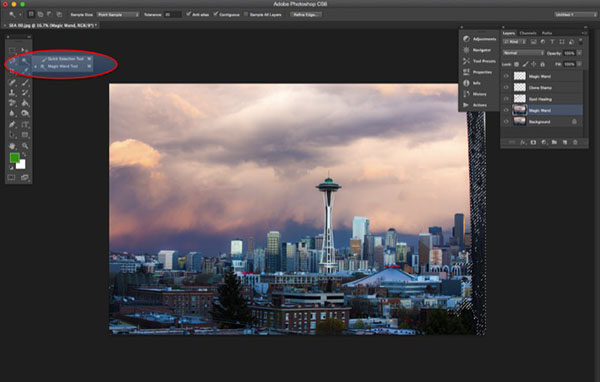
Next, let’s get rid of the remnant of a telephone pole in the right hand side of the image. The easiest way to eliminate it would be a simple crop, but another way is to select and replace it using the Magic Wand Tool. This is one of Photoshop’s oldest selection tools and it causes many a photographer joy or suffering. The Magic Wand is incredibly easy to use, requiring just a click of its icon in the tool bar, followed by clicking on the area of the image that you want to select. Here’s where things can get complicated. The Magic Wand selects pixels based on tone and color, which means it has the tendency to select more areas of the image than you initially want. The simplest way to fix this is to play around with Tolerance in the Options bar. If the Magic Wand is selecting too much of an area, simply input a smaller value of Tolerance and then reselect the area.
4. Content-Aware Fill
After the proper area of the telephone pole is selected, it’s time to fill in that area. Hit Shift+Delete on the keyboard, and the below pop-up box will appear. Make sure Content-Aware is selected, then press OK; Photoshop will then sample pixels in the surrounding area and fill in the selected area accordingly. The results may not be perfect, and this is where the aforementioned Spot Healing Brush and Clone Stamp tools can come in handy to make the filled in area more seamless.

The final retouched image can be seen below. Using the Spot Healing Brush, Clone Stamp, Quick Selection and Content-Aware fill, the telephone lines in the upper left corner have been removed, as well as the remnant of the pole on the right-hand side.

In this brief tutorial, I’ve introduced several very important tools that all photographers should be familiar with, but it’s also important to note that I haven’t explained every possible use of them. There are many other practical and creative ways to use these tools, and I encourage you to do further research to learn more about them. But for the sake of doing quick edits and getting familiar with the tools, these are approachable ways to get started.
googletag.cmd.push(function() {
tablet_slots.push( googletag.defineSlot( “/1005424/_dPSv4_tab-all-article-bottom_(300×250)”, [300, 250], “pb-ad-78623” ).addService( googletag.pubads() ) ); } );googletag.cmd.push(function() {
mobile_slots.push( googletag.defineSlot( “/1005424/_dPSv4_mob-all-article-bottom_(300×250)”, [300, 250], “pb-ad-78158” ).addService( googletag.pubads() ) ); } );The post 4 Photoshop Tools Every Photographer Should Know by Suzi Pratt appeared first on Digital Photography School.
-
5 Useful Tools to Run Your Holiday Promotions for Christmas 2014
Christmas is around the corner. Holidays are a great opportunity to promote your photography brand as most people strive to capture those special moments with magic Xmas feeling running all through. So make a game plan, grab some tools, and go ahead to make the most out of this busy season. In today’s list we collected 5 online marketing tools Continue Reading
The post 5 Useful Tools to Run Your Holiday Promotions for Christmas 2014 appeared first on Photodoto.
-
Scalpel Cities: Urban Landscapes Made of Surgical Tools
[ By Steph in Art & Drawing & Digital. ]

Bird’s-eye views of cities around the world, from Paris to Hong Kong, are visualized in the form of surgical tools like scalpels and skin graft blades against glossy black surfaces by famed British artist Damien Hirst. The ‘Black Scalpel Cityscapes’ series continues the artist’s method of using sharp metal objects to create complex compositions in stark monochrome.


The depiction of these cities (many of which are sites of recent conflict) from an aerial viewpoint references the ‘all-seeing eye’ of constant surveillance in the modern era. Look closely and among the blades and surgical tools you’ll also see small items that relate to each individual city, like cheap silver keychains of the Eiffel Tower in Paris, and even silvery condom wrappers.


In a video interview with White Cube, Hirst explains that he began working with scalpel blades “because they’ve got kind of a nice and nasty feel to them.” Flying over Milton Keynes, a town in England, he noted how modern and unnatural the landscape looked, sparking the idea for the series. In addition to cities like Baghdad, which have a symbolic connection to the medium used, Hirst depicted cities that are personally meaningful to him.


“I’ve done one of the Vatican where I’ve used lots of religious symbols. So I think you try to make them into a portrait, but always from a distance they’re going to look totally like a photograph.”
Want More? Click for Great Related Content on WebUrbanist:

Darkened Cities: Urban Skylines Minus Light Pollution
What would your city look like if it went completely dark? Words like majestic, awe-inspiring and magical come to mind – not as descriptions for the …
Click Here to Read More »»

Urban Landscapes Transformed: 23 Stunning Urban Murals
Exceptionally talented street artists to create murals so awesome, they could easily hang in a gallery, but so large that they hang on it, instead.
Click Here to Read More »»

The Silent Valley: Landscapes Overtaken by Urbanization
Traditional paintings of serene Chinese scenery are, upon closer inspection, completely infested with factories, machinery and other man-made structures.
Click Here to Read More »»


[ By Steph in Art & Drawing & Digital. ]
[ WebUrbanist | Archives | Galleries | Privacy | TOS ]
-
Apps for Architects: 12 Handy Digital Tools for Home Design
[ By Steph in Design & Fixtures & Interiors. ]

Remodeling your house, decorating a room or designing an entire structure gets a lot easier with a range of mobile apps that let you draw to scale, save measurements on top of photos, access thousands of inspirational images and more. These 12 handy tools will ensure that you ever buy a piece of furniture that’s too big for your space, lose the ideas you scrawled on paper or stand around staring at bedding wondering whether it’ll clash with your drapes again.
Photo Measures

Save measurements right on your photos with the Photo Measures app. Snap images of rooms or objects and immediately save their exact dimensions so you can be sure whether furniture will fit in a given space, or give contractors all the info they need for a renovation.
Phaidon Design Classics


You can buy the 10-inch-thick Phaidon Design Classics book for $ 175, or just get the iPad app for $ 19.99. Either option will give you access to 1,000 iconic design projects, but the app is definitely more portable. It’s a handy reference for anyone trying to style an interior, providing visuals for everything from Eames chairs to antique glassware.Remodelista

Sort through thousands of inspirational interior design images, save them to your own customized folders and share them with the Remodelista app for iPad, iPHone and Android. It puts the entire archive of Remodelista.com posts at your fingertips, along with a list of products featured in each post.
Penultimate


Want the ease and comfort of writing on paper, with the search functions and shareability of digital? The Penultimate app is a replacement for your physical notebook, allowing you to write and sketch with a stylus. Even better, you’ll never lose another important note again – everything you create in the app is synched to your Evernote account automatically so you can view, search and share them across a range of devices.
Next Page – Click Below to Read More:
Apps For Architects 12 Handy Digital Tools For Home Design
Want More? Click for Great Related Content on WebUrbanist:

DIY Digital Design: 10 Tools to Model Dream Homes & Rooms
Daydreaming about changing your living room layout, or just want to design a fantasy home a la ‘The Sims’? Check out these 10 (mostly free) online design tools.
Click Here to Read More »»
14 Apps for Architects, Interior Designers & Homeowners
Need to quickly calculate square footage, design a building digitally using its real-world setting, match an exact shade or sketch out an idea? There are apps …
Click Here to Read More »»

Urban Apps: 13 Interactive City Maps, Tools & Guides
Chances are, even if you’re a lifelong resident of a particular city, you don’t know every nook and cranny, every food truck location, or the lore …
Click Here to Read More »»
[ By Steph in Design & Fixtures & Interiors. ]
[ WebUrbanist | Archives | Galleries | Privacy | TOS ]
-
Create Your Own Font Using Tools and Tips
Here are a list of online font tools to use:
PaintFont
FontStruct
FontForge
BitfontMaker
Type light
gbdfed Bitmap Font Editor
Font Constructor
Raster Font EditorHere are some tips for creating fonts:
Steps to creating a font by FontForge
My First Font – How to make your own font
Create Your Own Font – Wired How-To WikiBack to Top
-
Adobe rolls out CC update with new desktop and mobile tools
Adobe has announced updates to several of its mobile and desktop software applications, just in time to kick off the company’s Adobe Max conference. While Photoshop itself only receives a couple of minor updates, such as more 3D printing profiles, there are some interesting new features added to the Adobe ecosystem. Among them is a new Libraries feature, making it possible to save layers and graphic elements for use across apps and platforms. Read more