RSS
 

Posts Tagged ‘tools’

An Introduction to Lightroom Classic’s Newest Tools

15 Dec

The announcement of Lightroom CC has been stealing all the thunder when it comes to Lightroom over the last few weeks. At the same time, however, Adobe made some changes and additions to the Lightroom you and I have been using (now called Lightroom Classic). There aren’t many changes, but they are very significant, so let’s take a look.

An Introduction to Lightroom Classic's Newest Tools

Changes to Lightroom Classic

Before we get into the new tools, you’re likely to notice an overall change to Lightroom. It is faster. Much faster. It imports faster, you can flick through your pictures faster . . . everything just works faster. That is a nice change.

When it comes to making global edits to your pictures –  that is, changes that affect all parts of the picture – Lightroom works exactly the same. There are no changes (except the speed). The bad news is that there are no new features, but the good news is that you will still be comfortable with how everything works.

Making Local Changes in Lightroom

The latest change to Lightroom comes in the local adjustment tools. If you aren’t already familiar with them, Adobe lets you make changes to specific parts of your picture using one of three tools: the Adjustment Brush, the Graduated Filter, and the Radial Filter.

Since the changes to Lightroom work within these tools, it is worth spending a second making sure you are familiar with them.  Here is what they are and how they work:

An Introduction to Lightroom Classic's Newest Tools

  • Adjustment Brush: It is just like it sounds. You select the brush and then paint in where you want to make changes. When you call up the brush, a series of sliders will appear, and the changes you make with these sliders only affect the part of the image you have selected. If you want Lightroom to find an edge for you as you paint, to keep things from spilling over into other areas, be sure you have checked the Auto Mask option at the bottom.
  • Graduated Filter:  You will find this tool gets more useful the more you use it. This is a filter that makes gradual changes to your picture, along a straight line. If you are familiar with a graduated neutral density filter, then you are familiar with this tool. As with the Adjustment Brush, when you call up this tool and create a gradient, you will see sliders appear on your screen. You can then make changes to only the part of the image you chose. Those changes will be softly blended in. You can create multiple gradients to change many discrete parts of your image.
  • Radial Filter: Frankly, this is the one I use the least. It works like the Graduated Filter, but it selects an elliptical area. Once you make your selection, you’ll see the usual sliders for making adjustments to the selected area. I find it is most useful for highlighting the subject or a particular part of your image.

The trouble with these selection tools has always been controlling the selection. Take the Graduated Filter, for example.  How often do you really want to make changes along a straight line across your entire picture?  Probably not often. What you end up doing is just trying to feather your changes in softly enough that you don’t notice changes to things sticking over the line.

Now, however, Adobe has provided additional tools for us to deal with that. It is called the Range Mask feature, and you’ll see it as an option at the bottom of the Adjustment Brush, Graduated Filter, and Radial Filter tools.

Using the Range Mask Feature

What does the Range Mask feature do? Simply put, it allows you to exclude things from a selection based on brightness values or color.

An Introduction to Lightroom Classic's Newest Tools

Here’s how it works. Once you have selected a part of the picture to edit using one of the three tools mentioned above, you’ll see a little option at the bottom of the controls for that tool labeled Range Mask. It will be in the Off position by default, meaning it is doing nothing.

When you click on it, you will see options for Color and Luminance. You pick one and then you can exclude colors or brightness values from the selection.

Color Range Mask

For example, if you choose Color, then you will see an eyedropper tool. Use it to select a color you want to exclude from your selection. If you’re happy with that, you’re done. If it isn’t quite right, there is an amount slider just below so you can fine tune it. You can also click and drag to select all the colors in a particular area, or you can Shift-click with the eyedropper to select multiple colors.

An Introduction to Lightroom Classic's Newest Tools

Luminance Range Mask

Or you can select Luminance instead, which will allow you to exclude pixels of certain brightness values from your picture. You’ll see a Range slider with two points on it. Think of these as your black point (on the left) and the white point (on the right).

When you drag the left/black point up, Lightroom will remove darker pixels from the selection. For example, if you want to make changes to a particularly bright area of your picture, but not affect some dark items sticking into the bright area (trees into the sky, a mountain or building, etc.), then pull up the left point of the Range control.

An Introduction to Lightroom Classic's Newest Tools

The Range Mask Feature in Action

It might be more understandable if you see these tools in action. Let’s take a photo like this one just below, where you want to adjust the sky, but there isn’t a nice clean line to use a graduated filter. I should note that we could try to make an adjustment using the Adjustment Brush, but even using Auto Mask it won’t be able to make a clean selection around all those branches. Our best bet is going to be the new Range Mask feature.

An Introduction to Lightroom Classic's Newest Tools

With the new tools in Lightroom, you can make quick work of this. Just grab the Graduated Filter (or the Adjustment Brush, if you prefer) and make the changes you want to the sky. Don’t worry about how it affects the darker part of the image for now. When you are done making your changes, it might look something like this:

An Introduction to Lightroom Classic's Newest Tools

We can now use the Range Mask feature to clean this up very quickly. Just select Luminance, then pull the left/black point of the Range slider up. That will exclude the dark areas from the selection.

Voila! You now have the exact changes to the sky you want, without any spillover into areas (the cliff and trees) that you don’t want to be affected.

An Introduction to Lightroom Classic's Newest Tools

You can repeat the process in reverse to make changes to the darker portion of the image as well.

Additional Uses of the Range Mask Feature

As you play with this feature, you’ll find additional things you can do with it. The ability to target pixels based on brightness and color values is so powerful and has so many different applications, that I think you’ll end up using it in a variety of different ways. I am just getting started with it (obviously, as it just came out), but I am already seeing uses for it in my night photography.

With this tool, it is a pretty simple matter to target the dark areas of the sky and leave the stars alone. I can create a selection of the entire sky using the Graduated Filter, and then use the Range Mask to remove the stars from the selection. That way I can just darken and apply noise reduction to only the darker areas.

An Introduction to Lightroom Classic's Newest Tools - night sky image

Previously, that required a tedious process of luminance masks in Photoshop. That’s just one little application I found, and you will doubtlessly find your own better applications.

Application to Your Photography

The recent update to Lightroom Classic has only one additional tool, which is the Range Mask feature addressed in this article. While it is only one change, it is a really powerful addition. It makes all the local adjustment tools in Lightroom Classic that much more powerful.

If you have shied away from making local selections in Lightroom, it is now a much more feasible process. If you are someone that routinely takes your photos into Photoshop to make local changes – utilizing the powerful masking features there – this will probably save you a few trips.

Give it a try and I think you’ll like what you find.

The post An Introduction to Lightroom Classic’s Newest Tools by Jim Hamel appeared first on Digital Photography School.


Digital Photography School

 
Comments Off on An Introduction to Lightroom Classic’s Newest Tools

Posted in Photography


Adobe updates Photoshop CC with new tools, 360° image editing, HEIF support and more

19 Oct

$ (document).ready(function() { SampleGalleryV2({“containerId”:”embeddedSampleGallery_2078864935″,”galleryId”:”2078864935″,”isEmbeddedWidget”:true,”standalone”:false,”selectedImageIndex”:0,”startInCommentsView”:false,”isMobile”:false}) });

The all-new Lightroom CC (and newly-renamed Lightroom Classic CC) might be hogging the spotlight at Adobe MAX 2017, but Adobe didn’t forget to throw some love Photoshop’s way. In addition to the standard performance enhancements you expect with every update, Photoshop CC has been gifted with a slew of new features, including: the new curvature pen tool, 360° spherical image editing, HEIF format support, Select and Mask improvements and more.

All of the improvements are summarized in the list below, and while none of them will blow your mind, there’s plenty there for regular Photoshop users to be happy about:

According to Adobe, the most requested improvement that ships with the new version of Photoshop CC is actually the enhanced Brush Presets and Brush Preset Management, which you can see demonstrated in the video below:

And with the explosion of 360° images into the mainstream and the release of iOS 11, the ability to open & edit spherical 360° panoramic images in Photoshop, as well as HEIF format images, is a big deal as well.

Other notable improvements include the new color and luminance range masking tools that were also added to Lightroom CC, the Curvature Pen Tool that Adobe teased us with just last month, and improved Select & Mask functionality overall. You can see these new features in action in the YouTube videos embedded below:

As with all previous updates to Photoshop CC, you won’t have to pay anything extra if you’re already a subscriber. The $ 10/month Creative Cloud Photography Plan now includes 20GB of cloud storage, Photoshop CC, Lightroom CC, and Lightroom Classic CC; or you can upgrade to 1TB of storage for $ 15/month until next year, when that price will go up to $ 20/month.

To learn more about these updates from Adobe itself, head over to the Adobe Photoshop blog by clicking here.

Articles: Digital Photography Review (dpreview.com)

 
Comments Off on Adobe updates Photoshop CC with new tools, 360° image editing, HEIF support and more

Posted in Uncategorized


Macphun unveils Aurora HDR 2018: Will come to Mac and PC with new tools and UI

16 Aug

Macphun today announced the upcoming release of Aurora HDR 2018, the latest version of its popular HDR creation software created in collaboration with photographer Trey Ratcliff. After 1.7 million downloads on Mac computers since its launch in November 2015, Aurora HDR will now for the first time be available for Windows PCs as well.

New tools and improvements include a lens correction filter that is capable of removing all kinds of lens distortion, chromatic aberration and vignetting, a redesigned user interface, up to 4x improvement in RAW image processing and up to 200% faster merging and masking performance.

Here are some screenshots of the new UI:

$ (document).ready(function() { SampleGalleryV2({“containerId”:”embeddedSampleGallery_3739521836″,”galleryId”:”3739521836″,”isEmbeddedWidget”:true,”standalone”:false,”selectedImageIndex”:0,”startInCommentsView”:false,”isMobile”:false}) });

And a few Before and After images created by Trey Ratcliff, to show what Aurora HDR 2018 can do:

$ (document).ready(function() { SampleGalleryV2({“containerId”:”embeddedSampleGallery_3067566763″,”galleryId”:”3067566763″,”isEmbeddedWidget”:true,”standalone”:false,”selectedImageIndex”:0,”startInCommentsView”:false,”isMobile”:false}) });

Aurora HDR 2018 will be available for pre-­order starting September 12th, and the released date is scheduled for September 28th. Current users of Aurora HDR will be able to upgrade at a special pre­-order price of $ 50—the pre-order price for new users is $ 90.

You can find more information and sign-up for the pre-order announcements on the Aurora HDR 2018 website.

Aurora HDR 2018 comes in September as the ultimate cross-platform HDR photo solution

Award-winning Aurora HDR, co-developed with Trey Ratcliff, brings major updates that will be available for both Mac OS and Windows users.

San Diego, CA – August 15, 2017 — Macphun, the California-based developer known for making complex photo editing software simple and fun, today announced the release of Aurora HDR 2018, the one-stop solution for HDR photography. To sign up for pre-order announcements and more, please visit https://aurorahdr.com/2018.

Aurora HDR, co-developed with the renowned HDR photographer Trey Ratcliff, made the complex task of HDR editing effortless and unintimidating. Aurora HDR became the industry standard for HDR photo editing on Mac and reached 1.7 million downloads since its launch in November 2015.

In less than 2 years over 100 million photos have been edited in Aurora HDR and 72% of current users have made Aurora HDR their primary HDR photo editor, switching from other software. Today, Aurora HDR is the go-to editing software for such well-known photographers as Trey Ratcliff, Serge Ramelli, Captain Kimo and many others.

“Since the launch of Aurora HDR, Macphun has released more than 10 updates containing tons of new features and improved performance,” commented Trey Ratcliff. “Today, I’m very excited to announce the launch of Aurora HDR 2018. It’s completely new, significantly faster and has even more powerful tools. Plus the BIG news is that it’s now available for Microsoft Windows as well. It’s truly the best HDR software for both Mac and PCs”, concluded Ratcliff.

Aurora HDR is not just a tool for merging brackets: it brings countless options to create perfect HDR photos – from one-click presets and advanced tone-mapping, to layers, noise reduction and powerful luminosity masking controls.

A sneak peek into what’s new in Aurora HDR 2018:

  • Lens Correction Tool – The new Lens Correction filter easily fixes all kinds of lens distortion, from barrel and pincushion to chromatic aberration and vignetting.
  • New User Interface – Redesigned from scratch, the modern and responsive user interface brings a powerful, yet joyful experience to HDR photo editing.
  • Speed improvements – Up to 4x improvement in RAW image processing, and up to 200% faster merging and masking performance means that Aurora HDR 2018 is dramatically faster than the last version.
  • Cross-platform version – Aurora HDR 2018 will be available both for Mac and PC users with interchangeable files, enabling mixed-computer households to share the same product key.
  • A complete list of new features will be announced concurrent with the pre-order.

Availability:

Aurora HDR 2018 will be available for pre-­order on September 12, and released on September 28. To sign up for pre-order announcements and more, please visithttps://aurorahdr.com/2018.

Pricing:

Mixed-computer households can share the same product key for Mac and PC that can be activated on 5 devices.

  • Pre-order:

o Current users of Aurora HDR may upgrade at a special pre­-order price of $ 49

o New users can purchase Aurora HDR 2018 at a special pre­order price of $ 89

o A collection of bonuses will also be included with every purchase

  • Retail price:

o $ 59 for current Aurora HDR users

o $ 99 for new user

Articles: Digital Photography Review (dpreview.com)

 
Comments Off on Macphun unveils Aurora HDR 2018: Will come to Mac and PC with new tools and UI

Posted in Uncategorized


Corel launches PaintShop Pro 2018 with improved editing tools and faster performance

12 Aug

Corel just released PaintShop Pro 2018, the latest version of its image editing and graphic design software suite. For this latest version, the Corel engineers have managed to reduce launch times and create a simplified graphical user interface with a new Dual Workspace Environment. There are also customizable tool bars and a number of improved editing tools, including Crop, Text, Selection, Clone Brush, Gradient Fill, Eraser and the Dropper tool.

In addition PaintShop Pro 2018 gets you ten new color palettes, thirty new brushes, thirty new gradients, thirty new textures and fifteen new patterns. If you decide to opt for the Ultimate edition you’ll also have access to a collection of add-ons including Painter Essentials 5, Perfectly Clear 3 SE and After Shot 3.

$ (document).ready(function() { SampleGalleryV2({“containerId”:”embeddedSampleGallery_9445804007″,”galleryId”:”9445804007″,”isEmbeddedWidget”:true,”standalone”:false,”selectedImageIndex”:0,”startInCommentsView”:false,”isMobile”:false}) });

Corel’s new Photo Video Bundle combines PaintShop Pro 2018 and VideoStudio Pro X10 for a complete photo, design, and video editing package. All software options are available in several languages. PaintShop Pro 2018 will set you back $ 80 while the Ultimate edition is $ 100. For the Photo Video bundle you’ll have to invest $ 160.

Press Release

PaintShop Pro 2018 Makes Advanced Photo Editing More Accessible and Affordable Than Ever

Dramatically redesigned interface, accelerated performance, enhanced tools, and loads of all-new creative content jump-start your creative projects

Ottawa, Ontario – Aug. 9, 2017

Corel introduces PaintShop® Pro 2018, the complete photo editing and graphic design suite that offers more speed, flexibility, and creativity than ever before. Enhance your editing experience with a redesigned and customizable user interface that’s now friendlier with high-resolution displays and pen and touch devices. Start and finish your next project faster thanks to improved performance under the hood — and express your creativity with more than 125 pieces of exciting new content including brushes, gradients, textures, and patterns.

“Whether you’re looking for professional photo editing power or just getting started, you need software that lets you jump in and be productive right away. PaintShop Pro now lets you choose from two unique interfaces, plus it gives you the ability to customize them to build an editing and design environment that’s uniquely your own,” said Chris Pierce, Product Manager for Corel Photo. “With PaintShop Pro 2018, we’re delivering a dramatically faster, easier, and highly creative experience that’s even more accessible and of course, still subscription free.”

The new PaintShop Pro 2018 and PaintShop Pro 2018 Ultimate boost productivity with user-requested enhancements and spark creativity with all-new content, including:

  • NEW! Dual Workspace Environment: Introducing two new workspaces designed to match the way you work! New to photo editing or looking to focus on a core set of tools? Try the new Essentials workspace for an easy-to-use, streamlined look. Or, if you’re a PaintShop Pro expert, switch to the Complete workspace for a more traditional experience that offers access to the software’s complete editing and design capabilities.
  • NEW! Simplified, Touch & Pen-Friendly Interface: Now get more control over features, functionality, and customization. Node size not right? Change it. Scroll bar too small? Make it bigger. New larger icons now make it easy to work on touchscreens, 2-in-1 devices, and high-DPI monitors.
  • ENHANCED! Faster Launch Time & Performance: Time is precious and whether you’re launching a program or performing a specific action, no one likes to wait around. PaintShop Pro 2018 launches more than 50% faster than the previous version (X9), while the software’s most popular tools now respond with near-instant results. Text Wrapping is faster and Depth of Field adjustments can be achieved 4 times quicker than before.
  • NEW! Customizable Toolbars: Be more productive with larger, easier-to-see icons and use the new Quick Customize feature to update your toolbars with the tools you want at your fingertips.
  • NEW! Color Palettes, Brushes & More Creative Content: Choose from a selection of complementary hues with 10 new Color Palettes, apply artistic strokes with 30 new Brushes, and get creative with 30 new Gradients, 30 new Textures, and 15 new Patterns.

Choose PaintShop Pro 2018 Ultimate, the comprehensive editing kit for photographers, and also receive a collection of add-ons worth more than $ 250 including:

  • NEW! Painter® Essentials™ 5: Get photo-painting tools that easily transform your pictures into impressive art right before your eyes. Or start sketching, drawing, and painting from scratch using Natural-Media® brushes.
  • NEW! Perfectly Clear 3 SE: Restore details, color, and other elements lost by your camera with the proven, patented corrections. Create a custom look with robust, time-saving presets that let you control multiple adjustments with just one click — all without leaving PaintShop Pro.
  • AfterShot™ 3: With the addition of AfterShot, get a one-two punch to rival Adobe’s Creative Cloud photography subscription, only without the monthly fee — including, digital asset management, RAW conversion, and adjustment. Take advantage of non-destructive editing that preserves your original, whether you edit one version of your photo or 100.

Photo Video Bundle Delivers a Complete Editing Package

Also introduced today, the Photo Video Bundle brings together PaintShop Pro 2018 and VideoStudio® Pro X10 for a complete photo, design, and video editing package to help tell your story. For more information on the Corel Photo Video Bundle, visit us at www.paintshoppro.com/photo-video-bundle.

Pricing and Availability

PaintShop Pro 2018 and PaintShop Pro 2018 Ultimate are available now in English, German, French, Dutch, Italian, Spanish, Russian, Traditional Chinese, and Japanese. Suggested retail pricing (SRP) for PaintShop Pro 2018 is $ 79.99 (USD/CAN) / EUR 69.99 / £69.99 / $ 99 AUD. SRP for PaintShop Pro 2018 Ultimate is $ 99.99 (USD/CAN) / EUR 89.99 / £89.99/ $ 129 AUD. SRP for PaintShop Pro 2018 and Video Studio X10 bundle is $ 159.99 (USD/CAN) / EUR 139.99 / £139.99/ $ 199 AUD. All European pricing includes VAT. Upgrade pricing is available to registered users of all previous versions of PaintShop Pro. For more information or to download a free 30-day trial, please visit www.paintshoppro.com.

To discover how you can bring the power of PaintShop Pro to your business and learn more about volume licensing for commercial or education-based organizations, please visit www.paintshoppro.com/business.

Articles: Digital Photography Review (dpreview.com)

 
Comments Off on Corel launches PaintShop Pro 2018 with improved editing tools and faster performance

Posted in Uncategorized


Fundy Suite offers wedding photographers tiered pricing for album design and sales tools

18 Mar

Fundy Software, maker of album-building and sales tools for wedding photographers, is updating its software set with additional features and a new tiered pricing structure.

The Fundy Suite of software is now available in Lite, Pro and Studio configurations. For $ 199, Fundy Suite Lite includes basic album and wall art design tools. The $ 349 Pro Suite includes more features like larger albums, and the Studio version can be used by up to five computers for $ 499.

A set of Pro Enhancement features are available for a $ 179 yearly subscription, adding skin retouching via Athentech’s Perfectly Clear, and access to Design Proofer tool for client communication. The Pro Enhancement subscription also allows for free updates to Fundy’s software.

Fundy Designer takes a template-free approach to album creation, with an emphasis on easy and quick operation with its automatic populating feature. It’s integrated with popular printing services like Miller’s.

Do you use Fundy Designer? What do you think about this update? Let us know in the comments.

Press release

Fundy Designer Launches All-In-One Suite for Professional Wedding and Portrait Photographers

Also announces fully integrated Pro Enhancements that includes acclaimed Design Proofer, one-click retouching, and free upgrades for existing users 

Portland, OR—March 20, 2017—Fundy Software, creator of Fundy Designer,
the award-winning professional photography software company known for its design software, Album Builder and Gallery Designer, and it’s workflow and in-person sales tools, today announced its newly revamped product line offering Lite, Pro and Studio all-in-one suite licensing options starting at $ 199. For a limited time all licensing options offer a 3 month FREE subscription of Pro Enhancements.

People are rediscovering and gravitating back toward prints as a preferred way to save and share memories and tell the stories and backdrops about their lives. Fundy Designer, revered for its ease-of-use and powerful tools, is used by professional photographers worldwide to design, sell, and proof from one application. Photographers worldwide attest to reducing design time by 4x while increasing studio revenues by 3x utilizing Fundy Designer. 

“Our newly revamped product line and attractive price points reflect the rapid growth and popularity the Fundy Suite has achieved since its launch in 2008. Our new tiered pricing gives a pathway for professional photographers to add significant revenue to their business and expand their product offerings as their business grows,” said Andrew “Fundy” Funderburg, founder of Fundy Software. “Additionally, our new Pro Enhancements perfectly fits our company mission to help professional photographers design better and do more so they can get back to the moments that matter to them most to their clients,” continued Funderburg.

Using the Fundy Suite, professional photographers can easily and quickly create customized albums and beautiful wall art. Fundy is also a sales tool that enables professional photographers to conduct sales sessions with their clients either in-person or virtually from anywhere in the world.

With Pro Enhancements such as one-click skin retouching from Perfectly Clear, and the Fundy Design Proofer, professional photographers can save countless hours, drive design approvals and impress clients.

“Fundy is an invaluable sales tool because helps photographers upsell without ‘selling’. Presenting to clients within Fundy makes it easy for clients to visualize what their album or wall art will look like in their home. How can they say no when they’re seeing the photos they love most curated exactly to their home,” says Rich and Christine Yodsukar, who own The Yodsukars, a luxe LA-based wedding photography and cinematography studio.

The Fundy Suite Lite is the perfect starting point, priced at $ 199, for the emerging pro. Allowing them to design and sell the most popular album and wall art in the industry. The Fundy Suite Pro, priced at $ 349, add more professional options such as previewing custom framed prints and designing larger albums that are coveted by high-end brides. The top-tier Fundy Suite Studio, priced at $ 499, is created for the large studio, allowing up to five computers to run the Suite simultaneously.

“As a sales tool Fundy makes it easy work with clients in-person or online which is a game-changer and a huge advantage for my business. Fundy has helped me double my business since we started using the new sales tools in 2016, says Mike Allebach, named “2016 100 Best Wedding Photographer/United States and Canada” by SLR Lounge.

Fundy Designer v7, released in 2016 set a new standard for photography design software, with top wedding and portrait photographers who use it earning as much from album sales as they do from actual wedding shoots every year.

Articles: Digital Photography Review (dpreview.com)

 
Comments Off on Fundy Suite offers wedding photographers tiered pricing for album design and sales tools

Posted in Uncategorized


RawTherapee 5.0 released with new tools, faster performance and bug fixes

15 Feb

Free raw photo-processing application RawTherapee has been updated to version 5.0, adding numerous features including support for both grayscale TIFF (32-bit) and JPEG in addition to the myriad of raw formats it already supports. In addition to new features, RawTherapee 5 also brings with it ‘over two years worth’ of improvements, including cleaner code, unspecified bug fixes and faster speeds.

Most notably, RawTherapee 5 offers a new Wavelets tool and a Retinex tool, a post-resize sharpening option, automatic chroma noise reduction, new ‘Perceptual’ and ‘Luminance’ exposure tone curve modes, a curve pipette and a 100% image preview when hovering the mouse over a photo. The full list of features is below.

RawTherapee 5 is available to download now for Windows XP through Windows 10 32-bit and Vista through Windows 10 64-bit, as well as macOS 10.8 through 10.12.

New Features

  • Wavelets tool.
  • Retinex tool.
  • Monitor profile and rendering intent support.
  • Print soft-proofing support.
  • Automatic chroma noise reduction, manual luminance noise reduction using sliders and curves.
  • The “Inspect” tab in the File Browser lets you see a 100% preview of the image whose thumbnail your mouse cursor hovers over, which is either the largest JPEG image embedded in the raw file or the image itself when hovering over non-raw images.
  • The curve pipette allows you to pick the right point of a curve by clicking in the preview, and input/output values so that you can set the desired output value for a given input value.
  • Post-resize sharpening, to give your photos that subtle crispness after resizing them.
  • Dual-illuminant DCP support with curves, base tables, look tables and baseline exposure.
  • New exposure tone curve modes “Luminance” and “Perceptual”.
  • Queue processing will stop if an error is encountered while saving, e.g. if you run out of disk space.
  • The Contrast by Detail Levels tool received the “Process Locate Before/After Black-and-White” option.
  • Rec. 2020 ICC profile added.
  • The Navigator can show RGB, HSV and L*a*b* values in a range of 0-255, 0-1 or %.
  • The Lockable Color Picker allows you to place multiple sample points over the preview to measure colors and see them change in real time as you manipulate the image. They support the same ranges as the Navigator.
  • Grayscale JPEG and TIFF images are now supported.
  • 32-bit TIFF files are supported.
  • In addition to these new features, RawTherapee received over two years worth of amazing speedups, code cleanups and bug fixes, making it faster and more stable than ever before!

Via: RawTherapee Blog

Articles: Digital Photography Review (dpreview.com)

 
Comments Off on RawTherapee 5.0 released with new tools, faster performance and bug fixes

Posted in Uncategorized


dPS 12 Days of Christmas: Save up to 85% on Some Great Photography Training and Tools

13 Dec

NewImage

In 24 hours our dPS 12 Days of Christmas celebration begins!

This is when you’ll score HUGE savings on our most popular products and MASSIVE discounts with some very special dPS partners so that you have the best resources to reach your photography goals for 2017.

It works just as you’d expect. Over 12 days, we’ll announce a brand new deal every 24 hours.

To get notified of each deal just add your email address below.

(function(d, s, id) {
var js, fjs = d.getElementsByTagName(s)[0];
if (d.getElementById(id)) return;
js = d.createElement(s); js.id = id;
js.src = “//forms.aweber.com/form/33/1265496433.js”;
fjs.parentNode.insertBefore(js, fjs);
}(document, “script”, “aweber-wjs-srgepzl3e”));

Each day you’ll receive an email from us with a special offer from us or a partner.

Many of our deals are offering 70% to 85% off the normal price.

We’ll also share the deals on our Facebook page, but the best way (so you don’t miss a thing), is to sign up for the emails above.

On signing up you’ll also get a special free downloadable gift from dPS – our mini-guide and checklist for photographing the holidays.

NewImage

Our annual 12 days of Christmas is the most anticipated event on the dPS calendar – and this year is going to be bigger than ever! It starts in less than 24 hours and is always lots of fun. We hope you’ll join us.

We can’t wait to unveil the first deal with you…just 24 hours to go!

Again – to get the deals via email just sign up below.

(function(d, s, id) {
var js, fjs = d.getElementsByTagName(s)[0];
if (d.getElementById(id)) return;
js = d.createElement(s); js.id = id;
js.src = “//forms.aweber.com/form/33/1265496433.js”;
fjs.parentNode.insertBefore(js, fjs);
}(document, “script”, “aweber-wjs-srgepzl3e”));

googletag.cmd.push(function() {
tablet_slots.push( googletag.defineSlot( “/1005424/_dPSv4_tab-all-article-bottom_(300×250)”, [300, 250], “pb-ad-78623” ).addService( googletag.pubads() ) ); } );

googletag.cmd.push(function() {
mobile_slots.push( googletag.defineSlot( “/1005424/_dPSv4_mob-all-article-bottom_(300×250)”, [300, 250], “pb-ad-78158” ).addService( googletag.pubads() ) ); } );

The post dPS 12 Days of Christmas: Save up to 85% on Some Great Photography Training and Tools by Darren Rowse appeared first on Digital Photography School.


Digital Photography School

 
Comments Off on dPS 12 Days of Christmas: Save up to 85% on Some Great Photography Training and Tools

Posted in Photography


Faster operation and new sharpening tools for Phase One Capture One Pro 10

02 Dec

Camera, lens and software manufacturer Phase One has introduced a new version of its image manipulation software package that it says improves the speed at which it runs and which adds a collection of new editing tools – as well as compatibility with additional cameras and lenses. Capture One Pro 10 features faster browsing, zooming, image scrolling and magnified view comparisons after what the company describes as ‘under-the-hood tuning’, while a new design makes the interface easier for those new to the application.

Phase One has also added new sharpening tools that between them counter softness caused by diffraction, reduce the effects of haloing and which allow localized sharpening of selected areas. A further sharpening control provides the means to create output sharpening parameters for raw images as they are converted for particular purposes – such as for different print sizes or for web use. For images going to print the tool allows users to specify how far away viewers are likely to be so the program can generate suitable sharpening levels.

On the organizational side Version 10 allows users to move folders within a catalogue and allows filtering of images by their orientation. Those shooting with a Sony or Phase One camera tethered get a new ‘camera focus tool’ that helps users make critical focusing adjustments directly from the software without having to touch the camera.

The new application is also compatible with Tangent editing products. These are mixing-desk-like tools that provide an alternative to traditional keyboard-and-mouse operation of software. These panels are said to make editing software more intuitive and faster to use.
New hardware supported with this upgrade includes the Olympus OM-D E-M1 ll and the Sony A99M2 and A6500 cameras as well as Sony FE 70-200 mm F4 G OSS, Sony 70-200 mm F2.8 G, and Sony E 18-200mm F3.5-6.3 OSS lenses.

Capture One Pro 10 is available now and costs $ 299/€279. Users of version 8 or 9 can upgrade for $ 99/€99, though if you bought version 9 after 1st November you can upgrade for free. Subscribers can just download the latest version as part of their package.
For more information visit the Phase One website.

Press release

Phase One Releases Capture One Pro 10

Ready for the Future of Image Editing – A Faster, More Powerful Experience

COPENHAGEN, December 1, 2016 – Phase One today released Capture One Pro 10, a major release of the world’s premiere raw conversion and image editing software. Designed to support wide ranging workflows of both professional and passionate photographers, Capture One Pro is known and trusted for rendering the finest image color and detail from more than 400 digital camera models. Now, based on customer feedback, Capture One Pro 10 puts superior user experience center stage – with interface improvements, under-the-hood tuning, and exciting new features that furnish the fastest, most reliable and most powerful performance yet.
www.phaseone.com/ten

What’s New with Capture One Pro 10:

Enhanced User Experience. Faster browsing, zooming, panning, and ease in switching between images even at 100 percent view. Also, a new default workspace offers a more intuitive experience for new users, with examples for getting started.

Greater control, with a three-stage image sharpening process:

  • A new lens tool option corrects lost sharpness caused by diffraction;
  • User-defined creative sharpening (utilizing a new Halo Suppression slider and a new blending algorithm) allows the photographer the option to sharpen an entire image, or just various elements within it;
  • User-defined output sharpening in the recipe tool. For print sharpening, users can also specify the distance from which the final output image should be viewed.

On-screen proofing. An enhanced proof mode takes the guesswork out of the raw conversion process. From the viewer panel, users can now simulate the final size, resolution, color, compression artifacts and sharpening of images. This is especially useful for live assessment of files – particularly small files for the web and for optimizing image compression quality.

A look into the future of image editing: Inspired by video grading processes, users can now access Capture One Pro directly through a Tangent panel system. This fully integrated panel is literally a new interface into image editing – for deep dive color and image adjustment –– allowing fast, multiple input commands simultaneously, while viewing the master monitor as the editor “feels” input into the application.

A camera focus tool module for tethered cameras — especially useful for product, still life, macro, and Cultural Heritage photography projects.

“We have developed Capture One Pro 10 to greatly improve users’ experience so they can achieve the results they want much faster and with greater confidence,” said James Johnson, software product manager, Phase One. “Image adjustment options are now at a whole new level. We believe that with this release, we are delivering the most powerful, responsive, and user customizable image processor available.”

The Complete List of New Features:

  • Three-phase sharpening tools (see above)
  • Output proofing (see above)
  • New default and intuitive workspace (see above)
  • Camera focus tool module for tethered cameras (see above)
  • Tangent panel: full integration (see above)
  • New filter option: search by orientation of images
  • Optimization of Jpeg output for size/quality
  • Move folders in catalogs
  • Auto masking extended to any editable file type (including Xtrans)
  • Improved compressed RAW and Fuji support
  • Hardware acceleration – OpenCL is now enabled by default
  • Stripe reduction LCC for 100MP
  • Optimized LCC creation
  • Computer ID in license for activation management
  • Apple script – new properties (Mac only)

New camera and lens support
New camera support includes: Olympus E-M1 mkll, Sony RX100M5, Sony A6500 and A99M2. 

New lens profile support includes: Sony FE 70-200 mm F4 G OSS, Sony 70-200 mm F2.8 G, and Sony E 18-200mm F3.5-6.3 OSS

For a complete list of newly supported cameras and lenses, please go to: www.phaseone.com/download.

Availability and Pricing
Capture One Pro 10 is available now for the Mac and Windows operating systems online at www.phaseone.com/store and from Phase One authorized partners worldwide www.phaseone.com/partners.

Owners of Capture One Pro 8 and 9 may upgrade for 99 USD or 99 EUR. For customers who have purchased Capture One Pro 9 since November 1, 2016, Phase One is offering a grace period, exempting them from the upgrade fee. Eligible customers can download their upgrade today at phaseone.com/download and reuse their license key.

New customers can purchase Capture One Pro 10 for 299 USD or 279 EUR. Capture One Pro is also available by subscription. Capture One Pro (8 and 9) subscribers can simply download the new Capture One Pro 10 release. A single-user subscription is 15 USD / 12 EUR per month for a 12-month plan. Please see all subscription options at www.phaseone.com/store.

Articles: Digital Photography Review (dpreview.com)

 
Comments Off on Faster operation and new sharpening tools for Phase One Capture One Pro 10

Posted in Uncategorized


Alien Skin Exposure X2 launches with several new tools and Exposure Bundle

28 Sep

Alien Skin has announced the launch of Exposure X2, the second iteration of its non-destructive photo editor and organizer. The company has added several features to its latest version of Exposure, some of which have been frequently requested by users, including faded presets, a spot healing tool, metadata search and a history panel. An updated Exposure Bundle is also available, bringing with it Alien Skin’s Blow Up, Exposure and Snap Art apps.

As expected, the new spot healing tool enables users to quickly fix small imperfections in photos without opening a separate photo editor; the tool supports both healing and cloning. The faded presets, meanwhile, are customizable and add a hazy look to images. The history panel tracks any changes you make to your images, and the metadata search, of course, enables searches based on various criteria including the camera used, shutter speed, ISO and more.

Alien Skin Exposure X2 is available now for $ 149 for new customers, and $ 100 for existing Exposure X owners. The Exposure X2 Bundle is higher at $ 199 for new customers, or $ 119 for existing customers who need the upgrade.

Via: Alien Skin

Articles: Digital Photography Review (dpreview.com)

 
Comments Off on Alien Skin Exposure X2 launches with several new tools and Exposure Bundle

Posted in Uncategorized


Using Lightroom’s Transform and Crop Tools to Improve Composition

30 Jul

Everybody loves to get it right in camera. But if you don’t, you have plenty of tools to help you make it right. Lightroom is one of the best available, and the easiest to use. In this article I’ll show you how you can use Lightroom’s Transform and Crop Tools to improve your composition.

The Transform Tab

First, let’s talk about the Transform tab, in the Develop module. Transform is relatively new to Lightroom. It’s an improved version, split-off of the Lens Correction tab. Essentially, Transform helps you straighten crooked or skewed images.

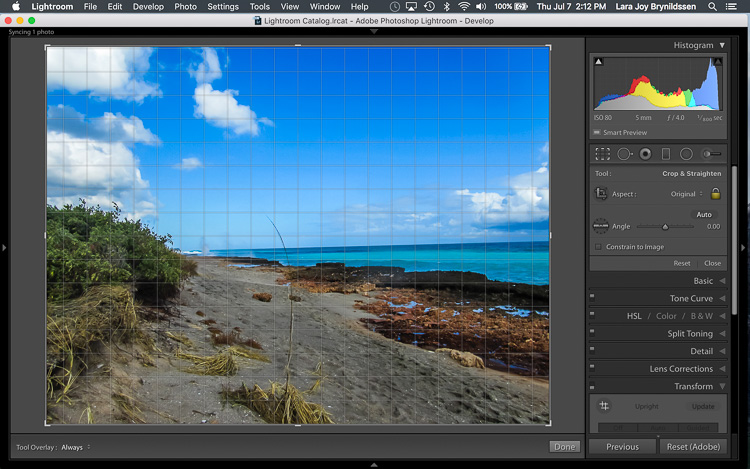
IMAGE 1

Here, in the first example above – a lovely seascape – there is a crooked horizon. Before opening the Transform tab, press the R key to activate the Crop Tool. Now press the O key (letter not number) to toggle the Grid overlay. With the Crop Tool still activated, click on the Transform tab in Lightroom and choose Level.

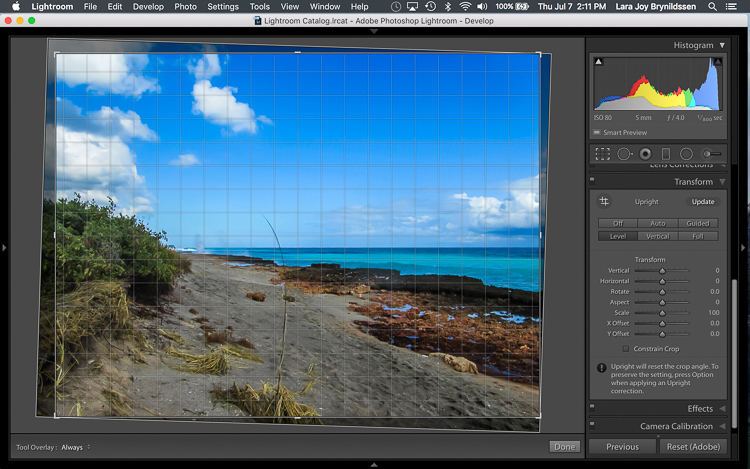
IMAGE 2

The Level option is perfect for images like this, when there are no strong vertical lines that need correction. It simply straightens the horizon so it no longer slopes crookedly. With the Grid overlay turned on, it’s easy to verify that the horizon is now straight. Here’s the image after the crop is applied.

IMAGE 3

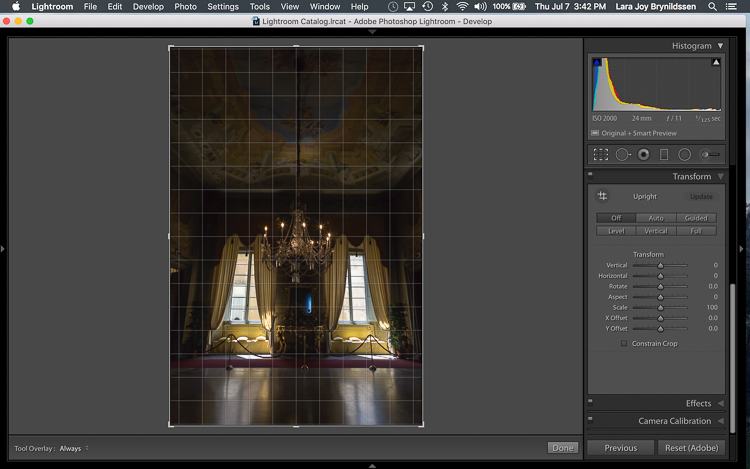
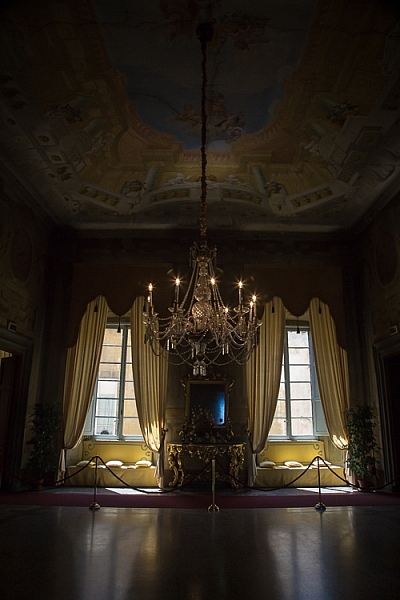
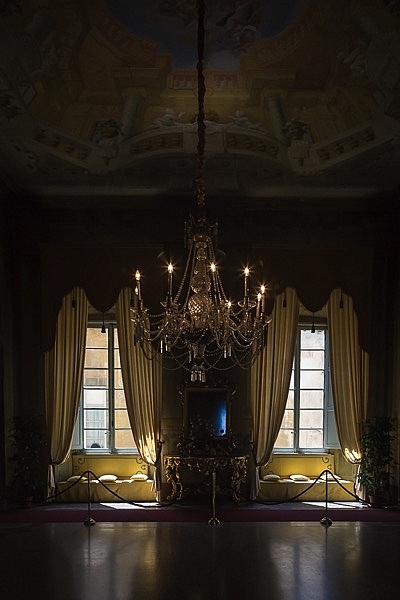
In this next example (below) – an interior image of an old Italian mansion – the windows are falling over backwards.

IMAGE 4

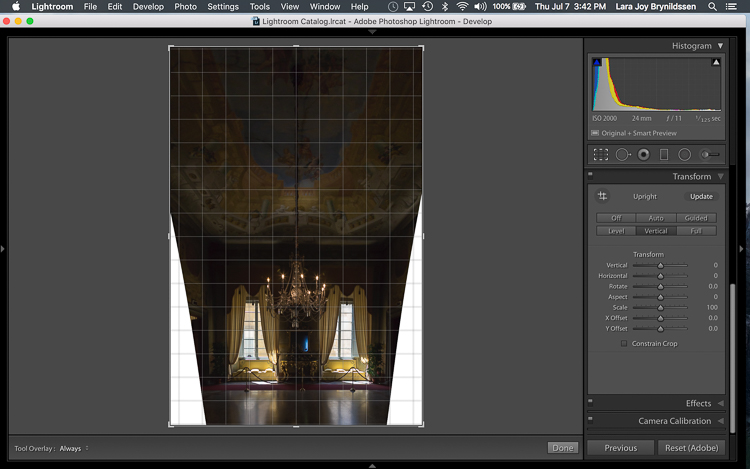
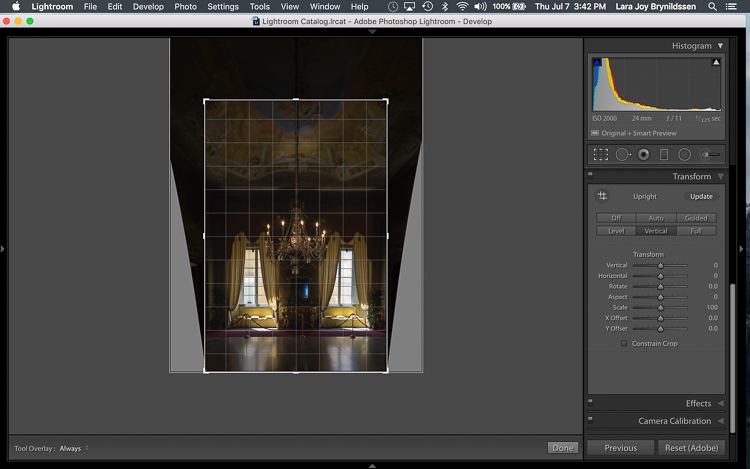
Here the Vertical option in the Transform tab does a great job of straightening the perspective. The windows align perfectly with the horizontal and vertical lines of the Grid overlay.

IMAGE 5

But as you can see, straightening the image has created a few problems. The image was so crooked (perspective distortion) that now there is a lot of white space to crop out. The good news is that when fixing these issues, composition can be improved too.

Composing with the Crop Tool in Lightroom

The white space can be eliminated, and the composition strengthened, by creatively using the Crop Tool in Lightroom. The next step is to adjust the composition with the Crop Tool by moving it around the image.

IMAGE 6

In this image, to eliminate all of the white space and direct the viewer’s focus to the chandelier and windows, grab the Crop Tool at the top centre point, and draw down. This eliminates both the unnecessary ceiling, and the white spaces on either side of the image.

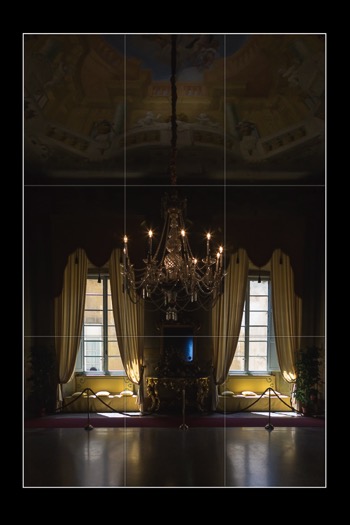
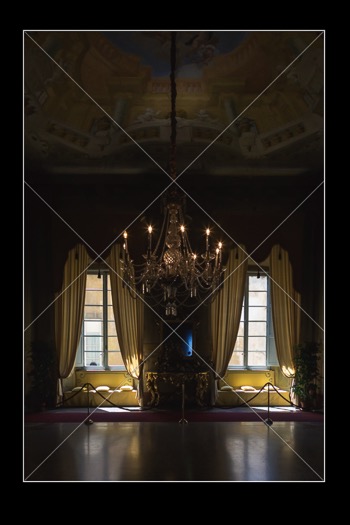
Now that the image is starting to look better, scroll through the Crop Tool overlays and review the newly cropped image to see which ones work. By reviewing your images with different Crop Tool overlays, you can strengthen your intuitive sense of strong composition.

To review each of the overlays, press the O (oh not zero)) key. You’ll toggle through the following:

  • Rule of Thirds (below left)
  • Diagonal (below right)
  • Golden Triangle
  • Golden Ratio (similar to the Rule of Thirds overlay)
  • Golden Spiral
  • Aspect Ratios
  • Grid
IMAGE 7 IMAGE 8

In the example images above, both the Rule of Thirds and the Diagonal overlays clearly show that the composition is strong.

Before

Before

IMAGE-9.jpg

Final image.


Here’s the final image (before correction is above left, after is on the right). Now let’s take a quick peek at one more image, and one more feature in Lightroom.

Flipping the Golden Spiral and Golden Triangle Overlays

You’ve probably toggled through the overlays and disregarded both the Golden Triangle and the Golden Spiral because they just never work. Unlike most of the overlays, neither the Golden Spiral nor the Golden Triangle is symmetrical. That means that you need to flip the overlays around a few times to find the orientation that aligns with your image. By pressing the Shift key and the O key at the same time, you can change the orientation of both the Golden Spiral and the Golden Triangle. Changing the orientation makes those overlays a lot more useful.

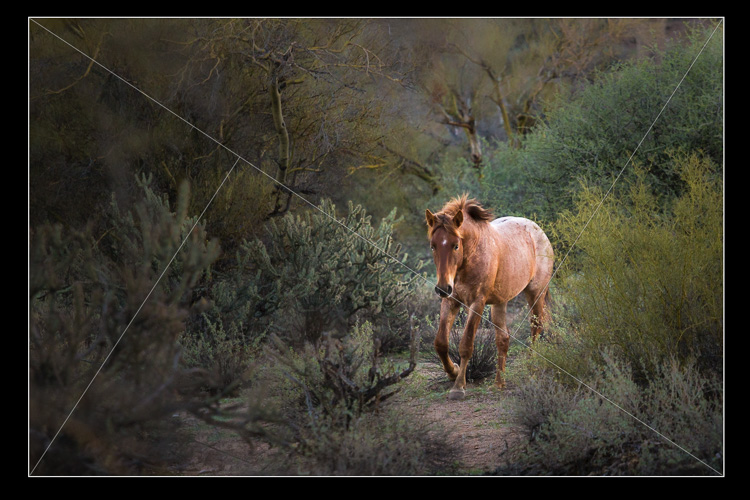
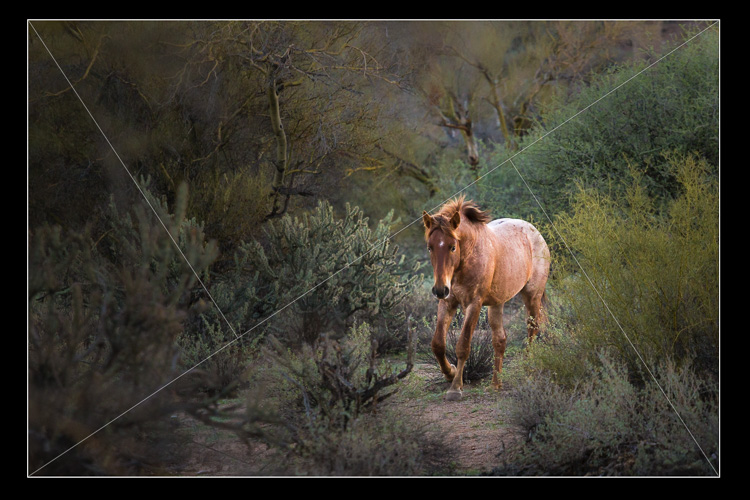
Here, in this image of a wild stallion (below), before flipping the Golden Triangle orientation, this overlay doesn’t work at all. Looking at it you might question whether or not the image had a strong enough composition to start with.

IMAGE 11

By pressing Shift plus the O key, and flipping the overlay orientation, the stallion fits neatly into his own triangle. His legs and nose are also no longer bisected by one of the diagonals. In addition, he’s positioned towards the back of the triangle. The top diagonal edge of the triangle that contains the stallion shows us that he is moving forward into the composition, towards the viewer, which is naturally pleasing to the eye. The other triangles neatly organize the foliage surrounding the stallion. Even the beam of sunlight highlighting the stallion falls within the main triangle, further confirming that this image is well composed.

IMAGE 12

With a little practice, some judicious use of the Transform tab and Crop Tool, you’ll master composition in no time. How do you use these tools to help you? Please share in the comments below.

googletag.cmd.push(function() {
tablet_slots.push( googletag.defineSlot( “/1005424/_dPSv4_tab-all-article-bottom_(300×250)”, [300, 250], “pb-ad-78623” ).addService( googletag.pubads() ) ); } );

googletag.cmd.push(function() {
mobile_slots.push( googletag.defineSlot( “/1005424/_dPSv4_mob-all-article-bottom_(300×250)”, [300, 250], “pb-ad-78158” ).addService( googletag.pubads() ) ); } );

The post Using Lightroom’s Transform and Crop Tools to Improve Composition by Lara Joy Brynildssen appeared first on Digital Photography School.


Digital Photography School

 
Comments Off on Using Lightroom’s Transform and Crop Tools to Improve Composition

Posted in Photography