RSS
 

Posts Tagged ‘tools’

How to Use Upright Guided Tools in Lightroom’s New Transform Section

27 Jul

In their latest release of Lightroom 6.6 (or CC 2015.6 if you are using the Creative Cloud subscription package), Adobe has added a new feature, allowing us photographers to straighten our images even easier than before.

Dps LR Transform 01

The image above is a typical example of a photo that can use some straightening. A tall building, shot from the ground, will always look tilted or skewed (unless you have the budget to buy a tilt-shift lens, designed to overcome these issues right in camera).

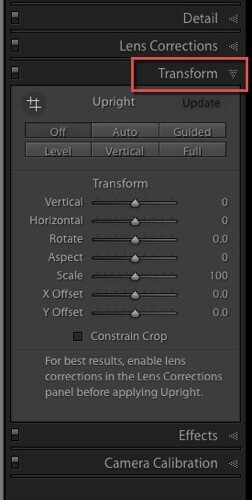
The latest update of Lightroom comes with a new Transform section

For these purposes, Adobe Lightroom had already offered an Upright feature within the Lens Corrections tab in its Develop module. In the newest version 6.6/CC 2015.6, this feature was extended, and is now in its own section called Transform.

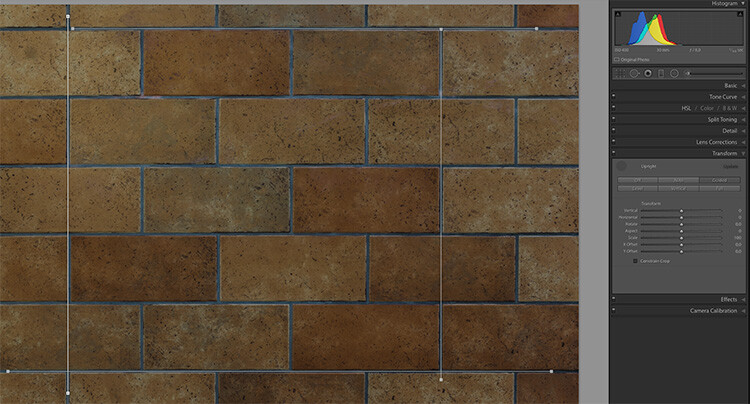
Tansform panel LR

In this new Transform section, some of the known Upright features from the old Manual section can be found again. The image shown below is a good and easy sample to test the new features. I shot it slightly tilted against the wall, and there is also a slight barrel distortion visible, due to the mild wide angle lens used.

Dps LR Transform 03

Most interesting for us is the new Guided button, that allows us to show Lightroom which lines we want to have straightened. When you click on this button, Lightroom allows you to draw lines on the image, that show the software where and how you think your image is supposed to look straight.

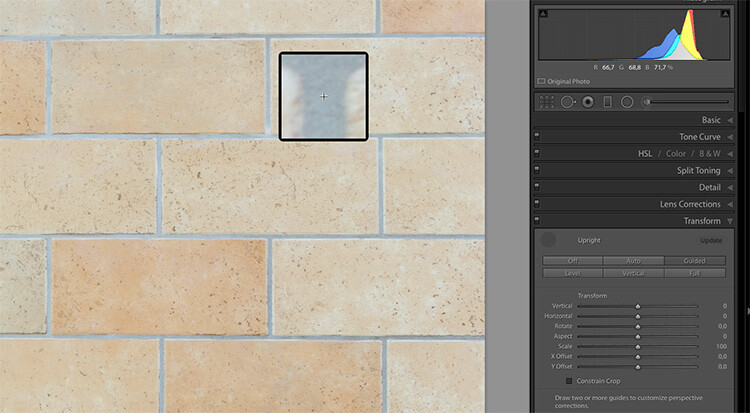
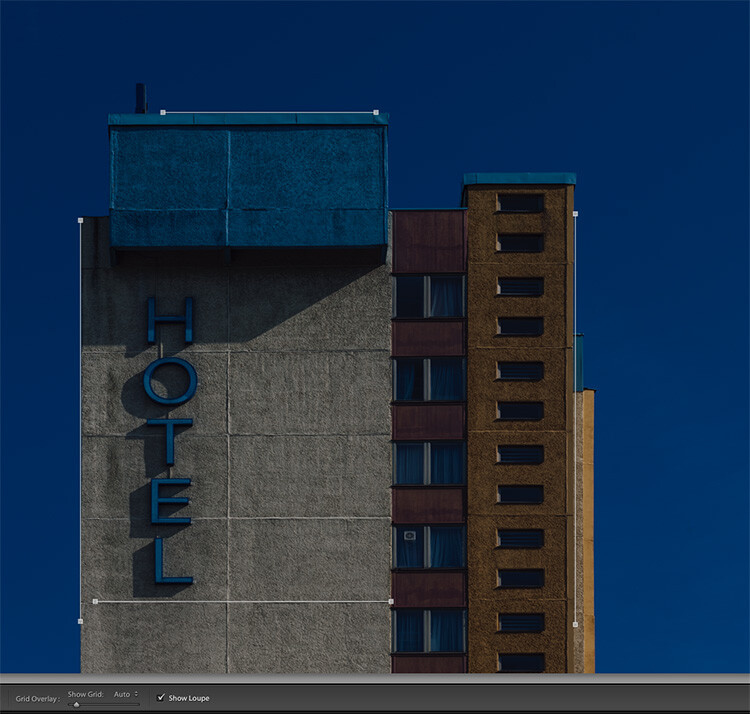
dps-LR-Transform-04c

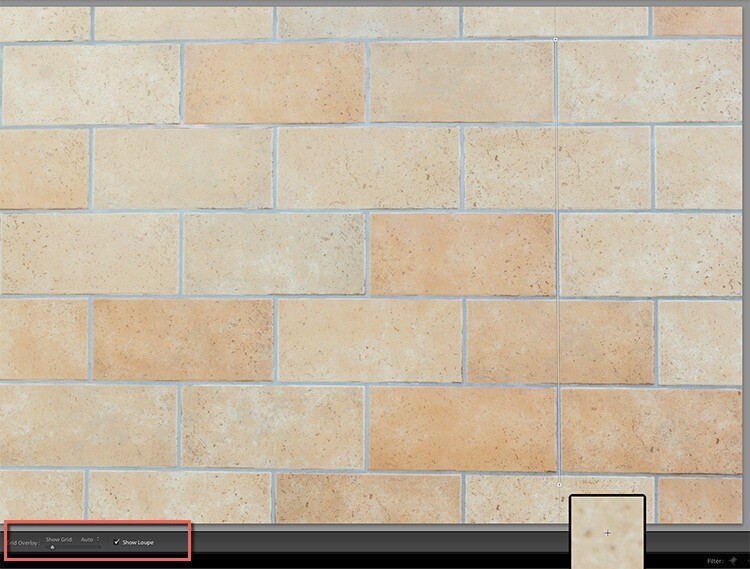
When you turn on the Show Loupe checkbox below the image (if you don’t see that on your screen hit T on your keyboard to toggle the toolbar), you can now move the mouse over the image, and Lightroom will close in on the details you are hovering over. This can help you find the perfect spots to click on, and make your lines.

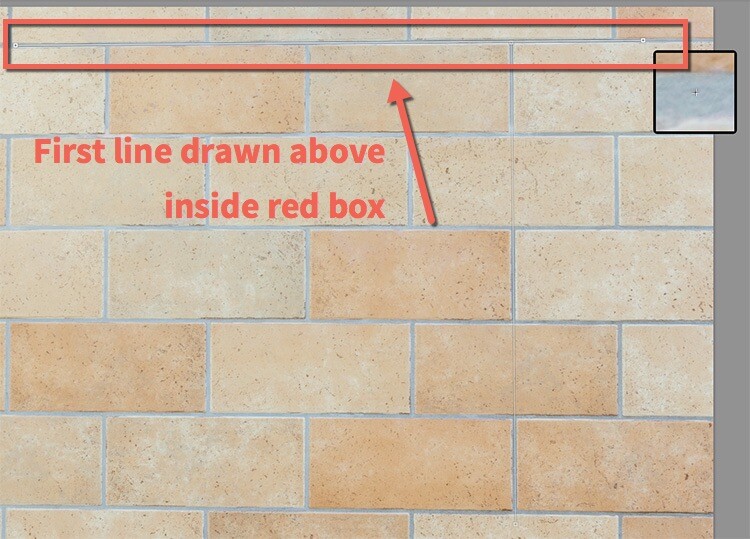
The first click (click and hold it down) starts a new line that now moves along with your mouse. Move the line to a second spot in the image (and let go of the mouse) and Lightroom will have drawn the first line. You can click on both of the endpoints of this line if you want to correct it.

dps-LR-Transform-05c

As soon as you draw a second line, Lightroom starts correcting the image. The best way to use this tool is to draw one vertical, and one horizontal line at the start. You may notice the improvement already in this but if you look closely, not all of the tilt, nor the distortion, has been corrected yet.

You can then draw two more lines (it accepts up to four guide lines in total) to help Lightroom catch the last perspective issues and resolve them.

Dps LR Transform 06

Bonus tip: To make the lines more visible, I have temporarily reduced the Exposure value for the image, as you may notice in the last image (above). As the lines are thin and white, I found it easier to use when I darkened the photo to allow for good contrast with the tool.

Example image – correct a building tilt

Now, I will show you how I used the guides in the architectural image I showed on top of this article. Once again I have lowered the exposure to show the lines. As you can see, I have used two vertical and two horizontal lines, each of them way off the center of the image, to get the best results of this new feature.

Dps LR Transform 07

Finally, you might want to use the sliders to change the Aspect, Scale and the X and Y Offset to compensate for the changes in perspective that might turn the objects in your image into looking slightly wider or slimmer form, than would be seen in real life.

Additional tool tips for using Guided Upright

Adobe found the Guided Upright tool to be valuable enough to define a keyboard short cut for it. Shift-T will bring you to this tool directly from either the Develop module or even from the Library.

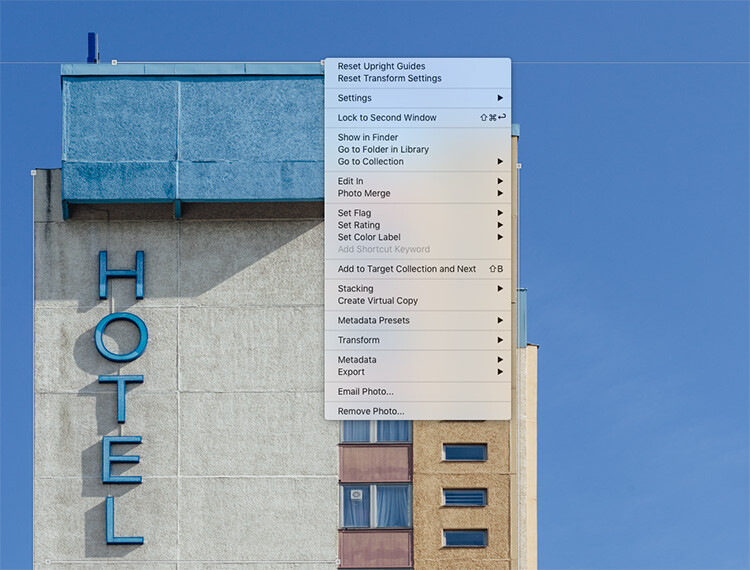
If you ever wish to reset the upright guides, or the whole Transform section, you can right-click into the image while using this tool. Lightroom will show two settings on top of the context menu offering you the option to reset the guides only, or all Transform settings.

Dps LR Transform 08

Do you shoot architecture? Has this been a feature you’ve found useful? How have you applied it to your images? Let us know in the comments below. If you have any questions post them there as well.

googletag.cmd.push(function() {
tablet_slots.push( googletag.defineSlot( “/1005424/_dPSv4_tab-all-article-bottom_(300×250)”, [300, 250], “pb-ad-78623” ).addService( googletag.pubads() ) ); } );

googletag.cmd.push(function() {
mobile_slots.push( googletag.defineSlot( “/1005424/_dPSv4_mob-all-article-bottom_(300×250)”, [300, 250], “pb-ad-78158” ).addService( googletag.pubads() ) ); } );

The post How to Use Upright Guided Tools in Lightroom’s New Transform Section by Michael Zwahlen appeared first on Digital Photography School.


Digital Photography School

 
Comments Off on How to Use Upright Guided Tools in Lightroom’s New Transform Section

Posted in Photography


Review: Light Painting Brushes – Tools for Creativity

20 Jul

If you enjoy light painting photography, I think this review of tools from Light Painting Brushes (LPB) will interest you. All photographers know that light is essential to taking a successful photograph. At night, when light is limited, light painting can be a fun and artistic form of photography that may stretch a shutter-bug’s creativity by creating light, solely for the purpose of photographing light. If you are new to light painting please read my article – Beginner’s Guide to Light Painting for some ideas to get started.

Light-Painting-Brushes-10

Also, Light Painting Brushes has a great online presence, full of ideas, examples and tutorials. Check out this example of the great tutorial video available:

There are two main types of light painting:

  1. Off-camera painting, by which a light source, unseen to the camera’s view, is used to illuminate a scene or objects so as to make them appear out of the dark in an image. Here the light is only showing the subject and is not part of the image.
  2. Secondly, on-camera painting, in which the light source is seen by the camera and is a subject to be photographed. So here the light IS the subject.

The tools I am reviewing in this article are used for on-camera light painting. With Light Painting Brushes, most of the tools are used to add a graffiti-type light to a scene. This can be lots of fun (especially in social situations) and the creative options are endless! Listed here are the items from Light Painting Brushes that I will be reviewing in this article. (Spoiler alert. they are really cool!)

  • Universal Connectors
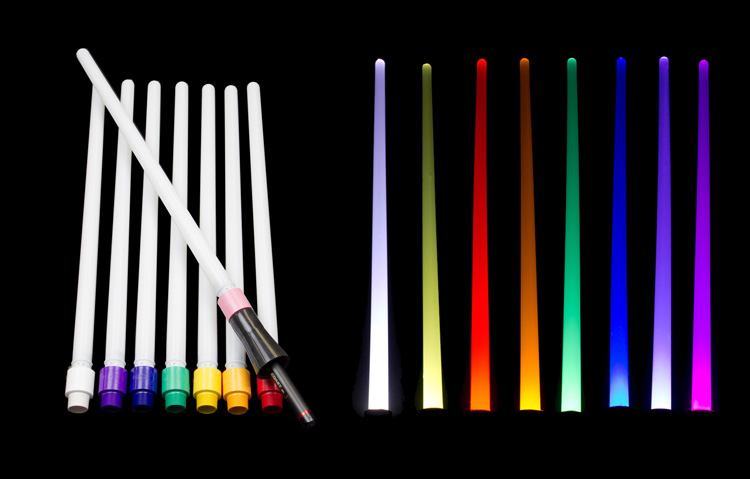
  • Set of 8 Opaque Light Writers
  • Set of 6 Translucent Light Writers
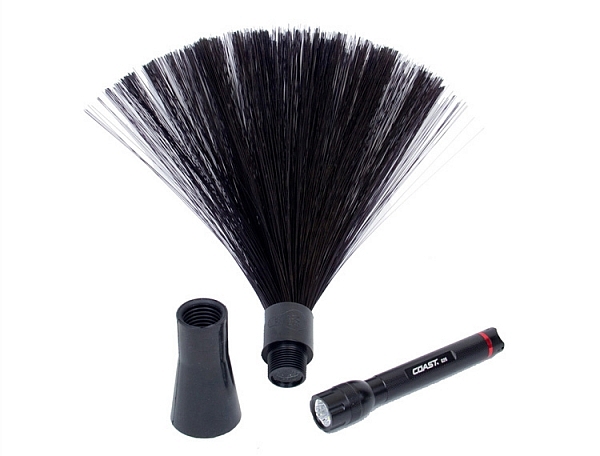
  • White Fiber Optic
  • Black Fiber Optic
  • Plexiglass Diamond
  • 22″ Light Sword
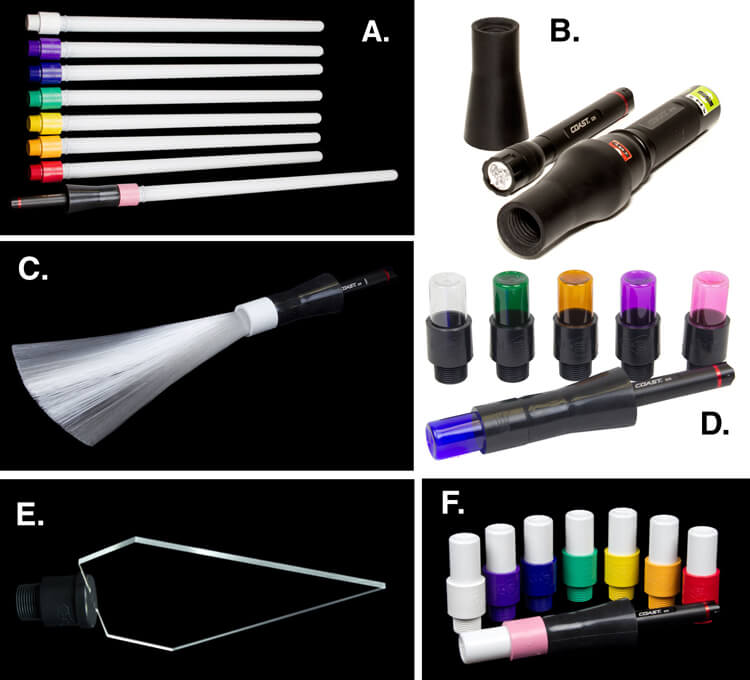
Light-Painting-Brushes-Tools

A. – Light Sword, B. – Universal Connectors, C. – White Fiber Optic, D. – Translucent Light Writers, E. – Plexiglass Diamond, F. Opaque Light Writers

Universal Connectors

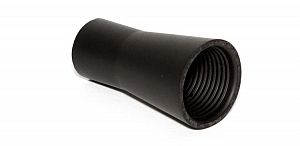
The universal connector is the glue that literally holds this whole system together. Made of a durable rubber, the universal connector allows any flashlight with a diameter of .975″ to 1.5″ to connect to any of Light Painting Brushes’ tools. The end of the universal connector appears to be threaded, but don’t try to screw the brushes into the connector. The thread’s function is to just grip the brush and hold it tightly it in place.Light-Painting-Brush-Universal-Connector-2-750px

Flashlights will easily insert into the other end, but never hold the whole thing by just the flashlight, as the brush may slide out. Instead, hold it by the universal connector. The universal connector may also be used to connect a “brush” of one’s own making, such as a pop bottle, to a light source (your flashlight).

Opaque Light Writers (Set of 8)

Use the universal connector to connect these opaque colored lights to your light source. The set is available in eight hues including white, purple, blue, green, yellow, orange, red, and pink. The opaque color makes them excellent tools for light writing, drawing or graffiti, and creative uses limited only by one’s own imagination. Because of the opaque colors of these light brushes, a very crisp drawing or writing source results. After some practice with this tool, I am sure some very detailed light drawings can be captured within a photograph.

Translucent Light Writers (Set of 6)

Light_Painting_Brushes_Translucent_Light_Writer_Set-750px

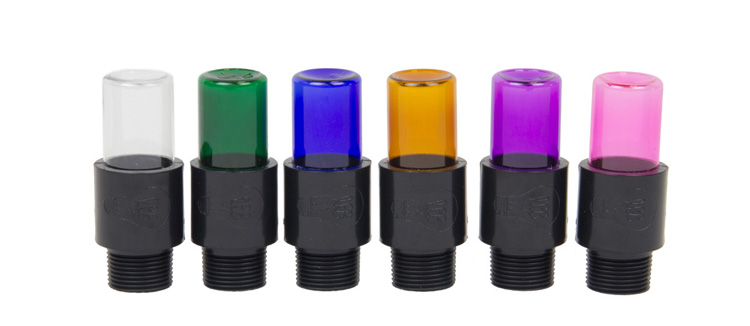
These attachments are very similar to the opaque light painting brushes, but because they are translucent the lights create a more textured effect than the opaque lights. Another tool for artistic expression lighting up the night!

White Fiber Optic

Light-Painting-Brushes-9

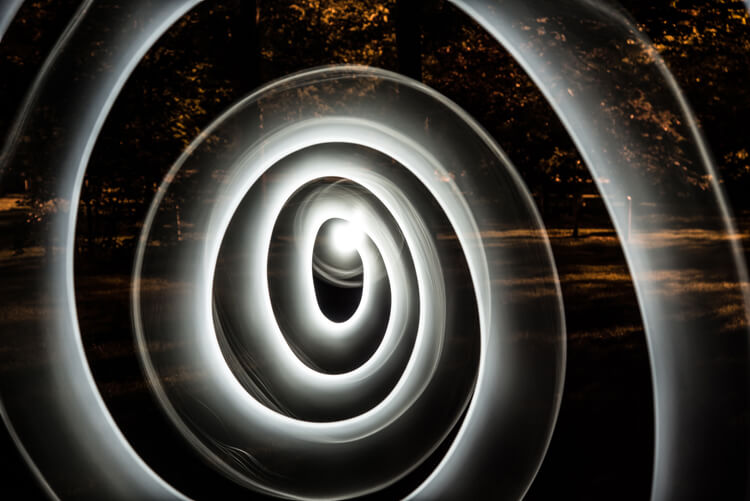
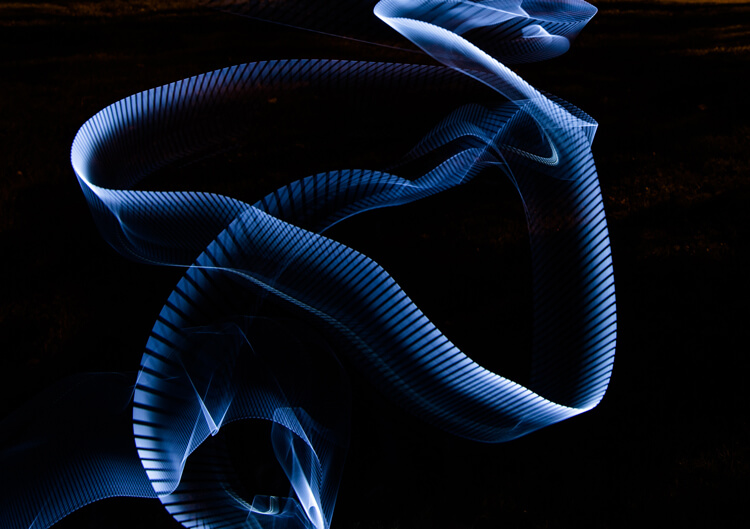
Spiral design created using the White Fiber Optic brush

The fiber optic brush connected to a light source really makes some awesome wispy lines. The white light has great depth as the whole strand of the brush lights up. This tool really gave me the feeling that I was actually painting with light! The white fiber optics is so much fun to use, creating some great effects and can be used for many light painting applications.

Black Fiber Optic

Light-Painting-Brushes-Black-Fiber-Optic-02-750px

The black fiber optic tool only lights up the ends of the brush, great for use in portraits. However, I feel it has a more limited use for other types of light painting, since it puts out a lesser amount of light.

Plexiglass Diamond

Light-Painting-Brushes-11

Abstract design created using the Plexiglass Diamond brush

The 9” Plexiglass Diamond shines light out through the cut edges, creating interesting and unique textures when waved about as the image is being shot. This tool is great for light graffiti, portraits, and abstract designs. It is my favorite tool of all the ones I’ve reviewed in this article!

22″ Light Sword

22in-Light-Swords-Illuminated-750px

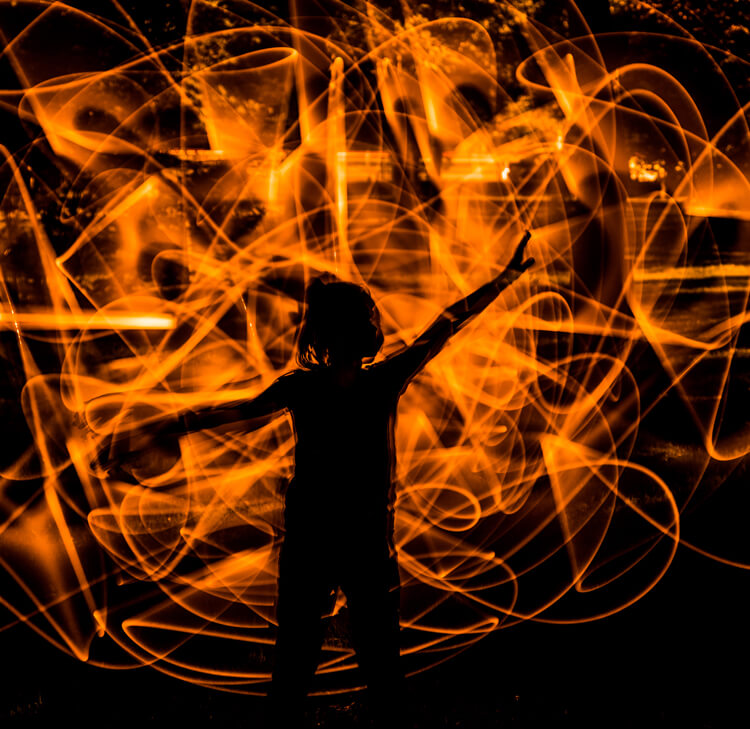
These tools create a very wide path of light, and are available in 8 different colors: blue, green, orange, pink, purple, red, yellow and white. The colored swords cause some stunning effects, but while the white sword can make some nice strokes of light, in my opinion its results are not as exciting as the colors.

Light-Painting-Brushes-8

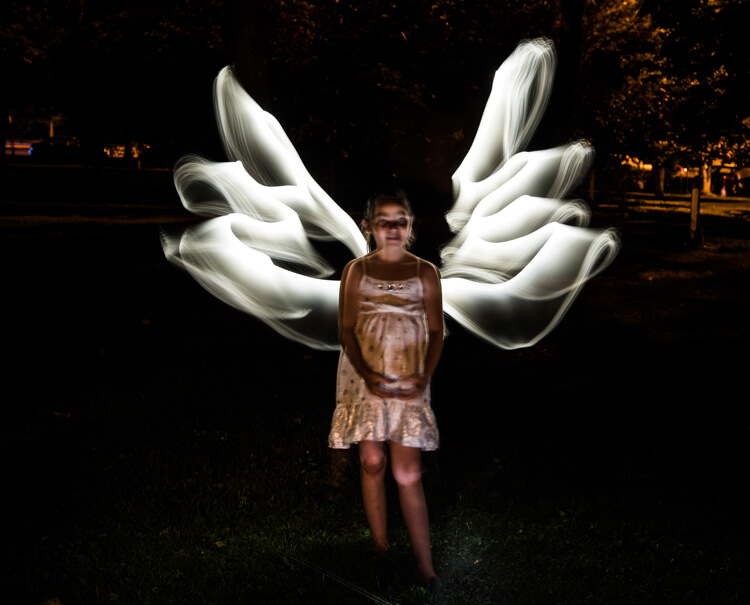
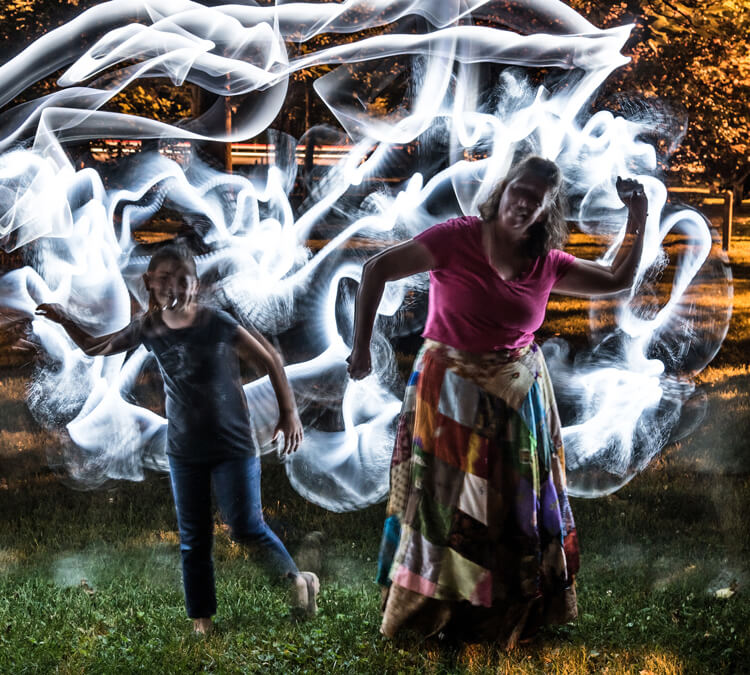
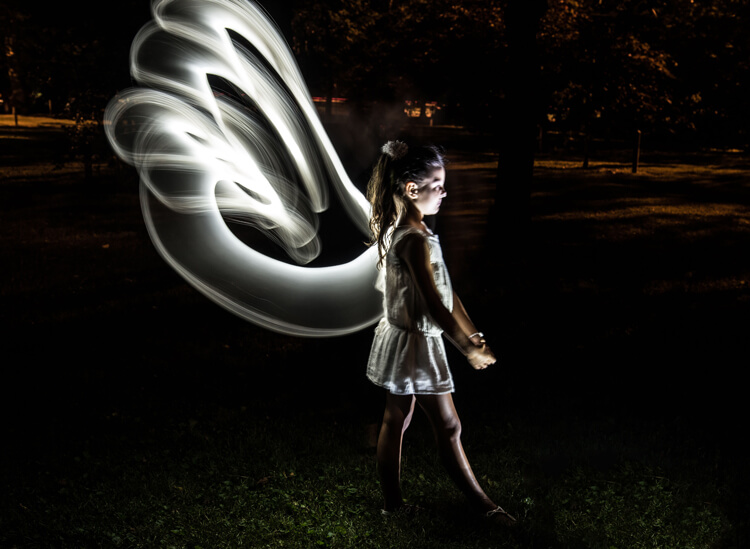
This silhouetted image of a girl was created using the orange 22″ sword brush

Tips:

  • To remain as invisible as possible when trying to photograph a light painting, wear dark colored clothing, keep moving, and avoid holding the light source too close to your body.
  • Speed of motion can make a big difference with many of these tools: the slower the motion, the more vibrant and textured the effect; the faster the motion, the smoother but fainter the effect.

First impressions

Light-Painting-Brushes-7

I recently had the privilege to lead a light painting workshop with some local photographers, so I introduced the Light Painting Brush system to them during our course. The following feedback comes from a few of the participants:

  • “I felt like a kid, amazed and surprised with all the images we shot and with the numerous options we used to create and express ourselves as we played with the Light Painting Brushes. My favorite was the colored ones because they made things and shapes look like I was using chalk, and the colors were great in the pictures! It helped me to express and to imagine numerous things. I just wish we’d had two more hours!”
  • “Several lighting methods were demonstrated, but my favorite was using light painting brushes to create an angel figure out of a beautiful little girl.”
  • “My favorite was the white fiber optic, as it made a really pretty effect and I felt I could be more creative with it.”
  • “I was very impressed with the quality and the different possibilities of the light painting tools! I love that it gives you the ability to add your own personal unique touch to a photo!”

The brushes were easy to use, even for beginners, and cast a new “light” giving night photography a new perspective and dream like world.

Light-Painting-Brushes-13


Conclusion

Whether you are an experienced light painter or just wanting to give this technique a try for the first time, these tools from Light Painting Brushes are a fantastic addition to your accessory arsenal. They are designed by light painters who create and use their products. If you watch their tutorials online you’ll see that they have a passion to create tools that are to be used to create works of art in Light Painting.

Here’s another really cool thing you can do with these tools – make a spirograph!

The Universal Connector is the essential tool for using the actual brushes. I really like the unique textures and shaping possibilities of my two personal favorite brushes, the White Fiber Optics and the Plexiglass Diamond. My previous experience with light painting has mostly been of the off-camera type, but after using these Light Painting Brushes my interest has really been piqued to pursue on-camera light painting.

googletag.cmd.push(function() {
tablet_slots.push( googletag.defineSlot( “/1005424/_dPSv4_tab-all-article-bottom_(300×250)”, [300, 250], “pb-ad-78623” ).addService( googletag.pubads() ) ); } );

googletag.cmd.push(function() {
mobile_slots.push( googletag.defineSlot( “/1005424/_dPSv4_mob-all-article-bottom_(300×250)”, [300, 250], “pb-ad-78158” ).addService( googletag.pubads() ) ); } );

The post Review: Light Painting Brushes – Tools for Creativity by Bruce Wunderlich appeared first on Digital Photography School.


Digital Photography School

 
Comments Off on Review: Light Painting Brushes – Tools for Creativity

Posted in Photography


DEAL: $5000 worth of Post Production Tools for Just $79

13 Jul

It’s the 7th and final day of our 2016 Summer Sale… and we’ve saved the biggest deal until last!

The good people over at Photographypla have made their Ultimate Photography Bundle, worth a whopping US$ 5,000+, available to dPS subscribers for just US$ 79.

NewImage

Yes, $ 5,000+, worth of resources for Lightroom and Photoshop for $ 79.

In it you’ll get:

  • 1,000+ Lightroom presets
  • 1,000+ Photoshop actions
  • 500+ actions for Photoshop Elements to apply a huge variety of different effects to your photos in no time.
  • 1,000+ photo overlays for weddings, engagements, graduations and more
  • 130+ print templates with announcements for births, graduation, weddings and more
  • 120+ digital frames
  • Collection of business and marketing resources (including contract templates)

Why buy presets or actions in small packs when you can get this MASSIVE bundle at an amazing price? Get it while it lasts!

googletag.cmd.push(function() {
tablet_slots.push( googletag.defineSlot( “/1005424/_dPSv4_tab-all-article-bottom_(300×250)”, [300, 250], “pb-ad-78623” ).addService( googletag.pubads() ) ); } );

googletag.cmd.push(function() {
mobile_slots.push( googletag.defineSlot( “/1005424/_dPSv4_mob-all-article-bottom_(300×250)”, [300, 250], “pb-ad-78158” ).addService( googletag.pubads() ) ); } );

The post DEAL: $ 5000 worth of Post Production Tools for Just $ 79 by Darren Rowse appeared first on Digital Photography School.


Digital Photography School

 
Comments Off on DEAL: $5000 worth of Post Production Tools for Just $79

Posted in Photography


Everyday Carry – Must-Have Tools for Photographers

15 Mar

Besides the camera, there are a lot of accessories, tools and gadgets that photographers choose to carry with them to help them get the job done.

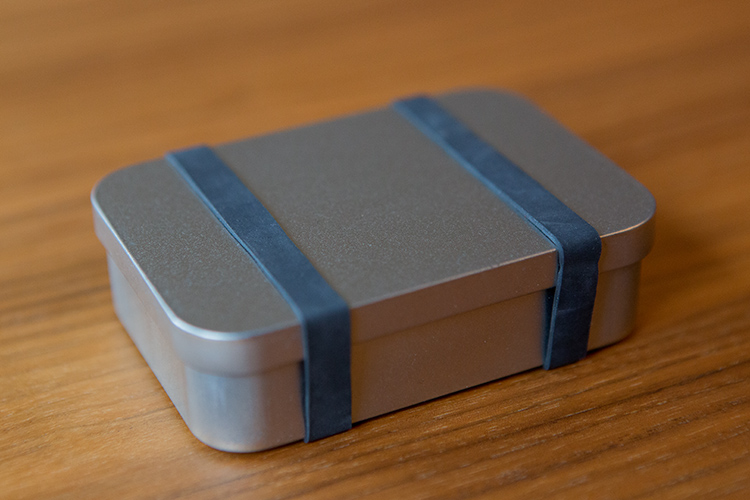
Over the years as a professional photographer, there is a lot of stuff I have added to my camera bag that are really useful in those “what if” situations I get along the way, so I decided to put them all together inside a small tin box, and use it as an everyday carry.

01

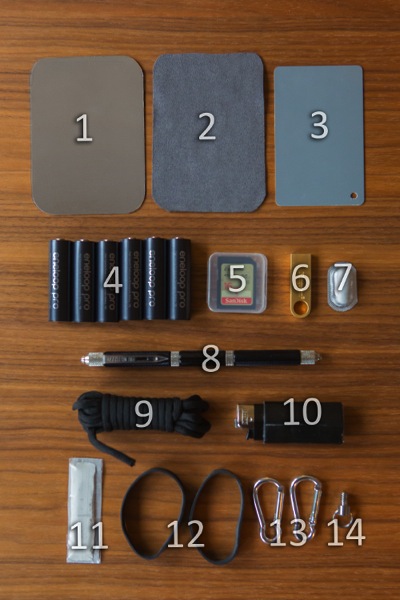
This is not meant to be a survival kit to use in an end of the world scenario, but rather a go-to tools, that helps me out when I face some problems along the way in my photography work. Here is what’s inside:

02

  1. Silver/white card
  2. Soft cloth
  3. gray card
  4. Eneloop pro AA batteries
  5. Sandisk SD card
  6. Kingston DTSE9 silver pen drive
  7. Ibuprofen tablet
  1. 12-in-1 multi-tool pen
  2. Paracord
  3. Clipper lighter with gorilla tape
  4. Blu-Tack Reusable Adhesive
  5. Elastic bands
  6. Aluminum small carabiners
  7. 1/4” thread screw with ring

03

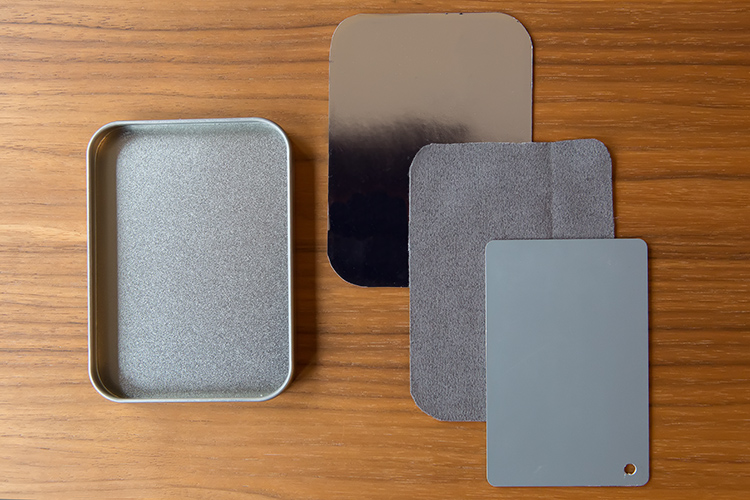
Tucked inside the lid of the box I carry a silver/white card that I use as a reflector for macro photography, or as a bounce card for the flash, a soft cloth that I use to clean the camera lens, and a gray card that I use as reference for color correcting.

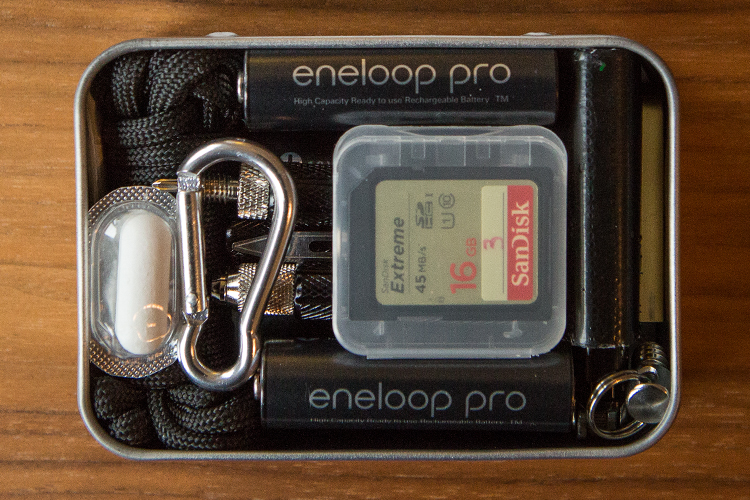
The other things fit inside the box like a puzzle. It’s a snug fit, so there is no rattling, or damage on anything due to bouncing around.

04

  • The Eneloop pro AA batteries are probably the best choice available for photography equipment, because they are high energy, and are advertised as being able to retain 90% of their charge after 6 months, and 70% after 5 years, when stored at 20 degrees Celsius (68F).
  • It might look strange that I carry six batteries, when most pieces of equipment use 4 batteries. But, I use these as a backup for my Canon 600EX-RT flash and the ST-R3-EX transmitter, or I might need them for the battery grip I use on my Canon 5DIII, which holds 6 AAs, instead of the LP-E6 batteries.
  • The Sandisk SD card works along with the batteries as a last resort, because even though I carry backup batteries and cards in my camera bag, it is good to have a backup of the backup inside my tin box, in case something goes wrong.
  • The Kingston pen drive is a handy device to have around, as it doesn’t take up much space in the box, and can help out with backing up, or transferring files.
  • The Ibuprofen pill is something I carry with me all the time, because there is nothing worse thing than having to photograph with a headache, or some kind of pain.
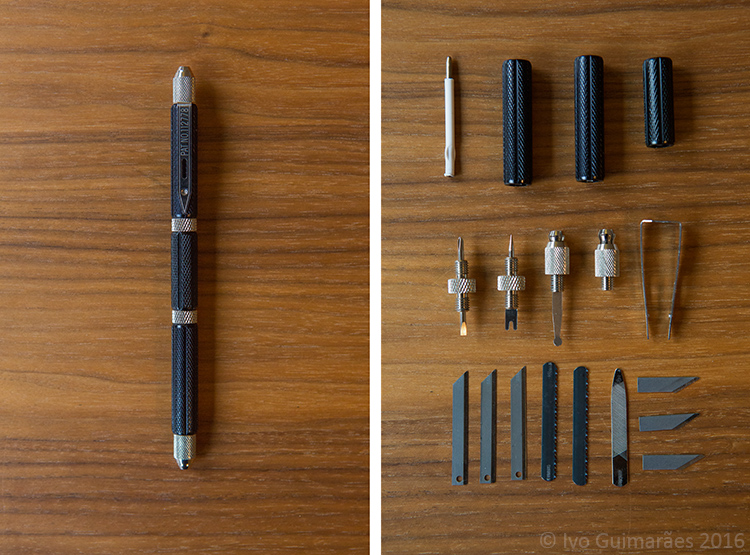
  • The 12-in-1 multi-tool pen was given to me by a friend many years ago, and I carry it everywhere ever since. It looks like a regular pen, but when you open it there are blades, saws, files, tweezers, and screwdrivers that are really useful in many situations.

05

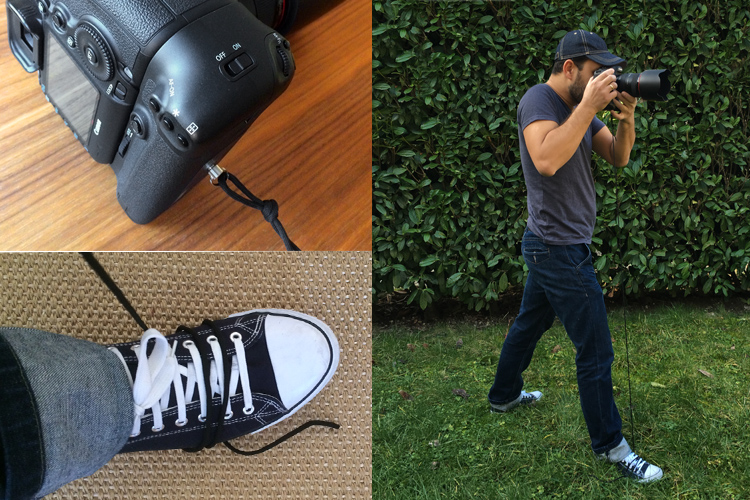
  • The paracord is another very useful thing to have around. I use it often along with the 1/4” thread screw to make a string tripod. It works as a stabilizer when you put tension on the string, wrapped around your foot on one end, and the other end tied to the 1/4” thread screw on the bottom of the camera (see below)

06

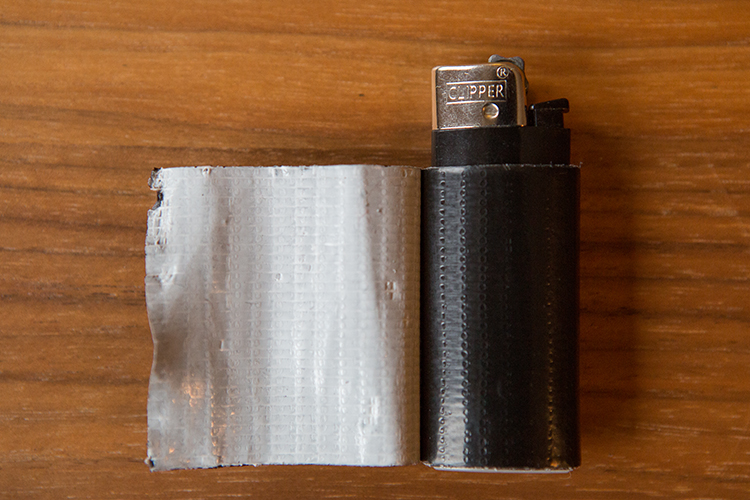
  • The clipper lighter is useful for special effects I might want to create with fire, and works great as a wrap-around base, for the gorilla tape I always bring along.

07

  • Gorilla tape has saved me more times than I would like to admit, and besides that, I’m an 80s kid, so I grew up watching MacGyver fixing everything with duct tape.
  • Blu-tack is a reusable, putty-like, pressure-sensitive adhesive, that I use a lot when I photograph food and need to keep things in place.
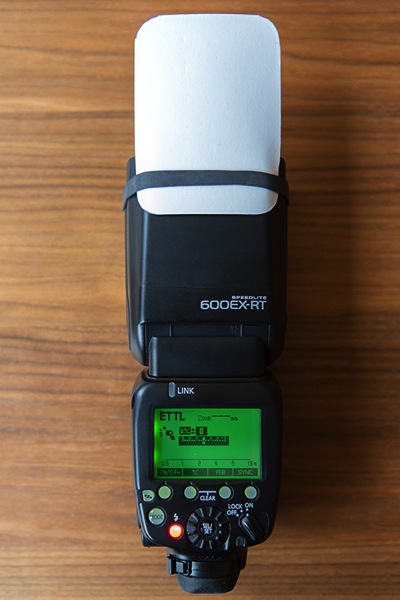
  • The elastic bands are useful to keep the box closed, and I also use them to hold accessories on my flash like bounce cards or color gels.

08

  • Finally, the carabiners, that I use mostly to attach things to my camera bag, or to hold a sand bag on the tripod.
  • I also use my trusty Leatherman Wave Multi-Tool a lot when I have to deal with nuts and bolts, but the fact is that it’s big, heavy, and is not something I can carry all the time.

So, this might seem like just a tin box with useless stuff inside, but the fact is that it helps me a lot to know I have this stuff with me, in case I need it.

What about you, what non-photographic things do you carry with you when you go out to photograph?

googletag.cmd.push(function() {
tablet_slots.push( googletag.defineSlot( “/1005424/_dPSv4_tab-all-article-bottom_(300×250)”, [300, 250], “pb-ad-78623” ).addService( googletag.pubads() ) ); } );

googletag.cmd.push(function() {
mobile_slots.push( googletag.defineSlot( “/1005424/_dPSv4_mob-all-article-bottom_(300×250)”, [300, 250], “pb-ad-78158” ).addService( googletag.pubads() ) ); } );

The post Everyday Carry – Must-Have Tools for Photographers by Ivo Guimaraes appeared first on Digital Photography School.


Digital Photography School

 
Comments Off on Everyday Carry – Must-Have Tools for Photographers

Posted in Photography


Tether Tools’ Case Relay provides continuous power for many DSLR and mirrorless cameras

26 Feb

$ (document).ready(function() { SampleGalleryV2({“containerId”:”embeddedSampleGallery_2699575917″,”galleryId”:”2699575917″,”isEmbeddedWidget”:true,”standalone”:false,”selectedImageIndex”:0,”startInCommentsView”:false,”isMobile”:false}) });

The Case Relay Camera Power System from Tether Tools offers ‘infinite camera power’ for most DSLR and mirrorless cameras from Canon, Nikon, Sony and Panasonic. The system works via a DC coupler that plugs into both the camera’s battery port and the Case Relay. The Relay plugs into either a 5V USB external battery or a wall outlet.

Tether Tools says Case Relay, which includes a secondary 1200mAh battery, is a solution for time-lapse photography and other tasks that require uninterrupted, long-lasting power. External battery packs can be swapped without interrupting power, as the Relay’s battery will continue to power the camera while the external source is unplugged. 

The Relay Camera Coupler is available from $ 29.99 to $ 34.99, depending on camera, and the Case Relay is available now for $ 99.99. Tether Tools also offers an external 5V USB battery for $ 49.99 USD. Many Nikon and Canon DSLRs are compatible, as well as mirrorless models from Fujifilm, Sony, Olympus and Panasonic. For a full list of compatible cameras check tethertools.com/relay.

Via: PetaPixel

Articles: Digital Photography Review (dpreview.com)

 
Comments Off on Tether Tools’ Case Relay provides continuous power for many DSLR and mirrorless cameras

Posted in Uncategorized


PaintShop Pro launches faster brush tools, in-app guide and tutorials with version X8.1

05 Jan

Software provider Corel has updated its PaintShop Pro X8 image manipulation program to include more help and guidance to enable users to find their way around the tools and features of the application. A new welcome screen has been added to version X8.1 that offers links to tutorials and inspirational features, as well as to partner paid-for content from the online training site Udemy. The idea is to help photographers get more from the program by making it clear what tools are available and how they should be used. 

The application features links to on-line training company Udemy

The update also brings what Corel describes as ‘performance enhancements’ across the application, but especially faster brush speeds. The company claims nine brushes, including Paintbrush, dodge/burn and clone, are now on average twice as fast, while the Wet Paint brush is four times faster than it was previously. There are also over 100 additional enhancements that the company has made based on feedback from its user community. 

On the download page of the Corel website there is a list of ten issues that the new version addresses, including color problems with Raw files from the Nikon D810. 

Issues addressed

  • Burn Brush: Fixed edge result (previously showed darker result along brush edges)
  • Color Replacer: No color bleed when using the Round brush to fill shapes
  • Text wrapping: Left and Center alignment results fixed. Stability improved when saving layered text wrapping files to a .pspimage format compatible with legacy versions of PaintShop Pro.
  • Nikon D810: Fixed raw image color issue
  • Resize dialog box: Now retains settings last used for Based on One Side
  • Magic Move in scripts: Fixed reported issues related to accurate rendering of script commands
  • Material Properties palette: Improved stability when adding custom swatches
  • Organizer palette: Restored drag-and-drop functionality between the palette and the workspace
  • Script selection: Fixed script selection issue in the Batch Process dialog box
  • Adjust workspace: Restored ability to set Save As option once per session (dialog box does not open for each photo edited)

The update is free to download and install for current users of PaintShop Pro X8 and X8 Ultimate. Suggested retail pricing (SRP) for PaintShop Pro X8 is $ 79.99 (USD/CAN) / EUR 69.99 / £59.99 / $ 99.95 AUD. Qualifying registered users can purchase for the upgrade price of $ 59.99 (USD/CAN) / EUR 49.99 / £44.99 / $ 69.95 AUD. 

SRP for PaintShop Pro X8 Ultimate is $ 99.99 (USD/CAN) / EUR 89.99 / £79.99/ $ 129.95 AUD. Qualifying registered users can purchase for the upgrade price of $ 79.99 (USD/CAN) / EUR 69.99 / £64.99 / $ 89.95 AUD.

For more information visit the PaintShop Pro website. 


Press release: 

Free PaintShop Pro X8 Update Adds In-App Learning With New Ways to Access Complementary Tools & Content, Plus Increased Performance

X8.1 brings dramatic brush acceleration and performance enhancements app-wide

Today, Corel announced the latest update to its photo-editing and graphic design software, PaintShop® Pro X8.1. This release introduces the Welcome Guide, an all-new in-app learning tool that makes it easier than ever to access helpful tips and tricks. Users will also find new ways to discover content to enrich the PaintShop Pro experience, plus significant performance enhancements app-wide, including major improvements to brush speeds. The X8.1 update is available now and is free to all registered users of PaintShop Pro X8. 

New Welcome Guide & Add-on Content 

Continuing PaintShop Pro’s drive to make photo editing and graphic design more accessible, the new Welcome Guide makes getting started quick and easy. Fire up X8.1 and you are presented with a dedicated window linking to several tutorials and new project ideas. 

Users can now discover additional brushes, plug-ins, complementary programs, and plenty more to extend PaintShop Pro’s already strong photo and design toolkit, with new tools and content to be added on an ongoing basis. The new features in X8.1 come as part of Corel’s commitment to deliver continuous updates and improvements to PaintShop Pro without requiring a subscription. 

“A lot of people get intimidated when using a full-fledged photo-editor, often because they don’t know where to start,” says Greg Wood, Senior Product Director for Photo at Corel. “We want everyone to feel comfortable when they open PaintShop Pro, even if it’s their first time. The new Welcome Guide provides users with video and training content to help them explore PaintShop Pro’s many features, as well as direct access to a brand new learning series from our friends at Udemy.” 

Faster Brushes & Performance Enhancements 

PaintShop Pro X8.1 also delivers major performance improvements, including dramatically accelerated brush speeds when working with larger images. Nine brushes, including the Paintbrush, Dodge/Burn, Clone and others have seen an average improvement of 2x faster than before, with the Paintbrush’s Wet Paint look getting a boost of up to 4x faster! 

Building on PaintShop Pro’s performance, this latest update also includes more than 100 enhancements based on feedback from the PaintShop Pro user community. For more details on the latest improvements to PaintShop Pro X8, please visit our updates page for additional info. 

Articles: Digital Photography Review (dpreview.com)

 
Comments Off on PaintShop Pro launches faster brush tools, in-app guide and tutorials with version X8.1

Posted in Uncategorized


6 Photoshop Tools Every Newbie Should Learn

13 Dec

In the days before digital imaging, if you truly wanted to elevate your photography to the level of art, you learned how to process your images in the darkroom. You learned dodging, burning, masking, sandwiching negatives, flashing and fogging – all designed to get the most out of your images, and deliver your artistic vision to your viewers.

Photoshop-tools

The finished image after Photoshop, using the tools discussed below.

With the advent of digital imaging, photographers have a new way to bring their artistic vision to life, known as the digital darkroom. While there are several different applications available for photographers, one has become synonymous with photo editing, and that is Adobe Photoshop.

Many of the tools in Photoshop can trace their origins to the wet darkroom of yesteryear. If you’re new to Photoshop, it can seem overwhelming the first time you open an image in the program. I’ve created this list of six must-know Photoshop tools to help you get started editing your images. These aren’t by any means the only tools needed, and there are of course tools within the tools to figure out, but this list should give you some idea of where to start. The great thing about most tools in Photoshop is that there are a lot of sliders, meaning you can experiment and see what each tool does, then undo it if you don’t like it.

1 – Adobe Camera Raw

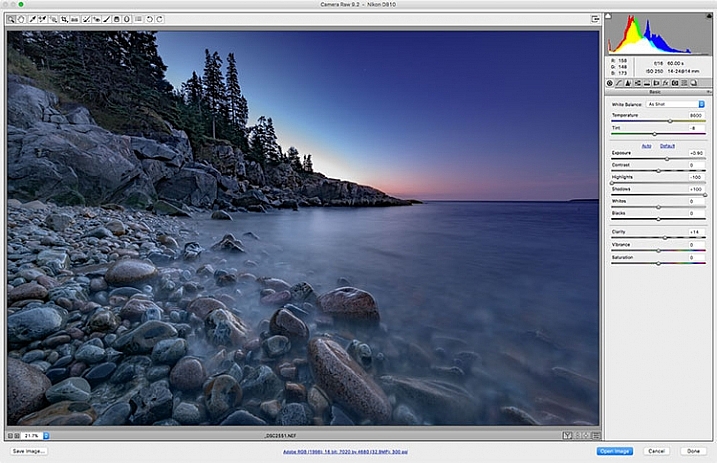
Adobe Camera Raw is a series of sliders and tabs used for processing RAW files. The beauty of the RAW file is you can make changes to the file non-destructively and change them again later if you choose.

Adobe Camera Raw is a series of sliders and tabs used for processing RAW files. The beauty of the RAW file is you can make changes to the file non-destructively and change them again later if you choose.

It is my personal belief that if you aren’t photographing RAW images, you are doing yourself a disservice as a photographer. When you allow your camera to process your image into a JPEG, you are throwing out potentially critical information from your image. You are trusting your camera to make creative decisions for you about the color, contrast, tone, and more, with regards to your image.

To get the most out of your image, you’ll want to set your camera to capture the image as a RAW file. A RAW file contains unprocessed, uncompressed, grayscale data from your camera’s image sensor, as well as metadata about how the image was captured. Adobe Camera RAW is the plugin for Adobe PhotoShop that can take this information and process a color image.

When you open a RAW image in Adobe Camera RAW, you’ll be presented with a toolbar across the top, and a tool palette on the right side. The tool palette is divided into 10 tabs: Basic, Tone Curve, Detail, HSL/Grayscale, Split Toning, Lens Corrections, Effects, Camera Calibration, Presets, and Snapshots.  The tabs I use most in my workflow are Basic, Lens Corrections, Effects, and Camera Calibration.

The beauty of a RAW file is that you can change the settings using the sliders, and other tools, as often as you like. If you don’t like what you’ve done, or you want to try something different, you can always revert the image back to the original settings, and the file is the same as it was when you downloaded it from your camera. Don’t be afraid to play with the sliders and see what they do. You can’t ruin the RAW file, so you might as well see what everything does. For more on using Adobe Camera Raw, check out Understanding the Basic Sliders In Adobe Camera Raw.

2 – Layers and Layer Masks

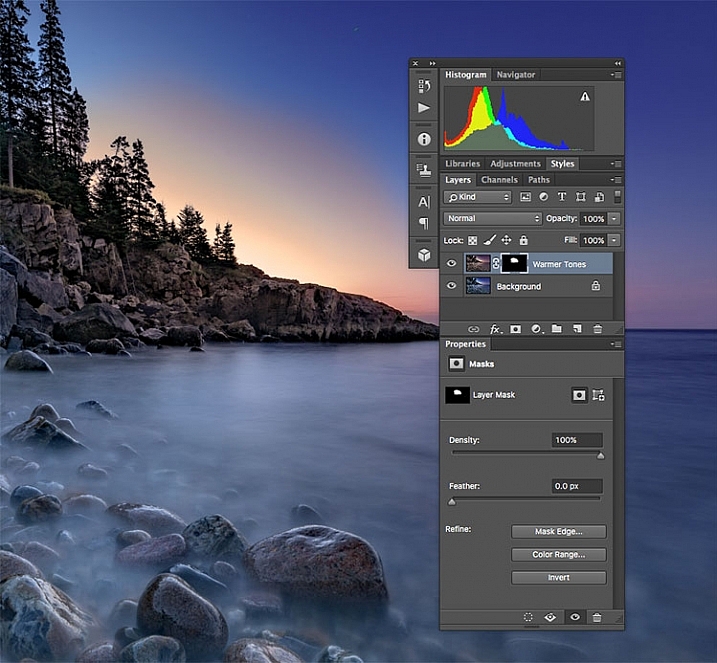
I created a duplicate layer to warm up the sunrise a bit and look more like it appeared when I was there. But since I still wanted the cooler tones on the rocks, water, and the rest of the sky, I used a layer mask to show only the warmer tones where I wanted them.

I created a duplicate layer to warm up the sunrise a bit and make it look more like it appeared when I was there. But since I still wanted the cooler tones on the rocks, water, and the rest of the sky, I used a layer mask to show only the warmer tones where I wanted them. The white area of the mask for the layer called, “Warmer Tones” shows the area of that layer that is showing through.

I consider this number 2a and 2b. If you’re going to learn layers, you’re going to have to learn layer masks as well. In Photoshop, one of the first things you’ll notice when you open an image is the Layers Palette on the right side of the screen. Initially, it will likely only have one layer called “Background” which contains your image.  You can add new layers as needed. You can also add empty layers which will allow you paint, draw, or copy portions of the image below onto them, and you can use layers to create a composite from multiple images. Layers can be adjusted to different opacities using the opacity slider at the top of the palette, so they can be made partially translucent which allows the layers underneath to show through.

In addition, you can create layer masks, which allow you show or hide portions of a layer, and allow you to see the layer or layers beneath. You do this simply by painting with black on the layer mask to hide that part of the layer, or painting white to show that part of the layer.

Layers give you room for quite a bit of creativity, allowing you to edit areas of an image non-destructively. If you don’t like what you did, simply delete the layer and start over. You can sandwich together two separate images, much the way you’d sandwich negatives in a wet darkroom, and create photo composites. For more on using layers, read A Beginner’s Introduction to Using Layers.

3 – Blend Modes

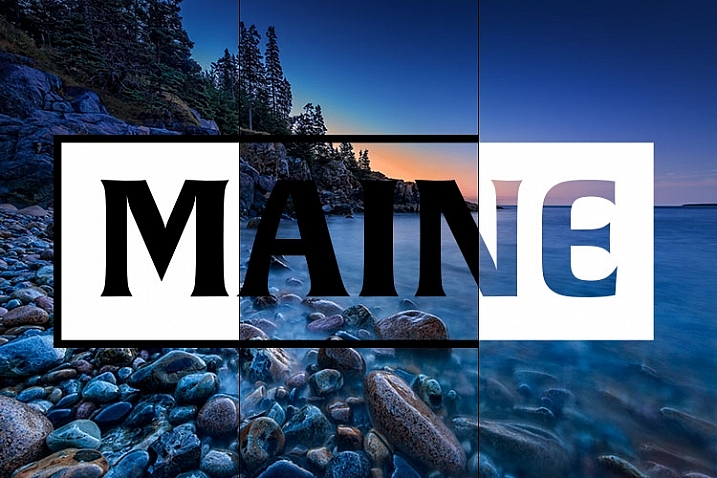
This image shows two different blend modes. On the left, Normal is selected, so the white box with the black text appear as I drew it. In the center, the blend mode is set to Multiply, so the white disappears and the black remains. On the right, Screen is selected, which shows the white area and shows the black.

This image shows three different blend modes. On the left, Normal is selected, so the white box with the black text appear as I drew it. In the center, the blend mode is set to Multiply, so the white disappears and the black remains. On the right, Screen is selected, which shows the white area and hides the black.

As mentioned above, the Opacity Slider allows you to blend the active layer with the layers beneath. The Blend Modes, found in a drop-down menu to the left of the Opacity Slider, work in a similar fashion, but use different mathematical calculations to change the appearance of the layer being blended for different things. For instance, if you simply duplicate the image on a new layer and set the Blend Mode to: Multiply it will darken the image by about a stop, and Screen Blend Mode will lighten the image by a stop. If you create a layer on top of your image with black text inside a white box, using Multiply will eliminate the white box, and allow the layer below to show through. Screen will do the opposite (see image above).

As of Adobe Photoshop CC 2015, there are 27 Blend Modes. The two modes I noted above are ones I use often, usually adjusting the opacity slider as well to get to my final look. Knowing what each mode does will help in choosing which one to use for your particular purpose. Darren Rowse put together a great tutorial, An Introduction To Blend Modes In Photoshop to give you a more in depth look at Blend Modes. You can also check out The First 3 Blend Modes You Need to Understand.

4 – Adjustment Layers

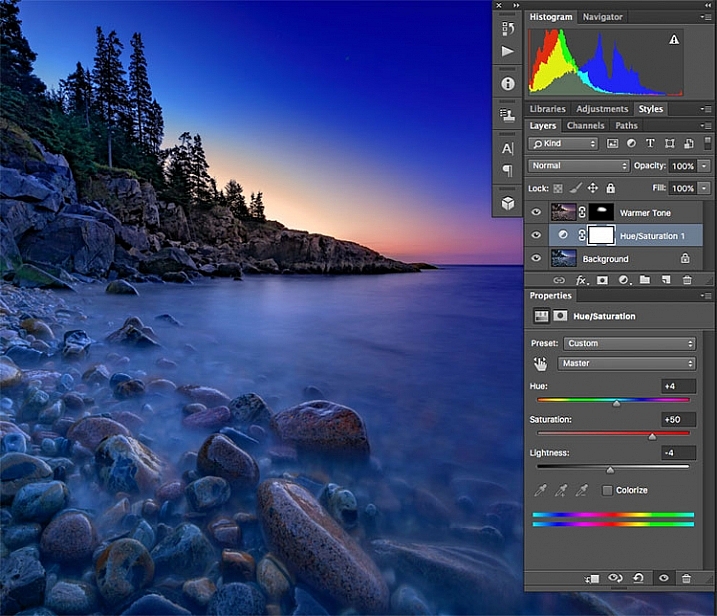
I used an Adjustment Layer on the cooler layer to bump up the color saturation a bit.

I used an Adjustment Layer on the cooler layer to bump up the color saturation a bit.

Photoshop Adjustment Layers are a great way make changes to an image, without actually changing the original file. It’s an easy way to try things, such as adjusting contrast or saturation, so that you can go back and change it again later – as long as you’ve kept the layers in tact by saving as a PSD or a TIFF file, formats that both support layers.

There are 19 different adjustment layers, which can be combined to create different effects on your image. Some basic uses are color adjustment, contrast adjustment, saturation, and black and white conversion. In addition, you can use Layer Masks to apply the effects in specific areas only, rather than the entire image, if you so choose.  You can also adjust the Opacity of an adjustment layer to reduce the effect of the adjustment on your image.

Adjustment layers provide a ton of flexibility when editing an image, without forcing you into a change that can’t be undone easily. For more on Adjustment Layers, check out Photoshop: Applying Fixes using Adjustment Layers and Masks and Burning and Dodging with Adjustment Layers and Layer Masks.

5 – The Spot Healing Brush

There were a few stray star streaks in the sky that I wanted to eliminate, so I used the Spot Healing Brush to quickly remove them.

There were a few stray star streaks in the sky that I wanted to eliminate, so I used the Spot Healing Brush to quickly remove them.

The Spot Healing Brush is one of the primary retouching tools in Photoshop, allowing you to remove blemishes and errors, or other parts of your photos. In the digital age, the bane of all photographers’ existence is dust on the imaging sensor, and the Spot Healing Brush provides a quick and easy way of removing those fromyour images.  The Spot Healing brush works similarly to the Cloning Stamp tool, in that it samples from one area of the image to correct other areas.

The Spot Healing Brush automatically detects the content or texture of the surrounding area, and attempts to replicate it wherever you click in the image. There are several options to work with which appear at the top of the screen. These include brush size and hardness, Blending Mode, and the type of fix you want to use, such as Content Aware, Create Texture, or Proximity Match. Each image will have different needs, depending on the content, so it’s best to experiment with the various settings if you find you’re not happy with the results you’re getting.

The Clone Stamp Tool

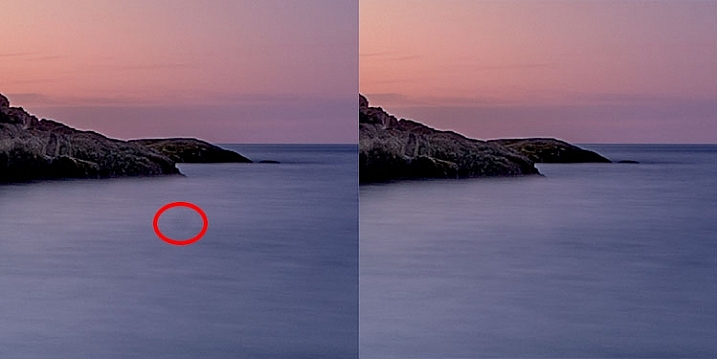
I had a few dust spots on my sensor. This one in the water, circled in red, did not respond well to the Spot Healing Brush, so I used the Cloning Stamp to sample and area of the water and stamp it over the dust spot.

I had a few dust spots on my sensor. This one in the water, circled in red, did not respond well to the Spot Healing Brush, so I used the Cloning Stamp to sample an area of the water and stamp it over the dust spot.

As I mentioned above, the Clone Stamp Tool and the Spot Healing Brush are similar in that they are both used for retouching images, and both use sampled areas of the existing image. The Clone Stamp, however, allows you to select the area from which to sample by holding the Command key and clicking (on Mac) or CTRL and click (on Windows), and creates an exact copy of the area you sample. Then you simply click on the area you want clone out and a copy of the area you sampled appears.

Again you have some options at the top of your screen, including Blend Modes, Opacity, and whether or not to sample a specific layer, or use all layers. You can also change the edge hardness and size of the stamp. The clone stamp works well when you have a well-defined edge to maintain, such as the wall of a building. The Healing Brush tries to blend edges, which can cause a blurred mess when you really need a clean edge. For more on using the Clone Stamp, head over to 12 Tips for Mastering the Clone Stamp Tool in Photoshop

These six tools in Photoshop are my go-to tools for editing my images. I would estimate that about 90% of my image editing is done using these tools. What are some of your tried and true Photoshop tools?

googletag.cmd.push(function() {
tablet_slots.push( googletag.defineSlot( “/1005424/_dPSv4_tab-all-article-bottom_(300×250)”, [300, 250], “pb-ad-78623” ).addService( googletag.pubads() ) ); } );

googletag.cmd.push(function() {
mobile_slots.push( googletag.defineSlot( “/1005424/_dPSv4_mob-all-article-bottom_(300×250)”, [300, 250], “pb-ad-78158” ).addService( googletag.pubads() ) ); } );

The post 6 Photoshop Tools Every Newbie Should Learn by Rick Berk appeared first on Digital Photography School.


Digital Photography School

 
Comments Off on 6 Photoshop Tools Every Newbie Should Learn

Posted in Photography


How to Use the Local Adjustments Tools Inside Lightroom

27 Oct

Local adjustments in Lightroom

Whenever you take a photo, no matter what the subject, it would be extremely unusual if it couldn’t be improved in some way by making local adjustments in Lightroom.

Local adjustments affect part of the image. Whenever you carry out any processing action in Lightroom you are either making a local adjustment (only affects part of the image) or a global adjustment (affects the entire image).

If you have been following this series and trying out some of the techniques I wrote about in my earlier Lightroom articles that you have been mainly making global adjustments. There is an exception. Adding a vignette in the Effects panel is a local adjustment because it affects the edges of the image but not the centre.

Lightroom gives you three powerful tools for making local adjustments. They are the Adjustment Brush, the Graduated filter, and Radial filter.

The Adjustment Brush

The Adjustment Brush is for creating an odd shaped mask – one that can’t be made easily with the Graduated or Radial filters.
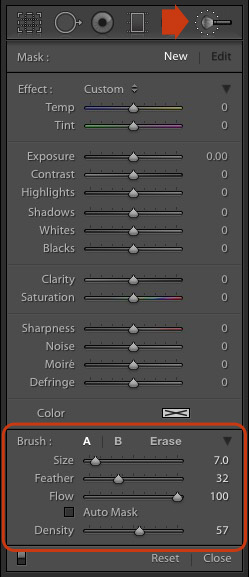
Local adjustments in LightroomNote that masks work differently in Lightroom than in Photoshop. In Photoshop, the adjustment is applied to the area that isn’t covered by the mask. In Lightroom, the adjustment is applied to the area covered by the mask.

Creating a mask in Lightroom is the same as making a selection in Photoshop. Go to the Develop module and click the Adjustment Brush icon (marked on the right) or use the keyboard shortcut K.

The Adjustment Brush panel opens up underneath the icon. The first 14 sliders show the adjustments you can make with this tool. The Effect menu contains a number of presets that you can use (click the word “Custom” to see the pull-down menu).

At the bottom (circled) are sliders for setting the size, softness and strength of the Adjustment Brush.

To start, select Brush A (if not already selected) and use the [ and ] keys to make the brush smaller or larger respectively, until it is the right size to create the mask you need. You can also use the Size slider, but the keyboard shortcuts are easiest.

Hold down the Shift key and use the [ or ] to adjust the amount of feathering. Again, you can use the Feather slider but the keyboard shortcuts are faster once you get to know them.

The size of the Adjustment Brush is shown by two concentric circles on the screen. The inner circle shows the area fully covered by the brush. The outer circle shows more or less where the effect of feathering ends. The distance between the circles increases when you increase the feathering amount. This diagram shows how it looks on screen.
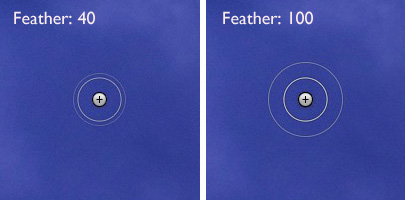
Local adjustments in Lightroom

You can create another Adjustment Brush by clicking on B and changing the parameters. You can switch between the A and B brushes whenever you like, useful for complex retouching.

Select Erase to delete part of the mask that you have created. You can adjust the size and feathering of the Erase brush as well.

Flow controls the opacity of the mask. 100 is full strength. Set it here unless you have a reason to do otherwise.

Density sets the maximum strength of the effect.

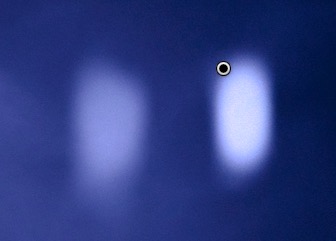
The difference between Density and Flow is this. If you set Flow to 25% and repeatedly brush over part of the image, each brush mark builds on the one below it, increasing the strength of the effect until you reach 100%. If you set Density to 50%, and flow to 25%, then repeatedly brush, the maximum strength you can reach is 50%.

This diagram shows the difference. On the left I set the Exposure slider to +4.00, Flow to 25%, Density to 50% and brushed repeatedly. On the right I did the same with Density set to 100%.
Local adjustments in Lightroom

Tick the Auto Mask box to limit the edges of the mask to any edges in the photo. Sometimes this tool works well, but other times it reacts to textures and creates a patchy mask that doesn’t cover the area you want. I leave this unticked most of the time.

You can add as many Adjustment Brushes to an image as you like. Each one is represented by a grey dot that is revealed when you select the Adjustment brush tool and move the mouse over the photo. The current Adjustment Brush is marked by a black circle within the grey pin. Click on a grey dot to activate that adjustment and make changes to it, or delete it (press the Backspace key).

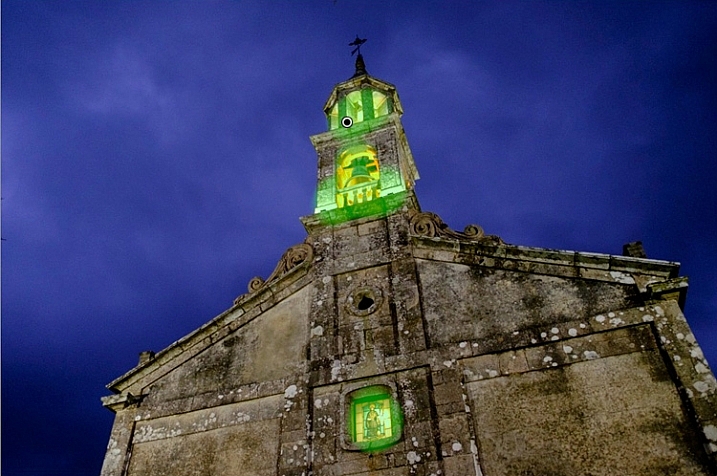
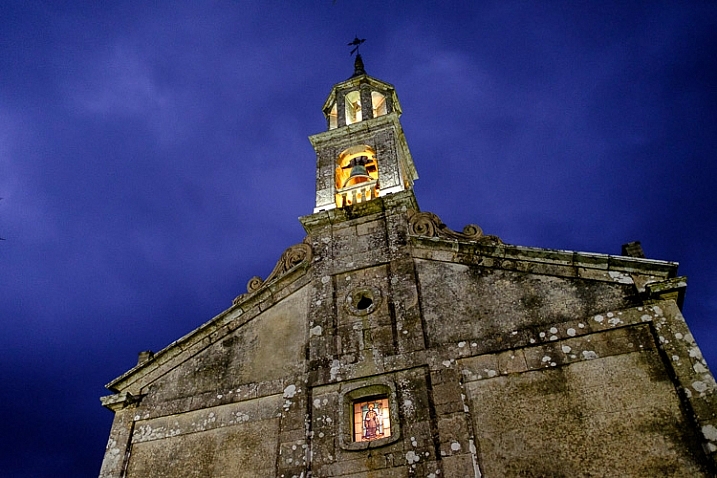
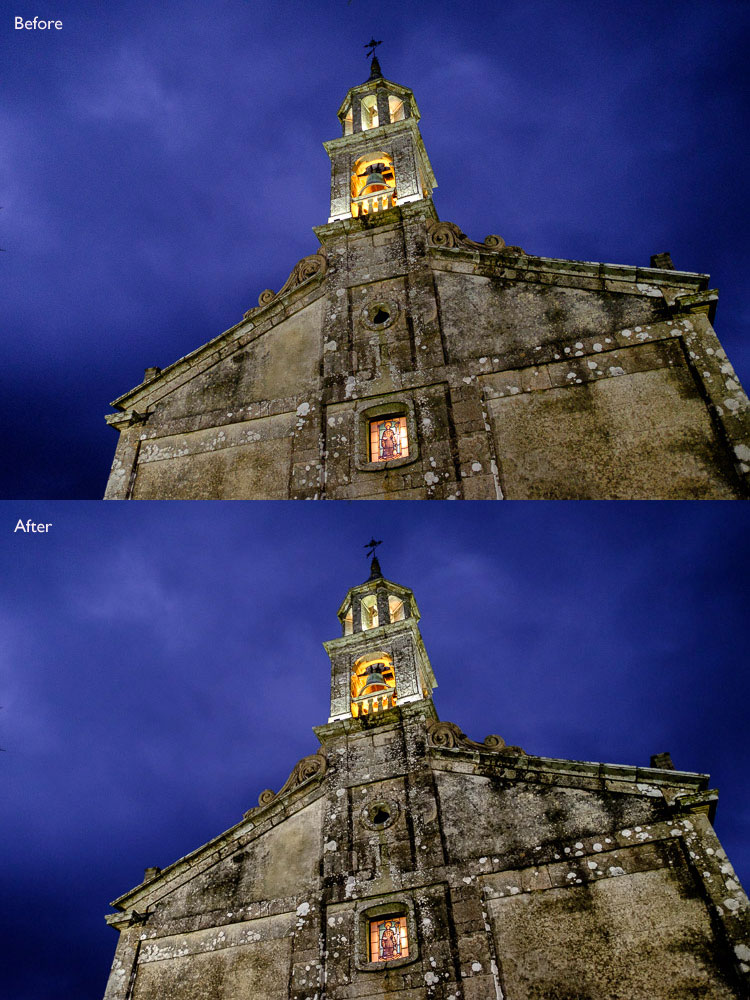
Now, let’s put that into practice. I’d like to do two things to the photo below. One is reduce the intensity of the highlights created by the lights inside the church; the second is emphasize the texture of the stone. We can do both with the Adjustment Brush.
Local adjustments in Lightroom

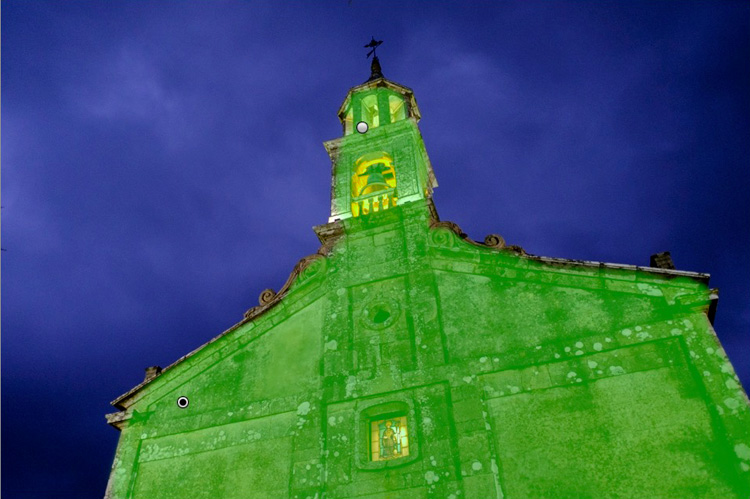
First, I brushed in the areas affected by the bright highlights (shown in green below).

Local adjustments in Lightroom

You can see the area covered by the Adjustment Brush at any time by pressing the O key.

This is called the Mask Overlay and is coloured green in my screen shots. The default colour is red. Press the Shift and O keys together to change it. Press O again to hide the Mask Overlay.

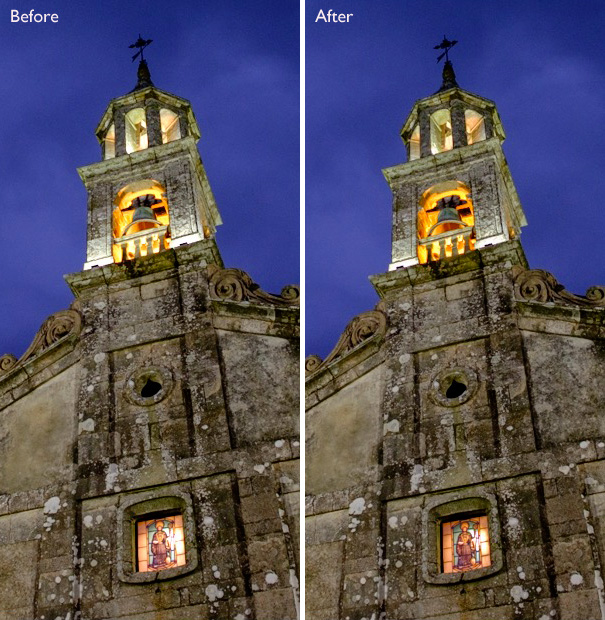
Then I moved the Highlights slider left (to -67) to reduce the intensity of the highlights. These screen shots show the difference.
Local adjustments in Lightroom

Next, I created a new mask covering the stonework.
Local adjustments in Lightroom

Then I increased Clarity to +58 to bring out the texture of the stone wall.

Here’s the final result, compared to the original.
Local adjustments in Lightroom

Here are some more uses for the Adjustment Brush:

  • Portrait retouching. Use the Adjustment Brush to select the model’s skin and apply the Soften Skin preset. You can also enhance eyes by increasing exposure and Clarity.
  • Enhancing black and white photos. Many black and white images rely heavily on texture for impact. Use the Adjustment Brush to select the textured areas you would like to have the most impact, and increase Clarity to enhance them.
  • Selectively desaturating the background to add impact to portraits.

My article, Four Ways to Improve your Photos with the Clarity Slider in Lightroom, shows you how to do it.

The Graduated filter

Lightroom’s Graduated filter is named after the type of filter used by landscape photographers to make skies darker.

This is also the most obvious use for Lightroom’s Graduated filter. However, it only works if detail was recorded in the sky. it doesn’t replace a physical graduated neutral density filter.Local adjustments in Lightroom
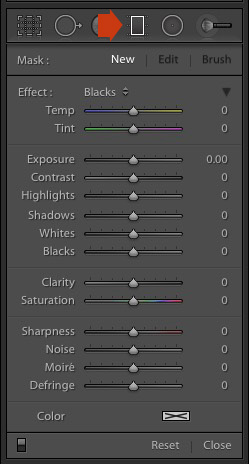
Go to the Develop module and click the Graduated filter icon (marked right), or click the keyboard shortcut – M. The Graduated filter panel opens, revealing the same sliders as the Adjustment Brush.

Click and hold the left mouse button down, and pull the mouse down over the image. Lightroom adds a Graduated filter to the photo.

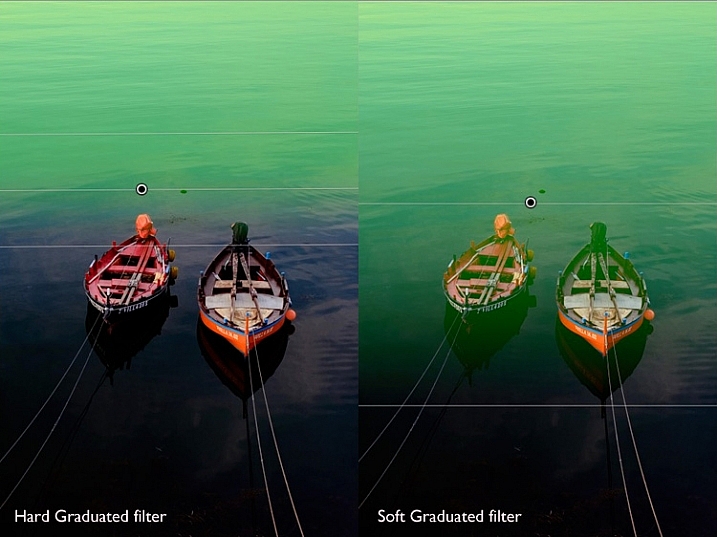
The Graduated filter is marked by three lines that move further apart as you move the mouse across the photo. The lines represent the softness of the filter – the further they are apart, the more graduation you get.

Let go of the mouse button to place the filter. If you do so close to the edge of the photo, you will create a filter with three lines close together. This is a hard filter, with a rapid graduation between full effect and no effect.

If you hold the mouse button down for longer, you get a filter with three lines spaced far apart. This is a soft filter, with a gentle graduation between full effect and no effect.

The two types of filter are shown below. I pressed the O key to show the Mask Overlay (you can only do this in Lightroom 6 and Lightroom CC).
Local adjustments in Lightroom

After creating the filter, you can move it by clicking and dragging the central pin.

If you hold the Shift key down while creating the filter, it is placed parallel to the edge that you started from.

To rotate the filter, hold the mouse over the central line (the one with the pin) until the cursor changes from a plus sign to a curly double arrow. Hold the left mouse button down and move the mouse to rotate the filter.

To change the softness of the filter, hold the mouse over the outer line until the cursor changes to a hand. Click and drag to move the line closer to, or further from, the central line. If you hold the Alt key down while you do so, the central line stays in position.

The best way to come to grips with this is to try it out. It may sound complex, but it’s quite simple, and you’ll quickly get the hang of it.

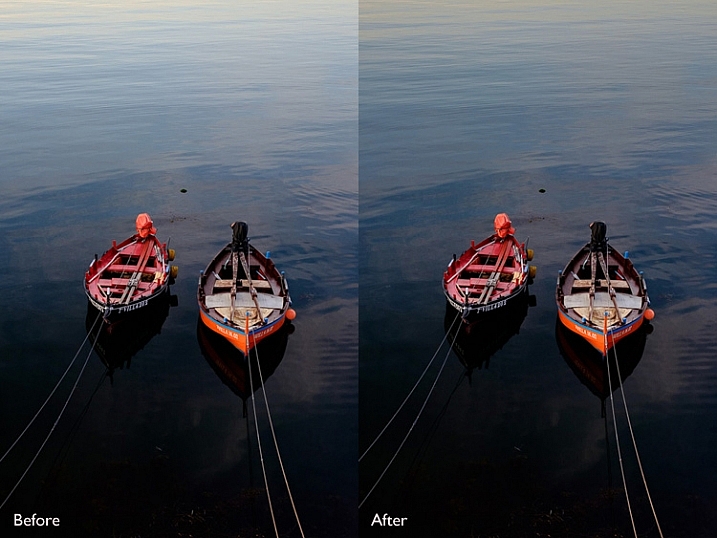
Here’s an example of how you can use the Graduated filter to improve an image. The water behind these boats is very bright, and I wanted to make it darker to fit in with the foreground. The Graduated filter is the perfect tool for this. Before and After photos shown below.
Local adjustments in Lightroom

In Lightroom 6 and Lightroom CC you can combine the Graduated filter with the Adjustment Brush. The Adjustment Brush is used to alter the shape of the mask created by the Graduated filter.

In this example, I used the Graduated filter to darken the sky. The only problem is that the Graduated Filter also makes the palm tree darker, which I don’t want. Here’s the Mask Overlay (shown in red).
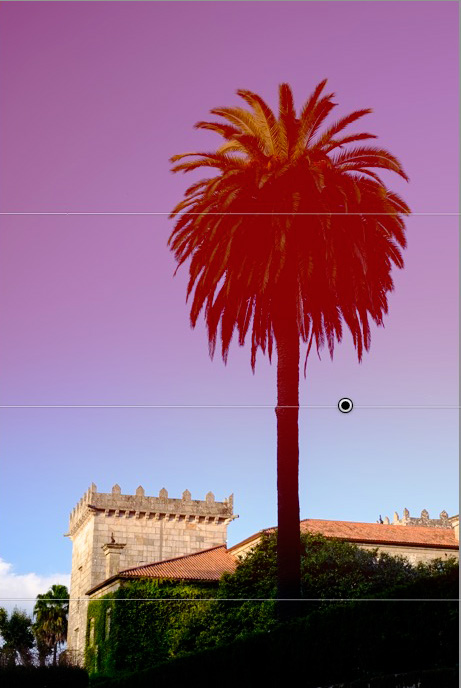
Local adjustments in Lightroom

Press O to show the Mask Overlay, then click on the word Brush in the Graduated filter panel (marked below). The Brush options open up below the panel. Click Erase (also marked below) and adjust the size (and other settings) to suit.
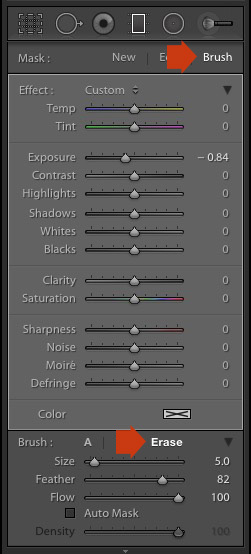
Local adjustments in Lightroom

Here’s what the Mask Overlay looks like with the part that covers the palm tree erased.
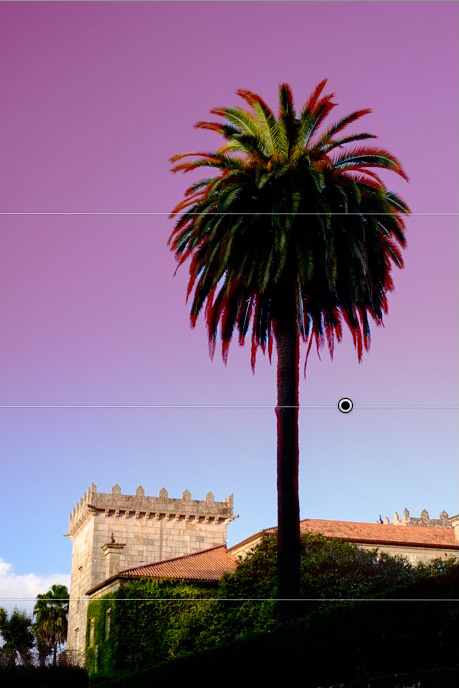
Local adjustments in Lightroom

Here are the before and after versions.
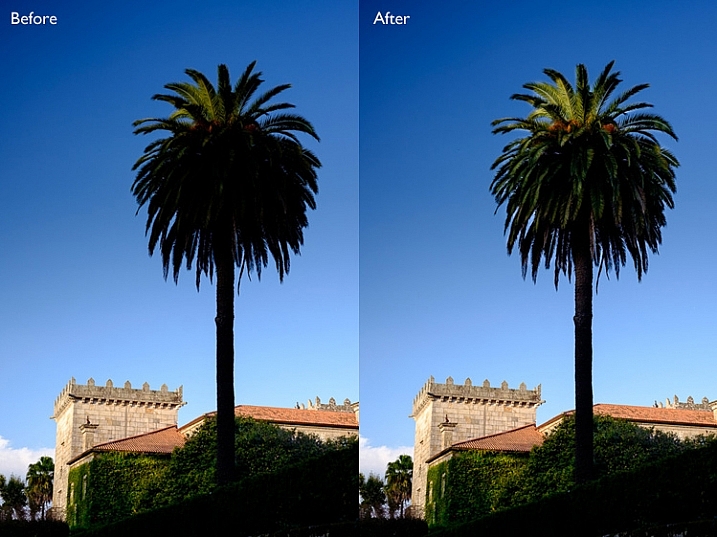
Local adjustments in Lightroom

Before (left) showing the graduated filter to darken the sky. After (right) showing the tree portion having been erased or masked out from being darkened by the graduated filter.

My article Improve Your Images with the Lightroom Graduated Filter Tool shows you six ways you can use the Graduated filter to improve your photos.

The Radial filter

The Radial filter (new in Lightroom 5) is for creating circle or oval shaped masks. If you have Lightroom 6 or Lightroom CC you can press O to show the Mask Overlay. You can also combine the Radial filter with the Adjustment Brush.Local adjustments in Lightroom
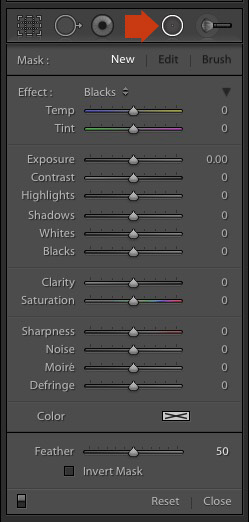
Go to the Develop module and click the Radial filter icon (marked right). The Radial filter panel opens. The sliders are the same as those used by the Graduated filter and the Adjustment Brush.

Hold the left mouse button down and drag the mouse across the photo. Let the mouse button go when you are done.

Change the size and shape of the Radial filter by clicking and dragging the four white squares at the compass points of the filter.

Rotate the Radial filter by moving the cursor to the edge of the filter until it changes from a hand or plus icon to a double curly arrow. Click and drag to rotate.

Use the Feather slider to set the softness of the gradient at the edges of the Radial filter. The default setting of 50 seems to work well for most masks, but you can change it if you need to.

By default Lightroom applies the adjustments to the area outside the Radial filter. Tick the Invert Mask box to apply the adjustments to the area inside it instead.

The screenshot below shows a Radial filter that I placed on photo used in the previous demonstration. I ticked the Invert Mask box to apply the adjustment to the area inside the Radial filter. The Mask Overlay is on to show you the affected area (in red).
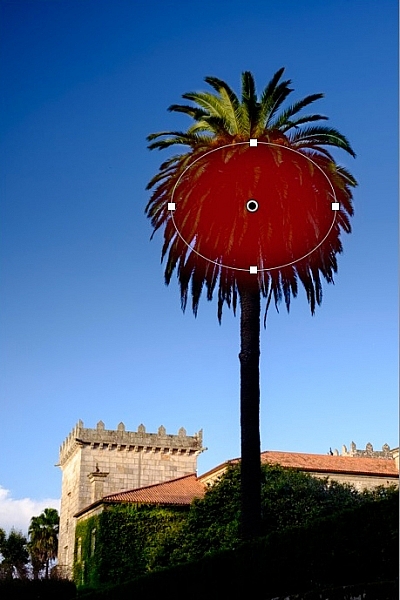
Local adjustments in Lightroom

Then I increased Exposure to bring out some detail in the palm tree. Before and after versions below.
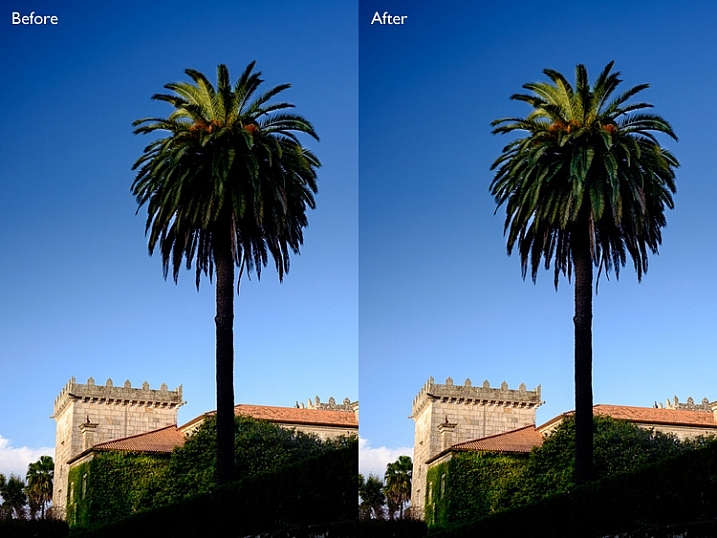
Local adjustments in Lightroom

Here are some uses for the Radial filter:

  • Portrait retouching. Select eyes or lips and enhance using exposure and Clarity sliders.
  • Making portrait backgrounds darker. Place a Radial filter over the model’s face and make the background darker.
  • Add a vignette to off-centre subjects. When you create a vignette in the Effects panel, it is always centred. With the Radial filter, you can place it wherever you need.

In my next article I’ll show you how to harness the power of Lightroom using Virtual Copies. Until then, if you have any questions about the techniques in this article, or you would like to share how you use local adjustments in Lightroom, please let us know in the comments.


The Mastering Lightroom CollectionMastering Lightroom ebooks

My Mastering Lightroom ebooks will help you get the most out of Lightroom. They cover every aspect of the software from the Library module through to creating beautiful images in the Develop module. Click the link to learn more or buy.

googletag.cmd.push(function() {
tablet_slots.push( googletag.defineSlot( “/1005424/_dPSv4_tab-all-article-bottom_(300×250)”, [300, 250], “pb-ad-78623” ).addService( googletag.pubads() ) ); } );

googletag.cmd.push(function() {
mobile_slots.push( googletag.defineSlot( “/1005424/_dPSv4_mob-all-article-bottom_(300×250)”, [300, 250], “pb-ad-78158” ).addService( googletag.pubads() ) ); } );

The post How to Use the Local Adjustments Tools Inside Lightroom by Andrew S. Gibson appeared first on Digital Photography School.


Digital Photography School
 
Comments Off on How to Use the Local Adjustments Tools Inside Lightroom

Posted in Photography


Tools That Rule: 13 Ways to Work Smarter, Not Harder

04 Aug

[ By Steph in Design & Products & Packaging. ]

tools vector scissors 1

Most of the tools we use have looked the same for decades, if not centuries, but that doesn’t mean they’re optimized to be as useful, convenient and durable as they can be. These clever tweaks on conventional tool designs can be incredibly simple, like adding a ledge to scissor handles for cutting straight lines, or unexpectedly innovative, like an illuminated glove that makes it easy to light whatever you’re working on while freeing up your hand.
Locking Aperture Wrench

tools aperture wrech

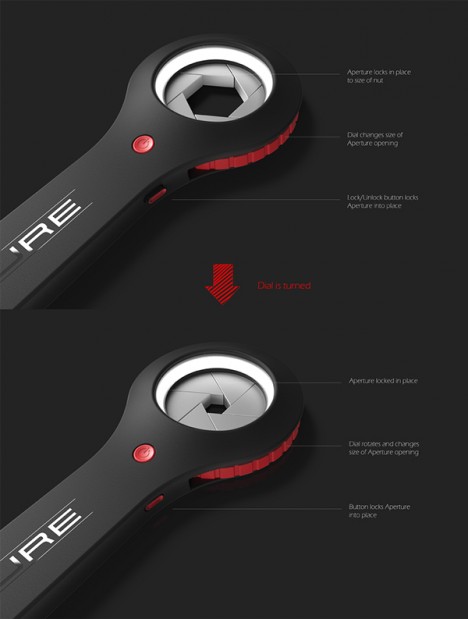
The aperture wrench eliminates the storage issues and guesswork associated with having an entire set of wrenches, with an aperture based on that of a camera lens. The metal blades of the aperture close around any given nut and automatically lock into place for perfect custom sizing and a secure fit.

Hoyo Drill

tools hoyo 2 tools hoyo 1

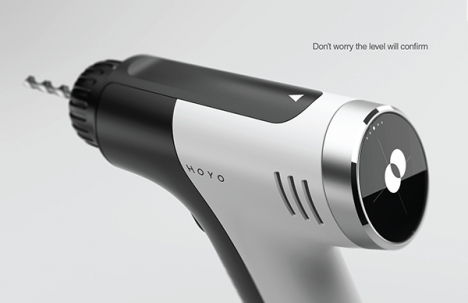
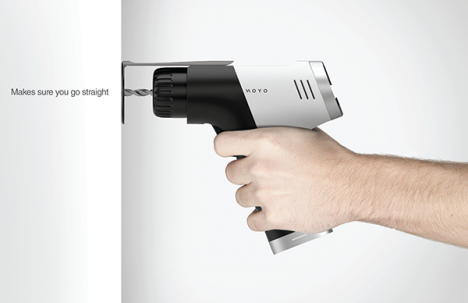
“You could almost keep your drill on the dinner table,” says the designer about the looks of the Hoyo, a sleek black-and-white power drill. In addition to ‘looking like a race car,’ the Hoyo has an optional stabilizer to ensure that you always enter a surface perfectly straight, dial presets to adjust the power depending on the material you’re drilling, and a built-in level.

Ruler Compass

tools compass 2 tools ruler compass

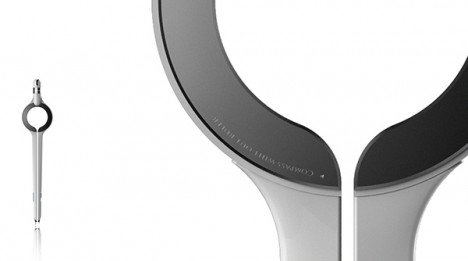
Conventional compasses typically have to be used in conjunction with rulers when you want to draw a circle of a very specific size. This one features a radius display that tells you the size of your circle as you move the leg of the compass

Portable Lighting Tool
tools lighting tools lighting 2

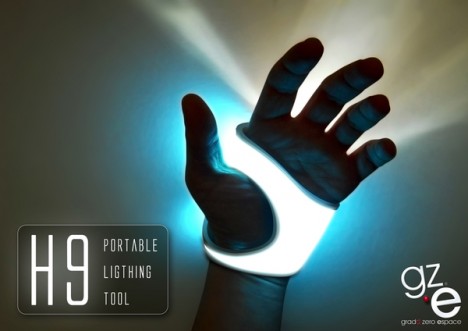
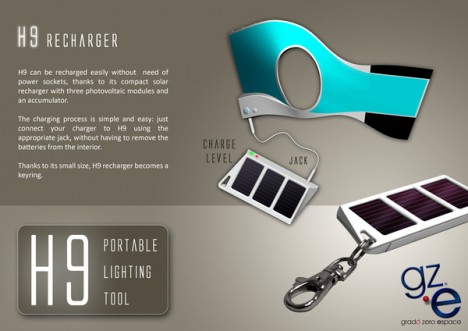
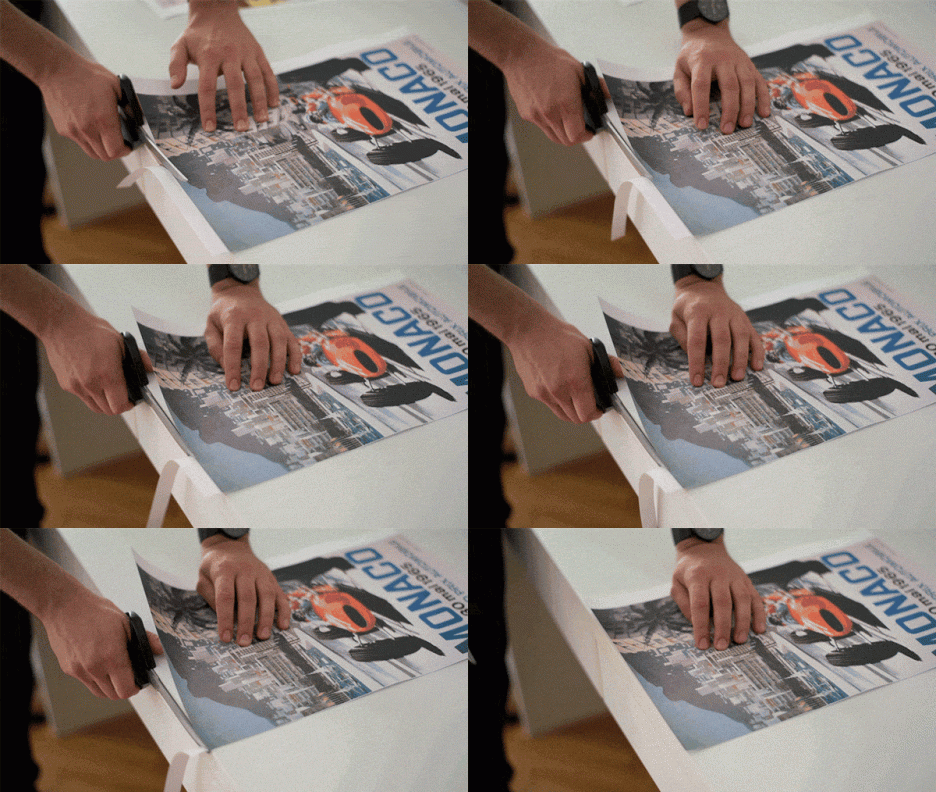
Ultra-portable and easy to recharge either with an outlet or an included mini solar panel, the H9 Portable Lighting Tool is a silicone sheath that wraps around your hand to provide up-close illumination for whatever job you’re trying to complete. You can direct the light exactly where it needs to be, but don’t have to sacrifice the utility of your hand.
Tool Pen by mininch

tool pen

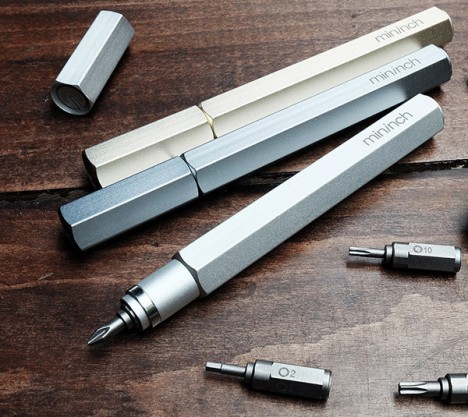
Carrying a set of screwdrivers becomes as simple as carrying a pen with the Tool Pen, a lightweight, compact and ultra-sleek multitool solution with 18 bits. Six can fit inside the tool without making it heavy, and it comes in a variety of metallic finishes.

Next Page – Click Below to Read More:
Tools That Rule 13 Ways To Work Smarter Not Harder

Share on Facebook


[ By Steph in Design & Products & Packaging. ]

[ WebUrbanist | Archives | Galleries | Privacy | TOS ]


WebUrbanist

 
Comments Off on Tools That Rule: 13 Ways to Work Smarter, Not Harder

Posted in Creativity


Simple Yet Effective Marketing Efforts to Get New Clients (and Tools)

20 Jul

After you have set up your business, made a business plan, created an attractive portfolio, and did a lot of other things, the most challenging part is still: “how to get clients”. What do you need to do to get the right people to see your website? How do you make them want to buy your services and products? These Continue Reading

The post Simple Yet Effective Marketing Efforts to Get New Clients (and Tools) appeared first on Photodoto.


Photodoto

 
Comments Off on Simple Yet Effective Marketing Efforts to Get New Clients (and Tools)

Posted in Photography