RSS
 

Posts Tagged ‘tool’

3 Uses for the Radial Filter Tool in Lightroom 5

02 Feb

One of the most powerful new tools in Lightroom 5 is the Radial Filter tool. Here are a few examples of how you can use this tool creatively inside your workflow to help draw attention to your subjects. If you don’t have Lightroom5, you can use multiple graduated filters to draw attention, but it’s not as easy, and the results can be hit or miss.

#1 – Off-center vignetting (beginner tip)

Let’s face it, Lightroom’s post-crop vignette leaves a lot to be desired, especially if you want your vignetting effect to be applied a bit off-center, allowing you to draw focus towards your subject.

Let’s look at an example and see how the radial filter tool compares to the post crop vignetting effect of old.
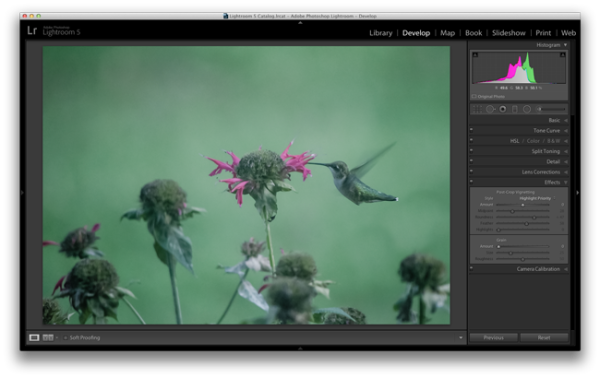
Hummingbird-before

Original photo with no effect

PostCropVignette

Post-crop vignette applied

With the post-crop vignetting tool what you’ll immediately notice is that the effect occurs out from the midpoint of the frame ,and there is no way to off-set this midpoint so that you would be able to have a more customized effect.

Enter the Radial Filter Tool…
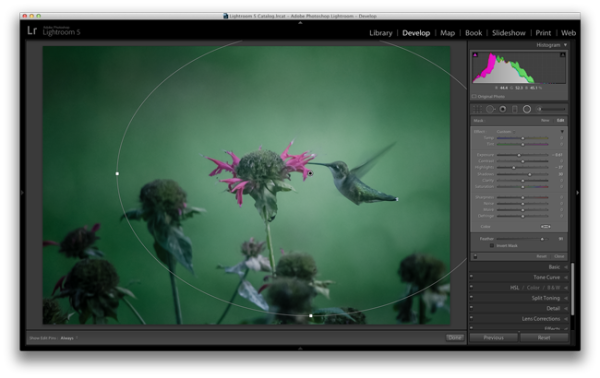
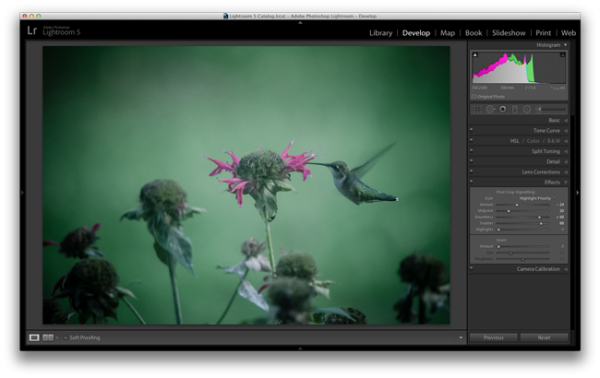
Radial-Filter-Vignetting

To apply a Radial Filter press Shift+M on your keyboard or select the circular icon below the histogram. This will open up a drop down filled with a handful of sliders. If you’re familiar with Lightroom’s other filters this won’t seem all that foreign to you. To add a filter to your image click and drag it into your image. You don’t have to worry about sizing it properly right away as you can always resize, move, and rotate it later within the image.

Applying the vignetting effect is going to depend a lot on your own style and the image you are processing, but the three sliders that you will want to typically play around with are: exposure, highlights and shadows. In the photograph above, a strong vignette was applied by dropping both the exposure and highlight sliders down, but the shadows slider was raised slightly to compensate for the drop in the other two just a bit. With that said, this is something that you’ll want to play around with on your own images and find out what works for them and your own personal taste.

#2 – Adding highlights and brightness to draw attention (mid-level tip)

While adding your standard vignette is all fun and great, there’s more power to this tool than that, so let’s step it up a notch and take a look at another way you can draw attention to your subject with a Radial Filter.

Take this rather boring photograph that I snapped while on a hike through the forest for example.
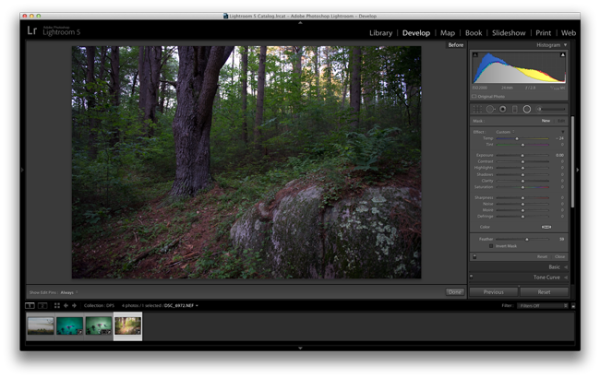
Invert-Radial-Filter-Before

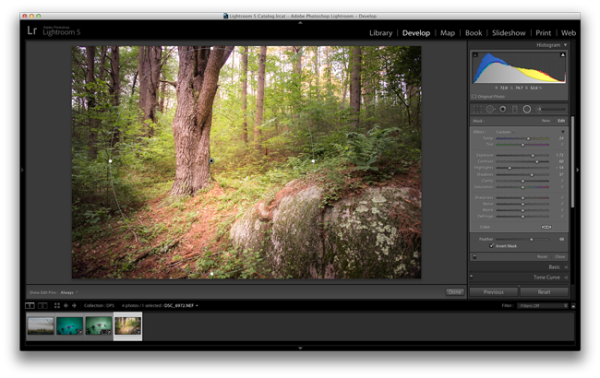
By applying a Radial Filter and some other Basic Tab modifications I was able to liven the shot up quite a bit and draw attention to the large tree that had caught my eye while on the hike.
invert-radial-filter

To achieve this result you’ll want to once again add a Radial Filter to your image, but this time make sure you check the “Invert Mask” checkbox. This checkbox allows the effect of the filter to be applied from the middle of the filter instead of from the edges of the image.

Again, this is another area where artistic choice is left wide open, but you can see how the tool is more powerful than simply a vignette effect creator. You have the power to control more than just the brightness of the edges of your frame, as seen above, where there are contrast and temperature adjustments happening inside this filter allowing for a more dramatic look.

#3 – Stacking multiple radial filters for more dynamic results (advanced tip)

Finally, once you’ve mastered one radial filter, you might try stacking more than one filter to create even more dynamic results. To add a second filter to an image simply click “New” and then click and drag within your image as you’ve done before. Each filter can be controlled and selected individually by clicking on its respective dot (gray for unselected, black for selected). By having individual control over each radial filter you can really start to draw your viewer’s eye where you want it to go.

As an example, let’s look at where I left off on the hummingbird photograph from earlier.

Radial-Filter-Vignetting

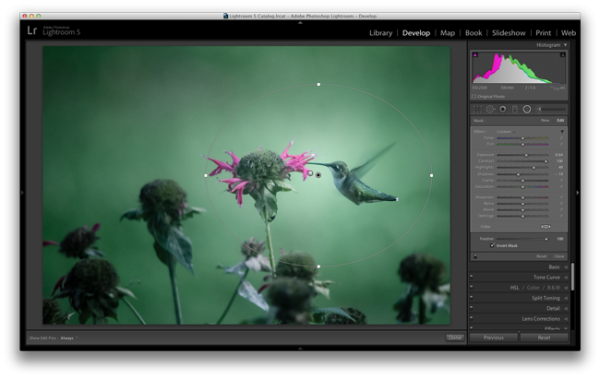
The original radial filter does a nice job of darkening the sides of the photograph and applying a fairly generic vignetting effect to the photo, but what else can be done?
radial-filter-tool-stacking

By applying a second radial filter to the image and using the invert feature that I talked about above, I’m able to add a small bright point right at the meeting of the bird’s beak and the flower.

What creative ways have you used the Radial Filter Tool?

Have you had time to play around with the new Radial Filter tool yet? What other creative ways can you think of using it? Share below in the comments section.

The post 3 Uses for the Radial Filter Tool in Lightroom 5 by John Davenport appeared first on Digital Photography School.


Digital Photography School

 
Comments Off on 3 Uses for the Radial Filter Tool in Lightroom 5

Posted in Photography


Reverse Lens Macro: How to use it as a Great Learning Tool

16 Jan

Reverse lens macro photography 03

Reverse Lens Macro: How to Use It as a Great Learning Tool

Yesterday one of my friends called me late and told me that he was going to buy a DSLR and asked me which one he should choose. As a friend, I knew that this was his first camera and he was in fact a complete stranger to the field of photography. I told him to buy a good compact camera in order to get used to the basic concepts of photography and to buy a DSLR only when he feels his equipment is limiting his creativity.

On the other hand are the people how have already bought an SLR, but get confused and overwhelmed by the level of control these cameras offer, and the sheer amount of effort they have to put in to make their photographs look beautiful. I write this article for those people who bought a DSLR, and are in distress seeing none of their photos looking as good as someone else’s.

Considering that you have bought a DLSR and are delving into some advanced levels of photography, let’s see how an interesting and fun technique known as reverse lens macro can teach you a great deal about your camera, light and in effect make the art of photography.

Reverse lens macro photography 01

The basic trio of photography

Before understanding reverse lens macro let’s take a look the basic trio that every photographer needs to know to take a well exposed shot:

  1. Shutter speedreverse-lens-macro-photography-02.jpg
  2. Aperture
  3. ISO

Shutter speed is in essence the duration for which light falls on the camera’s sensor, shown in most cameras as 1/250th or 1/30, lower the denominator, the longer the duration.

Aperture is the opening in the lens which controls the amount of light entering your camera and the area in your image which is in sharp focus (aka depth-of-field) usually shown as f/5.6 or f/7.1. The lower the number, the more light getting to the sensor, and smaller the area in focus.

ISO determines just how sensitive your camera’s sensor is to the light falling on it. ISO usually ranges from 50 to above 100,000 in number. Large numbers represent high sensitivity.

Macro and reverse lens macro

Macro photography is a beautiful way to capture subjects as it gives you a very different and up-close perspective of photography. What macro photography does is to help us see the small world around us in a big picture. What your lens in its normal state does is to make the big world around you small, so just think what it will do when used reverse mounted? Yes, make the small world even BIGGER. But the fact is that dedicated macro lenses cost a fortune which puts it out of the reach of many of us. Reverse lens macro technique allows you to get really close without having to lighten your wallet on expensive lenses.
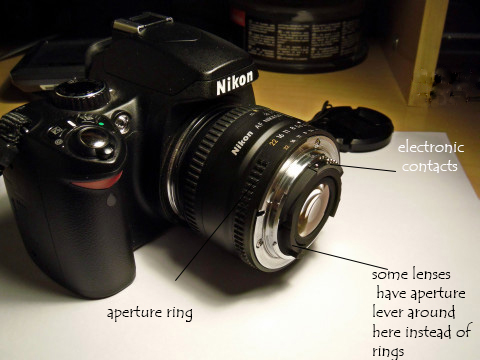
To take reverse lens macro shots, you have to reverse mount your kit lens (as depicted in the picture below).

Reverse lens macro photography 07

HOW DOES REVERSE MACRO TEACHES YOU ABOUT THE ART OF PHOTOGRAPHY?

Everything is a double-headed sword. So is reverse macro, though it allows us to get really close to your subject it also means you have less light at your disposal, a very tight frame, and a very narrow area which is in sharp focus (depth-of-field). Less light means you will have to adjust shutter speed, aperture and ISO to get good exposure and nice depth of field.

But the best part lies ahead, when you reverse mount your lens, the camera loses all the electronic means to communicate with the lens, so you will have to move your camera back and forth to get your focus right and you have to use the small lever on the back (now front) of the lens for controlling the aperture. An interesting point to be noted is that the actual focal length (55mm gets you closest to the subject for 18-55mm lens) of a lens in normal operation is also reversed, meaning that you can get closest to your subject when the lens is at its widest (18mm for the same lens). Now when you look through the viewfinder you will see the magic unfolding right in front of your eyes!

Reverse lens macro photography 06

Reverse lens macro photography 04

Suddenly your viewfinder becomes a visual textbook through which you will see all the subtle changes that aperture, shutter speed and ISO makes on your image and how subtle changes to these can bring amazing clarity and depth to your images. At first this may seem a difficult task because of the extreme stillness needed to take them successfully and clearly, but “practice makes perfect”, doesn’t it?

The interesting part being that you can apply the information you learn, when you use your camera normally. Obviously this can also be learned with time and effort but rest assured many get bored or disheartened because their photos are not looking good before they understand how to use the camera. Reverse macro, as mentioned earlier, magnifies the world beyond what our eye can see. It is because of this magnification that the effect the changes you make to (shutter speed, aperture, ISO) have on our image becomes more apparent than in “normal” use. When doing reverse macro I recommend not using a tripod because that way you will also learn to keep your hands steady (a boon when shooting in dim light).

Reverse lens macro photography 05

So because you get to see the magic of light unfold right in front of your eyes it registers quickly, and with practice becomes rather instinctive. This will startlingly improve the way you approach photography and ultimately your photos.

As Ansel Adams, a master of photography said “A Good photograph is knowing where to stand”. Understand where you stand now (as a photographer) and where you have to be standing to take photographs that exude beauty and share the emotion of the frame with the viewers.

Happy clicking!

The post Reverse Lens Macro: How to use it as a Great Learning Tool by Sharath Prakash appeared first on Digital Photography School.

Digital Photography School

 
Comments Off on Reverse Lens Macro: How to use it as a Great Learning Tool

Posted in Photography


Nikon D4 and Canon EOS 6D added to test scene comparison tool

18 Dec

shared:TestScene2.jpg

As we’re racing to complete our full review of the Nikon Df, we’ve added the Nikon D4 and Canon EOS 6D to our studio comparison tool. The studio test scene shows image quality for both JPEG and Raw files. It offers downloadable Raw samples and is designed to simulate real-world daylight and low-light shooting. As always, you can compare the D4 and EOS 6D to a number of other cameras, including the Df. See test scene

News: Digital Photography Review (dpreview.com)

 
Comments Off on Nikon D4 and Canon EOS 6D added to test scene comparison tool

Posted in Uncategorized


Tablets for photographers: A versatile tool in your capture workflow

26 Sep

tablets.jpg

Tablets may be used as versatile tools in your photographic workflow, providing instant feedback as you shoot on a much larger format screen than your camera’s tiny LCD and helping you experiment with a final look while you still have the opportunity to make major changes on set. We’re looking at tools and tips for integrating a tablet into a live shoot with a DSLR, whether you’re shooting tethered or wirelessly. Learn more on connect.dpreview.com.

News: Digital Photography Review (dpreview.com)

 
Comments Off on Tablets for photographers: A versatile tool in your capture workflow

Posted in Uncategorized


4 Fun Tricks to Enhance Your Photos With Lightroom’s Graduated Filter Tool

18 Jul

A few weeks ago I shared some key tips on how to get a lot out of Lightroom by using only a handful of sliders and while this is a great place to start eventually you’ll want to get a bit more creative with the software. Today I’m going to show you four different things that you can accomplish by using Lightroom’s Graduated Filter tool.

4 Creative Ways to Use Lightroom’s Graduated Filter

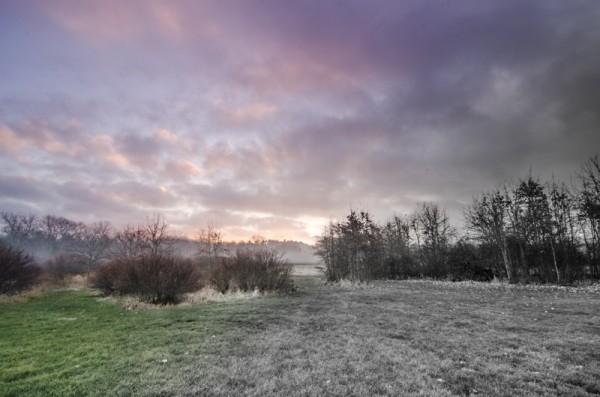
Split White Balance – This technique can be a powerful one when trying to get some interesting colors out of the sky, but retaining the natural colors of the earth. In the photo below I’ve added some pinks and purples to the sky, but was able to retain the natural green color of the grass.

whitebalanceb&a  

How I Did It – The graduated filter was dropped in from the top and rests just above the horizon line. I then made adjustments to the temperature and tint sliders until I was happy with the colors. Note: if there are objects that fall within your graduated filter’s effected zone you can correct it by using the adjustment brush and adjusting the tint & temp sliders locally for that specific area.

Direct the Light – By applying multiple filters to your photo you can create spot light like effects, leading lines and even your own very customizable vignette effect like seen below.

directing eyes

How I Did It – Here I’ve dropped in four different filters which all work together to create the final effect. There are two that are pulled in from the sides of the frame to drop the exposure of the edges. Then I dropped one in from the top and placed it almost at the bottom of the frame I use this one to increase the exposure of the overall photo excluding the very bottom of the frame. However, once this one was applied the top of the frame was over exposed so I then apply one more filter, again dropped in from the top, but placed towards the middle of the frame. This time I drop the exposure to cancel the effect of the previous filter and thus create the vignette effect. Yikes that was a mouthful!

Soften Your Borders – Sometimes you might want to soften the borders of your photo to draw in more attention to the center of the frame.

soft borders

How I Did It – This is a fairly simple process of dropping two filters in one from each side of the photo and then reducing the sharpness and clarity on both of them to -100. This effectively blurs out the sides of the frame and draws your attention to the middle.

Create a B&W to Color Transition – A very cool effect can be the black and white to color transition. It’s  not something that’s going to be used on every photograph you produce, but when you do use it it will often get people to look twice.

Black & White Color

How I Did It – The black and white to color transition is done by using one single graduated filter and dropping the saturation to -100. It’s up to you where you want it placed and how dramatic you’d like the transition to be – a narrow filter makes for a more dramatic transition.

For Those Who Prefer Video

If you’re anything like me it is so much easier to learn this kind of thing when things are in motion and therefore I’ve included a video which walks you through everything I talked about above, plus a few other Lightroom goodies as well. Enjoy!

Post originally from: Digital Photography Tips.

Check out our more Photography Tips at Photography Tips for Beginners, Portrait Photography Tips and Wedding Photography Tips.

4 Fun Tricks to Enhance Your Photos With Lightroom’s Graduated Filter Tool


Digital Photography School

 
Comments Off on 4 Fun Tricks to Enhance Your Photos With Lightroom’s Graduated Filter Tool

Posted in Photography


How to use the new Radial Filter Tool in Lightroom 5

14 Jul

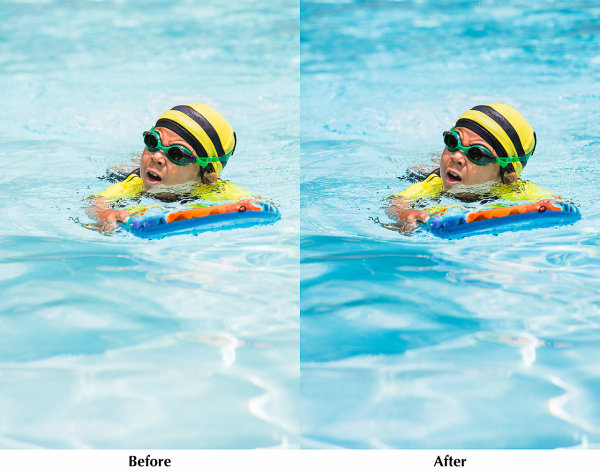
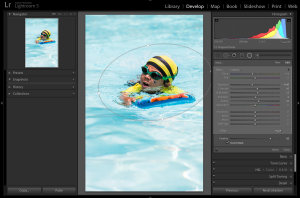
Radial Filter Before and After

Adobe PhotoShop Lightroom version 5 was released in June, and I’ve been digging into the new features. In this article I’ll share some tips for selective editing with the new Radial Filter tool.

The Radial Filter allows you to draw an ellipse around an area of an image, and apply edits to the area outside or inside the ellipse. This is a great technique for highlighting portions of an image.

Radial Filter Settings

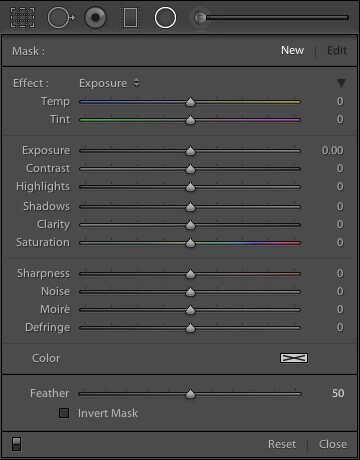
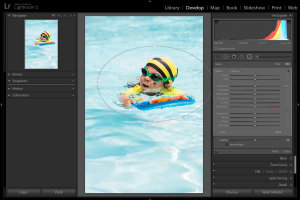
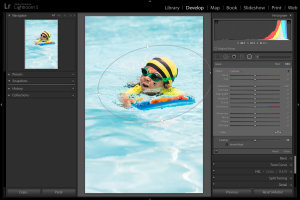
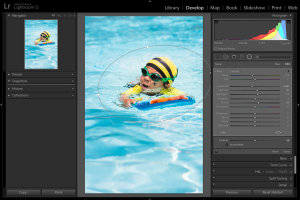
Lightroom 5 Radial Filter SettingsThe Radial Filter tool in Lr 5 gives you the same set of standard adjustments as the Graduated Filter and Adjustment Brush. Note that this screenshot is from an image that is using the 2012 process. Read more about process versions here.
Keyboard Shortcut: Shift M

If you read my article on improving your Lightroom workflow, you’ll remember that I’m nuts about keyboard shortcuts. The shortcut for accessing the Radial Filter tool is Shift M. Just remember that the shortcut for the Graduated Filter is M, so Shift M makes sense for the new Radial Filter. After all, if you took a Graduated Filter, and curled it into a circle, you’d have the new Radial Filter tool.

Using the Radial Filter Tool

In the above photo of my son enjoying a summer day at the pool, I used the Radial Filter to make the water a little darker, and a little more blue, without changing the exposure or white balance over the subject. This has the effect of emphasizing the subject by making him brighter and warmer than the rest of the image.

Lightroom 5 Radial Filter Usage
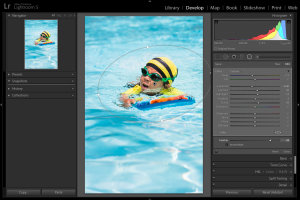
1. Select the Radial Filter tool and draw an ellipse around the subject. Start by clicking at the center of the subject, and dragging outwards.

Lightroom 5 Radial Filter Usage
2. If necessary, rotate the ellipse. Hover your mouse just outside the ellipse until the cursor changes to that rotation indicator thingy, then click and drag.

Lightroom 5 Radial Filter Usage
3. Apply the desired settings. In this example, I’m cooling the white balance, reducing exposure, and increasing contrast, highlights, and clarity. Increased clarity often make water look more interesting by bringing out the reflections.

Lightroom 5 Radial Filter Usage
4. Feather the adjustment. Feathering the adjustment is important to ensure your image looks natural, not “Photoshopped.” Feature is 50 by default, I’ve found that for more image, I like it around 85 or so. Note that after increasing the feather, you may need to back and increase the size of the filter.

Inverting the Mask

Lightroom 5 Radial Filter Usage
When the Invert Mask box is not checked, your edits apply to the area outside the ellipse. If you check the Invert Mask box, your edits apply to the area inside the ellipse.

Conclusion

By varying the exposure, contrast, and white balance of the subject, relative to the setting, you can direct the viewer’s gaze and increase the impact of your photo. I hope this simple example has given you some ideas of how to incorporate the new Radial Filter tool into your workflow. I appreciate feedback, please comment below or feel free to connect with me through Facebook or Google+. I’ll do my best to answer questions and reply to comments.

Post originally from: Digital Photography Tips.

Check out our more Photography Tips at Photography Tips for Beginners, Portrait Photography Tips and Wedding Photography Tips.

How to use the new Radial Filter Tool in Lightroom 5


Digital Photography School

 
Comments Off on How to use the new Radial Filter Tool in Lightroom 5

Posted in Photography


Software technique: Photoshop Gradient Tool: Part 2 – Adjusting Images

27 May

CompositeWithAdjustments_2.jpg

In the second, concluding article of his 2-part tutorial explaining Photoshop’s Gradient tool, Jean Miele explains how to use linear, reflected and radial gradients in layer masks to improve your digital photographs. In this article Jean takes us through four clear, easy steps, and also includes more tips for making the most out of gradients in both Photoshop and Lightroom. Click through for links to the article. 

News: Digital Photography Review (dpreview.com)

 
Comments Off on Software technique: Photoshop Gradient Tool: Part 2 – Adjusting Images

Posted in Uncategorized


Dear Marissa Mayer, Please Give Us a Tool to Better Block Bad Actors on Flickr

26 May

As an opinionated blogger, watching Flickr roll out recent changes to the site this past week has been an interesting experience, to say the least.

Thanks, Marissa Mayer, for making Flickr awesome again. Thanks also to the Flickr team who have worked so hard to roll out these changes. The new Flickr is the most photo immersive experience anywhere on the web. It is far more engaging and far more beautiful than I ever could have imagined.

Witnessing and countering in the vile hatefest that the Flickr Help Forum has become this past week has also been interesting. Simply for expressing my opinion in a public feedback forum on the new design, I’ve been called a shill, a troll, a sock puppet, a scrotum sack, and many things far worse that I don’t really feel like printing.

I’ve been told that my photography is absolute crap, been accused of working for Yahoo, of being related to Marissa Mayer, of trying to pump up Yahoo’s stock price by supporting the changes — my work, motives and integrity have all been subject to relentless attacks there.

There is little civility in a forum taken over by the ugliest and most vulgar of what the web represents.

The vandalization of Marissa Mayer’s own Flickrstream, and the encouraged vandalism in the same forum, saddens me. To see someone leave an offensive comment on a Mother’s Day Photo, of all things, makes Flickr less of a place to want to spend time.

One Flickr staffer had to actually turn off public comments on his Flickrstream. “You are going to hell,” was the comment that made him turn them off.

There is, at least, a partial answer to this problem: give us a tool to block other users on Flickr.

Flickr already does have a blocking feature of course, it’s just super weak and only prevents someone from leaving a comment on one of *your* photos.

On the other hand, even if you block someone, they can still attack you in all sorts of other places on Flickr, where you spend time. Flickr users should be able to use the public areas of the site without being subject to vile personal attacks. The Help Forum, Groups, other people’s photos, all should be places where Flickr users can visit and feel safe and comfortable.

I left Flickr groups for good a few years back (so did a lot of my friends). The reason why I left was that groups were becoming too ugly. Especially as an opinionated and high profile user, I found myself subject to constant terrible attacks. There was nothing that could really be done about this. Sure, you could report someone violating the Flickr Community Guidelines to Flickr, and maybe 5 days later their account would be deleted, but then they’d just make up a new troll account and be right back at it over and over again.

It was simply easier to just leave the public community of Flickr than to deal with the hate.

When I first joined Google+, I saw some of these same bad actors appear over there, too. I’d watch both myself and my good friends be attacked by others — jealous, petty haters and trolls, mostly. But then Google did a really smart thing. Google rolled out a really strong blocking tool and, just like that, all the hate went away.

You see, on Google+, when you block somebody, they become entirely invisible to you. They are entirely filtered out of all of your views on G+. Poof. Gone for good, not just in your stream, but *everywhere* for you on the site — and that has made Google+ a far better, nicer and more polite place for community than Flickr. Where the Flickr community is a negative hatefest, the G+ community is the most amazing, optimistic, supportive community I’ve ever known online.

You see, blocking the worst of the web doesn’t just filter it out of your view. The more significant thing that it does is it *encourages* civility.

Right now on Flickr we have no power against incivility. People can be as nasty and as rude and as ugly and as disrespectful as they want. They can spam the Flickr help forum with images of excrement (as they actually did last week) and you can’t do a damn thing about it — but if you give us the ability to block these bad actors, then their power is reduced. They know that as soon as they begin the ugliest of hate that the vast majority of positive contributing members will simply block them. Their audience is diminished and soon they are standing on a soap box shouting only to the 10 or so other users who share their hate filled outlook on life.

Before I quit using Flickr groups, one particular nasty member was looking at the photos that I was favoriting (this is forced public and Flickr won’t allow me to control who gets to see it — unlike on G+ where it is private) and this person began leaving vile comments on every photo that I was commenting on. This way, every single one of their comments was showing up in my recent activity, even though I’d blocked them from commenting on my own photos. That’s just wrong.

If Flickr wants to be a place where community can flourish, they need to give us tools to protect ourselves from the hate.

Marissa, I don’t need to tell you how bad the hate can be on Flickr. If you’ve reviewed your own Flickrstream this past week, you know what I’m talking about. It’s deplorable. Especially when any user can so easily just keep making anonymous troll account after anonymous troll account — please, give us a tool to remove the bad actors from our Flickr experience.

This week’s new design work was fantastic, now let’s go to work on improving the community for those of us who want to positively contribute there as well.


Thomas Hawk Digital Connection

 
Comments Off on Dear Marissa Mayer, Please Give Us a Tool to Better Block Bad Actors on Flickr

Posted in Photography


NeoLucida: Optical Drawing Tool Lets You Trace Real Life

17 May

[ By Steph in Art & Drawing & Digital. ]

NeoLucida Drawing Aid 1

Have you ever wondered how 19th century artists were able to produce such incredibly realistic drawings? It isn’t just because they were unusually talented, though it’s hard to argue that they were. Many of them benefitted from the use of a ‘camera lucida’, an optical device that reflects real-life images onto a drawing surface so they can be traced. A new version of the tool, called the ‘NeoLucida,’ aims to bring this drawing aid back, with a few modern updates.

NeoLucida Drawing Aid 3

Essentially a prism on a stick, the camera lucida was once a very popular drawing tool, making it easy to create realistic drawings. A portable version hasn’t been manufactured in nearly a century. Antique versions sell for hundreds of dollars, but Pablo Garcia and Golan Levin, the makers of the NeoLucida, aim to sell theirs for just $ 40.

NeoLucida Drawing Aid 2

“We want to make this remarkable device widely available to students, artists, architects, and anyone who loves to draw from life,” say the pair on their Kickstarter page, which has already raised nearly half a million dollars – far over the original goal of $ 15,000. “But to be clear: our NeoLucida is not just a product, but a provocation. In manufacturing a camera lucida for the 21st century, our aim is to stimulate interest in media archaeology—the tightly interconnected history of visual culture and imaging technologies.

NeoLucida Drawing Aid 4

The NeoLucida is made from a combination of mass-manufactured and custom-machined parts. It has a clamp to fit onto the edge of desks and tables, and a goose neck for adjustability. It’s lightweight, non-electric, and compact enough to fit in a handbag. Get more details at the project’s Kickstarter (via notcot.org.)

Share on Facebook


[ By Steph in Art & Drawing & Digital. ]

[ WebUrbanist | Archives | Galleries | Privacy | TOS ]


WebUrbanist

 
Comments Off on NeoLucida: Optical Drawing Tool Lets You Trace Real Life

Posted in Creativity


XiStera smartphone tool offers 8 functions in one device

17 May

XiStera2.jpg

The XiStera smartphone tool is one of the more interesting Kickstarter projects we’ve seen lately. It is an all-in-one device promises to do just about everything the mobile photographer on the go might require. XiStera serves as a lens adapter, phone stand, tripod mount, headphone wrap and stylus for your iPhone 5. It also works as a bottle opener and key chain, and can attach an optional LED light to your phone. Click through to Connect for more details.

News: Digital Photography Review (dpreview.com)

 
Comments Off on XiStera smartphone tool offers 8 functions in one device

Posted in Uncategorized