RSS
 

Posts Tagged ‘tool’

Next Version of Adobe Photoshop to Be Branded Photoshop CC, Includes Awesome New Motion Blur Sharpening Tool

07 May

Today Adobe announced a new branding of their flagship Photoshop product to be released later this year, Photoshop CC. The new version will only be available via a monthly subscription to Adobe’s Creative Cloud and will not be sold as a traditional boxed application that consumers can purchase.

Probably the most anticipated new feature in the next iteration of Photoshop is a revolutionary new image sharpening tool that focuses on fixing camera shake issues.

The new tool analyzes images that are out of focus due to the slight movement or motion that takes place while a shutter is open. There are lots of reasons why photographers may find camera shake in their images. Many images shot slower than about 125th of a second are susceptible to camera shake unless you’re on a tripod or have a very steady hand. Telephoto shots, especially can be problematic.

With the new version of Photoshop CC, Adobe uses an algorithm to try and detect which direction the camera was moving that produced the shake. They then try to account for the movement back into the direction of a steady image without camera shake. This new sharpening tool won’t help you with other types of focal blur issues, like lens position, but it does address a fairly common issue dealt with by photographers.

Adobe had previously offered a sneak peak of this new technology in a video that they posted to Youtube. Watch the video and you’ll be impressed.

What makes this interesting to me is that there are a lot of old images that I’ve taken in the past that now will suddenly become salvageable.

This new technology advancement should be yet another reminder to photographers why they should save ALL of their images, even the bad ones that they don’t think they can use. With technology advancements in image processing, I’m finding more and more images that I’d previously dismissed due to problems. Whether previous Adobe noise reduction tech or newer tech like this new sharpening tool, it pays to save all of your images no matter what. Storage is cheap and you never know when you may need that image that you never knew you needed at the time. Even years after you are dead, those images may be important to someone, somewhere for some reason.

While the camera shake feature is the sizzle of the new Photoshop upgrade, there are several other enhancements they have made to the program as well including, smart Sharpen (new technology promising more realistic sharpening without halos or noise) and new upsampling tech (this helps make your photos look better when you make them larger than you processed them).

The biggest news though is Adobe’s moving Photoshop 100% into the Cloud and 100% by subscription. You’ll still be able to purchase Photoshop CS for the time being, but it won’t have the new features available in CC.

Pricing varies by type of customer but starts at $ 49.99 a month per person for individuals. Existing Creative Suite customers, students, and teachers will get a discount to $ 29.99 a month. Creative Cloud has a lot more applications than just Photoshop and also includes Lightroom and a whole suite of other Adobe Creative applications. It also includes integration with Behance, a portfolio site for creatives that Adobe recently purchased.


Thomas Hawk Digital Connection

 
Comments Off on Next Version of Adobe Photoshop to Be Branded Photoshop CC, Includes Awesome New Motion Blur Sharpening Tool

Posted in Photography


Free Online Tool creates ‘Hyperlapse’ videos using Google Street View

11 Apr

google.png

Online user experience company Teehan + Lax has created a free tool for creating ‘hyperlapse’ videos using Google Street View. The term ‘hyperlapse’ describes timelapse videos which incorporate camera movement – something that is typically extremely difficult and time-consuming to perfect. The team at Teehan + Lax began experimenting with Google Street View as a guide for choosing locations, but realised that it could be used as source material. Click through for more details. 

News: Digital Photography Review (dpreview.com)

 
Comments Off on Free Online Tool creates ‘Hyperlapse’ videos using Google Street View

Posted in Uncategorized


4 Uses for Lightroom’s Graduated Filter Tool

18 Jan

The Graduated Filter tool in Lightroom 4 allows you to apply edits across an even gradient. In this article I will explain 4 ways to use the Graduated Filter tool to enhance your photos.

Sunset in Kamakura Japan

I used a Graduated Filter to adjust exposure on the left side of this photo. Read on to see how.

Adding a Graduated Filter to a Photo

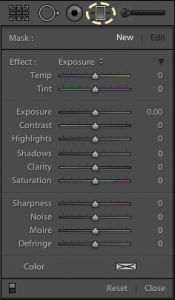
Graduated Filter Controls

  1. Click the Graduated Filter tool, or use keyboard shortcut ‘M’
  2. Dial in the desired settings (exposure, color temperature, etc)
  3. Drag your mouse across the image, starting at the point where you want the filter to be the strongest. An easy way to remember this is that you start dragging your mouse from the area of the photo that you want to change. Create as large a gradient as you need to make the transition subtle.
  4. Adjust the size, position, and angle of the gradient, as well as its settings until you get the result you need.

4 Uses for the Graduated Filter Tool

1. Changing exposure on one side of the frame

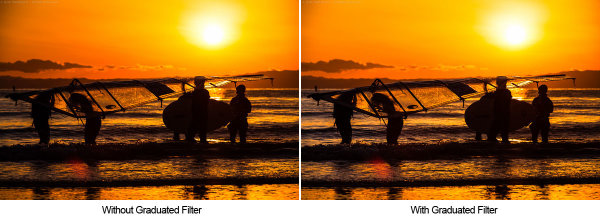
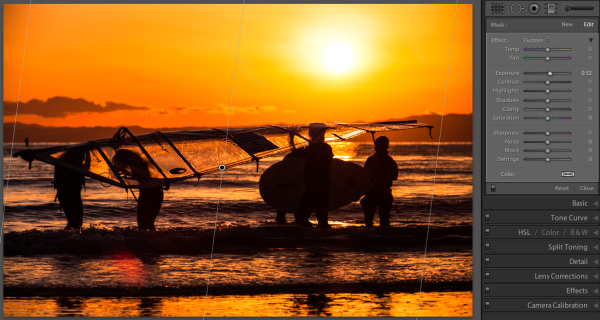
In my own workflow, I use the Graduated Filter to change exposure more than for any other purpose. In Lr4 with the 2012 Process, you can control overall exposure, or target just the shadows or highlights. For this image of some sailboarders on a beach in Kamakura, Japan, I added a Graduated Filter to increase the exposure on the left side of the photo by about half of a stop.

Graduated Filter used to change exposure

I used a graduated filter to increase the exposure on the left side of the image.

Graduated filter to change exposure

This Graduated Filter increases the exposure on the left side of the image by about 1/2 stop

2. Reducing atmospheric haze

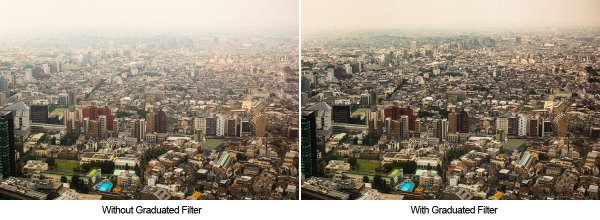
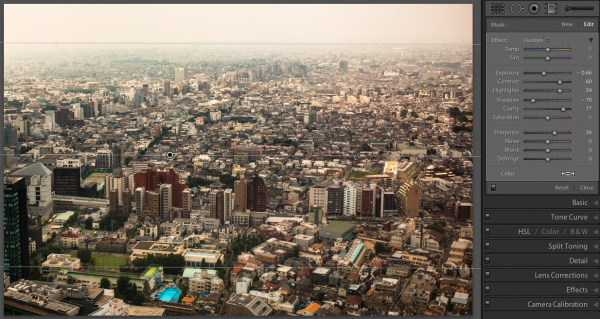
Another good use for the Graduated Filter is in reducing haze in the distance for landscapes and cityscapes. I’ve found that increasing contrast, clarity, and sharpness across a vertical gradient can help reduce haze. Here, a Graduated Filter helps make the best of this image, shot on a particularly hazy day from the Metropolitan Government Building in Tokyo.

Graduated filter used to reduce haze

I used a Graduated Filter to reduce some of the haze and produce a final image with more detail.

Graduated filter to help remove haze

This Graduated Filter helps reduce the haze in the air.

3. Selectively Adjusting White Balance

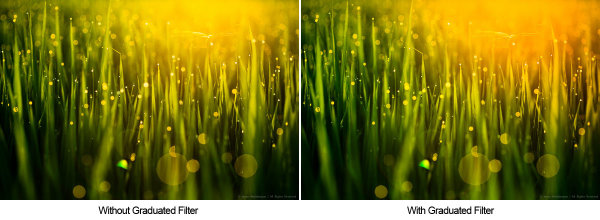
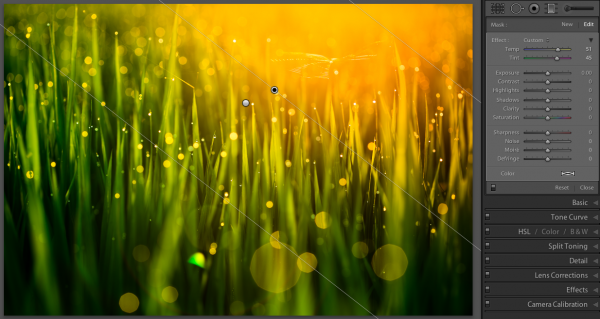
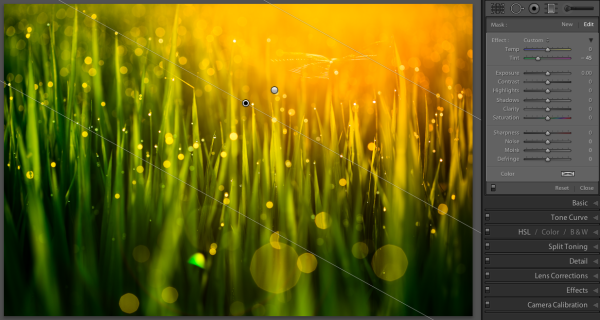
Using the Temp and Tint controls in the Graduated Filter settings, you can adjust white balance across a gradient. This is an image of morning dew on rice plants in Takasaki, Japan. I used two Graduated Filters to separately enhance the sun flare and the rice grass.

Graduated Filter used to selectively change white balance

I used two Graduated Filters to separately emphasize the yellow and green tones.

Graduated Filter to adjust white balance

This Graduated Filter enhances the yellow and pink in the sunrise

Graduated Filter to adjust white balance

This Graduated Filter makes the grass more green.

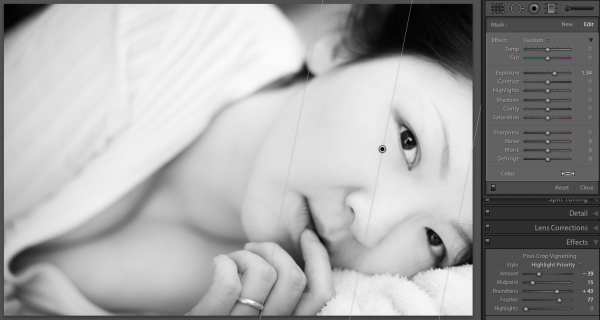
4. Customizing a vignette effect

This technique builds on #1 above, because we are actually manipulating exposure. But I mention it separately because it’s a combination of two Lightroom effects. In some portraits, I like to use a subtle vignette to draw the eye to the subject. But the standard post-crop vignette is not effective at drawing the eye toward one side of the frame.

In these cases you can use a Graduated Filter to selectively modify the vignette, as in the natural light portrait below. A strong vignette darkens the outside of the frame, while an exposure gradient lightens the right side of the frame over the model’s face. This has the effect of pulling the viewer’s eye to the subject’s face.

Graduated filter combined with a vignette

I used a Graduated Filter to remove the vignetting on the right side of the frame

This Graduated Filter counters the vignetting on the right side

This Graduated Filter counters the vignetting on the right side

I hope this article has been interesting and informative, and has given you a few ideas about how to use the Graduated Filter tool to enhance your images. I appreciate feedback, please comment below or feel free to connect with me through Facebook or Google+. I’ll do my best to answer questions and reply to comments.

Post originally from: Digital Photography Tips.

Check out our more Photography Tips at Photography Tips for Beginners, Portrait Photography Tips and Wedding Photography Tips.

4 Uses for Lightroom’s Graduated Filter Tool


Digital Photography School

 
Comments Off on 4 Uses for Lightroom’s Graduated Filter Tool

Posted in Photography


The Burn Tool

01 Nov

Photoshop’s Burn Tool paints in areas of darkness to an image. It can be used to burn in shadows of a portrait, darken the skin tones of a model, or increase the intensity in a stormy sky. Taking the form of a paintbrush, the Burn Tool can strengthen the tones of an image in a more artistic way than other methods, making fine, precision guided adjustments that add contrast and tonality to an otherwise flat image.

Jordan Liberty creates a glamorous Halloween-chic look on model Brooke Quinn. All videos are in HD format and look fantastic full screen! As always, these videos were designed to be fast-paced, so the instructions are written on the screen if you need to pause. Here is the full product listing: Smashbox PhotoFinish Lid Primer & Studio Gear Concealer Brush Urban Decay “El Dorado” Shadow & Smashbox #3 Brush Smashbox “Torch” Shadow and #7 Brush Smashbox “Flamingo” Shadow and Stilazzi Crease Brush Stilazzi Liner Brush Smashbox Limitless Liquid Liner Pen (used as liner and for the spots) OR to be sanitary, use a liner brush and a liquid liner or gel liner. Smashbox “Peacock” Limitless Pencil Liner Smashbox Full Exposure Mascara Bobbi Brown “Espresso” Brow Shadow and Smashbox #12 Brush Ardell #105 Lashes Smashbox “Guava” Limitless Lip Stain Smashbox “Pulse” Lip Enhancing Gloss and Stilazzi Lip Brush Check out the official GGF Store at shop.givegoodface.com Director of Photography Arvil Prewitt A Linear Entertainment Group Production Photography: Jonathan Sorber Direction/Edit: Jordan Liberty Model: Brooke Quinn

 
Comments Off on The Burn Tool

Posted in Retouching in Photoshop


Adjusting Color with the Selective Color Tool in Photoshop

28 Oct

Doing dramatic edits with only two fairly simple tools in Photoshop.

DOWNLOAD HERE bit.ly Professional Photoshop Actions, for a perfect Grayscale conversion These Adobe Photoshop Actions are realized to suit almost every photography. ” Through a combination of tested post processing corrections, we realized these Actions to save time, and convert any image into a perfect black & white photo, in a matter of seconds. Also 3 Unique Sharpener Actions are included.” Watch the Video Tutorial to see how to use these Actions, and how to achieve a perfect black and white photo depending on how you use these Actions. Create perfect Black and White photo effects, with no skills What you get in this item: Detailed Instructions Suggestions and tricks about how to work with these Actions 3 Sharpener Actions wich enhance details, using the same process 3 Pro Black & White Actions, to make perfect Greyscale conversions DOWNLOAD HERE bit.ly
Video Rating: 5 / 5

 
Comments Off on Adjusting Color with the Selective Color Tool in Photoshop

Posted in Retouching in Photoshop


Photoshop tutorial: The Crop tool and Content-Aware tool | lynda.com

24 Oct

This Photoshop tutorial discusses how to use the Crop and Content-Aware tools to extend the canvas and background of a photograph. Watch more at www.lynda.com This specific tutorial is just a single movie from chapter three of the Photoshop for Photographers: Portrait Retouching course presented by lynda.com author Chris Orwig. The complete Photoshop for Photographers: Portrait Retouching course has a total duration of 6 hours and 4 minutes, and explores techniques for reducing wrinkles, enhancing eyes and other facial features, improving hair, retouching makeup, and reshaping portions of a portrait using transformations, the Warp tool, and the Liquify filter. Photoshop for Photographers: Portrait Retouching table of contents: Introduction 1. Getting Started 2. Removing Distractions in the Frame 3. Making Creative Image Adjustments 4. Improving Skin 5. Improving the Shadows and Highlights 6. Reducing Wrinkles 7. Enhancing Eyes 8. Cleaning Up Eyelashes and Eyebrows 9. Retouching Lips 10. Whitening Teeth 11. Improving Hair 12. Adding and Changing Makeup in Photoshop 13. Advanced Skin Smoothing 14. Enhancing Shape and Structure in Images Conclusion

anthonywhitegd.com | https | youtube.com | http Enhance your photos, bring out the lights and darks, improve the look.
Video Rating: 5 / 5

 
Comments Off on Photoshop tutorial: The Crop tool and Content-Aware tool | lynda.com

Posted in Retouching in Photoshop


Japan Hobby Tool makes urban camouflage cover for Nikon 1 system

04 Aug

Japan_Hobby-Tool.png

Japan Hobby Tool has announced a set of ‘urban camouflage’ covers for the Nikon 1 system cameras. In stark contrast to the nostalgia-tinged Gariz leather cases we’ve seen for various cameras, the Japan Hobby Tool coverings are distinctly modern, featuring a stylized pixelated monochrome design. The adhesive covers, created for the Nikon 1 J1, V1 and Coolpix P310, are available for around ¥1890 (roughly $ 25), plus shipping. (from DC Watch)

News: Digital Photography Review (dpreview.com)

 
Comments Off on Japan Hobby Tool makes urban camouflage cover for Nikon 1 system

Posted in Uncategorized


Photoshop Tutorial : Clone Stamp Tool Tutorial

02 Aug

Photoshop Tutorial for Clone Stamp Tool. This is a tutorial on using the Clone Stamp Tool in Photoshop. Its an extremely useful Tool for editing photographs & pictures. Makes photo editing easy and looks professional. Watch this photoshop tutorial to get help starting you on the road to editing your own photos in a impressive manner. digitalvisions.org
Video Rating: 5 / 5


Google Chrome – Google’s Own Screen Capture Tool Supports Full Page Capture, Editing, and Sharing

07 Jun

Take screen captures of entire web pages viewed in Google Chrome, then add highlights to focus on important elements and share the captures via Facebook.

Looking to capture screenshots while browsing the web in Google Chrome, and want to print and share them with friends and coworkers? While many screen capture extensions exist, you may wish to consider Google’s own Screen Capture tool.

Features include visible web tab or freeform region capture, plus the ability on many pages to capture the entire page with the screen capture tool handling horizontal and vertical scrolling (the author tested this on a couple of pages with good results – your mileage may vary with especially large pages)….

Read more at MalekTips.
New Computer and Technology Help and Tips – MalekTips.Com

 
Comments Off on Google Chrome – Google’s Own Screen Capture Tool Supports Full Page Capture, Editing, and Sharing

Posted in Technology


Photoshop Elements Magic Eraser Tool

21 Apr

www.essential-photoshop-elements.com Magic Eraser Tool in Photoshop Elements works like the Magic Wand Tool except it removes a photo’s background and changes it to transparent.