RSS
 

Posts Tagged ‘through’

4 Tips to Learn to Live Through Photography

28 Jun

The magic of an instant

What is photography anyway? It is a fraction of a second of eternity that you try to capture, with better or worse technique, with deeper or shallower depth of field. But, in short, that’s all about photography, and it is this magic what makes photography an art. The essence of why many of us like photography, goes beyond what we can capture with our DSLR and show to others. It is the experience of the moment, and how one learns through the years to be aware of the present. It was just a few months ago when I learned what mindfulness was about, and I immediately noticed the similitude with how I experience photography. It is all about being present in the moment that one is trying to capture.

The journey back home

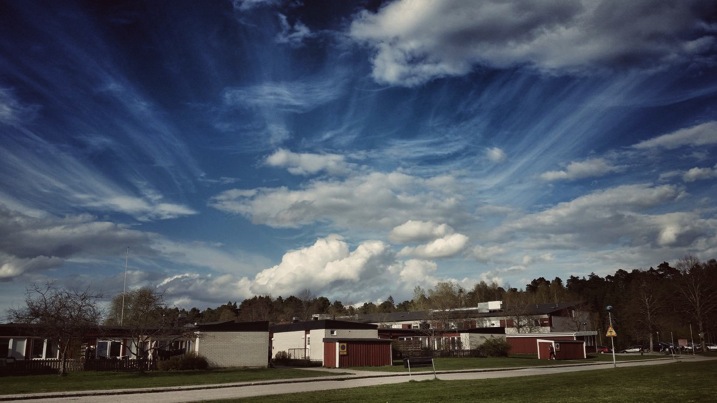
The journey back home – something so magnificent like ephemeral cloud formations could pass right away if you are immersed in past or future thoughts instead of being present.

1) Be there

To be present involves being aware of oneself in the present moment. The fact that one is observing and capturing a situation is not enough to take a great picture. I am a visual person. There is large chance that since you like photography, you are as well. That means that you learn better by watching a film than by reading a book. You then may prefer a figure or infographic, rather than its explanation. In my case, long before I got my first serious camera, and committed myself to learn the techniques and nuances to show other people the way I see the world, I already enjoyed looking at other people’s pictures. However, it was seldom that I actually observed the world around me.

Photography teaches us that those amazing pictures we love viewing from other photographers, are actually out there if you dare to look. I don’t remember a particular moment when I realized I was alive. There was no such an experience. But I somehow learned through photography that the best camera obscura that I can count with is my eyes. The best film is my memory. And it is awesome because it also comes along with many other senses. Once you realize that, you discover that the difference between a snapshot and a great picture is that: for the latter you acknowledge all the angles of the scene, you walk your picture before you take it, you breathe it, you feel it, and then compose it. You ARE in the picture as the one capturing it. And you want somebody else to BE there with you seeing the same scene.

2) Chase the moments

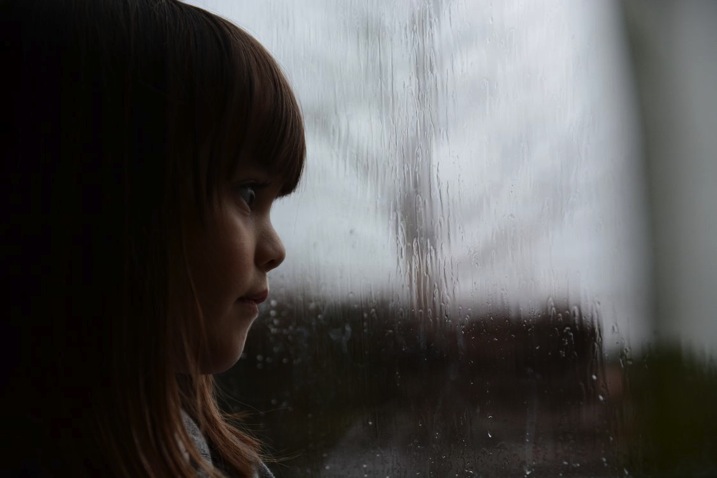
Daddy when will it stop

Daddy, when will it stop?: This is my daughter’s frustration for not being able to go outside on a long, boring summer Sunday. It wasn’t until I realized her feelings that I knew what to photograph.

You have to be quick if you are for example, a street photographer, but that’s how life is in cities, right? However, there is not much difference than, let’s say, a fashion production in the sense that it is a fraction of a second, just a moment that you are able to transmit into a picture. We have to learn to chase the moments… to do so we have to BE in the scene.

If you run out of battery, or you find yourself without your bulky DSLR with you, then simply capture it in your mind. I literally make the sound “click” in my mind. You don’t need to, that is my own mental issue. But whatever it is that you like to chase and capture, whether it is your cat, a pint of beer, or the garbage on a street – be there. Paraphrasing Henri Cartier-Bresson, most of the situations that you see around you will repeat if you wait long enough. Yes, even those pictures that you missed because you didn’t bring your camera with you. Be present to know what you are after. Learn about your subject, revisit the site and you will get the shot you want.

3) Know what you feel

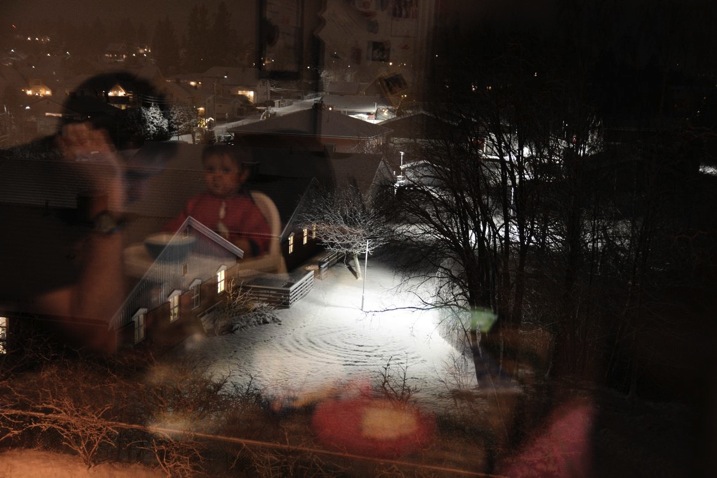
Xmas eve in Oslo

Christmas eve in Oslo – This time, it was my feeling of confinement on a cold Christmas eve that I tried to capture. Me and my friend (in the picture) are used to warm and sunny Christmas festivities. Not this time.

If the scene you are watching makes you angry, then be angry and capture angriness. Be aware of the weight of the camera in your hands. Be aware of your finger pressing the shutter in the moment you do. Reflect about why did you choose to press it just then, and not before. Watch the object’s geometry, its beauty. Do you really want to be there? Does the marriage of that couple you are photographing make you happy? What is it that makes you happy? Their smiles? All the people celebrating together? You don’t need to do anything else with those feelings. Let them be in you, and let them go away. But just when you realize them, capture that moment in a picture. Capture with the camera the pictures you would like to share, but capture for yourself every fraction of a second of your life. BE there where you are.

4) Use your other senses

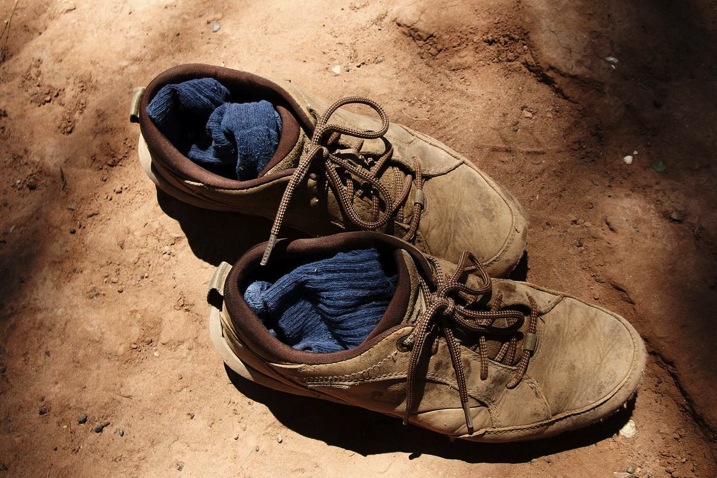
Smelly shoes

Smelly shoes – When I see this picture I can’t stop feeling the heat coming from these shoes that have walked who knows how long under the sun.

To some extent, you can also transmit with a picture, what your other senses were capturing. This is one of the biggest challenges of photography. Smell, listen, feel, taste. To me, the perfect picture is one that transmits all those other sensations, smells, noises, emotions, and temperature apart from what you are just watching. That takes a level of mastery that not everyone achieves. But if you are still there like me, on your long way to becoming a great photographer (even if we may never become a renown one), learning photography in its broader sense is an excellent way to learn to be present in that short lapse of time that our lives are meant to last.

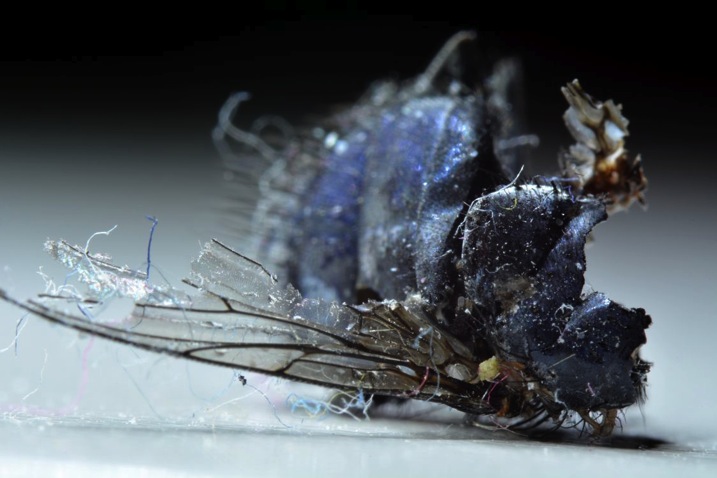
Rotten fly

Rotten fly – What are your feelings about this dead fly?

googletag.cmd.push(function() {
tablet_slots.push( googletag.defineSlot( “/1005424/_dPSv4_tab-all-article-bottom_(300×250)”, [300, 250], “pb-ad-78623” ).addService( googletag.pubads() ) ); } );

googletag.cmd.push(function() {
mobile_slots.push( googletag.defineSlot( “/1005424/_dPSv4_mob-all-article-bottom_(300×250)”, [300, 250], “pb-ad-78158” ).addService( googletag.pubads() ) ); } );

The post 4 Tips to Learn to Live Through Photography by Alejandro Ruete appeared first on Digital Photography School.


Digital Photography School

 
Comments Off on 4 Tips to Learn to Live Through Photography

Posted in Photography


MIT algorithm aims to eradicate reflections from photos taken through windows

14 May

Researchers at the Massachusetts Institute of Technology claim to have developed a method for eliminating reflections in glass via digital processing. It is hoped that with further development the idea could see its way into digital cameras, allowing reflections to be automatically removed when they interfere with the view through a window. Read more

Articles: Digital Photography Review (dpreview.com)

 
Comments Off on MIT algorithm aims to eradicate reflections from photos taken through windows

Posted in Uncategorized


Lightroom Walk Through – Event Photography Workflow with Phil Steele

12 Apr

Phil Steele is a well-known and respected photography educator. In this video tutorial he walks you through exactly how he works through the post-processing of an event he has just shot.

Learn tips on importing, rating, culling, organizing in Collections, exporting, and delivering the photos as Phil goes through his entire event photography workflow step by step.

If you enjoyed that and want more you can check out Phil’s courses here:

  • How to Shoot Headshots and Portraits on a Budget with Small Flashes
  • Photoshop Basics for Photographers
  • Lightroom Made Easy
  • Event Photography course

googletag.cmd.push(function() {
tablet_slots.push( googletag.defineSlot( “/1005424/_dPSv4_tab-all-article-bottom_(300×250)”, [300, 250], “pb-ad-78623” ).addService( googletag.pubads() ) ); } );

googletag.cmd.push(function() {
mobile_slots.push( googletag.defineSlot( “/1005424/_dPSv4_mob-all-article-bottom_(300×250)”, [300, 250], “pb-ad-78158” ).addService( googletag.pubads() ) ); } );

The post Lightroom Walk Through – Event Photography Workflow with Phil Steele by Darlene Hildebrandt appeared first on Digital Photography School.


Digital Photography School

 
Comments Off on Lightroom Walk Through – Event Photography Workflow with Phil Steele

Posted in Photography


Walk Through and Review of Autopano Giga – Image Stitching Software

14 Mar
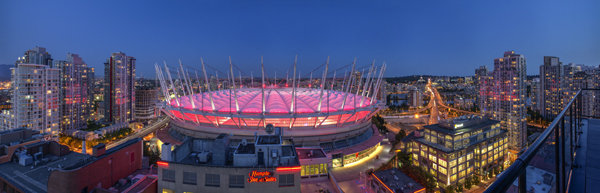
A six image photostitch of BC Place in Vancouver

A six image photostitch of BC Place in Vancouver

My first image editing software was Photoshop Elements 6 and the photostitching function was really erratic to say the least. I was doing real estate and architectural photography and needed a reliable and accurate tool that could quickly and properly stitch images together. I tried a few, but was not happy with all the results. The software was difficult to use and the results were irregular.

Then I heard about Autopano. I downloaded a trial and was pretty amazed at how quickly, and more importantly, accurately the software stitched scenes together that other pieces of software had not been able to. The stitching was seamless and effortless. I was impressed with the ease of use and the speed at which the software worked. I had found my tool of choice, Autopano Giga. Autopano Giga is a tool that is made by a company called Kolor. They develop image stitching software, pano tour software and 360 degree software, they are a specialist photography software company.
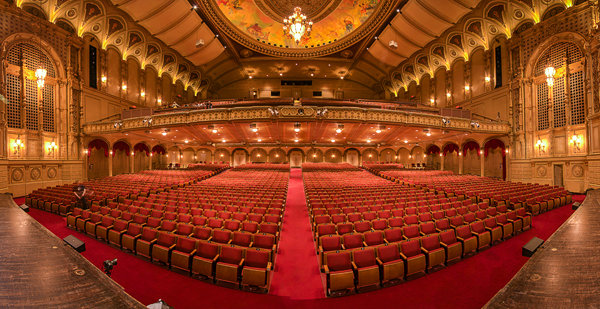
5 shot photo stitched image of the Orpheum Theatre, Vancouver BC

Five shot photo stitched image of the Orpheum Theatre, Vancouver BC

The first step in making effective panoramic images is knowing how to photograph them. That is beyond the scope of this article so for the purpose of this review we’ll assume you have some panoramic images already shot and want to stitch them.

Time to stitch

For the image stitching part of this process, I am going to be referring to the interface in Autopano Giga. This product works extremely well. It has been rated as one of the best stitching packages available. I have used it to stitch some pretty crazy panos together and it has been able to process almost anything I have thrown at it. I have done normal photostitches and I have done some multi-row stitches too. Autopano Giga has handled these with ease, and in some cases I have been pretty surprised how well it worked.

Let’s look at how this process works in Autopano Giga:
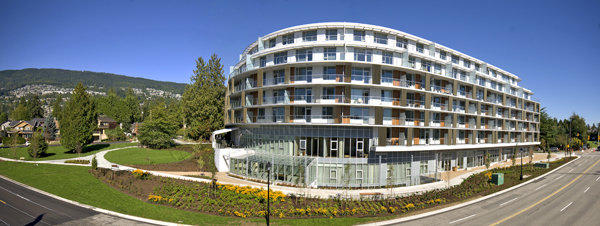
Panoramic images work well for architectural photography

Panoramic images work well for architectural photography

  1. Open Autopano Giga and on the first screen that you see, click on the second icon from the left to select your images to be stitched.
  2. Navigate to the images that you have processed and select them.
  3. Click on Detect on the top left hand side of the screen.
  4. Autopano Giga will now scan your images and do a preliminary stitch. This preview stitched image will be displayed on the right hand side of the screen that is open. This process may take a few minutes.
  5. Once the preview image is displaying, click on the Edit button (right-hand side of the screen) this will open the image in the Autopano edit screen. This is where you want to check the image to see that it has stitched together properly, and verify that there are no errors on the image.
  6. There are a number of options here, below is a high level overview of the most important functions
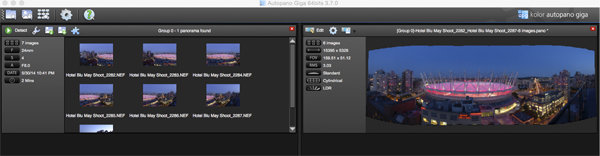
Detection and preview screen in Autopano Giga

Detection and preview screen in Autopano Giga

Autopano functions on the edit screen:

Autopano has a number of options you can use to render your panoramic image. These projections help with distortion and skewing. Below is an explanation of the most commonly used projections.

  • Spherical – The spherical function allows any panorama to be assembled. It is a commonly used option for building panoramic images.
  • Planar or rectilinear projection – This is a good choice if the angle is low. It’s recommended for architectural shots because it is the only mode that does not curve lines that are deemed to be straight lines. Sometimes if the angles are too extreme there may be a loss of sharpness, so just be aware of that.
  • Cylindrical projection – This projection can be used up to 360° (horizontally).
  • Mercator projection – The mercator projection can also be used up to 360° (horizontally). The effect of stretching up and down, the image may seem to become distorted.
  • Pannini projection – Keeps vertical lines vertical and straight radial lines. This can give a strong sense of perspective on views whose horizontal field of view is wide, and has a single and central vanishing point. It can however makes horizon lines seem curved. This can be corrected in the sliders that pop-up when you are editing in this projection.
  • Little planet projection – The Stereographic projection (also called fisheye projection) can be used to create a little planet. A right way up panorama achieves a planet effect and a backward panorama (180° rotation) makes a tunnel effect. Allows you to create an original view of a panorama, mainly using equirectangular panoramas (360°x180°). Using this projection with panoramas, whose horizontal field of view is less than 330°, is neither aesthetic nor usable.
  • Hammer projection – This projection is similar to a flattened world map, mainly used in astronomy applications. I use this for cityscapes too as it can correct some perspective distortion.
  • Orthographic projection – This is the view point of a sphere, whose panorama is viewed from afar, mapped to the outside and not inside like most other projections.
  • Mirror ball projection – This projection is the result of a visualization of the whole panorama on a spherical mirror, like looking into a crystal ball.
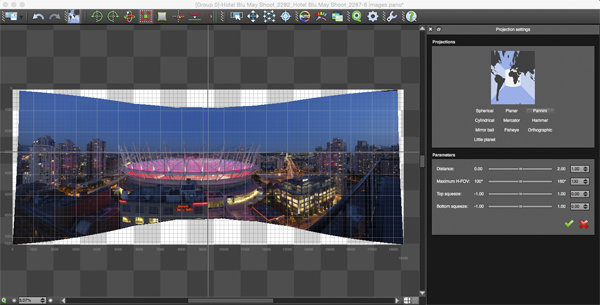
Projection function in Autopano Giga

Projection function in Autopano Giga

 Some of these projections are more useful than others. You may find that you will end up using only two or three. A good idea is click on each of them to see how they affect your image. The key factor in choosing a projection is in how the it affects your image visually. Does it work for the subject matter? Does the image look correct? Is the perspective distortion correct? Ask yourself these questions as you experiment with the projections.

Once you are happy with your projection and the way the image looks, you can now save the image to a folder on your computer.

Rendering

This is the process of saving your panorama.It is called rendering because the software needs to perform the final stitching and edits to your image. On the rendering screen, you will need to take note of the following:
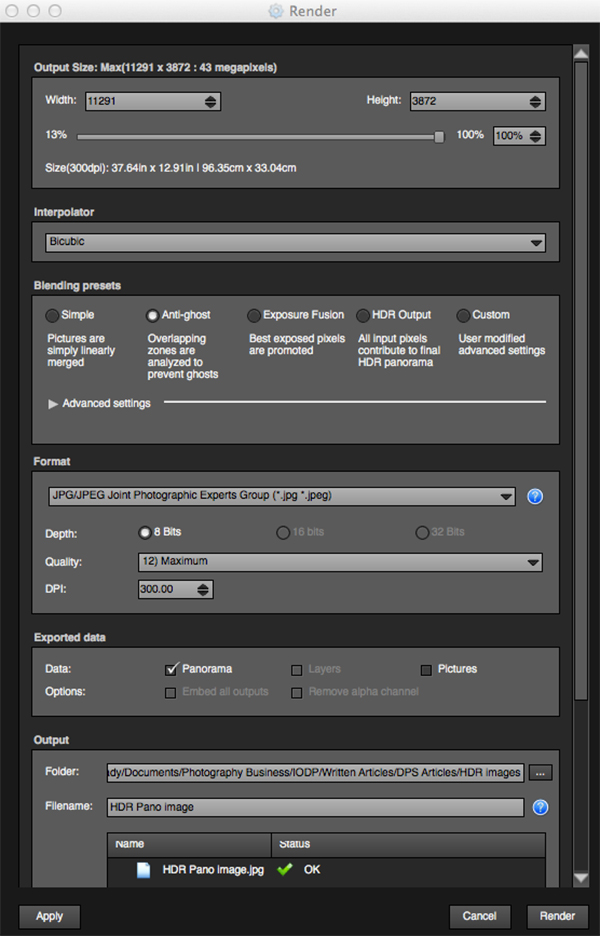
Render and Save screen on Autopano Giga

Render and Save screen on Autopano Giga

Interpolator – The interpolator is the method used to assemble the pixels of your panoramic image, and will determine the quality and sharpness of your image. There are a few different options here, but the most commonly used option is Bicubic. The others are useful for advanced stitching.

Blending settings – The purpose of the blending settings is to allow combining of the overlapped sections of your panoramic to look smooth and seamless. You will notice the following presets:

  • Simple – This is fast, but it is possible that defects may be seen where the areas overlap.
  • Anti-ghost – Conserve the image’s strong characteristics (stops, lines, curves) when mixing while automatically removing objects that have moved
  • Exposure fusion – To be used if the panorama was created with a set of bracketed shoots. Keeps the best of different exposures.
  • HDR output – To be used by users who wish to create a “.hdr” format file in order to create post-production or special effects. Don’t use this on these images if they have already been processed as HDR images.
  • Custom – This is enabled when you manually change the parameters and they no longer correspond to a profile.

On the advanced settings, I generally leave that on the default.

Some of the features that I appreciate in Autopano Giga are as follows:

Exposure and colour blending – The software works hard at sorting out colour and exposure in the blended images. In the past, one of the worst problems with photo stitching was that sometimes the colour or exposure drifted and there was banding in the scene where the light or colour changed. This is a non-issue in Autopano Giga.

Panoramic detection – Sometimes I have shot more than a few panoramic images. When I get back to my computer, I can’t always see or remember which images were which. No problem, you can simply point Autopano Giga to a folder and it will detect all panoramics in that folder.

You can shoot freehand – The software has some really good functionality built-in that can work out multiple viewpoints. So, if you shoot a panoramic without using a tripod or a pano head, the software will be able to detect the scene and make adjustments for it, within reason. Nice to have though, I have shot many handheld panoramic and then dropped them into Autopano and they stitched quite easily.

Format

This section allows you to determine the format in which you want your image to be saved. The two formats I use most are TIFF and JPEG. TIFF is an uncompressed file (which means all the information is still in the file, this is great if you are planning to print the image large) The downside to TIFF is that the files are big. JPEG is a compressed format, that means that some image information has been discarded, the quality will still look the same to the naked eye, but if you print a JPEG image up really big, you may notice some image degradation. Depending on your final output and your space constraints you can choose the format that works best for you. Take the quality up to 12 and set the DPI to 300. This will ensure that you have the best quality image saved.

Output

On this screen, the software needs to know where to save your panoramic and what you want to call it. Choose your destination folder and name the file. Once this is done (it sounds more complicated than it is) click on the render button and the software will begin rendering your image. Depending on the size of the files being stitched, this rendering process can take a few minutes. Once complete, a screen will pop-up to let you know that the image is now rendered.

Edit the final image in Lightroom or Photoshop

Your image is now stitched together, but the final step in the process is to edit the image in your choice of editor. You may want to correct any perspective distortion in Photoshop using the transform tools. If your panoramic image is of a cityscape you will want to make sure that your horizon line is straight and that the buildings are vertical in relation to the horizon. From there you can follow your normal image editing workflow. Once you are done, you will have a fantastic, high resolution, panoramic image.
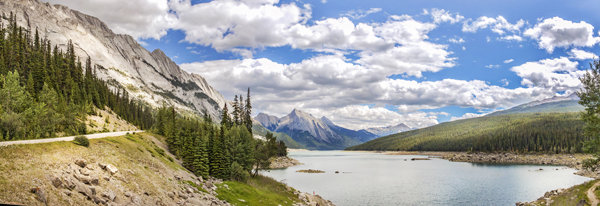
Final edited panoramic image of Medicine Lake in the Canadian Rockies

Final edited panoramic image of Medicine Lake in the Canadian Rockies

My comments on Autopano Giga

Autopano giga has made my editing and processing time much quicker and easier. I do a fair amount of panoramic photography, and the time saving when using this software is significant. I have used it to photograph landscape scenes, hotel rooms, building exteriors and architectural photography. It works exceptionally well in all of those areas. If you make sure that you overlap the images enough, it will stitch your images with ease.

The editing process in Autopano Giga is also very easy to use. Simply click on the projections to see how your image looks, make a choice, and you are done. You can make some technical adjustments within the editing area, but I recommend only doing that if it is absolutely essential.

The perspective control of Autopano Giga is fantastic. For the most part, the final stitched images look correct and I almost never pick up an error on the stitch. It is always a good idea to zoom in to the image to make sure that there are no issues like duplicated areas or bad stitches. This is not normally a problem if your overlap is good.

Autopano Giga is a great tool and if you enjoy shooting panoramic images, download a trial and see how it works for you. Panoramic photography is a lot of fun, I am always excited when I see the final stitched image, very often it is not what I was expecting and thats part of the excitement of these types of images. Having a tool that takes the frustration out of the process is a great advantage. So, go out there and experiment.

googletag.cmd.push(function() {
tablet_slots.push( googletag.defineSlot( “/1005424/_dPSv4_tab-all-article-bottom_(300×250)”, [300, 250], “pb-ad-78623” ).addService( googletag.pubads() ) ); googletag.pubads().enableSingleRequest();
googletag.pubads().disableInitialLoad();
googletag.pubads().collapseEmptyDivs( true );
googletag.enableServices();
} );

googletag.cmd.push( function() { googletag.display( ‘pb-ad-78623’ ); } );

googletag.cmd.push(function() {
mobile_slots.push( googletag.defineSlot( “/1005424/_dPSv4_mob-all-article-bottom_(300×250)”, [300, 250], “pb-ad-78158” ).addService( googletag.pubads() ) ); googletag.pubads().enableSingleRequest();
googletag.pubads().disableInitialLoad();
googletag.pubads().collapseEmptyDivs( true );
googletag.enableServices();
} );

googletag.cmd.push( function() { googletag.display( ‘pb-ad-78158’ ); } );

The post Walk Through and Review of Autopano Giga – Image Stitching Software by Barry J Brady appeared first on Digital Photography School.


Digital Photography School
 
Comments Off on Walk Through and Review of Autopano Giga – Image Stitching Software

Posted in Photography


See Through Stone: 13 Aging Structures with Glass Extensions

03 Feb

[ By Steph in Architecture & Houses & Residential. ]

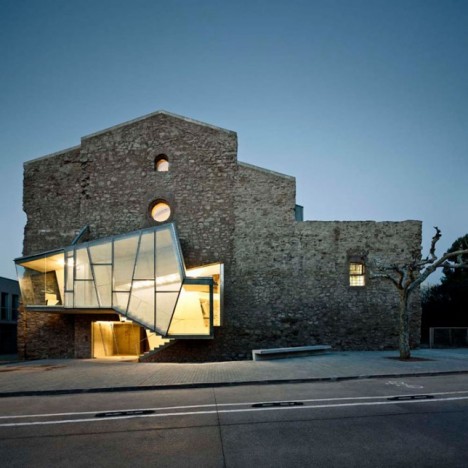
modern ruins sant francesc 1

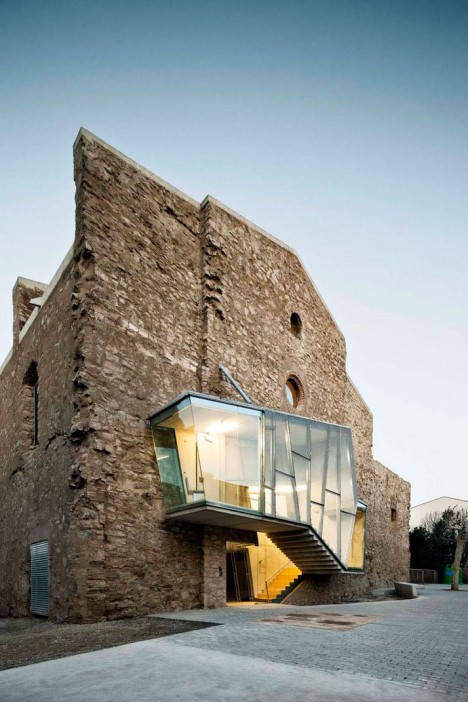
The crumbling stone ruins of churches, farmhouses and barns are integrated into new structures that preserve and display their historic character while adding playful modern elements, like glass additions that adjoin disparate buildings or fill in damaged areas. These 13 renovations to historic architecture include examples of when the process is done right – honoring the original structure’s heritage – as well as cases where the changes are less than welcome.

Convent de Sant Francesc by David Closes

sant francesc

modern ruins sant francesc 2

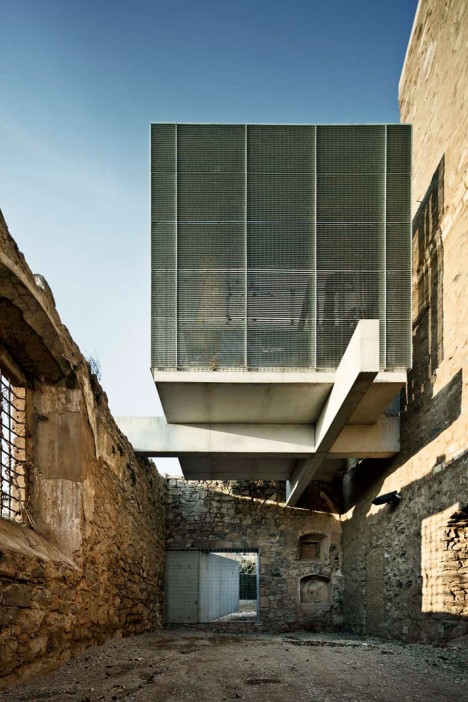
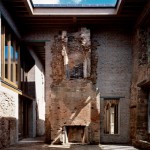
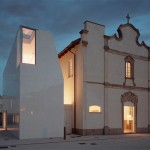
A gaping hole created during the demolition of an adjacent convent was filled in with a geometric modern glass addition at the Sant Francesc church in Santpedor, Spain, a stone building dating back to 1721. The renovation added contemporary elements to both the interior and exterior while leaving the evidence of the building’s decay over time in place, creating skylights where the ceilings had caved in.

Contemporary Studio Extension to Historic Church

modern ruins studio 1

modern ruins studio 2

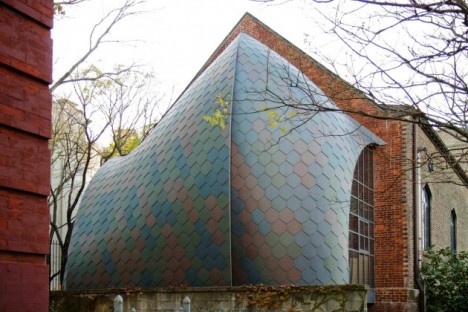
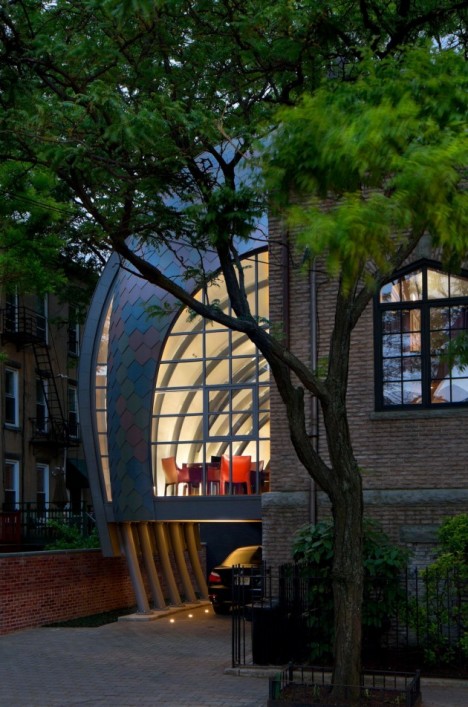
A historic brick church in Hoboken, New Jersey in use as a studio for Marchetto Higgins Stieve Architects is extended with an unusual glass canopy, curving down from the upper portion of the existing structure to the ground.

Two Stone Cottages Connected by a Glass Staircase

dublin stone 1

dublin stone 2

dublin stone 3

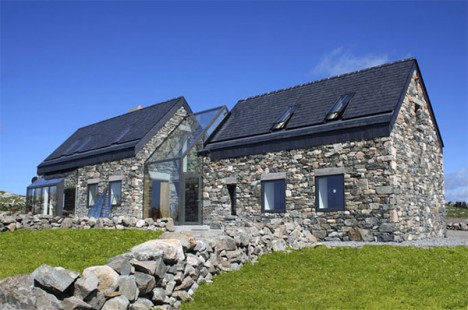
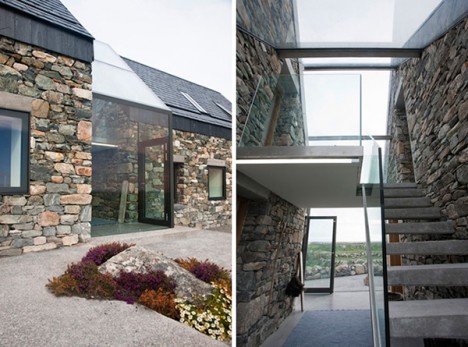
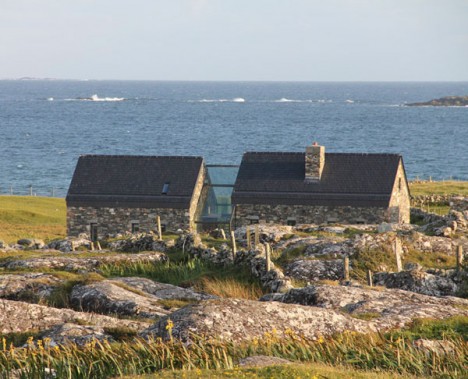
A pair of dilapidated stone farmhouses in Ireland are now connected via a transparent, glass-enclosed staircase. Architect Peter Legge maintained the rustic character of the rural buildings but added the glass atrium to unite them, as well as a transparent dining area with folding doors.

Modern Addition to a Historic Farmhouse

ballymahon 2

ballymahon 1

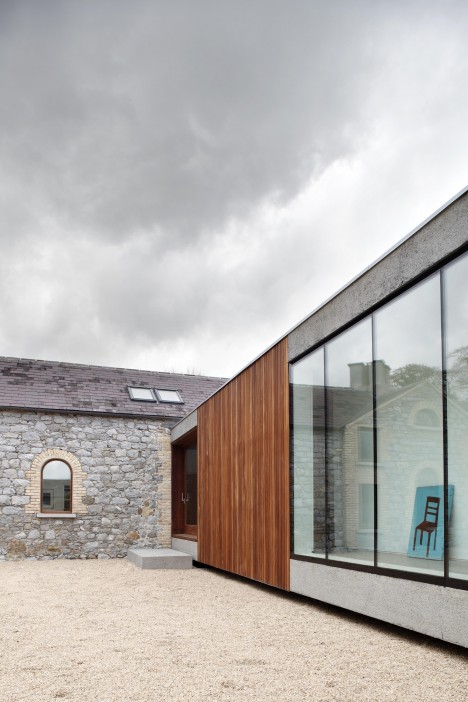
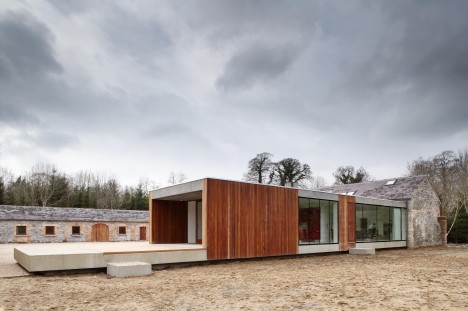
ODOS Architects transformed a collection of 18th century stone farm buildings in Ireland with a new single-story wing made of glass and timber. The new wing unites the trio of existing buildings to create a courtyard and enables views to the adjacent woodlands with large expanses of frameless glazing.

Glass Extension to a Private Farmhouse in Gloucester

gloucester

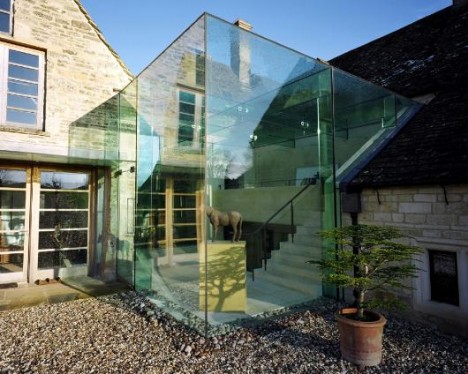
Having absorbed “changes and layers of occupation from the 17th century onwards,” this farmhouse in Gloucester has now evolved into a contemporary home with the removal of incongruous additions from previous eras and the addition of a modern glass structure. The award-winning renovation encloses and extends a portion of the living area, bridging a gap between the two original buildings.

Next Page – Click Below to Read More:
See Through Stone 13 Aging Structures With Glass Extensions

Share on Facebook


[ By Steph in Architecture & Houses & Residential. ]

[ WebUrbanist | Archives | Galleries | Privacy | TOS ]


WebUrbanist

 
Comments Off on See Through Stone: 13 Aging Structures with Glass Extensions

Posted in Creativity


Residential Rollercoaster: Buyers Ride Through House for Sale

18 Dec

[ By Steph in Design & Guerilla Ads & Marketing. ]

roller coaster ride 5

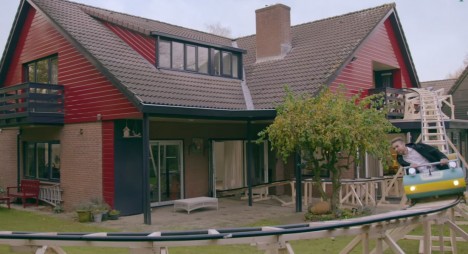
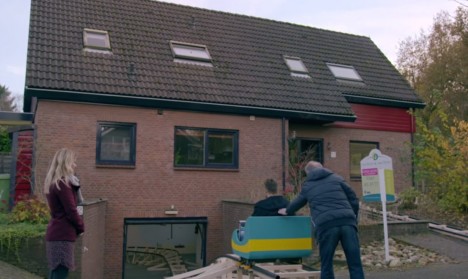
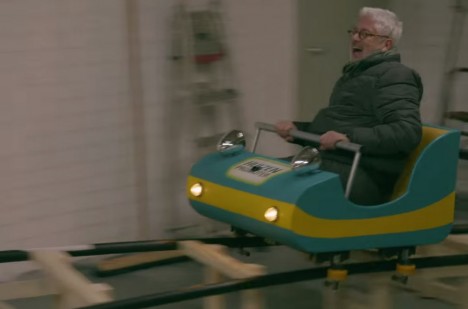
Perhaps ‘roller coaster ride’ isn’t the most desirable term that a seller would want potential buyers using to describe the property they’re showing, but in this case, it might not be such a bad thing. Dutch brokerage firm Verder Met Wonen literally takes prospective residents on a ride through the home on a specially-installed roller coaster in single-rider wooden cars.

output_qCwmeV

house rollercoaster 1

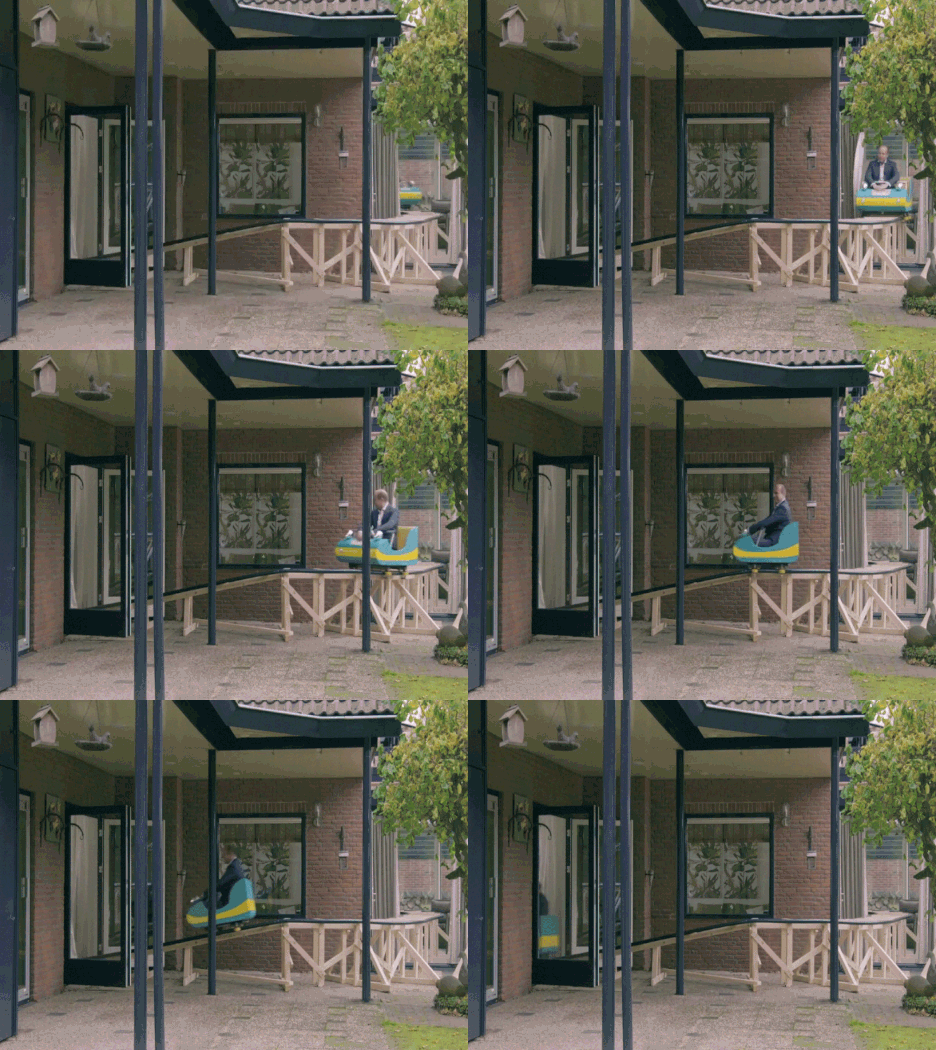
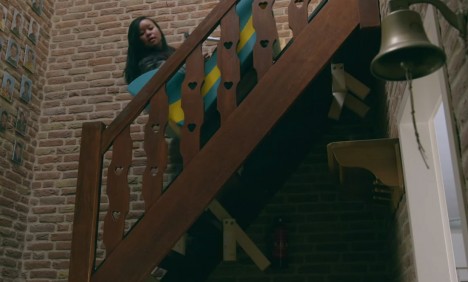
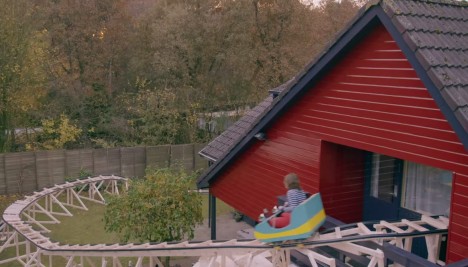
The ride starts in the driveway, descending into the basement and then hoisting viewers up the stairs to see the first level.  It then rises to the second floor, winds through the bedrooms and plummets out an upper window into the backyard.

house rollercoaster 2

house rollercoaster 3

house rollercoaster 4

A 90-second promotional clip gives us a glimpse at the journey, even if we can’t take it ourselves. No word on whether the stunt has helped the home’s chances of selling, and it’s certainly not giving prospective buyers a lot of time to mull over each space, but it’s certainly getting the firm some attention.

Share on Facebook


[ By Steph in Design & Guerilla Ads & Marketing. ]

[ WebUrbanist | Archives | Galleries | Privacy | TOS ]


WebUrbanist

 
Comments Off on Residential Rollercoaster: Buyers Ride Through House for Sale

Posted in Creativity


Creative Discovery Through Mistakes

29 Oct

One of the great things about creativity is that it can germinate from a mistake. The trick for photographers is to develop an awareness and eye to see mistakes as creative opportunity so as explore them until they become a crafted photograph. It is very easy to feel that we have to be in control of the creative process from beginning to end and that is not required. Sometimes taking an extended look at a mistake can yield new ideas that would never have come to mind otherwise. Working a scene and trying new angles, settings, focal lengths, etc. is one way to hone your final product through “seeing,” and other times “seeing” happens after the fact when photo editing (see Always Check Your Seconds). The trick to “seeing” after the fact is to not become so absorbed in your initial idea of what you had wanted to accomplish and to be open to new viewpoints and possibilities.
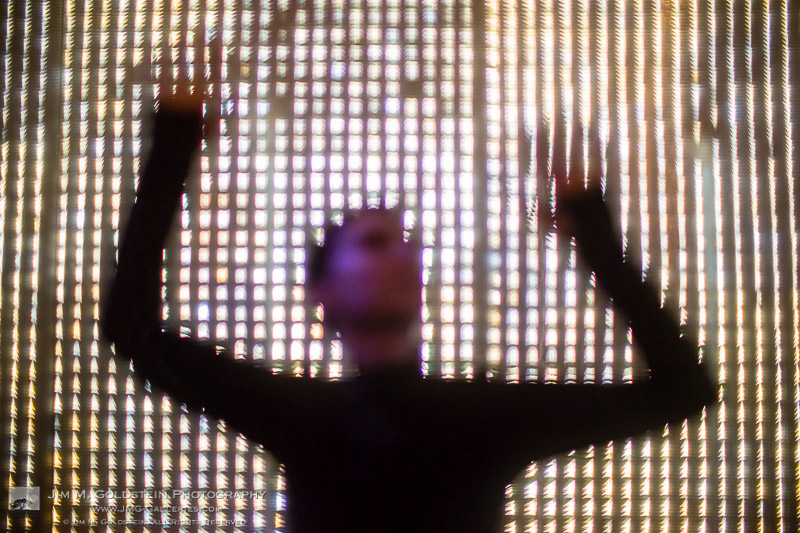
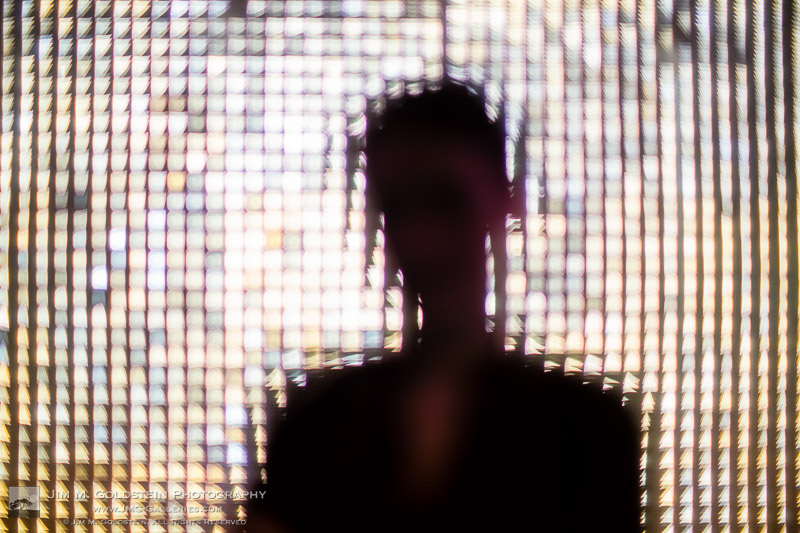
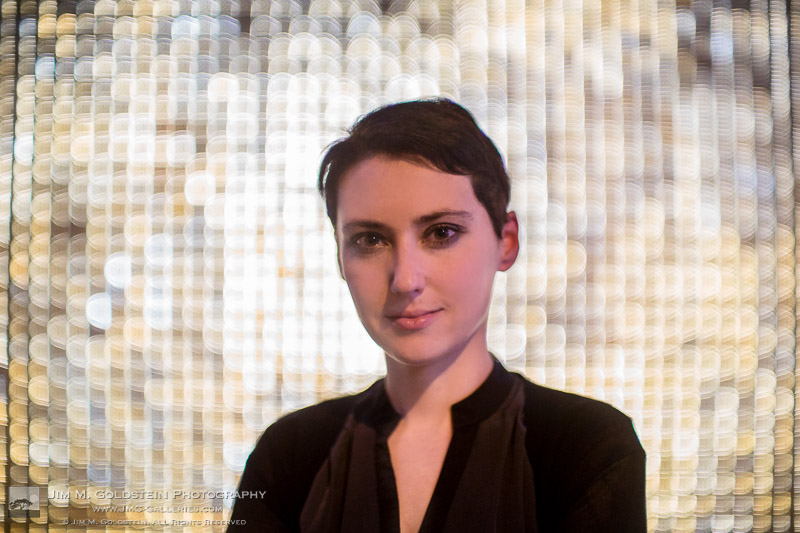
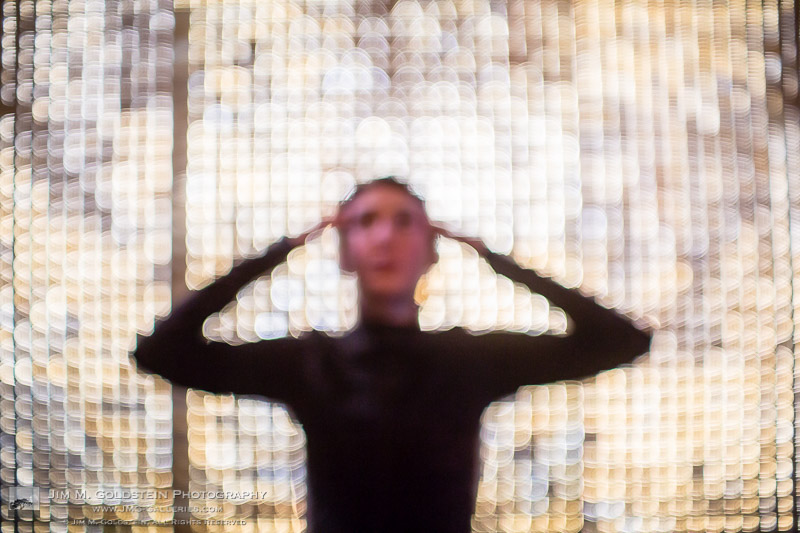
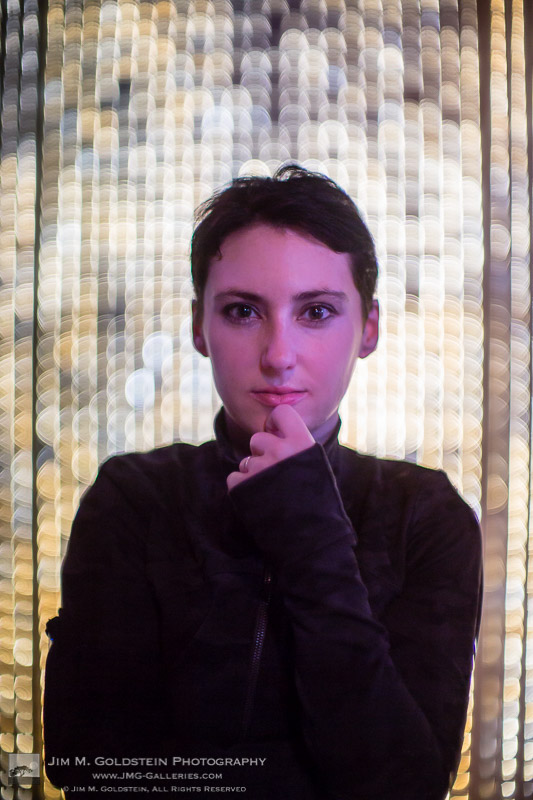
Sometimes mistakes present themselves in an obvious fashion as was the case while I was taking example photos with a new Petzval lens. My aim was to photograph a model and leverage the optics of the lens to capture it’s iconic swirled bokeh in the background. The output as seen below was exactly what I had intended, but in the process a mis-shot was captured and I didn’t notice it’s potential until I was photo editing. Granted the intended shot was perfectly fine; I found the mistake photo fascinating. I instantly saw the opportunity to create something new that I’d never seen before. Inspired I went back out to replicate the optical aberration with a Canon 50mm f/1.0 which lacked the swirled bokeh.

The intended outcome of my shoot.

The accident that sparked an idea

The reshoot of my model with a new lens and similar settings yielded the results I had envisioned (see below). Granted the end results are not for everyone, but given the spooky nature of how my model turned out I thought it made for a great Halloween styled photo set. My mistake yielded a new technique I’m eager to continue to perfect.

Experimental Portrait – The Normal One

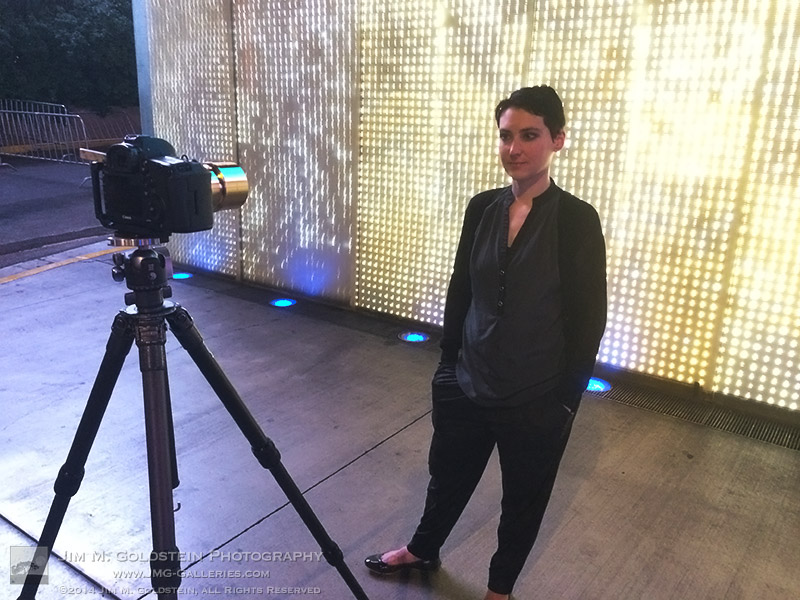
Behind the Scenes - Experimental Portraits

Behind the Scenes – Experimental Portraits


Copyright Jim M. Goldstein, All Rights Reserved

Creative Discovery Through Mistakes

The post Creative Discovery Through Mistakes appeared first on JMG-Galleries – Landscape, Nature & Travel Photography.


Related Stories

  • Creative Discovery Through Mistakes – Enclosure
  • Best Photos of 2013 by Jim M. Goldstein
  • Best Photos of 2013 by Jim M. Goldstein – Enclosure
Feed Ads by FeedBlitz
powered by ad choices


JMG-Galleries

 
Comments Off on Creative Discovery Through Mistakes

Posted in Equipment


Looking Sharp: Blade-Like Bridge Slices Through the Air

09 Oct

[ By Steph in Destinations & Sights & Travel. ]

blade bridge 1

Five blade-like beams slice into the sky when this cantilevered footbridge in London’s Merchant Square rises to make way for boats moving along the Grand Union Canal. The movement of its dynamic design is inspired by the opening and closing of a traditional hand-held fan, the steel elements separating as they’re lifted into the air by hydraulic jacks.

blade bridge

blade bridge 2

Designed by Knight Architects and AKT II, the bridge spans a 20-meter (65-foot) section of the canal. The beams weigh six to seven tons each, and are balanced by a 40-ton counterweight. When fully open, the bottom blade hovers about 8 feet over the surface of the water. When closed, the bridge offers a flat and comparatively unremarkable surface that pedestrians can cross three-abreast.

blade bridge 3 blade bridge 4

Envisioned as a kinetic sculpture, the design beat out dozens of others in a 2012 contest. Like Thomas Heatherwick’s nearby Rolling Bridge, which curls into a ball as it opens, the new bridge rises every Friday and is considered a landmark for the area.

Share on Facebook


[ By Steph in Destinations & Sights & Travel. ]

[ WebUrbanist | Archives | Galleries | Privacy | TOS ]


WebUrbanist

 
Comments Off on Looking Sharp: Blade-Like Bridge Slices Through the Air

Posted in Creativity


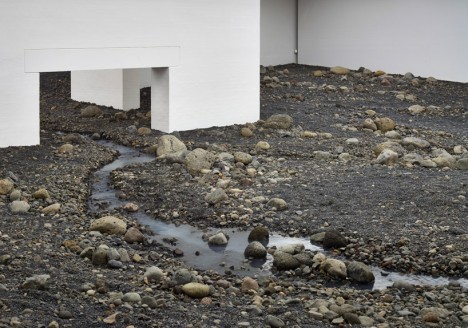
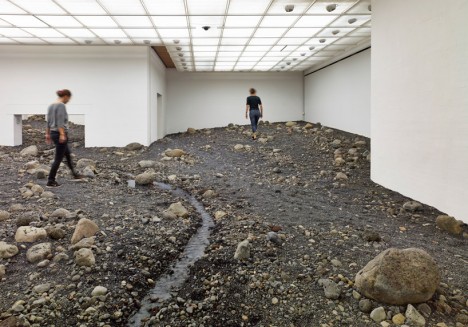
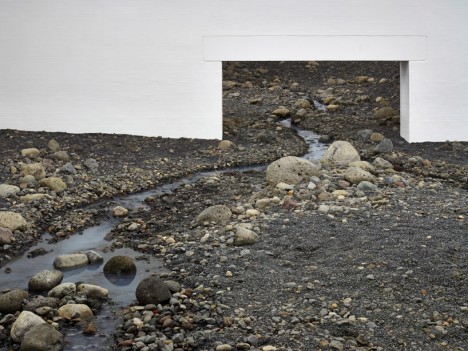
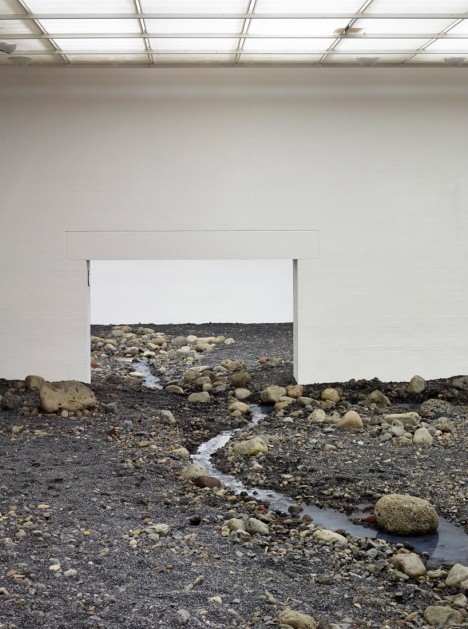
Interior Land Art: Riverbed Really Runs Through this Museum

31 Aug

[ By WebUrbanist in Art & Installation & Sound. ]

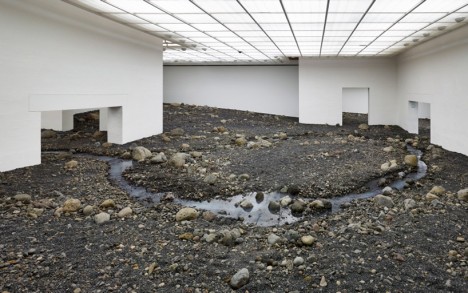
river interior museum gallery

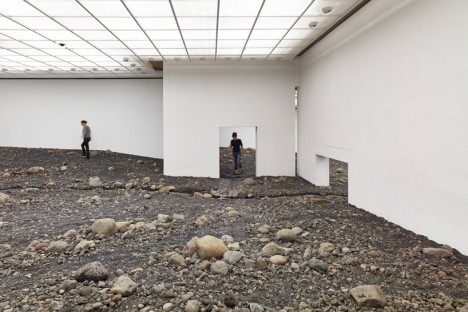
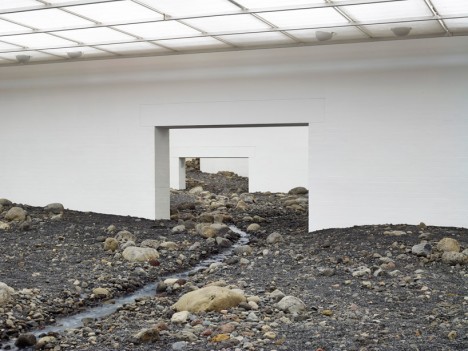
Art rarely gets as gritty and real as this, particularly in a gallery, with rocks, earth and water running through simple doors, between white-walled rooms and under uniform interior lighting.

riverbed walking closeup example

Olafur Eliasson, a Danish and Icelandic artist, created Riverbed as one of a series of installations for the Louisiana Museum of Modern Art in Denmark, challenging visitors to experience both museums and landscapes in new ways.

riverbed zoomed in doors

Meanwhile, the spaces become both intimate and perhaps uncomfortable as the earthwork slopes upward into ultimately-inaccessible areas.

river runs through art

The artist explains: “What I’m interested in with my work at the Louisiana isn’t really that you experience an object or an artwork. I am interested in how you connect this landscape to the rest of the world and ultimately, how you experience yourself within it.”

riverbed walking visitor tour

Traditional floor tiles slowly give way to a rugged landscape of stones and dirt, leading up to the sides of a real river inexplicably traversing the gallery interior.

riverbed art installation denmark

Aside from other references, the work is a nod to the sculpture garden that used to sit in the same spaces where this section of interior galleries now stands.

riverbed dirt rock water

“When we’re in our familiar surroundings, in our circle of family and friends, our senses are very finely tuned, but the further away we get from the local context, the cruder the sensing becomes. I wonder if our focus on the atmospheric can give us a relationship with something that is very abstract and far away.” (Images by Anders Sune Berg)

Share on Facebook


[ By WebUrbanist in Art & Installation & Sound. ]

[ WebUrbanist | Archives | Galleries | Privacy | TOS ]


WebUrbanist

 
Comments Off on Interior Land Art: Riverbed Really Runs Through this Museum

Posted in Creativity


Fujifilm updates X-mount lens roadmap through end of 2015

24 Jul

Fujifilm has updated the roadmap for its X-mount lenses up to the end of 2015. One extra lens has been added, while a second lens previously included has been formally named. The release order of three others has changed. The new models are the XF 90mm F2 R and XF 16mm F1.4 R, both of which are due by mid-2015. Read on to see the full roadmap and see the new release dates for the other upcoming lenses.

Articles: Digital Photography Review (dpreview.com)

 
Comments Off on Fujifilm updates X-mount lens roadmap through end of 2015

Posted in Uncategorized