RSS
 

Posts Tagged ‘Texture’

How to Add a Texture Overlay to Your Images for a Stunning Effect

07 Feb

Adding a texture overlay to your images is an amazing creative tool. It adds another dimension of depth in the image; it makes it dreamy and adds a painting flavor. It also creates a timeless feeling, especially useful when you want to give a vintage look to your pictures.

You will really love this effect, it can be used in your personal work, and also sometimes in your commissioned work when you have some creative freedom over the result.

Adding a texture overlay is very easy. In this article I will explain how to create your own textures, then how to edit them to have infinite creative possibilities.
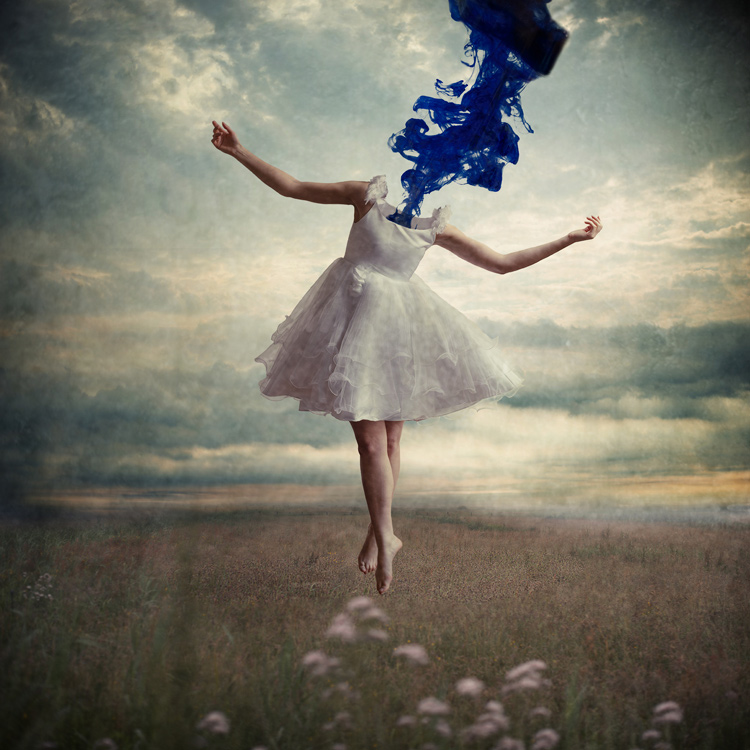
05 texture 100 percent

First – shoot your own textures

You can find many free textures online, for example on Deviant Art, or on any stock photo website. This is east, and sometimes helpful, although you can have copyright issues. The textures you will find online for free, are not always at high resolution. You will mainly find small files, not always the best to work with. But, I must say that so far I have never had any issues regarding textures size, even when printing my work in large format.

Shooting your own textures can be very fun, and a great creative exercise. Okay sometimes you will feel weird because people will not understand what you are shooting down on the pavement, nor they will see the point in photographing an old and dirty rain gutter. But it is well worth it.

It is very easy to find great textures around you and build you own texture stock. You only have to take a walk with your camera to find textures. Look for some old painting on the walls, wood on the doors, or any bench in the street. You can also find metal objects with great texture and colors. You are looking for whatever has scratches, and can add an organic and natural feeling to your work. You can use stones, such as marble or granite, but also canvas or any other fabric with a nice texture as well.
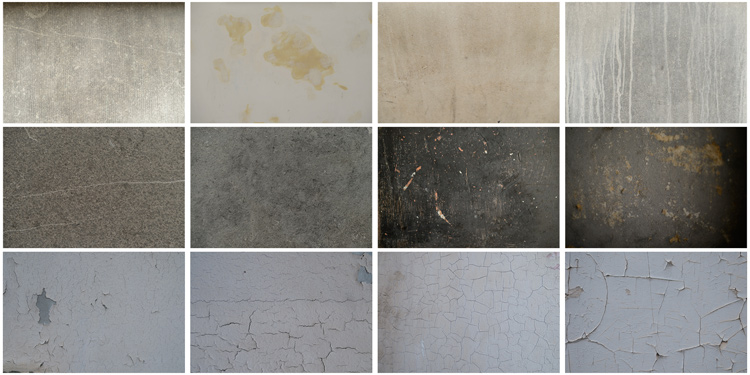
01 textures

When shooting your texture, pay attention to your exposure compensation, as you want to have a contrasty, image to get more difference between the darks and lights. Also, you want to make sure everything is more or less sharp, so pay attention to your focus, depth of field, and angle from which you are shooting. This way the texture will be more homogeneous on your final image (and as you will see later in this same article you can adjust the texture in many ways).

To help you start your own textures library, you can find a link to download some textures you can use for free at the bottom of this article. I found many good textures for free online, so it is my way to pay forward this kind of generosity I found among photographers.

You can create your own textures at home

In Brussels it is freezing cold and rainy during the winter, so maybe you are the same as me, you do not want to go outside.
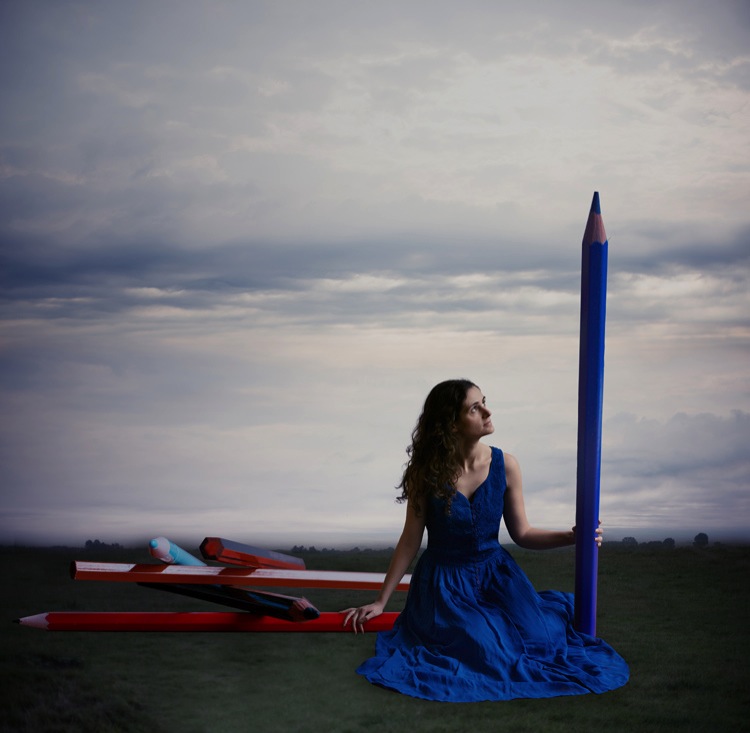
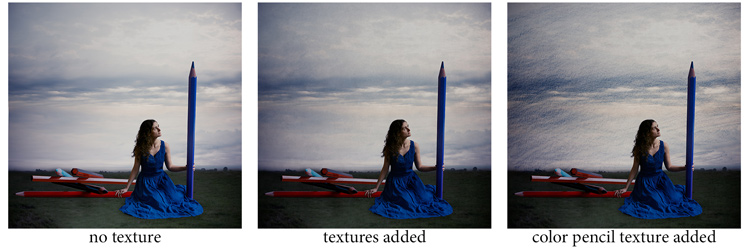
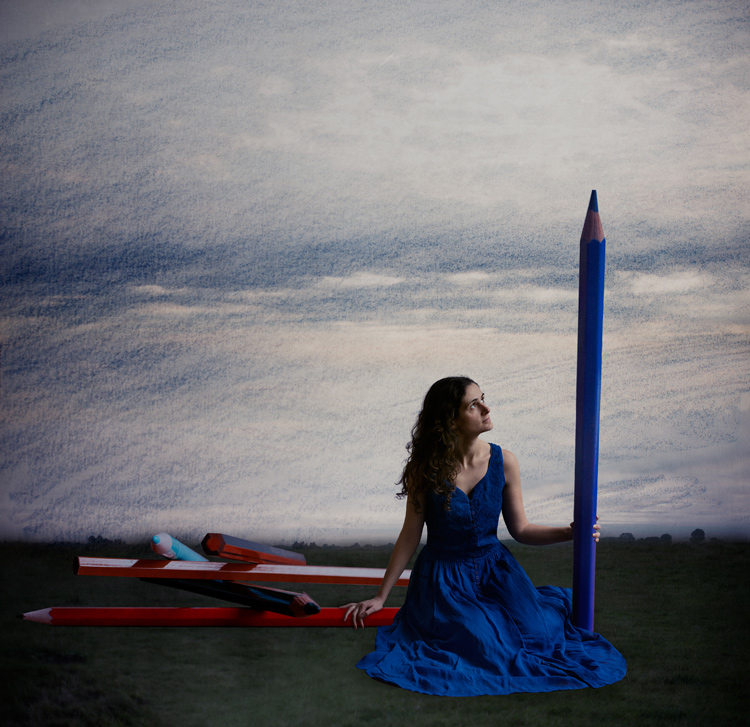
03 blue tale 01 no texture

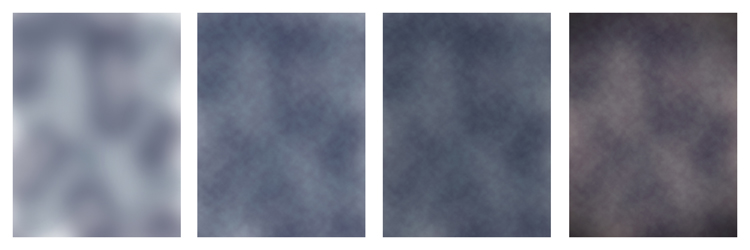
When you look for a specific effect you can make your own specific textures. For example, in the picture A Blue Tale (above) I wanted to play with a pencil color effect. Therefore I created the following texture to be added to the clouds.

I simply colored a piece of paper with a blue pencil crayong to have those lines and a texture effect. In this case, the preparation of the texture is fully part of the creative process, to put all those details together to create the image.
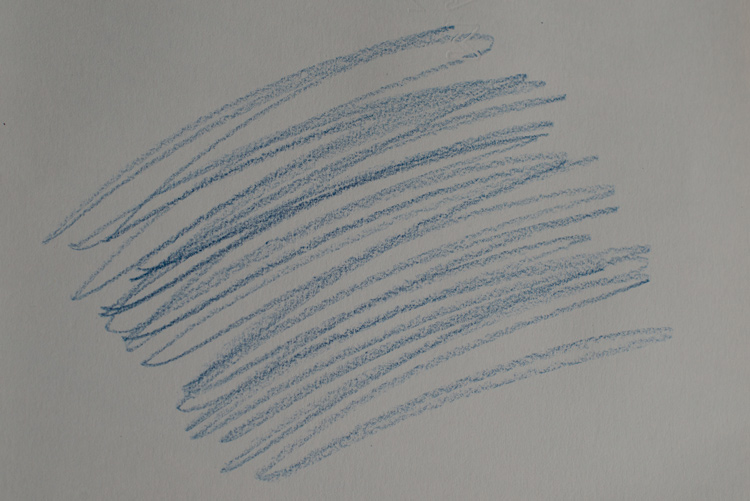
02 color pencil texture

03 blue tale 03 color pencil texture added

03 blue tale textures

You can also play with paper, painting, burn some paper (although I recommend being very careful).

Now that you have your textures ready to be used, let’s open them in Photoshop. You can also use the ones that I shot for you down my street. To add a texture you can simply grab your moving tool and drag and drop it on your picture – or by doing copy/paste on your image.

Play with the Blend Modes

You can change the Blend Mode to change the look. When you add a texture to your image it will first look as follows, you see only the image of the texture on top of your image.
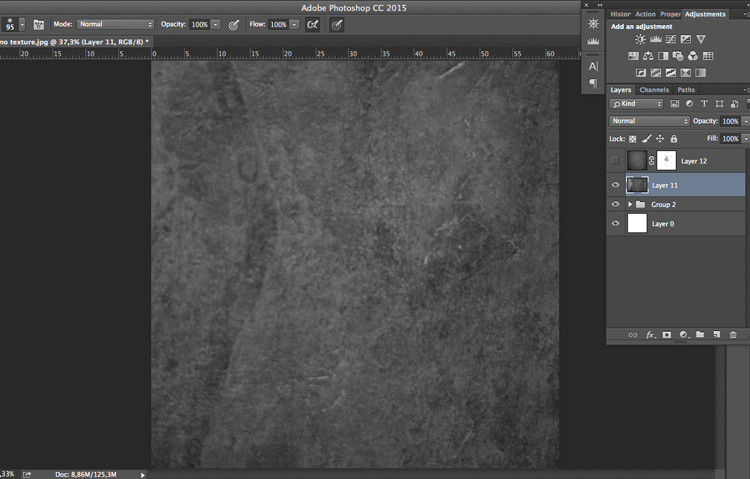
04 texture normal 100 percent

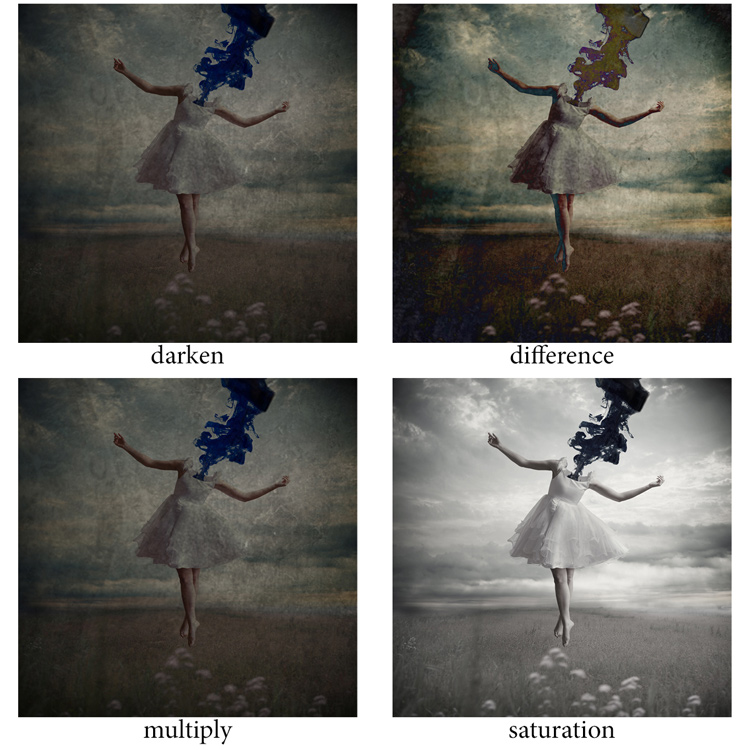
Play around with all the options Photoshop offers. Some texture/image combinations it will look weird, and others will look amazing.

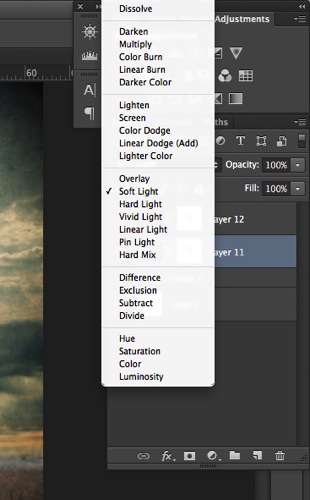
Select your texture and hold down the Shift button, and + or –, to change quickly Blend Modes to go through them one by one, and test on your image. It allows you to see what every single Blend Mode will do to your texture – great way to quickly learn which one you like best.

  • The darkening group will help you to get rid of all light tones.
  • The lightening group will allow you to get rid of your darks.
04 Blend Modes panel

Most of the time, I choose the Soft Light Blend Mode – but you can choose any option, depending on your taste and the sought-after effect.
04 Blend Modes

Modify your texture

Move and resize the texture layer. Grab your Move Tool to place the texture as you wish on the image. Use Cmd/Ctrl+T to activate the Free Transform Tool and resize the texture layer, or flip it, to adjust it to the underlying picture.

You can add a Levels Adjustment with Cmd/Ctrl+L, to add some more detail contrast in your texture. You can also adjust the color. Usually I add the color in my image and prefer a desaturated texture. Hit Cmd/Ctrl+U to play with its color – if you want to desaturate it or change the color tones.

Play with the layer opacity

Turn down the opacity to see what best suits the chosen texture and image, in this case we’ll turn it down to 82%. Once you have found the right opacity you can always go back and change it whenever you want.
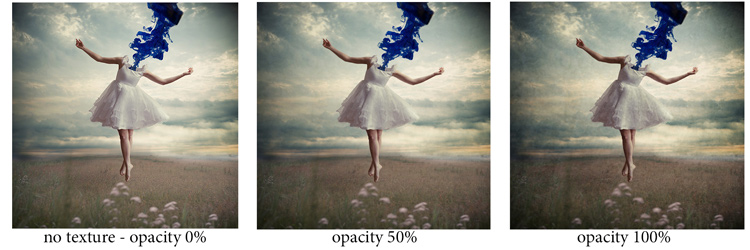
05 opacity

Add a layer mask on the texture layer

Applying texture over the whole image is great to give an artistic feel when the person is far away or it’s applied on a landscape. But, usually you want to avoid strong texture on your main character, especially if it is a close-up portrait, so you will want to soften the texture, or to erase it completely on areas such as the skin and eyes.
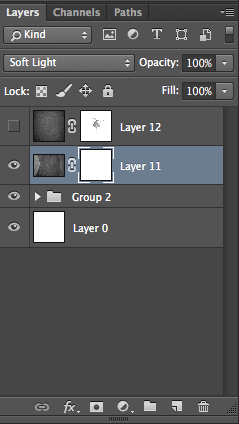
06 add layer mask

Add a layer mask on the texture layer and paint in black, playing with your brush opacity, size, and hardness to erase the texture where you want. Paint white your layer mask with a very soft edge brush, and low opacity, to bring back some texture on the subject edges to blend it with the background.
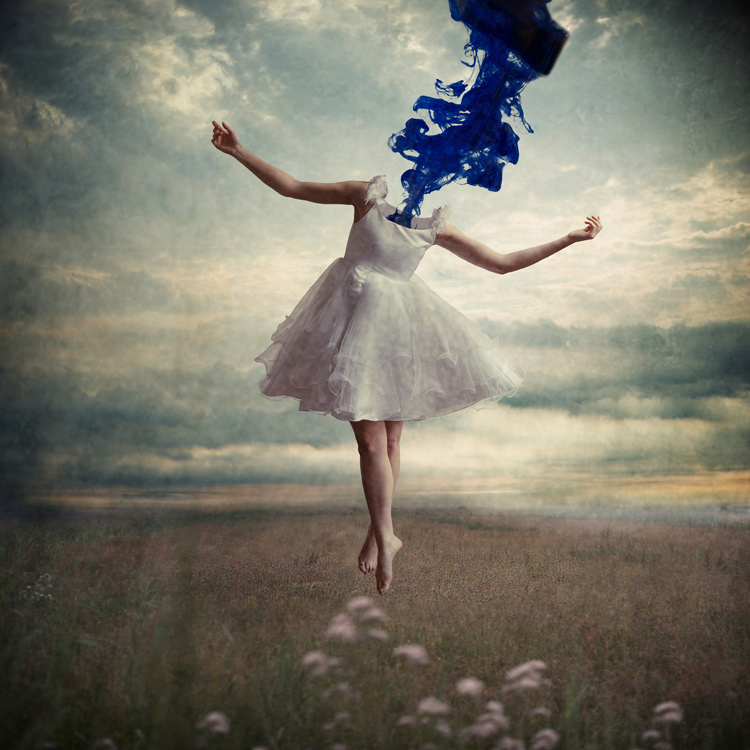
05 texture 100 percent

Add some more textures

You can lower the opacity of your textures and add as many of them as you whish to get the visual affect you want. If you want to see the full edit of this picture you can have a look at my speed editing video below:

I hope you will now want to add texture overlays to some of your work, or at least give it a try. It’s a great technical and creative exercise.

You can start with the free textures I prepared for you (click here to download them), and with some time start to shoot your own. Feel free to share the results or your technique in the comments below.

Editor’s note: if you have questions or issues downloading the textures, please contact Amelie on her site as they are not being hosted here on dPS so we cannot sort that for you. Thank you.

googletag.cmd.push(function() {
tablet_slots.push( googletag.defineSlot( “/1005424/_dPSv4_tab-all-article-bottom_(300×250)”, [300, 250], “pb-ad-78623” ).addService( googletag.pubads() ) ); } );

googletag.cmd.push(function() {
mobile_slots.push( googletag.defineSlot( “/1005424/_dPSv4_mob-all-article-bottom_(300×250)”, [300, 250], “pb-ad-78158” ).addService( googletag.pubads() ) ); } );

The post How to Add a Texture Overlay to Your Images for a Stunning Effect by Amélie Berton appeared first on Digital Photography School.
Digital Photography School

 
Comments Off on How to Add a Texture Overlay to Your Images for a Stunning Effect

Posted in Photography


Beginners Guide to Creating and Applying Texture Overlays Using Photoshop

03 Aug

Creating and applying textures is surprisingly simple and fun to do.

Adding texture to photographs was happening long before the invention of Photoshop and other editing programs. In the days of the darkroom, we would scratch negatives with pins, sand paper them, stain the photographic paper with fixer before exposing, layer two negatives on top of each other in the enlarger, or push our film ISO to increase grain. These days, with editing programs being our digital darkroom, we simply have yet another way of adding texture to photographs.

What is a texture?

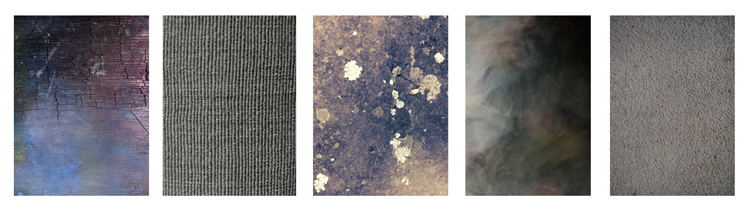
In digital photography terms it’s simply another layer added to your photograph in an editing program, usually an image of some sort of textural surface, such as paper, wood, concrete, etc., but anything at all can be a texture. They can be photographed, scanned or even made in Photoshop.

Almost anything can be used as a texture.

Some examples of textures. A friend’s work bench, a close-up of my lamp shade, a mossy rock, fog from a smoke machine, and some very ugly carpet.

Why use textures?

With the right texture overlay, and application of it,  you can add an extra level of depth and feeling to your photograph. You can use them for anything – from adding a vintage or grunge look to your photographs, to creating fine art pieces.

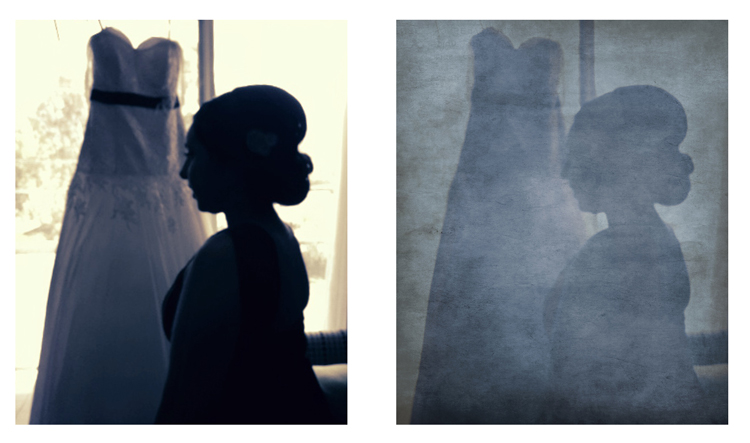
One of the best uses is to rescue a photograph that just isn’t quite working. I’ve been told no texture overlay will save a terrible photograph. While this is true for the most part, sometimes it can transform an otherwise unusable image to something more promising.

A texture can transform an otherwise unusable image into something more promising

A texture can transform an otherwise unusable image into something more promising.

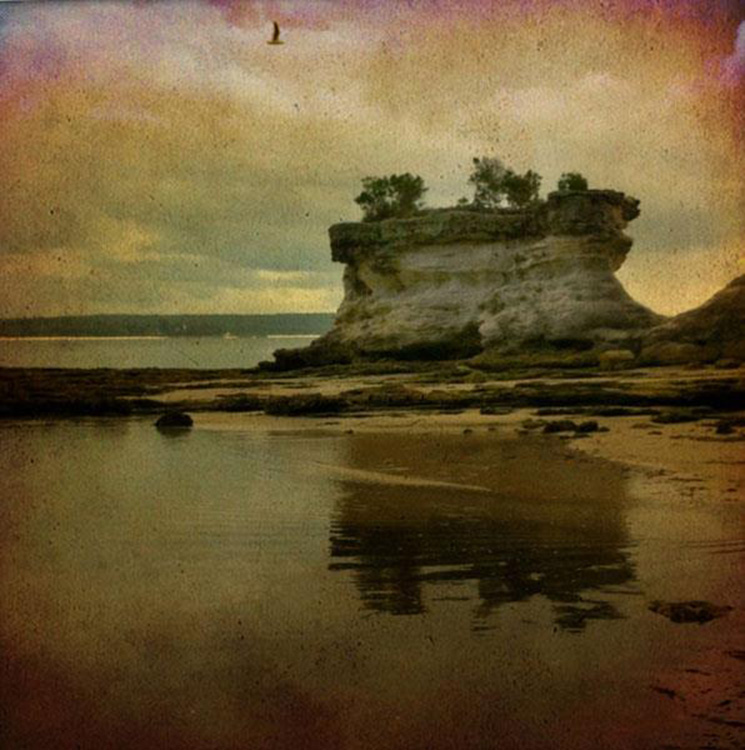
Textures can be added to almost any kind of image. If you’ve ever downloaded a photography app for your Smartphone, you have most likely had them add a texture with the app’s built-in filters.

Some mobile phone apps add texture for you

If you’ve ever used a filter on a mobile phone app, you have probably already had textures added for you.

Getting started

You don’t need to create your own texture to get started. There are many pre-made, free textures available on the internet. A quick Google search will bring up a bunch of free texture sites. But not all textures are created equally, or usable legally. You need to look for textures that are a decent size and resolution, a 200px/72dpi texture over a 3200 px/300dpi image probably isn’t going to work so well.

You’ll also want to make sure the texture has the right copyright permissions. Sites like deviantart.com have many stock textures offered free by their artists for personal use. These artists ask that you simply return the favor by sending them a link to the image you created using their work. Other sites like freetstocktextures.com offer their images copyright free for personal and commercial use, as long as you aren’t reselling the texture images themselves.

Creating your own textures

Creating your own textures is as simple as taking a photograph. Why do that, when you can download free ones? Because it’s fun, your work is then completely all yours, and you can tailor your textures to suit your images. For example; if you’re photographing skateboarders at a skate park, you could also gather some shots of the concrete they skate on, or graffiti around the place to create original textures that work with, and possibly add to, the story of your subject matter.

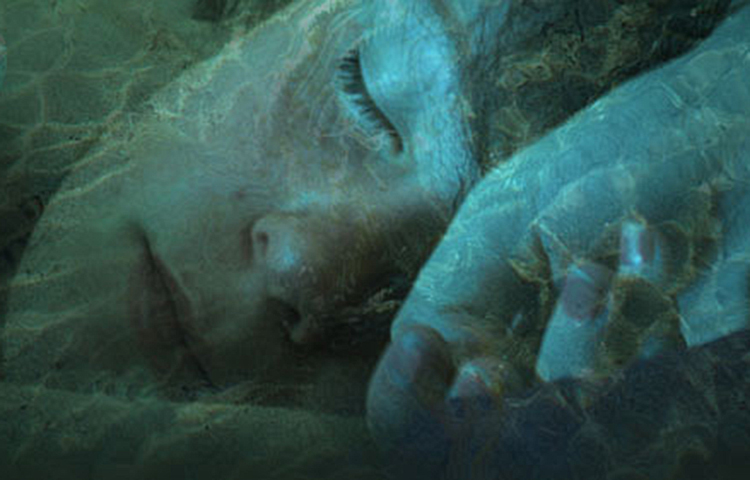
create your own textures to add more story to your image

Textures can add a bit more of a story to your images.

The image above is of my daughter asleep after a day at the beach (many years ago) combined with texture of the water I took that day, to add to the story and memory of the day, and give the photo an extra dream like feel.

Create a texture with your scanner

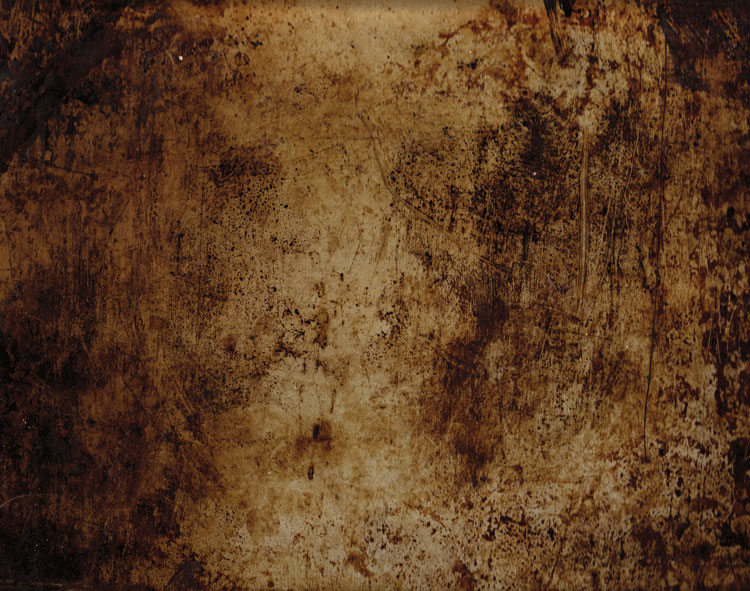
Below is the first texture I created, one that I still use years later. It was created by scanning the bottom of an old baking tray. Scanning works well for textures of papers and other small flat surfaces.

You can also use a scanner to create textures. Thiis is a scan of the bottom of an old baking tray

Scanned texture from an old baking tray.

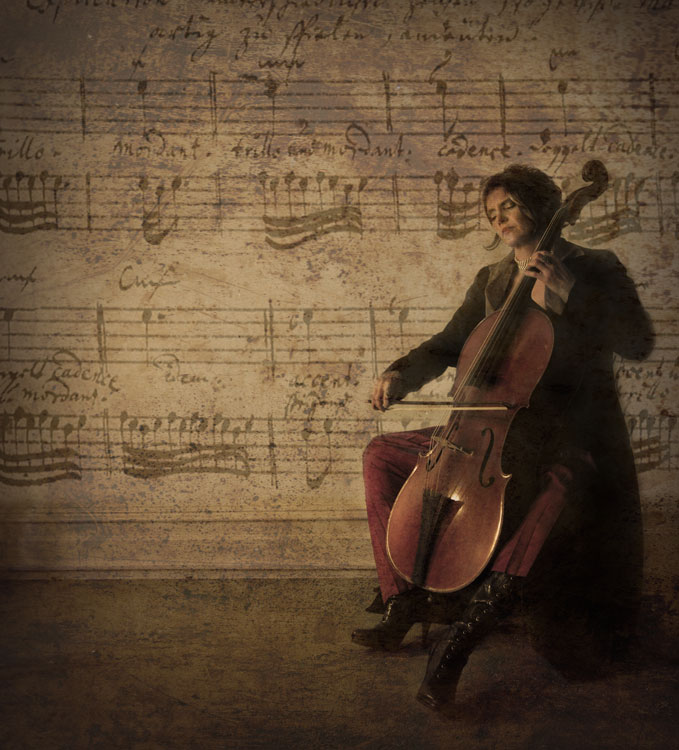
The baking tray texture was used in the image of the cello player at the beginning of this article, in combination with a manuscript image of the music she played on the day. I also used it in the image below; one of a series of images created in collaboration on album artwork with Canadian singer songwriter Sora. The texture was used to tie all the photographs in the album together even though some were taken by other photographers. Yet another use for textures!

Baking tray texture in combination with a few other textures.

Textures can be used to tie a series of images together.

Create a texture in Photoshop

You don’t need to understand complex Photoshop processes to create a texture quickly and easily. Here are a few simple steps to create a basic texture in a few minutes:

  1. Open a new file the size and resolution you require
  2. Brush around a couple of colors
  3. Add a Render Clouds filter
  4. Adjust levels for a bit of contrast
  5. Add a vignette and a color filter
Creating a texture in photoshop takes only minutes.

Paint in some colors, add Render Clouds Filter, some contrast, then some colour and vignette. Easy!

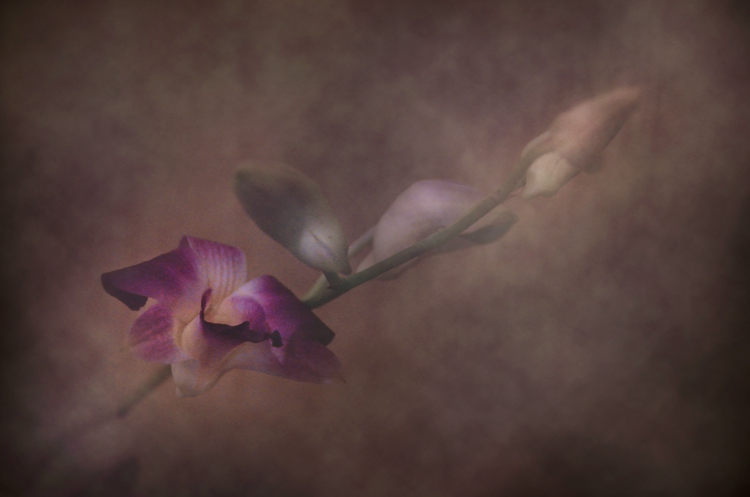
Instead of a Render Clouds you could use the Blur Tool to swirl your colors around, or try some of the other filters in Photoshop to get different effects. I tested it out on what was originally a rather terrible photograph of this orchid.

creating-and-applying-textures13

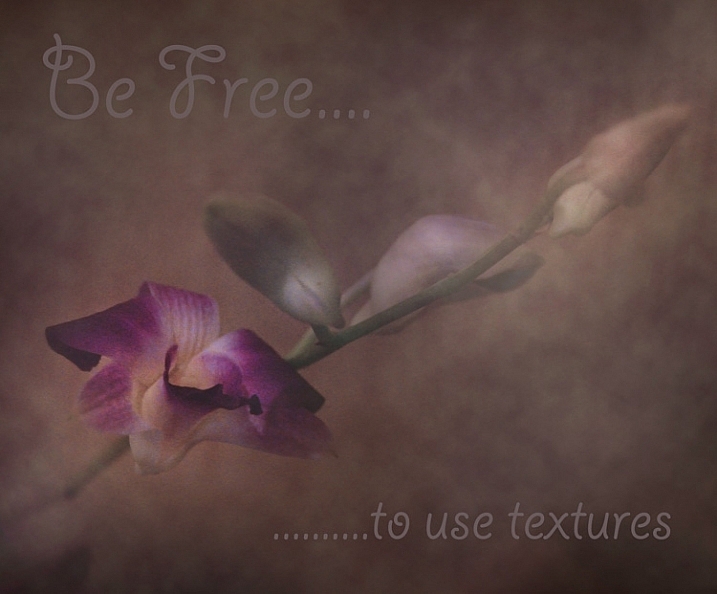
The texture, plus a few color adjustments and a warming photo filter, and it’s a whole different image.

create-and-add-textures09

While it does look a little like something you might see on your Facebook stream with a positive affirmation written across it in an awful font, it took me less than five minutes to do for this demonstration to show you how simple it can be to create a texture from scratch.

create-and-add-textures10

Applying your texture

It is really very easy to apply your texture. There are some more technical articles on adding textures here on dPS, but here is a quick guide to get you started.

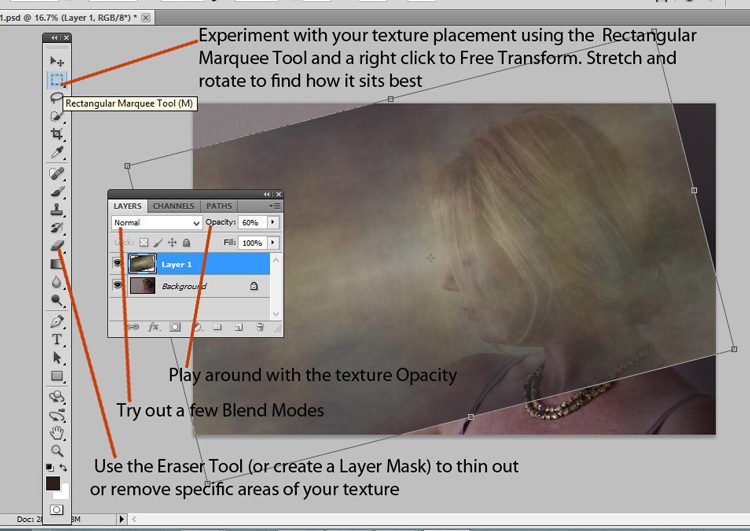
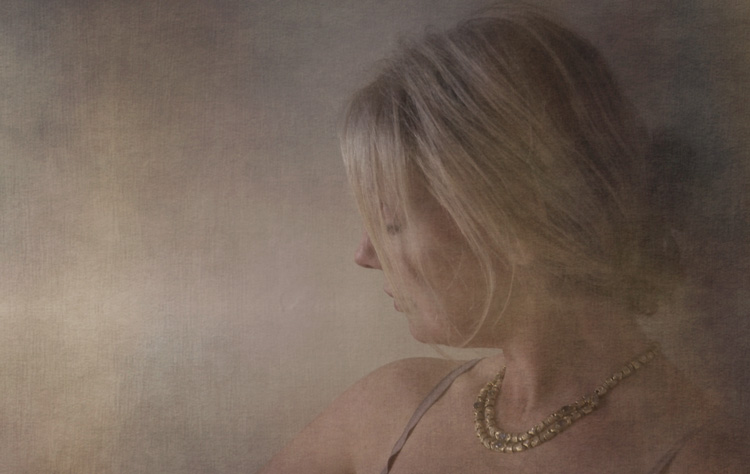
Click and drag your texture thumbnail in the Layers palette over onto your original image. Your texture becomes layer 1 in your original image’s Layer palette. Choose your level of transparency with the Opacity Slider and use Free Transform Tool to move the texture about. Turn it around, enlarge or stretch. See where it sits best.

create-and-add-textures11

Then it’s simply fine tuning the Opacity, maybe putting Eraser Tool on a low opacity and painting out unneeded parts of the texture. Alternatively use a layer mask to paint out some areas, as well as back in, if you accidentally paint out too much.

create-and-add-textures12

Have fun with it and experiment. Try a few different layer blend modes, add multiple textures, or add the same texture image a few times, perhaps with each layer having a slightly different hue. There are no rules.

Have you created a texture that you love? Share it and its use (your images) in the comments below.

googletag.cmd.push(function() {
tablet_slots.push( googletag.defineSlot( “/1005424/_dPSv4_tab-all-article-bottom_(300×250)”, [300, 250], “pb-ad-78623” ).addService( googletag.pubads() ) ); } );

googletag.cmd.push(function() {
mobile_slots.push( googletag.defineSlot( “/1005424/_dPSv4_mob-all-article-bottom_(300×250)”, [300, 250], “pb-ad-78158” ).addService( googletag.pubads() ) ); } );

The post Beginners Guide to Creating and Applying Texture Overlays Using Photoshop by Lea Hawkins appeared first on Digital Photography School.

Digital Photography School

 
Comments Off on Beginners Guide to Creating and Applying Texture Overlays Using Photoshop

Posted in Photography


Easy Portrait Retouching Tutorial without Losing Skin Texture

18 Jun

When it comes to skin retouching, less is more. Retouching skin is tricky. You want to enhance it, not beat it to death, make it fresh and glow-y, while still keeping the integrity of the skin. You want to soften wrinkles, not obliterate them. And to bring out their eyes and natural beauty while keeping them looking like themselves. Even Continue Reading

The post Easy Portrait Retouching Tutorial without Losing Skin Texture appeared first on Photodoto.


Photodoto

 
Comments Off on Easy Portrait Retouching Tutorial without Losing Skin Texture

Posted in Photography


Applying a Texture Overlay to Your Images to Create an Antique Look

19 Apr

If you were to look at my computer you would find a folder called textures, and in that folder you would find hundreds of files. I take photos of things everywhere that I think will be good textures. I also make them, and try different things. You can do the same. Any time you see interesting textures in concrete, marble, or maybe cracked paint, take photos of them, add them to your folder for textures.

There are numerous reasons for adding textures to your photos, and one of the best is to give your work an old or antique look. Lots of old photos have marks on them or the emulsion has stained. Photos were often not treated with preservation in mind and they have started to look textured.

In this article we are going to look at how you can apply a texture overlay to your images to give them an aged look.

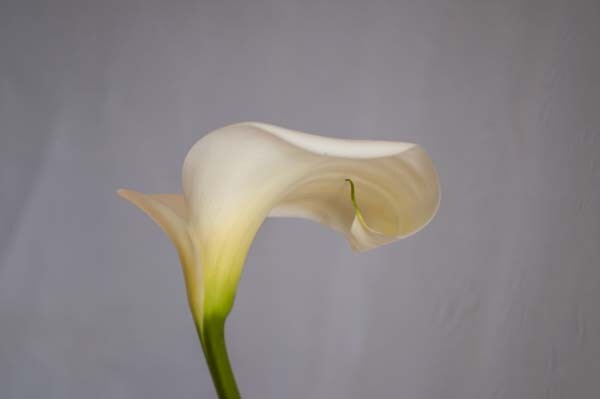
1-lily-texture-original

We are going to work on the above image of the lily. It has had basic processing done to it in Adobe Camera Raw before being opened in Photoshop CC (2014).

Cameras and lenses back in the day often didn’t produce super sharp images, so to start off we are going to make a duplicate layer of our image. I do this with the Ctrl+J, keyboard shortcut (Cmd+J on a Mac). There are other ways of doing this, such as; going to the menu at the top and choosing Layer, then clicking on Duplicate Layer, but I find the keyboard shortcut to be the easiest and quickest way.

11-lily-texture-original

10-lily-texture-original

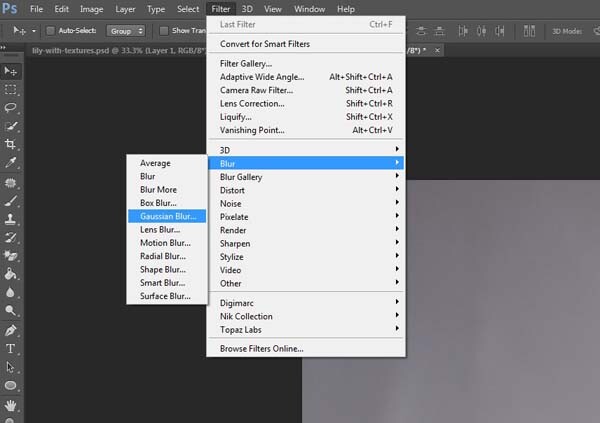
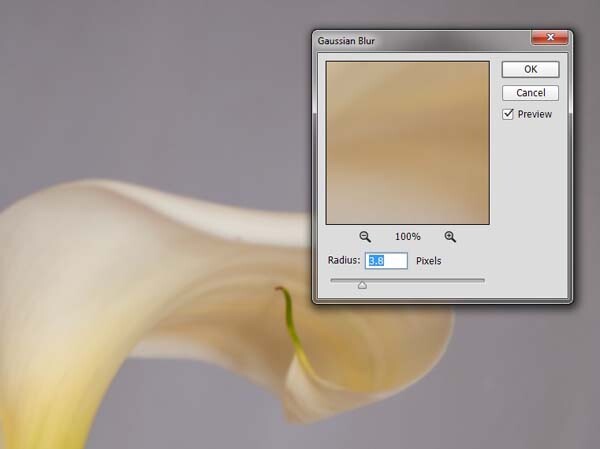
Once you have that duplicate layer then go over to Filters and choose Blur, then Gaussian Blur as in the image above. You don’t want too much blur, or it will look like it is out of focus, and you don’t want too little or it will not be visible or obvious enough. I used 3.8 for the purpose of this image.

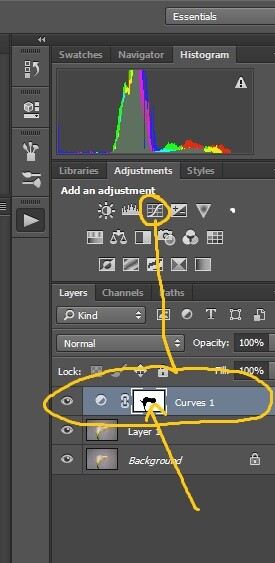
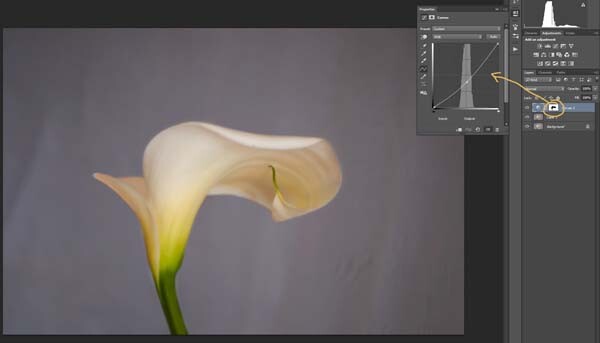
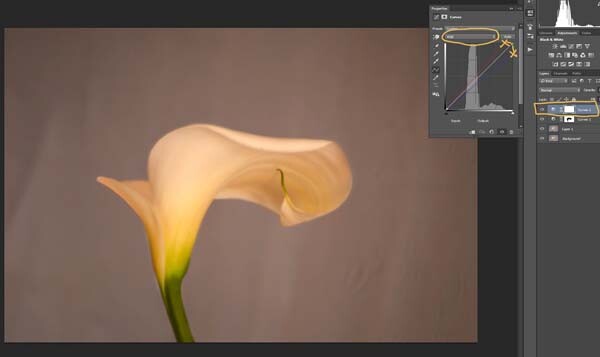
Next, you want to try and separate the flower from the background, you can do this with curves. Open a curves adjustment layer and use it to darken the image overall. Then using the Brush tool (which is located on your tool bar in Photoshop) on the layer mask, remove the adjustment from the flower as follows.

12-lily-texture-original

3-lily-texture-original

Click on the Brush tool, then set your foreground colour to black. It is the one with the two little squares at the bottom of the tool bar – the colour on top is the foreground color, the one on the bottom is the background color. Go to the curves layer you created in your layers panel and click on the white square in that layer (that is the mask), then go to your image and start brushing on the flower. You should see the flower getting lighter.

Add a warmer color to your image

Screen Shot 2015-04-13 at 11.52.55 AMNext you are going to change the colour of the highlights. You don’t have to do this, but it is a nice touch and it helps create a warmer feel to the image.

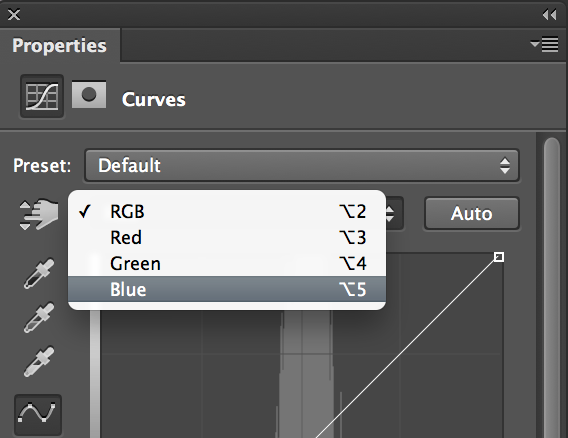
Open another curves adjustment layer. At the top you should see a pull down menu that says RGB, click on that and choose Blue. Go to the curves line and up in the top right corner (the highlights) click on the dot in the corner and pull it down along the side line. Don’t go too far, but you should see the image turning yellow. Remember yellow is the opposite of blue.

4-lily-texture-original

Go back up to the curves window and click on red. You are going to do the same thing, except this time take the dot to the left and across the top. You don’t need to go very far.

Adding the texture overlay

Now it is time to find a texture overlay to put on top of your image. It is always going to be an individual thing and something that you need to work out. Here, I used a texture that I saw on the floor of a building in the city. I liked the cracked look of the floor so I took quite a few photos.

5-lily-texture-original

Open the texture file in Photoshop, then using the move tool (the first one at the top of the tool bar) click on the image and drag it over to the image you want to apply it to. You can copy and paste it as well, or use Place (which will add it as a SmartObject).

If you buy textures, or get free ones off the internet, you will often find they are too small for your image. But don’t worry about it because you are going to be blending it into your image, so it doesn’t really matter.

If you need to change the size of the texture overlay you can do this with the transform tool. You can find the Free Transform tool under the Edit button on the main menu across the top, where you found Layer and Filters. You can also the keyboard shortcut, Ctrl+T (Cmd+T on a Mac).  You will see a little grid go up around the texture so you can drag one of the corners to make it bigger, or smaller, depending on the size you require.  Press enter to apply the transform, or you can double click on it, or click on the move tool and press apply.

Blending the texture into your image

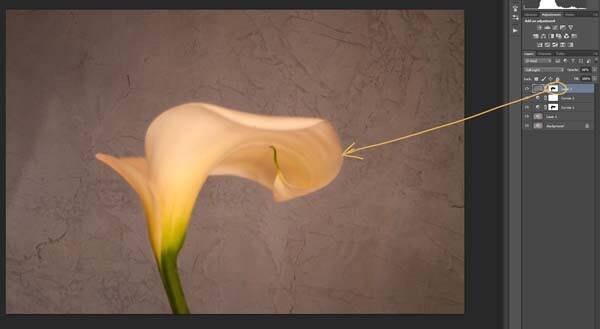
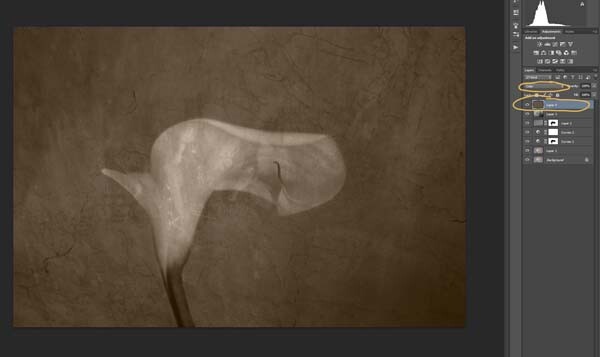
You will need to blend the texture so you can see your image underneath. The layer blend mode options are at the top of the layers panel, it is another drop down menu. The default option is set to Normal, so look for that. There are many options, for this tutorial however, we are going to use Soft Light. Once you change it to that blend mode you should be able to see the texture and the image underneath.

You can also change the opacity of the layer if you like as well. I usually change it slightly so the texture isn’t too strong. You can change the opacity in the window next to the options panel. Just make sure your texture layer is highlighted.

6-lily-texture-original

If you go to the bottom of the layers panel you will see a few things across the bottom.  If you click the rectangle one with the round hole in it you will give your layer a mask.  The mask means you can hide some of that layer from your image, like you did with the first curves layer.

Again, get your brush tool, make sure the foreground colour is black and paint over the flower.  You are now making the texture look like it is just on the background.

7-lily-texture-original

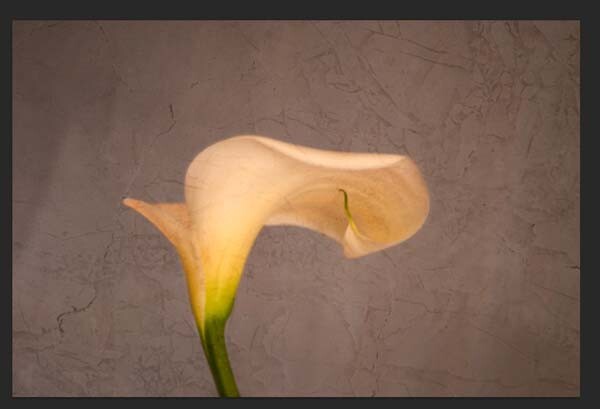
Next we are going to apply a texture to the whole image. This time it is one that will make the image look grungy, and dirty. You can find textures that have marks on them that look like smudges and grease. The one in this tutorial was a polished cement wall outside.

Add the texture to the image the same way you did the previous one. Blend it with the Soft Light Blend mode again. See how you feel about how the image looks, and if you decide it is too strong remember that the opacity can help make it less intense.

Adding a tint to your image

8-lily-texture-original

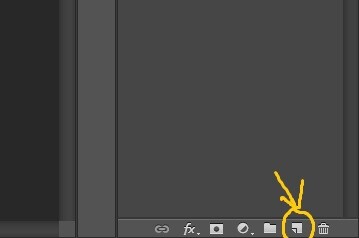
You will need to add a new layer, one that is transparent. At the bottom of the layers panel where you found the layer mask, you should see next to the trash bin a white square with a corner folded over, that is the new layer icon (see below). Click on it.

9-lily-texture-original

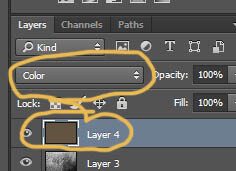
Next go to the tool bar and find the Paint Bucket Tool. Then go to the foreground colour and click on it. A popup window should come up and you can choose a colour to give your image a new tone. I would recommend you choose a grey, for this demonstration a mid tone grey with a hint of orange was chosen.

13-lily-texture-original

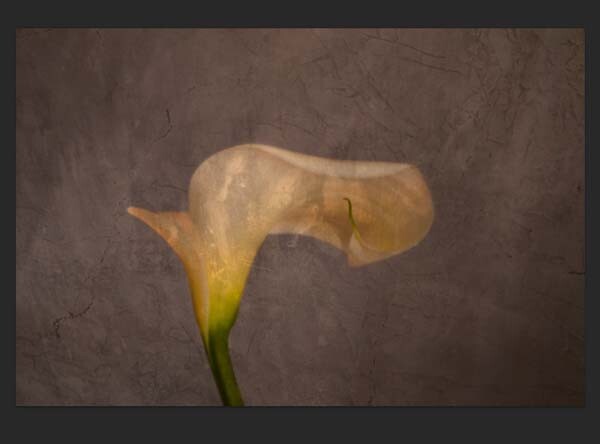
Now go to your image and click on it. The new empty layer should be filled with the colour you chose, and your whole image should look like a solid colour. Go to the blending mode for the new layer and change it to Colour. Your image should be transformed to monochrome. If you change the opacity of that layer then some of the original colour will come through, but that is up to you.

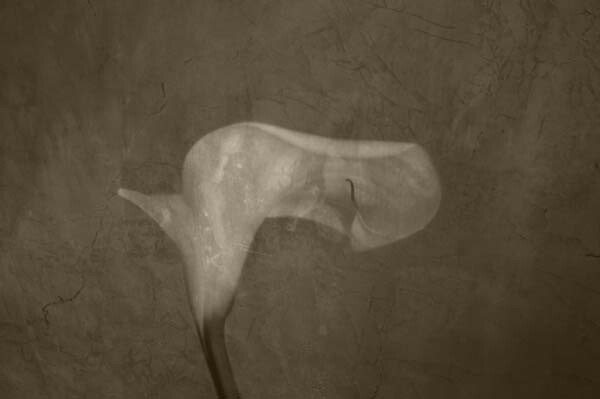
Here is the final image.

lily-with-textures

There are lots of other things you can do, but that might be best left for another tutorial.

If you prefer to watch this demonstrated you can check out the video below as I walk you through the same steps:

Have you tried using textures before? Do you have any favorite textures or sites for finding them? Please share in the comments below.

googletag.cmd.push(function() {
tablet_slots.push( googletag.defineSlot( “/1005424/_dPSv4_tab-all-article-bottom_(300×250)”, [300, 250], “pb-ad-78623” ).addService( googletag.pubads() ) ); } );

googletag.cmd.push(function() {
mobile_slots.push( googletag.defineSlot( “/1005424/_dPSv4_mob-all-article-bottom_(300×250)”, [300, 250], “pb-ad-78158” ).addService( googletag.pubads() ) ); } );

The post Applying a Texture Overlay to Your Images to Create an Antique Look by Leanne Cole appeared first on Digital Photography School.

Digital Photography School

 
Comments Off on Applying a Texture Overlay to Your Images to Create an Antique Look

Posted in Photography


How to use Texture to Improve Your Photos

30 Jun

texture in composition

I recently wrote about the importance of texture in my article about converting photos to black and white in Lightroom and my review of MacPhun’s Intensify app. Today I thought it would be interesting to take a closer look at this compositional element, and how becoming more aware of it can help you create stronger images.

Why is texture important? The primary reason is that it helps you create a sense of depth and tactility within your photos.

Let’s look at some practical examples.

Photo with lots of texture

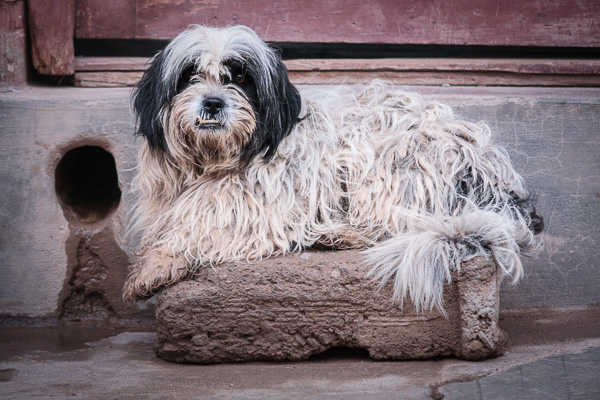
Here’s a photo I took in a Bolivian town.

texture in composition

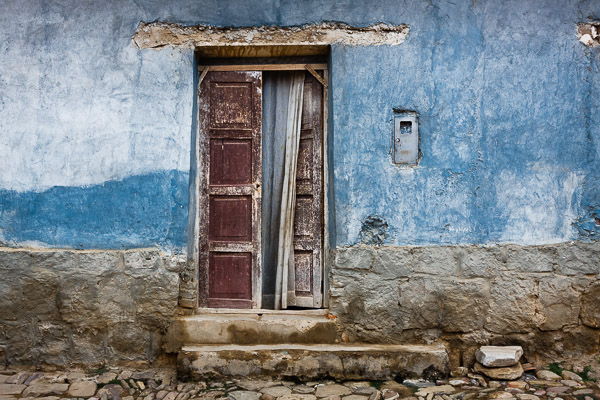
Look at all the beautiful textures; in the dog’s fur, the stone he is laying on, the concrete step and wooden door behind him. Can you imagine what the dog’s fur is like to touch? Or the stone, concrete or wood? The textures of those objects help you do that, and bring a two-dimensional image to life.

Photos with some texture

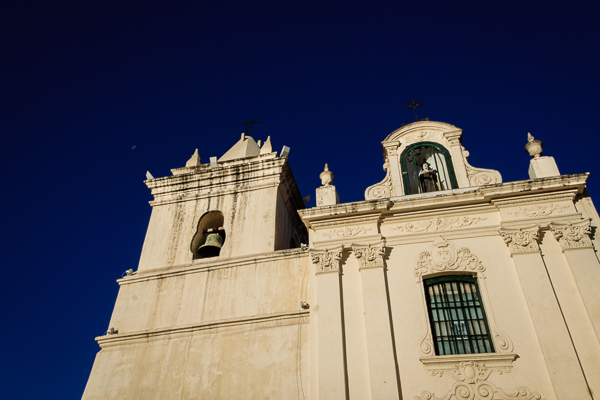
Here’s another photo taken in South America.

texture in composition

There are several contrasts that make the photo interesting. One is the difference in brightness between the church and the sky (tonal contrast). The other is the contrast in texture. The stonework has a rough surface and a lot of texture. The sky has none. The contrast between the rough and the smooth adds an extra layer of interest.

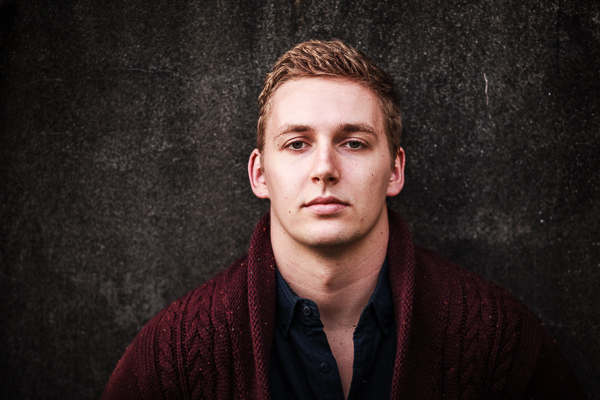
Portraiture is another subject where you can exploit the contrast in texture between the relatively smooth surface of someone’s skin, and a highly textured background. The portrait below is an example of that. The lack of texture in the model’s skin contrasts with the textures in his sweater, hair, and the background.

texture in composition

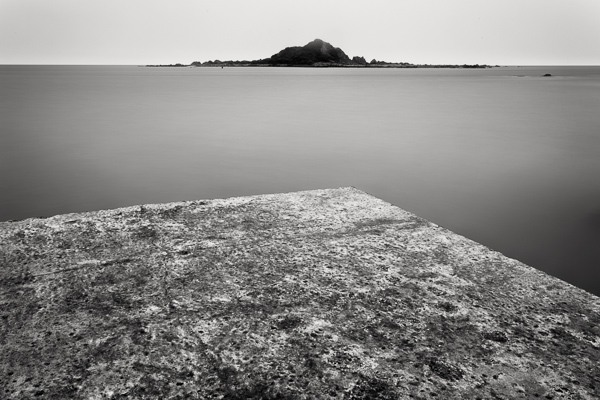
The contrast between rough and smooth is also common in long exposure photography, where photographers use shutter speeds of a minute or longer to blur the motion of the sea, or other body of water. The result is a photo containing both still elements (such as the concrete jetty and the island in the photo below) and moving elements that have recorded as a smooth, even tone, thanks to the long exposure.

texture in composition

Post-processing and texture

One of the benefits of digital photography is that you can use the tools available in programs like Lightroom to emphasize texture. Or in the case of portraits, to de-emphasize it by applying a local adjustment to smooth skin (my article Four Ways to Improve Your Photos With the Clarity Slider in Lightroom shows you how to do that in more detail).

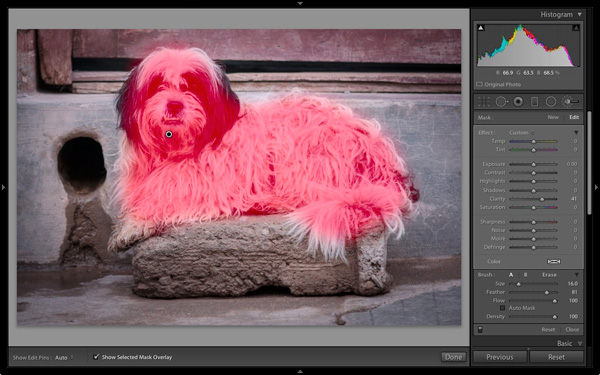
Here’s a quick tip. Think about enhancing texture as a local adjustment rather than a global one. In the example of the dog above I made two Clarity adjustments in Lightroom. The first was a global adjustment made by setting Clarity to +12 in the Basic panel. The second was a local adjustment made by using the Adjustment Brush to select the dog (see below) and setting Clarity to +41. The result is that the textures of the dog’s fur and the background don’t compete.

texture in composition

The red mask shows where the Adjustment brush has been applied locally to only the dog

Practical Exercise

The aim of this article is to get you thinking about texture and how you can use it to make your photos better. Here are a couple of exercises to help train your eye to see texture:

1. Street photography

Take a walking trip around your neighbourhood, looking for subjects with lots of texture. Think of things like doorways, letterboxes or anything made from concrete or stone. They don’t have to be fantastic photos, the aim is to raise your awareness of texture and get you thinking about how you can use it in your photos.

2. Portrait photography

Find a friend or a model to be your subject and find backgrounds with interesting textures. This could be anything from a wall, a doorway, or a large rock. The idea is to play with the contrast between the relative lack of texture (on skin) and the texture of the background.

Once the exercise is complete, the next step is to experiment with emphasizing texture in post-processing. Whether you use Lightroom, Photoshop or a plug-in like Intensify or Silver Efex Pro2, think about how can you use these tools to emphasize texture, or the contrast in texture between skin and a textured background.

Your turn

Now it’s your turn. How do you use textures in your photos? Do you have any tips for our readers, especially when it comes to post-processing? Let us know in the comments.


Mastering Lightroom: Books One, Two and Three

Mastering Lightroom ebook bundleMy Mastering Lightroom ebooks are a complete guide to using Lightroom’s Library and Develop modules. Written for Lightroom 4 and 5 books One and Two take you through every panel in both modules and show you how to import and organise your images, use Collections and creatively edit your photos. Book Three shows you how to create stunning black and white images in Lightroom.

The post How to use Texture to Improve Your Photos by Andrew S. Gibson appeared first on Digital Photography School.

Digital Photography School

 
Comments Off on How to use Texture to Improve Your Photos

Posted in Photography


Texture as a Design Element in Photography

08 Oct

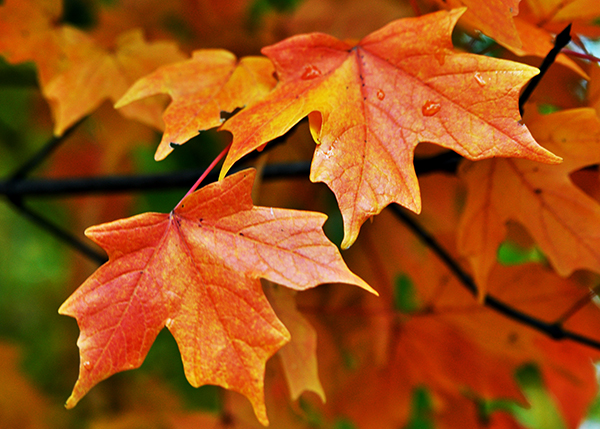
While it’s true that photography is a visual medium, I am always fascinated by images that can suggestively invoke my other senses. Have you ever looked at a photo in a cookbook or magazine and commented that the food looked so good you could practically taste it? What really pulls me into the essence of a photograph, though, is texture. Whether I’m feeling colorful autumn leaves crunching under my feet, the delicate edges of flower petals on my fingertips, or the jagged shards of a broken window– when a photo makes me want to touch it you have me hooked. That’s probably why I’m such a sucker for texture and why I strive to include it as a design element in so much of my photography. I want (or is it need?) these images to speak not only to your eyes, but to as many of your other senses as I possibly can. I want them to speak to your heart.

texture-002-leaves

1/80, f/5, ISO 250

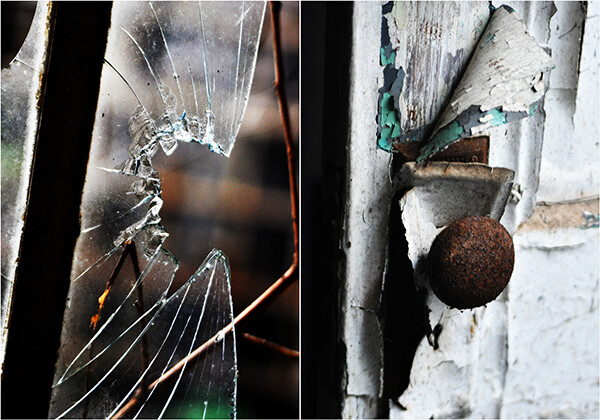
One of the first things to consider when photographing texture is that the beauty is in the details. While the deserted hallway of an abandoned building can evoke a strong sensory response, it’s filling the frame with a broken window or rusted pipe from the deserted hallway that’s going to really bring your textures to the forefront. That’s not to say that the deserted hallway doesn’t have its own story to tell, but this is not the time for cramming as many elements as you can into the frame. Keep it simple.

1/250, f/8, ISO 400

1/250, f/8, ISO 400

As with just about everything we do as photographers, lighting is crucial in accurately and effectively creating a both visual and textural  experience for the viewer. The three characteristics of light– color, quality, and direction– are just as defining when highlighting textural elements as they are when photographing people, landscapes, or any other subject. While it is difficult to separate the three, I find that quality and direction of light tend to have the most impact on photographing textures– accentuating them, rather than overpowering them. Generally speaking, soft, cool lighting will enhance softer, smoother textures like ice or water, while hard side-lighting will not only bring out the detail on that rusty pipe or stone statue, but elevate it as a tactile experience. Ambient light almost always works best, providing a more organic, natural feel.

1/100, f/4.8, ISO 100.

Remember that when you are shooting for texture, your model isn’t going to get bored or tired. Your child is not going to get all fidgety, wondering about the ice cream you promised if they sat still for a nice picture. The only timing issues you have to deal with when shooting texture are your shutter speed and how long your ambient light is going to cooperate.  As result, you usually have the luxury of taking your time. Experiment with your composition. Play with your angles. Adjust your camera settings, then adjust them again.  Your available light may be your primary tool in these scenarios, but you still have to able to make sure that your camera sees the scene the same way you do. Your digital camera is nothing more than a computer with a window on it. It has no opinions or artistic intent. You have to tell it what you are seeing, so play with your shutter speed and aperture. See where they take you.

texture-008-broken-glass

Taken at an abandoned prison, the broken glass and decades worth of peeling paint not only tell a story, but evoke an almost physical reaction. Both shot at 1/250, f/5.6, ISO 640.

Obviously, a certain amount of personal taste and preference come into play, but I tend to use smaller apertures when shooting textures. Shooting wide open and its resulting depth-of-field, can throw parts of your image out of focus– something I want to avoid when photographing texture, simply because textures will no longer look as they should when out of focus. I will, however, use wider apertures if I am including any background elements. Just as with a portrait, an out-of-focus background will place added emphasis on my subject and foreground– emphasis which will significantly enhance the textures in the frame. Try bracketing your exposures until you get the desired results.

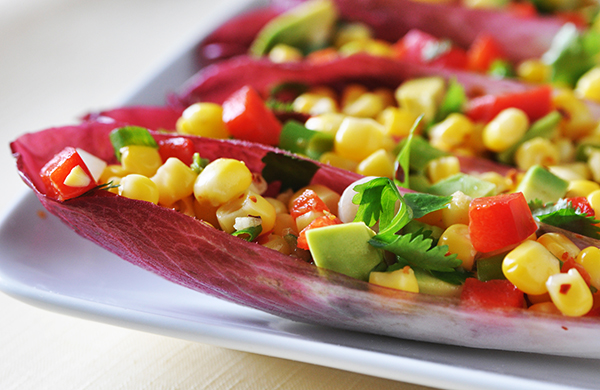
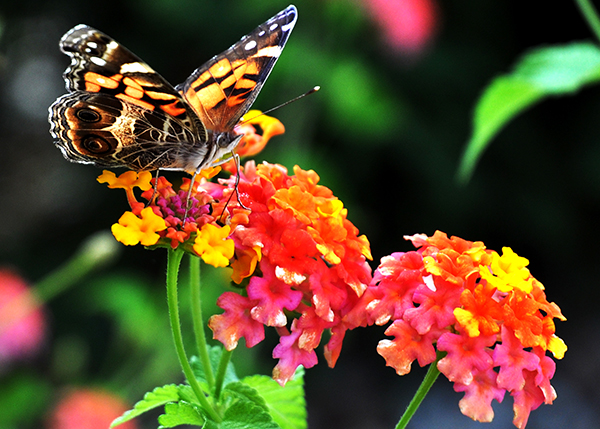
In the examples below, I did go with wider apertures because of the background elements. For the cookbook shot, we needed a clearly defined background in order to really emphasize the texture of the ingredients. Blurring out the background behind the butterfly in the next example gave more definition to the textures of the wings and flowers.

texture-007-food-photog

1/80, f/5.6, ISO 400

texture-009-butterfly

1/250, f/5, ISO 200

For the sunflower, however, notice that there are multiple textures on the same visual plane. Since I was working with a mostly solid, dark background, I wanted to make sure that every element– as well as all three textures– was in focus, which meant going with a smaller aperture.

texture-006-sunflower

1/250, f/5.6, ISO 100

Texture is such an  interesting and effective design element because it provides visual cues that allow the viewer to put your images into their own context. It gives them something they can relate to. If your photo truly speaks to them, this is one of the reasons why. You’ve given them something that helps make it their own. By capturing the texture, you’ve captured at least part of the essence– and it doesn’t get much cooler than that.

Post originally from: Digital Photography Tips.

Check out our more Photography Tips at Photography Tips for Beginners, Portrait Photography Tips and Wedding Photography Tips.

Texture as a Design Element in Photography

The post Texture as a Design Element in Photography by Jeff Guyer appeared first on Digital Photography School.

Digital Photography School

 
Comments Off on Texture as a Design Element in Photography

Posted in Photography


Flower : EVOLUTION : See : FEEL : Beyond : OBVIOUS! Enjoy : the TEXTURE : the lines! :)

18 Jan

Some cool visual art images:

Flower : EVOLUTION : See : FEEL : Beyond : OBVIOUS! Enjoy : the TEXTURE : the lines! 🙂
visual art
Image by || UggBoy?UggGirl || PHOTO || WORLD || TRAVEL ||
Abstract art

Abstract art uses a visual language of form, color and line to create a composition which may exist with a degree of independence from visual references in the world. Western art had been, from the Renaissance up to the middle of the 19th century, underpinned by the logic of perspective and an attempt to reproduce an illusion of visible reality. The arts of cultures other than the European had become accessible and showed alternative ways of describing visual experience to the artist. By the end of the 19th century many artists felt a need to create a new kind of art which would encompass the fundamental changes taking place in technology, science and philosophy. The sources from which individual artists drew their theoretical arguments were diverse, and reflected the social and intellectual preoccupations in all areas of Western culture at that time.

Abstract art, nonfigurative art, nonobjective art, and nonrepresentational art are loosely related terms. They are similar, although perhaps not of identical meaning.

Abstraction indicates a departure from reality in depiction of imagery in art. This departure from accurate representation can be only slight, or it can be partial, or it can be complete. Abstraction exists along a continuum. Even art that aims for verisimilitude of the highest degree can be said to be abstract, at least theoretically, since perfect representation is likely to be exceedingly elusive. Artwork which takes liberties, altering for instance color and form in ways that are conspicuous, can be said to be partially abstract. Total abstraction bears no trace of any reference to anything recognizable. In geometric abstraction, for instance, one is unlikely to find references to naturalistic entities. Figurative art and total abstraction are almost mutually exclusive. But figurative and representational (or realistic) art often contains partial abstraction.

Both Geometric abstraction and Lyrical Abstraction are often totally abstract. Among the very numerous art movements that embody partial abstraction would be for instance fauvism in which color is conspicuously and deliberately altered vis-a-vis reality, and cubism, which blatantly alters the forms of the real life entities depicted.
EXPLORE MORE AND SOAR:
WIKIPEDIA = ABSTRACT = TO THE WORLD

Thoughts about abstract…….forms…….

As you see, I do not treat the creation of fiction, that to say the invention and development of fantasies, as a form of abstract thought. I dont wish to deny the uses of the intellect, but sometimes one has the intuition that the intellect by itself will lead one nowhere.
—J. M. Coetzee

Some more……..

Delight at having understood a very abstract and obscure system leads most people to believe in the truth of what it demonstrates.
—Georg C. Lichtenberg

Please MORE EXPLORE……..

Evil is the product of the ability of humans to make abstract that which is concrete.
—Jean-Paul Sartre

Flower : EVOLUTION : See : FEEL : Beyond : OBVIOUS! Enjoy : the TEXTURE : the lines! 🙂
visual art
Image by || UggBoy?UggGirl || PHOTO || WORLD || TRAVEL ||
Abstract art

Abstract art uses a visual language of form, color and line to create a composition which may exist with a degree of independence from visual references in the world. Western art had been, from the Renaissance up to the middle of the 19th century, underpinned by the logic of perspective and an attempt to reproduce an illusion of visible reality. The arts of cultures other than the European had become accessible and showed alternative ways of describing visual experience to the artist. By the end of the 19th century many artists felt a need to create a new kind of art which would encompass the fundamental changes taking place in technology, science and philosophy. The sources from which individual artists drew their theoretical arguments were diverse, and reflected the social and intellectual preoccupations in all areas of Western culture at that time.

Abstract art, nonfigurative art, nonobjective art, and nonrepresentational art are loosely related terms. They are similar, although perhaps not of identical meaning.

Abstraction indicates a departure from reality in depiction of imagery in art. This departure from accurate representation can be only slight, or it can be partial, or it can be complete. Abstraction exists along a continuum. Even art that aims for verisimilitude of the highest degree can be said to be abstract, at least theoretically, since perfect representation is likely to be exceedingly elusive. Artwork which takes liberties, altering for instance color and form in ways that are conspicuous, can be said to be partially abstract. Total abstraction bears no trace of any reference to anything recognizable. In geometric abstraction, for instance, one is unlikely to find references to naturalistic entities. Figurative art and total abstraction are almost mutually exclusive. But figurative and representational (or realistic) art often contains partial abstraction.

Both Geometric abstraction and Lyrical Abstraction are often totally abstract. Among the very numerous art movements that embody partial abstraction would be for instance fauvism in which color is conspicuously and deliberately altered vis-a-vis reality, and cubism, which blatantly alters the forms of the real life entities depicted.
EXPLORE MORE AND SOAR:
WIKIPEDIA = ABSTRACT = TO THE WORLD

Thoughts about abstract…….forms…….

As you see, I do not treat the creation of fiction, that to say the invention and development of fantasies, as a form of abstract thought. I dont wish to deny the uses of the intellect, but sometimes one has the intuition that the intellect by itself will lead one nowhere.
—J. M. Coetzee

Some more……..

Delight at having understood a very abstract and obscure system leads most people to believe in the truth of what it demonstrates.
—Georg C. Lichtenberg

Please MORE EXPLORE……..

Evil is the product of the ability of humans to make abstract that which is concrete.
—Jean-Paul Sartre

 
Comments Off on Flower : EVOLUTION : See : FEEL : Beyond : OBVIOUS! Enjoy : the TEXTURE : the lines! :)

Posted in Photographs


Glass : EVOLUTION : See : FEEL : Beyond : OBVIOUS! Enjoy : the TEXTURE : the lines! :)

18 Jan

Some cool visual art images:

Glass : EVOLUTION : See : FEEL : Beyond : OBVIOUS! Enjoy : the TEXTURE : the lines! 🙂
visual art
Image by || UggBoy?UggGirl || PHOTO || WORLD || TRAVEL ||
Abstract art

Abstract art uses a visual language of form, color and line to create a composition which may exist with a degree of independence from visual references in the world. Western art had been, from the Renaissance up to the middle of the 19th century, underpinned by the logic of perspective and an attempt to reproduce an illusion of visible reality. The arts of cultures other than the European had become accessible and showed alternative ways of describing visual experience to the artist. By the end of the 19th century many artists felt a need to create a new kind of art which would encompass the fundamental changes taking place in technology, science and philosophy. The sources from which individual artists drew their theoretical arguments were diverse, and reflected the social and intellectual preoccupations in all areas of Western culture at that time.

Abstract art, nonfigurative art, nonobjective art, and nonrepresentational art are loosely related terms. They are similar, although perhaps not of identical meaning.

Abstraction indicates a departure from reality in depiction of imagery in art. This departure from accurate representation can be only slight, or it can be partial, or it can be complete. Abstraction exists along a continuum. Even art that aims for verisimilitude of the highest degree can be said to be abstract, at least theoretically, since perfect representation is likely to be exceedingly elusive. Artwork which takes liberties, altering for instance color and form in ways that are conspicuous, can be said to be partially abstract. Total abstraction bears no trace of any reference to anything recognizable. In geometric abstraction, for instance, one is unlikely to find references to naturalistic entities. Figurative art and total abstraction are almost mutually exclusive. But figurative and representational (or realistic) art often contains partial abstraction.

Both Geometric abstraction and Lyrical Abstraction are often totally abstract. Among the very numerous art movements that embody partial abstraction would be for instance fauvism in which color is conspicuously and deliberately altered vis-a-vis reality, and cubism, which blatantly alters the forms of the real life entities depicted.
EXPLORE MORE AND SOAR:
WIKIPEDIA = ABSTRACT = TO THE WORLD

Thoughts about abstract…….forms…….

As you see, I do not treat the creation of fiction, that to say the invention and development of fantasies, as a form of abstract thought. I dont wish to deny the uses of the intellect, but sometimes one has the intuition that the intellect by itself will lead one nowhere.
—J. M. Coetzee

Some more……..

Delight at having understood a very abstract and obscure system leads most people to believe in the truth of what it demonstrates.
—Georg C. Lichtenberg

Please MORE EXPLORE……..

Evil is the product of the ability of humans to make abstract that which is concrete.
—Jean-Paul Sartre

Flower : EVOLUTION : See : FEEL : Beyond : OBVIOUS! Enjoy : the TEXTURE : the lines! 🙂
visual art
Image by || UggBoy?UggGirl || PHOTO || WORLD || TRAVEL ||
Abstract art

Abstract art uses a visual language of form, color and line to create a composition which may exist with a degree of independence from visual references in the world. Western art had been, from the Renaissance up to the middle of the 19th century, underpinned by the logic of perspective and an attempt to reproduce an illusion of visible reality. The arts of cultures other than the European had become accessible and showed alternative ways of describing visual experience to the artist. By the end of the 19th century many artists felt a need to create a new kind of art which would encompass the fundamental changes taking place in technology, science and philosophy. The sources from which individual artists drew their theoretical arguments were diverse, and reflected the social and intellectual preoccupations in all areas of Western culture at that time.

Abstract art, nonfigurative art, nonobjective art, and nonrepresentational art are loosely related terms. They are similar, although perhaps not of identical meaning.

Abstraction indicates a departure from reality in depiction of imagery in art. This departure from accurate representation can be only slight, or it can be partial, or it can be complete. Abstraction exists along a continuum. Even art that aims for verisimilitude of the highest degree can be said to be abstract, at least theoretically, since perfect representation is likely to be exceedingly elusive. Artwork which takes liberties, altering for instance color and form in ways that are conspicuous, can be said to be partially abstract. Total abstraction bears no trace of any reference to anything recognizable. In geometric abstraction, for instance, one is unlikely to find references to naturalistic entities. Figurative art and total abstraction are almost mutually exclusive. But figurative and representational (or realistic) art often contains partial abstraction.

Both Geometric abstraction and Lyrical Abstraction are often totally abstract. Among the very numerous art movements that embody partial abstraction would be for instance fauvism in which color is conspicuously and deliberately altered vis-a-vis reality, and cubism, which blatantly alters the forms of the real life entities depicted.
EXPLORE MORE AND SOAR:
WIKIPEDIA = ABSTRACT = TO THE WORLD

Thoughts about abstract…….forms…….

As you see, I do not treat the creation of fiction, that to say the invention and development of fantasies, as a form of abstract thought. I dont wish to deny the uses of the intellect, but sometimes one has the intuition that the intellect by itself will lead one nowhere.
—J. M. Coetzee

Some more……..

Delight at having understood a very abstract and obscure system leads most people to believe in the truth of what it demonstrates.
—Georg C. Lichtenberg

Please MORE EXPLORE……..

Evil is the product of the ability of humans to make abstract that which is concrete.
—Jean-Paul Sartre

 
Comments Off on Glass : EVOLUTION : See : FEEL : Beyond : OBVIOUS! Enjoy : the TEXTURE : the lines! :)

Posted in Photographs


Matt Nicolosi Photoshop Texture Layering Tutorial

06 Dec

This is a tutorial showing how to take textures and apply them to images in Photoshop to create a rich, timeless, fine art print in just a few minutes.

Another 15 Minute Photo Challenge. This time I’m visiting Highley Manor in West Sussex. A walk around the outside of the manor yealds some interesting photo opportunities. For more details visit Web www.gavtrain.com Blog http Facebook www.facebook.com

 
Comments Off on Matt Nicolosi Photoshop Texture Layering Tutorial

Posted in Photography Videos


Wall Texture – Photoshop Tutorial

02 Nov

This is a video tutorial teaching you to how to create a wall texture in leading graphics design software Adobe Photoshop.

Scenes can now be more easily segmented for downstream compositing. Thanks to an entirely new render pass system, render elements can now be more efficiently created for Autodesk® Smoke® 2013 software, Adobe After Effects, Adobe® Photoshop® software, or certain other image compositing applications. A state recorder enables artists to capture, edit, and save the current state, while a visual interface shows how compositing and render elements are wired together to create the final result. Artists can more quickly set up and execute multiple render passes from a single file; individual passes can be modified without the need to re-render the whole scene, enhancing productivity.

 
Comments Off on Wall Texture – Photoshop Tutorial

Posted in Retouching in Photoshop