RSS
 

Posts Tagged ‘Take’

How to Take Control of Contrast Using Curves and Levels in Photoshop

07 Aug

Have you ever found your photos flat? The colors are muted and it just looks dull? That’s because it lacks contrast. Sometimes regardless of your best exposure skills, the conditions are not suited to get a wide range of tones. Not to worry though, it can be fixed in post-processing. I’ll show you my workflow for how you can take control of contrast in your images using Curves and Levels in Photoshop.

Of course, there are many ways to adjust the contrast on Photoshop, there’s even a tool called Brightness and Contrast, however, it doesn’t give you much control. What I like to do is to manipulate Curves and Levels. In this article, I’ll explain to you why and how I use these tools to boost contrast.

The issue of low contrast

Low contrast can happen for many different reasons; bad weather for example or photographing through glass. In any case, the resulting image doesn’t show a wide range of tones, in other words, there’s not enough difference between the lights and the darks.

I find this problem occurs especially while traveling, because you can’t go back to the location when the weather is better, or because you are seeing things through a pane of glass. For example, the image I will use for this tutorial was taken through the window while traveling on a tour bus.

How to Take Control of Contrast Using Curves and Levels in Photoshop

How do you know it’s low contrast?

I chose an image where the contrast is clearly low so that you can easily see the effects of every step. However, in some cases, it won’t be as obvious, but you can always review the histogram to know the tonal range of your image.

A typically correct exposure should have a histogram that reaches from black (left) to white (right) evenly spread, with the highest values in the middle. Please note that this can change if you are going for a different effect like low key or high key where you purposely choose a specific range to work with, so I am just talking about the average image here.

As you can see, in this case, all the information is concentrated in the middle tones, but it doesn’t reach the black or the white side (see histogram below). This is why the image has no contrast.

How to Take Control of Contrast Using Curves and Levels in Photoshop

Using Curves

First, we are going to manipulate the Curves tool. Remember to do it on an adjustment layer and not directly on your original (this is non-destructive editing), that way you won’t loose any information and you can always go back and start again if you don’t like the results. To do this go to the menu then: Layers > New Adjustment Layer > Curves and a new window will pop up.

Curves

You can also get to Curves on the Adjustment panel.

Curves adjustment

Inside that, you’ll find a graph with the histogram on it. The line that crosses the graph controls the contrast; the steeper it is, the greater the contrast.

Curves- How to Take Control of Contrast Using Curves and Levels in Photoshop

You can fix anchor points along the line that you can move up or down to adjust the contrast of the image. Add as many anchor points as you need. The higher right quadrant controls the highlights and on the lower left one, you have the dark tones.

Curves Anchors - How to Take Control of Contrast Using Curves and Levels in Photoshop

If you want to increase contrast, as we do in this case, add one anchor point in the lower left quadrant and slowly pull it down. Watch how it affects the dark areas of the image. Move it until you’re happy with the result. Then add another anchor point in the upper right quadrant and pull it up slowly until the highlights are bright enough for your preference. By making the straight line into more of an s-curve you will add contrast to the image.

Note: if you have an image with too much contrast the opposite can work. Pull down the highlights, and push up the dark areas on the curve to get an inverted s-curve.

After fixing the curves for the overall image, this tool allows you to fine-tune by channel. The step we did before was working on RGB, however, if you click on the drop down menu you can choose each channel to work with separately.

In this case, let’s start with the Blue channel. If you pull up an anchor point from the highlights (the upper right quadrant) you are making the sky, which is the lighter part of the picture bluer. In the left lower quadrant (the shadows) pulling the anchor a little bit down allows you to remove some of the color cast.

Next is green channel so that you can get a wider tonal range out of the forest and nature of the scene. The adjustments are very subtitle because when you are working in such detail the tools become very sensitive. Move around the graph until you are happy with the result.

Remember different light sources have different colors;  a sunset has warmer colors than at noon, artificial light can be more yellow than natural light, etc. Apart from correcting any color bias, it works to add some special effects and get creative. In the next example, you can see what happens when the graph gets completely inverted in the red channel. You can also achieve this by playing with the different presets, in this case, color negative.


Using Levels

Next, you want to manipulate the Levels, also using an adjustment layer. You can do this by going to the menu > Layers > New Adjustment Layer > Levels (or you can find it on the Adjustments panel just to the left of Curves). Again a new window will appear with a different graph, this represents the darkest parts of the picture (0) to the lightest parts (255).

Levels - How to Take Control of Contrast Using Curves and Levels in Photoshop

You can manipulate contrast by dragging the sliders underneath the graph, however, you will have much more control if you use the eyedroppers. This is how to work with them:

First, choose the white eyedropper (bottom one next to the graph) and click on the lightest part of the image that still has information or detail. You’ll notice how your entire image becomes lighter and brighter. Don’t worry about getting it right on the first try, you can click around on the image until you are satisfied with how it looks.

Levels white eyedropper

Levels White - How to Take Control of Contrast Using Curves and Levels in Photoshop

Then pick the black eyedropper and click on the darkest part of the image with detail. Same as the white one, try it until you get it right. You can always do some final adjustments with the sliders as well.

Levels Black - How to Take Control of Contrast Using Curves and Levels in Photoshop

Finally use the gray (mid-tones) eyedropper to set the ambiance or mood of the scene, as it will change depending on where you click. Here some examples:


In Levels, you can also do the selective adjustments by channel if you need.

Before and after

And there you go, when you are satisfied with your results, flatten the image by going to the menu Layers – Flatten Image. See how the histogram has a much wider range now, and the final image has more impact.

How to Take Control of Contrast Using Curves and Levels in Photoshop

Before image.

Before - How to Take Control of Contrast Using Curves and Levels in Photoshop

Before adjustments for reference.

Histogram After - How to Take Control of Contrast Using Curves and Levels in Photoshop

Histogram after Curves and Levels adjustments.

after - How to Take Control of Contrast Using Curves and Levels in Photoshop

After image.

Handling reflections – example

Remember that when you are photographing through glass there might be reflections, and when you boost the contrast these reflections will be much more noticeable. So think about that before shooting, when you are composing your image.

In order to demonstrate this for you, I made a photo while enjoying a panoramic view from a skyscraper in Milan. It was a 360 degrees glass wall, so I was bound to have a reflection. In order to use it to my advantage, I decided to place my foot strategically so that its reflection would be in between two buildings and entitled the photo “Stepping into Milan”.

Skyscraper Before - How to Take Control of Contrast Using Curves and Levels in Photoshop

Before processing.

Skyscraper After - How to Take Control of Contrast Using Curves and Levels in Photoshop

After processing, notice my foot in the lower left corner?

Dull weather – example

As I mentioned before, it’s not only shooting through glass that can give you low contrast scenes. Here I have another example that had to do with the weather. It was a very cloudy day so there were no shadows, everything looked kind of gray and the light was very flat. This too can be fixed with Curves and Levels following the previous steps.

Canal Before - How to Take Control of Contrast Using Curves and Levels in Photoshop Canal After - How to Take Control of Contrast Using Curves and Levels in Photoshop

Conclusion

Now you know that a low contrast photo doesn’t mean you’ll end up with a flat or dull image, so shoot away! I hope you found this helpful and if you have any doubts or tips about contrast, please share them with us in the comments section below.

The post How to Take Control of Contrast Using Curves and Levels in Photoshop by Ana Mireles appeared first on Digital Photography School.


Digital Photography School

 
Comments Off on How to Take Control of Contrast Using Curves and Levels in Photoshop

Posted in Photography


DPReview on TWiT: How to take macro photographs

01 Aug

DPReview has partnered with the TWiT Network (named after its flagship show, This Week in Tech) to produce a regular segment for The New Screen Savers, a popular weekend show hosted by technology guru Leo Laporte.

On this week’s episode of The New Screen Savers, the hosts discussed emojis, action cameras and Macro photography. DPReview editor Barney Britton spoke to Leo Laporte and Jason Snell about how to get great closeup pictures, without breaking the bank. We’d recommend watching the whole episode, but if you’re especially interested in macro photography tips (or if you’re Barney’s mum) jump to 43:00 for the beginning of our segment.

You can watch The New Screen Savers live every Saturday at 3pm Pacific Time (23:00 UTC), on demand through our articles, the TWiT website, or YouTube, as well as through most podcasting apps.

Articles: Digital Photography Review (dpreview.com)

 
Comments Off on DPReview on TWiT: How to take macro photographs

Posted in Uncategorized


UK government will require drone users to register and take safety tests

25 Jul

The UK has announced new upcoming regulations that will require some drone owners to register their aircraft and to complete safety awareness tests related to drone operation.

The requirements will be implemented for all drones weighing a minimum of 250g / 8.8oz and registration will be possible both online and via apps, though the UK government says it is still exploring potential plans. The tests, meanwhile, will require drone operators to demonstrate knowledge of the UK’s various regulations related to drone usage, privacy, and safety.

The new requirements were detailed over the weekend by the UK government, which explained in a statement that these new measures will “improve accountability and encourage owners to act responsibly.” A recent safety research study is cited as one of the reasons for the planned regulations. In the study, various UK authorities found that drones weighing as little as 400g / 14oz can damage the windshields on helicopters.

Many details about the UK’s drone registration plans are still missing, including how much such registrations may cost, how long the registration is good for, the extent of identifying details the drone operator must provide, and more. The UK’s statement indicates that it is still developing its plans and hasn’t yet established these finer details.

The new regulations will follow the drone code established by the UK’s Civil Aviation Authority in 2016. That drone code establishes operational rules for drone owners, including requiring that the drone stay within sight of the operator, that it stay below 120m / 400ft, avoid all things related to airports and aircraft, and maintain acceptable distances from property and people.

Articles: Digital Photography Review (dpreview.com)

 
Comments Off on UK government will require drone users to register and take safety tests

Posted in Uncategorized


Apple patent shows camera system that helps you take better selfies

19 Jul

A newly granted Apple patent details a new type of camera system that aims to produce higher-quality selfies. The patent, first filed with the US Patent and Trademark Office in 2015, describes using a wider field-of-view with the iPhone’s front-facing camera when taking selfies in landscape mode. The wider FOV wouldn’t be fixed, however, with the camera reverting to a narrower FOV when a selfie is taken in portrait mode.

These field-of-view effects are designed to improve selfies when taken both in groups of people and alone. In the case of groups, the patent explains that turning the phone sideways would expand the camera’s field-of-view to cover a wider angle, ensuring everyone in the group is featured in the selfie. A self-only selfie taken in portrait mode, though, would feature a more traditional aspect ratio such as 4:3 and a narrower FOV.

The camera system in this patent would also be able to intelligently prod the user to take better selfies by selectively narrowing the FOV in portrait mode, requiring the user to extend their arm further away. The system could also adjust the previewed image in such a way that the user will need to change the camera’s angle, the end result being an overall better selfie with a more natural look, reduced distortion, and other improvements.

Explaining that latter point, the patent says the camera system may ‘crop/scale/zoom/shift the image window to coax the user to hold the camera device in a more optimal ‘self-taking’ position.’ As with any patent, it is possible Apple will never implement this technology into a consumer product, but it’s good to know so much technical thought is being put into… selfies.

Articles: Digital Photography Review (dpreview.com)

 
Comments Off on Apple patent shows camera system that helps you take better selfies

Posted in Uncategorized


No, you don’t need a $100 permit to take snapshots in Laguna Beach

23 Jun
Photo by Don Graham. Licensed under CC 2.0

The city of Laguna Beach has cleared up some confusion about its photography permit policy. A broad interpretation of one of its two photography permits created a minor uproar recently, as many people took it to mean that the city was requiring a $ 100 permit for anyone taking photos. It seems now that this wasn’t the intention.

As it stands, the city has two permits for two different types of photography: commercial and ‘non-commercial’; the latter has a $ 50/hr rate with a minimum of two hours required. This meant, as the policy was interpreted, that anyone taking photos – including personal photos – in Laguna Beach were required to buy a $ 100 permit.

The non-commercial permit category’s vague description resulted in quite a bit of public complaint, and the city has chosen to rename it as a result, leaving only talk about true commercial photography on its website’s related permit page. The category was never intended to cover casual personal photography, according to a city official speaking to OC Weekly. Rather, the ‘non-commercial’ permit category was created as a cheaper alternative to the primary commercial permit, giving photographers an option for ‘less complicated photo shoots such as engagement photos.’

The city’s website still specifies two different photography permits, but one with a new name: commercial and ‘professional still photo.’ The latter carries the same $ 100/2hr minimum as the former ‘non-commercial’ category, explaining that this option is for ‘single camera shoots such as engagement photos, wedding photos, family portraits, holiday cards, etc.’ Nothing about the permit policy except the ‘non-commercial’ verbiage has changed. However, it is now clear that personal, non-compensated photography doesn’t require a permit.

Via: OC Weekly

Articles: Digital Photography Review (dpreview.com)

 
Comments Off on No, you don’t need a $100 permit to take snapshots in Laguna Beach

Posted in Uncategorized


A Quick Exercise to Help You Take Better Self-Portraits

08 Jun

This article will give you some tips on how to take better self-portraits. That is different than doing a selfie – let’s have a closer look at the issue.

A Quick Exercise to Help Improve Your Self-Portraits

Thank you to dPS writer Hannele Luhtasela-el Showk for contributing her self-portrait to the article.

The selfie – what not to do

The selfie has become such an important part of our culture. The invention of the selfie-stick shows just how important this phenomenon has become. Everyone is snapping pics and posting them online. Phones make it convenient to share images and show people the events of your day. But I would argue these images barely scratch the surface. They don’t do much more than give people a brief glimpse into how happy you were while visiting the zoo with your children.

Look back at your Facebook profile. Look at the pictures you’ve uploaded. If you are like the rest of us, I’m willing to bet you’ve filled your profile with images. Superficial images where you are smiling while hiking or maybe you’re shopping with friends. They don’t show much, do they? Sure you’re out having a great time, but there’s more to you than fun isn’t there? These smiling images don’t get at who you truly are. There’s a difference between a selfie and a self-portrait that shows something about you; an image that gets at who you are and tells your story in an intimate way.

A Quick Exercise to Help Improve Your Self-Portraits

We’ve all taken one of these images. You know the ones with terrible quality in low lit areas. This is a typical facebook selfie.

I think this is a pretty typical selfie. We’ve all posted images like this. Even I am guilty. Two happy friends together somewhere.

Self-portraits – take it up a notch

So if you’re like me if you’re tired of the superficial smile, then it’s time to think about how you can step up the selfie game and graduate to full-fledged self-portraits. I’ve said it before, and I’ll say it again – good photography needs some forethought. There’s more to quality pictures than using the correct settings. Let’s take a look at a quick exercise you can use to help you create more meaningful, telling and compelling self-portraits.

A Quick Exercise to Help Improve Your Self-Portraits

This was shot after 12 hours working outdoors for a photo shoot. I was exhausted and wanted to show the toll my work took on me. Hopefully, I look exhausted.

Exercise – Discover Treasured Objects

I’m going to ask you to get out a pen and paper. Sorry, but it’s necessary, and I promise it won’t be too onerous. It’s time to do some brainstorming and soul searching.

Let’s pinpoint the things that are really important to you. Think about all the physical objects you hold dear. Start by writing without restraint. Jot down the items that quickly come to mind. Try not to evaluate them too harshly. This is about fleshing out ideas. You can use your judgment later to question whether an object should stay on the list.

If you want to create a list no problem. Or if you’re like me and none of your thoughts are ever linear then maybe an idea web (or word cloud, or a mind map) works better for you, just go for it. Write down your thoughts in the way you are most comfortable. Maybe one of the items you list is a treasured photograph of your grandmother or a plastic beaded necklace a friend gave you. It doesn’t matter just get it down on paper. Try to list at least 10 objects.

A Quick Exercise to Help Improve Your Self-Portraits

Thanks to dPS writer and team member Simon Pollock for contributing his self-portrait to the article.

Here’s my mind map. I struggled to get 10 objects as I’m not someone who has a lot of physical possessions but I will bare my soul to you all.

Here are my brainstorming efforts.

Plan photos around your objects

Now that you’ve got your mind map all worked out it’s time to consider the items you’ve jotted down. How could you incorporate one of these items into a photograph? How will you portray yourself to the world? Use these treasured objects to help you to craft meaningful self-portraits.

Here’s the image I created after completing this exercise. I hate being in front of the camera so this was a big challenge for me. I spent an afternoon twirling around in my aunt’s deerskin dress. She often used this dress during sunrise ceremonies before she gifted it to me. The dress is an important part of my heritage. I wanted to show the world something about that part of my culture.

A Quick Exercise to Help Improve Your Self-Portraits

You don’t have to show your face to create self-portraits. Other details can tell a story.

This is in contrast to the following image. I created this one with my cell phone. I shot it while sitting on my couch watching TV. Is there a story here? Or is this just a nice picture?

A Quick Exercise to Help Improve Your Self-Portraits

Ask yourself this question

It might help to consider the following question when crafting your self-portrait.

“How is this portrait I am creating a story, rather than just a visually interesting image?”

I’m not sure who first asked me that question. It was probably some wise old grizzled photographer with years of knowledge. I wish I could remember. Use this question along with the exercise above to create a meaningful self-portrait.

You can also make idea maps that show important relationships or meaningful thoughts. Be creative, but try to push your self-portraits past the mundane. You don’t have to shoot portraits with a DSLR you can use your cell phone, but take a few minutes to consider the shot before you push the button. Look at the story you’re telling and leave your mark. Show the world exactly who you are.

dPS writer Sean McCormack took this self-portrait using a remote trigger.

A Quick Exercise to Help Improve Your Self-Portraits

Thanks to Hannele for contributing another image to the collection.

A Quick Exercise to Help Improve Your Self-Portraits

A self-portrait can be a silhouette. We don’t always have to see your face. Thanks, Simon for contributing this shot.

The post A Quick Exercise to Help You Take Better Self-Portraits by Erin Fitzgibbon appeared first on Digital Photography School.


Digital Photography School

 
Comments Off on A Quick Exercise to Help You Take Better Self-Portraits

Posted in Photography


Take a 360-degree look around the dunes of Mars’ Ogunquit Beach

05 May

NASA’s Mars Rover recently spent some time on the Red Planet’s Ogunquit Beach, studying the area’s dunes that stretch for miles. According to NASA the image above was stitched together from 115 individual images taken between March 24th and 25th. Color has been adjusted to represent how it would look in daytime Earth lighting. To fully enjoy a quick trip to Mars, be sure to play the video above in a browser that support 360-degree video.

Articles: Digital Photography Review (dpreview.com)

 
Comments Off on Take a 360-degree look around the dunes of Mars’ Ogunquit Beach

Posted in Uncategorized


Take a look at the first video cage for the Panasonic GH5

11 Mar

Polish video accessory-maker 8Sinn claims to have made the first video cage for the Panasonic GH5. For $ 550 you get the cage, top handle pro, 15mm rod clamp and a Metabones Support. To give you a quick run through all of its components and assembly, our friends at Photo Gear News have put together the above video. 

You can learn more at 8Sinn’s website.

Articles: Digital Photography Review (dpreview.com)

 
Comments Off on Take a look at the first video cage for the Panasonic GH5

Posted in Uncategorized


How to Take Unique Double Exposures Without Using Photoshop

20 Feb

For over a hundred years, double exposures have captivated photographers and art enthusiasts alike. Discovered by pure chance, a double exposure is a trick where a single frame of film is exposed twice or more in order to achieve multiple images in a single shot. This results in a photograph that comes out as a combination of the two images that were shot, one superimposed on top of the other.

From the technique’s boom in the 1860s, this inspired accident created an avant-garde trend that could only be described as one of the most creative uses of photography. Today, you don’t need to shoot on film to be able to create wonderful double exposures. Digital cameras are all capable of performing this unique trick!

Double Exposures Made Simple

There are five key steps to creating a basic double exposure on a digital camera. Let’s look at them one at a time.

1. Conceptualize

Although spontaneity and experimentation in photography are excellent (and very important learning processes in becoming a good photographer), more difficult techniques require further planning and forethought. It is far easier to produce a successful and satisfying double exposure when you conceptualize the image(s) beforehand, than fumbling around for hours producing work that may leave you feeling frustrated! To begin your plan, ask yourself a few simple questions:

  • What is my subject?
  • What is my background?
  • What is this image’s purpose?
  • What resources do I have available to me?

After you have answered these, you should have a much better idea of what your finished photograph will look like. As such, bringing your vision to life will now be a breeze!.

Double Exposures Made Simple

2. Multiple exposures settings

For film, you would simply shoot on the same frame multiple times by re-rolling (or not advancing it) the film. Since digital is not a roll, you will have to dig into your camera’s settings (check your user manual if need by) and do a couple of tweaks. Most digital cameras, such as Canons and Nikons, have a multiple exposure setting to allow you to generate these distinctive images.

Often found in the menu, the multiple exposure setting will more than likely host an array of options.

One of the main selections presented is choosing how many images you would like to overlay. Most cameras range from two to ten. For the purpose of this simple tutorial, we will only be using two images. At the bottom of this article, I will mention how to use far more than two photographs for advanced techniques.

Another important option will be Multi-Exposure Control (or blend mode). This tells the camera how you want your images composited together. The options are typically Additive, Average, Dark, and Light.

Blend mode options

Additive means that your images will simply be overlaid one over the other without any special considerations (see below).

Double Exposures Made Simple

Average (which is similar to Additive) means that the camera will automatically adjust the exposure in any overlapping areas to prevent overexposure, based on the number of exposures you combine. Any non-overlapping areas will be rendered with a normal exposure.

Double Exposures Made Simple 8

Bright means that exposure priority will be given to bright objects so that they will retain their exposure even when combined with a dark background.

Double Exposures Made Simple 6

Dark means that exposure priority will be given to dark objects so that they will retain their exposure even when combined with a light background.

Double Exposures Made Simple

The final main setting should revolve around the actual physical camera controls. On Canon and Nikon cameras, you will most likely be presented with two options: Func/Ctrl (which allows you to pick your base image before shooting) and ContShtng (which means that you just photograph images one after the other and they will be composited).

Every camera is different, so remember to please reference your user manual for more detailed information.

3. Photograph the silhouette

A silhouette is the shape that will be filled by your background of choice. The key to this is making sure that your silhouette subject is photographed on a plain background. Don’t worry too much about properly exposing the details on your subject, all of that will be covered up by your background. Focus on making sure that the area around your subject is clear of objects.

Double Exposures Made Simple

The first thought that may pop into your head is using a studio, but that isn’t necessary. You don’t have to be in a studio to photograph your subject on a clean background. You can photograph your subject on a plainly colored wall or better yet, you can go outside and use the beautiful open sky above you.

To photograph your subject in front of the sky, shoot from a slightly lower angle to make sure that no additional clutter ends up disrupting your clear sky. Depending on your geographical position, the easiest time of day to photograph your subject is about an hour before sunset. The right exposure will ensure that no flare ends up in your photograph.

4. Photograph the background

This is the texture or image that will fill the silhouette you just captured. Good options for this image are well exposed trees, landscapes, flowers, mountains, or patterns. Make sure that your background is well lit, as to not lose any details. If the background is over or underexposed, the resulting image may be hard to read.

When picking your background, consider color, complementary shapes, and how these factors all correlate with one another to produce a great double exposure. If your silhouette is a soft, female form, think about using flowers with complimentary delicate shapes. If your silhouette is a rugged form, think about using some strong-featured trees to accent the silhouette’s configuration.

Double Exposures Made Simple

5. Watch the images line up

On some cameras, you need to remember the positioning of the two images. On others, you can use the Live View feature to actually see how the images line up before taking the last photograph. In either case, watch the photographs come together, and look in awe at your masterpiece.

The aforementioned steps are just the foundation for creating a simple version of these painterly images. The double exposure technique can be utilized for a variety of purposes, styles, and effects. Instead of just using two photographs, utilize three or more to create entirely new types of imagery. Here are some advanced techniques to really push the limits of double exposures:

Using double exposures for movement

Double exposures are a fantastic way to express artistic movement in an image and have the viewer move their eyes around the frame. Set your number of frames to three or more, and have your subject move differently in each shot. When the images are composited together, you will generate an image that showcases a lot of movement.

Double Exposures Made Simple

Using double exposures for sequences

You can use double exposures to create a step-by-step sequence in a single image. When Continuous Shooting (ContShtng) is selected in the settings, put the camera on a tripod, and fire away at your subject without panning (following the subject with your camera). Make sure that your focus settings are set to AI Servo for Canon or Continuous-Servo AF (AF-C) for Nikon (which means that the camera will lock focus on your subject and hold that focus no matter where the subject moves.

You want to keep the camera as still as possible so that the not-moving parts of your photographs do not have any overlap distortion. Your finished composite will feature every step in the sequence.

Super-imposing without photo editing software

Upon its discovery in the 1800s, a significant use of double exposures was to super-impose without needing to physically combine or paint photographs in the dark room. Today, although we have access to incredible post-processing and retouching programs, editing can be quite time consuming. A good way to combine images without the need of Photoshop is by utilizing this infamous technique.

Instead of silhouetting your subject and picking a background, you will now be placing subjects together. Similar to what was done with sequencing above, put the camera on a tripod to make sure that the frame does not move (as to not have any distortion on still objects.

Using double exposures for sequences

Ghosting

Back when double exposures were first discovered, many photographers of that time loved to create ghostly images. The concept of ghosts were quite prevalent because of the world’s tumultuous history. Photographers and artists alike were captivated with this eerie subject matter, and fascinated with the audience’s response to that kind of image.

To create your own ghostly photograph, set your camera on a tripod. Photograph the background location. Then for the next image, set your shutter speed quite low to create some motion blur. Finally, have someone slowly walk through the frame and take a picture. The composite will feature a ghostly presence.

Now that you’ve finished this guide, go out there and take some phenomenal double exposures. Please share your images and comments below.

googletag.cmd.push(function() {
tablet_slots.push( googletag.defineSlot( “/1005424/_dPSv4_tab-all-article-bottom_(300×250)”, [300, 250], “pb-ad-78623” ).addService( googletag.pubads() ) ); } );

googletag.cmd.push(function() {
mobile_slots.push( googletag.defineSlot( “/1005424/_dPSv4_mob-all-article-bottom_(300×250)”, [300, 250], “pb-ad-78158” ).addService( googletag.pubads() ) ); } );

The post How to Take Unique Double Exposures Without Using Photoshop by Anabel DFlux appeared first on Digital Photography School.


Digital Photography School

 
Comments Off on How to Take Unique Double Exposures Without Using Photoshop

Posted in Photography


How to Take Amazing Night Photos

01 Feb

Have you ever been interested in taking night shots, but never known where to begin?

Night photography can be intimidating, even for seasoned photographers who are used to taking shots during the day.

Well, now you can learn how to take amazing photos from dusk till dawn with our brand new Night Photography video course – launched in the last few hours.

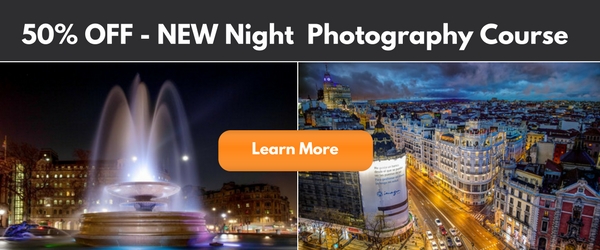
Night photography course eml 01

In this online video course by regular dPS writer Jim Hamel you will learn:

  • How to master exposure at night to take your photos from average to amazing
  • The secrets to finding the best subject matter and locations
  • The must-have gear to get these stunning shots
  • Detailed retouching techniques to make your photos pop
  • What to look for and how to set up your shot
  • All the technical aspects to nailing the shot

This is our biggest course ever – with 9 learning modules, 11 practical ‘field work’ videos and over 6 hours of videos so you can learn everything you need to know to take beautiful photos at night.

Here’s just a taste of what’s inside:

Best of all – if you pick it up today you can take advantage of a wonderful early bird offer.

Early Bird Offer – Save 50% and receive a Bonus

As part of our early bird special on this course, we’re offing 50% off the regular price. Normally $ 99 – today you can pick up our new night photography course for just $ 49!

In addition to that great saving we are also including a “The Complete Guide to Shooting the Night Sky”, a 40 page ebook dedicated to photographing stars. This great eBook is yours free if you buy but only for a limited time.

Discover the Secrets to Great Night Photography Today

We’re so excited to share this course with you today. Everyone we’ve shown it to loves what Jim teaches.

The early bird price and bonus is only available at this price for the next 3 weeks, so grab it while you can here and start your journey to learning how to take amazing night photography images.

We Guarantee You’ll Love this Course

Like all dPS products our Night Photography Course comes with a 60 day money back guarantee. While we’re confident you’ll love this course if for any reason you decide it isn’t for you please just contact our support team within 60 days and we’ll refund your money – you can even keep the bonus eBook as our gift to you for checking out the course.

googletag.cmd.push(function() {
tablet_slots.push( googletag.defineSlot( “/1005424/_dPSv4_tab-all-article-bottom_(300×250)”, [300, 250], “pb-ad-78623” ).addService( googletag.pubads() ) ); } );

googletag.cmd.push(function() {
mobile_slots.push( googletag.defineSlot( “/1005424/_dPSv4_mob-all-article-bottom_(300×250)”, [300, 250], “pb-ad-78158” ).addService( googletag.pubads() ) ); } );

The post How to Take Amazing Night Photos by Darren Rowse appeared first on Digital Photography School.


Digital Photography School

 
Comments Off on How to Take Amazing Night Photos

Posted in Photography