RSS
 

Posts Tagged ‘Studio’

Fujifilm X-T30, Sony a6400 added to studio test scene

29 Mar

Fujifilm’s X-T30 and Sony’s a6400 are both highly capable midrange cameras, with APS-C sensors, similar resolution, excellent autofocus systems and similar pricing. So how do they stack up in our standard studio test scene? Take a look for yourself while we continue working through our full reviews.

$ (document).ready(function() { ImageComparisonWidget({“containerId”:”reviewImageComparisonWidget-1084047″,”widgetId”:670,”initialStateId”:null}) })
Articles: Digital Photography Review (dpreview.com)

 
Comments Off on Fujifilm X-T30, Sony a6400 added to studio test scene

Posted in Uncategorized


Canon EOS RP added to studio test scene comparison, sample gallery updated

07 Mar

$ (document).ready(function() { SampleGalleryV2({“containerId”:”embeddedSampleGallery_0019055356″,”galleryId”:”0019055356″,”isEmbeddedWidget”:true,”selectedImageIndex”:0,”isMobile”:false}) });

The Canon EOS RP is an impressively small camera considering the large full-frame sensor inside. That sensor gives you 26MP of resolution, and is closely related to the unit in Canon’s existing EOS 6D II DSLR. We’ve had it out and about for some sunshine and soul music in Seattle, and have also put it in front of our test scene to see what it can do. Take a peek through our updated sample gallery and around our studio scene to see how Canon’s new baby full framer fares.

$ (document).ready(function() { ImageComparisonWidget({“containerId”:”reviewImageComparisonWidget-56016112″,”widgetId”:661,”initialStateId”:null}) })
Articles: Digital Photography Review (dpreview.com)

 
Comments Off on Canon EOS RP added to studio test scene comparison, sample gallery updated

Posted in Uncategorized


SLC-OE-06 Chocolate Box Studio

25 Feb

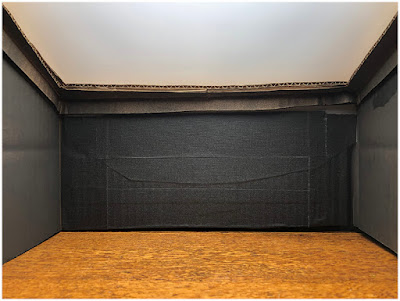
I am happy to announce my brand new studio. It features hardwood floors and a seamless, backlit ceiling as its primary light source.

Sadly, like many studios, this one is a little on the small side: it measures exactly one cubic foot. But that's fine, as this workspace was designed specifically for one subject: chocolates.

Today, we'll be harkening back to the roots of this website, namely working with cardboard and glue to solve a problem for next to nothing. Read more »
Strobist

 
Comments Off on SLC-OE-06 Chocolate Box Studio

Posted in Photography


Olympus OM-D E-M1X in the studio: familiar image quality, Pixel-Shift still impresses

26 Jan

$ (document).ready(function() { ImageComparisonWidget({“containerId”:”reviewImageComparisonWidget-13871818″,”widgetId”:655,”initialStateId”:null}) })

We’ve been shooting with the new Olympus OM-D E-M1X for a little while now, both in and out of our studio. Our standard studio tests show that conventional stills performance is little changed from the E-M1 II, but its high-res Pixel Shift mode is still impressive.

Click here to read our Olympus OM-D E-M1X First Impressions Review

Articles: Digital Photography Review (dpreview.com)

 
Comments Off on Olympus OM-D E-M1X in the studio: familiar image quality, Pixel-Shift still impresses

Posted in Uncategorized


Astro HQ releases Liquid 3.0 video engine for Luna Display and Astropad Studio

25 Jan

Astro HQ has announced the release of Liquid 3.0, the latest version of its video engine for Luna Display, Astropad Standard and Astropad Studio. The updated software brings accelerated GPU support with up to four times better GPU performance over the previous version. As well, Liquid 3.0 slashes latency and screen refresh rates for up to two times faster responsiveness.

Astropad is a product that comes in Standard and Studio variants, both designed to transform an iPad into a full graphics tablet compatible with a Mac computer and any macOS app. Luna Display, meanwhile, is a small dongle-based system that turns an iPad into a small, portable second screen for Mac computers.

Both products utilize Astro’s Liquid video engine, which is Astro’s own proprietary technology. The company said in its announcement today that it focused on GPU performance optimization and latency reduction in its latest engine update. Product owners must update both the Mac and iPad software from their respective app stores to use the new engine.

Articles: Digital Photography Review (dpreview.com)

 
Comments Off on Astro HQ releases Liquid 3.0 video engine for Luna Display and Astropad Studio

Posted in Uncategorized


Adorama releases non-TTL Flashpoint XPLOR 600 Pro HSS studio flash head

16 Jan

Adorama has announced the availability of a new studio flash head from its own Flashpoint range. Designed for photographers who don’t want TTL control, the XPLOR 600 Pro HSS offers 600WS of power with wireless triggering.

With the standard reflector fitted the head has a guide number of 87m / 285ft @ ISO 100. Users can expect 360 full power bursts from a single charge of the head’s 2.6Ah lithium ion battery pack. An optional AC adapter is available, but even when powered by the battery recycle-times are between 0.01 and 0.9 seconds. The head uses a 2.4GHz wireless system making the XPLOR 600 Pro HHS compatible with the Godox X radio triggers, which are available for all the main camera brands.

Wireless control works across 32 channels and x-compatible flashes can be separated into five groups. Two optical slave modes are offered, with all settings dealt with on the large side-mounted LCD panel. The HSS in the name refers to the head’s ability to sync with shutter speeds of up to 1/8000sec, and the output can be varied across 9 stops to 1/256th in 25 steps. A battery and charger are included in the kit, along with a standard reflector in the Bowens S mount.

The head is the non-TTL version of the XPLOR 600 Pro TTL, and is priced $ 749 against the $ 899 charged for the TTL model. It is also a version of the Godox AD600 Pro head that has TTL. For more information see the Adorama website.

Articles: Digital Photography Review (dpreview.com)

 
Comments Off on Adorama releases non-TTL Flashpoint XPLOR 600 Pro HSS studio flash head

Posted in Uncategorized


How to Use 5 Different Lighting Scenarios to Create Expert Studio Portraits [video]

12 Jan

The post How to Use 5 Different Lighting Scenarios to Create Expert Studio Portraits appeared first on Digital Photography School. It was authored by Caz Nowaczyk.

In this week’s video from COOPH Master Chrissie White, you’ll learn how to use five lighting scenarios to create expert studio portraits.

Here are the 5 tips:

1. Natural Light and Reflector

Place your model next to window and place reflector on the opposite side of the face to create balanced light. For even light, shoot when the light isn’t coming directly through the window.

2. Side lighting

Side lighting creates a moody atmosphere for your image.

Place one light on to one side of the model and black card on the opposite side. This casts a shadow on one side of your models face so the light is split down the middle. if you don’t want it too moody, place a white card on the opposite side instead. That way the models face won’t be in complete shadow.

3. Butterfly lighting

Butterfly Lighting is commonly used for beauty lighting. It is an even light on the model. Place the light in front of the model and above them. You can also use a reflector underneath their face to even out the light.

4. Split lighting

This lighting is dramatic and flashy. Great for shooting athletes and fashion models. Place 2 lights approx 45 degrees behind the model. To soften and make less dramatic, add a butterfly light to the front of the model.

5. Backlighting

Place your light source behind the model to create a hair or rim light. Place another light in front of model or a white card to add some fill to remove the shadow from the face.

Add colored gels to the light to add color and drama. Use cellophane or gels. Be careful of hot lights though.

TIP: Look in the eyes of models for ‘catch-lights’ to see what type of lighting a photographer used.


You may also find these articles helpful:

One Speedlight Portrait Lighting Tutorial

6 Portrait Lighting Patterns Evey Photographer Should Know

10 Ways to take Stunning Portraits

How to Pose and Angle the Body for Better Portraits

Create Beautiful Indoor Portraits Without Flash

How to Create Awesome Portrait Lighting with a Paper Bag an Elastic Band and a Chocolate Donut


The post How to Use 5 Different Lighting Scenarios to Create Expert Studio Portraits appeared first on Digital Photography School. It was authored by Caz Nowaczyk.


Digital Photography School

 
Comments Off on How to Use 5 Different Lighting Scenarios to Create Expert Studio Portraits [video]

Posted in Photography


Using Face Detection and Recognition in ACDSee Photo Studio Ultimate 2019

11 Dec

The post Using Face Detection and Recognition in ACDSee Photo Studio Ultimate 2019 appeared first on Digital Photography School. It was authored by Stacey Hill.

Are you a person who takes lots of photos of people? Perhaps you shoot weddings or events? Family portraits? Maybe you like to capture images of family and friends? Eventually, you end up with many images. Some are easy to sort through when they have only one person in them.

However, what about group photos? How do you tag/catalog/sort through those? Do you have to list out everyone’s name in the meta tags manually?

What if you don’t know all the names immediately? What if you find out later that Heather is actually Helen and you have to go back and change it?

Finally, how can you find all the images with a specific person quickly and easily?

Luckily, ACDSee Photo Studio Ultimate 2019 makes this task easy with the new Face Detection and Recognition capabilities.

How to set up Face Detection and Recognition

1.  Open the program and in ‘Manage’ mode, navigate to the desired folder where you have stored your images.

2.  Click on an image of the person you want to name and click on ‘View’ to open in View mode.

3.  Face Detection identifies the person by outlining their face.

4. If this outline box is not present, click on the ‘Show Face Outlines’ button (or Shift + B).

5. Once the face is selected, we need to apply the name. Click on the ‘Face’ Tool (or Shift + F) and a dark grey text bar pops up under the outline.

6. Click in the text bar and type the name of the person and press ‘Enter.’

7. If you select any other image with that person and open it in ‘View mode,’ it should automatically select their face and apply the name.

A key point regarding the naming structure you use is to put some thought into what naming convention you use and then keep it consistent. For example, something along the lines of: first name (space) last name or first name_last name. Doing so makes a difference later if you are using search parameters to find people.

What happens if you have more than one Joe Smith? What if you start off using only first names and then you have 3 x David, 4 x Michael, 2 x Louise all in the same wedding party? Being as specific as possible when naming addresses this issue.

How it becomes useful

Once the software has recognized the face and you have assigned a name to it, it detects that face amongst all your other photos. While it works across any images currently stored on your computer, the data is saved and applied to any new images you import onto your computer.

Therefore, you should only have to tag the person once. ACDSee remembers their name and applies it to any future image with their face in it.

Now you might want to search for all the images with Heather.

1. In ‘Manage’ mode, select ‘Catalog’ on the left-hand panel. The panel is broken up into different sections. At the top is ‘Categories.’

2. The second panel down is ‘People.’ All the names you have applied to your images are listed. Click on any name, and it goes through the database to pull out all the images with that face present in them.

3. In ‘Manage’ mode, you can ‘Quick Search’ by typing the name in the Quick Search box.

Searching for multiple people

1. Search for two or more people by holding down CTRL while selecting a second name in the People section of the Catalog panel. The software finds the images for those people. You can also utilize the ‘Easy Select’ arrows next to the names to select multiple people.

2. Find an image with two specific people in it together by typing both of their names in the ‘Quick Search’ bar as Person 1 + Person 2 to run a Boolean AND search. It is during this process that it’s essential to understand the naming convention you used originally.

In ‘Manage’ mode, select the folder you want to search in and click F3 to search (or right mouse click and select Search). Make sure you put ‘People’ in the ‘Categories’ section or it will search the entire database and potentially pull up other images.

3. You can also run a search from the ‘Catalog’ pane. In the ‘People’ section, select all the people you want to search for by using the ‘Easy-Select’ arrows or CTRL/SHIFT clicking. Click the gear icon on the People section header, and change the search type to ‘Match All.’

Managing name data

You can edit/change/remove the name data you have stored, which comes in handy if you have to update the spelling on one. Maybe you forgot you already had a ‘Sebastian’ in there, and you need to change one of them.

1. In ‘Manage’ mode, select ‘Tools’ from the top menu option.

2. From the drop-down menu, select ‘Manage People.’

3. A ‘People Manager’ box opens up with all the names you have saved. You can edit each one as needed by selecting them and using the bottom buttons.

Things to note:

1. The naming convention you use is important, so plan that out in advance.

2. If the face is not automatically detected, and you have to create it manually, the software will not further recognize it in Face Recognition. Also, note that if you use the Remove Faces or Redetect Faces command on an image, manual faces aren’t retained. The Rerun Face Detection option remembers them if you edit images.

3. Currently, there is no facility to import face recognition tags from other software (Picasa as an example). However, a search through the support forums has this listed on the ‘Potential Ideas for Future Updates’ list. It also appears to apply to the exporting of images from ACDSee as well, with the intention of retaining the face recognition tags.

4. There is no easy way to establish if there are currently any unnamed faces.

5. If the software has assigned the wrong name to someone, you can remove it with the Remove Faces function. This removes all face data from the selected image, not just the one wrong one.

6. To ensure a better success rate, you may need to manually select several images of one person so that the software can ‘learn’ that face with accuracy. You achieve better accuracy by naming as many faces in the (first) image as possible.

7. You can manually remove the names from incorrect selections and can rescan in ‘Manage’ mode via Tools | Redetect Faces. You need to correct the wrong name, rather than remove it, otherwise rescanning continues to return the wrong name over and over.

Conclusion

Face detection and recognition is a tool that can make life easier for a photographer with many images of people in their portfolio. The ability to assign a name to a person and have the computer run an algorithm to find all the other images is significantly faster than doing it manually.

To be able to search for images with a specific person (or range of people) becomes faster and more efficient as well.

Is it perfect?  If I am honest, not 100% all of the time. However, it is easy to use, easy to manage and does a pretty good job for most requirements. It could be useful for many other things that they may implement into the next version.

Right now, it is an effective time saver for the home photographer with photos of family and friends, through to commercial photographers with wedding/event shoots filling up the portfolio.

The previous 2018 generation of ACDSee was the first version that bought a range of features all together in one space. Thus, giving you the capability to manage and view files, edit Raw files, do creative editing with layers, all in one piece of software.

Leading with this Face Detection and Recognition, the 2019 iteration builds on that initial foundation by bringing specific functionality to boost capabilities even further. Thus, making for a compelling consideration for anyone looking to purchase editing software, especially when it is available via one-off perpetual license purchase.


The post Using Face Detection and Recognition in ACDSee Photo Studio Ultimate 2019 appeared first on Digital Photography School. It was authored by Stacey Hill.


Digital Photography School
 
Comments Off on Using Face Detection and Recognition in ACDSee Photo Studio Ultimate 2019

Posted in Photography


Panasonic LX100 II: solid image quality in studio and real-world shooting

07 Dec

We’ve been shooting with the LX100 II both in and out of the studio, as part of our ongoing review. We’ve written about the camera’s operation and handling, analysed the studio scene and the camera’s dynamic range, and expanded the sample gallery.

Click here to read our expanded First Impressions Review

$ (document).ready(function() { SampleGalleryV2({“containerId”:”embeddedSampleGallery_7065627980″,”galleryId”:”7065627980″,”isEmbeddedWidget”:true,”selectedImageIndex”:0,”isMobile”:false}) });
Articles: Digital Photography Review (dpreview.com)

 
Comments Off on Panasonic LX100 II: solid image quality in studio and real-world shooting

Posted in Uncategorized


Officials say Apple’s claim of ‘studio quality’ portraits on iPhone X, Xs isn’t misleading

05 Dec

Two challenges to Apple’s claim that its iPhone X can shoot studio quality portraits have been turned down by the UK’s Advertising Standards Authority (ASA). The complainants took issue with Apple’s advertising line that the phone could deliver ‘Studio-quality portraits […] Without the studio’ and believed consumers would misled, but after an investigation the ASA found that the statement was fair.

The basis of the findings is that there isn’t clear definition of what ‘studio quality’ means, and that there is a wide variety of talent in the studio photography industry that meant that the term didn’t necessarily indicate that a ‘studio quality’ portrait was a good one. Rather, the ASA agreed with Apple that the Portrait Lighting effects, the depth-of-field mimicking software and the inclusion of a standard, instead of a wide, focal length meant that the characteristics of a ‘studio’ portrait could be achieved. The investigation also found that the effects shown in the Apple adverts could indeed be produced with the phone at the time of shooting or post capture.

The ruling might seem a smack in the face to the portrait business and to undermine respect for the profession, but photographers are perhaps becoming victims of our own well-worn stock phrases such as ‘the best camera is the one you have with you’. While there is no clear measure of what ‘studio quality’ means, skill and vison are required to create a good portrait and as we all know ‘it’s the archer not the arrow’ – though Apple forgot to mention that bit.

The fact is that smart phones are genuinely becoming better and better at taking pictures, and their developers are devising features and functions well ahead of those traditional camera makers offer. These features often exist to compensate for the physical limitations of the tiny camera units, but they also put incredible flexibility into the hands of the user. At every turn in history the advances of smaller formats have been opposed by ‘proper’ photographers, but that has done nothing to prevent the inevitable progress of the convenience and popularisation of photography. You would be mad to buy an iPhone X to start your portrait business however, as a decent interchangeable lens camera can be had for less than the same price – with change to use a pay phone.

For more information on the complaint, the investigation and the ruling see the Advertising Standards Authority website.

Articles: Digital Photography Review (dpreview.com)

 
Comments Off on Officials say Apple’s claim of ‘studio quality’ portraits on iPhone X, Xs isn’t misleading

Posted in Uncategorized