RSS
 

Posts Tagged ‘Steps’

How to Alienate Photography Models in Five Easy Steps

22 Aug

Back in June, I decided to try my hand at modeling. Now, this is not completely new — I’ve been modeling for myself (with my mom pressing the shutter button, as I don’t have a remote and have never mastered the self-timer) for about six years now, on and off since I got my first (and only) DSLR. I’ve modeled Continue Reading

The post How to Alienate Photography Models in Five Easy Steps appeared first on Photodoto.


Photodoto

 
Comments Off on How to Alienate Photography Models in Five Easy Steps

Posted in Photography


4 Steps to Less Stressful and Easier Photo Editing

31 Jul

Have you ever returned to your computer with a memory card full of photos and become overwhelmed at the idea of going through all of them?

Tree starburst

The thought of sorting and analyzing so many pictures can seem so daunting it’s sometimes hard to even know where to start! Often we find ourselves copying the contents of our cameras to our computers and letting our precious memories collect digital dust, though we promise ourselves we will get around to organizing them – someday. Modern technology has made this task easier, with various software and cloud-based services even promising to find your best photos for you. And while these digital assistants certainly have merit, I like to take a different approach to dealing with all the images I capture.

The following tips will help you streamline your photography workflow and make the task of sifting through your images not only easier, but a lot more enjoyable too. While I work mostly in Adobe Lightroom, these general practices will apply no matter which photo editing software you use.

Step 1: Get rid of bad photos

This is the first thing I do when sorting through pictures, and it’s a tough hurdle to overcome because I have a tendency to want to save everything. But this step will make all the difference in managing your growing photo library, especially if you have never done it before.

Let’s say you went on a summer family trip to a national park, and you returned home with thousands of pictures to deal with. It might be tough, but as you look through them, try to think about what images will matter the most to you a year from now. You might have had a wonderful time at the Grand Canyon during your vacation, but will you really want 50 pictures of your child looking down at the great abyss? What about the ones where he is blinking, out of focus, or looking the other way? It is likely that two or three good pictures are all you need. In this first step, it’s up to you to find the ones that best encapsulate your experience as a whole, and ditch the rest.

Unicycling

I captured close to 100 photos on my brother’s recent visit, but this is one of just a handful I really need to remember the day, and all the things we did.

This approach might seem coldhearted and cruel, but it’s a necessary step in taming the photo-management beast. When you revisit the pictures from your summer trip a couple years from now, you won’t need a thousand of them to help you remember the experience. A tenth of that will probably be perfectly appropriate. If you hang on to every last one you might find that they become an albatross around your neck, weighing you down so much that you don’t even want to look back at your pictures because there are just so many of them.

To put things in another perspective, think about a time when one of your friends wanted to show you photos from his or her family trip. How long did it take you to grow tired of looking at the same types of images over and over? You could have easily gotten the point with just a few pictures, and then spent time visiting with your friends about the events surrounding the photos.

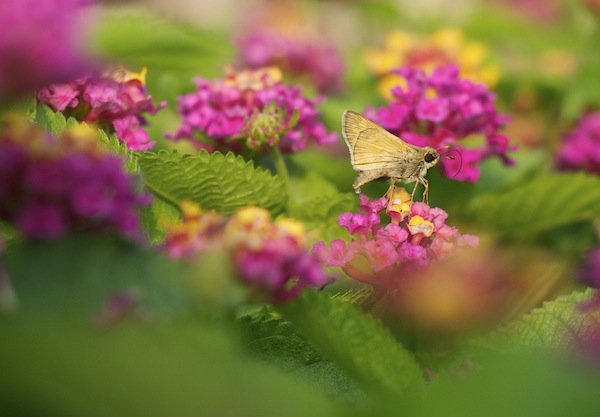
Moth

Of all the photos I took during this nature walk, this was one of only a few that I decided to keep. And in the years since, I haven’t missed the others at all.

One nice advantage of using a photo management program is that you can remove unwanted photos without actually deleting them from your hard drive. In Lightroom, pressing the “X” key on a photo will mark it as rejected, so it will no longer show up in your photo library but will still exist on your computer. This helps soften the initial blow, and then you can go back later and actually delete the rejected photos if you so desire. Alternatively, you can press the “P” key to flag a photo as one of your favorites, or assign star ratings to the images you like best. Then you can instantly sort out your best shots later down the line, and delete the rest when you are ready.

Step 2: Basic Editing

After culling your pictures to find the ones you like most, the next step is to perform basic edits and save the real heavy lifting for later. After removing the duds from my most recent camera import, I typically go through each of the remaining images and apply the simplest of edits such as crop, straighten, and exposure. Not much else is needed at this stage, as you are essentially preparing your photos for any real edits that might need to be done later. These basic adjustments are very quick, and you can churn through your recent batch of vacation, birthday, or hiking photos in a manner of minutes or hours instead of days or weeks.

You can also copy and paste adjustments, so if you have a dozen similar photos you can edit one and then apply those adjustments to the rest with a simple keystroke. This is also a good time to do apply some rudimentary organization to your photos as well, using tools like keywords, flags, categories, or star ratings. Be careful not to get caught up in editing any single photo in depth at this stage. The goal of Step 2 is to dig a little deeper into the photos you like, which will help you decide where to concentrate your efforts if you do need to do more intensive edits afterwards.

Husky

I had to crop this photo in order to draw the viewer’s attention to the dog’s eyes.

Step 3: Advanced Editing

By this point you should now have a curated set of photos that you really like, with some mild corrections applied to help them look a little more pleasing. Now it’s time to perform the types of more detailed edits that will help your images truly shine. Advanced adjustments to a photo’s white balance, color saturation, contrast, and other parameters, while also applying localized improvements like dodging and burning can take a long time, but the results are well worth it.

It’s important to do this step last, or else you can easily wind up spending a great deal of time editing a single picture early in the process only to realize there are plenty of better ones that should have had your attention instead.

Family

This family photo turned out fine, but I had to do some color corrections and other enhancements to get it to look how I really wanted. By doing this step last I was able to devote more time to the editing process and not worry about processing hundreds of additional images.

Step 4: Walk Away

This might sound silly, but often the most useful activity you can do when editing your photos is nothing at all. Take a break, get a coffee, head out for a walk, or just go to bed and come back to your pictures the next day with a fresh set of eyes. I’m amazed at how often I stare at a photo performing detailed adjustments trying to get things just right, only to leave my computer and return after a short hiatus and realize the solution was much easier than I realized at first.

As a case study in how all this works, let me share the following example. My brother and I recently I spent an afternoon at the beach trying to get pictures of a rock hitting the water. When I got back to my computer I found that we had over 50 of images to go through, and following the aforementioned workflow strategies helped make things much easier. After importing the images into Lightroom I went through and rejected about 35 right off the bat. That left me with a much more manageable set, so I cropped and applied some basic adjustments to the remainder. This helped me realize that I needed to reject more of them, now that I was looking at the cream of the crop in greater detail, and I ended up with three photos to edit more extensively. When I was finished, I ended up with exactly one photo from the afternoon that I really liked.

Water splash

Not only is this the best photo out of the many I shot that day, but looking at it allows me to remember many other things about the afternoon as well. I don’t need a hundred poorly-composed, out-of-focus pictures to remember a fun afternoon at the beach. Instead I have this one and just a couple others that all serve to bring back some amazing memories.

Following this simple process, and adjusting it to suit your individual needs, can transform photo sorting from a tedious chore into an activity that is enjoyable, relaxing, and fun.

The post 4 Steps to Less Stressful and Easier Photo Editing by Simon Ringsmuth appeared first on Digital Photography School.


Digital Photography School

 
Comments Off on 4 Steps to Less Stressful and Easier Photo Editing

Posted in Photography


5 Steps to Shoot a Simple-ish Time-Lapse Video With Your DSLR

30 Jun

If you have a new-ish DSLR, then you can probably “train” your camera to make a little movie for you. I’m talking about a time-lapse video, and while it might not be the next Hollywood blockbuster…it could spread like a virus on the Youtubez. 🙂 Read on to get started, and if I’ve done my job well (and you have the Continue Reading

The post 5 Steps to Shoot a Simple-ish Time-Lapse Video With Your DSLR appeared first on Photodoto.


Photodoto

 
Comments Off on 5 Steps to Shoot a Simple-ish Time-Lapse Video With Your DSLR

Posted in Photography


3 Easy Steps Using Photoshop to Making your Images POP

06 Jun

Image Post Processing Techniques

Having taught in-depth image post-processing workshops for Photoshop users, I’ve found that three of the simplest techniques are the ones that people love the most. These are quick and easy tricks that work for most image processing situations.

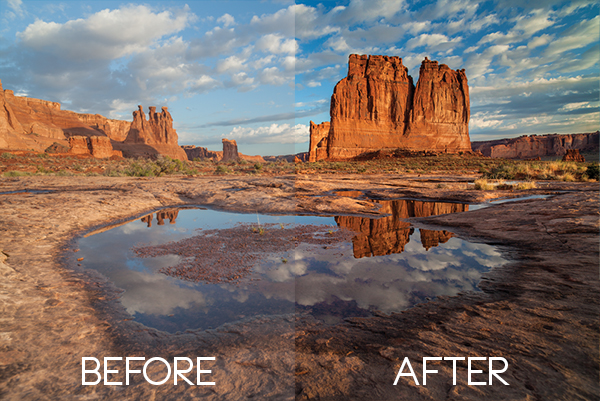
If you’ve got your exposure, aperture, focus and white balance all correct during shooting, you’ve got all that you need for a great image, but with these three easy steps using Photoshop we’ll add some serious POP to the colour, contrast and sharpness of your images.

I’m going to assume that you’ve already corrected your image in Adobe Camera Raw to fix any blown out highlights and shadow detail. This can sometimes leave you with a low contrast image that lacks lustre. HDR users will often find that a full HDR image lacks some punch once it has all the dynamic range fixed for highlights and shadows. Here’s how to add some pizazz to images.

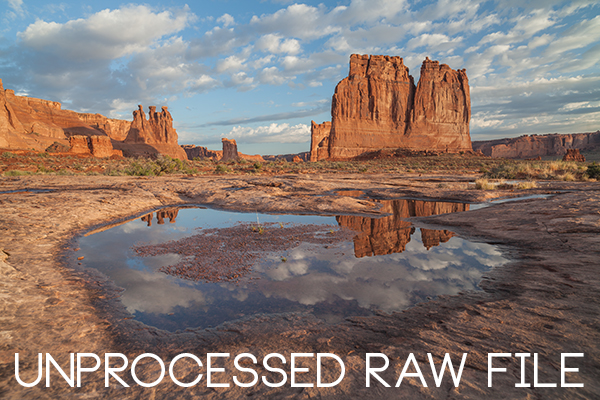
I’ll start with a RAW file from last year’s trip to Moab, Utah.

Unprocessed RAW file

I was more than happy to get this shot of Courthouse Towers in Moab, Utah but the RAW file was total Blandsville.

Step 1 – Make Those Colours POP

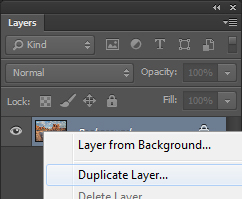
Open the image in Adobe Photoshop. With the image on the background layer of Photoshop, right click on the layer (in the layer window) and choose ‘Duplicate Layer’ (see screenshot below left).

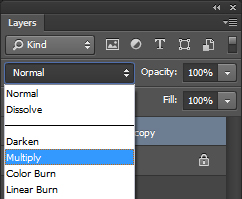
Duplicate Layer Multiply Layer

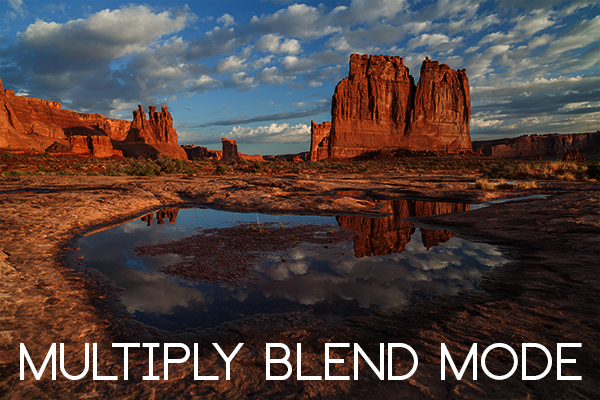
Now click on the newly duplicated layer and change the blend mode to ‘Multiply’ (see screenshot above right).

Multiply Blend Mode

Right away you’ll notice that all of the colours are more striking and the contrast is extreme. It’s also way too dark so we’ll fix that next.

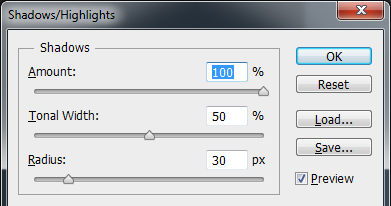
Next go to Image > Adjustments > Shadows/Highlights and drag the shadows slider all the way to right then hit OK (see screenshot below left).

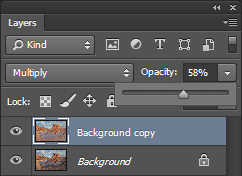
Photoshop Shadows / Highlights Photoshop Layer Opacity

By doing this, you’ll reduce the darker parts of the image ONLY in the duplicated layer. It’s still a little too dark, so in the layers window reduce the opacity of the duplicated layer until it’s at about 58% (see screenshot above right). This percentage will be different for all of your images so use your judgement and don’t overdo it. Usually I find that a setting of 28% works best in most cases.

Step 2 – Selectively Boost Colours and Brighten

I think that some of the colors need a little encouragement. For this example you want to boost the blue sky so combine the two layers that you’ve been working on so that you can make changes to that. You can do this ‘none destructively’ by pressing ctrl+alt+shift+e which will now combine the two layers you have selected, and create a new layer from those. The original layers are still intact underneath this new one.

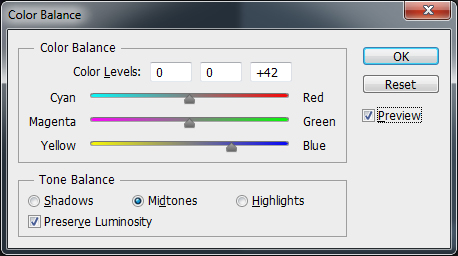
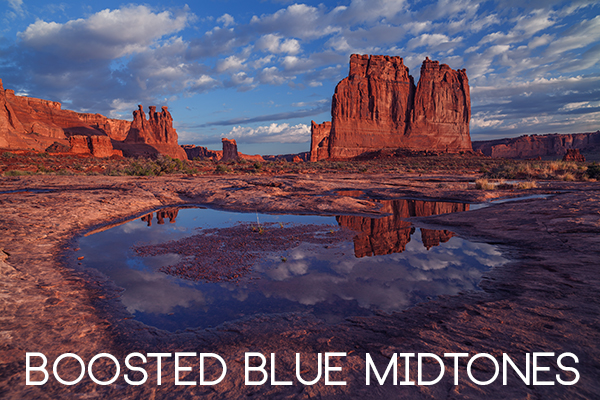
Next, go to Image > Adjustments > Color Balance > and bring up the RGB sliders. As I mentioned earlier, you’re going to be boosting the blues in my sky so click on ‘mid-tones’ and then pull the blue slider up to about +42.

Photoshop Color Balance

Boosted Blue Midtones

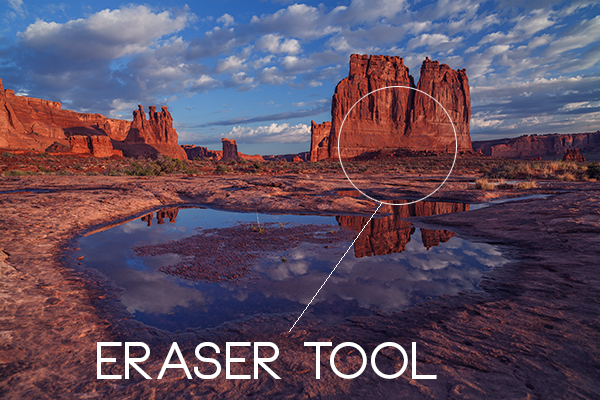
Ooooh, now that sky is looking vibrant but I’m not too sure about boosting the blues in the land area. Let’s fix that by erasing the land in this blue layer so that the layer underneath is revealed, where the blue mid-tones have not been boosted. You can also do this with ‘layer masks’ but this method is much easier to understand.

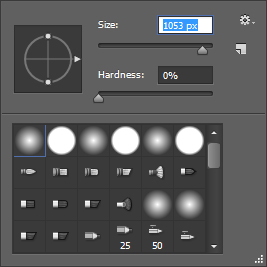
Do this with the eraser tool and select a brush size that fits inside the land area of the image. In the layer with the boosted blue mid-tones, erase a large area of land at first and then choose a smaller brush size for tighter control. To do this, simply click inside the layer you want to erase. The settings below show a brush size of 1053 pixels and a hardness of 0% which gives a soft, feathered edge.

Photoshop Easer Tool

Erase Bruash Tool

Click in the area you’d like to erase to reveal the layer beneath. In this case the layer beneath won’t have the boosted blue mid-tones that you want only in the sky.

Now you’ve managed to selectively boost the blue colour in the sky without ruining other parts of the image that didn’t need that blue boost. Here is an image of how the ‘sky’ layer looks after the land has been erased out, and below you can see how it looks in the layers panel.

Erased Land

This is what’s left of the ‘boosted blues’ layer. The layers under it are temporarily switched off so that you can see the isolated sky.

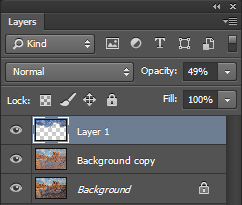
Photoshop Layers Palette

Layers panel showing the partially erased boosted blue sky layer

Notice that the opacity of the sky layer has been reduced to 49% so the effect is more subtle when laid over the top of the lower two layers. Again, you’ll need to use your own judgement for your own images as they won’t all be the same. Maybe you have red clouds and would like to boost the red highlights? You can do this procedure multiple times with multiple layers to tweak the colours selectively. There are more accurate ways to do this but if you’re new to Photoshop, this is the easiest method to understand and has hardly any learning curve.

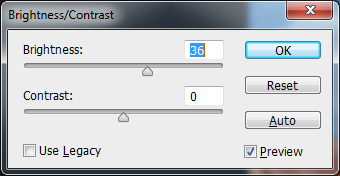
Lastly, all this tweaking has made the image a little too dark so a boost the overall brightness by 36 has been done.

Photoshop Brightness

Step 3 – Let’s Resize and Get Sharp

Sharpening is often something that I leave to the end of my image processing, depending on the medium I’m using to display the image. I’ll use different sharpening settings for a high resolution print than I will for the web, so it’s always a good idea to save an ‘unsharpened’ version of your processed image for safe keeping.

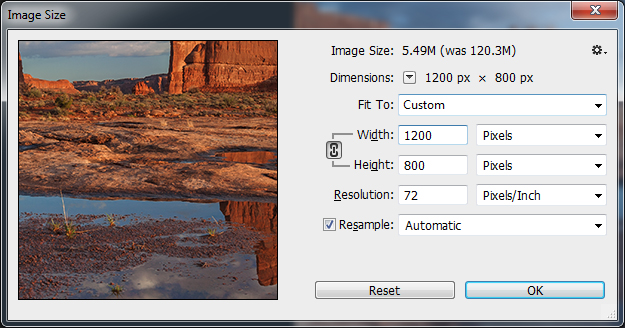
Assuming that you wish to display your images online, here are some fairly universal sharpening settings that I use for sharing my images online. Before we sharpen, let’s flatten and resize our image for the web. You can decide how large your image should display on screens but for the purposes of this tutorial let’s go with 1200 pixels wide.

Go to Layer > Flatten Image so that you’re now just dealing with one complete layer that has all of the changes. Next go to Image > Image Size and tell Photoshop that you’d like your image to have a resolution of 72 dpi which is standard for web images. Next, specify the width by entering 1200 pixels in the ‘width’ window. The height should auto adjust if you have ‘constrain proportions’ checked by default (the little chain icon).

Photoshop Image Resize

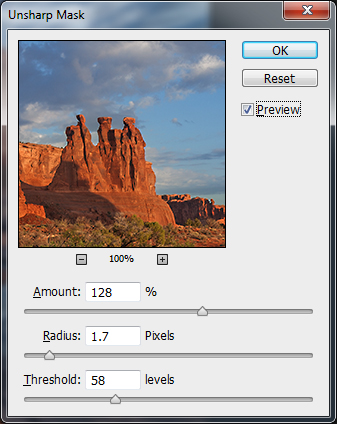
Next open the Filter > Sharpen> Unsharp Mask tool.

Use some fairly safe sharpen settings for web so that you don’t over it. It’s worth noting that ‘sharpening’ deserves an article as a separate topic but for now these basic settings should get you going. Try: Amount > 128%, Radius > 1.7 pixels and Threshold > 58 Levels.

Photoshop Unsharp Mask

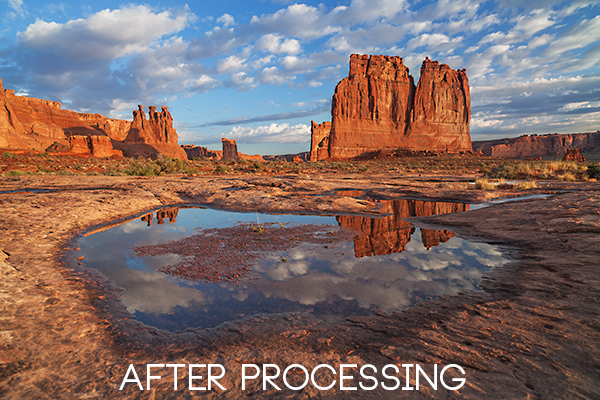
The Final Result

POP! There you go, three easy steps an you’ve now got an image with plenty of punch. There are many different ways to achieve the same results, but for this tutorial, I wanted to give you an easy to understand process to introduce you to some of Photoshops most powerful tools. Try these three simple techniques for your image post-processing and let me know it works out for you.

After Processing

IMPORTANT NOTE: Backup your files before editing or saving your edits.

The post 3 Easy Steps Using Photoshop to Making your Images POP by Gavin Hardcastle appeared first on Digital Photography School.


Digital Photography School

 
Comments Off on 3 Easy Steps Using Photoshop to Making your Images POP

Posted in Photography


4 Steps to Photoshop Artistry Using Fine Art Grunge Techniques

02 Jun
PhotoshopGrunge600x600

Image by Sebastian Michaels

Sebastian Michaels has the course Photoshop Artistry: Fine Art Grunge Composition which is current on sale for 67% off at SnapnDeals.com for a limited time only. Grab it now before the deal is over.

One question. Do you sharpen just about all your images? If so … you should stop. As photographers we tend to want our images to be perfect: perfect exposure, perfect white balance, perfect sharpness. But aren’t you a little tired of being so perfect all the time? Let me clue you in. Art doesn’t always have to be so darn pretty. What if instead you let yourself RELAX a bit, lighten up, and have some fun? What if you let yourself get a little messy? Maybe not full-blown grunge. But how about “fine art grunge”?

Start here: a little more blur, a little more noise, an unexpected angle or crop, perhaps some striking effect of light combined with a subject you never would normally have thought to consider.

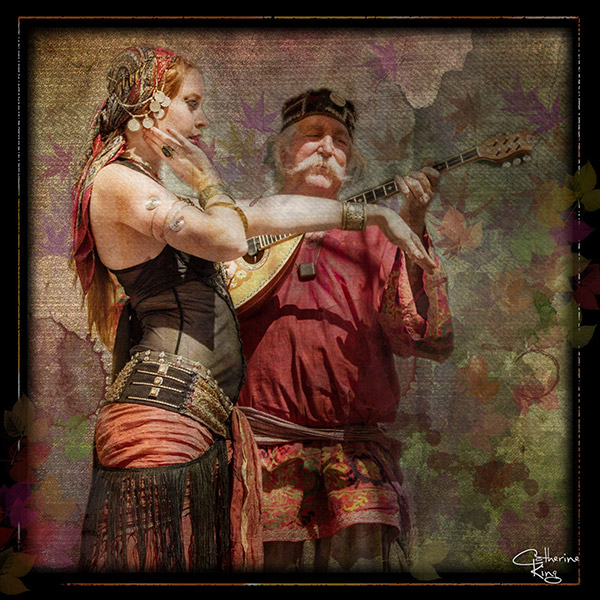
BellyDance

Photo credit: Catherine King (course student)

Sometimes we forget that at our core we are ARTISTS. Owning a Canon 5D Mark III rig and enough lighting gear to stage a Pink Floyd reunion tour doesn’t change that. Just because we spend so much time trying to capture the perfect shot doesn’t mean that we can’t switch it up now and then and treat our images (even our mistakes, even our botched shots) as nothing more than the starting point in more elaborate artistic compositions.

Here’s a mental trick to get you started. Think of some of your favorite shots. But instead of imagining your photos all printed pretty and perfect, imagine them layered-in and composited with other images and rendered as a painted canvas.

Think paint on canvas. Not that you need to simply run a paint filter on your photos. That’s not going to cut it here. Think instead of paint on a canvas in the sense of a wild-eyed painter with oil paint in his hair, brushes sticking out of his pockets and one clenched between his teeth – attacking a canvas in a frenzy of creativity and passion. When was the last time you approached your photography with that kind of intensity? When was the last time you let yourself step outside of your serious photographer role and actually felt like an ARTIST creating a great canvas?

EnjoyYourLife

Photo credit: Li Li Wee (course student)

That kind of artistry is in you. Let’s look at how you might begin tapping into it.

STEP ONE: Take More Chances With Your Photography

I mentioned a little of this earlier. You might already have some shots that you would otherwise delete out of hand just because they are blurred or the contrast is screwy. Give those a second look. Maybe there’s something artistic you could do with them. Maybe you could crop them in a creative way.

When you are shooting, try some angles you normally wouldn’t even attempt. For that matter, try shooting some subjects outside of your usual comfort zone. Take a walk down a dark alley (or a woodland trail) and see what you come out with.

Maybe enlist some models you normally wouldn’t have chosen, or stockpile some odd objects and lug them out to quirky locations. In other words: experiment more. Get out of your comfort zone and try something new. Take some chances for your art.

STEP TWO: Throw In Some Blend Modes (and Maybe Some Textures)

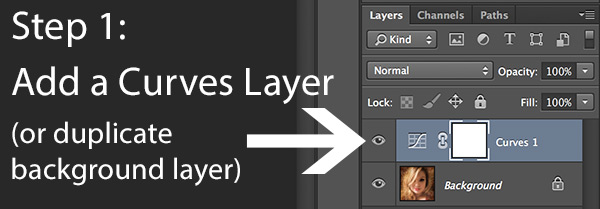
It’s surprising how much more interesting an image can become simply by slapping a Curves layer on it (or even simply duplicating the background layer) and assigning that layer a Blend Mode. Give it a try and see.

BlendModes1

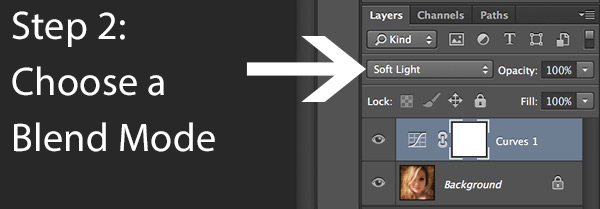
BlendModes2

Your best bet is almost always with Multiply or Screen blend modes, or alternately with Overlay, Hard Light, or Soft Light. I recommend memorizing the keyboard short cuts for those so you can toggle through them quickly and pick the best. You might also want to lower the opacity of the layer (or you might want to duplicate that layer with Cmd/Ctrl+J, doubling up the effect, or giving that duplicate layer a different Blend Mode of its own).

You might also want to stick a Layer Mask on there and paint in precisely where you want that effect to show. Every image is different, and layer Blend Modes can create rich results.

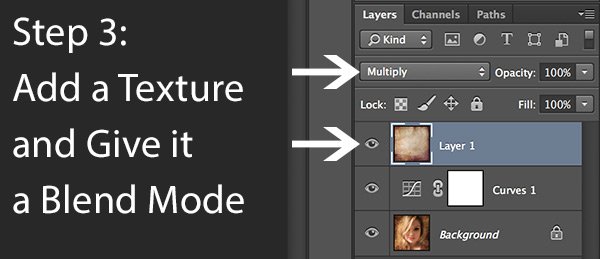
I recommend also trying out some textures combined with Blend Modes and Layer Masks. A texture or overlay might be as simple as a photo of a grungy patch of concrete, or it might be a scanned watercolor wash. It could also be an intricately layered piece in and of itself, comprised of scanned swatches of paint, scratched up paper with coffee stains on it, colorized with a Hue/Saturation layer and given a dark vignette. When you decide to explore photo-artistry, you begin collecting a lot of these kinds of textures and overlays.

Texture

But whatever you use, you drop it in over the image and give it a Blend Mode; again, you might tweak the opacity or employ a Layer Mask. Already your image is likely looking more dramatic and artistic. It’s probably a bit “grungy” at this point, and that’s okay. Embrace it. You might already find yourself astonished; discovering something in the image you never quite knew was there until this moment.

STEP THREE: Get More Dramatic With Your Lighting or Experiment With Some Filters

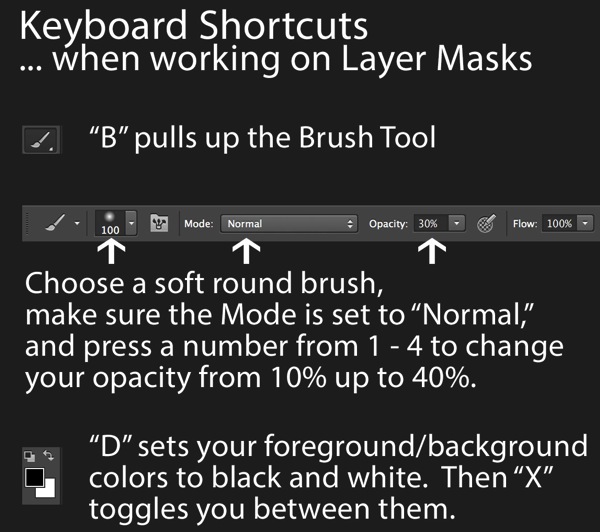
You never know where an image is going to take you. All you can do is try a few things and see if one of them looks especially cool. One approach you may want to try is to slap another Curves layer on top of the image (or Brightness/Contrast if you’re working with Elements) and deliberately darken the entire image. Go back in with the Brush Tool to paint over the Layer Mask at a low opacity and, in essence, paint in the lighting where you want it. Be sure to use a soft-edged round brush at only about 20% opacity, layering your strokes while using black and white and toggling between the two by pressing the “x” key.

Here you are painting in where you want light. But you can do something very similar with any of the effects in the Filter Gallery. Here’s how:

  1. Go to the top layer of your layer stack and execute what has come to be known as “The Move”: Cmd-Option-Shift-E on a Mac (or Ctrl-Alt-Shift-E on a PC) to “merge everything visible” onto its own new layer.
  2. Select the new layer you just created and press Cmd/Ctrl+J to duplicate it.
  3. Run a filter from the Filter Gallery on that layer. Go ahead and try out one or more of the painting filters, but experiment with the others as well, and how they interact. LayerMaskShortcuts
  4. After you apply the filter to your duplicate layer, stick a Layer Mask on it and again use a black or white soft-edge brush at low opacity to paint the effect in or out as you like. Try masking out the effect a bit in the areas of greatest focus, leaving everything on the edges more enhanced. Experiment and see where the image takes you.

STEP FOUR: Go Ahead and Add an Edge Effect and a Signature

Now that you have an interesting artistic image, it’s nice to give it some kind of artsy edge treatment. There are half a dozen ways to do this (you can even pick up OnOne Software specifically built for the task of creating edge effects), but we can leave the pure Photoshop methods for the next tutorial.

You might even want to stick a more artistic signature on the corner of the piece, because you’re likely excited at this point, since you are now looking at a work fit for canvas.

Cat

Photo credit: Irene Hofmann (course student)

You took some chances and it paid off. Next time maybe you’ll get even grungier, because by now you’re seeing that “grunge” is just another way of saying “artistic.” Above all else, whatever your tools, and whatever your approach, you are first and foremost, an artist.

For walk through of this process and a better idea of what the course is like, check out this video:

// < ![CDATA[ _evpInit('dHV0b3JpYWwxMjgweDY5MndlYi0xLm1wNA==[evp-f593aa84764ec0c7dba0fa770e9114bc]'); // ]]>

Sebastian Michaels has the course Photoshop Artistry: Fine Art Grunge Composition which is current on sale for 67% off at SnapnDeals.com for a limited time only. Grab it now before the deal is over.

The post 4 Steps to Photoshop Artistry Using Fine Art Grunge Techniques by Sebastian Michaels appeared first on Digital Photography School.


Digital Photography School

 
Comments Off on 4 Steps to Photoshop Artistry Using Fine Art Grunge Techniques

Posted in Photography


8 Steps to Create Mouth Watering Food Photography

07 May

On sale now at SnapnDeals for a limited time at 50% off Photographing Food 8 eBook Bundle by Taylor Mathis. Get it now if you want more great food photography tips.

Have you ever tried taking a picture of food and it just didn’t look as good as the dish tasted? Don’t worry, you aren’t alone. Taking pictures of food requires a different mindset and approach than what you would use in your portrait or landscape photography. Here are 8 steps you can take that will help you create mouthwatering food images.

Step 1. Choose one light source

Mathis photographing food 8 steps tip 1

I know what you may be thinking. The more lights the better, right? Adding lights in portrait photography does give you ability to shape and light the face in beautiful ways, but when shooting food, one large diffused light source will yield amazing results!

This doesn’t mean you need to spend a ton of money to get started. All you need is a window. You can use a window where you live or if you are shooting on location, try a large restaurant window.

Step 2. Embrace food’s color

Mathis photographing food 8 steps tip 2

Food comes in a wide range or colors and textures. From your dark leafy greens, vibrant orange carrots, or pale purple shallots, you can have a rainbow of colors in front of you at meal time. Embrace this color with your prop selection and food styling. If you are lost on where to begin, look for inspiration in an artist’s color wheel! A color combination that I like is matching blue accessories with yellow or orange foods.

Step 3. Know when to use artificial light

Mathis photographing food 8 steps tip 3

I love using natural daylight in my food photography, but there are times when I need an artificial solution. A tungsten lamp or a small compact flash make great options for shooting your food at night. The key is to use a large diffusion source to create a beautiful, soft light that will fall over your set. I like to modify my light with umbrellas, soft boxes, or a large diffusion scrim.

Step 4. Get creative with the ingredients

Mathis photographing food 8 steps tip 4

Don’t overlook the ingredients and head straight for the shots of the main meal. With an ingredient shot you can create an interesting story that begins the journey to the final plated dish. For fruits and vegetables, I like to create visually interesting arrangements shot from an overhead angle. This is the type of shot that any camera can do, even just one on your cell phone. If you have a macro lens, take advantage of your close-up ability to shoot spices and ingredients with interesting textures. Close-up shots of these shapes and textures will bring an interesting and new perspective of food to your viewers.

Step 5. Think about final use

Mathis_photographing_food_8_steps_tip_5_new_crop

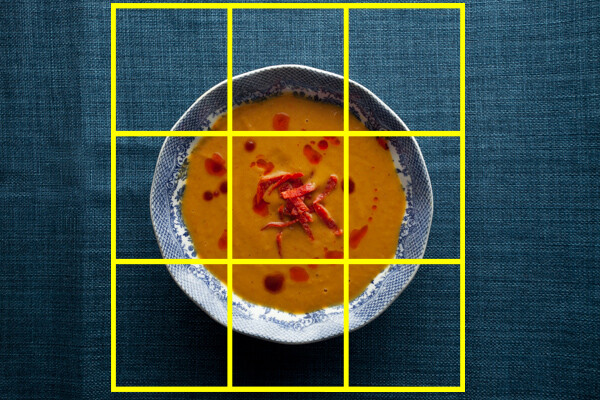
Your food image will commonly be cropped to a different size for its final use. It could be a square for use in a restaurant menu or a narrow rectangle that will fit on the side of a package. It doesn’t do you or the client any good if you create a beautiful image, but half the dish is cropped out when it comes time for printing. When shooting, you want to know what this final crop will be so that you can ensure that all the essential parts of the dish make it into the shot.

Step 6. Taking your food on location

Mathis photographing food 8 steps tip 6b

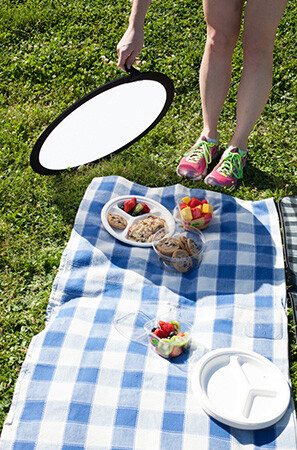
Taking your food shots out of the kitchen, and on location, will allow you to create images with beautiful outdoor scenic backgrounds. Whether it is a trip to the farm to capture fruits and vegetables ripe and ready to pick, or creating an outdoor entertaining event, an on location shot is one where weather may become a concern. There isn’t much you can do about rain cancelling a shoot, but you do have control over the harsh light from a bright and sunny day. When shooting outdoors, I always bring a collapsible diffuser with me. Placing this between my subject and the sun diffuses any harsh light that may be on my set. I am left with a soft evenly lit set on which I can create mouthwatering food images.

Step 7. Vary your background

Mathis photographing food 8 steps tip 7

What you shoot your food on top of will have a huge impact on the final photo. There are millions of options from which to choose. You can use anything from painted wood to cloth to stone. My favorite place to find backgrounds is at my local hardware store. There are thousands of potential backgrounds there. If you are feeling creative, you can stain and paint wooden boards to create a truly custom shooting surface. If you want a background that doesn’t require any customization, try painted ceramic or stone tiles. The large tiles, like you would use in a bathroom floor, are a sturdy surface with a ton of variety. Changing out your background to a new one, might just be the thing needed to create a more interesting food shot.

Step 8. Modify Your Light

Mathis photographing food 8 steps tip 8

A large soft diffused light is my go to for any food shot, but sometimes the shot may require a little bit more. Through blocking with black foam board, reflecting with white foam board, bouncing your light source or adjusting its height and placement, you can fine tune your lighting to create the mood and scene you desire. If you find yourself consistently using the same set-up, try switching things up. Using a different sized soft box or even a large white bed sheet can have a great impact on your final shot.

If you have felt intimidated or struggled with taking pictures of food, I hope these steps will help. If you want to take your food photography to the next level, give photographing FOOD issues 1-8 a try!

On sale now at SnapnDeals for a limited time at 50% off Photographing Food 8 eBook Bundle by Taylor Mathis. Get it now if you want more great food photography tips.

The post 8 Steps to Create Mouth Watering Food Photography by Taylor Mathis appeared first on Digital Photography School.


Digital Photography School

 
Comments Off on 8 Steps to Create Mouth Watering Food Photography

Posted in Photography


5 Steps to Validating the Next Idea for Your Photography Business

09 Apr

You have ideas. Things that cross your mind that you should do as you build your career as a photographer. They all seem like good ideas but how do you actually know for sure? You’ll need to make decisions on these ideas as you grow as a professional. This can be how you set your prices, your packages or even the look and feel of your website. The problem is most of us try to validate these ideas in our own head.

By ed ouimette

Your audience and potential customers are real people, not imaginary. So it doesn’t make much sense to be validating ideas in your head? You need real, hands-on feedback. This feedback helps you make better decisions.

In this article, I’m going to share an easy-to-follow, 5-step process for idea validation. We’ll talk about how to keep it simple, how to get your idea out there, and how to get feedback. This straightforward approach will help you ensure you are putting out things that people like and that actually work for you instead of against you. I know because I personally tried what I’m about to share with you many times in my own business. On of those times was back in June 2013, when my partner, Nicole, and I needed to validate Business Republic’s new tagline. We used this exact process and it worked brilliantly. More about our experience later.

First, let’s get a broader idea of what idea validation actually is.

What is Idea Validation?

Idea validation is the process of testing and validating your idea prior to launching it in the real world. This is like the research and development process big companies use to test product ideas before they’re released to the general public.

Idea validation can involve anything from information-gathering interviews to electronic surveys. The entire purpose is to expose the idea to your target audience before you build and release it to them.

I personally think the best way to conduct the idea validation process is face-to-face, in person or over a Skype video call. The advantages will be highlighted below.

Why Should I Do this Idea Validation Thing?

In short, it will save you a ton of time and money, as well as generate interest in your idea and interest in you as a photographer offering professional services. Since you’re testing your idea, you will be exposing it to “the marketplace” or people that would be interested in your services.

Don’t make the rookie mistake of working on an idea that no one is really interested in. Idea validation can save you time by giving you a good feel as to whether your idea appeals to your audience. It can also save you a lot of money. For instance, you can spend thousands of dollars on a website design that may look amazing to you but be confusing to the typical client.

5 Steps to Validating the Next Idea for Your Photography Business

Dreamstime buttercream filter Title Text

Idea validation is fairly easy but it will require some hustle on your part. In order to best demonstrate how to do this, I’ll be using a running example. Say hello to our running example:

All new businesses need a good set of professional photos to display on their website and social media platforms like Facebook and Pinterest. You have a few ideas for what your photography packages for new businesses should include and what they should be priced at, but you are not sure what they actually need and what they will pay for.

Step 1: Brainstorm Internally

You need to have some starting ideas to present to your potential clients. You probably have thousands of ideas about what you want to do but you need to present only four or five at a time. In our example we will need to come up with 4-5 different photo packages at different price points.

Any more than five is too confusing. Trust me. Plus, you do not want to take too much of the potential customer’s time. Ten minutes max. You may want to contact them later for more info so you want to keep it light.

In this step, your goal is to offer your best solutions or versions of your idea, not all the versions that you may have.

Step 2: Don’t ask Family and Friends

Yes, in step 2 you are required to NOT do something. Why did I include this step? Because it’s so hard to skip. We all want to feel good about what we are doing so sometimes we ask our loved ones about our ideas knowing that it will feel good.

I’m not saying that your family and friends are liars. I’m saying that they are biased and in most cases not one of your potential customers. They also might feel forced to give feedback for feedback’s sake. They might even make up a point they don’t really believe in so you feel like they’re being unbiased. Do you see how tricky asking family and friends about this can get?

Unless your mom is a new business owner and needs photos for her new website, please save sharing with your friends and family until after you finish this process.

Step 3: Choose your Interviewees

Next, make a list of 15 potential clients you can reach out to and interview for ten minutes in person, or over a Skype video call. Think about your ideal customers. In our example, we would contact new small business owners. They can be local businesses or online businesses.

After reaching out to them you will likely end up with around ten who say “yes”, a few “I’m sorry, I can’t” and a couple that don’t reply.

Make sure you can secure ten minutes of their time in person, or over Skype. A natural back and forth conversation is essential. It’s hard to see or feel hesitation, excitement or a “wow” expression over the phone. This is essential when we cover the actual discourse you’ll be having.

Laptop CU filter buttercream title

Step 4: Conduct Your Informal Interview

The first thing you want to do when conducting your informal interview is thank them for their time and tell them how their time will help you offer something that your customers will actually want.

Second, explain plainly that you are not selling anything to them and what you are going to be talking about is actually not even available yet. Put them at ease and remind them of how much their feedback is valued and will influence your business. People like knowing that their opinion matters.

Third, take a minute to explain what you do and the nature of your business before explaining what you need their opinion on. Remember to explain things with their perspective in mind. Don’t use jargon that they wouldn’t understand.

Fourth, tell them you are going to present four to five versions of your idea. And that you will show all of them first, then go over each one asking for their thoughts on each one at a time. Let them know you might be jotting down some notes during the process to remember their advice later on.

Fifth, after going through all the options, ask them for their initial thoughts on each one individually. Ask them how the idea makes them feel as well as think. Look at their body language and how quickly they answer. Compare their reaction to the reactions of other ideas you present to gauge what is a brilliant offer to them and what is a dud. Not everyone wears their emotions on their sleeve.

Lastly, after you have received their feedback on each idea, thank them again. Ask them if they would mind if you contacted them again if you need to later on.

Step 5: Review and Decide

The last step is to review all your feedback and decide what worked best for your potential clients. Look at what the majority of your potential clients have said. What is worth noting? What is worth omitting immediately?

When you decide based on the feedback you received, remember that it’s about the customer, not you. Sometimes you will have to give up what you think is best for your business based on what you learned. After all, your customers are the reason why you exist.

Restaurant business chef buttercream filter text over it

Our Experience

As I mentioned before, I used this exact 5 step idea validation process when we were trying to validate our new tagline for our business. We came up with four versions of what we thought was the best tagline for our business. One of the taglines on the list was our existing headline at the time, “ Build a Brand That Matters. Share it Effectively.”  Before our idea validation process, we thought this was the best tagline of the four.

We spoke to 10 potential clients of ours, in person, at local businesses around town . We collected their honest feedback, noticed their body language and took plenty of notes. When it was all said and the feedback told us somethings we really needed to hear.

For starters, what we thought was the best tagline was the worst one of the four. We got feedback like:

  •  The word ‘brand’ doesn’t resonate with me. I’m about business. I care about doing business.”
  • “The words ‘share it effectively’ sounds too self-helpy.”
  • “I just want to be known so I can have more customers.”

We got an overwhelmingly positive response to one of our taglines. People immediately raised their eyebrows and said, “That’s what I’m talking about!” That tagline became our tagline as it is now: Build a Business That Can’t Be Ignored. We realized all new businesses share one common fear: being ignored. By tapping into a huge fear or pain our customers are having and telling them we will help elevate that pain or fear was a huge game changer for us. The change to that tagline has attracted more interested clients to us than anything else we’ve ever done on our website. This process works!

A month ago, we surveyed our members in The $ 100 MBA asking what are some areas of business they wanted/ needed to learn. The answers we got back greatly differed from the courses we had planned to plan, create and rollout for the next 6 months. We had to put our customers first and put the courses they wanted at the top of the to-do list and put most our planned courses off for the time being. At the end of the day, we created our community for them not for us. so when we got the feedback and we knew we had to shift gears.

One Last Thing

This doesn’t have to be painful. Don’t be afraid to have fun with it.

This is your passion, your livelihood, your baby. Show your love and care for it and for your customers. Your interviewees take cues from you, so if you are relaxed and casual about it they will loosen up and give you more than you ask for.

This isn’t a sales exercise. It’s a great conversation with someone you respect. It’s not win or lose. It’s a win-win! And it’s the best way to take your idea and career as a professional photographer to the next level.

Wow! You made it to the end of this post! You’re obviously serious about nailing your idea and creating something your customers want. I don’t want your learning to end here, so as a dPS reader you get access to our free course and workbook on idea validation here.

Have more tips or strategies to share about idea validation? Have you tried doing any real-world idea validation yourself? Share in the comments! We’d love to chat about your experience.

The post 5 Steps to Validating the Next Idea for Your Photography Business by Omar Zenhom appeared first on Digital Photography School.


Digital Photography School

 
Comments Off on 5 Steps to Validating the Next Idea for Your Photography Business

Posted in Photography


5 Steps to Building Relationships to Help You Get More Photography Clients

01 Apr

How to Build Relationships to Get More Photography Clients

So you’re trying to make a go of it as a freelance photographer. Maybe you are just looking for a few paid gigs on the side, or perhaps you really want to go pro. But the problem is actual paying gigs are still few and far between, even though you’ve tried everything.

Shooting every day. Doing free portrait sessions for family or friends. Spent hours and hours editing photos in Photoshop or organizing images in Lightroom.

So what should you do? Well, I have some good news – it may not be your photography. In fact, you may be an excellent photographer. But here’s the rub: being a successful freelance photographer takes more than artistic skills and technical knowledge. It takes something most photographers would rather not acknowledge is important.

Hang tight, because what I’m about to say may shock you.

By thinkpanama

Successful Photographers Know the Value of Relationships

Really successful photographers are good at developing relationships. That’s right, I said it. You need to focus on relationships. (I realize this is a photography blog so you can burn me for witchcraft now.)

You need to build the right relationships with key individuals who can help you to achieve your freelance dreams.

Now, this may not sit well with you, especially if you consider yourself a little shy. But the good news is you don’t need to be the life of the party to be good at developing key relationship to support your freelance work.

You just need to have some discipline and focus your energies in the right direction.

How Cultivating Relationships Can Support Your Freelance Photography Career

There are many ways in which cultivating and maintaining key relationships can help your freelance career. For example:

  • Clients like to hire service professionals they already know, like and trust.
  • According to public opinion surveys, 45 percent of people find work through other people. Thus, keeping in touch with a wide network is crucially important for landing gigs.
  • By keeping in touch with editors, publishers and clients, you’ll be top of mind when new gigs come up.
  • You may find out about photography gigs and projects that are not advertised.

Now, let’s turn to how you can be proactive about identifying the people who you want to establish relationships with and then go about nurturing relationships with them.

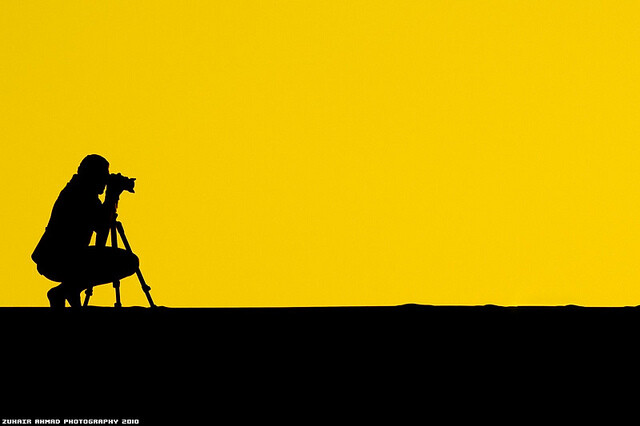
By Zuhair A. Al-Traifi

How to Establish and Nurture Relationships to Grow Your Freelance Photography Career

Below, I have laid out five specific steps you can take to start establishing, and building relationships that will help your freelance photography career.

1. Create a list of key relationships

By Eric Heupel

One of the biggest mistakes I see aspiring freelance photographers make, is they fail to think in advance about the types of people they need to be meeting and getting to know better. In other words, they let their relationships evolve naturally and organically. That works well for friendships, but it’s a poor strategy for if you want to make a living using your photography skills.

A much better approach is to sit down and proactively make up a list of at least 50 people who you want to develop a deeper relationship with over the next 12 months. I call this list your “Conversations List” because that’s really all you’re aiming to do – to have an ongoing conversation with people who matter.

Who do you include on this list? Well, picture yourself five years from now as a famous and in-demand photographer. Who is in your ideal circle of contacts? Who are the photographers, editors, agents, publishers or bloggers who you’d like to count as friends and peers five years from now?

Whoever you picture being in this group, write them down. These are the people who you are going to focus on getting to know better.

2. Choose your relationship-building tools

By zzpza

Once you’ve identified who you want to focus on getting to know, the second step is to decide on what tools you plan to use to develop and nurture relationships. These tools may include:

  • Lunches and coffee meetings. One of the best sources of getting new gigs is the simplest. Invite a person off the list you created in Step 1 to lunch or coffee. Get to know one another. Repeat.
  • Interviews. I am a huge fan of using interviews to develop relationships. For example, dPS’s own managing editor Darlene Hildebrandt and I got to know one another better when I interviewed her for my podcast and when she interviewed me on photography and the law. You also generate useful content that can lead to new clients finding you.
  • Business meetings. There may be local business community meetings (such as Chamber of Commerce meetings) that present a good opportunity for you to meet and connect with others.
  • Industry Conferences. You should identify conferences where you can meet and get to know people from the list you created in Step 1.

Next, let’s talk about your mentality as you do begin to reach out to others.

3. Give to others long before you ask for anything

By Brandon Warren

Steps 1 and 2 are critical, but may not be as important as Step number 3, which is to provide value to others before asking for anything for yourself.

Dr. Ivan Misner, the founder of BNI (Business Network International) says you need to make deposits into the relationship bank before you can make withdrawals. In other words, you need to help others before you can ask for help for yourself.

Too often, people try to make withdrawals before they’ve made any deposits. They ask before they give. That’s a recipe for failure. What you “give” of value doesn’t need to be big. It can be simple suggestions or recommendations of a restaurant to try or a new TV show.

For example, let’s say you manage to get to know an editor at a publication or website which just purchased some of your photos. You want to sell them more photos in the future.

You should try hard to learn as much about that editor as you can, so you can be as helpful to him or her as possible. In other words, be human and be useful, helpful and giving. As a result, the editor will have a positive feelings for you because you were so giving, and they will be more likely to want to work with you again.

4. Create an easy follow-up system

By slackorama

So far, we’ve identified who you are going to connect with, talked about the tools you are going to use to connect with them, and discussed a philosophy of giving value first.

Now, the challenge is to keep it up over time. If you want your connections to think of you first when a freelance gig comes up, then you need to always be “top of mind” with that connection. And to be “top of mind,” you need to have a good system for following up.

What does that entail? A follow-up system is simply a dedicated means for checking in with people in your network.

You can create a manual follow up system, or put reminders on your calendar, but neither works well. I suggest using a simple CRM (customer relation management) system such as Insightly or SugarCRM. I use a system called Contactually. Whatever system you use, following up is an excellent way to manage your relationships, particularly with people you do not see often.

5. Revisit and revise your conversation lists annually

Around once a year, revisit your Conversation Lists and determine who you should cut out and who you should add. You will naturally meet new people over time. You may decide that certain people on your list are not a good fit for you. And you may even decide to take your photography career in a different direction. These are all perfectly fine.

By revisiting and updating your lists annually, you can make sure you are developing and nurturing the right relationships, proactively, to support your photography career.

Now get out there and start meeting people

Now it’s time to put these ideas to work. The last thing I want you to do after reading this far is to give up now without acting on what you’ve learned.

So sit down and write out your list of the 50 people who you want to get to know better. Then use your chosen relationship-building tools to start developing relationships with them. And have some fun.

How do you nurture relationships to support your freelance photography career? Share your tips in the comments!

The post 5 Steps to Building Relationships to Help You Get More Photography Clients by John Corcoran appeared first on Digital Photography School.


Digital Photography School

 
Comments Off on 5 Steps to Building Relationships to Help You Get More Photography Clients

Posted in Photography


5 Steps to Help you Take Better Landscape Photos

10 Mar

When photographing landscapes, it can sometimes be difficult to produce a an image that is focused in its content, that leads the viewer’s eye exactly where you as the artist want it to go.   Sometimes, even though you may be presented with a beautiful vista, an image may not present itself and you have to work to find it.  Here are five basic steps to help you take better landscape photos. I follow these any time I’m looking to create a landscape image.

#1 Find your subject

Sometimes it’s easy. You choose a building, or a rock formation, or a tree, and it all just comes together.  Other times, it becomes more difficult.   Sometimes nothing in particular stands out.  Look around the scene, find something that draws your eye. Look through your viewfinder, and see how things frame up through your camera’s eye.  Once you have found your subject, you have more decisions to make.

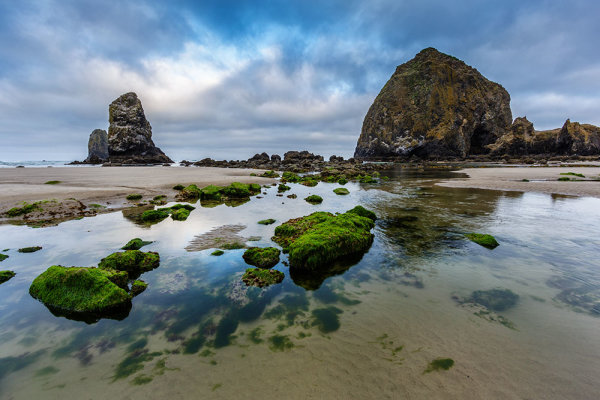
Haystack Rock is a fairly obvious subject. But there are myriad options when it comes to photographing it.  For this image, I decided to use a tidal pool and some rocks in the foreground, but also wanted to include plenty of sky since there was so much interest in the clouds.

Haystack Rock is a fairly obvious subject. But there are a myriad options when it comes to photographing it. For this image, I decided to use a tidal pool and some rocks in the foreground, but also wanted to include plenty of sky since there was so much interest in the clouds.  The rocks and water create some nice lines leading right to Haystack Rock.  EOS 5D Mark III with EF 14mm f/2.8L II, at f/16, ISO 100.

#2 Where is your subject in the composition?

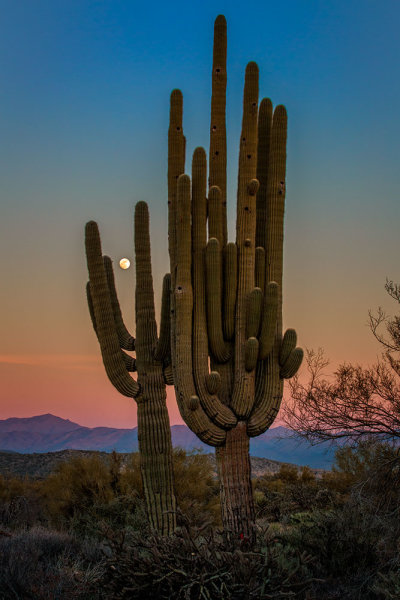
There was no real foreground to speak of here. Just a lot of sand and some uninteresting brush.  What I did see was the way the moon was rising between the arms of the saguaro, and the soft gradation from orange to blue as the sun set behind me.  Taken with EOS 5D Mark III, EF 70-200 f/2.8L IS II, 1/20 @ f/22, ISO 1000.

There was no real foreground to speak of here. Just a lot of sand and some uninteresting brush. What I did see was the way the moon was rising between the arms of the saguaro (cacti), and the soft gradation from orange to blue as the sun set behind me. Taken with EOS 5D Mark III, EF 70-200 f/2.8L IS II, 1/20 @ f/22, ISO 1000.

This will partly be dictated by its location in relation to you, but also by what else is in your scene. Look for interest in relation to what you’ve chosen as the subject. Is there an interesting object or pattern in the foreground, which could lead the viewer’s eye to the subject? Is there something in the foreground that frames your subject or otherwise adds interest without being distracting?  I will often use water or rocks in the foreground if I can.  If it’s water, can you get a reflection of your subject in it?  Sometimes it’s leaves, sometimes trees or a fence.

If there is nothing in the foreground, try minimizing it by putting the subject as the foreground, and looking for background interest.  Interesting clouds or sky, buildings, or trees, can all create a backdrop for the landscape. Sometimes, you’re lucky enough to get both an interesting background AND foreground. These are the times to play with your composition and vary the amounts of foreground and background to see what works best, or what doesn’t work at all.   Generally speaking, if the sky is flat and lacks interest, I will place it in the top third of the frame, using the rule of thirds.  If the foreground lacks interest, I place that in the bottom third.

#3 Tie it together

Once you decide where your subject goes in the frame, what’s in the foreground and what your background will be, it’s time to find a way to tie it all together. Are there leading lines that will lead your viewer from foreground to background?  Leading lines are an easy way to tie your composition together.  Framing is another way, which I included in my discussion of choosing your foreground.  Without tying your composition together, it can often seem like you have two separate images in one.  Creating a composition that pulls the viewer through it and leads them where you want them to look is the best way to create an effective landscape image.

For this image of Kaaterskill Creek, I knew the small cascade was my main subject.  There were some rocks to create interest in the foreground, and the water creates a nice leading line back to the cascade in the middle ground, and then to the foliage in the background.  EOS 5D Mark III with EF 16-35mm f/2.8L II. I was zoomed into 35mm on this one. Exposure was 1.6" at f/20, ISO 100.

EOS 5D Mark III with EF 16-35mm f/2.8L II. I was zoomed into 35mm on this one. Exposure was 1.6″ at f/20, ISO 100.

For this image of Kaaterskill Creek (above), I knew the small cascade was my main subject. There were some rocks to create interest in the foreground, and the water creates a nice leading line back to the cascade in the middle ground, and then to the foliage in the background.

#4 Read the light

Are you at your location at an optimal time? Some locations are better in the early morning, some in late afternoon.  Some are good no matter what time you are there. The difference in the light at these times can mean the difference between a dramatic landscape image, or a snapshot of a pretty place. To find out where the sun will be in a given location at a given time, use an app such as The Photographer’s Ephemerus, or Sunseeker Pro, which will show you the sun’s exact location.  This will enable you to plan when to be a location for optimal light.

Side lighting will create dramatic shadows and show off textures. Backlighting will help create silhouettes, which can be very effective for dramatic images with prominent features breaking the horizon. Front lighting will reveal detail everywhere. Often, I will photograph the same location at different times, as different light will create a variety of images from the same location.

Montauk Point is a great location with lots of photo opportunities, but it's a much better location at sunrise than later in the afternoon or at sunset, due to the shadows created by high cliffs. At sunrise, it can be magical. EOS 5D Mark II, EF 17-40 f/4L. Exposure was 15 seconds, f/11, ISO 800.

EOS 5D Mark II, EF 17-40 f/4L. Exposure was 15 seconds, f/11, ISO 800.

Montauk Point (above) is a great location with lots of photo opportunities, but it’s a much better location at sunrise, than later in the afternoon or at sunset, due to the shadows created by high cliffs. At sunrise, it can be magical.

#5 Choose your shutter speed

Finally, think about what your shutter speed will do to the image.  If you’re shooting water, shutter speed has a lot to do with the water’s appearance in your image. If there are trees, and it’s a breezy day, a faster shutter speed will be necessary to freeze the leaves and avoid motion blur. These are things to be aware of when composing your image.  Learning to visualize these effects in your mind before pressing the shutter button will go a long way toward making you a better photographer.

The Minneapolis skyline was an obvious choice for subject here. But the sky was flat for a background, so I pushed the skyline to the top of the frame.  Thankfully, I caught the Mississippi River on an uncharacteristically calm day and was able to get a nice reflection for foreground interest.  EOS 5D Mark II with EF 24-105 f/4L IS. Exposure was 10 seconds at f/11, ISO 400.

EOS 5D Mark II with EF 24-105 f/4L IS. Exposure was 10 seconds at f/11, ISO 400.

The Minneapolis skyline was an obvious choice for subject here. But the sky was flat for a background, so I pushed the skyline to the top of the frame. Thankfully, I caught the Mississippi River on an uncharacteristically calm day and was able to get a nice reflection for foreground interest. I used a slow shutter speed  (or long exposure) to smooth the waters even more.

Do you have some great landscape tips you’d add to this list? Please share in the comments below.

The post 5 Steps to Help you Take Better Landscape Photos by Rick Berk appeared first on Digital Photography School.


Digital Photography School
 
Comments Off on 5 Steps to Help you Take Better Landscape Photos

Posted in Photography


5 Easy Steps to Choose the Perfect Prime Lens for You

10 Jan

“But how will I zoom in and out?”,  I blinked my eyes in disbelief.

“You’ve got feet, don’t you?”

85mm-canon-lens

My first encounter with the concept of fixed or prime camera lenses was when they were explained to me (a baby photographer) when I met with a local wedding photographer whose work I was (and still am) crushing on. I was so surprised to hear that there were lenses that (gulp) didn’t zoom. ‘What’s the point of that?’ I wondered. Why pay more for less?

Clearly, I had lots of catching up to do!

There are many merits to utilizing prime lenses in your photography. One is that you may find you can achieve mind blowing sharpness and quality with a lens that isn’t 10 lenses in one. I like to say that the 50mm prime lens doesn’t have to try to be anything other than 50mm. It only needs to focus on (pun intended) being the best 50mm it can be. Of course, there are many fantastically sharp and capable zoom lenses out there, but you will find that you’re not only paying for quality, but versatility. Prime lenses aren’t very versatile, but what they lack in versatility, they can make up for in quality which may leave you asking, “what zoom?”

How to choose

So with so many to choose from, how do you choose the perfect prime lens for you? You can be like me and buy-to-try a whopping 14 lenses in 5 years, to the tune of $ 10,250, (true story) or you can try these great 5 steps:

  1. Choose one of your existing zoom lenses
  2. Set it on a focal length and leave it there
  3. Shoot for a week or so only on that setting. Experience what it’s like to use your feet instead of your zoom. Photograph your typical subjects, ones you photograph the majority of the time, and see how that focal length feels.
  4. Repeat the exercise at different focal lengths.
  5. Assess your experience shooting at different lengths. The setting at which you felt most comfortable will be a great indication of where to start when purchasing the perfect prime lens for you.

50mm-canon-lens

Bonus tip!

If you use multiple lenses (or even just a few), there’s a super cool way to use Lightroom to see all the images taken with a particular lens. First, make sure you’re in the library module. On the left (under the smaller preview image) click ‘all photos’. Then on the top bar, click ‘metadata’. You’ll then see many sorting options depending on what photos you want to see. In the middle is the box which shows every lens you’ve used for all the images in your catalog (if you don’t see that use the pull down menu to select “lens”. How cool is that?! Then you can sort by focal length and see which one(s) you use most often.

50mm-canon-lens

My Final Choice

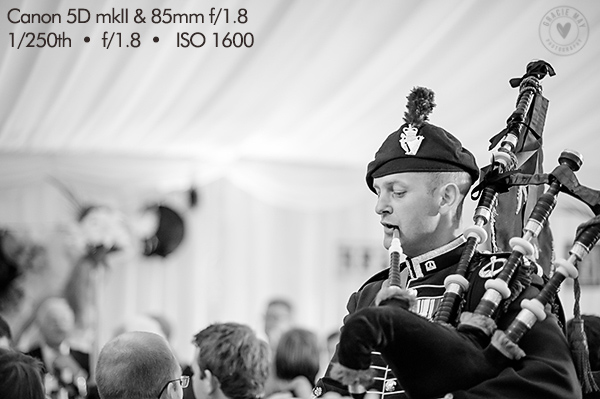
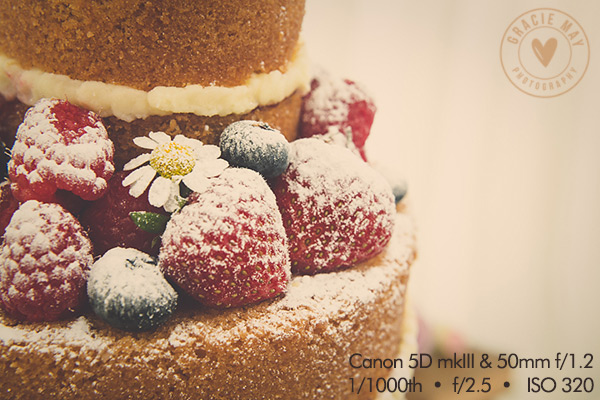
As I mentioned before, I’ve experimented with many different zoom and prime lenses. As for primes, I’ve owned the following Canon lenses: 50mm f/1.8, 50mm f/1.4, 50mm f/1.2, 85mm f/1.8, and 24mm f/2.8. After all that, the only one that remains in my collection is the 50mm f/1.2. I personally love quite tight portrait shots so although I think the quality was fantastic, the 24mm was too wide. The 85mm had phenominal sharpness and quality, but I sold it to help pay for the 50mm. I find the 50mm great on my full frame camera for wideish family shots but also tight-enough portraits. The f/1.2 means it’s my best lens for ultra low light and the sharpness is a little mind blowing. For me, it’s the perfect prime lens.

Now, there are many lenses from which to choose and that’s where you fine people come in! If you’re a prime lens aficionado or even just a fan of a particular lens, get involved below and tell us what prime lenses you have experience with, and which are your favourites!

The post 5 Easy Steps to Choose the Perfect Prime Lens for You by Elizabeth Halford appeared first on Digital Photography School.


Digital Photography School

 
Comments Off on 5 Easy Steps to Choose the Perfect Prime Lens for You

Posted in Photography