RSS
 

Posts Tagged ‘Steps’

Steps for Getting Started in the Lightroom Develop Module

14 Oct

Lightroom Develop module

If you have read my earlier articles about Lightroom you will already understand how it differs from Photoshop and how it uses a database to organize your photos as well as process them.

Lightroom has evolved into a powerful raw processor, and it is now possible to process most of your images in it. You only need to use other software (such as Photoshop or a plug-in) when you reach the limits of what Lightroom can do.

Raw processing takes place in the Lightroom Develop module. If you haven’t used Lightroom before you may find the Develop module layout confusing, especially if you are used to pixel editing software like Photoshop. Lightroom has no layers or blending modes, and there is no real set order in which to do things. But don’t worry if it makes little sense at first – this article will help you come to grips with the basics, and make a start on processing your raw images.

Note that you can also use Lightroom to process JPEG and TIFF files, although some of the options Lightroom gives you differ slightly. I have used raw files in this article.

The Lightroom Develop Module

To start, go to the Library module and select the photo you want to process. Click on Develop in the Module Picker, or press D on the keyboard, to open the image in the Develop module.

The Develop module is split into sections. There are panels on the left, some more on the right, and the Content Window in the middle, where the photo you are currently working on is displayed. Just like the Library module, you also have the Module Picker at the top and the Filmstrip at the bottom.

Lightroom Develop module

You may have noticed that there is no Folders panel (left side) in the Develop module. This is Adobe’s way of encouraging you to use Collections. So if you are not doing so already, now is time to get in the habit.

We don’t need the Module Picker, left-hand panels, or Filmstrip for this article, so when you’re ready click on the white arrows at the edges of the screen to hide them.

Your screen should look something like this, with the right-hand panels and the histogram available on the right, and the photo you are working on occupying the rest of the screen.

Lightroom Develop module

If you do not see the toolbar below your image hit T on your keyboard to show/hide it.

The right-hand panels contain most of the tools that Lightroom has for processing raw files. Today we are going to look at three of these:

Lightroom Develop module
  • Camera Calibration panel
  • Lens Corrections panel
  • Basic panel

These panels are important because they are the foundation of the processing work you do on an image.

The Camera Calibration panel

The Camera Calibration panel is the ideal starting point for processing an image. When you come here you are looking for two important settings.

Process: Should be set to 2012 (Current), which is set by default.

Lightroom Develop moduleProfile: Should be set for the most appropriate setting for your photo. The options you see here depend on the camera used to take the photo. All cameras have profiles that you set to determine the treatment of the image. Each manufacturer has different names for this setting (for example, Canon calls it Picture Style, Nikon Picture Control and Fujifilm Film Simulation).

Lightroom should show you most of the settings you have available on your camera plus another one called Adobe Standard. Your job is to pick the profile that is most suited to your photo.

I’ll assume you know your own camera settings well enough to do so. If there’s any doubt, just move through the available options and pick the one that has the most suitable effect. In this case I selected Camera Velvia/Vivid to bring out the strong colours in the photo.

Ignore the colour sliders in the Camera Calibration panel for now, they are for advanced users.

The Lens Correction panel

There are a lot of things you can do in the Lens Correction panel, but to get started you only need two:

#1 – Enable Profile

Lightroom Develop module

Note that this screen shot is from a photo taken with a Canon camera.

Click Profile and tick the Enable Profile Corrections box. Select your lens using the menus underneath. Lightroom contains profiles for most commonly used lenses (the full list is available here).

Set the Distortion slider to 100 (the default). Lightroom uses the selected profile to remove any barrel or pincushion distortion caused by the lens.

The default for the Vignetting slider is 100. This lightens the edges of the photo to compensate for the vignetting effect caused by using your lens at wide apertures. You may wish to include the vignetting for aesthetic reasons – in which case move the slider left until you get the effect you want.

Some Raw files, such as those created by most Fujifilm cameras, have an embedded profile that Lightroom uses to correct barrel and pincushion distortion. If this is the case, and you are using Lightroom 6 or Lightroom CC, then the message Built-in Lens Profile applied is displayed at the bottom of the panel. If you see this message, don’t tick the Enable Profile Corrections box. Lightroom doesn’t have a profile for your lens and you won’t be able to find it.

Lightroom Develop module

In earlier versions of Lightroom the Built-in Lens Profile applied message isn’t displayed, even if your Raw file has a built-in profile. If you can’t find your lens in the list, it’s probably because:

a. The lens is so old Adobe hasn’t got around to profiling it yet.

b. The lens is so new that Adobe hasn’t had chance to profile it yet (updates with new lens profiles are released periodically).

c. The camera used embeds the lens profile into the Raw file, and Lightroom uses it automatically. This is most common with mirrorless cameras.

#2 Remove Chromatic Aberration

Click on Color and tick the Remove Chromatic Aberration box. This tells Lightroom to remove any chromatic aberrations caused by the lens.

Lightroom Develop module

The sliders underneath are for removing purple and green fringing. They are zeroed by default, and for the moment we will leave them there, as they are a topic for another article.

The Basic panel

The Basic panel is where you adjust the color and tonal values of your image. These sliders can make a dramatic difference to the appearance of your photo, and there are times when you won’t need to touch any of the other panels in the Develop module.

The White Balance sliders

If you’re not sure what White Balance is then read our article Demystifying White Balance, but really all you need to know here is that you move the Temp slider left to make the image cooler (add a blue cast or remove an orange cast) or move it right to make the image warmer (add an orange cast or remove a blue cast).

Lightroom Develop moduleAlternatively, you can use the WB presets: As Shot, Daylight, and so on (note: those options only appear when you are processing a Raw file). I selected Daylight for this image for a fairly neutral colour balance.

The Tint slider is for removing green and magenta colour casts. These are usually caused by artificial lighting such as fluorescent lights.

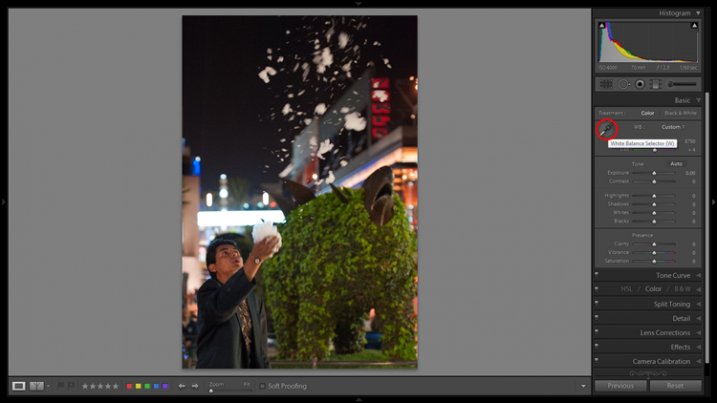
If none of the above options seem to work then activate the eyedropper tool by clicking on the eyedropper icon and click a neutral grey or white area in the photo. Lightroom analyzes the pixels underneath the cursor and adjusts the White Balance accordingly to remove any color cast and make it neutral.

What is the purpose of White Balance? The answer depends on what you want to do with the image. There are three basic options.

  1. Create an image with neutral colour: In this case you are trying to eliminate any colour casts present in the image.
  2. Create an image with a warm colour cast: This is something you might do with a landscape photo taken during the golden hour or a portrait (where warm tones are more flattering) to the subject.
  3. Create an image with a cool colour cast: This is something you might do if you want to impart a cold feel to the image. This would suit a landscape taken in winter, for example.

Think about your intent when you adjust White Balance. Once you know what you want to do, you can adjust the sliders to suit.

Lightroom Develop moduleWhite Balance is all about color and there are two more sliders at the bottom of the Basic panel that assist with controlling colour, they are called Vibrance and Saturation. Move these sliders left to reduce the color intensity, or right to increase it.

The Saturation slider affects all hues equally, whereas the Vibrance slider has a greater effect on weaker colours than it does on stronger ones. Play around with them on a few different images to get the hang of how they work.

Be careful with both sliders – they are usually used to desaturate colour rather than increase it (which can look false). For this photo I have left them both at zero.

The Tonal Sliders

Lightroom Develop moduleThe following sliders affect tones, and are used for adjusting brightness and contrast. Feel free to press the Auto button to see what Lightroom thinks you should do with your photo.

The Exposure slider

This slider is very simple – move it right to make the photo brighter or left to make it darker.

The Contrast slider

Again, a simple slider to use. Move it right to increase contrast, or left to decrease it.

The Highlights and Shadows sliders

Whereas the Exposure and Contrast sliders affect every tone in the photo, the Highlights sliders affects only the lightest tones and the Shadows slider affects only the darkest tones.

Move the Highlights slider right to make light tones lighter, or left to make them darker. Move the Shadows slider right to make the dark tones lighter, or left to make them darker.

Note: you may have notice sliders left makes your image lighter, sliders right makes it darker.

Again, the best way to learn how these sliders work is to play with them. Move them around and observe the effect they have on the histogram (displayed at the top of the right-hand panels), and the appearance of the image itself.

Don’t worry if you’re not sure how to read the histogram. It deserves an article to itself and I will write one shortly.

The Whites and Black sliders

You don’t have to worry too much about these sliders when you are just starting out. You can either leave them at the default setting of zero or let Lightroom work out what the settings should be.

To set the Whites slider automatically, hold the Shift key down and double-click on the word Whites. Do the same to set the Black slider automatically, hold the Shift key down and double-click the word Blacks.

If the slider settings don’t change when you do so, that means that zero is the ideal setting.

The Clarity slider

The Clarity slider affects something called mid-tone contrast. In simple terms, moving the Clarity slider right emphasizes texture, and moving it left removes texture by softening the image. Many photos benefit from a subtle increase in Clarity (between +10 and +20). Black and white photos, of which texture is often an important part, can benefit from greater adjustments.

Play around with the Clarity slider on different photos to see what effect it has. Resist the temptation to make your photos pop by moving it too far to the right – it may seem like a good idea at the time but the result will simply hurt your eyes.

My article Four Ways to Improve Your Photos with the Clarity Slider in Lightroom explores the topic in more detail.

These are the Basic panel settings I settled on for this photo. Every image is different, but at least it gives you an idea.

Lightroom Develop module

This is how the photo looks so far. Not very exciting, I admit, but that’s because so far we’ve been doing mainly preparation work. The real excitement comes when you add local adjustments or convert the photo to black and white. Lightroom Develop module

I’ll show you what the other right-hand panels do in my next article. In the meantime, if you have any questions about processes explored in this one, please let me know in the comments.


The Mastering Lightroom CollectionMastering Lightroom ebooks

My Mastering Lightroom ebooks will help you get the most out of Lightroom. They cover every aspect of the software from the Library module through to creating beautiful images in the Develop module. Click the link to learn more or buy.

googletag.cmd.push(function() {
tablet_slots.push( googletag.defineSlot( “/1005424/_dPSv4_tab-all-article-bottom_(300×250)”, [300, 250], “pb-ad-78623” ).addService( googletag.pubads() ) ); } );

googletag.cmd.push(function() {
mobile_slots.push( googletag.defineSlot( “/1005424/_dPSv4_mob-all-article-bottom_(300×250)”, [300, 250], “pb-ad-78158” ).addService( googletag.pubads() ) ); } );

The post Steps for Getting Started in the Lightroom Develop Module by Andrew S. Gibson appeared first on Digital Photography School.
Digital Photography School

 
Comments Off on Steps for Getting Started in the Lightroom Develop Module

Posted in Photography


3 Simple Steps to Make Your Skies Pop in Lightroom

08 Sep

2-for-1 special

As part of Landscape Photography Week here on dPS, we’re offering TWO for the price of ONE on our best-selling Living & Loving Landscape Photography ebooks!

Click here to take advantage of this offer.


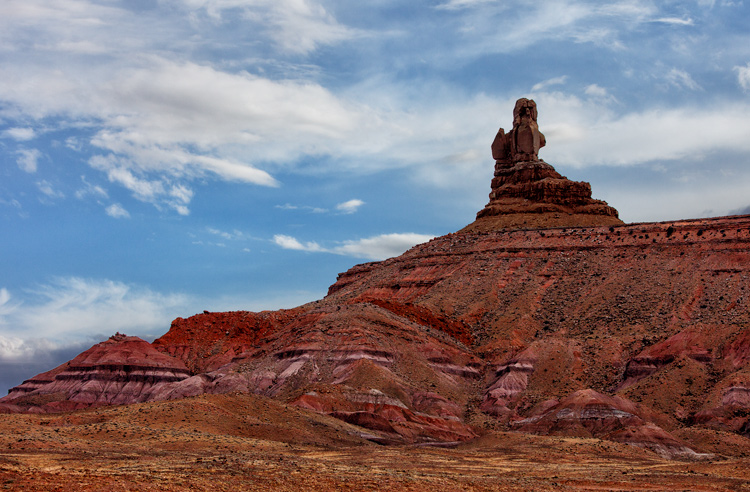
Photo of Monument Valley: Example of sky enhancement with Lightroom.

You take a photograph of a scene that includes a beautiful blue sky with puffy white clouds. You look at your LCD after taking the photo only to see that the sky your camera captured is not what you see in front of you. Instead, your camera captured a washed-out-looking sky with little or no detail. It looks overexposed. What to do?

You could take another picture, reducing the exposure so that the sky looks better. But if you do that, the foreground will be underexposed and maybe even black. So what now?

There is good news here, and it is that Lightroom can fix this problem easily and incredibly quickly. In fact, there are three quick steps you can take in Lightroom that will each dramatically improve the daytime sky in your pictures. They are all dead simple. You can do any one of the steps, or do all three together. Even if your sky already looks pretty good, and you just want a minor enhancement, these steps will help.

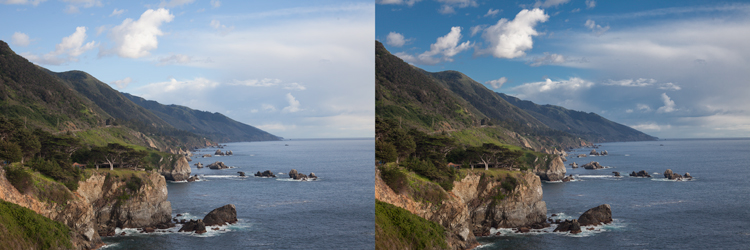
Photo of Big Sur: Example of sky enhancement using Lightroom

1. Darken the Blues

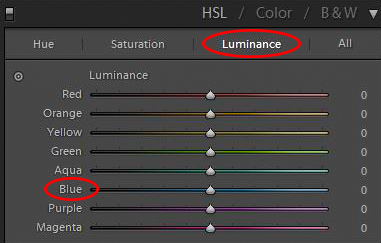
The first move you should make is to darken the blue tones in your image. This is simple to do in the HSL/Color/B&W panel in Lightroom’s Develop module. There you will see a number of sliders that control individual colors. You can adjust the hue, the amount of saturation, or the luminance of these colors. Use the sliders – specifically the  blue slider – to affect only the blue tones in the image and reduce the brightness of those tones. Just find the slider marked Blue, make sure that the panel is set to change Luminosity, and pull the slider to the left. There is no set amount or range of values for this change, it will just depend on each picture.

HSL/Color/B&W panel in Lightroom's Develop Module

If you need more punch to the blues, change the setting above to saturation, and push the Blue slider to the right. This will increase the saturation of the blues in your image. For our purposes here, what is important to know, is that increasing the saturation of the blues will make the luminosity adjustment you just made have even more bite.

You should see a dramatic improvement in your sky, just with this one move. Sometimes it is all you need to do. But for additional improvements, read on.

Note: be careful not to go too far. Pulling one color to extremes can cause banding (separation of the colors into stripes, not a smooth transition) or image degrading. 

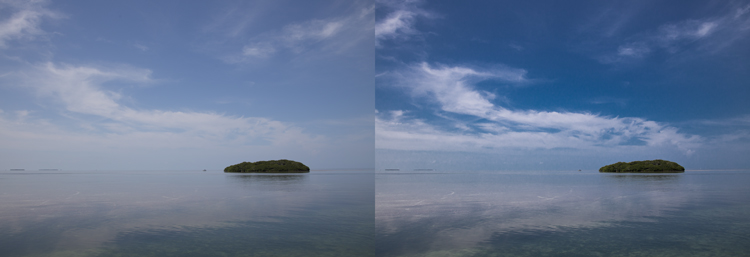
Photo taken from Seven Mile Bridge in the Florida Keys: Example of sky enhancement using Lightroom

2. Control the Highlights

It might have surprised you that our first move was not to tone down the highlights of the image. After all, that is where the problem lies. The sky is so bright that there is little detail in it, and a reduction in the highlights will target those tones and add detail.

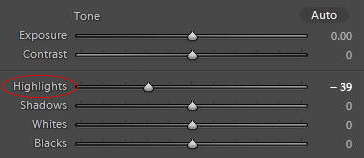
Highlights control in Basic panel of Lightroom's develop module

But recall that part of what makes a sky look great is deep rich blue tones combined with bright white clouds. If you crank down the highlights, yes, you will add detail to the clouds, but you will push the tones of the blues and whites together so that there will not be the strong contrast you want. That’s why we started with darkening the blue tones.

If there is already sufficient detail in your clouds, you do not need to do anything further. In fact, sometimes you may want to increase the Whites or the Highlights to create more contrast between the blue sky and white clouds.

Other times, however, your sky will still be too bright and the clouds will lack detail. In that case, it is time to tone down the brightest portions of the image to add some detail. Do that by pulling down the highlights of your image. You want to do just enough that you add detail in the sky, but not so much that your clouds turn grey. Let the histogram be your guide. Pull the Highlights slider to the left until any spike on the right side of your histogram moves to the left (use the Alt/Option button to see where the highlights are clipped). At the same time, you should be adding detail to your sky.

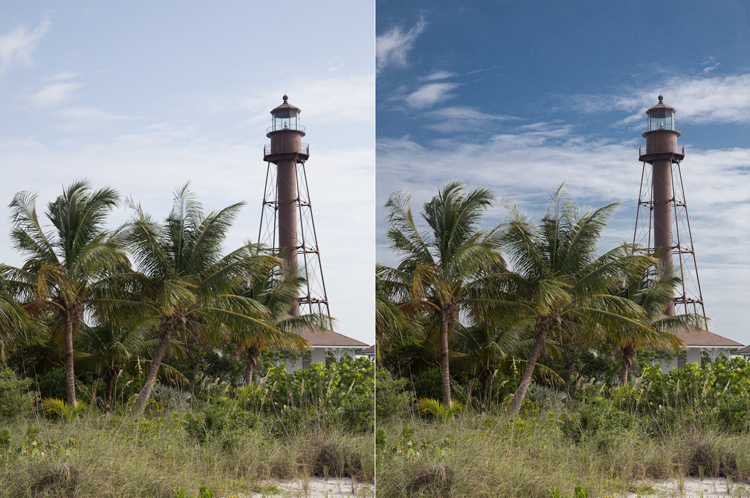
Photo of Lighthouse on Sanibel Island, Florida: Example of sky enhancement using Lightroom

3. Add a Blue Tint to the Sky

At this point, your sky should be looking very good. In fact, in most cases, the two moves above should be all you need. If you have a particularly flat and lifeless sky, however, you may need to break out the big guns. That means adding a tint to your sky.

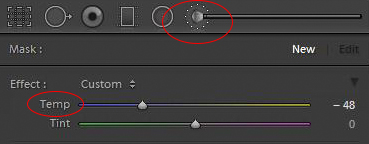
To do this, you will need to employ the Adjustment Brush (actually, you can use the Adjustment Brush for either of the two steps above, but you usually won’t need to). Click on the Adjustment Brush, then when the sliders for the brush appear, go to the White Balance ones at the top. Move the Temp slider to the left, which will increase the amount of blue in the image.

Adjustment brush and tint controls in Basic panel of Lightroom's develop module

Before you apply the brush to the sky, there is one important thing you need to check. Make sure the “Auto Mask” box at the bottom of the Adjustment Brush panel is checked. Doing so will limit the brush to the sky only. Once that is checked, go ahead and brush in the effect where you want it.

When you are done, you can adjust the effect by moving the blue slider (or any other sliders you might want to change). When you close the Adjustment Brush, the sky should be blue and look much better.

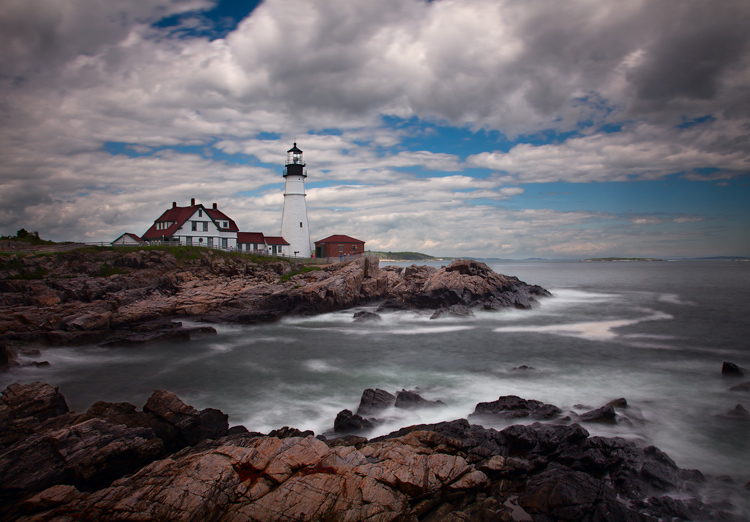
Photo of the Portland Head Light: Example of sky enhancement using Lightroom

Application

The old adage about “getting it right in-camera” still applies. Try to get your skies looking as good as possible in the field with proper exposure techniques. Further, if you have a polarizing filter, that will make midday skies look much better. You might also employ a graduated neutral density filter to tone down the sky and make it even with the foreground.

When these techniques won’t work, however, Lightroom can make your skies look dramatically better. Of course, you could also use blending or HDR techniques, but these can appear surreal and involve much more work. The same goes for a wholesale sky replacement.

So next time, use Lightroom to achieve the desired effect simply. You can use these steps along with your normal workflow to make your photos look even better.


Here on dPS this is landscape week – here is list of what we’ve covered so far. Watch for a new article (or two) on landscape photography daily for the next day or so.

  • 6 Tips for Better Low-Light Landscape Photography
  • Landscape Photography and the Human Element
  • 5 Ways a Telephoto Lens Can Improve Your Landscape Photography
  • Landscape Photography from the Side of the Road
  • 32 Majestic Landscape Photos to Inspire Your Wanderlust
  • Weekly Photography Challenge – Landscape
  • Landscape Photography – Shooting the Same Location Through the Seasons
  • How to Solve 5 Composition Conundrums Faced by Landscape Photographers
  • 6 Tips for Creating More Captivating Landscape Photographs
  • Tips for Getting Started with Urban Landscape Photography

googletag.cmd.push(function() {
tablet_slots.push( googletag.defineSlot( “/1005424/_dPSv4_tab-all-article-bottom_(300×250)”, [300, 250], “pb-ad-78623” ).addService( googletag.pubads() ) ); } );

googletag.cmd.push(function() {
mobile_slots.push( googletag.defineSlot( “/1005424/_dPSv4_mob-all-article-bottom_(300×250)”, [300, 250], “pb-ad-78158” ).addService( googletag.pubads() ) ); } );

The post 3 Simple Steps to Make Your Skies Pop in Lightroom by Jim Hamel appeared first on Digital Photography School.

Digital Photography School

 
Comments Off on 3 Simple Steps to Make Your Skies Pop in Lightroom

Posted in Photography


3 Steps to Photoshop Retouching for Natural Looking Portraits

26 Jul

In the world of photography, editing and retouching are just as important as the imagery itself. Every image that you see published has been through its fair share of post-processing before it is seen by the public. If photographers didn’t retouch their images, it would be like a painter presenting his sketches instead of the finished painting.

portrait retouching techniques

With the fast moving technology of today, extraordinary images are everywhere, every day. Even with perfect lighting, and preparation work, a final image always receives some post-production attention. The trick to post-processing is to make it look as if it hasn’t been retouched at all, or as I call it, “refreshed”.

With the endless possibilities of Photoshop retouching techniques available, how do you know what tools to use when, and why? In this article, you will learn professional photoshop tricks that work for any portrait, any time. This is a simple recipe to give your subjects a naturally refreshed look, letting their genuine beauty shine, while keeping the integrity of their expressions, their features, and the clarity of the digital image itself.

Key Steps in the Refreshing Process

  1. Evaluate
  2. Eliminate
  3. Reduce
  4. Repeat

The specific tools and techniques discussed here are tried and tested with over 10 years of retouching experience. It is best to experiment with these concepts, and with practice, develop your own style of retouching.

This process has been designed as a routine that will eventually create habits in your mind, train your eyes to see the details more clearly, and create an overall efficient and effective retouching process. The goal is to spend less time in front of the computer and more time behind the lens (where the real magic takes place).

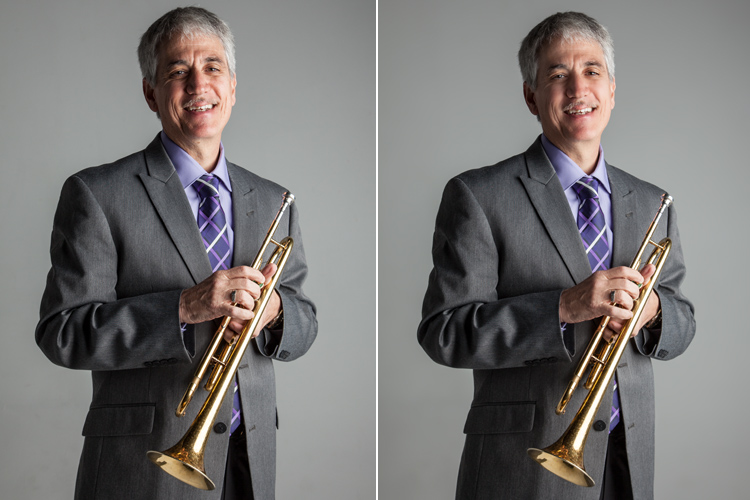
Let’s look at each one of these steps in order. We will use a studio image of a musician as the example throughout this article.

A great tip to keep in mind during this entire process is that with each new step, or even sub-steps, it is best to duplicate your layer before beginning to use the next tool. This way you are creating a back-up of each step for you to return to, if you notice that you are retouching too much on any particular step. It also allows you to see the progression of your workflow in Photoshop.

portrait retouching techniques

Step One: Evaluate

Immediately analyze the image you are about to retouch. How is the lighting? How do the subjects look? What is going on in the background?

When you see the areas of the image that will need your attention ahead of time, you can quickly assess what you will want to accomplish with the retouching process. This is the beginning of training your eye to seek out the details, and look at your image differently, than when you first took the shot.

Look at your image as if it’s not a photograph of a person, but instead consider that it is just shapes, colors, and light. Identify where the light is coming from and how it is affecting the subject.

In this example, the direction of the light is causing more definition, creating harsh shadows across the subject. This was done intentionally to give a more characterized, artistic portrait for this musician.

However, its effect can be overpowering at times and cause distraction to the viewer. This is noticeable in the darker shadows around his right eye, and the highlights shining across the left side of his face.

portrait retouching techniques
Here are some additional elements to be aware of.

  • Different textures: The subject is an older man wearing a suit and playing an instrument. All of these textures are different and will require various tools and techniques when the retouching process happens in those areas.
  • Zoom in close: As with any image, zooming in close will allow us to see any skin imperfections, dirt, dust, or scratches that you will want to eliminate all together.
  • Make judgements on distracting elements: There are some parts of the image that could stay or be eliminated, it becomes your choice as the retoucher. What is a distraction? What is a part of the purpose of the image? For instance, the scratches on the trumpet and the left side pocket sticking out could potentially be distractions, but maybe this client would like them to stay.

Once you identify the elements that need attention, decide if each will be removed altogether, or if it needs to be reduced. For instance, the stray hair and the dust on his jacket need to be removed, but the redness and wrinkles are only to be reduced, not eliminated completely. This difference is important for the next steps in the process. So ask yourself, will it be eliminated or reduced?

Step Two: Eliminate

Once you have made your initial evaluation of the image, you can begin the elimination process. This includes but is not limited to: dust, dirt, scratches, pimples, food in teeth, and anything else that doesn’t belong. Zoom in and examine your image up close. Think of each area as shapes and color, allowing yourself to be as accurate as possible when removing these details.

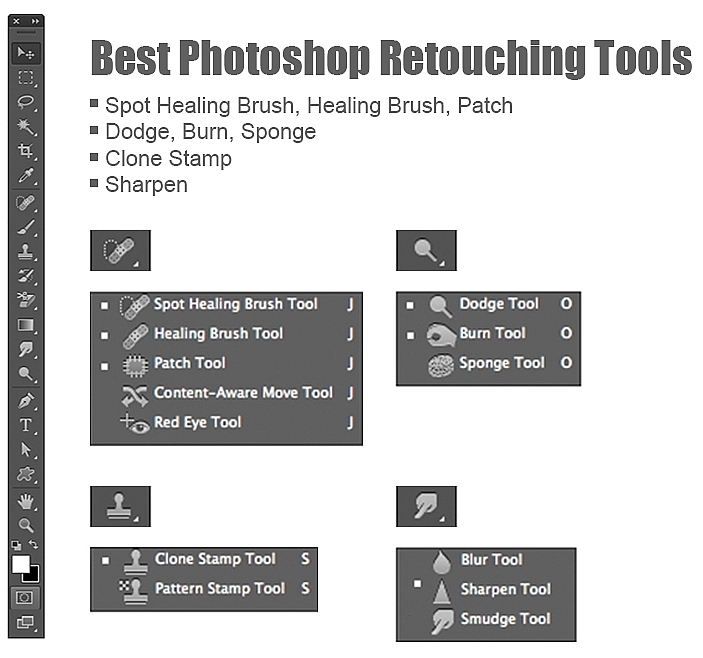
For this first elimination step, it is best to use the spot healing brush, the healing brush tool, the spot tool, the patch tool, and/or any other tool that completely removes things. Don’t rely on just one. Learning how each tool works different will help you use a combination of these removal tools effectively, and efficiently.

For instance, the clone stamp tool copies exactly what you click. The healing brush blends the color and texture of what you click on, with the area you want to fix. The spot healing brush is a genius tool. It has its own way of deciding if you want to blend the area you click on, or remove the unusual pixels within that area (like a stray hair against a solid background).

portrait retouching techniques

The more you make effects to a digital image, the more destructive you can be to the clarity of the final file. Using these tools is crucial to the integrity of the image. If you can click it away in less than a few clicks, then this is the time to do it.

Once the “spots” are removed, you can focus your attention on reducing or “refreshing” the imperfections we all know we have, but don’t want to notice in the permanence of a photograph.

Step Three: Reduce

This is where your artistic eye, and attention to detail come into play. Pimples go away, dust and dirt are just distractions, but our wrinkles, smile lines, scars and facial expressions are the details that make each of us unique. Those are the things you will focus on in this stage of the “refreshing” process.

Every subject you see in an image has great qualities that they might not be confident about accentuating. It is your job as the retoucher to keep not just the integrity of the digital image, but the integrity of the special moment and the emotional expressions that have been captured in that image.

For this reason, this second step is crucial. Train yourself to pay attention to the details, the purpose of the image, and the personality of your subject. If you are retouching a very smiley bride who laughed a lot, you don’t want to remove her laugh lines, but you do want to reduce the shadows and shine as her makeup wears off and the night wears on.

In this specific example of the musician, the character lighting has created great contrast that add to the personality of the subject. But in some areas it over accentuates his wrinkles by creating deep shadows and harsh highlights of overexposure.

The Best Trick in Portrait Retouching

portrait retouching techniques

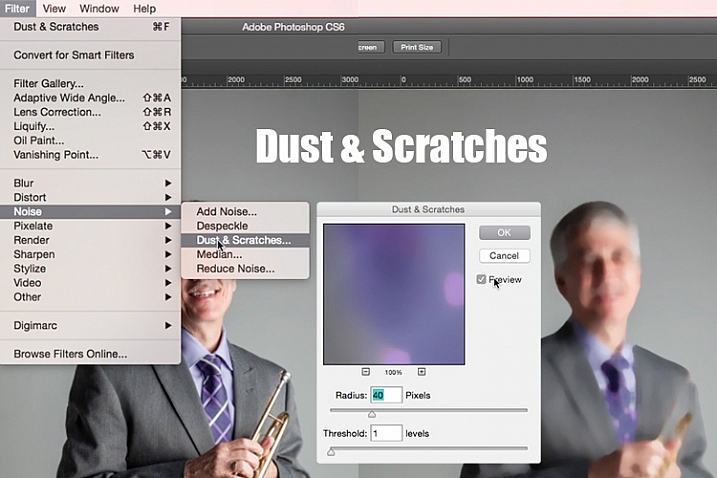
Duplicate your layer after completing step one. With this new top layer highlighted, select from the main photoshop menu: Filter > Noise > Dust & Scratches. A window will pop-up with settings options, and you will notice the image behind that window now shows a preview of this filter effect.

In the Dust & Scratches window, change your Radius to 40px and Threshold to 1. Experiment with these settings and see what works best for your images.

Once you have applied the Dust & Scratches filter (on the top, duplicated layer), you will notice how it blurs the image. But, this is not like using the blur tool. The method that this filter uses specifically identifies differences between pixels and their surrounding area. The Radius is what removes the “dust” and the Threshold is what brings back the details. Dissimilar pixels are modified to achieve a balance between sharpening and hiding defects.

The Dust & Scratches filter provides a more powerful way to remove noise from an image than any other noise removal tool. This is key to keeping the integrity of the textures, color, and overall feel of the digital image as you see it in print or on a screen.

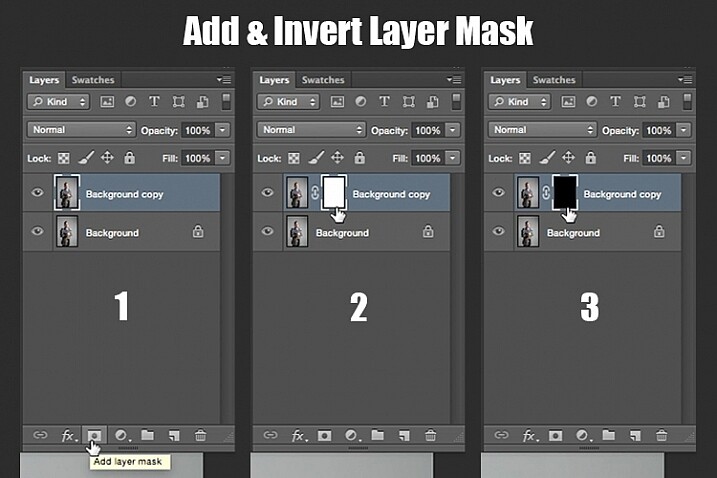
Now that you have a layer with the right effect applied, you are going to add a layer mask to this newly altered layer, and invert the mask. Do this by clicking the icon “Add layer mask” at the bottom of your layers panel. Notice the layer mask shows up as a white box next to your highlighted top layer. Now invert this layer mask by holding the command button and clicking the letter, “i”. This will now change the layer mask to black and bring the original image come back into view.

portrait retouching techniques

Step 1: duplicate the layer
Step 2: add a layer mask
Step 3: invert the mask so it is black

You can see how the image looks unaffected by the Dust & Scratches filter. Really, it is just hidden under the layer mask. Now you can paint back into the areas where you want to reveal the Dust & Scratches filter. The trick is to do this precisely, and not too much.

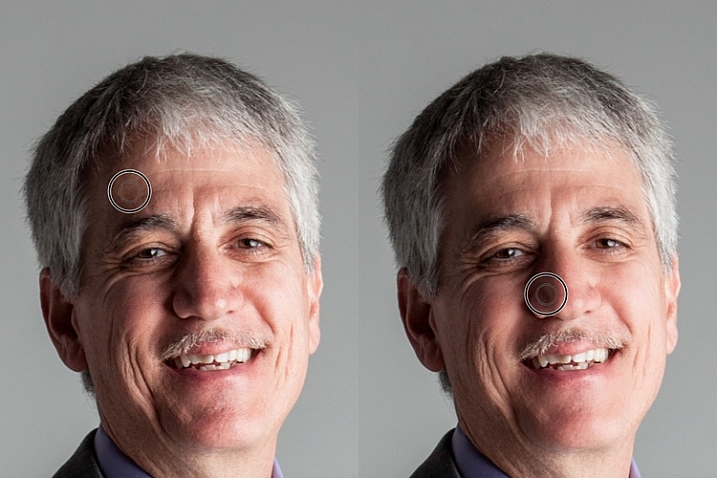
Select your brush tool (keyboard shortcut is B). Making sure the layer mask is selected (not the layer – square brackets will show around the mask when it is selected like shown above), noticing its color is black, paint with the color white to bring back the Dust & Scratches filter effect.

The key to using the brush tool on an inverted layer mask is to experiment with the brush opacity strength. When focusing on the skin areas, start by brushing back at only 30% opacity. Remember, you can always brush back over an area again more or less by toggling back and forth between painting with black or white. Painting with white will reveal the effect, while painting with black with hide it.

Steer clear of teeth, lips, eyes, nostrils, ear folds, and edges like the jaw line and hair lines during this time. These areas have specific edges and textures that are important to the overall image.

Once you have completed the skin areas, you can smooth the background. Change the opacity to 100% to completely smooth out this solid color background. This only works on solid backgrounds that are seamless. Using the brush at 100% will remove any dust spots that show up from the camera lens, or dirt that is actually on the studio backdrop.

portrait retouching techniques

Tips to Keep in Mind During This Step

  1. In general, keep your brush below 50% when painting the effect on skin. This allows more than 50% of the original textures and features to still be noticeable. If you paint more than 50% in these areas, you will see a putty-like effect starting to take over, causing your image to be more retouched than refreshed.
  2. Using the bracket keys on the keyboard [ and ], frequently change the size of your brush as you paint. Keep your brush hardness at 0 unless absolutely necessary. This allows you to move in and around smaller and larger areas of the skin and background with more efficiency and accuracy.
  3. The zoom tool is your best friend during this part of the refreshing process. Remember, instead of thinking of this image as a portrait, consider that you are just seeing shapes, color, and light. Zoom in close and pay attention to the changes you are creating. Force yourself to go too far with some brush strokes so that you know the limit. When you have gone too far, just toggle back to painting with black (set your opacity to 100%) and remove that last brush stroke all the way before beginning again (or use Command+Z to undo the last step).
  4. Be careful around fingers and edges of arms and legs where there are small curved areas. If you paint near these edges the Dust & Scratches will run over the edge and remove the curved areas all together, altering the look of elbows, fingers, shoulders, ankles and knees.
  5. Men can have beards and tend to have rougher looking skin than women. Be careful not to soften too much on a man’s skin. The same goes for grandparents.
  6. With babies and children, who have much smaller features, it is important to be aware of the shadow areas that you paint over. If you change the shape of their skin too much, it will no longer look like them. This is particularly important around the nose, eyes and mouth – their tiniest features.

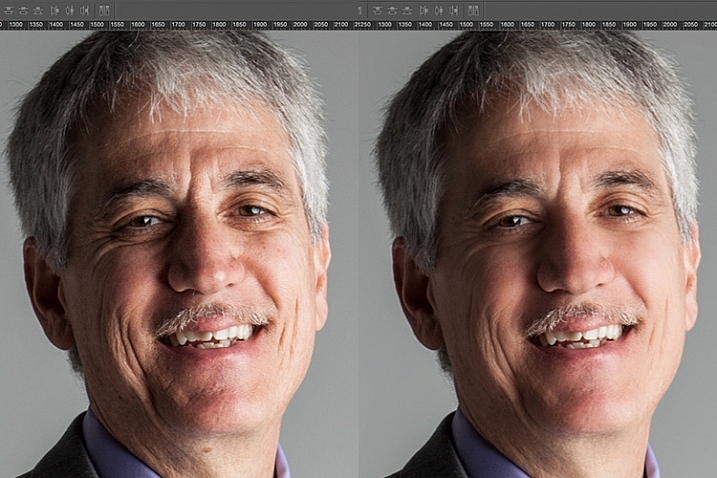
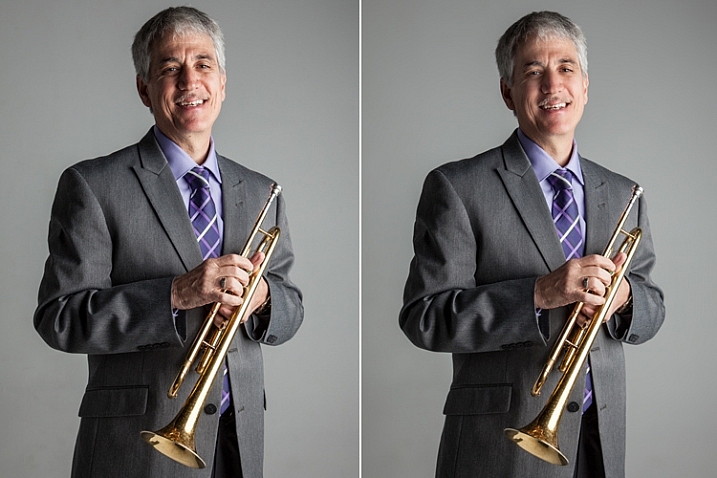
Here is the before and after of the Dust & Scratches filter effect on the musician’s face:

portrait retouching techniques

Notice the softening of the skin and reduction of the shadows in the wrinkles, yet he still looks untouched with most of the original texture still visible.

Now that you have completed the most important task of this post processing technique, it is time to repeat the steps from the beginning. Start again by evaluating the image as a whole. Notice any other areas that need attention. Remember to duplicate the top layer once you have completed any step in the process. Allow yourself to duplicate your layers as many times as you want. It’s always a safe bet.

Next, eliminate. This is your chance to eliminate any larger parts of the image that take more time. Elements to consider removing are:

  • Some (not all) of the scratches across the trumpet.
  • His left-side jacket pocket.

After eliminating for the final time, move on to step three again. In this case, instead of using Dust & Scratches as your reduction tool, you can use other popular items in the toolbox. Tools to consider using are the Healing and Spot Brushes, Dodge and Burn, and Sharpen and Saturate/Desaturate.

photoshop brushes for portrait retouching

Eliminate then Reduce – Repeat.

First, don’t forget to duplicate your layer before starting this step! If you don’t duplicate, this step will not work.

To lighten the shadowed area of the musician’s right eye, the Dodge Tool used at 50% on shadows would look too overly processed. But by allowing it to be over done on this newly duplicated top layer, you can then reduce the opacity of the layer to bring back the layer underneath at 50% or more. Now the over processed shadows look naturally lighter than the original.

This technique is great for all the tools mentioned above. The Sharpen tool can be used on eyes and jewelry. The Healing and Spot tools can be used for under eyes, and shadows that need a bit more attention. Desaturate and Dodge tools can be combined to whiten teeth. Anytime you want to reduce using these tools, just remember to duplicate the layer; make your changes, then reduce the opacity of that newly affected layer until the effect looks natural.

At this point in the retouching process, you have walked through each step of the process twice. It is time evaluate your finished image. This is where all those duplicated layers comes in handy. Keeping the top most layer turned on and the bottom original layer on, turn off every layer in between. Then zoom-in to 100% (accurate view of pixels), and click on and off of your top layer to see all the changes you have made.

If necessary make any other slight adjustments, like cropping to the correct size, then save your image. It’s best to always save the Photoshop layered copy (save as a PSD file) as well as a flattened JPG file, in the quality size you want.

We all know photoshop is full of endless possibilities, and we all love to learn. If you have other techniques that are great for “refreshing” your portraits, please share.

As with all things in life, this process takes practice to perfect. With practice you will gain accuracy, efficiency and train your eyes to see your images (before and after post-processing) in a whole new light, giving you better control over the look and feel of your retouched portraits.

portrait retouching techniques

Remember, as you learn and grow as a photographer, the goal is to always create your best images in the camera, and not just assume that you can just fix it in post. Keep this in mind, and with every click of the shutter you will become a better photographer, and spend less time in front of the computer.

Of course, you will always edit and retouch your very best images. When you do sit down to do so, now you will have a whole new range of techniques you can apply.

googletag.cmd.push(function() {
tablet_slots.push( googletag.defineSlot( “/1005424/_dPSv4_tab-all-article-bottom_(300×250)”, [300, 250], “pb-ad-78623” ).addService( googletag.pubads() ) ); } );

googletag.cmd.push(function() {
mobile_slots.push( googletag.defineSlot( “/1005424/_dPSv4_mob-all-article-bottom_(300×250)”, [300, 250], “pb-ad-78158” ).addService( googletag.pubads() ) ); } );

The post 3 Steps to Photoshop Retouching for Natural Looking Portraits by Danielle Werner appeared first on Digital Photography School.

Digital Photography School

 
Comments Off on 3 Steps to Photoshop Retouching for Natural Looking Portraits

Posted in Photography


4 Steps to Help You Start a Documentary Photography Project

24 Jul

The thing you need to do for getting good ideas which are actually possible, is to weigh the game in your favour.

You need to be selective in your project choices, research well, and demonstrate an intense curiosity when pitching your project idea.

The four steps in this article will help you:

  • Use your interests to research and learn about a subject.
  • Demonstrate your curiosity to those who hold the key. These are the gatekeepers.
  • Gain access.
  • Start a documentary photography project.

Peter David Grant dps submission 1 of 7
Primarily a street photographer, using this method I transitioned into documenting places hidden behind closed doors, as you can too.

Step #1. What are you interested in?

The first thing to ask yourself is, what are you actually interested in? Grab your pen and pad, write down “What Interests Me?”, then number lines, 1 to 20.

Without thinking too much, fill in all the way down to the bottom of the list. The goal here isn’t to think about where your interests might go, but rather to give you a reference from which to work.

Peter David Grant dps submission 2 of 7
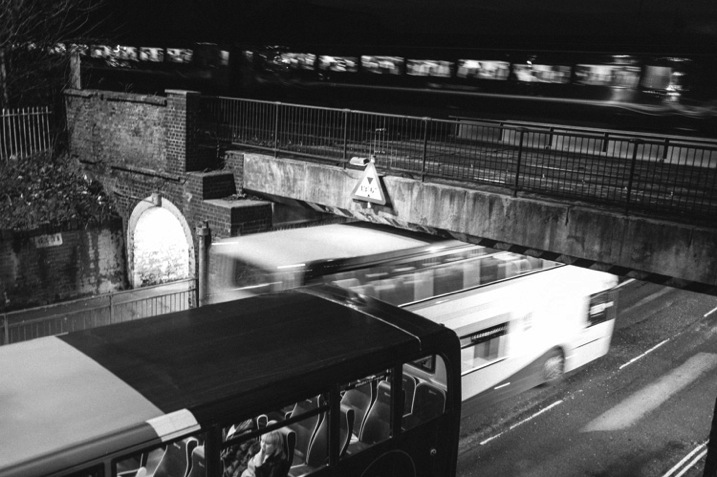
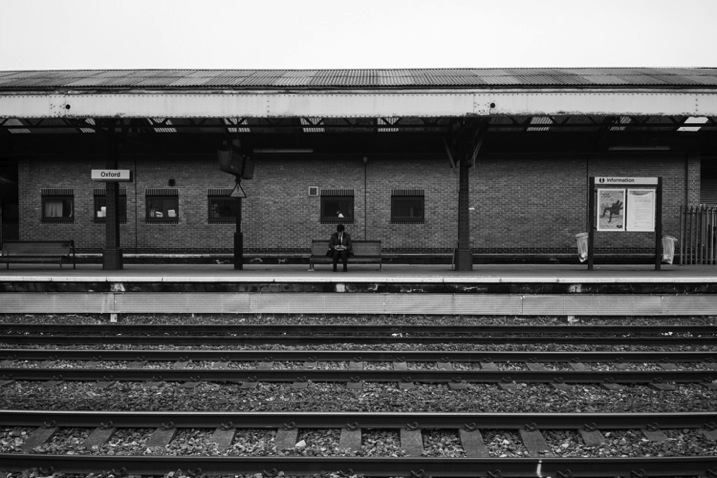
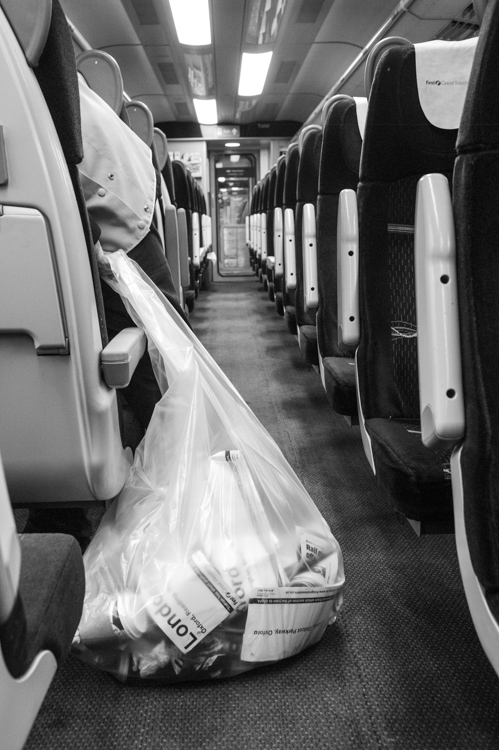
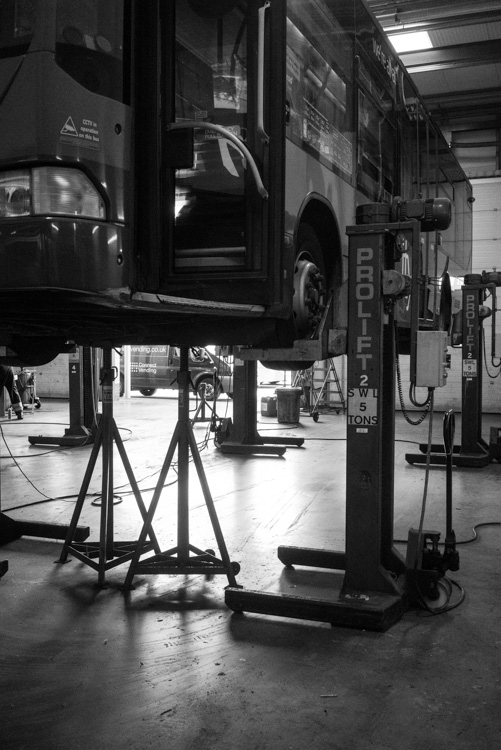
Look back at your photographs and see what you like to capture. Lots of street photographs like these were coming about due to my interest in transport. I’ve now started projects about the local train station, and a local bus company.

Step #2. Whittle down your list

Now that you’ve got your list of 20 interests, the next thing you need to do is get rid of those which are not visual in nature, or are impractical. For example, you should cross off astronaut training from your list, or following your favourite sports star around the world, as they do their thing. It just isn’t realistic, at least not in the early days.

Your goal here is to have a list of potentially visually stimulating interests which are readily accessible (assuming you gain access) to go back to over many visits. A key part about documentary photography is understanding what is going on, and picking up on the subtleties of the situations. You need to be able to go back again and again, build rapport, and blend in – because it is at that point that you’ll start producing quality photographs.

With the list reduced to those that are practical, which also have a visual interest, you should select three that you believe will be most interesting to others. This is important for a couple of reasons:

  1. You’re starting to think about what your audience will be thinking. This will be useful when it comes to talking to the gatekeepers, to use as a reason why you should document the subject.
  2. You’re thinking about what the gatekeepers find interesting. You need to be able to demonstrate empathy with the people you contact.

Finally, of those three interests, which one do you feel you know the most about? This makes the next step easier.

Peter David Grant dps submission 3 of 7
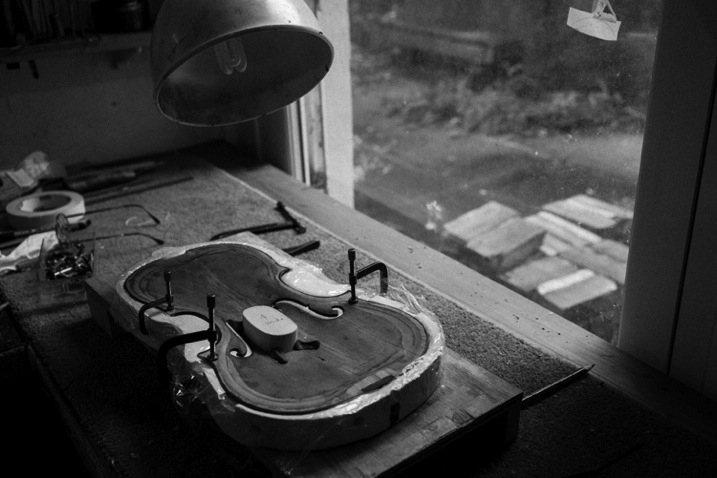
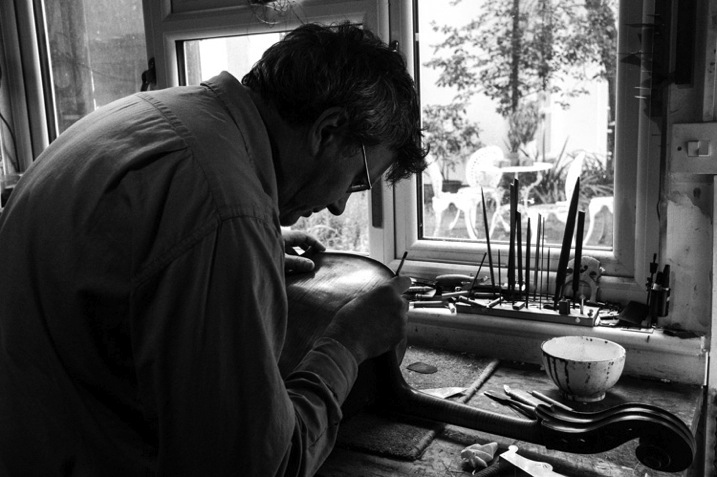
Don’t forget to think laterally. While I’m as musical as a crumbling wall, being an engineer, I could appreciate the design and material aspects of violin making.

Step #3. Research your interest and finding out who to contact

Once you’ve chosen your interest, you should further your understanding. Get your notebook again, start researching and make notes. Some suggestions:

  • Google your interest, and read the top three or four links.
  • Read the related Wikipedia article, making sure you follow any links that stand out.
  • If you’re researching a company, devour their website. Click every single page. Read everything.
  • Search on Google News for your interest.

While reading, in addition to anything that grabs your interest, keep an eye out for:

  • A name for someone you might be able to contact.
  • Something time sensitive which is changing. Part of documentary photography is recording something for historic purposes.

All of this collected information will form ammunition for your first contact, showing your knowledge, interest, and understanding of the subject. Remember this should be interesting stuff to you. If it feels like a chore, you’ve probably chosen the wrong interest as a subject, or aren’t connected with it.

Peter David Grant dps submission 4 of 7
You should be deeply interested in the subject. I had no problem spending hours, upon hours, researching the local train station, because I wanted an all-access pass so badly.

Next, you should consider your close friends and family. Do any of them have links to your interests? Those who do, are they in a position to give you the access you’re after? If so, great! They’re going to be who you contact. If they’re not, you should still talk with them about your interests, and desires. They might be able to put you in contact with a connection.

After you’ve found the person you’re going to contact, you should look for their details. It might be as easy as looking at their contact page online, or through finding someone else’s email address at the company, working out their structure, and taking a punt.

For example, if you wanted to contact John Doe to ask about documenting Company XYZ, through some Googling, or looking at XYZ’s PR or HR page, you might find an email address like john.doe@XYZ.com. It wouldn’t be too difficult to imagine john.doe@xyz.com. I’ve used this in the past to great success.

Peter David Grant dps submission 5 of 7
Guessing an email address allowed me to access the Oxford Train Station which I’m currently documenting as they redevelop.

In large organizations, you might find the assistant to the gatekeeper is the person you’re going to be contacting. LinkedIn is also a brilliant resource.

One final piece of research to do, is to look for example photographs you can show the person you’re making contact with. These can either be your own work, or the work of other photographers (be sure to credit them though). What you’re looking for is something that visually explains the kind of thing you’re seeking to achieve.

At this point, you should have a chunk of research about the organization, relevant news articles, an idea of who you’re going to contact, and some example photographs to show them.

Step #4. Making contact – demonstrating your interest and knowledge

It is now time for you to put it all together in an email. Your email should include:

  1. Why you’re emailing that particular person. This is about understanding why they are the gatekeeper to the project, showing that you care about the subject, and demonstrating your understanding.
  2. Show your curiosity and understanding of their role within the organization.
  3. Tell them what you want to do. Make your request clear and straightforward. Note: don’t ask for everything at once. If you think what you want to ask is too much, dial it down, and ask for something smaller. Once you’re in, and have gained their trust, they’ll open things up for you. As well as explaining what you want to do, you should also explain why you want to produce and show your audience the photographs at all. Mention the examples you’ve attached.
  4. Tell them what they can do with the photographs. Give them permission to use those that you’re going to take. It is the least you can do. Make suggestions where they can use them, for example in their monthly newsletter (if you can somehow find out what they call the newsletter, make sure to include that too) or on their social media.
  5. Tell them what you want to do. Explain your intentions for the photographs, e.g., are they for an exhibition (don’t worry if you’ve not arranged one, if the work is good that will sort itself out later), a book, or just your website. Be honest about your intentions.
  6. Understand the difficulties. This will impress them. You’re once again demonstrating your understanding of what they do. You’re effectively saying, “I know there are problems that me being there will bring, but I think they’re worth overcoming”. Bring it back to why you want to do the project in the first place, so that they can see the benefits, and why they outweigh the difficulties.
  7. Summarize all of the above and suggest what the next action step. You could say something like, “If this sounds interesting to you Mr. Doe, it would be great to discuss this further when it suits you sometime”.

Peter David Grant dps submission  6 of 7
Don’t be scared to chase emails either. If you don’t hear from them within the week, send a follow up email or phone call. Without it, I wouldn’t have shot at Oxford Violins.

In addition, you should make it clear that none of your ideas are set in stone, and that you’re open to their input (remember, it is highly likely that they are more knowledgeable than you are).

Finally get someone to check it. Before you do though, make sure you don’t prime them as to your intentions. You’re looking to find out if your request is obvious, clear, straightforward, that you’ve demonstrated your curiosity, and that there is a single next step that is easy to understand.

Now send it.

Step #5. What do you do next?

Once you’ve got your foot through the door, you need to show your face, be confident, demonstrate your knowledge, ask questions, and show your curiosity. Assuming that all goes well, the rest should pan out nicely. Start shooting, see how the project develops, and learn as you go.

This is where the joy starts. You’ve used your interest, and your camera, to get into somewhere that is fascinating to you. Enjoy yourself. Make friends, and click that shutter.

Peter David Grant dps submission  7 of 7
Before you know it, you’ll be behind the scenes in places you couldn’t have imagined yourself being.

Bio: Peter David Grant has produced an exclusive ebook of the emails he’s used to get access to many of his projects for dPS readers. He’s deconstructed them, explaining why each bit is in there, and provides templates for you to use. You can get it here.

googletag.cmd.push(function() {
tablet_slots.push( googletag.defineSlot( “/1005424/_dPSv4_tab-all-article-bottom_(300×250)”, [300, 250], “pb-ad-78623” ).addService( googletag.pubads() ) ); } );

googletag.cmd.push(function() {
mobile_slots.push( googletag.defineSlot( “/1005424/_dPSv4_mob-all-article-bottom_(300×250)”, [300, 250], “pb-ad-78158” ).addService( googletag.pubads() ) ); } );

The post 4 Steps to Help You Start a Documentary Photography Project by Peter David Grant appeared first on Digital Photography School.

Digital Photography School

 
Comments Off on 4 Steps to Help You Start a Documentary Photography Project

Posted in Photography


3 Steps to Professional Looking Headshots Using One Flash

20 Jul

Ideally, every time we take photos of someone, there is a studio full of equipment at our disposal or wonderful sunlight that is perfectly diffused. This, however, is not reality. Usually, the sun is either too faint or too harsh. We don’t always have access to a studio, let alone one full of lighting gear that we can use. Sometimes, we also just don’t have the time to learn a new technique, rent more gear, or find the perfect location. Other times, the subject has very limited availability and locations. Still, we smile through the limitations and do our best to provide professional images every single time.

Do you feel prepared to compensate for these different light conditions that you may be forced to work with, though?

OneFlash-example4

Natural light is always wonderful for any type of portrait, including headshots. Bouncing that natural light around with reflectors or just finding a bright shaded spot all work well. If you have a flash at your disposal, though, you can create even, or dramatic lighting to accommodate headshot needs.

The following three tips will help you create headshots using only one flash to compensate for less-then-perfect lighting conditions:

1. Diffuse, diffuse, diffuse!

When using a flash, the last thing you usually want is for it to LOOK like you used a flash. To do this, you need to find ways to make the light disperse more, reducing any harsh look that it will otherwise produce. There are several ways to do this, and each on their own will help. Combining techniques works best, though.

  • Bounce it – If there’s a wall somewhere to your side, a ceiling within a couple of feet from you, or if you have a reflector of any kind, bounce it. Aim the flash towards the reflector so that it fills in shadows to compensate for any uneven lighting conditions.
  • Aim the flash behind you to help disperse the light –  This may sound counterintuitive, but aiming the flash BEHIND you helps to disperse the light quite a bit. It provides a front light on your subject, but much softer than would otherwise be if the flash were pointed directly at them.
  • Use a diffuser on the flash – Whether it’s a plastic cover, a fabric mini-softbox, a bendable reflector that attaches, or a homemade version of any of the above – a diffuser directly on your flash will instantly soften the light and allow you more versatile light on your subject.
  • Set zoom on flash to the widest setting possible – your flash can be set to adjust to match the angle of view of the focal length lens you are using. However, this can be manually adjusted regardless of the lens you are using. When the flash is set to 70mm, for example, the light will be more narrow and direct than when it is set to 24mm. While this alone doesn’t make a drastic difference, it is another tool to add for further light diffusion.
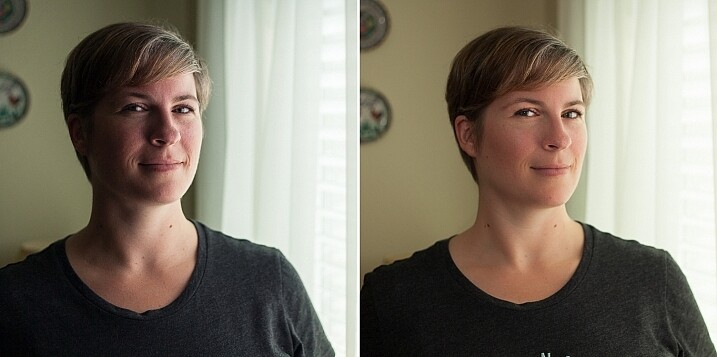
Left - No flash. Right - Single flash, on-camera, turned to right of subject for fill light.

Left – No flash. Right – Single flash, on-camera, turned to the right of the subject for fill light.

In the before and after photos above, the left image shows the result using only natural light from the window. It’s beautiful light, but not always what you want.

The right photo shows same location, same position, with a single flash used to fill in the shadows. The flash is on-camera and has a flash dome diffuser on it. It’s angled to left of photographer (right of subject) so that it will bounce off walls and ceiling, and manually set at 1/8th power.

2. Use remote triggers

If you have access to remote triggers, play with using the light to add drama or emotion. This alone will give you a studio look and can be done just about anywhere. Be sure that this type of look is appropriate for your subject’s needs, especially since it tends to have a very strong look. For example, the owner of a flower shop may want something that is more natural-looking and shows the outdoors or her shop, while the owner of a tech start-up may like the strong look of dramatic lighting. While each situation is different, a few options for flash placement are:

  • Directly behind client
  • At 45 degrees behind or in front of subject
  • Directly to side of subject
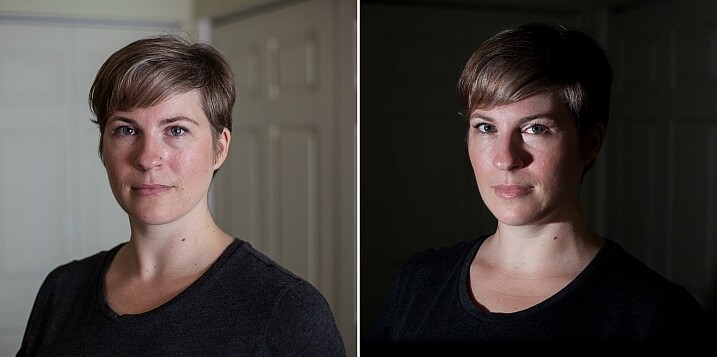
Left - No flash. Right - manual mode, underexposed several stops, single flash towards right of subject.

Left – No flash. Right – manual mode, natural light underexposed several stops, single flash towards right of subject.

The before and after photos above show how to use a single flash to create some dramatic headshots in any indoor situation. The left photo is properly exposing for the space, using natural light only. The photo on the right is manually controlled to greatly underexpose the natural light (so that the background disappears as much as possible), and then a single flash is placed towards right of subject to give concentrated and dramatic light.

3. Manual flash mode

While it is best to always use your flash on manual mode in order to have full control over the lighting, this is an often overlooked method. Manual mode on your flash will allow you to adjust the strength for any situation. Shooting indoors and bouncing the flash? Start your flash strength at 1/8 of full power and adjust from there. Shooting in full sun? Start at 1/2 strength and adjust down as needed. Need a soft bit of shadow to be filled while indoors? Set your flash strength to 1/16 and adjust from there. Note that you will get to know good starting points for different situations, but adjustments are always needed since every situation is unique.

OneFlash-example6

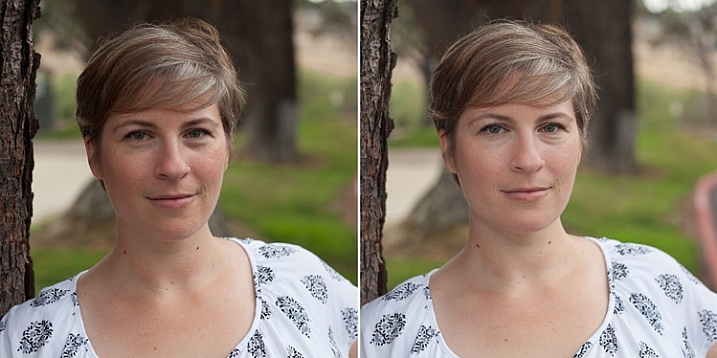
Left is using no flash, outdoors. Right photo is same position and location, using single flash on camera at 1/4th power.

The before and after photos above show you can use a single flash to compensate for shadows in daylight. The left photo shows direct daylight and no flash. The photo on the right is at the same time, same position, same sun condition, but with a single flash at 1/4 power to help fill shadows.

Regardless of what tools you have access to for each photo shoot, a big part of your job as photographers is to be able to adjust to any situation. While having lots of gear at your disposal is handy, it is not always necessary. Oftentimes, the gear you have on hand can do the job you need it to do; all it takes is some thinking outside of the box.

Do you have ways that you create beautiful headshot or portrait lighting on-the-fly? Please share in the comments below.

googletag.cmd.push(function() {
tablet_slots.push( googletag.defineSlot( “/1005424/_dPSv4_tab-all-article-bottom_(300×250)”, [300, 250], “pb-ad-78623” ).addService( googletag.pubads() ) ); } );

googletag.cmd.push(function() {
mobile_slots.push( googletag.defineSlot( “/1005424/_dPSv4_mob-all-article-bottom_(300×250)”, [300, 250], “pb-ad-78158” ).addService( googletag.pubads() ) ); } );

The post 3 Steps to Professional Looking Headshots Using One Flash by Natalia Robert appeared first on Digital Photography School.

Digital Photography School

 
Comments Off on 3 Steps to Professional Looking Headshots Using One Flash

Posted in Photography


3 Steps to Easily and Realistically Change Hair Color in Photoshop

18 Jul

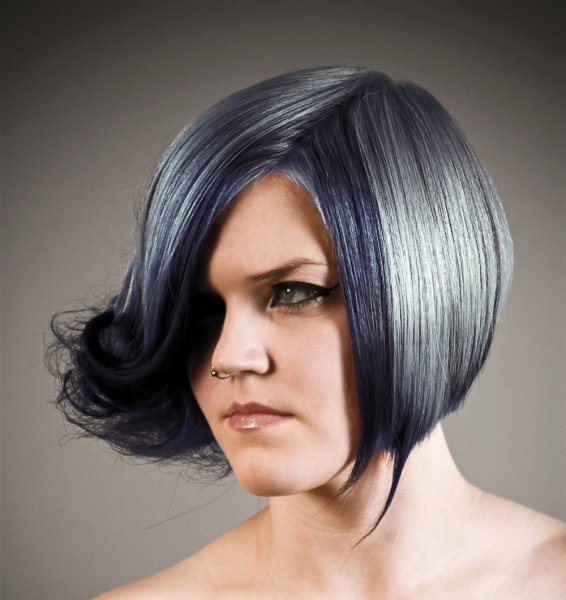
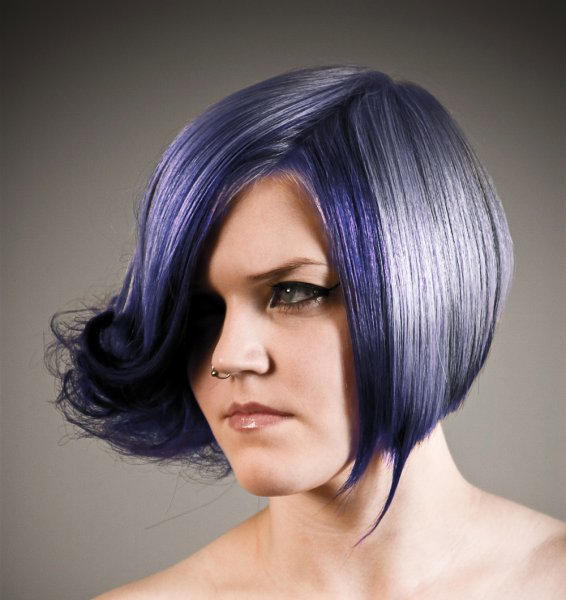
For those who follow trends you’ll know there is a move to “metallic” hair colors for both men and women, and this is especially evident in fashion photography.

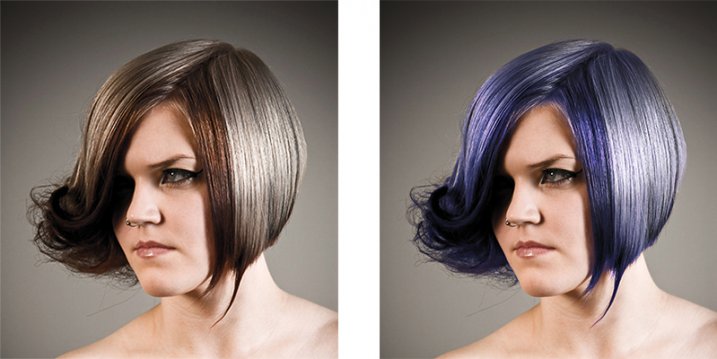
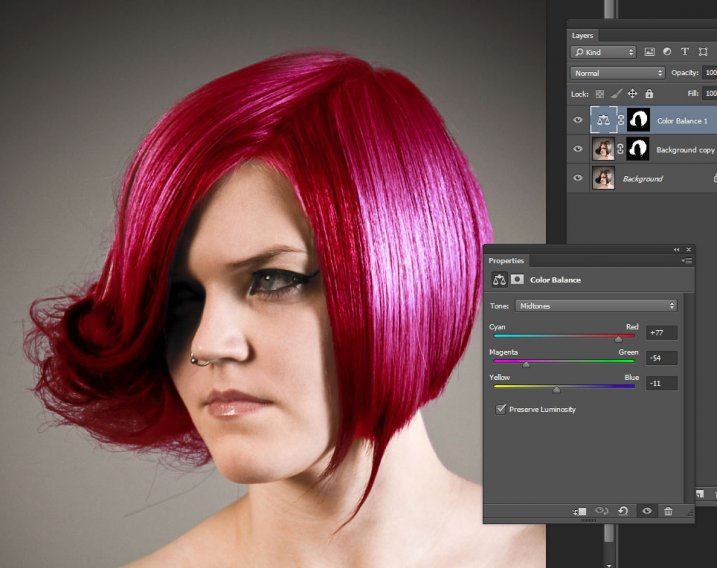
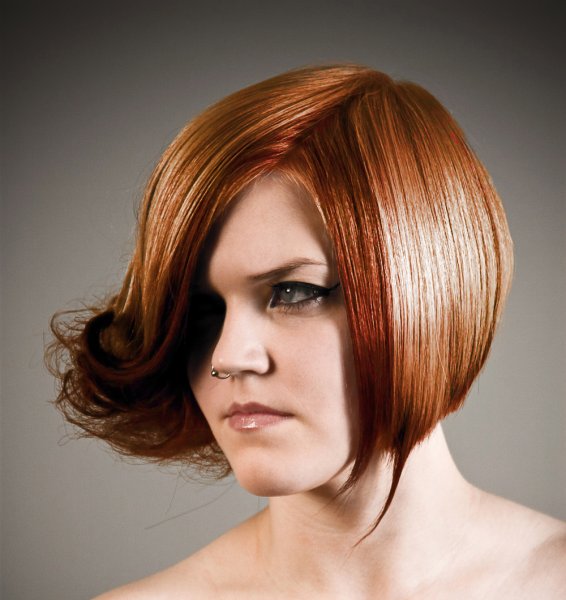
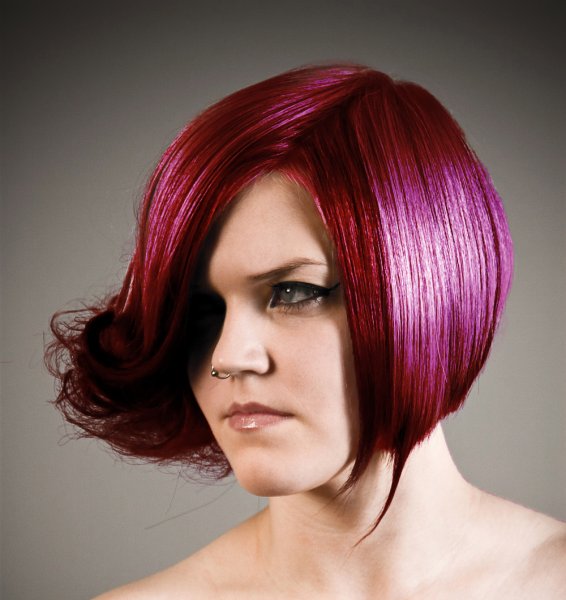
From this, to this in 4 steps.

From this, to this in 3 steps using Photoshop

Whether you want to add extra pizzazz to a fashion shot, jazz up a promotional photo without having your models spend hours (and probably big bucks) at the salon, or to simply see what you’d look like with a different or metallic hair color –  this simple process will help you change the color of a subject’s hair color in a realistic way, with no frustration. You can even use this technique to create fantasy animals for your artistic digital manipulations, by changing the color of their fur with the same steps.

Editing hair has often been a challenging process. Even with the most meticulous editing, the results were often unrealistic, and obvious as manipulations. This workflow changes all that.

Step 1: Masking the Hair

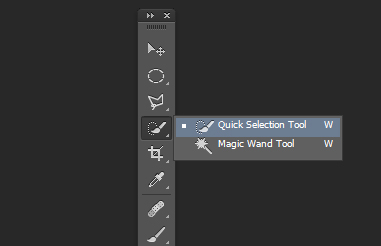
Thankfully Photoshop’s Quick Select tool makes masking hair a breeze. Open the image you want to edit. Select the Quick Selection Tool from the tool palette.

quickselect

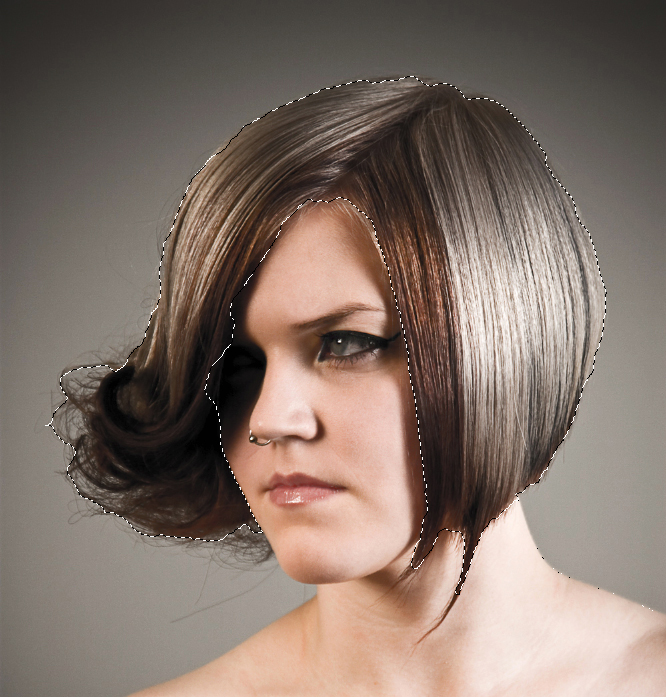
Change the size of the brush by using the square brackets keys on the keyboard, you’ll find these next to the “P” on  most keyboards. Now select the hair using the selection brush – you’ll see the famous marching ants as you make your selection. If your selection extends too far use the CTRL key to subtract the selection.

selection

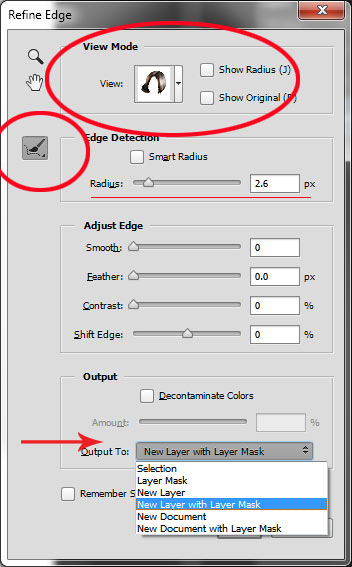
When you have the hair selected, click on the Refine Selection button in the top context menu. This will allow you to soften the edges and add some transparency to the selection to make it very realistic. You’ll see a new palette pop up with some edge options to choose. First, select On White from the View Mode dropdown. This will enable you to see only the hair selection. Next select the Brush from the left hand side, and make the radius between 1.5 and 2.5, this will vary with your image. Now you can brush to bring back some of the transparency around the edges, especially where there are fine hairs such as the bottom left in this image.

selection-tools

Once you’ve refined the edges, go to the Output section and select New Layer with Layer Mask. This will output your refined edge selection on a new layer, which you’ll use in the next step.

Step 2: Create your Color

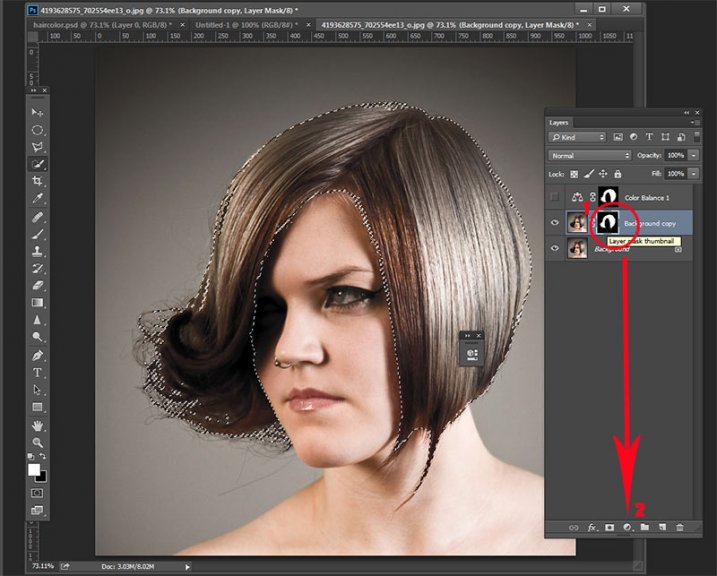
Here’s your opportunity to bring our your inner stylist. First, go over to the Layers Palette. Here, you’ll make a special Adjustment Layer using Color Balance adjustment. To do this first make sure that the layer mask thumbnail on your recently created layer is active. Don’t click on the thumbnail of the photo. What you’re doing here is telling the Adjustment Layer you’re creating, to ONLY affect the hair selection.

Now CTR+click in the layer mask thumbnail to get the marching ants selection on your image. Next, at the bottom of your layers palette, click on the Adjustment Layers icon to create your new adjustment layer. From the pop-up  menu, choose Color Balance. You’ll now see your new adjustment layer called Color Balance, at the top of your stack.

create-color-balance-layer-mask

Now make the Color Balance layer active by clicking on the scales icon thumbnail. This will bring up the color balance sliders where you can now create the color for your hair. Remember to also use the top drop-down in the slider pop-up to also adjust the highlight and shadow tones.

color-balance

You’re now ready to apply your color. Depending in whether you’re going for a bold and artistic look, or fashionable and metallic, your color choice will be made here in the color balance adjustment layer. Play around with changing all the colors, and note the results. In the final step you’ll be adjusting the intensity and the opacity of the color to make it look realistic, no matter what style you want to show.

Step 3: Blend Modes and Opacity

At this point, you’re ready for the fine detail adjustments to ensure your new hair color looks realistic, and not Photoshopped. All you need to do now is adjust the opacity and the blend modes of your color balance layer. T0 achieve the metallic look try blending mode HUE with an opacity of 75%.

For bolder looks try SATURATION or SOFT LIGHT. Depending on what colors you’re using you can also achieve great looks with DARKEN and SCREEN.

Stylistic Color

Here we have four totally different looks. They are all from the same file and one adjustment layer, just by changing colors with color balance; and varying the intensity using opacity and blending modes.

haircolor3 haircolor4 haircolor6 version

Here’s the PSD file for you to practice with (zip format). Download it to your computer. Unzip and open the PSD in Photoshop.

The original image is used under the Creative Commons license and is attributed to Looking Glass.

googletag.cmd.push(function() {
tablet_slots.push( googletag.defineSlot( “/1005424/_dPSv4_tab-all-article-bottom_(300×250)”, [300, 250], “pb-ad-78623” ).addService( googletag.pubads() ) ); } );

googletag.cmd.push(function() {
mobile_slots.push( googletag.defineSlot( “/1005424/_dPSv4_mob-all-article-bottom_(300×250)”, [300, 250], “pb-ad-78158” ).addService( googletag.pubads() ) ); } );

The post 3 Steps to Easily and Realistically Change Hair Color in Photoshop by Alex Morrison appeared first on Digital Photography School.

Digital Photography School

 
Comments Off on 3 Steps to Easily and Realistically Change Hair Color in Photoshop

Posted in Photography


6 Easy Steps for Post-Processing a Low-Light Photo in Lightroom

16 Jul

The word photography comes from the ancient Greek words for “light” and “drawing”. With the presence of light being a rather important constituent in the making of a photograph, it is no wonder that low-light conditions are often a photographer’s nemesis.

While so many other lighting variables have an immense impact on your images – the quality, direction, color temperature, and intensity – but if you don’t have enough light to begin with, none of these really matter.

This article will walk you through my approach to post-processing an image taken in poorly lit conditions.

A poorly lit image after editing.

With a little Lightroom sorcery, poorly lit images can be brought back to life.


The key is to start with as strong a foundation as possible, which is to maximize the quality of the image captured in camera. For more detailed advice on how to accomplish this, have a read of:

  • How to Shoot in Low Light – 9 Commonly Asked Questions
  • A Guide to Shooting Outdoors in Low Light Conditions
  • Another great resource to bookmark is Cheat Sheet: What Gear and Settings to Use for Low Light Photography

It is also worth noting that, as far as I’m concerned, the debate over whether to shoot in RAW or JPEG does not apply here. If you are shooting in low-light conditions, shooting in RAW is imperative. You want to ensure that you have as much latitude as possible to maximize post-processing efforts.

I will also echo the sentiments of others when I say, you should not rely on editing software as a crutch. Don’t be lazy. Make every effort to use lower ISO settings, noise reduction (NR) features, use slower shutter speeds, etc., in camera first.

What is low-light?

So what do I mean by low-light anyway? I believe this is one factor which contributes to the confusing nature of this topic to begin with. When I think of shooting in low-light, I imagine a scenario where I have a hard time seeing well enough to frame the shot, the camera may struggle to find focus, and without some work, the final image will make it apparent that shooting conditions were challenging.

This is when having better quality equipment pays off. Those of you with camera bodies which can produce clean shots at high ISO settings (just take a look at the Sony A7s) have a distinct advantage from the get go. Throw in a wide aperture, fast, lens and the quality of images these device can capture in near pitch dark is absolutely incredible – especially compared to 10 years ago.

With experience, you will learn the limits of your equipment and editing software to achieve the results which you consider acceptable.

Example

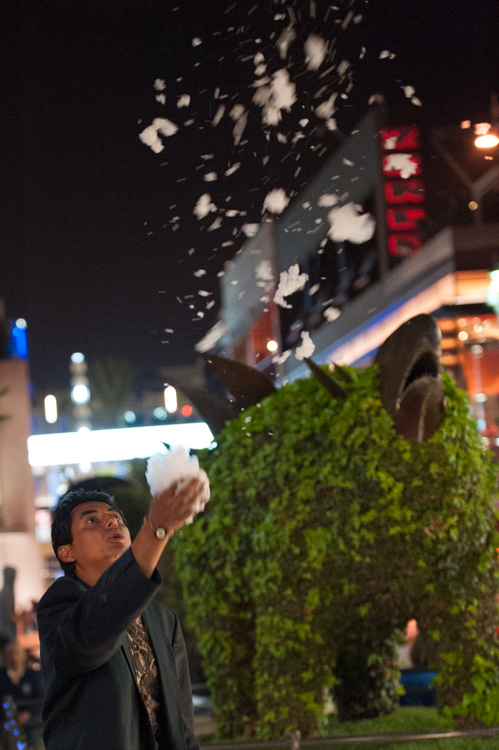
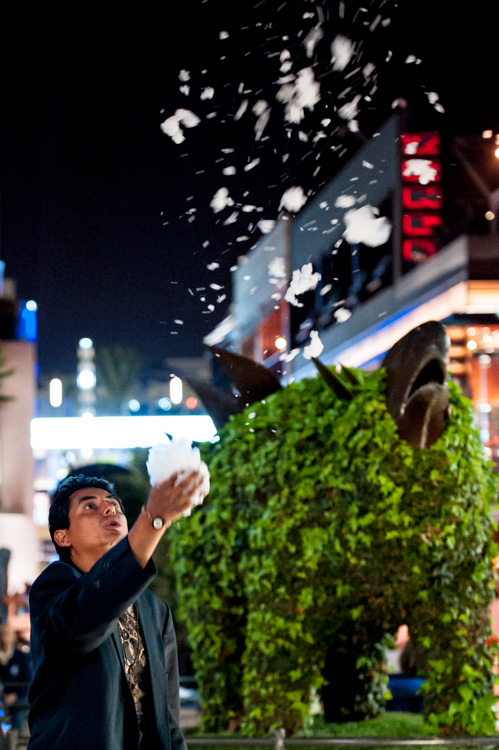
I will work with this street photo I snapped in Santa Monica, California as an example. It was taken long past sunset, with only some dim illumination from distant store windows and street lights. Some hoodlums had dumped soap into a fountain which had then churned into a frothing mess when this passerby stopped, grabbed a handful and blew the suds into the air.

A night shot taken in poor lighting with a Nikon D700 at 70mm, f/2.8, ISO 4,000 and 1/60th of a second.

A night shot taken in poor lighting with a Nikon D700 at 70mm, f/2.8, ISO 4,000 and 1/60th of a second.

The combination of the image being a RAW file, and the less-than-ideal conditions it was taken in, has resulted in an image that is flat, has inaccurate color temperature, is low contrast, and has some noise. There is no exact process that can be replicated on every image, but I will walk you through the steps I toook to bring this photo back to life.

1. Check for clipped highlights, shadows

You can do this in two ways:

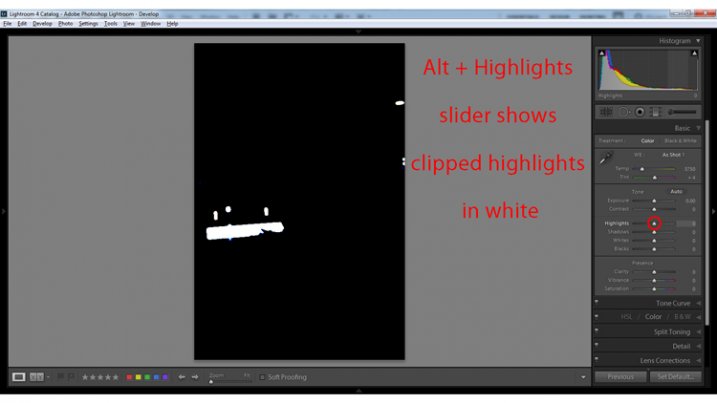
  1. Hold the Alt key while clicking on the highlights or shadows slider
  2. Hover the mouse over the small triangles in the upper corners of the histogram.

This will quickly and easily identify the areas of the photo which contain no information, and therefore no details to recover.

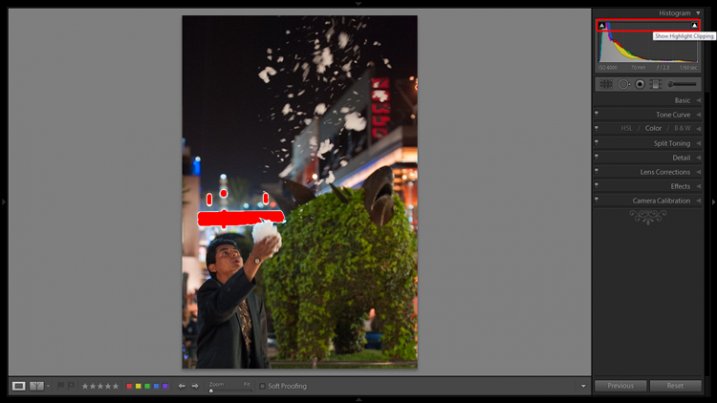
Clipped highlights are shown in red

Hovering the mouse over the triangle in the upper right corner of the histogram will illuminate all clipped highlights.

Alt + clicking on the Highlights slider shows clipped highlights

Alt + clicking on the Highlights slider shows clipped highlights

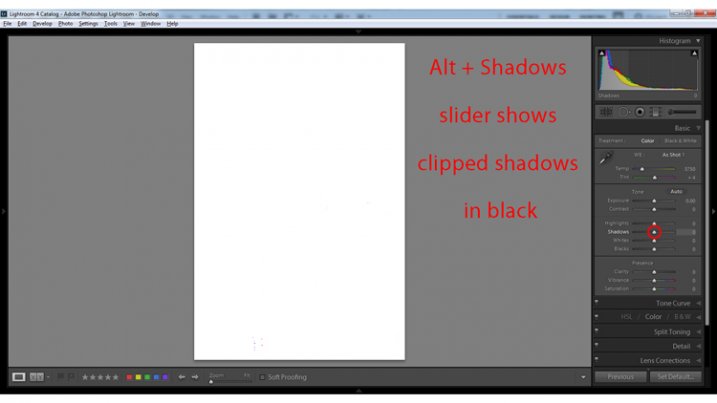
Alt + Shadows slider shows all clipped shadows.

Alt + Shadows slider shows all clipped shadows. This photo has no clipped shadows.

For shooting in low light, you will most often be concerned with clipped shadow areas. If details important to the image are clipped, it may not be salvageable – this is a judgment call to make on an individual basis.

Although it is underexposed, the image has no clipped shadows, and only a small bit of clipped highlights.

2. Adjust exposure correctly for the subject

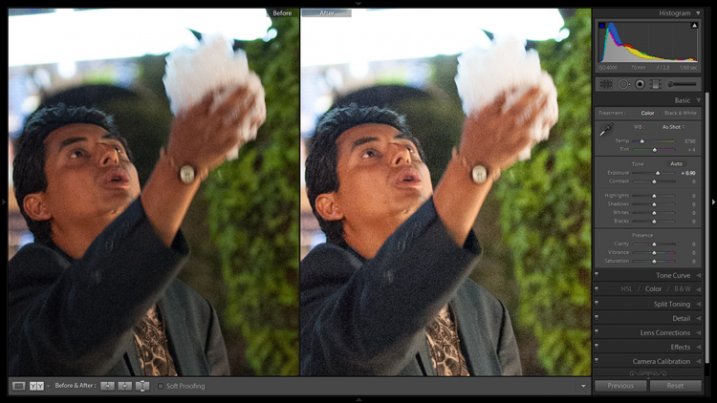
For this image, the person is the subject so I want him to be properly exposed therefore I will zoom in on him and set the exposure. I want his face to be a bit brighter and clearer so I’ve increased exposure 9/10 of a stop (+0.90).

Before and after of exposure adjustment.

The exposure was increased to brighten the subject. Before and after of exposure adjustment.

3. Increase contrast

This is going to involve a process of trial and error, adjusting several sliders, and analyzing the effects they have on the image in combination with one another.

From what the histogram showed me, and what is obvious by looking at the image, there are significant portions of the image that are dark – the sky, the subjects jacket, etc. These dark areas have nothing to add to the image and after increasing the exposure, have become a lighter shade of gray and have created more noise.

Therefore, I am going to purposefully clip some of these shadowed areas by decreasing the Blacks slider value. I prefer to drag the slider all the way to -100, and start increasing it until the image looks good. At -70 the shadows obscure unimportant details which brings more attention to highlighted areas.

Contrast can be adjusted further in the Tone Curves panel. If this is uncharted territory for you, the article Lightroom’s Tone Curve Explained is a good place to start.

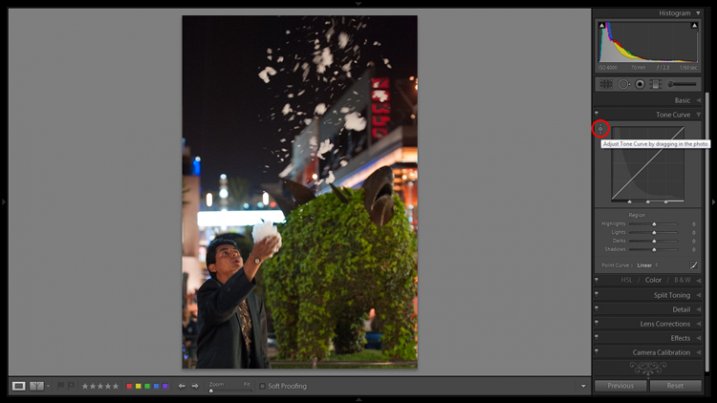
Image showing location of drag and adjust tool in Tone Curve panel

A shortcut for adjusting all similar tones in an image can be found in the Tone Curve panel.

TIP: Using the click and drag tool in the upper left hand corner of the Tone Curves panel is a quick and easy way to adjust tones in your image. Click the tool to activate it; place it over the tone in the image that you wish to adjust (shadows, highlights, etc.); click and drag the tool up or down and it will adjust all similar tones in your image automatically.

4. White balance

As exposure and contrast affect the colors in an image, I prefer to make those adjustments before dialing in the white balance. There are two ways to accomplish this:

  1. Click and drag the Temp slider
  2. Use the Eye Dropper (targeted adjustment) tool to let LR attempt to correct the white balance automatically
Image showing the location of the Eyedropper tool.

The Eyedropper tool is an automated feature that will approximate correct white balance for you.

The key to the Eye Dropper tool is to select an object in your image that should be pure white (or anything that you know is a neutral tone like black or gray). I find the tool can sometimes give you a starting point from which to work, but very rarely gives you an accurate result straight away.

As a result of the sodium vapour street lights, this image is far too warm, has turned the subject’s skin orange, and has made the greens too yellow. I’ve reduced the white balance color temperature from 3,750 degrees to 3,300.

TIP: In the Develop Module, the forward slash key toggles between before and after, so you can quickly see the adjustments you have made. You can also click the the box in lower left with two Y’s, which shows a before and after side-by-side comparison (if that tool bar is not showing, click T on your keyboard to show/hide it). Although this can help guide any changes you make to your image, I find it particularly useful to toggle back and forth when correcting white balance.

5. Clarity

The Clarity slider changes local contrast, especially in the midtone areas of your image. Increasing clarity can help define the edges of objects and add depth to an image, while decreasing clarity will soften details and add a dreamy glow.

Raising the Clarity slider to +25 adds a bit more pop to this image. Adding too much clarity can accentuate blemishes in portraits and dull colors, so use it sparingly.

6. Noise Reduction

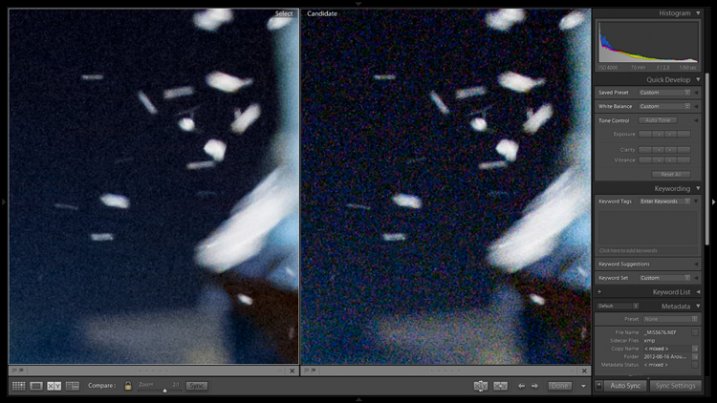
Noise and color noise are the downfall of many lo- light photos, especially those taken on less capable cameras. Noise adds a general grainy haze, and color noise shows up as little little specks of random colors, which can look like big splotches on shadowed areas.

It’s often most noticeable in the dark areas of an image but can wreak havoc on skin tones as well. Luckily, it’s easy to fix in LR and doesn’t decrease image quality too much. It does have its limits so always shoot at the lowest ISO possible.

Since this photo was taken on a camera with legendary low-light capabilities (in its day), noise levels aren’t too bad even at ISO 4,000.

The Noise Reduction slider is found in the Details panel underneath the Sharpening sliders. For this image I increased the Luminance slider to +30 and the Color slider to +15.

Image showing before and after noise reduction.

The noise is this image was fairly minimal and Lightroom easily reduces it. Image showing before (right) and after (left) noise reduction.

A side effect of noise reduction is decreased detail so don’t be too heavy handed.

Image before edits.

The original image before any post-processing.

Image after edits.

The original image after post-processing.

That is a basic walk-through of my approach to a photo shot in low-light, or poor conditions. Although the editing process could go much further and get more technical, this is a good starting point to breathe some life back into poorly lit shots.

Do you have any other good post-processing tricks for low-light images to share?

googletag.cmd.push(function() {
tablet_slots.push( googletag.defineSlot( “/1005424/_dPSv4_tab-all-article-bottom_(300×250)”, [300, 250], “pb-ad-78623” ).addService( googletag.pubads() ) ); } );

googletag.cmd.push(function() {
mobile_slots.push( googletag.defineSlot( “/1005424/_dPSv4_mob-all-article-bottom_(300×250)”, [300, 250], “pb-ad-78158” ).addService( googletag.pubads() ) ); } );

The post 6 Easy Steps for Post-Processing a Low-Light Photo in Lightroom by Jeremie Schatz appeared first on Digital Photography School.

Digital Photography School

 
Comments Off on 6 Easy Steps for Post-Processing a Low-Light Photo in Lightroom

Posted in Photography


12 Steps to Becoming a Good Photographer

10 Jun

The true key to growing as a photographer is to dedicate and immerse yourself in it on a consistent basis. Passion and enjoyment are key to becoming great at your craft.

That beings said, there are many things to consider in order to progress through this journey as effectively as possible. If I were to start all over again, these are the stepping stones that I would have preferred to have taken, beginning with the technical and ending with the conceptual.

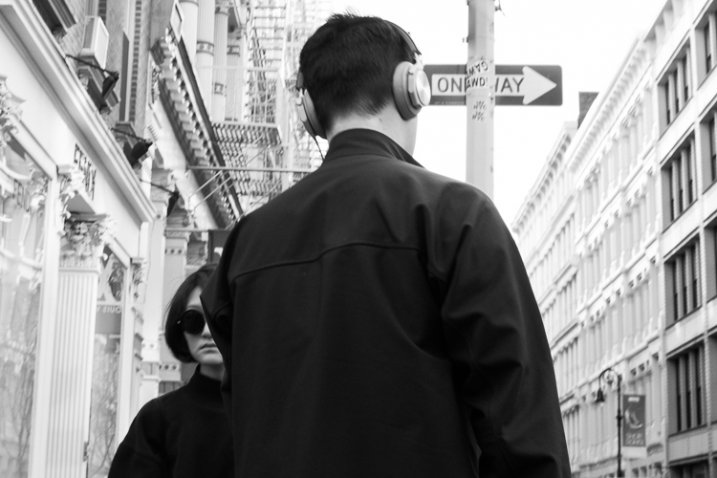
SoHo, NYC.

Part 1: Learning the Technical

1. Look at Light

When you start out in photography, it seems obvious to say that learning to use your camera is the logical first step. However, thinking this way can actually confuse you. The camera is just a tool that has the ability to record light.

When you walk out the door to photograph, the first thing you should think about is light, and not the camera. What time of day is it? How strong is the light and what direction is it coming from? Is it sunny or cloudy? Is the light soft or contrasty? Is the sun in front of, or behind you? Where are the artificial light sources and what colors do they give off?

This is the first thing that a seasoned photographer will look for every time they begin to shoot, and constantly be aware of while they are shooting. They do this for a reason. The light will affect how they shoot and the settings that they use. Even a slight change in direction to your light source can completely change how an image will look. You can’t learn how to use your camera correctly if you do not first understand the light.

2. Learn Your Camera Settings

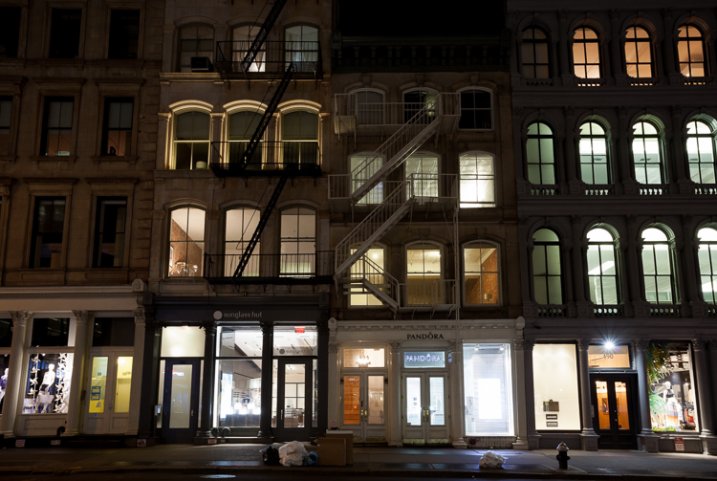
SoHo at Night, NYC.

SoHo at Night, NYC.

Once you evaluate the light and environment, and figure out how you want the image to look, that is when you want to think about camera settings. For instance, do you want as much of the image as possible to be sharp, or do you want a lot of bokeh in the background? Do you want to zoom in and have a compressed look to the image or would you rather use a normal or wide angle lens? Do you want it to be a high-key shot, or on the darker side?

That is when you change your settings to achieve the desired effect. It sounds like a lot of work just to take a single photo, and it is. However, if you start out shooting this way, eventually it will become second nature. It is just like learning a basketball shot or a golf swing. Doing it the correct way might feel unnatural and weird at first, but eventually it will come naturally and quickly, and you will be much better off for having spent time at the beginning to focus on it.

Take your camera off Auto and experiment with either shutter priority, aperture priority, or manual mode. Some photographers take pride in shooting manual, and sometimes it makes sense to shoot that way, but manual is no better than shutter or aperture priority modes, and in many situations it can be a worse way to shoot. It all depends on the situation.

Experiment with different zooms on your lens, with different apertures and shutter speeds, and experiment with different ISOs to see how the digital grain (noise) looks. Do not be afraid to raise your ISO when you do not have a tripod. Go back to look at your photos in Lightroom, zoom in to the details, and look at the settings to see how they altered the way your images look.

3. Composition and Form

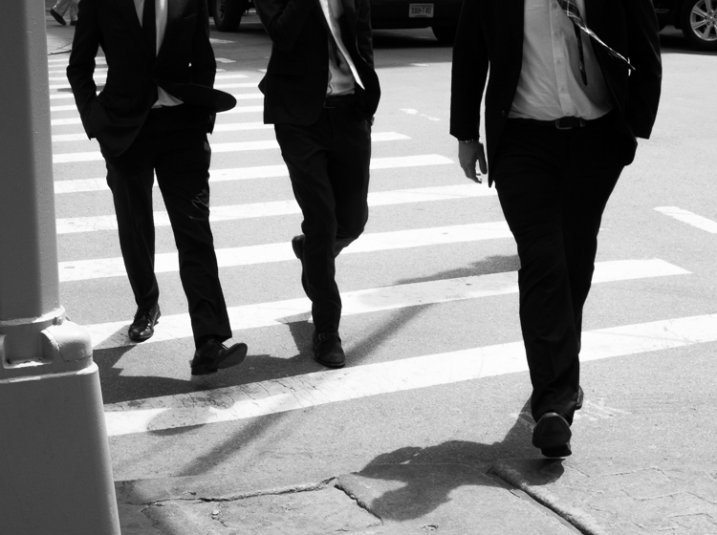
Three Men, SoHo, NYC.

Three Men, SoHo, NYC.

Now is the time to think about composition. Some newer photographers tend to have a bad habit – they look up, see something interesting, then they photograph it quickly and move on. Yes, sometimes you’re on the move and this is the only way to shoot, but take some time to compose your image in the best possible way. The difference between a snapshot and a work of art is thought. If you see an interesting scene, you need to think about how to best capture it. Where is the best place to stand? Can I include other elements into the scene to create a more complex composition?

I prefer to think about composition in this way – if I made a larger print, put it on my wall, and a friend came over and saw it for the first time, where would their eyes begin and how would they move through the image? How would it feel to them? Where are the lines in the image? What is the relationship of the main subject to the background? Is rule of thirds better here or is it better to center the main subject? Are there interesting shapes in the image? Do the edges of the image look good and keep the viewers eyes from moving out of the composition? Is there a foreground, middleground, and background in the image and does the image even need that?

The difference between a decent image and a great image could be moving a foot to the left. This is another idea that can seem overwhelming at first, but will come to you more naturally the more you pay attention to it.

4. Color

Dean & Deluca, SoHo, NYC.

Dean & Deluca, SoHo, NYC.

Color (or lack there of) is a very important element of photography. Look at a color wheel and study how the colors work together. What do different colors represent? Do the colors add to the image or detract from it? I enjoy creating both black and white, and color images, and this is one of the first questions I think about when I am editing.

What is the color quality of the light? Is it cool or warm, is there a color cast, and does that add or detract from the image?

In addition to thinking about color while shooting, you will find yourself significantly improving your ability with color while you are editing. Play around with color temperature to see if you like an image warmer or cooler. Desaturate it, or add a little saturation, to see how it feels. How does changing the contrast affect the colors?

For doing quality color work, make sure that you have a good monitor that has been recently color corrected. All your work will be for naught if your monitor shows colors that are different from the file and final print.

5. Learn Lightroom

Editing is vitally important to developing your vision and becoming a good photographer. I suggest using Lightroom, as it is the industry standard and it works well for so many photographers. Photograph in RAW to get the most flexibility and quality in your images and explore all of the RAW development settings. Try to recreate the looks of other photographers to get a feel for how their editing was done.

Be diligent about organizing your archive. A little time spent each time you upload images will save you so much time in the future. Star your good images (Lightroom allows 1 through 5 stars) so they are easy to find, and create collections based on ideas that you grow over time. Viewing your work in this organized fashion will help you develop your skills much faster than if you have a messy archive.

6. Print

Maybe my views are rooted in the past and nobody is going to print in the future, but I do not feel like an image is truly complete until it has been printed and framed. That is the final step to all of this, and it is a great feeling to put an image on your wall.

Photography Inspiration Corkboard

36×48 inch Corkboard

But there is another aspect to why you should print. It is one thing to see how your images look on a monitor, but it is a completely different experience to see them in their final, printed form. This will allow you to see how the light, the color, and your camera settings all affected the final image. You will learn a lot about how to shoot, from the art of printing. Try different papers, and view your prints under different lights.

My favorite printer is the Epson 3880, but you do not need to do the printing yourself. Create a relationship with a local printer, or one of the reputable companies online, and have them made for you. If you do not print frequently, it can be much more affordable to have your prints made for you than making them yourself. But, don’t forget that doing the printing yourself can be very fun and satisfying, and it gives you the ability to make slight changes and see how they look right away.

Try creating a photography corkboard. I have a 36×48 inch board next to my workstation and I swear by it. Fill it up with 5x7s and 4x6s and constantly change it. See how the images play off each other, which images last, and which you lose interest in. Use this as a playground for your prints.

Part 2: Developing Your Photographic Voice and Style

Nerves, SoHo, NYC.

Nerves, SoHo, NYC.

Once you have gotten this far you are in a very good spot. Technically, you know what you are doing, your prints look beautiful, and they are well composed. But what’s next?

The next step is to figure out how to take unique and interesting photographs. It is now time to spend more effort thinking about what it is that resonates with you in photography, and what makes an image stand out in your mind.

7. Photograph!

This is so simple, but it is the key to everything and needs to be said. So many people only take their cameras out on trips or vacations. They go to places that are specifically for photographing, such as mountain ranges, zoos, gardens, safaris, cute towns, or cities with great architecture. While this is great to do, push yourself further than that. Take some photographs during the course of your everyday life. Even use a cellphone when you are unable to take your main camera with you.

The best photographers can take great photographs in the most ordinary of places. Practice this. Go out, anywhere, or specifically go out to someplace that you think will be terrible for photography, and figure out how to take an interesting photograph there. This practice will help you so much in your development. You can understand light and camera settings cold, but if you are not out photographing in a variety of situations on a somewhat consistent basis, then you are selling yourself short as a photographer.

8. Galleries, Photo Books, and Reading

Disconnected, NYC.

Disconnected, NYC.

One of the best ways to develop your own voice and style is to look at the work of others. Go to galleries, purchase photography books, and study the images of great photographers. The internet is a great place to view photography, but it is so easy to get lost. Galleries and books are curated for a reason. Study the images, think about how they were done, and figure out the context behind them. Sometimes images will hit you whether or not you know the context behind them, but other times it can be important to learn about the photographer and the history that are behind the image. This will add another layer to your appreciation.

Try out the different styles of photographers that you like. Try to shoot like them to learn how they did it and why. Pick and choose your favorite elements from different photographers and merge them to create your own style.

Purchase some prints. I’ve heard this a few too many times (sorry for the gender stereotyping) but it’s usually a wife saying something to me like, “I’d love to get this for our wall, but if my husband sees me buying the work of another photographer, he’ll kill me!” The average home has a lot of walls; enough for many artists.

Yes, there is something satisfying about seeing an image, then going and figuring out how to create it for yourself, but it is really important to appreciate the works of others. Buy prints from other photographers to display along with books. Immerse yourself in the works of others to create your own inspiration.

Finally, one of my favorite ways to gain inspiration is to read about things unrelated to photography. Learn about where and what you are shooting. Read poetry, read current events, read anything. This practice is about growing your voice outside of photography; the two are related.

Nerves, SoHo, NYC.

Nerves, SoHo, NYC.

9. Keep Coming Back

Pick an area or a subject and immerse yourself in it. Go back to the same place at different times, in different light, and keep photographing it. This is very important for your growth since it will allow you to learn the area or subject like the back of your hand. Your images will take on more depth. There are photographers who have spent 40 years photographing in the same area.

10. Curate a small group of photographers and friends to show your work

The internet is an amazing place for sharing your work and learning about photography. However, it is also a very impersonal place. Everyone sees thousands of images a day from hundreds of people. While it’s definitely possible, it can be tough to get a proper critique and evaluation of your work over the internet.

Find a few people and put together a group to show physical images to every once in awhile. You ultimately want to shoot for yourself, but seeing how others relate to your images is important for your growth. The more they get used to your work and your style, the better comments and thoughts they will have for you.

These people do not have to be photographers. They can be friends, creatives, even significant others. A good tough critique from your partner can be very valuable. It can sometimes be tough to hear at first, but figure out how they really feel about an image. Your partner will know you well enough to be honest and not hold back, and that will be good for you to hear. Figure out what they like, and what they don’t like.

11. Put together an edit of similar images

One of the most beautiful aspects of Lightroom is that it allows you to create collections of images outside of your normal file structure. Start to group and sequence your images that relate to each other. Begin to turn them into a project. You can see how the images in this post relate to each other. This was done over time, not all at once. You can, and should, think about projects from the very beginning and go out to photograph them, but often projects and ideas will come about naturally during the process of daily shooting.

Doing this will help you notice these moments when photographing in the future and over time you will develop ideas organically into beautiful projects.

12. Develop a voice in your photography

Stroller, SoHo, NYC.

Stroller, SoHo, NYC.

If you have done the rest of these steps, your voice and style will develop organically over time. Think about it, and pay attention to it as you progress, but do not force it. Let it come to you over time. You can learn to use your camera quickly, but you cannot become a good photographer overnight. Take your time and try to improve a little bit each day and you will make huge strides over the course of a few years.

Have you followed these steps? Do you have any others you’d add as part of the learning and growth process? Please share in the comments below.

googletag.cmd.push(function() {
tablet_slots.push( googletag.defineSlot( “/1005424/_dPSv4_tab-all-article-bottom_(300×250)”, [300, 250], “pb-ad-78623” ).addService( googletag.pubads() ) ); } );

googletag.cmd.push(function() {
mobile_slots.push( googletag.defineSlot( “/1005424/_dPSv4_mob-all-article-bottom_(300×250)”, [300, 250], “pb-ad-78158” ).addService( googletag.pubads() ) ); } );

The post 12 Steps to Becoming a Good Photographer by James Maher appeared first on Digital Photography School.
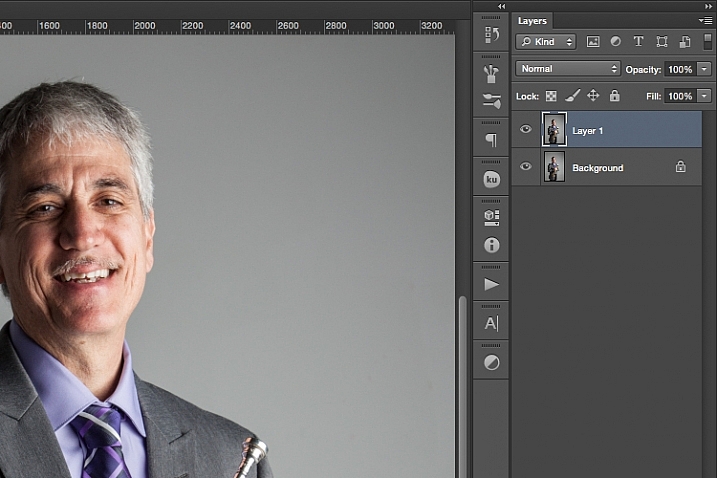

Digital Photography School

 
Comments Off on 12 Steps to Becoming a Good Photographer

Posted in Photography


5 Steps to Rock the Brenizer Method

07 Jun

Pier brenizer

What is the Brenizer Method?

The Brenizer Method is named after wedding photographer, Ryan Brenizer. He didn’t invent the method but instead made it popular by using it with his wedding clients, and teaching others how to do it as well. For those who have been around photography for a while, you will recognize the process. Photographers have been stitching images together to create panoramas for decades. However, Photoshop and similar software have now made this method extremely simple for you.

Advantages of using the Brenizer Method

Creating an image using the Brenizer method takes more time than just capturing a single image, but the results are well worth it. When using this method, you will create an image with:

  • Very high resolution
  • Very shallow depth of field (it equates to using a lens that has an f-stop less than 1)
  • Great bokeh
Mermaid brenizer

This image was created using 32 different shots and merged together in Photoshop to give it an extremely shallow depth of field.

PREPARING FOR THE SHOT

Once you’ve decided you want to try the Brenizer Method, you will need to decide where and what to photograph. Look for layers that will be interesting with a shallow depth of field. If you are shooting a subject, make sure the subject chooses a comfortable pose they can hold for up to 30 seconds.

Step 1 – Prepare Your Settings

Aperture – Shoot as wide as your aperture will allow. For some lenses that might be f/1.2 for others it may be f/3.5, and for the rest, it will probably be somewhere in between. The wider you can go, the more amazing effect you will achieve.

White Balance – You will want to choose any white balance other than auto. As you position your camera, auto white balance might change the color temperature as you move from shade to a brighter area or vice versa. Manually setting the Kelvin temperature is my preferred method. If you aren’t familiar with manipulating your white balance, here’s a great article to help you learn.

Focal Length – As you take these shots, you want your focal length to stay exactly the same. Shooting with a prime lens makes this easy, otherwise make sure to hold your lens carefully if it tends to zoom in and out easily.

Focus – Once you’ve set your focus on your subject, change it to manual and don’t touch it again until you’re done shooting your series.

SHOOTING YOUR SERIES OF IMAGES

Step 2 – Shoot Your Images Using an Organized Layout

Layout shooting

Capturing your images in rows from left to right (like reading a book) will give you greater chances of not having holes (gaps) in your images.

Shooting your series of images in an organized layout will help the images stitch together better in your editing software. When you first try this method, you might be tempted go out of order and continue adding as many images as you think you might need. When you do that, Photoshop might give you an image with some holes and extra pieces at the bottom of your picture.

Image with holes

I shot this image in a circular motion, instead of the row method shown above. Photoshop had a hard time properly merging the image. There were many extra shots it didn’t know what to do with, so I had to go in and manually piece some of the images together. Save yourself time and learn from my mistake.

Before you start shooting, think about your final image. Will it look best as a vertical, horizontal, square, or a panorama? Make sure to shoot enough shots to be able to crop it in your preferred orientation.

Step 3 – Overlap Your Shots

While you are shooting your series of images, make sure to overlap each shot by at least 1/3. That will give the software enough information to see where each image belongs when it does the stitching. Most people take between 20-50 shots in their series that will be compiled into one final image. Take as many as you need and overlap by more than 1/3 if you feel more comfortable with that. As you gain experience with the Brenizer method, you will probably find a way to get the same result with less shots.

PROCESSING

Step 4 – Batch Edit All the Images

When you are ready to process the images, load them into a batch editing software, like Lightroom or Adobe Camera Raw. Edit the first image (exposure, contrast, saturation, etc.), then sync the entire batch of images so the exact same editing has been applied to each image in the series.

Next, you are ready to export your images. Since you’re going to be merging so many images together, there is no reason to export these as high resolution files. Doing so, would only slow down the process in Photoshop. Export your images as JPGs, with the long edge between 700-1000 pixels, depending on how many images you’re going to be merging.

Step 5 – Merge the Images

Photoshop steps

1 – In Photoshop, click on File, Automate, and Photomerge. 2 – Leave the default settings selected and browse for your series of images. 3 – After the image merges, there are often extra images below the merged image. Sometimes they are extra and not needed because of the amount of overlapping, or sometimes the software doesn’t know where they belong and you’ll have to manually put them in their place. 4 – I decided that my image was fine without the extra images, so next I cropped out the excess to create the final image.

Finally, open Photoshop. Go to File > Automate > Photomerge… When the window pops up, keep the default settings of “Layout: Auto and Blend Images Together” checked. Browse for your images and hit “OK”. Then it’s a waiting game. Depending on your file sizes, and the number of images your computer is processing, this could take 1-10 minutes.

Note: Similar results can be created using other software. To save time, I’m just mentioning the process I use with Photoshop.

If you shot your series in an organized layout, your software should have been able to piece your image together well. All that’s left to do is crop your image to the orientation you were hoping to use (vertical, horizontal, square, or panorama) and save it as a JPG. Voila!

It may seem like a lot of steps your first time through, but with more practice it becomes second nature.

Your Turn

Have you tried creating an image using the Brenizer Method? What was your experience? Do you have any additional tips that would help those getting started? Let us know in the comments. Also, feel free to share your Brenizer Method images as well. We’d love to see what you create!

googletag.cmd.push(function() {
tablet_slots.push( googletag.defineSlot( “/1005424/_dPSv4_tab-all-article-bottom_(300×250)”, [300, 250], “pb-ad-78623” ).addService( googletag.pubads() ) ); } );

googletag.cmd.push(function() {
mobile_slots.push( googletag.defineSlot( “/1005424/_dPSv4_mob-all-article-bottom_(300×250)”, [300, 250], “pb-ad-78158” ).addService( googletag.pubads() ) ); } );

The post 5 Steps to Rock the Brenizer Method by Danielle Ness appeared first on Digital Photography School.
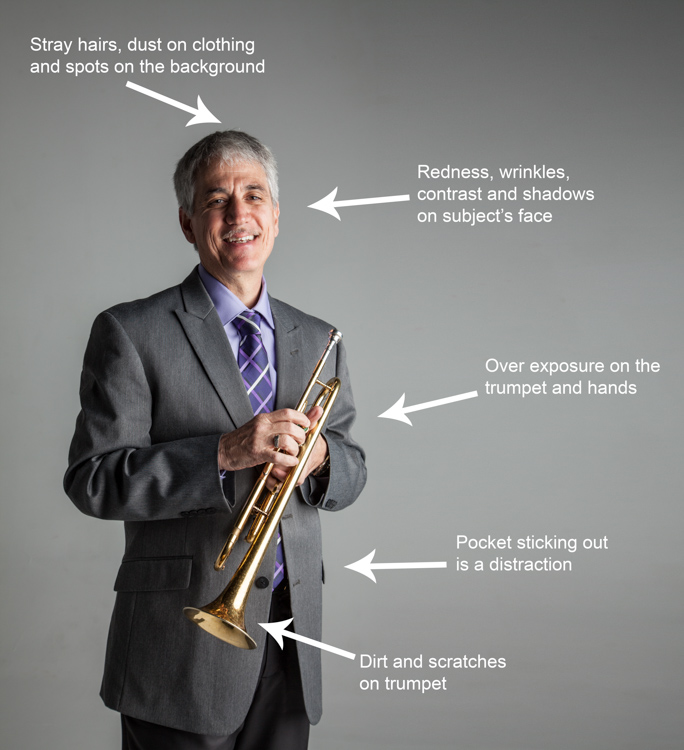

Digital Photography School

 
Comments Off on 5 Steps to Rock the Brenizer Method

Posted in Photography


7 Steps to Create Street Photography Silhouettes

05 Jun

For the street photographer, shooting a perfect silhouette is a very gratifying moment. Just like anything else in street photography, not every subject makes for an interesting silhouette photograph. Here are a few tips to help you capture an interesting silhouette on your next photo walk.

Some elements, such as bicycles, make for more interesting silhouettes.

Some elements, such as bicycles, make for more interesting silhouettes.

1. Set your camera for success

To shoot a silhouette you have to take control of your camera first. Your flash needs to be turned off. Ideally your exposure is set for the highlights (background). If you set your exposure on your subject, your camera will try to expose your subject properly. The result would reveal too much detail in the subject and blow out the highlights in the background. Exposing for the highlights is easily done if your camera is set to spot metering. You can also use average metering and trick your camera by stopping down your exposure compensation so that your subject remains dark.

Focussing can be tricky. You can spot meter for the highlights and manually focus on your subject. Or, if you shoot in Aperture Priority, set your aperture to a large number (small aperture) to allow for most of the scene to be in focus (large depth of field)

It is important not to blow out the highlights in sunrise and sunset silhouettes.

It is important not to blow out the highlights in sunrise and sunset silhouettes.

2. Don’t be afraid to blow out the highlights

Okay, I just told you to expose properly to avoid blowing out the highlights. That is certainly a good thing to keep in mind if you are shooting against the sunset, sunrise or the moon light for example. The rest of the time, unless the details in the background add to your story, you’re better off blowing out the highlights and going for a more dramatic effect. Your silhouette will stand out more on a white and unobtrusive background.

Details in the background should not distract from your silhouette.

Details in the background should not distract from your silhouette.

3. Learn to recognize a good silhouette

Now you know the basic technique to shoot a silhouette, that was the easy part. The most important piece is to be able to see a potentially strong subject, so be discerning!  Many elements come into play. The body being well defined is important, you should be able to recognize the shape right away. If the subject is facing you or his/her back is turned to you, there should be space between the arms and the body, the legs should be well defined as well. If you are photographing a person looking sideways, the features of their face should be quite clear.

Capturing the right gesture or step is a key element in a successful silhouette in street photography.

Capturing the right gesture or step is a key element for a successful silhouette in street photography.

4. Avoid obstructions

Avoid obstructions in front of, and behind your subject. Timing is important. Silhouettes of posts or other obstructions can ruin the shot. Position yourself accordingly for the best possible shot.

Timing is everything, especially in a cluttered environment.

Timing is everything, especially in a cluttered environment.

5. Try some added effects

A sunburst can be an added bonus to a silhouette photograph, and a welcome added challenge for you, the photographer.

Add to the challenge with a sunburst effect.

Add to the challenge with a sunburst effect.

6. Try a minimalist approach

Find an interesting architecture or urban landscape and wait for someone to enter your frame. Even small, the human element becomes the focal point.

A minimalist approach to photographing a silhouette can make for a strong image.

A minimalist approach to photographing a silhouette can make for a strong image.

7. Tweak in post-processing

If you use Lightroom, you can easily tweak your photograph by using the contrast, highlights, shadows and black sliders for the final touches and the look you envision.

Now grab your camera and hit the streets!

googletag.cmd.push(function() {
tablet_slots.push( googletag.defineSlot( “/1005424/_dPSv4_tab-all-article-bottom_(300×250)”, [300, 250], “pb-ad-78623” ).addService( googletag.pubads() ) ); } );

googletag.cmd.push(function() {
mobile_slots.push( googletag.defineSlot( “/1005424/_dPSv4_mob-all-article-bottom_(300×250)”, [300, 250], “pb-ad-78158” ).addService( googletag.pubads() ) ); } );

The post 7 Steps to Create Street Photography Silhouettes by Valerie Jardin appeared first on Digital Photography School.
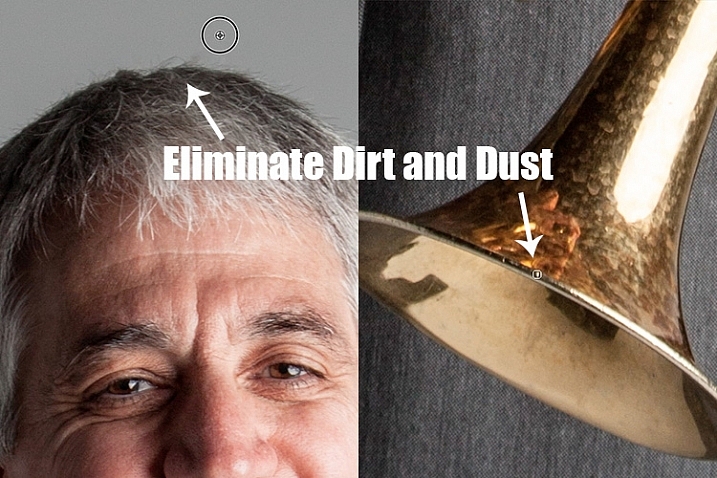

Digital Photography School

 
Comments Off on 7 Steps to Create Street Photography Silhouettes

Posted in Photography