RSS
 

Posts Tagged ‘Steps’

5 Troubleshooting Steps for When Your Nikon’s Autofocus Stops Working

03 Apr

You’re in the middle of a photoshoot and suddenly you notice nothing in your viewfinder is in focus. Your shutter and AF-ON buttons (if using back-button focusing) do not seem to work. All eyes are on you, and the pressure is on to quickly fix the problem. Where do you start? Or perhaps you have just changed lenses and suddenly nothing works. Where might you have gone wrong?

This has happened to me one too many times, so I have now come up with a system of troubleshooting in the quickest time possible on the spot. It goes without saying, of course, that your camera needs to be switched to ON and the lens cap needs to be off.

nikon-autofocus-troubleshooting-photo-tips

#1 Autofocus not Manual

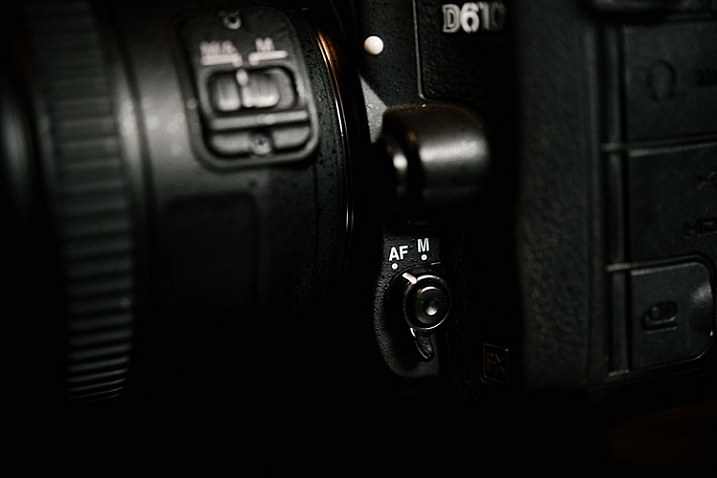
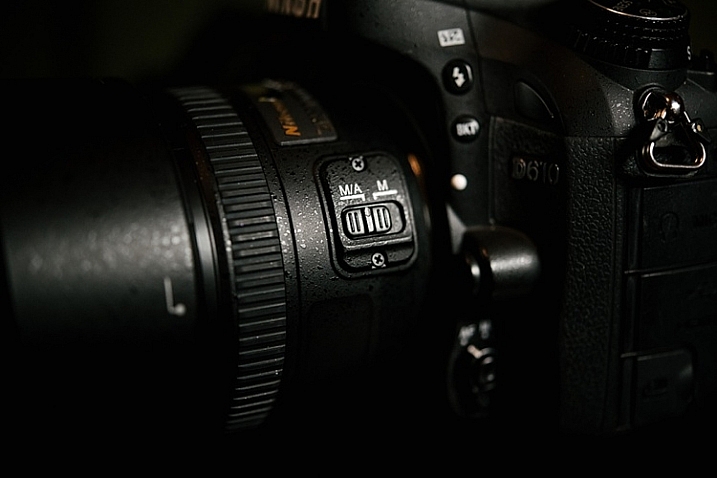
Check that both the lens and the camera switches are both pointing towards Autofocus. On the camera it must be set on AF, not M, and on the lens put it to M/A (A stands for Autofocus and M for Manual, M/A allows you to use both). Flicking the lens switch to Manual can be done unwittingly and fairly easily, especially if you are in a rush to change lenses.

nikon-autofocus-troubleshooting-photo-tips

nikon-autofocus-troubleshooting-photo-tips

#2 Back dial is not Locked

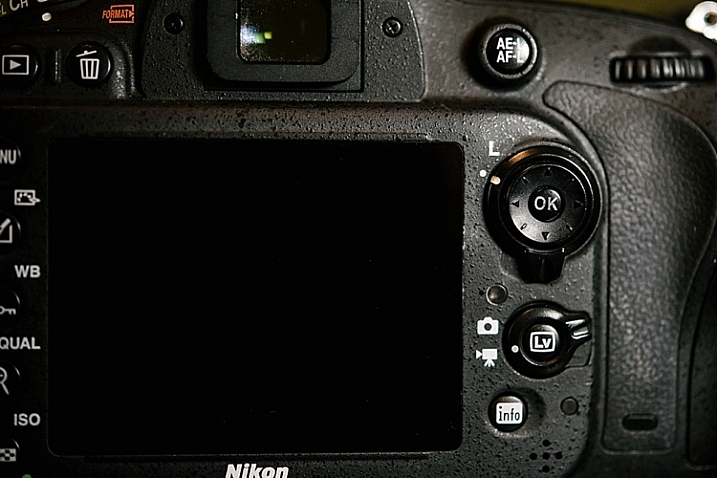
Check that the dial is pointed towards the camera icon and not the L, which stands for lock.  You can easily flick this dial, especially if you are back-button focusing and your dial sees so much action.

nikon-autofocus-troubleshooting-photo-tips

#3 AEL / AFL

Check your AEL/AFL button that you haven’t locked focus. Clicking it once locks focus so click it another time to unlock focus.

nikon-autofocus-troubleshooting-photo-tips

#4 Check the lens

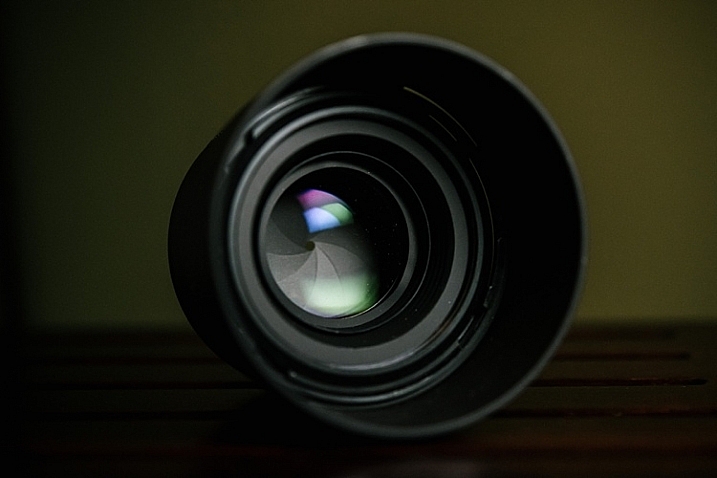
Remove the lens. Inspect the front and rear lens aspects for smudges or dirt. Check also that no part of the lens is broken. If you have filters on your lens, check that they are clear and there are no cracks. When you re-attach the lens, make sure you hear a click once the lens is twisted in place.  If there are any smudges on the lens, make sure you clean it with a lens cloth, and do not blow on the lens.

Lens cloths are usually lint-free pieces of material, and should be used with a lens cleaning solution, rather than anything with solvents. Blowing on the lens can contribute to lens damage since a person’s breath can contain harmful acids. If you feel you have to blow, use a lens bulb blower and a brush.

nikon-autofocus-troubleshooting-photo-tips

#5 Viewfinder

Finally, check your viewfinder and make sure there are no oils, smudges or dirt covering your sight. You can clean the viewfinder the same way you clean your lens.

nikon-autofocus-troubleshooting-photo-tips

#6 Bonus

This applies to any camera, not just Nikons. If something is going on with your camera that is odd – turn it off for a few seconds, then turn it back on. It’s like a reboot for your camera, just like you do with your computer. If that doesn’t work you can also try removing the battery for a minute or more (remember to turn the camera off before removing the battery). As a last ditch effort you could try resetting all functions and settings on the camera to factory default. If it still isn’t working test the camera with another lens, if that one works you may need to take your lens in to get serviced. If the

I hope this little troubleshooting guide helps when you get stuck with focusing problems. Do you have any other quick focus troubleshooting tips to share?

googletag.cmd.push(function() {
tablet_slots.push( googletag.defineSlot( “/1005424/_dPSv4_tab-all-article-bottom_(300×250)”, [300, 250], “pb-ad-78623” ).addService( googletag.pubads() ) ); } );

googletag.cmd.push(function() {
mobile_slots.push( googletag.defineSlot( “/1005424/_dPSv4_mob-all-article-bottom_(300×250)”, [300, 250], “pb-ad-78158” ).addService( googletag.pubads() ) ); } );

The post 5 Troubleshooting Steps for When Your Nikon’s Autofocus Stops Working by Lily Sawyer appeared first on Digital Photography School.


Digital Photography School

 
Comments Off on 5 Troubleshooting Steps for When Your Nikon’s Autofocus Stops Working

Posted in Photography


8 Steps to Great Long Exposure Landscape Photography

21 Mar

longexposure_landscape2

In this article I will outline eight steps, that will help visualize what you’ll need to capture beautiful, well-planned, and unique images that you’ll be happy with.

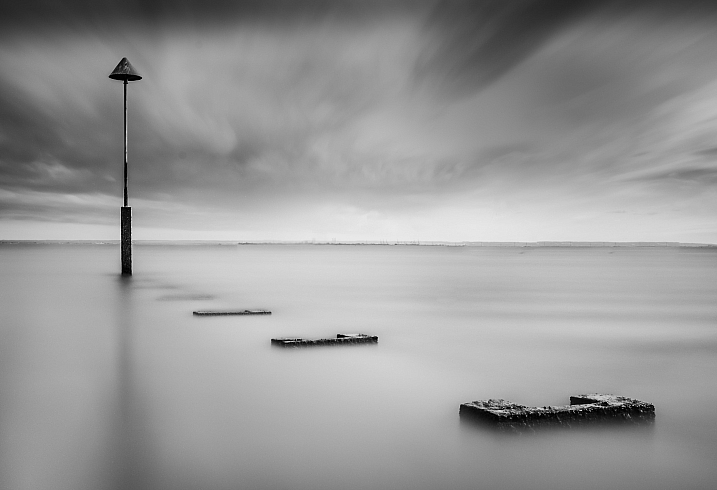
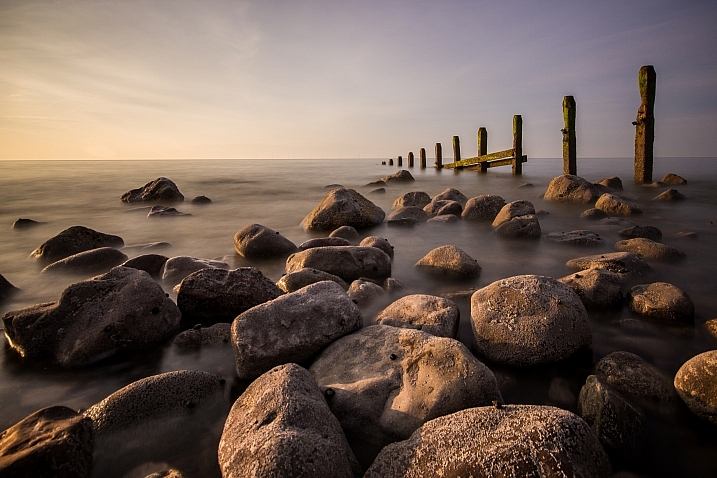
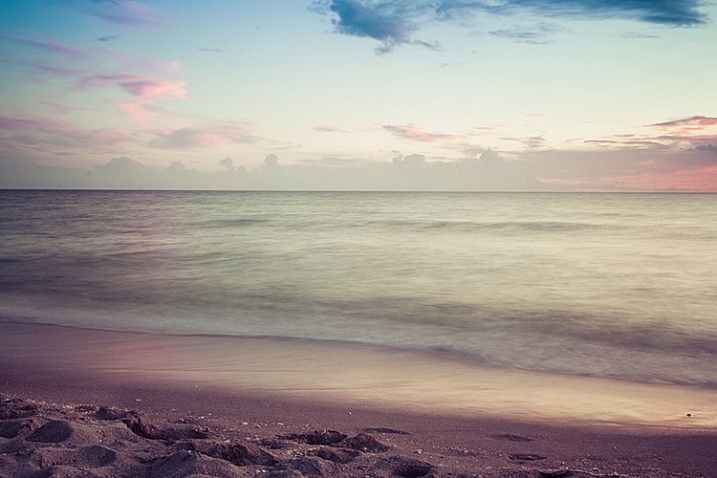
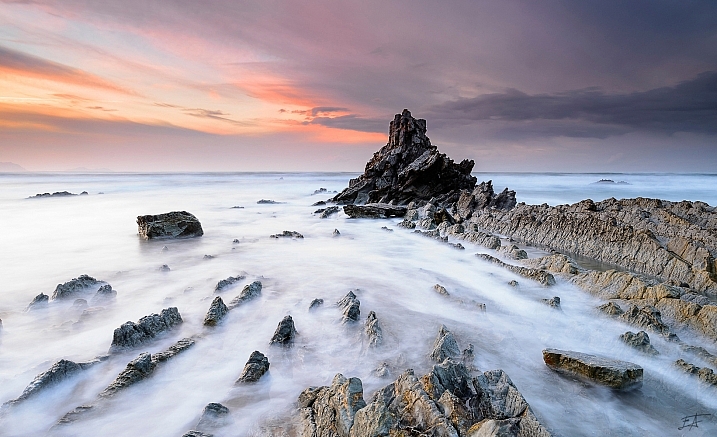
Long exposures are the true artworks of photography; a normally static and bland scene can become a dynamic masterpiece when the shutter is left open, and the capturing of movement occurs. Surf on a beach becomes a swirling, cloud-like mass, and grasses flowing in the wind become a single, beautiful entity. This is a situation where what you see, and what you end up with, are usually two very different things, and the results are often breathtaking.

But capturing that beauty can be challenging. So what do you need to focus on to make a long-exposure landscape shot work? Let’s explore that a bit more.

David McAughtry

By David McAughtry

1. Choose your location wisely

Before you even shoot your landscape, you’ll need to decide what type of shot you’ll tackle, and what environment you’d like to shoot in – whether it be a grassy plain, a seascape, or a busy highway.

Long exposure photography is about capturing, and translating movement within a frame. Spend some time deciding what you’re trying to capture, and what movement you want to accentuate. Rolling waves? Swaying grass? Flowing clouds?

Take a moment to envision what your scene will look like, and what parts of it will be stationary, and which parts will be fluid.

Aaron

By Aaron

2. Be patient and wait for the right time

Long exposures, at their very basic premise, require one of two things to work properly. Either very dim light situations such as the golden hour time periods, very early, or very late in the day – OR modifiers added to the camera to diminish the light that is coming in through the lens.

The reason you need one of these is because leaving the shutter open for longer periods of time, monopolizes one corner of the exposure triangle. When a normal amount of light strikes the camera’s sensor for an extended period of time, you’re guaranteed an overexposure. Therefore, you’ll need to change one of the variables to reduce that amount of light.

longexposure_landscape

The solution? Plan your shoot for very early in the morning, and very late in the evening. The darker it is outside, the longer you’ll be able to leave your shutter open, and therefore the more motion you’ll be able to capture in your image.

If you’re unable to shoot at those times, you’ll need to invest in a neutral density filter, preferably one with the ability to reduce the amount of light coming in to your lens by 10 stops, or more. These filters also add an extra layer of uniqueness to your images, because they allow you to shoot these long exposures at times of the day you normally don’t expect to see them.

3. Select the perfect lens

Of course, there are no hard and fast rules about which lens you’ll need to use, but traditionally, landscapes are captured with wide-angle lenses, to broaden the view and translate a sense of expansiveness.

Can you capture a landscape with a standard 50mm lens? Of course you can! But to maximize the open feel of a scene, consider using something wider. Keep in mind that the more you capture within the frame, the more movement it will contain.

070515_

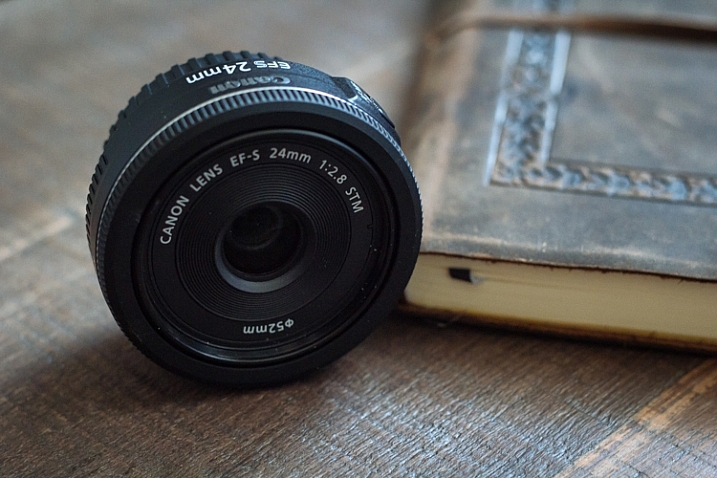
I personally use a 24mm f/2.8 pancake lens for most of my landscape shots. While it’s not as wide as what some people use, I find it gives me a good middle ground, with a wide focal length, and very little of the distortion traditionally associated with super-wide glass.

4. Bring the proper equipment

While we’re speaking about the planning phase of your shoot, it’s a perfect time to consider what gear you’ll need to pull off a long exposure landscape. As it happens, it’s the same equipment you’d need for any other long exposure shot.

A tripod is a invaluable piece of gear for any landscape photographer, and for a long exposure, it’s an absolute requirement. Exposures of several seconds, which are required to produce movement within the image, need a stable base for the camera. The slightest amount of movement can cause blurriness, and that is amplified with longer and longer shutter times. Invest in a good, sturdy tripod, and ensure nothing will blow or bump into the unit while in operation.

013016_

Another essential accessory for this situation is a remote shutter release. There’s really no excuse for any landscape photographer to not have one, as they can be found for your camera model for $ 10, or so. These releases connect to your camera, and allow you to activate the shutter without ever touching the camera body itself. This keeps the vibration during the shutter click to an absolute minimum.

5. Use the correct camera settings

Since you’re using longer exposure times to pull off this type of shot, you’ll need to make adjustments to other parts of the exposure triangle. Generally, this means you need to stop your aperture down as far as you can, while maintaining sharpness, and reducing your ISO to the lowest setting. These two settings will allow you to bump your exposure time up, to long enough to capture movement in your image.

Fortunately this also gives you some bonus advantages; a lower ISO (such as 100), will keep the noise and artifacts in your shot to a minimum, giving you the best possible image quality. In addition, lenses tend to be sharper in the middle aperture ranges. Using apertures such as f/8, f/11 or f/16 will give you a nice, deep depth of field throughout the picture, while also taking a sharper, clearer photo than what you’d generally get with an extreme aperture of f/22 (due to diffraction).

022916_

As always, shoot in RAW. This will capture as much data as possible, and allow you to make non-destructive edits to the file later. Shooting in RAW format also negates the need to fiddle with white balance while shooting, since that can be adjusted in post-production.

If you do set white balance at the time of the shot, it’s usually a good idea to select the Daylight preset, or a custom white balance setting of your own, that counterbalances the extreme warmth encountered at sunset, and vice-versa for a shot at sunrise, which is a cooler time of the day, color temperature-wise.

6. Focus on your composition

Ekaitz Arbigano

By Ekaitz Arbigano

When you have your equipment and settings where they need to be, it’s time to take a moment to compose your shot. What are you capturing? The movement of a body of water like the surf from the ocean? Adjust your composition to allow for more of the water to be in the composition, instead of the sky. Are you trying to focus on the movement of clouds across the sky? Then give that part of the scene more attention within your frame to accentuate it.

7. Envision and anticipate movement

Shooting a moving scene, and attempting to capture that movement involve a bit of foresight, not unlike a marksman leading his target, by visualizing where the target will be when the shot gets there.

longexposure_landscape3

How far will the clouds move in the duration of the exposure? In which direction? Plotting this out before you click the shutter will improve your final image.

For example, capturing the ebb and flow of surf pounding a beach, requires knowing where the surf-line will end, and begin to recede back into the ocean, to properly compose it. Watching the movement of the subject you’re shooting, will help anticipate where it will appear in the final image. It’s always pays to plan ahead!

8. Enhance beauty in post-production

Finally, (and yes, this can be a touchy subject), learn to excel with the post-production process. A long-exposure image will already by eye-catching just by its inherent properties, but it’s important to take time during editing to enhance the beauty you’ve already captured in camera.

This shot initially had a cooler white balance, due to being shot in the morning, as opposed to during sunset.

This shot initially had a cooler white balance, due to being shot in the morning, as opposed to during sunset.

Since you’ll be shooting early or late in the day, tones will most likely already be dramatic, but may require some light boosting of the colors, or dodging and burning in Photoshop to add a bit more.

Since you shot at a low ISO to begin with, you likely won’t have to deal with noise reduction. After your exposure and tones have been taken care of, a little sharpening is all that stands between you and the final image.

Aaron

By Aaron

So that’s it folks, the eight steps to get you started on the path to taking great long exposure landscape shots. What other tricks of the trade do you use to get the perfect capture? Sound off in the comments below, and as usual, let your voice be heard.

This week on dPS we are featuring articles on special effects. Check out the others that have already been published here:

  • How to Photograph the Full Band of the Milky Way
  • Fire Spinning with Steel Wool – A Special Effects Tutorial
  • Special Effect – How to Create Multiple Flash Exposures in a Single Frame
  • Stacking Light Trails for Night Photography Special Effects
  • 26 Unique Special Effects Photos to Spark Your Creativity
  • Weekly Photography Challenge – Special Effects
  • Tips for Shooting Through Objects to Create a Special Effect
  • How to Add Vintage Frame Overlays Using Alien Skin Exposure X

googletag.cmd.push(function() {
tablet_slots.push( googletag.defineSlot( “/1005424/_dPSv4_tab-all-article-bottom_(300×250)”, [300, 250], “pb-ad-78623” ).addService( googletag.pubads() ) ); } );

googletag.cmd.push(function() {
mobile_slots.push( googletag.defineSlot( “/1005424/_dPSv4_mob-all-article-bottom_(300×250)”, [300, 250], “pb-ad-78158” ).addService( googletag.pubads() ) ); } );

The post 8 Steps to Great Long Exposure Landscape Photography by Tim Gilbreath appeared first on Digital Photography School.


Digital Photography School

 
Comments Off on 8 Steps to Great Long Exposure Landscape Photography

Posted in Photography


11 Steps for Basic Portrait Editing in Lightroom – A Beginner’s Guide

16 Mar

I love Lightroom, and use it for the vast majority of my portrait editing. You can achieve a wide variety of portrait effects in Lightroom, from harsh and grungy, to soft and dreamy. My technique varies depending on the kind of portrait I’m editing, although the workflow remains consistent.

The photo I’ve selected for this exercise, is one you can easily replicate at home. It was shot indoors, with a large window as the only light source, and is one of a series shot in the same location.

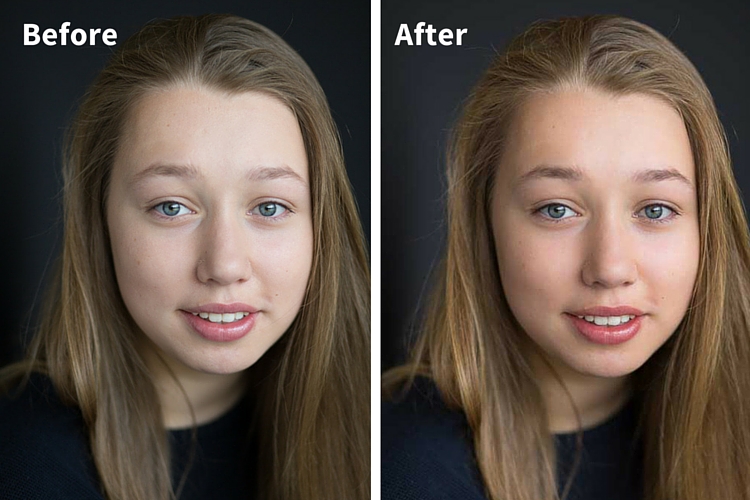
Before and after

One of the great features of Lightroom is the ability to sync settings. It’s a huge time-saver when you have a series of images, all shot in similar conditions. Once you are happy with the general settings (white balance, shadow-highlight ratio, etc.) of one image, you can sync the rest of the images in the series, with the same settings. After that, you’ll only need to fine-tune the others.

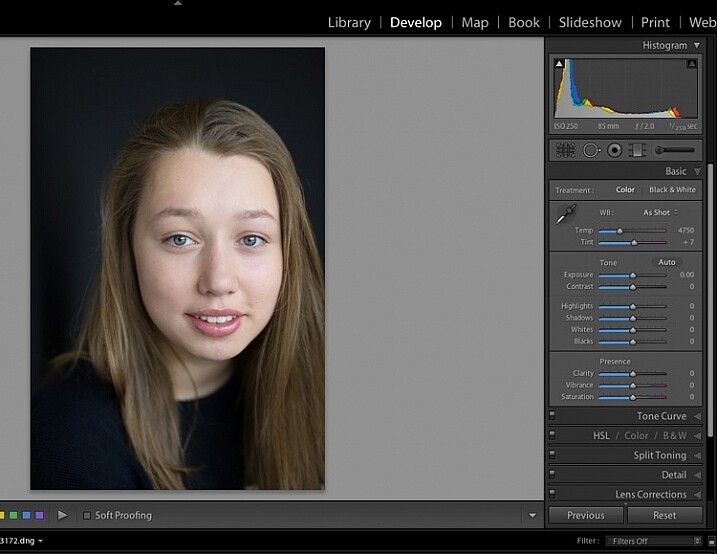
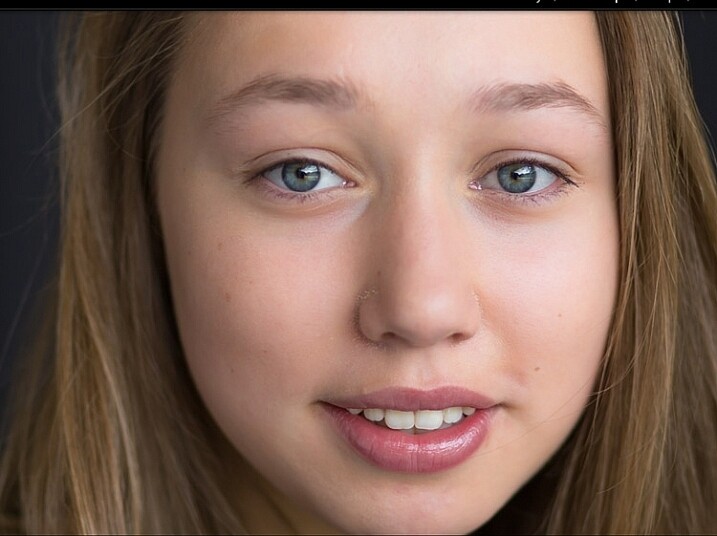
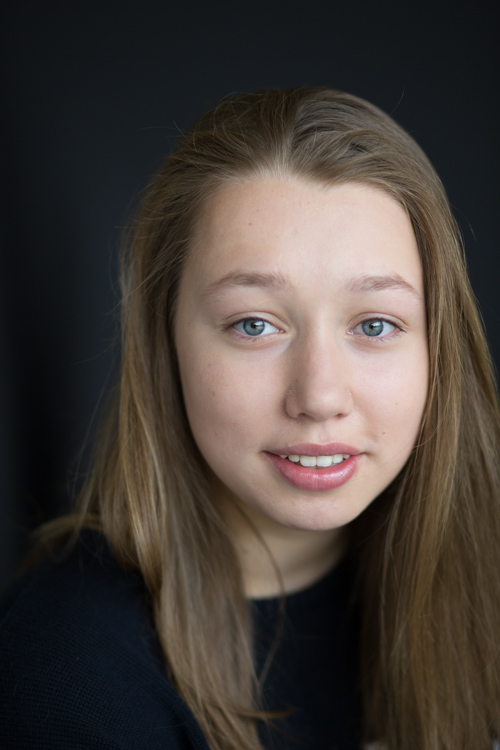
This before image is too cool for my liking, and there is not enough separation between the model’s hair and the background. I am also going to smooth out her skin tone, and bring a bit more sparkle to her eyes.

As you work through each step on your own image, play around with the sliders to see what effect each one of them has.

Step #1: Import your file

Image showing basic portrait editing in Lightroom

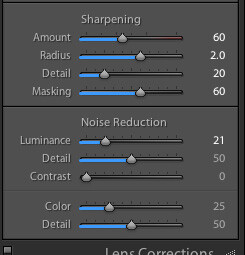
Sharpening preset

In the LIBRARY module, import your image into Lightroom. I have created a custom sharpening preset (shown here), which I find works with the majority of my portraits. I apply this preset upon import – a handy shortcut, especially when you’re importing a large number of images at once. It’s easy to create your own presets in Lightroom, read this tutorial How to Create Your Own Lightroom Presets on dPS, that shows you how.

To apply a preset on import, go to the righthand panel in LR, to the tab labelled “Apply during import”. Go to Develop settings > user presets, then click on the preset you wish to apply.

Once you have imported your file, go to the DEVELOP module.

Image for basic portrait editing in Lightroom

Import your file.

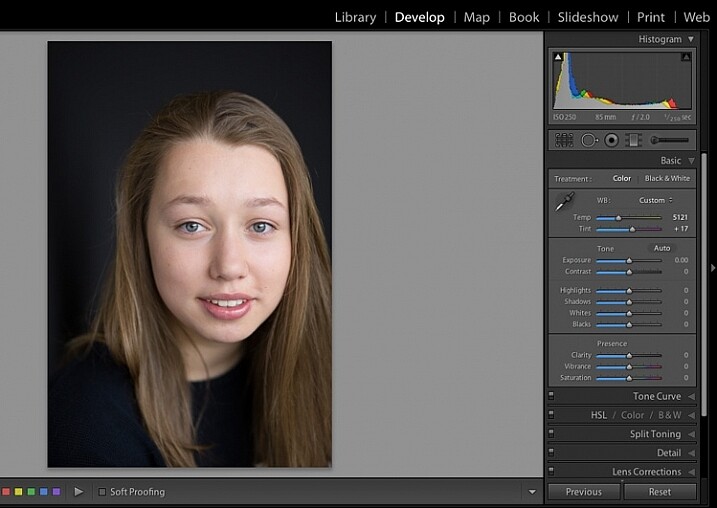
Step #2: Adjust  the white balance

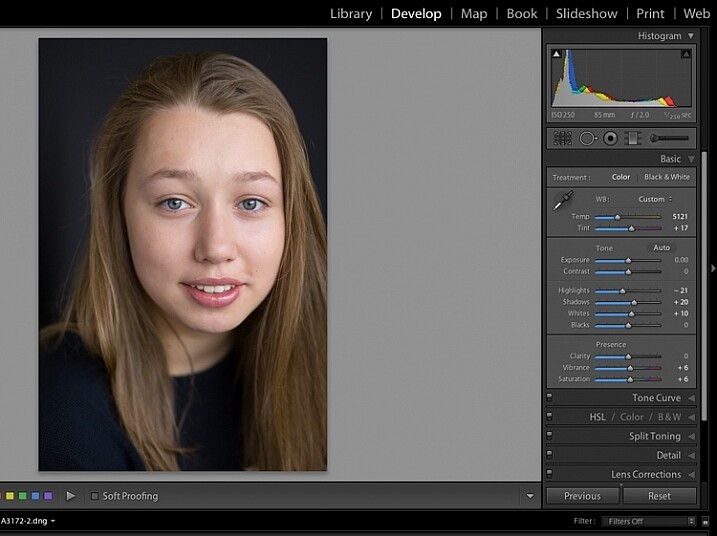
The colour tint in this photo is a bit cold. There are a number of ways to adjust the white balance. If there was a neutral wall or surface in this photo, you could use the eyedropper tool. In this case, there isn’t a neutral reference, so I have moved the sliders under the white balance section to give the image more warmth.

Image for basic portrait editing in Lightroom

Correct the white balance.

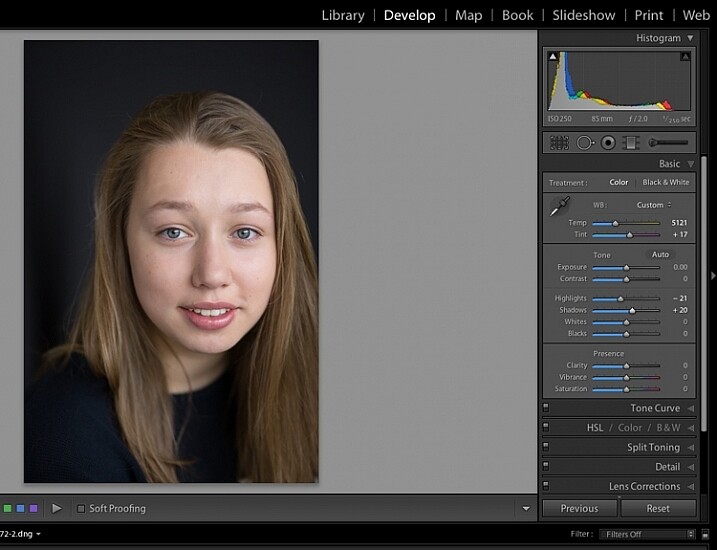
Step #3: Adjust highlights and shadows

The model’s skin tone is a little too light, and her hair and the background are too dark. To redress the imbalance, pull back the highlights and lighten the shadows. You can fine-tune this later if necessary.

Image showing basic portrait editing in Lightroom

Adjust highlights and shadows.

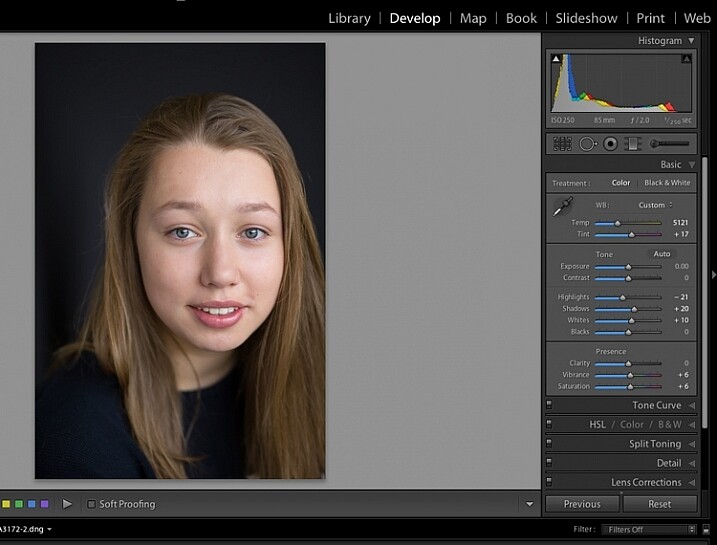
Step #4: Increase vibrance and saturation

The image still looks a little dull. Use the sliders under the presence tab to increase the vibrance and saturation, and move the whites slider up to give your portrait a nice clean look. Now it’s starting to look like my model’s real-life skin tone.

Image showing basic portrait editing in Lightroom

Increase vibrance and saturation.

tep #5: Crop your image

You can crop at any stage. I’ve cropped this image for a tighter, better-balanced headshot.

Image showing basic portrait editing in Lightroom

Crop your image.

Step #6: Soften the skin

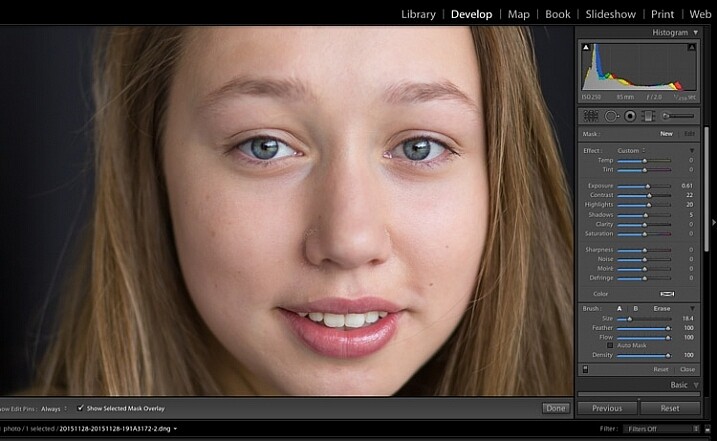
Zoom in to take a closer look at the skin. This model is very young with almost flawless skin. Usually I wouldn’t do much, if any, softening with such great skin. However, for the purpose of this exercise, I will.

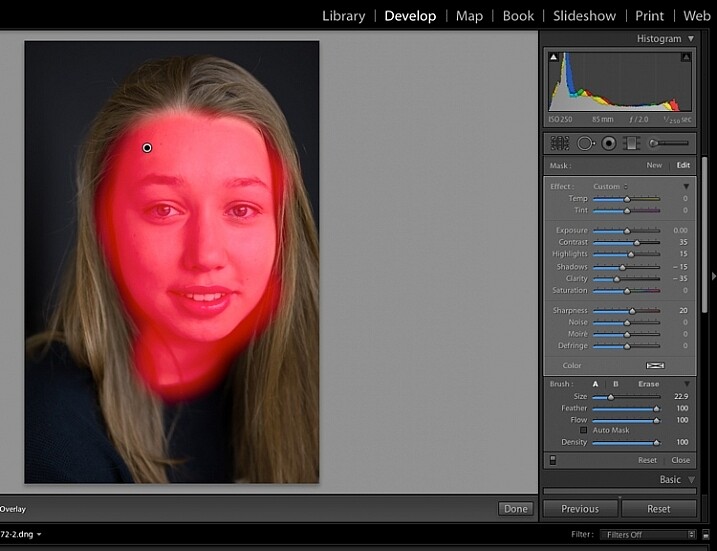
Select the brush tool. You can load your brush with any adjustments you want to apply. Although there are brush presets you can use for skin softening, teeth whitening, etc., I find them too heavy-handed.

Set the clarity slider down to around -35 to -40, and the (contrast to +35, and the Highlights to +15 or so – this will help maintain contrast and keep the face from looking flat) sharpness up to +20. This will vary according to your subject’s skin, and the kind of effect you want to achieve. In this example it will just even out the skin tone and give it a soft, glowing appearance. A mature person photographed in stronger light, will require a different treatment. The lower the clarity slider, the softer the skin will appear. For a grungy look, increase the clarity slider.

Reducing the clarity tends to flatten out the image, so you can increase the contrast, deepen the shadows and increase the highlights to balance this out. Keep the feather and flow at 100%, and brush all over the face with a large brush.

Image showing basic portrait editing in Lightroom

Zoom in close to look at the skin.

Image showing basic portrait editing in Lightroom

Brush all over the area with your adjustment brush.

Step #7: Fine-tune your adjustments

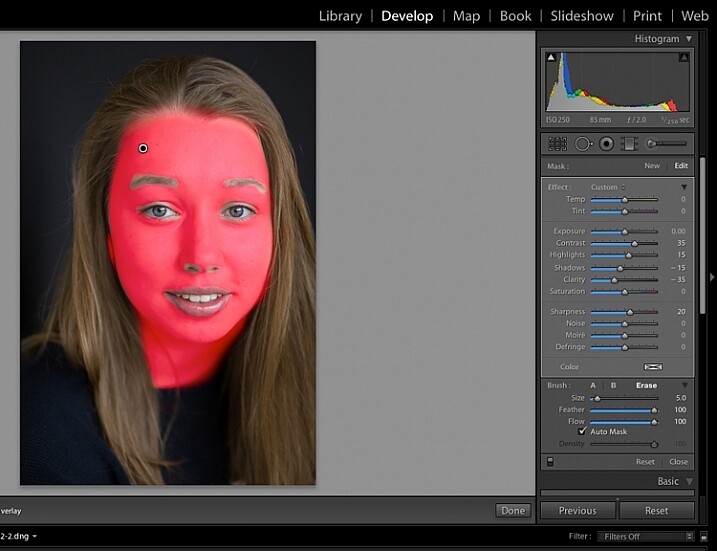
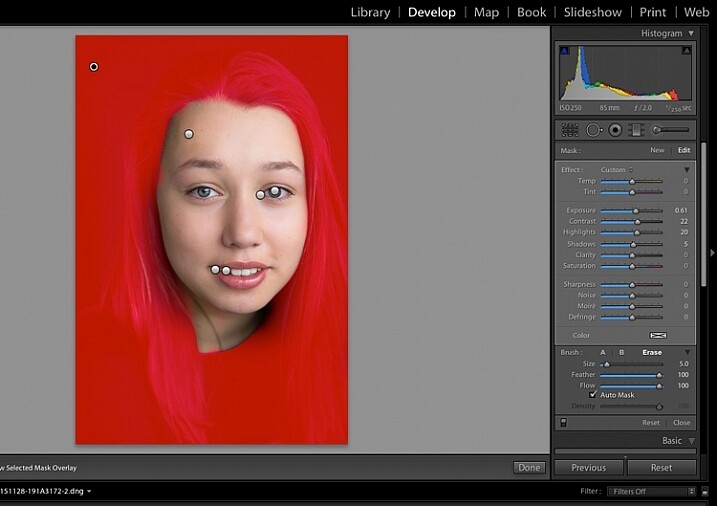
Underneath the image, check the box “Show selected mask overlay”  (or use the keyboard shortcut, O) to see exactly what parts of the image your brush adjustments have touched. Often you’ll find it has covered the eyes and mouth, which is not desirable. Still using the adjustment brush, click on the erase brush tool, and remove the brushed-on effect from around the eyes, mouth, and hair.

Image showing basic portrait editing in Lightroom

Brush off the adjustments from unwanted areas.

Image showing basic portrait editing in Lightroom

Here are the adjustments so far. Looking good.

Step #8: Brighten the eyes

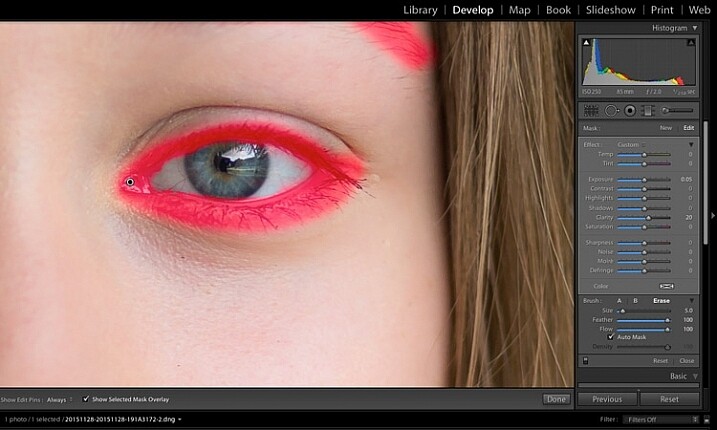
Zooming in even closer, then use the Adjustment Brush to add clarity and sparkle to the eyes. Note that by increasing the clarity, you also make the affected part of the image darker. Compensate with your exposure slider.

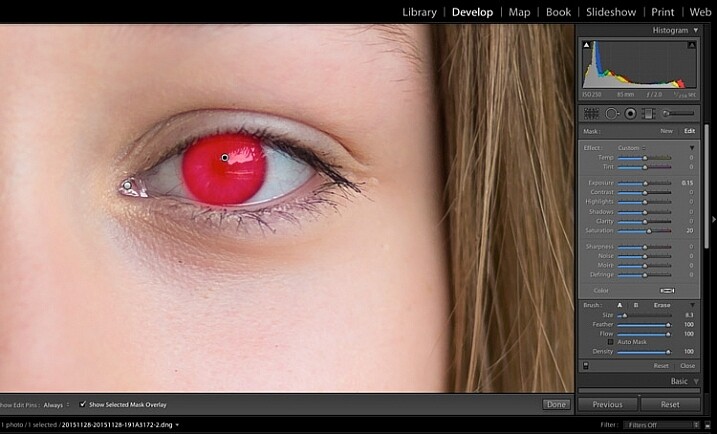
In this photo, I also increased the saturation of the iris a little to enhance the blue of the model’s eyes. Be sparing with this technique to avoid an unnatural look.

Image showing basic portrait editing in Lightroom

Use the brush tool to sharpen the outline of the eyes.

Image showing basic portrait editing in Lightroom

Treat the iris separately.

Step #9: Add colour to the mouth

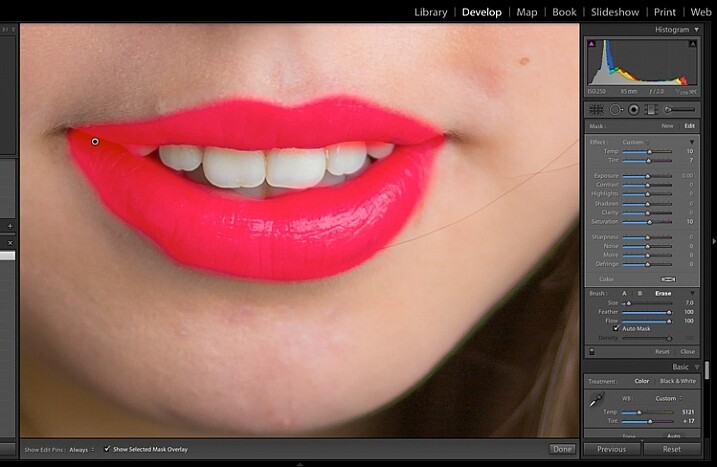
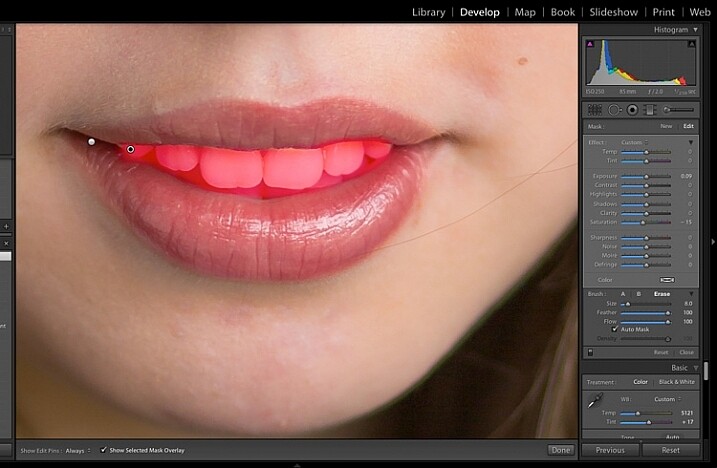
Moving on to the mouth area now. Again, this model doesn’t need any work on her lips or teeth; this is for the purpose of demonstration. Using the same technique as with the eyes, brush on clarity and increase saturation. I have also moved the temp and tint sliders up to alter the hue of her lips.

Image showing basic portrait editing in Lightroom

Brush over the lips to add colour and clarity.

Step #10: Whiten the teeth

To lighten teeth, use the brush tool with the saturation slider decreased, and the exposure slider increased just a little. As with the eyes, be sparing with this step.

Image showing basic portrait editing in Lightroom

Lighten or whiten the teeth.

Step #11: Lighten the hair and background

Finally for this image I have lightened the hair and background to reduce contrast between her face and the background, and to give separation between hair and background.

Image showing basic portrait editing in Lightroom

Finally, lighten the hair and background to give separation.

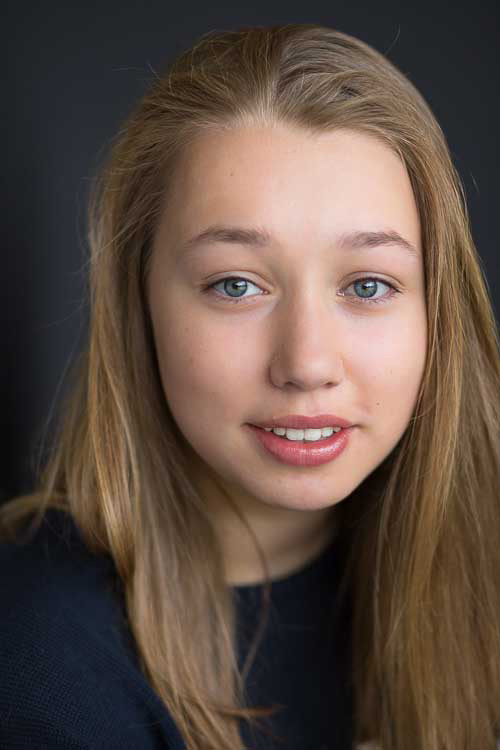
The final image is a vast improvement on the SOOC (straight out of camera) image.

Image showing basic portrait editing in Lightroom

Before Lightroom adjustments.

Image showing basic portrait editing in Lightroom

After all Lightroom adjustments.

Over to you!

Lightroom editing is as much about personal preference as your shooting style, and my workflow and style represents just one approach of many. Share your tips and tricks (and, of course, questions) in the comments section below.

googletag.cmd.push(function() {
tablet_slots.push( googletag.defineSlot( “/1005424/_dPSv4_tab-all-article-bottom_(300×250)”, [300, 250], “pb-ad-78623” ).addService( googletag.pubads() ) ); } );

googletag.cmd.push(function() {
mobile_slots.push( googletag.defineSlot( “/1005424/_dPSv4_mob-all-article-bottom_(300×250)”, [300, 250], “pb-ad-78158” ).addService( googletag.pubads() ) ); } );

The post 11 Steps for Basic Portrait Editing in Lightroom – A Beginner’s Guide by Karen Quist appeared first on Digital Photography School.


Digital Photography School

 
Comments Off on 11 Steps for Basic Portrait Editing in Lightroom – A Beginner’s Guide

Posted in Photography


9 Steps to Get Over Your Fear of Off-Camera Flash

25 Feb

fastflash_bookIf you want to learn more about using flash for creating portraits, pick up Gina’s brand new dPS ebook: Fast Flash for Portrait Perfection. Now on sale for an introductory price for a limited time only.


For the first three years as a professional photographer I suffered a severe case of Photophobia and Photoaugliaphobia. I tried to cover it up by saying things like, “I’m a natural light photographer” or “I really don’t like the aesthetics of flash photography”. In reality I was scared to death of using flash. I just couldn’t wrap my head around the concepts and science behind it.

Fear: False Evidence Appearing Real

  • Photophobia – Fear of light
  • Photoaugliaphobia – Fear of glaring lights

Each shoot I went on that involved flash was accompanied by a sleepless night, with dreams about turning up to the shoot naked (anxiety dream) and just the thought of having to use flash, also had a mild to moderate laxative effect on me.
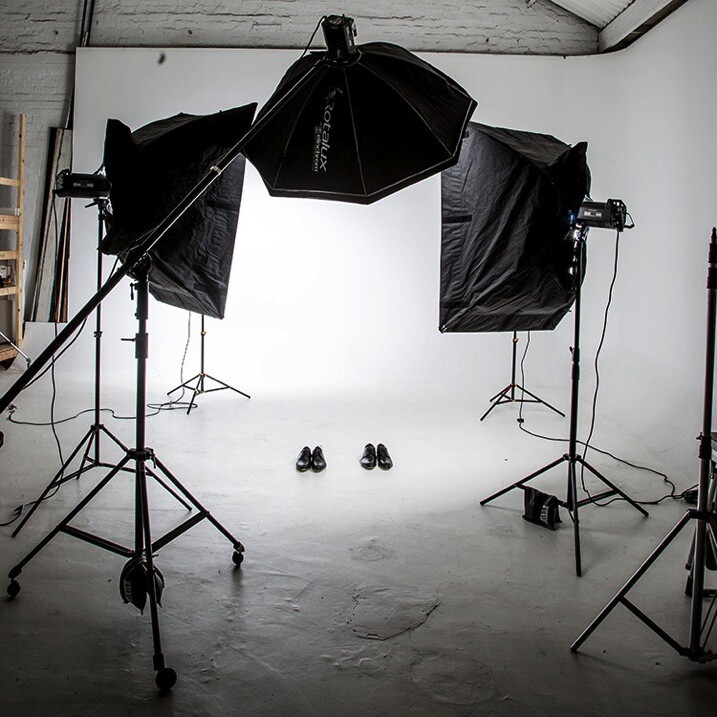
Fearflash main

I managed to work out a system where if I shot at f/8, with the flash dialled in to a particular spot, I would end up with a shot that looked half decent. I had a few successful shoots (and by that I mean there was a detectable image on the film, often blown out by two stops) and was feeling pretty confident about my high-tech – stand here, shoot at f/8, and don’t change anything on the dial – approach to flash photography.

I started getting cocky and developed a “geez you’re good you should do this for a living” strut. In my mind, I’d mastered flash. Sure it wasn’t amazing, but I’d convinced myself that I was pretty good at it.

Then everything changed. I botched a few big jobs in a row; a wedding, where only one frame turned out, a corporate shoot where the flash overexposed the logo, and a historic family portrait where 200 members of the same family flew in from around the world to be in one place together. I set the camera to the wrong shutter speed. The only record of the event is now a faded memory.
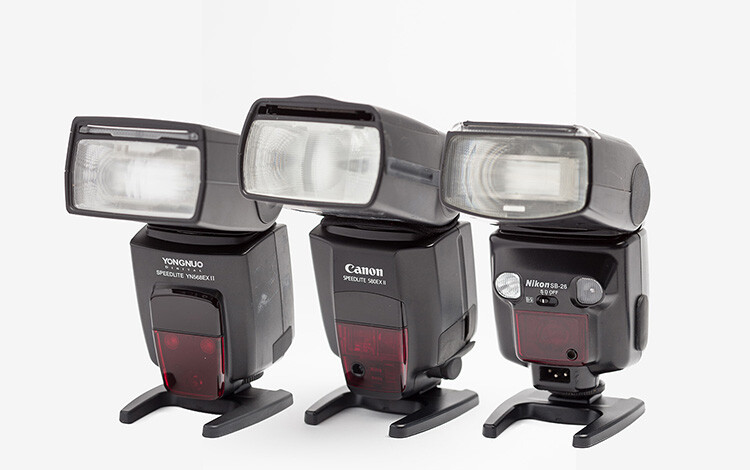
Gear 11

I blamed Flash. It was the common denominator – it’s unreliable, difficult to use, and completely stupid. Why bother, I’m a natural light photographer and I don’t need this in my life.

I then started to go through all the stages of grief:

  • Denial – this isn’t my fault right? Flash did it. It’s stupid, right?
  • Anger – what do you mean this is my fault?? Are you kidding me?
  • Bargaining – dear God/Universe/Oprah please make this go away. I will never eat Nutella again.
  • Depression – I suck at photography, what was I thinking? Who do I think I am?
  • Acceptance – I suck at photography, what was I thinking? Who do I think I am?

Probably the toughest, and most grown-up thing I did as a professional photographer, was to face up to the fact that I sucked at flash photography. I needed to develop a learning style, a protocol that would help me understand flash, learn how to use it well, and stop being afraid of it.
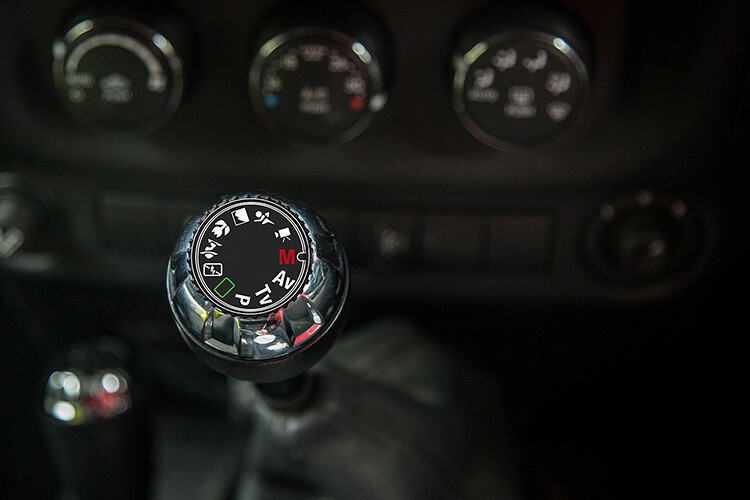
PG 51 manual mode

Learning a new skill can be overwhelming at first. I can still remember learning to drive stick shift, and bunny hopping my father’s car around the block, stalling at every red light and being frustrated at the number of things I needed to remember. At the time, I thought there was no way I could possibly remember how to do everything. But, little by little, day by day, I started to overcome the shock of the new, and driving became second nature.

I think the reason that many photographers become frustrated with flash, is because they are working with lighting styles, and modifiers that are too complicated and involve too many variables. Most of us are impatient. We want to get to the “good stuff” right away. But the danger is that you never really understand the subtle differences between each lighting style and modifier.

When it comes to teaching flash photography, I like to implement what I call, The Bruce Lee Protocol. Bruce Lee was a master in martial arts, whose training requires participants to master each level, or belt, before they move on to the next. If a white belt in Karate attempted to break a plank of wood with a roundhouse kick, they would probably end up breaking their foot.
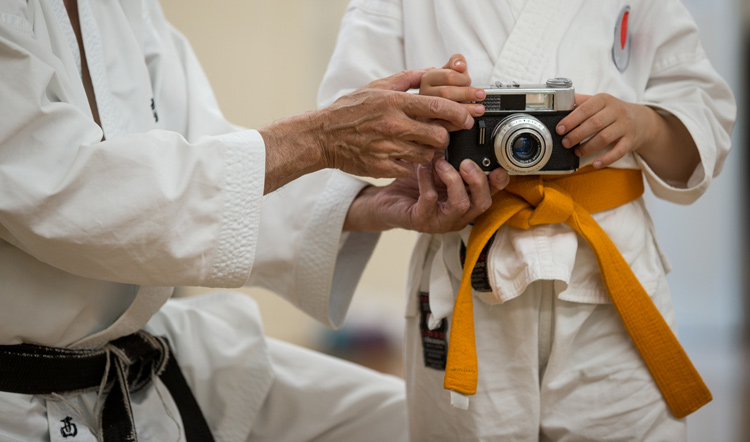
Fearflash 2b

We all want to skip straight to the black belt, but doing this before we’re ready usually ends with tears.
Taken for: Japan Karate Association Australia (JKA)

It took me many years to realize that owning every single light modifier and photography gadget, was not going to make me a better photographer. The one thing that would improve my photography was deciding on one lighting style and modifier, and working with it until I felt I’d mastered it.

I use one light with the same modifier for 80% of my fill-flash photography. I can vary the look of my shots by the way I expose my images, and where I position the light. If you’re just starting out, I recommend that you buy only one modifier and one light, then work with that setup until you’re confident, and happy with your style. Here is my stepped approach to learning how to light with flash based on The Bruce Lee Protocol.

The Bruce Lee Protocol to Learning Flash

Just like training for a black belt, I believe it’s a great idea to stay on one level, until you feel 100% ready to move on to the next. A white belt in Karate would never attempt to break a plank of wood in half with a roundhouse kick , a newbie to lighting shouldn’t attempt to work with a beauty dish before they have mastered working with an umbrella.

Step One: White Belt – Laying the foundation

I think it’s a great idea to ease into lighting, by starting with daylight. Work with hard light, soft light, flat light, and contrasty light, until you are confident you can notice the subtle differences.

Step Two: Yellow Belt – Easing into a new way of thinking

Start by adding fill-flash to your images, using flash on-camera, set to auto. This will give you the confidence to continue working with flash. The next stage is to introduce flash on-camera modifiers, to soften and shape the light.

Step Three: Orange Belt – Expanding your knowledge
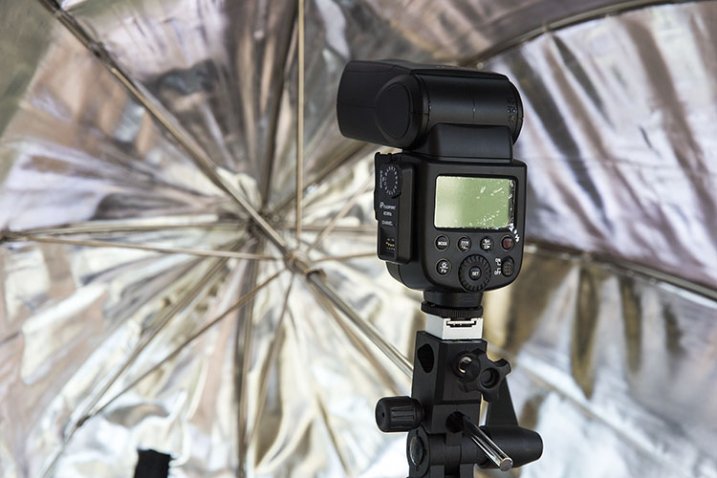
FlashPoint Li-on zoom flash and commander set

Umbrella light is a great choice for a fill-light. It closely resembles daylight, making it perfect for lighting large areas. Because the light is very soft and spreads everywhere, this is the easiest light shaper to work with, making it an ideal light modifier to start learning.

Step Four: Green Belt – Developing your skills

Once you have gotten the hang of working with umbrellas, try adding reflectors to your shot, and focus on balancing the daylight and flash.

Step Five: Blue Belt – Confidence

It’s time to ditch the Umbrella and move up to softboxes, umbrellas boxes and octaboxes.

The umbrella box is the most convenient light modifier, because it combines the simplicity of an umbrella, with the control of a softbox. The box design eliminates the complications of using this modifier outdoors. Umbrella boxes are also cheaper than softboxes, so they’re a great choice for your first serious light modifier.
Head 5 200

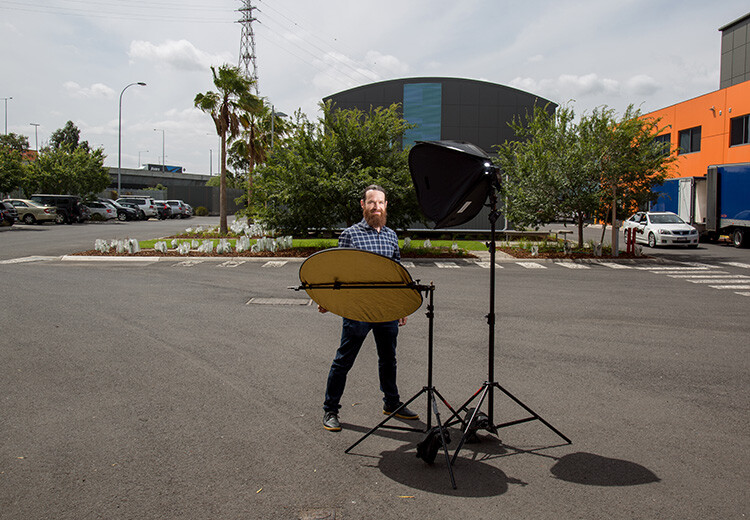
Softboxes create a soft light that is more contained than that from an umbrella. This makes it a better choice of light modifier if you want to light only certain areas of your image. They are completely enclosed, and are a much better light modifier to use outside, as they are less likely to blow around in windy conditions.

Step Six: Purple Belt – Getting serious now

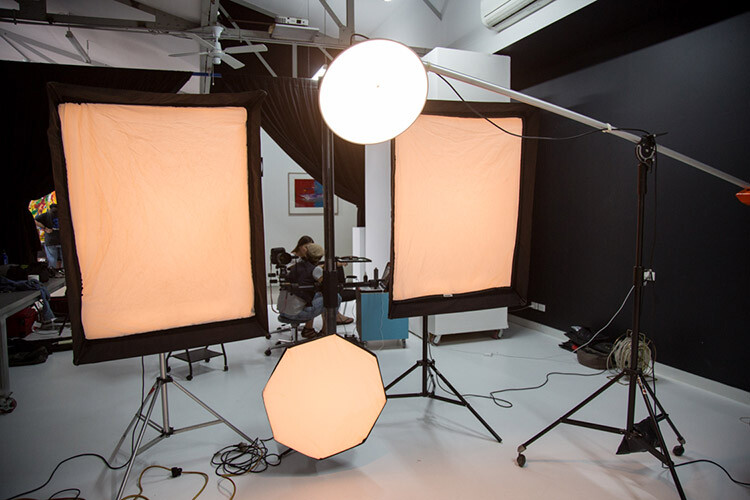
Once you have mastered soft light, it’s time to start experimenting with hard light. Hard light is tricky to work with, because there is very little room for error. Hard light modifiers include beauty dishes and grid spots.

If you’ve done all the work, adding a beauty dish or grid spot to your lighting setup, will be much easier to manage at this stage.
Fearflash 1

Step Seven: Brown Belt – Bringing everything together

Now you are ready to work with hard and soft light at the same time. The hard light, like a beauty dish or grid spot, can be used as the main light, and the soft light becomes the fill.

Step Eight: Red Belt – Developing your own style

Once you’ve mastered each of the lighting styles individually, and know how to work with them together, you can focus your attention on developing a lighting style that is unique to you.

Step Nine: Black Belt – Enlightenment

A black belt in lighting comes with the realization that we never really stop learning. Most of the best photographers in the world will admit that they are yet to master their craft, and the more they know, the more they realize they have yet to learn.

One of my greatest highlights of the past few years, has been watching the students I have taught overcome their fear of flash, and seeing their styles evolve and develop.

Here are some of my favourite examples of their work, and the steps they took to create these images.

Lisa McTiernan
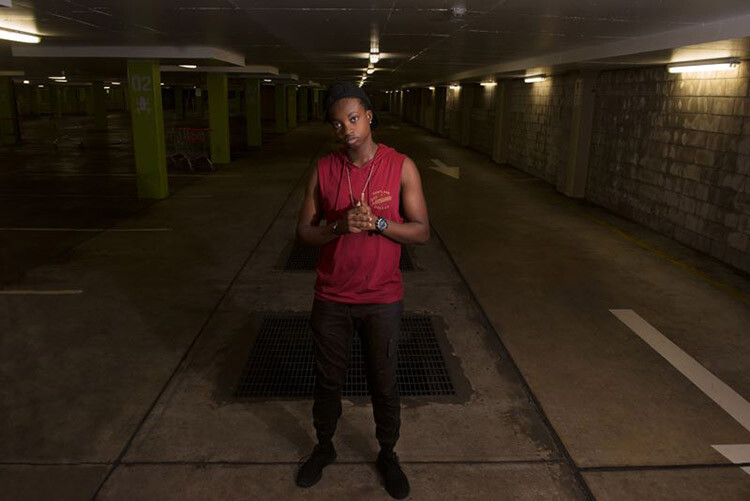
Lisa McTiernan

Off-camera flash has scared me for a while now. Finally! Simple, easy to understand info, that even after one go has opened up a whole new world for my photography. Gina Milicia you’re my hero. Legit.

I wanted a moody vibe for this shoot in an empty concrete carpark. I wanted the shot to look like it was lit by the fluorescent lights on the walls and ceiling, and not by my speedlight. After setting the exposure for the ambient light, I bounced the flash (with the diffusion dome) off the ceiling at an angle to soften, and bounce it back onto my subject’s face and upper-body to highlight his red shirt. I set the flash to 1/16 power, and adjusted the level until I got the look that worked. Exposure: 1/100th, f/5.6, ISO 500, 27mm lens.

Kristi Louise Herd

Kristi Louise Herd

www.herdstarphotography.co.uk ( weddings only for now) www.flickr.com/photos/herdstar

This is from a photo shoot I did with an aspiring model, it was my first night shoot and my first using flash. Before I did the shoot I read and re-read your ebook, Portraits, Lighting the Shot. Tricks I learned from you became invaluable. I used the trick with the phone to focus, as the light was pretty dim. It worked fantastic, and the softbox, which I had never used before, was held just above and sightly to the left of the model (I had seen this again in a diagram from your ebook). Camera settings: Nikon D750 f/4.2, 1/30th, ISO 800, focal length 112mm. I would never have achieved this shot without learning from you Gina Milicia.

Erica Rampant
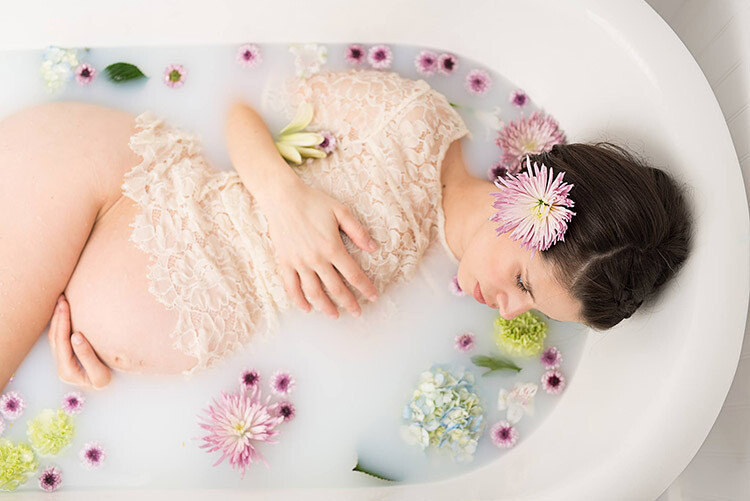
Erica Rampant

Hi Gina, I asked a few weeks ago about placement for lighting for a milk bath shoot. Here is the result! It was taken with a Nikon D610, 50mm Sigma Art lens, ISO 100, f/2.2, 1/160th of a second.

This is my friend Antonette, she just gave birth to a healthy baby boy and I was there to photograph it. She had a home birth and her baby was born in water! I’m still a new photographer and have only been shooting for five months, but have been listening to you, and learned so much!

Natalie Ord
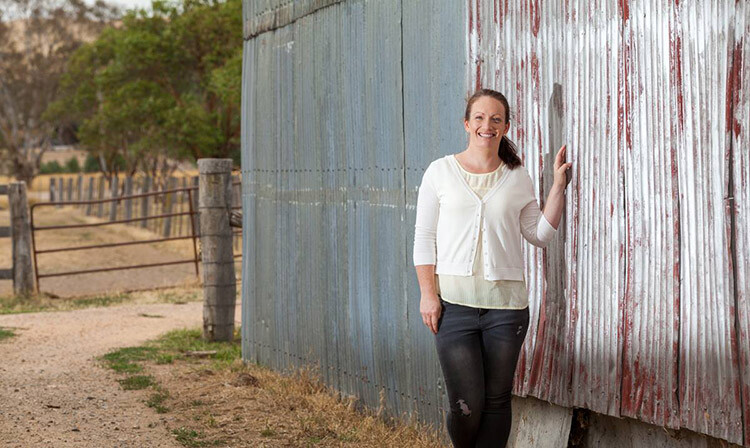
Natalie Ord

This is a shoot a recently did for a client. The day was windy, overcast, and I had limited time. I needed to portray the client as friendly, accessible, and show that she is rural-based, so it was important for me to get the background exposed right. I couldn’t have done that without using off-camera flash.

Settings were 1/320th, ISO 250, f/7.1, using PocketWizards, a Canon Speedlite 600EX without a softbox, as it was windy and I didn’t have anyone to hold the stand, shot on my 70-200mm f/2.8L with a Canon 5D MkII.

Gary Lun
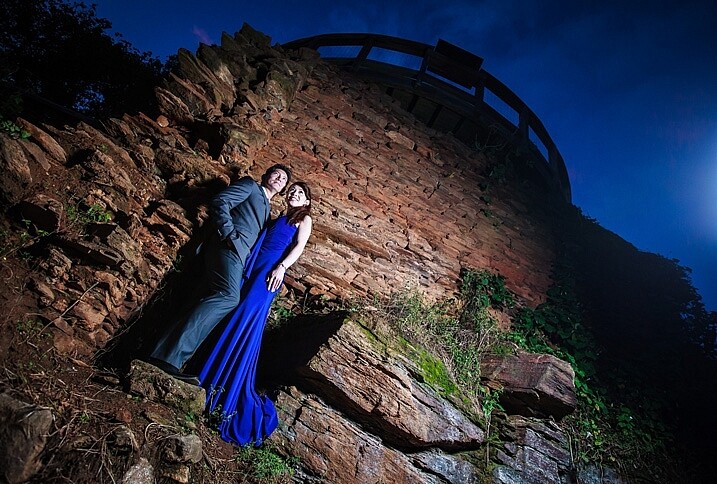
 

Gary-Lun-3

Canon 5D MkII with Canon 16-35mm f2.8 at 18mm, f/4.5, 1/125th, ISO 1600. Flash was Yongnuo YN560III at 1/8 power, positioned at camera right. Softbox was using SMDV SpeedBox-60.

Quick story: I was doing an engagement shoot at a typical location in town for many photographers. It was packed with photographers that day! Anyway, in order to get a unique photo I knew I must use flash. So I waited until all other photographers were gone, because the sun is going down (since most of them were using natural light), took my flash out, asked the couple to stand near something with texture, and took the shot.

Phil Enn
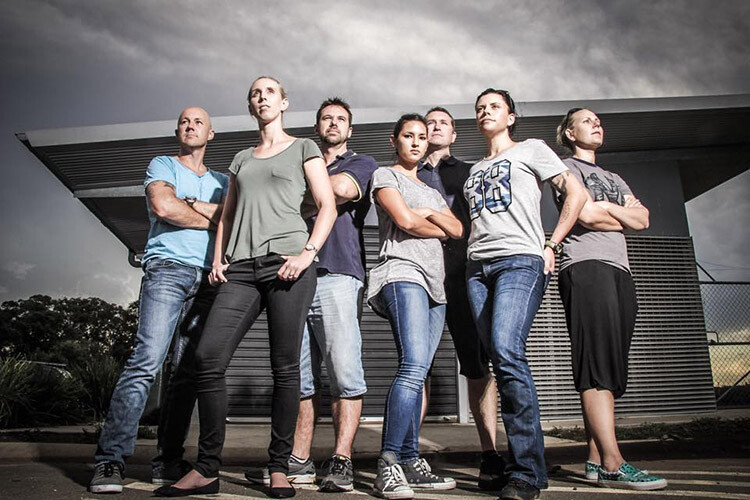
Phil Enn

Canon 7D, 17-85mm at 17mm, f1/6, ISO 200, six speed lights held in a bunch, off to camera right.

Andrew McNamara

Andrew McNamara

Canon 5D MkII, 24-70mm at 24mm, f/9.0, ISO 100, 1/50th with a camera-mounted Canon 480exII Speedlite. As stated in the original story, shot from inside a training element for the Southern Cross Search Dogs photoshoot. I had a diffuser on the flash, just for the safety of the dogs eyes, and bounced it just a little.

P.S. I’m one of those people who are afraid of flash so this was a big step!

Rahim Mastafa

Rahim Mas
Inspired by one of your ebooks, I used one studio strobe as a key light to the front of him, and a speed light as a kicker, over his shoulder on the backrest. Settings were: f/2, 1/1500th, ISO 100, Sony a77, 50mm lens.

Matt Zahn

Matt Zahn

This was part of my self portrait challenge. Since it was nighttime, and obviously no natural light to shoot with, I attempted to create the illusion that this was natural light coming through a window. I used my Canon 430exII Speedlite on my T5i. I slid a home-made snoot over the end, and used some electrical tape to create some of the shadows. This shot was taken at 1/400th, f/5.0, ISO 400. I also placed a gold reflector to camera left, behind me.

Scott Stokhaug
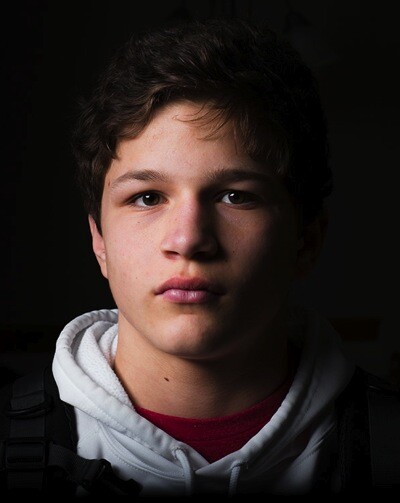
Scott Stockhaug

With the help of your ebook, Flashfast for Portrait Perfection, I made a minimal investment to get that speedlight off my camera, and open many new doors! This photo is my Rembrandt lighting, along with black background that was shot in my home, in broad daylight, with no backdrop. I love this technique!

Next step

So where are you on The Bruce Lee Protocol steps? Do you have a fear of flash? Have you overcome and mastered it already? Please share with us where you are, and what you’ve done to conquer your fears.


fastflash_bookIf you want to learn more about using flash for creating portraits, pick up Gina’s brand new dPS ebook: Fast Flash for Portrait Perfection. Now on sale for an introductory price for a limited time only.

googletag.cmd.push(function() {
tablet_slots.push( googletag.defineSlot( “/1005424/_dPSv4_tab-all-article-bottom_(300×250)”, [300, 250], “pb-ad-78623” ).addService( googletag.pubads() ) ); } );

googletag.cmd.push(function() {
mobile_slots.push( googletag.defineSlot( “/1005424/_dPSv4_mob-all-article-bottom_(300×250)”, [300, 250], “pb-ad-78158” ).addService( googletag.pubads() ) ); } );

The post 9 Steps to Get Over Your Fear of Off-Camera Flash by Gina Milicia appeared first on Digital Photography School.


Digital Photography School
 
Comments Off on 9 Steps to Get Over Your Fear of Off-Camera Flash

Posted in Photography


3 Easy Steps to Photograph Glassware with Minimal Gear

22 Feb

Photographing glass objects is always a complicated task because of the reflective surface, and at the same time translucent nature, of this material. The catalogue images with great glassware perfectly illuminated, are usually done with complicated setups, in studios that allow the control of reflections, and lighting equipment with accessories that are not accessible to most photographers.

In this article I will show you how photograph a glass on both white and black backgrounds, with minimal equipment, and a fairly simple lighting setup.

01

The techniques used here are known as black-line and white-line lighting, and are defined by the way light is shown at the edges of the glass, in contrast to the color of the background. This is usually done with a light placed behind and above the object, with softboxes or diffusion panels to create the transparency in the glass, black and white cardboard to create the edges, and black and white acrylic panels to create the bottom reflection.

Equipment needed

Well, you may not have a studio and lighting equipment with accessories available, but it doesn’t mean you can’t give this kind of photography a try. Here is what you will need:

02

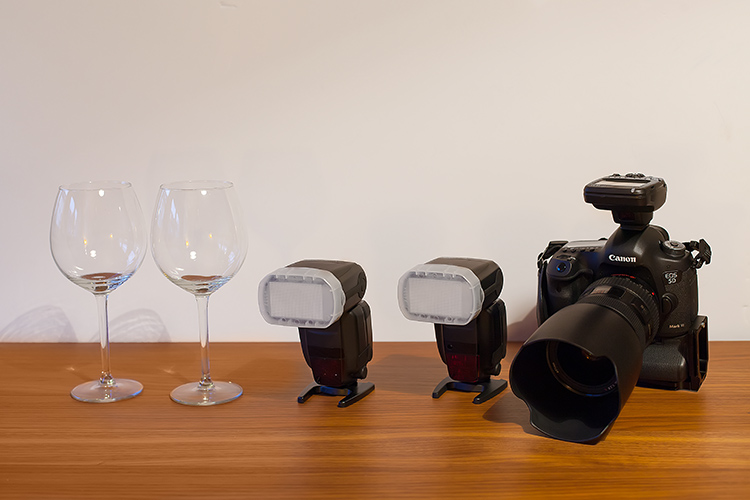
Besides the camera body and the lenses of your choice, you will need two flashes with diffusers, a trigger to fire them, some white cardboard, and two identical glasses (you will see why you need two of them later).

Step one: Clean the glasses

The first step, and a really important one may I add, is to clean the glasses really well, as any dirt in the glass will be visible in the image. Toilet paper and glass cleaning fluid are a good choice to get rid of spots or smudges, and a compressed air can be a good choice to get rid of dust specks.

03

Step two: Prepare your set

In these images, instead of an acrylic panel to create a reflection effect, I decided to use an old school technique to simulate the same effect – with the use of another glass turned upside down, under the main photographed glass. I use this technique a lot, as it allows me to have a pure white or black background, without a horizon line created by the base that holds the object, which can give ghost reflections sometimes, and is hard to keep clean due to electrostatic.

Step three: set up your lights

Even though camera flashes (speedlights) are very low power compared to studio units, they have more than enough power for this kind of setup, and are an accessible and simple solution.

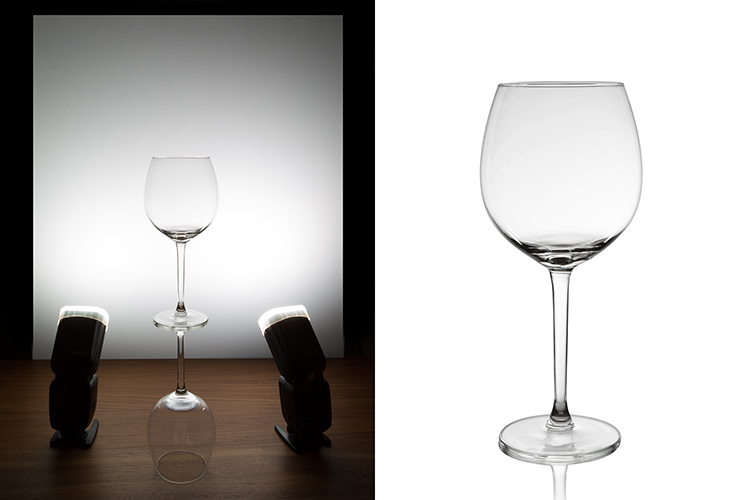
You will need to use the white cardboard as the background, and one flash with a diffuser on each side of the glas, illuminating the background evenly. This simulates the use of a softbox as backlight in a really simple way.
Here is the behind the scenes image showing the setup:

04

Voila, here is a perfect white background glassware image. It’s amazing what you can get straight out of the camera with such a simple setup. The camera settings used were: f/22, 1/200th (flash sync speed), ISO 50. Both flashes were on 1/2 power with a 50mm zoom setting.

It is important to have a large depth of field to get well-defined glass edges (including the back side of the glass), and to use the highest sync speed for your flash/camera combination to avoid the ambient light making a reflection and changing the color temperature of the image.

Bonus step: Black background setup

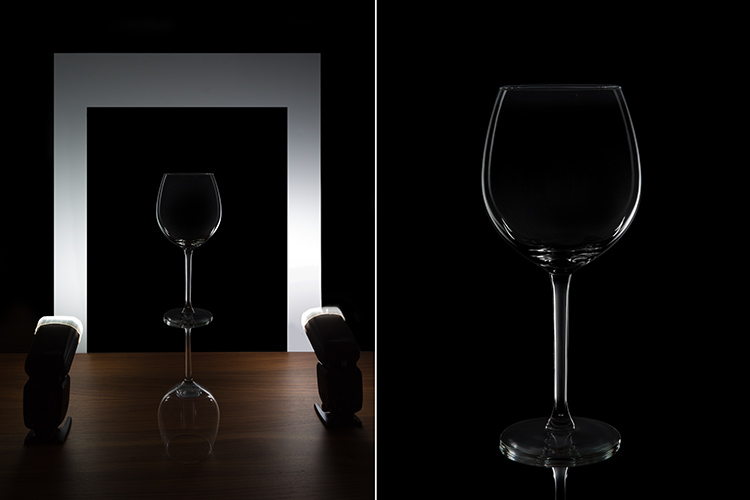
The black background image might seem a lot more complicated, but actually it’s as simple as cutting a hole in your white cardboard, that will function as an open window for the black background. Here is the behind the scenes image for that setup:

05

Here is the black background glass image.

The camera and flash settings are the same, but the white cardboard acts as a reflector, defining the white line around the glass. Just be sure not to have anything behind the cardboard or use some black velvet as the background, which doesn’t reflect light and guarantees you a pure black.

So, there you go, a simple, yet highly effective technique to produce amazing glassware images with white or black background, and bottom reflection effect – without a studio, fancy lighting equipment, or a ton of accessories.

Give it a try, I’m sure you’ll get great results! Please share your images in the comments area below.

googletag.cmd.push(function() {
tablet_slots.push( googletag.defineSlot( “/1005424/_dPSv4_tab-all-article-bottom_(300×250)”, [300, 250], “pb-ad-78623” ).addService( googletag.pubads() ) ); } );

googletag.cmd.push(function() {
mobile_slots.push( googletag.defineSlot( “/1005424/_dPSv4_mob-all-article-bottom_(300×250)”, [300, 250], “pb-ad-78158” ).addService( googletag.pubads() ) ); } );

The post 3 Easy Steps to Photograph Glassware with Minimal Gear by Ivo Guimaraes appeared first on Digital Photography School.


Digital Photography School
 
Comments Off on 3 Easy Steps to Photograph Glassware with Minimal Gear

Posted in Photography


4 Steps to Creating Images With More Meaningful Composition

06 Feb

If you wonder what composition really means, it is basically what elements you choose to put in a photograph, and where you decide to place them in the frame.

Vickie-Lewis-MtHood

When composing a photograph you need to consider several things:

  1. What is the story you are trying to tell? In other words, what do you want the viewer to see or feel when they look at your photograph?
  2. What’s your center of interest or focal point?
  3. What elements will most support that story?
  4. How can you maximize those elements?

Let’s consider each of those points individually.

1- What is the story you are trying to tell?

In other words, what do you want your viewer to know or experience when they see the photograph?

Some ideas if you are photographing your children:

  • You might want the viewers to see how cute they are.
  • You might want the viewers to see how smart they are.
  • You might want the viewers to see how much they love their sibling or new puppy.

Each of those ideas will impact how you choose to compose the picture. In the first example, you might choose to dress your daughter with a pink bow and sit her on her princess bed. If you want to show how smart your child is, you may decide to photograph them winning a spelling bee, or playing with test tubes. Of course, if the story is the new relationship with their puppy, you want to capture that moment of them hugging the puppy, or the puppy licking their face.

Lake-Vickie-Lewis-Photography-for-dps

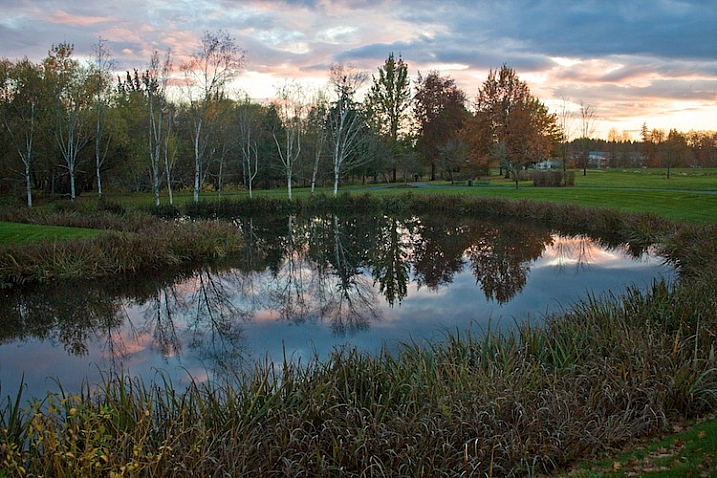
Here’s another example shooting landscapes. Let’s say you want to take a photograph of a beautiful lake in a park, in the middle of a city. What’s the story you want to tell? What’s the experience you want your reader to have when they see your photo?

Here are some ideas:

  • You can isolate the lake and shoot it in such a way that it looks as though it is in the middle of nowhere.
  • You could shoot the lake with the cityscape in the background to show it as a haven in the middle of a grimy city.
  • You could show the restful, or quiet feeling, of the lake by just focusing on an empty park bench, or the reflection of a tree in the water.

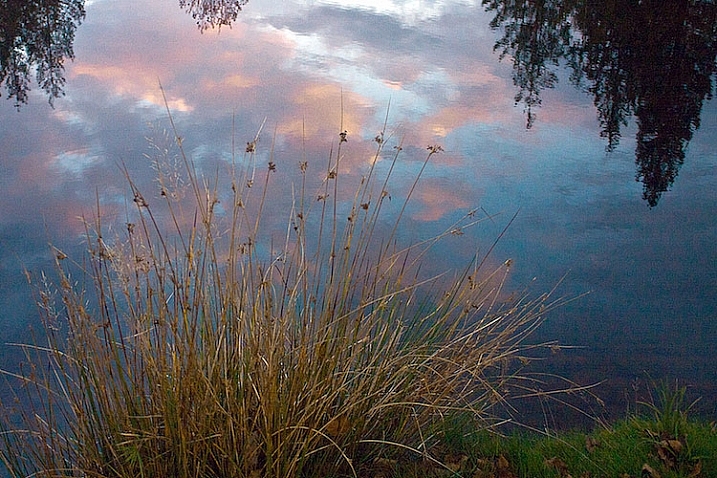
grass by edge of lake Vickie Lewis Photography for dps

In every situation, there are many different stories and compositions. Knowing what the story is, and what you want to say, is the first step in composing a photograph. You can start to see how your intention with the photograph becomes important in composing a photograph.

2 – Choosing a focal point

With that in mind, the next step you want to think about is what is your center of interest or focal point? In other words, what is the one element you want your viewer to see first? What ONE element do you want to stand out?

If you are photographing your children, that’s pretty simple, you want your child to stand out. We’ll talk about some strategies to do that in a minute, but first let’s look at our other examples.

If you see a lake that you are drawn to, first ask yourself the story, then ask yourself what one element can be the subject? Is it a tree or rock in the lake? Is it a house on the lake? Is it the moon rising above the lake? Is it the grass growing on the edge of the lake?

Drop-by-Vickie-Lewis

3 – What elements support the story?

As you view the scene, ask yourself, “What elements support the story I’m telling?” As you look through the viewfinder, move your eye around the outside frame of the photo, then look inside that frame and ask yourself if there is anything in the photo that doesn’t belong there.

For example when you are taking a photograph of your child, you ask yourself if you need the dining room table in the background? Do you need your car in the background? What’s important? What elements add to the subject and which distract?

4 – How can you maximize those elements?

In the next section, we’ll look at examples and talk about ways you can clean up your photographs in two simple ways.

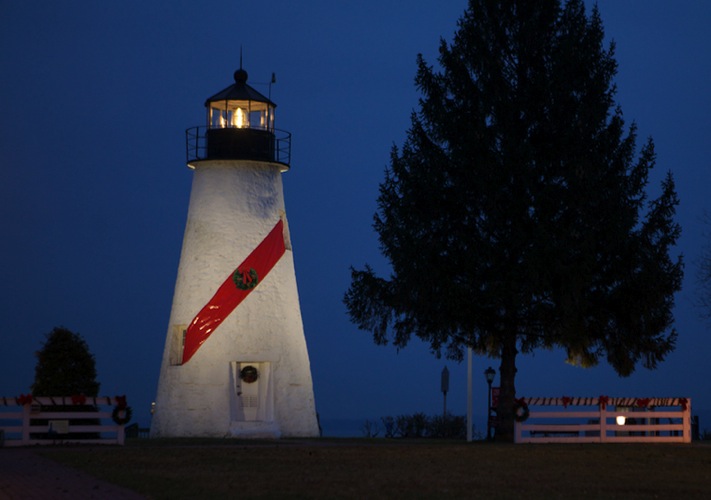
1 Lighthouse snapshopt Vickie Lewis Photography for dps

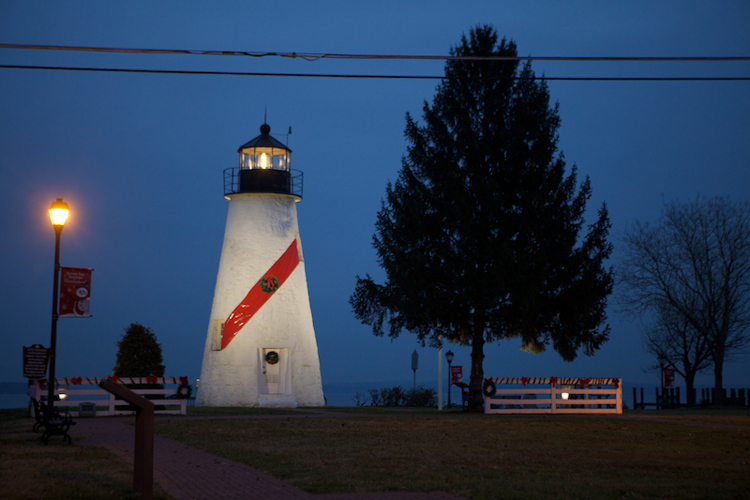
Above is a photo of a lighthouse. It’s a very pretty scene, but it’s filled with elements that don’t really help the composition. There are elements, including a wire overhead and an information stand in the front, that don’t add anything to the feel of the place.

2 Lighthouse Vickie Lewis Photography for dps

This is better. The first shot was taken with a wider angle lens. In this shot, I took a few steps to the right, and zoomed in a little bit. Zooming in not only eliminates some of the foreground, it changes the perspective. Can you see how the image feels more compressed? Also, the wires were not magically Photoshopped out of the picture, I chose to eliminate the top of the tree from the frame.

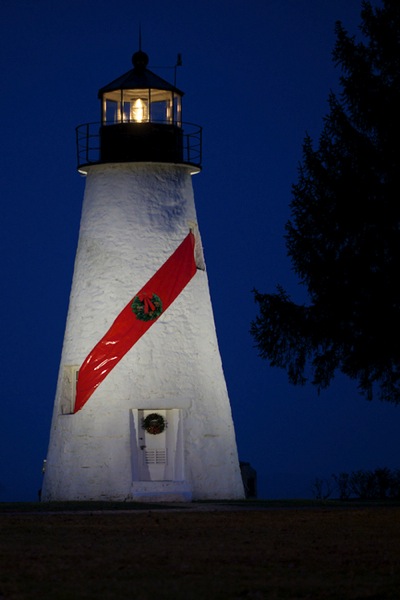
3 Lighthouse Vickie Lewis Photography for dps

Here’s yet another different perspective. For the shot above, I used an even longer lens, and moved more to the right. The most important element to me, the story, is the lighthouse. The dark tree nicely frames it, and adds perspective. This photo, compared to the first, is much cleaner.

Now, I could have chosen to get closer with the wide angle lens, but the light house would start to lean, and it would have emphasized the power lines.

Different angles can also help clean up backgrounds, so you ask yourself:

  • Would taking a step or two in a different direction get rid of some distractions?
  • Would getting a little bit higher or lower help the composition?
  • Would changing the focal length help with the composition?

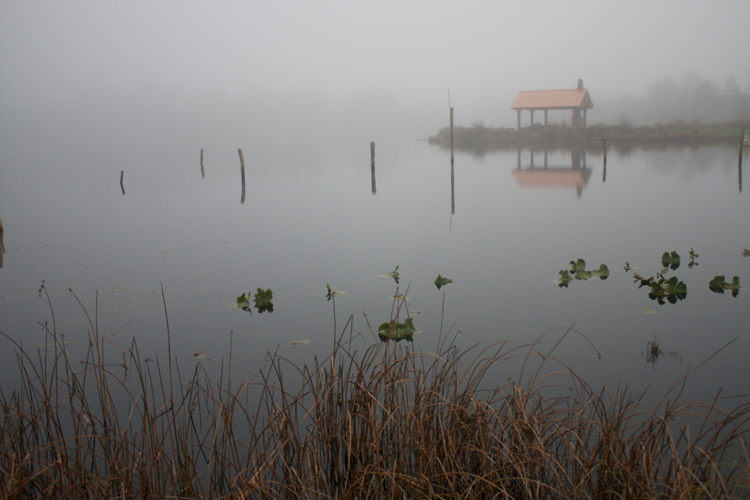
1 Foggy Shack vickie lewis for dps

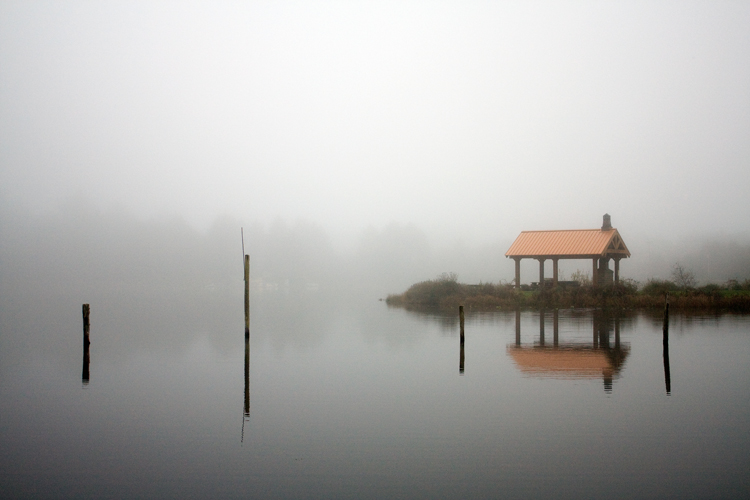
2 Foggy Shack Vickie Lewis for dps

Here’s a great scene of a foggy shack on a lake. It’s next to a very busy highway, so I chose an angle from which you can’t see any cars. In the first example, the emphasis is on the grass. I used a wider lens and looked for a patch of grass for the foreground that made a nice pattern. The grass leads the viewer into the photograph. The shack seems further away.

In the second image, I chose to focus just on the reflection and the quietness of the scene. I found an angle from which I could shoot with no grass. My focus changed, the feeling also changed. Which one do you like better?

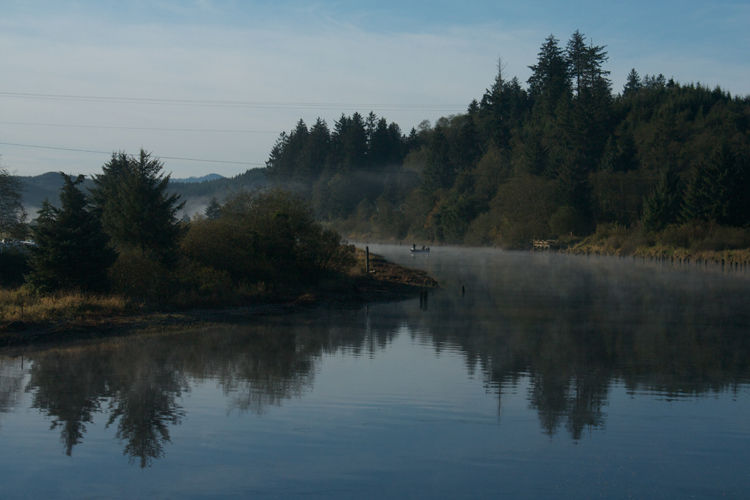
1 Nehalem River Vickie Lewis for dps

Here’s a beautiful scene with lots of potential. But your eye really has no place to go. There isn’t a strong sense of interest. The story is one of serenity and a great place to go fishing.

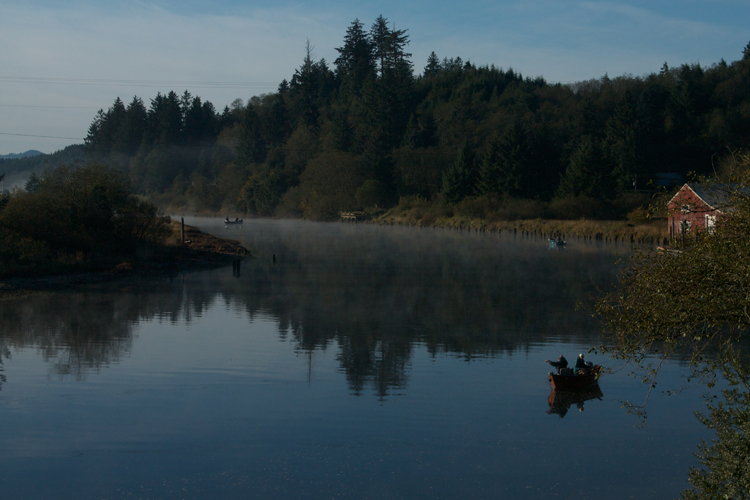
2 Nehalem River Vickie Lewis for dps

To improve the composition, I waited until some fishermen popped into the right place. In the second photo, can you see how your eye has a place to go? It’s immediately drawn to the fishermen in the red boat.

You can greatly dramatically improve the composition in your photographs by framing a photo and waiting for the right elements to come together.

So now, moving forward with your photography, you have some great ideas to work with:

  • Consider what story you are telling with your photographs.
  • Make sure you have a center of interest.
  • Decide what elements support the story.
  • Maximize the elements by changing position and focal length.

googletag.cmd.push(function() {
tablet_slots.push( googletag.defineSlot( “/1005424/_dPSv4_tab-all-article-bottom_(300×250)”, [300, 250], “pb-ad-78623” ).addService( googletag.pubads() ) ); } );

googletag.cmd.push(function() {
mobile_slots.push( googletag.defineSlot( “/1005424/_dPSv4_mob-all-article-bottom_(300×250)”, [300, 250], “pb-ad-78158” ).addService( googletag.pubads() ) ); } );

The post 4 Steps to Creating Images With More Meaningful Composition by Vickie Lewis appeared first on Digital Photography School.


Digital Photography School
 
Comments Off on 4 Steps to Creating Images With More Meaningful Composition

Posted in Photography


5 Starter Steps to Batch Processing using Adobe Bridge

31 Jan

Post-processing can be a minefield. Beginners especially can feel overwhelmed when confronted by amazing software, that can do almost anything, like Photoshop for example. However, everyone starts from somewhere, and not everything is terribly confusing. I am personally a fan of simplicity, when it comes to technology. Let me share with you a few simple steps on how to get started batch processing using Adobe Bridge.

what-is-adobe-bridge_WEB

Editing in Bridge is super simple, and as easy as one – two – three. Open your file, edit your photo, save your file. I will walk you through it, and try to demystify the first step in post-processing, without touching Photoshop.

What is Adobe Bridge?

Bridge is part of Adobe’s Creative Suite, and is a media browsing application. It is an app that enables you to view your entire computer contents, manage and organize your digital files, and edit your photos without the need to import and file them in various catalogs elsewhere. For photographers specifically, Bridge simplifies the first step in the editing process, because within Bridge you can do the following easily, to name a few:

  1. Browse photos
  2. Rate photos
  3. Delete photos
  4. Rename, move, or copy multiple files at the press of a button
  5. Organize your files using various filters so you can perform your desired function in batches
  6. Watermark, copyright and manage metadata information

batch-editing-adobe-bridge-photography-tutorial

Adobe Camera Raw

To edit photographs in Bridge, you need to have Adobe Camera Raw, a powerful plug-in that allows you to edit and enhance any photo, including JPGS. RAW files however, can only be opened, and read, in Adobe Camera Raw.

I would suggest that you shoot in RAW. Here is a good article about RAW vs JPGS which explains the benefit of shooting in RAW format. I shoot in RAW, and always edit from that format in Bridge, as my starting point. If you photograph in RAW, make sure you have downloaded Adobe Camera Raw, preferably the latest version, onto your computer before you can edit the files in Bridge.

A first word

This tutorial is a very basic suggested process of editing in Bridge, meant to aid your understanding if you have never used Bridge before. I do not claim it is the better way of editing nor the perfect way; it is one option, among many others available. Bridge is my personal preference over Lightroom, and I choose to use as much or as few of the functions in Bridge as I see fit for every image, or batch of images, that I edit. I like Bridge because, together with Adobe Camera Raw, it is straight-forward, hassle-free, and offers a non-destructive way of editing.

Loading your images

Before starting the batch processing, you need to load your images to a new folder on your computer.

My suggestion would be to download your images from your memory card, directly onto your computer. In my opinion, this is the safest, and most direct way, to copy over images from your memory card to your computer, without having to go through various software that potentially could complicate the copying process. Keep it as simple as possible to try and eliminate any malfunctions or errors right at the start. Use an external USB card reader to load your images into your computer, if it doesn’t come with a built-in one.

Put your images in a new folder clearly labeled so you know exactly where to find them. As an added step, when I copy a new set of images from a memory card on to my computer, I also immediately copy the same set to various external hard drives and cloud storage for back-up and safe-keeping. Always copy from the same memory card so you keep the transfer direct, and minimize potential errors. For example, if you copy your memory card images to a folder called Set A, do not then copy the images from Set A into another external hard drive folder; do not create this unnecessary step. Paste the same set of images from the memory card, directly where you want them stored on an external hard drive or on the cloud.

Once your images are safely copied, open Bridge. You will need to be subscribed to Adobe CC to have access to this. Subscriptions are now very affordable, compared to previous years when you had to buy a license of the very expensive full Adobe Suite just to use one software.

 batch-editing-adobe-bridge-photography-tutorial

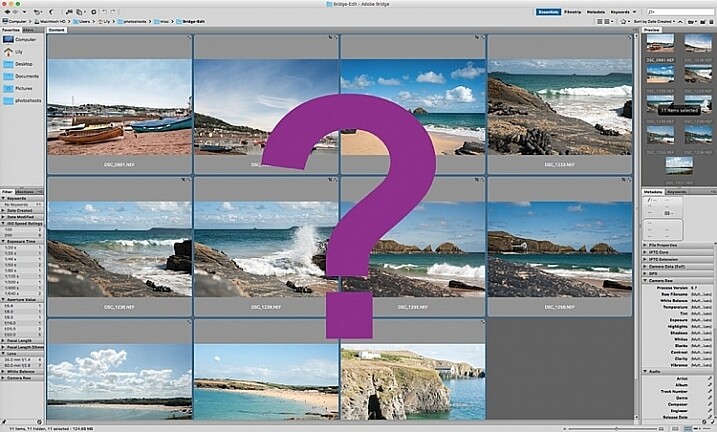
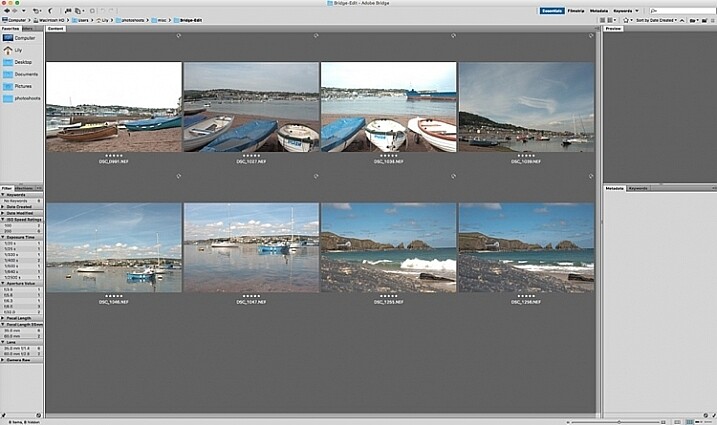
You will see the contents of your computer on the left side navigation menu. Find your folder, click on it and your images will be displayed on the main window. RAW files will be displayed as CR2 or CRW files for Canon cameras, NEF files for Nikon cameras and DNG for some other cameras (each manufacturer has a proprietary raw file format).

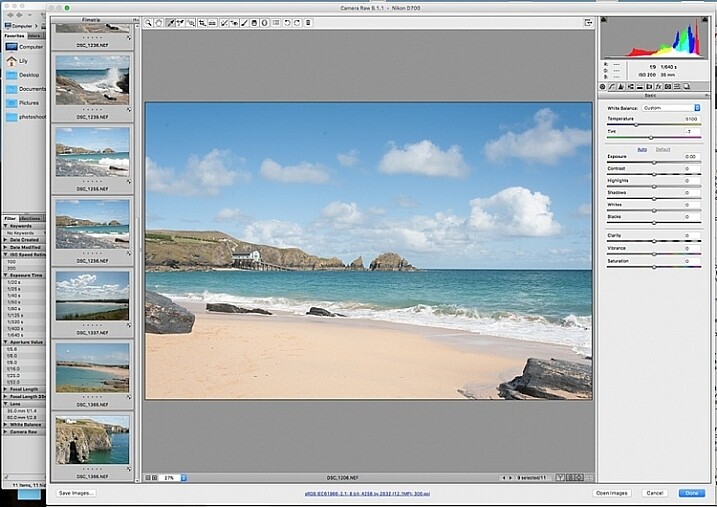
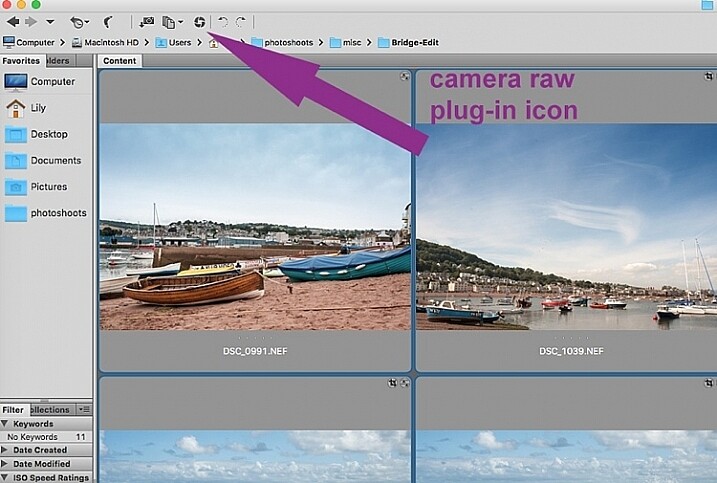
Select your RAW files, and open them by clicking the Camera Raw plug-in icon with the images selected.

 batch-editing-adobe-bridge-photography-tutorial

As a RAW file is an unprocessed image containing all the information the camera sensor sees. It can appear very flat, and darker than what you may have seen on your camera’s LCD screen, which displays a JPG preview of your image, and as such has already been processed by the camera for preview purposes.

An important note to consider when batch processing, is that it is most effective when used on images that are photographed using similar light and settings. The main thing to remember is that you are able to apply global edits in a few steps to multiple images, but the reality is that you may still have to tweak each image as appropriate before you save it.

sync-settings_WEB

Batch processing

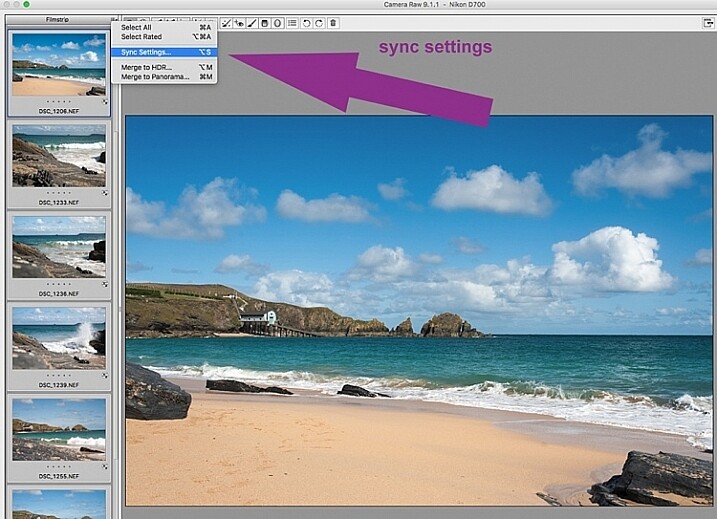
There are two ways of applying edits in batches. Below I make reference to selecting all images using cmd/ctrl+a, and making your adjustments by applying them to the images simultaneously – that is one way. The second way is to synchronize edits. To do this, use one image with all the adjustments made, then select all other images and click the synchronize button to apply the same adjustments to the rest of them.

 batch-editing-adobe-bridge-photography-tutorial

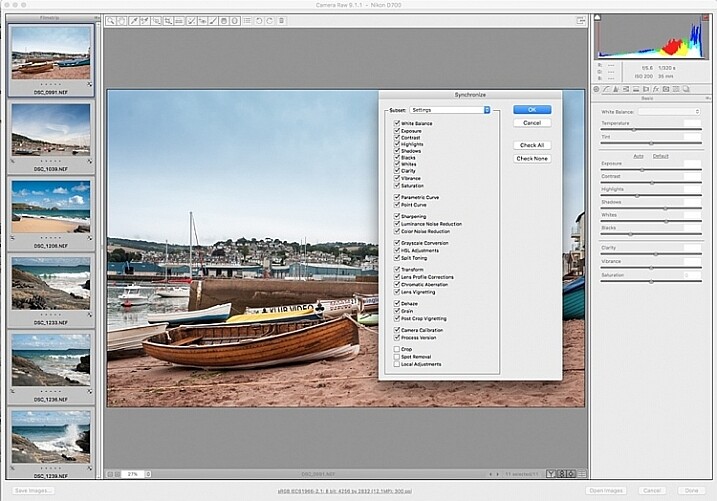
The idea behind batch editing is that you can apply a set of edits to multiple images, by only doing the adjustments once. To do this you can either select all the images you want to edit and make your adjustments while all the images are selected –  or you can edit one image first, followed by selecting all the images (making sure the edited image is the one highlighted with the blue box around it) then synchronizing the edits across all the images. A new window opens up with a series of boxes so you can check the settings you want to synchronize across the batch. I tend to uncheck the crop and local adjustments as those settings usually need to be specifically applied to each individual image.

Here is a key point to bear in mind when synchronizing your settings across the batches: It is important to note that you only want to do this with global adjustments that you want applied to the entire batch, and do it at an early stage of editing. If you use the synchronize function at the end of your edits, when you may have made various local adjustments to each individual image, any synchronizing action done then will overwrite previous adjustments (depending on what you select in the Sync settings popup box).

Step 1: Correct Lens Distortion and Chromatic Aberration

 batch-editing-adobe-bridge-photography-tutorial

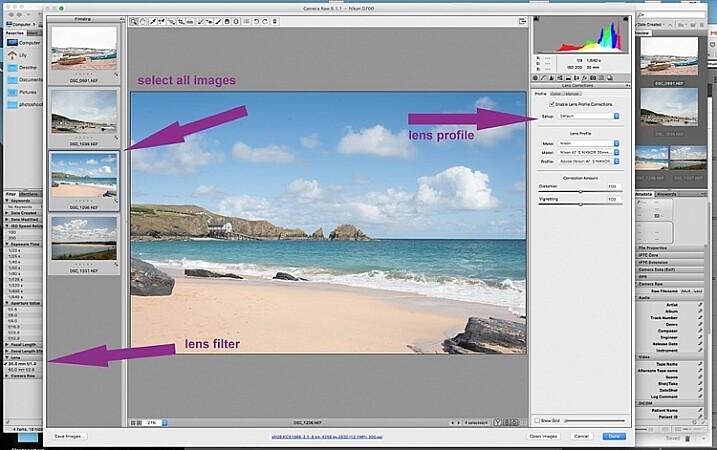
On the left hand navigation filter, choose Lens. A dropdown menu of the lenses used appears. I correct distortion on all images photographed around the 50mm focal length and under. By clicking on the specific lens, you are filtering the set so that only images photographed with that lens are shown in the thumbnail window. Select all the images by clicking cmd/ctrl+a . With the images selected, click the camera lens icon to open the Camera Raw plug-in and window. Select the images again by clicking cmd/ctrl+a, and go to the Lens Correction tab on the right hand navigation panel. On the Profile tab click the box that enables lens correction and choose your camera and lens details from the drop down menus. If your lens isn’t in the list, alternatively you can do this manually using the sliders on the Manual tab. Click done and your changes will automatically be saved.

Often with extreme lens distortions coupled, with straightening adjustments, you will need to crop your images. Type c (keyboard shortcut) and the crop box at the top will be highlighted. Hold down the crop icon to bring up the crop ratios. By doing this, your image will be constrained to the ratio you have chosenwhen you crop. Don’t forget to click done to save your changes.

Do this for all the lenses for which you want the distortions corrected. If you are only editing a batch photographed using one lens profile, you do not need to click done just yet. You can keep making further edits before clicking done.

Next correct any Chromatic Aberration. I only do this step if I know I have taken images in bright light using a very wide aperture such as f/2 or wider. The filtering and batch editing method is the same as above. However, I do this for each image individually at 100% view as each image would have various amounts of chromatic aberration and varyious color fringing.

Step 2: Correct your White Balance

 batch-editing-adobe-bridge-photography-tutorial

Once all the distortions on various lenses and focal lengths have been corrected, open your images again in the same way. Now you are ready to make batch edits.

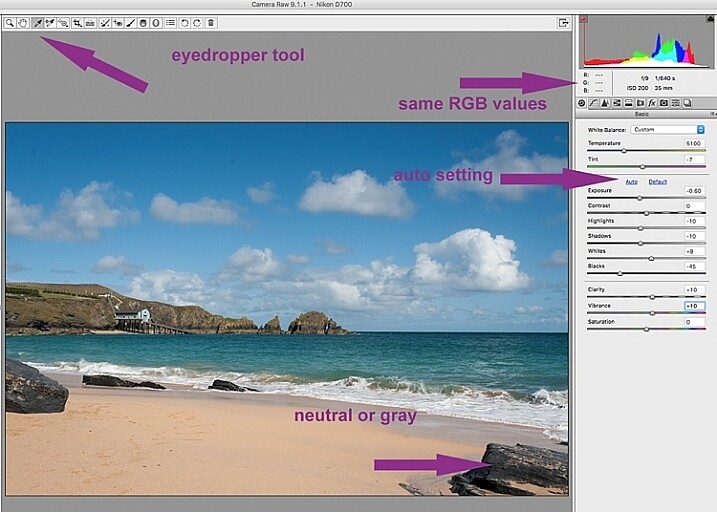
Once in Camera Raw, select a set of images that have been photographed in the same, or similar light. With the images selected correct the White Balance using the eyedropper tool. You need to find a neutral area (gray, or white) to click the eyedropper tool on and aim to get the RGB numbers to read the same, as much as possible. That way you know you are getting the most neutral color in the image. You can also correct White Balance by eye if you are confident enough to differentiate color temperature, although this will be less accurate than going with the RGB values.

You will notice that the White Balance changes on all the images you selected just by setting it on one image. Images that have been photographed in different light, or at varying times, will register a different White Balance. So, batch editing an entire set of images photographed in various places in this way, will produce irregular color results.

A solution to this is to use a gray card and have this set when photographing, or set your color temperature in-camera. By doing this the White Balance will be consistent throughout your images, for that time and setting. Here is a useful article on how to set your white balance in camera using a gray card. For more information on white balance and color temperature click here.

Step 3: Correct your exposure and make local adjustments

 batch-editing-adobe-bridge-photography-tutorial

You may want to click Auto first, to see what Camera Raw’s suggested edits are, then start making your adjustments from there. To batch process, it is important to select sets of images shot in the same setting and light to make the most of this editing function. Batch editing images that have settings in opposite extremes will very likely add to your editing time, as you will need to go back and correct all the other images, thereby doubling your editing process. This is just one of the benefits of shooting in Manual mode where you have full control of your camera settings, rather than the camera making the decisions for you. If you are considering switching to Manual mode, in case you are still shooting in any of the other modes, see: How to Learn Your Camera’s Light Meter and Master Manual Mode.

 batch-editing-adobe-bridge-photography-tutorial

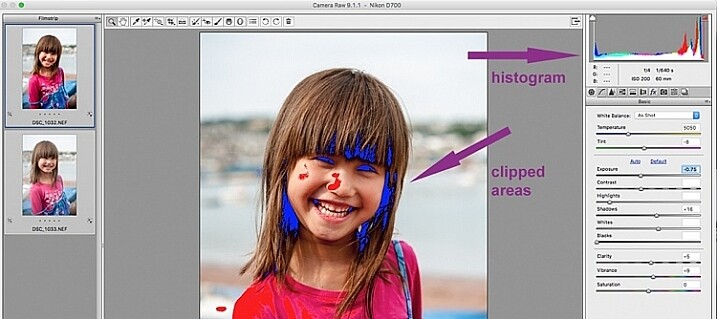
When making adjustments, it is important to keep an eye on the histogram, which is the coloured graph displayed on the upper right hand corner of Camera Raw. The histogram tells you if there is clipping occurring in the dark and light areas of your image. Clipping simply means that there is no detail left in that area, as the tonal values have fallen outside the minimum and maximum brightness boundaries, where detail can be represented in the digital image.

Type U and O together and the window will display any clipped bright areas in red. Type U and O together again to display clipped dark areas, and one more time to turn off the clipping warnings. You can then make adjustments by moving the sliders to eliminate the clipped areas. Remember to keep checking the histogram. You don’t want to clip either the blacks or the whites, you will see this on the histogram when the colours start climbing up on the left and right walls. Ideally you want the colours to be evenly distributed around the middle area until they are just touching the walls. Here is a link explaining: How to Read and Use Histograms.

Local adjustments

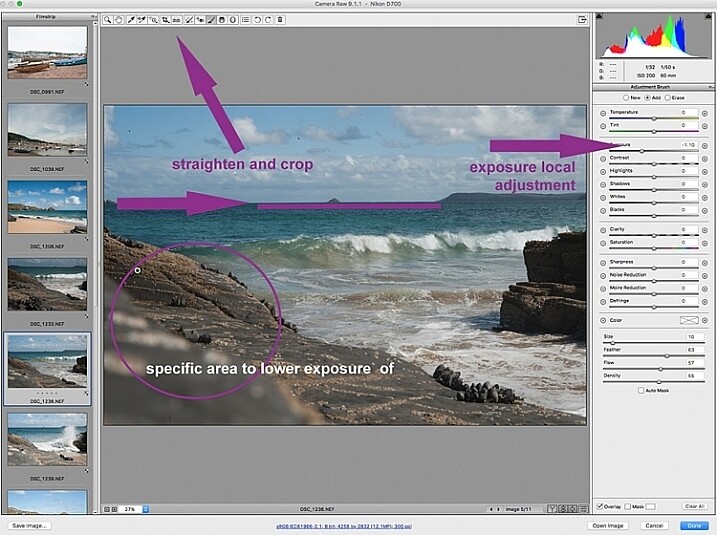
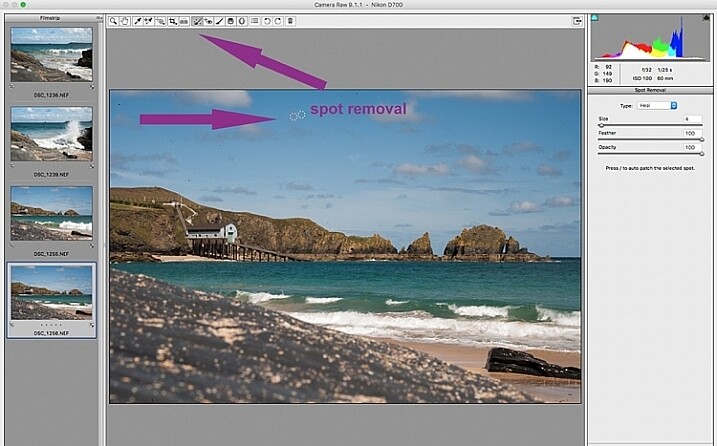
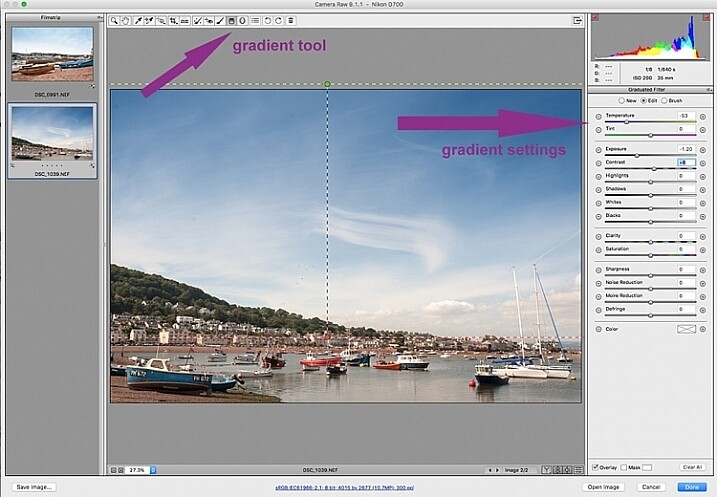
There are useful tools that you can use in Camera Raw, but which will not be beneficial in batch editing such as: spot removal and healing, adding gradients, straightening and cropping. However, you can edit smaller sets within the opened big batch, with ease using the same process. Regardless of the number of images, you can select consecutive images you want to edit in smaller groups, and apply specific batch edits to those images only, such as cropping and other local adjustments.

 batch-editing-adobe-bridge-photography-tutorial

 batch-editing-adobe-bridge-photography-tutorial

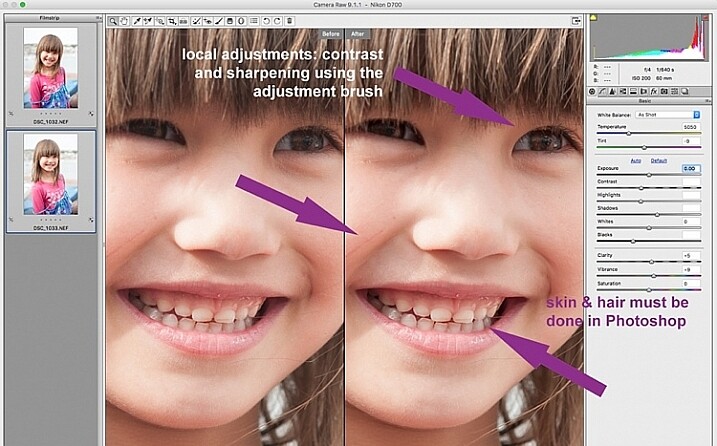
While I find local adjustments very useful, for instance brightening or darkening selected areas, warming up and cooling down specific parts of an image, and all the tools available on the adjustment brush panel, these tools need to be applied to each image individually, as necessary. Bridge and Adobe Raw can only go so far. If more fine tuning, and intricate edits need doing, you will need to take the image into Photoshop or a similar software to do so.

 batch-editing-adobe-bridge-photography-tutorial

Step 4: Remove Noise and Sharpen

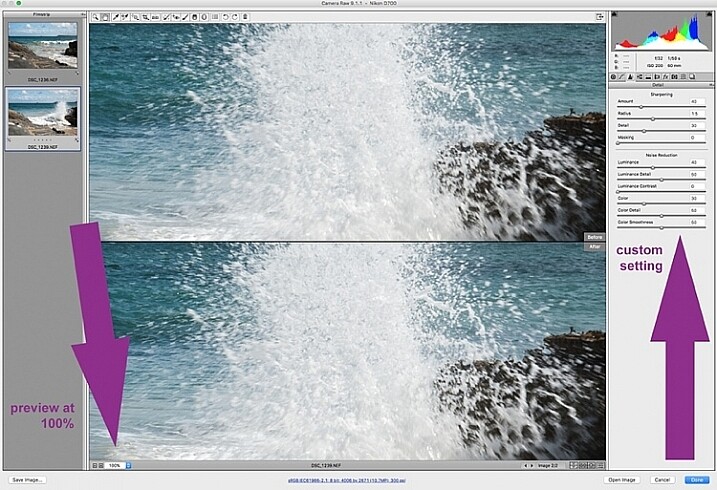
Adjusting the sliders to remove noise in an image is essential for all images, more so if you are shooting at a high ISO. Noise in a digital image is composed of the grainy look that you see, and the red, green, and blue spots that show through on the image, especially in the dark areas. The luminance slider fixes the grainy issue, and the color slider removes the dots, so move both sliders until you remove the noise.

An image shot at a very high ISO such as ISO 8000 will need a different noise reduction value than an image shot at ISO 400. If this is the case with your set of images, you can go back and filter your images again as in Step 1, but using the ISO speed ratings this time, then proceed with batch editing. This process can be tricky, but is worth the extra step, especially when dealing with higher ISOs. It is essential to view the images at 100% when removing noise, so the effects of the sliders are visible. A word of caution: do not go overboard with the noise reduction and sharpening settings when doing global batch edits. The danger is that you may end up removal detail and color. The best way to ascertain the noise removal settings appropriate for an image, is to do it on every single image, due to the ISO and exposure variables which greatly determine the amount of noise in an image. But there is no reason why you can’t apply a gentle global noise reduction setting to your batch of images, and adjust from there individually as needed.

It is always good practice to sharpen all your images, ready for output. Sharpening values vary according to the detail, and information in the image. You can apply your chosen sharpening values globally if you are confident that the values are gentle, and general enough for all the images in the batch. A little sharpening is better than nothing. Some images however, may need specific, more aggressive, sharpening values, and this is where you need to apply the appropriate value to each individual image. Similar to removing noise, the best practice is to custom sharpen each image one by one.

sharpen_WEB

Step 5: Save your images

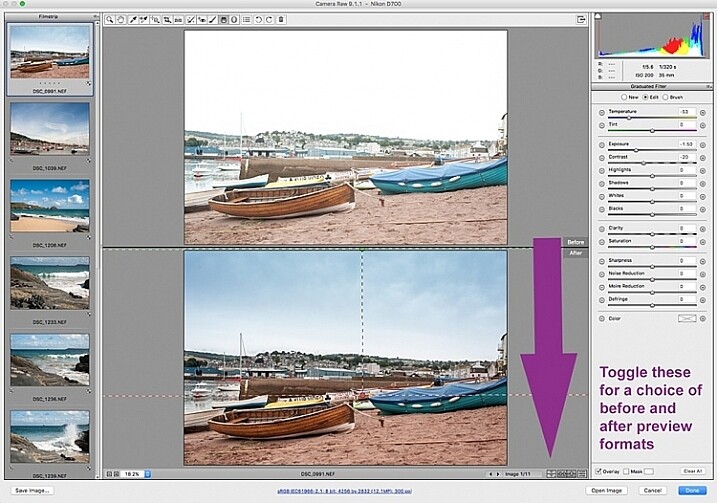
Once you have made global batch edits to your images, I suggest you go through them one at a time, in the same Camera Raw window, and make final local adjustments for each one. Type cmd+alt+p to toggle between before and after previews. There are a variety of preview formats, so play around with the options given, to choose your preferred format.

Now it’s time to save your images. This is one of the features of using Bridge with Camera Raw that, for me, trumps all others. Select all your images again, and click the Save image button. A window opens up where you can specify where you want the images saved, or create a new folder for them. You specify the format you want them saved in, as well as quality. You name the files once only, and voila they are saved. Don’t forget to click the done button to store all your adjustments. If you close the window without doing so, all your adjustments will not be saved. Always make sure your images are in sRGB and are saved in sRGB color profile.

Summary

These are only very basic steps to get you started, Bridge and Adobe Camera Raw have so much more to offer. Play around, experiment for yourself, and find out how your workflow can be even more simplified. Editing in Bridge and Camera Raw does have its limitations, especially when it comes to fine edits on skin, and blemish and hair removals, but with their batch editing functionality, you can get you to a place where you’re ready for finer edits in Photoshop, much faster than opening each image in Photoshop as a starting point, and applying the same edits one at a time.

 batch-editing-adobe-bridge-photography-tutorial

There you have it – a few simple tips for batch processing. By saving your images in a different format, you will have your new set of edited images, while your RAW files are safe in the original folder. When you open these RAW files again they will show the adjustments you have made, but you can reset at any time if you want to re-edit from scratch. Your edited images are now ready to be further edited in Photoshop, should you want to do more creative and artistic edits, or if there are more edits necessary like head swapping, skin blemishes and hair removal as mentioned above. Bridge and Camera Raw are only the beginning, they gives you a good clean edited image to build on.

A last word

Batch editing is not for every photographer, nor for every photograph. Neither is batch processing necessary for every photography job that comes your way. But it is an option that can be easily learned, and might just save your sanity one day when you need to edit thousands of images within a short time-frame.

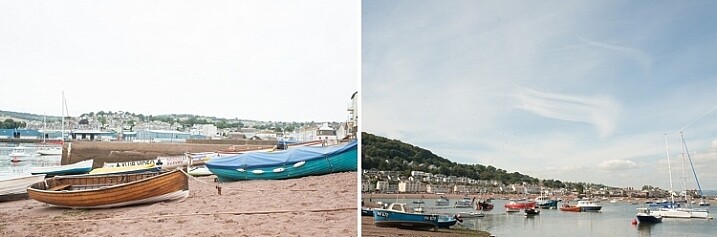
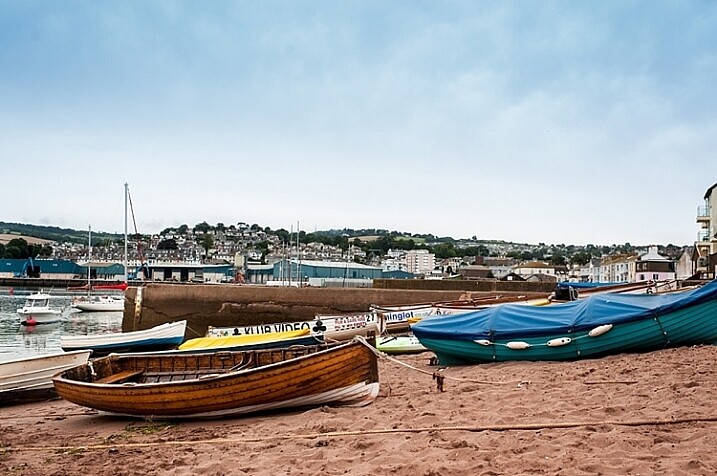
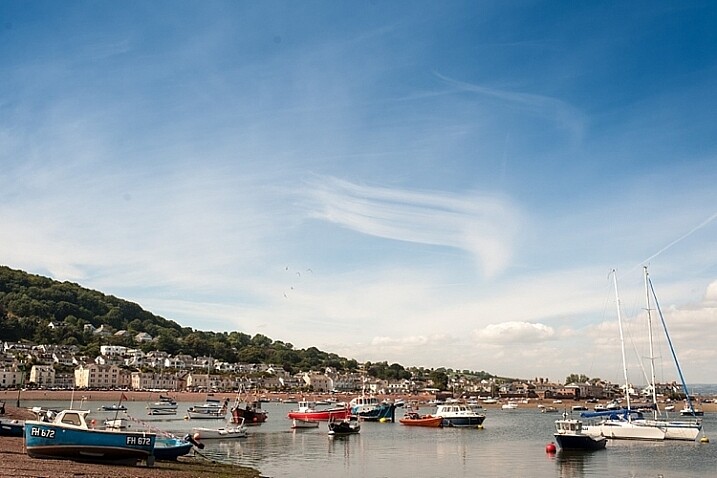
Here are the two images before and after editing in Bridge and Camera Raw.

landscape-after-before_WEB

landscape-after_1_WEB

landscape-after_WEB

Do you have other smart tips to share when batch processing in Adobe Bridge?

googletag.cmd.push(function() {
tablet_slots.push( googletag.defineSlot( “/1005424/_dPSv4_tab-all-article-bottom_(300×250)”, [300, 250], “pb-ad-78623” ).addService( googletag.pubads() ) ); } );

googletag.cmd.push(function() {
mobile_slots.push( googletag.defineSlot( “/1005424/_dPSv4_mob-all-article-bottom_(300×250)”, [300, 250], “pb-ad-78158” ).addService( googletag.pubads() ) ); } );

The post 5 Starter Steps to Batch Processing using Adobe Bridge by Lily Sawyer appeared first on Digital Photography School.


Digital Photography School
 
Comments Off on 5 Starter Steps to Batch Processing using Adobe Bridge

Posted in Photography


13 Steps for Editing Street Photography in Lightroom from Start to Finish

20 Jan

Favorite editing tools for street photography

I admit it, I take too many photos. I know it, and I have too many images to deal with, and unless I am getting paid to finish them and send them out to a client, they may never get processed. Are you in the same boat? Do you too have some images that have just been sitting there in your digital desk drawer?

With digital photography, and especially because of how cheap memory is (don’t forget to include web hosting sights and the cloud), more and more photos are just there and never used.  The best solution is to be more decisive, and just take fewer photos. But we all get out of hand, and sometimes just come home with more images than we know what to do with.

image

Final product after the simple steps followed below—a workflow that you can adjust to your own tastes too!

So the best thing to do is get to the grind and produce something. But it doesn’t need to be so much of a grindstone as you might think. I love taking photos more than processing and unless I am flying solo, I think I’ve got lots of people onboard with me. As you know, photography is not about broad strokes, and details are important. This set of instructions is specifically designed for street photography. But, are most of your photos from your travels? Well, streets (along with the convenient airplane) is maybe how you got there. Much of what we do as photographers crosses over into different genres of style and art. So have a go at the following tutorial, and you may find that with your own adjustments this is a recipe for more than just the street.

image

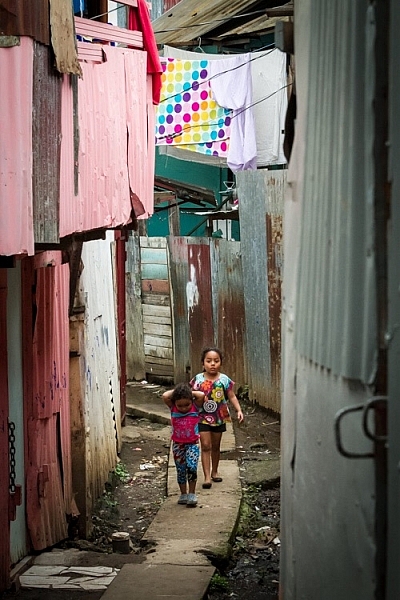
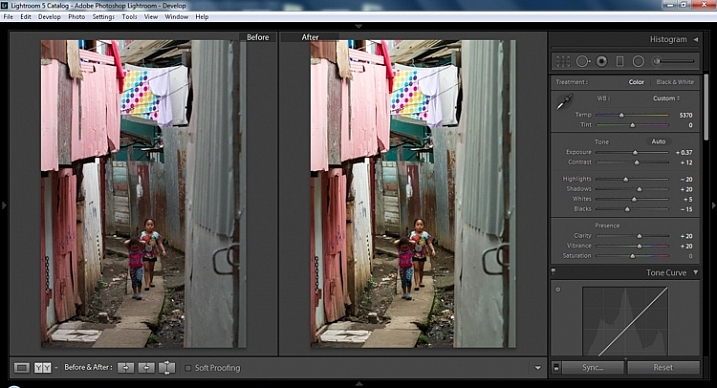
Final image of two young girls walking in the slums of San Jose Costa Rica, all editing was done following the steps below.

These instructions begin in the Library module of Lightroom, and then progress into the Develop module. There are countless modifications that can be made upon importing, categorizing them, giving them tags, etc. As the point of this tutorial is to streamline your workflow, the tips for editing will also be streamlined. So let’s get at it!

Library Module

Step 1 – Select images

Select a batch of images that are preferably in similar lighting conditions, and which have a similar theme. For example, choose a set of photos that were all shot outside over the course of a few hours, but not all night. Or a group of photos that were all shot in the rain. Lighting and theme conditions can vary, but greater variations will have potential greater variations in results.

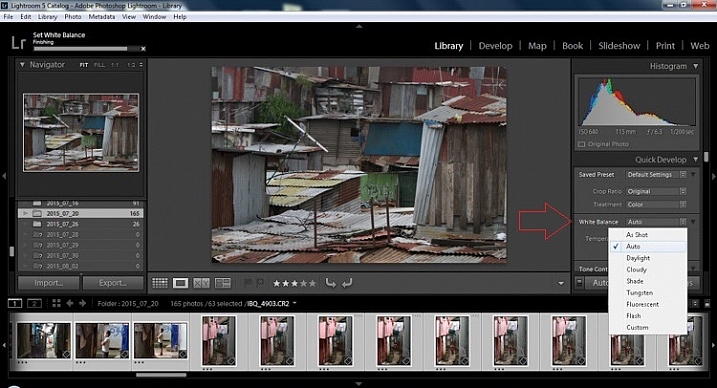
Step 2 – White Balance

In the Quick Develop Panel (at the top of the right panel in the Library Module) Select White Balance and choose Auto. Before you turn away, let me assure you that there have been more Ph.D.s awarded, and dissertations given, in creating the algorithms behind this button. If you compound the interest in dollars that has been invested in this Auto algorithm it would sustain many third and fourth quarter GDP figures for entire nations.

image

Step 3 – Warm images

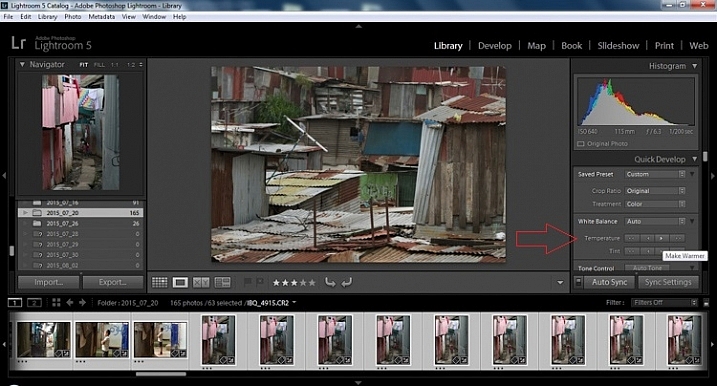
Next, push the single arrow pointing right under the temperature heading indicated by the Make Warmer hint that appears if you hover over it. The single arrow will increase your warmth tone by +5. If you want plus +10 push it twice, using the double arrow will increase it in increments of +15.

2015.09.25 Street Editing Tips Lightroom 002

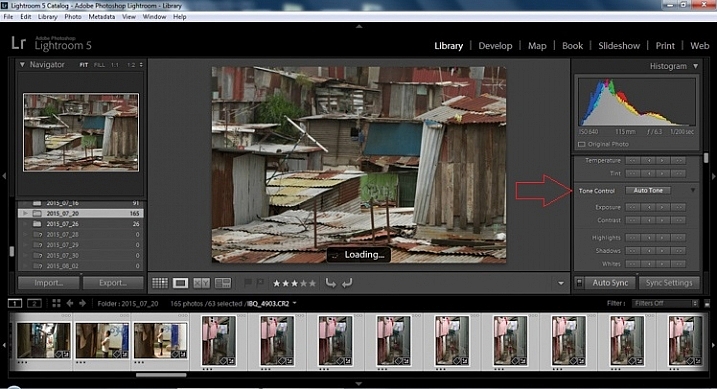
Step 4 – Auto Tone

I know it is scary, and it does make me cringe sometimes too, but anything can be shifted, tweaked, and tuned later (and should be) to your liking. This will Auto Tone your exposure, highlights, shadows, whites, and blacks to each photo individually, so it is not the same as batch editing which will be covered later.

2015.09.25 Street Editing Tips Lightroom 003

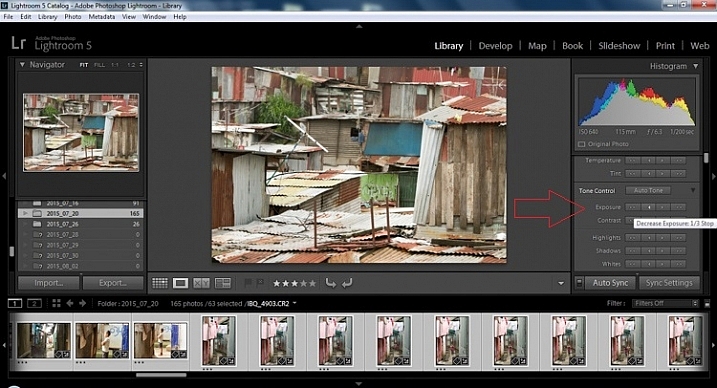
Step 5 – Decrease exposure

Select the single arrow to the left, decreasing the exposure by a 1/3 of a stop. It is minor, but keeps your darker tones (especially things like black asphalt) a little darker. Note: this is assuming you have a correct exposure to begin with – if it’s a bit out you can adjust later on a per image basis as needed.

2015.09.25 Street Editing Tips Lightroom 004

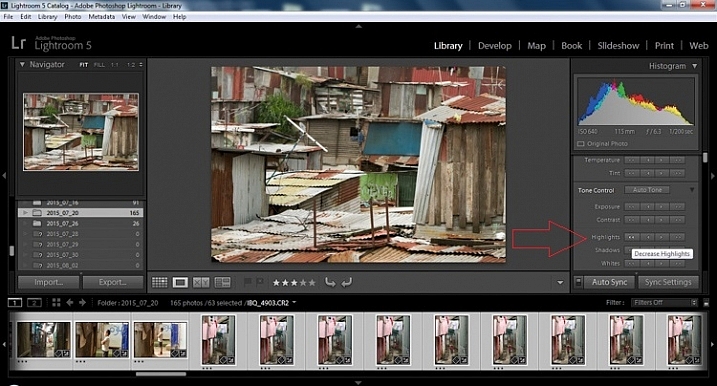
Step 6 – Decrease Highlights

For the Highlights, use the double arrow to the left, decreasing the highlights, and select it once. Be patient, as depending on how many pictures you select and your computer speed, it may take more than a few seconds. This can be monitored by looking in the top left of the screen above the Navigator window (progress bar).

2015.09.25 Street Editing Tips Lightroom 005

Step 7 – Shadows

For the shadows, use the double arrow on the right, decreasing the shadows, and click it once.

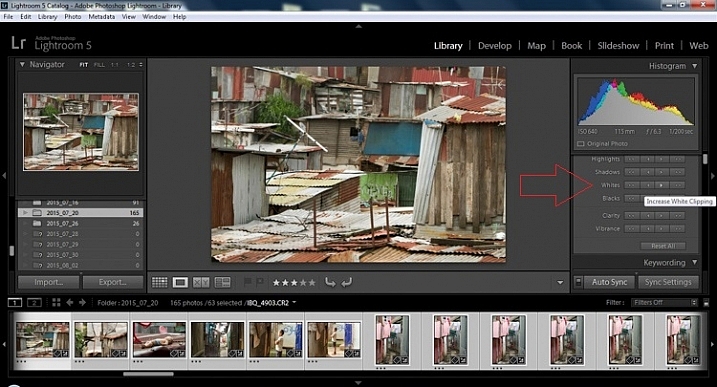
Step 8 – Whites and Blacks

Increase the white clipping by +5, by clicking the single right arrow once. Decrease the black clipping by -5 by clicking the single left arrow once.

2015.09.25 Street Editing Tips Lightroom 007

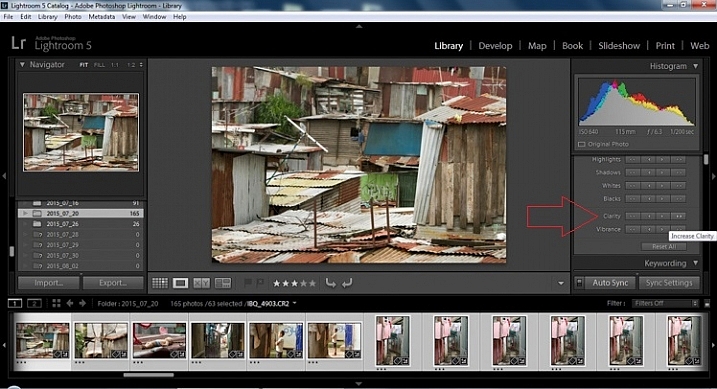
Step 9 – Clarity

Increase the clarity by +20, by pressing the double arrow to the right once (for more information about clarity please look near the end of the article which describes it in more detail).

2015.09.25 Street Editing Tips Lightroom 009

Step 10 – Vibrance

The final step in the Library module is to increase the vibrance by pressing the double arrow to the right (for more detailed information about vibrance please see below).

Develop Module

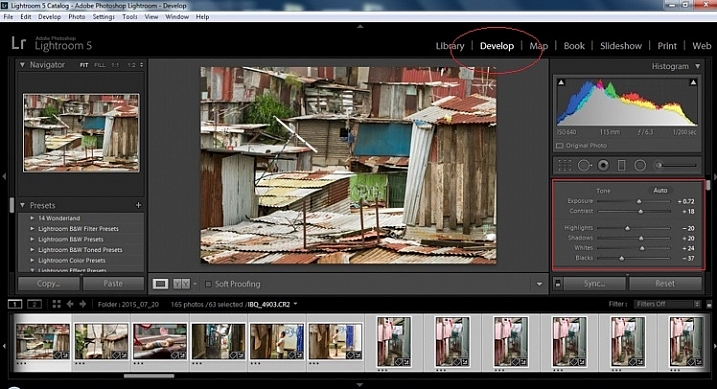
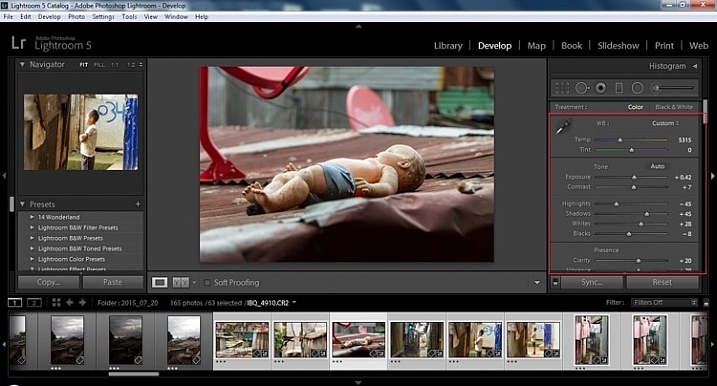
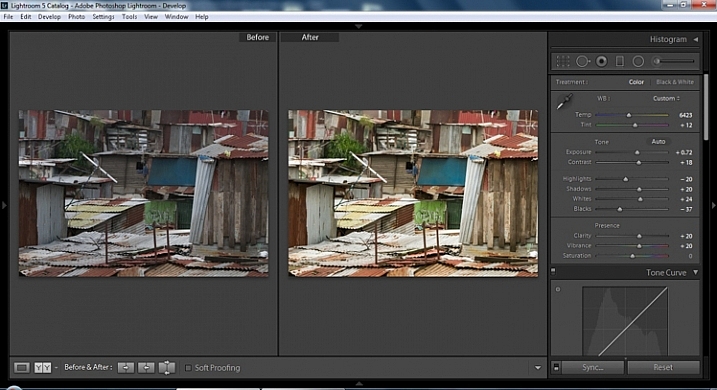
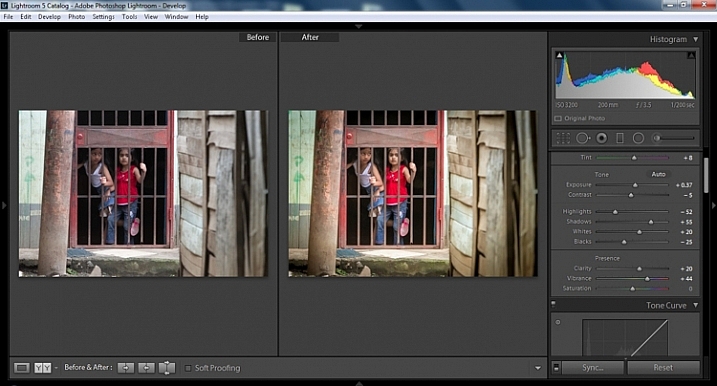
Now we will be moving into the Develop module. To this point, all the changes that you’ve made, have been applied to all the photos in the group, which you originally selected. Looking at the image below, you can see that despite the simple clicks made in the Library module, many delicate changes have been made. Again, all of these changes can be fine-tuned to your liking later. There are hundreds of modifications that can be made, but let’s keep those for later.

2015.09.25 Street Editing Tips Lightroom 011

Notice the sliders have moved based on the changes you made in the Library Module Quick Develop panel.

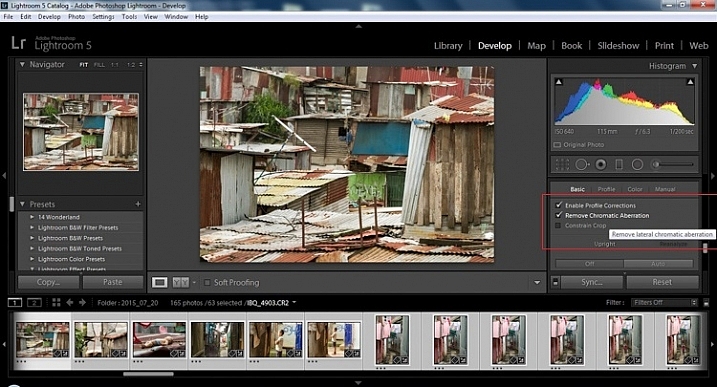
Step 11 – Lens Corrections

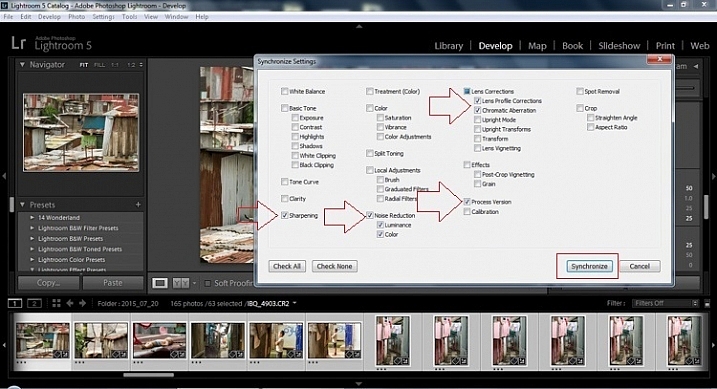
This step requires you to scroll down to the Lens Corrections Panel, and select two checkboxes. The first is Enable Profile Corrections, and the second is Remove Chromatic Aberrations. Both of these will allow Lightroom to make changes to the photo based on the lens used, and the inherent flaws that exist in that lens. A variety of corrections may or may not be included like, barrel distortion, vignetting, and as the second suggests, green and purple colors that result from diffraction in the lens.

2015.09.25 Street Editing Tips Lightroom 012

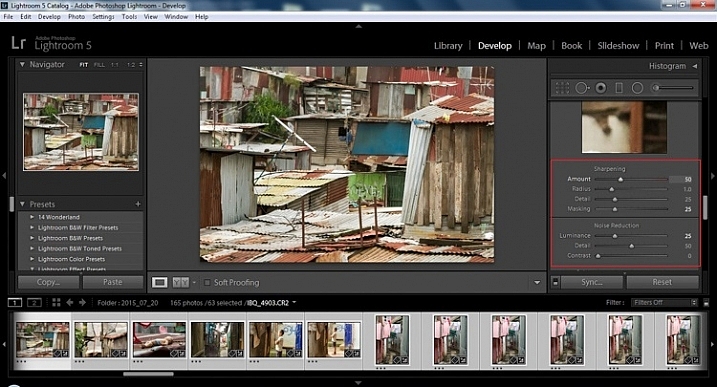
Step 12 – Detail Panel

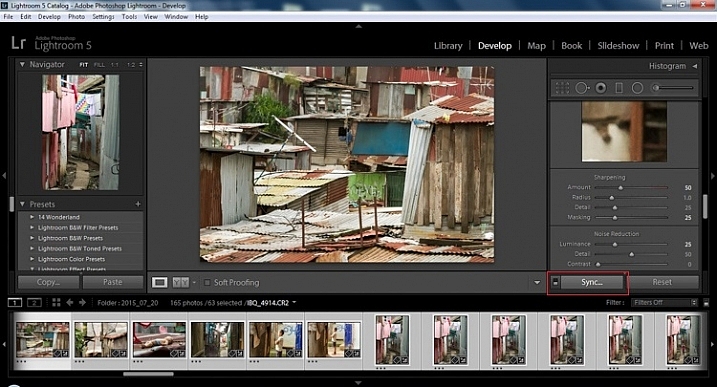
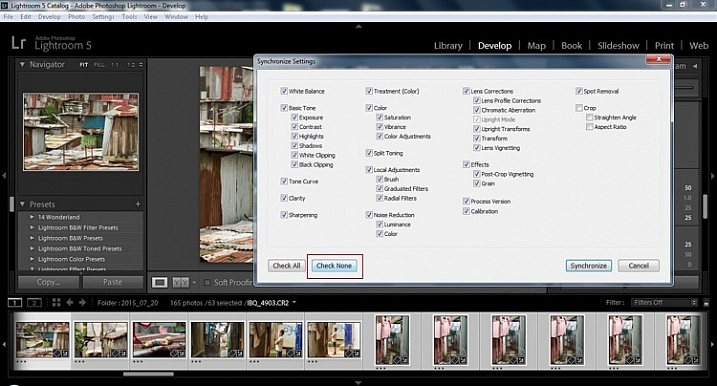
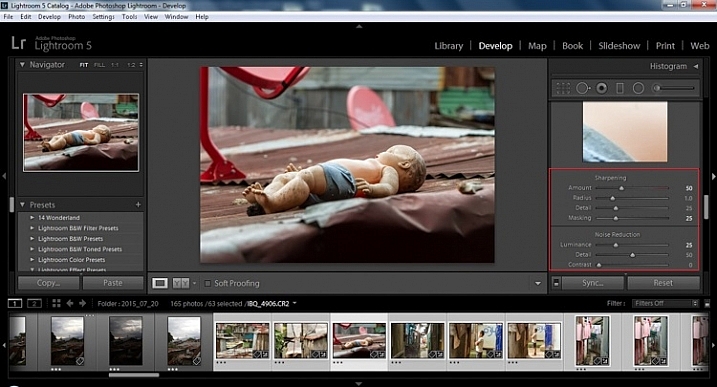
Next is to scroll up and go to sharpening, increase it to +50,  then increase your masking to +25. Finally you may or may not need to reduce noise. For this example, because the ISO was 640 the noise reduction was increased to +25. To understand, sharpening and masking in more detail and their relationship to noise reduction please read below.

2015.09.25 Street Editing Tips Lightroom 013

Are you still with me? Here is where you will thank some of those computer science majors for creating the AUTO button. This is why they get the big bucks, and it saves us large amounts of time. We don’t need to apply these changes individually.

Step 13 – Sync settings

At the bottom of the Develop module there is a rectangular button that says Sync. PUSH IT! Make sure all your images are still selected before you sync (highlighted in the thumbnail strip at the bottom).

2015.09.25 Street Editing Tips Lightroom 014 sync

When the Synchronize Setting window pops up, select Check None. This will ensure that no unwanted changes will be made to your previous adjustments.

2015.09.25 Street Editing Tips Lightroom 015 sync check none

Now check the boxes labeled Sharpening, Noise reduction (which will subsequently select both boxes below it), Lens Profile Corrections, Chromatic Aberration, and finally Process Version. Notice these are the same adjustments that you had made in steps 12 and 13.

2015.09.25 Street Editing Tips Lightroom 016 sync check which apply

Finally, press the “Synchronize” button.

2015.09.25 Street Editing Tips Lightroom 017 verify sync

Looking at the screenshot above, you can see that the all of the selected photos have had the changes made to them.  If I were to go back and make all the individual changes to the potentially tens, hundreds, or even in bizarre cases thousands of photos, it would have taken me time that I don’t have, and neither do you. Looking at the image below you can see that the exposure, shadows, lights, whites and blacks have remained unique to the individual photo.

2015.09.25 Street Editing Tips Lightroom 018 verify sync basic settings

Below are simple side by side comparisons. In the last one I actually made a few additional small adjustments, and added a -10 vignette. Other than that, it is ready for export, along with almost all of the other photos that were just individually and batch adjusted. It is a bit of mix and match magic that keeps your photos natural, and true to the street.

2015.09.25 Street Editing Tips Lightroom 019 compare

2015.09.25 Street Editing Tips Lightroom 021 compare

2015.09.25 Street Editing Tips Lightroom 020 compare

Clarity

Clarity increases the contrast where two different tonal values meet. It is like contrast but on a micro scale, makes the image seem to be sharper. The lights will get lighter and the darks darker, but only where the different tone values meet, not broadly across the whole tonal range of the image.

Vibrance

Vibrance increases the tone of colors that are not already saturated. It is like a balancing scale for color. Saturation on the other hand, increases the intensity of all spectrums of light. Thus, vibrancy helps to bring out subtleties in the colors. For street photography, it brings out richness, without creating an over-saturated look. Sometimes I pull the vibrance up, and push the saturation down, to maintain an urban feel but doing so without making it look over-worked.

Sharpness

Just as I said, clarity is like contrast on the micro scale, sharpness is like clarity on a micro scale. Thus, it is like micro-micro scale. So we are still dealing with tonal values, but in even more detail. So be careful how much you increase your sharpness. Never try to rescue camera shake or blur in the photo using sharpness. “The devil is in the detail,” and this is no truer than in the sharpness slider. Because what you gain in sharpness you also increase the amount of noise (not desirable). If you have a high ISO, sharpness is more of an enemy than a friend.

EXTRA

Final image all adjustments applied

Masking

Textures will become more enhanced, but smooth surfaces will not be affected, resulting in less excess noise being introduced. This will help the street photography mood, without giving it an overly grainy feeling, or your shadows having too much noise. So how much of this movement left and right on the Masking slider is helping or hurting all your hard work? Thanks to those “AUTO guys” the Alt key on windows (Opt on Mac) will give you a grayscale impression of exactly where, and how the sharpening is impacting your photo. White indicates the area on the photo where sharpening is being applied, and black shows where it is not. You will notice that the contrasts and textures deserve most of the sharpening, alleviating your smooth tones and surfaces from the ill effects of sharpness.

Summary

So hopefully that will give you some things to try out with your images to process your street photography faster and consistently. Do you have any other tricks and tips you use? Please share in the comments below.

googletag.cmd.push(function() {
tablet_slots.push( googletag.defineSlot( “/1005424/_dPSv4_tab-all-article-bottom_(300×250)”, [300, 250], “pb-ad-78623” ).addService( googletag.pubads() ) ); } );

googletag.cmd.push(function() {
mobile_slots.push( googletag.defineSlot( “/1005424/_dPSv4_mob-all-article-bottom_(300×250)”, [300, 250], “pb-ad-78158” ).addService( googletag.pubads() ) ); } );

The post 13 Steps for Editing Street Photography in Lightroom from Start to Finish by Branson Quenzer appeared first on Digital Photography School.


Digital Photography School
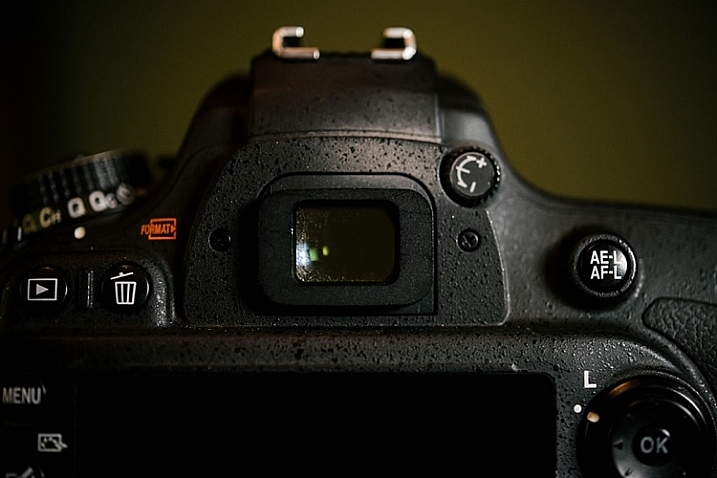
 
Comments Off on 13 Steps for Editing Street Photography in Lightroom from Start to Finish

Posted in Photography


5 Steps to Creative Storytelling in Pictures with Your Kids

19 Jan

image

Creative storytelling in pictures need not be daunting nor time-consuming. You can easily set up something really simple at home to take pictures of and at the same time make new memories with your kids.

The actual shoot must be kept really short, so as not to exasperate your kids too much, especially if they are very young, and therefore have relatively short attention spans. The real work is in the planning and thinking ahead.

image

The first rule to telling a good short story in pictures, is to keep it simple. Think of a singular plot: beginning, middle, and end. You can then fill in the gaps with interesting takes and angles. The biggest, and best, tip I give to anyone before taking on any creative project, is to imagine the emotion and feeling you want to evoke at the end of the project. Then work your way backward.

Start planning and decide on a theme. Take for example a simple back to school theme.

image

Step 1. Plan ahead

Think through the story you want to tell; decide on the details, picture the sequences in your head, and feel the story. Think through the items and characters that play a major role in the shoot. Half the battle is won by good meticulous planning, even if it’s just in your head.

What is the overarching emotion, look, feel, and colour of the shoot that you want to achieve? Pare everything back that doesn’t fit in with that look and feel. This shoot below had three requirements: golden, sentimental, and rich in bokeh (background blur). So I planned everything to achieve those three specific requirements.

image

To get rich bokeh, you need to shoot with a wide aperture, between f/1.2 to f/3.2, if you have normal shorter focal length lenses. For longer lenses like 85mm upwards, you can stop down a bit more, as the longer the lens, the more compression there is in the background. Using a 200mm lens, for example, would still give you nice background bokeh even at f/5.6.

To get golden images, use a gold reflector, and wait for the golden hour when you can get soft diffused yellow light. Golden hour usually happens about 1-2 hours after sunrise and before sunset depending on where you are in the world.

image

Step 2. Coordinate colours and props

Reign in the colour palette, go for a family of colours like blues and greens, or reds and purples, or warm yellows and oranges. You can add a splash of contrasting colour for focus. But it is always good to reign in the colour palette keeping it to 3 or 4 colours maximum.

Props need not be bought, or expensive. Use what you have at home; fruit, books, toys, cushions, quilts, etc. Just make sure they are colours that complement your chosen theme.

image

Step 3. Don’t be over ambitious

Keep goals simple when it comes to photographing kids, especially if they are your own. It’s one of the most difficult things to do. Keep it short and sweet by focusing on one or two actions or scenarios, and make them super easy like reading a book, hugging, or laughing at a silly joke.

A plot is not always necessary, you can even just aim for capturing some interactions between your kids. The props are to create some new context for them, hold their attention for a few short minutes, and keep them engaged during that time.

image

Step 4: Plan a beginning and end shot

The beginning and the end are crucial to a story because they bring the theme together. Make sure you have an establishing first shot, and a feel good last shot. Details are always a good idea for a contextual or establishing shot. They not only enrich emotion, and reinforce a story, but also strengthen memories. Interesting close-ups, and expressions or unusual crops are also good for closing shots, and stay in the viewer’s memory for a second longer.

image

image

Step 5: Edit your images with a plan

If you edit your photos, edit them according to your vision. there is no one else to please but yourself. The photoshoot you planned is for you and your family, so be true to your original vision and be brave, then sit back and enjoy your creative story in pictures.

image

Have you taken images that tell a creative story of your kids at home or more tips to add? Share them in the comments below.

googletag.cmd.push(function() {
tablet_slots.push( googletag.defineSlot( “/1005424/_dPSv4_tab-all-article-bottom_(300×250)”, [300, 250], “pb-ad-78623” ).addService( googletag.pubads() ) ); } );

googletag.cmd.push(function() {
mobile_slots.push( googletag.defineSlot( “/1005424/_dPSv4_mob-all-article-bottom_(300×250)”, [300, 250], “pb-ad-78158” ).addService( googletag.pubads() ) ); } );

The post 5 Steps to Creative Storytelling in Pictures with Your Kids by Lily Sawyer appeared first on Digital Photography School.


Digital Photography School
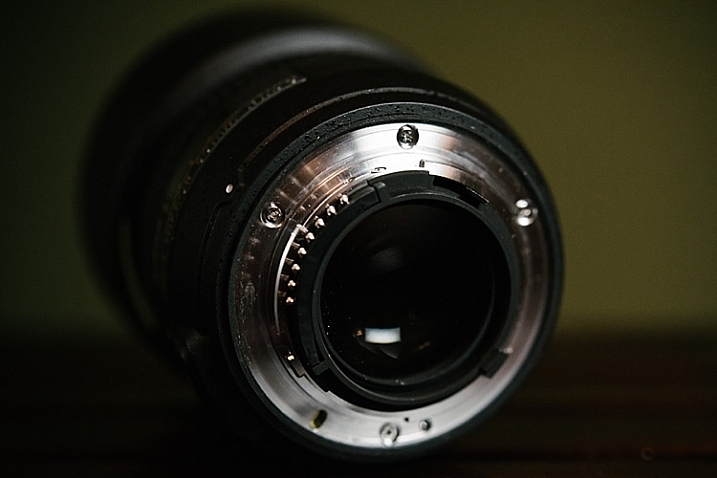
 
Comments Off on 5 Steps to Creative Storytelling in Pictures with Your Kids

Posted in Photography


Next Steps to Getting Started in the Lightroom Develop Module

21 Oct

Lightroom Develop module

A previous article showed you how to get started in Lightroom’s Develop module by using the Camera Calibration, Lens Corrections and the Basic panels.

In this article you’ll learn how to use the remaining right-hand panels in the Lightroom Develop module:

  • Tone Curve panel
  • HSL / Color / B&W panel
  • Split Toning panel
  • Detail panel
  • Effects panel

This guide is aimed at photographers who are new to Lightroom, so it doesn’t cover every aspect – just the important things you need to know if you’re just getting started with it.

It is quite possible that you won’t have to touch any of the panels listed above when processing a photo. Many photos can be developed in Lightroom just by using the Camera Calibration, Lens Correction and Basic panels, plus local adjustments. But the panels mentioned above will help you be more creative with your processing, especially when it comes to working with colour and tone.

The Tone Curve panel

One purpose of the Tone Curve panel is to give you another way of applying the same tonal adjustments that you can make with the Basic panel sliders. If you’re accustomed to using curves in Photoshop, the Tone Curve panel gives you the option of doing the same in Lightroom in addition to, or instead of, using the Basic panel sliders.

This is what you will see when you open the Tone Curve panel for the first time.

Lightroom Develop module

This is the RGB curve. Adjusting this curve affects the brightness values, but not the colours, of the photo.

You can move the curve upwards (as shown below) to make the image lighter. To do so, left-click once on the midpoint of the curve to add an adjustment point. Then click and drag the adjustment point to move it up, and change the shape of the curve.

Lightroom Develop module

You can also move it downwards to make the image darker.

Lightroom Develop module

You can create an S-curve like this to increase contrast (add a second adjustment point first).

Lightroom Develop module

You can create the matte look with a curve like this. Add an adjustment point near the bottom of the curve then lift the left-side up. This makes the darkest tones in the photo dark grey rather than black, imitating the look of a print made on matte paper.

Lightroom Develop module

Notice the lower left point is not touching the bottom, this creates a matte look.

You can return to the original straight tone curve at any time by going to the Point Curve menu and selecting Linear.

Colour curves

Underneath the Tone Curve is a menu that lets you select the Red, Green, or Blue tone curves individually. These curves affect each of the color channels in the photo respectively. The blue curve is shown below.

Lightroom Develop module

More options

If you click the icon in the bottom right-hand corner of the Tone Curve panel (circled above) the panel opens up to reveal four sliders, called Highlights, Lights, Darks and Shadows (see below).

Lightroom Develop module

These sliders give you another way to make adjustments to the tone curve. When you move one of the sliders, the corresponding region of the tone curve is highlighted, so you can see which tones are affected.

The illustration below shows what happens when you move the Highlights slider. The top right of the tone curve is marked in grey. This part of the curve changes when you move the Highlights slider.

Lightroom Develop module

You can click and drag on a single adjustment point (but not multiple points) to change the shape of the curve. The sliders change value as you adjust the curve. The diagram below shows the effect a simple S-curve has on the sliders.

Lightroom Develop module

Double click on any slider heading to reset that slider to zero. That covers the basics of curves. You can learn more advanced techniques by reading our article Lightroom’s Tone Curve Explained.

HSL / Color / B&W

The HSL / Color / B&W panel is for adjusting colour values. It is also for converting photos to black and white. This is beyond the scope of this article, but you can learn more by reading my article How to Convert Photos to Black and White in Lightroom.

The HSL / Color / B&W panel is divided into three tabs. The HSL and Color tabs are the ones you need for making adjustments to colour. They contain the same sliders, just arranged in a different order. The screen shots below are taken from the HSL panel.

The Saturation and Vibrance sliders in the Basic panel affect all the colours in the photo. The HSL and Color tabs allow you to target individual hues without affecting others. You can target a specific colour and change the following:

  • Hue
  • Saturation
  • Luminance

Adjusting Hue replaces the selected colour with an adjacent colour on the colour wheel. For example, you can target red tones and make them more magenta (pink tone) or orange. Or you could target blue tones and make them aqua or purple.

You don’t need a colour wheel to see how colours are affected by the Hue sliders. You can just look at the eight Hue sliders. For example, the Red slider (top in the diagram below) is coloured magenta to the left and orange to the right. Moving the slider in those directions changes red colours in the photo to either magenta or orange.

Lightroom Develop module

The easiest way to see how this works is to try it. The examples below show the effect that moving the Red slider to -100 and +100 (the strongest available settings) have on the image.

Lightroom Develop module

No adjustment.

Lightroom Develop module

Red -100.

Lightroom Develop module

Red +100

The Saturation and Luminance sliders work in a similar way. Saturation adjusts the saturation (intensity) of specific colours, and Luminance adjusts the brightness.

Targeted Adjustment Tool

The Targeted Adjustment Tool gives you an even more precise way of adjusting colour values. To use it, click on the Targeted Adjustment Tool icon in the HSL / Color / B&W panel (circled below).

Lightroom Develop module

Then move the cursor over the colour (area) in the photo you want to adjust. Click and hold the left mouse button, while you drag the mouse downwards to reduce the Saturation or Luminance of the colours underneath the cursor, or adjust the hue.

Move the mouse upwards to increase the saturation or luminance, or adjust the hue in the opposite direction. Lightroom analyzes the colours underneath the cursor and moves the sliders in the HSL / Color / B&W panel accordingly. All similar colors in the image will be affected.

For example, in the following photo I activated the Targeted Adjustment Tool, then clicked on the car’s paintwork and dragged the mouse downwards to reduce the Saturation. Lightroom adjusted both the Red and Orange sliders, showing that the red paintwork is comprised of those two colours. This is more accurate result than only moving the Red slider.

Lightroom Develop module

The Targeted Adjustment Tool is a useful tool that appears in other Develop module panels.

Read my article Mastering Color in Lightroom using the HSL tab to learn more about the HSL / Color / B&W panel.

The Split Toning panel

The Split Toning panel is for toning photos. While this is a technique traditionally associated with black and white photography, you can also use it with colour. If you’re a beginner, split toning is a little advanced for you at this stage, so I’ll direct those of you who are interested to articles that cover it in detail.

How to Split Tone Black and White Photos in Lightroom shows you how it’s done with black and white photography.

How to Create a Vintage Look using Lightroom shows you how to split tone colour photos (it also covers tone curves and Lightroom Develop Presets)

The Detail panel

The Detail panel is for adjusting the default image sharpness and noise reduction settings. For beginners it is simplest not to touch these. You won’t need to do so until you are a more advanced user.

Those of your curious to learn more can read our articles Learn How to Use the Sharpening Tools in Lightroom and How to Do Noise Reduction in Lightroom.

The Effects module

Use the Effects module to apply a creative vignette, add grain or (new in Lightroom CC only) add or remove atmospheric haze.

Vignetting lets you darken (or lighten) the edges of your photo, gently guiding the viewer’s eye towards the centre. Many images, especially portraits, can be improved by adding a subtle dark vignette. Here’s an example:

Lightroom Develop module

You may have to look closely to see it as the effect is subtle, but the portrait on the right has a vignette. It is most obvious in the bottom right corner.

These are the settings used to create this vignette:

Lightroom Develop module

  • Move the Amount slider left to darken the edges of the image, or to the right to lighten them.
  • Move the Midpoint slider left to make the area covered by the vignette larger, or right to make it smaller.
  • Move the Roundness slider left to make the vignette squarer, or right to make it more circular.
  • Move the Feather slider left to make the edge of the vignette harder (a more defined end and beginning of it), or right to make the edge softer (graduates slower from dark to light).
  • Move the Highlights slider right to preserve any highlights present in the area covered by the vignette.

Tip: The easiest way to see what these sliders do is to set Amount to -100. Then move the other sliders to see what effect they have.

Use the Grain sliders to add grain to your photos. This is only useful if you would like to emulate the look of photos taken with film. Move the Amount slider right to add grain (there is no grain at the zero setting) and then use the Size and Roughness sliders to adjust the size and appearance of the grain. This before and after image shows the effect of increasing Grain to 100, the maximum setting:

Lightroom Develop module

Dehaze is a new slider that is only available in Lightroom CC. Use it to reduce atmospheric haze caused by flare, mist, or pollution. You can also use it to increase haze – a good example of this is with photos taken in foggy conditions.

Lightroom Develop module

Photo taken in foggy conditions. Dehaze set to zero (the default).

Lightroom Develop module

Dehaze set to -10 to increase effect of fog.

Lightroom Develop module

Dehaze set to +30 to decrease effect of fog.

I’ll show you how to build on the work done in the right-hand panels by making local adjustments in my next article. In the meantime, if you have any questions about the techniques in this article, please let me know in the comments.


The Mastering Lightroom CollectionMastering Lightroom ebooks

My Mastering Lightroom ebooks will help you get the most out of Lightroom. They cover every aspect of the software from the Library module through to creating beautiful images in the Develop module. Click the link to learn more or buy.

googletag.cmd.push(function() {
tablet_slots.push( googletag.defineSlot( “/1005424/_dPSv4_tab-all-article-bottom_(300×250)”, [300, 250], “pb-ad-78623” ).addService( googletag.pubads() ) ); } );

googletag.cmd.push(function() {
mobile_slots.push( googletag.defineSlot( “/1005424/_dPSv4_mob-all-article-bottom_(300×250)”, [300, 250], “pb-ad-78158” ).addService( googletag.pubads() ) ); } );

The post Next Steps to Getting Started in the Lightroom Develop Module by Andrew S. Gibson appeared first on Digital Photography School.


Digital Photography School
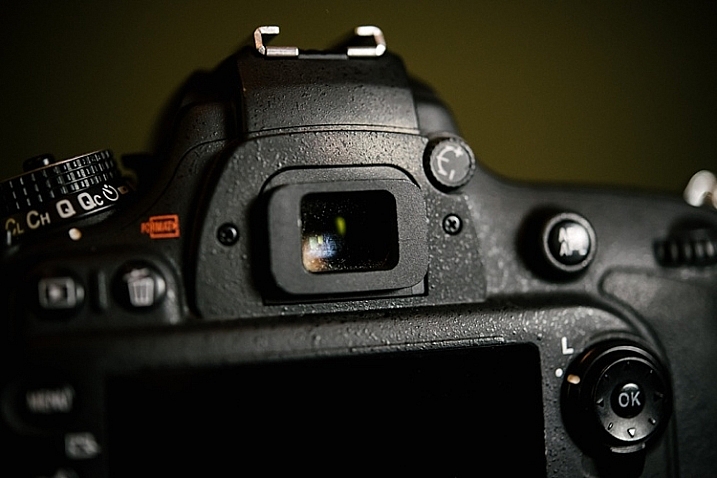
 
Comments Off on Next Steps to Getting Started in the Lightroom Develop Module

Posted in Photography