RSS
 

Posts Tagged ‘Steps’

Neglected Riverside Steps Revived with Form-Fitting Sunbed Seats

22 Jun

[ By WebUrbanist in Art & Installation & Sound. ]

no studio chairs

Designed to help citizens of Wroclaw, Poland, reclaim neglected parts of their city this site-specific “microinstallation” provides comfortable urban furniture for an otherwise hard-to-occupy staircase.

no studio bridge

Developed by No Studio for DoFA (AKA the Lowersilesian Festival of Architecture), padded bed-chair combinations made for sitting and lounging were placed along public steps near an historic bridge.

no studio context

no studio waterfront

The normal stairs are not only made of uncomfortable concrete, but they are spaced for walking, not sitting, making it uncomfortable to spend time in any position other than standing at and leaning against the riverside railing.

no studio lounging

no studio seats

Visitors, who would normally pass by with few excuses to stop, were suddenly encouraged to have a seat in the sun, all thanks to rather simple but fit-for-function works of urban seating.

no studio sloped sun

no studio microinstallation

Part practical project, the endeavor also reflects an subtle thesis: small and low-cost moves can radically transform our experience of public open spaces.

no studio deck

vertical museum projects

No Studio aims to turn temporary changes into memorable experiences and lasting inspiration: “We create spaces, design for a while and a little longer. We have fun working on serious things. We try to solve problems rather than create monuments.”

Share on Facebook


[ By WebUrbanist in Art & Installation & Sound. ]

[ WebUrbanist | Archives | Galleries | Privacy | TOS ]


WebUrbanist

 
Comments Off on Neglected Riverside Steps Revived with Form-Fitting Sunbed Seats

Posted in Creativity


LandscapePro software promises simple steps to dramatic changes

21 May

Anthropics Technology, the makers of the PortraitPro software application, has announced a program that it claims ‘radically simplifies and speeds up’ dramatic reworking of landscape images. LandscapePro offers tools for replacing skies, enhancing water and altering the direction of the light using automatic selection techniques and ‘one-click’ pre-sets. The company says that users will need ‘no prior knowledge or technical skills’ to use the program.

LandscapePro invites users to drag labels, such as ‘grass’, ‘sky’ and ‘water’ on to the relevant areas of an image and the software automatically makes an adjustable selection of that area. A collection of sliders and filters then makes it possible to adjust or replace each type of element. A depth of field simulator can create blur at certain distances while further controls allow photographers to emphasize distance through coloration.

Color temperatures can be adjusted using pre-sets with atmospheric labels to simulate sunset or stormy conditions, and ‘common objects’ such as grass and sand have their own pre-sets as well. There is also a tool that helps to select areas of sky through the branches of a tree.

There are two versions of LandscapePro: Standard and Studio. The Studio version works with Raw files and has options to operate as a plug-in for Photoshop, Lightroom and Elements among other differences.

The Standard version costs $ 79.90/£59.90 while the Studio version costs $ 119.90/£99.90, though both are offered at 50% off at the moment.

For more information, and a free trial, visit the LandscapePro website.


Press release:

LandscapePro Launched

New, easy way to enhance landscape photos

Anthropics Technology today announced the launch of LandscapePro, the industry’s first intelligent landscape photo editing software, available in standalone and Adobe Photoshop, Lightroom and Elements plug-in editions. The new software radically simplifies and speeds up outdoor and nature photo retouching. It includes landscape relighting, sky replacement, 3D depth estimation, a depth of field simulator, distance controls, intelligent selection tools, and photo-adaptive controls among other powerful features. With one-click presets and targeted editing available, users can create beautiful landscapes in seconds.

LandscapePro is a new way to enhance pictures that rises to the challenges and nuances of landscape photography. It assumes no prior knowledge or technical skills, and photographers can create unique, dramatic effects quickly. The new product comes from the makers of the award-winning retouching software PortraitPro and PortraitPro Studio with a plug-in mode for Adobe Photoshop, Lightroom, and Apple Aperture.

“Inspired by the success of Anthropics’s PortraitPro software, we are delighted to introduce a new product to help photographers expand their creativity and take landscape retouching to the next level,” said Andrew Berend, CEO, Anthropics. “LandscapePro offers an innovative and easy way to create stunning landscape photography, and can be used by novices or experienced photographers alike. As its intelligent controls uniquely adapt to the features of each photo, it enables photographers to do incredible things with their outdoor photos simply by using sliders.”

Key Features

Easily enhance landscape photos. LandscapePro contains a host of unique tools to enable anyone to create beautiful scenic photographs.

  • Intelligent selection tools.
  • Unique editing controls that adapt to the photo.
  • Easy-to-use slider interface.
  • No technical skills required.
  • LandscapePro Studio handles RAW files and can be run as a Photoshop, Lightroom and Elements plug-in.

Expand your creativity. Create unique, breathtaking scenes. LandscapePro effects are specifically tailored to landscape photography.

  • Landscape relighting. Lighting adjustment to fit any creative goals: change light source, temperature, time of day, or go from dawn to sunset. Note how the side lighting brings out the texture on the ground.
  • Instant sky replacement with presets. The unique sky controls enable photographers to replace sky, change clouds, or cast cloud shadows. Note how the change in sky has automatically relit the ground.
  • Cloud and atmosphere adjustment. Tools to manipulate skies by separately adjusting the clouds and the atmosphere behind them.
  • 3D depth estimation. A unique, easy-to-use depth of field simulator respects 3D objects in the scene. As easy as using a single slider.
  • Distance controls. Change colors in the image depending on the distance to the camera – make distant objects bluer, highlight the middle distance, or add fog.
  • Landscape-specific tools for dealing with common issues such as selecting small patches of sky behind trees.
  • Color adjustment tools targeted at common objects in landscapes, e.g. tools to make grass look lush, change the color of the sea, or to make sand golden.
  • One-click presets such as wet sand, stormy water, red sunset, lush trees.
  • Automatic area selection. Tag areas as sky, trees, buildings, grass, sand, rock, water and the selection will be applied instantly.
  • Targeted editing. Specially designed controls for different areas, e.g. change clouds to stormy or add thunder clouds, adjust waves, or add sunrise reflection to the sea.
  • Whole picture and individual object enhancements. Transform the whole photo instantly or use a new workflow where you select several objects in your scene first, before editing.

Editions

LandscapePro Standard – dedicated landscape photo editing.
LandscapePro Studio – handles RAW files, 48 bit per color TIFFs, supports different color spaces, and can be run as a plug-in for Photoshop, Lightroom and Elements.

Compare the different editions: www.landscapepro.pics/editions.
Availability, Free Trial and Pricing

LandscapePro is available to purchase or for a free trial from http://www.landscapepro.pics/.

Articles: Digital Photography Review (dpreview.com)

 
Comments Off on LandscapePro software promises simple steps to dramatic changes

Posted in Uncategorized


5 Steps to Increase the Sharpness of Your Photographs

13 May

Image001

Here are five steps you can take which help to increase the sharpness of your photographs:

1) Keep your lenses, filters, and camera sensor clean

Somewhat of an obvious point, but a very important one nonetheless. If your lenses and/or filters have dust or debris on them, however small and unnoticeable to the naked eye, it can create ugly soft spots on your photograph. There have been countless times I was in such a hurry to go shoot, I didn’t check the glass to see if it needed a good cleaning. This especially holds true if the lens I am using has been sitting on my shelf for a while, collecting dust. Even if the lens has been wrapped up in a pouch with a cap on top, it can still accumulate dust on the outer element.

Quick side issue: This is why it’s a good idea to keep a protective filter over your lenses when they are resting on a shelf, or when you are traveling. Along with the front lens cap, a protective filter helps to keep dust off the lens glass. If you get scuff marks or dirt on a cheap protective filter, who cares? But if you scuff up the outer element on the lens, it’s costly to fix.

Back on point: It can be very frustrating to think you’ve got yourself a good shot, only to upload the images to your computer and see ugly spots scattered all over the image. You can use the Dust and Scratches Filter in Photoshop, use the healing brush, and/or clone away only so much before the smudges become a real time-consuming burden.

This is easily avoidable if you make it a routine to clean your glass before heading out to shoot.

Image002

2) Shoot at the lowest possible ISO

The higher the ISO, the more noise you introduce into the image.

Sometimes you absolutely have no choice but to shoot at a higher ISO. For example, if you are in a poorly lit gym shooting your kid’s basketball game, you are going to need a relatively high ISO to freeze the action, even with a fast lens. Newer cameras mitigate this issue somewhat, because they are able shoot at higher ISOs without a significant amount of noise.

Additionally, if you are only going to be displaying low resolution photographs on Facebook or elsewhere on the internet, or printing small 5X7 pictures, you can get away with some noise in the photo. But, if you are going to be creating larger prints, or will be showcasing the images on the internet at a high resolution, you want your images tack-sharp, and lower ISOs undoubtedly help. There are all kinds of software programs which can help reduce noise in a photograph, but the more noise you are correcting, the softer the image will become.

This segues nicely into the next step because, if you lower ISO, your shutter speed will slow down (assuming aperture is constant). One way to shoot tack-sharp photographs at slow shutter speeds is to use a sturdy tripod.

Image003

3) Use a sturdy, well-grounded tripod

On a tripod, you can shoot at any shutter speed and the camera and lens will (ideally) stay motionless. This assumes your camera is firmly fastened to the tripod head, and the tripod’s foundation is well anchored and balanced on the ground. Don’t take that for granted – just because you’re on a tripod doesn’t mean everything will stay locked in place. Make sure your tripod feet are solidly on the ground before setting up the camera (I usually press down relatively hard on the tripod to make sure the ground won’t give way…this is especially important on loose ground like mud, wet rocks, or sand).

Then, once your composition is set, make sure your tripod head is locked in position. Additionally, If your tripod has a hook beneath the centre column, hang something with a little bit of weight on it to further lock down the tripod (I usually hang my backpack on the center hook). Even a gentle gust of wind, or the vibration from a nearby car passing by, can introduce minor camera movement into a tripod setup, so you want that setup locked down as tightly as possible.

Image004

4) Mind your shutter speed

If you are going to hand-hold the camera, it is customary to choose a shutter speed that is at least as fast as the reciprocal of the focal length you are using. For example, if you are shooting with a 50mm lens, then you will want your shutter speed to be at least 1/50th, or faster, to get acceptable sharpness. Any slower and you risk motion blur. If you are shooting with a 500mm telephoto, then you want at least 1/500th or faster, and so on. The one caveat to this formula is if your camera or lens has some sort of additional stabilization, like Nikon’s Vibration Reduction (VR – called Image Stabilization or IS on other cameras). This will allow you to shoot at slower shutter speeds, usually by several stops, without introducing significant motion blur.

Image005

5) Lock-up the mirror before firing away

When you are looking through the viewfinder in a DSLR, what you see is the light which passes through the lens, but you don’t actually see it until it bounces off a couple of mirrors. The light of the scene enters through the lens, bounces off of a mirror that sits at an angle directly in front of the shutter/sensor, then it travels through a pentaprism or penta-mirror, before it finally reaches the viewfinder.

So, in order for the exposure to be taken, the mirror in front of the sensor has to flip up, then the shutter opens to allow light to hit the sensor. If the mirror flips up at the same time the shutter opens, there is the potential for very slight movement of the camera due to vibrations caused by the mirror flipping up.

Most modern DSLRs give you the option of locking the mirror up well before the exposure is taken. The Nikon D810, for example, gives you the option of locking up the mirror anywhere between one and three seconds before the shutter opens (Nikon calls it Exposure Delay Mode). I always choose three seconds, unless there’s a need to shoot quicker. That makes sure the camera is nice and still before the shutter opens and the exposure is taken.

Note: if you’re using a mirrorless camera you don’t have to worry about this step!

This is also helpful if you forgot to bring along a remote shutter. Pressing the camera’s shutter release almost always causes slight movement in the camera. But, if the camera waits a couple of seconds after the mirror flips up, it gives the setup time to become completely still again.

Image006

Do you have any additional tips or tricks to increase sharpnes in your images? Please share in the comments below.

googletag.cmd.push(function() {
tablet_slots.push( googletag.defineSlot( “/1005424/_dPSv4_tab-all-article-bottom_(300×250)”, [300, 250], “pb-ad-78623” ).addService( googletag.pubads() ) ); } );

googletag.cmd.push(function() {
mobile_slots.push( googletag.defineSlot( “/1005424/_dPSv4_mob-all-article-bottom_(300×250)”, [300, 250], “pb-ad-78158” ).addService( googletag.pubads() ) ); } );

The post 5 Steps to Increase the Sharpness of Your Photographs by Jeb Buchman appeared first on Digital Photography School.


Digital Photography School

 
Comments Off on 5 Steps to Increase the Sharpness of Your Photographs

Posted in Photography


Six Essential Steps to Taking Great Photographs

05 May

Whether you have been creating photographs for years, or only for few weeks, your goals and dreams are to create great photographs that everyone will admire. You may notice this is not an easy task, and I’m sure that most of the time you experience more disappointments than successes. But don’t worry, I have for you six essential steps that will help you speed up the process, and give you confidence on your journey to these elusive great photographs.

Step 5 - Organise by eva polak

Step 1 – See

Seldom does a photograph succeed because of unusual technique or exotic equipment. Most of the time it succeeds for one simple reason – the photograph was well seen. So, to create great photographs we just need to learn to see better.

Unfortunately this isn’t as easy as it sounds. There’s more to seeing than just looking. It requires time and patience. Begin by concentrating on the objects before you; see how light strikes those objects; see colour, see quality and direction of light, see contrast, see texture, lines,forms and shapes, see details.

The strength of a photograph is directly related to how well, and how carefully you see things around you.

Step 1 - See by eva polak 2 Step 1 - See by eva polak

Step 2 – Feel

Feeling has to do with the emotions generated by a place or subject. Sometimes you need to just sit and absorb your surroundings. Listen to the wind and the birds. Smell the flowers. Feel the rough texture of the trunk you sit on. If you are photographing an animal, watch its movement and behaviour. If you are photographing people, listen to their words, and try to understand their feelings expressed by body language. You can’t photograph the smell of flowers, the sound of birds, or the feelings of a person, but the emotions generated by them can guide you in finding the essence of the scene or subject.

Step 2 - Feel by eva polak 2 Step 2 - Feel by eva polak

Step 3 – Think

This is the most important step in the process. Strong images begin in the mind, not in the camera. Before you begin photographing ask yourself, “Why am I about to take this photo?”

Think about how you will use that sensual input and combine it with your camera, the lighting, and the mood. Is the lighting the best? Would soft, overcast light work better? What about angle of view? High angle? Low angle? Which lens will give the effect you are after? What about shutter speed and aperture?

Answering all these questions is very easy when you have a clear idea of why you want to take an image. Your choices will be completely different when you want to just record your holiday, as opposed to capturing the warm glow cast over the scene by the evening light.

Step 3 - Think by eva polak 2 Step 3 - Think by eva polak

Step 4 – Isolate

Many good shots have been spoiled through poor composition. We tend to concentrate our attention on the subject of a photo, remaining oblivious to what is going on beyond. Make a habit of spending just a second or two before pressing the shutter, checking the viewfinder for any unwanted elements. Get rid of those chaotic objects in the picture. Simplify. Isolate only those elements that convey the message you are trying to express. Emphasize the strong lines, shapes, patterns, textures or colours – but not all of them at once. Be bold and decisive. Ask yourself why. What does it contribute to the overall image? Can you make it stronger by isolating even more? Would you hang that picture on your wall? If not, why not?

Step 4 - Isolate by eva polak Step 4 - Isolate by eva polak_2

Step 5 – Organize

Having isolated carefully, you now need to organize or arrange the elements in the strongest possible way. Where should you place the subject in the frame? In the centre? If so, why? The arrangement may be too boring or static, or on the other hand, it may convey a sense of peacefulness. Or should you put the subject near the edge of the frame? What about the picture orientation itself? You have a choice of creating a vertical or a horizontal image. Which is best for the subject? Vertical orientation tends to emphasize vertical lines or the height of things. Horizontal orientation can give emphasis to sweeping panoramas or the movement of subjects. When you make these choices, always by guided by the message that you are trying to express.

Step 6 - Experiment by eva polak Step 6 - Experiment by eva polak_2

Step 6 – Experiment

Digital photography makes it easy to experiment because you have instant feedback on the LCD screen. Look for new ways to portray familiar subjects. Don’t always photograph the same kinds of scenes in the same ways. Be creative, try different lenses or compositions or angles of view. Play with light. Investigate, explore, observe, evaluate. Don’t be afraid to make mistakes, and above all, have fun!

googletag.cmd.push(function() {
tablet_slots.push( googletag.defineSlot( “/1005424/_dPSv4_tab-all-article-bottom_(300×250)”, [300, 250], “pb-ad-78623” ).addService( googletag.pubads() ) ); } );

googletag.cmd.push(function() {
mobile_slots.push( googletag.defineSlot( “/1005424/_dPSv4_mob-all-article-bottom_(300×250)”, [300, 250], “pb-ad-78158” ).addService( googletag.pubads() ) ); } );

The post Six Essential Steps to Taking Great Photographs by Eva Polak appeared first on Digital Photography School.


Digital Photography School

 
Comments Off on Six Essential Steps to Taking Great Photographs

Posted in Photography


4 Steps to Make Your Images Pop in Lightroom

03 May

In this article, I share with you the start of my post-processing workflow for pretty much all of the photos I take. I’m mostly using Lightroom for 90% of my post-processing and very rarely do I go into Photoshop for some extra stuff.

Before we begin I must confess that I’m no post-processing master, nor do I know Lightroom inside and out, and I definitely don’t know Photoshop inside and out. But, as I learned, and I hope you will too, it turns out you don’t have to be a master in order to be able to bring your Raw photos to life. It can be done by just about anyone with just a few simple steps as I’m going to show you.
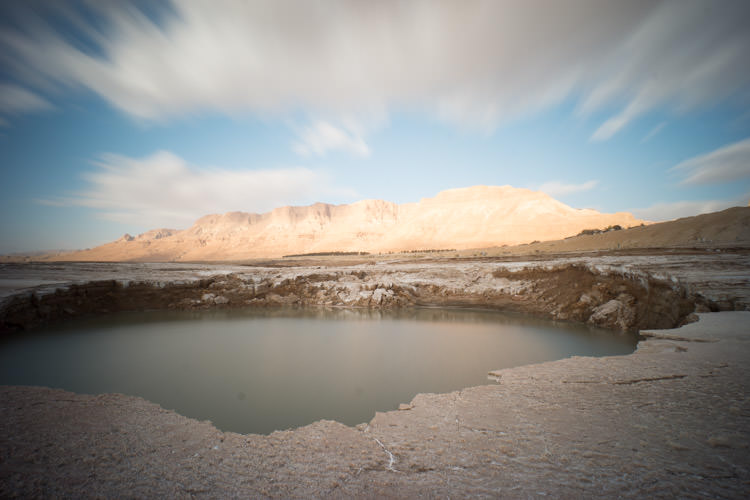
8 Photobek Before
Before we start, here is the image as taken straight out of camera.

The photo I’m going to use (above) for this tutorial is one that I took while on a Dead Sea Night and Sunrise Workshop. I didn’t really plan for this photo ahead of time, but it’s probably the best image I took during that workshop. It’s a photo of one of the biggest sinkholes in the Dead Sea area (one out of more than 5,000 and counting) and it’s an 89 second exposure, done with a 10 stop neutral density filter that allowed me to smooth the water inside the sinkhole, and stretch the clouds moving above.

Now let’s make it POP!

1. Lens Corrections
1 Photobek Lens Corrections

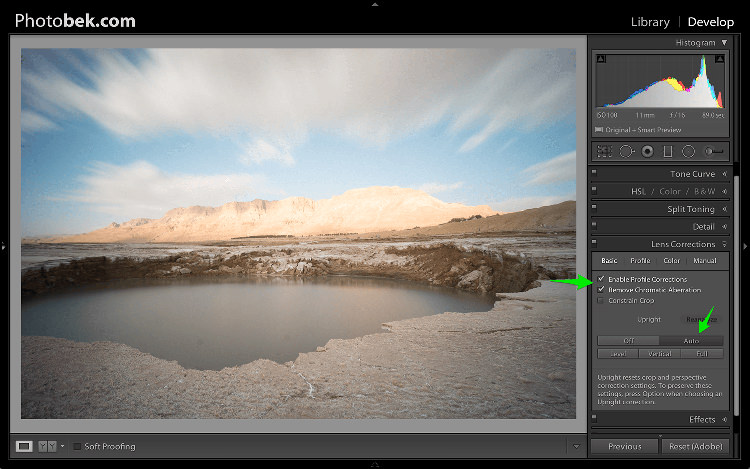
The first thing I do is apply Lens Corrections. This specific photo was taken with a wide angle lens, and if you’re into landscape photography then a wide angle lens would be your go to lens 80% of the time, so fixing the distortion it creates is important.

just go to the Lens Corrections Panel and mark the Enable Profile Corrections. Lightroom has profiles for plenty of lenses, and chances are that it will have one for the lens you are using. If not, make sure you update to the latest version of Lightroom as they keep adding support for new lenses as they are being released to the world.

In some cases I decide to leave the photo as it is without doing the lens correction. It is just a matter of what seems or feels right for each specific photo.

Under the Lens Corrections panel you can also correct perspective in your photo, so I always click on Auto and see how that affects the image. If it’s good, I keep it. If it’s off I undo it and align in manually, or rotate using the crop tool if necessary.

2. White Balance
2 Photobek White Balance

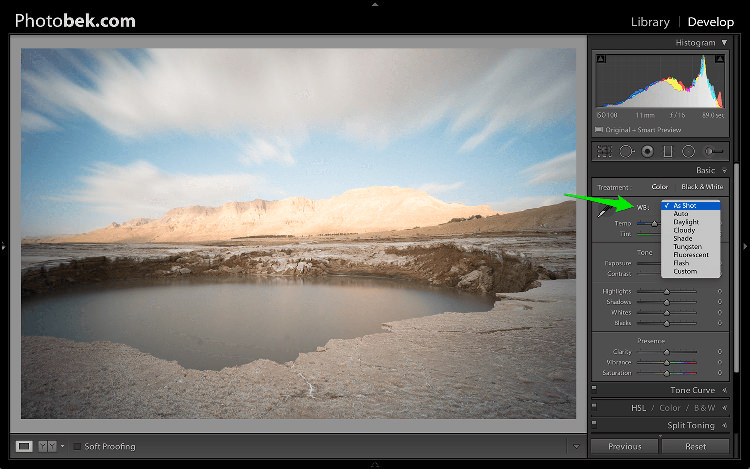
Adjusting the White Balance comes second. Since I’m always shooting Raw (and if you’re not, then please start) I don’t really mess with White Balance while I’m shooting. Again, this is a matter of playing with the options in Lightroom to see what looks the best, and what makes the image as close to how it looked when I was out shooting.

80% of the time I’m using either the Auto or As Shot options, and for this photo I kept it at As Shot.

3. Spot Removal
3 Photobek Spot Removal 01

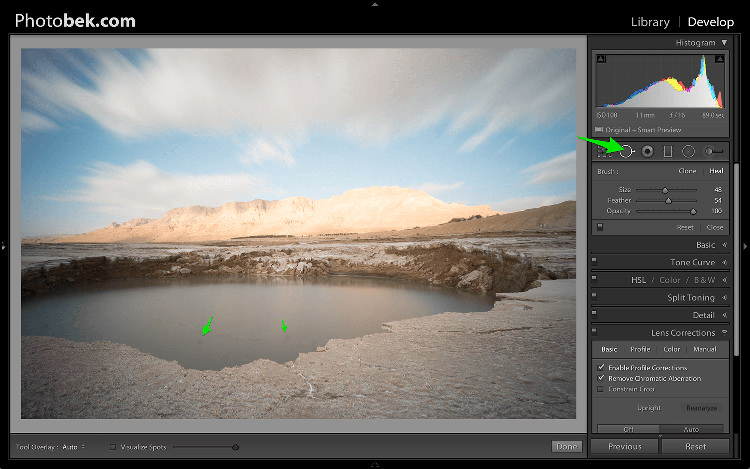
Spot Removal is a MUST. Not removing the spots from your photos is a really bad habit. It’s hard to avoid having these spots, as the lens or sensor will get some dirt and dust on them, and having them cleaned on a consistent basis is not really something most photographers do. I know I don’t.

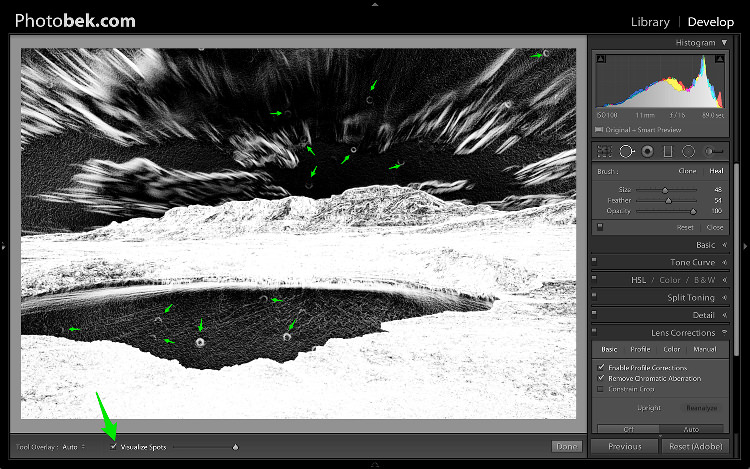
Spots can ruin a photo in my opinion, I simply hate them, but I love getting rid of them and Lightroom makes it super easy to do. As you can see in the screenshot above I marked two very obvious spots with arrows but after using the Visualize Spots feature look what happens.
4 Photobek Spot Removal 02

BOOM!

I know I shouldn’t be so happy since my lens (or sensor) is pretty filthy, but thanks to this great feature in Lightroom I can see pretty much all the spots and get rid of them.

You can choose between Clone or Heal in the Spot Removal tool. I usually use Heal as it does a better job of removing the spots and picking the best places to copy over from.

4. Basic Panel
5 Photobek Basic 01

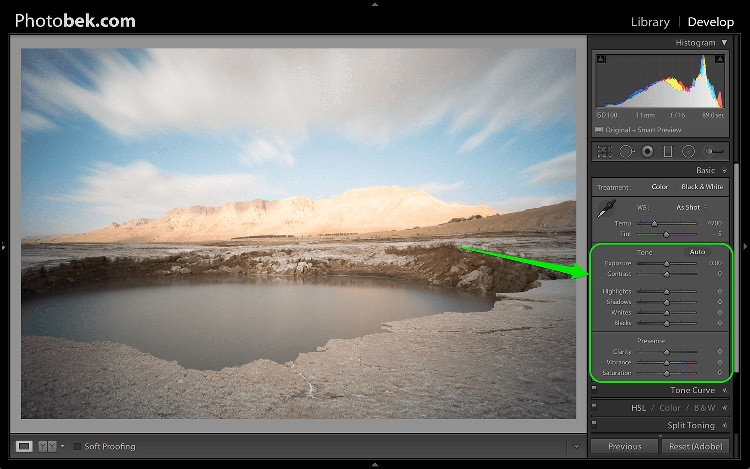
This is where most of the magic happens, and this part makes the biggest impact on the photo. It has nine sliders (besides the two sliders for White Balance which we already took care of in step 2) and the most important thing for you to know, is that every photo needs its own adjustments as each image is different.

The adjustments I’m going to make on this specific photo might not work so good on a different shot, so keep in mind that the overall process is similar and I’ll use all these sliders for every photo, but not necessary move them to the same locations.

Let’s begin:

4.1 Exposure
6 Photobek Histogram

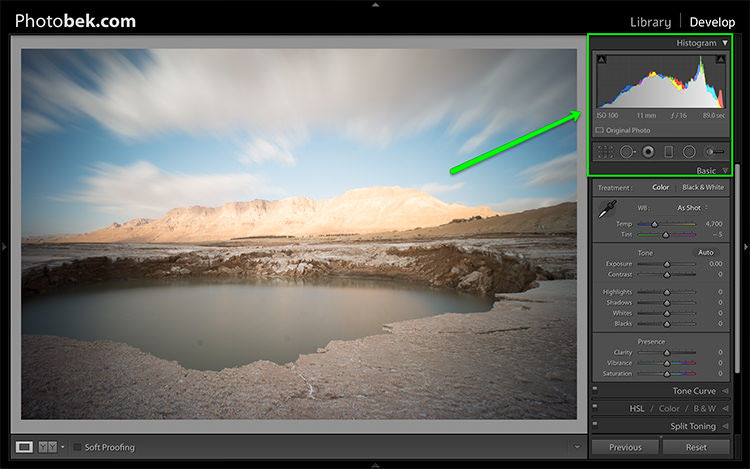
Since the photo was exposed well, and there is no clipping as you can see in the histogram above, I didn’t need to make any adjustments to the Exposure slider, so I left it at 0.

The histogram is a great tool that you should keep your eyes on at all times during your post-processing work on an image. It will provide you with valuable information about the clipped areas in a photo (in case it has any).

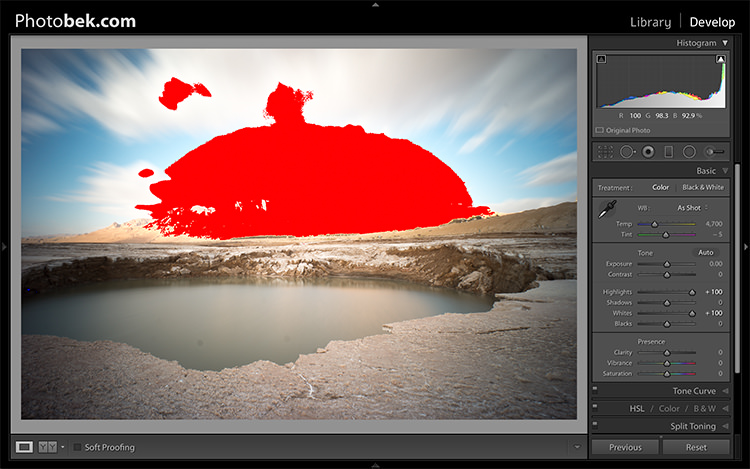
Here is what it would like if the highlights were clipped (press J or click/hover on the arrows that are shown at the top of the histogram to activate the clipping indicators).
6 1 Photobek Histogram Clipped Highlights

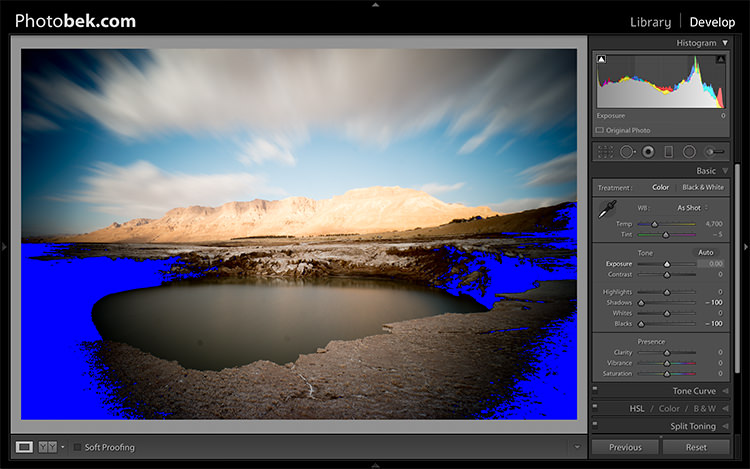
Here is what it would like if the shadows were clipped.
6 1 Photobek Histogram Clipped Shadows

Keep in mind that some clipping is perfectly acceptable, and might even be desired at some occasions. The trick is to find out where the clipping is occurring, and deciding whether a loss of detail in that area is acceptable or not, and that is entirely up to you to decide.

4.2 Contrast

I usually don’t mess around with the contrast slider much, as making the adjustments to the following sliders also has a big impact on the contrast of the photo, so I don’t find it necessary. I kept Contrast at 0 for this photo.

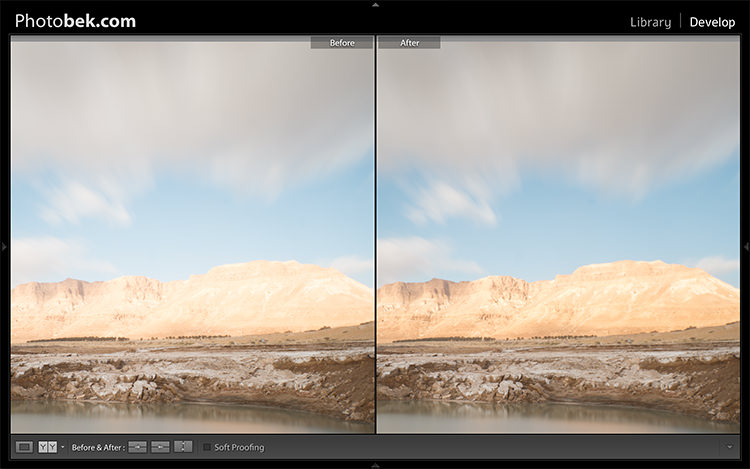
4.3 Highlights

The highlights slider is designed to bring back detail (moving slider to the left) in the brightest areas of an image, or to brighten (moving slider to the right) highlights while protecting against clipping.

What you should do is drop the highlights slider all the way down to -100 while watching your histogram, and move it back up if needed. In the case of this photo I dropped it to -100 and kept it there, and you can clearly see that it brings back plenty of detail in the clouds and the mountain in the background.
7 Photobek Highlights

4.4 Shadows

The Shadows slider will affect the midtone shadows, to the lower end of the deeper shadows. To brighten up the shadows, simply pull the slider to the right. To darken the shadows, move the slider to the left. For this photo I actually kept it at 0.

4.5 Whites

The Whites slider sets the White Point (brightness) or extreme tonal range of an image, by either lowering or raising this white value. The difference between Highlights and Whites is that the whites slider help you to define the true white in a photo, and the hightlights slider helps you recover lost detail in the highlights of your photo.

While clicking on the option (MAC) or ALT key (PC) move the Whites slider to the right until you just start to see parts being highlighted in the photo (this indicates which parts are being clipped) then drop it back a little and stop there. For this photo I moved it to +17.

4.6 Blacks

The Blacks slider deals with the darkest areas of the image. While clicking on the option (MAC) or ALT key (PC) move the Blacks slider to the left until you see black areas appear (those areas are clipping in the shadows) than move it back a little and stop there. For this photo I moved it to -14.
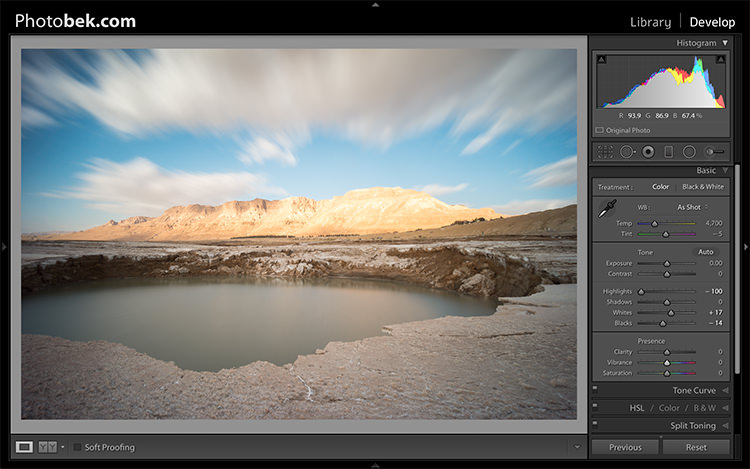
7.1 - Photobek - Shadows, Whites & Blacks

Shadows, Whites and Blacks adjusted

4.7 Clarity

Clarity is, in effect, a contrast tool. However, rather than boost contrast across the entire range of the image, it affects it only in areas of the image where it finds edge contrast. This makes it a more subtle tool than the contrast slider and it’s excellent for adding punch to your images, without making them look unnatural.

Raise it up until you think it made the impact you want on the photo, but don’t over do it. For this photo I took it up to +52.

4.8 Vibrance

Vibrance is the close cousin of Saturation, and at first they may seem to be almost the same, but Vibrance is different. The Saturation control moves all the colors in the spectrum up or down in saturation, more or less together. Vibrance on the other hand, is a lot more selective about the way it saturates colors as it only saturates colors that need it, which means it doesn’t oversaturate colors that are already very saturated or colors of very low saturation.

Raise it up until you think it made the impact you want on the photo, and again don’t over do it. For this photo I took it up to +32 to add more blue to the sky and more earth colors to the mountain.
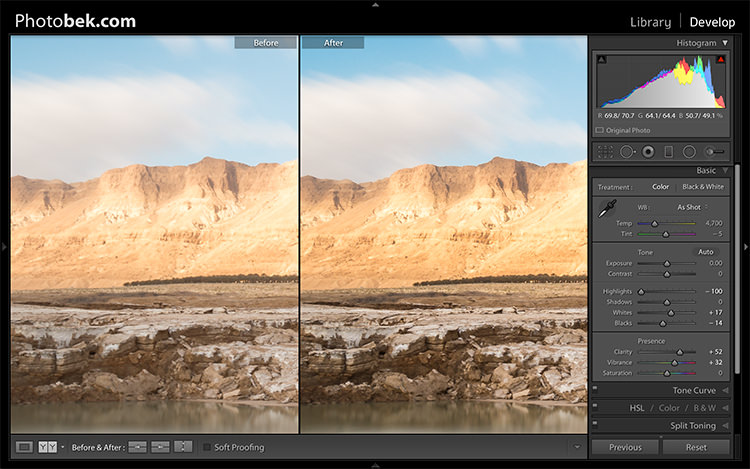
Clarity and Vibrance adjusted

Clarity and Vibrance adjusted

Before and After

As you can see, not much was done to the image and this entire process shouldn’t take more than a few minutes (depending on how many spots you have). I think it makes a world of difference to this specific image, and to any image for that matter.

Here is the image as taken straight out of camera:
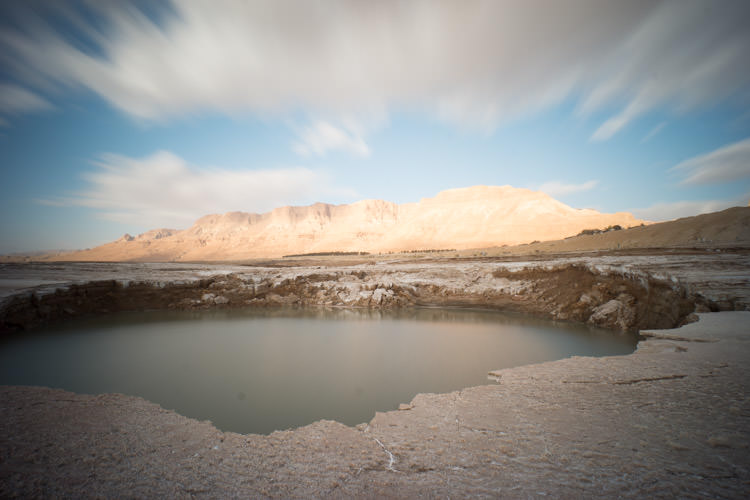
8 Photobek Before

Here is the image after the adjustments were made:
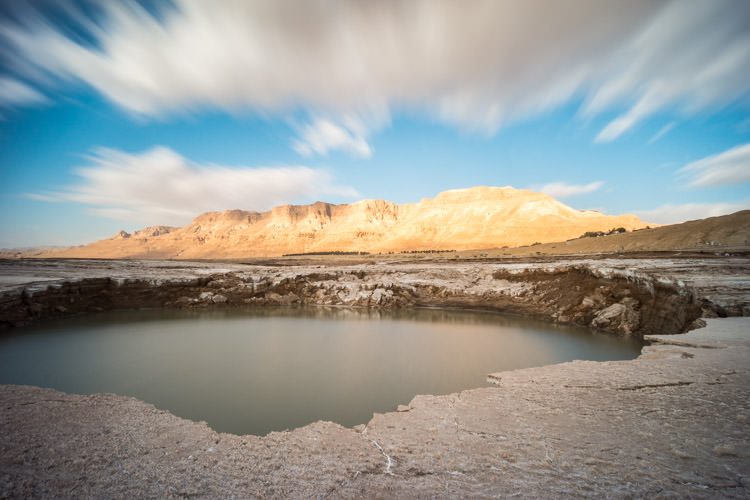
9 Photobek After

Finally, here are the before and after one next to the other:
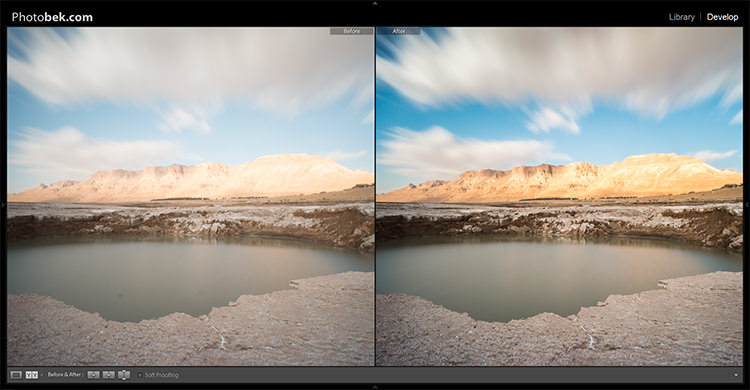
10 Photobek Before After

I hope you enjoyed this tutorial, and more importantly, I hope you’ve learned something that you can actually implement on your own photos to make them POP.

googletag.cmd.push(function() {
tablet_slots.push( googletag.defineSlot( “/1005424/_dPSv4_tab-all-article-bottom_(300×250)”, [300, 250], “pb-ad-78623” ).addService( googletag.pubads() ) ); } );

googletag.cmd.push(function() {
mobile_slots.push( googletag.defineSlot( “/1005424/_dPSv4_mob-all-article-bottom_(300×250)”, [300, 250], “pb-ad-78158” ).addService( googletag.pubads() ) ); } );

The post 4 Steps to Make Your Images Pop in Lightroom by Dror Bekerman appeared first on Digital Photography School.


Digital Photography School

 
Comments Off on 4 Steps to Make Your Images Pop in Lightroom

Posted in Photography


How to Create a Delicious Blurry Bokeh Background in 4 Easy Steps

02 May

Blurry backgrounds are nothing new when it comes to photography. The technique of blurring the background to emphasize a subject in the foreground has been used by photographers for decades, and by painters and other visual artists for hundreds of years. Now thanks to the proliferation of digital cameras this phenomenon has exploded in recent times.

Many people like photos with a tack-sharp subject and a smooth blurry background, and even though some might say it’s more of an over-used trend, the truth is that bokeh is here to stay. The trick to using it effectively, is to learn how to use the physical properties of lenses and light to create the look you are going for. While some people turn to creative editing tricks like adding blurry filters or doing Photoshop gymnastics there really is no substitute for the genuine article. If this is something you have always wondered about or wanted to try for yourself, here are four easy steps to get you started.

50mm, f/4, 1/350 second, ISO 400

50mm, f/4, 1/350th of a second, ISO 400

The term bokeh is a Japanese word that doesn’t have a precise English translation, but refers to the type and quality of the out-of-focus areas of an image. In other words, when the blurry parts of a picture look nice, you might say the image has good bokeh. While a thorough discussion of what bokeh is, what causes it, and what affect your lenses and lens elements have on the type and quality of bokeh could go on for several pages, this article is going to be a bit more basic look at how to create visually pleasing blurry elements in your photos. If you don’t want things to get too complicated, and aren’t quite ready for a thorough breakdown of aspherical elements or the circle of confusion, then get out your camera and follow along with these few simple tips to help you get the look you have always wanted.

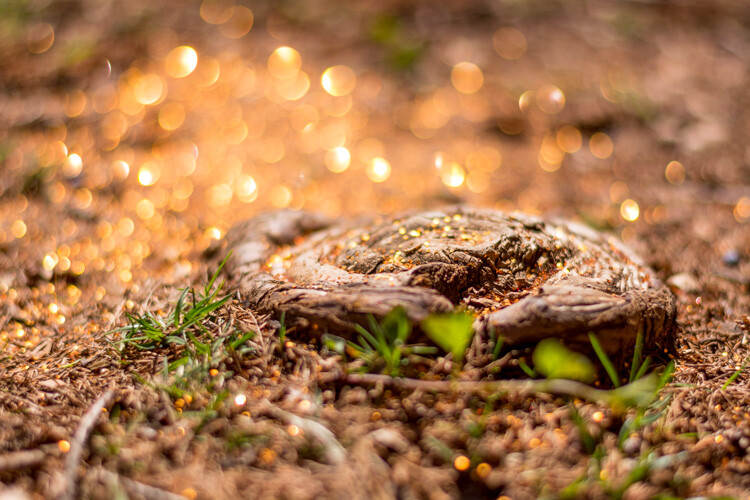
understanding-bokeh-golden-glow

50mm, f/1.8, 1/6000th, ISO 100

1 – Shoot with a wide aperture

Take a look at the front of your lens, you will probably see a few numbers that look like 1:3.5-5.6, or 1:2.8, or f/4 (read: What the Numbers on your Lens Mean for more on how to find this). These numbers refer to the size of the aperture in the lens itself, and how big the opening can get. Ironically smaller numbers are bigger, and a lens that says 1:2.8 will be able to let in much more light than a lens that says 1:4 or f/4. (Some manufacturers use different schemes to show the aperture size but it’s always the number after the colon, or on the second side of the / that you want to look for when determining the maximum size of the lens opening.)

The smaller the number, the wider your aperture will be, and the less light you will need to take a properly exposed photo. Wide apertures also mean your photos will have a shallower depth of field, and anything out of focus behind your subject will begin to take on a smoother, more visually pleasing blur. In other words, wide apertures help give you more bokeh.

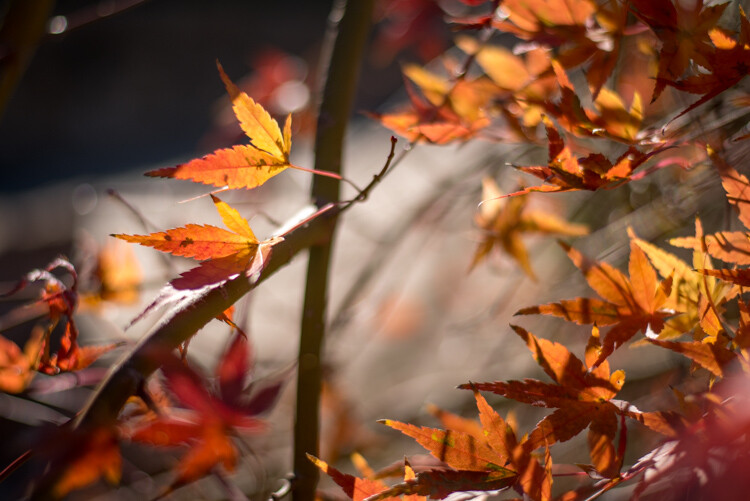
understanding-bokeh-leaves

50mm, f/1.8, 1/4000 second, ISO 100

If you’re itching to get some pictures with the same kind of buttery-smooth background blur you have seen in nature magazines or fashion spreads, put your camera in Aperture Priority mode (on Nikon) or Av (Canon, Pentax, etc.) and turn the control dial until the aperture value number is as close to zero as it can go. It helps if you have a prime lens that doesn’t zoom in and out, since they usually have wider maximum apertures, but even a kit lens can give you decent results if you have enough light. Now go out and find something to photograph, even if it’s just a coffee mug on your office desk.

To put my money where my mouth is, I took my camera to work and literally snapped a picture of a coffee cup on my desk. No photoshopping or magic tricks here, just a wide f/1.8 aperture. 50mm, 1/100 second, ISO 160

To put my money where my mouth is, I took my camera to work and literally snapped a picture of a coffee cup on my desk. No photoshopping or magic tricks here, just a wide f/1.8 aperture. 50mm lens, 1/100 second, ISO 160

2 – Put your subject far away from the background

If you have been trying to get the kind of silky, blurry bokeh you seem to notice in everyone else’s photos you might try this one simple trick and you won’t believe what happens! Simply putting a great deal of distance between your subject and whatever is behind it, can go a long way towards creating the bokeh you have always dreamed about.

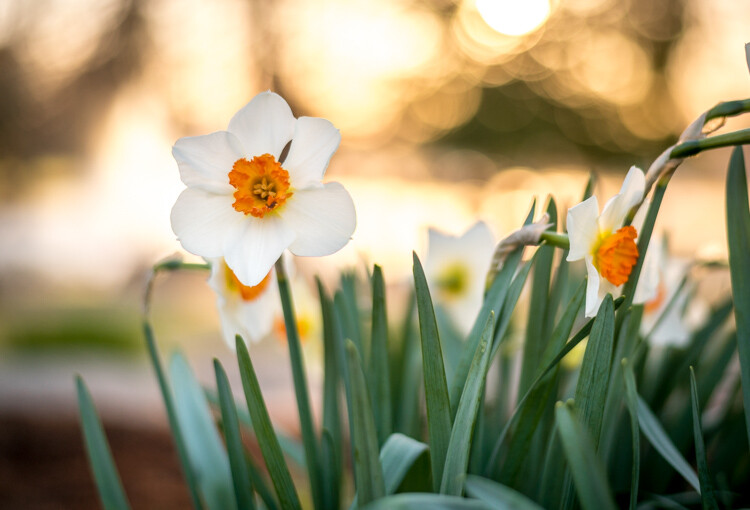
understanding-bokeh-flowers-sunrise

50mm, f/1.8, 1/1000 second, ISO 100

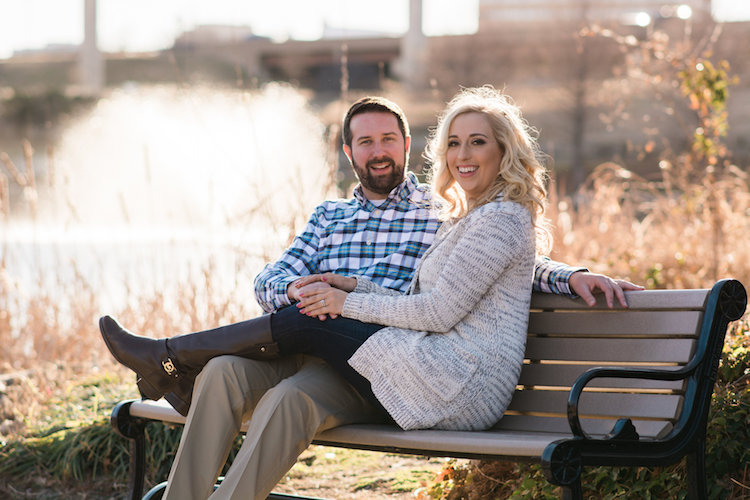
If you are shooting portraits, try moving your subjects to a location where there is a great deal of space behind them, or even just repositioning yourself so you are looking at your subjects from a different angle that puts more distance between them and the background. In the photo below, I specifically shot the scene so that there was about 50 meters between the couple and the fountain, which caused it to have a nice blurry out-of-focus appearance that complements the woman and her fiancée quite well. I could have used a bench that was much closer to the fountain, but it would have had a very different affect on the picture, and it would not have given me nearly the same amount of bokeh as you can see in the final image below.

understanding-bokeh-fountain

85mm, f/2.4, 1/2000 second, ISO 200

3 – Get close to your subject

As I mentioned in the opening paragraph there are many different optical elements that come into play when dealing with bokeh and background blur, and certainly shooting with wide apertures while putting a great deal of distance between your subject and the background are critical elements of the equation. Another thing you can do, is position your camera and lens physically close to the subject you are shooting. Combine this technique with the first two, and you’re virtually guaranteed to get good results.

understanding-bokeh-fence

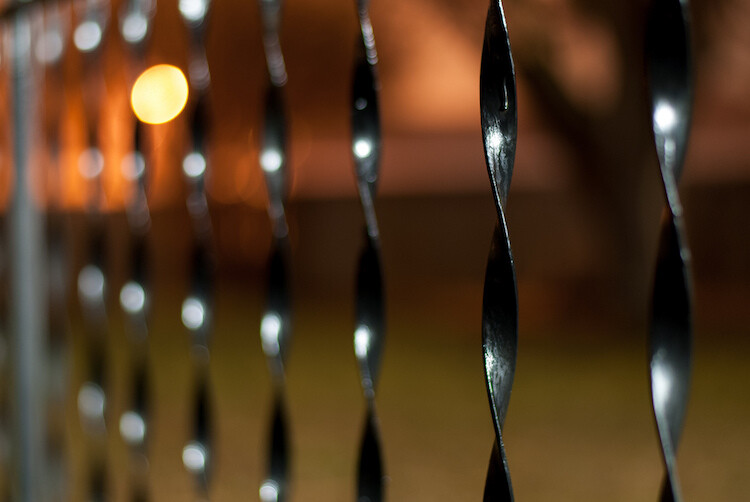
This shot has all the techniques rolled into one: a wide f/1.8 aperture, a far-away street light in the top left corner, and a very short distance between my camera and the fence bar on the right side.

4 – Zoom in, waaay in

If you are trying to get bokeh-licious shots and not having much luck, there’s another technique that could mean the difference between frustration and celebration. Due to how lenses collect, and focus incoming light rays, it’s easier to get blurry backgrounds with longer focal lengths. This is why these types of shots are difficult to get on mobile phones, which generally have lenses with a much wider angle of view. Grab your nearest camera, whether it’s a DSLR or a humble little point-and-shoot, and zoom the lens as far in as it will go. Now use the other tips I have already mentioned: set the aperture to the widest setting, find a subject that’s relatively close to you, and make sure there is plenty of room between the subject and the background.

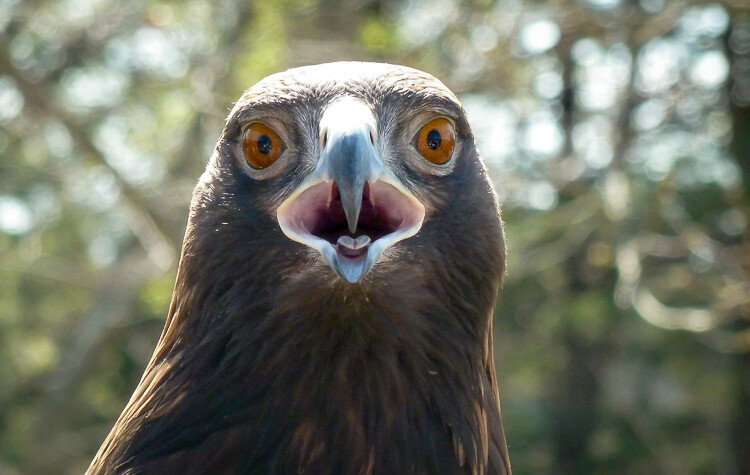
A golden eagle, taken with my 400mm f/4 lens on a Nikon D7200. A very expensive combination, but it produces outstanding results with silky-smooth bokeh.

A golden eagle, taken with my 300mm f/4 lens on a Nikon D7200. A very expensive combination, but it produces outstanding results with silky-smooth bokeh.

You might not get the photo of your dreams, but with a little bit of practice you should start to see some improvements, as you begin to understand how to use your camera to create sharp subjects with pleasing out-of-focus areas.

Just kidding! I took the first shot with a $  150 Panasonic ZS7 pocket camera. All I did was zoom in as far as it would go. This is the same scene with the same camera a few seconds later, shot at the camera zoomed all the way out.

Just kidding! I made that first image above with a cheap Panasonic ZS7 pocket camera, and all I did was zoom in as far as it would go. This is the same scene, with the same camera, a few seconds later – but zoomed all the way out.

Now with all this being said, I have a challenge for all of you dPS readers: What is your favorite picture you have taken that has nice pleasing bokeh? Is it a portrait, a wild animal, or more along the lines of abstract art? Share your picture in the comments section below along with a few tips of your own to help others take similarly beautiful bokeh photos.

googletag.cmd.push(function() {
tablet_slots.push( googletag.defineSlot( “/1005424/_dPSv4_tab-all-article-bottom_(300×250)”, [300, 250], “pb-ad-78623” ).addService( googletag.pubads() ) ); } );

googletag.cmd.push(function() {
mobile_slots.push( googletag.defineSlot( “/1005424/_dPSv4_mob-all-article-bottom_(300×250)”, [300, 250], “pb-ad-78158” ).addService( googletag.pubads() ) ); } );

The post How to Create a Delicious Blurry Bokeh Background in 4 Easy Steps by Simon Ringsmuth appeared first on Digital Photography School.


Digital Photography School

 
Comments Off on How to Create a Delicious Blurry Bokeh Background in 4 Easy Steps

Posted in Photography


5 Steps to Creating a Printed Photo Collection as Wall Art

28 Apr

In this digital age, where we wander about with thousands of digital images held captive in our smart phones, there is something special about printed photographs. They represent something tangible and reverent – something that was worth transforming into an enduring piece of artwork, to remind us of what is important in our lives.

One of the most rewarding aspects of my job is seeing the photographs I create for my clients hanging on their walls. To me, it is the icing on the cake, the cherry on top, the grand finale that tells me I have fulfilled my promise to the people who put their trust in me as a professional.

collection-dps-01

This image set by Darlene Hildebrandt

Like many portrait photographers, I began my career selling digital files on a USB stick. I found it disheartening and unfulfilling. Wall art collections were a revelation to me. As a photographer, they gave me a structure and framework to shoot within. My session times became shorter, because I was shooting with purpose. I now had something meaningful and lasting to offer my clients; collections that tell their story in all its detail, and represent something deep that they have revealed to me.

Photo collections can be about anything. In my case, they are invariably portraits, but if your thing is landscapes, travel, macro, nature etc., you can create collections that add life and personality to you home or office, and serve as visual reminders of what is important to you.

Step #1: Consider the space you want to fill

Think about the photographs you are capturing. What is the subject matter? What do these photos mean to you? Do you want to remember a favourite holiday destination, or how confident your son looks when he plays the violin? Do you want to capture the beauty of a rare flower you grew, or your young adult daughter who is about to leave home for college?

With this in mind, think about where in your home or office you would like to see these photographs every day. Consider how appropriate the subject matter is for where you want to display it, and take into account the style of the decor and other furnishings in the room. Often photographs are displayed above a piece of furniture – above your bed or the sofa, at the end of a breakfast nook, on the wall of a study, or cascading down a flight of stairs.

image showing photo collections

A collection to fit a long, narrow space.

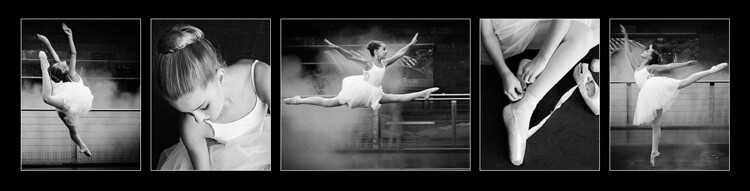
Once you have decided where you want to display your photos, you should have a clear idea of what the layout should look like. Big spaces demand big photos, narrow spaces require long and thin, and a stairwell may need a staggered combination of large and small photos.

image showing photo collections

A different configuration using images from the same session. This would suit a larger space.

Step #2: Decide the layout before you pick up the camera

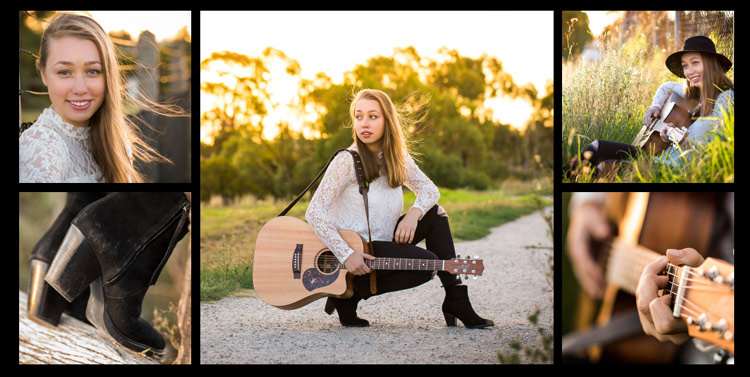
Think carefully about the configuration of your collection before you start photographing. For example, if you have a wide space to fill and you envisage a panoramic with two or three smaller prints underneath, your main photo will need lots of space to crop it into a panoramic shape, without compromising the composition or the quality of the image. You will be hard pressed to get a panoramic crop if you’re shooting in a vertical (portrait) orientation. When I’m shooting for a collection, I allow more space around my subjects than usual. This gives me some versatility when it comes to cropping.

Likewise with the smaller prints. Think about how you would like each photo to be oriented, and ensure you shoot from an angle that will enable this. I like to orient my detail shots inward, toward the main photo.

Image showing photo collections

It helps if you know how you are going to display each photo before you capture it.

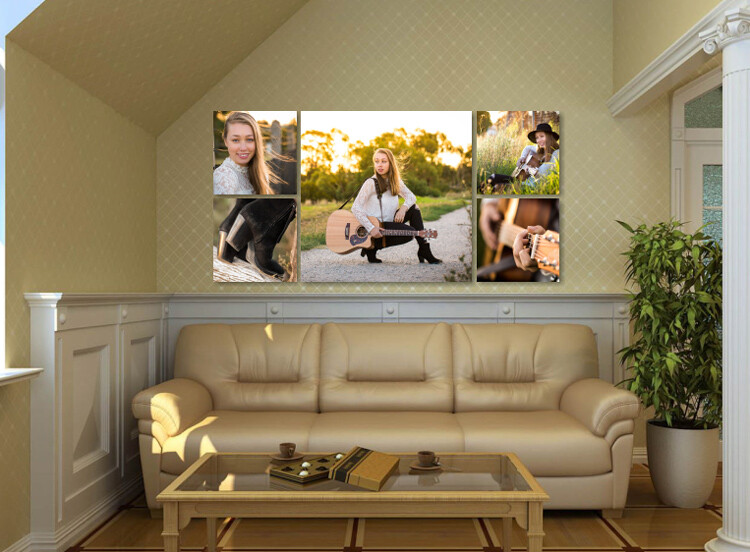
Image showing photo collections

This shows how the collection would appear on a wall.

Step #3: Keep the lighting consistent

A collection looks most cohesive when the lighting is consistent throughout. If three out of four photos in the collection are high key images with lots of white, a dark photo, or one with lots of colour, will look out of place. So, if you photographed your dog on the beach at sunset, that photo you took of him earlier in the bright midday sun will look mismatched, regardless of how adorable his expression is.

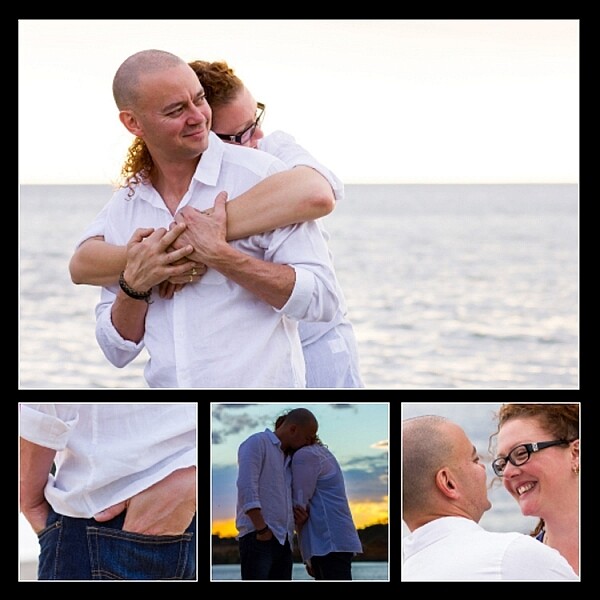
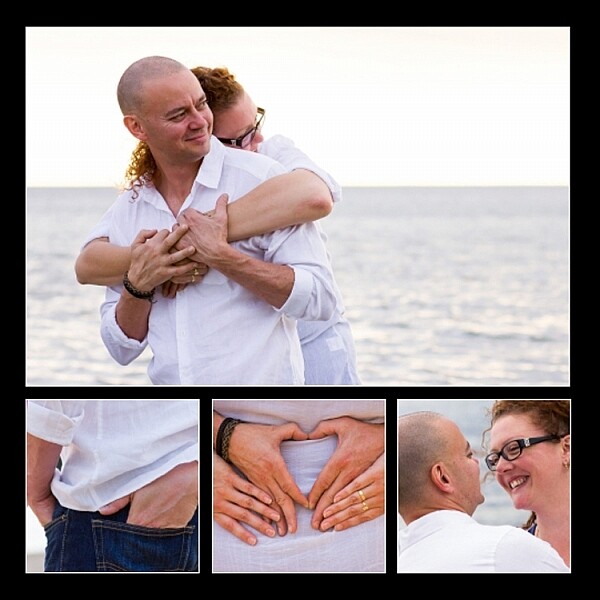
In the photo collections below, the silhouetted sunset image stands out as a mismatch. In the second version, it is replaced with an image that better matches the lighting.

Image showing photo collections

The silhouetted sunset shot in the middle looks out of place.

Image showing photo collections

In this collection, the images are unified by similar lighting.

Step #4: Stick to one subject per collection

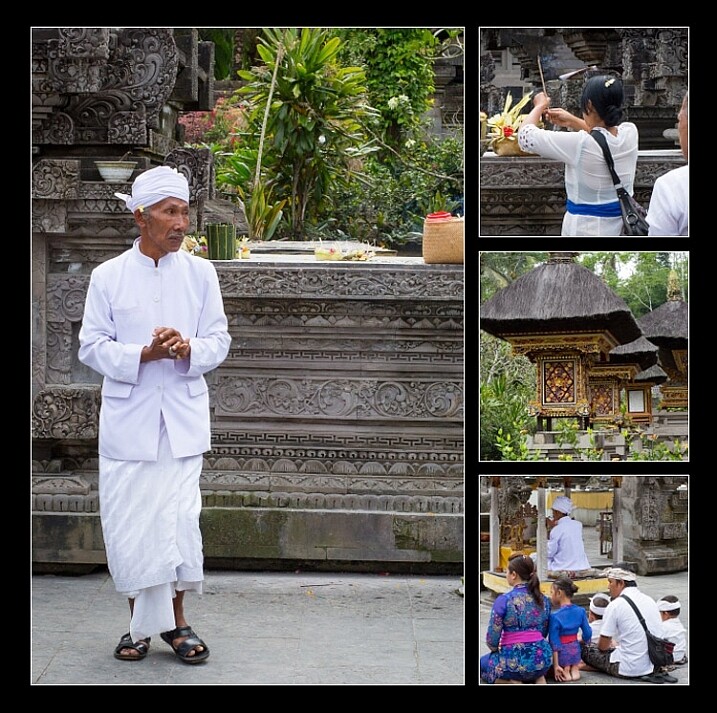
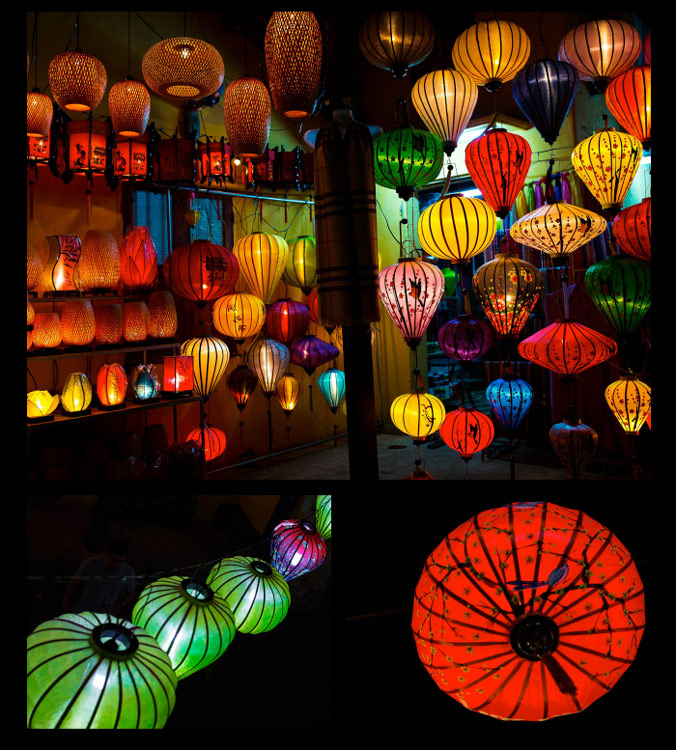
Avoid the temptation to create a hodge podge by cramming every member of a family, or every flower in the garden, into one collection. Allow your subject to shine by devoting a whole collection to him, her (or it, in the case of an inanimate object). As a portrait photographer, my collections usually consist of one full body photo, and several detail shots which help tell a story.

The photo collection below, taken at a water temple in Bali, depicts a sacred ritual. I took so many other photos I loved at the water temple, but to put them all together would detract from the story. I will save the other photos for a different collection.

image showing photo collections

Although it is tempting to cram every photo you love into a collection, the result is much more pleasing when you stick to one subject.

image showing photo collections

My main photograph in this collection is full of colour and a variety of shapes. To complete the collection, I have chosen closer-up detail shots of just two of the many lanterns.

Step #5: Collage or collection?

A photo collection can be made up of separate pieces displayed together, or you can create a collage to print as a single piece. Your decision will be influenced by the space you want to fill, the material you want to print on, and your budget.

A collection of separate pieces tends to look more luxurious than a collage. With some configurations such as stairs, it may be your only option. Another benefit of printing each piece separately is that you can change the layout later if you want to. Also, if one piece is not working quite the way you imagined, you can swap it out for a new one.

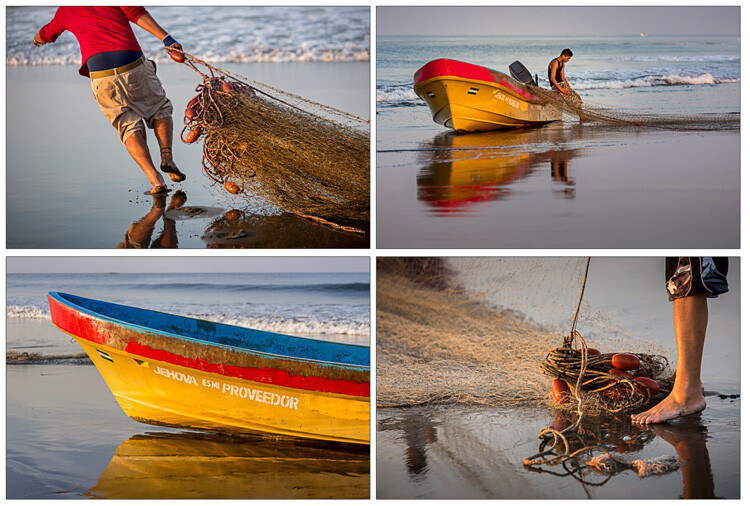
The photos below, taken at dawn on a beach in Vietnam, will be printed as separate pieces and hung together as shown.

image showing photo collections

Displayed together, the four photos tell a story.

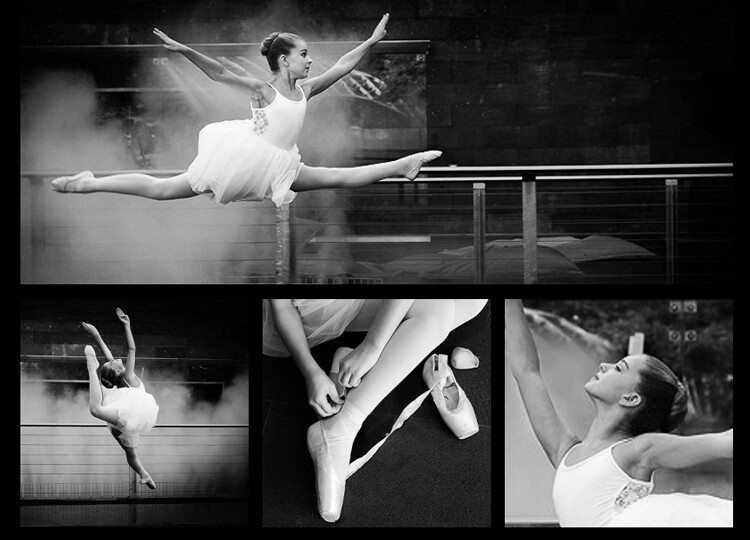
On the flip side, printing multiple pieces can be expensive, and it can be tricky to hang a multi-piece collection with the accuracy it deserves. Some configurations, such as the black and whites below, can look itsy-bitsy when printed separately, and look better printed as a single piece.

You can create hi-res collages like this in Photoshop, Lightroom, or the professional version of Proselect. Alternatively, you can buy ready-to-hang frames with cut-out mats designed for collections, or you can ask a framer to create a customized mat for your frame.

This collage was designed to be hung above a dining table, so the long narrow shape worked well. Background and borders are white to match the colour scheme of my clients’ home, and it is printed on metal to suit their contemporary decor.

image showing photo collections

This was designed to be printed as a single piece.

Collections and collages are a fun and interesting way to display your favourite images. With a little care and thought, they can make breathtaking displays that will last for a great many years. I hope this article inspires you to go and rescue those beautiful images of yours that are trapped in the digital world, and bring them to life!

Share in the comments section below your favourite photo collections or collages, or any hints or tips you have learned along the way.

googletag.cmd.push(function() {
tablet_slots.push( googletag.defineSlot( “/1005424/_dPSv4_tab-all-article-bottom_(300×250)”, [300, 250], “pb-ad-78623” ).addService( googletag.pubads() ) ); } );

googletag.cmd.push(function() {
mobile_slots.push( googletag.defineSlot( “/1005424/_dPSv4_mob-all-article-bottom_(300×250)”, [300, 250], “pb-ad-78158” ).addService( googletag.pubads() ) ); } );

The post 5 Steps to Creating a Printed Photo Collection as Wall Art by Karen Quist appeared first on Digital Photography School.


Digital Photography School

 
Comments Off on 5 Steps to Creating a Printed Photo Collection as Wall Art

Posted in Photography


4 Steps on How to Read Images and Learn to Replicate the Results

18 Apr

Earlier, I wrote an article called: why asking what camera settings were used may not be as helpful as you think, and in it, I touched on the concept of reading an image.

Learning to read images – from a technical perspective and not a conceptual one – is something that I believe all photographers must be able to do, as it allows you to get a rough guide on what settings may have been used to create an image. They won’t be the exact settings; but you’re most likely not going to have the exact same lighting environment as what a particular photo was taken in.

Shallow Apeture 1

A wide aperture was used her to achieve a shallow depth of field.

Dive in to read an image

To begin reading images you must have, at the very least, a good understanding of aperture, shutter speed and to a lesser extent, ISO. You’ll want to understand how these things affect the image in different ways. For example, if you saw an image with a lot of motion blur, you would know from your understanding of shutter speed that a slower shutter speed was used.

As you become more proficient with lighting and off-camera flash, you can even read how the subject was lit with artificial lighting, and begin to replicate how it was done. But don’t worry! This article will be focussing on the three major aspects of photography exposure (aperture, shutter speed and ISO) to help you begin your journey to reading images.

Slow Shutter 2

What shutter speed was used here – a fast or slow one?

Step 1: Shutter Speed – Fast or Slow?

I find that determining whether a fast or slow shutter speed was used first, can help greatly when it comes to determining aperture and ISO later. The first thing you will want to ask yourself when assessing shutter speed is; was it fast or slow? This can be decided by how much, or how little, motion blur is present in the image, as that is what shutter speed controls.

If everything in the image is pin sharp, and there is absolutely no motion blur at all, then a fast shutter speed would have been used. However, if there is a lot of motion blur, then a slow shutter speed was used.
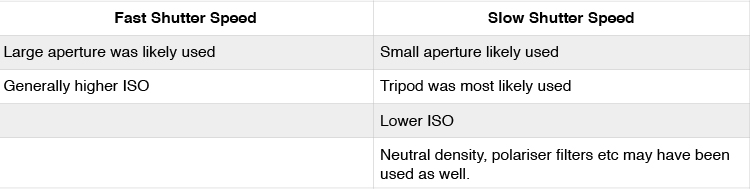
Here are some points that you can take out of knowing if the shutter speed is fast or slow:

Shutter Speed Table

But how fast is a fast shutter speed, and at what point does the shutter speed become slow? To answer this, think of your shutter speed in relation to your subject’s speed. For example, when photographing sports or other fast action, you may find using a shutter speed of 1/1000th is required to freeze your subjects. This is because your subjects are moving quite fast. However, if you were to photograph people walking down the street, you would not need the same shutter speed, as your subjects are not moving as fast.

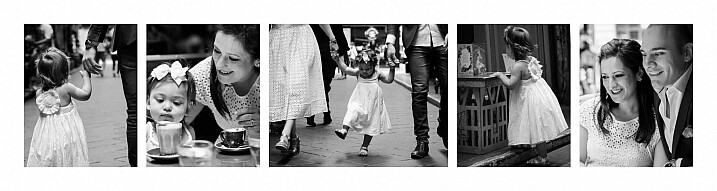
Below are examples of slow and fast shutter speeds. Notice the presence of motion blur in the images where a slower shutter speed was used, but action is frozen with a fast shutter speed. In images that will use a slow shutter speed, it is often recommended you use a tripod to stabilize your camera, and prevent camera shake.

What isn’t important is knowing the exact shutter speed; that is something that you will be able to experiment with to get the results you want. All you are doing here is identifying if a slow or fast shutter speed was used, to give you a starting point.

Slow Shutter 3

A tripod was used when taking this photograph to prevent blur that can be caused by camera shake. The shutter speed was 3.2 seconds.

Slow Shutter 4

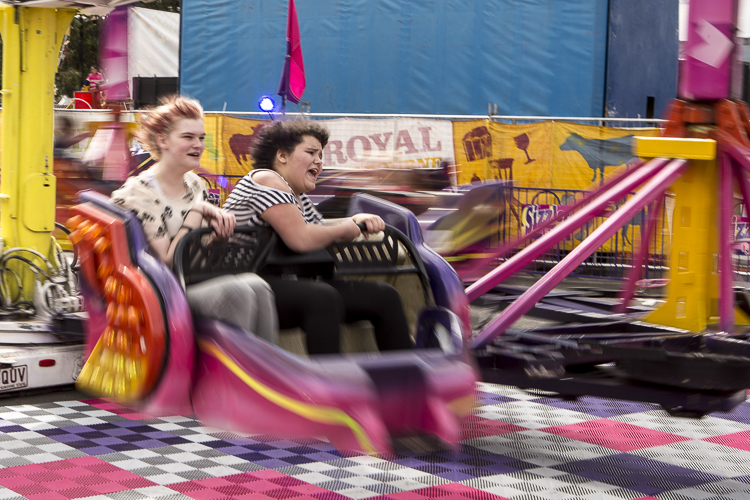
The reason there is one rider sharper than the others in this frame, is because even though all riders are moving at the same speed, the rider who is sharpest is moving slower, relative to where I was positioned taking this photograph. The shutter speed used here was 1/6th.

Fast Shutter 2

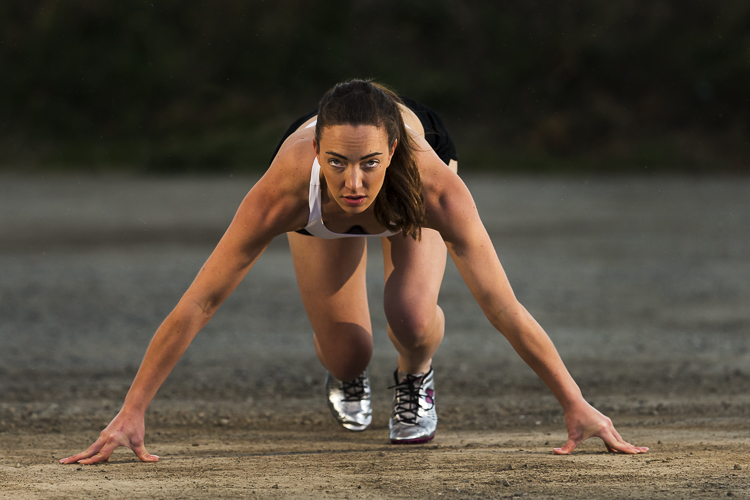
Notice how everything is sharp in this image, and there is no blur? This means that a fast shutter speed was used (in this case 1/2000th), and because the subject is quite fast, a faster than normal shutter speed was needed.

Fast Shutter 1

Again, notice how everything is sharp and there is no blur? This means that a fast shutter speed (1/1250th) was once again used.

Step 2: Aperture – Large or Small?

In step one I mentioned that determining whether a fast or slow shutter speed was used first, can greatly help you in determining the aperture. Here’s why. If you are familiar with the exposure triangle you will know that in nearly all cases when a fast shutter speed is used, it is associated with a large aperture (small f-number). Conversely, the slower the shutter speed, the smaller the aperture becomes. So if you see a photo that has motion blur present, it is highly likely that the photographer used a smaller aperture; or if you see a photo where moving objects are frozen, the photographer has most likely used a larger aperture to enable a faster shutter speed.

Another way you can determine the aperture is by looking for bokeh, or subject isolation. The more bokeh that is present in the image, the more the subject is isolated. To achieve this, the photographer would use a larger aperture. On the other hand, if everything in the image is in focus, then the photographer employed a smaller aperture to increase their depth of field.

Small Aperture 1

Everything in this photograph is in focus, which would mean that a small aperture (larger f-number; like f/11 in this image) was used to increase the depth of field.

Shallow Aperture 2

Notice how the background in this image is blurred out a lot, and the subject is very isolated? This is a sign that a larger aperture (small f-number; in this example f/3.5) was used to decrease the depth of field.

Step 3: ISO

ISO is one of the parameters that isn’t so important in determining what settings may have been used when reading an image. Use ISO to get the settings that you need to use, to create the shot you want. For example, if you want to use the slowest shutter speed you can, set your camera’s ISO to its lowest setting. Conversely, if you want to use a very fast shutter speed, you may find that you have to increase your ISO.

Step 4: Focal Length

Focal length is something that is often overlooked in images, but it is a very important element indeed. It does more than simply allow a photograph to add more in the frame, or zoom in closer. Different focal lengths evoke different emotions in the viewer when looking at an image. For instance, if a wide angle lens was used, it places the viewer in the scene and can make them feel like they were there; whereas a longer focal length places the viewer further away from the subject, and evokes a more voyeur emotion.

The great thing about focal length is that it is quite easy to distinguish approximately which one was used. To make it simpler, breaking down focal lengths in to three groups can help greatly.

  • Wide: <50mm (i.e. 14-50mm on full frame, 10-35mm on cropped or APS-C sensor)
  • Normal: ~50mm-85mm (35-56mm cropped sensor)
  • Telephoto: 85mm+ (130mm+ on cropped sensor)

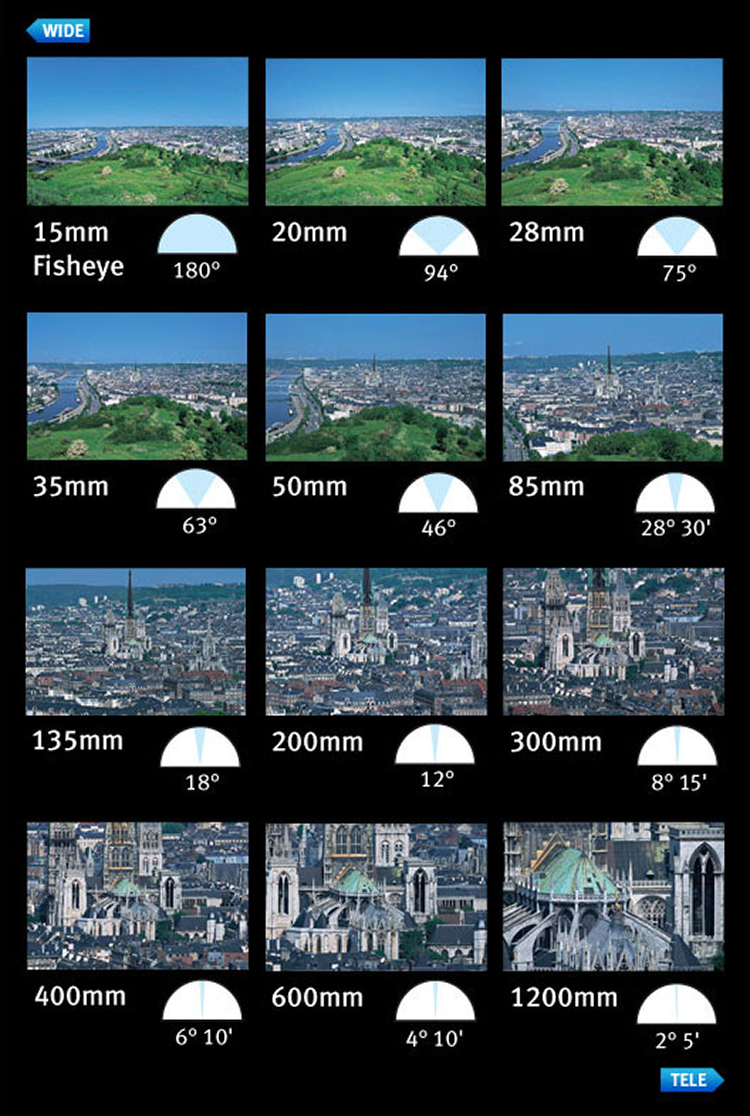
You can use the presence of compression to distinguish the different types of focal length. A wide angle lens accentuates the foreground and increases distances in the frame, as well as having a very wide field of view. This effect increases as the focal length decreases – or gets wider. On the other end, a telephoto lens will give you much more compression, and make distances in the frame look shorter. Their field of view will decrease, and the affects of aperture, particularly larger apertures, will be more pronounced. That’s why f/2.8 at 16mm looks different than f/2.8 at 200mm, if your subject is kept the same size in the frame.

Here is a small table with examples of the same scene photographed from the same point, but with different focal lengths.

Image courtesy of Canon

Image courtesy of Canon

Now you have had a quick introduction on how to read images. Remember, knowing the exact settings is not important, but knowing how to get an approximate guess is better than not knowing anything at all! With experience, you will become more proficient at reading images, and will be able to guess with more precision. The more you understand aperture, shutter speed, and ISO, the better you will be at reading images.

Along the way, you will also learn that different genres within photography use a different set of settings. For example, most landscape photographers will use smaller apertures, lower ISOs, and slower shutter speeds; whereas sports shooters for instance, will generally use higher ISOs, larger apertures, and faster shutter speeds.

googletag.cmd.push(function() {
tablet_slots.push( googletag.defineSlot( “/1005424/_dPSv4_tab-all-article-bottom_(300×250)”, [300, 250], “pb-ad-78623” ).addService( googletag.pubads() ) ); } );

googletag.cmd.push(function() {
mobile_slots.push( googletag.defineSlot( “/1005424/_dPSv4_mob-all-article-bottom_(300×250)”, [300, 250], “pb-ad-78158” ).addService( googletag.pubads() ) ); } );

The post 4 Steps on How to Read Images and Learn to Replicate the Results by Daniel Smith appeared first on Digital Photography School.


Digital Photography School

 
Comments Off on 4 Steps on How to Read Images and Learn to Replicate the Results

Posted in Photography


Scaffolding Staircase: Huge Steps to Rise from Rotterdam Plaza

18 Apr

[ By WebUrbanist in Architecture & Public & Institutional. ]

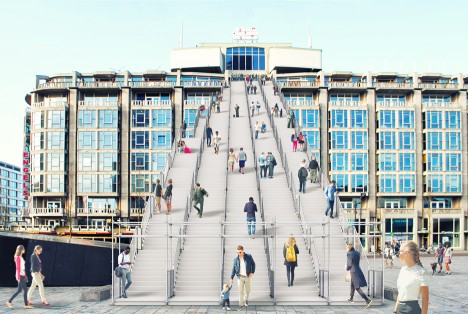
urban staircase

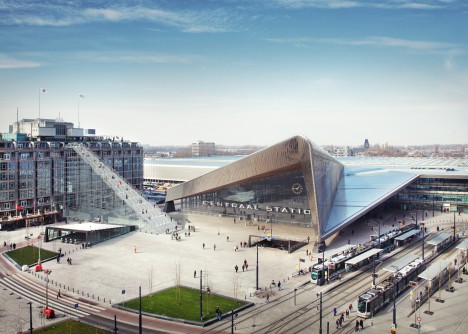
A temporary installation to commemorate the rebuilding of the city after the second world war, this massive staircase made from scaffolding will lead visitors up onto a postwar structure in the heart of Rotterdam.

scaffolding staircase close up

Standing 60 feet high, the staircase of the 180 steps end on top of the Groot Handelsgebouw, an early building from the postwar construction effort that began 75 years ago. Dubbed simply The Stairs, this project by Dutch architecture firm MVRDV will also involve film screenings and events on the rooftop.

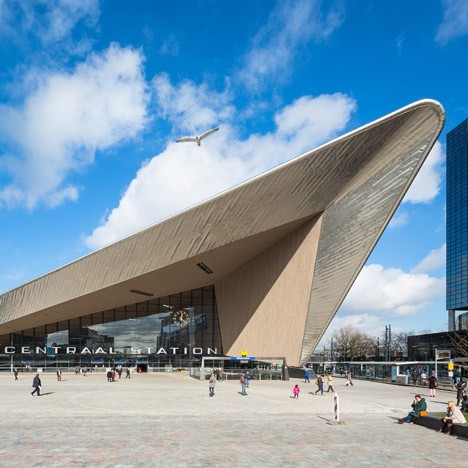
central station rotterdam

If the resulting temporary roof-topping venue is sufficiently popular, a more permanent means of access may replace the temporary stairs.

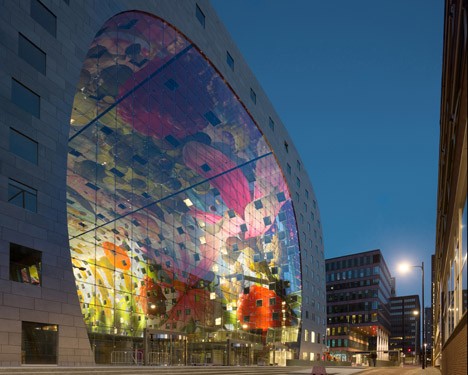
mvrdv market hall

Other temporary and permanent architectural and urban design projects are also being developed and opened as part of the 75th-year commemoration (above: Market Hall with digital mural by MVRDV)

Share on Facebook


[ By WebUrbanist in Architecture & Public & Institutional. ]

[ WebUrbanist | Archives | Galleries | Privacy | TOS ]


WebUrbanist

 
Comments Off on Scaffolding Staircase: Huge Steps to Rise from Rotterdam Plaza

Posted in Creativity


4 Steps for How to Make a Creative Photo Diary

11 Apr

If you are a visual learner like me, seeing images and written words reinforces your memory, and enhances your learning. Concepts, ideas, and experiences associated with images, colors, and action, stay longer in our memory, help us savour the moment, and relive the events more clearly.

Spring is in sight, the days are getting longer and lighter, let’s go out and make the most of the season and make some new memories. Here’s a fun personal photography project for you: write a creative diary in pictures!

component-creative-photo-diary_0000

A diary or a journal is a record of your day to day life and experiences. Entries report both mundane and unusual goings-on, your emotions, thoughts and feelings, your actions and reactions, including opinions that may even be outside your immediate experience. Diaries and journals tend to be written in a chronological sequence.

Let’s apply this definition to a photo diary and see how well you can record a point in your life using pictures alone. The challenge is whether you can piece together a coherent and complete story, just by looking at the pictures alone.

Here are four basic components of  a creative photo diary. When making yours, feel free to be as exhaustive as you like. In this example, I will show photos under each component and hope that you will try and piece together the entire story. That way we can gauge just how strongly and effectively the photos alone were able to recount the narrative.

component-creative-photo-diary_0000

#1 Set the context – lay out the plan

Think of this like a prologue or an introduction in a book. Include photos of the locality and vary the angles; wide scenes, close ups, details, panoramas. Don’t forget to take photos of preparation, getting ready for the trip, or some action en-route to the destination.

Set the mood. If it’s a gloomy and rainy day, take pictures of the rain or the storm clouds. If it’s a sunny day, snap photos of the sun, flare, and silhouettes included. Keep your eyes peeled and look around you. What do you see on the way to your destination? Any interesting sights? Anything out of the ordinary? Anything special or alluring? Anything new that you have never seen before? Or perhaps it has always been there but you just never bothered to look close enough until now.

component-creative-photo-diary_0000

component-creative-photo-diary_0000

component-creative-photo-diary_0000

component-creative-photo-diary_0000

component-creative-photo-diary_0000

#2 Have an opening chapter – a beginning

You have reached your destination and thus the narrative begins its ascent. So far you have only given glimpses of your main character, clues to the destination, snippets to the story. Now you are ready to introduce your characters and show more of their personalities. Make them shine and take center stage.

Vary your images by employing different angles; close up, far and wide, bird’s eye view, worm’s eye view. How about an inquisitive and questioning view? Be creative about it and think outside the box. There are many ways of presenting a person’s character like emphasizing color, favourite objects, unique accessories, action, identifying marks, etc., other than the ubiquitous frontal portrait. The obvious isn’t always the most interesting.

component-creative-photo-diary_0000

component-creative-photo-diary_0011

What happened when you reached your destination? Did the plans change? Were there distractions or unforeseen events that led you to switch gears, or take a different route? Or did you head straight on to what you wanted to do? Were there any curious twists to the plan, or some surprises – nice ones or otherwise?

component-creative-photo-diary_0000

component-creative-photo-diary_0008

component-creative-photo-diary_0000

component-creative-photo-diary_0000

#3 Inject some action or drama

It may be that nothing happens that is spectacular or which causes emotional upheaval. That doesn’t mean you can’t create something dramatic or notable. You can focus on particular emotions, or something pretty mundane, and make a choice to celebrate life’s simple pleasures. If on the other hand there was plenty of action, choose a few main actions shots of defining moments from the day, especially those that elicited the most impressive reaction, or the quietest but most precious twinkle of an eye.

component-creative-photo-diary_0000

component-creative-photo-diary_0014

component-creative-photo-diary_0014

component-creative-photo-diary_0014

component-creative-photo-diary_0014

Adopt a photojournalistic stance, and record what happens without thinking too much about meaning or composition. Photograph what catches your eye, or that which you get drawn to instinctively. Trust your eyes to lead you to interesting contrasts and juxtapositions – light and shade, silence and noise, darkness and light. Aim to capture and savour every highlight. Don’t rush, but linger and indulge in the moment. The more you focus on something, no matter how small, the bigger its effects on you will be. Find an experience in the simplest of things; you are writing a story. Writers emphasize, exaggerate, infer, and aim for a climax. Don’t be afraid to do the same with your pictures. Be pro-active and creative.

component-creative-photo-diary_0012

component-creative-photo-diary_0000

component-creative-photo-diary_0000

component-creative-photo-diary_0000

#4 Start the closing chapter

In a book, this part is usually referred to as falling action. It comes after all the excitement and drama happen. It’s like a letting out a big sigh and things start to gather at a much slower pace. Prepare your audience for the conclusion, and end of the story. Unlike the conclusion in a book where the plot is usually unravelled, this part could plainly be writing the last paragraph to the entry of your diary for the day. It could be as simple as taking your shoes off after a long and tiring walk, drinking a well deserved cup of tea after a day full of challenges, or the sun slowly setting or the moon rising.

Remember the purpose of a diary is to record, preferably in detail, what transpired during your day; the running of events, emotions, actions, thoughts, ideas, changes, differences, transformations. So many elements to capture in a few photos. But perhaps in and amongst all the snapshots from the day, there could be one photo that somehow encapsulates how you may be feeling at the end. Use that photo to close your diary entry, and end your story.

component-creative-photo-diary_0000

component-creative-photo-diary_0000

component-creative-photo-diary_0000

component-creative-photo-diary_0000

Have you attempted a creative photo diary in the past? If not, I hope you try it one of these days and enjoy the experience. What do you think is the story in this example above? Please share your thoughts in the comments below.

googletag.cmd.push(function() {
tablet_slots.push( googletag.defineSlot( “/1005424/_dPSv4_tab-all-article-bottom_(300×250)”, [300, 250], “pb-ad-78623” ).addService( googletag.pubads() ) ); } );

googletag.cmd.push(function() {
mobile_slots.push( googletag.defineSlot( “/1005424/_dPSv4_mob-all-article-bottom_(300×250)”, [300, 250], “pb-ad-78158” ).addService( googletag.pubads() ) ); } );

The post 4 Steps for How to Make a Creative Photo Diary by Lily Sawyer appeared first on Digital Photography School.


Digital Photography School

 
Comments Off on 4 Steps for How to Make a Creative Photo Diary

Posted in Photography