RSS
 

Posts Tagged ‘Started’

Tips for Getting Started Doing Photography with Drones

26 Sep

Until very recently, my mindset was decidedly anti-drone. To me, drones seemed like a complicated plaything for geeks. After all, isn’t this photography hobby expensive enough without adding flying apparatuses to the equation? Plus there was very little doubt in my mind that if I bought a drone I would send it flying into the ocean on its first flight. No thanks.
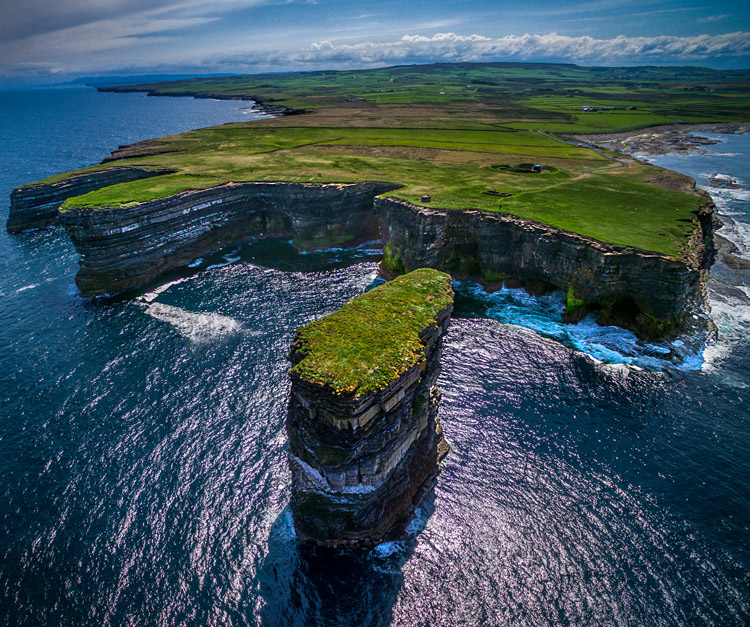
Downpatrick-Head photography with drones

Why a drone?

I had a problem though. I had a coastal photography trip planned, and in coastal photography it is often difficult to take pictures of the coast while standing on the coast. I have long wanted some way to be able to look back at the coast from out to sea and photograph it from that perspective. A drone was the only real answer for me, so I bit the bullet and bought one.

After having used the drone for several months now, I can say my attitude has changed markedly. Much of what I thought about drones was wrong, or at least the problems were overemphasized. Flying them is actually very easy. It isn’t that complicated. It isn’t even that expensive (at least not compared to what we spend on cameras and lenses).

You may be pondering buying a drone, or at least wondering what they are all about. You might also see all the video footage from drones and wonder how drones are used in still photography. So let me introduce you to drones and how they can add a new dimension to your photography.
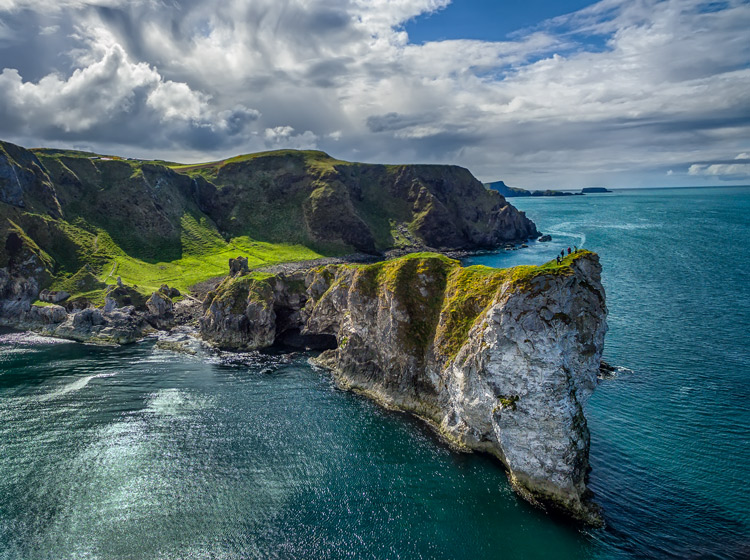
Kinbane-Head

Flying drones is easy

First, let’s talk about flying drones. This is something you are probably concerned about. You might wonder if flying will require skills you don’t have. Or perhaps you just don’t want to devote time to learning it. This is one area where you have nothing to worry about. Flying a drone is remarkably easy. That’s not to say you shouldn’t be careful or that you won’t be nervous every time you fly it, but flying is really easy.

The main thing to understand is that if you have your drone in the air, and you completely let go of the controls, it will just hover harmlessly in the air. It literally just sits there until you tell it what to do. Another thing that people worry about is having the battery run out while you are in the air. That won’t happen. Most drones have a feature that brings the drone back to its take-off point when the battery gets down to a certain level. In fact, most drones have a return to home feature you can press if you ever find yourself in an uncomfortable situation. You always have a way out.

Controlling the drone is easy. You have a controller with two joysticks on it. Pushing on one of them sends the drone up or down; doing the same to the other joystick sends it forward and backward. Each of the joysticks also goes right and left. One will turn the drone to the right and left; the other will make it move to whichever side you push to. I’ll talk more about the specifics of the control later. For now, I just want you to get a feel for how easy it is. If you were worried about being able to fly a drone, don’t be.
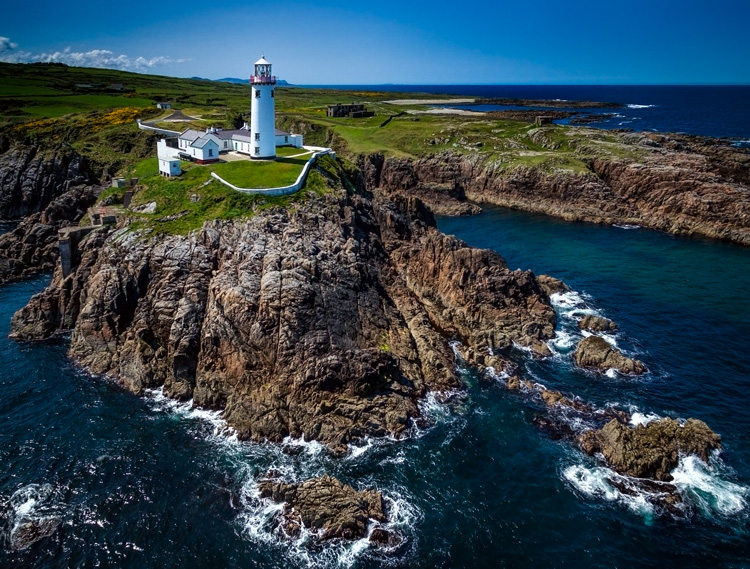
Fanad-Head

Watch where you fly

You may have heard a lot about the new laws affecting drones. It is true that most countries are enacting regulations for drones. In the U.S., the FAA has recently finalized its rules regarding drones. But many of the rules and restrictions apply to those using drones commercially. Most of us are just doing this for fun, so let me try to make this simple for you.

If you are flying your drone for recreational purposes, you don’t need a permit. There are no pilot requirements. Just register your drone with the FAA and you are set. The registration process is simple and only costs $ 5. To do so, just go to this page, create an account, and follow the instructions to register your drone.

That said, you cannot just fly your drone wherever you want. The main limitations you should understand are as follows:

  • You must always fly below 400 feet.
  • You must keep your drone within direct eyesight.
  • Never fly near other aircraft, or within five miles of any airport.
  • Never fly over groups of people, stadiums, or sporting events.

There are other restricted areas as well. For example, you cannot fly anywhere in Washington D.C. or in national parks. There are online maps and apps for your phone – including the FAA’s B4U Fly app – that will tell you when you are in a restricted space.

Anyway, the regulations above apply to the U.S. Other countries will have their own regulations. Here are links to the regulations for Australia, New Zealand, and the UK.
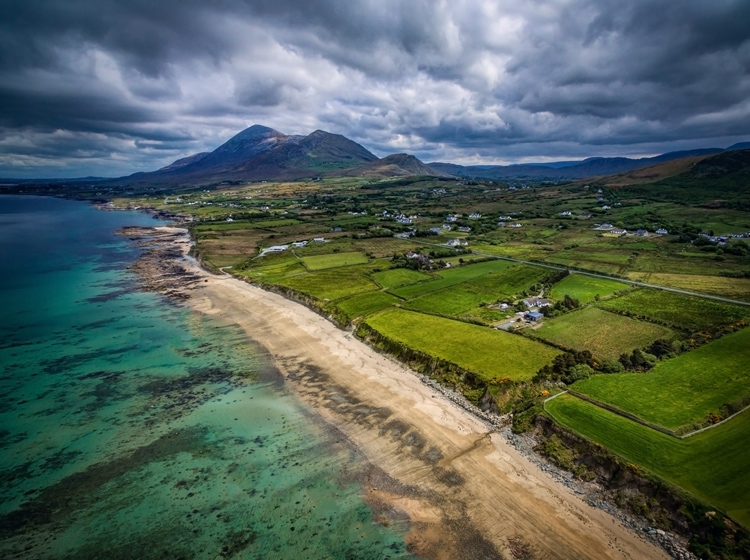
Old-Head

Getting the right drone

Next, let’s talk about getting a drone, if you don’t already have one.

You may have dreams of buying a drone and sending up your DSLR to take high quality pictures. Forget about that, unless you want to spend upwards of $ 6,000. Instead, you’ll probably want to get a drone that comes with its own camera, but there are also models that work with the GoPro. The most common models are the Phantom 4 by DJI (check prices on Amazon or B&H Photo) or the Typhoon H by Yuneec (check prices on Amazon or B&H Photo). These will cost you about $ 1,300 – $ 1,500 for the drone and camera, although you can still get older models cheaper.

What will you get for that? You’ll get a drone that will fly up to about 40 miles per hour, which can operate up to a few miles away from you. It will remain aloft on a battery charge for about 20-30 minutes. You can expect it to have features like an automatic return to home, collision avoidance, and the ability to follow you. Of course, specific features will depend on the actual model you choose.

As to the camera, you can expect to get one that shoots both stills and video (usually 4K). We’ll talk more about the specifics of the cameras in a minute. First let’s talk more about how to fly.
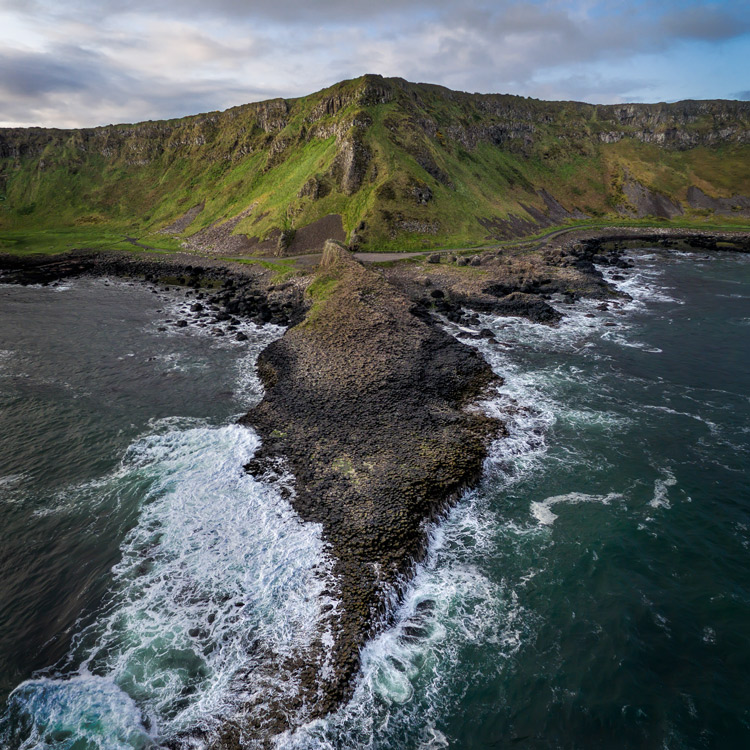
Giants-Causeway

How to fly

When you fly the drone for still photography, things are pretty simple. Unlike shooting video, you won’t need to do any fancy pans or reveals. You just want to get the drone to the right spot(s) to take the picture. It’s just a matter of getting it up in the air, watching where you are going with it, and moving it where you want.

Your drone will have a controller with two joysticks. The controller plugs into your phone or other device. You control the drone with the two joysticks. At the same time, you can see through the drones camera on your device. To send the drone up into the air, all you do is press up on the left joystick. That stick controls altitude. It is as simple as pushing up on the stick to increase the altitude, and pulling down to bring the drone down. That stick will also turn the drone from side to side. The other (right) joystick will fly the drone forward and backward by pressing up and down. When you press that joystick left or right, it moves the drone in that direction.

Monitoring the flight

To keep an eye on where your drone is going, you can either watch the drone itself or watch where it is going via the screen on your phone. Of course, you can operate the controller while keeping your eyes on the drone to make it go where you want.  But you can also see what the drone sees to control it, which is often much easier. You will have a controller that connects to your phone or other device. Your screen will show the view from the drone’s camera as well as other pertinent data. Remember that your drone has to be kept in direct eyesight though.

That doesn’t sound too difficult, does it? It’s really not. After a few flights, it will be even easier. Of course, there are additional nuances and things will be a little different depending on what model you buy. Be sure to read the instructions and watch a few online videos on your specific model.
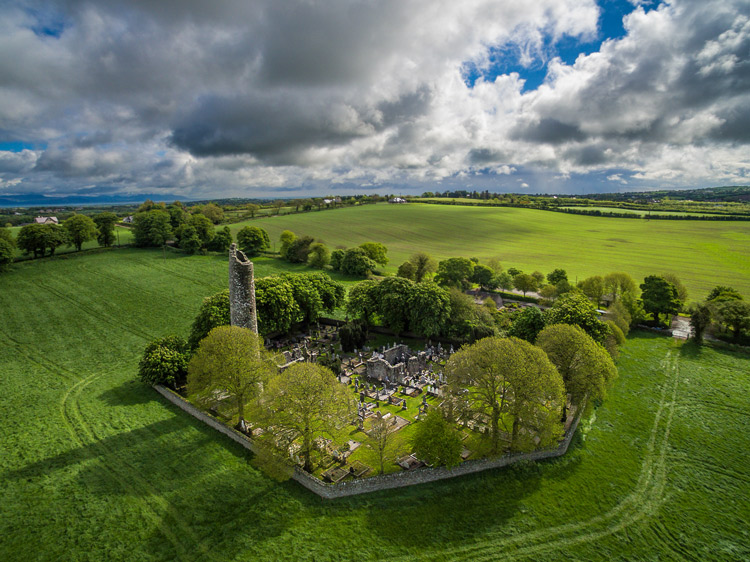
Monasterboice

You’ll be using a camera made for video

Next let’s talk about the camera that will come with your drone. First, the good news. When it comes to shooting video, the cameras in drones are top notch. They routinely shoot Ultra HD and most shoot 4K video. It doesn’t get better than that.

The bad news is that still photography is something of an afterthought for drones. The sensors are small. In most cases they are what you’d get in a compact camera. The resolution is moderate (12-16 MP is standard). The dynamic range is extremely limited and the low light performance isn’t great.

In addition, the lens will likely be very limited; a fixed focal length. It will be a wide angle lens, usually around 15-20 mm. The lens will also have a fixed aperture, meaning you cannot change it.

Working with the limitations

Virtually none of us would feel good about going out shooting with such a limited camera and lens. However, in drones it isn’t that bad. As to the camera, remember you will be shooting in daylight (you can only fly drones during the day – within 30 minutes of sunrise and sunset – in the U.S.), so there will usually be plenty of light. As to the lens, the fixed aperture isn’t as limiting as it would first appear. Keep in mind that everything in your picture will be so far away that the focus will be at infinity. You don’t need a lot of deep depth of field for everything to be sharp.

So the cameras are pretty limited, but you can make do. In any event, the cameras are getting better all the time, so you can expect significant improvements in camera quality in the near future.
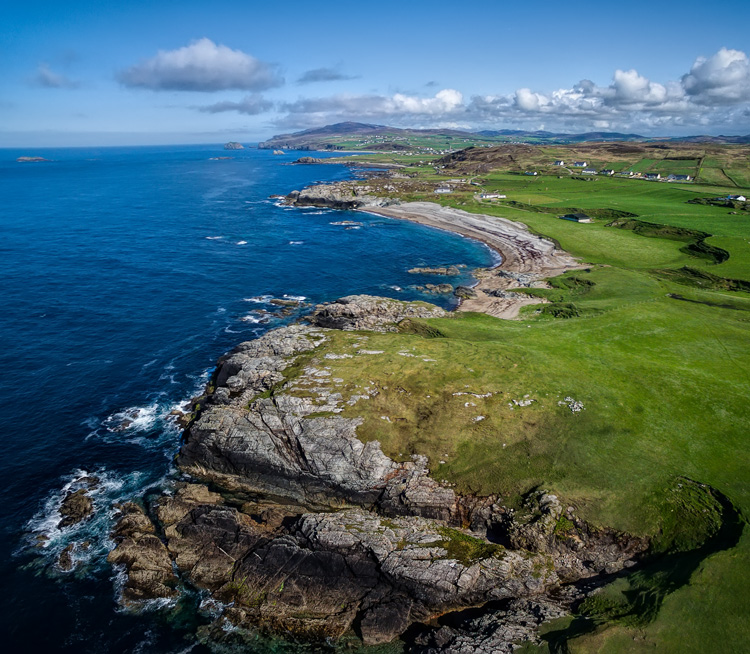
Malin-Head

Tips for photographing with your drone

We’ve talked about the capabilities of drones and the basics of how to fly them. Let’s talk now about taking pictures with them. For the most part, it is similar to operating a normal camera. You have the normal modes to choose from. You can set the shutter speed and ISO yourself or have the camera set them for you. That said, there are some aspects of using cameras on drones you should be aware of. Here are some tips to get you started:

#1 Consider Shooting in Automatic Mode

I am a dedicated manual mode shooter when it comes to shooting with my DSLR. I would not think of using an automatic exposure mode. But when it comes to shooting with a drone, I put it in automatic exposure mode more often than not.

Why? Because there is enough to worry about when it comes to drones. I don’t want to add exposure control to my list of issues to think about. So when you are starting out using a drone for photography, consider using automatic mode. When you get more comfortable with the other controls, you can then set the exposure controls yourself. In any case, your camera will typically do a pretty good job setting the exposure level. You’ll rarely have tricky exposure scenarios here.
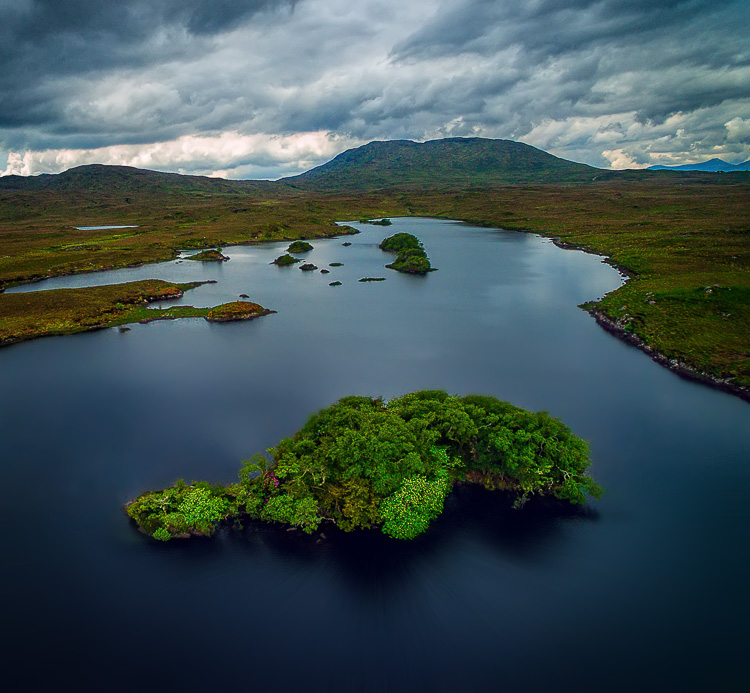
Connemara

#2 Bracket your photos

One way to make sure you get the right exposure every time is to bracket your photos. Drone cameras are usually capable of doing 3-shot brackets. Use this to overexpose and underexpose your shots by a stop. Think of this as exposure insurance. Sometimes you will just like one of the over or underexposed shots better. In that case, just use it. In addition, you can blend the exposures or use HDR software to combine the exposures later.

#3 Use filters

As mentioned earlier, the lens on your drone will likely have only one aperture. That leaves you limited options for changing shutter speeds. You aren’t completely out of luck though; you can still buy neutral density filters for your lens. These filters are used more for video, but they also help still photographers. They restrict the amount of light that gets into the camera, thereby forcing the camera to use a longer shutter speed.
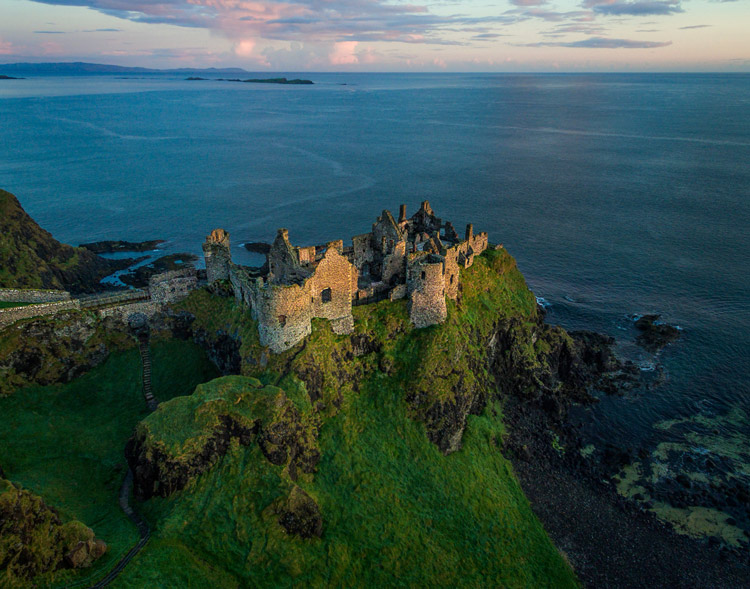
Dunluce

You can also get polarizing filters for your drone. These filters cut down on reflections and make skies appear a deeper, richer blue. This is helpful for drone photography, where the sky is often a significant part of the picture.

#4 Get multiple batteries

This isn’t strictly a photography tip, but it is important nonetheless. Be sure to get more than one battery for your drone. Drone batteries typically last only 20-30 minutes. That isn’t a lot of time. Further, you may also want to fly in a few different locations on the same day. Most of the time you won’t be able to charge your battery in between locations. So, you’ll need more than one.

How many do you need? That depends. You can get away with only two batteries (I do), but many drone photographers have three or four. You shouldn’t need more than that. Batteries are not cheap so think carefully about what you will need.
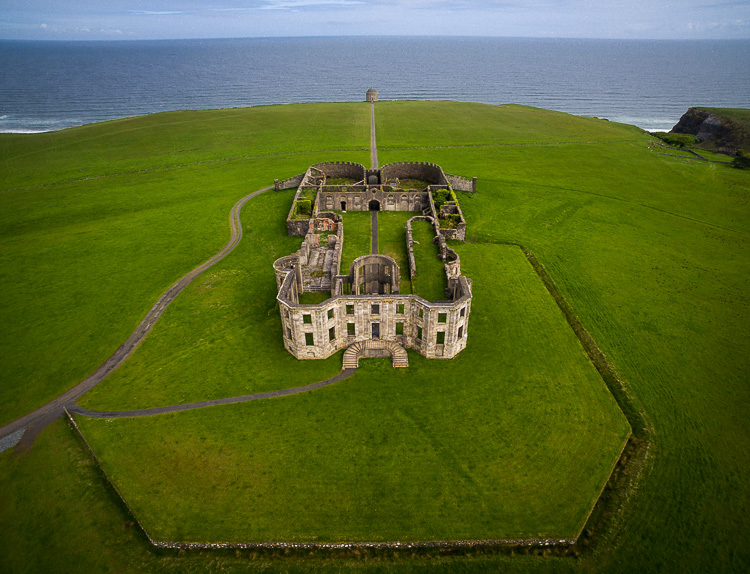
DownhillCastle

#5 Watch out for the deone’s blades in your pictures

Obviously, when you are flying the blades on your drone will be spinning. Remember that you will also be using an extremely wide angle lens. If you aren’t careful, your picture will include the spinning blades.

The best way to avoid this problem is to simply angle the camera down. That will keep the spinning blades out of the camera’s field of view. Of course, changing the angle of the camera will change the composition of your picture. Flying higher while angling the camera down might keep the composition similar to the picture you originally had in mind.

In any case, just be sure to look for blades in your pictures. You will need to look closely sometimes because it isn’t always obvious. You don’t want to get home and discover that your pictures are all ruined because there are spinning blades in all your pictures. If they are present, just change things up and take another shot without the blades in the picture.

#6  Keep it low

Your drone will fly up to 400 feet in the air. It is fun to fly it high, and it also ensures that you are far away from trees, power lines, and other obstacles. But for the best photos, you will not want to be anywhere near that high. Your shot will look like something from Google Earth. Instead, keep your drones pretty low to the ground (under 100 feet) to get the best shots. That will help you establish a foreground for your picture.
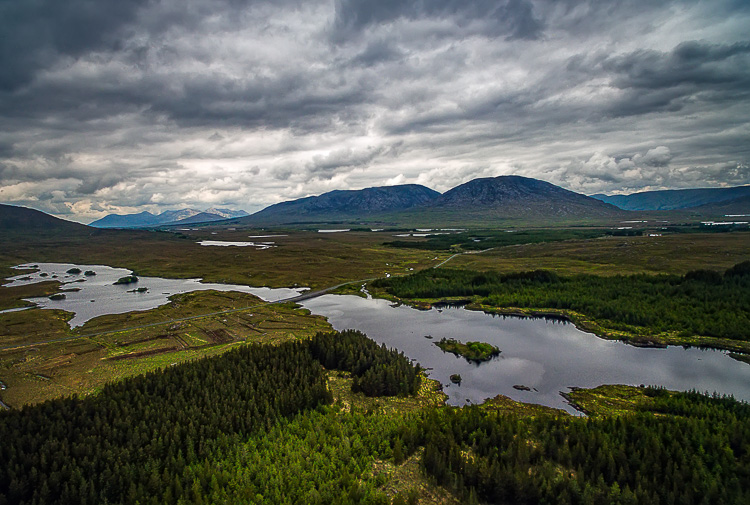
Connemara-2

Getting started with your new drone

So I admit it, I was wrong about drones. They are fun, easy to fly, and they really add something to your photography. Is one right for you? The answer will be different for everybody, but if you are on the fence I really encourage you to give it a shot.

A “just get out there and do it” attitude might not seem appropriate when it comes to drones. After all, any mistake can lead to a crash. But there is one simple rule that will make flying drones easy. That is to just stay away from everything. In fact, stay far away. Don’t go anywhere near trees, buildings, power lines, etc. If you do that, very little can go wrong.

Do you have any other drone tips to share with dPS readers? Please do so and share your drone images in the comments below.

googletag.cmd.push(function() {
tablet_slots.push( googletag.defineSlot( “/1005424/_dPSv4_tab-all-article-bottom_(300×250)”, [300, 250], “pb-ad-78623” ).addService( googletag.pubads() ) ); } );

googletag.cmd.push(function() {
mobile_slots.push( googletag.defineSlot( “/1005424/_dPSv4_mob-all-article-bottom_(300×250)”, [300, 250], “pb-ad-78158” ).addService( googletag.pubads() ) ); } );

The post Tips for Getting Started Doing Photography with Drones by Jim Hamel appeared first on Digital Photography School.
Digital Photography School

 
Comments Off on Tips for Getting Started Doing Photography with Drones

Posted in Photography


How to Get Started Making Extra Money with Your Nature Photography

16 Sep

Photography is expensive, there’s no doubt about that. Nature photographers have it bad, though, especially if you’re buying long telephoto lenses for wildlife. The Canon 200-400mm lens will set you back $ 11,000 – ouch. So it’s no wonder that many people want to make it in photography and start monetising their work. But can you make money with your nature photography?

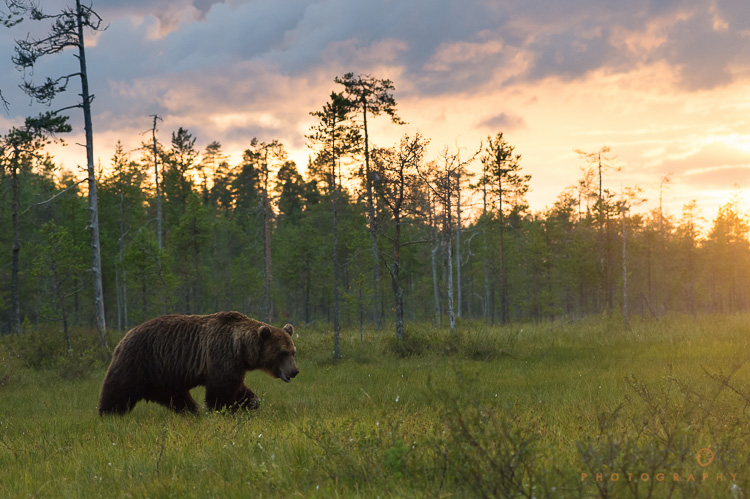
Brown Bear at Sunset

Making money from your photography isn’t easy, and it doesn’t get any easier as a nature photographer either. There’s less demand, and more people doing it. That means increased competition for a smaller slice of the pie. If you want to make money from your nature photos, then you must realize that it’s not easy by any means – but it’s also not impossible.

I’ve been working as a professional nature photographer for about six years now. What I’ve learned over my relatively short career so far is that you need to think outside the box to stay ahead of the competition. A bit of a cliché statement maybe, but one that you’ll have to embrace – especially if you want to be a full-time photographer.

But you’re probably reading this wondering how you can make a bit of extra cash from your photos on the side, rather than an entire life-altering career move. Well, that I can help you with! Let’s take a look at some of the main ways you can start to make money with your nature photography.

Prints and Other Products

The first print I ever sold was in 2008. That’s eight years ago now, and I’ve been doing it ever since. To the surprise of some, people do buy photographs to hang on their walls. This isn’t a space reserved solely for paintings.

Personally, I have my photos printed and framed myself, but you can have this process automated by dedicated web hosts. Zenfolio is a popular choice amongst photographers for a website, and they offer the ability to have orders automatically fulfilled by printing labs. This means you can sit back and relax, selling prints from your website.

Brown Bear

Beauty and picturesque scenes sell better as prints, rather than action-packed shots.

It’s not just online though. You can sell prints in the real world too! Head to a market or trade show, set up a stall and get selling. It’s great fun talking to customers about your work and to sell your photos this way. Doing just a couple of shows a year can buy you a new camera or lens, so that’s something to think about.

What sells best? Well, I find the more traditional wildlife photography like; clean bokeh shots, cute animals, or dramatic scenes. You’re looking for something that someone will want to look at over and over again. After all, when was the last time you moved a framed picture in your house? They stay up for a long time.

Workshops

If you really know your way around your camera and can take a decent photograph, then this is something you could consider. Day workshops offer clients tuition in photography, let them know your secrets and just help them to take a better photo and understand their equipment. It’s a popular move amongst photographers nowadays, and almost everyone trying to make a living out of nature photography is offering workshops.

wildlife-photography

The best thing about it is that you can set your own hours and choose when you work. You can fit sessions in on the weekend around your full-time job, and have a little extra money coming in on the side. All of this helps to take the sting out the costs of new photography kit.

There are different types of workshops you can offer. Some photographers partake in one-to-one guiding days, showing clients different locations for landscapes or wildlife sightings while imparting photographic knowledge. Others may rent out a blind they have built to view a particular animal (see image above), something that is often in high demand by those who don’t have the time to create such possibilities themselves.

Sell Stock Images

The stock photography industry is depleting day by day, unfortunately. It used to be the case that you could make a five-figure salary, or more, from stock photography alone. Maybe not just as a nature photographer, but you could definitely make big bucks in comparison to nowadays.

nature-photography-money

But with the rise of microstock, photographers are seeing their earnings decrease. On top of that, many stock websites are taking increased percentages as a commission, leaving photographers with little left of the few sales they may still make.

Despite that bleak picture, there are specialist nature photography stock agencies you can submit to. The likes of Nature Picture Library still sell well, at least in the UK, and photographers are able to make a decent income from them. However, they are very selective about who they work with – you need something unique in your portfolio to be accepted.

Selling to Publications

This is where there is definitely still money. Selling images to newspapers or magazines can be pretty lucrative indeed – the trick is making it a regular gig. Publications are often looking to buy not just one photo, but a sequence of photos that tell a story. That’s where your best chance to get published sits.

Selling to newspapers and other publications can be a good source of income.

Selling to newspapers and other publications can be a good source of income.

Working with a press agency to get your photos syndicated and in front of the right people is the best way to go about it. While you can contact publications yourself, you’re likely to be ignored and if your photos are used you may have to spend months chasing them for payment. Press agents take the stress out of it. There are plenty around the world, and they’ll take a commission (usually 40-50%) of the sale price for their services. I work with

Press agents take the stress out of it. There are plenty around the world, and they’ll take a commission (usually 40-50%) of the sale price for their services. I work with REX Features, but there are plenty out there such as Caters News and Associated Press. If you think you have a good, fresh sequence of images then send some low-resolution copies over and you’ll soon find out if they are sellable or not.

nature-photography-money

In Conclusion

Here are just some ways that you can make money as a nature photographer. It takes work and dedication, especially if you want to make it a full-time job. It’s definitely not the path everyone will be able to take. But, there’s no harm in trying to make a bit of extra money at first and seeing where it takes you. You just have to take that first step.

googletag.cmd.push(function() {
tablet_slots.push( googletag.defineSlot( “/1005424/_dPSv4_tab-all-article-bottom_(300×250)”, [300, 250], “pb-ad-78623” ).addService( googletag.pubads() ) ); } );

googletag.cmd.push(function() {
mobile_slots.push( googletag.defineSlot( “/1005424/_dPSv4_mob-all-article-bottom_(300×250)”, [300, 250], “pb-ad-78158” ).addService( googletag.pubads() ) ); } );

The post How to Get Started Making Extra Money with Your Nature Photography by Will Nicholls appeared first on Digital Photography School.

Digital Photography School

 
Comments Off on How to Get Started Making Extra Money with Your Nature Photography

Posted in Photography


5 Things Newbies Should Know About Getting Started in Photography

01 Sep

Getting started in photography can be quite scary. We all start by investing in a DSLR, and think we are going to take amazing images. In reality it is a bit more difficult, because if it was easy… well everybody would sell prints, quit their day job, and live off photography.

Just like any art, photography has to be learned, and practiced – a lot. It is a trial and error process, we all start at the bottom and build our way up.

5 tips photography 1

If your images do not look like you imagined them, then try a different approach. Just do something. Einstein said that the definition of insanity was doing the same thing over and over and expecting different results.

#1 – Gather information and knowledge

Photography is the best hobby you could have, but it is a lot of hard work. I personally don’t believe in talent. The first tip I can give you is to absorb as much information as possible. How do you do that ? Well you have so many free resources on the internet, the only need to take advantage of it. Since you are reading this, then you’re on the right track.

By resources, I mean articles online, magazines, and YouTube tutorials. You can learn so much in less than 30 minutes. One other tip I can also give is to check multiple resources for the same topic.

5 tips photography 2

Read photography magazines. They have amazing stories and tutorials.

For example you want to learn how take portraits – don’t read or watch only one tutorial. The more you research, the more you will learn, because sometimes one article won’t give you all the answers to your questions, but another article will.

You should also anticipate. What I mean by that, is to learn about it, before trying to do something.

For example, say you want to buy a new DSLR. You should learn how to use it before you actually buy it, read reviews and tutorials. If you are planning a trip to the sea, then learn seascape photography before travelling.

5 tips photography 3

Photography is spending hours and hours on research.

#2 – Try all kinds of photography

This brings me to my second tip: don’t focus on only one type of photography. Of course, if you like portrait photography then do that. What I’m trying to say, is that you should explore all the possibilities, before focusing on only one type of photography. Try to add variation by learning about macro photography, landscapes, portraits, wildlife, etc.

5 tips photography 4

Try super sports car photography. It’s so fun, just protect your ears.

You may be surprised by the results you get, and if you never try, you will never know if you actually like photographing birds or not. From my experience, the more you learn, the more you’ll be able to do things. It’s better knowing how to do five things than only one. Starting photography and only wanting to take portraits is not the right mindset. It’s just like food, if you don’t try new food, you will never know if you like it or not.

#3 – Photography is an investment

The third thing you should know is that photography is a big investment. You will need to buy lenses, camera bodies, tripods, and filters, which will end up being quite expensive. If you are not smart with your decisions, then your bank account can end up in tears.

It may seem confusing when I tell you to try different types of photography, but then warn you about buying too much gear. If you want to try macro photography, don’t buy a macro lens right away. Just buy extension tubes (or close-up filters) until you know if you are serious about macro. They cost a lot less, and increase your focusing distance dramatically.

5 tips photography 5

A very inexpensive $ 30 ND Filter.

For filters, you can buy $ 20 Neutral Density filters for your landscape photography. Of course they won’t have the same quality as the professional ones, but it’s a good place to start.

I started photography with a phone, then moved up to an entry level DSLR, and now I own a full frame camera. But, it took me four years to go from my phone to full frame, so don’t go out and buy the best DSLR ever, find something that will suit where are you starting first.

5 tips photography 6

Phone photography

Make smart decisions, a normal kit lens is enough to get started in landscape photography.

#4 – Post-processing is a good thing

The fourth tip is about post-processing. Most beginner photographers underestimate the power of post-processing. It can make or break an image, that’s why my first point is important. You have to learn and fail in order to succeed – once you learn how to master software like Lightroom and Photoshop, your photography will become more like a process, because you will automatically think about post-production.

5 tips photography 7 5 tips photography 8

For post-production, I also recommend learning about the same topic from different sources. There are a lot of different ways to do the same thing, you just have to find which way works the best for you. It doesn’t matter how you do it, the important thing is the end result.

For example, for dodging and burning an image I prefer using a curves layer with a mask, but that doesn’t mean I don’t know how to dodge and burn using grey layers.

Post-production can be quite scary because there are so many tools, but once you master a certain software, you will be able to work on your worst shots and get the best out of them.

I would say that post-production is almost indispensable. There are a lot of photographers who want natural photography, but that doesn’t exist. Your colours will get interpreted anyway, it’s up to you to decide if you want your camera to do it automatically, or if you want to take control over everything.

5 tips photography 9

Simple snapshot with my own interpretation of colors.

#5 – Good photographers create depth in their images

The last thing you should know is that photography is all about creating depth. There are many ways of creating depth; you can do it with light and contrast, colours, movement, a solid composition, and with depth of field.

You should aim to have at least one of these elements in your images. If you can mix all these elements in one image, then your result will be even better.

With light and contrast you can play around with shadows, and dodging a burning. The main purpose is to have uneven lighting on purpose – try to avoid flat lighting. Some area should be lighter than others, and some darker. You also want to know which lighting conditions will give you the best results. For example, if you like shooting landscapes then you will want to know that you get the best light during the magic hour (blue hour).


Composition is the most important thing, try to use a foreground, middle ground and a background. The rule of thirds is also really useful to frame your subject in a pleasing way.

5 tips photography 10

With colours, the main purpose is to have tones that go together. Always look at your colour palette and see what works best. This is quite difficult to do, but one tip I can give you, is that when the colours do not look good, convert your image to black and white.

For movement, try long exposures, they are a good way to create a surreal images.

The last thing is depth of field. This is very important if you’re taking portraits, the amount of background blur can completely change an image. If you want to learn about it here’s another article I wrote: How to Achieve Background Blur or Bokeh where I explain three easy ways to achieve a nice bokeh.

IMAGE 2

Summary

So if you’re just getting into photography, consider these five things as you begin your journey. Learn everything you can from multiple sources, try different kinds of photography to see what you like, don’t get caught in gear envy, don’t be afraid of post-processing and remember to add depth to make more interesting images.

Are you further along in photography? What other advice would you offer to new photographers? Please share in the comments below.

googletag.cmd.push(function() {
tablet_slots.push( googletag.defineSlot( “/1005424/_dPSv4_tab-all-article-bottom_(300×250)”, [300, 250], “pb-ad-78623” ).addService( googletag.pubads() ) ); } );

googletag.cmd.push(function() {
mobile_slots.push( googletag.defineSlot( “/1005424/_dPSv4_mob-all-article-bottom_(300×250)”, [300, 250], “pb-ad-78158” ).addService( googletag.pubads() ) ); } );

The post 5 Things Newbies Should Know About Getting Started in Photography by Yacine Bessekhouad appeared first on Digital Photography School.

Digital Photography School

 
Comments Off on 5 Things Newbies Should Know About Getting Started in Photography

Posted in Photography


5 Tips for Getting Started with Wildlife Photography for Beginners

26 Jul

There is just something about the natural world that seems to touch us humans to the very core of our being, especially when it involves wildlife of any form. When we hear the words “wildlife photography”, wide open planes of the African Savannah with herds of zebras, wildebeests and antelope come to mind.

But that is just one part of the natural world pie! Don’t get me wrong, visiting Africa and going on safari are really high on my bucket list of places to visit and things to photograph, but I get equally excited when I am hiking in a national park that is frequented by bears, bison, eagles and pronghorn deer. There are several brilliant wildlife photographers out there, and every image they produce has a jaw-dropping reaction from most of their fans and followers. If you spend some time and really study their work, you will notice a consistent method to their approach. There are some simple basic guidelines that budding wildlife photographers can follow to creating their own Kodak moments!

Here are a few things to keep in mind for a safe, productive, and exciting wildlife photography trip.

1 – Research and planning

Memorable Jaunts Getting started with wildlife photography-5

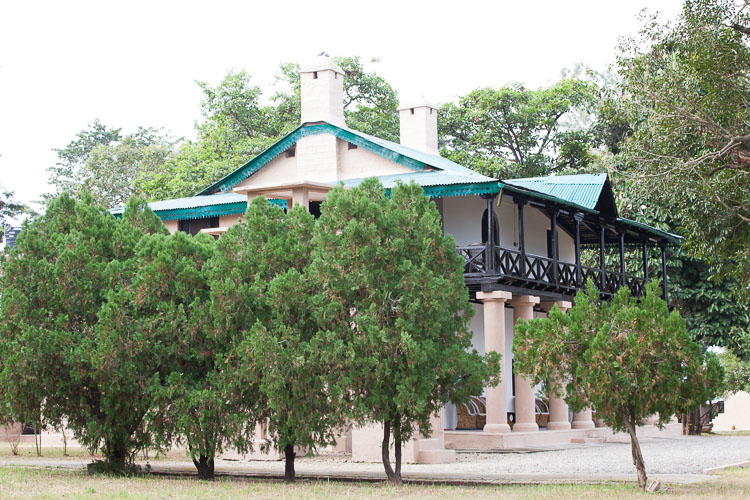
I spent three hours of the afternoon exploring the wonderful forest lodge at Jim Corbett National Park in India because the park roads closed in the afternoon hours to allow animals to move about freely in the jungle without the noise created by countless jeep safaris – something that is not mentioned in most guide books.

Traveling itself is one of those tasks that needs an incredible amount of planning and research. So it is no surprise that when you are planning a wildlife photography expedition, you need to add a lot more to the mix. Scope out the best places to photograph animals, the best time of day, travel times to and from, as well as any permits and paperwork needed, well ahead to time to avoid any disappointments once you get to the location.

Memorable Jaunts Getting started with wildlife photography-15

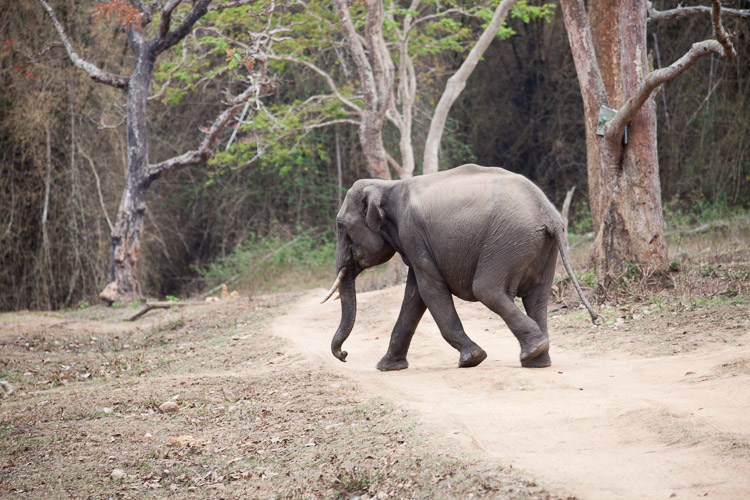
Once we were back in the park on our safari, I was able to see this juvenile elephant walk across the path on his way to the deep jungle.

2 – Selecting the right gear

This is a very important part of any photographic expedition and quite possibly an article in itself. Choosing the right gear for your wildlife excursions is key. A lot of factors will determine what lens and cameras you need to carry with you.

Are you primary going to be traveling in a car? If so, you could bring more than one camera, and a long telephoto lens. Are you going hiking/camping, and will you be constantly on the move while looking for animals? If so, then maybe you’ll need to limit yourself to one camera, and a medium telephoto lens to reduce your load. Is there a possibility for you to get up-close and personal with the animals? Then, carry a smaller focal length like an 85mm or 50mm lens.

Are you planning on photographing landscapes too? You may need a wide angle lens if so. Will you have access to your computer frequently? If not, you may need a portable external hard drive to backup your images. How many batteries do you need?

As you can tell, having a plan for where, and what you are looking to photograph, is really critical in determining what gear you pack.

Memorable Jaunts Getting started with wildlife photography-3

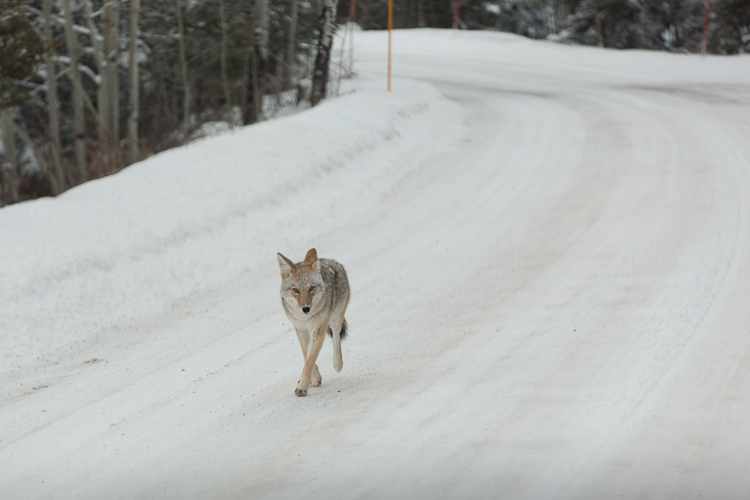
Driving around in Yellowstone National Park one December morning found me face to face with this coyote (above) – who was simply enjoying his morning run. I was too surprised to remember the appropriate lens choice, camera setting, etc. I just took the snap, and while it may not be technically perfect, it is one of my favorite images. Just look at the trot in his paws.

Memorable Jaunts Getting started with wildlife photography-8

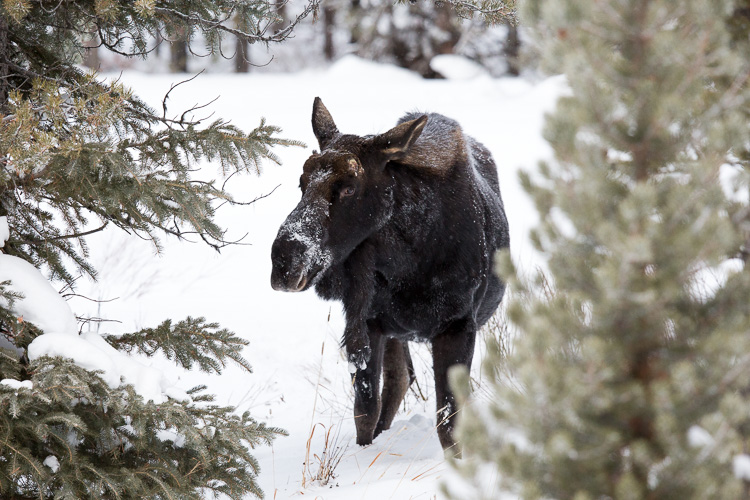
On the other hand, a photographic expedition into Yellowstone National Park a few days later gave me a chance to use a 400mm super telephoto lens to capture this moose feeding along the hillside.

3 – Safety

When doing wildlife photography, it is very important to keep safely in mind. It doesn’t matter if you are going on safari, or hiking alone in national parks. Wild animals by nature are unpredictable, and it would behoove us to remember that we are in their space, and we need to be respectful of that.

Rules and guidelines in wilderness areas are there for a reason – your safety and security. Make sure you follow them so that you, or others around you, don’t get hurt or injured. Whenever possible, travel in a group, or at least with one other person. There is security in numbers, and that can work to your advantage.

Seek help from experts who have made the journey before you and listen to their advice. Hiking a nesting area or denning area is never a good idea, for a reason! Take care of your gear. Especially if you are away in remote locations, you don’t want to be careless and risk your gear malfunctioning just when you need it. Dust and dirt are difficult to clean when you are out in the field.

Memorable Jaunts Getting started with wildlife photography-10

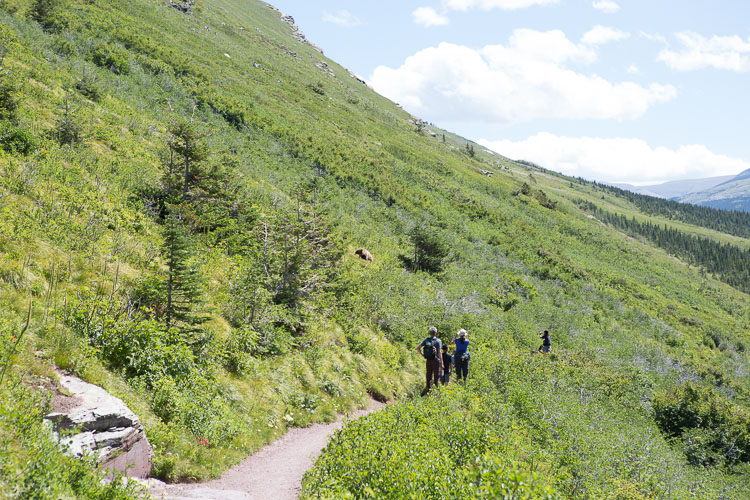
On a 10 mile alpine hike in Glacier National Park in Montana, USA, the only gear I could comfortably carry was my 24-70mm lens and I was able to snap this picture. Not the closeup I really wanted, but this conveys a message unlike any closeup shot I could have gotten. Bonus points for spotting what everyone was looking at!

4 – Practice and patience

Wildlife photography, like most other genres, needs a lot of practice, and an even greater amount of patience. People spend hours and hours to get the perfect shot – often in less than perfect conditions like the cold, rain, and even overnight in a bind waiting for the sunrise shot. So depending on what you are looking to photograph, be prepared to be patient and wait it out.

Practicing is a little harder to accomplish unless you happen to live close to a national park or wildlife frequented area. A good alternative may be to spend time at the local zoo and try to capture photographs of animals there. A lower cost alternative to testing out your gear as well as playing around with settings.

You could also try this – Guide to Attracting Critters to Your Garden for Backyard Wildlife Photography

Memorable Jaunts Getting started with wildlife photography-12

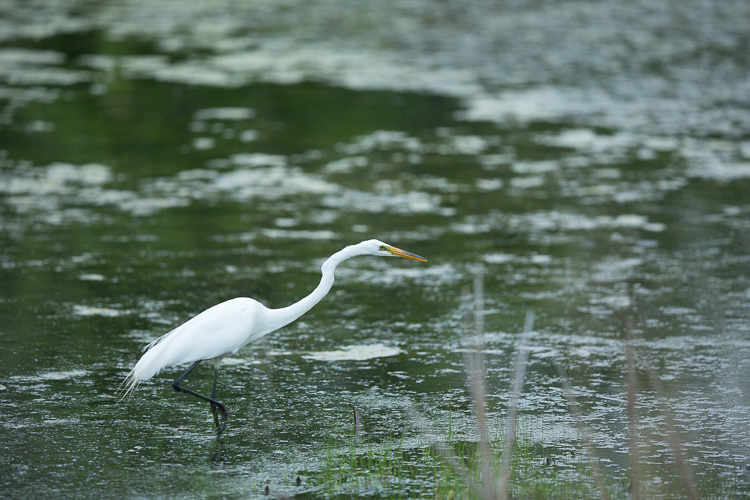
A pond close to my house is a watering hole for many birds during the spring and summer months. I am always out there practicing trying to get a clear shot of these cranes feeding. Perhaps one of these days, lady luck will be on my side!

5 – Enjoy the experience beyond the camera LCD

I don’t know about you, but I absolutely hate experiencing my vacation through the back of my camera. My life is quite busy and hectic with kids, family, and a full time business. Vacations are always a welcome, and much needed break to get away from it all, and time to do the things we all enjoy.

Yes, I absolutely want to capture moments through my camera, but I also want to be physically, and emotionally present with my family. I am just as happy seeing that exotic bird or that elusive wild animal with my own eyes, as I am getting a shot of it – I don’t need to prove it to the world!

Memorable Jaunts Getting started with wildlife photography-9

While we were hiking in Glacier National Park in Montana, we saw a wolverine – yes, we truly did! About 10 minutes after this photo was taken, the path turned really narrow with a steep incline, so I did the most sensible thing I could do, and put the camera away. A few minutes after that, we saw a brown patch of fur run along the path! A ranger later confirmed that a wolverine was frequenting the area we had just hiked. Yes, I have no photographs to prove it, but I have the most wonderful memory of seeing one of the rarest (to see) animals in the wild! Wolverines are a shy species, so don’t expect to see one out in the wild. They live in dens made out of snow tunnels, rocks and boulders and can be found in remote forests and tundra.

What are some of the most interesting wild animals you have photographed? Share your experiences in the comments below.

googletag.cmd.push(function() {
tablet_slots.push( googletag.defineSlot( “/1005424/_dPSv4_tab-all-article-bottom_(300×250)”, [300, 250], “pb-ad-78623” ).addService( googletag.pubads() ) ); } );

googletag.cmd.push(function() {
mobile_slots.push( googletag.defineSlot( “/1005424/_dPSv4_mob-all-article-bottom_(300×250)”, [300, 250], “pb-ad-78158” ).addService( googletag.pubads() ) ); } );

The post 5 Tips for Getting Started with Wildlife Photography for Beginners by Karthika Gupta appeared first on Digital Photography School.

Digital Photography School

 
Comments Off on 5 Tips for Getting Started with Wildlife Photography for Beginners

Posted in Photography


4 Tips to Help You Get Started Doing Lifestyle Photography

27 Apr

135

People are my favorite subject to photograph, and one of my favorite ways to capture them is through lifestyle photography. I love documenting a day in the life of a family, student, or child. I love making beautiful photos out of real life happenings; the everyday stuff that we forget to treasure. Some moments are perfect and gorgeous, and other moments are more ordinary, and sometimes even unattractive; but I love every one of those moments, and I find joy in looking for the beauty in everything.

If you would like to get started with lifestyle portraiture, maybe these tips and photos will inspire you to jump right in. These photos are from a day in the life session with a sweet family. I wanted to document what a normal, ordinary day is like for them, and give them photos that they would treasure forever. We had a lot of fun together, and not only do they love the photos, but I ended up being inspired by them as I spent a little time getting to know who they are.

1 – Set yourself up for success

160

If you decide to do a lifestyle session and just show up without a plan, you may get exactly what you planned for – nothing. I asked the B family to tell me some of the things they enjoy doing together as a group, and we chose some that would photograph well, and represent their life right now.

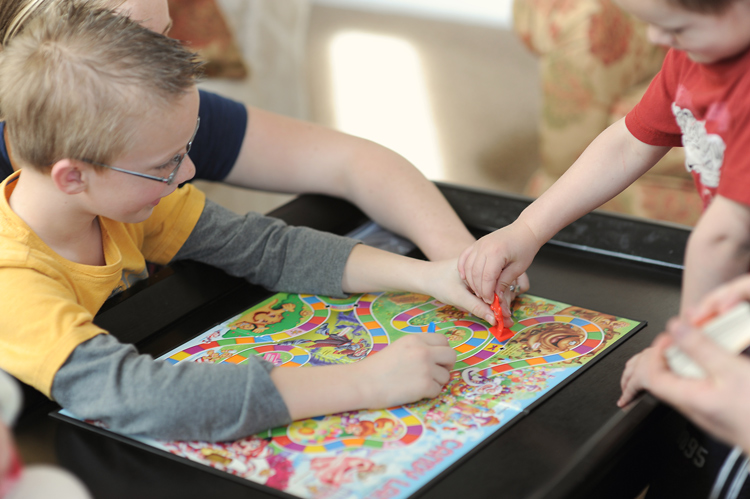
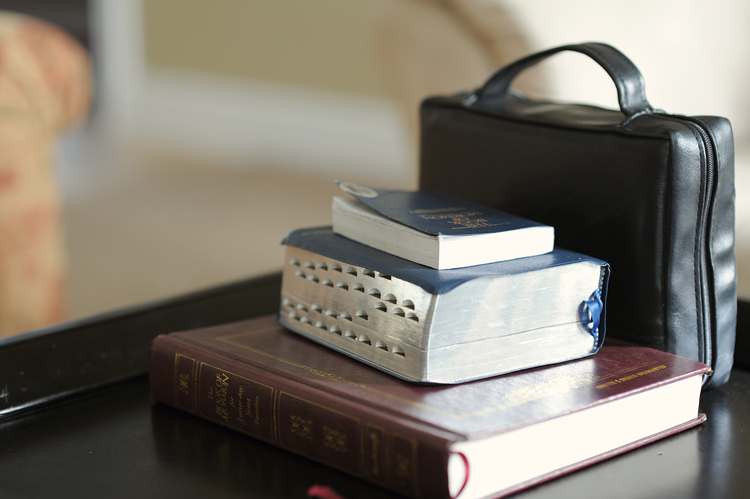
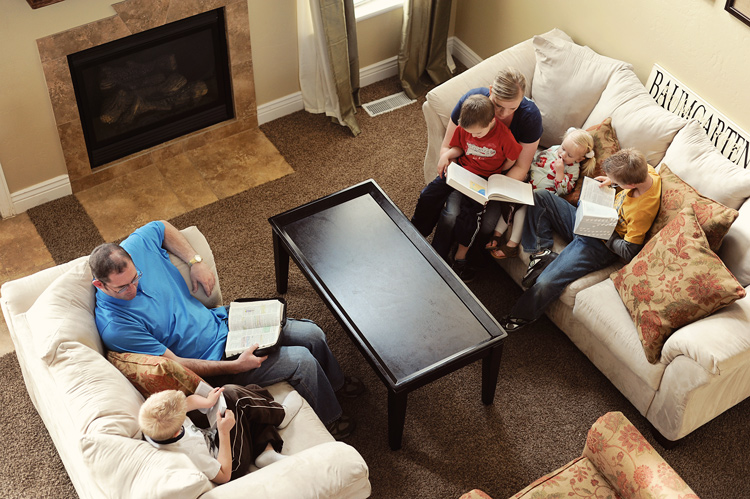
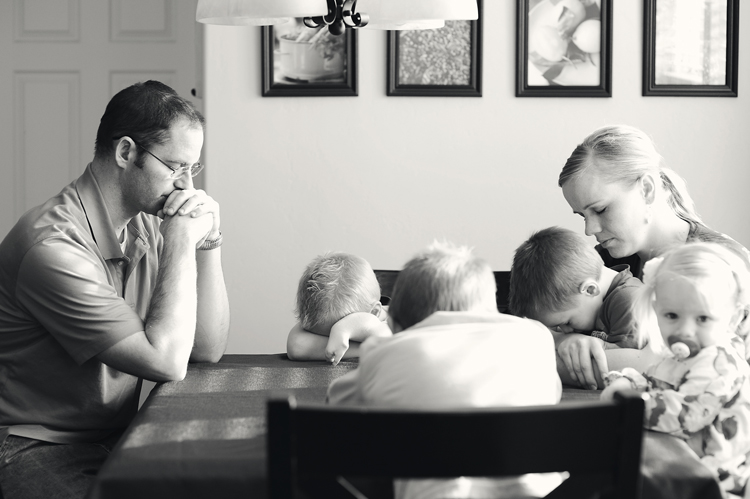
We took photographs of snack time, with kids helping prepare and eat the peanut butter and apples. We took a few photographs of them jumping on the trampoline, and then we came inside while they played games together. We ended the session with something that they do every single day, and is a huge part of the fabric of their family. They read scriptures together, and prayed as a family. It was important to me to capture the essence of their family, so we planned, ahead of time, the things that would best show who they are.

There are so many scenarios that could be planned and prepared. Families are fun, because there is a lot of interaction. You could have them bake cookies together, or go for a picnic in the park. A family hike might be the perfect thing to photograph if they love the outdoors. It’s so much fun to do sessions on the lake with the family’s boat, or at home with their pets.

168

Although families are fun, they’re definitely not the only group of people who lifestyle photography lends itself to. A group of tweens painting fingernails together, or some kids playing a game of basketball could make great lifestyle sessions. A day in the life of a college student, or a documentary style session with an elementary school teacher could also be amazing. People are involved in so many great things, whether it be their hobbies, work, or recreation. It’s a wonderful experience to capture them in action, doing the things that they love.

As long as you don’t get too attached to it, it can be helpful to create a shot list. This could be a list of all the photos that you are hoping to capture during your session together. If all the things on your list don’t happen, don’t fret about it, but it can give you some ideas to get going.

2 – Be ready for the unexpected

180Now that you’ve planned and prepared, and set yourself up for success, loosen up and go with the flow. If you try to manage every moment, or even direct too much, you lose the realness of a lifestyle session. Things just happen during your time together, and sometimes those things are what make your most memorable photos.

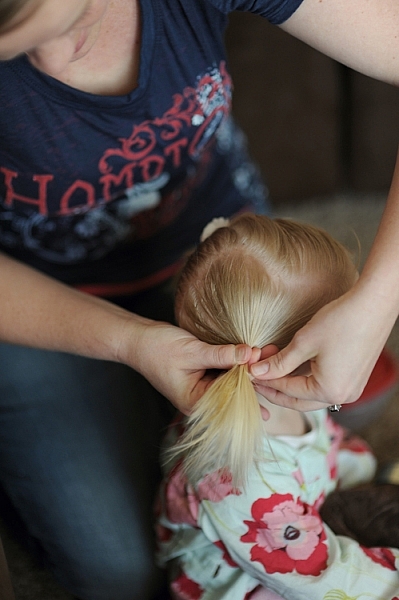
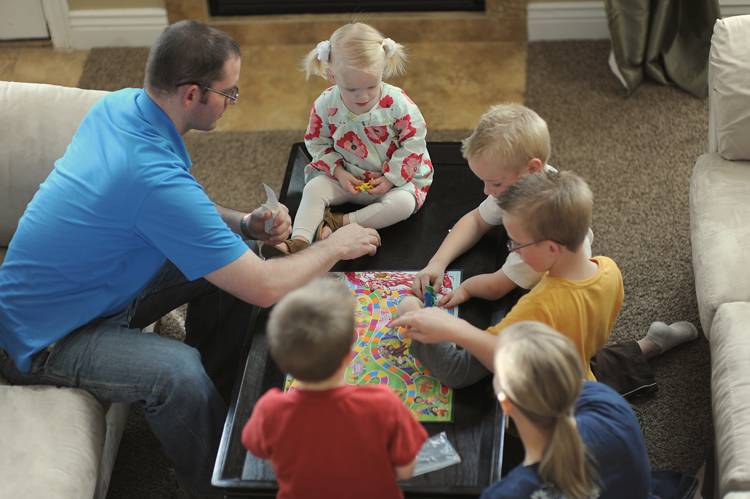
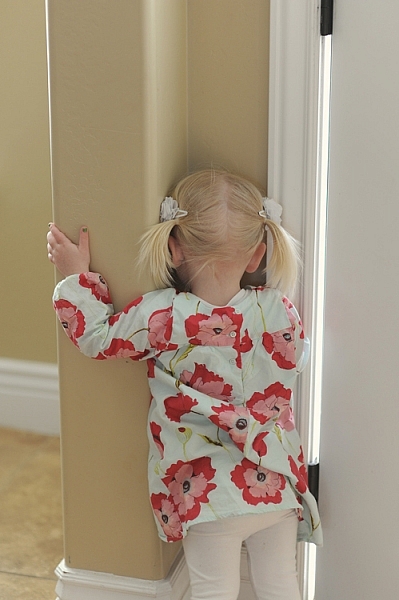
In the photo to the right, the little one got quite upset over something that happened in the game, and she knew right where she had to go, and exactly what she had to do; standing with her nose in the corner was the standard procedure in her family. Although it wasn’t her finest moment, and she probably wasn’t enjoying it very much, I’m pretty sure this photo will be one that she will love when she grows up, and her parents will cherish forever.

These moments are the ones that aren’t on your shot list, because you can’t foresee them happening, but you need to be ready to capture them and include them as part of the story you are telling. You may even have days where you don’t capture one thing that you had planned, and nothing on your shot list is even available to shoot. If that happens, just go with it, and know that you may create something even better than you could have planned. If you have a calm mindset, knowing that you are prepared, but you are ready to roll with the punches, you’ll be just fine.

3 – Capture the story details

181

Some of your photos may not even have your human subjects in them. A lot of your photos might not show any faces or expressions. These detail shots can create interest in the group of photos chosen to represent their story, and tell the story even more deeply than if all the photos were of their faces.

For each scene you are photographing, you might consider taking the “big picture” with lots of the surroundings, and all of the participants visible in the photo. This will provide context, and help your viewer understand the setting, and exactly what is going on. Then you might want to break it down a little further, showing a close up of one or two of the people, or a close up of their hands, or the activity. You could then break it down even further, and take detail shots of what is going on, and the objects that are part of your subject’s story.

100

As you break down these little details, you’ll enrich your story by showing emotions, interactions, and the things that are most important to your subject. Be careful not to get too sidetracked. If you start photographing anything and everything that is in the room, your story becomes muddied, and it won’t be clear what you are trying to portray. Have a clear vision of the story you are telling, and keep that focus as you shoot.

4 – Consider different perspectives

200

Be creative as you figure out how to best tell the story you are trying to portray. Perspective is a great way to add interest to your photos, and show a unique point of view. There are two different types of perspective to consider.

Your perspective

Where are you located when you are taking the photograph? Try shooting from above, or below. Try shooting from behind curtains, or stair railings. Sometimes having something in the foreground makes the viewer feel like they are really seeing into the heart of someone’s life, and seeing something they wouldn’t normally see. Move closer, move back, move around. Be creative.

Their perspective

How does your subject view this activity? What might the little girl be feeling? How could you portray that in a photograph? What does the mother see when she looks at her family? Can you capture her feelings and perspective? When you are creating lifestyle portraits, your vision will definitely be part of the process, but trying to capture your subject’s perspective can add a whole new dimension to your photographs.

196

One of the best things about lifestyle portraiture is that there really are no rules. This opens up so much more room for fun and creativity, and takes a lot of stress off of you as a photographer. Have fun with it, and get you and your camera out there to tell a really great story. I’d love to see your lifestyle photographs in the comments below!

People photography week

This week on dPS we’re featuring articles all about different kinds of people photography including portrait, event and travel photography. See all the previous ones below, and watch for more people photography articles over the next few days.

  • How to Take Low Key Head-shots
  • How to Do a One Light Portrait Setup and Use it as Your Back-up Plan
  • Travel People Photography – Tips and Pitfalls
  • 8 Tips for Photographing Men
  • 24 Diverse Images That Showcase People Photography
  • Weekly Photography Challenge – People Photography
  • Tips for Getting Yourself to Relax as a Photographer and Have More Successful Portrait Sessions
  • 5 Good Reasons to Add People into Your Landscape Photography
  • 6 Must-Have People Shots to Capture When Photographing Corporate Events

googletag.cmd.push(function() {
tablet_slots.push( googletag.defineSlot( “/1005424/_dPSv4_tab-all-article-bottom_(300×250)”, [300, 250], “pb-ad-78623” ).addService( googletag.pubads() ) ); } );

googletag.cmd.push(function() {
mobile_slots.push( googletag.defineSlot( “/1005424/_dPSv4_mob-all-article-bottom_(300×250)”, [300, 250], “pb-ad-78158” ).addService( googletag.pubads() ) ); } );

The post 4 Tips to Help You Get Started Doing Lifestyle Photography by Melinda Smith appeared first on Digital Photography School.

Digital Photography School

 
Comments Off on 4 Tips to Help You Get Started Doing Lifestyle Photography

Posted in Photography


Getting Started with Layer Masks in Photoshop – a Beginners Tutorial

09 Mar

Barn-DPSexample

Much of the power of Photoshop comes from its use of layers, which can best be thought of as transparency over your image. Layers have lots of benefits, like the fact that you can work on your image without affecting the pixels in the underlying image. But perhaps the most powerful aspect of layers, is your ability to affect exactly where, how, and how much of your changes will affect the underlying image. That is all done through layer masks. In fact, it might be fair to say that layers are really only effective because of layer masks.

What are layer masks? Think of them as filters that let you control the impact of the changes you make to your image. Just like you can change ordinary filters to determine what gets through them, so you can adjust a layer mask to control what changes. If that sounds confusing, don’t worry, and I will walk you through the basics of layer masks now.

How Layer Masks Work

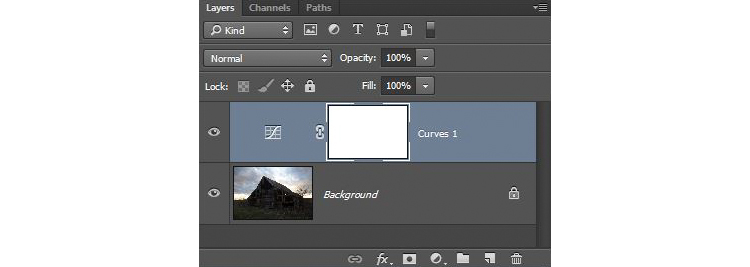
To understand layer masks, it is best to start with the simplest form. A mask that does nothing – that is, it lets absolutely everything through from the layer you are working on, to the layer underneath – it is represented by solid white. This is referred to as a “reveal all” layer mask in Photoshop. When you look at your layers palette with a white/reveal-all layer mask, it will look like this:

Graphic1-WhiteLayerMask

When your mask is all white, any change you make on that layer, will apply to the underlying image. How do you create an all white image layer mask? Very often – as in the case of adjustment layers – one will automatically be created for you. Or, to add one yourself, just go to Layer > Layer Mask > Reveal All. You can also click on this button at the bottom of the layers palette to create one on the layer you have selected

Graphic2-LayerMaskButton2

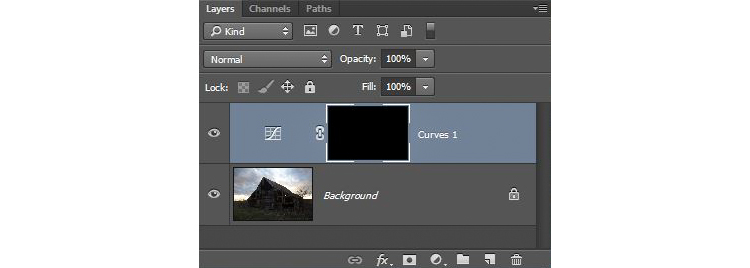
An all-white layer mask is actually pretty useless. The utility of the layer mask comes when we start masking (hiding) things off. Before we get into that, however, let’s talk about how to create an all-black layer mask. As you might expect, a black layer mask works the opposite way as a white one, and lets absolutely nothing through to the layer underneath. You can make all the changes you want to this layer, and it will have no impact on your underlying image. Here is how it will look when you create one:

Graphic3-BlackLayerMask

To create an all-black layer mask, just go to Layer > Layer Mask > Hide All or press ALT while clicking on the same button used in the graphic above to make a white layer mask. Now that you know what layer masks are, and the basics, we can get into the real fun of them, which is where you have blacks, whites, and even tones of gray in the same mask.

Masking

Layer masks allow you to apply changes to some parts of the image, but not others. Just remember that wherever your layer mask is white, it will let the changes you made to the layer through, so that they apply to your image below. Wherever your layer mask is black, it will not let the changes through, so they will not apply to the image. Before we get into how to do that, let’s talk about when you might want apply changes to only part of your image.

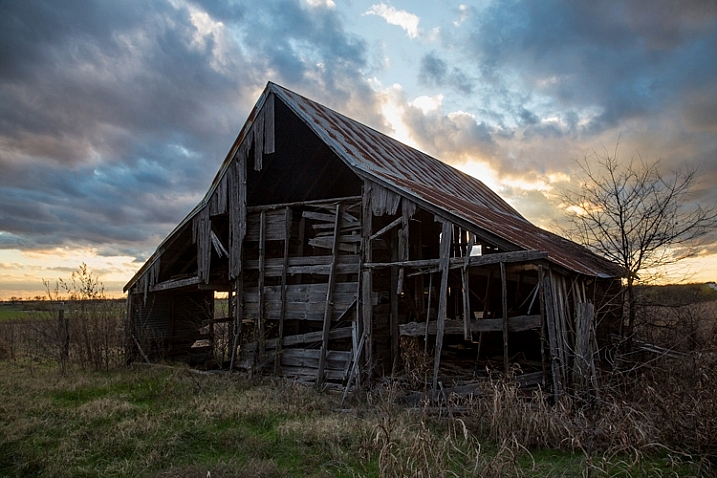
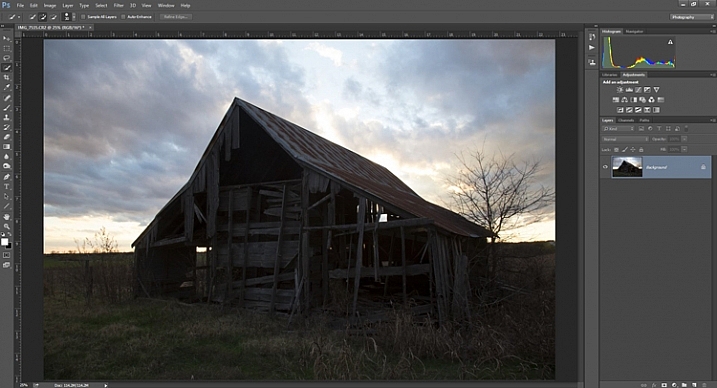
Let’s take this picture of an old barn. I’m choosing this image because it will be simple to adjust using masks, as it only involves two main areas. As you can see, the sky is too bright, while the barn and foreground are too dark. In doing this for yourself for the first time, use a simple picture like this to get started.

Graphic4-BarnOriginal

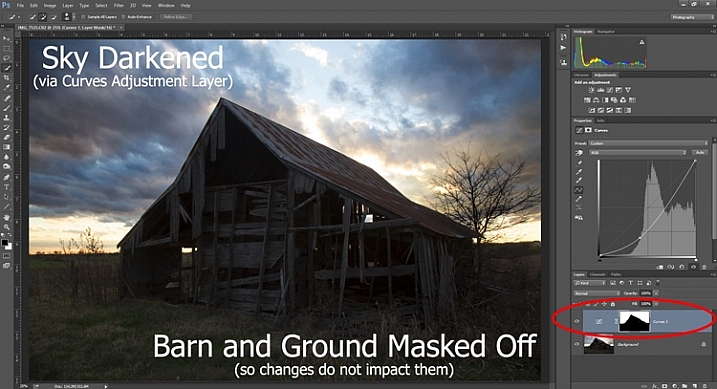
As you probably know, you do not want to edit these two areas in the same way, so a global adjustment to the whole image won’t help. You can, however, use masks so that edits only apply to the areas you want. For example you might darken the sky like this:

Graphic5-SkyDarkened

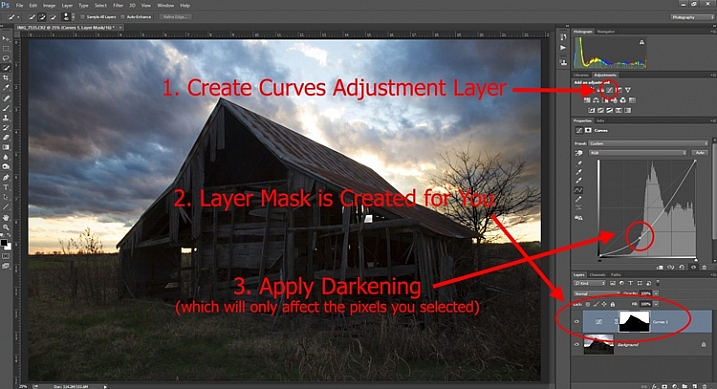
Here I masked off the barn and foreground so that the darkening only applies to the sky. I used a quick Curves Adjustment layer to darken the image. As you can see, the mask of the sky is white (so the changes affect the image in that area), while the mask of the barn and foreground is black (so the changes do not affect that part of the image).

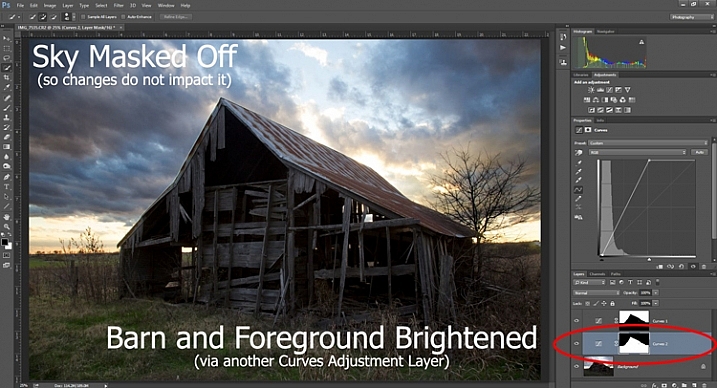
Now let’s do the opposite to brighten up the barn and the foreground. Once again, I’ll use a layer mask so that my changes only affect the barn and the foreground, so that it looks like this:

Graphic6-ForegroundBrightened

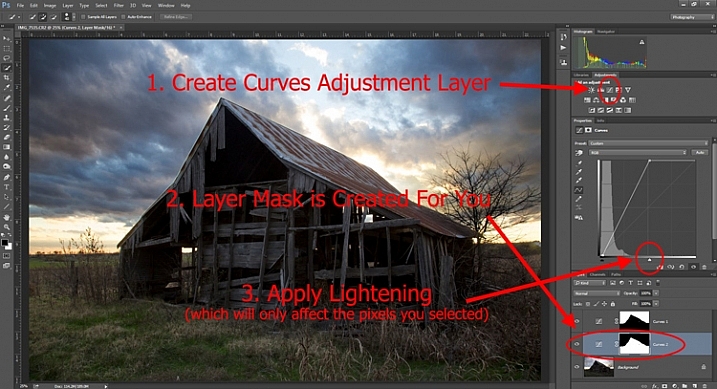
This is the same move I made above, but in reverse. I created another Curves adjustment layer to brighten up the image. Now the layer mask is white over the barn and foreground, which means the brightening effect shows through in those areas. The layer mask is black over the sky though, so the brightening effect does not impact the sky (which is already bright enough).

But how do you do go about creating these layers and masks? Let’s find out now.

Creating a Layer Mask with Defined Edges

There are different ways to mask off portions of your images. Sometimes you will want to create a mask with a hard or definite edge, while other times you will want to gently blend in the effect to a portion of your image. In this article I will cover how to create a mask on an image with a hard edge (I will get into blending in changes in a later article). The photo of the decaying barn used above will work just fine for this, so let’s stick with that photo as our example.

Step 1: Make Your Selection

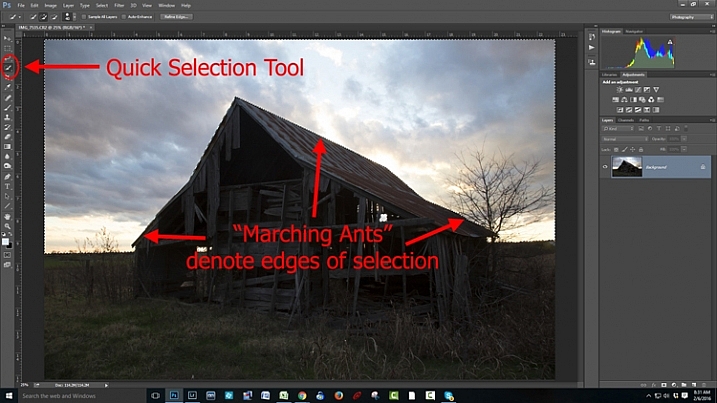
To darken the sky in the image, the first thing you need to do is select the sky. To do so, click on the Quick Selection tool from your tools panel. Then click anywhere in the sky, and while holding the mouse button down, move around where you want to select pixels for your selection. Photoshop will automatically detect edges. To make the Quick Selection tool larger or smaller, use the square bracket ( [ and ] ) keys. If you end up selecting pixels you don’t want for your selection (and you inevitably will), press the ALT key (Option on a Mac) while clicking and it will remove them.

Graphic7-MarchingAnts

Photoshop is famous for providing several different ways of accomplishing the same thing. Making selections with hard edges is just such a case. You don’t have to use the Quick Selection tool. You can also use the Magic Wand tool, which will select similarly-toned pixels. Or you could use the Pen tool, or the Magnetic Lasso tool to draw the edges yourself. I could actually see a good case here for the Color Range command (Select > Color Range), which selects pixels of similar colors. Any one of those tools could work. While I want to point that out, I don’t want to get bogged down covering each of them. For now, just know that while I typically use the Quick Selection tool and did so here, there are other tools you can use to make the selection.

Step 2: Refine Your Selection

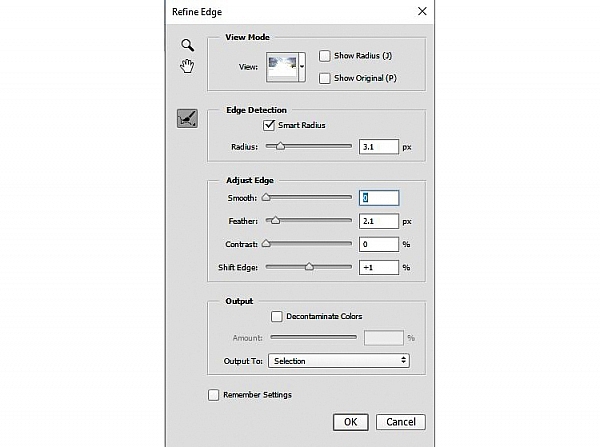
Once you make your selection, you can refine it a bit if you wish. Just bring up the Refine Edge dialog box and make adjustments there.

Graphic8-RefineEdge

If you do not like the selection, you can always clean it up a bit later. Once you have made the adjustments, you can use the Brush tool to add or subtract parts of the image from the mask (more about that in a minute).

Step 3: Apply the Effect

Now that your selection is created and refined, you are ready to put it into action. What we want to do is darken the sky. There are different ways to go about doing that, but what I’m going to use is a Curves adjustment layer. You don’t have to use this tool though, this same process will work when you create any sort of adjustment layer. If you are more comfortable using Levels or Brightness/Contrast, for example, use those.

In any case, all you will do now (with your selection still active) is click to create the Curves adjustment layer (or whatever type of adjustment layer you are comfortable with) and voila, the layer is created with a mask that has hidden the pixels you don’t want to change. It will look something like this:

Graphic9-HardEdgedLayerMask

If you use a Curves adjustment layer like I did, you just pull the line down to darken the picture. Pull it down to the left of the main cluster of pixels so that the curve is steepened through that main cluster. Of course, you may be using Levels or some other darkening tool, so just use those in whatever way you are comfortable.

Step 4: Repeat for Other Areas

In our example, we have now darkened the sky, but there are other problems with the picture. In particular, the barn and foreground are still too dark. How do we go about changing that? Pretty much the same way we did for the sky.

Start by making the selection. You can do it the same way as you did for the sky if you want. Just grab the Quick Selection tool and click around in the dark areas to create the selection. In this case, you can also just create a selection that is the opposite of the selection we previously created. That is, you previously made a selection of the sky and left everything else alone. Now you want to make a selection of everything else and leave the sky alone. To do that, you can just call up your old selection (Select > Reselect) and then tell Photoshop to reverse it (Select > Inverse). You now have a selection of everything but the sky, which is what you want.

From there, just create a Curves adjustment layer (or whatever tool you prefer to use) and apply the effect. Once you brighten the foreground, here is how it looks:

Graphic10-Lightening

Step 5: Cleaning up Your Masks

You may find, when you are done, that there are parts of the image that don’t look quite right. Perhaps there are pixels included in one of your masks that you didn’t want, or conversely you missed pixels that should have been in the image. You can clean up the mask after the fact. I find that the easiest way is to use the Brush tool.

Graphic11-Brush

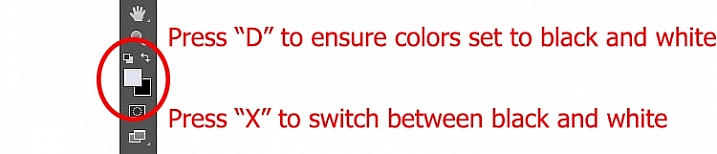
Select the Brush tool on the tools panel. Once you do so, pay attention to the foreground color, that which the brush will use. If you set the brush to white, it will add to a selection (show the layer through the mask). If you set the brush to black, it will remove pixels from the selection (hide the layer with the mask). Some keyboard shortcuts to keep in mind are B to bring up the Brush tool in the first place, then D to make sure the colors are set to the default (black and white), and finally X to switch between black and white.

Graphic12-BrushControls

The Brush tool is great because you can set the hardness of the edge. Start by keeping it at its softest setting, and just changing the size of the Brush by using the bracket keys [ and ]. Use it to touch up the selection (mask) where needed (make sure you are painting on the mask NOT on the actual layer). Another tip is to press ALT (option on a Mac) while clicking on the mask in your layers palatte, which will cause the screen to display the mask only. That way you can see exactly where your mask is being applied. Press ALT again while clicking on the mask to go back to normal view.

Moving on From Here

This exercise will get you started using layer masks to make adjustments to portions of your pictures. Once you have done this a few times and start to master it, there are a lot of other additional techniques you can add to further enhance your photos. For example, while this article showed you how to use masks where you have defined edges, you can gradually blend in effects using masks as well. Further, while in this article we only affected brightness, you can use layer masks to affect color, brightness, and contrast to a great degree.

Of course, masks are not just for adjustment layers either. You can make changes on layers and control where and to what extent, the change gets applied. For example, you might sharpen or blur a layer, and then use a mask to apply that effect to only a portion of the picture. It also works well by making changes with a plug-in to a duplicate layer, then creating a mask to control the application of that plug-in’s changes.

When you use layer masks, you are well on your way to unleashing the full power of Photoshop. Get started with the techniques in this article, then you can add on other aspects from there.

googletag.cmd.push(function() {
tablet_slots.push( googletag.defineSlot( “/1005424/_dPSv4_tab-all-article-bottom_(300×250)”, [300, 250], “pb-ad-78623” ).addService( googletag.pubads() ) ); } );

googletag.cmd.push(function() {
mobile_slots.push( googletag.defineSlot( “/1005424/_dPSv4_mob-all-article-bottom_(300×250)”, [300, 250], “pb-ad-78158” ).addService( googletag.pubads() ) ); } );

The post Getting Started with Layer Masks in Photoshop – a Beginners Tutorial by Jim Hamel appeared first on Digital Photography School.

Digital Photography School

 
Comments Off on Getting Started with Layer Masks in Photoshop – a Beginners Tutorial

Posted in Photography


Getting Started with Long Exposure in Fashion Photography

03 Mar

Editor’s note: Once you try to use long exposure in fashion photography, you’re likely to do it again and again. Not only can it bring outstanding results in terms of originality of your images, but it’s also a great way to add a funny bone to your portrait sessions and thus, get more natural, sincere model looks. In this post, Continue Reading

The post Getting Started with Long Exposure in Fashion Photography appeared first on Photodoto.


Photodoto

 
Comments Off on Getting Started with Long Exposure in Fashion Photography

Posted in Photography


Tips for Getting Started with Still Life Photography

07 Dec

breakfastW

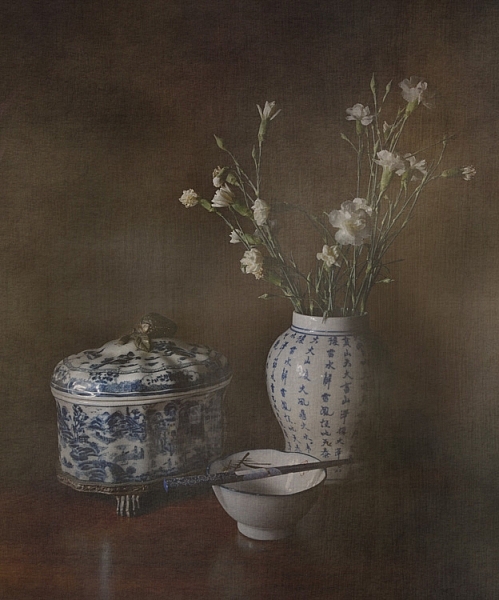
When photographing a still life subject, you are creating an image rather than capturing a moment. You are constructing your photograph; from background, to subject, to lighting. With the subject matter being inanimate objects, their tendency to stay very still allows you to take time to refine your lighting, and experiment with your composition. It’s a very pleasant way to photograph, and you don’t need any fancy gear. It’s also a great way to learn about lighting and composition, the key elements to any photographic style.

Here are some tips to get you started on still life photography:

Subject matter

Subject matter doesn’t really matter. Generally the words “still life photography” conjures the image of traditional paintings of a vase of flowers, and a few carefully arranged items. But essentially as long at it stays still, it is a still life.

Still life photography

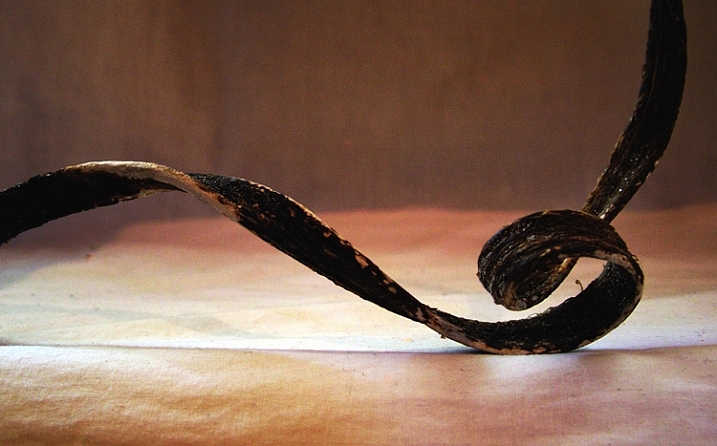
As long as it is still, technically it is a still life. This is a piece of dried seaweed on some calico.

You could group a bunch of items together simply because you like them, or they look pleasing, or you can gather related items to tell a story. The image at the beginning of this article tells the story of my breakfast.

Or you can find still life arrangements that already exist, their story or mood already set up for you.

Still Life Photography

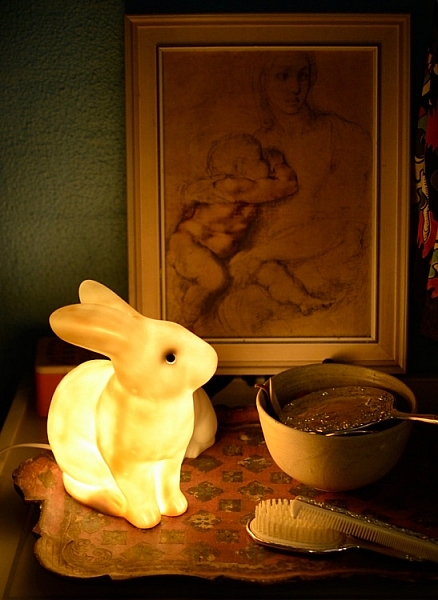
A arrangement on a friend’s bedside table of heirloom items, made for an already set up still life image.

You can use things that are simply visually pleasing, or you can make it personal. If you’re stuck for a still life subject, I suggest finding some things that are personal and important to you, give the photograph some meaning. Plus, then you’ll have a photograph of this important thing. Bonus!

Backgrounds

A good background can really make a still life. Fabric, cardboard or paper, or an existing wall, are all easily accessible backdrops. For the image of my breakfast I used old potato sacks. Just make sure whatever you use is not too distracting from your subject matter. Keep it simple. If you’re using fabric, make sure you iron it first! Few things are more distracting than a wrinkled backdrop.

Still Life Photography

I like to call this one, Still Life With Slightly Wrinkly Backdrop.

A bright color, or busy backdrop, can pull too much attention away from your subject matter. Plain, neutral-toned, backdrops are a good place to start, then experiment from there. You may be surprised what backdrop will end up making your image really pop.

Still Life Photography

After trying different colored, plain backdrops for this image, I experimented with some reflective cardboard, which worked much better.

You can also experiment with focus and depth of field, having the whole image completely sharp or certain elements, such as the background, in soft focus. A blurry background could help out, should you not have an iron handy, or if you are not handy with one and need to knock back that wrinkly background.

Lighting

You don’t need anything fancy to light a still life. Natural light from a window will do the trick. A lamp, light painting with a torch, or a makeshift soft box are great fun to experiment with. A bunch of tips on these lighting methods and more in my DIY  lighting using household items article.

Still life photography works well for longer exposures, allowing you to use a really subtle light source, such as single candle. You’ll need a tripod, or to steady your camera on a solid box, or pile of books. You can literally paint your still life with light using light painting, and all you need is a small flashlight.

Still Life Photography

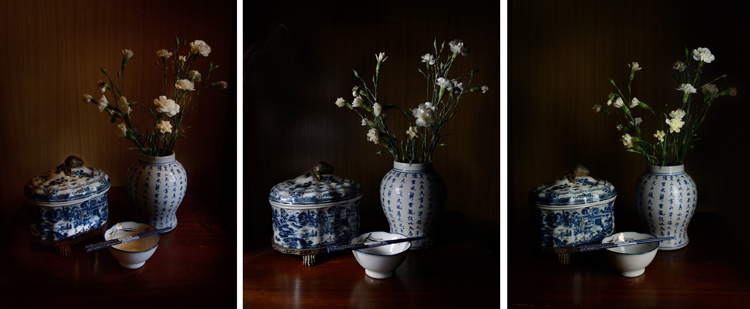
A quick setup of different lighting. From left: Natural light from nearby window, light painting with a flashlight, and lighting from a single soft box.

Your subject matter is still life, it’s not going to dash off on you, so take your time here and really play with your lighting.

Try out different intensities of light, by either a curtain if using window light, or moving your light source in and out. You can also combine different light sources such as a small flashlight to fill in any dark spots when using natural light, or perhaps use both a lamp and a candle. (Just be aware of different colors of light each may produce)

How you angle your lighting is important. Experiment with different positions for your light source. If you’re using natural light you’ll obviously have to move your subject to change angles, much easier than rebuilding your window! With a movable source, start with some side lighting, and then try a few different angles. Pay attention to where the shadows fall, as well as what happens with any reflective surfaces. You don’t necessarily want to turn your still life into a self-portrait, with a reflection of yourself and your camera staring back at you.

Composition

Good composition skills go a long way with still life, and is as important as good lighting. There are many wonderfully informative articles here on dPS on the basics, and sometimes not so basics of composition. Understanding things like the rule of thirds can be very helpful, even if you choose to then ignore it.

With still life photography, if you just keep moving your arrangement around, you will find one that works. Don’t just settle on the first one you set up. Keep your eye out for overly empty gaps, or too much going on. Placing an item on an angle will lead the eye in that direction, does the item lead the eye nowhere, out of the frame, or subtly towards another part of the arrangement? A small tweak of the angle of your subject’s placement can make all the difference.

Also try photographing from different angles, even if you need to shoot directly front on, try raising or lowering your camera for a few shots, then zoom in or out a bit and see what happens. It might work, it might not, you won’t know until you try.

Editing

There is loads of fun to be had in the editing stage. Different processes can completely change your still life image. HDR is a popular process for still life photography, and can be very effective. Or you could play with layer masks with a couple of different exposures, and paint in and out certain areas of your image. I like to add a texture to give the image a painting-like look. Here’s a link to a beginners guide to applying textures.

Still Life Photography

Adding a texture in the editing stage can give a painting like effect

Experiment and enjoy

Unlike most other forms of photography, when photographing still life you can really slow down and take your time, and enjoy the process . You don’t have to limit yourself  to the traditional still life, experiment with subject matter as well as your lighting and editing. Indulge in a little photographic play time!

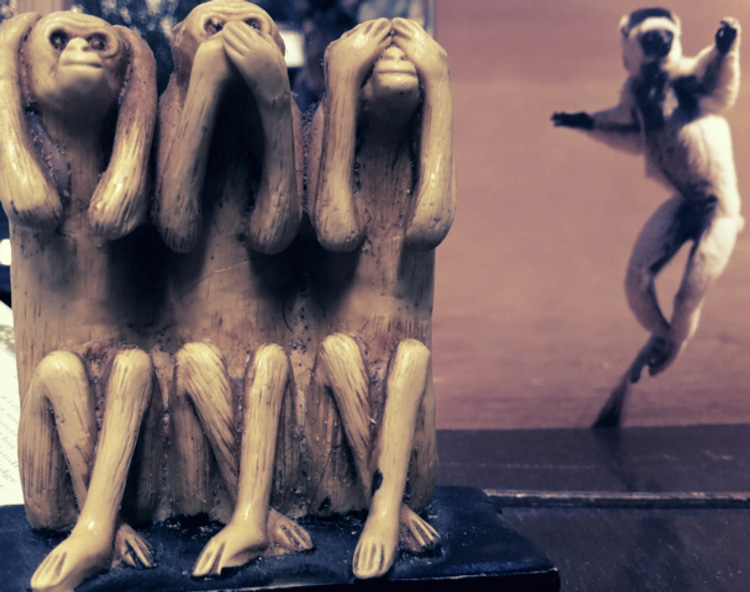
Still Life photography

An arrangement of this monkey sculpture next to a post card made for an interesting still life image.

Try a still life today. Share your photographs or any further still life tips you’ve learned along the way in the comments below.

googletag.cmd.push(function() {
tablet_slots.push( googletag.defineSlot( “/1005424/_dPSv4_tab-all-article-bottom_(300×250)”, [300, 250], “pb-ad-78623” ).addService( googletag.pubads() ) ); } );

googletag.cmd.push(function() {
mobile_slots.push( googletag.defineSlot( “/1005424/_dPSv4_mob-all-article-bottom_(300×250)”, [300, 250], “pb-ad-78158” ).addService( googletag.pubads() ) ); } );

The post Tips for Getting Started with Still Life Photography by Lea Hawkins appeared first on Digital Photography School.

Digital Photography School

 
Comments Off on Tips for Getting Started with Still Life Photography

Posted in Photography


Next Steps to Getting Started in the Lightroom Develop Module

21 Oct

Lightroom Develop module

A previous article showed you how to get started in Lightroom’s Develop module by using the Camera Calibration, Lens Corrections and the Basic panels.

In this article you’ll learn how to use the remaining right-hand panels in the Lightroom Develop module:

  • Tone Curve panel
  • HSL / Color / B&W panel
  • Split Toning panel
  • Detail panel
  • Effects panel

This guide is aimed at photographers who are new to Lightroom, so it doesn’t cover every aspect – just the important things you need to know if you’re just getting started with it.

It is quite possible that you won’t have to touch any of the panels listed above when processing a photo. Many photos can be developed in Lightroom just by using the Camera Calibration, Lens Correction and Basic panels, plus local adjustments. But the panels mentioned above will help you be more creative with your processing, especially when it comes to working with colour and tone.

The Tone Curve panel

One purpose of the Tone Curve panel is to give you another way of applying the same tonal adjustments that you can make with the Basic panel sliders. If you’re accustomed to using curves in Photoshop, the Tone Curve panel gives you the option of doing the same in Lightroom in addition to, or instead of, using the Basic panel sliders.

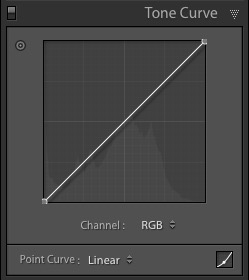
This is what you will see when you open the Tone Curve panel for the first time.

Lightroom Develop module

This is the RGB curve. Adjusting this curve affects the brightness values, but not the colours, of the photo.

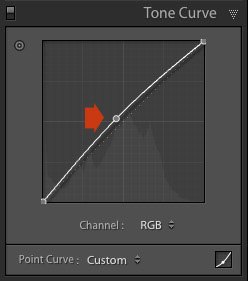
You can move the curve upwards (as shown below) to make the image lighter. To do so, left-click once on the midpoint of the curve to add an adjustment point. Then click and drag the adjustment point to move it up, and change the shape of the curve.

Lightroom Develop module

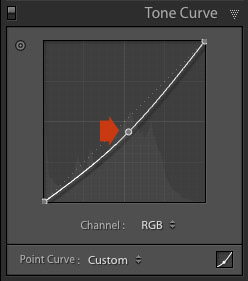
You can also move it downwards to make the image darker.

Lightroom Develop module

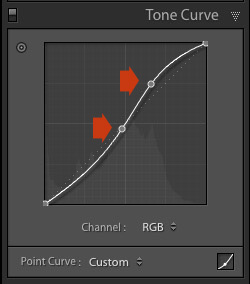
You can create an S-curve like this to increase contrast (add a second adjustment point first).

Lightroom Develop module

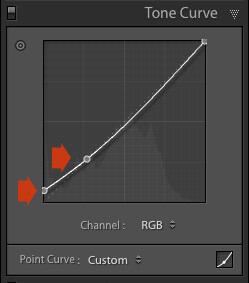
You can create the matte look with a curve like this. Add an adjustment point near the bottom of the curve then lift the left-side up. This makes the darkest tones in the photo dark grey rather than black, imitating the look of a print made on matte paper.

Lightroom Develop module

Notice the lower left point is not touching the bottom, this creates a matte look.

You can return to the original straight tone curve at any time by going to the Point Curve menu and selecting Linear.

Colour curves

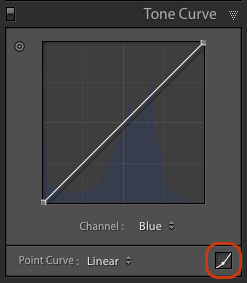
Underneath the Tone Curve is a menu that lets you select the Red, Green, or Blue tone curves individually. These curves affect each of the color channels in the photo respectively. The blue curve is shown below.

Lightroom Develop module

More options

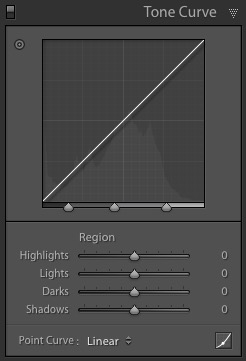
If you click the icon in the bottom right-hand corner of the Tone Curve panel (circled above) the panel opens up to reveal four sliders, called Highlights, Lights, Darks and Shadows (see below).

Lightroom Develop module

These sliders give you another way to make adjustments to the tone curve. When you move one of the sliders, the corresponding region of the tone curve is highlighted, so you can see which tones are affected.

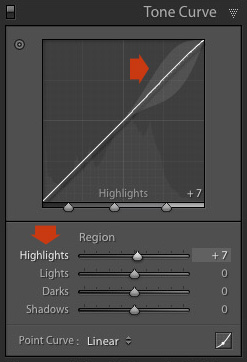
The illustration below shows what happens when you move the Highlights slider. The top right of the tone curve is marked in grey. This part of the curve changes when you move the Highlights slider.

Lightroom Develop module

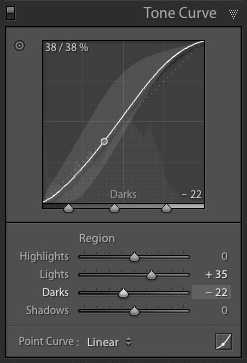
You can click and drag on a single adjustment point (but not multiple points) to change the shape of the curve. The sliders change value as you adjust the curve. The diagram below shows the effect a simple S-curve has on the sliders.

Lightroom Develop module

Double click on any slider heading to reset that slider to zero. That covers the basics of curves. You can learn more advanced techniques by reading our article Lightroom’s Tone Curve Explained.

HSL / Color / B&W

The HSL / Color / B&W panel is for adjusting colour values. It is also for converting photos to black and white. This is beyond the scope of this article, but you can learn more by reading my article How to Convert Photos to Black and White in Lightroom.

The HSL / Color / B&W panel is divided into three tabs. The HSL and Color tabs are the ones you need for making adjustments to colour. They contain the same sliders, just arranged in a different order. The screen shots below are taken from the HSL panel.

The Saturation and Vibrance sliders in the Basic panel affect all the colours in the photo. The HSL and Color tabs allow you to target individual hues without affecting others. You can target a specific colour and change the following:

  • Hue
  • Saturation
  • Luminance

Adjusting Hue replaces the selected colour with an adjacent colour on the colour wheel. For example, you can target red tones and make them more magenta (pink tone) or orange. Or you could target blue tones and make them aqua or purple.

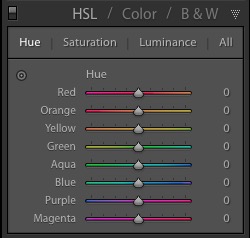
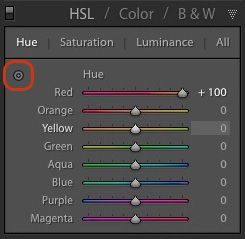
You don’t need a colour wheel to see how colours are affected by the Hue sliders. You can just look at the eight Hue sliders. For example, the Red slider (top in the diagram below) is coloured magenta to the left and orange to the right. Moving the slider in those directions changes red colours in the photo to either magenta or orange.

Lightroom Develop module

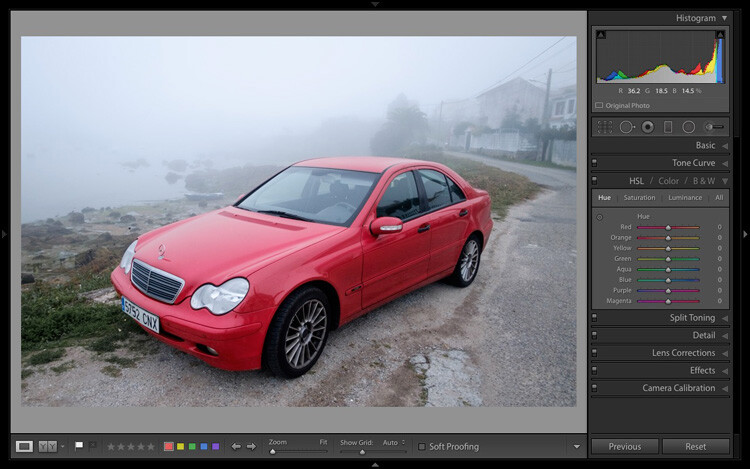
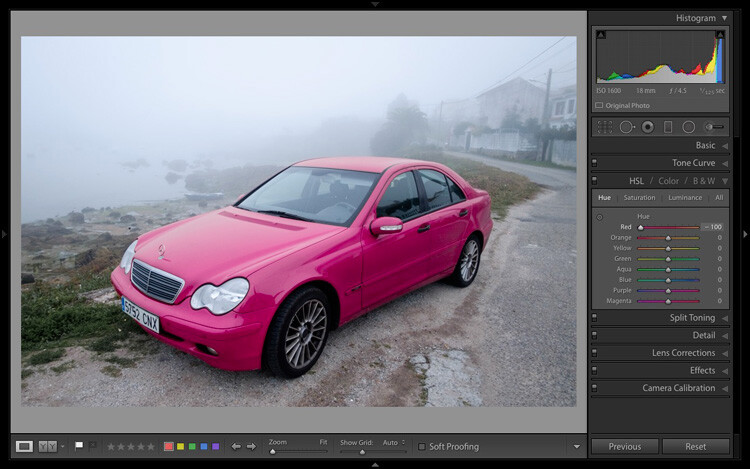
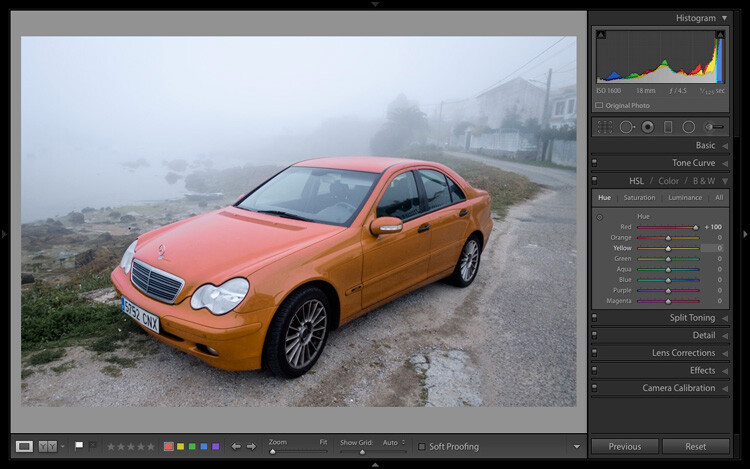
The easiest way to see how this works is to try it. The examples below show the effect that moving the Red slider to -100 and +100 (the strongest available settings) have on the image.

Lightroom Develop module

No adjustment.

Lightroom Develop module

Red -100.

Lightroom Develop module

Red +100

The Saturation and Luminance sliders work in a similar way. Saturation adjusts the saturation (intensity) of specific colours, and Luminance adjusts the brightness.

Targeted Adjustment Tool

The Targeted Adjustment Tool gives you an even more precise way of adjusting colour values. To use it, click on the Targeted Adjustment Tool icon in the HSL / Color / B&W panel (circled below).

Lightroom Develop module

Then move the cursor over the colour (area) in the photo you want to adjust. Click and hold the left mouse button, while you drag the mouse downwards to reduce the Saturation or Luminance of the colours underneath the cursor, or adjust the hue.

Move the mouse upwards to increase the saturation or luminance, or adjust the hue in the opposite direction. Lightroom analyzes the colours underneath the cursor and moves the sliders in the HSL / Color / B&W panel accordingly. All similar colors in the image will be affected.

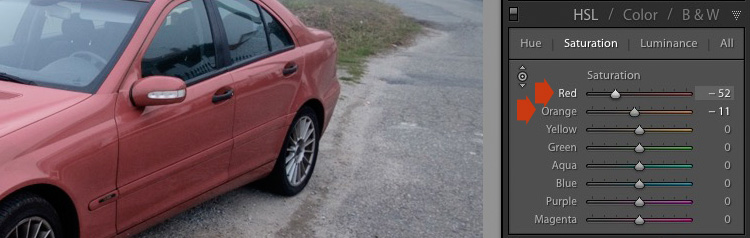
For example, in the following photo I activated the Targeted Adjustment Tool, then clicked on the car’s paintwork and dragged the mouse downwards to reduce the Saturation. Lightroom adjusted both the Red and Orange sliders, showing that the red paintwork is comprised of those two colours. This is more accurate result than only moving the Red slider.

Lightroom Develop module

The Targeted Adjustment Tool is a useful tool that appears in other Develop module panels.

Read my article Mastering Color in Lightroom using the HSL tab to learn more about the HSL / Color / B&W panel.

The Split Toning panel

The Split Toning panel is for toning photos. While this is a technique traditionally associated with black and white photography, you can also use it with colour. If you’re a beginner, split toning is a little advanced for you at this stage, so I’ll direct those of you who are interested to articles that cover it in detail.

How to Split Tone Black and White Photos in Lightroom shows you how it’s done with black and white photography.

How to Create a Vintage Look using Lightroom shows you how to split tone colour photos (it also covers tone curves and Lightroom Develop Presets)

The Detail panel

The Detail panel is for adjusting the default image sharpness and noise reduction settings. For beginners it is simplest not to touch these. You won’t need to do so until you are a more advanced user.

Those of your curious to learn more can read our articles Learn How to Use the Sharpening Tools in Lightroom and How to Do Noise Reduction in Lightroom.

The Effects module

Use the Effects module to apply a creative vignette, add grain or (new in Lightroom CC only) add or remove atmospheric haze.

Vignetting lets you darken (or lighten) the edges of your photo, gently guiding the viewer’s eye towards the centre. Many images, especially portraits, can be improved by adding a subtle dark vignette. Here’s an example:

Lightroom Develop module

You may have to look closely to see it as the effect is subtle, but the portrait on the right has a vignette. It is most obvious in the bottom right corner.

These are the settings used to create this vignette:

Lightroom Develop module

  • Move the Amount slider left to darken the edges of the image, or to the right to lighten them.
  • Move the Midpoint slider left to make the area covered by the vignette larger, or right to make it smaller.
  • Move the Roundness slider left to make the vignette squarer, or right to make it more circular.
  • Move the Feather slider left to make the edge of the vignette harder (a more defined end and beginning of it), or right to make the edge softer (graduates slower from dark to light).
  • Move the Highlights slider right to preserve any highlights present in the area covered by the vignette.

Tip: The easiest way to see what these sliders do is to set Amount to -100. Then move the other sliders to see what effect they have.

Use the Grain sliders to add grain to your photos. This is only useful if you would like to emulate the look of photos taken with film. Move the Amount slider right to add grain (there is no grain at the zero setting) and then use the Size and Roughness sliders to adjust the size and appearance of the grain. This before and after image shows the effect of increasing Grain to 100, the maximum setting:

Lightroom Develop module

Dehaze is a new slider that is only available in Lightroom CC. Use it to reduce atmospheric haze caused by flare, mist, or pollution. You can also use it to increase haze – a good example of this is with photos taken in foggy conditions.

Lightroom Develop module

Photo taken in foggy conditions. Dehaze set to zero (the default).

Lightroom Develop module

Dehaze set to -10 to increase effect of fog.

Lightroom Develop module

Dehaze set to +30 to decrease effect of fog.

I’ll show you how to build on the work done in the right-hand panels by making local adjustments in my next article. In the meantime, if you have any questions about the techniques in this article, please let me know in the comments.


The Mastering Lightroom CollectionMastering Lightroom ebooks

My Mastering Lightroom ebooks will help you get the most out of Lightroom. They cover every aspect of the software from the Library module through to creating beautiful images in the Develop module. Click the link to learn more or buy.

googletag.cmd.push(function() {
tablet_slots.push( googletag.defineSlot( “/1005424/_dPSv4_tab-all-article-bottom_(300×250)”, [300, 250], “pb-ad-78623” ).addService( googletag.pubads() ) ); } );

googletag.cmd.push(function() {
mobile_slots.push( googletag.defineSlot( “/1005424/_dPSv4_mob-all-article-bottom_(300×250)”, [300, 250], “pb-ad-78158” ).addService( googletag.pubads() ) ); } );

The post Next Steps to Getting Started in the Lightroom Develop Module by Andrew S. Gibson appeared first on Digital Photography School.
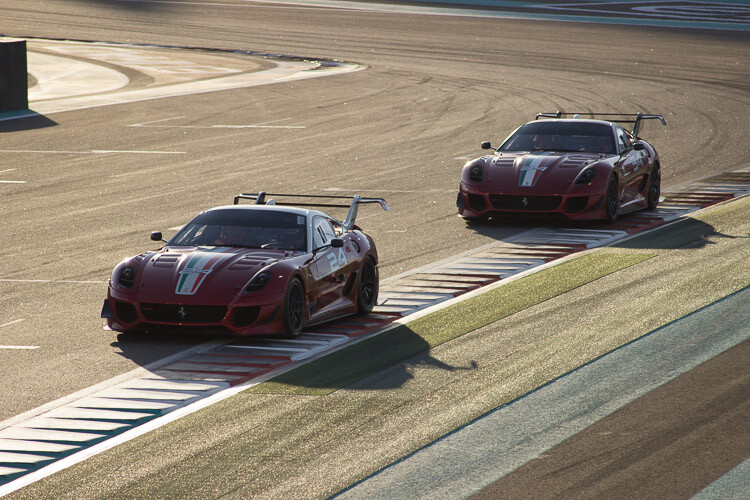

Digital Photography School

 
Comments Off on Next Steps to Getting Started in the Lightroom Develop Module

Posted in Photography


Steps for Getting Started in the Lightroom Develop Module

14 Oct

Lightroom Develop module

If you have read my earlier articles about Lightroom you will already understand how it differs from Photoshop and how it uses a database to organize your photos as well as process them.

Lightroom has evolved into a powerful raw processor, and it is now possible to process most of your images in it. You only need to use other software (such as Photoshop or a plug-in) when you reach the limits of what Lightroom can do.

Raw processing takes place in the Lightroom Develop module. If you haven’t used Lightroom before you may find the Develop module layout confusing, especially if you are used to pixel editing software like Photoshop. Lightroom has no layers or blending modes, and there is no real set order in which to do things. But don’t worry if it makes little sense at first – this article will help you come to grips with the basics, and make a start on processing your raw images.

Note that you can also use Lightroom to process JPEG and TIFF files, although some of the options Lightroom gives you differ slightly. I have used raw files in this article.

The Lightroom Develop Module

To start, go to the Library module and select the photo you want to process. Click on Develop in the Module Picker, or press D on the keyboard, to open the image in the Develop module.

The Develop module is split into sections. There are panels on the left, some more on the right, and the Content Window in the middle, where the photo you are currently working on is displayed. Just like the Library module, you also have the Module Picker at the top and the Filmstrip at the bottom.

Lightroom Develop module

You may have noticed that there is no Folders panel (left side) in the Develop module. This is Adobe’s way of encouraging you to use Collections. So if you are not doing so already, now is time to get in the habit.

We don’t need the Module Picker, left-hand panels, or Filmstrip for this article, so when you’re ready click on the white arrows at the edges of the screen to hide them.

Your screen should look something like this, with the right-hand panels and the histogram available on the right, and the photo you are working on occupying the rest of the screen.

Lightroom Develop module

If you do not see the toolbar below your image hit T on your keyboard to show/hide it.

The right-hand panels contain most of the tools that Lightroom has for processing raw files. Today we are going to look at three of these:

Lightroom Develop module
  • Camera Calibration panel
  • Lens Corrections panel
  • Basic panel

These panels are important because they are the foundation of the processing work you do on an image.

The Camera Calibration panel

The Camera Calibration panel is the ideal starting point for processing an image. When you come here you are looking for two important settings.

Process: Should be set to 2012 (Current), which is set by default.

Lightroom Develop moduleProfile: Should be set for the most appropriate setting for your photo. The options you see here depend on the camera used to take the photo. All cameras have profiles that you set to determine the treatment of the image. Each manufacturer has different names for this setting (for example, Canon calls it Picture Style, Nikon Picture Control and Fujifilm Film Simulation).

Lightroom should show you most of the settings you have available on your camera plus another one called Adobe Standard. Your job is to pick the profile that is most suited to your photo.

I’ll assume you know your own camera settings well enough to do so. If there’s any doubt, just move through the available options and pick the one that has the most suitable effect. In this case I selected Camera Velvia/Vivid to bring out the strong colours in the photo.

Ignore the colour sliders in the Camera Calibration panel for now, they are for advanced users.

The Lens Correction panel

There are a lot of things you can do in the Lens Correction panel, but to get started you only need two:

#1 – Enable Profile

Lightroom Develop module

Note that this screen shot is from a photo taken with a Canon camera.

Click Profile and tick the Enable Profile Corrections box. Select your lens using the menus underneath. Lightroom contains profiles for most commonly used lenses (the full list is available here).

Set the Distortion slider to 100 (the default). Lightroom uses the selected profile to remove any barrel or pincushion distortion caused by the lens.

The default for the Vignetting slider is 100. This lightens the edges of the photo to compensate for the vignetting effect caused by using your lens at wide apertures. You may wish to include the vignetting for aesthetic reasons – in which case move the slider left until you get the effect you want.

Some Raw files, such as those created by most Fujifilm cameras, have an embedded profile that Lightroom uses to correct barrel and pincushion distortion. If this is the case, and you are using Lightroom 6 or Lightroom CC, then the message Built-in Lens Profile applied is displayed at the bottom of the panel. If you see this message, don’t tick the Enable Profile Corrections box. Lightroom doesn’t have a profile for your lens and you won’t be able to find it.

Lightroom Develop module

In earlier versions of Lightroom the Built-in Lens Profile applied message isn’t displayed, even if your Raw file has a built-in profile. If you can’t find your lens in the list, it’s probably because:

a. The lens is so old Adobe hasn’t got around to profiling it yet.

b. The lens is so new that Adobe hasn’t had chance to profile it yet (updates with new lens profiles are released periodically).

c. The camera used embeds the lens profile into the Raw file, and Lightroom uses it automatically. This is most common with mirrorless cameras.

#2 Remove Chromatic Aberration

Click on Color and tick the Remove Chromatic Aberration box. This tells Lightroom to remove any chromatic aberrations caused by the lens.

Lightroom Develop module

The sliders underneath are for removing purple and green fringing. They are zeroed by default, and for the moment we will leave them there, as they are a topic for another article.

The Basic panel

The Basic panel is where you adjust the color and tonal values of your image. These sliders can make a dramatic difference to the appearance of your photo, and there are times when you won’t need to touch any of the other panels in the Develop module.

The White Balance sliders

If you’re not sure what White Balance is then read our article Demystifying White Balance, but really all you need to know here is that you move the Temp slider left to make the image cooler (add a blue cast or remove an orange cast) or move it right to make the image warmer (add an orange cast or remove a blue cast).

Lightroom Develop moduleAlternatively, you can use the WB presets: As Shot, Daylight, and so on (note: those options only appear when you are processing a Raw file). I selected Daylight for this image for a fairly neutral colour balance.

The Tint slider is for removing green and magenta colour casts. These are usually caused by artificial lighting such as fluorescent lights.

If none of the above options seem to work then activate the eyedropper tool by clicking on the eyedropper icon and click a neutral grey or white area in the photo. Lightroom analyzes the pixels underneath the cursor and adjusts the White Balance accordingly to remove any color cast and make it neutral.

What is the purpose of White Balance? The answer depends on what you want to do with the image. There are three basic options.

  1. Create an image with neutral colour: In this case you are trying to eliminate any colour casts present in the image.
  2. Create an image with a warm colour cast: This is something you might do with a landscape photo taken during the golden hour or a portrait (where warm tones are more flattering) to the subject.
  3. Create an image with a cool colour cast: This is something you might do if you want to impart a cold feel to the image. This would suit a landscape taken in winter, for example.

Think about your intent when you adjust White Balance. Once you know what you want to do, you can adjust the sliders to suit.

Lightroom Develop moduleWhite Balance is all about color and there are two more sliders at the bottom of the Basic panel that assist with controlling colour, they are called Vibrance and Saturation. Move these sliders left to reduce the color intensity, or right to increase it.

The Saturation slider affects all hues equally, whereas the Vibrance slider has a greater effect on weaker colours than it does on stronger ones. Play around with them on a few different images to get the hang of how they work.

Be careful with both sliders – they are usually used to desaturate colour rather than increase it (which can look false). For this photo I have left them both at zero.

The Tonal Sliders

Lightroom Develop moduleThe following sliders affect tones, and are used for adjusting brightness and contrast. Feel free to press the Auto button to see what Lightroom thinks you should do with your photo.

The Exposure slider

This slider is very simple – move it right to make the photo brighter or left to make it darker.

The Contrast slider

Again, a simple slider to use. Move it right to increase contrast, or left to decrease it.

The Highlights and Shadows sliders

Whereas the Exposure and Contrast sliders affect every tone in the photo, the Highlights sliders affects only the lightest tones and the Shadows slider affects only the darkest tones.

Move the Highlights slider right to make light tones lighter, or left to make them darker. Move the Shadows slider right to make the dark tones lighter, or left to make them darker.

Note: you may have notice sliders left makes your image lighter, sliders right makes it darker.

Again, the best way to learn how these sliders work is to play with them. Move them around and observe the effect they have on the histogram (displayed at the top of the right-hand panels), and the appearance of the image itself.

Don’t worry if you’re not sure how to read the histogram. It deserves an article to itself and I will write one shortly.

The Whites and Black sliders

You don’t have to worry too much about these sliders when you are just starting out. You can either leave them at the default setting of zero or let Lightroom work out what the settings should be.

To set the Whites slider automatically, hold the Shift key down and double-click on the word Whites. Do the same to set the Black slider automatically, hold the Shift key down and double-click the word Blacks.

If the slider settings don’t change when you do so, that means that zero is the ideal setting.

The Clarity slider

The Clarity slider affects something called mid-tone contrast. In simple terms, moving the Clarity slider right emphasizes texture, and moving it left removes texture by softening the image. Many photos benefit from a subtle increase in Clarity (between +10 and +20). Black and white photos, of which texture is often an important part, can benefit from greater adjustments.

Play around with the Clarity slider on different photos to see what effect it has. Resist the temptation to make your photos pop by moving it too far to the right – it may seem like a good idea at the time but the result will simply hurt your eyes.

My article Four Ways to Improve Your Photos with the Clarity Slider in Lightroom explores the topic in more detail.

These are the Basic panel settings I settled on for this photo. Every image is different, but at least it gives you an idea.

Lightroom Develop module

This is how the photo looks so far. Not very exciting, I admit, but that’s because so far we’ve been doing mainly preparation work. The real excitement comes when you add local adjustments or convert the photo to black and white. Lightroom Develop module

I’ll show you what the other right-hand panels do in my next article. In the meantime, if you have any questions about processes explored in this one, please let me know in the comments.


The Mastering Lightroom CollectionMastering Lightroom ebooks

My Mastering Lightroom ebooks will help you get the most out of Lightroom. They cover every aspect of the software from the Library module through to creating beautiful images in the Develop module. Click the link to learn more or buy.

googletag.cmd.push(function() {
tablet_slots.push( googletag.defineSlot( “/1005424/_dPSv4_tab-all-article-bottom_(300×250)”, [300, 250], “pb-ad-78623” ).addService( googletag.pubads() ) ); } );

googletag.cmd.push(function() {
mobile_slots.push( googletag.defineSlot( “/1005424/_dPSv4_mob-all-article-bottom_(300×250)”, [300, 250], “pb-ad-78158” ).addService( googletag.pubads() ) ); } );

The post Steps for Getting Started in the Lightroom Develop Module by Andrew S. Gibson appeared first on Digital Photography School.
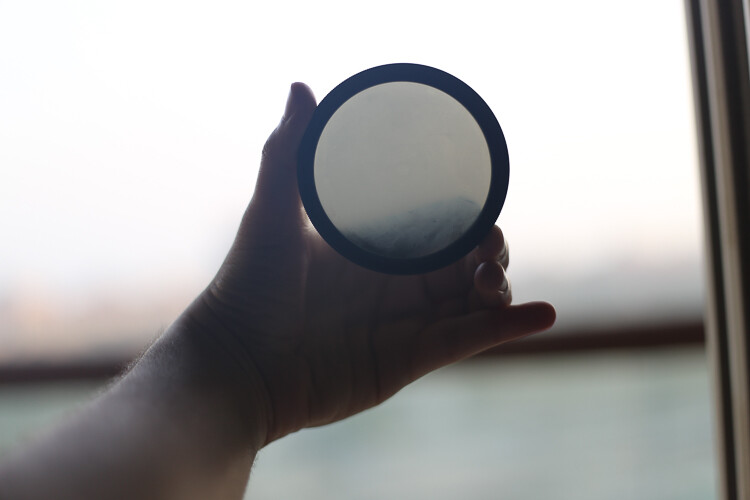

Digital Photography School

 
Comments Off on Steps for Getting Started in the Lightroom Develop Module

Posted in Photography