RSS
 

Posts Tagged ‘Started’

Getting Started with Landscape Photography – 4 Easy Tips for Beginners

13 Feb

One of the things I like most about photography is that there is always more to learn. It keeps the mind active and the creative juices flowing. But the wealth of information out there can be overwhelming for beginners in landscape photography. Where do you start?

There are a few easy things you can do that will have an immediate impact on your photography so you can start making better images right away. Let’s focus on those and leave the more technical stuff for later.

1. Pay attention to the light

There is no such thing as bad light. The key is to understand what kinds of images are suitable under various lighting conditions.

Red Rock State Park, Arizona by Anne McKinnell - Getting Started with Landscape Photography - 4 Easy Tips for Beginners

During golden hour, the day’s last light makes the rocks glow.

The Golden Hour

This is the time right after sunrise and right before sunset when the sun is low in the sky and casts beautiful golden light. Start here! It’s hard to go wrong with golden light, which is the most popular time of day for photography.

Ajo, Arizona by Anne McKinnell - Getting Started with Landscape Photography - 4 Easy Tips for Beginners

The cactus in the foreground is in the shade while golden hour light reflects off the mountain in the background.

Bright Midday Light

The opposite of golden hour, the harsh direct light you find at midday can be the most difficult to work with – unless you photograph in the shade.

Just look for interesting subjects that are in the shade and leave the sky out of the frame. The even soft light is great for close-ups and flower photography.

Bush Lupin - Getting Started with Landscape Photography - 4 Easy Tips for Beginners

Flowers photographed in the shade.

There are more types of light to work with and different times of day to photograph, but start with these for the quickest results.

2. Remove distractions

Pay attention to the things in the background of your images and try to simplify the background as much as possible. Sometimes there is an unwanted object, like a trash can for example, that you might not notice unless you are looking for it. These things can often be hidden behind your main subject simply by moving to one side, photographing from a higher or lower perspective, or getting closer.

Try to simplify your composition as much as possible with fewer items in your scene. Find a way to photograph your main subject on a clean background.

Big surf on the Oregon Coast. Getting Started with Landscape Photography - 4 Easy Tips for Beginners

To make this image, I had to change my perspective to eliminate debris on the sand as well as other rocks and birds from the frame.

Beware of tree branches or other things that poke in to the edge of your frame. Before you take your shot, try to remember to do an “edge check”. Look around the edges of your frame and make sure it looks clean.

3. Look for one thing

Your photograph cannot be about everything. You need to decide what is most interesting in your scene and make your photograph about that. Get closer to it.

One exercise that will get you in this habit is to go on a photo walk with the purpose of looking for one particular element of design. You’ll find that when you set your mind on one thing, you’ll start to see it everywhere. Here are some ideas to get you started:

Textures and Patterns

Often beginning photographers will try to capture an entire vista in one photograph and don’t notice the details. But the more you train your eye to notice the details, the more interesting your photographs will become.

The best thing about photographing textures and patterns is that you don’t have to go far to find them. Your subject can be anything from rocks to grass or peeling paint. I’m sure you can find subjects with wonderful textures close to home. Try to fill your frame with the pattern.

Weston Beach, Point Lobos State Reserve, California - Getting Started with Landscape Photography - 4 Easy Tips for Beginners

Filling the frame with the pattern of colorful rocks.

Lines

Look for horizontal lines, vertical lines or diagonal lines. Try to find lines that lead the way to some interesting subject.

Colors

Take a look at the color wheel and notice complementary colors. Those are the ones that are opposites on the wheel such as blue and orange, red and green, or yellow and purple. Any scene with complementary colors is always striking (which is why so many photographers carry around a red umbrella or a red jacket for their partner to wear in a grassy or forest scene).

Bamboo Forest - Getting Started with Landscape Photography - 4 Easy Tips for Beginners

Complementary colors plus diagonal lines.

4. Make time to practice

It doesn’t take long to develop good habits and learn what makes an interesting photograph. But it can be hard to remember if you only go shooting once in awhile. Try to make a habit of doing it every day, even if it’s only for fifteen minutes. By doing this, you’ll reinforce the habit and find yourself seeing the potential for great images all around you all the time.

Spider Rock, Canyon de Chelly National Monument, Arizona - Getting Started with Landscape Photography - 4 Easy Tips for Beginners

Golden hour – there is still enough light to photograph the depths of the canyon while the last of the day’s light reflects off the top of the highest rock.

Conclusion

There are more technical things that you’ll want to start learning soon such as; how the exposure triangle works, understanding depth of field, picking the right shooting mode, focus settings, and more. It’s endless (which is a good thing).

But for now, these tips will get you on the right track so you are happy with your images right from the beginning. Have fun!

The post Getting Started with Landscape Photography – 4 Easy Tips for Beginners by Anne McKinnell appeared first on Digital Photography School.


Digital Photography School

 
Comments Off on Getting Started with Landscape Photography – 4 Easy Tips for Beginners

Posted in Photography


5 Top Value Lenses for Getting Started in Wildlife Photography

12 Sep

Getting started in wildlife photography is one of the more expensive genres of the photo industry. The lenses and cameras that are often in the bags of pros are more often than not in the higher tier price brackets. However, to get started you don’t need to spend a fortune to gear up with some great lenses for wildlife photography.

Lenses are the thing to invest in when starting out in wildlife or as any photographer for that matter. The glass you purchase can stay with you for many years, while often cameras are updated far more regularly. Meaning, if you spend your money wisely you won’t have to outlay again.

wildlife photography lenses

Now of course as you gain more experience and want to invest it into your work, you might outgrow some gear or wish for more pro features. But when you’re getting started, the lenses I’ve listed below are a great base to build on and invest in, that will not only provide excellent quality results but also hold their value within your gear bag. These lenses will cover a range of shooting situations so you can capture the natural world in all manner of ways to really follow your creative vision.

1 – The Telephoto Zoom 70-200mm

Firstly, we are going to start with the telephoto zoom. For most wildlife photographers this is one of the most used lenses in their arsenal, offering flexibility to compose portraits of wildlife to more landscape style images to put your subjects in the environment.

5 Top Value Lenses for Getting Started in Wildlife Photography

The 70-200mm zoom is an excellent investment.

As an investment, the 70-200mm is a key lens to get hold of as it offers so much in the way of performance and flexibility. Most people will feel that 200mm is a little shot for wildlife, but with practice and development of your stalking skills, especially when paired with an APS-C camera it’s a great place to start.

The f/2.8 is the most coveted version due to its fast aperture for gorgeous bokeh (out of focus areas) as well as its autofocus speed. The f/2.8 version is a higher cost lens retailing new at around $ 2000 but secondhand (especially a slightly older version) can be had at excellent prices. If they are still a little out of the price range, think about the f/4 version. Smaller and lighter they are also a lot cheaper, still offering top performance for getting into wildlife photography.

5 Top Value Lenses for Getting Started in Wildlife Photography

The 70-200mm is perfect for working with largest animals.

2 – The Prime Option 300mm F/4

If you want something a little longer think about looking into a 300mm f/4 prime lens. These fixed focal length lenses don’t zoom, so you have to move your feet to get the composition correct. However, due to their nature as primes they have excellent optical performance, offering wonderful sharpness as well as a reasonably fast aperture for creating pleasing portraits with your of focus areas as well as working in less than perfect light.

5 Top Value Lenses for Getting Started in Wildlife Photography

300mm f/4 lens.

The 300mm f/4 is a lens that has been on the market for a long time now and both Nikon and Canon lenses can be easily found for an excellent price secondhand even from dealers with included warranties. The 300mm f/4 was the telephoto that I used when I became more serious with my photography and it helped me on the path to shooting professionally. So I can vouch for its excellent qualities.

wildlife photography lenses

3 – Ultra Telephoto Zoom 100-400mm

If prime lenses aren’t your thing then the 100-400mm (or the Nikon 80-400mm) might be a better fit for your style of shooting. The excellent range makes it a very versatile lens for wildlife photography, giving you the ability to switch from close portraits to environmental shots in an instant.

5 Top Value Lenses for Getting Started in Wildlife Photography

80-400mm Nikon lens.

Buying new gives you the best options for getting a top spec lens, with the latest iterations having excellent sharpness, autofocus and image stabilization, whilst older models are slightly weaker in all aspects. If you are looking to invest in one of these I’d recommend trying to get hold of the latest model as it will last you a long time and really provide you with a top lens for getting some great wildlife images.

I would certainly recommend these as name brand lenses over third party manufacturers, as they are far better optically engineered. Often when starting out with wildlife photography, some people go for the longest superzoom they can find like the 150-600mm or 50-500mm. But these suffer from optical quality and often lead to frustrating results.

5 Top Value Lenses for Getting Started in Wildlife Photography

The 80-400mm is a great compact wildlife photography lens for travel.

4 – Wide Angle 10-20mm

When shooting wildlife photography, going wide a great way to create far more interesting images than super telephoto shots. Of course, as that isn’t always an option, spending a vast amount of money on a super wide especially if you are not focused on shooting landscapes as well can be overkill.

5 Top Value Lenses for Getting Started in Wildlife Photography

Canon 10-18mm lens.

Luckily both Nikon and Canon have excellent low-cost APS-C wide angle lenses that really offer great performance and functionality at decent prices. The new Nikon 10-20mm and the Canon 10-18mm are perfect candidates for wide angle wildlife shooting. Their ultra-wide view can pull the viewer into an entire landscape, while the close focuses of a mere 0.2m allow you to get up close and personal with your subjects (often wirelessly triggering) for impact filed images.

5 Top Value Lenses for Getting Started in Wildlife Photography

The 10-20mm is perfect for wide landscape shots or wildlife in the landscape.

wildlife photography lenses

Shot using the 10-20mm wide-angle lens.

These lenses cost around $ 300-500 so are brilliant options to give a wide scope to your shooting potential.

5 – Macro Lens 100/105mm

If you are interested in getting in close and looking at details as a wildlife photographer you’ll want to look into a macro lens for close up shooting. These specialist optics offer 1:1 life size reproduction ratios that are awesome for shooting insects and plants.

5 Top Value Lenses for Getting Started in Wildlife Photography

105mm macro lens being used in the garden.

The 100mm focal length is where you really want to invest as it offers the best in terms of performance, as well as a good working distance to help reduce the chance of your disturbing your subjects and getting in the way of your own lighting. The 100mm macro is a slightly more expensive lens but having been on the market for a while there are often many secondhand copies available offering discounts on the new price of around 30-40%.

It’s a truly great investment as these lenses are among the sharpest on the market with optical perfection that makes them a staple in many pros bags. The lenses are also great for a variety of non-macro tasks as well, with them often being used by portrait photographers for their flattering compression that makes beautiful backgrounds.

Conclusion

That’s a round up of a few of the top lenses to invest in if you are getting started in wildlife photography. They maybe slightly higher in price than some of the third party alternatives or lesser models, but these lenses will hold their own for many years, meaning the extra savings and investment will pay off with certainty in the long term.

wildlife photography lenses

If you do wildlife photography what lenses did you start off with? Which do you recommend? Please share in the comments section below.

The post 5 Top Value Lenses for Getting Started in Wildlife Photography by Tom Mason appeared first on Digital Photography School.


Digital Photography School

 
Comments Off on 5 Top Value Lenses for Getting Started in Wildlife Photography

Posted in Photography


More videos added to product overviews and getting started guides

26 Apr

Are you shopping for a new camera? Or just looking for some advice about how to use your current favorite model? We’ve just added several new informational videos to our range of product overviews and getting started guides, including guides to how to get started with the Fujifilm X-T20 and Nikon D3400.

You can find all of our recent overview and getting started guide videos from the links below, and subscribe to our YouTube channel to ensure you never miss a new video!

Watch our series of product overview videos

Watch our new ‘Getting Started Guides’ 

Articles: Digital Photography Review (dpreview.com)

 
Comments Off on More videos added to product overviews and getting started guides

Posted in Uncategorized


The dPS Ultimate Guide to Getting Started in Lightroom for Beginners

16 Apr

Note: this is one of the most comprehensive articles we’ve written on Lightroom. Read it below or get a free downloadable copy to print and/or refer to later by adding your email address below and we’ll send you a copy.


Download “The dPS Ultimate Guide to Getting Started in Lightroom for Beginners”

We respect your email privacy

If you’re new to Lightroom you may be wondering what it does, how it differs from other programs (like Photoshop), and how to use it to its full potential – this article will answer a lot of questions and help you get started.

The reason that Lightroom has become so popular is because it is a workflow application. You use it to manage your photos the moment they are downloaded from your camera’s memory card and saved on your hard drive. Once they are inside Lightroom you can organize them into Collections (a type of virtual folder) and process RAW, JPG, and TIF files.

You can also add photos to a map to organize them by location, create a photo book or slide show, print photos, or export them to other programs for further processing. Lightroom remains at the heart of your workflow as you do it all.

The Ultimate Guide to Getting Started in Lightroom for Beginners

Lightroom can be used for printing photos as well as processing and organizing them. It’s the complete workflow tool.

The Lightroom Catalog

The Lightroom Catalog is a database containing a preview of every photo you have imported into Lightroom. It also contains a record of each photo’s metadata (which includes all processing done to it) and the location where it is saved on your hard drive. Lightroom works by saving the edits you make to your photos as a series of text commands in the Catalog. This includes any and all processing instructions you set up for each image.

The benefit of working this way is that it saves a lot of hard drive space. This is especially true when working with RAW files, as there is no need to convert them to 16-bit TIF files first (as you do in Photoshop) to work on them. All processing in Lightroom is non-destructive, meaning you can undo any steps or everything, and return to the original state of the file at any time.

Lightroom Modules

Lightroom has seven modules (Library, Develop, Map, Book, Slideshow, Print, and Web). You can only work in one module at a time. This article concentrates on the Library and Develop modules, as they are the most important to learn first, and one you’ll use most often.

Scroll down to the end of the article for links to other articles I have written that explain how to use the other Lightroom modules. I’ve also linked to other articles throughout this guide that expand on the points within.
The Library Module

The Library module is the heart of Lightroom. It’s where you view, search, filter, and organize your imported photos. For example, if you want to find all your photos taken with a particular camera or lens, that’s easy in Lightroom (it takes seconds).

The Ultimate Guide to Getting Started in Lightroom for Beginners

This example search shows all the photos taken with my Fuji X-T1 camera and a 35mm lens in 2016.

But the real benefit of the Library module is that it lets you organize your photos any way you want. It does this by using Collections, a type of virtual folder system.

Folders are limited for organization purposes. Let’s say you took some photos of a friend called Peter in New York in September. You can only save those photos in one folder on your hard drive (which may be named Peter-New York-September or something similar).

But in the Library module you are free to add the photos to as many Collections as you want. In this example, you could have a collection named Peter, another called New York, and another named September. In fact, you can add the photos to as many Collections as you want. You have complete freedom to organize your photos how you see fit.
How to Import Photos Into Lightroom

As Lightroom is built on a database (the Catalog) you have to import photos before you can do anything with them. During the import process, Lightroom adds your selected photos to the Catalog and generates previews for viewing. Imported photos stay in the Catalog forever (or until you remove them) and don’t have to be imported again.

If this is the first time you have used Lightroom, then it will look something like this when you open it. There are no photos to see because nothing has been imported yet.

Lightroom tutorial 03

The screen is divided into four. This basic layout is repeated throughout the seven modules.

1. The Module picker: The bar at the top that tells you which module is currently active. Click the grey triangle (arrow) at the top to make it disappear, saving screen space.

2. The side panels: The left and right-hand panels containing all the Library module tools. Click on the grey triangles (arrows) to hide them.

3. The Filmstrip: This displays thumbnails of the photos in the currently selected Folders, Collection, or search results. Click the grey triangle (arrow) at the bottom of the screen hide it.

4. The Content window: This is the central display area. You view photos here after they have been imported into Lightroom. Use the keyboard shortcut Shift + Tab to hide all four side panels and see only the middle content window portion. This is handy when you are sorting and flagging images.

More on sorting and flagging images in Lightroom here: 4 of the Most Important Elements of the Lightroom Library Module.

Importing Photos into Lightroom

If this if your first import you will probably be adding photos that you have already downloaded from memory cards to your hard drive. You can also import photos directly from a memory card, or a connected camera or smartphone.

If you have already saved your photos in folders it is best to import one folder at a time. This gives you time to organize your images as you go along. Be aware that Lightroom will make you wait a long time while it builds previews if you import too many images in one go.

This is what happens during the import process:

  • Lightroom notes where the imported photos are saved and adds this information to the Catalog.
  • Lightroom reads each photo’s metadata and saves that in the Catalog. This includes the camera settings and file names, data that is used to help search images.
  • Lightroom creates a preview of each imported photo and saves it on your computer’s hard drive.
  • The previews are saved in a previews (.lrdata) file.

Please note the following: This is important and often trips up first-time Lightroom users. Your photos are not stored in the Catalog. Backing up the Catalog does not back up your images. Nor are your photos stored in the cloud if you’re a Lightroom CC subscriber. The Catalog only stores the metadata and processing information.

Always remember that your photos are saved on your hard drive. You can only back up your photos by backing up the hard drive on which you’ve saved them.

The Import Window

Get started by clicking the Import button. Lightroom opens the Import window. It’s divided into four areas.

The Ultimate Guide to Getting Started in Lightroom for Beginners

1. Source: This designates from where Lightroom will be importing the photos. All devices and hard drives connected to your computer are shown here.

2. Photo thumbnails: Ticked photos will be imported into the Lightroom Catalog when you press the Import button. You can choose Check All or Uncheck All at the bottom of the thumbnail window. To select several in a row tick one, hold the Shift key and select another – Lightroom will tick all of the images in between. To select random images hold the CMD/CTRL key and click each one individually.

3. Import options: These tell Lightroom what to do with the photos. You have four options, they are:

  • Copy as DNG – Lightroom copies your files and converts any non-DNG Raw files to the DNG format. Only select this if you understand the benefits (and disadvantages) of using the DNG format.
  • Copy – Lightroom copies the selected files without changing the format. Use this to copy files from a device or memory card over to a hard drive.
  • Move – Lightroom moves the selected files from their current location to a new one. This is the same as Copy, except that Lightroom deletes the originals afterwards. This option is NOT recommended if you are downloading from your memory card! Always use Copy for that, so that if anything goes wrong during the import process you still have your original images on the car.
  • Add – Lightroom adds the selected photos to the Catalog, without copying them. Use this if the imported photos are already saved in the correct place on your hard drive (i.e. you aren’t downloading them from a card).

4. Destination: Where you tell Lightroom to save the imported photos and what to do with them along the way.

If you select the Add option you’ll see two panels here. File Handling (where you can select the preview options and save a second copy to another drive) and Apply During Import (which allows you to apply Lightroom develop presets to all the images being imported, this can save a lot of time if you wish to apply things like Lens Corrections, a slight edge vignette, etc., to all your images).

If you select Copy as DNG, Copy or Move you’ll also see the File Renaming (where you can rename and number your images) and Destination (tell Lightroom where to put your actual images) panels.

Further reading: Make Lightroom Faster by Using DNG.

Putting it Together

Now it’s time to import your first photos. This initial workflow assumes that you’re importing files that you have already previously saved to a hard drive.

  1. Under “Source”, navigate to the folder containing your photo files.
  2. Select the Add option from the top section.
  3. Open the File Handling panel (on the right, click on the heading to open and close panels). Set Build Previews to 1:1.
  4. Open the Apply During Import panel and set Develop Settings and Metadata to None. This is just to keep your first import simple.
  5. Click the Import button. Lightroom takes you to the Library module and starts importing the selected photos. It takes a while to create the 1:1 previews, but the wait is worth it as it makes viewing your photos much quicker.

The Ultimate Guide to Getting Started in Lightroom for Beginners

At some point, you’ll want to import photos directly from a memory card, camera, or Smartphone. There are a couple of extra steps in this process.

  1. Under “Source”, navigate to your memory card containing your photo files.
  2. Select Copy (instead of Add) at the top of the Import window.
  3. Set the File Handling and Apply During Import panel settings as above.
  4. Ignore the File Renaming panel (advanced users only).
  5. Under “Destination Folder”, select where you would like to save the imported photos. You can create a new folder by right-clicking on an existing one and selecting Create New Folder.
  6. Click the Import button when you’re ready.

The Ultimate Guide to Getting Started in Lightroom for Beginners

How to Organize Your Photos in Lightroom

Photos are saved in folders (on your hard drive) and organized in Collections (in Lightroom). You can view both Folders and Collections in the Library module, but you can only view Collections in the other modules. This is one of the reasons why you will want to use Collections to organize your images.

You can create as many Collections as you like. The more you use Collections, the more you will appreciate how useful they are.

Lightroom has several types of Collections

Collections: Virtual folders to which you can add any photos imported into Lightroom.

Collection Sets: Another type of virtual folder. You can add Collections and other Collection Sets to a Collection Set, but not photos. They are for organizing Collections.

Smart Collections: Collections populated automatically according to criteria set by you. Lightroom already contains several Smart Collections, you can add more as you see fit.

Published Collections: These have a lot of uses, but the most common is for sending images to photo sharing websites like 500px and Flickr. This is for advanced users only.

For Further reading on this topic, check out:

  • How to Upload Photos to Flickr and 500px Using Lightroom 5 (the information applies to Lightroom 6 and Lightroom CC as well).
  • How to Publish Images Directly to Instagram From Lightroom.

Book, Slideshow, Print, and Web Collections: Created in Book, Slideshow, Print, and Web modules. These collections keep track of images used in these modules for specific projects you create.

This screenshot shows the icons used to represent Collections in Lightroom.

The Ultimate Guide to Getting Started in Lightroom for Beginners

  1. Devon (1) is a Collection Set that contains a Collection.
  2. Speke’s Mill Walk (2) is a Collection containing photos.
  3. Print (3) is a Print Collection.
  4. Web Gallery (4) is a Web Collection.
  5. The Collection Set Smart Collections (5) contains . . .
  6. The default Smart Collections (6) that come with Lightroom.

The numbers on the right tell you how many photos are in each Collection. We will concentrate on Collection Sets and Collections in this article.

Creating Collection Sets

1. Go to the Collections panel and click on the plus (+) icon. Select Create Collection Set.

The Ultimate Guide to Getting Started in Lightroom for Beginners

2. Give the Collection set a name. This might be something like the year or the country where the photos you imported earlier were taken.

The Ultimate Guide to Getting Started in Lightroom for Beginners

3. Right-click on the Collection Set you created and choose Create Collection. Give it a name (relevant to the photos you just imported), tick the Set as Target Collection Box and click Create.

The Ultimate Guide to Getting Started in Lightroom for Beginners

4. Go to the Catalog panel and click Previous Import. Lightroom displays the images you imported earlier in the Content window. Go to Edit > Select All to select all the photos and press the B key. Lightroom adds the selected photos to the Target Collection – the one you just created.

The Ultimate Guide to Getting Started in Lightroom for Beginners

Further reading

Now that you understand the basics of the Library module, you can learn more about organizing and searching your photos with these articles.

  • 5 Essential Things You Need to Know About the Lightroom Library Module
  • Use Lightroom Collections to Improve your Workflow
  • How to Organize Your Photos in Lightroom
  • Making Sense of Lightroom’s Grid View
  • The Hidden Secrets of Lightroom 5’s Loupe View
  • How to Find Your Best Images With Lightroom 5’s Compare View
  • Comparing Images with Lightroom 5’s Survey View
  • How to Create and Use Smart Collections
  • Four Advantages of Using Lightroom Collections
  • How to Use the Filter in Lightroom’s Library Module

The Develop Module

Now that you understand the basics of the Lightroom Library module, it’s time to get started post-processing some photos. To do so, select an image by clicking on it, then press the D key. This keyboard shortcut takes you straight to the Develop module.

The layout of the Develop module is similar to that of the Library module. The Filmstrip (bottom) and Module Picker (top) are the same. What have changed are the panels on the left and right-hand sides.

The Ultimate Guide to Getting Started in Lightroom for Beginners

When you’re ready, hide the Module Picker, Filmstrip and left-hand panels by clicking on the grey arrows (triangles). Your screen should look something like this – the photo you’re working on is in the centre of the screen (the content window) and there are some panels on the right.

The Ultimate Guide to Getting Started in Lightroom for Beginners

The panels on the right contain most of Lightroom’s RAW processing tools. You can jump around these in whichever order you want, but it makes sense to use a purposeful workflow and approach them in a logical order.

I’m going to show you my workflow. Follow this to start with (it works) but don’t be afraid to switch things around if you find a way that works better for you.

This article isn’t long enough to cover every tool in the Develop module, but I will cover the most important ones, and include links to articles that explore the other tools in more depth.

Camera Calibration Panel

There are two important settings you will want to take note of in this panel:

  1. Process: This should be set to 2012 (Current).
  2. Profile: The options here match the color profiles of the camera used to take the photo (and vary by manufacturer), plus the Adobe Standard option. Select the most appropriate for your photo. This should be done at the beginning of your post-processing as the profile affects both color and contrast.

The Ultimate Guide to Getting Started in Lightroom for Beginners

Don’t worry about the other sliders in the Camera Calibration panel they are for advanced users only.

I set Profile to Camera Landscape for this photo. This is the best profile to use as it brings out the soft blue hues of the early evening sky.

The Ultimate Guide to Getting Started in Lightroom for Beginners

By comparison, this version using the Camera Standard profile, is not as effective. There is a big difference between the colors in both photos, which shows why it is important to set the most appropriate profile at the beginning of your workflow.

The Ultimate Guide to Getting Started in Lightroom for Beginners

Lens Corrections Panel

Some photographers like to work with this panel near the end of their workflow. I place it near the beginning because it’s important to correct barrel distortion in landscape and architectural photos, otherwise you can’t straighten horizons using the Crop tool accurately.

To get started there are only two things you need to do inside the Lens Corrections panel. Both are found under the Profile tab.

1. Tick the Remove Chromatic Aberrations box. This tells Lightroom to automatically remove any chromatic aberrations in the photo. {Link to this URL with the highlighted text https://digital-photography-school.com/chromatic-aberration-what-is-it-and-how-to-avoid-it/ }

2. Tick the Enable Profile Corrections box. Lightroom should automatically detect the lens used to take the photo and apply the correct profile to eliminate barrel distortion and any edge vignetting that is present.

The Ultimate Guide to Getting Started in Lightroom for Beginners

There are two things to note here:

  1. The screenshot shown is from Lightroom CC. If you have Lightroom 6 or an earlier version of Lightroom the Lens Corrections panel has a different layout.
  2. Don’t tick the Enable Profile Corrections box if the Built-in Lens Profile applied message is displayed underneath. Some cameras have built-in lens profiles that are automatically applied by Lightroom. You won’t find profiles for them in the menu.

The Ultimate Guide to Getting Started in Lightroom for Beginners

If you have Lightroom 5 or earlier, the Built-in Lens Profile applied message isn’t displayed, even if the photo has one. If you can’t find the profile for your lens in the menu, it is either an old lens that Adobe hasn’t profiled or a new lens with a built-in profile (this mainly applies to lenses from Mirrorless camera systems).

Ignore the other tools in the Lens Corrections panel for the moment, they are for more advanced users.

Basic Panel

The Basic Panel is quite important as the work you do here establishes the tonal values and colors of your photo. Most of your post-processing is done here, and the tools in the other panels are used for refining the image.

White Balance Sliders

The Ultimate Guide to Getting Started in Lightroom for Beginners

Here you can use one of the presets (Auto, Daylight, Cloudy, etc.) or adjust the Temp and Tint sliders yourself. Move the Temp slider left to make the image cooler or move it right to make it warmer. The Tint slider is for removing green or magenta color casts (usually caused by fluorescent lights).

Alternatively, select on the eyedropper icon and click a neutral grey or white area in the image. Lightroom analyzes the pixels under the cursor and sets the White Balance sliders to remove any color cast (making the image color neutral).

There are three ways to use White Balance:

  1. Create an image with neutral color.
  2. Give the image a warm color tone. You might do this with a landscape taken during the golden hour (when the light is naturally warm) or a portrait (as warm colors are more flattering for skin tones than cool ones).
  3. Create a cool color tone to give the photo a cold feel (perhaps for a landscape photo taken in the winter).

Once you have decided which of these three paths you want to go down, you can adjust the sliders to suit. For example, I gave this portrait a warm tone by setting the White Balance to the Shade preset.

The Ultimate Guide to Getting Started in Lightroom for Beginners

Here, I set White Balance to Daylight. This gave the portrait a blue cast which is much less pleasing to the eye.

The Ultimate Guide to Getting Started in Lightroom for Beginners

Presence Sliders

There are two more sliders at the bottom of the Basic panel that affect color. They are called Vibrance and Saturation. Move them left to reduce the color intensity, or right to increase it.

The Ultimate Guide to Getting Started in Lightroom for Beginners

The Saturation slider affects all colors equally. The Vibrance slider has a greater affect on saturated colors. Play around with them on a few different photos to get a feel for how they work. Be careful – these sliders are best used for desaturation of colors (lowering the intensity) rather than increasing them (which often looks false).

The Clarity slider emphasizes texture when you move it right, and reduces texture when you move it to the left. Setting Clarity to +20 or +30 improves most photos (but beware of using it on portraits where it can over-emphasize skin texture and wrinkles and become unflattering to the subject). It may also change the brightness of the image.

This photo has Clarity set to zero.

Lightroom tutorial 16a

This version has Clarity set to +30, bringing out the texture in the bricks and roof tiles.

Lightroom tutorial 16b

Further reading: Four Ways to Improve Your Photos with the Clarity Slider.

Tone Sliders

The Tone sliders are for adjusting brightness and contrast. If you’re feeling lucky press the Auto button to see what happens. If you don’t like the effect simply go to Edit > Undo to step backward.

Lightroom tutorial 17

  • Exposure slider: Move it left to make the photo darker, right to make it brighter.
  • Contrast slider: Move it left to decrease contrast, right to increase it.
  • Highlights slider: Move it left to make only light tones darker, or right to make them lighter.
  • Shadows slider: Move it left to make only dark tones darker, or right to make them lighter.
  • Whites and Blacks sliders: Don’t worry about these sliders at this stage.

The best way to learn how to use the tone sliders is to use them and see what happens. Take the following photo as an example. This is how it looked before making any adjustments.

Lightroom tutorial 17a

In this version I set Shadows to -68 to make the bottom part of the image darker, and Highlights to +43 to make the sky lighter. Notice that this effectively increased the overall contrast of the image as well.

Lightroom tutorial 17b

Tone Curve Panel

This is an easy one for newcomers to Lightroom, as my recommendation is that you avoid it for the moment. You can work just as effectively with the Tone sliders in the Basic panel.

There’s just one exception to this – some of you may be comfortable with the Tone Curve because you have used in extensively in another program like Photoshop. In that case you can go right ahead and use it in Lightroom too.

Lightroom tutorial 19

HSL / Color / B&W Panel

The sliders in this panel give you much greater control over the colors in your image. You can also use them to convert your photo to black and white. The complexities of this panel are a little beyond the scope of this article, so I’ll point you towards the following articles to learn more.

Further reading:

  • Mastering Color in Lightroom using the HSL Tab
  • How to Convert Photos to Black and White in Lightroom
  • Understanding the HSL Panel in Lightroom for Beginners

Lightroom tutorial 20

Split Toning Panel

This is another panel that is useful both when working in color (for color grading – adjusting the overall color balance of the image) and in black and white (for toning photos). Once again, it’s a little advanced for Lightroom newcomers, but you can learn more with these articles.

Lightroom tutorial 21

Further reading:

  • How to Split Tone Black and White Photos in Lightroom
  • How to Create a Vintage Look using Lightroom
  • Understanding the HSL Panel in Lightroom for Beginners

Detail Panel

The controls in this panel have two purposes. The Sharpening sliders are there because RAW files are slightly soft (they are unsharpened) straight out of the camera. The Noise Reduction sliders are for reducing noise caused by using high ISO settings or long exposures (longer than five minutes).

Lightroom tutorial 22

The best thing to do is leave them at their default settings. They are good enough for most photos.

Effects Panel

The Effects panel is used for adding vignettes, adding grain (to imitate the look of film) and (with the Dehaze slider, available only in Lightroom CC) for removing atmospheric haze.

Lightroom tutorial 23

It’s another panel you can skip over for the moment. This will give me space to tell you about something that will really help improve your photo processing in Lightroom – making local adjustments.

Local Adjustments

Local adjustments are kind of a big deal in Lightroom because they are what elevate your post-processing technique from good to great. There are very few photos that can’t be improved by some sort of local adjustment.

First, let’s look at a definition. A global adjustment is one that affects the entire image. All the Develop module tools you have learned to use so far are global adjustments.

Local adjustments affect only part of the image. If you have a Photoshop background, then you know that you can make local adjustments in Photoshop using selections or masks. The theory is the same in Lightroom, but the tools are different.

Lightroom has three tools for making local adjustments; the Graduated Filter, the Radial Filter and the Adjustment Brush. You have the same options for each one.

Lightroom tutorial 30

The most obvious use of a local adjustment is to make part of the image lighter or darker (using the Exposure slider). But you can also adjust contrast (with the Contrast slider), color (with the Temp, Tint or Saturation sliders) or emphasize texture (with the Clarity slider). The more you use your imagination the more uses you will figure out for local adjustments.

The Graduated Filter

This tool is named after graduated neutral density filters used by landscape photographers to make the sky darker. The Graduated Filter inside Lightroom does something similar. The key to making the most of the Graduated Filter is to look past its most obvious use in landscape photography, and think about how it can be used elsewhere.

To start, click the Graduated filter icon (marked below), or use the keyboard shortcut M. The Graduated filter panel opens beneath the histogram.

Lightroom tutorial 29

Add a Graduated filter by clicking on the photo and holding the left mouse button down. Hold it and drag the mouse down over the image.

The Graduated filter is marked by three lines, which spread farther apart as you move the mouse. The further apart you pull the lines, the softer the graduation of the effect you’re applying will be. You can move the Graduated Filter by clicking and dragging the grey pin at the center.

This may sound complicated, but a few minutes playing with the Graduated Filter tool is all that’s required to get the hang of it.

I used three Graduated Filters on the following image. This is what I started with:

Lightroom tutorial 24

This is the result:

Lightroom tutorial 25

These screenshots show you the location of each Graduated Filter (shown in red) and the settings used for each one.

Lightroom tutorial 26

Lightroom tutorial 27

Lightroom tutorial 28

The Radial Filter

The Radial Filter was introduced in Lightroom 5. It creates a circle or oval shaped selection. You can apply the affect to the area inside or outside the selection.

Click on the Radial Filter icon (marked below) or use the keyboard shortcut Shift+M. Hold the left mouse button down and drag the mouse across the photo to create the filter.

Lightroom tutorial 31

You can change the size and shape of the Radial Filter by clicking and dragging the four white squares around the edge. Rotate it by moving the cursor to the edge of the filter until it changes from a hand or plus icon to a double curly arrow. Click and drag on the arrow to rotate the Radial filter.

Use the Feather slider to set the softness of the gradient at the edges of the Radial filter. The default setting of 50 seems to work well, but you can change it as needed.

Lightroom applies the adjustments to the area outside the Radial filter by default. Tick the Invert Mask box to apply the adjustments to the area inside it instead.

One use for the Radial filter is to darken the edges of your image to draw the eye towards the subject. Here’s an example, using a photo of a dandelion that I decided would look better if I made the green area darker. This is what I started with:

Lightroom tutorial 32

Original image.

Lightroom tutorial 33

This is the difference with the Radial Filter applied.

This screenshot shows the location of the filter, the area affected by the adjustment (in red), and the settings used.

Lightroom tutorial 34

Further reading:

  • Lightroom’s Secret Weapon: The Radial Filter and How to Use it.
  • Understanding the Radial Filter in Lightroom.

The Adjustment Brush

The Adjustment Brush is for making local adjustments that can’t be easily carried out with either of the Graduated or Radial filters. Click the Adjustment Brush icon (marked below) or use the keyboard shortcut key K. The Adjustment Brush panel opens up underneath the histogram.

Lightroom tutorial 35

You’ll find sliders for setting the size, softness (feather0, and strength of the brush at the bottom. Start by selecting Brush A (if it’s not already selected). Use the [ and ] keys to adjust the brush (you can also use the Size slider).

Use the Feather slider to adjust the softness of the brush (or hold the Shift key down and use the [ and ] keys). The size of the Adjustment Brush is displayed with two circles. The inner circle shows the area fully covered by the brush. The outer circle shows the feathered area. The gap between the two circles changes as you adjust the Feather setting (make it bigger for a more gradual effect).

Lightroom tutorial 36

Here’s an example of the how to use the Adjustment Brush. I wanted to emphasize the texture in the baboon’s face. The Adjustment Brush is the best tool to use for this because I could paint over an area that matched the shape of his face.

This screenshot shows the masked area (in red) which will be affected. I set Clarity to +51 to bring out the texture in the animal’s skin and fur.

Lightroom tutorial 37

Lightroom tutorial 38

This is the starting image.

Lightroom tutorial 39

This is how it looks with the adjustment made.

You can create another Adjustment Brush by clicking on B and changing the settings. You can switch between the A and B brushes whenever you like. If you want another that is different just click New and you can add as many Adjustment Brushes as you need.

If you paint over an area you don’t want to effect, just select Erase then paint over the parts where you want to remove the mask.

Flow controls the opacity of the brush; density sets the maximum strength. For now, keep both at 100 (you can learn more about these controls if you get into advanced retouching techniques) and vary the strength of the effect with the slider settings.

Leave the Auto Mask box unticked for now. It’s bit of a specialized tool that often doesn’t work very well.

Further reading:

  • How to Retouch a Portrait with the Adjustment Brush in Lightroom
  • 5 Tips for Using the Lightroom Adjustment Brush Tool
  • How to Create and Import Custom Adjustment Brush Presets for Lightroom

Combining Local Adjustment Tools

In Lightroom 6 and Lightroom CC you can use the Adjustment Brush to refine the mask created by the Graduated and Radial filters. This is an advanced tool that is very useful for creating precise selections.

Further reading:

  • New Graduated and Radial Filter Features in Lightroom 6
  • How to Save Images Using Export in Lightroom

The Other Lightroom Modules

Lightroom has several other modules, which aren’t possible to cover here. These articles will help you learn more about the Map, Slideshow, Print, Book, and Web modules.

Further reading:

  • How to Create a Simple Blurb Photo Book in Lightroom
  • Two Useful Lightroom Print Module Custom Layouts
  • How to Create a Simple Slideshow in Lightroom
  • An Overview of Lightroom Web – What is it and who is it for?

Conclusion

Lightroom may seem intimidating when you are new to the program, but the reality is that once you understand the basics of importing and processing images it really is surprisingly straightforward to use. The lessons learned from this article lay a foundation on which you can build to truly master Lightroom. This powerful program will become the center of a new and efficient workflow that saves you time and is easy and enjoyable to use.

If you have questions about the content of this article then please let us know in the comments below. I’ll do my best to help.

For more Lightroom learning you can also check out our course Lightroom Mastery here on dPS.

Author bio: Andrew S. Gibson is a long time Digital Photography School contributor and the author of the Mastering Lightroom ebooks.

Note: did you enjoy this guide to Lightroom? – get a free downloadable copy to print and/or refer to later by adding your email address below and we’ll send you a copy.


Download “The dPS Ultimate Guide to Getting Started in Lightroom for Beginners”

We respect your email privacy

The post The dPS Ultimate Guide to Getting Started in Lightroom for Beginners by Andrew S. Gibson appeared first on Digital Photography School.


Digital Photography School

 
Comments Off on The dPS Ultimate Guide to Getting Started in Lightroom for Beginners

Posted in Photography


Just added: New product overview videos and getting started guides

01 Apr

Are you shopping for a new camera? Or just looking for some advice about how to use your current favorite model? We’ve been working on a series of product overview videos for a couple of years, and we’ve just added a new series of informational videos to our YouTube channel.

Called ‘Getting Started Guides’, these videos are intended to give you a quick breakdown of the key features of several recent releases, and some quick tips on how to get the most out of them. You can find all of our recent overview and getting started guide videos from the links below, and subscribe to our YouTube channel to ensure you never miss a new video!

Watch our series of product overview videos

Watch our new ‘Getting Started Guides’

Articles: Digital Photography Review (dpreview.com)

 
Comments Off on Just added: New product overview videos and getting started guides

Posted in Uncategorized


5 Things I Wish I Knew When I First Started Wildlife Photography

31 Mar

I first started photography almost 10 years ago, and I sometimes wonder where I would be if I knew what I know now, back at the start. I feel like I’ve learned the most important things about wildlife photography in the last 4-5 years, with the time prior to that being spent juggling schoolwork alongside my hobby.

The hardest part about getting really good at something is at the start. It can feel impossible to take a decent image when you’re comparing yourself to the stunning work you see online all the time. Maybe you’re even taking lessons, but feel like there’s some kind of barrier that you can’t bust through to photographic greatness above.

While we’re all still learning, whatever stage we’re at, I hope that some of these tips will help you fast track your photography. Hopefully, you can avoid some of the mistakes I made early on when I first started doing wildlife photography.

#1 Single-point focus is a must

There are few situations, other than perhaps birds in flight, where you would want to use anything but the single-point focus mode on your camera. If you allow the camera to select the best focus point itself, you’ll easily have an image of an animal with its body sharp but eyes out of focus. This kills the shot – instantly.

5 Things I Wish I Knew When I First Started Wildlife Photography

When you’ve switched to single-point focus, you can dictate exactly where the camera will look to focus. Point that little black square at the eyes of your subject and the rest will start to fall into place. Just be extra sure that you aren’t focusing on the nose, or beak, of an animal rather than the eyes. It’s an easy mistake to make in a small viewfinder. After that, no longer will you need to trash that super cute shot of a squirrel just because the eyes are not sharp.

#2 Semi-automatic modes are your friends

I want to address a common misconception I hear again and again. This is that anything other than full manual mode is cheating and not proper photography. While I insist that everyone should learn how to use their camera in full manual, there is no reason to add extra obstacles in your way to a great photo.

With wildlife photography, everything is moving so quickly and the light is constantly changing. Most of the time when shooting in full manual, you’re just introducing a load of unnecessary wheels to spin and adjust to account for the tiniest change in light.

5 Things I Wish I Knew When I First Started Wildlife Photography

Photo: Mario Calvo / Unsplash.com

But, that’s also not to say that photographers using semi-automatic modes aren’t capable of shooting in full manual. Having to continuously adjust settings in a fraction of a second will most definitely make you miss opportunities. Plus, when you really understand how full manual works, it takes only a little thought to adjust and perfect the exposure. It just adds time to the process.

Semi-automatic modes take away this chore, meaning you can focus more on composition and other, arguably more important, ingredients that make up a great photo. You can still have control over your exposure, fine-tuning it using exposure compensation. I have lost count of the number of shots I missed when I insisted on solely using full manual mode at the start of my photographic journey.

The shooting modes I’m referring to are Shutter Priority, Aperture Priority, and full Manual with Auto-ISO. Take a look at this article I’ve written about which of these is best for certain situations: Why Semi-automatic Mode is the Best Choice for Wildlife Photography

#3 Organization is key

By alborzshawn

My biggest regret is never properly organizing my photos. I only started to do this vigorously back in 2015, which I am quite ashamed to say! I use Adobe Lightroom, and it just makes life so much easier. Creating a catalog of my images, I can keyword and easily find them all. Collections allow me to sort through specific shoots quickly, and the delete button is never too far away either with a tap of the X key on my keyboard.

Deleting images is something that we all need to do, but it’s never easy. But be brave, and if a shot isn’t up to scratch then make sure to haul it out of your catalog and into the trash. If you don’t, you’ll end up with hard drives full of thousands of pictures and you’ll never be able to find the good ones hidden within them.

It’s good practice to make sure you dig through all the photos from a shoot fairly quickly. Remove the blurred and rubbish frames so that you don’t procrastinate and find down the line that you still have to prune the images from a shoot a few years ago. Whoops!

#4 You don’t need to fill the frame

I always thought that a good wildlife photo filled the frame with the subject. If it was too far away, then there was no shot to be had. How wrong I was! The style of minimalist wildlife photography, having the subject small in the frame, is becoming increasingly popular nowadays. Perhaps styles and tastes have changed in the field since I first started out, but either way, it is something I wish I had experimented with more when I was younger.

5 Things I Wish I Knew When I First Started Wildlife Photography

This is great news for those of you who don’t have access to large telephoto lenses, too. It means you don’t need to go and shell out thousands for a 500mm prime lens when you can get shots that are just as good with a shorter telephoto (or even a wide lens).

Keep the subject small and introduce the environment around it into the scene. You might need to adjust your aperture to increase the depth of field, depending on what you’re trying to achieve. Since the surroundings will become a larger part of the shot, perhaps you want them to be more in focus than usual.

#5 You don’t need to stick to a normal aspect ratio

One thing that I’ve only started to do within the last year or so, is to play with the aspect ratio of my photos. You don’t need to stick to the standard that pops out of your camera. Try cropping into a square, or even creating a panoramic shot, to make long photos that capture a wider view than normal.

5 Things I Wish I Knew When I First Started Wildlife Photography

A colony of guillemots on the Farne Islands, Northumberland. One individual is attempting to land and squeeze into the group.

Experimenting with the aspect ratio of your photo makes them stand out too. Immediately people notice that the photo doesn’t fall into normal ratios, and pay attention to the shot. I really like these long, snaky frames. I feel they tend to work well with scenes that have a large number of focal points within them. For example, this image of the guillemots has so many different birds that you can look at in detail. The long frame creates a sense of a large colony of birds, and works well to get rid of the unnecessary sky above that would be there with a standard ratio.

In Conclusion

We can’t all be experts from the word go, I still have loads to learn about wildlife photography. But hopefully, some of these tips will help you to buck the trend and let you benefit from some of the things I wish I knew when I first started clicking wildlife photography.

The post 5 Things I Wish I Knew When I First Started Wildlife Photography by Will Nicholls appeared first on Digital Photography School.


Digital Photography School

 
Comments Off on 5 Things I Wish I Knew When I First Started Wildlife Photography

Posted in Photography


3 Things I Wish I Knew When I Started Photography

26 Jan

There are a some lessons that we all learn the hard way. Trial and error, though equally arduous, are still the two most ingraining teachers any of us will ever have. We often learn more from our failures than our successes. But like Newton tells us, at times we move forward only by hefting ourselves onto the shoulders of giants.

Boldness learn

More than anything, I wish I would have learned a few things sooner. There are so many lessons that would have benefitted me if I had only understood them on the front end of my trip into the photographic unknown.

So, in the spirit of solidarity I will share three things I wish someone would have told me when I started photography. Perhaps there were those who tried but for whatever reason I either couldn’t or wouldn’t understand. Hopefully these hard fought teachings will help you move forward and give you the mentality you need to start creating better images. Here they are in no particular order.

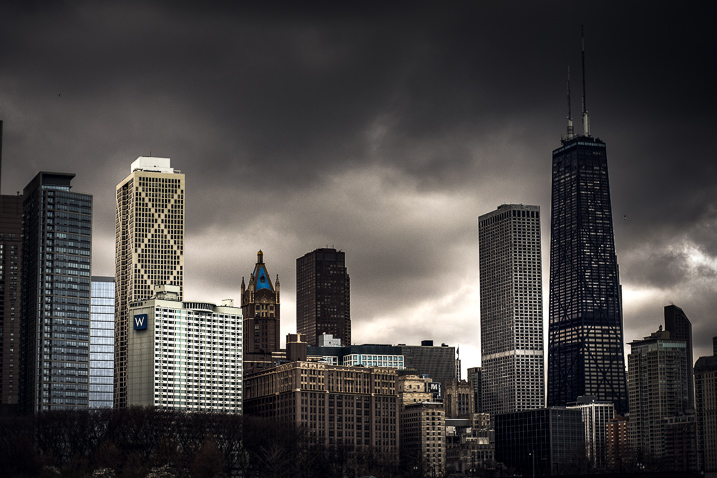
Learning chicago

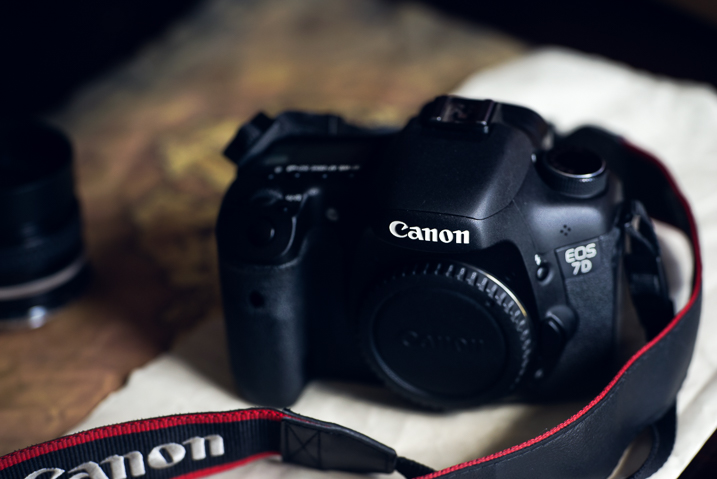
The type of camera I would need

This is a dodgy subject that plagues many who are just starting out, or those who want to get more serious about their photography. I began my journey shooting a 35mm Nikon N65 with a 18-55mm kit lens that I bought when I was 18 years old. It was my first real camera. The late teenager version of me saved his money and paid $ 265 for it but I still felt as though I needed a better camera in order to make better images. That was 15 years ago.

Even then I was under the impression that I would need a “professional camera” in order to be a professional photographer. If you had asked me then, I wouldn’t have been able to even tell you what a “professional camera” actually was.

Camera types

What I wish someone had told me was that the best camera doesn’t exist. The only thing that truly matters is the knowledge to use whatever camera is in your hands to the utmost of its (and your) ability. True, times have changed and imaging technology has advanced alarmingly fast. Some people now earn a living with only the cameras in their smartphones.

The thing to always remember is that most cameras are capable of producing images of astonishing quality when coupled with a proficient user. Whatever camera you might currently have is likely more than enough. Allow your skills to mature and you will know when it’s time to upgrade.

Photography create

What post-processing is – and what it is not

Before you begin scrolling in horror at the very mention of post-processing let me assure you that this in not a dreaded commentary on what may or may not be considered “Photoshopping.” Instead, we’re going to talk about some misconceptions I had when first beginning to process my images.

I was under the impression that “getting it right in the camera” was an all encompassing mentality that meant nothing needed to be done after the moment of capture other than showing the image to the world. That is not necessarily true.

What I wish someone had told me was that all photographs, even analog (film), virtually always benefit from some extent of work after the image has been made. The quote which changed my thinking towards post-processing came from none other than Ansel Adams himself:

“The negative is the equivalent of the composer’s score, and the print the performance.”

Journey photography

The point Ansel was making is that yes you always want to strive to achieve the best exposure you possibly can in-camera so that you have a more complete representation of the scene in order to manifest a final photograph intermingled with your own creativity. Post-processing is not something to be avoided but rather embraced as a logical second step towards achieving your visualization regardless of what that visualization may be.

Perfection is unattainable

That’s right. No photograph is perfect and very few photographs are ever elevated to the level of fine art, whatever that means. This was an illusion that burdened me during my early days while learning to create photographs. I had an enormous misunderstanding about what actually went into the production of an image both creatively and technically.

One thing that I did know, was that my photographs looked nothing like some of the wonderful images I saw online or in photo magazines. I became discouraged, all the while feeling as if I was doing something completely wrong.

Perfection unattainable

What I wish someone had told me was that even if you labor in photography for the rest of your life, you will never snap a perfect frame. Your photographs will certainly become stronger as you hone your technique and acquire more capable gear, yes. But don’t think that you will ever reach a day when you can say, “Ah, now I’m perfect. All my photographs will be flawless from here on out.” That day will never come.

The craft of photography is a practice in personal evolution. It is a journey of constant learning. So take a breath, relax, and enjoy the process for the beautifully weird trip that it is.

Conclusion

These are just a few of things that I wish someone had told me when I first began making photographs. Do you have any lessons you have learned that could help others? List them in the comments below!

googletag.cmd.push(function() {
tablet_slots.push( googletag.defineSlot( “/1005424/_dPSv4_tab-all-article-bottom_(300×250)”, [300, 250], “pb-ad-78623” ).addService( googletag.pubads() ) ); } );

googletag.cmd.push(function() {
mobile_slots.push( googletag.defineSlot( “/1005424/_dPSv4_mob-all-article-bottom_(300×250)”, [300, 250], “pb-ad-78158” ).addService( googletag.pubads() ) ); } );

The post 3 Things I Wish I Knew When I Started Photography by Adam Welch appeared first on Digital Photography School.


Digital Photography School

 
Comments Off on 3 Things I Wish I Knew When I Started Photography

Posted in Photography


Fresh out of the box: getting started with your first interchangeable lens camera

25 Dec

Fresh out of the box: Getting started with your first ILC

For the more established and experienced photographers of the internet, I will borrow the dedication page to Mark Z. Danielewski’s “House of Leaves:”

This is not for you.

This article is for your elderly neighbor, your young nephew or niece, or anyone whose photographic journey up to now begins and ends with a smartphone.

If this describes you, then hello. Welcome. You, budding photographer, have decided to embark on a new hobby, or an extension of something you’ve enjoyed on a mobile device, and this holiday season you have purchased (or been gifted) an interchangeable lens camera of your very own. You may not  know why exactly you wanted or needed one – or even that some cameras come with lenses that detach in the first place.

Let’s unravel the basics here, so you can get from the box-opening to the picture-taking as quickly and as free from headaches as possible.

Opening the box

In most interchangeable lens camera kits, you will have the following:

  • Camera body
  • Lens (or two)
  • Charger
  • Battery
  • Neck strap
  • Software CD (how quaint)
  • User manual
  • Warranty registration card

The first thing to do is to remove the charger and set the battery on to charge. No point in being frustrated at not being able to take photos because of a low battery.

The second task is to remove the camera and lens, remove the body cap from the camera and the back-end cap from the lens (it will be on the end with a metal or plastic mount with electrical contacts – the front of the lens will likely have the brand name and some other writing on it), and attach them.

There will be red or white markings denoting where to line the lens up relative to the camera, and normally, you’ll turn it clockwise to lock it in – with Nikon lenses, however, you rotate the lens counter-clockwise to attach it.

Get Strapped

Now is also a great time to attach the included camera strap, because nothing is quite so effective at ruining complicated electronics and optics as an accidental tumble onto cement (it happens to the best of us). Also, very few cameras actually come with memory cards these days, so you’ll want to go pick one up – no need to go crazy, a decent 16GB memory card will be plenty for casual shooters, and should be affordable.

Lastly, instead of throwing out that warranty card, fill it out. Cameras are complicated, and should you encounter any strange issues of yours that aren’t directly your fault, the warranty will help you out there.

You can also add your camera to your homeowners’ (or renters’) insurance policy, which may cover theft, accidental damage, or more.

Let’s take some pictures

Okay, now that you’ve sat staring at your camera for a while and have killed the time by reading a couple more online reviews on it, let’s put the charged battery in and actually turn the thing on.

You’ll be prompted to go through and set the date and time, which is advisable – when you go to put the photos on your phone, computer or the internet, the ‘date taken’ is a common method of keeping your images organized. If you notice any odd (read: buggy) behavior from the camera, go ahead and check the manufacturers’ website to see if there have been any firmware updates – and they’ll have easy instructions for installing them.

Which mode?

Keep the camera in fully ‘Automatic’ mode, which is usually the only option on the mode dial that’s green (the ‘Mode Dial’ will usually have P, A, S, M options among other icons such as a floating head for the ‘portrait’ preset, some small mountains for ‘landscape,’ and so on). On Olympus cameras, there’s a setting called i.Auto on the mode dial, and on Fujifilm cameras, you’ll want to flip the ‘Auto’ switch, or on the lower-end models, go to ‘SP+’ mode.

The half press

Unlike a smartphone, most interchangeable lens cameras provide you with a two-step process for taking a single picture. You’ll want to press the shutter button (it should be logically placed under your index finger while you hold the camera) very lightly – we call this a ‘half-press.’ What this does is signal to the camera that you’re intending to take a picture, at which time it will focus on whatever is in front of you, and it will pick an exposure (it will decide how bright to make the resulting image). Press the shutter down all the way now, and you’ll be greeted with some sort of shutter noise indicating that a photo has been taken. Yeehaw!

Flash

Many interchangeable lens cameras have flashes that you, the user, must pop up yourself if you wish to use them. General rule of thumb? If your photos are coming out too dark, too blurry or too grainy, pop up the flash. The camera should know to use it when it’s popped up and you’re in an automatic mode.

On some cameras, such as Nikon and Canon models, the camera will choose for you whether to pop the flash up or not. They’re often wrong about this, particularly with subjects that are very far away (the flash isn’t that powerful). However, if you are shooting a photograph of a person on a bright day with the sun overhead, the flash pop will fill in some shadows on your subject’s face – this is called ‘Fill Flash,’ and it’s usually a good thing. The flash can also handy if you’re trying to take family photos indoors and are getting blurry or grainy results.

In any case, those flash-happy Canon and Nikon models have a setting right next to the ‘Auto’ setting on the mode dial, that looks like a crossed-out lightning bolt. That’s the same automatic mode as before, but the camera will refrain from popping up the flash at all.

Easy as that

What’s next? Well, start taking pictures. They can be of anything, don’t worry about it. Take photos of things you find pretty, or funny, or just because you like them. Cats! Always take pictures of cats.

Experiment with putting your subject slightly off-center (look up the Rule of Thirds for more on this – though it’s more of a guideline than an actual rule). It’s a common temptation to zoom in to a subject, instead of using your feet to actually get closer – experiment with both. Think about fun places to go in your own town that you can bring your camera to – a friend’s barbecue, or the zoo, a park, a museum (check photography rules beforehand, though). Be sure and keep the front of your lens clean, preferably with a microfiber cloth – you’ll inevitably get fingerprints and dust on it, which is fine, but they can make everything look a bit hazy.

When you get a little more comfortable, start thinking about using lines to lead a viewer’s eye through the scene. Pay attention to contrast between light and shadow, and look out for interesting textures. There’s tons of free resources on the internet to help you out here.

The most important thing you can do with that spiffy new camera, though? Just use it and have fun

Articles: Digital Photography Review (dpreview.com)

 
Comments Off on Fresh out of the box: getting started with your first interchangeable lens camera

Posted in Uncategorized


Tips for Getting Started Doing Event Photography

17 Oct

Have you ever wanted to be a fly on the wall? To see the behind-the-scenes of amazing events and activities? To meet influential or interesting people? If so, candid event photography may be the thing for you!

While wedding photography is technically event photography, that is not our focus here. There’s just something different about wedding photography. It’s more pressure, higher stakes, more intensity. In this article we are going to focus more on other types of events – social, corporate, family, religious, and others, that can broaden your experience (and line your pocketbook!).

Getting Started

event photography tips 1

Unless you are an event planner or have an “in” already, sometimes it can be a little hard to break into event photography. You are probably going to have to volunteer for a few events to get started.

Are you or any of your immediate family members part of an organization or club? This can be absolutely anything – PTA for your child/grandchild’s school, a community fraternal organization, a slow-pitch softball team, your place of worship. Do they have any big events that they feature regularly or annually? Ask if they would like some free event photography. The good thing about doing free photography is that it lets you practice and hone your skills without feeling like you’re wasting someone’s money if your photos aren’t perfect.

Communication is Key

Before the event, work with the event coordinator in advance. A phone call, or thorough email, is usually sufficient, but you may also want to meet in person. You’ll want to ask some key questions, if they don’t have the information readily available such as:

  • “Is there an itinerary for the program? Can I receive a copy in advance?” If you’re anything like me, you’re a planner. You want to know in advance exactly what is going to happen, and ideally, where. That way, you can make sure that you’re lined up to catch the keynote speaker or the moment when an honoree receives their award. This isn’t just a matter of convenience for you, it helps you make sure that you are able to provide the shots that will help the group remember their event (or, if appropriate, to market it for the future!).

event photography tips 2

Who to photograph

  • “Who are the key people I should photograph?” Unless you’re a seasoned veteran of the event you’re photographing, you might not know who the big players are. I recently photographed a big charity gala for the biggest hospital in the area . Some of the attendees were CEOs of companies, coaches of Big 12 sports teams, mayors, and councilpersons. By receiving the names of the key attendees in advance, you can do a Google Image search for them (yeah, I know it sounds super-creepy) so that you can recognize them on-site.
  • “Who or what should I avoid photographing, if anything?” Nobody really wants to get into a situation where the person being photographed becomes belligerent or aggressive. You also don’t want to photograph a moment that is supremely personal if that is not desired. There are many events where you don’t need to ask this question, but keep it on the list for more personal events (such as family or religious ones). Don’t be paparazzi!

event photography tips 3

event photography tips 4

What to photograph

  • “How many/what kind of pictures would you ideally like?” I try to provide as many photos as possible to my clients because everyone’s tastes vary so widely. However, this can be really overwhelming for some people who are under time constraints, or who really only want photos of a certain portion of the event. Figure out their ideal amount and try to stick to it.
  • “Is it okay if I use any of these photos in my business advertisements or on my web page in the future?” It can essentially be free advertising if you can use these photos to demonstrate your abilities.
  • “When are you setting up for the event? May I stop by early for some test photographs?” Unless you want to take every flash, diffuser, and lens you own, you want to get a feel for the venue in advance. It’s ideal if you can get some test shots using the same lighting (whether it’s natural or artificial) and see how they come out. This will not only help you decide what gear to bring, but it also saves you time on the day of the event. Having to readjust your camera settings to accommodate the environment, get your ISO correct, decide on a lens, etc., all take time. This will make you look more professional and prepared.

Work the Crowd – Tastefully

This next bit may not be appropriate for more solemn and serious occasions. For most, however, your foot is officially in the door. Be friendly and professional, make appropriate jokes or comments to appear personable and fun. Keep the attention off of you, but interact kindly with everyone you meet.

Having a camera in your hand instantly makes people more prone to smile around you, so use that goodwill to make them laugh. This will also allow you to get natural, fun shots that will please both the client and the subject of the photo. This will often lead to people either asking for your business card or asking the event organizer for your information. Make sure to keep a stack of business cards on hand, and give a few to the event organizer if they are comfortable with that.

event photography tips 5

After the event, don’t hesitate to ask the organizer if you can use them a a reference, or if they might be wiling to write you a review. You’re doing them a service, potentially for free. It’s not uncommon or inappropriate to ask for an honest review of your services.

Details, Details, Details

Whether you’re photographing a political dinner, a church bazaar, a birthday party, or an awards event, someone put a great deal of thought and time into making that event unique and special. Someone spent hours thinking aboutcenterpiecess and the dessert table, about the table layout, registration table, the serving stations and other details. In many instances, the people who planned the event are also in charge of hiring the photographers now and in the future, so it doesn’t hurt to get on their good side!

To do so, get good quality shots of the small things that went into the event to make it special. Programs, food, signage, the little things. These shots are good for remembering all of the wonderful details that were so special to them on that day, and they can also make good marketing (for a company, religious entity, charity organization, or similar) in the future. Getting them these shots gives them lots of options – this makes you more helpful and versatile, as they’re getting more bang for their buck. This ultimately makes you more marketable!

event photography tips 6

event photography tips 7

event photography tips 8

While You’re At It…

For some events, they want to get the feel of the event from the attendee’s eyes. These can be tricky to do, you may have to photograph tactfully over someone’s shoulder, or through an open door. These types of photos, however, can be used to promote events in the future, especially if they do not actually feature the faces of anyone. It’s always important to get shots of the attendees for the event, but you can also get some of these shots that are not related to a specific date and time. This gives the organization (if applicable) options if the attendees do not want their faces being used as advertisements.

event photography tips 9

event photography tips 10

Make It Artsy… But Not TOO Artsy

One of the biggest mistakes that I see in some candid event photography is that there is little artistic focus or composition to the photos. Yes, there will be times you’re ultimately just getting crowd shots, and those ARE important. In those instances, make sure you’re using the appropriate aperture and focal length to get everyone in focus who needs to be.

Try and catch an interesting moment, or a moment when the crowd is focused on something , when someone is the center of the crowd’s attention. This composes your photo more and draws the viewer’s eye. For shots of smaller groups, couples, or solo shots, use a wider aperture and an appropriate focal length to get more artistic portraits. Attendees like to see more personal, beautiful photos of themselves. People are predisposed to stopping and smiling for the camera, so you will end up with some staged shots. But also get images of people in mid-conversation, or engaging in activities.

Pic 11

You can also use a wider aperture to up your artistic factor. Is there a beautiful centrepiece that is blocking your shot of a crowd on the other side of the room? Focus on it with an f/2.8 or f/4 aperture so that your crowd in the background is slightly blurred. This will make for some interesting variety in your shots.

Pic 12

Not Too Flashy

Just imagine that you are in the crowd at a movie night sponsored by the PTA. The lights have been dimmed, your eyes adjusted for the screen, and then someone’s camera flash pops right in your eyes. This exact same situation can occur at almost any event. A flash can distract from the event and disrupt not only the audience, but a potential performer or speaker. While it is usually absolutely appropriate to use a flash for group and/or staged photos to get proper lighting, it is often ideal to simply adjust your camera settings to make the available lighting work for candid photos.

The photos below were taken at a PTA movie night just like the one I described. It was in the cafeteria of a local elementary school, with no artificial lighting other than the projector screen, and some natural light coming in through a skylight. I adjusted my ISO to 800 to accommodate for the limited light, and opened my aperture to f/2.8. Even at that, I had a shutter speed around 1/25 or 1/15 pretty consistently. If I needed to capture action (which was very limited in this sort of event), I bumped my ISO up to 1600 to accommodate it. These adjustments allowed the families to watch the film without disruption as I photographed.

Pic 13

Pic 14

Picking the Best Shots

The first time I photographed an event was at my church, and I realized during editing how much people yawn and pick their noses when they think nobody’s looking!

For a multiple-hour event, you will likely get an abundance of photos. On your first pass through, obviously weed out any photos that are fuzzy or have poor technical skills. Since these photos will represent your abilities, you want to make sure to highlight the best of them.

I always take a second and third pass through, however. Hopefully the event organizer gave you a rough idea of how many photos he or she wanted. So go through and remove any photos that are boring, or that paints the subjects in a bad light (such as picking their nose). If you still have a surplus, narrow it down on the next pass through to weed out ones with weak composition, or ones that don’t tell the story of the event well. I will then edit the remaining photos (rather than editing hundreds that I will just throw away), and export them. I usually give them another look at that time to make sure there isn’t anything I missed in my editing software.

Pic 15

I personally use Lightroom for editing event photography. Unless it is a statement photograph or a photo to be used for advertisement, I try to do very spare editing. These photos are not likely to be hung on someone’s wall in a large size, so you usually do not need to worry about editing out stray hairs or specks of lint. Basic adjustments for exposure and contrast, white balance, and occasionally a conversion to black and white are often sufficient.

Pic 16

Ready to Roll

You’re now ready to deliver your photos to your client. Be sure to provide your contact information and business cards for the future. If they indicated that you could share the photos on your website or business pages, make sure to feature them to show your amazing prowess as an event photographer.

Do you do events? If you have any other tips please share them in the comments below.

googletag.cmd.push(function() {
tablet_slots.push( googletag.defineSlot( “/1005424/_dPSv4_tab-all-article-bottom_(300×250)”, [300, 250], “pb-ad-78623” ).addService( googletag.pubads() ) ); } );

googletag.cmd.push(function() {
mobile_slots.push( googletag.defineSlot( “/1005424/_dPSv4_mob-all-article-bottom_(300×250)”, [300, 250], “pb-ad-78158” ).addService( googletag.pubads() ) ); } );

The post Tips for Getting Started Doing Event Photography by Angie DeWaard appeared first on Digital Photography School.


Digital Photography School

 
Comments Off on Tips for Getting Started Doing Event Photography

Posted in Photography


Tips for Getting Started with Coastal Photography

07 Oct

Many of us start out treating coastal photography the same as landscape photography. There are a lot of similarities. For both, you head out into the great outdoors, often to remote locations. You need a tripod and a remote shutter release for stabilization. You are capturing an entire scene rather than a discrete item or person. You want a deep depth of field. And so on.

But there are also differences between the two. In fact, treating coastal photography the same as landscape photography could leave you woefully unprepared when you head out. It could also lead to confusion as to how to set up and expose your photos. This article will help you get started with coastal photography, even if you are already familiar with outdoor shooting generally.

Mullaghmore-1

What to bring with you

There are two items you’ll need to add to your kit before you head out to do coastal photography. Both are filters, and you may have one of them, but they are both critical.

Neutral density filter

The first is a neutral density filter. In fact, you will probably want more than one since they come in different strengths. If you are not familiar with these filters, they restrict the amount of light allowed into your camera. Why would you want to do that? So you can slow down your shutter speed and allow the waves or the clouds to move through your frame while you are exposing the picture. That will smooth things out for you.

We’ll talk more about using them later, but for now just know that you’ll need one. I would start with a 10-stop neutral density filter, which is about as powerful as you will ever need. You can then add lesser strength filters like 6-stop and 3-stop filters later.

Graduated neutral density filter

VFH100_FilterGroup

Drop-in style filter system with a graduated neutral density filter on the right.

The second item you will need is a graduated neutral density filter (aka grad ND). You may already have this one since it is also useful for landscape photography. However, it is remarkably useful in coastal photography and you will use it all the time. In landscape photography, you may have trees, mountains, or other items sticking up into the sky such that you cannot use the grad ND.

In coastal photography, however, very often the horizon line is clear and unbroken in your picture. It makes is easy to use the grad ND in a lot more situations. For this reason you will use it all the time. In addition, the sky is often a significant portion of your picture in coastal photography. So making the sky look its best is incredibly important.

Acadia-6

Where to go

Now that you have the right gear, it is time to head out. Before you do, spend some time thinking about where you will go. When you first get started in coastal photography, you will have a tendency to go one of two places: either a scenic overlook or a beach. Both have problems though, so let me explain a bit.

A great view does not always translate into a great picture. Therefore, just going to a scenic overlook will often not result in great photos. It can, so I’m not saying to avoid them, but just be aware of a few problems you are going to face. The primary problem is that you will have difficulty establishing any sort of foreground. You are up too high, and there is usually nothing to use to bring the viewer into the picture. We’ll talk more about composition in a minute, but for now just understand that you often need to get down near the coast and sometimes even get right behind something to set up an interesting composition.

On the beach

When you do manage to get right next to the coast, often that will be on a beach. Beaches are great, but they have their own problems when it comes to composition. After all, a beach is just a bunch of sand, and that’s hardly something that is going to look great in your picture. You need to find something to use as a subject or at least a center of interest. Sometimes that’s a physical object in the sand (boulder, boat, moss, etc.), or it might be a pattern in the sand itself.

The best places to go are where there are interesting features to use as foreground, and you can get down to the coast. While I just warned about beaches, very often they are the best place. They allow you access to the coast, easy parking, etc. Just don’t stay in the middle of the beach. Look for interesting features, walk to the periphery, or even go beyond the beach.

Cheeca-Sunrise-5

When to go

Next you need to decide when to go take your coastal photos. This one is easy. You want to go before sunrise or at sunset.

While this tip is easy, it is also absolutely critical. The sky will often take up a healthy chunk of your picture, so you need it to be interesting. Further, if you go in the middle of the day, you will face harsh contrasts that will ruin your picture. Avoid doing that whenever possible.

This leads to another problem, which is access. Many beaches and scenic coastal areas are closed and blocked off until sunrise or even later. You’ll miss the best light waiting around for them to open. Pay attention to opening hours and access to make sure you can get your shot.

Green-Rocks

How to compose your coastal photos

When it comes to composing your pictures, you always want to think about the foreground, subject or center of interest, and the background. You’ll generally want to set these up in your picture according to the Rule of Thirds.

Background

Let’s start with the easy one first, the background. In coastal photography, the background of your picture will usually be the sky. That’s one of the reasons why heading out before dawn or at sunset is so important. The sky just looks better at those times. When it comes to composition, the background will be determined by how the sky looks. Therefore, you hardly need to think about the background of your picture.

Foreground

That leaves the foreground and some sort of subject or center of interest to worry about. The subject is very important, but it varies dramatically from person to person and scene to scene. It can be a physical thing like boulders or plants, or it can be a man-made item like a boat or a lighthouse. Your subject can even be an intangible thing like a leading line or a shape. Just make sure there is something tying the picture together. If you don’t, you will be left with a mere snapshot.

And finally we get to the foreground. This is often the hardest part of the picture to set up, but at the same time it is also the most important. You want to use foreground to create a sense that your viewer can walk into the picture. If you are on the beach, look for interesting sand patterns to use. Otherwise, look for rocks, boulders, or vegetation that can serve this purpose. Of course, the water and waves will often serve as your foreground. How this looks will depend largely on how you expose the picture, we’ll cover that next.

El-Matador-4-2016-05-10

How to expose your coastal photography

In coastal photography, your exposure controls affect more than just how bright or dark your picture looks. Your exposure controls also affect much more than just depth of field (aperture) or digital noise (ISO). How you expose your picture will also control things like the the subject and mood. That is partially true in other forms of photography, but it is especially true in coastal photography.

This is because your exposure settings will control how the water and waves appear in your picture. Specifically, how fast or slow you set your shutter speed will change the look of the water. If you want to stress the power and harshness of the sea, use a fast shutter speed (faster than 1/250th of a second). That will stop the action of the moving water. To create a sense of movement, use a slower shutter speed (between 1/8 second and 1 second). For a more serene scene, you can blur out the water entirely by using a very slow shutter speed (longer than 10 seconds). This is just a introduction to this concept, but to see the full range of options, check out this article: 7 Tips to Help Improve Your Seascape Photos by Controlling the Waves.

To go about using these different shutter speeds you can start by making sure you are in Manual mode and moving your aperture and ISO. To use a faster shutter speed, make your aperture a little larger (a smaller f-number) and your ISO a little higher. More often, however, you’ll want to use a slower shutter speed, for which can you should stop down your aperture to a small setting (f/16 – f/22) and use your lowest native ISO (usually ISO 100).

El-Matador-5

Using the neutral density filter

Frequently, however, there will be too much light to use the slow shutter speed you want. That’s where the neutral density filters come in. When you attach one of these filters to the front of your lens, it will restrict the amount of light allowed into your camera. That will allow you to use a slower shutter speed to achieve a proper exposure (without overexposing your picture).

Let’s make this a little more concrete with some specific numbers. Let’s say you have your shot set up with a correct exposure and you are at 1/50th of a second for your shutter speed, and your aperture is set at f/16 with an ISO of 100. You have a 6-stop neutral density filter in your bag, and you want to use a much slower shutter speed to create some blur in the water. In that case, attach the neutral density filter to your lens and now the amount of light coming into your camera is restricted by 6 stops. If you do nothing else, your picture will be severely underexposed (probably pitch black). This allows you to increase (i.e., slow down) the shutter speed by 6 stops to achieve a proper exposure, and the slow shutter speed desired.

Okaloosa-2

Let’s walk through the process of slowing down the shutter speed by 6 stops, which you will do manually.

  • Remember that a stop is a doubling of light, so slowing the shutter speed by the first stop from our starting point of 1/50th of the second will move it to 1/25th of a second.
  • After that, moving it another stop will get you to 1/13th of a second.
  • Next is 1/6th of a second.
  • 4 stops is ? or 0.3 seconds.
  • 5 stops is ? of a second
  • Finally, slowing the shutter speed by 6 stops will result in a shutter speed of 1.3 seconds.

Take the picture with that shutter speed and your picture should be properly exposed with a nice blur to the water.

Variations

This is just one example, and there are a lot of variations you can do on that. For example, you could use a 10 stop neutral density filter instead. That would allow you to set your shutter speed as slow as 20 seconds in our scenario above. That would really blur out the water. You can also adjust the aperture and ISO to bring the shutter speed in exactly where you want it.

You’ll note in our example above, we could have made our aperture smaller (to f/22 in most lenses) and restricted the amount of light by another stop. Or we could have increased the aperture or the ISO to increase the exposure and use a slightly faster shutter speed. Think of these controls as fine tuning after you have your neutral density filter on your lens.

Destin-Wave

Getting started with coastal photography conclusion

Hopefully you now have a little better sense of where to go, when to go, and how to set up your shots for coastal photography. Armed with this knowledge, just head to the coast when you can and put these tips to work.

But be careful – the coast can be a harsh and unforgiving environment for both your equipment and for you. That said, I think you’ll find there is no better place to be than on a coast at sunrise or sunset.

googletag.cmd.push(function() {
tablet_slots.push( googletag.defineSlot( “/1005424/_dPSv4_tab-all-article-bottom_(300×250)”, [300, 250], “pb-ad-78623” ).addService( googletag.pubads() ) ); } );

googletag.cmd.push(function() {
mobile_slots.push( googletag.defineSlot( “/1005424/_dPSv4_mob-all-article-bottom_(300×250)”, [300, 250], “pb-ad-78158” ).addService( googletag.pubads() ) ); } );

The post Tips for Getting Started with Coastal Photography by Jim Hamel appeared first on Digital Photography School.


Digital Photography School

 
Comments Off on Tips for Getting Started with Coastal Photography

Posted in Photography