RSS
 

Posts Tagged ‘Speed’

5 Ninja Tips to Speed Up Your Lightroom Workflow

11 Dec

Currently on for 33% OFF is Johny’s Lightroom Essentials for Landscape Photographers Course. Grab it now, only until December 23rd, 2014.

DSC 8831 Edit
Here are five things that will make a huge difference to your Lightroom workflow by making you more efficient and saving you time.

1. Solo Mode

Solo Mode

Do you get frustrated scrolling up and down the panels looking for the right adjustment or setting? If so, then your frustration is over. Right click on one of the panels and in the drop down menu, select Solo Mode. Solo Mode only allows you to have one panel open at a time, so every time you open a panel the last one you had opened, closes. This allows you to easily see all the panels at once and find what your looking for quickly.

2. Auto Advance

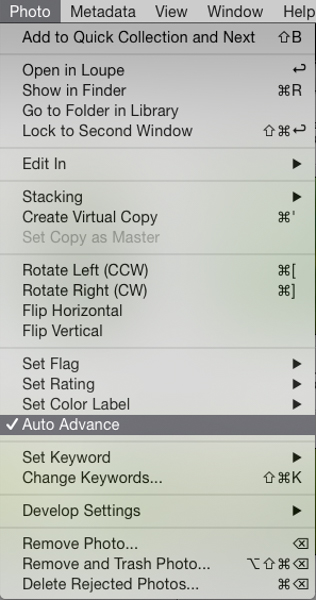
The best way to find your keeper images after a shoot is by using flags. All you need to do is use the keyboard shortcuts; P for pick, and X for reject. This is a super fast way to power through your shoots. The problem is once you pick or reject an image you need to then click a right or left arrow key or mouse click on the next image to make the next selection. That’s where Auto Advance comes in. To turn it on make sure you’re in the Library module, then in the menu under Photo select Auto Advance. With this enabled, each time you flag an image Lightroom will move to the next image in the film strip automatically. This may not sound like a huge thing but believe me, when you have several hundred images to sort through saving one keystroke on each image will save you heaps of time.

Auto Advance

3. Quick Collections

Collections are super important in Lightroom. Using them is the best way to quickly switch between groups of images in the Develop module without switching back to the Library module and digging through your folders. Quick Collections is a term I’ve coined, but honestly this is the quickest way to create a collection. It’s really simple. Just grab a folder of images you want to make a collection from, then click and drag the folder to the collections panel. Once you see a blue bar appear, drop the folder and BOOM, instant collection.

Quick Collections

4. Turning Off Auto Show Panels

To give you more real estate on the screen it’s a great idea to hide the side panels when you are not using them. The perfect place to do this is with left panel in the develop module as most of the time everything you need is in the right panel. The problem is once it’s hidden and every time you mouse over to the left of the screen the panel pops out. That might be fine a couple of times but after a while you’ll find that it becomes annoying and starts to slow down your workflow. It’s easily fixed by right clicking on the panel disclosure triangle, and selecting manual from the drop down menu. This will stop the panel from opening automatically. When you want it back, just click on the triangle to show the panel.

Turn Off Auto Show Panels

5. Decluttering the Lightroom Interface

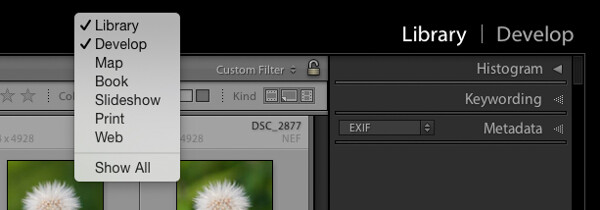
Learning Lightroom can be very overwhelming especially when you see all the modules in the top bar and all the different panels and settings. There is so much going on in the interface, it can lead to what I call Lightroom burnout. The tip here is to turn off the modules and panels you aren’t using by cleaning up the interface. This allows you to only focus on just the things you are learning or need to use regularly. Just right click on the top bar or any of the panels, and in the drop down menu select what module or panel you want to hide, repeat the process to unhide.

Declutter

Like a lot of software there are many ways to achieve the same outcome. I encourage you to keep refining your workflow until you find the perfect system that works for you. Give these five tips a go; they will not only save you time, but help you on your way to achieve what I call Lightroom bliss. That is when you get to a place using Lightroom where there’s no more frustration or confusion, and it’s just all about having fun with your photography and creating beautiful images.

Dancing Gulls

DSC 8638

Currently on for 33% OFF is Johny’s Lightroom Essentials for Landscape Photographers Course. Grab it now, only until December 23rd, 2014.

googletag.cmd.push(function() {
tablet_slots.push( googletag.defineSlot( “/1005424/_dPSv4_tab-all-article-bottom_(300×250)”, [300, 250], “pb-ad-78623” ).addService( googletag.pubads() ) );
} );

googletag.cmd.push(function() {
mobile_slots.push( googletag.defineSlot( “/1005424/_dPSv4_mob-all-article-bottom_(300×250)”, [300, 250], “pb-ad-78158” ).addService( googletag.pubads() ) );
} );

The post 5 Ninja Tips to Speed Up Your Lightroom Workflow by Johny Spencer appeared first on Digital Photography School.


Digital Photography School

 
Comments Off on 5 Ninja Tips to Speed Up Your Lightroom Workflow

Posted in Photography


Tips for Using Shutter Speed Creatively

23 Nov

Shutter speed is one of those things that is initially a problem to be solved, but once you do that it becomes a tool that allows you to take better and more creative photos.

First you should understand how shutter speed works and how to change it. You will need to make sure it is fast enough that your pictures turn out crisp. But once you’ve mastered those things, you can start using shutter speed to your advantage. You can slow it down to create a sense of movement, or speed it up to stop the action.
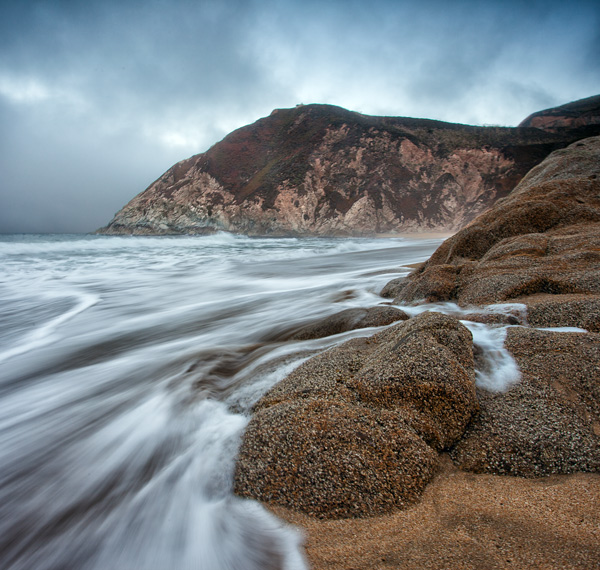
GreyWhale

Grey Whale Cove: 1/4 second at f/16, ISO 100

This article will show you the basics of what you need to know regarding shutter speed and get you started with some creative effects using different shutter speeds.

What is Shutter Speed?

Shutter speed is simply the amount of time the shutter inside the camera is open, allowing light onto the digital sensor to expose the picture. The longer you hold the shutter open, the more light is let in to the camera to expose the picture.

But holding the shutter open longer than a tiny fraction of a second has consequences. The camera must be held completely still during the exposure or the picture will be blurry. Without using a tripod or some other means of support, you cannot hold the camera still for longer than about 1/60th of a second and blur will start to creep in to the picture (more on this in a second).

Shutter speed is recorded in fractions of a second. So a shutter speed that says 1/60 (it may just show 60) means that when you take the picture the camera will open the shutter for 1/60th of a second.  Most cameras have shutter speed ranges between 1/4000 of a second (on the short side) and about 30 seconds (on the long side). In addition, many cameras have a Bulb mode that allows you to hold the shutter open as long as you wish.

Make Sure Your Shutter Speed is Fast Enough

One of the first issues you will confront as a photographer is making sure your shutter speed is fast enough. If you have a tripod, this will not matter as much and you can leave the shutter open a long time (sometimes even several minutes). But assuming you are hand-holding your camera, a long shutter speed will introduce camera shake and make your image look blurry.

But how fast is fast enough? There is something called the Reciprocal Rule designed to help you with that answer. This rule states that your shutter speed should be at least the reciprocal of your focal length. That sounds complicated, but don’t worry it is easy to figure out. You just put a one over your focal length and that is your minimum shutter speed.  So, for example, if your focal length is 60mm, just make sure your shutter speed is 1/60th of a second or faster. If you are zoomed in and your focal length is 200mm, make sure your shutter speed is 1/200 of a second or faster (remember to consider lens factor as well if you have an APS-C sensor) Any slower than that and it is time to break out the tripod (or raise open your aperture and raise the ISO).
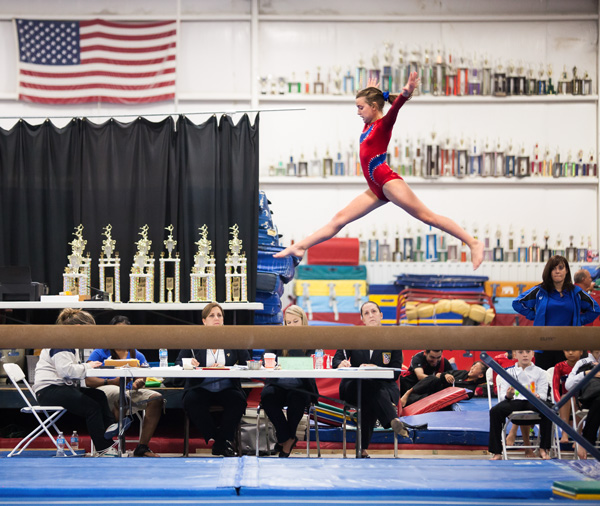
Beam

1/200th at f/2.8, ISO 3200

Changing Shutter Speeds

The next question you will confront is how to change your shutter speed. The actual physical changing of the shutter speed is pretty simple, it’s typically done via a dial on top of your camera. The more important question is how are you to offset the change to shutter speed, assuming you are in manual mode (if you are in Aperture priority or Program mode the camera will make the change for you).

If you use a faster shutter speed, the shutter is not open as long so the camera gathers less light. So, without something else changing, your picture will be underexposed by using a shorter shutter speed. To make a proper exposure, additional light has to come from somewhere. You can add that extra light to offset the use of a faster shutter speed in one of two ways:

  1. Open up the aperture: The aperture is the hole your the lens that allows light to pass into the camera. A larger aperture allows more light into the camera. So if you open up your aperture by one stop, you are letting in twice as much light during the same period of time.  But be careful, a larger aperture also creates a shallower depth of field, which you might not want.
  2. Increase the ISO: The ISO is the rating assigned to how sensitive your digital sensor is to light. It is adjustable, and the higher the number, the more sensitive you make your camera’s digital sensor to light. But this comes at a cost, digital noise, which increases as you increase the ISO.

There are separate controls on your camera to make these changes.  Use either of these methods to add more light to your exposure whenever you are shortening your shutter speed.

Using Shutter Speed Creatively

Now that you understand shutter speed a little bit, you will want to put it to use creatively. There are several ways to do this, and we will work through some of them from the faster shutter speeds to the slowest.

Stopping the Action

In times of high action or drama, you can stop the motion by using a very fast shutter speed.

To do this, you will want your shutter speed to be 1/250 of a second or faster. At times, like with the picture below of the water droplets being flipped through the air, you may want the shutter speed to be significantly faster. This particular picture was shot at 1/8000th of a second.

Water

1/8000th at f/2.8, ISO 250

Accomplishing shutter speeds this fast, even on bright sunny days, will require offsetting moves. For example, you will need to open up the aperture to its widest setting. Doing so will result in a shallow depth of field, but in this sort of picture that usually won’t matter. You will also probably need to increase the ISO (a little on bright days, a lot on cloudy days or indoors).

Another key for these type of shots where you are stopping the action, is to anticipate the shot. With the speeds at which modern cameras shoot, you may often want to just hold the shutter button down and blast away, this rarely works though. The decisive moment is usually only captured by anticipation and triggering the shutter at precisely the right moment.

Panning

Another way to use shutter speed creatively in times of action is to pan the subject. Panning is where you move the camera during the exposure to follow the subject. Done properly (or when you get lucky) the subject is relatively sharp, while the background is blurred and conveys a sense of motion.
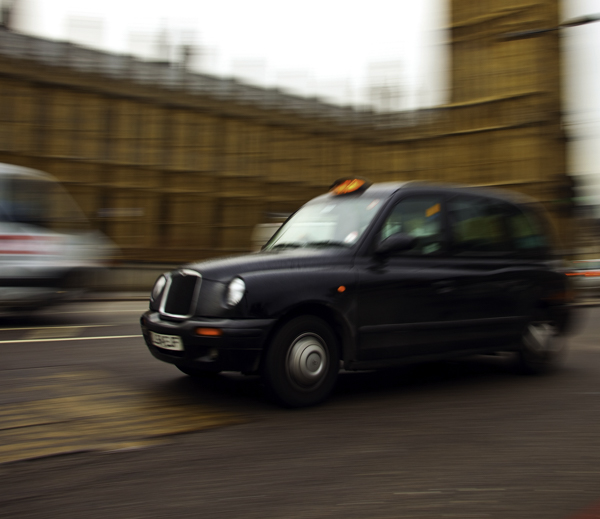
LondonCabPan

1/15th at f/7.1, ISO 50

Accomplishing this is usually best at slower shutter speeds between 1/8 and 1/30 of a second. Being able to slow down the shutter speed is typically welcome news, as it will mean you do not have to crank up your ISO, or make other offsetting moves. Getting a good result will frequently require at least a few attempts, while you gauge the speed, and other settings.

If possible, get your exposure set up before you attempt to pan. That way you are only thinking about the panning during the shot, as opposed to worrying about all your other settings.

Creating a Sense of Motion

Still another creative use of shutter speed is slowing it down to create a sense of motion. This is accomplished when the subject is moving slightly through the frame during the exposure. This idea is for the subject to be identifiable, but slightly blurred.
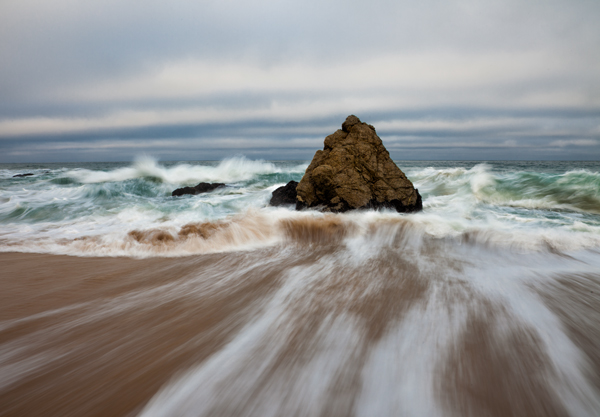
GreyWhaleRock

1/4 second at f/16, ISO 50

Shutter speeds for this type of shot are between 1/4 and 1/10th of a second. That is virtually always too slow for you to hand-hold your camera, so you will probably need to break out the tripod for this type of shot.

Long Exposures

The final creative use of shutter speed we will cover here is a long exposure. This is where you hold the shutter open for a long time and allow certain parts of your picture to move through the frame. You will always need a tripod for this technique.
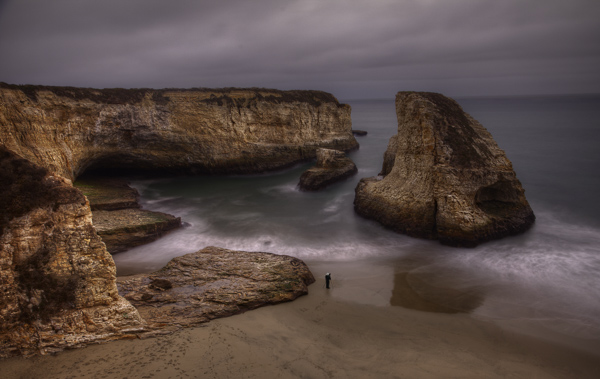
DavenportRock

20 seconds at f/8, ISO 400

Long exposure shutter speeds are between 10 and 30 seconds. Most cameras offer you the ability to go even longer by using Bulb mode, where the shutter will stay open as long as you hold the shutter button down. A remote shutter release, which is always a good idea when you are shooting from a tripod, is almost a necessity for this type of shot.

Long exposure is a great technique whenever there is moving water involved, such as coastal scenes, rivers, and waterfalls. It is also great for streaking lights in night photography.

Whereas most of the time, your challenge with shutter speed is to get enough light into the camera; in this context getting the shutter speed you want usually involves the opposite problem. The challenge is to limit the amount of light entering the camera so that you can leave the shutter open a long time without overexposing the image. To do that, first close down the aperture to its smallest setting and use the lowest ISO setting on your camera. The lowest ISO setting is usually 100, but some cameras contain an expandable ISO range that will allow you reduce the ISO further, so be sure to check your camera’s menu for that.

But if those moves don’t restrict the light enough, you will need to use a neutral density filter. These are filters that restrict the amount of light coming into your camera. They come in different strengths, with typical values between two and 10 stops of light. Get one of these (or a few different strengths) and keep it in your bag if you think you will have any long exposures in your future.
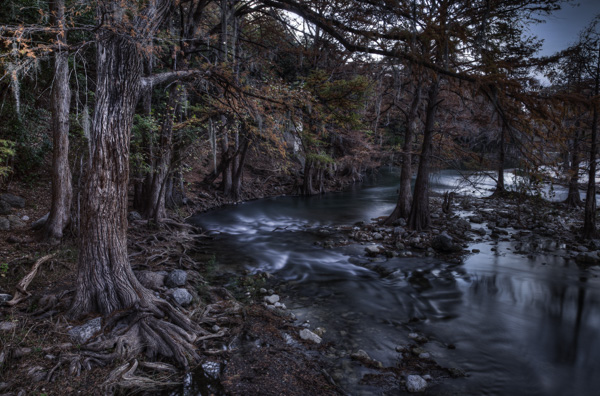
Guadalupe

15 seconds at f/8, ISO 500

Conclusion

Once you have mastered the basics of shutter speed, it is a great tool for adding creativity to your photography. It is perhaps the most effective way to make our photos more interesting. So lock down the basics, and then give some of these techniques a try.

The post Tips for Using Shutter Speed Creatively by Jim Hamel appeared first on Digital Photography School.


Digital Photography School
 
Comments Off on Tips for Using Shutter Speed Creatively

Posted in Photography


Speed Up Your Post-Processing Workflow With Photo Mechanic

07 Nov

PMCleanCover-178x177Today there are a ton of photo editing software programs to choose from, but there is one in particular that is worth the investment if you’re in need of speed. Developed by Camera Bits, Photo Mechanic is a standalone image browser that offers the very basic features of previewing, selecting, and importing digital images (culling). While the software might seem like a questionable investment since all it does is cull with no photo editing capabilities, Photo Mechanic has long been vouched for by many professional photographers. In fact, it was debuted in 1998 and used by The Associated Press to accelerate its coverage of Super Bowl XXXII. Since then, Photo Mechanic has been a popular choice by professional sports shooters and photojournalists, and it has also been made available to amateurs at a price of $ 150.

photo-mechanic

Whether you are a pro or not, here is why you may want to consider looking into Photo Mechanic for your post-processing workflow:

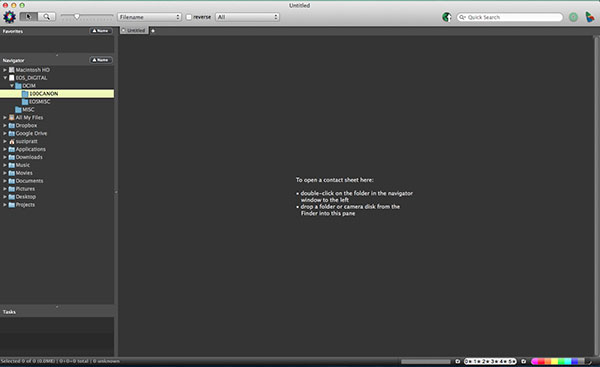
Photo Mechanic Image Browser

The core benefit of using Photo Mechanic is its wicked fast speed and ingest utility that allows for copying files from multiple flash or SD cards cards simultaneously, as well as renaming the files and adding IPTC information to them. Photo Mechanic also has a Live Ingest feature that is ideal for shooting tethered or using remote cameras and seeing your shots as soon as they are taken.

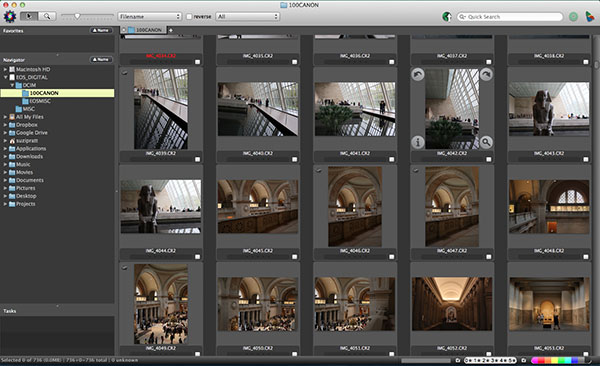
Photo Mechanic Image Browser

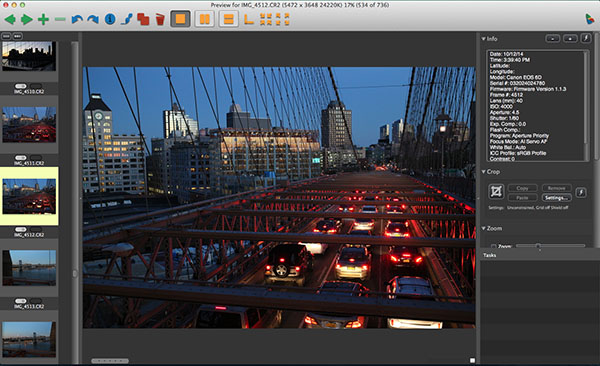
As soon as you connect your SD or CF card to your computer and pull up Photo Mechanic, you will immediately see compressed JPEG previews of all of your card’s contents on your contact page. It won’t matter if you shot a couple thousand RAW photos – each one will be almost instantly available for preview. There isn’t the three to five second delay that is common on other photo browsing programs such as Adobe Lightroom and Bridge. When you double click on a single image in the contact page, the image will enlarge in a preview screen, and you’ll be able to immediately view your photo in high resolution, including zooming in to check the focus of tiny details. All of this is done without having to load the image, meaning it happens with little to no lag time. You’ll be able to preview the entire contents of your card with the same speed.

Photo Mechanic Image Browser

Once you begin ingesting (importing) files from your cards to your computer or external hard drive, you can immediately start editing the photos. There is no need to wait until the copy process is complete. You can even initiate up to three other ingest sessions at a time, meaning up to three cards can be culled at the same time. The latest version 5 of Photo Mechanic was released in 2013 and it enhances the ingest feature by giving you the option to automatically import images when a disk is mounted to your computer.

Photo Mechanic Image Browser

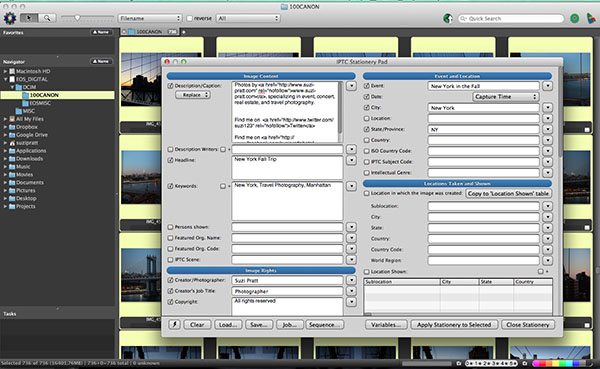
To speed up the image sorting and organizing process, Photo Mechanic includes an IPTC Stationery Pad for adding captions, credits, metadata, and copyright information to batches of images. Version 5 of Photo Mechanic includes dozens of new IPTC fields and extra sorting options including color class, rating, and tag values.

Photo Mechanic’s main disadvantage is that it does not convert RAW shots, meaning you’ll still need to use a separate program such as Lightroom or PhotoShop to perform any edits or convert RAW images into JPEGs. Some photographers might find it a hassle to go between programs, but if you’re in the market for speedy imports and downloads, then Photo Mechanic will be your preferred image browser. It also offers a free 30 day, fully functioning version if you want to test it out first.

Have you tried it of a similar solution? What are your thoughts? Please share your comments with us.

The post Speed Up Your Post-Processing Workflow With Photo Mechanic by Suzi Pratt appeared first on Digital Photography School.


Digital Photography School

 
Comments Off on Speed Up Your Post-Processing Workflow With Photo Mechanic

Posted in Photography


High Speed Sync Versus a Neutral Density Filter to Overcome Bright Sunlight in Portraits

11 Sep

ND3

For several years now I have used high speed sync (HSS) in order to light portraits in full sunlight at a wide aperture. If you’re unfamiliar with HSS, it allows you to shoot at shutter speeds that are higher than the native sync speed of your camera (usually 1/200 or 1/250 of a second, read your camera and flash manual to find yours) while still using speedlights. The reason this ability is so enticing is that you can shoot flash-lit images at wide open apertures in full sunlight, allowing for a shallow depth of field. Normally if you were using a flash, your maximum shutter speed would be at 1/200 or slower, meaning that you would need to close your aperture down in order to get a proper exposure in the sun.

ApertureOnly

Raw image shot at f/29

How HSS works is that the flash will begin pulsing light, just before the shutter opens, since the exposure is so short. The problem with this is that much of the output of the light is lost in the pulsing process, meaning that you need more flash units to achieve a decent output. For example, when I am shooting at 1/8000th of a second, I need to combine four flashes, on one stand, in order to light a subject that is about five feet away. And that is without any modifiers, like an umbrella or soft box. The other issue with HSS is that not just any flash and trigger system will do the trick. You need to have gear that will communicate information from the camera to the flash.

A couple systems that can do that are the PocketWizard Flex TT5 and Mini TT1, or the RadioPopper PX system. Since most photographers don’t already own one of these triggers systems, this means starting from scratch, which isn’t cheap. I personally opted for the RadioPopper system, since the PocketWizard Flex system for Canon was super glitchy. The RadioPopper system wasn’t perfect either. Just the amount of batteries alone, for four Canon Speedlites with triggers, including a ST-E2 transmitter for the camera, required 27 batteries. Even though they were mostly all rechargeable (the ST-E2 required the hard to find 2CR5 battery), imagine trying to troubleshoot a misfire. Did the batteries need changed in one of the transceivers or was the speedlite misaligned, obscuring the sensor? Or imagine that one of the speedlites’ batteries may be slightly more drained than another, causing only three of four lights to fire. This made the overall exposure fluctuate with every frame.

HSS1

Raw image unlit

HSS2

Raw image, 1/8000 @ f/2.8

I recently decided to compare HSS against using a variable neutral density (ND) filter. ND filters screw on to your lens and cut down the light that hits the sensor, thus allowing for a wider aperture in bright light. This allowed my shutter speed to stay at or below the sync speed cutoff, allowing the full strength of the Speedlite to light my subject. This meant that I wouldn’t need to transmit ETTL information (sell the RadioPoppers) and it meant that I would need fewer Speedlites (less batteries).

After setting my ISO as low as it would go (50), my shutter speed as high as was allowed (1/200th on the Canon 5D MarkII), and my Speedlites at their full output, I dialled down the variable ND until the ambient light perfectly balanced with the light from the flash.

ND1

Raw image unlit

ND2

Raw image, 1/200 @ f/4

Some people have pointed out that there could be the issue of a color cast with certain brands of ND filters. I have not experienced any issues with the ProMaster brand. However, it’s important to keep in mind that if you are shooting directly in to the sun, there will likely be glare in your image, causing a possible color cast or the image to appear washed out.

Note that this experiment was done using Canon 430EX Speedlites with RadioPopper PX triggers. I’ve since sold them all, opting for the cheaper, sturdier and more powerful LumoPro LP180 with PocketWizard PlusX triggers. Now with one bare bulb flash, and a variable ND filter, I can effectively cut the ambient light while fully lighting a subject at f/1.4 in full sunlight.

The post High Speed Sync Versus a Neutral Density Filter to Overcome Bright Sunlight in Portraits by Nick Fancher appeared first on Digital Photography School.


Digital Photography School
 
Comments Off on High Speed Sync Versus a Neutral Density Filter to Overcome Bright Sunlight in Portraits

Posted in Photography


Metabones launches Canon EF to Micro Four Thirds Smart Adapter and Speed Booster

30 Aug

Lens adapter manufacturer Metabones has launched a pair of long-awaited Canon EF to Micro Four Thirds lens adapters. The first adapter is the Smart Mount version which allows electronic control of the aperture in a Canon lens from a Micro Four Thirds camera, as well as correct recording of EXIF information and activation of Image Stabilization where present. Also debuting is an EF to Micro Four Thirds Speed Booster. Read more

Articles: Digital Photography Review (dpreview.com)

 
Comments Off on Metabones launches Canon EF to Micro Four Thirds Smart Adapter and Speed Booster

Posted in Uncategorized


Frozen in Motion: 24 Stunning High Speed Photographs

14 Aug

[ By Steph in Art & Photography & Video. ]

High Speed Reugels 1
Spectacular forms that come together and dissipate far too quickly for human eyes to perceive are captured permanently using high-speed photography techniques. The elusive and temporary shapes created when liquid is thrown into the air or pellets are shot at strawberries become momentarily sculptural.

Floating Sculptures by Floto + Warner
High Speed Floating Sculptures 1

High Speed Floating Sculptures 2

High Speed Floating Sculptures 3

Ephemeral sculptural forms that shift and change by the nanosecond are captured against stark landscapes in particular chaotic arrangements that will never be seen again. The final theatrical photographs in this series by Floto + Warner momentarily make elusive forms within colored liquid seem three-dimensional and static. Getting these dramatic images just right is no easy task; many attempts are made to toss the fluid into the air so that it looks just right against the hills and desert of northern Nevada.

Liquid Orchids: Paint Splash Flowers
High Speed Liquid Orchids 1

High Speed Liquid Orchids 2

High Speed Liquid Orchids 3

Colorfully streaked, blossom-like forms come into being just for a split second when artist Fabian Oefner drops a sphere directly into a tank filed with layers of acrylic paint in various shades. The explosion that results from the impact of the object in the tank, which often happens too quickly for our eye sot properly take it in, is permanently preserved via high-speed photography.

Exploding Food by Alan Sailer
High Speed Exploding Food 1

High Speed Exploding Food 2

High Speed Exploding Food 3

Avocados, popsicles, strawberries and chocolate bunnies are ripped apart in spectacular patterns and forms when photographed just at the instant of an impact from a pellet or marble. Photographer Alan Sailer uses a micro-second guided spark flash to get the images, and a PVC or copper cannon to launch the food-destroying objects.

Black Hole: A Visual Demonstration of Centripetal Force
High Speed Black Hole 1

High Speed Black Hole 2

High Speed Black Hole 3

High Speed Black Hole 4

Physics and art come together in another project by Swiss artist Fabian Oefner, appropriately titled ‘Black Hole’ for the visual effect that’s achieved. The images are created using a drill and a high-speed camera that can create flashes as brief as 1/400000 of a second; a sensor connected to the drill sends an impulse to the flashes to freeze the paint in motion.

Next Page – Click Below to Read More:
Frozen In Motion 24 Stunning High Speed Photographs

Share on Facebook


[ By Steph in Art & Photography & Video. ]

[ WebUrbanist | Archives | Galleries | Privacy | TOS ]


WebUrbanist

 
Comments Off on Frozen in Motion: 24 Stunning High Speed Photographs

Posted in Creativity


How to Create and Use Photoshop Actions to Speed up Your Workflow

26 Jun

Photoshop_CC_icon.pngWhat are Photoshop Actions?

Photoshop Actions are very useful time savers. Should you find yourself applying the same Photoshop commands or a series of commands repeatedly to images, wouldn’t it be nice to just push one key and apply that series of commands to your image, or even to a whole folder of images? It can be done, read on.

What kind of things can you do with Actions?

Inside Photoshop, just about everything you do to enhance images can be done with an Action, ranging from: applying creative styles, resizing, converting to Black and White, sharpening, watermarking, or even compositing star trails – all with one click of the mouse or a keyboard short-cut.

Why use Actions?

The use of Actions will streamline image processing by combining multiple commands into one key stroke, or batch, which will save you lots of computer time and give you more time for shooting. Every photographer wants more time for shooting.

Create a simple Action

Okay, so perhaps you want to resize an image for the web. This simple action will resize the image to 600 pixels wide, and also add copyright and contact information to the image.

action_palette-with-callouts

Steps-by-step how to create your own Action

  1. In Photoshop , open the photo file you want to work on.
  2. Open the “Action Palette” or panel (Alt+F9)
  3. Select “Create New Action” from menu or click on the “New Action” button.new action3
  4. Name your Action; use a name that will tell you what the Action will do. In this case we will name it “Save for dPS Blog”.
  5.  Assign a key board short-cut.
  6. Assign a color to Action button. (This is optional, but can be useful to organize your Actions when you set up multiples.)
  7. Assign a set in which your Action appears. This is useful if you want many Actions for many different types of work, for example “Sizing Actions”.
  8. Start recording – select record from the menu or click the  “Start Recording” button.
  9. Now, simply apply all the Photoshop commands to your open image that you want saved in that Action.
  10. Select image size (Alt+Ctrl+I) and set to 600 pixels wide.
  11. Select File Info (Alt+Shift+Ctrl+I) and enter your Copyright information.
  12. Select “Stop Recording” from menu or click the “Stop Recording” button.If any of your commands require variable settings that need to be changed on an image by image basis, click on the pause button for that Action. Now when you run your Action, it will stop at that command for your input. Otherwise, your action will run just as it was recorded with all input being applied the same.

How to use Actions

There are three ways Actions may be used:

  1. Applying it to a single open image
  2. Applying it to a batch of images
  3. By creating a Droplet of your Actions

Explanations of how each of these work follow.

Applying to open image

You can apply your Action to an open image by simply selecting the desired Action in the Action Palette and then selecting Play from the menu or by clicking the Play button.

Applying to a batch of images:

  1. Place all the  images into one folder
  2. Select the Action you want to run
  3. Under the File menu, select Automate and then Batch (because the Action you want to run is already selected, the action field will have already been preloaded with the right one)
  4. Under Source, select the desired folder from the menu.
  5. Click on the Choose button and select the folder that contains your images.
  6. Under Destination, select Folder.
  7. Click on the Choose button and select a folder where you want the final images to be saved.
  8. Select Override Action “save as commands”
  9. Click OK and Photoshop will automatically start opening all the files in the source folder one at a time and running the Action, then saving them to the destination folder. Cool, huh!?batch

Make a Droplet from an Action:

With this method you can create an executable file, which you can be place on your desktop. Then if you want to run an Action on a file, you can just drag it to your Action Droplet and the changes will be applied to your file and saved to a specified folder.

Creating a Droplet:

  1. Select the Action that you want to use to create your Droplet.
  2. Under File menu, select Automate and Create Droplet, the Create Droplet menu will open.
  3. Under Save Droplet In: click on Choose and select a destination for your droplet. Your computer desktop is a great destination and makes the Droplet easily accessible.
  4. Under Play, since we already selected the Action in step 1, this section already contains the correct command info.
  5. Under Destination select Folder.
  6. Under Destination click on Choose and select a folder where you want the finished images to be stored.
  7. Select Override Action “Save as Commands”.
  8. Click OK and Photoshop will automatically create your Droplet.
    Now simply drag your image to the Droplet and the Action will be applied to the image and saved to your specified folder.Droplet

Actions can be used for the simplest series of commands, but after you get the hang of it you can create some very complex applications. The purpose of this article is to show just how easily you can create your own Actions and thereby simplify and speed up your work flow.

If you have other tips for using Photoshop Actions please share in the comments below.

For more on Photoshop Actions try these articles:

  • Tips for Learning to Love Photoshop Actions
  • Get Creative with Photoshop Actions
  • Lightroom Presets vs. Photoshop Actions

The post How to Create and Use Photoshop Actions to Speed up Your Workflow by Bruce Wunderlich appeared first on Digital Photography School.


Digital Photography School

 
Comments Off on How to Create and Use Photoshop Actions to Speed up Your Workflow

Posted in Photography


Full speed ahead: Sony a6000 Review

03 Jun

a6000_beauty.jpg

The Sony a6000 offers some considerable advantages over its Sony NEX-6 predecessor. It has a 24.3 megapixel APS-C sensor and an updated hybrid AF system with 179 phase-detect and 25 contrast-detect points. Also included is a built-in 1.44 million-dot EVF and a tilting 3.0-inch display with 921,600 dots. With an impressive AF system, fast 11 fps continuous shooting with subject tracking and lots of extras, the a6000 is poised very competitively in the mirrorless class. Read the review

News: Digital Photography Review (dpreview.com)

 
Comments Off on Full speed ahead: Sony a6000 Review

Posted in Uncategorized


Windows 8 – Speed up Your Taskbar Thumbnail Previews

22 Apr

Disable animations when viewing thumbnail previews of open windows via your Windows 8.1 Taskbar to save you time.

Just as with Windows 7, when you hover over Taskbar icons, previews of open windows appear. These don’t normally snap onscreen but fade in and out of view, and if you move between Taskbar icons the previews become animated.

If you don’t care for the Windows 8,1 Taskbar animations and would rather save time by disabling them, the following tweak does so:…

Read more at MalekTips.
New Computer and Technology Help and Tips – MalekTips.Com

 
Comments Off on Windows 8 – Speed up Your Taskbar Thumbnail Previews

Posted in Technology


[MODIFIED] Internet Explorer 11 – Hide Pictures to Speed up Web Browsing

14 Apr

On a low-speed Internet connection or paying for bandwidth? Configure IE11 to stop showing pictures.

Are you performing research on the Internet with Internet Explorer 11 on a slow Wi-Fi connection at a coffee shop? Or, perhaps you’re using a mobile broadband service that will throttle down your speed, or at worst stop working, if you consume too much bandwidth? If so, you can configure IE11 to stop showing images to cut down on data transfer.

1. If you are using Windows 8.1 and have Internet Explorer 11 open in “Metro” mode, close it. With the latest version of Windows 8.1 you can just move the mouse pointer to the top of the screen until an “X” appears at the top-right, then click it. Now open Internet Explorer 11 in the Desktop mode (WIN + D, then click Internet Explorer on the Taskbar)….

Read more at MalekTips.
New Computer and Technology Help and Tips – MalekTips.Com

 
Comments Off on [MODIFIED] Internet Explorer 11 – Hide Pictures to Speed up Web Browsing

Posted in Technology