RSS
 

Posts Tagged ‘Software’

DxO brings OpticsPro extensions to Apple’s Photos software for OSX

23 Dec

DxO is bringing its OpticsPro software to Apple’s consumer-friendly Photos software for OSX. This $ 10 extension for Apple’s Photos app gives users full access to all of DxO’s Optics Modules, which can correct optical distortion and aberrations as well as improving dynamic range and removing haze from landscapes.

Also introduced is a free Photos extension for users of DxO’s ONE camera, which offers the same features mentioned above and supports the camera’s SuperRAW files.

Both extensions are available for download now from the Mac App Store. Mac OS X 10.11 (El Capitan) or later is required in order to use Photos.


Press release:

DxO OpticsPro for OS X Photos extensions add powerful one-click corrections to Apple’s OS X El Capitan

DxO’s renowned RAW image processing now available to Mac users as an extension to Apple’s Photos app.

PARIS and SAN FRANCISCO—December 22, 2015—DxO announced today the immediate availability of two new extensions for OS X El Capitan, DxO OpticsPro for OS X Photos and DxO OpticsPro for OS X Photos – DxO ONE Camera Only, that provide DxO’s advanced image processing within Apple Photos. DxO OpticsPro for OS X Photos adds seamless access to tens of thousands of DxO Optics Modules that enable DxO’s unrivaled automatic optical corrections for distortion, vignetting, chromatic aberration and lens softness for virtually all popular cameras and lenses. The extension is also available as a free download, designed exclusively to support RAW and SuperRAWTM images captured by the award-winning DxO ONE connected camera for iPhone and iPad. Both versions also feature simple, yet powerful one-click corrections that automatically improve white balance, dynamic range, reduce noise, and remove landscape haze to make your best photos look even better.

“By leveraging the new extensions in OS X El Capitan, we were able to provide Mac users with a streamlined workflow for their RAW images,” said Frédéric Guichard, co-founder and chief image scientist at DxO. “Photographers can now apply world renowned DxO OpticsPro technologies, such as Smart Lighting, ClearView, and PRIME to enhance their favorite images with no more than a click or two, and without ever leaving the Apple Photos app.”

DxO OpticsPro for OS X Photos is a paid download from the Mac App Store, which when installed automatically appears as an extension that can be accessed via the editing tools in Apple Photos. Launching the extension displays a deceptively simple, yet incredibly powerful user interface and includes access to all DxO Optics Modules currently supported by DxO’s advanced image processing software. The DxO Optics Modules automatically identify the camera and lens used to capture each photo, then use this information to instantly correct for a variety of optical flaws, such as distortion, chromatic aberration, vignetting, and lens softness.

Other corrections include: Smart Lighting (improves overall dynamic range), ClearView (instantly removes haze and smog from distant landscapes), and white balance. Users can modify the intensity of each correction in three simple levels. The extension also provides access to PRIME, the industry-leading denoising technology that analyzes thousands of neighboring pixels to remove noise while leaving important details untouched.

DxO ONE owners are invited to freely download and install the D xO OpticsPro for OS X Photos – DxO ONE Camera Only version that automatically applies these same advanced corrections to DxO ONE photos. When applied to a DxO ONE SuperRAWTM image, PRIME employs additional temporal noise reduction to render an amazingly clean, high-resolution photograph from the four RAW images embedded in each SuperRAW file.

Pricing & Availability

The DxO OpticsPro for OS X Photos extension, with support for tens of thousands of camera and lens combinations is available today at a special introductory price of $ 9.99/£7.99 via the Mac App Store.

The DxO OpticsPro for OS X Photos – DxO ONE Camera Only extension is available today as a free download via the Mac App Store for the DxO ONE.

Articles: Digital Photography Review (dpreview.com)

 
Comments Off on DxO brings OpticsPro extensions to Apple’s Photos software for OSX

Posted in Uncategorized


Macphun Aurora HDR Pro Software – First Impressions

08 Dec

HDR, or High Dynamic Range, photography originally started as an attempt to correct the limited dynamic range for standard camera sensors, compared to what the human eye can see or perceive. This is not a new concept, but in case you’ve never heard of it, allow me to explain.

Back in the day, camera sensors had an average dynamic range of about 5–7 stops, where our eyes can easily adapt and recognize ranges from 11 to 14 stops. Nowadays, sensors of modern cameras are much more capable in terms of dynamic range, but they still, depending on the situation, can’t capture the whole range.

5 Images 1 Stop Apart - Basic Preset - Slight Contrast Adjustment

5 Images 1 Stop Apart – Basic Preset – Slight Contrast Adjustment


So HDR techniques utilize multiple images, with different exposures, of the same subject, that are then merged together to create an exposure range closer to what we can perceive with our eyes. Of course, this is not a new concept, and there is always a lot of controversy among photographers regarding the subject. Some people like it extreme or artsy, and others like it more natural. Both can be achieved through HDR methods. There are many different techniques and types of software for doing HDR. But, not all of them are easy to use and understand, with resulting images that are not natural, and over-processed.

Recently Macphun, one of the world’s leading developers in consumer and professional photography software for the Mac, has teamed up with Trey Ratcliff, an artist and HDR pioneer who mastered the technique, gaining over nine million fans. According to their statement, “Aurora HDR contains every imaginable tool needed to produce high-quality next generation dramatic images.”

I’ve been a fan of Trey’s wonderful images myself, so when I heard about the software, I wanted to give it a try. I just received a copy and have been playing around for a couple of days.

5 Images 2 Stop Apart - Treys Angels Within Preset - Slight Contrast Adjustment

5 Images 2 Stop Apart – Treys Angels Within Preset – Slight Contrast Adjustment

Some of the key benefits of Macphun Aurora HDR Pro, as described by the developer, are:

  • Revolutionary HDR algorithms make possible the entire spectrum of HDR looks, from natural to highly stylized.
  • Total HDR editing experience with the most complete set of tools available.
  • Powerful one-click presets, including Signature Pro presets by Trey Ratcliff, yield fantastic results instantly.
  • Layers, masking and brushes provide the ultimate in selective editing.
  • Unique Radiance controls and custom texture blending for creative versatility.
  • Detail enhancement to increase drama in images.
  • Extensive color and toning controls for vibrant color combinations.
  • Approachable user interface makes for a comfortable, understandable experience.
  • Built-in sharing supports popular photo communities and social networks.
  • RAW, JPG, TIFF and other popular files support for the greatest flexibility.
  • Workflow tailored to any style, with support for using as a standalone app, or as a plugin to popular host applications.
7 Images 1 Stop Apart - Indoor Bright Preset - Slight Contrast Adjustment

7 Images 1 Stop Apart – Indoor Bright Preset – Slight Contrast Adjustment

As mentioned above, the software can be used as a stand-alone application or as an plugin host operation within Adobe Photoshop, Adobe Lightroom or Apple Aperture. Because Lightroom is my base, I have chosen to use it from there.

After the installation, it took me a while to figure out how to make it work with Lightroom. Most plugins automatically install the extensions but with Aurora, you actually need to open the program, open an image, and then go to the Aurora HDR Pro menu and select Install Plug-Ins. In my opinion, I think it would be better in future editions to have the option of installing the plug-ins upon the initial installation, rather than having to go through this process. But after that, it integrated with Lightroom flawlessly.

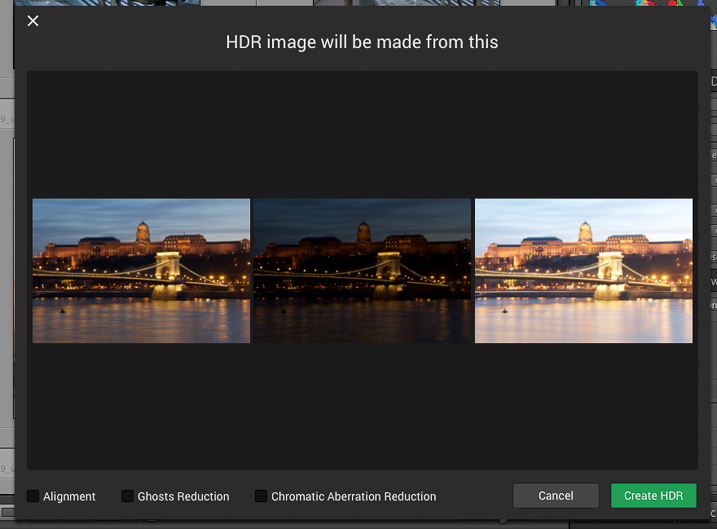
When launched, the first window that shows up displays the images from which the HDR will be made, as well as options for Alignment, Ghosts and Chromatic Aberration Reduction. So far so good. Pick alignment if the images were shot hand-held, pick Ghosts Reduction if there are moving subjects, and so on.

MacPhun-Aurora-HDR-First-Impressions (2 of 4)

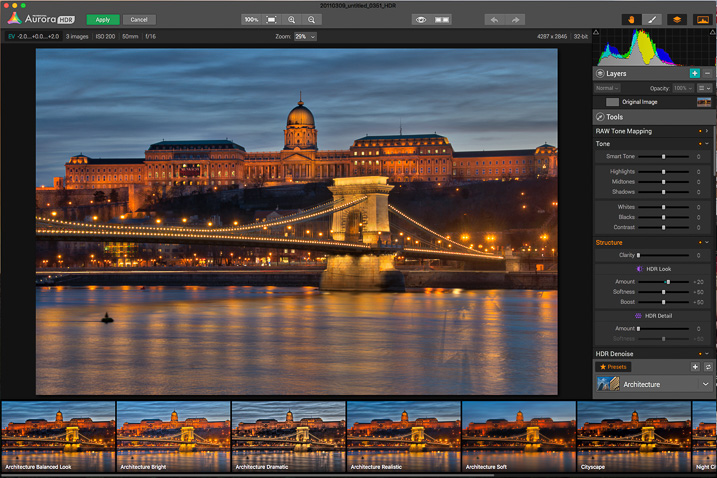
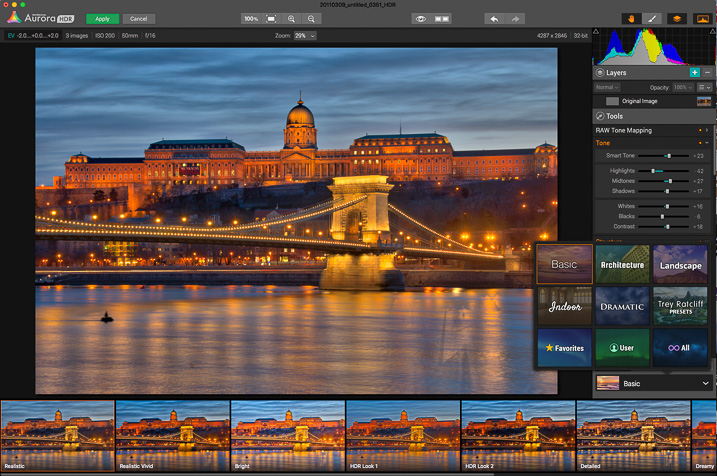
Once you click Create HDR, the images are combined and the main interface will open up. The interface is well-rounded and easy to navigate. It features a large image view with three main sections: a navigation and tool bar at the top, layer and adjusting tools on the right side, and presets selections at the bottom.

MacPhun-Aurora-HDR-First-Impressions (3 of 4)

On the top bar you’ll find: the zooming tools, quick preview and compare options (to check against your original and edited images), a move tool (to move around when zoomed in), and a brush and eraser to use in layers (when creating masks) and the layers tool.

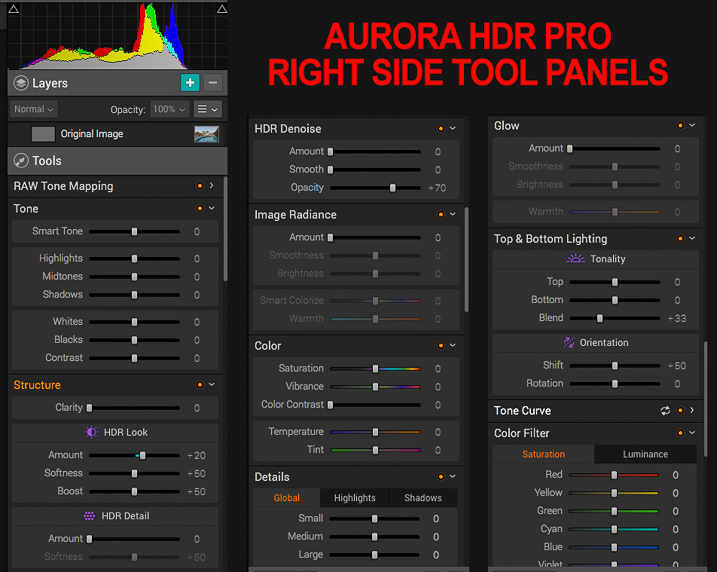
The main section of right panel contains the following tools:

  • Histogram: Displays the complete tonal range of your image from dark to light. Similar to in Lightroom, clicking the upper right and left corners will display the black and white clipping points.
  • Layers: I really liked this one; layers are a great way to stay organized and add different effects on your image by isolating them using masks. You can add as many layers as you want, and they can be also applied using different blend modes: normal, soft light, hard light, overlay, multiply, screen luminosity and color. They pretty much work as they do in Adobe Photoshop.
  • Tone Mapping: This panel controls how Aurora HDR compresses the files, and the weight it places on each exposure in the bracketed set.
  • Tone: This panel controls the highlights, mid-tones and shadows; it also helps with contrast, as well as pushing the black and white points.
  • Structure: This panel has several functions, but think of it as clarity on steroids. It works by finding edges, and avoids adding contrast to edges but rather, it affects areas. It contains several sliders to play with, including, of course, “Clarity” as well as sub-panels called “HDR Look” and “HDR Detail.” From here you can increase and decrease the texture of the image.
  • HDR De-noise: A tool to eliminate noise and artifacts produced by the merging of the photos.
  • Image Radiance: You can clearly notice Trey’s hand in this one; it gives a “dreamy” feeling to the photos.Right Panel Tools (1 of 1)
  • Color: Includes controls for adjusting color, vibrance, color contrast, temperature and tint in the image.
  • Details: Increased clarity, detail, and sharpness to bring out the details in an image. As there is no sharpening function, this works as a sharpening tool.
  • Glow: Another creative tool. With this one you can create softening effects to the lighter tones.
  • Top & Bottom Lighting: I really liked this addition too; they work similar to a graduated neutral density filter. This control splits the image in two segments and darkens or lightens the image.
  • Tone Curve: The curves tool. As in Adobe Photoshop or Lightroom, if you are familiar with working with curves, the panel is there. You can apply it overall, or it also works with independent channels: red, green and blue.
  • Color Filter: The color filters are available to adjust saturation and luminance to specific colors. It works similar to the HSL panel in Adobe Lightroom, but the Aurora Software lacks the hue option and is limited to six basic colors. Still, it is good to have it there to adjust. I’m not pretending to compare it with Lightroom as this is a different software; just mentioning options that you could be familiar with.
  • Color Toning: With this one you can change the tone of either the highlights or the shadows, and individually increase or decrease saturation of the same. A really nice creative tool for split toning. I also really like the preset options on top of the panel.
  • Vignette: The traditional vignette tool. It works as expected, but there is something very clever as well: the Inner Light function allows you to add more light to the center, or any part of the image.

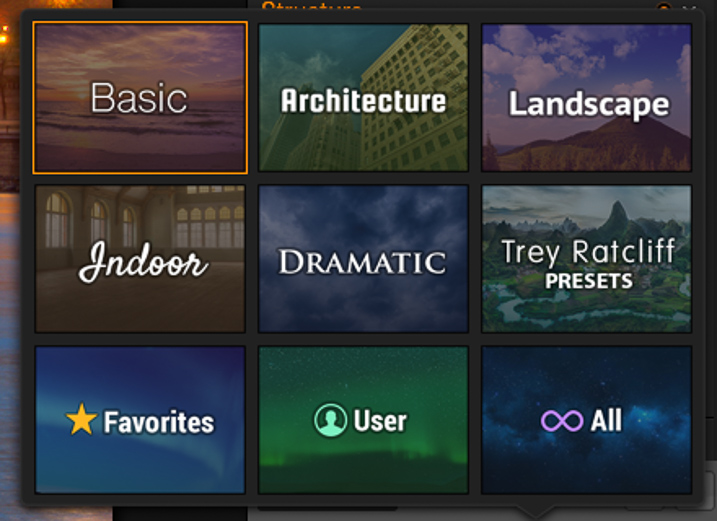
Lastly, there are the presets, created by Macphun and Trey himself. They provide a good starting point to try out different looks in a single click. Of course, you can also create your own presets and save them for future use.

MacPhun-Aurora-HDR-First-Impressions (4 of 4)

MacPhun-Aurora-HDR-First-Impressions (5 of 4)

I created the image below by using three images, shot two stops apart. I started with the Basic Realistic preset as a base, and played with the sliders until I got what I wanted. Then, I added a layer to add more light to the palace in the foreground, and masked out the rest.

One of the things that I’ve noticed while working, is that the application is fast compared to other software I’ve used in the past, and that is a godsend. Everything loads fast, and the application seems to be very responsive. I’ll definitely continue to use it in the future and test more functions.

MacPhun-Aurora-HDR-First-Impressions (6 of 6)

Whether you are an HDR fan or have never experimented with the technique, you should give Macphun Aurora HDR Pro a try. This is a well-rounded application that can serve the needs of pros and amateurs alike.

Unfortunately, the software is only available for Mac, but I think overall it is a great alternative. They are currently three options. The Aurora HDR currently retails for $ 49.99; with this option there is no RAW support, and it can just run as a standalone application. The tested version is the Aurora HDR Pro that retails for $ 99, and there is also a package that includes the application plus training for $ 129.

googletag.cmd.push(function() {
tablet_slots.push( googletag.defineSlot( “/1005424/_dPSv4_tab-all-article-bottom_(300×250)”, [300, 250], “pb-ad-78623” ).addService( googletag.pubads() ) ); } );

googletag.cmd.push(function() {
mobile_slots.push( googletag.defineSlot( “/1005424/_dPSv4_mob-all-article-bottom_(300×250)”, [300, 250], “pb-ad-78158” ).addService( googletag.pubads() ) ); } );

The post Macphun Aurora HDR Pro Software – First Impressions by Daniel Korzeniewski appeared first on Digital Photography School.


Digital Photography School

 
Comments Off on Macphun Aurora HDR Pro Software – First Impressions

Posted in Photography


Macphun launches Aurora HDR high dynamic range software for Mac users

10 Nov

Software developer Macphun has announced a new package designed to help photographers to combine multiple exposures into HDR images. Created in partnership with HDR specialist Trey Ratcliff, Aurora HDR provides tools for a wide range of effects via manual controls and a collection of pre-sets. Read more

Articles: Digital Photography Review (dpreview.com)

 
Comments Off on Macphun launches Aurora HDR high dynamic range software for Mac users

Posted in Uncategorized


Portrait Pro v12 Studio Max Editing Software Review

16 Sep

V12-boxshot-750pxWorking mostly in fine art portraits I’ve never felt the need to try a retouching program.  I like to keep a natural look, using Photoshop only for any minor retouching needed. I had looked into a retouching program briefly, but after clicking on a few sites I never got further than looking at the before and after samples. I always preferred the natural before image to the over processed, plastic looking after images. I want my subjects to look like themselves, in their best light of course, but not like some barbie doll cyborg with lifeless eyes.

When our Digital Photography School editor offered a free download of Portrait-Pro 12 Studio Max to test out and possibly review I figured this was a perfect opportunity to see if this kind of thing is something that a cynic like me, I might actually find useful.

Getting started

The download and install were super easy, off to a good start. There are instructional videos, tutorials, a forum, a support page, and a manual to download on the website. All good things, but I’m not one for instructions and just opened the program with a test image.

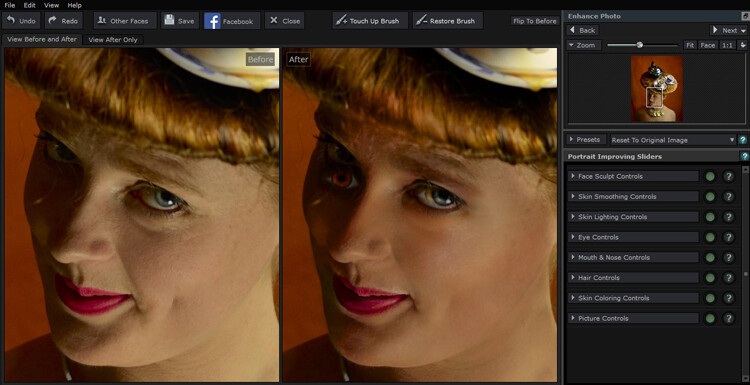
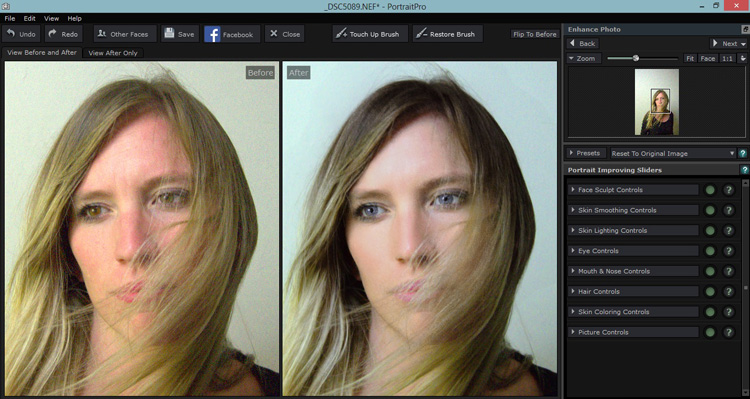
Portrait Pro did its thing and opened the before and its auto processed after image. It came up with an interesting eye situation and I thought, oh dear, this is not good.

My first attempt , not so great.

My first test image didn’t go so well, if I was going for a Picasso look, this would be great, but it wasn’t exactly what I was after.

Second attempt

Rather than succumb to instructions I tried another image. This one had the correct number of eyes, so I started playing around. The simple interface, and pop up instructions made it easy to just jump right in. I tested out the sliders and their effects, then went to town. It was pretty fun, with a bit of practice I eventually turned my blonde, brown-eyed, no make-up friend into a saucy red lipped, blue eyed, red head vixen with an uncanny resemblance to pop star Kylie Minogue.

I won’t show you the results, because the before shot was a not exactly flattering lighting test, when I say not flattering, a beautiful woman looked more like a potato than herself, and I would like to keep the friendship. I did show my friend both images and she really liked the after shot.

That had me thinking this program certainly has potential. I had only been mucking about and I turned an unusable portrait shot into something the subject of the portrait really liked.

Testing on a tough shot

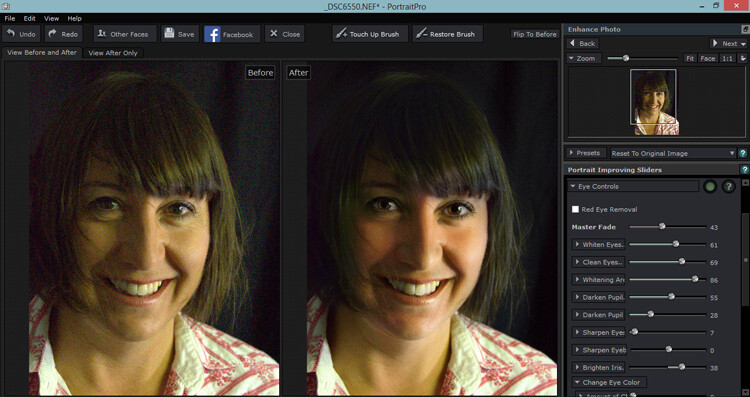
So I decided to put the program through its paces with a poorly lit, overly grainy, weirdly white balanced shot of a dear friend who looks lovely no matter how terribly I might light her. Portrait Pro popped up with the auto version, it gave her quite the tan and sparkly, but kinda spooky eyes.

The auto edit can make for spooky eyes

Portrait Pro helps out by offering up an auto edited version to work from.

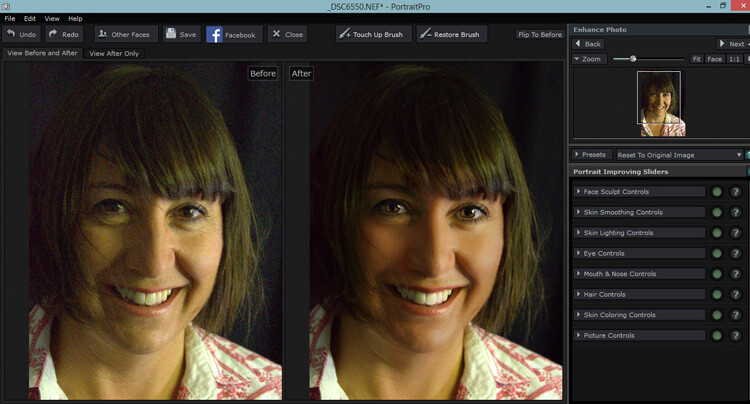
But this where the easy to use sliders come in. You can adjust how much the skin is smoothed, colored, alter lighting, or how much cyborg look you want in the eyes. I was pleased to see you could just use this program subtlety. I could do a fair bit of gentle retouching, even on this poorly photographed shot that I either would have been unable to, wouldn’t have been bothered to, or taken for ever to do in Photoshop.

Much less spooky looking with less slider action.

Pulling back the sliders to get a more natural look.

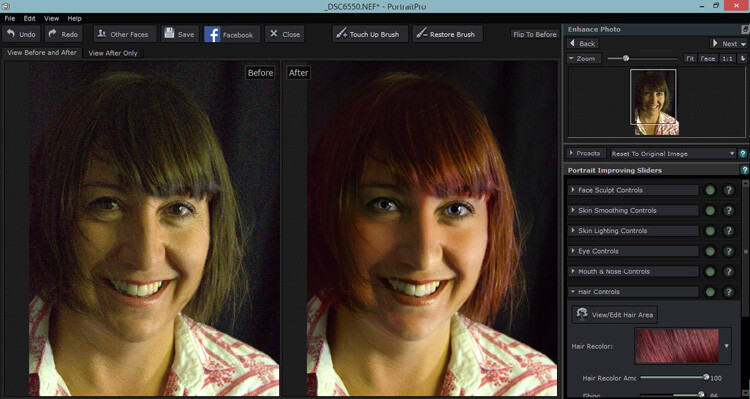
Of course after that I couldn’t help myself with pushing it a bit further.

The sliders can also smooth, lighten,add shine to hair.

It was super fun playing around with the hair/eye color adjusters. I can see this being handy for some of my more surreal fine art images. After showing this version to my friend, she is now considering this new hair color!

Testing on a saleable shot

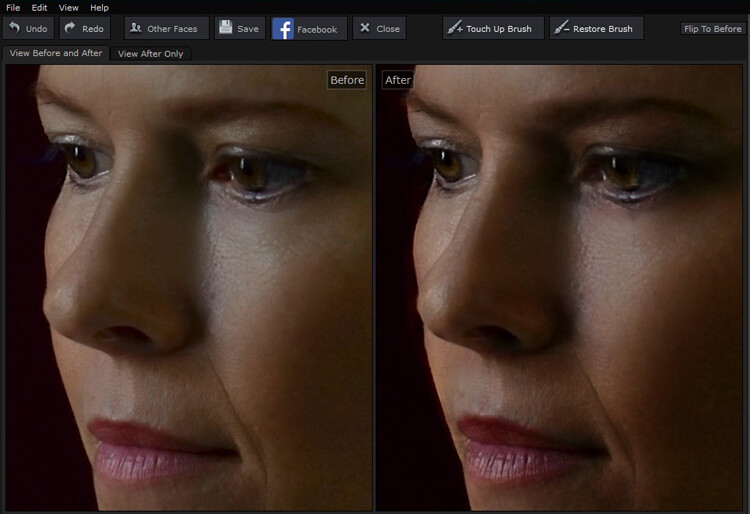
I was pretty impressed that I could pull something out of a rejected shot with this program, but what about a shot I would use? Would it be subtle enough to be useful for my regular work? Turns out yes, the sliders make it possible to add very slight retouching, and still maintain the natural look of the portrait.

Subtle is best in my books. I like to see wrinkles and pores!

While Portrait Pro can smooth out wrinkles and pores, it can also be used very subtly without loosing the natural look of your subject.

After playing with some faces, I thought all well and good but now the neck looks weird and the face and body don’t match, but turns out you can adjust those too. You can also batch process with the Studio Max version and work directly with Raw files.

I was pretty much sold on the program by this point, but I had a free version, would I actually pay for it? I was pretty surprised to see that it sells for around A$ 100, depending on which version you choose. For that price, I absolutely would buy it, even as a photographer who likes to keep programs to a minimum, and doesn’t like to fork out for new ones.

Any issues?

My only issues were finding the face alignment tool a bit tricky on some images, but then again, I still haven’t actually read the instructions. That was the only issue I had with the program itself, I took a slight offence with the promotional line “Slimmer subjects result in happier clients and more revenue“ in reference to the program’s ability to change face and body shape.

I’m sure that is true, but do we as photographers, really want to make money out of peoples insecurities? To edit distracting parts of a photograph and improve lighting flaws, sure, but to pander to the illusion of perfection created by modern media, not so much. I’d prefer my subjects to see themselves in their portrait as they are and still like what they see with the only retouching being to fix faults in my camera work, not in them. Portrait Pro can do both.

I have no doubt I will continue to use this program, both in my fine art and regular portraits. It will clearly save some editing time and in some cases does a better job that I would in Photoshop. I particularly liked the ability to adjust the lighting and skin tones. I’m even inclined to read the instructions and check out a few tutorials to really get to know the program. In fact I wish I had found it sooner.

Having fun with eye color!

My favorite part of this program was how much fun I had playing with it and how easy it was to use straight away, with impressive results even on not so great original images.

I can’t compare Portrait Pro to any other retouching programs, but as someone who has been against them in general and preferred to stick to Photoshop, I’m converted. It’s simple and fun to use, you have a lot of control of the subtlety with the sliders and it produces great time saving results. It’s a thumbs up from me.

How do you feel about retouching? Would you use a program like this? Have you ever tried a program like this? Tell us about your experiences and results.

googletag.cmd.push(function() {
tablet_slots.push( googletag.defineSlot( “/1005424/_dPSv4_tab-all-article-bottom_(300×250)”, [300, 250], “pb-ad-78623” ).addService( googletag.pubads() ) ); } );

googletag.cmd.push(function() {
mobile_slots.push( googletag.defineSlot( “/1005424/_dPSv4_mob-all-article-bottom_(300×250)”, [300, 250], “pb-ad-78158” ).addService( googletag.pubads() ) ); } );

The post Portrait Pro v12 Studio Max Editing Software Review by Lea Hawkins appeared first on Digital Photography School.


Digital Photography School

 
Comments Off on Portrait Pro v12 Studio Max Editing Software Review

Posted in Photography


Capture One Pro 8 software review

20 Jul

Capture One Pro is a software package designed to perform as a Raw processing application as well as a host for those who like to shoot tethered. Created by Phase One, which also makes medium format backs, cameras and lenses, the application emerged first in the professional studio environment. Having expanded into the consumer market, it can handle Raw files from over 300 cameras. We tested out some of its newer capabilities. Read more

Articles: Digital Photography Review (dpreview.com)

 
Comments Off on Capture One Pro 8 software review

Posted in Uncategorized


Lytro ILLUM and Desktop software get major updates

10 Jul

Lytro has introduced major updates for its ILLUM light field camera and desktop software. ILLUM 2.0 provides a re-designed user interface and makes it possible to view and interact with full living pictures in camera. It also speeds up auto focus by using phase detection rather than relying on contrast detection. Read more

Articles: Digital Photography Review (dpreview.com)

 
Comments Off on Lytro ILLUM and Desktop software get major updates

Posted in Uncategorized


Macphun Noiseless Pro Software Review

25 May

I hate digital noise. I’ve been a stickler about keeping it out of my images for years and have tried just about everything under the sun to aid in that process. So when Macphun offered to send over their new Noiseless Pro app I jumped at the opportunity (especially after seeing the promo video for it).

Before we get started, let’s go over the basics of noise for those who are just dipping their toes in this area of post-processing. Noise is basically an unwanted side effect of shooting at high ISO levels or super long shutter speeds (long exposures). Without getting into photodiode leakage currents and other super-techy jargon, just know that noise is the little salt and pepper type specs that show up in your low light images.

Noise reduction is a give-and-take process, just like anything else in photography. It comes at a cost most of the time, and the cost is some amount of detail. Because of the way the noise reduction algorithms work, and because of the nature of high noise images, you just can’t remove noise without losing some of the sharpness in your photo. So the task at hand for software companies who want to tackle noise is to eliminate as much as possible, without screwing up the image and making it unusable.

Enter Macphun
Screen Shot 2015-05-11 at 9.32.00 PMMacphun came onto the photography scene fairly recently; although only for the Macintosh users as evidenced by the first three letters of their name. Each app they have created comes in two versions: A simple, easy to use version that usually goes for around $ 20, and a pro version with more features that goes for around $ 60. With any software that has the word “pro” in it, I am going to expect it to perform at a pro level. So with that said, let’s go over some of the key features that I personally expect to see in a brand new noise reduction program, as well as how Noiseless Pro measured up.

Video Review

For those who prefer video content over reading, here’s a walkthrough of Noiseless Pro and how it stacked up to DeNoise from Topaz Labs with a couple different images. For those who prefer reading, or can’t watch the video at the moment, read on below!

Differences Between Noiseless and Noiseless Pro

Each product that Macphun offers comes in a basic version as well as a pro version. The base version of Noiseless is $ 17.99 and the pro version is $ 49.99. So what does the extra $ 32 get you?

Each version comes with all the algorithms that were created to reduce noise in your images, as well as advanced algorithms for smart phones and GoPro cameras. The pro version comes with a few extra noise reduction presets, Adobe RGB/ProPhoto color space support, a navigator view to easily peruse the image when zoomed in, more advanced controls in the Adjust panel, as well as the ability to use the app as a plugin with programs like Adobe Lightroom and Photoshop (this is how I use it).

So, in my opinion, it’s well worth the extra bit of cash to go with the pro version. Photo editing software has come down in price by leaps and bounds over the past several years, so $ 49.99 seems like a great deal to me.

Ease of Use/User Interface

This is where all of Macphun’s programs shine. By targeting a Mac-specific audience, they had to kill it in the UI department, and they have with each product I’ve seen. The program is both incredibly fast and incredibly clean in its layout.
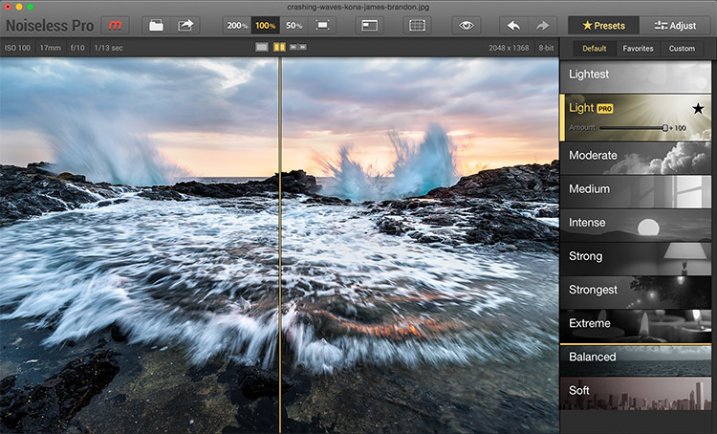
Screen-Shot-2015-04-18-at-12.38.53-PM

You can either drag an image right into Noiseless Pro, or you can use the program as a plug-in with Photoshop or Lightroom. The program opens immediately, and by default, opens up with the image zoomed in to 200%. This works well because it really lets you see what the noise looks like in the image, so you can see what needs to be done to combat it. It does throw you off a bit at first, but I think I like it.

From there, all you have to do is choose a preset on the right hand side (which couldn’t be easier). Just select the strength level that your image needs and make fine adjustments if needed. Each preset you select will have an “amount” slider appear once it’s been selected. Just use that to dial back the noise reduction strength if needed.

If you need to make even finer adjustments, just click the “Adjust” button up in the top right corner. Here you can adjust color noise, luminance noise, structure, details, etc.

Clouds and Skies

This is where Noiseless Pro exceeded my expectations. It really does a great job at reducing noise while still managing to maintain some detail in your clouds. Skies are the main thing I use noise reduction on and this is an important tip to those who are new to the idea of reducing noise in your images: Never do it globally! This is the problem with noise reduction in programs like Lightroom. They apply the reduction to the entire image, sacrificing detail in every single pixel of your image. Sure, they have some sort of intelligence built-in to preserve some details, but you’re still make a global change to the image.
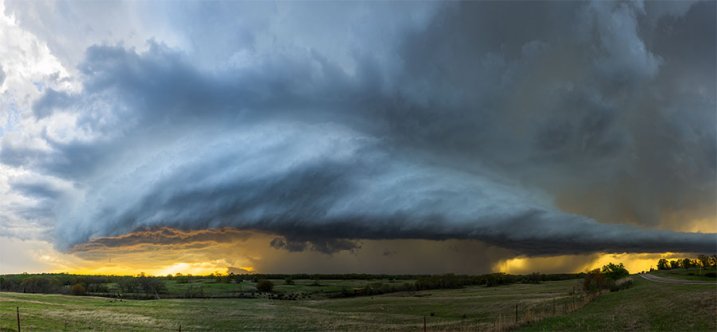
Monstrosity | Somewhere Near Ardmore, OK

Using Noiseless Pro side by side against Topaz Labs DeNoise was pretty impressive. I’ve been using DeNoise exclusively for years now really wasn’t expecting Noiseless Pro to outperform it, or even come close. After all, Topaz has been in this game for years. However, after running the minimal amount of noise reduction necessary to get rid of the noise with both programs, I was stunned to see how much more detail Macphun retained in the clouds beneath the storm.
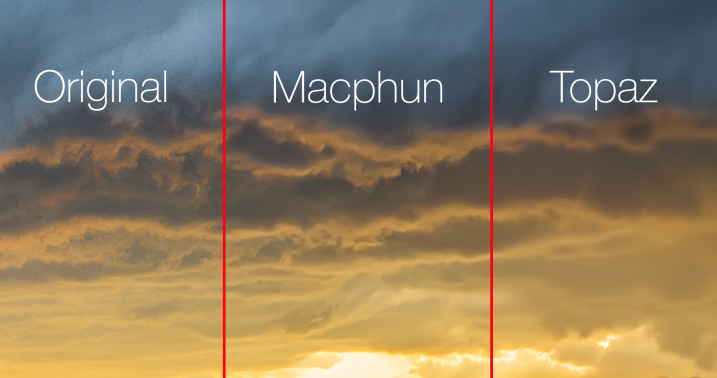
Screen Shot 2015-04-29 at 1.11.16 PM

Landscapes

This is one of the less common areas where I apply noise reduction. It really just depends on the image, but if I’m going to reduce noise in a foreground area, it’s usually going to be a body of water, windows on a building, the finish on a car or some other kind of flat surface that should be smooth.

Noiseless did a great job in this area, and again, it’s so fast and easy to use. It literally just works like a breeze right out of the box.

Mobile Photography

One of the pro features mentioned in the marketing materials for Noiseless is “advanced algorithms for mobile photography.” I ran a few of my random mobile images through the program and it did seem to do pretty well. I think the biggest question here is, “Why?” I mean, it’s a nice feature and all but I doubt that personally will ever care enough about a mobile photo to reduce noise in it. That could of course change in the future, as our phones will likely continue to get closer to being capable of what our SLR’s do, but that’s not going to truly be the case any time soon (no, not even with the new LG phone that shoots RAW and offers manual controls). Of course, this is just my opinion.
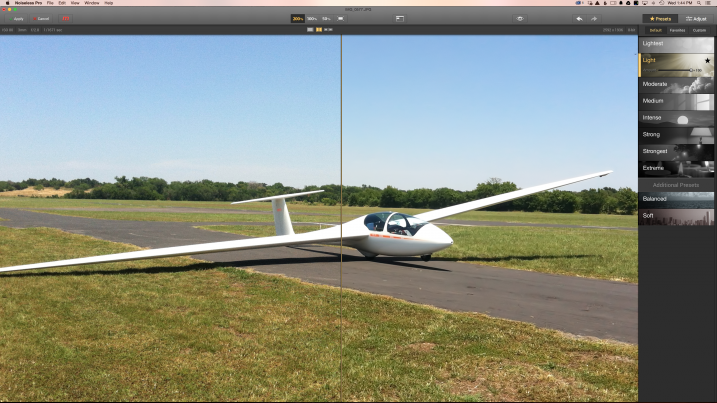
Screen Shot 2015-04-29 at 1.44.30 PM

Astro Images

Well, every fairy tale has its villain and astro photography, unfortunately, seems to be the enemy of Noiseless at this point in the game. I was really bummed to see this, but it’s true. Here’s one of the high ISO images containing stars that I used.
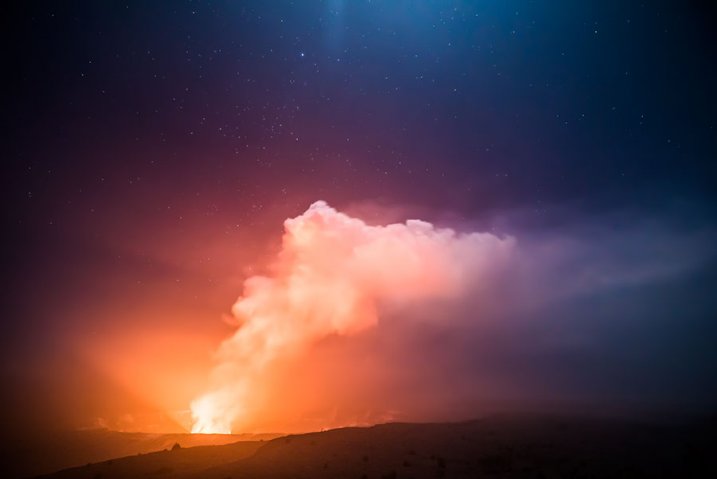
Kilauea's Glow | Volcanos National Park

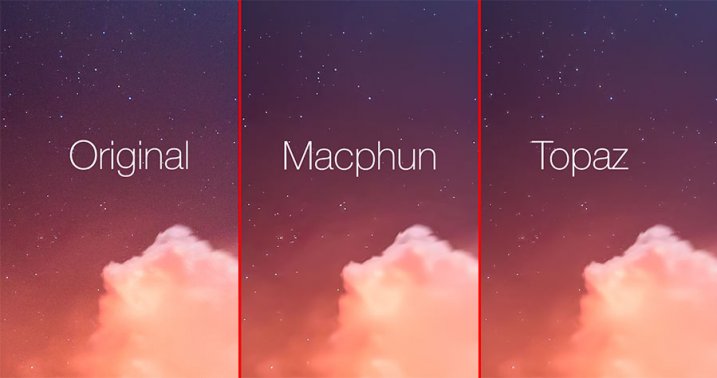
Using Noiseless side by side with Topaz Labs DeNoise was pretty telling to say the least. But then again, Noiseless also did surprisingly better with clouds and skies. DeNoise seems to have something built into their software that detects the stars in an astro/night sky image and masks around them. Noiseless, on the other hand, just completely degraded the stars in every night sky image I threw at it. The good news is this is a known issue and one that has already been brought up to the team at Macphun by several other photographers/beta testers. Macphun seems to be a solid company with solid people running it, so I am pretty confident they will address this and create something for the astro photography community in a future iteration. Fingers crossed.
Screen-Shot-2015-04-29-at-2.02.08-PM

Conclusion

While Noiseless may not perform as well as I’d like with astro/night sky images, it has still found a home in my post-processing workflow, especially for images containing clouds (which tends to happen quite often with landscapes). I’m certainly looking forward to where this program goes in the future, and really hope they will incorporate some better algorithms to handle stars.

googletag.cmd.push(function() {
tablet_slots.push( googletag.defineSlot( “/1005424/_dPSv4_tab-all-article-bottom_(300×250)”, [300, 250], “pb-ad-78623” ).addService( googletag.pubads() ) ); } );

googletag.cmd.push(function() {
mobile_slots.push( googletag.defineSlot( “/1005424/_dPSv4_mob-all-article-bottom_(300×250)”, [300, 250], “pb-ad-78158” ).addService( googletag.pubads() ) ); } );

The post Macphun Noiseless Pro Software Review by James Brandon appeared first on Digital Photography School.


Digital Photography School

 
Comments Off on Macphun Noiseless Pro Software Review

Posted in Photography


Opinion: Can an Aperture user be happy with Apple’s new ‘Photos’ software?

18 Apr

One of the most talked about subjects for photographers using Macs to process and archive their photos is the loss of Apple Aperture and its replacement, simply known as Photos. This new software strongly resembles the iOS software of the same name and while it still offers some of the features from the enthusiast-grade Aperture, quite a few things are missing. Learn more about Photos – both what it offers and doesn’t – in this opinion piece from DPR Editor Jeff Keller. Read more

Articles: Digital Photography Review (dpreview.com)

 
Comments Off on Opinion: Can an Aperture user be happy with Apple’s new ‘Photos’ software?

Posted in Uncategorized


Tiffen adds more filters, looks and faster processing with version 4 of its Dfx software

14 Apr

Tiffen has announced an updated version of its Dfx photo and video editing software that adds new filters, historic process simulations and extra tools, as well as wider compatibility with movie editing programs. Tiffen Dfx produces effects like those created by the company’s optical glass filters, with the latest version 4 adding 12 extra ‘filters’ to the menu system, including the company’s new Pearlescent and Satin diffusers. Read more

Articles: Digital Photography Review (dpreview.com)

 
Comments Off on Tiffen adds more filters, looks and faster processing with version 4 of its Dfx software

Posted in Uncategorized


Overview of the New Affinity Photo Editing Software

29 Mar

In early February, software company Serif announced the free beta version of Affinity Photo, a Mac-only photo editing program said to rival the likes of other editing tools, including the standards for creative professionals, Adobe Photoshop and Lightroom. In this article, I’ll walk through the public beta version of Affinity Photo and describe some pros and cons to using this new software.

Affinity Photo Basics

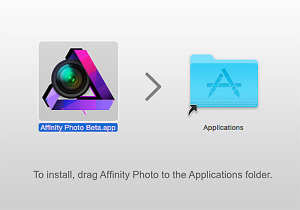
Affinity Photo editing software for MacAt the moment, Affinity Photo beta is available as a free online download and is compatible with Apple OSX Lion 10.7.5, and up. Some key features that move Affinity up in the ranks include support for CMYK color, RAW file processing, 16-bit editing, 64-bit Photoshop plug-in compatibility, ICC color management, and LAB color. A few other noteworthy tools include Affinity Photo’s Inpainting feature, which is essentially the equivalent of Adobe content-aware fill, and real-time editing that will apply edits instantly without the need to render a preview.

It’s uncertain when Affinity Photo’s full version will launch, but when it does it will be available for purchase in the Mac App Store for about $ 49.99. A Windows/PC version of the app is said to be in works, but again no solid timeline is available.

Pro: Speed and reliability

The first feature of the tool that really stood out was its speed and reliability. Affinity Photo is extremely fast and it never once crashed during the seven times I used it, which is impressive for a beta version. The tool’s speed is accredited to it being built on an entirely new and modern codebase, unlike Adobe Photoshop, which recently celebrated its 25 year anniversary and thus has been built on architecture that is also a couple decades old.

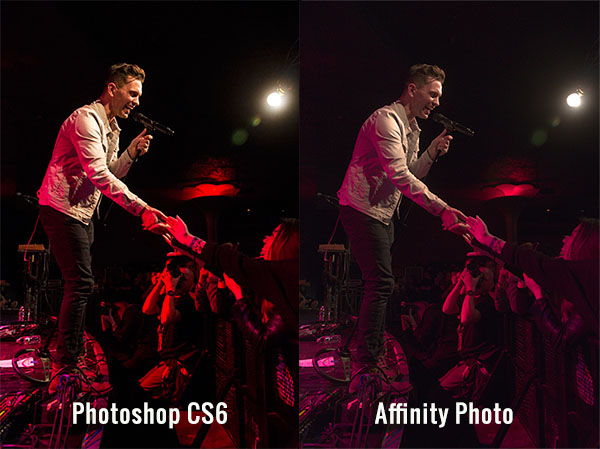
Con: Default RAW file conversion

One of the most striking differences that I immediately noticed was the default adjustment that Affinity Photo made to my RAW image when I first imported it. While these defaults could likely be adjusted to taste, I was surprised at how drastically Affinity altered my image when all I did was import it.

Affinity Photo editing software for Mac

Pro: Easy access to basic photo editing tools

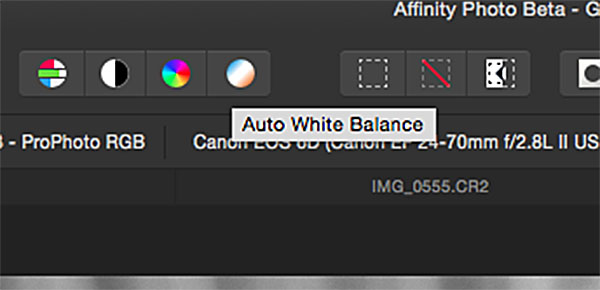
The interface, and ease of use, is where Affinity Photo really shines. Despite being a longtime Photoshop user, I’ll admit that its layout can be overly complicated, presenting too many tools that are beyond the scope of basic photo edits. While Affinity’s interface definitely borrows some features from Photoshop, its basic layout is relatively straightforward and easy to understand without requiring a ton of customization. The top bar below the menu shows all of the basic details of your photo (file format, ISO, shutter speed, aperture, etc.), which is something that seemed rather hidden and hard to find in Photoshop.

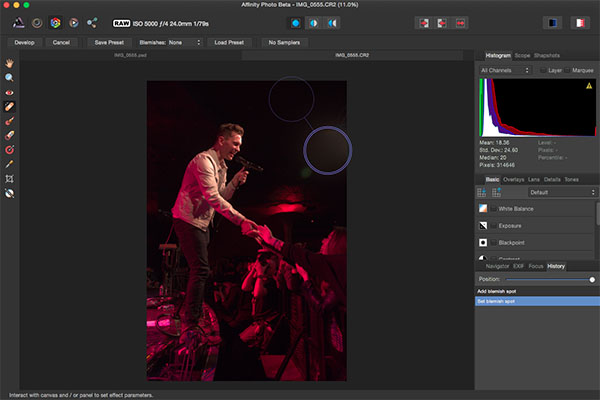
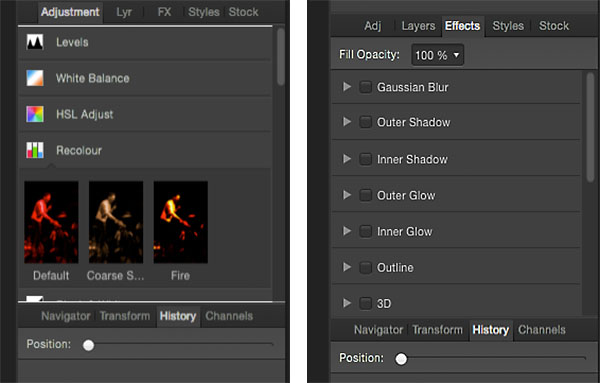
Basic editing tools are presented in the right hand panel under the histogram, the tools are nicely labeled, and easy to adjust with sliders. There is also a History tab that, in the same way that Photoshop does, keeps track of every edit, making it easy to track and reverse any changes. Hardcore photo retouchers might find these editing tools to be lacking, but for beginners or photographers in need of basic edits, these tools will get the job done in a straightforward manner.

Affinity Photo editing software for Mac

As a photographer who shoots almost exclusively in RAW, I’ve grown accustomed to the seamless integration of Camera RAW with Photoshop and Lightroom’s smooth handling of RAW image conversion. The way that Affinity handles RAW editing took a bit of troubleshooting, but was straightforward when all was understood.

Initial RAW Editing Tools

When you first open a RAW file into Affinity, there are distinctly fewer editing options and adjustments to choose from. The Basic tab offers easy access to make basic adjustments to white balance, exposure, contrast, shadows and highlights, clarity, vibrance, and black points. What was curiously missing from this panel were saturation and tint control. The Lens tab offers adjustments for lens correction, chromatic aberration reduction, vignettes, and defringing. The Details tab allows for detail refinement, noise reduction, and noise addition. The Tones tab is where you can adjust curves, split toning, and black and white image conversion. In this mode, the left hand panel also has a vertical tool bar reminiscent of Photoshop’s, but when editing RAW files, it is noticeably much sparser containing just 10 tools versus the 20+ tools in Photoshop.

Unlocking the Full Editing Menu

In order to unleash Affinity Photo’s full set of editing tools, it’s essential to click the small Develop button in the upper left hand corner of the RAW image editing window. This will transform Affinity’s interface dramatically to more closely resemble that of Photoshop. If you work exclusively with JPGs, this step will automatically be done for you upon the uploading of the JPG image, but this is an extra step when working with RAW files that to me was not so intuitive.

Affinity Photo editing software for Mac

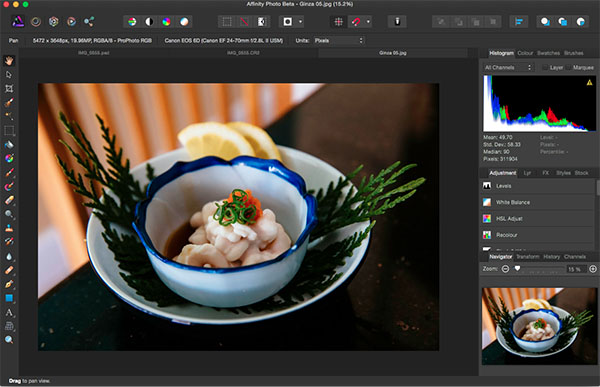
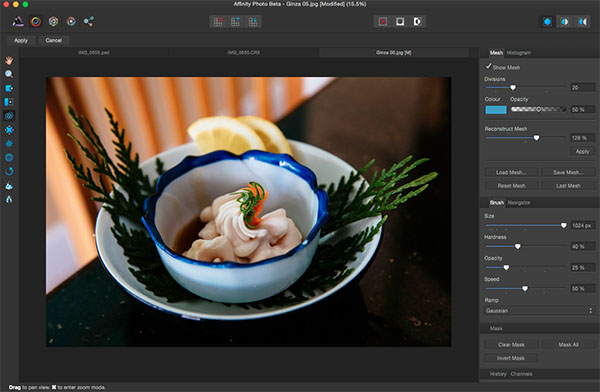
Within the full Affinity Photo interface, you no longer get the image EXIF data in the menu bar, but instead a full row of icons that offer shortcuts to quick edit features such as auto white balance, contrast, and color. There are also several icons on the right that describe different personas such as Liquify, Develop and Macro Persona. A couple of these were not yet available in thw beta version, but clicking on the Liquify Persona offered just about the same editing tools and capabilities that Photoshop’s liquify feature does. For the sake of demonstration, the below image shows off the use of Affinity’s Liquify Twirl Tool, which was intuitive and easy to use.

Affinity Photo editing software for Mac

Affinity Photo editing software for Mac

Note that the left hand tool bar is significantly longer offering; paint brushes, clone tools, dodging and burning, text overlays, and much more. The right hand editing tool panel is also laid out differently with tabs including Adjustment, Layers, Effects, and Styles. Want to add a Gaussian blur or 3D effect to your image? Just head over to the Effects tab and check the box next to the desired effect, and it is instantly applied as opposed to hunting around menus or creating an action as you would do in Photoshop.

Affinity Photo editing software for Mac

Closing Thoughts

It’s not often that a platform emerges to go head-on with Adobe, but so far Affinity Photo is setting itself up as a professional-grade app. While there are many high level features for advanced photo editing, there are also lots of basic photo editing tools that are intuitively positioned, making Affinity much more approachable for beginning or amateur photographers.

Whatever the fate of Affinity Photo, the fact that companies like Serif are working on platforms to advance the process of photo editing adds healthy competition to an industry that has long been dominated by big players like Adobe and will hopefully give photographers more options in the future.

Have you tested out Affinity beta yet? If so, what are your thoughts about what works well, and what could be improved?

googletag.cmd.push(function() {
tablet_slots.push( googletag.defineSlot( “/1005424/_dPSv4_tab-all-article-bottom_(300×250)”, [300, 250], “pb-ad-78623” ).addService( googletag.pubads() ) ); } );

googletag.cmd.push(function() {
mobile_slots.push( googletag.defineSlot( “/1005424/_dPSv4_mob-all-article-bottom_(300×250)”, [300, 250], “pb-ad-78158” ).addService( googletag.pubads() ) ); } );

The post Overview of the New Affinity Photo Editing Software by Suzi Pratt appeared first on Digital Photography School.


Digital Photography School

 
Comments Off on Overview of the New Affinity Photo Editing Software

Posted in Photography