RSS
 

Posts Tagged ‘Software’

Google acknowledges lens flare issue on Pixel camera, promises software fix

27 Oct

Since the Google Pixel and Pixel XL smartphones have become available for purchase, there have been several reports about the camera of the devices, despite stellar scores in the DxOMark ranking, being very prone to lens flare with the sun at a certain angle to the camera lens. Now a group of affected Reddit users has described the problem in the Google Product Forum and got a quick reply from a Google employee:

‘First, for some background — flare is a property of ALL camera lenses. It comes in a ton of different shapes and sizes and can even be used for creative effect — good and bad :-). The shape, color, amount, etc. of flare is related to dozens of different parameters of the lens structure and inclement light. However, we have seen reports about this “halo/arc flare”. This is the specific kind of flare that appears as a bright/low-contrast arc in the corners of the frame.
 
You can expect a software update in the next few weeks that will improve the effects of this issue. We’re working on some algorithms that recognize the halo/arc flare, characterize it mathematically, and then subtract it from the image. 🙂 You will need to use HDR+ to see the benefits of this software.’
 
So it appears Google is planning to solve a hardware problem with a software solution and bake an algorithm, that mathematically removes the flare from the image, into the Pixel camera’s HDR mode. This means the measure will only be effective when shooting in this mode and it remains to be seen if there is any impact on noise and/or image detail in the affected areas of the image. We will certainly have a closer look at the Pixel’s flare behavior in our own test of the device.

Articles: Digital Photography Review (dpreview.com)

 
Comments Off on Google acknowledges lens flare issue on Pixel camera, promises software fix

Posted in Uncategorized


Palette offers physical controllers for your photo editing software

22 Sep

In hall 4 at Photokina we had the chance to take a closer look at Palette’s system of customizable physical controllers for software, which started out as a crowdfunding project but have been available in retail for some time now. The system consists of a core unit with a small display and a range of buttons, dials and sliders that all come with a sturdy aluminum housing and attach to each other magnetically. 

Palette can me made to work with any software but predefined setups are available for Adobe Photohop, Lightroom and other photo and video editing applications. You can switch between functions using buttons, or adjust parameters such as digital exposure compensation, contrast or hue with sliders or dials. Your personal profile can be created in the Palette app. Multiple profiles are supported for different users or workflows and the Palette application can be set to automatically switch profiles when the application focus on your computer changes. The Palette starter kit is available for $ 199 on the Palette website.

Articles: Digital Photography Review (dpreview.com)

 
Comments Off on Palette offers physical controllers for your photo editing software

Posted in Uncategorized


Image Editing Software Overview – On1 Photo 10

31 Aug

Since the advent of digital photography there has been one program that has been the penultimate of all image editing – Adobe Photoshop. There is no denying that it is powerful, but many find it confusing and hard to learn. Another aspect that some people aren’t sure about is the new subscription based ownership. So for many, another solution to the predicament is On1 Photo 10. It’s a program that is not that expensive, and can do most of what the majority of photographers want.

leannecole-on1-enhanced003

Image processed with the Enhance Module in On1 Photo 10

Overview of On1 Photo 10

The On1 Photo 10 editing software has been around for some time, and you may know it more as plugins for Lightroom and Photoshop. However, recently it has been given a new look, and it is now also a standalone program. This means you don’t need another program to be able to use it. You can download it and do all your editing within its confines.

When you open On1 Photo 10, it looks a bit like Lightroom, but that is about it. Locating all the tools is different, but not so different that you can’t find things. When you begin using On1, a window pops up with several videos to teach you how to use it. It is advisable that you watch them and learn. They are not very long, but they are packed with useful information.

On the right side of the panel there are a series of modules that you can edit your photos in. Each one is specific and gives you different options.

Browse Module

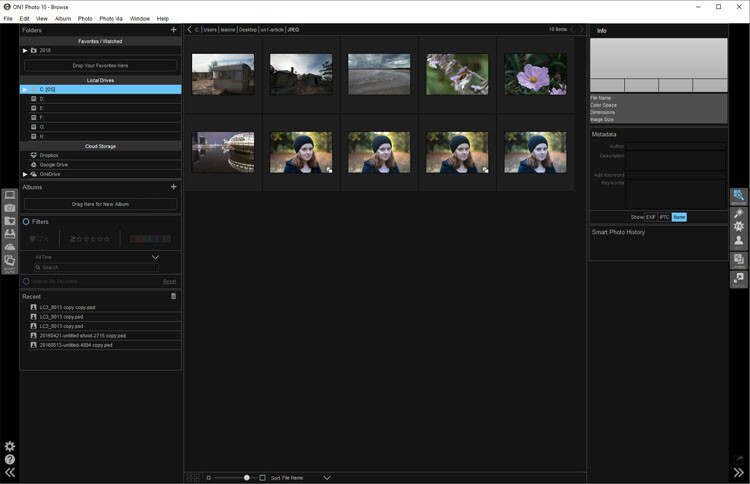
In the Browse section you can look at your photos and catalogue them, decide where you want them, and upload them to Cloud storage facilities like Dropbox, Google Drive, and OneDrive. It is similar to Bridge in Photoshop or the Library Module in Lightroom. You can make the images larger, so you can get a better look at them and decide which ones you want to work on.

When you want to start editing, the other modules are there for you to use.

leannecole-on1-browse-folder

Browse Module, here you can view your photos and move them around.

Enhance Module

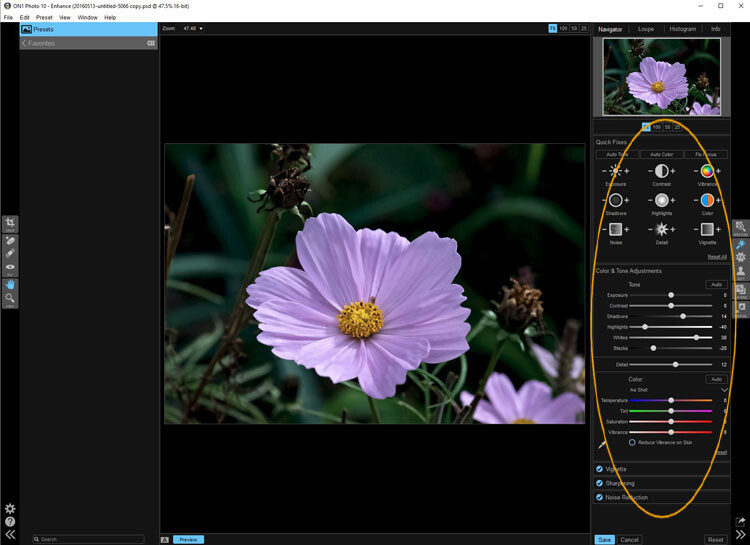
When you open your photo into the Enhance module you can do some basic editing, for example: changing the exposure, adjusting whites, black, shadows, and highlights. It will allow you to fix the white balance and help with noise reduction. This section is where you get your image ready for further work. It is like the preparation area before you go on to do the real work.

Similar to Lightroom, On1 works in a non-destructive manner. If you don’t understand that, it means nothing you do to your image is permanent. If you do something to it and don’t like it, you can go back and reverse the change. When you are just learning photo editing, it is good to work with software that allows you to work this way, without having to worry about ruining your image.

leannecole-on1-enhance-folder

The Enhance Module allows you to do some basic editing to your images.

Effects Module

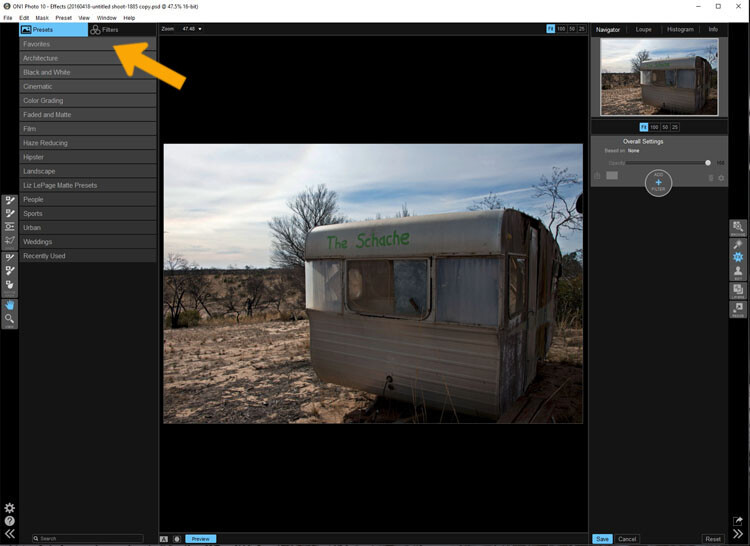
In Effects, you can add filters and presets to your photos. There is a large variety of them, and each one has several options within. You have the option of creating your own and saving them (just as in Lightroom), which is very helpful if you want to use the same one a lot.

There is a difference between presets and filters. On1 explains that presets do multiple effects, while the filters have only one. When using any of them you can make adjustments so it is as strong as you like, or they can be made to have less effect. You get to be the judge of how you want the final result to look.

leannecole-on1-effects-module-1

In the Effects Module you can apply presets and filters to your images.

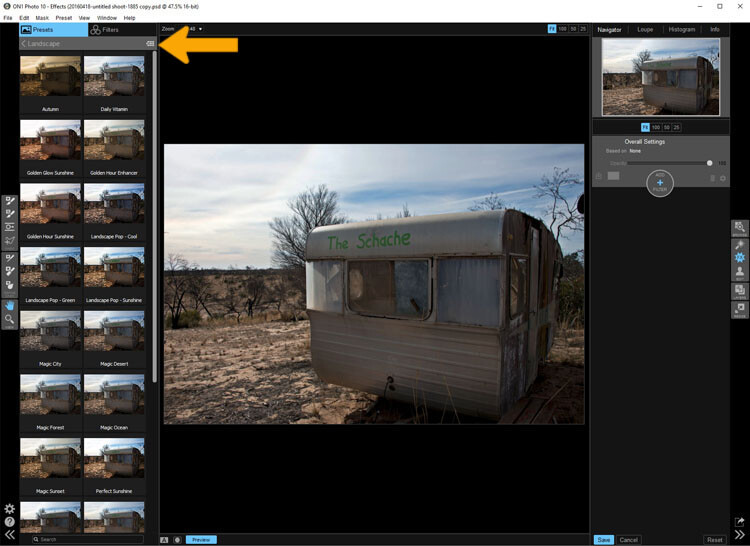
leannecole-on1-effects-module-2

You can see what the presets or filters will do to your image, if you click the grid you will get a larger of view of each option.

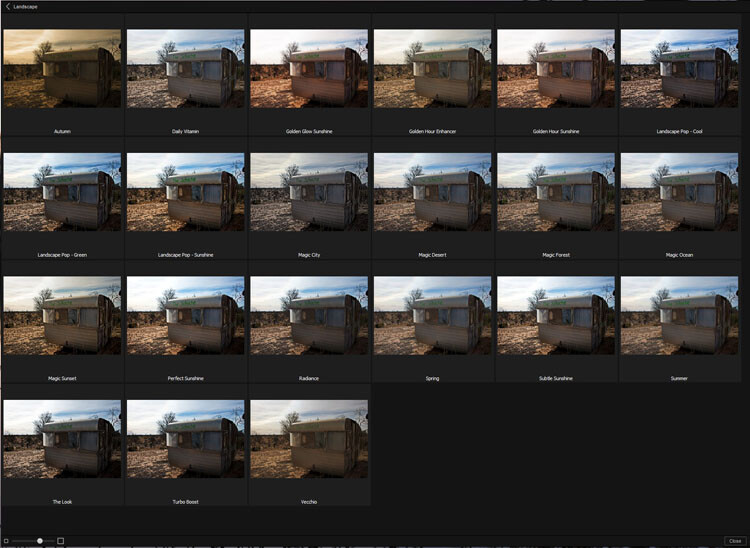
leannecole-on1-effects-module-3

You can see what each preset or filter will do and when you decide which one to use, just click on it.

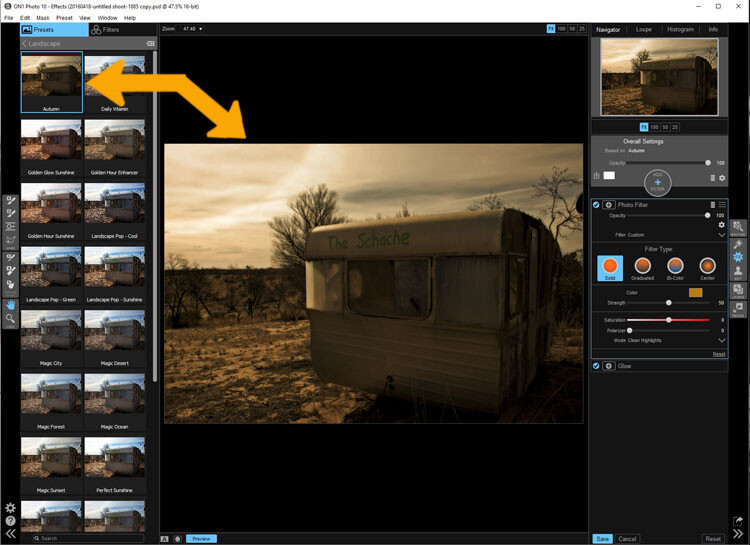
leannecole-on1-effects-module-4

On1 will then apply it to your image.

Portrait Module

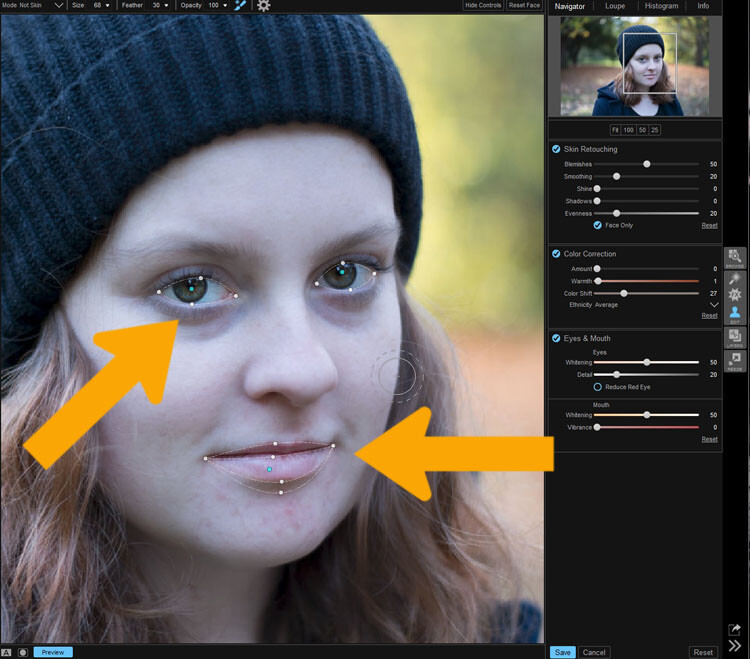
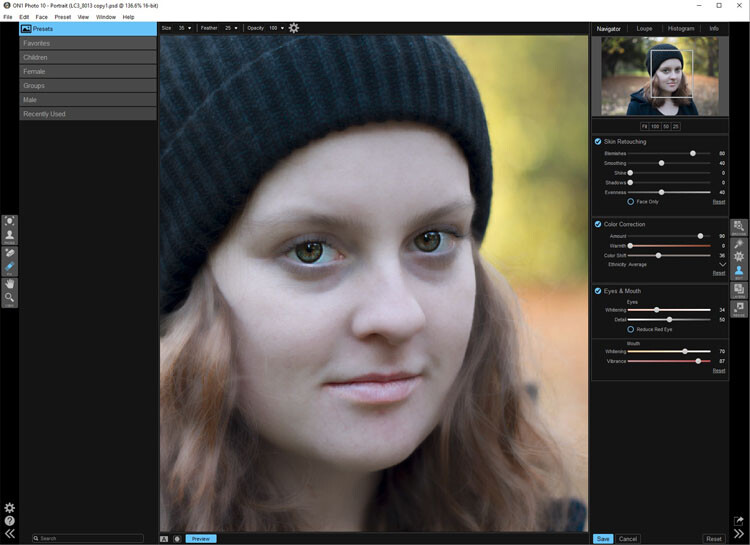
Portrait module is possibly is the hardest one to use. For people who photograph portraits on a regular basis, though, it may seem more intuitive. You have to work out faces, and point out the eyes and mouth to the program. Then it will whiten the eyes, and make the lips lighter. You also have the option of going back over everything and readjusting the settings. While whitening the eyes can be nice, if it is done too much it looks very strange.

leannecole-on1-portrait-module-1

On1 allows you to do specific work to faces, and asks you to highlight the eyes and mouth so it can to its thing.

leannecole-on1-portrait-module-2

You can work on the skin and other parts of the face as well.

Layers Module

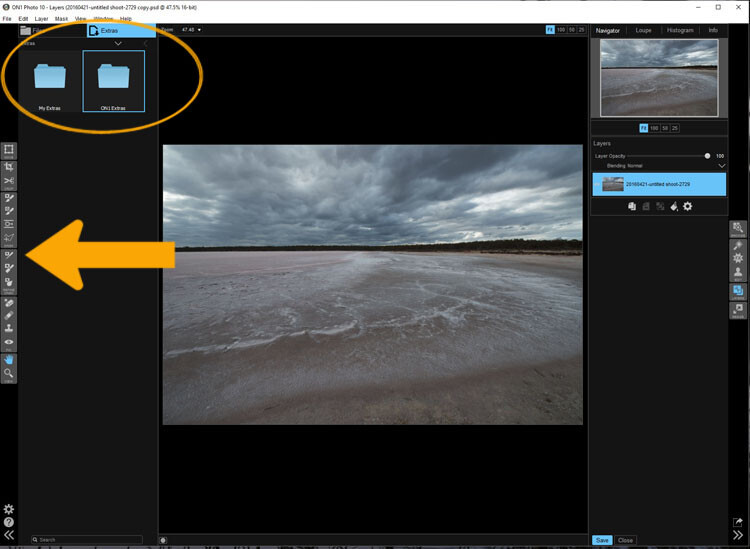
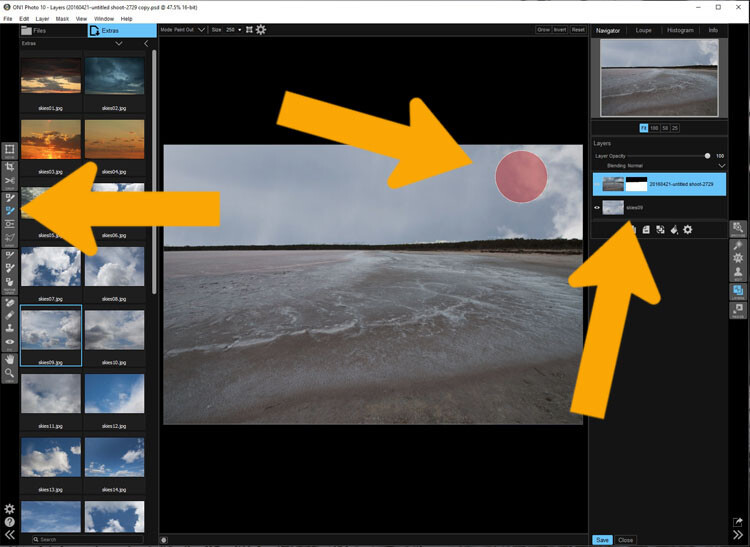
On1 Photo 10 also has the ability to work in layers, so if you like working with texture overlays and replacing skies, you will like this module. It makes these very easy to do, especially the former.

The program comes with a number of textures, backdrops, and borders. You could quite easily just use what it provides, but it also has a section where you can add your own. So, you can upload any textures you have collected and apply them to your images.

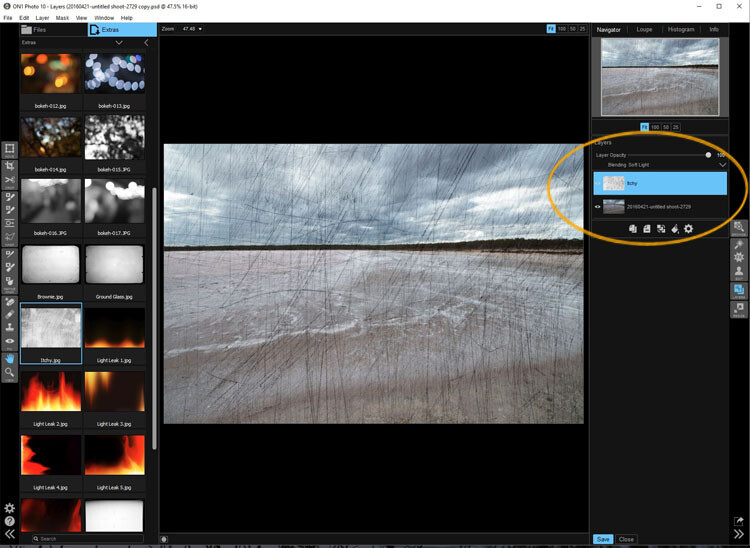
As with most sections in On1, you can adjust, and then decide how strong the layer will be. There are blending options and tools are available if you want to remove part of it too.

leannecole-on1-layers-module-1

The Layer Module lets you work in layers, there are also some tools on the left that allow you to do some specific processes.

leannecole-on1-layers-module-2

You can apply textures.

leannecole-on1-layers-module-3

Or you can replace a sky, which is very easy with the masked brush tool.

Resize Module

Figuring out how to resize an image is easy, and fairly straight forward. It is a task that many people usually find difficult. I often see people putting up large images on the internet because they don’t know how to make them smaller. On1 has a separate module where you can make them  the size you want. If you want to resize it for something special, there are options available for that as well. There are no excuses now for loading images that are too big.

Who would use On1 Photo 10?

If you like plugins and seeing the different effects on your images, you will love this software.  It is perfect for someone who is just starting out, and looking for software that is simple and easy to use. Many of the other programs can get you bogged down because of how complicated they are, On1 has great online help and there are a number of videos available to help you work through it.

Experience using On1 Photo 10

I have to admit that while I know how to use many different types of editing software, I had to find some video tutorials to help me find my way around. On1. It is something that you should always do when learning new products, it can help you find the correct way to use them. Fortunately, On1 has a lot of tutorials available to help you learn how to use it.

It could just be my computer, or the size of my files, but I had trouble with the program crashing or freezing. I have a PC and am using Windows 10, so it may not be compatible. I have sent an email to the developers in hope of finding out what keeps causing that. There is however, a 60 day trial version available, which is far more than most other software products. So you can find out if it will work for you or not.

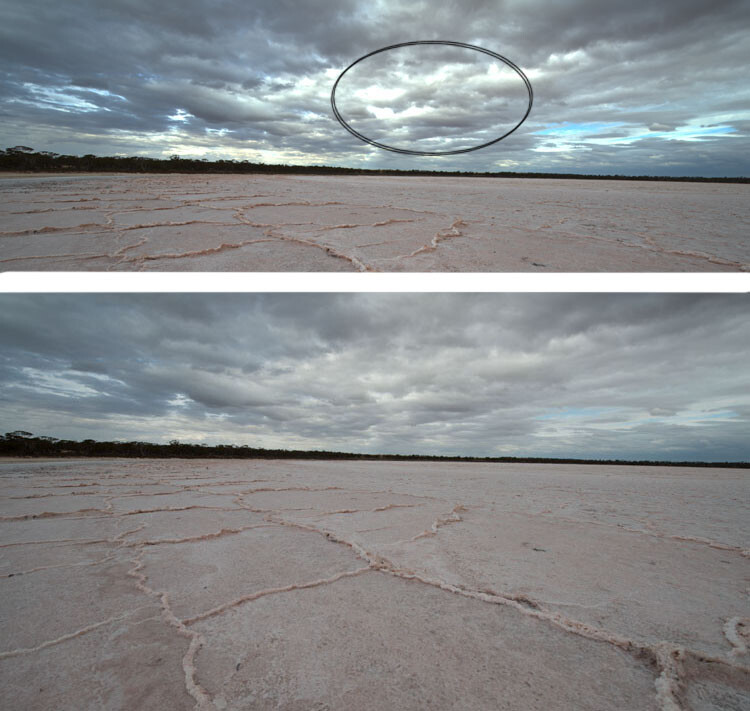
The program does have a tendency to blow out the highlights. In Photoshop you can often fix them, but On1 blows them out even more, and it seems like you are unable to do anything about it. However, it only happens when using RAW images, if you convert them to JPEG it doesn’t appear to happen. Though, it will teach you to be careful with them.

leannecole-on1-highlights-001

You can see with the top image, which was a RAW file how the highlights have been blown out, but it has not happened in the jpeg file.

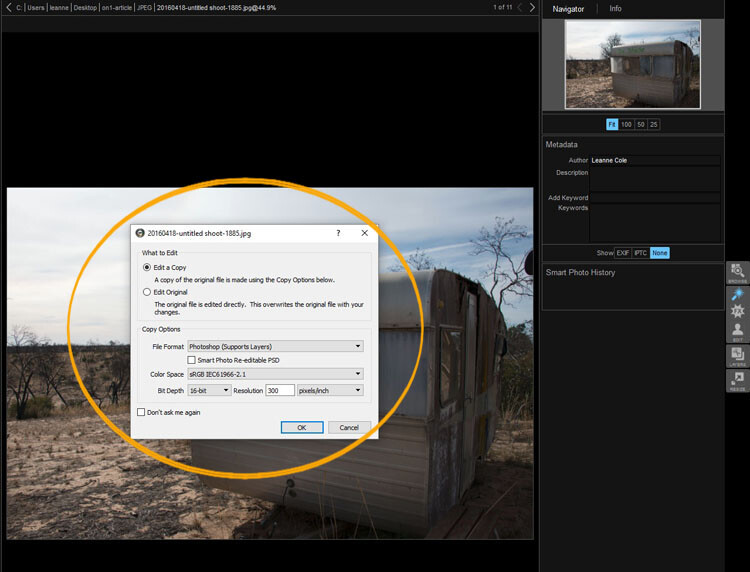
Every time you open an image it asks if you want to edit a copy or the original. When you start you may find that every time you open the image you are creating another copy of it. Take care, and perhaps once you have that first copy, just work on that one.

leannecole-on1-opening-an-image

Read the windows as they open up, and make sure you are aware of what you are doing.

Overall

On1 Photo 10 is a good program, and those interested in doing only basic editing will find it very useful. Those that love the grunge look and adding textures will also enjoy using it. It likely won’t replace Photoshop, but for beginners and people who love using plugins, it’s a great option.

Have you tried it? What are your thoughts?

googletag.cmd.push(function() {
tablet_slots.push( googletag.defineSlot( “/1005424/_dPSv4_tab-all-article-bottom_(300×250)”, [300, 250], “pb-ad-78623” ).addService( googletag.pubads() ) ); } );

googletag.cmd.push(function() {
mobile_slots.push( googletag.defineSlot( “/1005424/_dPSv4_mob-all-article-bottom_(300×250)”, [300, 250], “pb-ad-78158” ).addService( googletag.pubads() ) ); } );

The post Image Editing Software Overview – On1 Photo 10 by Leanne Cole appeared first on Digital Photography School.


Digital Photography School

 
Comments Off on Image Editing Software Overview – On1 Photo 10

Posted in Photography


Announcing the Winners of the Corel AfterShot Pro Editing Software

16 Aug

A huge thank you to everyone who entered our recent contest to win one of 10 copies of Corel’s AfterShot Pro 3 Photo Editor Software. This was an “After” themed competition, and so many of you shared your beautiful photographs, that we encourage everyone to go back and scroll through the comments section to view these wonderful images.

ASP3-Logo.png

As a bonus to the entire dPS Readership, Corel is offering a 30% discount on their AfterShot 3 leading Photo Editing Software for a limited time, and you’ll also receive FastFlick Instant Slideshow Maker for free! Just click here.

Yet again, the response was absolutely wonderful! But now, onto the winners! Drum roll please, and the winners are:

The Winners of the Corel After Photo Contest for 10 copies AfterShot Pro 3 Photo Editor Software are…

Winner 1: Huston Traviss

Winner 1 Pic 717

Used the AfterShot Pro 3 free demo to finally fix a lightning picture of mine that was close but not perfect because of a raindrop on the lens. In 5 minutes I fixed something that was bothering me for months. If given a copy of this wonderful software, I would be able to finally salvage shots that are slightly off that I’d normally delete.

Winner 2: Glenn Lancaster

Winner 2 Pic

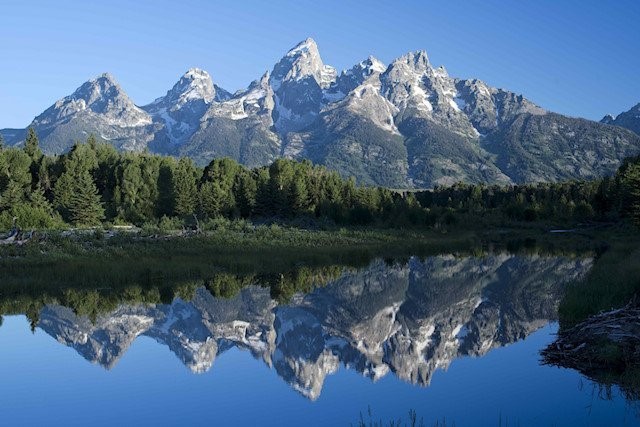
I picked this sunrise picture of the Grand Tetons to edit with AfterShot for one reason – I captured this picture with my Nikon D800 using a 50mm lens and a UV filter. The RAW file (.NEF) is 74 MB, and with some of the other post-production programs I use, there is a huge download time, but AfterShot opened the file in the shortest amount of time.

I use Adobe Lightroom (LR) 6, Creative Suites 6, Elements 14 and DXO Pro 10 to edit my photography and with that knowledge base, judging a new post-production editing program is based on experience and not guess work. The format of AfterShot appears to be directly off the layout of LR, so if you’re familiar with Adobe programs, the learning curve will be near zero.

In reality I find LR non-user friendly for beginners, especially importing files, AfterShot has a direct system of importing and exporting files. AfterShot has a simple editing sequence, with a color engine generator slightly clearer & cleaner than LR. Bottom line – if you’re looking for a post production editing program for less $ $ $ and you don’t need hundreds of different selections to confuse your efforts, AfterShot is the answer.

Winner 3: Jayme Hunt

Winner 3 pic 2

I have to say that I’d never even heard of this software prior to reading this article. I did go ahead and download the trial, specifically to see what could be done with a low-light shot of lights. I certainly wasn’t expecting much. However, it warmed the whole scene up and made my photo look much more the way I envisioned it in my head! The presets produced some stunning visuals, but, in the end, I played with the histogram and produced exactly what I was after.

Winner 4: Andy Dines

Winner 4 Pic 717

I use Lightroom as part of my job as a graphic designer but AfterShot Pro 3 really appeals to me for my own personal photography use, for the improved file opening times. Typically I can be loading several hundred photos at a time and this will make such a difference. Here is my ‘after’ photo.

Winner 5: Zabi Zafari

Winner 5 Pic

Well this is a very nice software! When I first started out with Lightroom, it was nearly impossible to learn how to use any part of the program… But AfterShot is an extremely user friendly, simple yet powerful software, that almost anyone can use. The tools are right there, the histogram is great and much more refined compared to LR. And oh my, I have a MacBook pro from 2014 with 8 GB of ram and a SSD, yet Lightroom lags when opening, importing, exporting and saving files which is not convenient at all.

As they say for professionals, time is money and AfterShot is the real deal. The photo I have taken is with a standard 18-55 mm lens from my backyard, I edited in AfterShot and it gave me amazing results! great job to my friends at Corel.

Winner 6: Chris

Winner 6 Pic 717

I have moved from Windows to Linux and have used AfterShot Pro 2 (edited the above image). Linux has some pretty good open source software but I find AfterShot works well for my needs. Very easy learning curve going from Lightroom to AfterShot. The price is more reasonable too!

Winner 7: Claudia Najhar Raphael

Winner 7 Pic 717

I have AfterShot 2, and now I’m trying the AfterShot Pro 3, and so far I’m enjoying! There are some useful new features that make a lot of difference for me when editing my photos. I’m used to Corel products, since I’ve been using PaintShop since version X4, and AfterShot 2, and for me they work better than Lightroom or Photoshop. I like the fact that I don’t have to import my photos to edit, it makes everything much faster, and I directly export them as batch to finish my editing in PSP X8. …I call my photo After party, because that was a beautiful flower gift that’s been given to me. I edited in AfterShot [Pro 3] and finished in PaintShop Pro X8.

Winner 8: Dennis Fisher

Winner 8 Pic 717

Well this little program made this little flower pop. A program for times when you thought you got it right but didn’t.

Winner 9: Jakob Maruši?

Winner 9 Pic 717px

Most of the time I shot macro photos of flowers and animals. For this contest I picked one of [my] newer photos of a tiny butterfly who was just having dinner. I would use AfterShot to mainly correct colors and composition…

Winner 10: Jake Nunnelee

Winner 10 Pic 2

…I downloaded AfterShot Pro [3] and picked this image. I did some tweaking and made this picture look 10 times better using this program. I would love to win Corel AfterShot Pro! It would make editing pictures so much easier.

We were all very happy with the entries. You made us smile, but most importantly, you made us want to do more of what we do; provide you quality information and guidance to become a better photographer. We were so pleased to see that you came from every part of the world. Thank you all for your entries!

Again, for those of you that didn’t win, Corel is offering a 30% discount off their AfterShot 3 leading photo editing software for a limited time, AND, you will also receive FastFlick Instant Slideshow Maker for FREE!

Click HERE to receive your discount and free FastFlick.

The Winners will be emailed with details of how to collect their prize. Please make sure to look for our email. Thank you again for all the wonderful submissions and to Corel for sponsoring this competition.

ASP3 Logo

Learn more about AfterShot Pro 3 HERE.

Disclaimer: Corel is a paid partner of dPS.

googletag.cmd.push(function() {
tablet_slots.push( googletag.defineSlot( “/1005424/_dPSv4_tab-all-article-bottom_(300×250)”, [300, 250], “pb-ad-78623” ).addService( googletag.pubads() ) ); } );

googletag.cmd.push(function() {
mobile_slots.push( googletag.defineSlot( “/1005424/_dPSv4_mob-all-article-bottom_(300×250)”, [300, 250], “pb-ad-78158” ).addService( googletag.pubads() ) ); } );

The post Announcing the Winners of the Corel AfterShot Pro Editing Software by Darlene Hildebrandt appeared first on Digital Photography School.


Digital Photography School

 
Comments Off on Announcing the Winners of the Corel AfterShot Pro Editing Software

Posted in Photography


Eye-Fi releases Mac software to extend SD card functionality past End of Life date

11 Aug

Eye-Fi was on the receiving end of some serious backlash after announcing the September 15, 2016 End of Life (EOL) date for its X2 and earlier generation SD cards. The company cited security concerns for cards released before March 2015, advising owners that it was very important they ‘cease using these products no later than’ the EOL date. Customers weren’t happy about this, and many vowed to avoid Eye-Fi products altogether in the future, prompting a new announcement from Eye-Fi: it has developed a new software utility that will keep the cards operational past the EOL date.

The new software utility is called ‘Eye-Fi X2 Utility,’ and customers can download a Mac version of it now. The company hasn’t committed to creating a Windows version of the utility, but states that it is ‘exploring the feasibility’ of doing so. Though the utility allows images to be transferred to a desktop computer, it doesn’t have all the features of Eye-Fi Center and Eye-Fi View, and requires all Eye-Fi software to be uninstalled from the computer before the new utility can be installed.

Furthermore, Eye-Fi warns that it doesn’t offer any warranties or help desk support for the utility, and that the new software is  ‘a one-time release.’

In a post today, Eye-Fi listed the following utility features:

X2 Utility Highlights

  • Support for Pro X2 and all earlier generation products with the “Eye-Fi” branding as well as 3rd party branded cards from SanDisk and Visioneer
  • Activation and set-up of cards to transfer images to a PC or Mac via an infrastructure or direct network connection
  • Transferred images will be saved to a directory of users choosing but will be organized in a date based chronological order
  • Eye-Fi Center software must be un-installed from the PC or Mac prior to installation of the X2U
  • X2U will NOT integrate with Eye-Fi View nor Eyefi Cloud service: it will be limited to desktop transfer only

The company also issued the following advisory:

Today we are releasing the X2U on the Mac (OS X) platform. We will provide an updated notice if and when the X2U becomes available on Windows, and cannot guarantee such availability before the end of August and prior to the shutdown of Eye-Fi Center and Eye-Fi View.

The Mac version of the X2 Utility can be downloaded here.

Via: Eye-Fi

Articles: Digital Photography Review (dpreview.com)

 
Comments Off on Eye-Fi releases Mac software to extend SD card functionality past End of Life date

Posted in Uncategorized


Software Review: AfterShot Pro 3 by Corel

12 Jul

ASP3-box_front.jpgI remember seeing a poster on the wall of my fourth grade elementary school class that said, “What’s right isn’t always popular, and what’s popular isn’t always right.” The quote is attributed to Albert Einstein, and while he was most likely speaking with regard to issues of ethics, justice, and social equality, he might as well have been referencing the current state of image editing software.

The king of the hill when it comes to photo editing programs is Adobe, with their extensive suite of applications designed for creative professionals and hobbyists. But just because their software is widely used, does not mean it is the best. Corel, a software company based in Canada, has been making its own image and video editing programs for years, and is a stalwart in the ever-changing software industry with roots that go back to the early days of the personal computer revolution in the mid-1980’s.

The most recent version of their photo-editing software, AfterShot Pro 3 by Corel, may not have the sheer quantity of features offered by Lightroom or Photoshop, but it has a few tricks up its sleeve that make it a very attractive alternative to those looking for a solid solution outside of Adobe’s offerings.

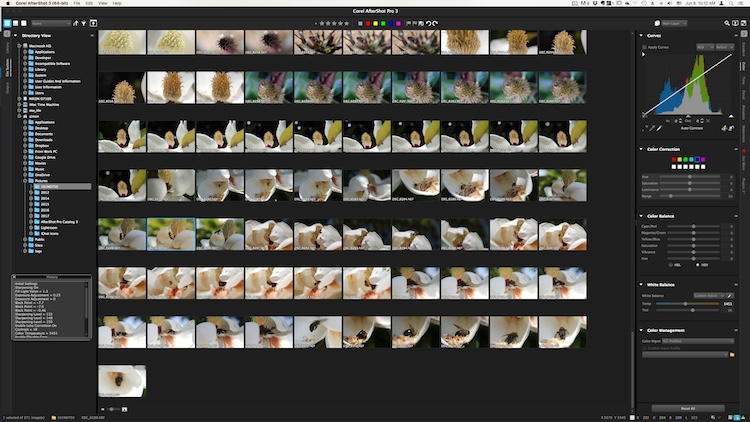
The user interface is instantly familiar to anyone who has used Lightroom or other image editing programs.

The user interface is instantly familiar to anyone who has used Lightroom or other image editing programs.

Overview

At its core, AfterShot Pro 3 is an end-to-end workflow solution that is designed to suit the needs of demanding photographers as well as casual hobbyists. It allows you to sort your images, edit them, and export them for print, sharing, or use in other programs. Its core features are centered on a robust set of tools that allow you to have a great deal of control over several parameters of your images, and adjust fairly basic elements like white balance, exposure, saturation, and contrast, while also giving you fine-grained control over settings like individual RGB color balance, hue/saturation/luminance, and tone curves.

Pixel peepers and image tweakers will find little to complain about here, though some of the tools are a bit lacking compared to those offered by Lightroom. Sharpening and noise removal work quite well, but don’t allow the same degree of control as in Adobe’s software, but there are some automatic “Perfectly Clear” options for noise removal and color adjustments that I have found to be quite useful.

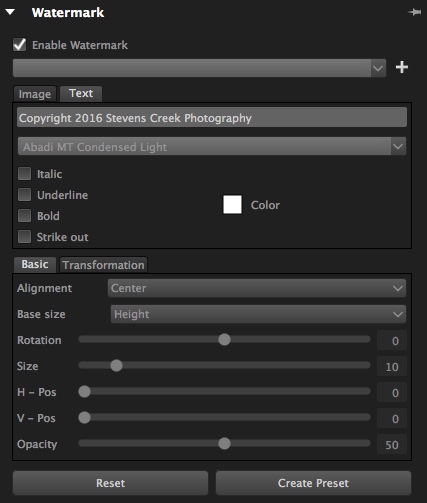
You can of course edit metadata, use presets, and even insert watermarks or access a growing library of plugins, but a proper evaluation of this program isn’t necessarily about comparing features tit-for-tat to see how it stacks up to the competition. Anyone who is looking at sheer numbers of options and adjustment sliders, will likely find everything here that they could ask for. Rather, deciding if this is the right program for you will likely come down to whether it is suited to your own particular way of actually using the features it has.

The built-in watermarking tool can accommodate text or allow you to insert a logo or other graphic.

The built-in watermarking tool can accommodate text or allow you to insert a logo or other graphic.

Workflow

AfterShot Pro 3 has its own unique workflow, which does bear some resemblance to how Lightroom and other programs function. But, in order to make full use of the program’s capabilities you might need to learn how to do things in a way that seems strange at first, but will feel like second nature over time.

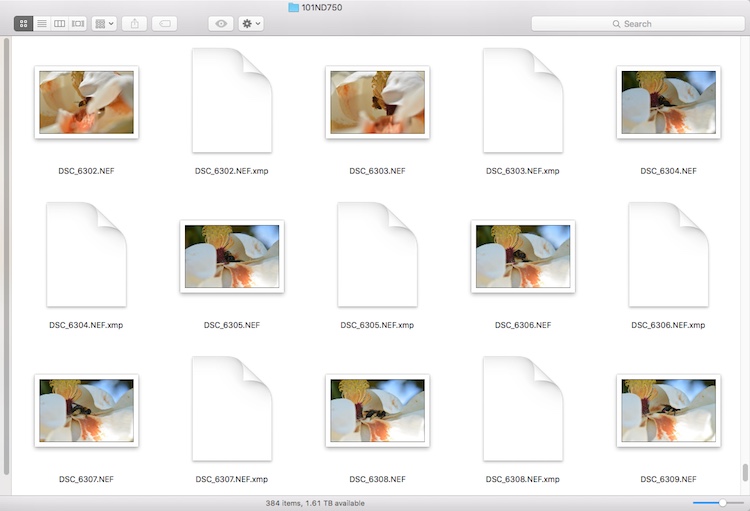
One of the most notable differences is that AfterShot Pro 3 does not import your pictures into a database, and does not store changes to files in one single master catalog like Lightroom. Instead, it works by leaving your pictures exactly where they are and does not copy them, even from a camera memory card. You must first save your images where you want them, and then as you make edits, a record of all the changes you have made to your image get stored in a unique XMP file.

Instead of keeping a master catalog file with all your edits, a single data file is created for every photo that you have changed. To let someone else edit a photo you have already started, give them the original and the XMP file.

Instead of keeping a master catalog file with all your edits, a single data file is created for every photo that you have changed. To let someone else edit a photo you have already started, give them the original and the XMP file.

This approach may seem counterproductive at first, because you end up with thousands of XMP files instead of one single all-encompassing catalog. However, it makes your editing much more portable and flexible, since you can transfer your photos and their editing instructions across devices, and share them with other users in a way that Lightroom simply does not offer. If I edit an image on my computer and want to hand it off to another team member to tweak even further, all I have to do is send her the original RAW or JPG file, along with the very small related XMP file. She can now open the image on her machine, make changes to any of my edits, and add alterations of her own. I can even edit an image right on my camera’s memory card without ever copying it to a hard drive, and then physically hand that card to someone else who can make further edits or go back and revise any changes I have made.

From this standpoint, AfterShot Pro 3 could be a boon to those who work in a collaborative or fast-paced environment, as well as casual or hobbyist photographers who want a little more flexibility.

Work space

AfterShot Pro 3 also operates in a single combined environment, as opposed to the discrete modular-based approach taken by Lightroom, where you use the Library module to organize and sort your images, the Develop module to make edits, the Print module when making prints, etc. In AfterShot Pro 3 everything happens from within a single module, from organizing your images, to editing them, to adding watermarks, and finally printing or sharing. Neither one is necessarily good or bad, and neither approach can be said to be objectively better than the other, but personally I have found the interface in AfterShot Pro 3 to be a refreshing change from Lightroom, where I am forced to switch between Library and Develop to do simple things, and even the function of quick keys changes depending on which module I am in at the time. Your mileage may vary, but it’s an important distinction to know if you are considering changing over to Corel’s program, or even just trying it out.

Use of Layers and Flexibility

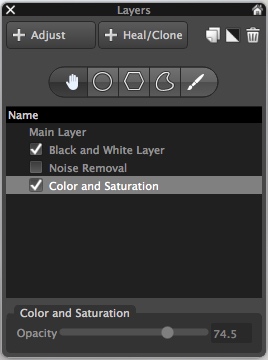
Layers contain a set of edits and can be made more or less opaque, and enabled or disabled at will.

Layers contain a set of edits and can be made more or less opaque, and enabled or disabled at will.

One hugely useful aspect in AfterShot Pro 3, that really stands out from much of the competition, is its intuitive use of layers. You can apply any number of edits in terms of tint, hue, curves, etc., then stash them all into a single layer, which can then be set to anywhere between 100% and 0% opacity. This is an incredibly helpful way of stacking various types of edits on top of one another, and I’m surprised it is not available in Lightroom. For instance, you could easily create a layer wherein you convert your image to black and white, but then set that overall layer opacity to 25%, which would lend a subtle desaturated look to the actual image. You can use multiple layers of edits on a single picture, and even use layers specifically for cloning and healing adjustments as well. It’s a clever, and highly useful way of editing your images, and once you get used to it, you may not ever want to be without it again.

Is the software right for your needs

New in version 3 of the program, is a highlight recovery tool that allows you to coax a bit more out of your RAW files than before, along with other tweaks and improvements compared to earlier iterations. However, as I mentioned in the opening paragraph it’s not really a productive exercise to simply compare a list of features when deciding if an image editor is right for you, since nearly all of them have extensive options that will likely suit your needs.

What matters is whether the program suits your needs and your workflow, and in the case of AfterShot Pro 3 it is certainly worth considering if you are a casual user who wants something with much more power and flexibility, or are simply seeking a worthy (and far cheaper) alternative to one of the more popular editors like Lightroom.

One of my favorite parts of AfterShot Pro 3 is its speed, which honestly could be a make-or-break decision if you are comparing programs. Photos load almost instantly and switching between RAW files is as smooth as butter, which is a far cry from some other programs where you might as well go make some coffee while you wait for a picture to load.

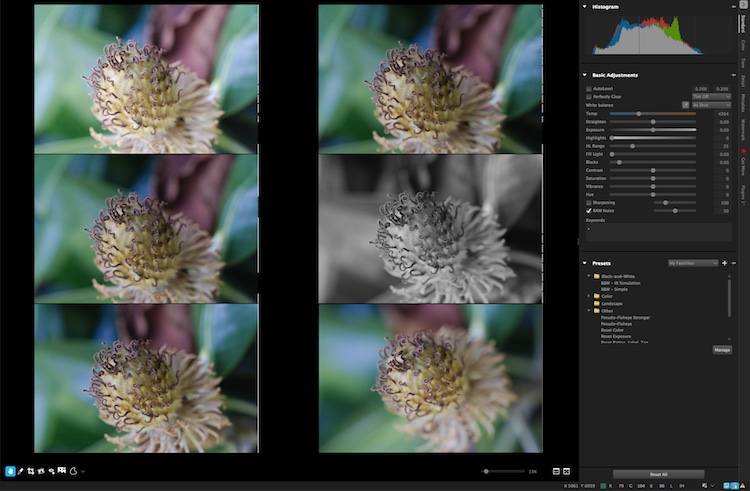
You can view up to six images at once and apply edits to individual photos while in multi-image view.

You can view up to six images at once and apply edits to individual photos while in multi-image view.

In the end, I found Corel’s latest entry into the image-editing fray a worthy competitor that can certainly hold its own against the competition. I especially like that it’s priced well under $ 100, which is a one-time purchase, as opposed to a monthly subscription.

I did find a few things to quibble over, like like its lack of a clarity slider (which can be mitigated by using a combination of other sliders) and a black and white conversion function, that is in my opinion, far behind Lightroom’s use of color filters to take fine-tune control over monochrome conversions. However it is a speedy and full-featured image editing program that is certainly worth checking out.

ASP3-Logo.png

Editor’s note: if you want to check it out Corel has a free trial and you can enter to win a copy right here on dPS. 

googletag.cmd.push(function() {
tablet_slots.push( googletag.defineSlot( “/1005424/_dPSv4_tab-all-article-bottom_(300×250)”, [300, 250], “pb-ad-78623” ).addService( googletag.pubads() ) ); } );

googletag.cmd.push(function() {
mobile_slots.push( googletag.defineSlot( “/1005424/_dPSv4_mob-all-article-bottom_(300×250)”, [300, 250], “pb-ad-78158” ).addService( googletag.pubads() ) ); } );

The post Software Review: AfterShot Pro 3 by Corel by Simon Ringsmuth appeared first on Digital Photography School.


Digital Photography School

 
Comments Off on Software Review: AfterShot Pro 3 by Corel

Posted in Photography


LandscapePro software promises simple steps to dramatic changes

21 May

Anthropics Technology, the makers of the PortraitPro software application, has announced a program that it claims ‘radically simplifies and speeds up’ dramatic reworking of landscape images. LandscapePro offers tools for replacing skies, enhancing water and altering the direction of the light using automatic selection techniques and ‘one-click’ pre-sets. The company says that users will need ‘no prior knowledge or technical skills’ to use the program.

LandscapePro invites users to drag labels, such as ‘grass’, ‘sky’ and ‘water’ on to the relevant areas of an image and the software automatically makes an adjustable selection of that area. A collection of sliders and filters then makes it possible to adjust or replace each type of element. A depth of field simulator can create blur at certain distances while further controls allow photographers to emphasize distance through coloration.

Color temperatures can be adjusted using pre-sets with atmospheric labels to simulate sunset or stormy conditions, and ‘common objects’ such as grass and sand have their own pre-sets as well. There is also a tool that helps to select areas of sky through the branches of a tree.

There are two versions of LandscapePro: Standard and Studio. The Studio version works with Raw files and has options to operate as a plug-in for Photoshop, Lightroom and Elements among other differences.

The Standard version costs $ 79.90/£59.90 while the Studio version costs $ 119.90/£99.90, though both are offered at 50% off at the moment.

For more information, and a free trial, visit the LandscapePro website.


Press release:

LandscapePro Launched

New, easy way to enhance landscape photos

Anthropics Technology today announced the launch of LandscapePro, the industry’s first intelligent landscape photo editing software, available in standalone and Adobe Photoshop, Lightroom and Elements plug-in editions. The new software radically simplifies and speeds up outdoor and nature photo retouching. It includes landscape relighting, sky replacement, 3D depth estimation, a depth of field simulator, distance controls, intelligent selection tools, and photo-adaptive controls among other powerful features. With one-click presets and targeted editing available, users can create beautiful landscapes in seconds.

LandscapePro is a new way to enhance pictures that rises to the challenges and nuances of landscape photography. It assumes no prior knowledge or technical skills, and photographers can create unique, dramatic effects quickly. The new product comes from the makers of the award-winning retouching software PortraitPro and PortraitPro Studio with a plug-in mode for Adobe Photoshop, Lightroom, and Apple Aperture.

“Inspired by the success of Anthropics’s PortraitPro software, we are delighted to introduce a new product to help photographers expand their creativity and take landscape retouching to the next level,” said Andrew Berend, CEO, Anthropics. “LandscapePro offers an innovative and easy way to create stunning landscape photography, and can be used by novices or experienced photographers alike. As its intelligent controls uniquely adapt to the features of each photo, it enables photographers to do incredible things with their outdoor photos simply by using sliders.”

Key Features

Easily enhance landscape photos. LandscapePro contains a host of unique tools to enable anyone to create beautiful scenic photographs.

  • Intelligent selection tools.
  • Unique editing controls that adapt to the photo.
  • Easy-to-use slider interface.
  • No technical skills required.
  • LandscapePro Studio handles RAW files and can be run as a Photoshop, Lightroom and Elements plug-in.

Expand your creativity. Create unique, breathtaking scenes. LandscapePro effects are specifically tailored to landscape photography.

  • Landscape relighting. Lighting adjustment to fit any creative goals: change light source, temperature, time of day, or go from dawn to sunset. Note how the side lighting brings out the texture on the ground.
  • Instant sky replacement with presets. The unique sky controls enable photographers to replace sky, change clouds, or cast cloud shadows. Note how the change in sky has automatically relit the ground.
  • Cloud and atmosphere adjustment. Tools to manipulate skies by separately adjusting the clouds and the atmosphere behind them.
  • 3D depth estimation. A unique, easy-to-use depth of field simulator respects 3D objects in the scene. As easy as using a single slider.
  • Distance controls. Change colors in the image depending on the distance to the camera – make distant objects bluer, highlight the middle distance, or add fog.
  • Landscape-specific tools for dealing with common issues such as selecting small patches of sky behind trees.
  • Color adjustment tools targeted at common objects in landscapes, e.g. tools to make grass look lush, change the color of the sea, or to make sand golden.
  • One-click presets such as wet sand, stormy water, red sunset, lush trees.
  • Automatic area selection. Tag areas as sky, trees, buildings, grass, sand, rock, water and the selection will be applied instantly.
  • Targeted editing. Specially designed controls for different areas, e.g. change clouds to stormy or add thunder clouds, adjust waves, or add sunrise reflection to the sea.
  • Whole picture and individual object enhancements. Transform the whole photo instantly or use a new workflow where you select several objects in your scene first, before editing.

Editions

LandscapePro Standard – dedicated landscape photo editing.
LandscapePro Studio – handles RAW files, 48 bit per color TIFFs, supports different color spaces, and can be run as a plug-in for Photoshop, Lightroom and Elements.

Compare the different editions: www.landscapepro.pics/editions.
Availability, Free Trial and Pricing

LandscapePro is available to purchase or for a free trial from http://www.landscapepro.pics/.

Articles: Digital Photography Review (dpreview.com)

 
Comments Off on LandscapePro software promises simple steps to dramatic changes

Posted in Uncategorized


Software Review: Macphun Creative Kit 2016

17 May
Image edited in Macphun Intensify CK

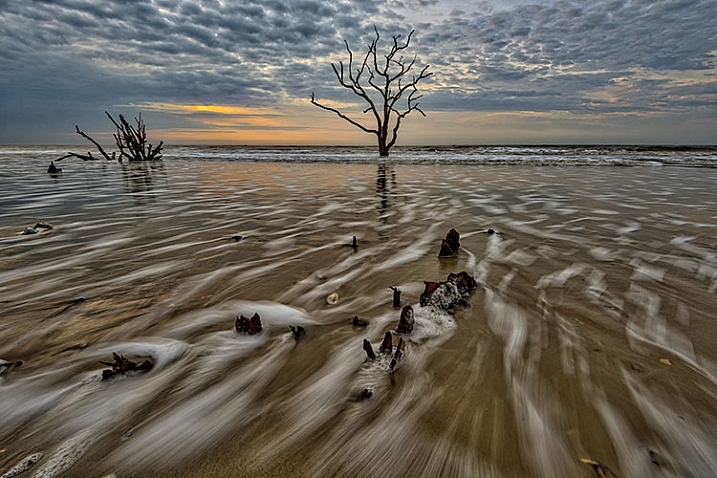
Boneyard Beach, Botany Bay Plantation, South Carolina. Edited in Macphun Intensify Creative Kit.

My philosophy on photography has always been that photography starts with the push of the shutter button, but it does not end there. Back when film was king, I spend a lot of time in the darkroom, learning and mastering darkroom techniques, and printing my work. With the advent of the digital age, those processes moved to the digital darkroom. Always one for working smarter, not harder, I have often employed plugins with Photoshop to make the work of editing my images a bit easier. I’m a big fan of plugin suites that offer a soup to nuts solution for editing images, so when Macphun released its Creative Kit 2016, I was excited to give it a try.

Note: all Macphun products are made for Mac only.

Macphun’s Creative Kit 2016 includes six plugins for Photoshop or Lightroom. This is a comprehensive collection that can handle all aspects of image editing, from color and contrast adjustments, to black and white conversion, to removing unwanted elements, sharpening, and noise reduction. The six modules are Intensify, Tonality, Snapheal, FX Photo Studio, Focus, and Noiseless. I’ll explain each one individually to give you an idea of the capabilities of each. Macphun Creative Kit, as the name implies, is only for Mac users, and is currently on sale at Macphun for $ 129 (USD)

Intensify CK
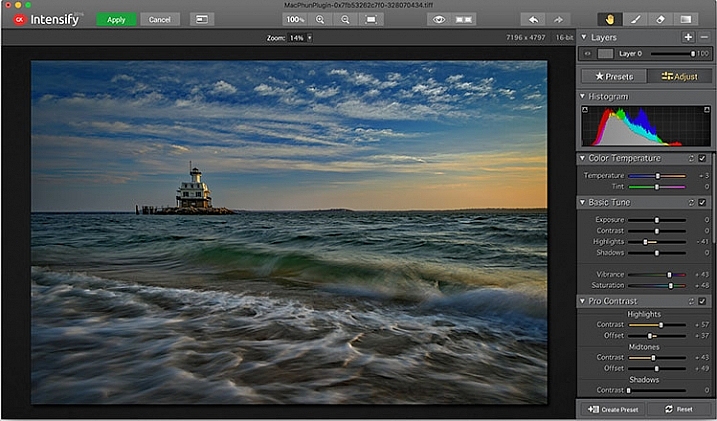
Macphun Intensify CK application window

The Macphun Intensify CK application window.

Macphun Intensify is a plugin in the same vein as Topaz Adjust. You can adjust everything from color temperature and saturation, to contrast, structure, and details.  When you open Intensify, your image will be in the center of the screen with a tool bar on the right, which can alternate between presets and manual adjustments.

The list of presets is broken down into groups: Architecture, Black & White, Creative, Detail Enhancement, Image Tune, Landscape, and Soft. Within each group is a list of presets that pertain to the subject of the main group. For instance, within Landscape is Aerial Photo Enhance -2, Gloomy Day, Natural Enhance, Structured Scape, and Warm Day. When you select a preset, an amount slider appears underneath so you can adjust the amount applied to the image. You also have the option of manually adjusting all the sliders to tweak the preset to to your tastes.
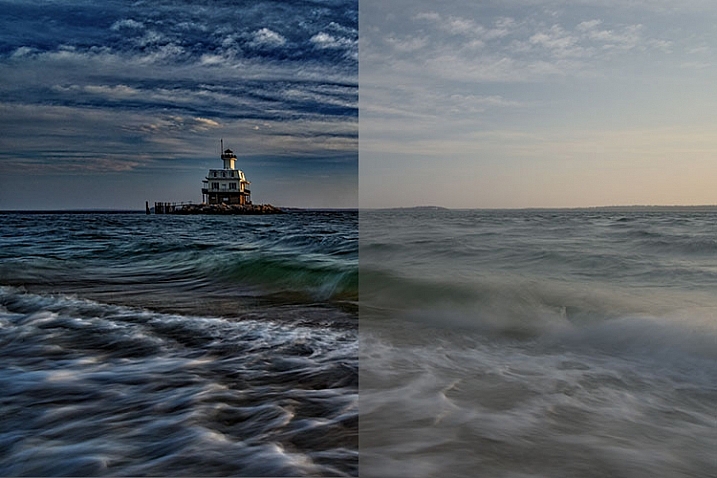
Macphun Intensify CK Comparison Image

Comparison of an image edited in MacPhun Intensify, before (right) and after (left).

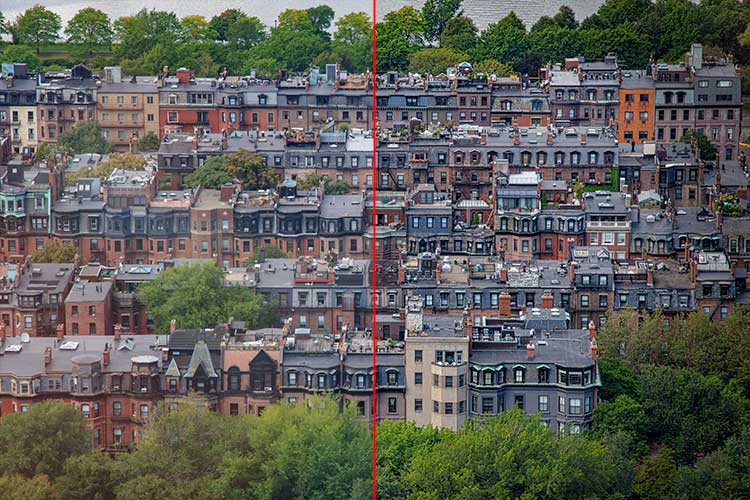
While I found many of the presets to be a bit heavy handed, manual adjustments are easy to make, and gave me a much more satisfying result than simply clicking a preset. For a more in-depth look at Intensify, read MacPhun Intensify Pro Software Review. While Macphun Intensify CK is a newer version, the controls and presets are largely the same and Andrew Gibson does an excellent job of breaking them down.
Intensify-Architecture

Before (left) and after (right) Intensify CK

Snapheal CK
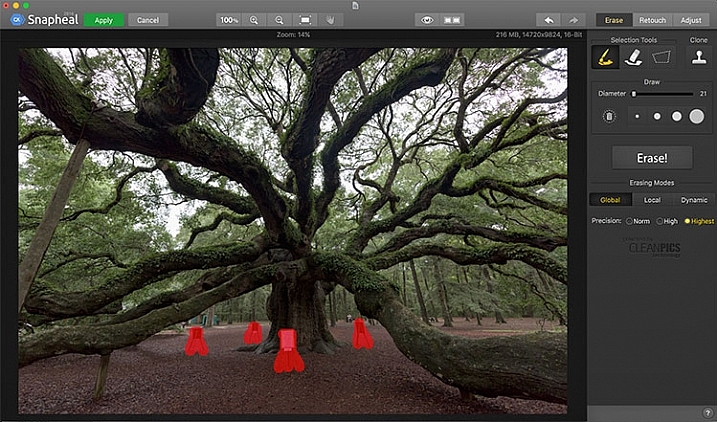
Macphun Snapheal CK application window

The Macphun Snapheal CK application window.

Snapheal CK may very well be the crown jewel of this collection. Think of the healing brush or clone stamp on steroids, and that’s what Snapheal CK is like. Snapheal CK is an amazingly simple way to remove unwanted objects from a scene. When you open Snapheal CK, You’ll notice a tool panel on the right, and a menu bar across the top. You’ll see zoom and move tools, an eyeball icon, which shows the object you’ve removed, a comparison button, arrows to step forward or backward, and finally – Erase, Retouch, or Adjust, which are the different modes you can work in. The selection tools at the top are a paintbrush, an eraser, and a marquee selection. There is also a cloning stamp tool.

Once you have your image in Snapheal CK, if you select Erase mode, you can either use the paint brush or the marquee tool to select the object you want removed from the scene. A red mask will appear over the object you’ve selected. The size of the paintbrush can be adjusted using the slider, or the bracket keys on the keyboard. If you paint in an area you don’t want removed, simply select the eraser tool and erase the painted area.
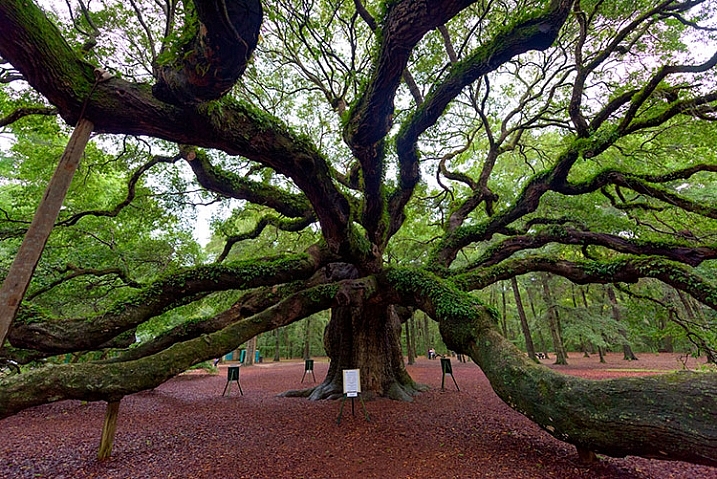
Image before Macphun Snapheal CK.

An image before using Macphun Snapheal CK. The signs in the scene were not allowed to be moved, so I was resigned to having to clone them out.

Underneath the selection tools, you’ll find the options for each tool, such as brush size, polygonal or free marquee, and for the clone stamp, diameter, softness, and opacity. Beneath the options, is a very large button clearly marked as Erase! Under the erase button are three erasing modes: Global, Local, and Dynamic, as well as three Precision options: Norm, High, Highest.

Once you’ve made your selection, you simply press the Erase button and Snapheal CK goes to work. While you wait, the status bar displays a variety of interesting facts to keep you entertained. It does take a few minutes to do its thing, even on my 2015 Macbook Pro with 16GB of RAM. After the process has finished, if the result is not to your tastes, try changing the erasing mode to one of the other modes. Each one behaves a bit differently and will produce a different result. The same goes for the Precision setting.
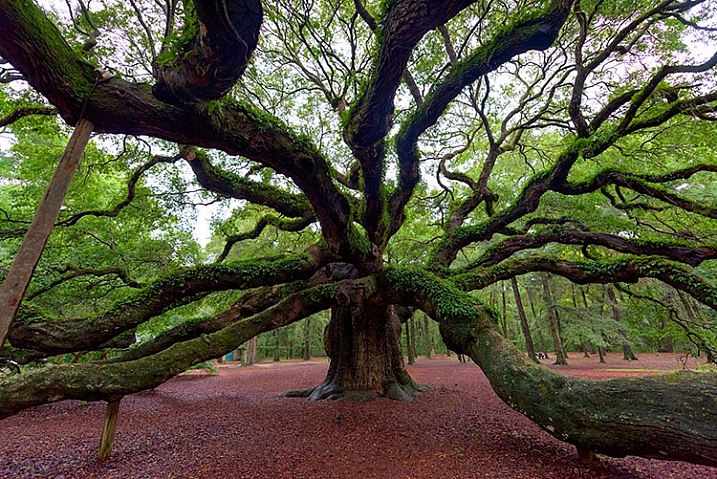
After Macphun Snapheal CK

The same image after being edited in Macphun Snapheal CK. The signs and other unwanted objects have been removed.

Retouch mode works similar to erase mode, but instead of erasing, it allows you to adjust the selected area for color, contrast, and more. Adjust mode is similar but instead of working on a selected area, it makes global adjustments to the entire image.

Even without the Retouch and Adjust modes, the object removal mode of Snapheal CK makes it worth the price of admission in my book, saving me time every time I need to clone or remove an object from an image for whatever reason.

Note: if you are a Lightroom user and want a more powerful cloning and healing tool without having to purchase Photoshop, this may be a good option for you to look at.

Tonality CK
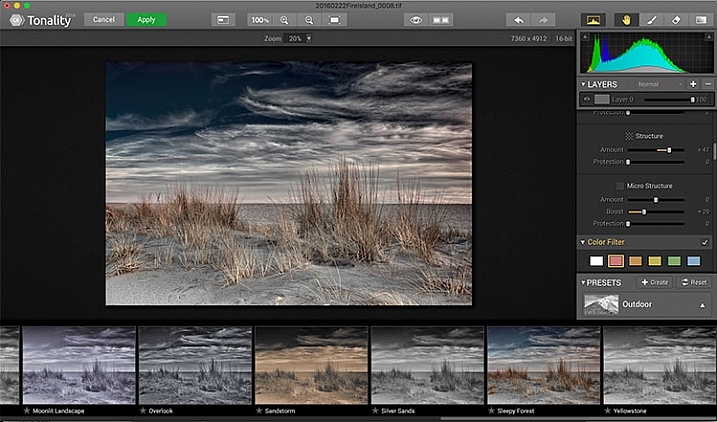
Macphun Tonality

The Macphun Tonality CK application window.

Macphun bills Tonality CK as, “The world’s most advanced black & white photo editor.”  With hundreds of presets available to you, as well as the ability to work in layers and adjust virtually everything about the image, there’s a lot of truth in that statement.

As you open Tonality CK, you will be presented with your image in the main window, a menu bar across the top, tool palette on the right hand side, and preset preview bar across the bottom.  The palette on the right hand side features all of the settings, including; layers, a histogram preview, adjustment sliders for color temperature, tone, clarity and structure, color filter, tone curve, split toning, glow, lens blur, texture overlay, vignette, grain, photo frames, and layer properties. There are a lot of variables to adjust to get exactly the look you want. Beneath these adjustments is a drop-down menu to select various presets, from groups including Basic, Architecture, Portrait, Dramatic, Outdoor, Street, Vintage, Film Emulation, Toning, HDR, a Favorites group, and a group for user defined presets.
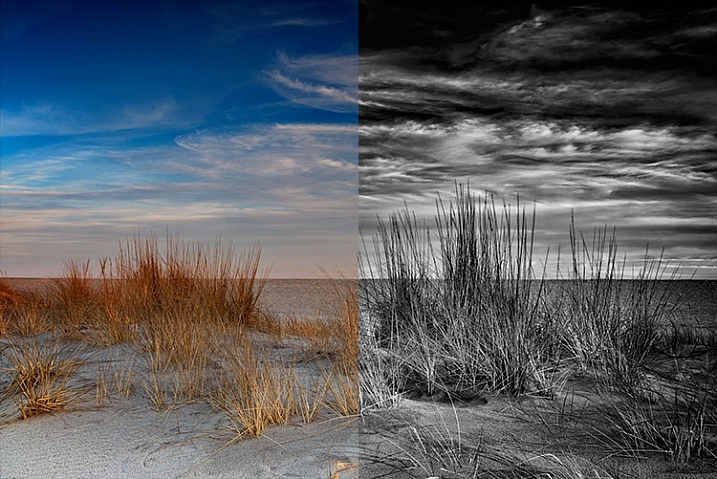
Macphun Tonality CK Comparison

Before (left) and after Macphun Tonality CK (right)

With the use of layers and individual adjustments, there are literally endless combinations and looks that can be creative with Tonality CK. I really like the amount of freedom I have in the editing images, and the ability to create layers with different effects, and mask them off if desired, takes that freedom to a whole new level. For a more in depth review of Tonality, Product Review: Macphun Tonality Black and White Photo Editor goes in depth. As with Intensify CK, Tonality CK is an update to the version reviewed, but both are similar enough that I found the review helpful when I first began using Tonality CK.
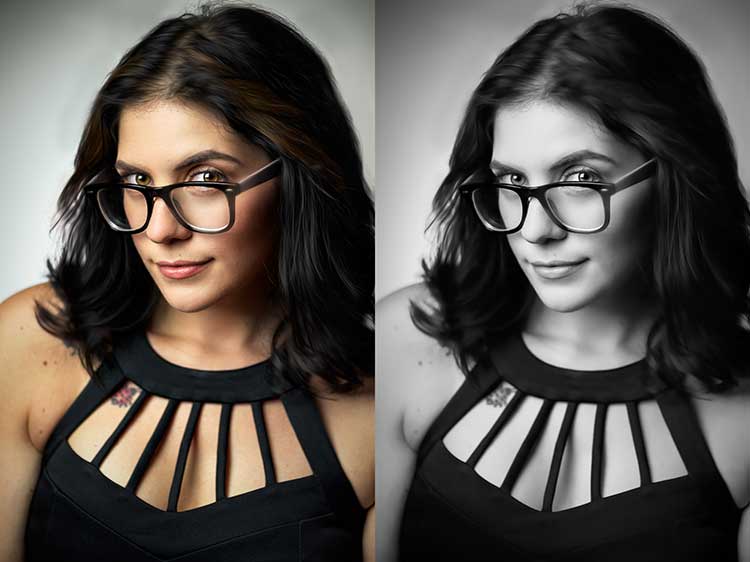
Tonality CK applied on a portrait

Tonality CK applied on a portrait

Focus CK
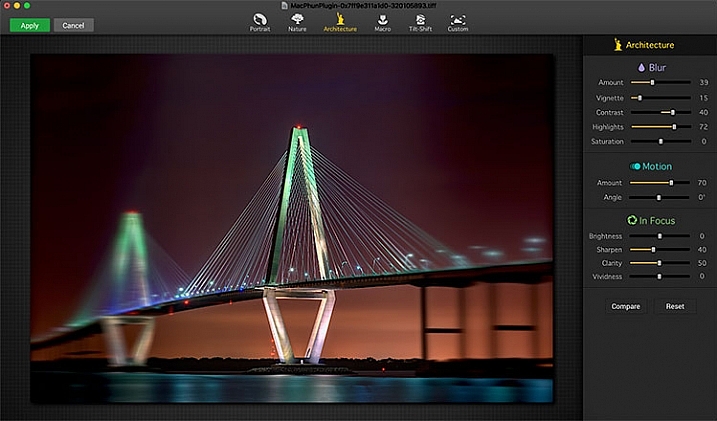
Macphun Focus CK application window

Macphun Focus CK application window.

Macphun Focus CK is a plugin that allows you to create lens focus effects easily and quickly. The interface when the plugin is opened is a minimalistic one, with only six presets across the top of the screen, and your image in the main window underneath. The presets are as follows: Portrait, Nature, Architecture, Macro, Tilt-Shift, and Custom. Truth be told, Nature, Architecture and Tilt-Shift are all similar, in that the blur is similar to that created when using a tilt-shift lens. There are subtle differences in each preset, with the most notable being the angle of the blur. This is user-adjustable, however, as are several settings sliders, which are adjusted slightly differently according to the preset selected. The same can be said for the Portrait and Macro settings, except instead of a parallel blur field, they create a circular blur field.

When you select a preset, a series of sliders appear on the right side of the screen, in three groups. The first group is Blur. This set of sliders, as you may have deduced, adjusts the image in the blurred area. The settings include amount of blur, vignette, contrast, highlights, and saturation.  The next group of sliders is Motion, which allows you to add motion to the blur, rather than simply a normal blur. Here you can adjust the amount and the angle of the motion. The final group of sliders is for the In Focus area of the image, and allows you to adjust the brightness, sharpness, clarity, and vividness of this area of the image.  Beneath these sliders are a Compare button, to allow you see before and after the blur is applied, and a Reset button, to allow you to start over if you don’t like what you’ve done.
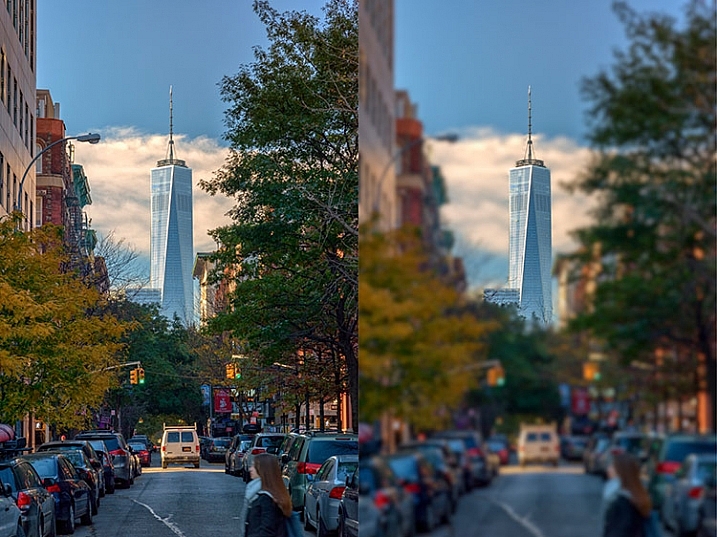
Before and after comparison of Macphun Focus CK

Before (right) and after (left) Macphun Focus CK.

The most fun part of Focus CK is the Custom setting. The custom setting allows you to mask off the areas of the image you wish to remain sharp, using the paint brush. As you paint, you’ll see the effect on the image. There is an eraser tool if you paint in an area you’d like to remain blurred. This custom setting allows you to really create different looks within your image. Have two objects at different depths, and want them both sharp and everything else blurry? No problem. Simply mask each object and adjust the blur of the out of focus areas to taste.

The biggest drawbacks in Focus CK is in this custom mode. There is no ability to zoom in on the area you are masking to do fine detail work, and the brush will not go smaller than 20 pixels, making it very difficult to mask off fine detail, such as the antenna on the building in the example above. If those two deficiencies could be rectified, I could see using Focus CK much more in my personal work.
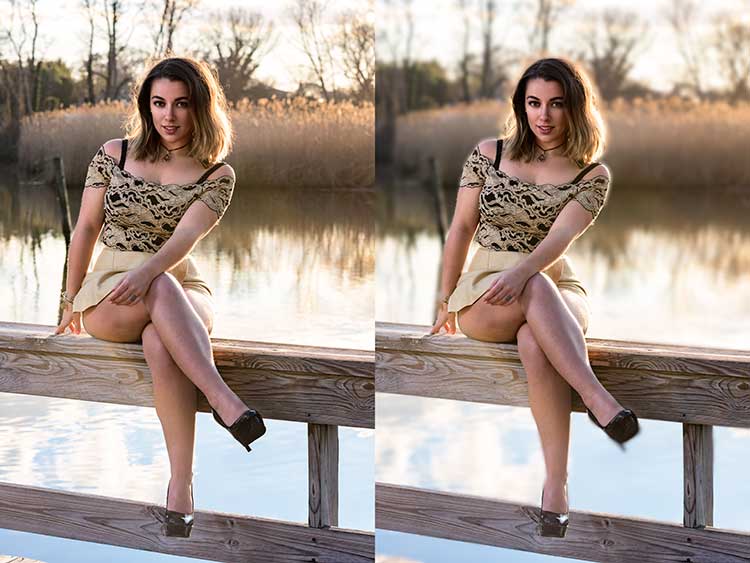
Focus-CK-Portraiture

Focus CK applied to a portrait

Focus-CK-Macro

Focus CK applied to a macro image

Noiseless CK

Noiseless CK is Macphun’s entry into the digital noise removal arena. Like the other plugins in the Macphun Creative Kit, the interface features a large window for your image, a button bar across the top, and a palette of sliders on the right, that allows you to adjust a wide array of settings and customize the noise reduction to your preference.
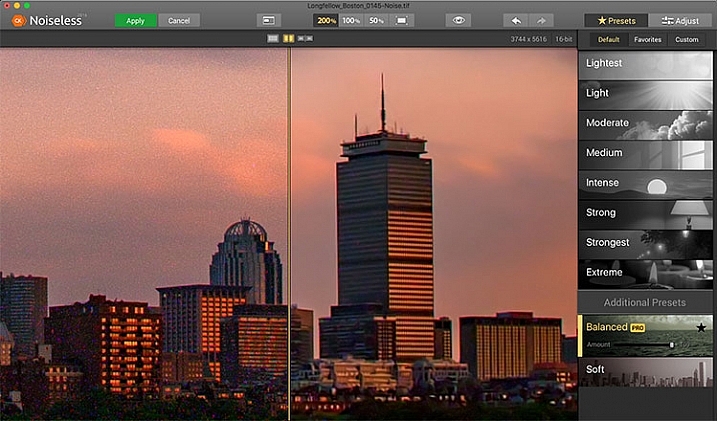
Macphun Noiseless CK application Window

Macphun Noiseless CK application window.

To test out Noiseless CK, I dug out an image I created several years ago that has the worst noise I’ve ever had in an image. It was a four minute exposure, and I had neglected to turn on long exposure noise reduction. I found Noiseless CK was able to subdue the noise pretty easily.

Noiseless is simple to use. Open your image in Photoshop or Lightroom and start the Noiseless Plugin. On this image, I started at the Lightest preset, just to see how that would do with the noise, knowing that most likely it wouldn’t come close to reducing it enough for my taste, due to the heavy noise within the image. As I worked my way down the list of presets, I found that once I hit the Strong preset, it really reduced detail in the image, which I wanted to try and avoid. In addition to the presets ranging from Lightest to Extreme, there are also two additional presets, called Balanced and Soft. The Balanced setting seemed to work the best on this image. There is also an Amount slider to adjust the application of noise reduction using that setting.  From there, I could also select the Adjust tab, and individually adjust the settings individually to get a look I was happy with. If I wanted to save those settings, I can create a custom preset of my own for future use.
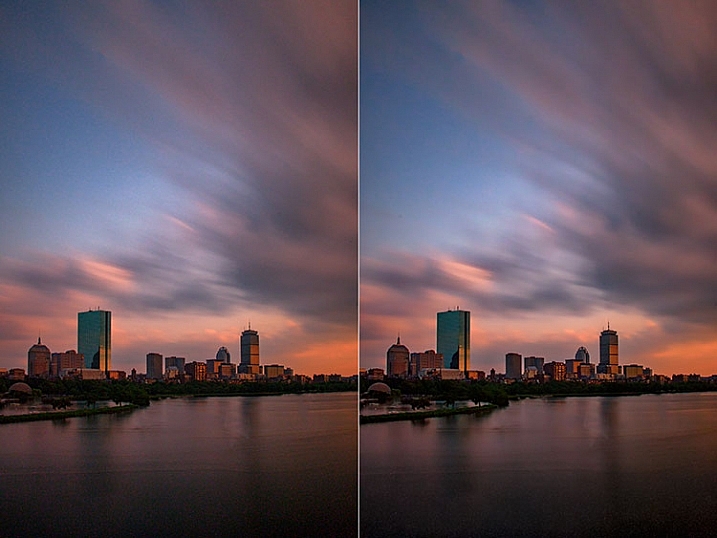
Before and after editing in Macphun Noiseless CK

Before (right) and after (left) comparison of an image edited in Macphun Noiseless CK.

I found that using some of the presets resulted in a greater loss of detail than I was happy with, but once I went into the Adjust tab and started using the sliders, I was able to get some detail back, and get a look I was happy with. As I said, this was an extreme image I was using to test, and I have to say Noiseless CK did a great job with it. The ability to adjust the noise reduction using both the amount slider and individual settings sliders, gives me the confidence that Noiseless CK can handle almost anything I need it to.

FX Photo Studio CK
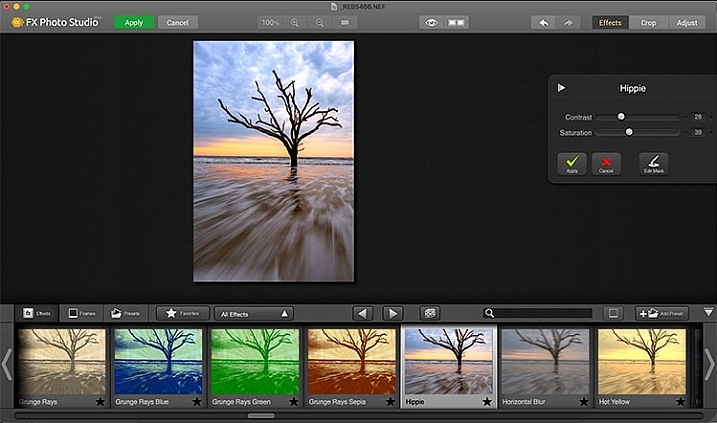
Macphun FX Photo Studio CK

Macphun FX Photo Studio CK application window

FX Photo Studio Ck is a special effects generator and photo editor that, at first glance, looks relatively simple and easy, but doesn’t offer many options. However, if you dig a little deeper, you’ll see there is more than meets the eye here. It offers over 200 different effects and frames, as well as the ability to create your own.

When you first open an image in FX Photo Studio CK, you’ll see your image in the main window, and underneath is a preview bar of presets. You will also notice the menu bar above, and on the right end of that, a mode selector, allowing you to select from Effects, Crop, and Adjust. The presets for Effects include Effects, Frames, and Presets, with Presets in this case meaning user-defined presets. The Effects tab also features a drop down menu with 20 groups of effects. These include Art, Black & White, Blur, Color Fantasy, Color Lenses, Color Strokes, Color Temperature, Cross Processed, Distortion, Glow, Groovy Lo-Fi, Grunge, Hollywood FX, Hue, Photo Styles, SFX, Sketch, Symmetry, Vignettes, and Vintage. When you select the Frames tab, you’ll be presented with a preview of frames below, and a drop-down menu to select different groups of frames appears, allowing you to select between Art, Classic, Grunge & Analog, and Photo Borders.
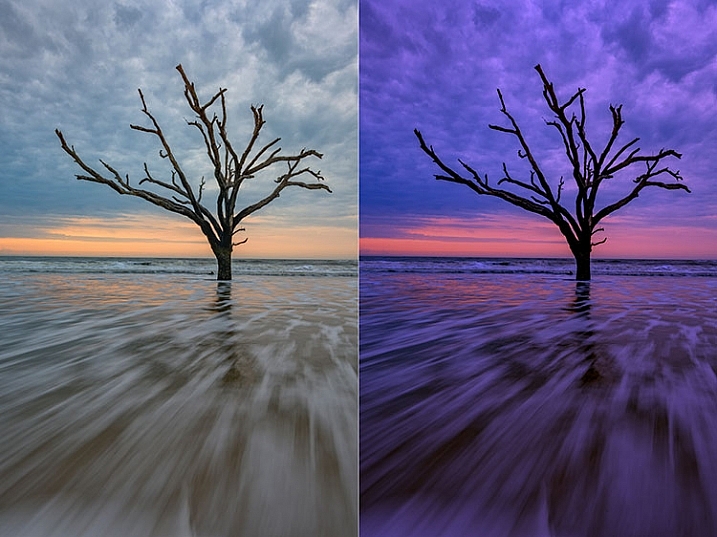
Before and after comparison of Macphun FX Photo Studio CK

An image before editing in Macphun FX Photo Studio CK on the right, and after, on the left.

To be honest, most of the effects and frames do not appeal to me. But there is more to FX Photo Studio CK than just presets and frames. At the right of your image are adjustments for the various effects. These adjustments will vary depending on the effect chosen, and is usually a minimal control of one or two sliders to adjust the effect. You can combine effects, by selecting one, applying it, and then selecting another one to apply to that. FX Photo Studio CK lacks the layer capabilities of Tonality, which would really make it easier to combine multiple effects and adjust how they are applied together. As it stands now, you must commit to one effect before adding another. One great feature of FX Photo Studio CK is the ability to edit the mask on the image, so you can apply the effect only to areas of the image you want, and hide the effect in other areas.
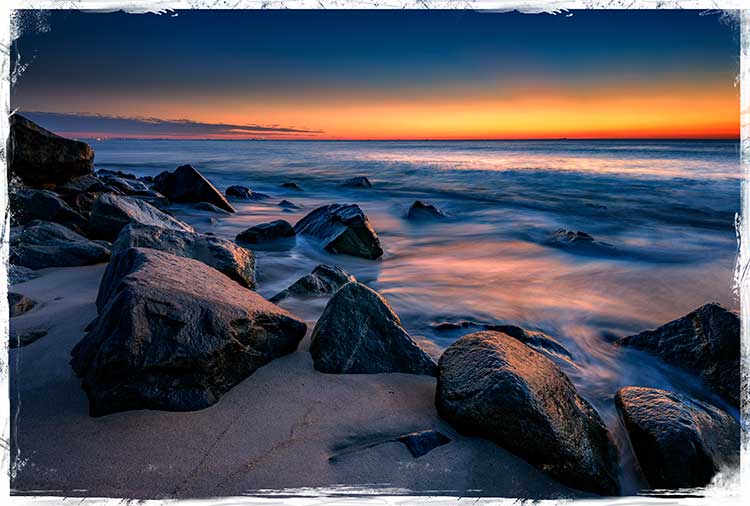
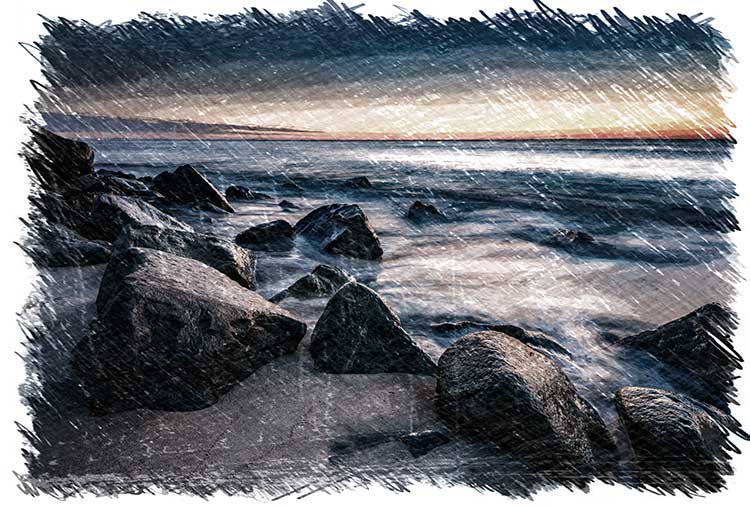
FXPhotoStudio-Frame-Grunge

FXPhottoStudio-Color-Charcoal-Sketch

FXPhotoStudio-Groovy-Lo-Fi-Napa

If you wish to make further adjustments, you can select the Adjust tab, which opens a palette of sliders including Temperature, Saturation, Hue, Exposure, Brightness, Contrast, Shadows, Highlights, Sharpen, Red, Green, and Blue. There are fewer controls available than in Intensify CK, so I’m not sure I see the usefulness of FX Photo Studio CK for in-depth editing, but for someone looking to quickly add an effect or frame to their image, FX Photo Studio CK may be just what they need.
Error using frames

Error using frames

Note: I could not get FX Photo Studio to give me a clean image. Every frame I tried, every file I tried, gave me the same result when I tried to use the Art Frames and Classic Frames. I was able to use a Grunge Frame, and have shown examples above. Not sure if this is a greater bug with MacPhun’s software or a problem with my system specifically.

Conclusion

The Macphun Creative Kit is a full-featured, well thought out, suite of image editing tools that would be welcome in any photographer’s tool kit. While I would prefer more control in certain areas of the suite, Macphun has continued to develop the software for the past several years, and I have no doubt they will continue to make improvements as they move forward.

Overall rating: 3.5 out of 5. I really liked MacPhun Creative Kit and think it has a lot to offer, but I ran into a bug with the FX Photo Studio when trying to add a frame to an image, and I think Focus CK needs a zoom feature and a finer brush to allow for more precise masking. Fix the bug with the frames and add the zoom and finer brushes to Focus CK and I’d give another star.

googletag.cmd.push(function() {
tablet_slots.push( googletag.defineSlot( “/1005424/_dPSv4_tab-all-article-bottom_(300×250)”, [300, 250], “pb-ad-78623” ).addService( googletag.pubads() ) ); } );

googletag.cmd.push(function() {
mobile_slots.push( googletag.defineSlot( “/1005424/_dPSv4_mob-all-article-bottom_(300×250)”, [300, 250], “pb-ad-78158” ).addService( googletag.pubads() ) ); } );

The post Software Review: Macphun Creative Kit 2016 by Rick Berk appeared first on Digital Photography School.


Digital Photography School

 
Comments Off on Software Review: Macphun Creative Kit 2016

Posted in Photography


DPReview is hiring! Software development manager

24 Mar

DPReview is hiring! We’re looking to add a Software Development Manager to our Seattle-based team. Bring your creativity, passion and talent to help us build the next generation of our web and mobile experiences. Responsibilities include building and managing our team of engineers, listening to audience feedback and driving DPReview’s technical vision. See all of the details below.

Software Development Manager

DPReview.com is seeking a talented, passionate, creative developer to help us craft the look, feel, and functionality of the world’s most popular digital camera website. The right candidate will be capable of defining the technical vision for the product, as well as leading the team in achieving that vision.

Our engineers work closely with a small in-house product management and editorial team. Fast, scrappy development and testing, combined with regular (sometimes daily) deployment ensures that no one gets the chance to fall into a rut and that everyone has the opportunity to help shape projects from concept to delivery. You will listen to our audience, help drive our goals, and leverage our unique position in the photographic industry, and to constantly strive for better, smarter ways to deliver the content, services, and community tools that have made the site the success it is.

You’ll be excited by the opportunity to build rich interactive user experiences on a large-scale public facing website. Your core focus will be to build the next generation of DPReview web and mobile experiences, including shopping and comparison tools for photographic gear, community and social features focused on photography enthusiasts, and special products in support of Amazon teams. DPReview has enough traffic to pose interesting performance challenges, so a solid knowledge of SQL, database design, and optimization techniques is important.

While we are part of Amazon, DPReview has its own unique culture, with a small but cohesive team of editorial staff and developers. You’ll feel like you’re at a small startup, with lean, product-focused processes, but with all the upsides of working for a large company.

DPReview.com runs primarily on .NET, but any solid experience with web technologies is sufficient. Also, we collaborate with other Amazon teams to develop features and widgets for Amazon.com, which provides the unique opportunity to show your work to a much larger audience than DPReview’s millions of daily visitors.

Basic Qualifications

  • Equivalent experience to a Bachelor’s degree based on 3 years of work experience for every 1 year of education
  • 4+ years professional experience in software development
  • Computer Science fundamentals in data structures, algorithms, complexity analysis, databases, and web technologies
  • Proficiency in at least one modern server-side programming language (such as C# or Java) and a client-side language (JavaScript); HTML and CSS experience is assumed

Preferred Qualifications / Experience 

  • Master’s Degree in Computer Science or related field
  • Build and manage a team of engineers. Recruit, hire, mentor, and coach technical staff
  • Ability to handle multiple competing priorities in a fast-paced environment
  • Demonstrated leadership ability as a lead software developer
  • People management, team building and mentoring experience
  • Experience taking a leading role in building complex software such as large-scale public websites that have been successfully delivered to customers
  • A track record of handling ambiguity well, translating loose product and project requirements into effective customer solutions
  • Hands-on expertise in many web technologies, ranging from front-end user interfaces through back-end systems and all points in between
  • Knowledge of professional software engineering practices and best practices for the full software development life cycle, including coding standards, code reviews, source control management, etc.
  • Strong UX intuition and demonstrated UI design skills
  • Solid database design experience with an emphasis on performance
  • Experience with systems administration

Click here to find out more and to apply for this role – Software Development Manager

Articles: Digital Photography Review (dpreview.com)

 
Comments Off on DPReview is hiring! Software development manager

Posted in Uncategorized


A Beginner’s Guide to Choosing the Right Post-Production Software

12 Jan

When it comes to choosing your first piece of post-production software you may find yourself spinning in circles. There’s so much to choose from, and the whole idea of learning to do something new can be intimidating. This article will cover a number of the most well known software options available, and hopefully lead you towards the right decision for you.

Adobe Photoshop CC

Over the years no one has truly been able to displace Adobe’s dominance of the photography software market. Both Lightroom and Photoshop are hugely popular pieces of software and regarded as the go to platforms for professionals. Let’s break down both Lightroom and Photoshop individually to see what makes them so popular.

Adobe Lightroom

LR

Lightroom is the most popular tool available for post-processing your images. It can be used as an all-in-one solution for post-processing, image storage, and printing. Due to this all-in-one nature, Lightroom becomes a convenient and powerful option for both new photographers and pros alike.

One of the biggest differentiating factors of Lightroom verses other post-production tools is that it is widely supported by third party developers. What this means is that you can find a number of plugins for Lightroom that will allow you to extend your workflow beyond the core program. You’ll also be able to find a number of Lightroom presets, which can help you speed up your workflow by saving time for tedious edits. On top of that, sites like Smugmug and Zenfolio allow you to hook right into Lightroom, enabling you to share your photographs directly from your Lightroom catalog to your website.

Finally, due to the popularity of Lightroom, there is no shortage of support for you on the web. If you have a question about something related to processing an image with Lightroom look no further than YouTube or the many eBooks written on a number of different aspects of Lightroom’s features (including Loving Landscapes, a dPS ebook about processing your landscape images in Lightroom).

This whole package of features, extendibility, and resources, is why I’d suggest Lightroom as the first program for any new photographer looking to get into post-production. Not only are you getting a very capable program for editing and organizing your images, but you have the ability to extend the core features as your skills develop. You also have an endless supply of help from the many tutorials written on the platform over the years.

Adobe Photoshop

PS

Lightroom may be the best place to start as a new photographer, but Photoshop is a close second. The only reason I place Photoshop second on this list is due to its complexity. You still get the same great community of professional photographers, which enables you to learn more quickly, and you’ll still find a wealth of Photoshop Actions to help you speed up your workflow, but the learning curve for Photoshop is quite a bit more challenging than that of Lightroom, making it harder to recommend to a total beginner.

Adobe’s Creative Cloud platform is a subscription based model, which gives you access to both Photoshop and Lightroom for $ 10/month. The reason to pay the premium for Adobe’s products, over the ones I’ll list below, is not because they will perform better edits, but rather because of the way they integrate with other pieces of software, and the availability of tutorials on the web.

Open Source Options

If you’re not ready to invest money into your post-production workflow just yet, then these open source platforms are where I’d direct your attention.

GIMP

wilber_painterGIMP is the most well known Photoshop alternative out there. It has been around for years, works on both PC and Mac, and will provide you with many of the same tools that Photoshop offers. Being open source it doesn’t have the polish that Photoshop does, and won’t offer nearly as many third party options or tutorials. However, as a budget friendly way of processing your images, this is by far the best way to go.

Darktable

darktableDarktable is what I’d recommend if you’re looking for a RAW developer to substitute for Lightroom. Like GIMP, this is an open source option, which offers a number of features that will give you complete control of your images, and truly does compete with Lightroom in that area. Again where it’ll fall flat is that you’ll have less extendibility, and not as many resources to help you along the way. Note: Darktable does not work on Windows.

Other Tools

When it comes to post-production there are a number of what I’d call, supplemental tools available. These tools are designed to work in conjunction with Photoshop and/or Lightroom, and help you further refine your style as a photographer.

TopazLabs

logo_smallThe TopazLabs line of products includes 17 different pieces of software, each one specifically designed for its own unique purpose. These tools are designed to help you enhance and speed up your post-production workflow, but not necessarily replace Photoshop or Lightroom, although some of Topaz’s programs, like Impression and Texture Effects, do offer some standalone functionality that will let you create very different types of images.

Nik Softwarenik-logo

Like TopazLabs, Google’s Nik collection is a set of tools that will help you enhance and speed up your workflow. There aren’t as many different tools, and Google has a recent track record of killing off products that weren’t working for them without warning. But, the Nik collection is powerful, and will give you some great functionality beyond just Lightroom’s basic toolset.

Photomatix

photomatixPhotomatix has been the leader of the HDR post-production world for quite some time. Their product continues to produce some of the best controlled tone mapped images, and would be a great addition to your set of tools if you wanted to get deep into HDR photography.

Aurora HDR

aurorahdrAs an alternative to Photomatix, Aurora HDR is a newly released product from Macphun, in partnership with Trey Ratcliff. At the moment Aurora HDR is only for Mac and is an early stage product, so there’s bound to be some growing pains. That said, with backing from Trey Ratcliff, who’s made his name on HDR photography, this product could eventually get to where it wants to be – which is an all-in-one HDR tool, that doesn’t require Lightroom or Photoshop to produce images.

Not a beginner? What else would you recommend?

If your favorite piece of software didn’t make this list let us know why you like it, and why you’d recommend it over the others in the comments below.

googletag.cmd.push(function() {
tablet_slots.push( googletag.defineSlot( “/1005424/_dPSv4_tab-all-article-bottom_(300×250)”, [300, 250], “pb-ad-78623” ).addService( googletag.pubads() ) ); } );

googletag.cmd.push(function() {
mobile_slots.push( googletag.defineSlot( “/1005424/_dPSv4_mob-all-article-bottom_(300×250)”, [300, 250], “pb-ad-78158” ).addService( googletag.pubads() ) ); } );

The post A Beginner’s Guide to Choosing the Right Post-Production Software by John Davenport appeared first on Digital Photography School.


Digital Photography School

 
Comments Off on A Beginner’s Guide to Choosing the Right Post-Production Software

Posted in Photography