RSS
 

Posts Tagged ‘Software’

Reikan announces major update to FoCal AF tuning software

26 Mar

Reikan has announced a major update to its AF tuning software, FoCal. FoCal automates the process of calibrating your lens to your DSLR camera body, important – if not absolutely necessary – for critical focus when using fast lenses that yield shallow depth-of-field. Version 2 introduces the ability to check your copy of a lens against other users’ test results. Read more

Articles: Digital Photography Review (dpreview.com)

 
Comments Off on Reikan announces major update to FoCal AF tuning software

Posted in Uncategorized


Phase One’s Capture One Pro 8.2 software now available

25 Mar

Phase One has released its new Capture One Pro 8.2 software, and with the update comes a new Color Balance Tool making it easier to produce color graded images, as well as additional ways to find images and support for higher resolution displays, including 4K. In addition, support for a few new cameras and nearly a dozen lenses is in place. The update is available now for existing Capture One Pro users and new customers. Read more

Articles: Digital Photography Review (dpreview.com)

 
Comments Off on Phase One’s Capture One Pro 8.2 software now available

Posted in Uncategorized


Nikon releases ViewNX-i image browsing software

18 Mar

As promised earlier this month, Nikon has made its ViewNX-i software available for download today today. Building on the camera maker’s previous View NX 2 software, the new application works in conjunction with Nikon’s NX-D photofinishing software for editing photographs, and bundles Nikon’s ViewNX-Movie Editor for editing videos. Read more

Articles: Digital Photography Review (dpreview.com)

 
Comments Off on Nikon releases ViewNX-i image browsing software

Posted in Uncategorized


Walk Through and Review of Autopano Giga – Image Stitching Software

14 Mar
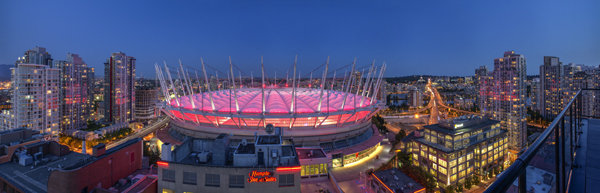
A six image photostitch of BC Place in Vancouver

A six image photostitch of BC Place in Vancouver

My first image editing software was Photoshop Elements 6 and the photostitching function was really erratic to say the least. I was doing real estate and architectural photography and needed a reliable and accurate tool that could quickly and properly stitch images together. I tried a few, but was not happy with all the results. The software was difficult to use and the results were irregular.

Then I heard about Autopano. I downloaded a trial and was pretty amazed at how quickly, and more importantly, accurately the software stitched scenes together that other pieces of software had not been able to. The stitching was seamless and effortless. I was impressed with the ease of use and the speed at which the software worked. I had found my tool of choice, Autopano Giga. Autopano Giga is a tool that is made by a company called Kolor. They develop image stitching software, pano tour software and 360 degree software, they are a specialist photography software company.

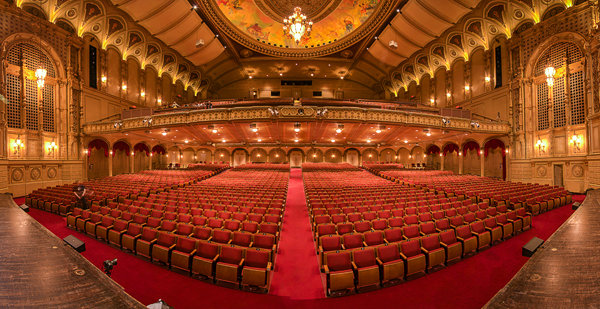
5 shot photo stitched image of the Orpheum Theatre, Vancouver BC

Five shot photo stitched image of the Orpheum Theatre, Vancouver BC

The first step in making effective panoramic images is knowing how to photograph them. That is beyond the scope of this article so for the purpose of this review we’ll assume you have some panoramic images already shot and want to stitch them.

Time to stitch

For the image stitching part of this process, I am going to be referring to the interface in Autopano Giga. This product works extremely well. It has been rated as one of the best stitching packages available. I have used it to stitch some pretty crazy panos together and it has been able to process almost anything I have thrown at it. I have done normal photostitches and I have done some multi-row stitches too. Autopano Giga has handled these with ease, and in some cases I have been pretty surprised how well it worked.

Let’s look at how this process works in Autopano Giga:
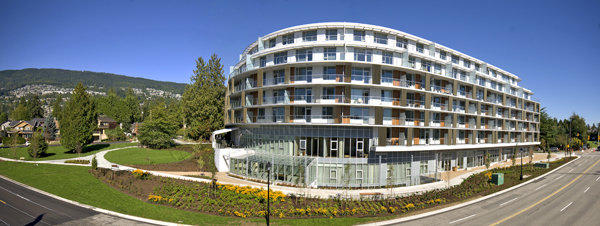
Panoramic images work well for architectural photography

Panoramic images work well for architectural photography

  1. Open Autopano Giga and on the first screen that you see, click on the second icon from the left to select your images to be stitched.
  2. Navigate to the images that you have processed and select them.
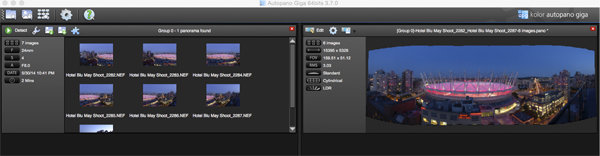
  3. Click on Detect on the top left hand side of the screen.
  4. Autopano Giga will now scan your images and do a preliminary stitch. This preview stitched image will be displayed on the right hand side of the screen that is open. This process may take a few minutes.
  5. Once the preview image is displaying, click on the Edit button (right-hand side of the screen) this will open the image in the Autopano edit screen. This is where you want to check the image to see that it has stitched together properly, and verify that there are no errors on the image.
  6. There are a number of options here, below is a high level overview of the most important functions
Detection and preview screen in Autopano Giga

Detection and preview screen in Autopano Giga

Autopano functions on the edit screen:

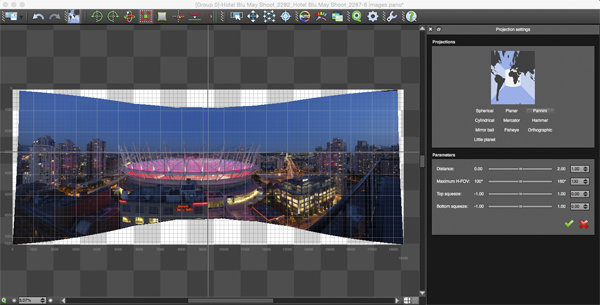
Autopano has a number of options you can use to render your panoramic image. These projections help with distortion and skewing. Below is an explanation of the most commonly used projections.

  • Spherical – The spherical function allows any panorama to be assembled. It is a commonly used option for building panoramic images.
  • Planar or rectilinear projection – This is a good choice if the angle is low. It’s recommended for architectural shots because it is the only mode that does not curve lines that are deemed to be straight lines. Sometimes if the angles are too extreme there may be a loss of sharpness, so just be aware of that.
  • Cylindrical projection – This projection can be used up to 360° (horizontally).
  • Mercator projection – The mercator projection can also be used up to 360° (horizontally). The effect of stretching up and down, the image may seem to become distorted.
  • Pannini projection – Keeps vertical lines vertical and straight radial lines. This can give a strong sense of perspective on views whose horizontal field of view is wide, and has a single and central vanishing point. It can however makes horizon lines seem curved. This can be corrected in the sliders that pop-up when you are editing in this projection.
  • Little planet projection – The Stereographic projection (also called fisheye projection) can be used to create a little planet. A right way up panorama achieves a planet effect and a backward panorama (180° rotation) makes a tunnel effect. Allows you to create an original view of a panorama, mainly using equirectangular panoramas (360°x180°). Using this projection with panoramas, whose horizontal field of view is less than 330°, is neither aesthetic nor usable.
  • Hammer projection – This projection is similar to a flattened world map, mainly used in astronomy applications. I use this for cityscapes too as it can correct some perspective distortion.
  • Orthographic projection – This is the view point of a sphere, whose panorama is viewed from afar, mapped to the outside and not inside like most other projections.
  • Mirror ball projection – This projection is the result of a visualization of the whole panorama on a spherical mirror, like looking into a crystal ball.
Projection function in Autopano Giga

Projection function in Autopano Giga

 Some of these projections are more useful than others. You may find that you will end up using only two or three. A good idea is click on each of them to see how they affect your image. The key factor in choosing a projection is in how the it affects your image visually. Does it work for the subject matter? Does the image look correct? Is the perspective distortion correct? Ask yourself these questions as you experiment with the projections.

Once you are happy with your projection and the way the image looks, you can now save the image to a folder on your computer.

Rendering

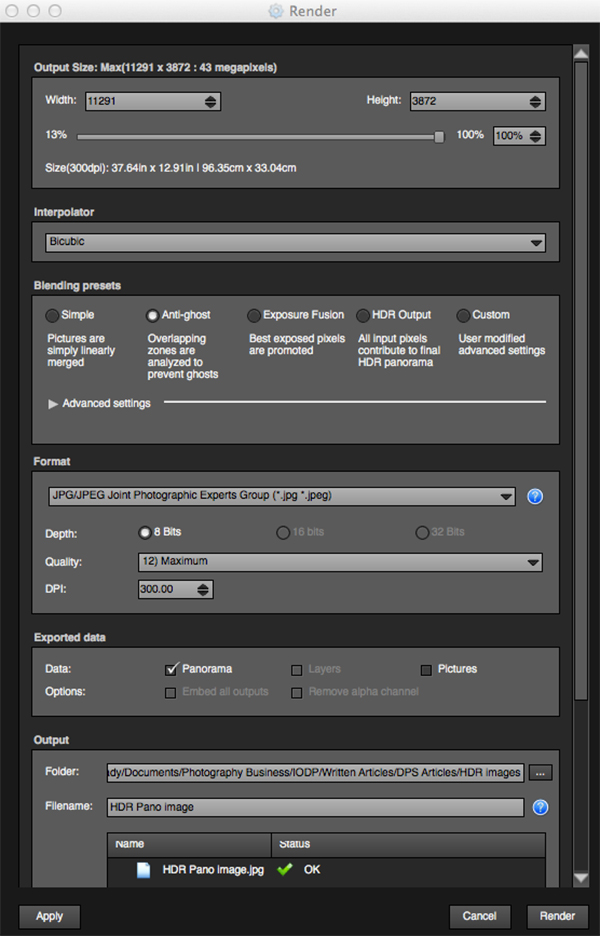
This is the process of saving your panorama.It is called rendering because the software needs to perform the final stitching and edits to your image. On the rendering screen, you will need to take note of the following:

Render and Save screen on Autopano Giga

Render and Save screen on Autopano Giga

Interpolator – The interpolator is the method used to assemble the pixels of your panoramic image, and will determine the quality and sharpness of your image. There are a few different options here, but the most commonly used option is Bicubic. The others are useful for advanced stitching.

Blending settings – The purpose of the blending settings is to allow combining of the overlapped sections of your panoramic to look smooth and seamless. You will notice the following presets:

  • Simple – This is fast, but it is possible that defects may be seen where the areas overlap.
  • Anti-ghost – Conserve the image’s strong characteristics (stops, lines, curves) when mixing while automatically removing objects that have moved
  • Exposure fusion – To be used if the panorama was created with a set of bracketed shoots. Keeps the best of different exposures.
  • HDR output – To be used by users who wish to create a “.hdr” format file in order to create post-production or special effects. Don’t use this on these images if they have already been processed as HDR images.
  • Custom – This is enabled when you manually change the parameters and they no longer correspond to a profile.

On the advanced settings, I generally leave that on the default.

Some of the features that I appreciate in Autopano Giga are as follows:

Exposure and colour blending – The software works hard at sorting out colour and exposure in the blended images. In the past, one of the worst problems with photo stitching was that sometimes the colour or exposure drifted and there was banding in the scene where the light or colour changed. This is a non-issue in Autopano Giga.

Panoramic detection – Sometimes I have shot more than a few panoramic images. When I get back to my computer, I can’t always see or remember which images were which. No problem, you can simply point Autopano Giga to a folder and it will detect all panoramics in that folder.

You can shoot freehand – The software has some really good functionality built-in that can work out multiple viewpoints. So, if you shoot a panoramic without using a tripod or a pano head, the software will be able to detect the scene and make adjustments for it, within reason. Nice to have though, I have shot many handheld panoramic and then dropped them into Autopano and they stitched quite easily.

Format

This section allows you to determine the format in which you want your image to be saved. The two formats I use most are TIFF and JPEG. TIFF is an uncompressed file (which means all the information is still in the file, this is great if you are planning to print the image large) The downside to TIFF is that the files are big. JPEG is a compressed format, that means that some image information has been discarded, the quality will still look the same to the naked eye, but if you print a JPEG image up really big, you may notice some image degradation. Depending on your final output and your space constraints you can choose the format that works best for you. Take the quality up to 12 and set the DPI to 300. This will ensure that you have the best quality image saved.

Output

On this screen, the software needs to know where to save your panoramic and what you want to call it. Choose your destination folder and name the file. Once this is done (it sounds more complicated than it is) click on the render button and the software will begin rendering your image. Depending on the size of the files being stitched, this rendering process can take a few minutes. Once complete, a screen will pop-up to let you know that the image is now rendered.

Edit the final image in Lightroom or Photoshop

Your image is now stitched together, but the final step in the process is to edit the image in your choice of editor. You may want to correct any perspective distortion in Photoshop using the transform tools. If your panoramic image is of a cityscape you will want to make sure that your horizon line is straight and that the buildings are vertical in relation to the horizon. From there you can follow your normal image editing workflow. Once you are done, you will have a fantastic, high resolution, panoramic image.

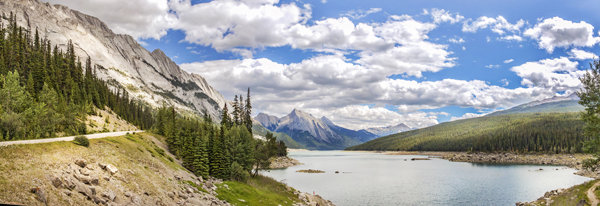
Final edited panoramic image of Medicine Lake in the Canadian Rockies

Final edited panoramic image of Medicine Lake in the Canadian Rockies

My comments on Autopano Giga

Autopano giga has made my editing and processing time much quicker and easier. I do a fair amount of panoramic photography, and the time saving when using this software is significant. I have used it to photograph landscape scenes, hotel rooms, building exteriors and architectural photography. It works exceptionally well in all of those areas. If you make sure that you overlap the images enough, it will stitch your images with ease.

The editing process in Autopano Giga is also very easy to use. Simply click on the projections to see how your image looks, make a choice, and you are done. You can make some technical adjustments within the editing area, but I recommend only doing that if it is absolutely essential.

The perspective control of Autopano Giga is fantastic. For the most part, the final stitched images look correct and I almost never pick up an error on the stitch. It is always a good idea to zoom in to the image to make sure that there are no issues like duplicated areas or bad stitches. This is not normally a problem if your overlap is good.

Autopano Giga is a great tool and if you enjoy shooting panoramic images, download a trial and see how it works for you. Panoramic photography is a lot of fun, I am always excited when I see the final stitched image, very often it is not what I was expecting and thats part of the excitement of these types of images. Having a tool that takes the frustration out of the process is a great advantage. So, go out there and experiment.

googletag.cmd.push(function() {
tablet_slots.push( googletag.defineSlot( “/1005424/_dPSv4_tab-all-article-bottom_(300×250)”, [300, 250], “pb-ad-78623” ).addService( googletag.pubads() ) ); googletag.pubads().enableSingleRequest();
googletag.pubads().disableInitialLoad();
googletag.pubads().collapseEmptyDivs( true );
googletag.enableServices();
} );

googletag.cmd.push( function() { googletag.display( ‘pb-ad-78623’ ); } );

googletag.cmd.push(function() {
mobile_slots.push( googletag.defineSlot( “/1005424/_dPSv4_mob-all-article-bottom_(300×250)”, [300, 250], “pb-ad-78158” ).addService( googletag.pubads() ) ); googletag.pubads().enableSingleRequest();
googletag.pubads().disableInitialLoad();
googletag.pubads().collapseEmptyDivs( true );
googletag.enableServices();
} );

googletag.cmd.push( function() { googletag.display( ‘pb-ad-78158’ ); } );

The post Walk Through and Review of Autopano Giga – Image Stitching Software by Barry J Brady appeared first on Digital Photography School.


Digital Photography School

 
Comments Off on Walk Through and Review of Autopano Giga – Image Stitching Software

Posted in Photography


Post-processing RAW Files – ACR Compared to Some Free Software Options

07 Mar

What is RAW?

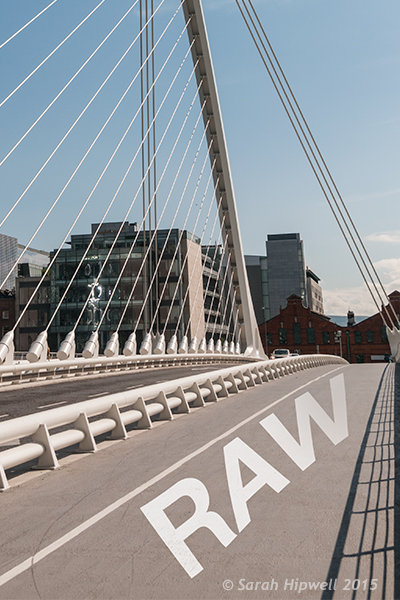
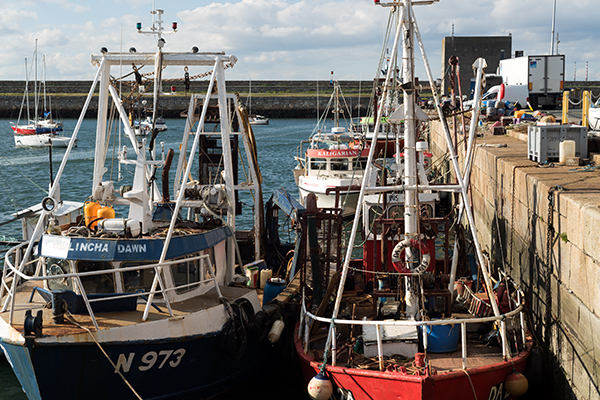
Title-imageA RAW file is really the digital negative, which means that all the data is stored waiting to be unleashed via a RAW Editor. Unlike a jpeg file which has been edited in-camera (or in post-processing) and is a compressed 8-bit file.

Why shoot RAW?

The main benefit to shooting RAW is simply to have as much information as possible in the file. When you upload a RAW file onto your computer the white balance, and tonal corrections have to be set manually. More detail can be retrieved from the highlights and shadows. It is then saved as a jpeg or some other format. The RAW file always remains in its original state.

Shooting RAW has become more commonplace as cameras have the option, built-in and RAW editing software is more widely available on both Mac and PC. In this article, I will be testing out two RAW editors which are free to download. Yes, no purchase necessary. The main RAW editor that I will go into more detail on is Adobe Camera Raw (ACR), which comes with Photoshop and is my primary go-to RAW editing software.

As a side note, this article is by no means a complete in-depth review of the pros and cons of each of the the three RAW editors. I merely wanted to test Photoshop’s ACR against some of the RAW editors that are available to download for free, such as GIMP and RawTherapee.

A few years back, I was using ViewNX (now ViewNX2), which is Nikon’s RAW free editing software. Canon (DPP) and other major camera manufacturers have their own RAW proprietary software. But I found ACR just got better with each new release. I usually bring my images into Photoshop when I’ve done the initial edits in ACR. It means my workflow is quite efficient as I’m using ACR and Photoshop side-by-side.

The Basics

When you open ACR or any RAW editor, the user interface can be a bit daunting for the uninitiated. The range of adjustments and all the features of ACR would require several articles alone.

So, let’s look at the basic adjustments where I begin the editing process of my RAW files. These adjustments are fundamental to any RAW editor. Similar adjustments can also be found in the Develop module of Lightroom and in Photoshop Elements 12 and 13. Let’s begin with Adobe Camera Raw, otherwise known as ACR.

Adobe Camera Raw (ACR)

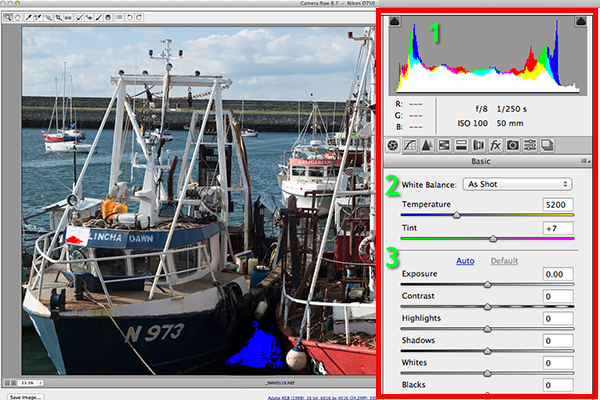
ACR-UI

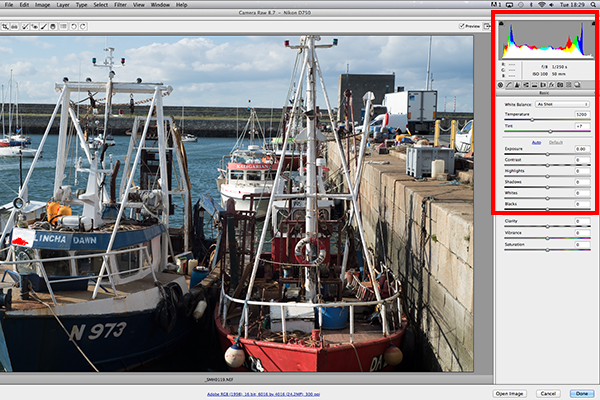
The interface when a RAW file is opened in ACR

When I open a RAW file in ACR, White Balance is my first port of call. This is about the color temperature of the image depending on the light source. If the white balance is incorrect, then a color cast will occur on your image. It may look slightly blue, orange or green.

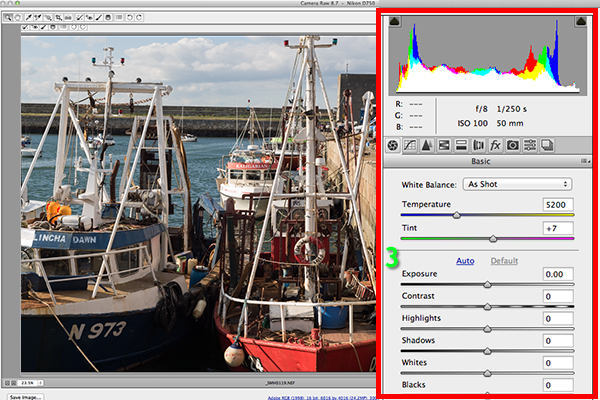
The 3 important focus points in the Basic panel in ACR

The three important focus points in the Basic panel in ACR

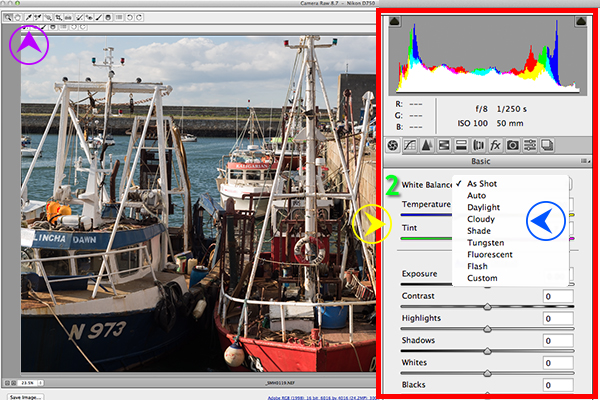
In ACR, there are three ways to adjust White Balance.

3-ways-to-edit-WB

Three ways to edit White Balance in ACR:
1. White Balance Tool
2. Presets
3. Temperature and Tint Sliders

  1. The White Balance Tool is my least favourite. The idea being that you click anywhere on the image that is suppose to be gray. I find this tool hit and miss.
  2. There are number of presets that are worth experimenting with, if you are new to RAW editing. Try Auto which is a good place to start.
  3. You can then adjust the Temperature and Tint sliders for finer tweaking and control. I favour these two sliders the most in my workflow.

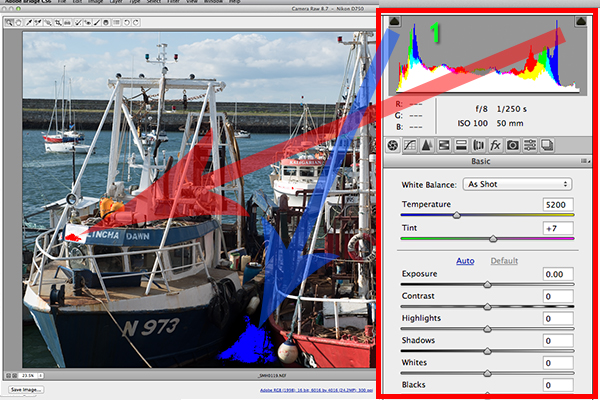
Just above the Temperature and Tint sliders, you have the histogram panel. Click on the the two black triangles. These indicate the highlight (left) and shadow (right) areas that have been clipped (see photo below). As you can see in this image, the areas highlighted in red indicate where the clipping has taken place in the whites. Similar to the shadows, blue indicates where the shadow areas have been clipped.

Highlights-shadows-clipping

Highlights-shadows-clipping in the Histogram.

When adjusting the White and Black sliders keep an eye on the black triangles in the Histogram chart. These triangles turn green when clipping occurs. Alternatively, you can hold down the Alt key while dragging the Blacks slider across to the left until the darkest area of the image starts to appear. Similar for the Whites slider, hold down the Alt key and drag the slider to the right until the brightest part of the image begins to show.

I tend to leave the Exposure slider until after I have adjusted the Highlights and Shadow sliders.

Exposure-contrast

Exposure and Contrast sliders.

The Contrast slider gives your image that final punch but go lightly.

edited-image

Final edited image from the basic adjustments in ACR

All edits done in ACR are non-destructive. Editing RAW files can be easily done in one pass, especially if you have captured the image that you want in-camera. However, there are no layers in ACR or Lightroom, so if you need further editing where layers are required you will need to use Photoshop or GIMP.

GIMP

So this brings us to the next RAW editor, UFRaw. This comes pre-installed in GIMP, version 2.8. I’ve never used GIMP before now and I was really curious and enthusiastic to try it out. It has the reputation of being as powerful as Photoshop for editing – and the fact that it is free, is a bonus.

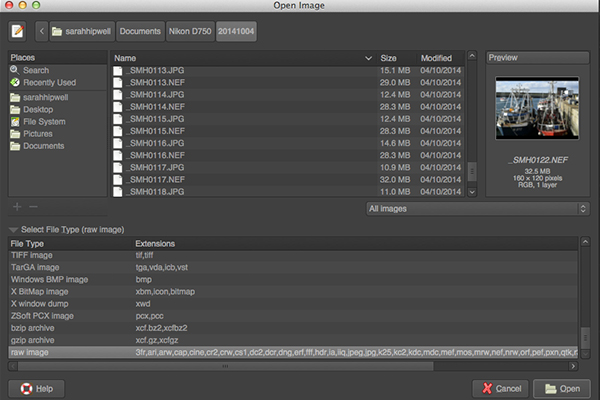
I presumed that by opening a RAW file that the UFRaw editor would launch automatically. It didn’t. After a quick research online. I found a solution. I had to go to File>Open>Select file. I then had to Select File Type and scroll down to the bottom of a list and click on ‘raw image’. Once I opened the image in question. It did not resemble anything like the image I had taken on the day. Normally when I launch a RAW file in ACR, it would be similar to the jpeg version.

Opening-RAW-file-in-GIMP

The UFRaw editor does not launch automatically. A few clicks gets you there.

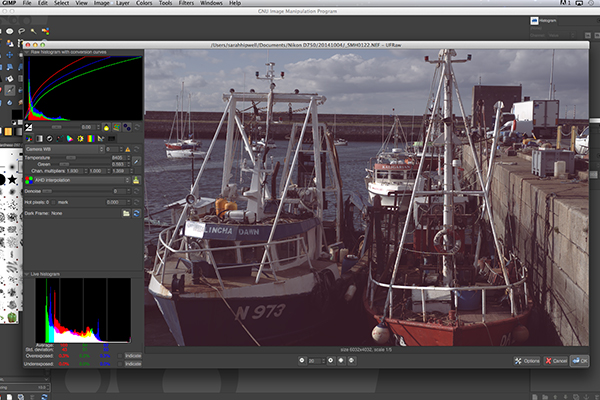
The interface was completely alien to me, and I didn’t find it particularly user friendly. I played around with the sliders for awhile but I couldn’t get the image to look right at all. I tried adjusting the White Balance but I couldn’t get rid of a green/grey color cast on the image. By not having the familiar sliders in ACR, I was a bit lost to be honest. I really wanted to like UFRaw, as it is a free software for Mac and PC. To be fair, this was my first attempt at using the software, so I’ll put the mea culpa (blame) on me as opposed to the software.

RAW-file-opened-in-GIMP

The UFRaw editor UI in GIMP

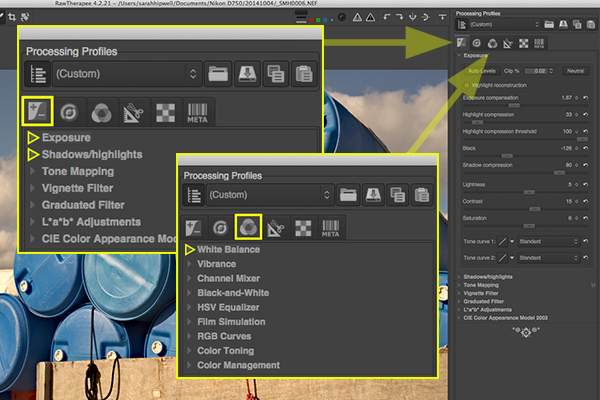
RawTherapee

Now onto RawTherapee. I love the name. I wasn’t expecting much after trying out GIMP’s UFRaw but I was completely surprised and impressed. RawTherapee is available in 64 and 32 bit forms for Mac OS X and Windows. It also supports a huge range of supported cameras and manufacturer filetypes.

RawTherapee-UI

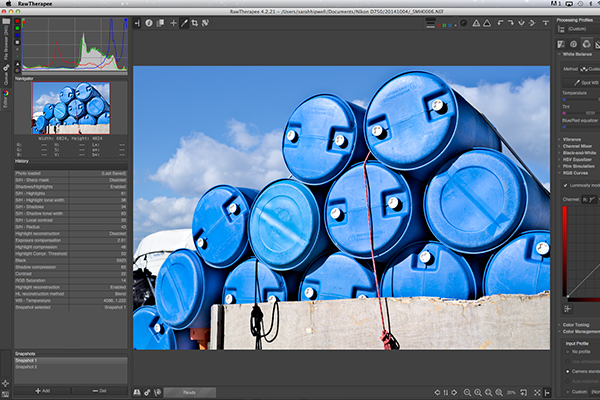
RawTherapee interface

This RAW editor is quite rich in features. Even so I found the user interface very intuitive, and after a few minutes I felt right at home. I quickly adapted to the menu system and found it very easy to navigate around. The editing panels are on the right.

RawTherapee-adjustment-sliders

Highlighted adjustment sliders that are similar to the ones in ACR.

Summary

If you haven’t edited a RAW file before, I would highly recommend that you try it out. The options are varied whether you decide to purchase Lightroom, or choose to pick from the many RAW editors that are free to download. The choice is really up to you. Another free RAW editor that has just been launched is Affinity Photo and it looks really promising (currently in beta for Mac only).

googletag.cmd.push(function() {
tablet_slots.push( googletag.defineSlot( “/1005424/_dPSv4_tab-all-article-bottom_(300×250)”, [300, 250], “pb-ad-78623” ).addService( googletag.pubads() ) ); } );

googletag.cmd.push(function() {
mobile_slots.push( googletag.defineSlot( “/1005424/_dPSv4_mob-all-article-bottom_(300×250)”, [300, 250], “pb-ad-78158” ).addService( googletag.pubads() ) ); } );

The post Post-processing RAW Files – ACR Compared to Some Free Software Options by Sarah Hipwell appeared first on Digital Photography School.


Digital Photography School

 
Comments Off on Post-processing RAW Files – ACR Compared to Some Free Software Options

Posted in Photography


Lytro software update introduces Focus Spread feature

11 Dec

Lytro’s processing software just received a significant update. Lytro Desktop 4.1 provides some additional features for users of the Illum light field camera, including Focus Spread, which allows photographers to pick beginning and ending points for depth of focus. Learn more

Articles: Digital Photography Review (dpreview.com)

 
Comments Off on Lytro software update introduces Focus Spread feature

Posted in Uncategorized


Fujifilm announces macro tubes, tethering software and X-series firmware availability

20 Nov

Fujifilm has unveiled two macro extension tubes for its X-series interchangeable lens cameras, as well as a launch date for the previously-promised Fujifilm X-T1 firmware. More firmware updates are also announced for the X-E2, X-E1, X-Pro1 and X-30, as well as the introduction of tethering software for PC. Read more

Articles: Digital Photography Review (dpreview.com)

 
Comments Off on Fujifilm announces macro tubes, tethering software and X-series firmware availability

Posted in Uncategorized


Canon Digital Photo Professional software update boosts camera support

01 Oct

Canon’s Digital Photo Professional software, commonly referred to as DPP, has just received updates to versions 4.0.2 and 3.14.41. Both of these were joined by updates to a roster of the company’s other photography-centric software, including the EOS Utility, EOS MOVIE Utility, and Picture Style Editor. Read more

Articles: Digital Photography Review (dpreview.com)

 
Comments Off on Canon Digital Photo Professional software update boosts camera support

Posted in Uncategorized


Ricoh updates Pentax 645Z firmware for IMAGE Transmitter 2 software

30 Sep

Ricoh Imaging has released new firmware for its Pentax 645Z medium format camera to make it compatible with the latest version of the company’s IMAGE Transmitter software. Firmware version 1.10, which is available to download by users via the Ricoh website, allows Pentax’s second digital medium format camera to be controlled when tethered to a PC via USB cable, so images can be saved directly from the camera into a chosen folder as they are taken. Read more

Articles: Digital Photography Review (dpreview.com)

 
Comments Off on Ricoh updates Pentax 645Z firmware for IMAGE Transmitter 2 software

Posted in Uncategorized


Create Beautiful Portraits with CameraBag 2 Software

27 Sep

CameraBag for portraits

Do you use Lightroom for processing portraits but get frustrated by its limitations?

One way around this is to use a plug-in or buy some Develop Presets. But these can be expensive, so you may be interested in a cheaper alternative.

One of my favourites is Nerve Center’s CameraBag 2. It’s a bargain at just $ 20, and while it’s not as convenient to use as a plug-in that you can access directly from Lightroom, it is easy to incorporate into your workflow. Let me give you a couple of examples. Here’s the first; I selected it because there’s a dramatic difference between the photo created in Lightroom and the one created in CameraBag.

CameraBag for portraits

CameraBag for portraits

Here’s another one. The changes are more subtle, to show you can use the software with a light touch.

CameraBag for portraits

CameraBag for portraits

Lightroom workflow

Now you’ve got a taste for what CameraBag can do, I’d like to show you how to incorporate it into your Lightroom workflow.

As CameraBag is not a Lightroom plug-in, you need to export your photos as either JPEG or TIFF files (I recommend 16-bit TIFF) before you can open them in CameraBag. Start by creating a folder on your hard drive to store the photos. I call mine Photos (plug-ins temporary).

In Lightroom, select the photo/photos you want to edit in CameraBag. Go to File > Export. These are the settings you need to adjust in the Export window.

Export Location: Select the folder you just created. This is where Lightroom will save the files.

CameraBag for portraits

File Settings: Set Image Format to TIFF, Color Space to sRGB and Bit Depth to 16 Bits/Component.

You don’t need to touch any of the other settings in the Export window.

CameraBag for portraits

You can speed up the process by creating a User Preset. Click the Add button and give the new preset a name. All you have to do in future is click on the preset to apply the same settings. Easy!

CameraBag for portraits

Processing portraits in CameraBag

Start by opening the portrait you want to edit in CameraBag. You will see something like this:

CameraBag for portraits

The layout is minimal. Use the four buttons* in the top-right corner to access the program’s editing options.

CameraBag for portraits

* Alternatively, you can access the controls by clicking on the tabs on the very right of the screen. The functions are the same, just laid out differently.

My Styles and Cameras

Click either of these buttons to instantly choose from over 150 filters. Naturally, not all of them will suit your portrait. But look closely and you will definitely find something you will want to work with.

CameraBag for portraits

My Style filters. This is where you’ll find the majority of the filters.

CameraBag for portraits

Camera filters. There are some additional choices here.

On the surface, CameraBag may look as if it’s just another program designed to give your photos an Instagram type look. But dig a little deeper and you’ll see that it is a high quality photo editor. There are two important things to note here. The first is that CameraBag uses a 32-bit processing engine, preserving your portrait’s fine graduations of tone and colour.

The second is that all editing is non-destructive. You can adjust or undo any edits you make. For this example I’ve chosen the Film NC-1A filter. It’s a subtle preset that adds a slight matte effect and a blue cast to the shadows.

CameraBag for portraits

Now look at the tiles that have appeared below the photo.

CameraBag for portraits

Some of these represent the edits that have been made by the filter to your portrait. The others are additional, allowing you to alter the effect of the filter. For example, when I click on the Toning tile, a slider appears that lets me adjust the strength of the effect.

CameraBag for portraits

When I click on the Saturation tile, the slider is set to 50, indicating that no change to colour saturation has been made. But the option is there to increase or decrease it.

CameraBag for portraits

Adjustments

This is where you’ll find CameraBag’s photo editing tools. It’s a comprehensive selection. Among other things you can adjust colour, contrast and tonal values, add grain or a vignette, tweak the RGB or colour curves, crop, and adjust the colour temperature. I won’t bore you with detailed explanations, because you will be able to figure it out easily enough for yourself if you download the trial.

However, there’s one tool I’d like to draw your attention to (I used it in both opening images at the beginning of the article), and that’s Lightleak. There are two sliders: Remix, which changes the appearance of the light leak effect, and Amount, which adjusts the strength.

CameraBag for portraits

Borders

Finally, we come to the borders. You can choose one of CameraBag’s borders, or create your own in another program (such as Photoshop) and use that. While I used borders in the opening images to highlight one of the differences between CameraBag and Lightroom, they are something that I tend to avoid as I see them as bit of a gimmick. But they are there if you want to use them.

You should also note that if you use one of CameraBag’s built-in borders, it reduces the size of your image to 2000 pixels along the longest edge.

CameraBag for portraits

By the way, you can create your own filters using the current settings you have picked for the photo you are editing. Just go to File > Add Filter to My Styles to do so. CameraBag prompts you to enter a name and it is stored under My Styles.

You can download more filters, created by other CameraBag users, from the CameraBag website. You can also submit your own for others to share. Here’s the final version of my portrait (without the light leaks effect).

CameraBag for portraits

What CameraBag lacks

Is there anything that CameraBag doesn’t have? There are two features that I would really like to see included in future versions. The first is some kind of masking feature so you can control which part of the image is affected by an edit. The second is some portrait retouching tools. Having said that, if you use CameraBag at the end of your workflow, to edit portraits that you have already processed in Lightroom or Photoshop, then these features won’t be missed much.

Here’s a summary of CameraBag’s good and bad points.

Pros:

  • Quick and easy to use.
  • Lots of interesting built-in presets.
  • Complements Lightroom and Photoshop.
  • Good control over colour, contrast and tonal values like highlights and shadows.
  • 32-bits per component colour depth.
  • Non-destructive editing.
  • Raw file support.
  • Inexpensive!

Cons

  • Reduces image size to 2000 pixels along the longest edge if you apply a built-in border.
  • Only works with one colour space (whatever your monitor is set to).
  • Can’t be added as a plug-in to Lightroom, Aperture or Photoshop.
  • No local adjustments or portrait retouching tools.
  • No batch processing tool.

Give it a try

As with any software or plug-ins, the best way to see if CameraBag is for you is to download the trial version and have a play. Follow the link to download the software or learn more about it. You’ll find lots of information about CameraBag on the website, including how-to videos here.

Your turn

Have you used CameraBag or an inexpensive/free image editor such as Pixelmator, Picasa or GIMP? I’d like to hear about your experiences. What inexpensive software would you recommend for our readers?


Mastering Lightroom: Book Four – The Photos ebookMastering Lightroom: Book Four – The Photos

My new ebook Mastering Lightroom: Book Four – The Photos takes you through ten beautiful examples of photography and shows you how I processed them step-by-step in Lightroom. It explores some of my favourite Develop Presets and plug-ins as well as the techniques I use in Lightroom itself. Click the link to learn more.

The post Create Beautiful Portraits with CameraBag 2 Software by Andrew S. Gibson appeared first on Digital Photography School.


Digital Photography School
 
Comments Off on Create Beautiful Portraits with CameraBag 2 Software

Posted in Photography