Today Olympus announced the release of its Olympus Capture software, which is designed to bring tethering to owners of the OM-D E-M1. The software, along with the new E-M1 firmware 2.0, was announced last week at Photokina, but today photographers can finally take advantage of the new feature set. Read more
Tag: Software
-
Luminosity Masks Versus HDR Software For Creating Natural Looking HDR Images
Jimmy’s Luminosity Masks Tutorials – Art of Digital Blending Course For Photoshop is on sale now at 15% off over at SnapnDeals. Only until September 6th, grab it now!
If you type the term ‘HDR’ into google images you’ll very quickly see why HDR photography has a bad reputation. While we all differ in our tastes, in recent years, those strongly saturated, blurry and noisy HDRs have fallen out of fashion, even amongst HDR photographers.
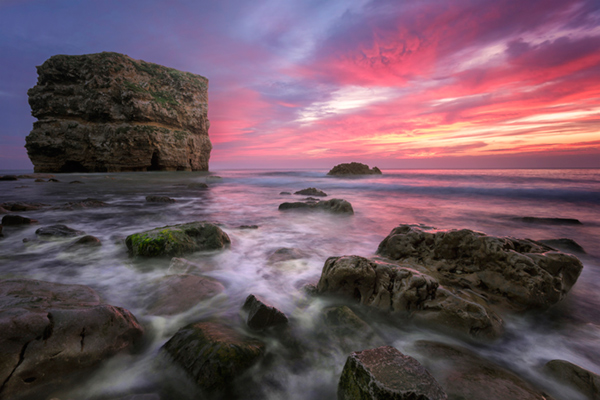
Luminosity Masks Versus HDR Software For Creating Natural Looking HDR Images
The goal, among many, is now a clean HDR look. HDR programs are attempting to tidy up their processes to meet the needs of the demanding HDR photographer. However, a large number of photographers are beginning to take the blending process into their own hands, and produced beautifully balanced HDRs using luminosity masks, probably the cleanest alternative to HDR software.
In fact, luminosity masking has become an exciting buzz-term in the world of digital photography, and there’s good reason for that.
If you’re new to luminosity mask exposure blending, you can see a beginner’s tutorial on dPS in my previous article: Exposure Blending Using Luminosity Masks Tutorial
In this article we’ll take a look at the benefits and challenges of luminosity masks versus HDR software.
Benefits of Luminosity Masks
1. Image quality
We’ve all seen over-saturated, noisy, messy, HDR images. One guaranteed way to avoid the poor image quality we normally associate with HDR is to manually blend your exposures in Photoshop using luminosity masks.
When exposure blending with luminosity masks, you’re working only with the RAW files to restore highlights and shadows. You do not affect any other part of the image. In other words, your final blended image will be, more or less, exactly the same image quality as your RAW files.
You do not affect any colour changes, you retain absolute sharpness, you don’t flare up noise (which means you can shoot at a much higher ISO), and you will not exaggerate chromatic aberration.
This is the major reason why so many are turning to luminosity masking to create natural, balanced HDRs.
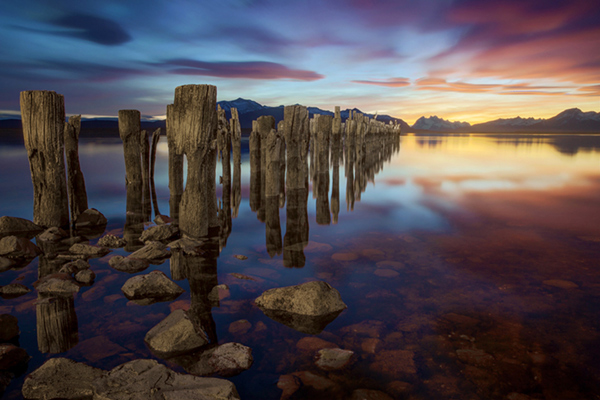
Sunset at Puerto Natales, Chile
2. Complete control over what we blend
Artists of any genre fight for complete control over their ability to express themselves. And so it is in photography. One of the problems with using HDR software is that we have very little control over the blending process.
We rely on an algorithm to choose which areas to blend with which exposures. Then we’re given some sliders to adjust. Although this gives us greater control over the process, it isn’t giving us 100% control.
Through luminosity masking, we begin with a base exposure, and we then decide for ourselves which exposures we wish to use in the blending process, and which areas we wish to adjust, and at what opacity.
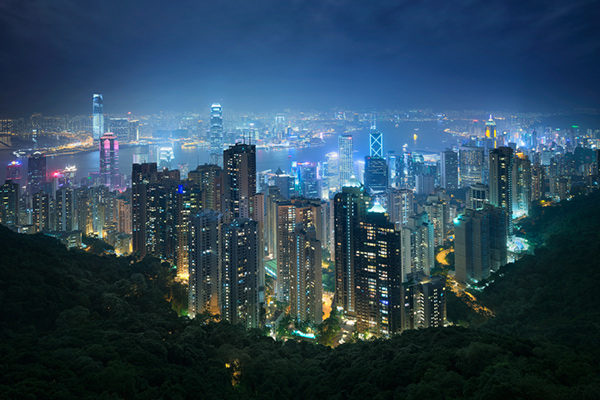
The image below is a good example of how you can make very precise changes with luminosity masks.
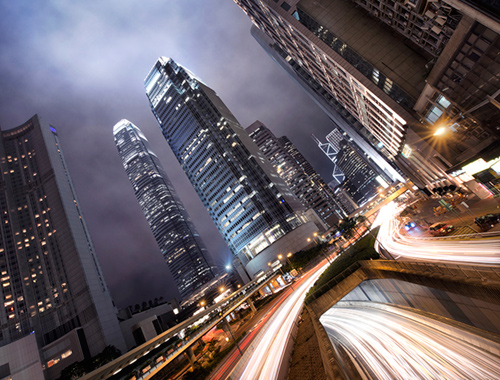
Hong Kong Light Trails
This image is made up of 11 exposures; six of which were used for the light trails, four were used for exposure blending, and one was used as the base exposure. You can learn how to create light trails like this here: How To Add Dramatic Car Trails To Your Photos In Photoshop
Below you’ll see the RAW file used for the base exposure.
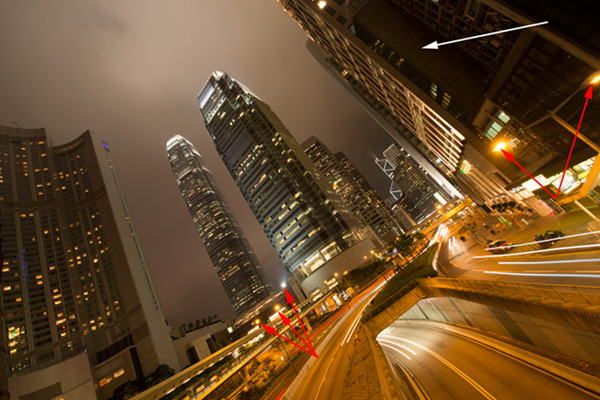
Base Exposure
The only highlights I wanted to control in the image were the street lights, and even then I still wanted them to be bright. Through bright lights like this night cityscapes are able to give off a lot of energy and dynamism.
I very gently blended in three darker exposures to gain a little bit of control in those areas, without darkening them too much. If I ran my exposures through an HDR program, all of the highlights in the image would have been affected to some degree, which is exactly what I didn’t want.
For the darker areas, I only wanted to bring back information in one area, the side building to the right, which is noticeably dark. I used an exposure two stops brighter and, with luminosity masks, I easily painted details back into this area.
#3. No more halos and fewer ghosts
Halos simply don’t exist in luminosity mask exposure blending if you’ve done it correctly.
As for ghosts, you will rarely encounter a moving object that is difficult to blend. Since you use a base exposure, which will be done for most of your images, and simply reduce specific highlights and shadows, there shouldn’t be any ghosting.
The only challenge you may have, which is also a challenge when using HDR software, is if you have moving leaves on trees, for example, between exposures. Then the blending process is a little bit trickier.
#4. Become a better photographer
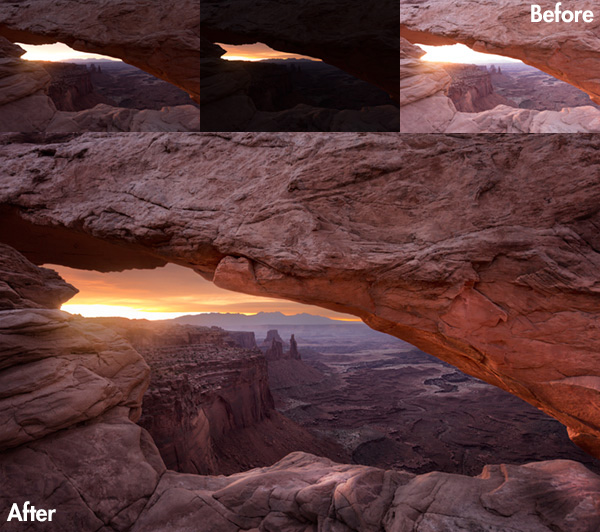
Mesa Arch, Before and After Exposure Blending With Luminosity Masks
In my early days I was a die hard tone mapper. I’d approach a scene and think, “this would be a cool HDR subject”. I’d fire off some brackets and take them into Photomatix when I got home. I had a predefined routine of what to do, what result I wanted, and how to get there. I had tunnel vision.
When I began exploring luminosity masks, everything changed. I began to read a scene, not as an HDR subject, but in terms of its unique beauty and mood. I started to grasp more fully the use of light in controlling mood, whereas previously I was simply relying on getting the ‘HDR effect’ each time.
Rather than shooting off a set of automatic brackets, for a complex scene I will often bracket manually, changing the aperture, ISO and shutter speed to capture different elements of the scene. Then I’ll blend in each of the elements to hopefully get the best out of that scene.
In the Hong Kong Light Trails image above, the base exposures and brighter exposures, the light trails, and the darker exposures were all shot manually with different settings to achieve different effects.
It is through using luminosity masks, and taking my imagery into my own hands, that I have pushed myself in the field to achieve more.
#5. Combine with other HDR processes
One of the beautiful things about luminosity masks is that you can combine them with other exposure blending methods to complete the blending process. 32-bit processing is becoming an interesting way of blending exposures cleanly, but we are a long way off before the process is good enough and our monitors can handle true 32-bit files.
However, we can overcome the limitations of 32-bit processing by combining it with luminosity mask exposure blending. The tutorial below will show you exactly what I mean. The video is taken directly from the Art of Digital Blending course:
Challenges with Luminosity Masks
HDR software is simpler
Luminosity masks require more patience and a steeper learning curve than HDR software. The concept takes a little bit of time to get used to, and it will certainly challenge you to re-learn a few things.
While HDR software will take all of the leg-work out of it for you, luminosity masks require you to really think about your exposures and deepen your workflow.
Luminosity Masks don’t work on every occasion
Every now and then you’ll come across an image where luminosity masks won’t create a smooth blend between exposures. This happens because there isn’t enough contrast between the areas you wish to blend and the areas you don’t wish to affect.
In which case, using 32-bit processing or HDR software would be a good alternative.
Luminosity masks work in 8-bit mode
Like all live selections in Photoshop, luminosity masks work in 8-bit mode. They don’t affect the bit depth of your image, so if you’re working at 16 bits that won’t change. But there may be a chance of posterization in some cases.
A quote from Photoshop staff on the Adobe forum claims:
“The selection mask is 8 bits, regardless of the document precision. That fact has no affect on the precision of the image.
No, it won’t change the image or cause future posterization — the image data is still the same precision as it always was.”
So while this shouldn’t be an issue, it is something to be aware of.
Conclusion
HDR images don’t have to be messy, garish and overdone. There are many ways to cleanly blend exposures to create a beautifully natural and balanced HDR. Having luminosity masks in your arsenal, will give your workflow a superb cutting edge, that can quite literally change your imagery over night.
It will require a little bit of extra work on your part, but often the best things in life do.
Jimmy’s Luminosity Masks Tutorials – Art of Digital Blending Course For Photoshop is on sale now at 15% off over at SnapnDeals. Only until September 6th, grab it now!
Related articles
The post Luminosity Masks Versus HDR Software For Creating Natural Looking HDR Images by Jimmy McIntyre appeared first on Digital Photography School.
-
Updated: Nikon releases Capture NX-D 1.0.0 software
Nikon has released version 1.0.0 of Capture NX-D, introduced in beta form earlier this year. Capture NX-D is the first version of Nikon’s flagship Raw converter since previous developer Nik Software was bought by Google in 2012. The software features a new user interface, batch conversion and a non-destructive workflow that saves adjustments in sidecar files alongside the original image. Read more
-
Invent a Slogan and Win Some New HDR Software
Whenever someone talks about HDR (High Dynamic Range) photography, it can either be with disdain or great appreciation, but as they say–different strokes for different folks. In any case, HDR photography has its roots in the 1850s when the French Photographer Gustave le Gray combined two exposures to render a seascape that contained large range of light, thus enabling a Continue Reading
The post Invent a Slogan and Win Some New HDR Software appeared first on Photodoto.
-
Macphun Intensify Pro Software Review
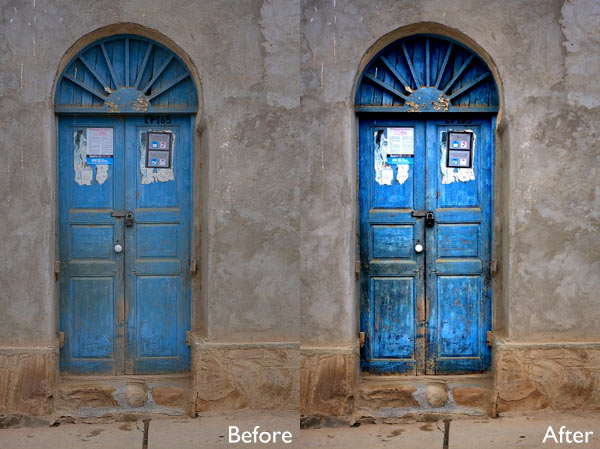
Intensify Pro (currently on 20% off for dPS readers here) is a Mac only image editing program from MacPhun. With apologies to Windows users (I really wish this software was available for PCs as well) let’s dive in and see what this software can do.
One of the reasons that you buy plug-ins is to take advantage of the ways you can use them to increase mid-tone contrast and enhance detail. Indeed, this is the main reason to buy Intensify Pro because it allows you to do this quickly and easily and with far more functionality than is offered by Photoshop or Lightroom.
Process in Lightroom first
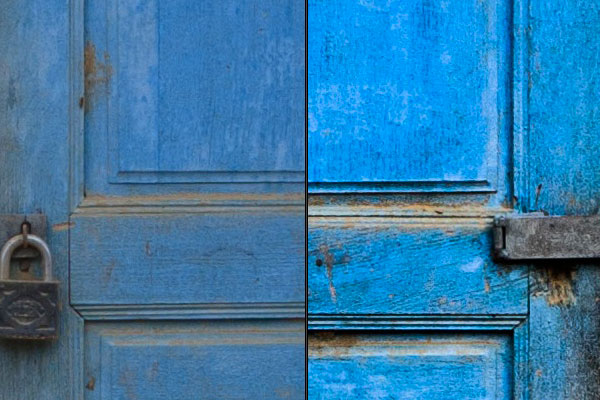
To demonstrate the power of Intensify Pro I’ve selected an image that is very flat but has a lot of texture in the image to work with. You can see it below. The version on the left is more or less straight out of the camera. The version on the right was created by increasing Exposure, Contrast and Clarity in Lightroom’s Basic panel, and adding a slight vignette in the Effects panel.
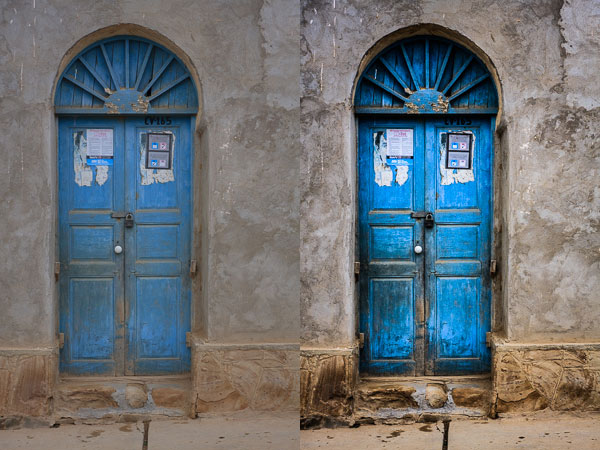
Here’s a close-up so you can see the effect that increasing Contrast and Clarity has had on the texture and detail.
Bring it over to Intensify Pro
Now let’s open the photo in Intensify Pro and see what we can do with it in comparison to what is possible in Lightroom.
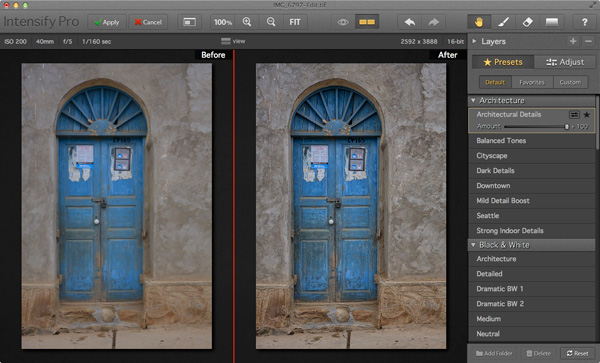
First, the layout. Your photo is displayed in the centre, there are various tool buttons along the top, and the controls for working with Presets and making adjustments are on the right.
Presets
There are 68 presets in total (yes, I counted them) and you can select any one of them to use as a starting point or click the Adjust button to go straight to Adjust mode.
One of the problems with presets, and indeed with any program that lets you make adjustments to contrast and detail like Intensify Pro, is that it is very easy to create an image that looks over-processed.
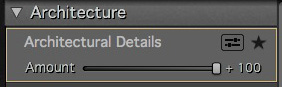 Intensify Pro provides a simple solution to this. Each preset comes with an Amount slider that lets you adjust the strength of the preset on a scale from zero to 100, much like the Opacity slider in Photoshop layers. So if you like a preset, but feel the effect is too strong, you can adjust the strength until you are happy with the result.
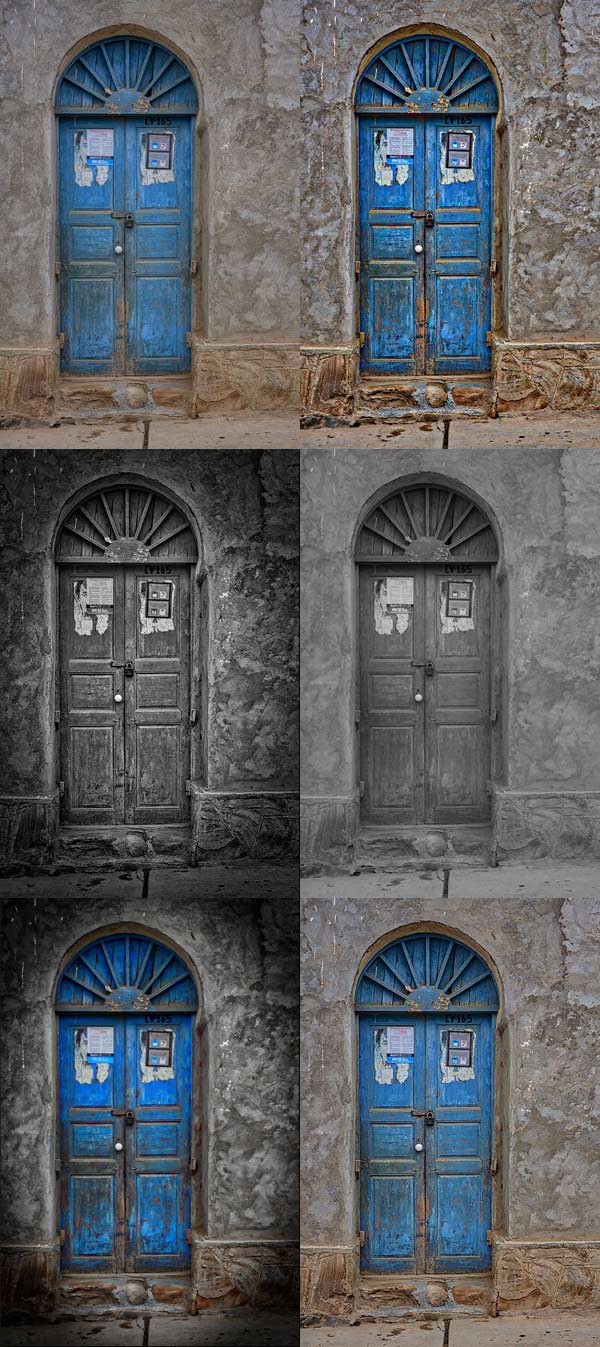
Here are some of the presets in action. All of them were applied to the original photo at full strength without any further adjustments.
Adjust
After selecting (or perhaps not selecting) a preset you can move to Adjust mode. This is where you take control and use sliders to apply adjustments and enhancements to your photo.
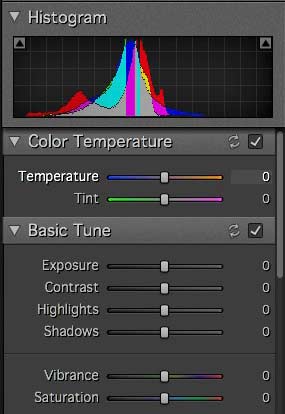
The first three Adjust panels echo the sliders found in Lightroom and Adobe Camera Raw. There’s nothing new here, these are for making adjustments to the photo before you get to the sliders that are unique to Intensify Pro.
You’ll notice the absence of a Clarity slider. It is replaced by the Pro Contrast, Structure and Detail panels. These allow you to much the same thing, but with far more control and versatility.
Pro Contrast
The Pro Contrast panel is where Intensify Pro starts to get interesting. Pro Contrast increases contrast without losing detail, and there are three sliders so you can apply it to the highlights, mid-tones and shadows individually. Under each of these is an Offset slider, which works in tandem with Pro Contrast sliders to control the brightness of the image. So, for example, if you increase Pro Contrast in the shadows and find that the image becomes too light, you can increase the Offset to make it darker.
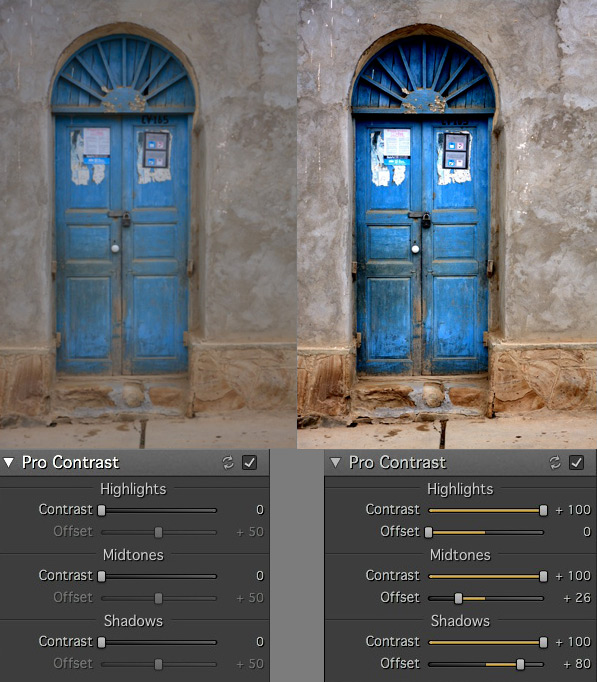
Structure
The Structure sliders are for enhancing areas of low contrast, revealing texture and details. There are two levels: Global (targeting small areas) and Micro (targeting really small areas).
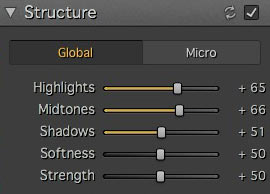
There are three sliders, enabling you to target the highlights, mid-tones and shadows respectively. The Strength slider gives you control over the strength of the effect and Softness slider control over the crispness.
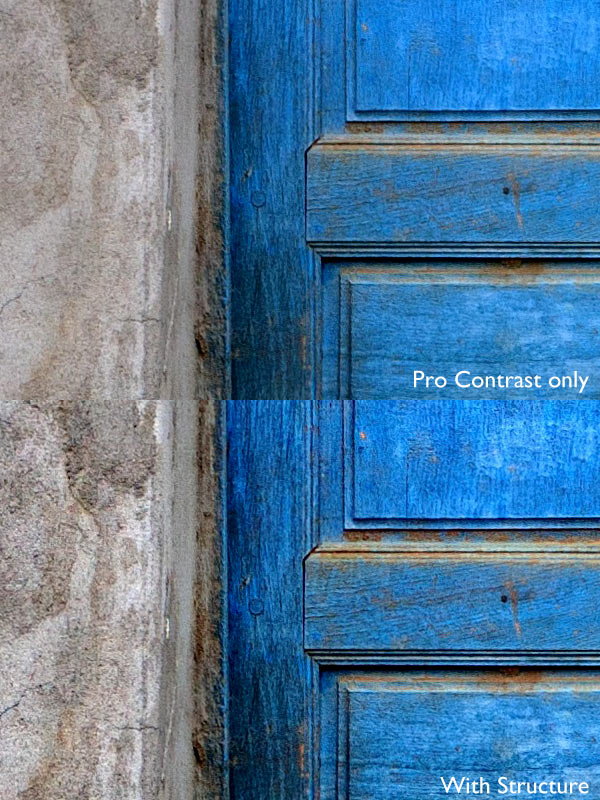
It is really easy to overdo the effect and create something that looks completely unnatural, similar to some of the presets I showed you at the beginning of the article. Care is required, and I found that the Structure sliders worked best when I used the Pro Contrast sliders first.
These enlargements show you the effect of the Structure sliders.
Detail
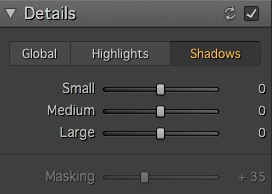 The Detail sliders are for enhancing detail. The three sliders (Small, Medium and Large) control the size of the details affected. The Large slider has the greatest effect on the image and the Small slider the least. The tabs at the top let you apply it as a global adjustment, or to the shadows or highlights.
Like Structure, the Detail sliders require care as it is easy to overdo the effect. There is an additional Masking slider to help keep it under control. If the effect is too strong, you can move the Masking slider right to limit the areas affected.
Micro Sharpness, Vignette and Opacity
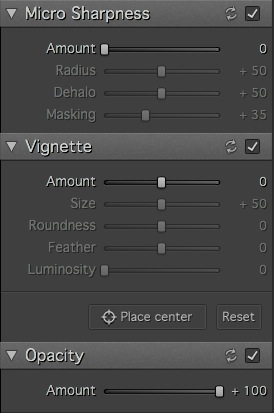 The final three sets of sliders let you make other adjustments, such as sharpening or adding a vignette. The Opacity slider lets you reduce the strength of the effect you’ve created. This does the same job as the Amount slider in the Presets panels. Use it if you realize that you’ve overdone the processing.
Local adjustments and Layers
So far I’ve looked at all the sliders in the context of global adjustments (adjustments that affect the entire image). But Intensity Pro also lets you create masks to apply the effects to a smaller area (local adjustments).
Local adjustments are important because most of the time you will want to emphasize texture and detail in certain parts of the image, but not others. A subtle touch is often key to effective post-processing, and local adjustments help you achieve that.
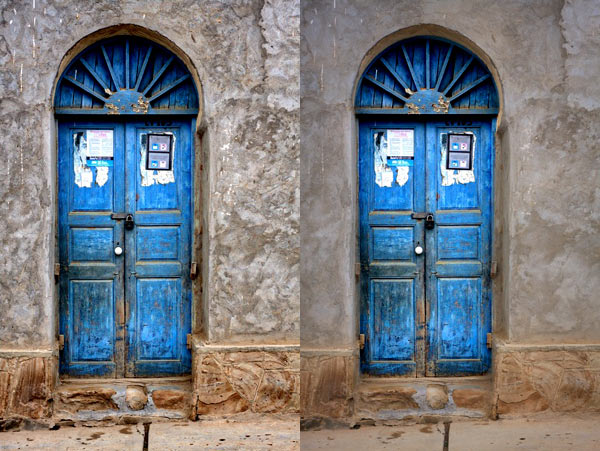
Here’s the final example (below). The image on the left shows the result of a series of global adjustments. I like the effect on the door, but the effect on the surrounding wall is overdone.
The image on the right was created using masks and layers. I used the mask to limit the adjustments made in the first image to the door. Then I created another layer and applied a softer level of adjustment to the wall. Finally I added a vignette to make the sides of the image darker. The result is a more subtle increase in contrast and detail that emphasizes the texture and detail of the wooden door.
Conclusion
Intensify Pro is an excellent program, and I’m looking forward to working with it more. I feel I’ve only touched upon its capabilities in this short review, as like all plug-ins it takes time to explore the features and learn how to get the best from it. Hopefully I’ve given you a good idea of what it can do. The best way to see for yourself is to go to the MacPhun website and download a trial of the program (look for the grey Try for Free button above the menu).
There are two versions of the program. Intensify is a standalone app aimed at casual photographers. Intensify Pro also works as a plug-in with Photoshop, Photoshop Elements, Lightroom and Aperture and contains a few more advanced features aimed at professional photographers. The details are on the MacPhun website.
New features
For those of you who are interested, Intensify Pro was recently upgraded by MacPhun and contains the following new features. If you already own the software, go to Intensify Pro > Check for Updates to download the update. This list is from the press release:
Macphun Print Lab – Intensify photos can now with a few clicks be turned into personalized products like postcards and notecards, delivered direct to recipients. Affordable, high quality gallery frames and canvas prints can also be ordered, perfect for gifts to friends and family. The Macphun Print Lab is powered by MILK Books.
Integration with SmugMug – SmugMug is one of the world’s leading photography communities with millions of users worldwide. Images can be exported directly from Intensify to SmugMug portfolios for viewing, sharing and printing.
RAW Updates – Intensify now supports RAW formats from all the most popular cameras. The native RAW processor supports 16-bit images and opens files faster than in any other app.
Mavericks Support – Intensify is now taking advantage of all the powerful features of Apple’s latest OS, Mavericks. Support for the new Notifications feature will enable more timely communications with customers about updates, new features, free presets and more.
UI improvements – Additional shortcuts to the user interface provide quick access to the most important tools and features.
The post Macphun Intensify Pro Software Review by Andrew S. Gibson appeared first on Digital Photography School.
-
Software update speeds up Samsung Galaxy S5 camera

Samsung has released a software update for the international version of its Galaxy S5 flagship smartphone. The new software is promising speedier camera and gallery app startup, plus more responsive fingerprint recognition. Apart from the faster camera startup, the update also brings improved general performance and better RAM management. Learn more
-
Alien Skin Software announces Exposure 6 plugin

Alien Skin Software has released the latest version of its flagship photography effects software. Exposure 6 now includes a ‘Bokeh’ focus and lens-simulation feature, an updated image processing engine for instant previews, enhanced user interface for quick workflow, and unlimited creative texture control. The analog film emulation and creative effects software integrates with Photoshop, Photoshop Elements, Lightroom, and Aperture or can be launched as a stand-alone program. Learn more
-
HDR Darkroom 3 Software Review
Digital cameras may be making incremental improvements with dynamic range capabilities, but are still lacking in terms of what they can capture. Bracketing multiple exposures of the same scene and merging them together with tone mapping software is one way of creating an HDR photograph allowing you to capture the full range of the scene in front of your camera.
The people at Everimaging have recently upgraded their HDR tone mapping software offering to its third edition, and as a result today we’re going to talk about HDRDarkroom 3. It’s available for both Mac and Windows users, and a free trial version can be downloaded from their site.
What’s Cool About HDR Darkroom 3?
The number one thing that stands out to me is the user interface. The simplicity of the way that HDR Darkroom 3 uses presets to get you started with tone mapping is unique, and takes a lot of the work out of finding the right starting point. The program is also stripped down in a way that gives even the most novice HDR photographer an easy learning curve to get started.
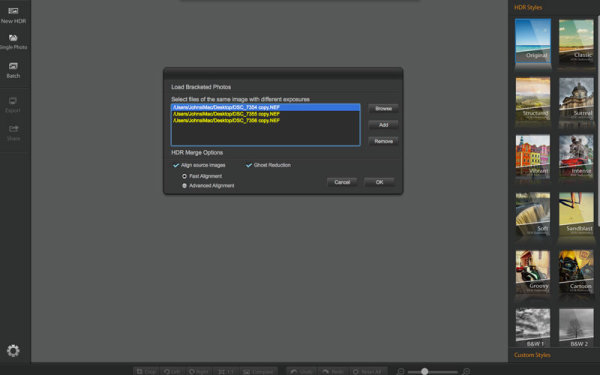
When you launch the program you can choose from three different import methods: New HDR, Single Photo and Batch. These work as you might expect where New HDR allows you to choose the set of bracketed images that you’d like to work on, single photo allows you to tone map a single photograph and batch processing allows for processing a batch of HDRs using the same settings.
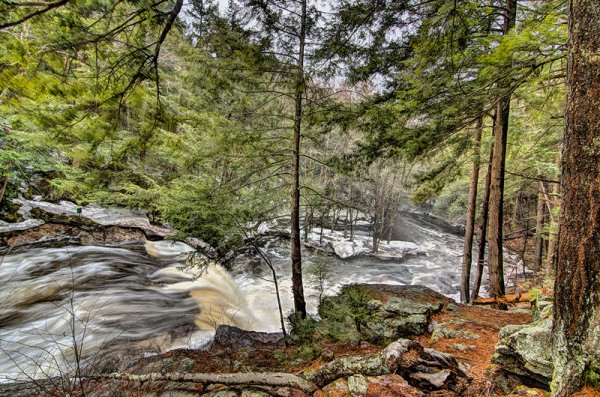
For this review I’ll be using a three bracket set I took while photographing waterfalls recently. When importing photographs you can have HDR Darkroom 3 align the images by either a fast method or advanced method. When switching between the two options there is no difference to the user interface (both options are completely software driven) so I’m assuming this is just going to depend on the amount of time it takes for the merge to be completed.
On top of the alignment you can also have HDR Darkroom 3 take care of ghosting effects by checking the appropriate box. Again, this is a very simplistic approach, where the user is left at the mercy of the algorithm inside the program with no ability to customize which areas of the photograph to focus on, or the intensity of the ghosting effect removal.
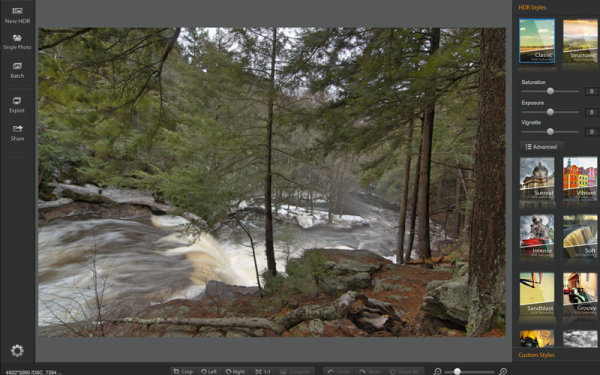
After importing your image you are defaulted to the ‘Classic’ preset which is a very standard almost uninteresting HDR image. On top of this preset the program comes packed with 15 more for you to choose from and the option to save any modifications that you’ve made as custom presets.
HDR Darkroom 3, unlike the other programs in the industry, actually forces you to start with a preset. You choose which one you like best for the image that you’re working on and each one will change the image to achieve a particular look.
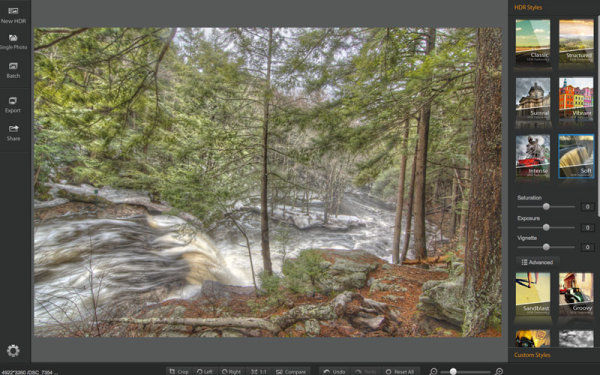
When you have found a preset that you like for the image, you can then customize it to your liking with three different sliders for Saturating, Exposure and Vignette as well as an advanced button for more freedom in the editing process.
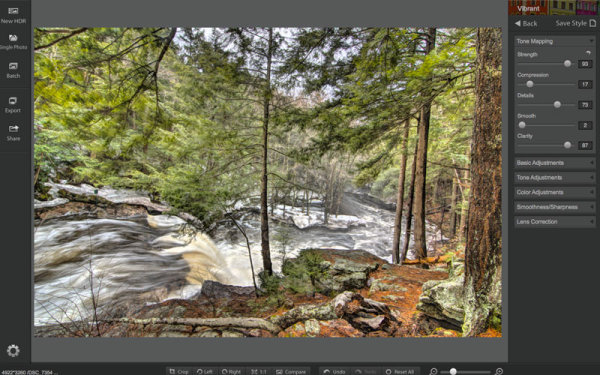
Once in the advanced section you have access to many of the tools you might expect like: tone mapping, basic exposure and contrast control, highlight and shadow adjustments, white and black point adjustments, and other tools for color, smoothness and even lens correction.

Overall, HDR Darkroom 3 does do a good job at processing a bracketed set of photographs with a slick, easy to use interface to boot. However, for those who do want a little more control, it might be just a bit too limiting. One of the biggest things that I felt was missing was a local adjustment brush for finer control over where effects were being applied.
How’s HDR Darkroom 3 handle worst case high dynamic range?
The waterfall photo above that I used for the walkthrough is a fairly easy shot for an HDR process as its low on dynamic range and won’t really push the software to its maximum potential. But, I didn’t want to be too unfair in the introduction.
So let’s take it a bit further, let’s try and and do something close to a worst case scenario HDR. The image below is made up of three bracketed images shot at +2, 0, -2 directly into the sun. Plus there’s snow and shadows in the foreground to deal with as well, making for a truly difficult shot.
Admittedly HDR Darkroom 3 did struggle here, I tried to recover those highlights in the sky, but no matter what I did they were always blown out. Below are screenshots of three different presets plus advanced adjustments that I applied in order to try to control the image.
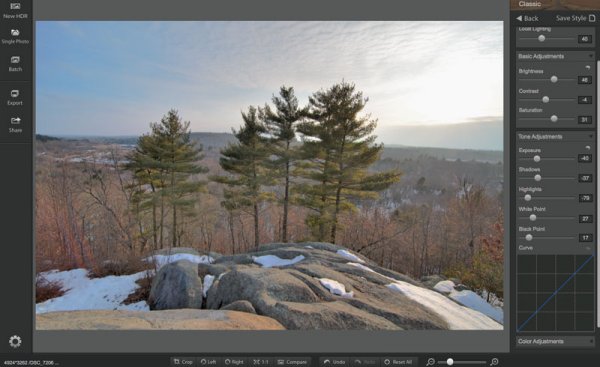
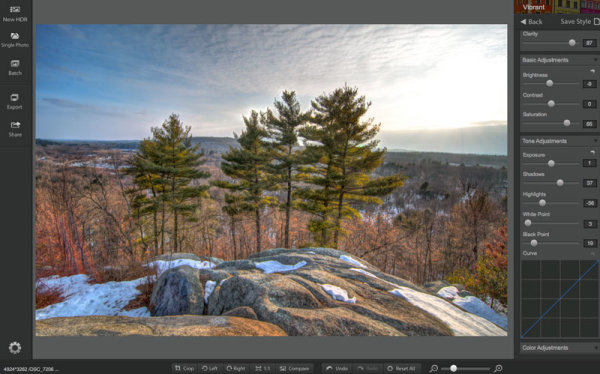
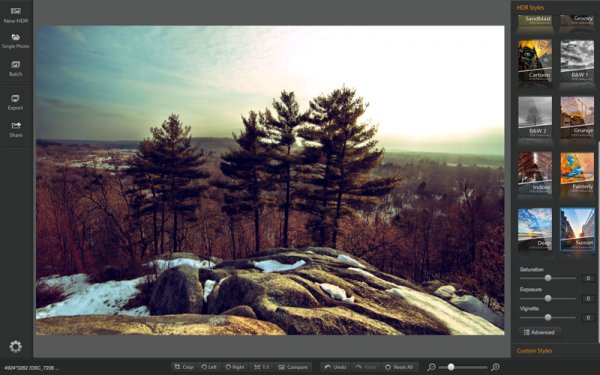
While the presets make for some easy switching between different effects of HDR, the overall fine-tuning control of the process is lacking in some situations. On most occasions when I went to reduce the highlights I was left with something that was lacking detail and muted in color. Not to mention the sliders are very heavy handed and effect a much larger portion of the tone curve than the respectively named ones in Lightroom.
The best I was able to come up with, shown below, has a few issues with haloing around the trees (the blown out highlights around the sun. It’s something that you may be able to fix in Photoshop later by masking in the sky from one of the brackets, but that’s beyond the scope of this review.
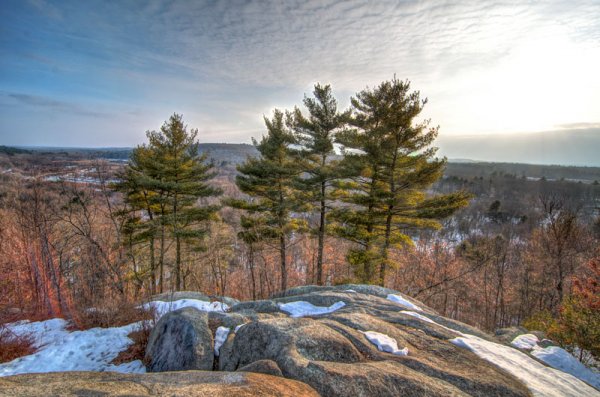
HDR Darkroom 3 Final
Compared to the Merge to 32-Bit Lightroom Plugin by HDR Soft
Being that this was a challenging photograph it’s worth checking out two other HDR options to see how they would handle the same scene. Both of the options I’m testing below are offered by HDRSoft. One of these is very budget friendly at a price of $ 29, while the other one is more comparably priced to HDR Darkroom 3 listing for only $ 10 more at $ 99.
Our budget friendly option is a plugin called Merge to 32-bit HDR for Lightroom. It’s a very simple process that really strips out the tone mapping process of creating an HDR image, but still allows you to merge the data from a bracketed set of photos directly inside of Lightroom 4 and greater. For more about how it works you can read Five Minutes to Realistic HDR using Lightroom and a 32-Bit Plugin.
Now it’s not surprising that the 32-bit plugin struggled with this photograph, as after all, it is very limited. However, because it imports the 32-bit TIFF file back into Lightroom for you to work on, I think it may have handled the highlights in the sky slightly better than HDR Darkroom 3, it’s a judgement call, but for the price difference I’d say it’s a win.
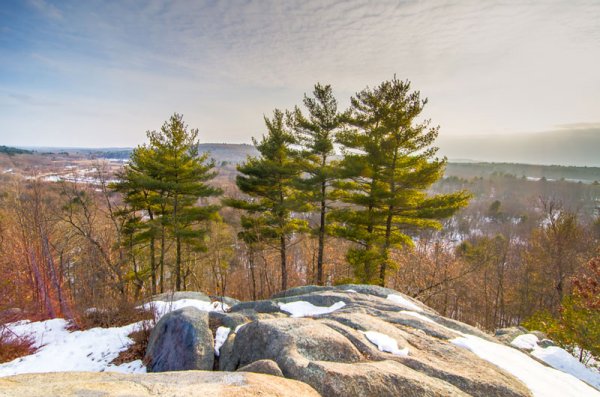
Merge to 32-Bit HDR Plugin for Lightroom
HDR Darkroom 3 Versus Photomatix 5.0
Next up would be the flagship offering from HDRSoft, and one of the leaders in the HDR tone mapping word, Photomatix 5.0. It’s no surprise to me that Photomatix did a fairly decent job with the foreground detail and even most of the sky, it still had some problems with the sun, but that’s not surprising given the circumstances of the image set.
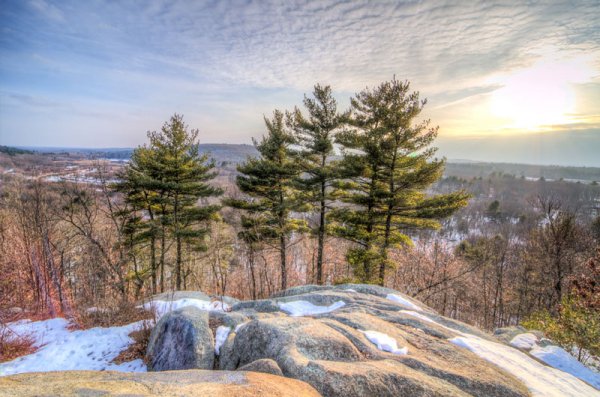
Photomatix 5.0 + Quick Lightroom Cleanup
Overall I’d argue that this particular image set is one of the more challenging that you will run through an HDR tone mapping software, and all three options above gave it a fair attempt.
My thoughts on the three software in terms of how they did overall:
- Photomatix 5.0 – Probably did the best overall job at merging the three images. However, it’s a more involved process, requires more training, and ultimately isn’t a standalone editor you’re going to need to clean up the tone mapped image in LR or some other program after the fact.
- Merge to 32-Bit plugin – It’s quick and dirty. You are able to collect more data from the scene and basically create an HDR image without ever leaving Lightroom all for less than 30 dollars. Yes it’s limited, but it’s also affordable.
- HDR Darkroom 3 – Like I said at the start of this article – I think HDR Darkroom 3′s best features are its user interface and intuitive preset oriented process of tone mapping images. I’d argue that it struggles the most when it comes to complicated scenes mainly due to the fact that the localized tone controls of highlights and shadows are a bit heavy handed and could stand to be more refined.
Would I Recommend HDR Darkroom 3?
HDR Darkroom 3 is a bit more affordable than some of the other premium tone-mapping solutions out there and does make a fair attempt at providing a good amount of the basic functionality into a nice looking and affordable package.
I think it boils down to this…
If you’re the type of person who likes to keep it simple and you don’t mind giving up a bit of control for the sake of simplicity then HDR Darkroom 3 might be the best option for you. But I’d urge you to check out the Merge to 32-Bit plugin first, as it may be all you need considering the price points.
However, I just can’t recommend it to those who are looking for a full featured product with total control over the HDR tone mapping process – there are better tools for the job such as Photomatix Pro and the small amount of savings here just doesn’t justify what you’ll give up.
Have you used HDR Darkroom 3? Tell us your own thoughts on it in the comments below – after all I’m just one opinion.
The post HDR Darkroom 3 Software Review by John Davenport appeared first on Digital Photography School.
-
Stellar Phoenix Mac Photo Recovery Software Review
The “click of death!”
I’m sure it’s happened to you at some point or other, a drive dies *click bzzt click bzzt click* or a memory card stops working for some unknown, and entirely frustrating reason. I’ve used pretty much every memory card and hard disk on the market at some point or another, and have lost images to the “corruption demons” with a couple of them… Here’s how to get those files back!
Photo recovery software to the rescue!

It’s not always the fault of the card or the drive – a premature ejection like pulling the drive out of your computer / usb / firewire or indeed grabbing a card out of your camera while it’s writing a file – most of the time the file system (like a set of drawers on the card or drive) manages to put the data away before stopping, but sometimes, like my office floor, things are left everywhere and that’s when you encounter data corruption (very basically).
Stellar Phoenix Mac Photo Recovery 6 Mac
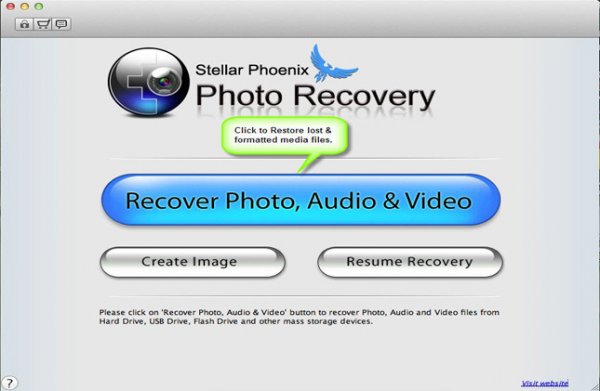
What they say
Stellar Phoenix Mac photo recovery is a utility that recovers deleted, formatted, lost photos, pictures, songs, movies, and other multimedia files from Mac systems.
- Recovers from Mac – Systems, External Drives, USB Drives, iPod and Digital Cameras
- Supports a wide range of image, audio, and video file formats
- Supports hard drives with capacities over 2 TB
- Efficient Scan Engine scans the storage media faster
- Also recovers Thumbnails of the corresponding image files
- Compatible with Mac OS X 10.5 up to the Latest OS X Mavericks
What we say
After recovering from all kinds of old drives, CF cards (a 16mb one from a LONG time ago) including a 2TB disk, I am very happy with Stellar Phoenix Mac Photo recovery! It’s dead easy to use – you start it up, choose your drive and click recover… Sure, you can head into the advanced tab and recover only single file types if you wish, for example if you were after a set of CR2 files (Canon RAW) from a CF card, you could narrow your search down to just those files. Once scanned you can save the scan / found files information if you wish to restore the files at a later date.
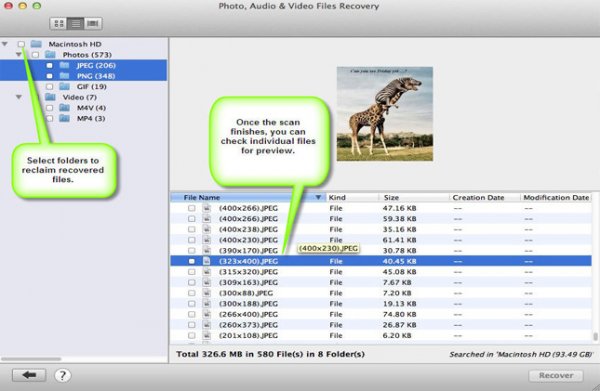
I started this review a long time ago and, with the first version of the software, I had some minor issues – it called a CR2 a DNG and so on, which in the big scheme of things wasn’t a total fail, but could be very confusing… I was able to give this feedback to the creators, and with the new version there are no issues, and none of the previous bugs.
There are two versions of the software, one that simply recovers any of your media files and another slightly more expensive ($ 39 vs $ 49.99) version that also repairs corrupt jpeg files. I am using the regular version and I did encounter a couple of corrupt images, I hope to run through the same tests with the platinum version soon.
Recovery time was about average based on my previous experience (Yes, the photo at the top is me and yes, we’d just lost a 9TB storage array… long story) with a CF card of 16GB taking a bit over an hour and a 2TB drive via USB taking about a day and a half. In both cases I was able to successfully recover the data I needed.
Data recovery isn’t always guaranteed, I’m not going to lie – sometimes the pretty photographs just don’t want to come back. ever. I was able to recover everything I set out to recover using Stellar Phoenix Mac Photo software in this case.
Conclusion… Based on my time in I.T. and my previous experience with recovery software, I’m happy to recommend this software if you find yourself in a spot of digital bother.
For more on image recovery and back up see:
- Recover Images from a Damaged SD card
- Recovering lost or deleted files – Backing Up & Saving Your Images: Part 4
- Memory Cards – How to Extend Their Life and Keep Them Healthy
The post Stellar Phoenix Mac Photo Recovery Software Review by Sime appeared first on Digital Photography School.
-
Nikon releases beta version of next-generation Capture NX software

Nikon has released a beta version of an update to its Capture NX software, a product which has been relatively stagnant in recent years. Capture NX-D is the first version of Nikon’s Raw converter to be made since previous developer Nik Software was bought by Google in 2012. The software features a new user interface, batch conversion and a non-destructive workflow that saves adjustments in sidecar files alongside the original image. Find out how to try Capture NX-D for yourself.
 Getting Real with HDR – a Step by Step Tutorial for Realistic Looking HDR
 Is the Death of HDR Photography Coming?