RSS
 

Posts Tagged ‘Software’

Portrait Plus Retouching Software – A Review

26 Jan
Portrait Plus from ArcSoft packs powerful facial retouching tools into a user-friendly program.

Portrait Plus from ArcSoft packs powerful facial retouching tools into a
user-friendly program

One of the most difficult tasks in Photoshop is also one of the most common. Since we are in the business of making people look good, solid portrait retouching skills are perhaps some of the most important tools in your digital bag of tricks. A couple of months ago, I wrote an article detailing one of my favorite techniques for basic skin smoothing in Photoshop. It’s a pretty straightforward approach to smoothing skin and removing blemishes and I use it all the time. As convenient as it is, though, it can have an impact on editing time, particularly when I’m dealing with a lot of photos at once.

Portrait Plus from ArcSoft is a portrait retouching program that works as a stand-alone application (Windows and Mac) or as a Photoshop plug-in under the filters menu (Currently Windows only). It has a simple, user-friendly interface designed for efficient, seamless integration with your portrait workflow.

How does it work?

Simply put, Portrait Plus automatically detects the faces in your photos, and then identifies 24 key facial features. While this auto-detection is really pretty amazing, it’s not always perfect (and therefore my only real complaint).  Profiles turned too far away from the camera and semi-obscured features (think bangs over the eyes) will throw auto-detection for a loop. I had a couple of images where the auto-detection did not work, requiring me to manually select the facial features and target areas. While a bit frustrating, I don’t view this as that much of a negative, since you are likely to manually adjust the target areas yourself anyway as you become more comfortable with the software.
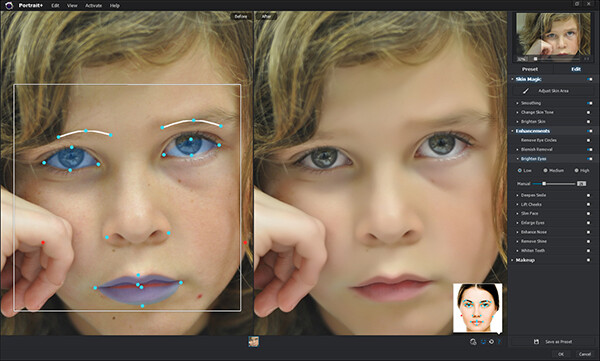
The overlay on the left shows the facial features automatically detected by the software.

The overlay on the left shows the facial features automatically detected by the software.

Once an image has been imported, you have a choice of using one of the program’s ten presets, or editing the photo manually, with the option of saving the results as a preset for future retouching work. While the manual editing tools are very extensive, and allow users to select specific areas and facial features, many of the test photos I ran through Portrait Plus for this review achieved excellent results with the presets alone. Facial retouching that could take several minutes or longer can be drastically reduced down to just one or two clicks of the mouse. In order to ensure consistency throughout the photo, Portrait Plus also detects all visible skin, giving the editor as much or as little control over the final image as possible.

Powerful editing tools

Here is a breakdown of the manual retouching tools.

Skin

Some skin retouching software simply blurs over the imperfections.  By identifying very specific areas of the face, however, Portrait Plus gives you extensive control over what to repair and to what degree, for a more natural-looking result. By taking this targeted approach, Portrait Plus eliminates deep scars, pimples, scratches, and other imperfections, while restoring or maintaining one of the most important aspects of all–original skin tone.

  • Skin smoothing
  • Skin tone
  • Brighten skin
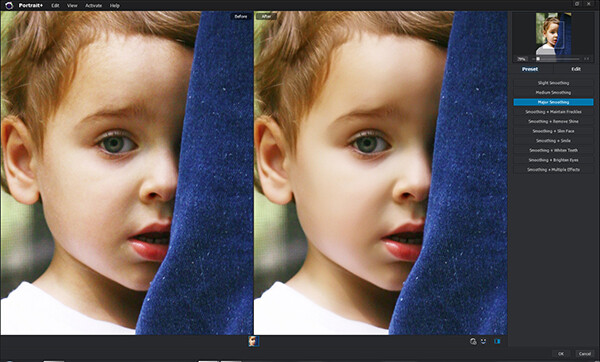
Original on the left. Skin-smoothed on the right.

Original on the left – skin-smoothed version on the right

Enhancements

If you’ve ever wanted to get in touch with your inner plastic surgeon, here’s your chance. By giving the user control over specific areas like the mouth, cheeks, eyes, and nose, reshaping and fine-tuning facial features has never been easier. Tools included are:

  • Remove eye circles
  • Blemish removal
  • Brighten eyes
  • Deepen smile
  • Lift cheeks
  • Slim face
  • Enlarge eyes
  • Enhance nose
  • Remove shine
  • Whiten teeth

Makeup

Depending on your lighting and camera settings, makeup does not always have the look you were going for in the final image. By having the ability to make these adjustments in post-production, you can either save your original idea, or go in a new direction. You’ve got to be very careful with this set of tools, however–a single mouse click can be the difference between a subtle adjustment and “alien eyes”. Effects included:

  • Blush
  • Lipstick
  • Colored contacts
  • Eye color
  • Eye lashes
  • Eye liner
  • Eye shadow
  • Shape eyebrows

Comparison

The original version of this portrait is straight off the camera, only edited for size. In the Portrait Plus version, you can see how edits like basic skin smoothing, along with a wider smile, slimmer face, whiter teeth, and digital lipstick provide subtle, but significant changes.
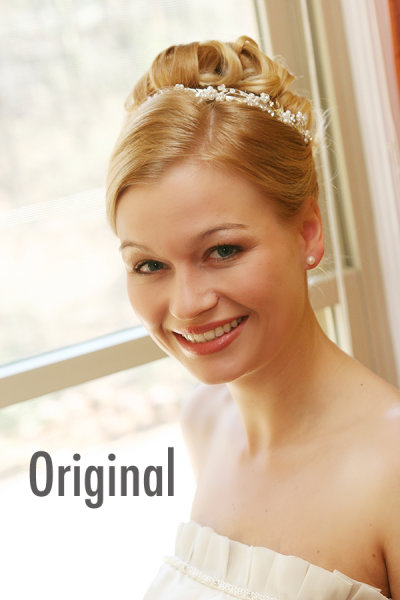

portrait-plus-dps-review-007

portrait-plus-dps-review-006

Many of the effects in this software package would take months to learn, and years to perfect if you were to attempt them yourself in Photoshop. While Portrait Plus does have a bit of a learning curve, it is far less steep than what you’d experience by trying to learn all of these edits on your own.

Multiple Faces
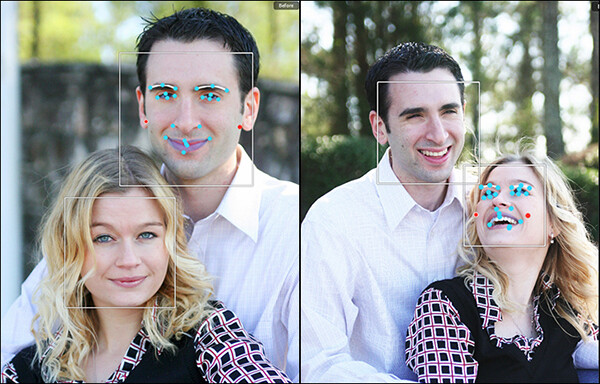
Portrait Plus does a great job of detecting multiple faces within the same image.

Portrait Plus does a great job of detecting multiple faces within the same image.

While I’ve not yet tested it on photos with more than two faces, ArcSoft’s website claims that Portrait Plus can detect up to 20 faces in a single image. This can come in particularly handy for event photographers, who often find themselves editing photos of large groups of people. Portrait Plus also allows you to “lock” faces, selecting which faces in a photo are retouched and which are left alone.

Supported file formats

The Windows stand-alone version can import JPEG, TIFF, PNG, and BMP images of 24 bits per pixel, while the Mac stand-alone imports JPEG, TIFF, PNG, and RAW files with 24 bits per pixel. Both Windows and Mac export JPEG and TIFF files. The Photoshop plug-in will import and export all Photoshop-supported file formats.

Wrap-up and recommendations

As a portrait photographer, I strive to get everything as close to perfect in the camera as I possibly can. While even the best portraits can always use a tweak or two, the reality is that some portraits require significant retouching. As important as the editing is, though, so is time with my family. So, whatever I can do to cut down on my editing time is a bonus. As good as I am at retouching, Portrait Plus is a bit of a game-changer. An intuitive, user-friendly Photoshop plug-in, Portrait Plus can seamlessly add a whole new dimension to any photographer’s editing arsenal.

Portrait Plus is available for download on the ArcSoft website.  Enter coupon code Portrait45 at check-out for a 45% discount. Valid through March 31, 2014.

The post Portrait Plus Retouching Software – A Review by Jeff Guyer appeared first on Digital Photography School.


Digital Photography School

 
Comments Off on Portrait Plus Retouching Software – A Review

Posted in Photography


Poll update – what post production software do you use the most?

23 Dec

We ran this poll last in February of 2009, so I thought it was time for an update to see if there have been any changes since last time. I’m especially curious about any Adobe offerings since the Creative Cloud too affect. Has that swayed your software choice?

Tell us what post production software you use the most. If you use more than one, indicate the one you use most often, for most of your editing needs. For example I use Lightroom and Photoshop CC, but LR5 is my primary tool as I use it for 90% of my editing.

By filling this in you will also be giving us direction in what types of articles and tutorials we post in the future. So please share and add a comment below if you want to give us additional information.

>I’ve included the eight most popular tools mentioned last time we asked this question to readers (I’ve combined all Photoshop versions into one for simplicity). I know others of you use Noise Ninja, Bibble Pro, ACDSee and others – feel free to tick the ‘others’ option and tell us in comments below what ‘other’ one you’ve chosen.

If you use more than one feel free to tell us about that too.

Note: There is a poll embedded within this post, please visit the site to participate in this post’s poll.

The post Poll update – what post production software do you use the most? by Darlene Hildebrandt appeared first on Digital Photography School.


Digital Photography School

 
Comments Off on Poll update – what post production software do you use the most?

Posted in Photography


DPReview is hiring! Content Editor and Software Manager roles available

29 May

DPRlogo.png

DPReview is hiring! We have two open positions available: we’re looking for an Editor to join our team of writers and reviewers, and a Software Manager. If you’re interested in joining our growing team and you have experience either writing photography-related content for the web, or managing developer teams to launch successful projects, you should click through for more details.

News: Digital Photography Review (dpreview.com)

 
Comments Off on DPReview is hiring! Content Editor and Software Manager roles available

Posted in Uncategorized


Software technique: Photoshop Gradient Tool: Part 2 – Adjusting Images

27 May

CompositeWithAdjustments_2.jpg

In the second, concluding article of his 2-part tutorial explaining Photoshop’s Gradient tool, Jean Miele explains how to use linear, reflected and radial gradients in layer masks to improve your digital photographs. In this article Jean takes us through four clear, easy steps, and also includes more tips for making the most out of gradients in both Photoshop and Lightroom. Click through for links to the article. 

News: Digital Photography Review (dpreview.com)

 
Comments Off on Software technique: Photoshop Gradient Tool: Part 2 – Adjusting Images

Posted in Uncategorized


Developer releases open-source software to remotely control Nikon DSLRs

14 May

mainwindow.jpg

Developer Duka Istvan has created a release candidate of digiCamControl – free, open-source software that allows most Nikon DSLRs to be remotely controlled via computer. digiCamControl is compatible with Windows PCs and allows you to see your camera’s live view image on your computer screen, as well as trigger a tethered DSLR remotely, either directly or using a programmable timer. Multiple cameras can be connected at the same time. Click through for more details on connect.dpreview.com.

News: Digital Photography Review (dpreview.com)

 
Comments Off on Developer releases open-source software to remotely control Nikon DSLRs

Posted in Uncategorized


Poll: What concerns you most about Adobe’s move to subscription software?

09 May

AdobeCClogo.png

Adobe’s decision to move to a subscription-based model for its professional creative software has prompted probably  the most impassioned response we’ve ever seen to a news story on dpreview.com. There’s a risk that the sheer volume of comments might prevent a clear message being heard, so we’ve prepared a poll of the most common complaints, to help establish what your biggest concerns are.

News: Digital Photography Review (dpreview.com)

 
Comments Off on Poll: What concerns you most about Adobe’s move to subscription software?

Posted in Uncategorized


Acorn Version 3.5.1 Image Editing Software

18 Mar

Acorn256Sometimes Photoshop is just too much. Just too much for your image editing skills and sometimes just too much for your needs. And that’s not to forget the demands on your pocket!
As the company says ‘Everyone needs to edit images at some point, but not everyone has the time to learn super pricey wizbang image editing programs.’ With Acorn you can add text and shapes to your images, combine images, work with layers to improve images or create something new from scratch.

An added plus is that Acorn is claimed to be the ‘world’s only image editor with native support for Retina displays.’

After a brief dabble with the application and before I read any guff on its talents … a bit like using a camera under review and before reading the manual! … I fell for Acorn very heavily.

Besides, it does things I have never seen before.

Rundown

Here’s a rough map of its talents:

Apply non-destructive effects to your layers; turn your text and shapes upside down and every which way; Quickmask allows you to zoom in and edit your selections; Instant Alpha — remove backgrounds and other unwanted pixels from an image; Multistop Live Gradients — with this, you have infinite rainbows at your fingertips. It can also convert text to bezier paths, add and subtract points and have edges snap to pixel boundaries. And quite a bit more.

You can export images as optimized PNG, JPEG, JPEG 2000, GIF and Google’s WebP format.

Filters

But my interest in these programs always falls onto the filters section. And boy! Has Acorn got some beauties!

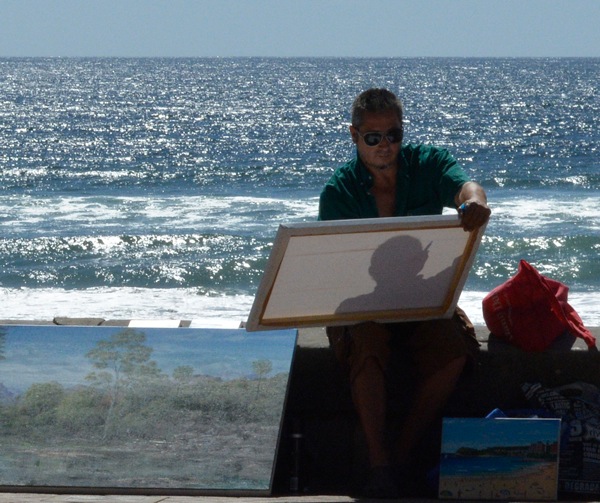
Figures and beach 3

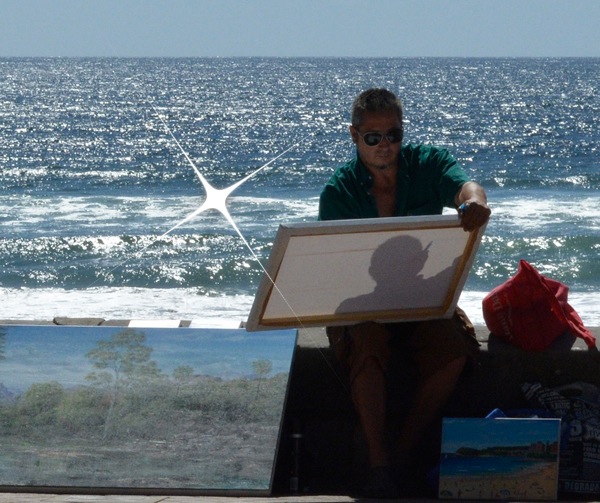
Figures and beach 3 starshine

I picked up a beachside image that just screamed out for a sunflare.

In Filters>Generator I found Star Shine. Great!

First, I could place the centre of the effect. Next, to adjust the radius (size) and cross scale (extent of the rays). Other controls included the ray’s opacity, width and Epsilon. The latter? Dunno!

Clock

Glass effect

Next was a classic image of a railways station clock that just screamed out for some treatment to lift it out of the banal. My choice?

Distortion Effect>Glass Distortion. By carefully limiting the effect to the circular clock face I could impart a pebbled, hand-made glass effect that did the trick.

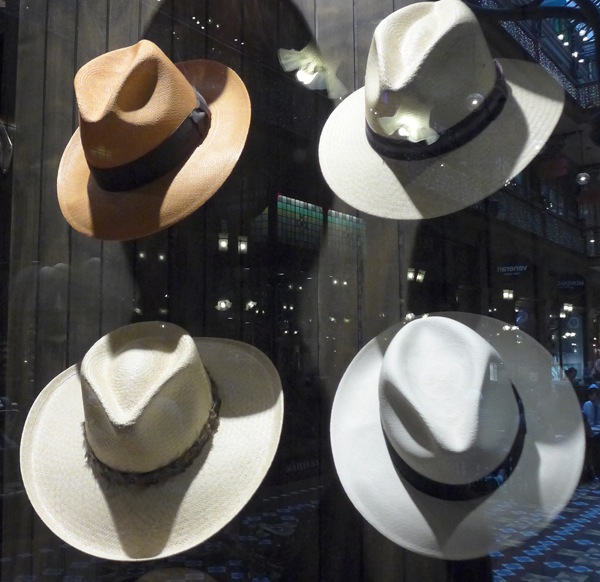
Strand arcade hats

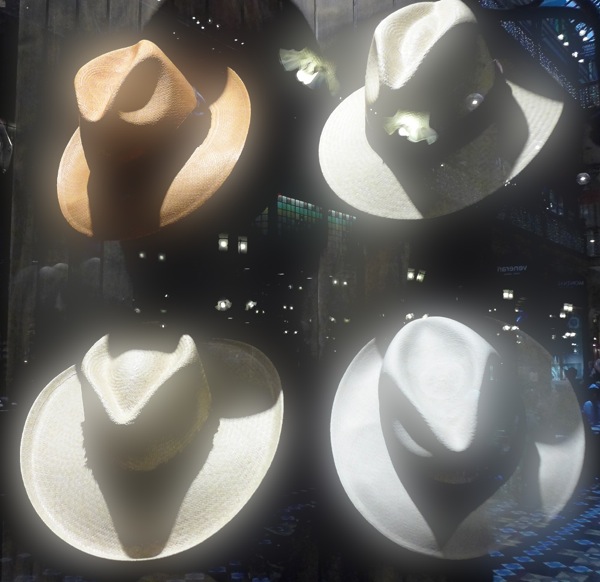
Strand arcade hats Bloom

A simple shot of a hat shop window showing their range had a bit going for it, but not much. My solution? Filters>Stylize>Bloom. Here I could vary the radius of the effect and its intensity. What I found interesting, and this comment applied to some other filters, was that the intensity of the bloom effect changed only in areas of lightness. Great!

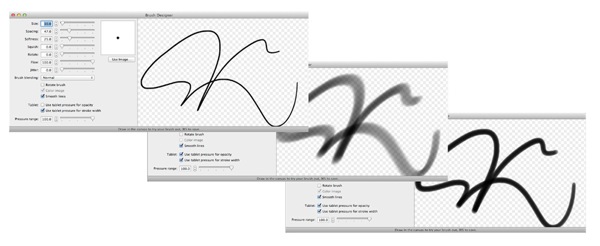
Brush sizes

Lanterns brush effect

Lanterns window

Lanterns brush effect

Then, as if the Filters department was not enough to engage me, I then fell upon the Brush section and, as you can see from this example, there is plenty to enjoy!

If you feel your image making is becoming a bit tired, try an Acorn. From little ones, big things can grow!

System Requirements

Mac OS 10.6 and later. If your OS is earlier, back to OS 10.4 you can download an earlier version of Acorn.

Go to http://www.flyingmeat.com/acorn/

Price: US$ 49.99. Fourteen days trial version available.

Post originally from: Digital Photography Tips.

Check out our more Photography Tips at Photography Tips for Beginners, Portrait Photography Tips and Wedding Photography Tips.

Acorn Version 3.5.1 Image Editing Software


Digital Photography School

 
Comments Off on Acorn Version 3.5.1 Image Editing Software

Posted in Photography


Flickr software bug makes some private photos public

12 Feb

Untitled-1.jpeg

Flickr users may be alarmed to learn some of their private images could have been temporarily viewable publicly. Yahoo’s photo sharing site alerted affected users with an email message last week, detailing the error and explaining what steps to take. According to Flickr, a software bug resulted in some private images, uploaded between April – December 2012 becoming public for a short period from January 18th to February 7th this year. Are photos posted on the Internet ever really private? Click through for more details and analysis on connect.dpreview.com.

News: Digital Photography Review (dpreview.com)

 
Comments Off on Flickr software bug makes some private photos public

Posted in Uncategorized


The Amphimallon-Project – image stacking by “helicon focus” stacking software

19 Jan

Maximilian Weinzierl Junikäfer The Amphimallon Project – image stacking by helicon focus stacking software; see my insects www.alamy.com Kevin MacLeod incompetech.com “image stacking” we think no further words are necessary, just look. Focus Stacking Demonstration with Novoflex Einstellschlitten CASTEL-Q focusing rack castel Q, Nikon D700 AF-S Micro Nikkor 105/2.8 VR and Nikon TC 2.0 E III, broncolor studio light
Video Rating: 5 / 5


How to recover lost photos & videos from memory cards with free software for Windows

02 Jan

blog.danimations.com.au Learn how to recover lost photos & video easily after memory card errors. This video installs and demonstrates the free image recovery tool in Zero Assumption Data Recovery for Windows software, and also shows you how to lock, unlock and format your card media. This process can also undelete files inaccessible due to card formatting or accidental deletion. SD card recovery and repair is demonstrated, but XD, memorystick, compactflash, microSD and other card formats can all utilise the same easy process. This is the first in a series of Danimations Digital Media Tips. To suggest a future episode topic, please leave a comment on our channel page.
Video Rating: 4 / 5