RSS
 

Posts Tagged ‘Simple’

Vanishing Points: Simple Architectural Drawing Hack Puts Art in Perspective

05 Jan

[ By WebUrbanist in Art & Drawing & Digital. ]

trickshot

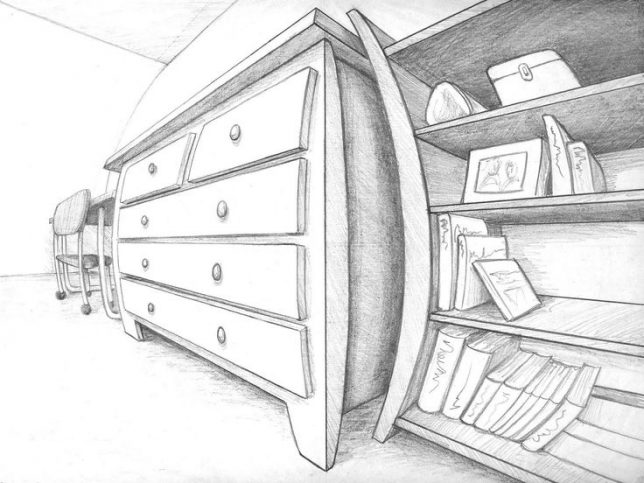
Architectural drawings have long used geometrical tricks to convey scale, depth, distance and other three-dimensional aspects of realities on two-dimensional surfaces. In a two-vanishing-point drawing, the artist aligns their ruler with a point on one side or the other and draws a line along the edge (or employs another modular straight-edging tool).

drawing-hack

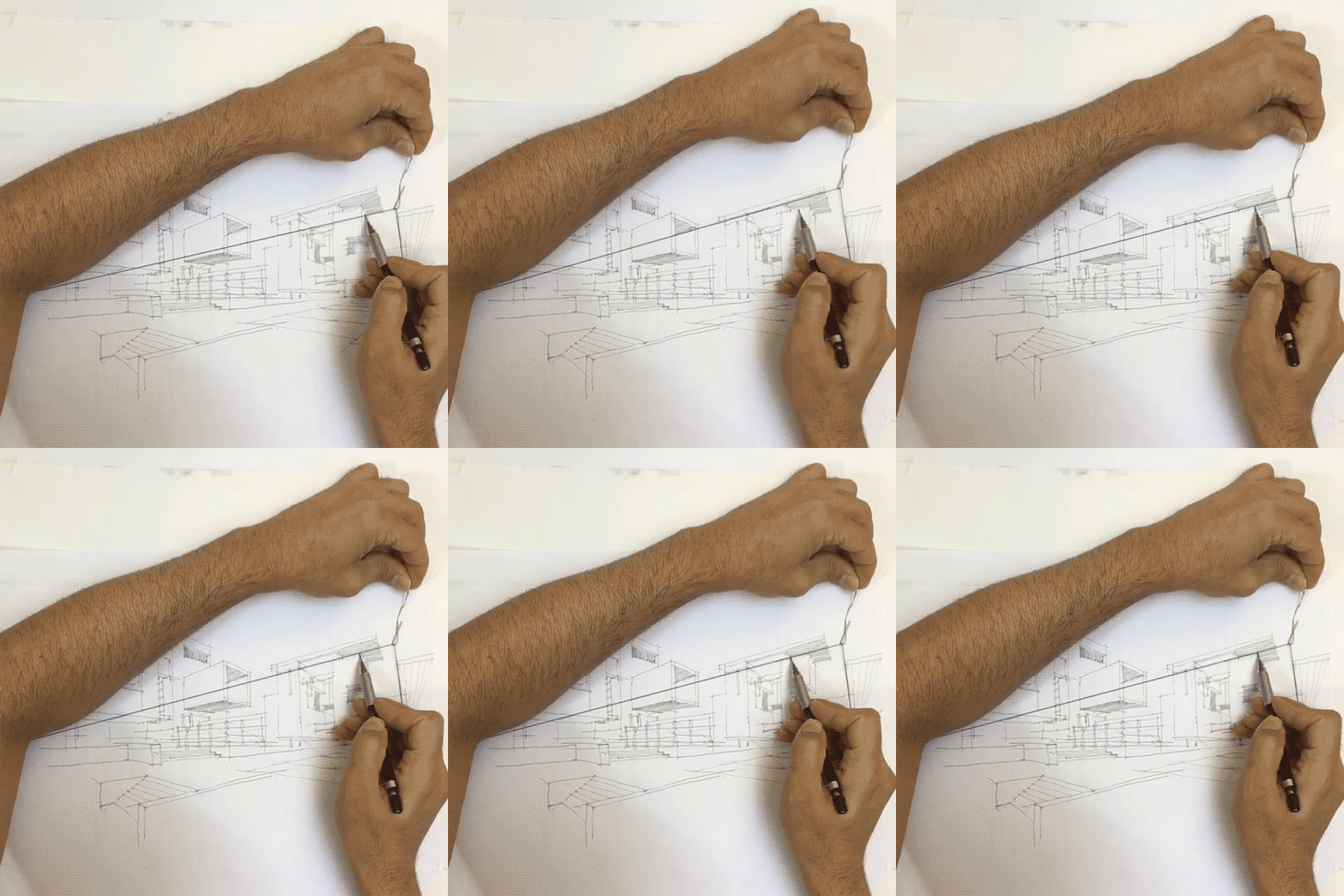
The same came be accomplished much more quickly, however, using this simple technique: pin a flexible string to both points along the horizon line and slide a hook along the center. The results will naturally be a bit less than precisely linear, but for many architectural artists a wavy line is typical or even desired (it gives the piece a less rigorously complete look).

four-point-perspective

Of course, it will only work for a traditional two-point perspective – in cases where the artist wants to include a third vanishing point (for instance, to emphasize verticals in looking up at a skyscraper or create a fish-eye effect) a straight-edge is still required. That, or a free-handed approach based on a picture, presumably the basis of the drawing above.

Share on Facebook


[ By WebUrbanist in Art & Drawing & Digital. ]

[ WebUrbanist | Archives | Galleries | Privacy | TOS ]


WebUrbanist

 
Comments Off on Vanishing Points: Simple Architectural Drawing Hack Puts Art in Perspective

Posted in Creativity


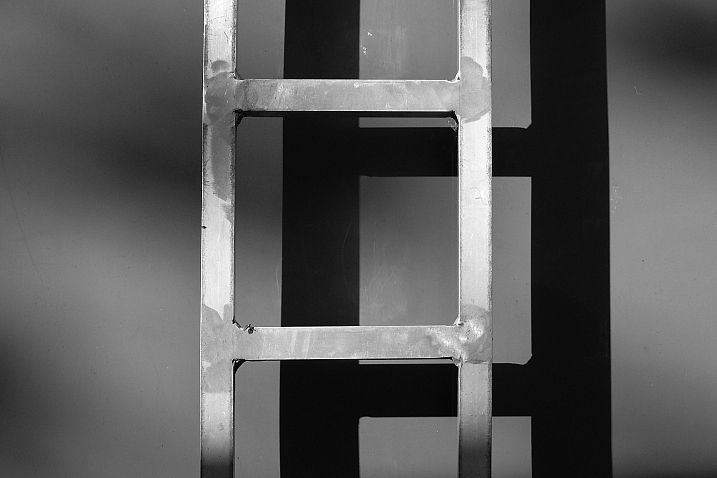
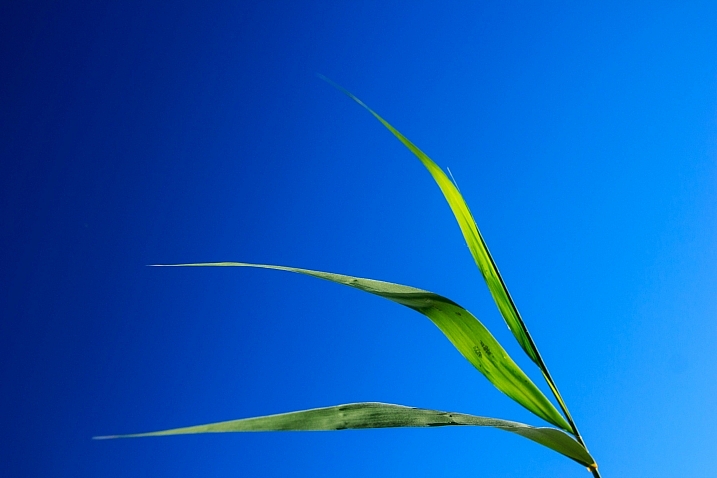
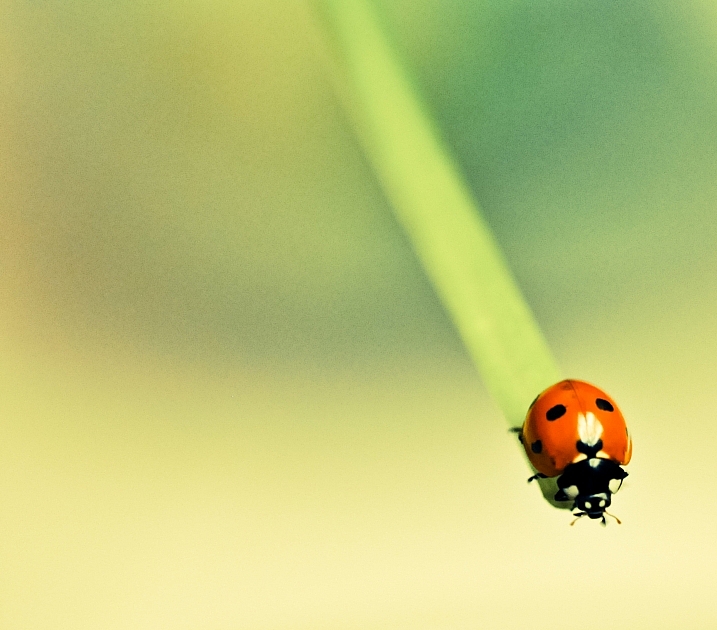
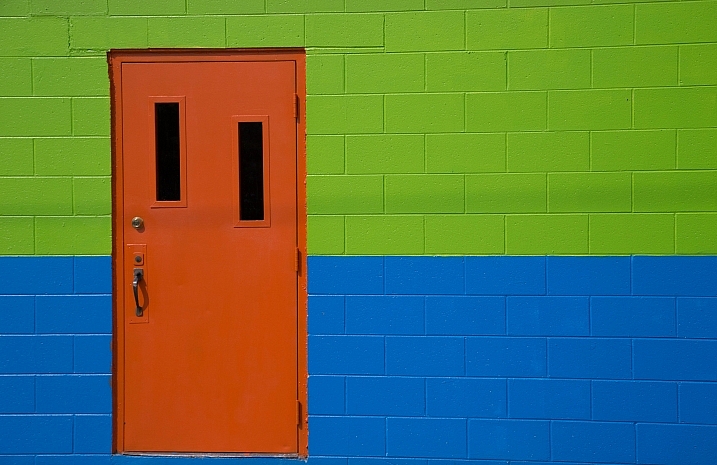
21 Simple Images That Exemplify Minimalism

06 Dec

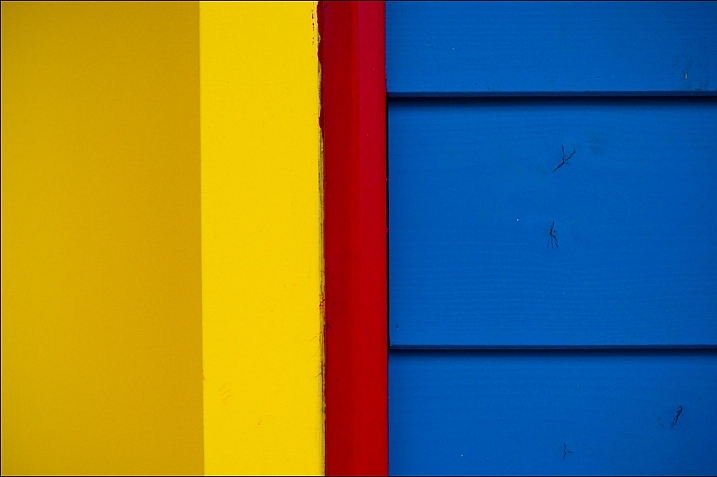
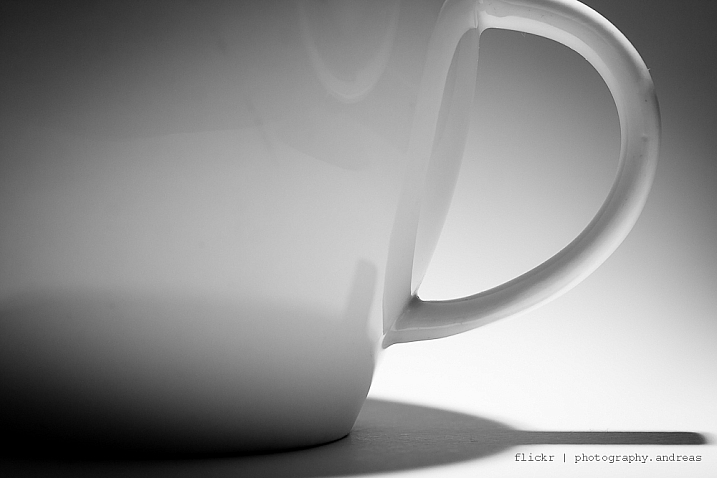
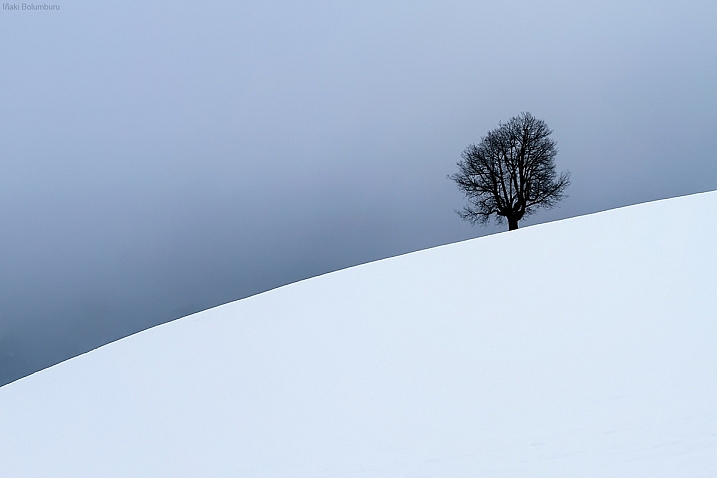
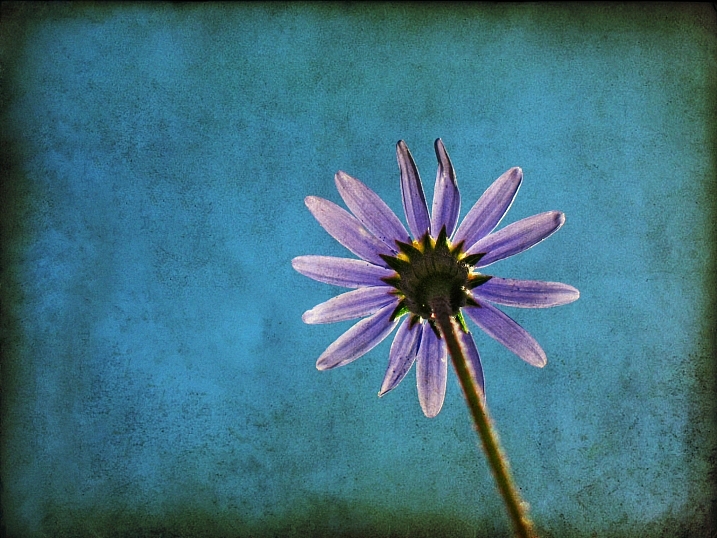
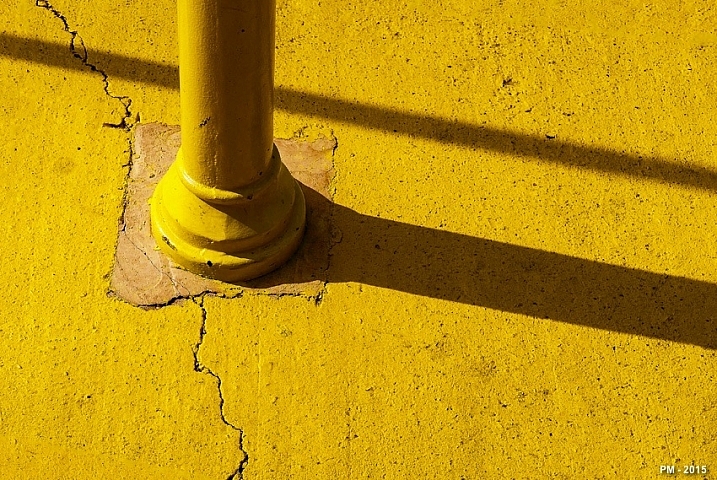
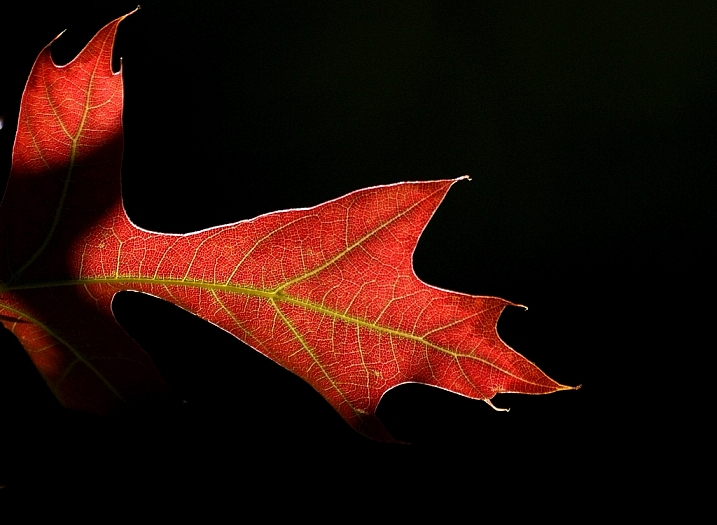
Sometimes less is more. When that comes to photography that is often true. Beginner photographers frequently try to put too much into their photos. That causes the image to be cluttered and the subject to be less clear. Let’s see some examples.

21 super simple compositions that show how you can use minimalism to create stunning and effective images.

Namelas Frade

By Namelas Frade

Andreas

By Andreas

Iñaki Bolumburu

By Iñaki Bolumburu

Nebojsa Mladjenovic

By nebojsa mladjenovic

Daniel Sjöström

By Daniel Sjöström

Aarthi Narayanan

By Aarthi Narayanan

ELKayPics / Lutz Koch

By eLKayPics / Lutz Koch

Chetiya Sahabandu

By Chetiya Sahabandu

Etienne

By Etienne

Serzhile

By serzhile

THE ZEN DIARY — David Gabriel Fischer

By THE ZEN DIARY — David Gabriel Fischer

Danscape.co

By danscape.co

Alexcoitus

By alexcoitus

Toni Verdú Carbó

By Toni Verdú Carbó

Neil Tackaberry

By Neil Tackaberry

Patrick Marioné - Thanks For > 2M

By Patrick Marioné – thanks for > 2M

Bernard Spragg. NZ

By Bernard Spragg. NZ

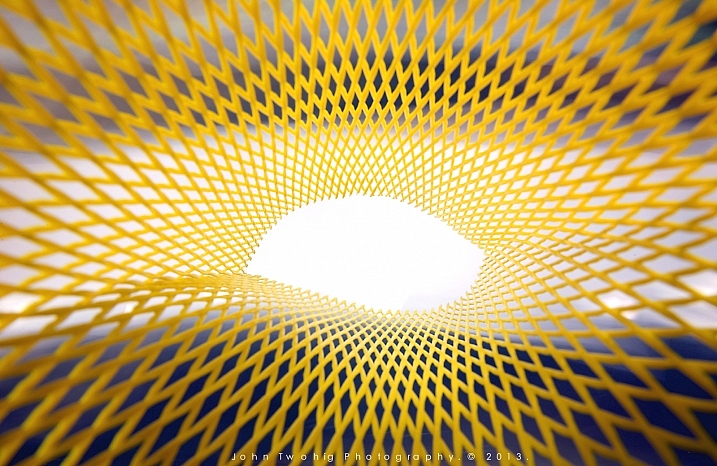
John Twohig

By John Twohig

Katheirne Hitt

By Katheirne Hitt

Daoan

By Daoan

Martin Brigden

By Martin Brigden

googletag.cmd.push(function() {
tablet_slots.push( googletag.defineSlot( “/1005424/_dPSv4_tab-all-article-bottom_(300×250)”, [300, 250], “pb-ad-78623” ).addService( googletag.pubads() ) ); } );

googletag.cmd.push(function() {
mobile_slots.push( googletag.defineSlot( “/1005424/_dPSv4_mob-all-article-bottom_(300×250)”, [300, 250], “pb-ad-78158” ).addService( googletag.pubads() ) ); } );

The post 21 Simple Images That Exemplify Minimalism by Darlene Hildebrandt appeared first on Digital Photography School.


Digital Photography School

 
Comments Off on 21 Simple Images That Exemplify Minimalism

Posted in Photography


Simple Studio Technique: Pet Portraits

03 Dec

Perfect pet portraits

A few weeks ago we visited an animal adoption center in Seattle, to shoot some portraits of the dogs (and cats) awaiting owners at The Motley Zoo. When we published our video feature recently, many of you wanted a little more information about how we shot the images, so we’ve put together a slideshow of some of our favorite shots, including some bonus images not used in the video.

Click through to see the photos, and for those of you who were curious, we’ve included more information on the lighting and setup we used on the shoot. Also, they’re pictures of pets, what more do you want?

Lighting

For lights we used three Sony HVL-60M flashes, two of which were attached to softboxes and positioned on stands.

The flash on the camera played the role of TTL trigger, while the other two off-camera flashes fired through the softboxes to provide illumination.

Lighting

The key light, which was placed just slightly above eye-level for the dogs and off to the left, was fired through a Westcott Rapid Box 26″ Octa Softbox.

The second light was an overhead fill bounced off the silver inside of a 60″ umbrella, to save space in the relatively small room in which we were working. This light was placed off to the right of the setup, aimed to cover both the backdrop and the subject, to provide a bit of fill light and illuminate the backdrop. 

Get their attention

When working with animals it’s very important to bring something to grab their attention.

For dogs, treats are always a great way to have them look wherever you want, as long as they’re well behaved. With Ginger Rogers, the sweet little blind Poodle pictured above, we borrowed a squeaky toy that the shelter calls the ‘Photo Pig’. They call it that because it’s shaped like a pig. And they use it to get the dogs’ attention for photos.

Photo Pig.

Shoot from eye-level

Shooting from a pet’s eye level helps in a few ways. 

First, it’s a better angle for classic ‘head and shoulders’ shots when combined with a longer focal length, presenting the dog as a more ‘human’ subject, giving the image more personality.

Second, it can help with intimidation, or rather avoiding intimidation, especially with smaller breeds. Just watch out, some dogs love to give kisses when you squat down to their level. Keep your front element covered, or have something handy to clean it.

Posing your pet

Profile shots are a great way to add variety in sets of shots taken at the same time.

Be sure to keep the subject facing the side that the light is on, so their face isn’t lost in shadow and they still get ‘catch lights’ in their eyes.

What about cats?

Cats are a bit more tricky than dogs. We tried, but our hit-rate wasn’t quite as high as we needed it to be. It’s harder to get a cat’s attention, and they can get aggressive and skittish if they’re not in a co-operative mood.

Toy with them

Getting cats to sit still can be a nightmare. Sound tends to startle cats, so for this kitten portrait we ditched the Photo Pig in favor of feathers attached to a string on the end of a pole. Dangling it just out of shot kept his chin up for the picture.

Watch your settings

We were using the Sony a6300 for this shoot, and overall the camera worked well. Off-camera TTL lights made setting up the exposure quite easy. 

When using flash on a mirrorless camera, make sure you’re not in exposure preview mode, otherwise, at typical flash exposure settings you’ll just be looking at a completely dark, underexposed preview image.

Also, be aware that battery-powered flashes can have quite long recycle times, especially when fired through modifiers. The modifiers, while necessary for this soft diffused look, sap light, requiring the flash to be used at a higher power level.

Focus tips

When stopped down past F8 the a6300’s switches to contrast detection in AF-C mode, slowing down the ability to keep up with skittish pets. To avoid this, we switched the camera to AF-S to get rid of the distracting hunting. Inevitably, this left us with some shots that aren’t entirely sharp in the right place. But with a bit of processing, even the shots that aren’t 100% sharp on the animals’ eyes are still perfectly usable for a web gallery.

Pet Portraits

If you’re interested in adopting any of the animals you’ve seen here, we’re sure The Motley Zoo would love to hear from you. We hope you enjoyed this quick look behind the scenes of a fun photo shoot. Check out the video, if you haven’t already and share your tips for pet portraits in the comments!

Articles: Digital Photography Review (dpreview.com)

 
Comments Off on Simple Studio Technique: Pet Portraits

Posted in Uncategorized


A Simple Way to Conquer Your Fear of Street Photography

02 Nov

Frustrating, isn’t it? You are ready to go out, your camera is in your hands, it’s a nice day outside and once you actually go where people are….panic starts settling in. It’s that old fear of street photography.

It’s almost like, as soon as you start putting the camera to your eye, your heart starts beating faster and you start sweating. You can’t think about the picture anymore, it’s gone. You are pretty sure you can get a nice shot if only you could get close enough. But you chose to play it safe and settle for some wide angles where everyone is pretty far away.

fear-street-photography-2

That, my friends, is called the fear of street photography. And if you are reading this, I am pretty sure you want to get rid of it, right? The good news is, you not only can, it’s actually probably not the way you think. Oh, and take it from a guy that couldn’t even look his own older brother in the eye.

But before diving into the logistics of fear, let’s get two things straight and out of the way first.

1 – Getting closer means nothing

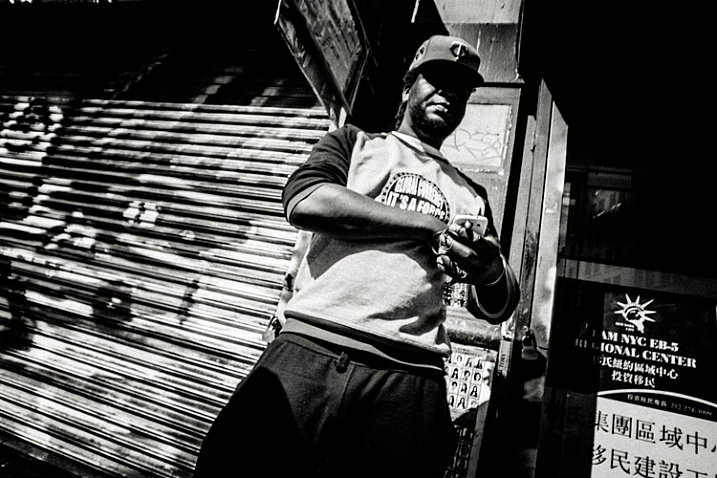
There’s an unspoken creed amongst street photographers, it’s the notion that that you always need to be close for it to be a good image. While it is probably better to be closer than not, that’s just one thing. A bad image is a bad image, whether it’s close or far away. Just getting close won’t magically make an image good. Look at the image below, I’m not particularly close to the guy in the middle and he’s not even facing me!

fear-street-photography-3It’s not just about getting close. There are far away images that are great and very close images that are the epitome of boring. If anything, you might NOT want to get too close to people, so that you can include them and their surroundings. All of this to say what? Street photography is an art form, it’s about images, and getting closer sometimes has no bearing on the final results!

2 – A smaller camera is better

Some cameras bring more attention to them than others. No one would really notice a pocket camera, but pull out a double battery DSLR with a large lens and you will be noticed. So, use a small camera, it’s de facto less attention on you, at least for the time being.

With that being said, let’s get to the nitty gritty of fear!

fear-photography-1

People don’t really care about what you do

Sorry to break it to you. You are not so important that all the people in the street want to do is to notice you. Except if you are Brad Pitt, or Beyonce. If you are, call me! If you are just a regular Joe like the rest of us, the bottom line is this; people just don’t care about you. They care about themselves, and it’s easy to prove. Just go out in the streets without a camera and ask yourself how many of these people actually notice you.

Hint: Very few, most likely none will notice you.

Psychology tells us we all have something called the spotlight effect, where we believe a spotlight on us, that everyone notices us, but that is not the case, it’s just how we feel. But it’s not the same when you have a camera with you and near, right? Yes and no. Again, most people won’t notice you with a camera, but even if they do, what’s the problem?

fear-street-photography-4

Why you fear street photography

What’s the problem if people notice you taking a picture of them? Well, let me ask you a question. Don’t worry, it relates to the matter at hand. Do you feel guilty when your boss pays you? The answer (except if you are doing something fishy) is probably NO. Because you exchanged value for it. Your time and skills in exchange for his/her money, nothing wrong there.

But it’s not the same on the streets. There you feel like you are TAKING something from the person you are photographing. Something that is theirs, and you took it. That’s called stealing, right? So doesn’t it logically follow that you feel fear because you fear being caught at thievery? It’s easily proven. As soon as you ask for permission the fear dissipates because there is no more tension.

street-photography-fear

You fear because you think you are doing something inherently wrong. Let’s look at it in another way, do you feel any fear when just walking down the street? No, because you don’t feel you are doing anything wrong. Fear in street photography comes from fearing the reaction of others to your perceived wrong-doing. And between me and you, if I was stealing, I would feel fearful!

The cure for fear

The answer then is understanding the value exchange that happens on the street. You are not taking anything, you are making a photograph. You are creating something. Of all the people and things to photograph, you have chosen one person to make an image of them. You have acknowledged that person’s existence and importance.

street-photography-fear-03

Sounds cheesy? The photograph is the ultimate ego tool. Check your Facebook, everyone is clamoring for attention through their selfies. Why can’t you be the one that bestows that attention on them with your lens?
Images are so powerful, that a Japanese photographer got carte blanche to photograph Yakuzas, Japanese mafia. Quite powerful, no?

By making a photograph of someone, you are acknowledging their existence, something that every one of us needs and desires at a deep level of our psyche.

fear-street-photography-5

The exchange between you and the subject

Go down the street, give a nod to someone. Smile, and say hello. You have just altered someone’s day with your acknowledgment. Images are like that, they are visual acknowledgment. Once you stop seeing what you’re doing (photographing them) as something that’s wrong and actually see it as something good by exchanging value (they get to participate in the making of an art piece in exchange for their photo) your outlook will start to change. And by doing so you change your way of approaching street photography and the fear will dissipate.

The street photographer’s posture

This is truly where the magic happens because here’s a truth – the street reacts to you. The way you are in the street will dictate how people react to you. That’s the whole secret. But wait. If that was the whole secret, why then did I write all of the stuff above? Couldn’t I just cut to the chase, get right to this part? The streets react to you, so it’s all about appearing confident, right?

fear-street-photography-6

Well, not really because I don’t believe you can fake it. I could tell you to go up and down the streets and act confident, to fake it till you make it so to speak. But I think people smell these things like a dog smells fear. If you think you are doing something wrong, it’s probably going to show in your posture and people will react accordingly.

Street Karma

Think about this with me – you look out your window and this guy is just strolling by your house, all happy go lucky. Then you look out your window once again and see this shady looking guy, looking right and left, as if he is doing something wrong. How are you going to react towards each one? Towards the first one you might even smile, but to the other, you may be ready to call the police.

The same rule applies on the street, it’s called street karma. You will get out of it the energy that you put into it. And it’s no woo-woo stuff either. It’s because of mirror neurons, those things in your brain that make you tend to mimic others. The street reacts to you. That’s what makes the difference between getting a dirty look and a smile of amusement.

street-photography-fear-04

Conclusion

As you have seen, people care less about you than you may think, and the streets react according to how you hold yourself. Act like a thief, be treated like one. But act like you are enriching the world, and people will react differently.

Such things can be faked. It all comes from knowing that what we are doing in the street isn’t anything wrong. Indeed we are not thieves because as photographers we seek to simply interpret the reality that is in front of us with our lens. Now go out there and shine forth. Be yourself, stay focused, and keep on shooting.

googletag.cmd.push(function() {
tablet_slots.push( googletag.defineSlot( “/1005424/_dPSv4_tab-all-article-bottom_(300×250)”, [300, 250], “pb-ad-78623” ).addService( googletag.pubads() ) ); } );

googletag.cmd.push(function() {
mobile_slots.push( googletag.defineSlot( “/1005424/_dPSv4_mob-all-article-bottom_(300×250)”, [300, 250], “pb-ad-78158” ).addService( googletag.pubads() ) ); } );

The post A Simple Way to Conquer Your Fear of Street Photography by Olivier Duong appeared first on Digital Photography School.


Digital Photography School

 
Comments Off on A Simple Way to Conquer Your Fear of Street Photography

Posted in Photography


2 Simple Methods for Adding Color to Your Images Using Photoshop

04 Oct

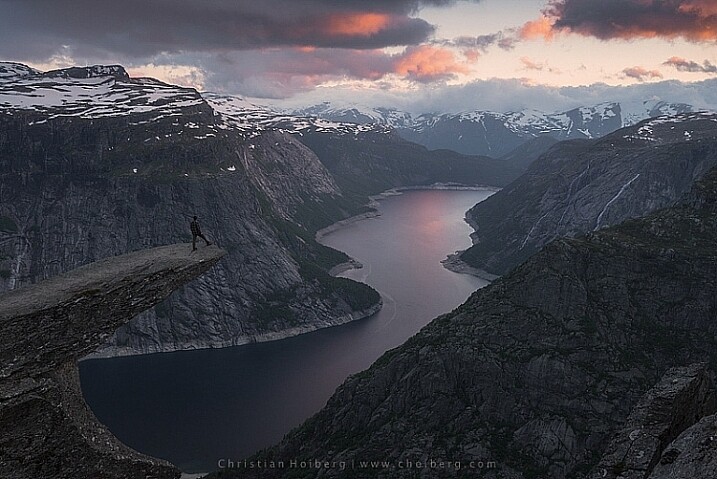
Most of us have experienced photographing an incredible sunrise or sunset only to get home and realize that the colors in your images are not nearly as good as the colors you witnessed with your own eyes. There can be many reasons to this, such as camera limitations or mistakes you made in the field. However, that’s not what you will learn about in this article. Correcting the colors, or adding color, isn’t something you need to spend hours working on. In fact, it can be done in just a few minutes using Adobe Photoshop and you don’t need to be a Photoshop expert to do it.

Enhance or adding color in Photoshop

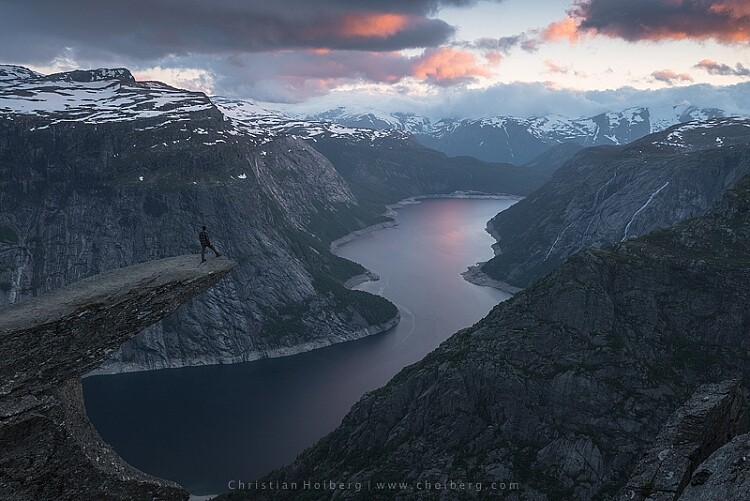
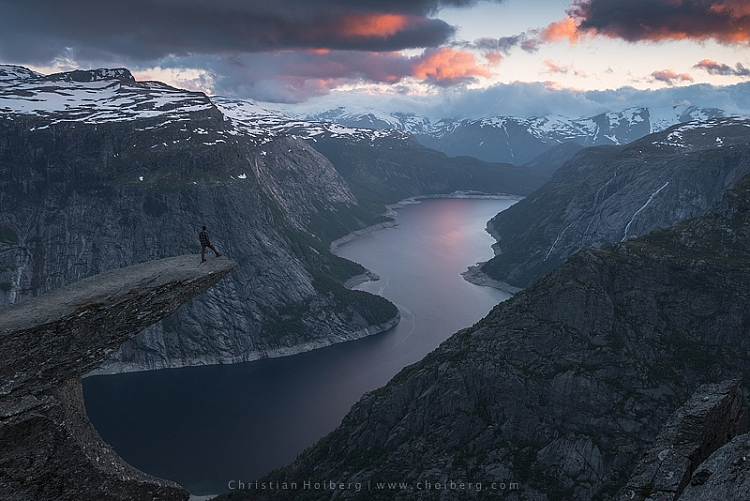
Trolltunga, Norway – We will be adding color to this sky

As we all know there are many ways to get to Rome, there  isn’t only one method of adding colors in Photoshop either. It can, as I mentioned above, be done fairly easy but the more detailed adjustments you wish to make, the harder it will become. In this article, we will be looking at two easy methods to add color in Photoshop.

#1 Adding Color with a Photo Filter

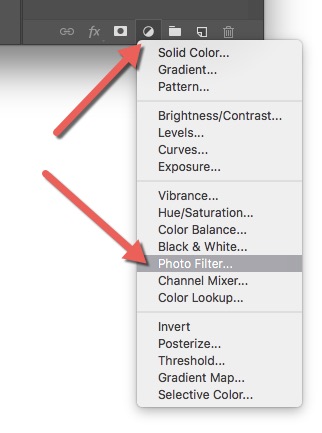
The first method we will look at involves the Photoshop tool called Photo Filter. This is an Adjustment Tool which you can find by clicking the Adjustment Tool icon (the half-filled circle located below the layers palette, see screenshot below). This creates a new layer named Photo Filter 1, which we will be working on.

photo-filter-ps adding color in Photoshop

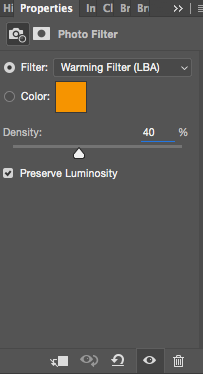
Photofilter adding color in PhotoshopA warming filter is the default setting so, as you might see, the image now has an orange color cast. Personally, I prefer using Warming Filter (LBA) as I find this to have the most natural color that suits my images best (see screenshot on the right). Select this filter by clicking on the Filter dropdown menu. Alternatively, you can select a color manually that might suit your specific image better. If you find the adjustment to be a little too weak you can strengthen its appearance by increasing the Density. I rarely go above 40% Density as the colors then quickly become washed out and results in a look I don’t want.

Photo filter applied to the whole image - adding color in Photoshop

Photo Filter applied to the whole image at 40% 

Photo filter - adding color in Photoshop

Photo Filter applied to the whole image at the default 25%

By using this filter we have brought back some of the color in the sky. There’s not a huge difference but we’ve managed to keep a natural look in the image while the sky still looks good. However, there’s one problem. We don’t necessarily want to add the extra color to the landscape itself, we only wanted the sky to be affected.

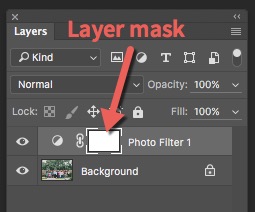
layer-mask-ps - adding color in PhotoshopLeft of the Photo Filter text there’s a white box. This is the layer mask, basically telling Photoshop what area of the image should be affected by that particular layer. White means that it’s visible and black means that it’s concealed. By default the entire mask is white. To remove the adjustment from the landscape itself follow these steps:

  1. Select the Layer Mask by clicking on it (it will show square brackets around the mask when it is selected, see screenshot on the right))
  2. Select a black brush and set Hardness to 0%
  3. Reduce the opacity of the brush to 80%
  4. With the Layer Mask still selected, carefully paint on the areas you do not want affected by the filter. You’ll see the adjustment disappear from those places as you paint.
adding some subtle color to the sky

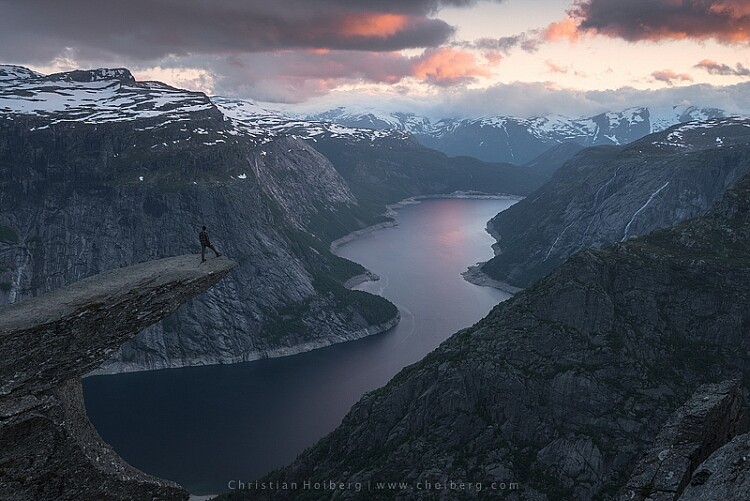
The Photo Filter layer masked to only affect the sky.

This is the easiest way to manually choose where the adjustment will be visible. Unfortunately, it’s also the least accurate. You might see some haloing along the edges or perhaps the color bleeds onto the horizon at certain places. By zooming in on the image and using a smaller brush you’ll be able to reduce the amount of haloing or bleed. Other methods, such as Luminosity Masking, are more accurate but also demand a better understanding of Adobe Photoshop.

#2 Add contrast with Curves Adjustment Layer

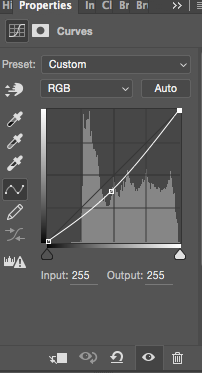
Curves adjustment layerAnother easy method to add colors is by using the Curves Adjustment Layer. Unlike Photo Filter, we will be using Curves to add contrast in the sky. Follow these steps to do a Curves adjustment:

Open a Curves Adjustment Layer by clicking on the Adjustment Layer icon again, and selecting Curves this time.

You want to add some contrast and increase the colors slightly by darkening the sky. Do this by clicking in the middle of the line in your Curves layer and pulling it down gently. Make sure that you don’t go too far as that will lead to unwanted grain or color distortions.

That’s it. To remove the adjustment from the landscape create another Layer Mask and follow the same steps as with the previous method above.

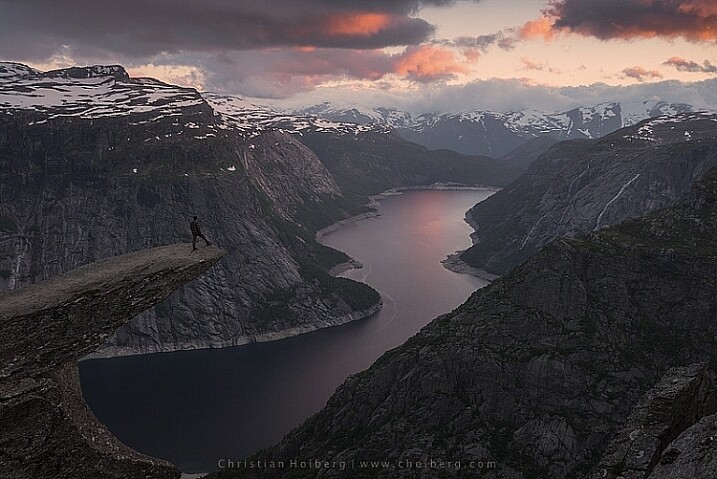
adding color in Photoshop

As you might have noticed these are two subtle adjustments. You won’t get a surreal sky by following these methods. Instead, you’ll maintain a natural look and still bring out some of the color you wanted to capture.

googletag.cmd.push(function() {
tablet_slots.push( googletag.defineSlot( “/1005424/_dPSv4_tab-all-article-bottom_(300×250)”, [300, 250], “pb-ad-78623” ).addService( googletag.pubads() ) ); } );

googletag.cmd.push(function() {
mobile_slots.push( googletag.defineSlot( “/1005424/_dPSv4_mob-all-article-bottom_(300×250)”, [300, 250], “pb-ad-78158” ).addService( googletag.pubads() ) ); } );

The post 2 Simple Methods for Adding Color to Your Images Using Photoshop by Christian Hoiberg appeared first on Digital Photography School.


Digital Photography School

 
Comments Off on 2 Simple Methods for Adding Color to Your Images Using Photoshop

Posted in Photography


Review: Simple Booth Event Edition photo booth app

20 Aug

Simple Booth Event Edition iOS App
$ 60/£45 | www.simplebooth.com 

Photo booths are a pretty popular item to have at your event these days. Weddings, parties, fundraisers – you’ll find a photo booth at many of them. From a simple camera on a tripod with a remote to fancier automated systems that take multiple images and print instantly, people seem to love being able to control their own image making. Could it be the result of selfie-obsession on steroids? Or is it nostalgia for the chemical-photography based photo booths of our past? Either way, people are fascinated by them. Because of this, having the ability to set up your own booth could make you the star of your office holiday party, PTA fundraiser, or child’s birthday.

Into that popularity steps Simple Booth. Simple Booth is an iOS app designed to place all of the software you need to take, layout, share and print photo booth images into the hardware of your iOS device. There are four versions of the app with varying capabilities (one for the iPhone and three for the iPad): iPhone, Event Edition, Pro Edition 2, and Enterprise. Simple Booth Event Edition is the version I focus on in this article. It is the best choice for a photo enthusiast who wants to set up a photo booth. The iPhone version is pretty limited and while the Pro and Enterprise versions offer a number of additional options, they are probably overkill for anyone who isn’t running a photo booth business.

What does Simple Booth do?

When you start the Simple Booth app, you are presented with a setup screen with a number of options for how the app will work and your images to be laid out. You can choose 2/3/4 image photostrips for the classic booth style. For a more modern look, there are also a number of other multi image options in square or rectangular layouts. You have are options for setting background color, auto cropping, custom logos, and even Instagram-style film effects. You can also give your users the ability to crop, change the layout, and apply effects once the photos are taken. Though, to be honest, this doesn’t lend itself to the quick in-and-out pace of photo booths and I would suggest leaving that option off. I tend to feel the same way about the “retake” option, it encourages picky people to monopolize the booth trying to get the perfect photos.

For output, you can set up a printer (more on that option below), send to various social media services, email, or sync to dropbox. You can also tell the app to save each individual image taken to the camera roll as well as saving the photostrips. Honestly, the print option is the winner here. The social media options require people to mess around logging into their accounts, thus taking up time in the booth when others are waiting, and the email has to use the iOS mail app. Now, if you have an extra iPad handy, you can use Simple Booth’s free companion app Live Booth Lite to create an “out of the booth” interface for people to use for emailing, sharing, and even printing. In order to connect with any of the social or output options, you will need to have access to an active wifi network. One odd thing for a photo app in this day and age is that there is no Instagram sharing option. The Simple Booth crew explains that this is because Instagram doesn’t offer an API that would enable uploading. You can choose to use either the front or rear camera on the iPad but there is no option to use an external camera. In all honesty, the front-facing camera is the one you are going to want to use. Using the rear camera has advantages as far as resolution and image quality, but it means that someone has to stand there operating the booth because users will not be able to touch the screen to do so themselves. And if you are having someone standing there, you might as well have them take the photos with a real camera. Part of the allure of a photo booth is that it can operate unattended. 

Once you have decided on your initial settings, you put the app into booth mode, and it’s ready to go. Users cannot get back to the settings page and muck things up. Okay, well that isn’t completely true, if they think to double tap the home button and shut down the app, then restart it, they could get to the settings. But that is why you will probably want to use Guided Access to limit the iPad to just running Simple Booth.

From the user POV, the app is really quite simple. Clear “tap to start booth” and “look here” messages instruct them on what to do. A visible countdown timer and beeps mark the pace between the images being taken. Once complete, the photostrip appears on screen with the various edit/print/sharing options. If anything can be described as foolproof in the digital age, at least as user interface for the end user, Simple Booth is pretty darn foolproof.

What equipment will you need? 

At the very least, you will need an iPad. The newer iPads with improved cameras will have better resolution and low light performance. But just about any recent vintage iPad will work. A tripod and mount capable of holding your iPad will make interacting with the app much easier for your subjects and safer for your iPad. You’ll need a neutral backdrop of some sort, though a plain wall could be used as well. And you will probably want some lights. Unless you are outdoors in open shade on a bright day, you will likely find ambient light to be too dim for the iPad’s camera. This is one area where having the ability to use a DSLR would be an improvement, both for the improved low light performance and ability to connect to strobes. But as is, you can solve the problem with something as simple as a couple clip on fluorescent work lights.

Using a printer…

While the social media sharing features are handy in this day and age, having a printer on site is really the way to go with a photo booth. You increase the smile and fun quotient 1000% when someone is able to walk away from the booth with an image in their hand. While an inkjet printer will work, as any event photographer can tell you, a dye-sublimation printer is the way to go in this situation. The speed and toughness that dye-sub prints can offer over inkjets is significant in an event environment. 

When looking at dye-sublimation printers, you have options on either end of the market, and not much in between. Both offer excellent prints, but at vastly different prices. At the one end is the Canon Selphy series of printers. At around $ 100, the compact Selphy 1200 won’t break the bank. With wifi connectivity and AirPrint, connecting to iOS devices is easy. Print speed is a somewhat slow 47 seconds and it can only hold 18 sheets at a time. Finally, print prices are a fairly inexpensive $ 0.28 cents per 4×6.

At the other end of the market is the $ 1000 DNP DS620A. Designed for the high volume, high speed needs of event photography printing, the DS620A prints a 4×6 in as little as 8.3 seconds and can print up to 400 images without needing the paper roll replaced. The dye transfer is all done internally and the image only pops out once it is completely done. This makes it perfect for an unmanned both, you can set the DS620A up and leave it running all night. Print prices for a 4×6 work out to $ 0.14 a piece.

Inkjet or dye-sublimation connecting Simple Booth to a printer needs to be done in one of two ways. If you have an AirPrint compatible printer, like the Canon Selphy 1200, the app can connect directly to the printer as long as both are on the same Wi-Fi network. If you have a printer that isn’t AirPrint compatible, such as the DNP DS620A, you’ll need to connect it to a computer and run an app to make it available via AirPrint. I used Printopia, a dead simple $ 20 utility app that works perfectly for sharing a printer with your iOS devices. 

How does it work in the real world?

While I was working on this review, my son received an invitation to a classmate’s birthday party. So, I offered to bring along a Simple Booth setup and printer (in this case, a DS620A) for the kids to play with. Partially, I was just helping a dad-buddy put on a party. But I also wanted a chance to see how Simple Booth worked in real life with people who had never played with it before. Would 6-8 year olds be interested in something as retro as a photo booth? Would they have trouble operating it? Would the printer jam or run out of paper? 

Since this was a sunny summertime party, I had been planning to just set up a backdrop and tripod in some open shade and let the kids have at it. But my friend is a carpenter and decided at the last minute that he wanted to knock together a real “booth”. A few trips to the hardware store later and we had a low rent copy of an old school photo booth. It was nothing fancy, but the ipad was mounted and the printer delivered the print through a slot into the grubby over-sugared hands of the party goers. 

Did it work? It couldn’t have worked better. Being an old-man tech-nerd, I insisted on showing the first group how to do it. But with much eye-rolling, they made it clear that I might as well have been teaching them to drink a glass of water. They had no problem understanding how to make it work. The DNP DS620A printer was outstanding for this sort of use. Having a print in their hands in less than 10 seconds was pretty exciting for the kids and knowing that I could go hundreds of prints without having to reload the printer was pretty relaxing for me. The kids piled in and out of the printer in group after group. They giggled, laughed and loved it completely and all went home with handfuls of photo strips.

What’s the bottom line?

Simple Booth is a pretty amazingly full featured solution to creating a photo booth out of gear that many photographers already own. It is simple enough for children or technophobes to use, but offers enough options to allow customization of layout and operation.

At $ 59.99, it is likely more expensive than most any other iOS app that you own. That said, when you consider what you are getting and what it would cost you to figure out a way to do it without Simple Booth, it starts to look like a bargain. Perhaps more importantly, the proof is in the pudding. Even our hastily knocked together photo booth was a huge hit with the kids at the party – plenty of smiles and laughs and threats of tantrums if I didn’t print out duplicates for the kids in the group shots.

Tired of bringing meatloaf to your local block party every year? Bring Simple Booth and a printer instead and watch yourself turn into the neighborhood hero. 

What we liked:

  • Easy to set up
  • Customizable layouts
  • Pretty fool-proof in operation
  • Saves individual images as well as the “photo booth strips”
  • Print, email, social media integration

What we didn’t like:

  • iPad rear camera offers limited resolution and quality, using higher resolution front camera eliminates the viewing screen
  • No options for flash lighting, must use constant lights
  • While inexpensive for a photo booth, somewhat expensive for an app

Rating

Articles: Digital Photography Review (dpreview.com)

 
Comments Off on Review: Simple Booth Event Edition photo booth app

Posted in Uncategorized


Make Super Simple DIY Photo Coasters

18 Aug

Get your photos off of your phone and under a drink!

Turn your photos into Photo Coasters to show off your photography skills, crafting skills and ring-free coffee table.

These coasters are simple to make, fully functional, totally waterproof and super-dee-duper gifty.

Plus, they’re a heck of a lot safer than setting a hot coffee mug on your phone.

(…)
Read the rest of Make Super Simple DIY Photo Coasters (556 words)


© laurel for Photojojo, 2016. |
Permalink |
No comment |
Add to
del.icio.us

Post tags:


Photojojo

 
Comments Off on Make Super Simple DIY Photo Coasters

Posted in Equipment


A Simple Explanation of the Camera Mode Dial

09 Aug

If you have a more advanced camera like a DSLR or mirrorless, or even a high-end pocket model, it’s a good bet that somewhere on the top of the camera body you will find a circular dial (the camera mode dial) with a whole lot of strange letters like: M, Tv (or S), Av (or A), P, and maybe even a U1 or U2 (or C1, C2) thrown in for good measure. There is also a friendly safe green option, that may say Auto, or depending on the type of camera you have, is just represented by a green rectangle.
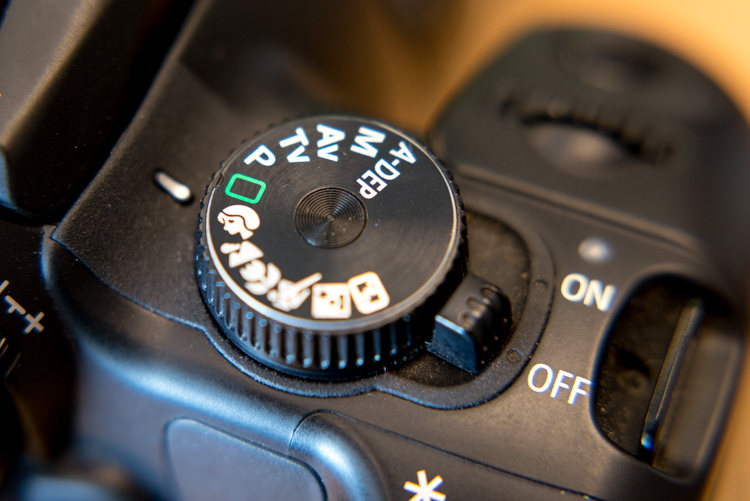
mode-dial

Most beginners know this option the best, since it essentially puts your camera in the driver’s seat, and forces it to do all the heavy lifting of figuring out the exposure, while all you need to do is point your camera in the right direction. If you like shooting in Auto and you are happy with your pictures, then don’t let anyone tell you that you need to change, or that you aren’t a good photographer.

However, if you would like to branch out a little bit, and learn to make your camera do what you want in order to make the photos you desire, then the mode dial is your key to a whole new world of photographic creativity. It can be somewhat daunting, and those strange letters don’t inspire much confidence for beginners who already feel overwhelmed. So I’ll walk you through the basic functions of the mode dial one by one, and give you the information you need to start experimenting with some of your camera’s more advanced settings.

Auto Mode

This one might seem fairly self-explanatory, but I’d like to offer some detail about what Auto mode actually does. In most situations, your camera is going to do whatever it can to make sure the pictures you take are properly exposed (in other words, not too dark nor too bright). There are three main things that govern exposure (Aperture, Shutter, and ISO – otherwise known as the Exposure Triangle) and Auto mode takes care of setting the values of all three of these elements for you. If your camera has a flash, it may decide to fire it, order to brighten up a scene that is quite dark, which often happens indoors or at night. Auto generally does a good job at allowing you to take decent photos in a variety of situations.
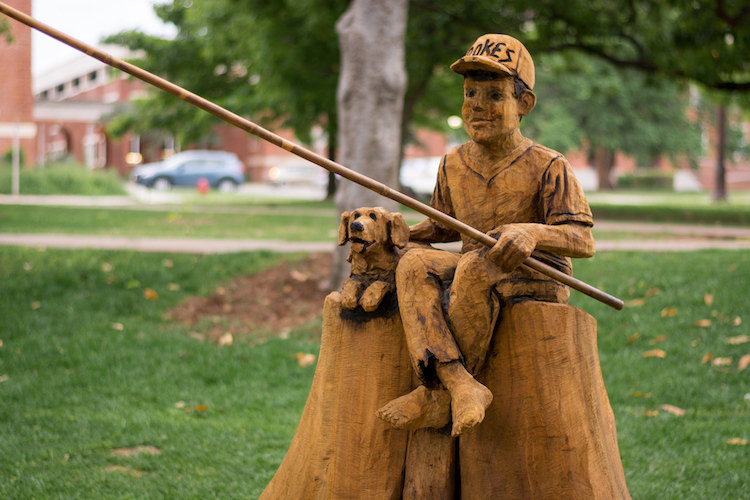
Sometimes Auto mode is all you need to get the pictures you want.

Sometimes Auto mode is all you need to get the pictures you want.

P: Program Auto Mode

When you want to branch out from Auto mode, this is a good place to start. Program Auto does exactly the same thing as the familiar, comfortable green Auto mode, but with a twist – you can change a few settings if you want. Using Program Auto allows you to do things like decide whether you want the flash to automatically pop-up or turn off altogether, as well as change the ISO and the White Balance.

It really gets interesting when you turn the rotating circular dial (called a control wheel) on the top or back of your camera, which lets you take some degree of control back from your camera. In Program Auto your camera will always try to maintain a properly-exposed picture, but you can use the dial to change the aperture and shutter speed at the same time. It’s a fun way to experiment with your camera while being reasonably certain that you will still get good pictures, and also start to notice some of the effects that changing the aperture and shutter speed has on your final images.
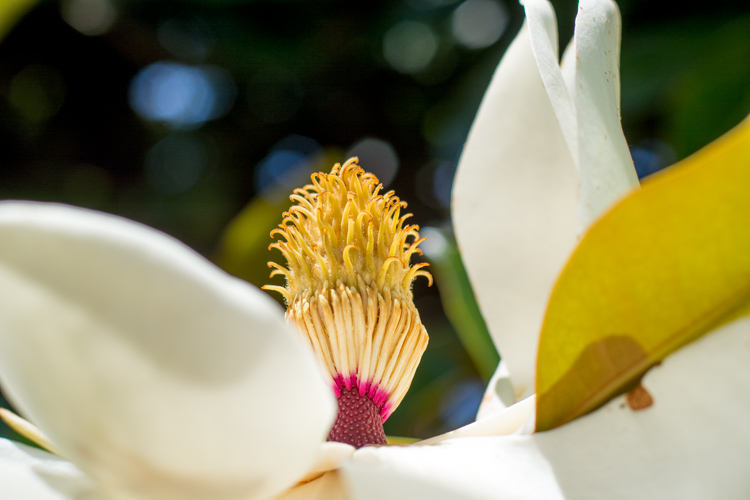
Program Auto can be a great way to help you get the shot you want by changing the shutter speed and aperture with a simple flick of your thumb.

Program Auto can be a great way to help you get the shot you want by changing the shutter speed and aperture with a simple flick of your thumb.

Av (or A): Aperture Priority Mode

When you want to have full control over the aperture in your lens (and thus also control the depth of field), this is the mode to use. It lets you turn the control wheel on your camera in order to adjust the aperture alone, while the camera decides what ISO (if you use auto ISO) and shutter speed to use.

If you have plenty of available light this is a fantastic mode to be in, because you can choose whether you want a wide depth of field (i.e. everything in focus) or a shallow depth of field (just your subject in focus, with foreground/background elements blurry) and know that the shutter speed and ISO will be set automatically to get the shot you want. However if you are shooting in low light, you might end up in a situation where you set the aperture you want, but your camera chooses a shutter speed that is too slow, or an ISO (again only if you are using Auto ISO, if you are manually setting the ISO you will still have to adjust that yourself) that is too high for your liking.

My personal favorite mode to shoot in is Aperture Priority with Auto-ISO, which means my camera won’t use a shutter speed that’s too slow (you can usually set the parameters for minimum shutter speed in your camera’s settings via the menu options – consult your user manual if you aren’t sure), and will instead raise the ISO.
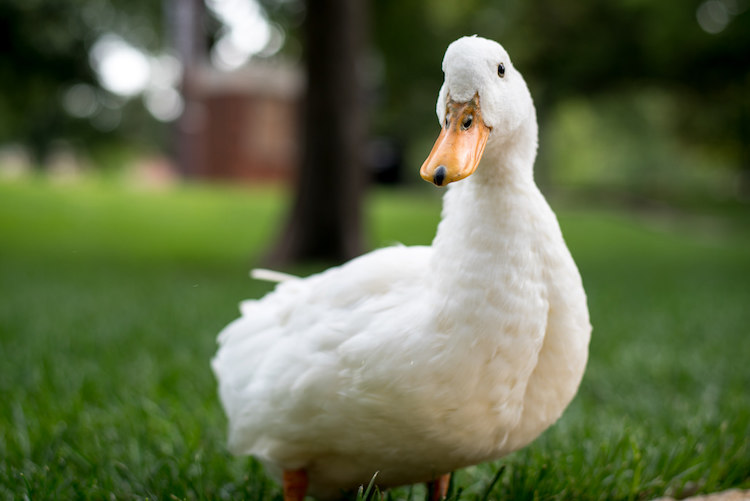
I knew I wanted a shallow depth of field with this, so I used Aperture Priority mode to select a wide aperture and let my camera figure out the rest.

I knew I wanted a shallow depth of field for this shot, so I used Aperture Priority mode to select a wide aperture, and let my camera figure out the rest.

Tv (or S): Shutter Priority Mode

You may have already guessed what this mode does, based on the explanation of Aperture Priority above. Shutter Priority Mode is essentially the opposite. In this mode you tell the camera what shutter speed to use, and let it calculate the aperture and ISO (when using Auto ISO). It is particularly useful if you are shooting fast action like a race or sporting event, because you can set your shutter speed to be fast enough to freeze the motion of the subjects, and know that your camera will select whatever aperture and ISO values are needed to get the shot. Most cameras can shoot as fast as 1/4000th of a second which is plenty for freezing motion, or as slow as 30 seconds, which can be fun for nighttime photography and capturing light trails.
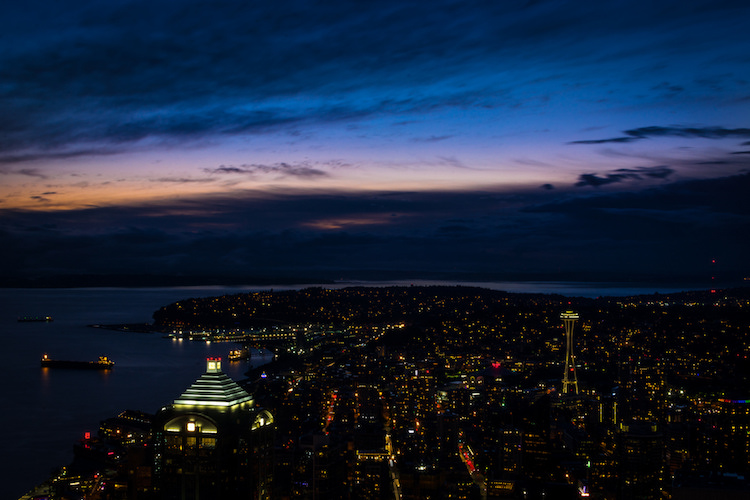
I used Shutter Priority with a value of 30 seconds to get this shot of the Seattle skyline from the Columbia Tower Observation Deck.

I used Shutter Priority with a value of 30 seconds to get this shot of the Seattle skyline, from the Columbia Tower Observation Deck.

M: Manual Mode

This is the granddaddy of all camera modes, because you have to choose all three settings: Aperture, Shutter Speed, and ISO. Shooting in manual can be a little scary at first, but the trick here is to learn to use your camera’s light meter, which will tell you if your picture will be over, or under-exposed. When you put your camera in Manual ode, the control wheel will only change one parameter of the three aforementioned settings at a time, so you may need to press another button while turning the wheel, or navigate to one of your camera’s menus in order to select a different value. With enough practice you will easily get the hang of it.

Shooting in Manual can be challenging, but intensely rewarding, as you learn exactly how to control your camera to get precisely the picture you want. Any situation can be good for Manual, provided you are well acquainted with your camera and how it operates.
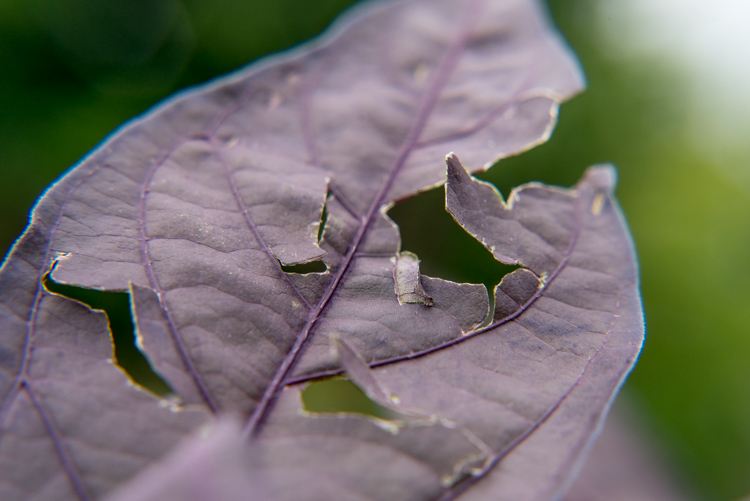
Learning to shoot in Manual mode might seem daunting at first, but it's incredibly liberating when you learn how to take full control over every element of exposure.

Learning to shoot in Manual mode may seem daunting at first, but it’s incredibly liberating when you learn how to take full control over every element of exposure.

U1 (or C1): Storing custom user settings

Not all cameras have these options, but if yours has the ability to save custom user settings, you may want to investigate it a little more to start taking advantage of how this can help you. These custom settings allow you to specify a set of parameters, not just for exposure, but for other options like: shooting in JPG or RAW, shooting mode, White balance, enabling Auto ISO, and others – then instantly switch to those settings with just a click of your dial.

One thing I find these user storage banks useful is for having U1 (may be called C1 or something else on your camera) store a set of parameters that is a good starting point for indoor photography, such as a wider aperture and higher ISO, and then using U2 for outdoor pictures. The values and parameters can all be changed once you click over to a U1 or U2 storage bank, but it’s an incredibly handy to instantly change to a specific custom baseline for shooting different types of scenes.

Other things you could use it for are: saving settings for panning, bracketing for HDR shots, low light photography, portrait settings, landscape settings, etc. Use them for the types of things you do most often, or need to access quickly.
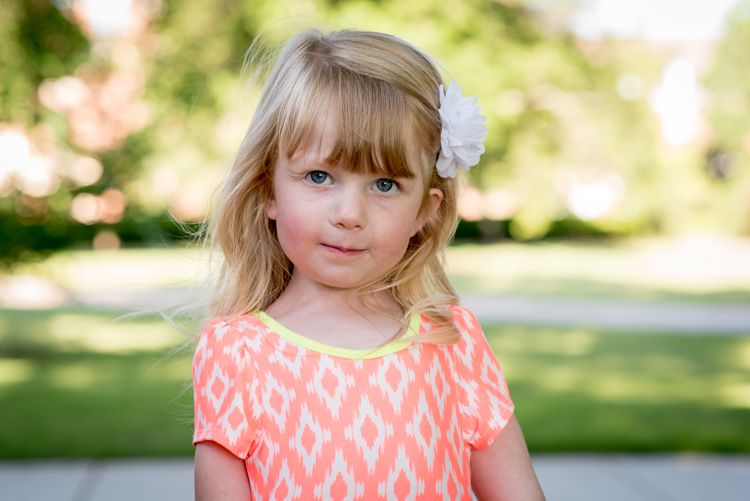
I have U1 configured to be ideal for outdoor portraits, so no matter what I'm doing I can instantly switch over to those settings to get the shot I want.

I have U1 configured to be ideal for outdoor portraits, so no matter what I’m doing I can instantly switch over to those settings to get the shot I want.

Preset Program Modes
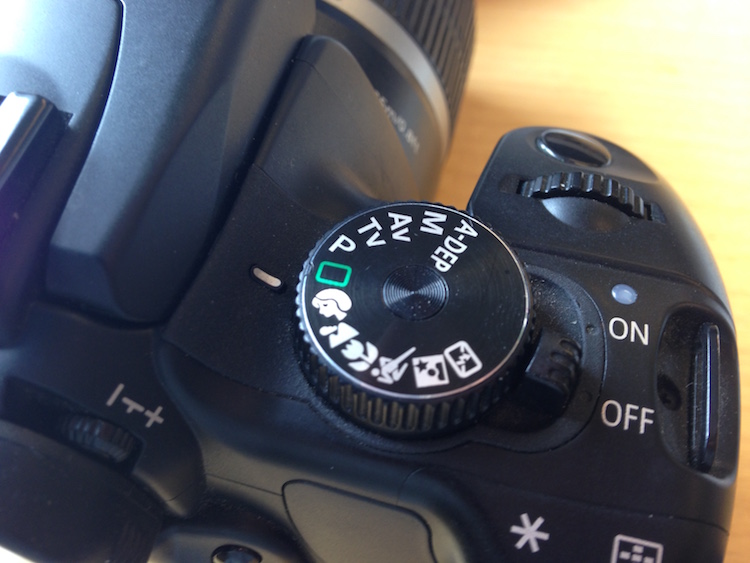
Insert mode dial close-up shot here. This is just a placeholder.

Think of these as custom Auto settings, each one suited for a different type of photography (look for the mountain, flower, person or sports figure on your mode dial). If you are perfectly happy shooting in Auto mode, but get frustrated when it doesn’t always give you the results you want, you might want to try using one of these instead.

Each option includes a specific set of parameters, kind of like the U1/U2 storage banks, that is ideal for taking pictures in certain types of settings. If you like going outdoors and taking shots of landscapes, twist the dial away from Auto, and over to the mountain icon, which will force your camera to use smaller apertures and lower ISO values that are suited for this type of photography. If you are watching your kids play football or run around at the park, use the icon with a person running, which will make your camera use faster shutter speeds and higher ISO values, if necessary, to freeze the action.

Each one of these icons is calculated and calibrated by your camera’s manufacturer to deliver good results in various types of situations, and they often deliver better images than just shooting in Auto mode.
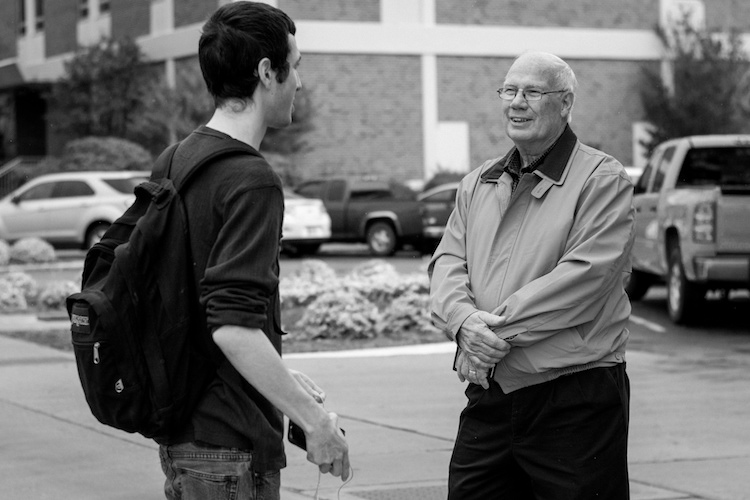
Using the icons on your camera can help you get the specific type of picture you want; the Portrait mode works here because it forces the camera to choose a wider aperture resulting in a blurry background behind the subjects.

Using the icons on your camera can help you get the specific type of picture you want; the Portrait mode worked here because it forced the camera to choose a wider aperture, resulting in a blurry background behind the subjects.

Other Common Modes

There are plenty of other modes you might find on any given camera, and each manufacturer includes a slightly different set of options, so it’s difficult to make a list that includes an explanation of all available functions. Here are just a few more that you might find, along with brief explanations. If your camera has something that’s not on this list, it may well be worth your time to open up your user manual and investigate. You may find some very useful modes for helping you take better pictures that were hidden in plain sight all along!

A-Dep: A fully automatic mode that lets you pick two points (in the foreground and background) that you want to be in focus, and your camera selects the aperture needed to get everything between those two points in sharp focus. The abbreviation stands for Automatic Depth of Field and it’s fun to play with, but doesn’t always work out so well in practice.

Box with Lightning Symbol Crossed Out: Another automatic mode that also disables the flash. It’s good if you want to shoot in low-light situations and only use available light, but your pictures may come out grainy or blurry.

Flower (macro): This is useful for shooting subjects at close range, such as flowers, or other small objects. It doesn’t affect the properties of your lens, which are far more important when shooting close-up subjects, but merely tells your camera to set the focus priority on things that are closer instead of farther away.

SCN/SCENE: Similar to the icons you may find on a mode dial, this lets you choose from several built-in scene examples, in order to help your camera figure out the appropriate shooting parameters to use.
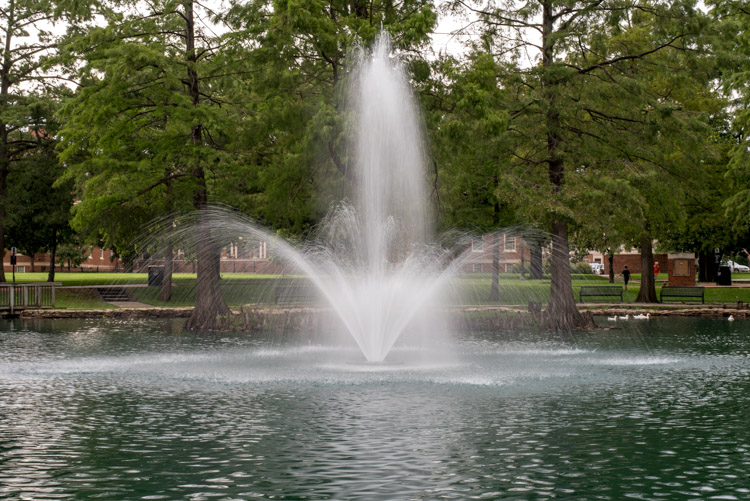
Though I shot this in the day, the nighttime scene mode worked well because it forces the camera to use a slow shutter speed which resulted in a nice blurry fountain.

Though I shot this in the day, the nighttime scene mode worked well because it forces the camera to use a slow shutter speed, which resulted in a nice blurry fountain.

Do you like using the mode dial on your camera, or do you prefer to leave it in just one position for all your shooting needs? Do you have any other tips or tricks you have learned from using the various functions on your mode dial? Did I leave out any critical information you think might be useful to someone learning to use the mode dial? Please leave your thoughts in the comments below.

googletag.cmd.push(function() {
tablet_slots.push( googletag.defineSlot( “/1005424/_dPSv4_tab-all-article-bottom_(300×250)”, [300, 250], “pb-ad-78623” ).addService( googletag.pubads() ) ); } );

googletag.cmd.push(function() {
mobile_slots.push( googletag.defineSlot( “/1005424/_dPSv4_mob-all-article-bottom_(300×250)”, [300, 250], “pb-ad-78158” ).addService( googletag.pubads() ) ); } );

The post A Simple Explanation of the Camera Mode Dial by Simon Ringsmuth appeared first on Digital Photography School.


Digital Photography School
 
Comments Off on A Simple Explanation of the Camera Mode Dial

Posted in Photography


LandscapePro software promises simple steps to dramatic changes

21 May

Anthropics Technology, the makers of the PortraitPro software application, has announced a program that it claims ‘radically simplifies and speeds up’ dramatic reworking of landscape images. LandscapePro offers tools for replacing skies, enhancing water and altering the direction of the light using automatic selection techniques and ‘one-click’ pre-sets. The company says that users will need ‘no prior knowledge or technical skills’ to use the program.

LandscapePro invites users to drag labels, such as ‘grass’, ‘sky’ and ‘water’ on to the relevant areas of an image and the software automatically makes an adjustable selection of that area. A collection of sliders and filters then makes it possible to adjust or replace each type of element. A depth of field simulator can create blur at certain distances while further controls allow photographers to emphasize distance through coloration.

Color temperatures can be adjusted using pre-sets with atmospheric labels to simulate sunset or stormy conditions, and ‘common objects’ such as grass and sand have their own pre-sets as well. There is also a tool that helps to select areas of sky through the branches of a tree.

There are two versions of LandscapePro: Standard and Studio. The Studio version works with Raw files and has options to operate as a plug-in for Photoshop, Lightroom and Elements among other differences.

The Standard version costs $ 79.90/£59.90 while the Studio version costs $ 119.90/£99.90, though both are offered at 50% off at the moment.

For more information, and a free trial, visit the LandscapePro website.


Press release:

LandscapePro Launched

New, easy way to enhance landscape photos

Anthropics Technology today announced the launch of LandscapePro, the industry’s first intelligent landscape photo editing software, available in standalone and Adobe Photoshop, Lightroom and Elements plug-in editions. The new software radically simplifies and speeds up outdoor and nature photo retouching. It includes landscape relighting, sky replacement, 3D depth estimation, a depth of field simulator, distance controls, intelligent selection tools, and photo-adaptive controls among other powerful features. With one-click presets and targeted editing available, users can create beautiful landscapes in seconds.

LandscapePro is a new way to enhance pictures that rises to the challenges and nuances of landscape photography. It assumes no prior knowledge or technical skills, and photographers can create unique, dramatic effects quickly. The new product comes from the makers of the award-winning retouching software PortraitPro and PortraitPro Studio with a plug-in mode for Adobe Photoshop, Lightroom, and Apple Aperture.

“Inspired by the success of Anthropics’s PortraitPro software, we are delighted to introduce a new product to help photographers expand their creativity and take landscape retouching to the next level,” said Andrew Berend, CEO, Anthropics. “LandscapePro offers an innovative and easy way to create stunning landscape photography, and can be used by novices or experienced photographers alike. As its intelligent controls uniquely adapt to the features of each photo, it enables photographers to do incredible things with their outdoor photos simply by using sliders.”

Key Features

Easily enhance landscape photos. LandscapePro contains a host of unique tools to enable anyone to create beautiful scenic photographs.

  • Intelligent selection tools.
  • Unique editing controls that adapt to the photo.
  • Easy-to-use slider interface.
  • No technical skills required.
  • LandscapePro Studio handles RAW files and can be run as a Photoshop, Lightroom and Elements plug-in.

Expand your creativity. Create unique, breathtaking scenes. LandscapePro effects are specifically tailored to landscape photography.

  • Landscape relighting. Lighting adjustment to fit any creative goals: change light source, temperature, time of day, or go from dawn to sunset. Note how the side lighting brings out the texture on the ground.
  • Instant sky replacement with presets. The unique sky controls enable photographers to replace sky, change clouds, or cast cloud shadows. Note how the change in sky has automatically relit the ground.
  • Cloud and atmosphere adjustment. Tools to manipulate skies by separately adjusting the clouds and the atmosphere behind them.
  • 3D depth estimation. A unique, easy-to-use depth of field simulator respects 3D objects in the scene. As easy as using a single slider.
  • Distance controls. Change colors in the image depending on the distance to the camera – make distant objects bluer, highlight the middle distance, or add fog.
  • Landscape-specific tools for dealing with common issues such as selecting small patches of sky behind trees.
  • Color adjustment tools targeted at common objects in landscapes, e.g. tools to make grass look lush, change the color of the sea, or to make sand golden.
  • One-click presets such as wet sand, stormy water, red sunset, lush trees.
  • Automatic area selection. Tag areas as sky, trees, buildings, grass, sand, rock, water and the selection will be applied instantly.
  • Targeted editing. Specially designed controls for different areas, e.g. change clouds to stormy or add thunder clouds, adjust waves, or add sunrise reflection to the sea.
  • Whole picture and individual object enhancements. Transform the whole photo instantly or use a new workflow where you select several objects in your scene first, before editing.

Editions

LandscapePro Standard – dedicated landscape photo editing.
LandscapePro Studio – handles RAW files, 48 bit per color TIFFs, supports different color spaces, and can be run as a plug-in for Photoshop, Lightroom and Elements.

Compare the different editions: www.landscapepro.pics/editions.
Availability, Free Trial and Pricing

LandscapePro is available to purchase or for a free trial from http://www.landscapepro.pics/.

Articles: Digital Photography Review (dpreview.com)

 
Comments Off on LandscapePro software promises simple steps to dramatic changes

Posted in Uncategorized


How to do a Simple Inexpensive Setup for Newborn Photography

28 Apr

When I first started taking on clients, as a new photographer I thought newborns would be my favorite. They seemed so easy, lying around, ready to be molded into any pose I desired, nothing to it. Fast forward five years and hundreds of dollars later, they are still my favorite, but I’ve wasted a lot of money, sweat, and tears trying to figure out how to do it correctly. If you are just starting out, either with new clients, or your own baby, this article is for you, before you throw away a lot of money.

How to get started doing newborn photography

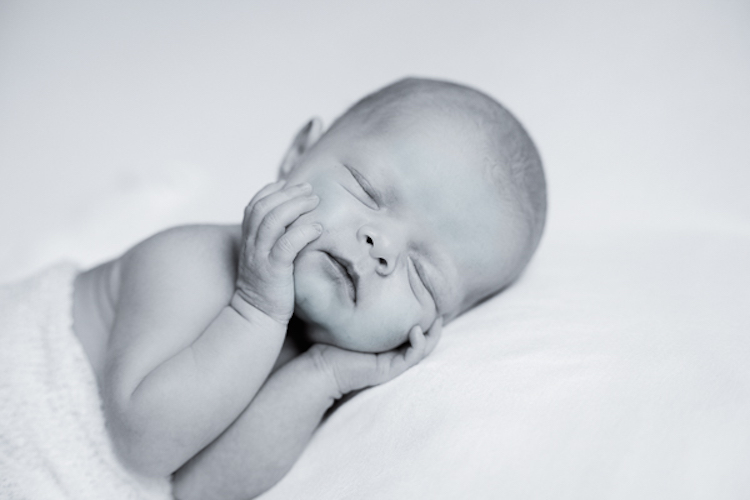
Newborn

Keep it simple with props

I figured to get the cutest newborn portraits I needed lots of hats, bows, blankets, and baskets. Then I needed colors that worked for boys, and ones that worked for girls. I bought tiny cribs, and big wooden letters to match the baby’s first initial of his or her first name. My house was so cluttered with photography gear we weren’t able to house our guests in our guest room, and I’m not even done.

I had a fake wood floor that was made of paper so I also had a pull out shelf from our armoire that was big enough to support the fake floor on the carpet. I had heaters, and backdrop stands, and so many blankets and backdrops they over took me. Every time I read an article about a photographer and what gear she used to get ONE specific photo, I would hunt down those items for myself. They mentioned she used rolled up receiving blankets under the baby’s head? Fire up Amazon, I need to get myself some of those. When would I be satisfied? I wanted to spend money on lenses, and photography classes, but I was so sure one more prop would produce the most amazing baby portrait, so that’s where all my money went.

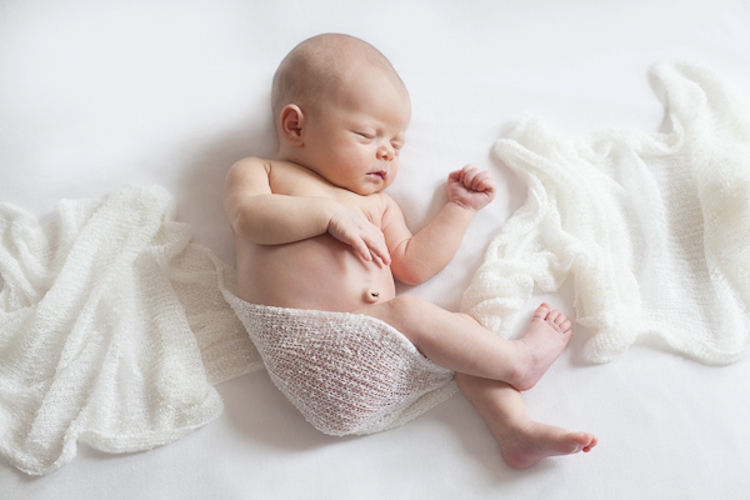
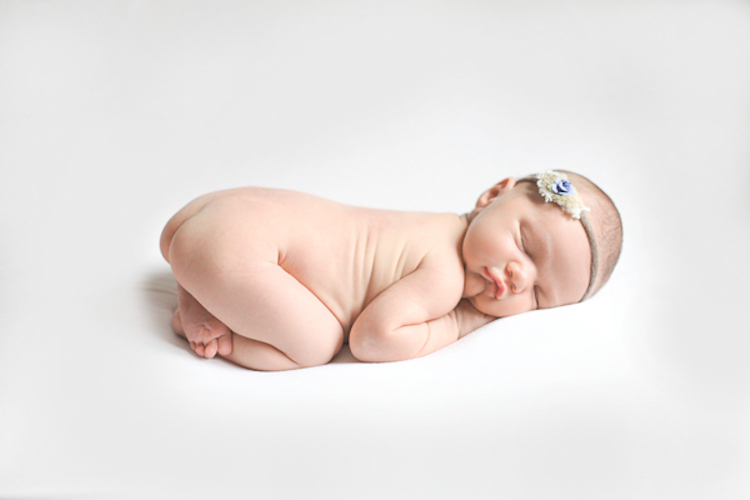
Last year I read a photography article called, Less is More. It opened my eyes. It struck me that the baby is the art, not the props. The props will probably date your photograph (have you seen the photos that are black and white except for a red rose in color?). But a baby, on a simple background, with only the simplest of accessories, will be stunning, because of the baby. That is why I’m here to tell you, save your money, especially if you’re just starting out. You can achieve phenomenal photographs of babies with only the very basics, and it’s so much easier than trying to fit her into that basket while trying to keep her asleep!

Scarf

Setup

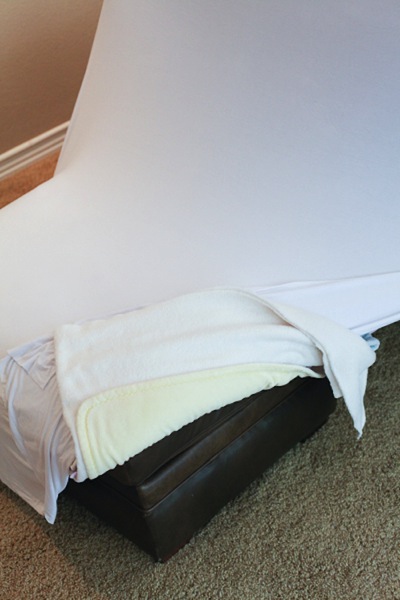
First of all, you need something to put the baby on. If you are working on posing the baby (versus lifestyle photography which requires no posing), you need something that is slightly malleable. Many professional photographers buy expensive beanbags, but you don’t need that. I actually use a leather ottoman we have here in our house, and when I do sessions at client homes I bring it with me.

Of course, last week I forgot to load it in my car for a newborn session. I got to the house and realized it was missing. They didn’t have any ottomans of their own, so instead I pulled the two large bottom cushions off their couch and stacked them on top of each other. For both the cushions and the ottoman I layer multiple blankets on top of each other. In between the blankets I have a few layers of waterproof sheets that are leftover from my own children, and a heating pad. The multiple layers of blankets make it soft and pliable, and the top few layers are the various backdrops I use to photograph the babies on, so I just keep removing layers for the different backgrounds (see below).

Ottoman

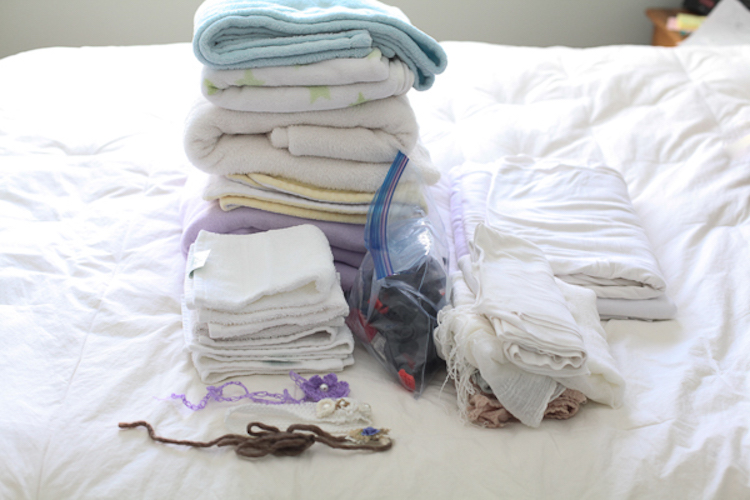
I only shoot on black, white, and cream. I have gotten away from colored blankets, but that’s my choice. I used to have colored blankets as well, and you may still want that, but don’t buy the expensive options off of etsy, use blankets you already own. I do recommend neutral colors though because bright reds, pinks, and greens can cause colorcasts on baby’s skin.

Positioning the baby

The stack of blankets help the baby to sink down a little bit if you want her to, and I also bought a stack of white washcloths from Costco, that I bring with me to roll up and stick in between the blankets and the baby to get her propped and curled exactly how I want her. A boppy (feeding pillow) under a blanket may be a good way to get some of the poses you want, and I’ve found that if you can’t use a boppy, another good option is a neck pillow like you’d use on the plane. I actually prefer that to the boppy because it’s small, and perfectly sized for a baby’s body, so it helps keep the baby propped in place if you lay her on her belly with her arms and head resting on the pillow.

Gear

Background

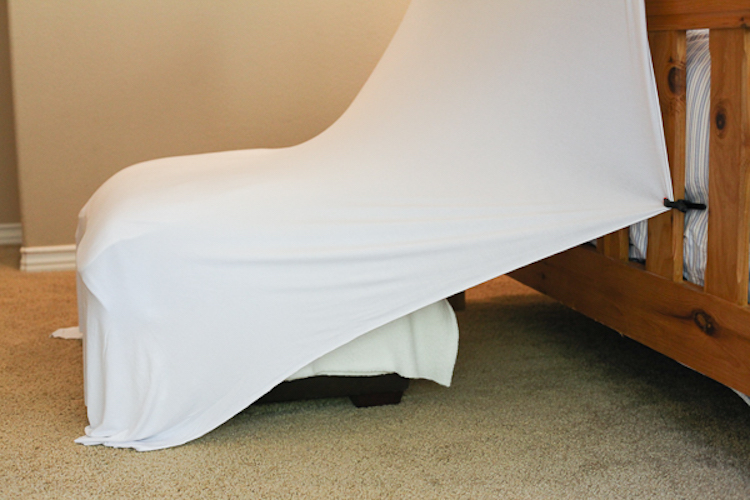
I like a continuous look for my backdrop, so I use the same material under the baby and stretch it up to create the background behind the baby. I own a stand that I bought for the purpose of holding up backdrops (or you can make your own), but you don’t need one of those. Invest in some heavy-duty clips, and you can pin up the material or blanket to anything above the baby. I’ve used bed frames, chair backs, stepladders, tables, etc., it’s just a matter of looking around you to see what will work. When I’m at a client’s house I pull stuff from all over the house to use during the session. I always put it all back the way I found it, and no one has ever had any issues.

Setup

Lifestyle or unposed photography

So I mentioned lifestyle photography. It’s something that is becoming ever more popular. Essentially, it’s about capturing photos without posing the family too much. Of course you will set the scene. You might move some furniture around, lay a blanket on the ground, and tell the family members where to sit or stand. But beyond that, you let them sort of do their thing. The photos are natural, realistic, and lovely. But I think lifestyle alone is not enough when we’re talking about newborn photos. Of course they are easier, and require almost no additional props at all, but most people want at least two or three posed photos of the baby alone.

Details

Accessories

Now for the accessories. Again, you don’t have to spend a ton of money on this stuff, and believe me, it’s easy to rack up a pretty big bill once you start purchasing. My favorite backdrop is a stretchy knit fabric that when smoothed over my blankets, has no wrinkles. I bought it at a craft store. I also bought an extra, smaller piece of the same fabric to wrap the babies in. I love the continuous look. But if you don’t want to buy anything at all, look around – you probably have some scarves, shawls, or small baby swaddling blankets you can use. I’m not a huge fan of big bows, but I do like small tiebacks. You can purchase one of two of them, or make your own with some twine and pretty beads.

Tieback

Once you start looking around at what you already own, I bet you can find many different options for positioning, backdrops, and wraps. To add some variety you can purchase some scarves, head ties, or small pieces of material at the fabric store that won’t set you back a lot of money, but will bring the needed variety in your photos.

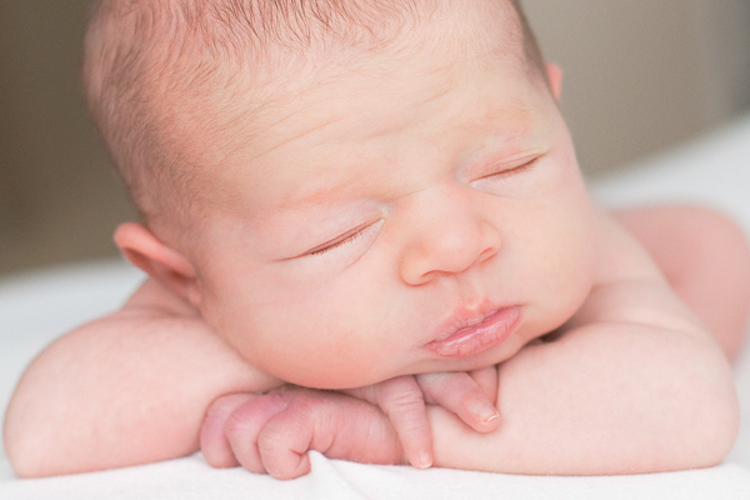
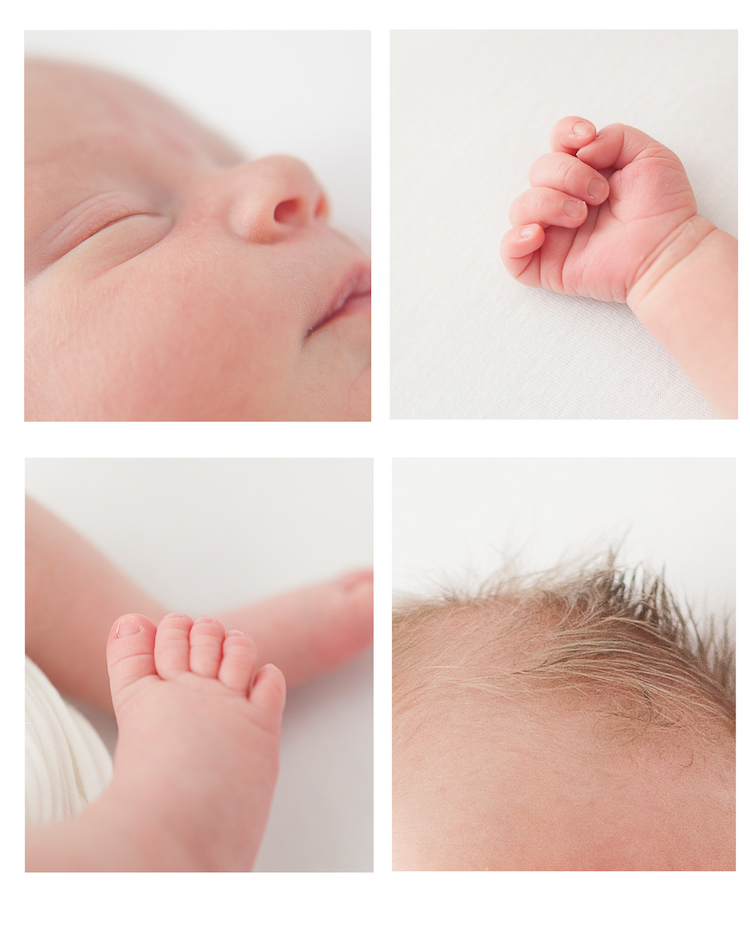
Good luck, and remember it’s the baby you’re trying to capture, not the props. Don’t forget those long eyelashes, those tiny toes, and those perfect pouty lips.

Small details

People photography week

This week on dPS we’re featuring articles all about different kinds of people photography including portrait, event and travel photography. See all the previous ones below, this article is the last one in the series.

  • How to Take Low Key Head-shots
  • How to Do a One Light Portrait Setup and Use it as Your Back-up Plan
  • Travel People Photography – Tips and Pitfalls
  • 8 Tips for Photographing Men
  • 24 Diverse Images That Showcase People Photography
  • Weekly Photography Challenge – People Photography
  • Tips for Getting Yourself to Relax as a Photographer and Have More Successful Portrait Sessions
  • 5 Good Reasons to Add People into Your Landscape Photography
  • 6 Must-Have People Shots to Capture When Photographing Corporate Events
  • 4 Tips to Help You Get Started Doing Lifestyle Photography
  • 3 Tips for Photographing Children Without Losing Your Mind

googletag.cmd.push(function() {
tablet_slots.push( googletag.defineSlot( “/1005424/_dPSv4_tab-all-article-bottom_(300×250)”, [300, 250], “pb-ad-78623” ).addService( googletag.pubads() ) ); } );

googletag.cmd.push(function() {
mobile_slots.push( googletag.defineSlot( “/1005424/_dPSv4_mob-all-article-bottom_(300×250)”, [300, 250], “pb-ad-78158” ).addService( googletag.pubads() ) ); } );

The post How to do a Simple Inexpensive Setup for Newborn Photography by Kim Kelley appeared first on Digital Photography School.


Digital Photography School
 
Comments Off on How to do a Simple Inexpensive Setup for Newborn Photography

Posted in Photography