RSS
 

Posts Tagged ‘Should’

4 Photography “Tricks” That Should Be Quietly Retired

04 Jun

If you’ve ever felt the temptation to “improve” some of your photos with some special tricks, then you’re not alone. Many people with a passing interest in photography employ all manner of “extras” to give their photo some added visual interest. Most of these tricks, however, are ham-fisted affectations that can not only ruin your photos, but mark you as Continue Reading

The post 4 Photography “Tricks” That Should Be Quietly Retired appeared first on Photodoto.


Photodoto

 
Comments Off on 4 Photography “Tricks” That Should Be Quietly Retired

Posted in Photography


5 Reasons You Should Learn Long Exposure Photography

12 May

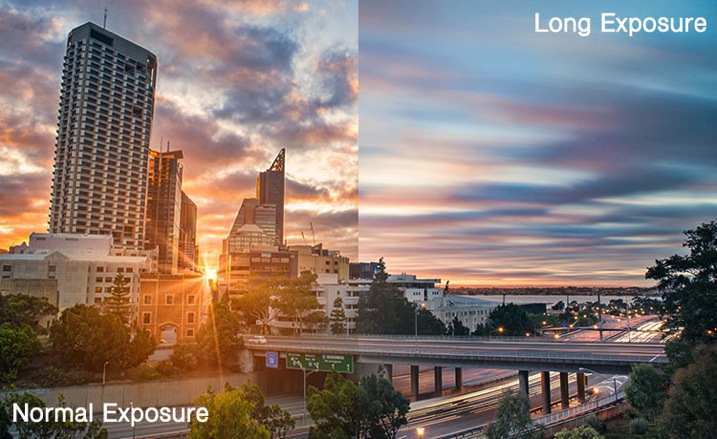
Long exposure imagery is an interesting and highly satisfying technique of creating images. It requires you to use the manual mode or sometimes shutter priority mode to control your shutter speed.

Normal vs Long exposure

Shutter priority mode is marked on Nikon camera with ‘S’ and on Canon systems with ‘Tv’. They mean the exact same thing. When you switch to shutter priority mode you can select the shutter speed while the camera selects the appropriate aperture.

Obviously if you need a bit more flexibility, you should use the manual mode, where both shutter speed and aperture value are in your control. That helps you to maintain a long shutter speed while also controlling the depth of field.

At this point you would probably be asking yourself why you would need to shoot long exposure images. Wouldn’t shooting such exposures risk your images to be washed out? This is because there are some other tools and techniques involved in the process as well. Such as using ND filters or using exposure compensation to find the right aperture / shutter speed combination that allows sufficient light over a long period of time without risking a washed out image.

So why should you learn how to shoot long exposure images?

1. You can record an image over a long period of time.

Something that evidently means an action is recorded as it unfurls in front of the camera. For example, clouds moving across the sky in a landscape image creates a beautiful blurred effect that gives the hint of time passage. The same thing happens when you shoot an image of a pier and the surf coming back and forth is recorded over a long period of time. The final result will be a beautiful misty look.

2. You can make waterfalls become silky.

Water fall

If you love nature photography there are probably a million different subjects that you could shoot using the long exposure technique. Waterfalls are often shot using a slow shutter speed which basically results in a long blurred line of water and accentuates the overall surreal look of the image. I call this “silky waterfalls”.

3. You can capture trails of lights.

Light trail

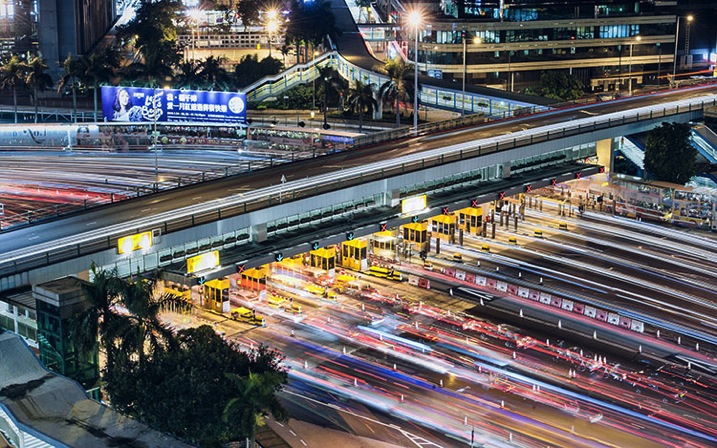
Long exposure technique is perfect for night time photography as well. You can shoot star trails, light trails, light painting, or even fireworks. All of these subjects require a long shutter speed which allow the sensor to be exposed to the light movement. These topics, when doing right, can capture a beautiful pattern of light in the final image easily.

4. You can make the annoying pedestrians disappear.

There are certain unique perspectives to get if you are prepared to use the long exposure technique in broad daylight. It is not difficult, you will just need an ND filter. What I have in mind primarily is street photos. Let’s say you are photographing a busy street at noon. You want a look when nobody is around. On a busy street right in the middle of the day, it is seemingly an impossible task. Not if you know how to use an ND filer.

A ten stop ND filter, something like a Lee big-stopper, is what you need. You can first meter for the scene, then attach the filter to the front of the lens. A ten-stop filter will allow you to use a shutter speed of up to 10 stops slower than what you metered initially, without the filter. That will make everybody simply disappear. If you do it the right way, what you will get in your image is a city completely devoid of people! Like a postapocalyptic
scene, it will be an amazing image.

5. You can easily create B&W fine art photographs.

Another reason you would want to shoot long exposure photos is to enhance your black and white compositions. Black and white images are somehow more powerful than color images.

Sydney bridge

It is the contrast, the different shades of grey, ranging from pure white to pure black, the shapes, the forms, everything seems to appear more interesting. The greatest disadvantage of B&W images is that, well, they are devoid of color. That, however, is also the greatest advantage. Because without color, the essential aspects of composition and the underlying story comes to the forefront.

Do you have any other compelling reasons to do long exposure photography? Please share in the comments below.

googletag.cmd.push(function() {
tablet_slots.push( googletag.defineSlot( “/1005424/_dPSv4_tab-all-article-bottom_(300×250)”, [300, 250], “pb-ad-78623” ).addService( googletag.pubads() ) ); } );

googletag.cmd.push(function() {
mobile_slots.push( googletag.defineSlot( “/1005424/_dPSv4_mob-all-article-bottom_(300×250)”, [300, 250], “pb-ad-78158” ).addService( googletag.pubads() ) ); } );

The post 5 Reasons You Should Learn Long Exposure Photography by Kevin Choi appeared first on Digital Photography School.


Digital Photography School

 
Comments Off on 5 Reasons You Should Learn Long Exposure Photography

Posted in Photography


Why You Should Make Dark Images

27 Apr

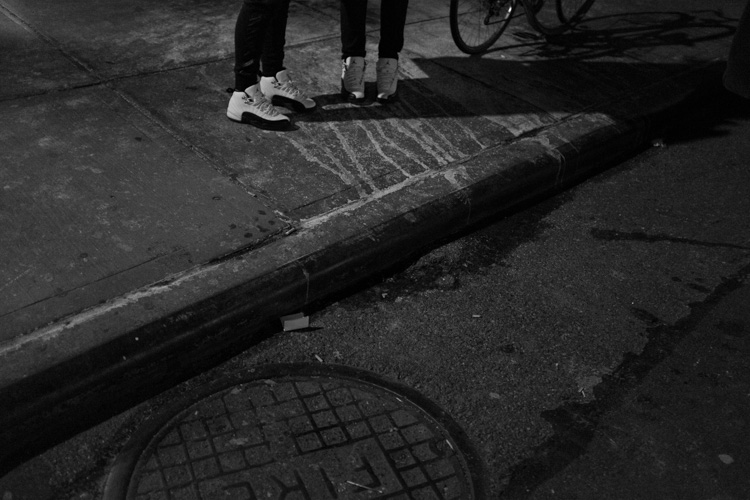
Street scene

One of the most unexplored aspects in digital photography is the dark image.

With digital, we have built-in light meters, histograms, incredible ISO capabilities, and processing programs, which make it much easier to expose our images brightly in all different lighting situations. This can have the effect of making photographers feel that they need to expose all of their images with a neutral histogram, where you can see the image perfectly well, with some information in the highlights, mid-tones, and shadows.

This is often what you want to do, but not always.

When you are using Aperture Priority, Shutter Priority, or the Automatic modes, your camera’s light meter has the aim of making whatever it is focusing on a neutral grey. Thus, it has the tendency to overly darken scenes with a lot of bright highlights or to overly brighten scenes with lots of dark tones.

The Lake, Central Park – NYC

Because of this, when you photograph in dark situations your exposures can end up being bright as if they were taken during the day. It’s easy to think that this is okay, and often it is, but it also makes it easy to forget that sometimes a dark image is a good thing too. There is nothing wrong with making an image look like it was taken at night. There is nothing wrong with making the image tougher to see, like the scene was to your eye as you captured it.

For me, it was an experience when I started to look at older photography books and came across images that I couldn’t quite make out. ‘They should have been brighter”, I immediately thought, but then I realized that I liked them. I realized how natural and moody it made the images feel. I had to put in more effort to make out what was going on, and I liked that. It felt moody and real.

This image could have been made brighter and still worked.

Technically, to achieve this on Aperture or Shutter Priority, you need to lower your exposure compensation (+/-) setting when you are photographing subjects or areas with a lot of darker tones. I usually default to -2/3 or -1 stop, then tweak from there depending on the situation. You can even take it further by going into full Manual mode to override the camera’s light meter. Since the lighting is fairly consistent in many dark situations, this is often a great way to shoot.  I do this when shooting at night, in train stations, alleyways and many indoor situations. You can even shoot like this during the day by strongly underexposing your image.

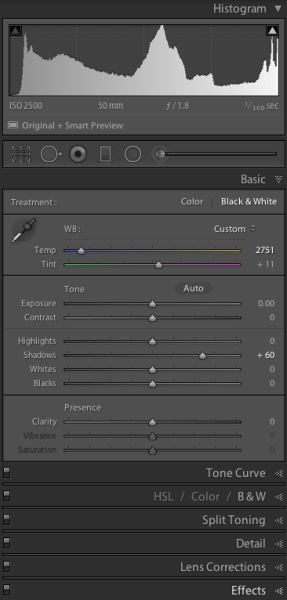
If you notice, in the images in the article, the highlights are represented as middle grey tones. This is called exposing for the highlights and that is a key for making a dark image. Get used to seeing lots of deep blacks and mid greys. It can help to take a file into Lightroom and play around with the exposure to get a feel for how an image can look at different exposures. When shooting in dark situations, which means you will probably be using a very high ISO, you will want to make sure to get the image as close as possible to the prime exposure in the camera. But when you are learning it can only help to experiment in Lightroom to find the exposure that you like the best.

Nightlife Street Scene, East Village, NYC.

But what is the purpose of making an image dark? There are a few reasons. The first is that in many situations it can feel more realistic. Night images that look dark feel more like the viewer is actually there. They feel accurate and that can go along way for the viewer. Dark images can feel moody, eerie, dangerous, quiet, romantic, scary, weird, or contemplative. Many backgrounds look more beautiful with the dark shadows and moody lighting at night.

In addition, dark images draw the viewer in. Often with photography, the devil is in the details and sometimes it can be hard to draw viewers in to really look around an image. Dark images do that. As the viewer tries to make out the details, they inadvertently start exploring the image in more depth.

So next time you are shooting at night or in a dark area, think about making that image a bit darker.

Nightlife Street Scene, NYC.

googletag.cmd.push(function() {
tablet_slots.push( googletag.defineSlot( “/1005424/_dPSv4_tab-all-article-bottom_(300×250)”, [300, 250], “pb-ad-78623” ).addService( googletag.pubads() ) ); } );

googletag.cmd.push(function() {
mobile_slots.push( googletag.defineSlot( “/1005424/_dPSv4_mob-all-article-bottom_(300×250)”, [300, 250], “pb-ad-78158” ).addService( googletag.pubads() ) ); } );

The post Why You Should Make Dark Images by James Maher appeared first on Digital Photography School.


Digital Photography School

 
Comments Off on Why You Should Make Dark Images

Posted in Photography


Top 10 Qualities of an Experienced Photographer You Should Look for

21 Apr

Photography is without a doubt a very powerful form of artistic expression. Although Instagram can make us all feel like pros, pictures of food and posted selfies do not even come close to professional photographers’ portfolio. So today, let’s talk specifics and study top qualities which differentiate experienced photographers from the amateur crowd. The importance of professional presentation In such Continue Reading

The post Top 10 Qualities of an Experienced Photographer You Should Look for appeared first on Photodoto.


Photodoto

 
Comments Off on Top 10 Qualities of an Experienced Photographer You Should Look for

Posted in Photography


Photo History Club: 7 Famous Photographers You Should Know

14 Apr

I’ve said here before that exploring photographic history is a great way to kick-start your creative engine. It’s often said that there’s nothing new under the sun, but for every photographic approach and philosophy you can find, someone somewhere did it first. Studying what’s come before you can often reveal something new ahead of you. So with that sentiment in mind, I Continue Reading

The post Photo History Club: 7 Famous Photographers You Should Know appeared first on Photodoto.


Photodoto

 
Comments Off on Photo History Club: 7 Famous Photographers You Should Know

Posted in Photography


Back Button Focus: What is it and why should you try it?

04 Mar

What operation on a camera could possibly be more simple than pressing the shutter button to take a picture? There’s not much to it, really –  you look through the viewfinder (or at the LCD screen on the back of the camera), press a button with your index finger, wait for the camera to focus, and voilà! You’ve got a photo.

Well, as the popular saying goes, what if I told you there was a better way? Hidden deep within the settings of most cameras is a feature called Back Button Focusing, and enabling it can transform your approach to photography.

A Brief History
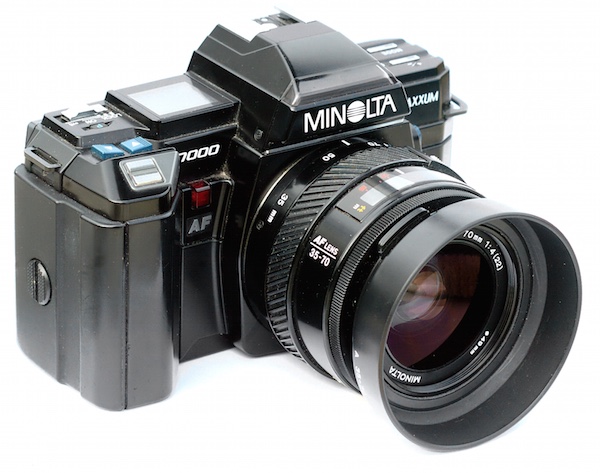
MinoltaMaxxum7000

The Minolta Maxxum 7000 was one of the first SLR cameras with autofocus capability in 1985.

To understand what Back Button Focusing is, it’s important to know a little about the history of the autofocus function on your camera. Until the mid-1980s, there was no such thing as autofocus on consumer-level film cameras. You had to hold your camera up to your eye and either turn a ring on the outside of the lens or adjust what’s known as a rangefinder in the top-left corner. It required a great deal of patience and practice, and there are many photographers today that still swear by this method.

In 1985 Minolta released the Maxxum 7000 which integrated the autofocus function into the shutter button, which seemed like a sensible choice because you would normally want to make sure the camera was focused before taking a photo. This implementation of autofocus worked well, but required a bit of maneuvering if the photographer wanted to focus on something other than what was in the center of the photo. To do that, he or she would have to aim the camera at the object to be in focus, carefully hold the shutter button down halfway to keep the focus locked while re-composing the shot, then pushing the button all the way when the picture was ready.

This system remains in place on most cameras today, and it’s probably how your own camera operates. At this point you might be wondering why you should bother to change something that has worked perfectly well for the past 30 years.
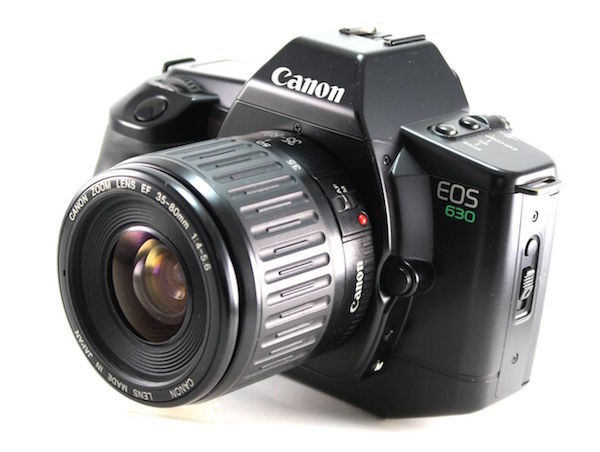
CanonEOS630

Canon’s EOS 630 was the first camera to give users the option of using a separate button for focusing instead of the shutter button.

The answer is because there really is a better way to focus your camera before you take a picture, and it was invented by Canon in 1989. On their EOS 630 camera they included an option within the camera’s custom settings menu to separate the actions of focusing and snapping the shutter. Users could tell the camera to use a separate button on the back of the camera to handle focusing duties, which left the shutter button to do one thing and one thing alone: take the picture. It was not an immediately obvious feature, and it never really caught on like Canon may have hoped, but the same capability is in every Canon DSLR today as well as virtually all cameras from other manufacturers like Nikon, Pentax, Sony, and the rest. If you have any sort of DSLR or mirrorless camera there is probably an option in your settings menu to enable Back Button Focus, and it’s something I highly recommend trying out.

Back Button Focus requires your thumb to press a button on the back of your camera (hence the name) and your index finger to press the shutter, which does take a few days to get used to, but soon becomes second nature. All this begs the question – why should you re-learn how to do something as basic as focusing your camera when the shutter half-press works perfectly fine? The answer lies in the overall concept of giving more control back to you, the photographer.

More Creative Freedom

Cameras today have a dizzying array of autofocus points – those little dots or squares that light up in the viewfinder when you press the shutter button down halfway. You also have a ton of options in how you use these points. You can select an individual point, you can have the camera select what it thinks is the best one, you can tell your camera to use some of them in conjunction with one another, and many cameras have modes such as automatic face detection as well. To be honest, all these options works really well. But just know that by decoupling the act of focusing from the shutter button, and moving it to a separate button, you will be able to do a lot more with your photography than you may realize.
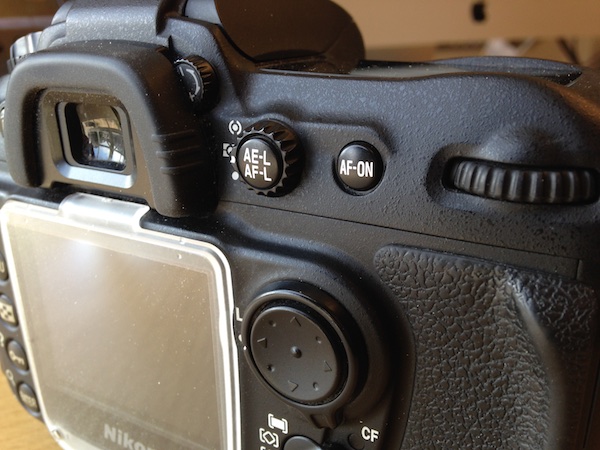
NikonD200BackButton

If your camera has an AF-ON button, you can use it to focus instead of the shutter button. If your camera does not have this button, you can usually adjust the camera’s settings to make another button such as AE-L/AF-L perform this function.

By using a button on the back to focus, you will no longer have to hunt around for the specific autofocus point you want to use or wait for the camera to focus on what it thinks you want to before allowing you to take a picture. Trying to keep a moving subject in focus while deftly holding the shutter down halfway is a feat of dexterity that would keep Legolas himself at bay. This is easily remedied by using back button focus. With this method you can hold the back button down as long as you want, which keeps your camera continually focusing on your subject, until you are good and ready to snap a photo. This is incredibly useful when your subject is in motion, whether people, animals, mechanical objects, or simply a flower petal meandering across a meadow.

One of my favorite cameras is the Nikon D7100, which has 51 autofocus points that cover almost the entire frame. For a while I used all of them, frantically shifting from one to the next as I adjusted each shot or tried to track a moving subject. It worked fairly well, especially in conjunction with Nikon’s 3D subject tracking algorithm (variants of that can be found in most cameras today) which did a good job of keeping my subject in focus whether it moved or I altered my perspective. But I found that I often messed up some critical shots because I was either too busy changing the autofocus point, or letting my camera decide what it thought should be in focus. Switching to back button focus remedied all of this, and helped me gets shots that would have been much more difficult otherwise.

To get this shot I used the back button to focus on a different passer-by, and then waited for others to come down the sidewalk. I was then free to snap photos no matter where people were in the frame, because the shutter button was not also refocusing the picture.

To get this shot I used the back button to focus on a different passer-by, and then waited for others to come down the sidewalk. I was then free to snap photos no matter where people were in the frame, because the shutter button was not also refocusing the picture.

By using the back button to focus I will often just utilize the center focus point to get my subject in focus, and then release my thumb from the button while re-composing to frame the subject. It’s much faster than hunting for a specific autofocus point, and allows me to take the photo at the exact instant I want -not when the camera thinks the subject is in focus. This focus-and-recompose technique works great for a variety of situations, but there are certainly times when I like to utilize one of the built-in AF points. When that happens I just go through the motion of selecting one and then taking a picture like normal while using the back button to focus. In essence, using the back button to focus simply gives me more options when taking a photo, which allows me to think more about the pictures I’m taking instead of fiddling with the camera.

I was able to snap a few photos of this husky by holding my thumb down on the back button to continually adjust the focus, and pressing the shutter to snap photos whenever I wanted.

I was able to snap a few photos of this husky by holding my thumb down on the back button to continually adjust the focus, and pressing the shutter to snap photos whenever I wanted.

Taking the Power Back

Most cameras have a few common focusing modes: Single, Continuous, and Manual. In Single mode, the camera focuses once and then won’t re-focus again until after you take a picture. This is how many photographers use the focus-and-recompose method without using the back button, and it works fine in a variety of situations. The Continuous method forces your camera to constantly adjust focus while your finger is held down on the shutter button, and doesn’t stop until you snap a photo. Manual, as its name implies, leaves all the focusing duties to the photographer who must adjust a ring on the lens in order to nail the focus without any assistance from the camera. All three of these methods have their uses, and you will often encounter situations in which you need to switch from one to the other (for example, switching quickly from Single to Continuous). Doing this requires digging through menus or flipping a dial on your camera, and it can be a bit of a pain.

Using the back button combines all three focusing modes, giving an incredible amount of power and control to the photographer:

Manual: Take your thumb off the back button and focus by rotating your lens barrel. (Note: do not do this if your lens doesn’t have a “M/A” focus setting. If it is in fully autofocus you will be forcing the gears)

Single: Press your thumb on the back button until your camera is in focus, and then lift your thumb up to keep the focus locked until you press the button again.

Continuous: Hold your thumb on the back button as long as you want, forcing your camera to continually adjust the focus until you take a picture. (Note: you must be using Continuous focus mode for this to work).

Nailing this shot of falling water drops required a lot of switching between automatic and manual focus, and would have been virtually impossible if the shutter button was used for focusing instead of the back button.

Nailing this shot of falling water drops required a lot of switching between automatic and manual focus, and would have been virtually impossible if the shutter button was used for focusing instead of the back button.

You can effortlessly switch between all three methods without doing anything at all except moving your thumb away from the back button, which means you can spend far more of your effort on things like composition and framing, instead of digging through menus on your camera.

Finally, one of the most overlooked benefits of using the back button to focus is that it frees up your shutter half-press to do other functions like lock the exposure. You will have to enable this option using your camera’s settings menu, and you might not use it on every shot, but it’s yet another tool in your photographic arsenal that can help you get better photos. When your subject is in danger of being over or underexposed, you can quickly point your camera at something else to get a better exposure, press the shutter button down halfway to lock the shutter/aperture/ISO values, and then recompose to get the image you want. This trick, combined with back button focusing, has saved my proverbial bacon more times than I can count. Normally this exposure-locking function is handled by its own dedicated button, but I have found it to be far more useful to use the exposure-lock button for locking focus and the shutter for locking exposure – effectively reversing the default behaviours of both buttons, but making your camera much more versatile in the process.

All this talk of button-switching and extra finger-pressing might seem inordinately confusing, but it’s much easier than it sounds. Though it might seem counterintuitive at first the more you use the back button to focus the more it will make sense and help you unlock new creative possibilities with your camera.

If you can’t figure out how to set it up on your camera, try and quick YouTube search for “setting up back button focus on a _________” and fill in your camera model.

Do you like to use back button focus? What other tricks do you have up your sleeve to help you get better photos? Leave your feedback in the comments section below.

googletag.cmd.push(function() {
tablet_slots.push( googletag.defineSlot( “/1005424/_dPSv4_tab-all-article-bottom_(300×250)”, [300, 250], “pb-ad-78623” ).addService( googletag.pubads() ) ); } );

googletag.cmd.push(function() {
mobile_slots.push( googletag.defineSlot( “/1005424/_dPSv4_mob-all-article-bottom_(300×250)”, [300, 250], “pb-ad-78158” ).addService( googletag.pubads() ) ); } );

The post Back Button Focus: What is it and why should you try it? by Simon Ringsmuth appeared first on Digital Photography School.


Digital Photography School
 
Comments Off on Back Button Focus: What is it and why should you try it?

Posted in Photography


4 Photoshop Tools Every Photographer Should Know

01 Mar

When it comes to photo-editing programs, one of the most popular among both amateur and professional photographers alike is Adobe Photoshop. While it can appear more complex than Lightroom, and certainly takes more time to learn all of its tricks, Photoshop offers four post-processing tools that come in handy for retouching images. These tools are pretty easy to locate and implement, and in this article I’ll show you how they work, specifically while retouching the image of the Space Needle in Seattle (below). I have the privilege of having this view from my home office, but the problem is that if I take a photo using anything but a telephoto lens, I get telephone pole remnants and wires in my otherwise pretty cityscape image.

Here are the four Photoshop tools I use to retouch my Space Needle images. There are of course other ways to retouch this image to achieve the same or even better results, but these are quick and easy methods that also highlight essential Photoshop skills.

5 basic photoshop tools for photographers

Before we do anything to modify Photoshop images, the first thing to note is that within Photoshop, you can cause permanent changes to the pixels and details of your photos if you’re not careful. This is why you always want to make sure you are performing nondestructive editing so that you don’t overwrite the original image data.

There are several ways to do this in PhotoShop. For the tools I’m about to show you, the best technique for nondestructive editing will be to work within an adjustment layer or retouch on a separate layer. You can create a new layer by clicking on the New Layer icon on the bottom of the Layers panel. Repeat this every time before you employ a new editing process on your image and be sure to double click on the layer and rename it to help you remember what editing process you did on that layer.

5 basic photoshop tools for photographers

1. Spot Healing Brush

First of all, let’s tackle those thin, yet annoying, power lines in the upper left corner of the image. To start, we’ll use the Spot Healing Brush. One of three image healing tools that Photoshop offers, this brush creates a seamless repair to your image by replacing unwanted textures of the image with good textures from another area.

5 basic photoshop tools for photographers

To use it, head over to the Tools panel and select the Spot Healing Brush. It will be grouped together with other healing and patching tools. Be sure the Sample All Layers option is checked on the upper Options bar, as well as Content Aware (Photoshop versions CS5 or later) or Proximity Match (Photoshop CS4 or earlier). Next, zoom into the image’s problem area and click (or click and drag) on the areas you want to replace or heal. To adjust the size of the brush, press the left ([) and right (]) bracket keys on your keyboard. If you make a mistake, just hit Ctrl+Z (on Windows) or Command+Z (on Mac) to undo. In this example, I clicked and dragged the Spot Healing Brush across those thin power lines to erase them.

In this example, I clicked and dragged the Spot Healing Brush across those thin power lines to erase them, which is the quickest way of using it. However, be careful when attempting to spot heal in large chunks particularly near high-contrast edges, since some areas can appear improperly blended. For the sake of accuracy, a more effective approach could be using the spot healing brush to heal smaller chunks of the image, rather than attempting to heal the entire area in one go.

Other important settings to be mindful of are the Size and Hardness of the brush, which can be adjusted per the settings panel pictured below. Since the Healing Brush automatically blends pixels, it’s best to choose a higher Hardness value for best results.

Cloning Tool Settings

2. Clone Stamp Tool

Another alternative way to getting rid of the power lines is to use another Photoshop essential: the Clone Stamp tool, which is used for pixel-to-pixel cloning. Like the Spot Healing Brush, this tool can be used to replace unwanted areas of an image, but unlike the Healing Brush, it won’t do automatic content-aware blending. The Clone Stamping is best used to duplicate an item or pattern, remove a brand logo, or remove power lines, which is what I’m going to do in this example.

5 basic photoshop tools for photographers

To use the Clone Stamp tool, first create a new layer and then select the Clone Stamp tool from the tool bar. This tool works similarly to the Spot Healing Brush, but before you begin clicking away, position your cursor over the area you want to clone from and Alt-click (on Windows) or Option-click (on Mac) to define and sample the source of the clone. Be sure to re-sample and re-define as many clone sources as needed to provide a seamless cloning result.

Be sure to re-sample and re-define as many clone sources as needed to provide a seamless cloning result. To make sure the result appears realistic, it is important to zoom in and make sure the same pattern is not being cloned over and over again. Per the same settings as the Spot Healing Brush, be mindful of the Size and Hardness settings that you choose as these will determine how accurately the Cloning Tool samples and clones layers. When cloning an area with lots of patterns and details, it’s sometimes best to work with a low Hardness value and low cloning opacity for smoother results.

3. Magic Wand

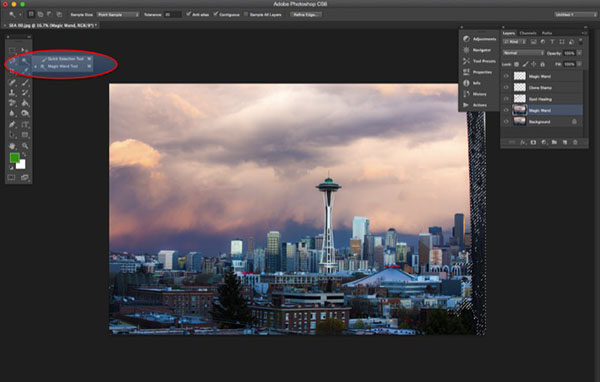
Next, let’s get rid of the remnant of a telephone pole in the right hand side of the image. The easiest way to eliminate it would be a simple crop, but another way is to select and replace it using the Magic Wand Tool. This is one of Photoshop’s oldest selection tools and it causes many a photographer joy or suffering. The Magic Wand is incredibly easy to use, requiring just a click of its icon in the tool bar, followed by clicking on the area of the image that you want to select. Here’s where things can get complicated. The Magic Wand selects pixels based on tone and color, which means it has the tendency to select more areas of the image than you initially want. The simplest way to fix this is to play around with Tolerance in the Options bar. If the Magic Wand is selecting too much of an area, simply input a smaller value of Tolerance and then reselect the area.

5 basic photoshop tools for photographers

4. Content-Aware Fill

After the proper area of the telephone pole is selected, it’s time to fill in that area. Hit Shift+Delete on the keyboard, and the below pop-up box will appear. Make sure Content-Aware is selected, then press OK; Photoshop will then sample pixels in the surrounding area and fill in the selected area accordingly. The results may not be perfect, and this is where the aforementioned Spot Healing Brush and Clone Stamp tools can come in handy to make the filled in area more seamless.

5 basic photoshop tools for photographers

The final retouched image can be seen below. Using the Spot Healing Brush, Clone Stamp, Quick Selection and Content-Aware fill, the telephone lines in the upper left corner have been removed, as well as the remnant of the pole on the right-hand side.

5 basic photoshop tools for photographers

In this brief tutorial, I’ve introduced several very important tools that all photographers should be familiar with, but it’s also important to note that I haven’t explained every possible use of them. There are many other practical and creative ways to use these tools, and I encourage you to do further research to learn more about them. But for the sake of doing quick edits and getting familiar with the tools, these are approachable ways to get started.

googletag.cmd.push(function() {
tablet_slots.push( googletag.defineSlot( “/1005424/_dPSv4_tab-all-article-bottom_(300×250)”, [300, 250], “pb-ad-78623” ).addService( googletag.pubads() ) ); } );

googletag.cmd.push(function() {
mobile_slots.push( googletag.defineSlot( “/1005424/_dPSv4_mob-all-article-bottom_(300×250)”, [300, 250], “pb-ad-78158” ).addService( googletag.pubads() ) ); } );

The post 4 Photoshop Tools Every Photographer Should Know by Suzi Pratt appeared first on Digital Photography School.


Digital Photography School

 
Comments Off on 4 Photoshop Tools Every Photographer Should Know

Posted in Photography


5 Things You Should Know About Lightroom Before Starting

27 Feb

So you just installed Lightroom, now what?

You could spend some time just playing around and learning through doing, but if you’re looking for a nudge in the right direction here are a few simple concepts that I wish I’d thought about before starting my own Lightroom journey – hopefully it helps you! Five things you should know about Lightroom before you start:

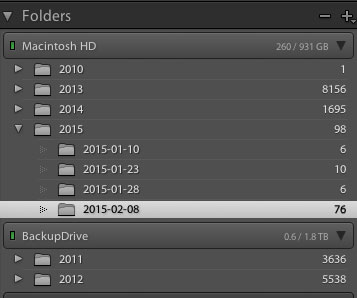
#1 Your organizational strategy

organize-in-lightroomThis might not seem important at first, but Lightroom is an amazing organizer of your photographs if you choose to use it as one. So before you start haphazardly uploading photographs into your Lightroom catalog try to come up with some sort of basic organizational strategy first.

Some ideas for organization include:

Organizing by date, by location of shoot, or by specific events. Think about your style of photography and the subject matter you plan on shooting. For example a wedding photographer would probably want to organize by date/bride-groom name, where as a wildlife photographer may organize by location/animal.

Lightroom has many different tools for organizing your photographs from colors, star rating and flags. You could for example use flags as a simple yes/no option to quickly cull images, while colors could be for various states of post production workflow (i.e. blue is for images that need to be processed and green is for images that are finalized and shouldn’t be touched).

This might sound overwhelming at first, but if you get into this habit early on, it will simply become a part of your Lightroom workflow, and trust me an organized Lightroom library makes things a lot easier when you’re dealing with thousands of photographs.

#2 How you want to import photos

This is a simple question, but one that you should know the answer to before you get started with Lightroom. When you first open up the import dialog box you’ll be asked whether you want to Copy as DNG, Copy, Move, or Add. Knowing the difference between these four options will help you make the best choice for your workflow. So here’s the Cliff’s notes version:

  1. Copy as DNG – Converts the file type to Adobe’s .DNG format. Read all about Adobe’s DNG format here.
  2. Copy – Retains the original file type of your image (on your computer or memory card) and copies it to a new location on your computer or hard drive.
  3. Move – Moves the image from one place to another on your computer (or from the memory card).
  4. Add – Adds the image to a Lightroom catalog without moving its physical location on your computer or copying it.

For a more detailed look at importing photographs in Lightroom check out: Quick Tip: Importing to Lightroom Made Easier

#3 How to use the Lightroom Develop Module

lightroom develop moduleNow that you’ve got your organizational strategy situated you’re starting to get into the fun stuff, before you go all hack and slash post-production on your first photograph it does help to learn some basic fundamentals. Here’s three quick points to get you started.

  1. Learn what the basic tab does – The basic tab is the workhorse of Lightroom it is what will bring your image to life. At a minimum master these five Lightroom sliders and you’ll be on the road to successful image processing.
  2. Learn the art of local adjustments – Once you’re comfortable with Lightroom’s basic tab you’ll probably want to move onto learning things like how to apply adjustment brushes, graduated filters and radial filters to your images. These tools function in much the same way as the sliders within the basic tab, however, they allow you to have more isolated and local control over your images.
  3. Learn the finishing touches – Finally within the develop module you’ll want to learn a bit about the finishing touches that Lightroom is capable of providing. Things like the clone/heal tool, sharpening, and noise reduction are a good place to start. You may also want to learn about how to remove chromatic aberrations and correct for lens distortion as well. These types of tools are subtle, but powerful, and really will bring the entire image together as a final printable work.

#4 What are presets and how you should use them

While you may be tempted to start with presets it’s better that you learn your basic tab and various other tools first – why? Simply because all presets are created from these settings so once you learn those settings not only will you know a lot about the presets you’re choosing, but you’ll also be able to create your own.

When it comes to presets think of them as a starting point, not a finished product. Learn how to use them to speed up your workflow by creating your favorite looks within a preset, then applying what you know about the various sliders in the basic tab to fine tune the results.

For more info on Lightroom presets: A Concise Guide to Lightroom Develop Presets

#5 What your export settings should be

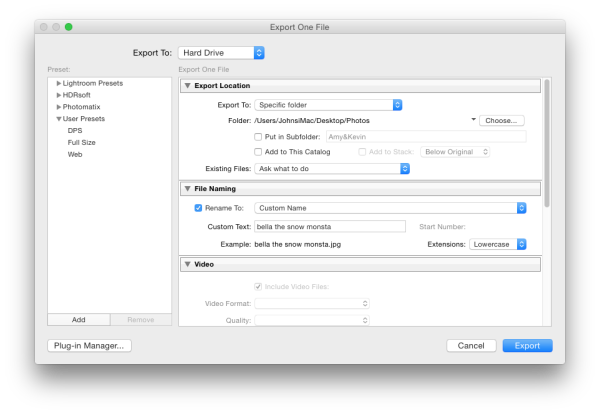
Here you are, ready to export your first photograph from Lightroom, and just when you thought you had everything figured out, this screen pops up. What do you do now?

Lightroom Export

First you’ll want to remember that Lightroom doesn’t save your processed images, only the instructions of how to process them, that’s why you need to export (export = “save as”) a file out of Lightroom. This image is separate from the original camera RAW file, and as a result will need its own name, and place of organization.

You’ll want to determine what file type and size you’re going to export, and whether or not you want Lightroom to automatically add a watermark to your photographs. These things are all going to be preferences for your own work and there’s no right or wrong way to go about doing it, but you should learn about the implications of each before you start exporting hundreds of photographs.

What Else?

What else would you tell someone who’s just getting their feet wet with Lightroom? Leave us a comment below and let us know!

googletag.cmd.push(function() {
tablet_slots.push( googletag.defineSlot( “/1005424/_dPSv4_tab-all-article-bottom_(300×250)”, [300, 250], “pb-ad-78623” ).addService( googletag.pubads() ) ); } );

googletag.cmd.push(function() {
mobile_slots.push( googletag.defineSlot( “/1005424/_dPSv4_mob-all-article-bottom_(300×250)”, [300, 250], “pb-ad-78158” ).addService( googletag.pubads() ) ); } );

The post 5 Things You Should Know About Lightroom Before Starting by John Davenport appeared first on Digital Photography School.


Digital Photography School
 
Comments Off on 5 Things You Should Know About Lightroom Before Starting

Posted in Photography


5 Tech Trends Photographers Should Know (Report from CES 2015)

08 Feb
SamsungTomorrow

By SamsungTomorrow

The dust has settled on the Consumer Electronics Show of 2015, but with the thousands of new tech products hitting headlines this January, what trends, exactly, should photographers be taking note of? Amid the 4K TVs, wearable technology and unusual inventions, the photography industry welcomed a few new announcements in cameras, lenses, drones, data storage and printing. Here’s what technology is headed to the imagining world in 2015.

Cameras

Cameras were admittedly, a disappointment at this year’s CES. There were a handful of compacts and extended zooms from Canon and Panasonic, but only two cameras advanced enough to interest enthusiasts and serious photographers.

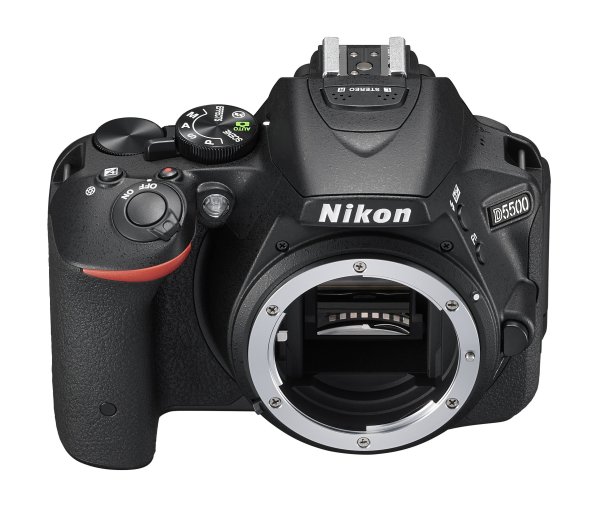
Nikon5500b


The most exciting CES camera announcement comes from Nikon, as an update to their mid-range APS-C camera. The Nikon D5500 replaces the D5300 as the camera giant’s middle option out of three entry level models. While the tech guiding the image quality remains largely unchanged, the D5500 is the first DSLR to feature a touchscreen. The D5500 also continues the trend of smaller camera bodies, shrinking the size gap between DSLRs and mirrorless cameras.

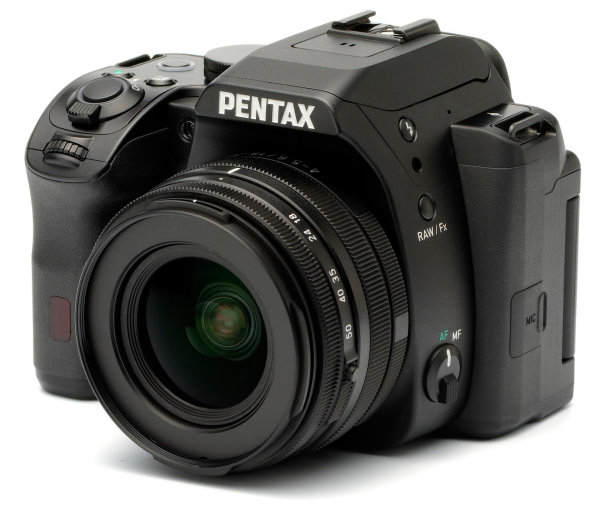
Pentax also announced a DSLR, but hasn’t yet released the name or full technical specs. It does look to be the replacement for the K-50 and appears to have an APS-C sensor, but with only a handful of details, it’s hard to say where the new camera fits in.

Lenses

While cameras are getting smaller, lenses are following that same trend. Out of Pentax’s three new lens announcements, the most notable is actually the 18-50mm kit lens, because it is collapsable. When collapsed, it appears to be as small as a prime lens. While collapsable lenses have been around for some mirrorless cameras, it’s a refreshing update to bulkier DSLR lenses.

new_pentax_camera


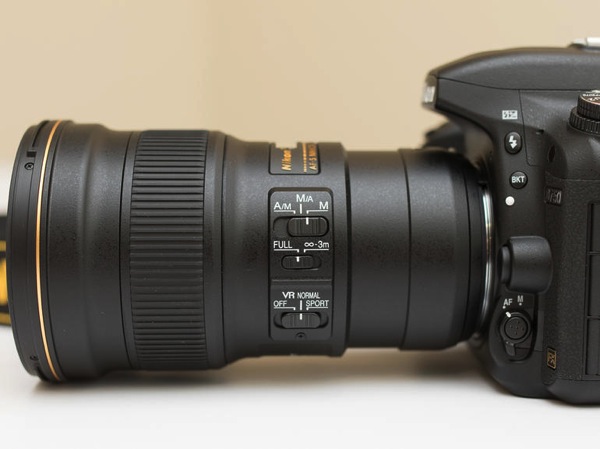
Nikon is following the smaller-is-best trend as well, with a 300mm that they say is the lightest full frame fixed focal length AF lens. They don’t appear to be sacrificing features to get down to the smaller size either, offering 4.5 stops of image stabilization, ED glass, and electromagnetic aperture control. Technology called Phase Fresnel helps keep the size down while fighting distortion.

Nikon 300mm f4

Drones

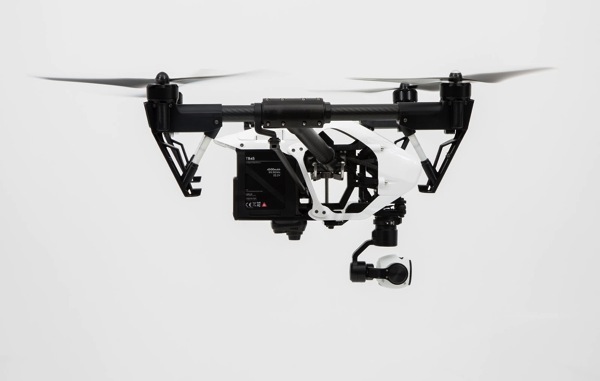
2015 could be described as the year of the drone, at least for CES anyways. Several dozen new models were on display with a variety of different features. Some models include a built-in camera, including one capable of shooting 4K video or 12 megapixel RAW, the DJI Inspire 1, while others allow you to rig any camera and lens mount. The new Airdog follows you (or whoever is wearing the wristband) around automatically taking video. While most use a remote, the Hexo+ is controlled completely via smartphone app. More are also becoming capable of ariel stunts, though these models have yet to see a battery life long enough to make them practical.

DJI Inspire 1

One thing is for sure, soon there will be a drone on the market to fit nearly any ariel photography need, and the more widely available the technology becomes, the more affordable it will be as well.

Memory

While storing images isn’t exactly exciting, CES 2015 brought more than a few image storage solutions worth noting. Samsung and Seagate both introduced remarkably small external hard drives, though a few stand out as advancing beyond just big capacity in a tiny size.

Canon has finally given a name and full details to the system they’ve been hinting at since 2010, now known as the Canon Connect Station CS100. Using wi-fi to connect to phones and wi-fi enabled cameras wirelessly, images and video can be easily uploaded to the system. The CS100 is designed to be used with a TV to display family photos and videos, like a Roku box but for photos. The 1TB of storage won’t be enough for serious professionals, but it’s worth watching to see how the technology expands in the future.

Canon connect station

Toshiba also introduced a new form of memory cards. While they appear to be more gimmicky than actually useful, it’s an interesting change and indicates some potentially interesting advancements in the future. The cards can be read with a NFC-enabled Android smartphone, but it only allows you to see 16 thumbnails and how much space is available. Actually transferring photos would require adding a power source to the card, and NFC doesn’t have the bandwidth for that kind of transfer yet. Still, seeing the advancements offers an interesting glimpse into what might be possible a few years down the road.

Printing

While Polaroid certainly may not seem like a company making big CES digital photography announcements, their Zip Mobile Printer is worth taking a look.

Zip mobile printer

Printing 2×3 images wirelessly from any smartphone or tablet, the Polaroid Zip is keeping in tune with the manufacturer’s foundation on instant, easily-shared physical images. But perhaps even more interesting is that the printer doesn’t use ink. Developed by Zink, the photo paper is made with embedded dye crystals. Heat from the printer determines which colors are activated to make the print, which is smudge-proof. The entire printer is about the size of a smartphone.

While designed for smartphone use, it’s worth noting and perhaps wondering if something similar might be in store in upcoming years for use with wi-fi enabled DSLRs and mirrorless cameras. The images print in under a minute, without the need for ink – an advanced version could come in handy for event photographers or photo booth style applications.

If this year’s CES is any indication, cameras and lenses will continue to get smaller without sacrificing on image quality, while accessories continue to expand in unusual ways. From drones to wirelessly printing images without ink, it’s bound to be an interesting year for photography-related tech.

googletag.cmd.push(function() {
tablet_slots.push( googletag.defineSlot( “/1005424/_dPSv4_tab-all-article-bottom_(300×250)”, [300, 250], “pb-ad-78623” ).addService( googletag.pubads() ) ); } );

googletag.cmd.push(function() {
mobile_slots.push( googletag.defineSlot( “/1005424/_dPSv4_mob-all-article-bottom_(300×250)”, [300, 250], “pb-ad-78158” ).addService( googletag.pubads() ) ); } );

The post 5 Tech Trends Photographers Should Know (Report from CES 2015) by Hillary Grigonis appeared first on Digital Photography School.


Digital Photography School

 
Comments Off on 5 Tech Trends Photographers Should Know (Report from CES 2015)

Posted in Photography


Top 10 Photography Resources of 2014 You Should Have

20 Dec

“Photographer” is one of the job titles many people would like to have today. Taking pictures is fun and exciting, especially when you earn money for that. However, to reach the point when photography brings your cash, you obviously need to learn. When it comes to choosing the best educational photography courses, videos and ebooks, it can be overwhelming with Continue Reading

The post Top 10 Photography Resources of 2014 You Should Have appeared first on Photodoto.


Photodoto

 
Comments Off on Top 10 Photography Resources of 2014 You Should Have

Posted in Photography