RSS
 

Posts Tagged ‘Right’

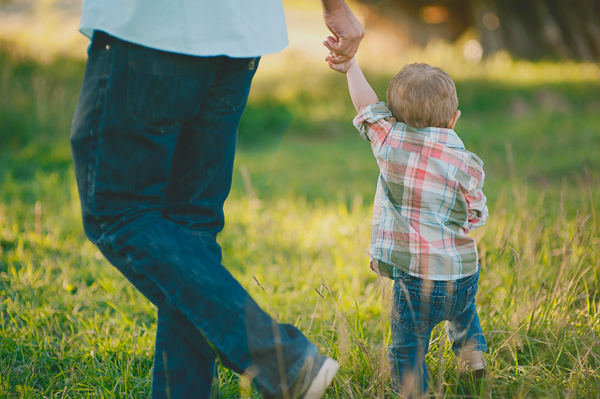
4 Reasons to Capture Images of You and Your Child Together Right Now

30 Oct

102

1. You Need to Document That You Were There

I get it, I do. You’re the one behind the camera. You’re the one taking the photo of that adorable little smile. You’re the one documenting that you spent a day at the park together. Someone’s got to do it, right?

Sometimes you have to get on the other side of the camera, and let someone else be the photographer for a minute. Even if you weren’t planning on being in photos that day, just do it. It doesn’t matter if your hair is perfect. It doesn’t matter if you wore the most flattering outfit. It doesn’t matter if you meant to lose five pounds first. Just get in there.

164

When your kids look back at photos years later, don’t you want them to remember the fun times you had together, instead of wonder if you were even there, since you don’t appear in ANY photos? Don’t you want to remember yourself as a young mother with a brand new baby, or a father that loved to play football with your kids? You may think that you’ll remember how things were, but the fact is, you won’t remember everything. These photos showing that you were THERE will mean everything to you and your kids later.

191

2. Once Upon a Time Your Kids Were Small

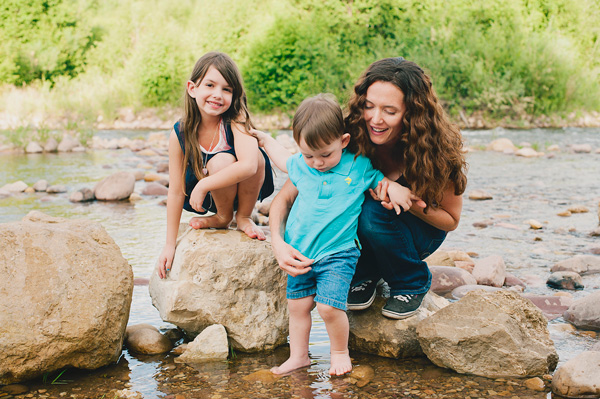
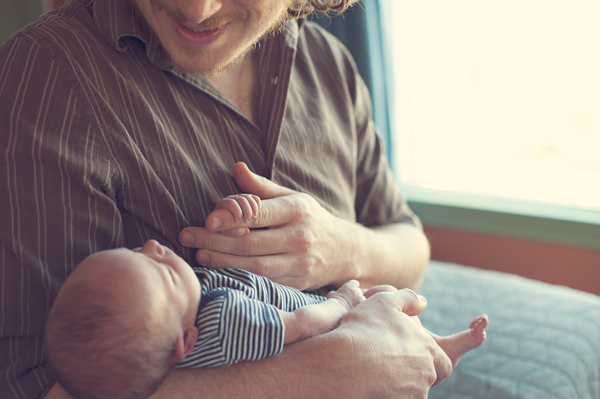
One day that baby boy you’re holding in your arms is going to tower over you. He’ll have big man hands, and his voice will be deep and strong. You’ll have a hard time believing that there was a time when his teeny fingers couldn’t even wrap all the way around your fingers. Make sure to capture the little details. Those little faces, hands, and feet are so adorable when contrasted with a parent’s hands.

194

You might have days where you wonder if this kid ever even thought you were cool, or wanted to be around you, and honestly, you’ll probably have days where you wonder if you want to be around them. These photos that prove that your kid once thought that you hung the moon will then become even more meaningful. Nostalgia is a wonderful thing to warm your heart and strengthen your bonds.

175

3. You Have Fun Together

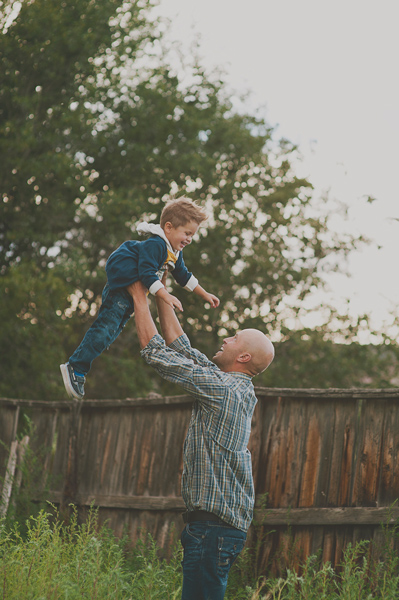
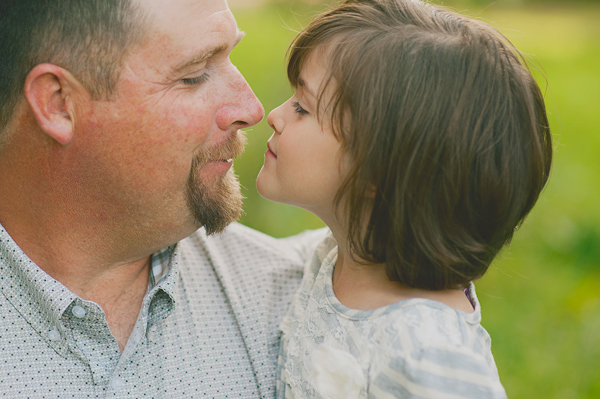
You know those things that you do together that are just between the two of you? Maybe it’s eskimo kisses, tossing your child in the air so they can feel that sensation of flying for just a moment, or exploring new things together. Those special things you do together will change through the years. How much fun would it be to have all of those bonding memories captured to look back on, and remember how your child grew and changed as the years flew by?

168

Capturing your fun times together can be as big as taking photos of the two of you together on a ferris wheel, or with the classic car you restored together; or they can be as small as a special high five you always give each other. When you document these things with your kids, it shows them that they are a big part of your life, and the things you do together are as important to you as they are to them.

169

4. You Love Each Other

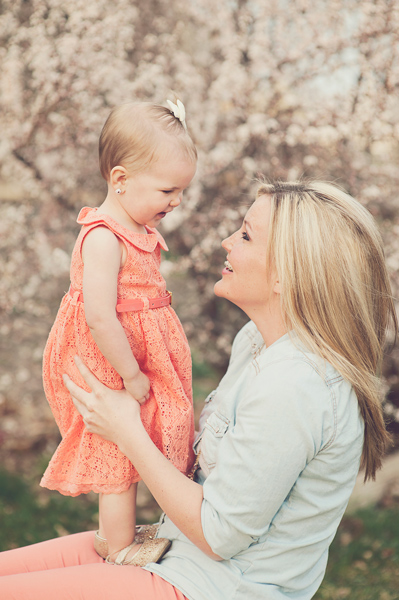
Yes, this is perhaps the most important reason to get photos with you and your child together. You love each other. Your relationship is one of the most important relationships either of you will ever have in your life. A picture is worth a thousand words. Imagine how much a photo of you looking at your infant child with complete fascination and adoration will mean to that child when she is grown. Imagine how much you will treasure a photo of your child gazing up into your eyes with absolute trust. Saying “I love you” means so much, but a photo is a lasting reminder of that love.

190

I hope these four reasons will encourage you to be in more photos with your children. You will never ever regret these precious moments captured forever.

The post 4 Reasons to Capture Images of You and Your Child Together Right Now by Melinda Smith appeared first on Digital Photography School.


Digital Photography School

 
Comments Off on 4 Reasons to Capture Images of You and Your Child Together Right Now

Posted in Photography


How to Add Blur to Your Images for the Right Reasons

16 Oct

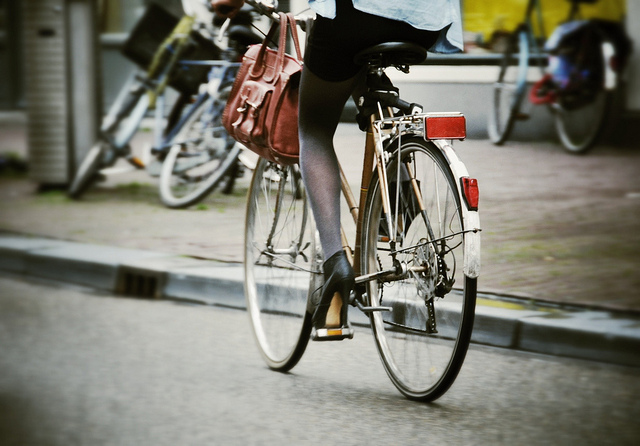
Bycicle Blur

Blurring is a Tool, Not a Gimmick

Adding blur or movement to a photo just for the sake of it is the same as a magic trick; razzle-dazzle but without purpose. Using a blur effect makes sense when you actually wants to say something specific with the photo. Sometimes it’s to create a sense of speed, and sometimes it’s to add an ethereal, soft kind of ambiance to the shot, but it’s not something to use just because.

Monks  before lunch

Know What You Want to Convey

Although it’s true that sometimes a random or accidental shot yields good fruit, more often than not, there is a better chance of taking a great photo if you think about the setup beforehand. Adding blur is a great option but should be used sparingly and always planned for. Take a look at your scenario and think about what you want from it; motion, speed, a little ethereal mystery? Achieving each of these in a photo takes a different attack, so plan ahead before taking the shot.

Hard versus Soft, Blurry versus Sharp

Taking good photographs means understanding contrast; light versus dark, soft versus sharp edge, focusing on the foreground or the background, etc. As for blurring, it always comes out best if the blur tool is only used on part of the photo. That way, the clearer, sharper part of the image is in contrast to the blur, and it’s this contrast that conveys the sense of speed.

Bycicle Blur 2

It’s All Right to Make Mistakes!

Iteration is fine. Much like athletes and sketch artists need to warm up, taking several test shots, playing around with speed and f-stops is a great way to prepare for your final photo. Use these shots to find your direction, see what each exposure brings. As stated before, a good blurry picture requires some planning – so take the time to plan. The digital age of photography and instant viewing has given us a great boon in terms of being able to experiment in a trial-and-error sort of way, so you can calmly view and sort out what exactly you intend to do.

Floating Monk

Choose the Best Speed

The main photographic technique for blurring is to use a slow shutter speed. Depending on the speed of the object or subject, as well as its relative direction or angle to you and your camera, you will need to play with your shutter speed. If someone is walking in a straight line, facing you, the speed needed in order to create the idea movement will be slower, perhaps 1/8 of a second. If the same person is walking form left to right perpendicular to you, you will need a faster speed, perhaps a 1/20th.

Taking still shots of subjects that are sitting, standing, etc, your speed can be as low as ¼ of a second.

Even if you are shooting at this speed, a still shot might not show the motion at all, if the subject doesn’t move. Usually for standard walking shots on the street the speed will be between 1/8 and 1/15.

Again, the mantra to remember is that different scenarios call for different things. Devotees bathing at Varanasi, someone taking their time walking through a gallery, or a cyclist in mid-race will all need vastly different shutter speeds. As well, you have to determine the degree of movement you want to portray.

In the case of the devotees in Varanasi, I did not want to reflect speed, so much as mystery, a very slight sense of motion, as if it were a dream.

Early Morning Bath

For producing a sense of mass motion, and by this I mean, small crowds strolling around galleries for example, you will sometimes need to use open exposure. This means letting people blur the image by moving, because it will create a contrast with anything that remains still.

Take Care With F-Stops and ISO

Remember that speed is only one of the three factors involved in correct exposure. The other two factors are aperture (f-stops) and ISO. My advice is to set the camera on shutter priority, (possibly “S” for your camera) and let it adjust the f-stop. See if the latter suits you, and adjust the ISO accordingly.

Monks before lunch 2

Don’t Leave Everything to Luck

Certainly, if there’s one time when you need a little bit of luck, it’s when capturing something in motion.

You should always plan and set yourself up if you want the best chance to get a lucky shot, especially when you want to work with something so unpredictable as motion-based shots. Normally, I get myself situated in my chosen venue and take picture after picture at all different speeds. It’s not unusual for me to glance at my watch and realize I’ve been in the same spot for over half an hour. But with one eye on the camera and the other on the scene in front of me, I’ve got a good view for when luck happens my way, as long as I have the patience and dedication to wait for it.

Tuc Tuc Blur

The post How to Add Blur to Your Images for the Right Reasons by Harry Fisch appeared first on Digital Photography School.


Digital Photography School

 
Comments Off on How to Add Blur to Your Images for the Right Reasons

Posted in Photography


Mobile Triggers Compared to Help You Choose the Right One

25 Sep

When it comes to mobile triggers or cable releases photographers often have multiple responses:

  • I got the knock-off brand and it doesn’t work when I need it
  • I got the basic button kind and have to count the time on my own
  • The intervalometer is way too expensive
  • I could save money and build a DIY release but that’s too much effort
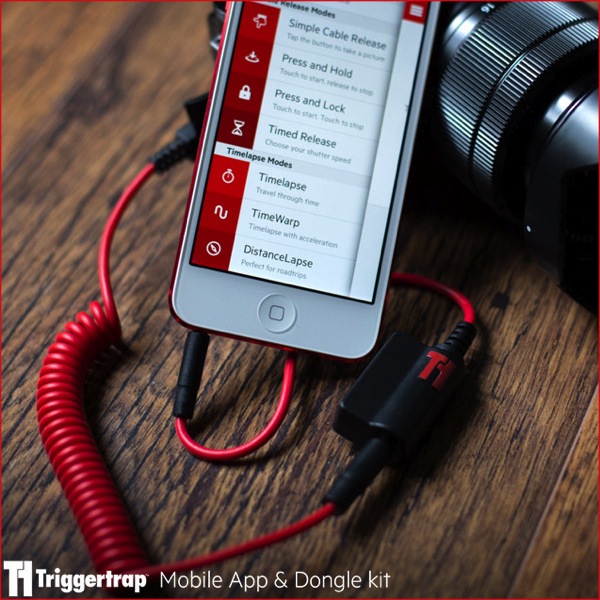
Triggertrap

Image from Triggertrap site

Image from the Triggertrap website.

I hear comments like that on almost a daily basis. In my previous article on long exposure photography accessories I mentioned Triggertrap and Trigger Happy. In this article I’m going to discuss both of those (with a bonus tip at the end) and also discuss some other options that are available to you.

This article is not a review of the products but rather just an overview of what each offers. It is worth noting that I do own each of the products and will share my personal recommendation at the end of the article. So if you don’t care so much about the comparison then please skip down to the bonus tip and my recommendation.

However, if you’re considering a mobile trigger for your camera, but haven’t purchased one yet, then please continue reading.

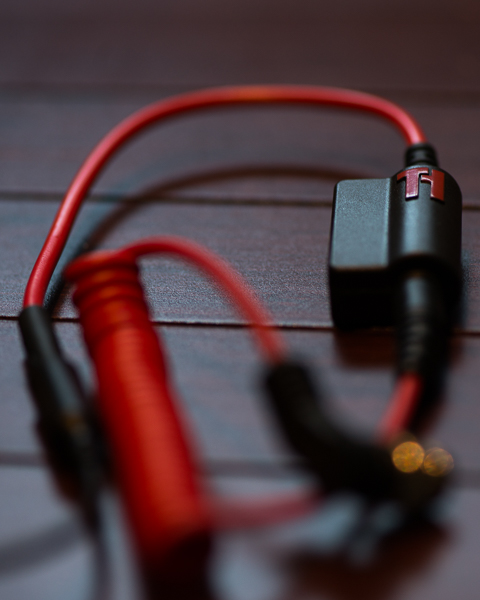
Triggertrap

Triggertrap started as a Kickstarter project, and really set the bar high for its standards and features. The Triggertrap software is open source and can be found on Github. The quality of the physical cables is top notch, very durable, and they’re also attractive.

The mobile kits are available for Nikon, Canon, Fuji, Sony, Olympus, Samsung, Panasonic, Pentax, Sigma, Leica, Lytro, Hasselblad, Contax, Konica Minolta and Kodak.

A mobile kit is available for nearly every camera you could possibly want. It connects to the headphone jack of your phone and then the cable release part of your camera. The mobile kits start at $ 37.46 USD.
Triggertrap 1

The mobile app (iOS and Android) has a variety of trigger options that can go way beyond just pushing the button. Here is a list of all the trigger options:

  • Sound sensor
  • Vibration sensor
  • Motion sensor
  • Facial recognition
  • Time-lapse
  • TimeWarp
  • DistanceLapse
  • Bramping
  • Star Trail
  • Long Exposure HDR
  • Long Exposure HDR time-lapse
  • Press and Hold
  • Timed Exposures
  • Simple Cable Release
  • Wifi Trigger
  • Triggertrap also includes a neutral density filter calculator, which is convenient. Although I prefer Slower Shutter, it is convenient having a calculator in the same place as the trigger. The app also includes local sunrise and sunset times which is very convenient.

It is worth noting two more things about Triggertrap. First, all the features of the apps are not available on both iOS and Android. Second, that is likely to change quick because Triggertrap is always working on improvements and new features.

The apps are free so while you are paying for the mobile kits, you are not paying for the software side.

Trigger Happy

Trigger Happy also began as a Kickstarter project and was successfully funded. It works the same way at Triggertrap, using the headphone jack of your mobile device.

NOTE: Since writing this article, TriggerHappy has closed for business, but some of the products are still available. They decided to open their software up to the world and made it Open Source available on GitHub.  They are also recommending people to check out Triggertrap.
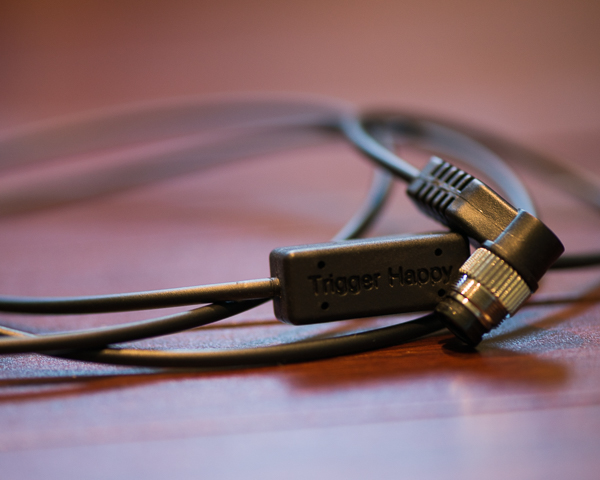
Triggerhappy

The kits are available for Canon, Nikon, Pentax, Olympus, Sony only and retail at $ 29-49 USD. The apps are limited to the most basic features including the following trigger options:

  • Simple camera trigger
  • Bulb
  • Time-lapse mode / Intervalometer
  • HDR mode
  • Bramping

This system was the first I owned, via the Kickstarter project; it’s changed since then but even the original still works very well. The apps are also free, so while you are paying for the kit you are not paying for the software side.

SmartShutter

SmartShutter is from a company called Zesty Accessories in Japan, and is different than the other mobile releases as it uses Bluetooth to trigger instead of a wired release. Cool, right? The product sells for between $ 39.99 and $ 64.99 direct or through Amazon.

It works very well, but the app is extremely limited. I do have some issues with the design of the Nikon version, but instead of re-stating it here you can see to my full review and video of the product here.
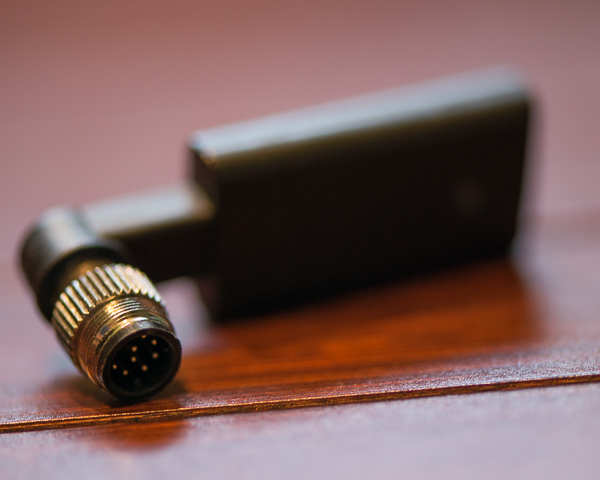
Zesty

I mentioned that the product uses Bluetooth, but you should know that it relies on your camera’s battery for power. That means if you’re using a camera like the Sony A7, which has poor battery life, then this device will drain your camera battery faster. But if you have a camera like the Nikon D810 your battery life will continue performing well.

The devices are available for Nikon, Canon, Sony, Olympus, Pentax, Konica Minolta, Contax, Fuji, Sigma, Hasselblad and Samsung.

The free app allows for a quick trigger of the camera or a timed exposure. But the timed exposure allows for intervals, a delayed start, and even the number of photos to capture. In addition, the app has the ability to geotag your photographs using your phone’s GPS as well. The app is only available for iOS and is also free.

ioShutterPro

ioShutter is made by enlighten photo, the people who created Orbis and other amazing products for photographers. ioShutter is also the priciest of each of the triggers coming in at $ 69.99 for the cable kit. They do have a limited number available right now at 50% off due to what seems to be damaged packaging.

It comes in a nice package and includes a pouch to hold the cable when not in use. The design is actually very similar to the Triggertrap where there is a module with a cable that connects the module to the camera. That way if one part breaks only half of the cable needs to be replaced.
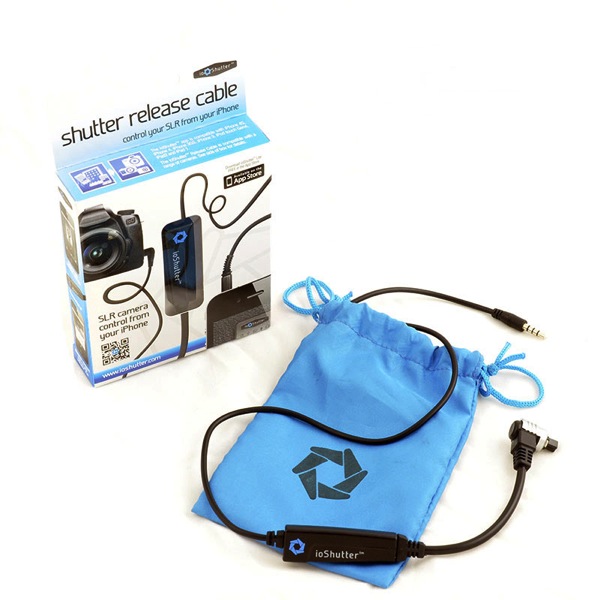
IoShutter

Photo from enlighten photo website

ioShutter is available for Canon, Nikon, Fuji, Pentax, Samsung and Hasselblad. But the mobile app(s) are only available for iOS at the time I’m writing this. Yes, I used plural because the ioShutter app comes in two versions: Lite which is free and Pro, which is an additional $ 5.99.

ioShutter Lite gives you the standard shutter release function you’d expect to find in a cable release. However the Pro version comes with other trigger options:

  • Timed exposure
  • Time-lapse
  • ClapToSnap
  • ShakeToTake

You can also stack features like creating a time-lapse with timed exposures.

Bonus Time

There are two quick things I want to mention before moving on to my recommended product.

The first is for Lifeproof case users. Your case comes with a headphone adapter. I leave mine connected to my earbuds all the time. So I picked up a second adapter, which connects, to my mobile kits.

The second tip is if you already own one of the cables mentioned above, but you want to try another app. I started with Trigger Happy but do not use their app anymore because I now use my favorite of them all, Triggertrap. Before I got my hands on a Triggertrap mobile kit I was using my Trigger Happy cable with the Triggertrap app. So it’s worth knowing that your cable kits should work fine with other apps. I also tested the Trigger Happy cable with ioShutter so I know it works there as well.

Suggested Product

My favorite mobile trigger is Triggertrap for two reasons. For one the app is amazing and contains so many useful features that shouldn’t and can’t be ignored. The team at Triggertrap is also looking for more ways to innovate in the industry, and they’re working on amazing things. For the price of the mobile kits, and the quality of the product itself, on top of the incredible mobile apps, the product is truly a winner.

So there you go – a simple comparison of your options, some tips and my recommendation. Feel free to comment with questions and comments as I’m sure you have your own preferences.

The post Mobile Triggers Compared to Help You Choose the Right One by Scott Wyden Kivowitz appeared first on Digital Photography School.


Digital Photography School
 
Comments Off on Mobile Triggers Compared to Help You Choose the Right One

Posted in Photography


Go Ahead And Call Yourself A Photographer, It’s All Right

01 Sep

In the short time since I went pro (read: started making money) with my creative work, I’ve experienced a truly disheartening amount of judgment — snobbish judgment, most of it full of contradictions designed to place some creatives above others based on entirely arbitrary criteria that benefit the speaker and put up a wall of mystery and privilege between people Continue Reading

The post Go Ahead And Call Yourself A Photographer, It’s All Right appeared first on Photodoto.


Photodoto

 
Comments Off on Go Ahead And Call Yourself A Photographer, It’s All Right

Posted in Photography


Photoshop Versus Lightroom Which is Right for You?

24 Aug

As a photographer, whether it be professional or hobbyist, you have several skill sets to juggle and many hats to wear; you’ll need to be an artist when composing your photo’s scene, technically proficient with your camera and settings, and in the case of professionals, an adept businessperson who can maintain a business and satisfy clients consistently.

Lightroom versus photoshop

One of the most important roles you play as a photo enthusiast is that of image editor. Rarely do our images come straight out of the camera exactly as we had envisioned, so before release we are required to put our shots through the post-processing phase; this is where our raw photos are enhanced, adjusted, toned, and sharpened to give us the final image we want to deliver.

Although we have many tools at our disposal these days to help us through this phase of processing, the industry juggernaut has undoubtedly been Adobe Photoshop since its first version’s release in 1990. The software has been used by amateurs and professionals alike year after year, and is considered an essential part of most photographer’s toolboxes.

Through the following years, and the popularity surge of digital photography, Adobe realized the need for a tool more targeted for photographers, and in 2007, released Lightroom. This workflow-centric and management software has become incredibly popular in its own right, and maintains a massive following in today’s industry.

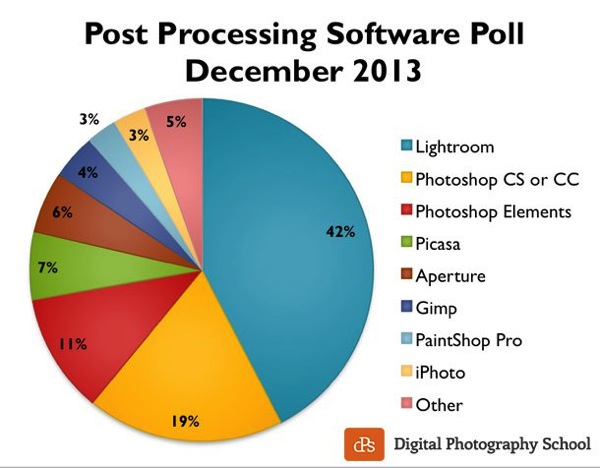
Post processing poll 2013 dPS

Click to see more on the survey results

So the obvious question is, as a photographer, which software package do you need? Both titles are excellent and carry their own strengths and weaknesses, so let’s drill down and examine them in a bit more detail to discover which one is right for you!

What we require in post-processing software

Rarely do we get a perfect result in camera that allows us to bypass the post-processing workflow, and even then, some editing is almost always required to prepare the photo for different mediums.

Generally, photos will need to be altered in size, adjusted for exposure and contrast, edited for blemishes or other imperfections, and possibly toned or have their appearance altered through filters, presets or other means. The file then needs to be exported in its final format, ready for the client, printing, or for web use.

Photoshop’s strengths

  • Pixel-level editing – images created or opened in Photoshop are comprised of pixels, which are the small physical points in a raster image, and are the smallest addressable elements in a photo. The software allows for editing even at this tiny level, meaning limitless manipulation is possible. Raster and vector images can be created from scratch.
  • Layers – Photoshop allows for multiple layers to be stored within a master file, meaning that you can keep different images or edits on separate layers, and then hide, modify or enhance any of those layers independently.
    3a

    Photoshop’s layers

    4a

    Layer blending modes in Photoshop

  • Actions  – an extremely useful feature, actions allow manipulation steps to be chained together and recorded, letting you recreate an entire editing process with a click of the mouse.
  • Compositing and blending – because of the ability to layer components within an image, it is possible to blend those layers together in unique ways. Masking allows you to protect specific parts of the photo from any adjustments being made down to the pixel level, simply by painting out the area you’d like to keep.
  • Huge toolbox – each progressive release of Photoshop seems to bring more and more useful tools into the mix. From content-aware filling, reducing camera shake effects, photo filters, and automatic panoramic image stitching, there is a tool for almost every task a photographer would need.
5

Photoshop Actions

Photoshop’s weaknesses

  • Steeper learning curve – with great power comes… a steep learning curve. Although you have a massive array of tools at your disposal, mastering them is something that takes time and practice.
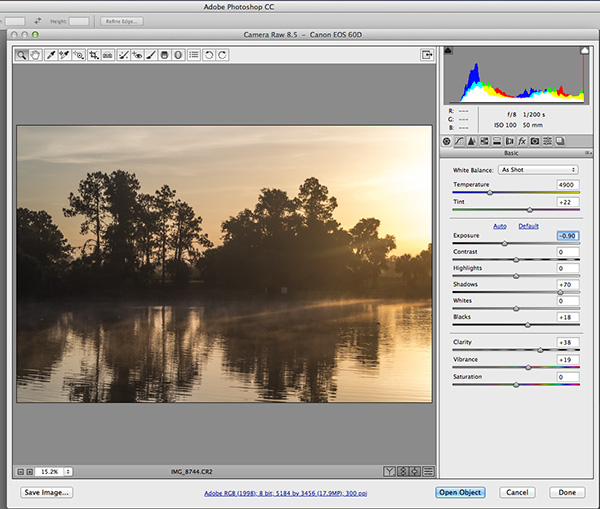
  • No built-in RAW editing – unlike Lightroom’s native ability to manipulate RAW files directly from your camera, Photoshop must rely on a plugin like ACR (Adobe Camera RAW) or something similar in order to import and modify these files.
  • No image management – Photoshop is built from the ground up to be a powerful image creation and editing tool. Although there are batch import and export tools available to make some aspects of the process easier, there isn’t a fully-recognized  built-in management or workflow system for photographers.
6

Adobe Camera Raw must be used for processing RAW files in Photoshop

Lightroom’s strengths

9

Built-in RAW processing in Lightroom

  • Built-in RAW editing – no plugin required! Lightroom natively accepts RAW files straight from your camera, and allows all of the editing you’d expect from within the software.
  • Image management and workflow centric – Lightroom was born from the desire to give photographers something better to manage their photo libraries with.  The entire program is based on creating a solid, consistent workflow that will help you make the most of the post-processing phase.

    8

    Lightroom’s image management system

  • Simple and easy to use – since Lightroom doesn’t have the huge toolbox found in Photoshop, there is MUCH less to learn. Everything from the tools available, to the interface itself, is simple and easy to manipulate.
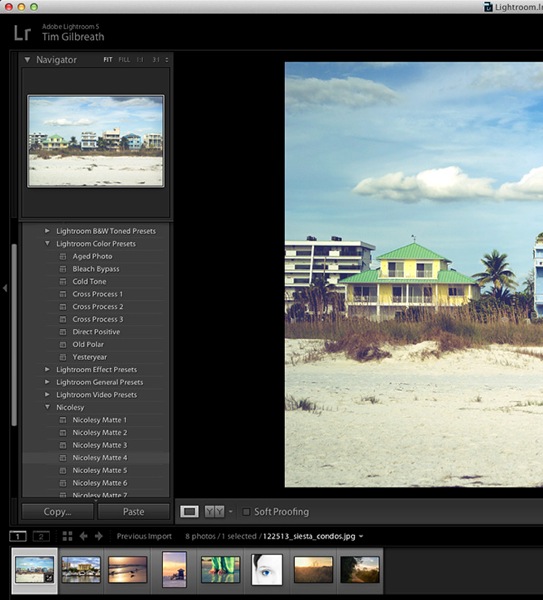
  • Presets – a photographer’s dream; imagine having the ability to string together exposure levels, contrast, and toning, and then save those to a handy file. Then imagine you can have unlimited variances of these, and apply them to any photo with a click of the mouse. Welcome to Lightroom’s presets! Photographers around the world share these online as well, giving you limitless potential options for your photo’s look and feel.
10

The power of Lightroom’s Presets

Lightroom’s weaknesses

  • No advanced editing tools – because Lightroom wasn’t intended as a full-on raster editor, most of the editing functions Photoshop users take for granted are not present here. With the exception of a few basic tools, you’ll want to use Photoshop in situations where heavy image editing is necessary.
  • No layer management – the powerful layer system in Photoshop is non-existent as well. Effects and modifications can be stacked on an image, but there is no real separation of image segments or any ability to use blending modes.
  • Photos only – again, Lightroom is intended as a workflow system for photographers, meaning you’ll only be able to import existing photos and modify them; there are no raster or vector image creation tools to be found here as there are in Photoshop. Lightroom is assuredly one-track minded.


Adobe Creative Cloud logotype with icon RGB vertical

Creative Cloud and pricing models

?Up until fairly recently, Photoshop would have had one additional disadvantage compared to Lightroom, and that would be price. In the past, purchasing Photoshop could set you back $ 400 to $ 900, depending on the version and any discounts you could use.  Comparatively, Lightroom could be had for less than $ 100. The huge up front cost made buying Photoshop outright a financial strain for budding photographers on a slim budget.

Those days are gone, thanks to Adobe’s awesome cloud and subscription program. As of the last release, all of Adobe’s main products have been converted to cloud-based programs and are all rooted in the new Creative Cloud subscription model. Generally, $ 20 per month will give you unlimited access to one Adobe title, such as Photoshop or Lightroom, and ample cloud storage, enabling you access to your files regardless of where you were. $ 50 per month will give you access to Adobe’s entire Creative Cloud suite, which is quite a deal.

This year, however, Adobe unveiled their Photography Program, and if you haven’t already gotten involved, you might want to take a look. For less than $ 10 per month, Adobe gives you Photoshop CC AND Lightroom CC, along with the aforementioned cloud storage. It’s an unbeatable deal, and eliminates the need to pick and choose which image program to use.

Which one is right for you?

Since pricing is no longer an issue, the choice as to which program to use for your photography work comes down to what is most important to you.

Use Lightroom if…

You value a smooth clean workflow more than infinite control over the editing of your images. Having said that, Lightroom is no slouch when it comes to processing photos, and you can recreate almost any look using the controls available to you in this software.

The presets provide an endless array of styles, and thousands more are available on the internet. Lightroom’s clean, efficient interface will allow you to process those multiple wedding or portrait shots quickly and consistently, and make managing all of those photos simpler than you could have imagined.

Use Photoshop if…

You need more control over your images. Photoshop can do it all, but of course the cost of that is a higher learning curve. Quick presets are not what the program does best; instead, it offers complete image editing with masks, layers, and a multitude of other tools, giving you all of the options you could ever need.

At the end of the day…

BOTH titles can be an integral part of the post-processing workflow.  Like anything else they both have strengths and weaknesses.  Fortunately, with Adobe’s wonderful new Creative Cloud subscription model, you can enjoy both programs, and employ the advantages of each within your workflow, without breaking your bank.

For more information and tutorials on both programs check out these dPS articles:

  • Save Tons of Editing Time with Lightroom Presets
  • A Concise Guide to Lightroom Develop Presets
  • 4 Quick Tips For Getting The Most Out of Lightroom Presets
  • How to Convert Photos to Black and White in Lightroom
  • Improve Your Images with the Lightroom Graduated Filter Tool
  • 3 Easy Steps Using Photoshop to Making your Images POP
  • Ten Go-to Editing Tips for Using Photoshop
  • 6 Commonly Used and Confused Tools in Photoshop Explained
  • Changing Color in Photoshop
  • Photoshop Tutorial: How to Color, Brighten and Sharpen Eyes

The post Photoshop Versus Lightroom Which is Right for You? by Tim Gilbreath appeared first on Digital Photography School.


Digital Photography School

 
Comments Off on Photoshop Versus Lightroom Which is Right for You?

Posted in Photography


How to Avoid Blurry Photos by Choosing the Right Autofocus Mode

09 Apr

Sometimes the light is perfect, the moment is right, but when you get home you find out that your photo is blurry. Arrgh!

Why are your pictures blurry? One obvious reason might be that your camera isn’t focused properly. Today’s cameras and autofocus lenses can help you quickly take sharp images in a wide variety of situations, provided you choose the right autofocus mode.

Here are some questions to help you diagnose any situation and choose the correct auto focus setting

autofocus modes

Photo by Lynford Morton

Are you using the Auto-area autofocus or Single-point autofocus selection?

Who gets to decide your focus point? That’s the question you are deciding with this option. In an Auto-area autofocus, your camera decides what it should use as your focal point. It usually decides based on what looks most prominent in the viewfinder or closest to the camera. This might work when your subject is obvious and there are no potential distractions.

For more control, choose a Single-point autofocus setting. That mode allows you to choose your specific auto focus point (check your camera’s manual if you aren’t sure how to do this). After all, only you, not your camera, knows where you want to place your subject.

Is your subject moving?

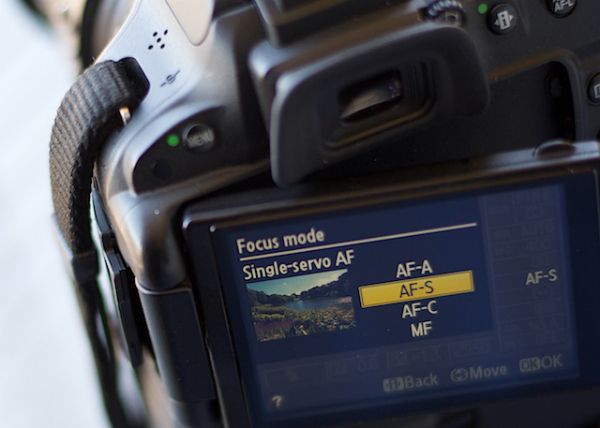
Most DSLR cameras give you four basic options for autofocus settings: single, continuous, auto or manual. To help you choose the right option, ask yourself, “Is my subject moving?”

No, my subject is not moving

autofocus modes

Photo by Lynford Morton

If your subject is not moving, choose “AF-S” for Nikon or “One Shot” for Canon. This mode locks in your focus based on the distance to your subject. As long as your subject stays at that distance, your photo will be in focus. Your subject has to be stationary for this mode to work. In fact, your camera will not take the photo if your subject is moving (or it cannot lock focus).

This mode also allows you to recompose. Let’s say the autofocus point is in the center of the frame, but you want your subject on one side or the other. Keep depressing your shutter button slightly, and focus remains sharp on your subject. Then you can move the camera slightly left or right, recomposing with your subject out of the center of the frame.

Yes, my subject is moving

By Amsterdamized

If your subject is moving, use continuous autofocus (AF-C for Nikon or AI Servo for Canon). In this mode, you place your autofocus point over your subject, and focus continues to adjust while you hold down the shutter button, keeping your subject in focus as it moves.

For example, if someone is riding a bicycle, place the AF point on your subject and slightly depress the shutter. As long as you are pressing the shutter, the autofocus will continually adjust to your subject, keeping them in focus as they move. When you are ready to take the photo, depress the shutter completely, and the camera will focus on your subject for a sharp image.

No, my subject isn’t moving, but it might

A third option merges the functionality of the single autofocus and continuous autofocus. This hybrid mode, (AF-A for Nikon or AI Focus for Canon), starts out as a single auto focus. Your camera won’t focus until you lock in on a stationary subject. Once you have your subject in focus, you can take the photo as you would in a traditional single auto focus mode.

If your subject starts moving, however, the autofocus releases and continues to track your moving subject. It gives you the best of both worlds. One note of caution, I have noticed at times, if you recompose a stationary object quickly in AF-A mode, the camera can be fooled into thinking the subject is moving and release the autofocus.

My autofocus just isn’t getting it right

You always have the option of turning off the autofocus function and choosing the Manual setting. If your camera is having trouble detecting your focus point, it might be more efficient to focus the camera yourself.

How about the opposite situation? You turned off your autofocus by accident? Every now and then, when your camera can’t seem to focus, and you don’t hear the motor searching back and forth, check to see if you selected Manual autofocus by accident. This can happen more frequently than you might think.

Other issues to consider

What if you set up your autofocus properly, and the lens still won’t focus? Try these considerations:

  • You might be too close. Try backing away. If you are too near the subject, it might prevent the camera from focusing properly.
  • Your subject might not have enough contrast. Your image needs to have some contrast for many autofocus systems to work. If you try to photograph a solid sheet of white or any single color, most autofocus systems will struggle. Why? The camera compares adjacent pixels and when one is different, it uses that point to determine its focus. If it can’t find any contrast, it can’t focus.
  • You might have an extremely shallow depth of field. In this case, your autofocus is working, but the depth of field is so shallow, it is hard to tell that your subject is in focus.
  • You have camera shake. When you depress the shutter, you move the camera. If the shutter speed is too slow, the camera picks up that movement, and it looks like a blurry photo. Make sure your shutter speed is faster than the equivalent of your focal length. For instance, if you are zoomed to 100mm, your shutter speed should be 1/100th of a second or faster to avoid camera shake.

Why is your picture blurry? If the answer is in your autofocus, your fix could be as simple as choosing the right setting.

Do you have any other autofocus tips or comments you’d like to share? Please do so below.

More tips on sharper images and focus modes:

  • 5 Tips for Getting Sharper Images
  • Understand Exposure in Under 10 Minutes
  • Making Sharper Wildlife Photographs – [Part 1 of 2]
  • Making Sharper Wildlife Photographs – [Part 2 of 2]

The post How to Avoid Blurry Photos by Choosing the Right Autofocus Mode by Lynford Morton appeared first on Digital Photography School.


Digital Photography School
 
Comments Off on How to Avoid Blurry Photos by Choosing the Right Autofocus Mode

Posted in Photography


Awesome Photodoto-ViewBug.com Contest Going on Right Now

17 Mar

I wanna take a minute just sittin right here to tell all of you about the super-fine contest that we have going on at the moment in partnership with ViewBug.com. It’s called the “Puddle Reflections Photo Contest,” and anyone can enter. This means YOU. That’s right…you sitting there…reading this right now. You. It’s unbelievably easy and highly enjoyable. It takes Continue Reading

The post Awesome Photodoto-ViewBug.com Contest Going on Right Now appeared first on Photodoto.


Photodoto

 
Comments Off on Awesome Photodoto-ViewBug.com Contest Going on Right Now

Posted in Photography


The Smart Guide to Creating Your Portfolio the Right Way

15 Jan

Your photography portfolio should be a collection of your work that will encompass your entire career, or it can focus on a single theme or medium. Most photographers who have been at it a while tend to have multiple portfolios that cover a myriad of compositions, mediums and client need aspects. Many of the best will have tens of portfolios, Continue Reading

The post The Smart Guide to Creating Your Portfolio the Right Way appeared first on Photodoto.


Photodoto

 
Comments Off on The Smart Guide to Creating Your Portfolio the Right Way

Posted in Photography


Nikon Df First Impressions Review: Is this retro done right?

05 Nov

backtofrontv1.jpg

The widely rumored and much-leaked Nikon Df is here. The Df is a 16MP, full-frame DSLR with the sensor from the flagship D4 sensor and the 39-point AF system from the D610 packaged in a body inspired by film cameras from the 1970s. The Nikon Df can’t shoot video, but it will accept 50 year-old non-Ai lenses. A lot of Nikon users have been asking for a ‘digital FM2’ for years. Is the Df that camera? Click through for our first-impressions.

News: Digital Photography Review (dpreview.com)

 
Comments Off on Nikon Df First Impressions Review: Is this retro done right?

Posted in Uncategorized


Choosing the Right Color Reflector for Your Photography

27 Oct

Of all the portrait lighting tools at our disposal, none are quite as versatile as the the five-in-one reflector. The concept itself is extremely basic. In the hands of a photographer comfortable with common lighting principles, the reflector helps us bounce light into or onto those areas that aren’t getting enough light, regardless of whether we are using natural, ambient, or studio/strobe lighting.  A reflector placed directly opposite a main light can act as a hair light, creating separation between the subject and background. Placed in front of a back-lit subject, we can negate the silhouette effect, using available, natural light to balance the exposure between our subject and background. Held at a ninety-degree angle to a subject’s chest, we can toss some light up on the subject’s face and neck, eliminating troublesome shadows caused by foreheads and chins when using overhead or mid-day lighting.

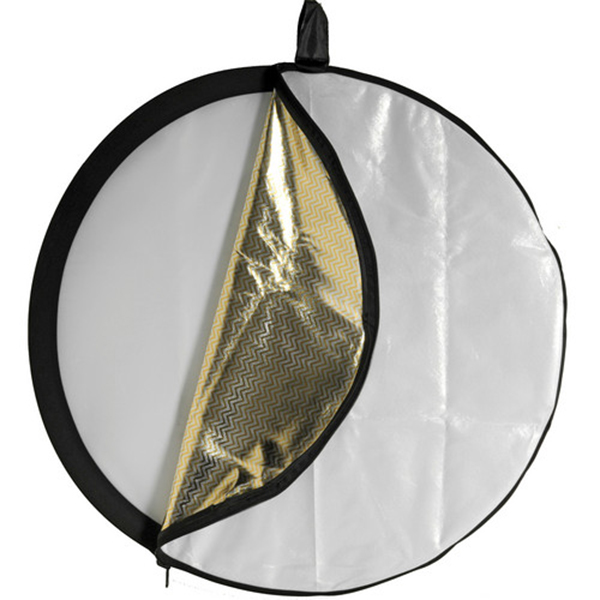
The possibilities really are nearly endless, and– just as importantly– affordable. While there are many options available, at about $ 40.00, The Westcott 40″ 5-in-1 Reflector meets (and often exceeds) my needs, in terms of price, size, durability, and versatility. But dropping $ 40 on a reflector and adding it to your bag of tricks is only half the battle. Like the name says, you’ve got five-in-one. While technically not all five are actually reflectors, knowing which of the five to use and under what circumstances is essential to successful photographs.

gold-reflector-guyer-photography

5-in-1 Reflector surfaces are attached to or removed from the outer ring with zippers.

Silver

The silver panel is one of the most useful, and is best for beginners first getting their bearings with reflectors. Since the silver reflects the most amount of light of the five, it is a great choice for low-light situations or those scenarios where you need a strong fill light. Since it  doesn’t change the color of white-balanced flash or studio lights, it is perfect for both indoor and outdoor portraits. Another reason it works so well for beginners is that most first-timers make the mistake of not placing the reflector close enough to their subject. The silver reflector’s ability to shine more light than the gold, for instance, allows it to be placed further away from the subject than we typically want, without sacrificing results. One word of caution, though– the fact that the silver is the strongest of the five is an advantage, but it can also be too strong in already bright light unless it’s feathered. Take some time to experiment with proper and effective placement.

Gold

The gold reflector is great for outdoor portraits because it matches the warm color tones of sunlight. The gold reflector is actually at its best when it is reflecting sunlight, casting a warm glow on the subject. It’s easy to turn normal skin tones overly yellow, however, if you aren’t careful. This is also why the gold reflector is also not recommended for studio or flash work. It not only changes the color of the white light that hits it, but can cast uneven color tones on the subject.

White

Under most circumstances, this one is my favorite. The white panel may not reflect quite as much light as the silver or gold, but when used properly it can still bounce just enough light onto the subject to overcome shadows and add subtle dimension opposite larger light sources. Since it is soft, clean light, it works well both in the studio and outside when there is ample light. While effective, the white reflector won’t do you much good at all in low-light situations.  It is also important to remember, though, that for the white reflector to do its job, you’re doing to have to get it very close to your subject. Wedding photographers love the white reflector because it doesn’t change the color of the light– or the dress.

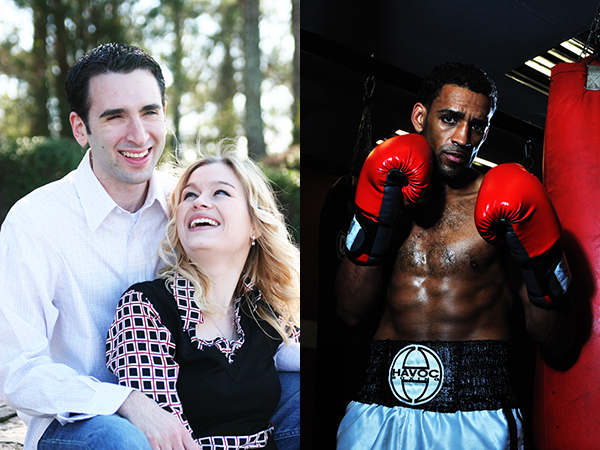
reflector-examples-guyer-photography

In the outdoor portrait on the left, a white reflector adds just enough light to open up the shadows, while a silver reflector casts some dramatic light across the boxer on the right.

Black

This one is pretty much the “anti-reflector.” Black, as we know, absorbs light, which helps to cut down on the reflections from shiny, reflective surfaces– one of the reasons it is used so often in jewelry photography. When placed properly, the black panel also creates shadows when light falls too evenly across the subject. The benefit of this “negative fill” is that it allows you to create shadows rather than overcome them.

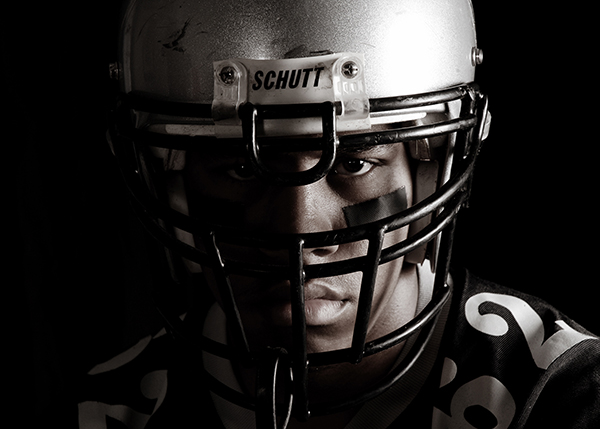
split-light-guyer-photography

Using the black “reflector” in a small space helped me achieve split lighting, which I usually create with a silver reflector in a larger area.

Translucent

When all of the other reflection panels have been removed, the translucent is left. While technically not a reflector, this panel works great as a shoot-through diffuser for flash or location lighting, or as a diffusion panel between the sun and your subject. Since larger light sources provide softer light, using the translucent panel as a large diffuser gives you a very large, easily portable light source. While a large enough translucent reflector can also be used as an impromptu background for a head shot, the translucent panel will almost always be between your subject and the light source.

translucent-guyer-photography

Using the translucent panel above the subject’s head, we spread the light and softened it.

Conclusion

The 5-in-1 Reflector can one of the most versatile lighting tools in your entire workflow. Taking full advantage of its capabilities, though, won’t be possible until you know what color reflector to use for which lighting scenario. Remember, though, that photography rules were made to be broken once you’ve learned them, so be sure to experiment with color and placement.

Post originally from: Digital Photography Tips.

Check out our more Photography Tips at Photography Tips for Beginners, Portrait Photography Tips and Wedding Photography Tips.

Choosing the Right Color Reflector for Your Photography

The post Choosing the Right Color Reflector for Your Photography by Jeff Guyer appeared first on Digital Photography School.


Digital Photography School
 
Comments Off on Choosing the Right Color Reflector for Your Photography

Posted in Photography