RSS
 

Posts Tagged ‘REVIEW’

Budget M43: Kodak Pixpro S-1 First Impressions Review

29 Jun

Kodak is arguably the most famous name of all in photography, but it ultimately failed to manage the transition from film to digital, and ended up exiting the consumer imaging business altogether in 2013. But now JK Imaging, which licenses the Kodak name, has created an interchangeable lens camera. The Pixpro S-1 is an entry-level model that’s designed to attract budding photographers who are buying their first system camera. Click through to read our first impressions.

related news: Digital Photography Review (dpreview.com)

 
Comments Off on Budget M43: Kodak Pixpro S-1 First Impressions Review

Posted in Uncategorized


A little bit better: Nikon D810 First Impressions Review

27 Jun

The Nikon D810 replaces both the D800 and D800E, and the changes that Nikon has made in the new DSLR are significant. There’s no OLPF to get in the way of resolution, and as well as a lower base and higher maximum ISO sensitivity the D810 is 25% faster than its forebears, offers a slightly improved AF system and boasts 1080/60p video with built-in stereo recording. We had a chance to get our hands on a pre-production D810 recently, and we’ve prepared a detailed look at its key features. Click through to read our First Impressions Review

related news: Digital Photography Review (dpreview.com)

 
Comments Off on A little bit better: Nikon D810 First Impressions Review

Posted in Uncategorized


Review of the Turfstand by Windborne

27 Jun
The Turfstand sheds the legs of conventional light stands and adds ground-anchoring spikes for a new layer of stability in outdoor lighting.

The Turfstand sheds the legs of conventional light stands and adds ground-anchoring spikes for a new layer of stability in outdoor lighting.

When you stop and think about it, how much is there to really say about a light stand? I suppose we could discuss height, weight or materials, but once we got our preferences out on the table, it would be a pretty short conversation. As long as it holds what you put on it safely and securely, and you can get it where you need it, the discussion is pretty much over, right? If we were talking about a traditional light stand, maybe. But since we’re talking about the Turf Stand, there’s actually quite a bit more to discuss.

Created by Michigan photographer Mike Drilling, the Turfstand is anything but traditional. Replacing the three legs we’re all used to with five sharp, metal spikes, at first glance the Turf Stand bears more of a resemblance to Poseidon’s trident than it does to a light stand. But a light stand it is. Obviously designed for outdoor photography, the base goes about ten inches into the ground, anchoring it securely into just about any terrain.

Specifications

  • Height:  8 feet from base to top of stand when fully extended (2.4 m)
  • Weight:  2.5 lbs (1.13 kg)
  • Spikes:  5 – the longest of which are 10″  (25.4 cm)
  • Materials:  aluminum and steel
  • Maximum load:  approximately 4.5 lbs (2.04 kg)
  • Price:  $ 139.00 (USD) on company website. $ 99.95 (USD) on Adorama and Amazon

First Impressions

There is no question that a lot of thought went into the design and manufacture of the Turfstand. Straight out of the box it appears to be sturdy and well-crafted. While I’ll confess to having one of those, “Why didn’t I think of this?” moments, I also have to admit to being a bit skeptical. After all, a conventional light stand and sand bag have always served me well in the past, so what’s the big deal? Then I remembered how much I hate dragging sand bags around with me, so that became a quick point in the Turfstand’s favor. Then I thought about uneven terrain, odd angles, and some of the other dilemmas that Mother Nature and circumstance sometimes throw in our way. Skepticism slowly gave way to intrigue and I was eager to put the Turfstand through its paces.

turf-stand-review-dps-001

Caution #1 – those spikes are sharp!

Considering the fact that the stand was designed to give you a sturdy base in grass, dirt, mud, sand, clay, etc., I would fully expect the spikes to be sharp. I would, however, also expect there to be a guard of some sort included for when the stand is not in use. First and foremost, you MUST be abundantly aware of how you carry this thing, especially when walking with or moving around your subject. Regardless of which direction I had the spikes pointed, I was a bit nervous- not only for the safety of the people around me, but for my own as well. After all, this was designed for uneven terrain. Tripping while carrying this stand unprotected could have some pretty serious results. Putting it in my light stand bag was not a viable solution, out of fear that the spikes might damage the bag itself, or the umbrellas and softboxes also stored in it. I addressed my concern with some heavy-duty cardboard.

turf-stand-review-dps-006

Caution #2 – this is not an air-cushioned stand

If you’ve been doing this a while, you know that air-cushioned stands lower slowly, regardless of how much weight is mounted on them. Non-air-cushioned stands, on the other hand, will slide down pretty fast as soon as the thumb screws are loosened. While this should not be a factor that prevents you from using this stand, you should be aware of it. As with all light stands and background stands, maintain control of each section as it’s lowered. You’ll not only keep the people around you safe, but you’ll also avoid accidents that could damage your gear.

turf-stand-review-dps-010

Out in the field

I do a lot of portrait location work, so I was pretty excited to see how the Turfstand performed. As noted, the spikes are pretty sharp, so driving the base into the ground was pretty easy. I tried it out on grass, hard-packed gravel, wet soil, and our famous Georgia clay. I couldn’t find anything on the Turfstand website regarding water-resistance, so I passed on the idea of trying it out in a running, shallow river nearby, but my guess is it would be fine, as long as the base was not completely submerged.

One area where the Turfstand performed exceptionally well, was when I tried it at odd angles. How many times have you been shooting portraits on location and not been able to get your light stand down low enough? Portraits with subjects sitting on the ground often require an assistant holding the light, or turning a light stand on its side and laying it horizontally on the ground. The Turfstand’s unique design allowed me to stick it securely in the ground at a 45 degree angle, bringing the softbox down to a lower height, without the usual hassles.

turf-stand-review-dps-003

Taking odd angles and uneven terrain a few steps further, I decided to see how the stand would fare if stuck into the side of a hill. As you can see from the photo below, it’s pretty adept at putting a light in places you wouldn’t be able to even try with a conventional light stand. Even better, it lets you do so without putting you, or an assistant, in a physically dangerous or precarious position. We all want to get “The Shot” but personal safety should come first (most of the time).

turf-stand-review-dps-008

The other big question mark for me was how the Turfstand would perform under windy conditions. Starting with the premise that no light stand is going to stay 100% still in even a light breeze once an umbrella or softbox is mounted on it, my concern was less about movement and more about falling over. By virtue of its three legs, a traditional light stand is going to have a lower center of gravity, resulting in less lateral sway. The down side is that on a windy day your traditional stand will either stay up or get blown over. Up or down. There’s not going to be much in between. An assistant or a sand bag will obviously help, but not everyone has the luxury of a second set of hands on a photo shoot. While I did notice some sway with the Turf Stand–particularly when used at unconventional angles–I was never worried about it being dislodged from the ground.

As with any piece of equipment, you have to use some common sense. In windy conditions, a softbox will fare better than an umbrella, but remember that any chain is only as strong as its weakest link. In the case of the Turfstand, my weakest point was where my speedlight and softbox were attached. Just because the Turfstand can withstand a heavy wind, don’t assume that your light or modifier can. As the product insert says, “Nothing works in a hurricane.”

For purposes of this test, I used a Nikon SB800 speedlight in a 24″ Glow HexaPop softbox (one of my favorite modifiers for ease of use and quality of light, full review coming soon). The combination of the two was well below the 4.5 pound load limit. As with any light stand, exercise caution against pushing the maximum load limit, or maximum extension.

turf-stand-review-dps-007

Pros of the Turfstand

  • Lightweight and easy to use
  • Sturdy and secure
  • Quality materials and construction
  • One-year, 100% guarantee
  • Great performance on irregular terrain
  • Reasonably priced

Cons of the Turfstand

  • The spikes could be a hazard
  • Non-air-cushioned construction

Final thoughts

I review a lot of photography products, and some of the highest praise I can offer is that a product does what it says it’s going to do and does it well. That is certainly the case with the Turfstand. Plant it in the ground and it’s not going anywhere. It’s a unique solution to a problem that any location photographer has faced, and any solution that lets me leave the sand bags at home is a solution well worth considering. You’ll notice below that I’ve given the Turfstand 4 out of 5 stars. If the designers can come up with a guard for the spikes when not in use (something I’d be willing to pay extra for, by the way), and switch to air-cushioned construction, I’d gladly give the 5th star.

As noted, the Turfstand sells for $ 139.00 (USD) on the Windborne website, but even at its $ 99.95 Adorama price, I can’t help but think the price is maybe a bit high. Realizing that you can buy two conventional air-cushioned light stands for the cost of just one Turfstand makes you stop and think about whether the added versatility is worth the added cost. As with any gear purchase, only buy it if your answer is “yes.” For me, I don’t see it being a major part of my workflow right now, but it’s nice to know that an option like the Turfstand is available if that changes.

The post Review of the Turfstand by Windborne by Jeff Guyer appeared first on Digital Photography School.


Digital Photography School

 
Comments Off on Review of the Turfstand by Windborne

Posted in Photography


A little bit better: Nikon D810 First Impressions Review

26 Jun

1stimpressions.jpg

The Nikon D810 replaces both the D800 and D800E, and the changes that Nikon has made in the new DSLR are significant. There’s no OLPF to get in the way of resolution, and as well as a lower base and higher maximum ISO sensitivity the D810 is 25% faster than its forebears, offers a slightly improved AF system and boasts 1080/60p video with built-in stereo recording. We had a chance to get our hands on a pre-production D810 recently, and we’ve prepared a detailed look at its key features. Click through to read our First Impressions Review

News: Digital Photography Review (dpreview.com)

 
Comments Off on A little bit better: Nikon D810 First Impressions Review

Posted in Uncategorized


Budget M43: Kodak Pixpro S-1 First Impressions Review

24 Jun

casual2.jpg

Kodak is arguably the most famous name of all in photography, but it ultimately failed to manage the transition from film to digital, and ended up exiting the consumer imaging business altogether in 2013. But now JK Imaging, which licenses the Kodak name, has created an interchangeable lens camera. The Pixpro S-1 is an entry-level model that’s designed to attract budding photographers who are buying their first system camera. Click through to read our first impressions.

News: Digital Photography Review (dpreview.com)

 
Comments Off on Budget M43: Kodak Pixpro S-1 First Impressions Review

Posted in Uncategorized


Third time’s a charm: Sony Cyber-shot DSC-RX100 III Review

24 Jun

RX100-III_Right-1200.png

We’ve just posted our full review of the Sony Cyber-shot DSC-RX100 III. In this third generation compact, Sony offers a 20.1 megapixel BSI CMOS sensor and a couple of important new features – a faster 24-70mm equiv F1.8-2.8 lens and a pop-up EVF with 1.44M dots. With these additions to what was already an impressive camera, does the RX100 III earn our highest recommendation? See for yourself. Read review

News: Digital Photography Review (dpreview.com)

 
Comments Off on Third time’s a charm: Sony Cyber-shot DSC-RX100 III Review

Posted in Uncategorized


Thecus N2560 NAS storage for photographers – review

22 Jun

This will be an overview of the N2560 and also a little bit of practical advice for people that have a computer with almost zero disk space remaining, and no clue what to do about it!

Let’s start with the Thecus N2560 network attached storage (NAS) that we were sent to try out.

Thecus N2560 NAS on Amazon

The N2560 is a relatively small (when compared with the Synology 1512+) NAS device that holds two 3.5″ SATA disk drives, and sits quietly (20db) in the corner of your home office serving your images, document, media – whatever. When idle, the little guy only uses 9W of power and 14W under load, so it’s also reasonably electricity efficient.

simon pollock photography melbourne

Let’s look at what a NAS is if you have never used one, or considered using one. Lets say you have a wireless (or non-wireless) router in your home that you use to connect to the internet and that router has a spare network port (the rectangular looking one) Well, in very basic terms, you connect the N2560 to that spare port and with a little configuration, you’re able to access the drive space from your home network without being physically attached to the NAS itself. With the Thecus, and many other brands, you can also use their configuration service to set up your NAS to allow you to connect from outside the house, on the go.

The Thecus is a multi-award winning device and has shown me great performance with 2GB of memory and the 1.6Ghz Intel Atom processor, and while I tried to run a small Lightroom catalogue, raw image library on the N2560. While it was a bit slow across my network (wired, 1Gb cat6 network via an Apple Airport Extreme )  it was useable for smaller Lightroom libraries, and adds a load of flexibility, too. With the T On The Go, iOS app (there are Android versions of Thecus apps, too, rejoice!) you can upload (you can auto upload photos you take with your iPhone, you can also turn it off and ask it to only upload via Wifi etc – well thought out!) download, manage, stream media etc. (audio types will like the Thecus’ ability to playback FLAC audio files).

Thecus N2560

There’s really not a lot to say about the device aside from it can be a bit tricky to configure if it’s your first time – I had a handful of IP Address issues (What’s an IP Address? They’re the things inside your network that tell other things where everything is, basically – kinda like digital street numbers) Once configured though, it’s not skipped a beat and I’ve been running it alongside my beautiful direct connected Promise R8 and my primary Synology NAS for just over a month.

The Thecus N2560 performs really well, with good speeds for a network connected device at this price point, and I have no complaints with it. If you’re interested, you can read all of the tech specs on the website and learn all you need to know about the N2560 but I thought I’d take this in a slightly different direction and talk about some of the things you can do with a NAS in a photographic environment.

Your computer is FULL and you need to do something!

So you’re at that point where your computer is almost full up with your data, there are multiple paths you can go down to sort this out, but let’s focus on two – direct connected external disk drives and NAS.  But first, a couple of things about your computer being FULL!

Some people might say “my computer is out of memory!” There are two things they could be talking about:  (1) HD space (hard drive or hard disk, both are acceptable) is where the stuff you load onto your computer, like programs, music, photos etc go to live, or (2) Memory or RAM on the other hand is the stuff that your programs all load into and run.

An analogy if you will.Disk space are the seats in your car – when they’re full, you need a trailer or a bus (external disk or NAS). Memory is like the engine in your car, it makes the car run and you can upgrade it to make your car go faster if you need to. (Mmmm – turbo!) – If you’re still confused, ask questions in the comments, I don’t bite!

So, why would you want to buy an NAS?

With a traditional external disk drive, you can plug it into your computer, load things onto it and download things from it. In most cases this is the quickest way to backup, aside from having a disk physically in your computer, directly connected to your computer’s brain – so to speak. There are multiple ways you can connect drives these days, too, just to add a splash of confusion to your choices – USB, Firewire, Thunderbolt being a few of the ways. They have different benefits and speeds.

So, why would you buy an NAS? (and sure, with some external drives you can do these things, too)

  • Use Windows or Mac where most direct drives are one or the other
  • You have the ability to connect from outside your house (personal cloud – on the go)
  • You can use iOS / Android apps to view the contents of your NAS (photographs!)
  • Cloud backup / USB3 backup to the Thecus (USB one touch button) Backup people, I’ll say it again – backup!
  • Media playback on your TV / Audio playback on your Hifi.

Here’s a scenario where my NAS came into its own recently – I was showing a client some portraits for the set of images I’d taken. They were the images I’d chosen that worked for what she wanted. We came to the end of the viewing which was via my iPad in her house, and she asked if there was another specific photograph that she had in mind from the shoot – turns out there was. As I’d put the entire unedited folder into the “working directory” on my NAS, I connected to the internet via my iPhone hotspot and browsed the NAS to show her the set of images that I’d not chosen. We found her photograph and everyone was happy!

The one thing that the NAS is not is a 100% foolproof backup – you must remember this. Sure, the Thecus is a two-drive unit and depending on how you set up those two drives (raid 0, 1 or JBod, I’ve talked about this before – not this time), you do get some redundancy, but always have multiple copies of important stuff – you don’t know the pain of losing a backup until you’ve lost client work that you can’t get back, or worse, family photos that mean a lot and are irreplaceable. If i’ve said it once, I’ve said it a thousand times – backup people! 

It’s all too technical for me!

It’s really not! You can see below the open door on the front of the little N2560, it takes two disks which are very easy to put in – you put the little slider bits on the sides of your disks and they simply pop straight in. The drives I’m using at the moment in all of my NAS devices are the WD Red NASware drives – I’m aware that all disks are either dead or dying from their first spin up (as my old boss used to say) and that any drive can and will completely fail when you need it the most, but so far I’ve had no problems with these disks. (I also use the WD My Passport Pro Thunderbolt external, all good there, too) With the drives in, you power her up after connecting your network cable (supplied) and follow the prompts basically. I mentioned I had a little trouble, and coming back from that trouble was slightly trickier than other devices (Synology, I’m looking at you) I’ve configured previously with slightly better graphical interfaces and directions. Once your config is complete, you’re set to use your Thecus as a local disk folder, media server, personal cloud, photo server etc.

N2560 Raid

You can see above the little blue USB port I mentioned in the points above. You can plug a USB 3 disk (also USB2 and 1 backward compatible) into the device and use the one-touch backup to take the content from that USB drive into the Thecus NAS, so if you are out shooting and backing up to an external USB drive, you can plug it into your NAS when you get home and with a button press, the data copies across – handy.

N2560_ANGLE_LARGE5

In conclusion, I’d say NAS isn’t for everyone, but if you’re looking for a well priced, entry level NAS to introduce into your digital workflow, this little Thecus N2560 would be a decent option. I’ve opted to give the NAS 4.5 stars because in my experience, the operating system could be a little easier to use – but then, maybe it’s just me!

The post Thecus N2560 NAS storage for photographers – review by Sime appeared first on Digital Photography School.


Digital Photography School

 
Comments Off on Thecus N2560 NAS storage for photographers – review

Posted in Photography


15 June, 2014 – Sony A7s First Impressions Review

15 Jun

What happens when you put a 12 Megapixel sensor inside the world’s smallest full-frame 35mm camera body? You end up with Sony’s new A7s camera. It offers incredible high ISO capability, and 4K video. This report, by Michael Reichmann, is one of the first reviews of a production-level A7s to appear anywhere in the world.


The Luminous Landscape – What’s New

 
Comments Off on 15 June, 2014 – Sony A7s First Impressions Review

Posted in News


Macphun Intensify Pro Software Review

15 Jun

MacPhun Intensify Pro review

Intensify Pro (currently on 20% off for dPS readers here) is a Mac only image editing program from MacPhun. With apologies to Windows users (I really wish this software was available for PCs as well) let’s dive in and see what this software can do.

One of the reasons that you buy plug-ins is to take advantage of the ways you can use them to increase mid-tone contrast and enhance detail. Indeed, this is the main reason to buy Intensify Pro because it allows you to do this quickly and easily and with far more functionality than is offered by Photoshop or Lightroom.

Process in Lightroom first

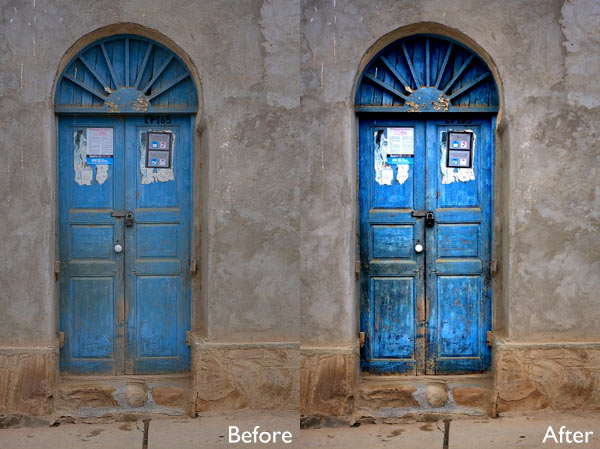
To demonstrate the power of Intensify Pro I’ve selected an image that is very flat but has a lot of texture in the image to work with. You can see it below. The version on the left is more or less straight out of the camera. The version on the right was created by increasing Exposure, Contrast and Clarity in Lightroom’s Basic panel, and adding a slight vignette in the Effects panel.
MacPhun Intensify Pro review

Here’s a close-up so you can see the effect that increasing Contrast and Clarity has had on the texture and detail.

MacPhun Intensify Pro review

Bring it over to Intensify Pro

Now let’s open the photo in Intensify Pro and see what we can do with it in comparison to what is possible in Lightroom.

First, the layout. Your photo is displayed in the centre, there are various tool buttons along the top, and the controls for working with Presets and making adjustments are on the right.
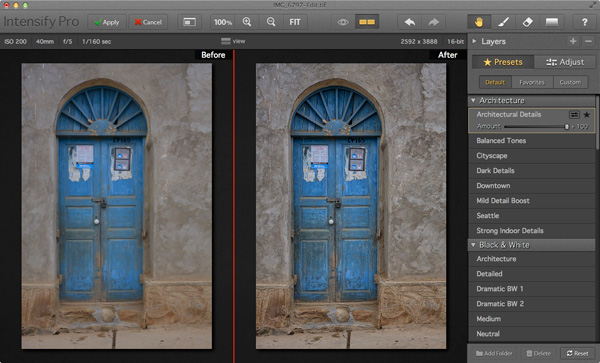
MacPhun Intensify Pro review

Presets

There are 68 presets in total (yes, I counted them) and you can select any one of them to use as a starting point or click the Adjust button to go straight to Adjust mode.

One of the problems with presets, and indeed with any program that lets you make adjustments to contrast and detail like Intensify Pro, is that it is very easy to create an image that looks over-processed.
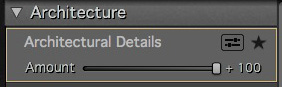
MacPhun Intensify Pro reviewIntensify Pro provides a simple solution to this. Each preset comes with an Amount slider that lets you adjust the strength of the preset on a scale from zero to 100, much like the Opacity slider in Photoshop layers. So if you like a preset, but feel the effect is too strong, you can adjust the strength until you are happy with the result.

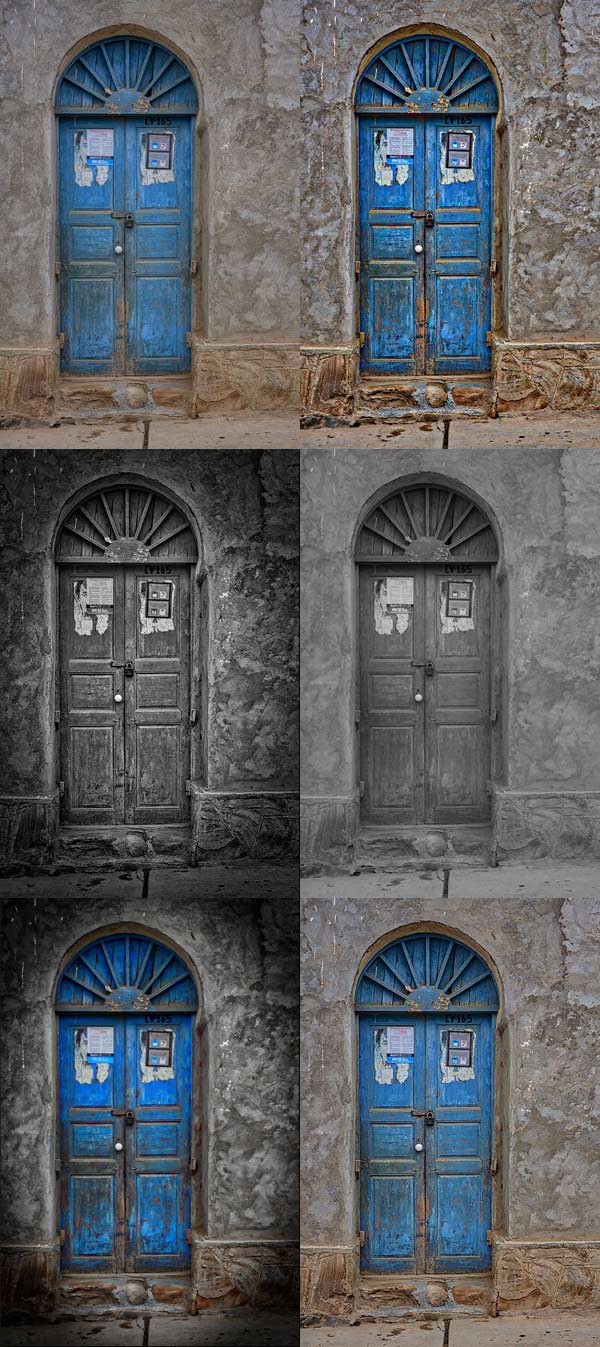
Here are some of the presets in action. All of them were applied to the original photo at full strength without any further adjustments.
MacPhun Intensify Pro review

Adjust

After selecting (or perhaps not selecting) a preset you can move to Adjust mode. This is where you take control and use sliders to apply adjustments and enhancements to your photo.MacPhun Intensify Pro review
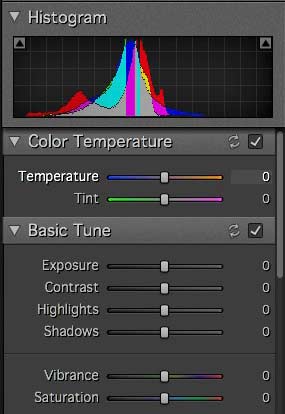
The first three Adjust panels echo the sliders found in Lightroom and Adobe Camera Raw. There’s nothing new here, these are for making adjustments to the photo before you get to the sliders that are unique to Intensify Pro.

You’ll notice the absence of a Clarity slider. It is replaced by the Pro Contrast, Structure and Detail panels. These allow you to much the same thing, but with far more control and versatility.

Pro Contrast

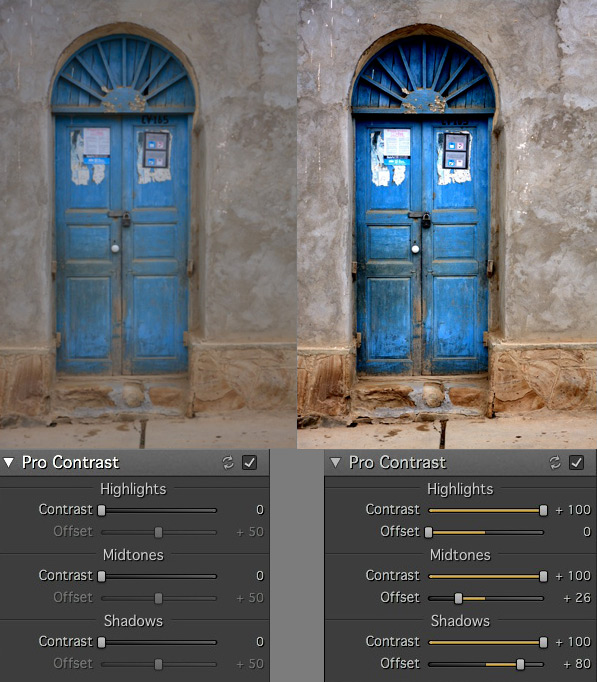
The Pro Contrast panel is where Intensify Pro starts to get interesting. Pro Contrast increases contrast without losing detail, and there are three sliders so you can apply it to the highlights, mid-tones and shadows individually. Under each of these is an Offset slider, which works in tandem with Pro Contrast sliders to control the brightness of the image. So, for example, if you increase Pro Contrast in the shadows and find that the image becomes too light, you can increase the Offset to make it darker.
MacPhun Intensify Pro review

Structure

The Structure sliders are for enhancing areas of low contrast, revealing texture and details. There are two levels: Global (targeting small areas) and Micro (targeting really small areas).MacPhun Intensify Pro review
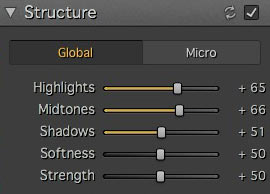
There are three sliders, enabling you to target the highlights, mid-tones and shadows respectively. The Strength slider gives you control over the strength of the effect and Softness slider control over the crispness.

It is really easy to overdo the effect and create something that looks completely unnatural, similar to some of the presets I showed you at the beginning of the article. Care is required, and I found that the Structure sliders worked best when I used the Pro Contrast sliders first.

These enlargements show you the effect of the Structure sliders.
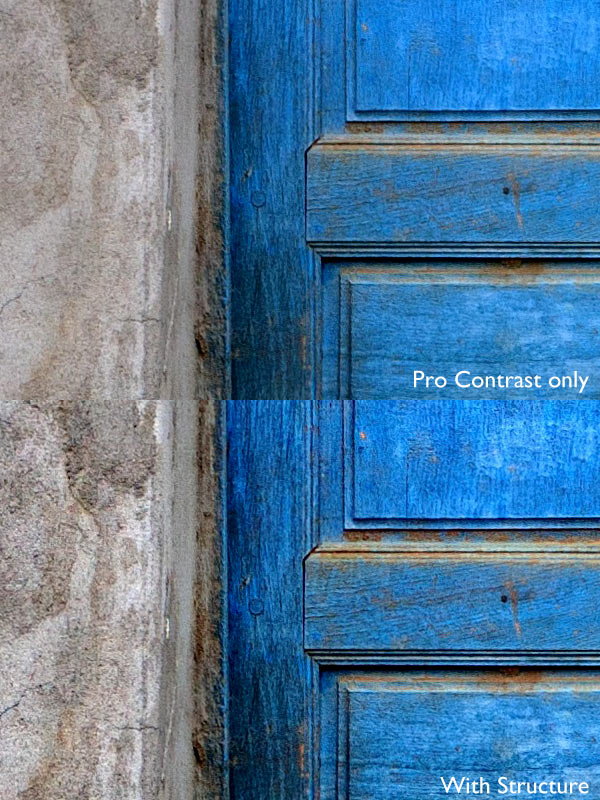
MacPhun Intensify Pro review

Detail

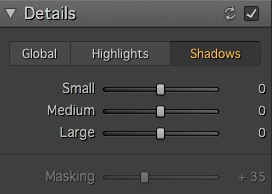
MacPhun Intensify Pro reviewThe Detail sliders are for enhancing detail. The three sliders (Small, Medium and Large) control the size of the details affected. The Large slider has the greatest effect on the image and the Small slider the least. The tabs at the top let you apply it as a global adjustment, or to the shadows or highlights.

Like Structure, the Detail sliders require care as it is easy to overdo the effect. There is an additional Masking slider to help keep it under control. If the effect is too strong, you can move the Masking slider right to limit the areas affected.

Micro Sharpness, Vignette and Opacity
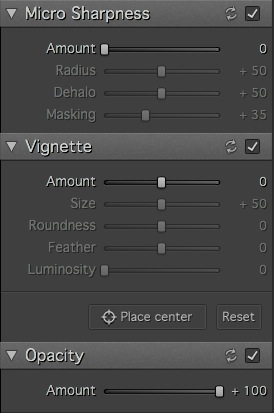
MacPhun Intensify Pro reviewThe final three sets of sliders let you make other adjustments, such as sharpening or adding a vignette. The Opacity slider lets you reduce the strength of the effect you’ve created. This does the same job as the Amount slider in the Presets panels. Use it if you realize that you’ve overdone the processing.

Local adjustments and Layers

So far I’ve looked at all the sliders in the context of global adjustments (adjustments that affect the entire image). But Intensity Pro also lets you create masks to apply the effects to a smaller area (local adjustments).

Local adjustments are important because most of the time you will want to emphasize texture and detail in certain parts of the image, but not others. A subtle touch is often key to effective post-processing, and local adjustments help you achieve that.

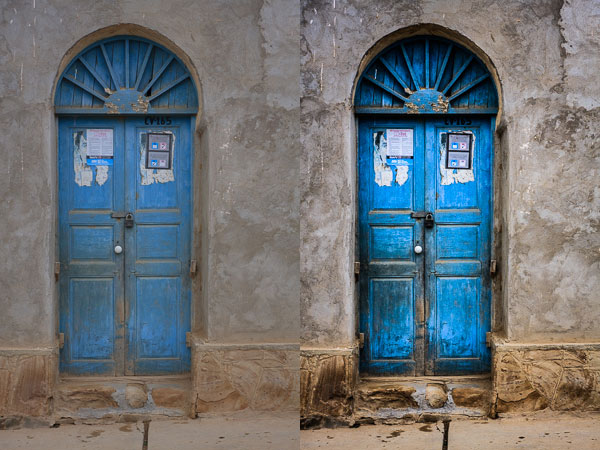
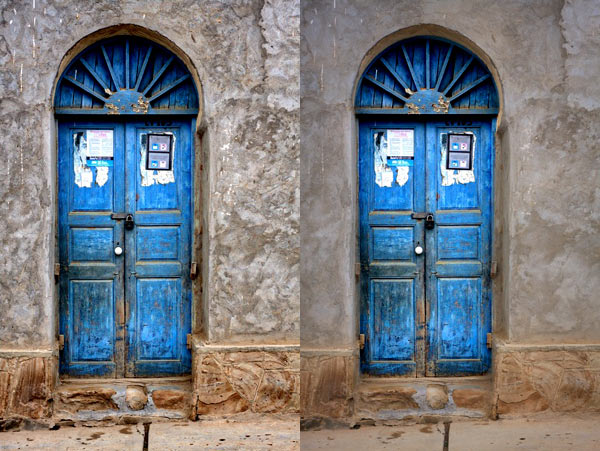
Here’s the final example (below). The image on the left shows the result of a series of global adjustments. I like the effect on the door, but the effect on the surrounding wall is overdone.

The image on the right was created using masks and layers. I used the mask to limit the adjustments made in the first image to the door. Then I created another layer and applied a softer level of adjustment to the wall. Finally I added a vignette to make the sides of the image darker. The result is a more subtle increase in contrast and detail that emphasizes the texture and detail of the wooden door.
MacPhun Intensify Pro review

Conclusion

Intensify Pro is an excellent program, and I’m looking forward to working with it more. I feel I’ve only touched upon its capabilities in this short review, as like all plug-ins it takes time to explore the features and learn how to get the best from it. Hopefully I’ve given you a good idea of what it can do. The best way to see for yourself is to go to the MacPhun website and download a trial of the program (look for the grey Try for Free button above the menu).

There are two versions of the program. Intensify is a standalone app aimed at casual photographers. Intensify Pro also works as a plug-in with Photoshop, Photoshop Elements, Lightroom and Aperture and contains a few more advanced features aimed at professional photographers. The details are on the MacPhun website.

New features

For those of you who are interested, Intensify Pro was recently upgraded by MacPhun and contains the following new features. If you already own the software, go to Intensify Pro > Check for Updates to download the update. This list is from the press release:

Macphun Print Lab – Intensify photos can now with a few clicks be turned into personalized products like postcards and notecards, delivered direct to recipients. Affordable, high quality gallery frames and canvas prints can also be ordered, perfect for gifts to friends and family. The Macphun Print Lab is powered by MILK Books.

Integration with SmugMug – SmugMug is one of the world’s leading photography communities with millions of users worldwide. Images can be exported directly from Intensify to SmugMug portfolios for viewing, sharing and printing.

RAW Updates – Intensify now supports RAW formats from all the most popular cameras. The native RAW processor supports 16-bit images and opens files faster than in any other app.

Mavericks Support – Intensify is now taking advantage of all the powerful features of Apple’s latest OS, Mavericks. Support for the new Notifications feature will enable more timely communications with customers about updates, new features, free presets and more.

UI improvements – Additional shortcuts to the user interface provide quick access to the most important tools and features.

The post Macphun Intensify Pro Software Review by Andrew S. Gibson appeared first on Digital Photography School.


Digital Photography School

 
Comments Off on Macphun Intensify Pro Software Review

Posted in Photography


Super Sized: Panasonic Lumix DMC-FZ1000 First Impressions Review

12 Jun

preview-beautyshot.jpg

Up until now, the Sony Cyber-shot DSC-RX10 was the only game in town for those seeking a big zoom camera with a larger-than-average sensor. Panasonic has thrown its hat into the ring with the Lumix DMC-FZ1000, which offers a 1″-type, 20.1MP CMOS sensor, plus a longer (but slightly slower) zoom lens. The FZ1000 is also the first compact camera to support 4K video recording. Perhaps the biggest story is the price: $ 899. We’ve gotten our mitts on a product model and have some initial thoughts to share. Find out more

News: Digital Photography Review (dpreview.com)

 
Comments Off on Super Sized: Panasonic Lumix DMC-FZ1000 First Impressions Review

Posted in Uncategorized