RSS
 

Posts Tagged ‘REVIEW’

In a class of its own: Samsung NX1 review

10 Apr

Samsung’s NX1 seemed to offer pretty much every feature possible when we were first briefed about it last year. Its 28.2MP APS-C BSI sensor, hybrid AF system, 4K video and 15 fps continuous shooting with AF have continued to impress us throughout our extensive testing. Can such an innovative on-paper feature set make it a serious competitor to well-established brands in the DSLR and mirrorless worlds? Read review

Articles: Digital Photography Review (dpreview.com)

 
Comments Off on In a class of its own: Samsung NX1 review

Posted in Uncategorized


DPReview week in review: April showers

04 Apr

When it rains, it pours – that was definitely the case this week, both outside our office windows (Thunder! In Seattle!) and in terms of content on the site. We posted our Sony a7 II review, got out shooting with Nikon’s newest DX-format DSLR, and reviewed another Nikon crop sensor camera. Don’t be an April fool – take a look back and get caught up. Read more

Articles: Digital Photography Review (dpreview.com)

 
Comments Off on DPReview week in review: April showers

Posted in Uncategorized


Touch and go: Nikon D5500 review posted

03 Apr

Slightly smaller and lighter than its predecessor, the Nikon D5500 continues to offer a proven 24.2MP APS-C sensor in a body that’s more approachable than a D7000-series DSLR. It offers a fully articulated 3.2″ touchscreen, 1080/60p HD video, a new EXPEED 4 processor and built-in Wi-Fi. Can it compete in ever more crowded class? Read more

Articles: Digital Photography Review (dpreview.com)

 
Comments Off on Touch and go: Nikon D5500 review posted

Posted in Uncategorized


Ready, steady: Sony Alpha 7 II Review

31 Mar

The Sony Alpha 7 II provides a number of features and ergonomic enhancements over its predecessor, but its standout feature is the 5-axis image stabilization system surrounding its 24.3MP full-frame CMOS sensor. Sony also claims improvements to the camera’s hybrid AF system, and it also sports a redesigned grip. Find out all about the a7 II’s added features and see what difference they make. Read review

Articles: Digital Photography Review (dpreview.com)

 
Comments Off on Ready, steady: Sony Alpha 7 II Review

Posted in Uncategorized


Review: Flash Disc Lighting Modifier by Fstoppers

28 Mar

The more you experiment with off-camera flash, the more you realize that many lighting modifiers are pretty large in size. From softboxes to beauty dishes to umbrellas, many take up space not only in your camera equipment bags, but also on site at a photo shoot. This may be a small price to pay for the dramatic impact these modifiers can have on the resulting image, but sometimes you just want a really compact lighting modifier that can produce great results. One of the answers to this problem is the new Flash Disc by Fstoppers.

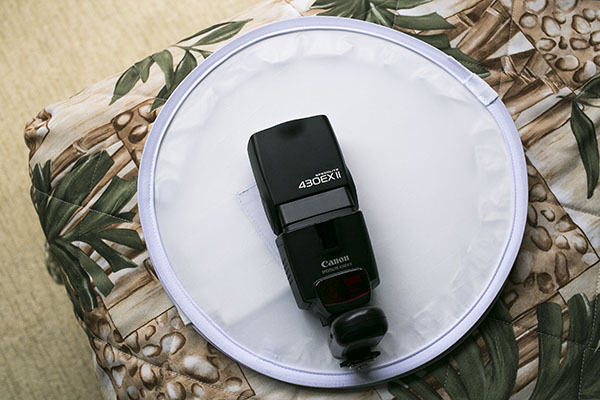
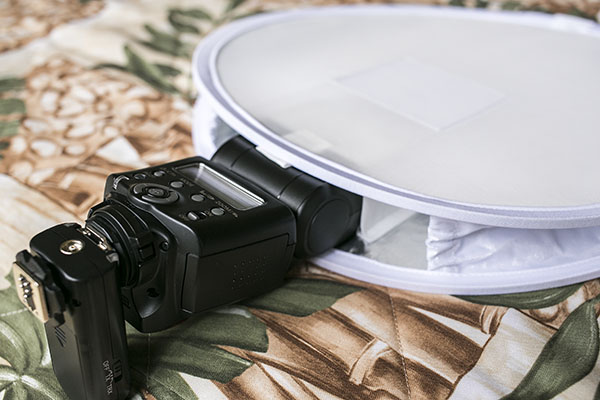
Flash Disc Product 02

A handy little device made to fit speedlights, the Flash Disc was created by Lee Morris of Fstoppers with the intent of being a portable softbox. It appears at first to be a little white reflector, as it folds up like one into a compact size that can fit into a large pocket or small bag. However, the Flash Disc is actually more like two reflectors that sandwich your speedlight. When a flash is fired, the light bounces between the two reflectors, creating a softer spread of light. Available for purchase online at a price of $ 49.99, the first batch of Flash Discs were so popular they sold out and supplies were only recently replenished.

Flash Disc Product

As a food, portrait, and event photographer, who travels a lot for photo shoots, the main features I’m looking for in a lighting kit are portability and functionality. I generally travel with one Speedlite flash (Canon 430 EXII) and a pair of wireless flash triggers (Yongnuo RF-603 II) for on-location portraits, candid event shots, and food photos in varied lighting conditions. When I have the luxury of space, I’ll bring an octabox softbox or shoot-through umbrella as a lighting modifier, although these devices take up both space in my photography kit as well as setup time while on location. I recently got my hands on the Fstoppers Flash Disc and was very impressed by its compact form, as well as big impact in helping diffuse and bounce my off-camera flash lighting.

Without a lighting modifier, off-camera Speedlight flash tends to be way too harsh.

Without a lighting modifier, off-camera flash tends to be way too harsh and overpowering.

Pro: Small and low-profile

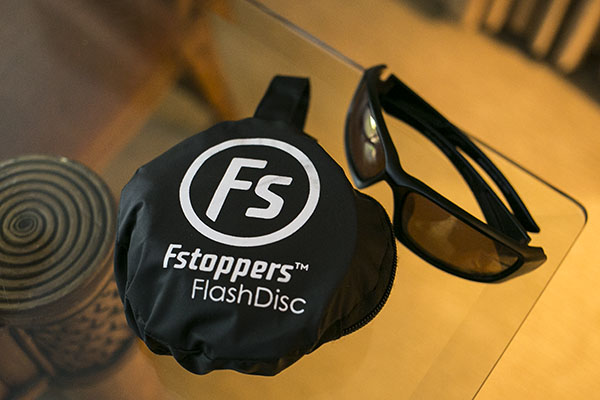
The first big plus about the Flash Disc is that it is incredibly tiny when it folds up like a reflector and is put into its little black carrying case. Dimensions-wise, the Flash Disc is 12 inches in diameter when open, and 4 inches in diameter when closed. It’s very lightweight at less than 1 pound, and it is compatible with most external flash units. It really can fit into a jacket pocket, or be clipped (via a carabiner) to a loop on your belt or camera bag.

Flash Disc 05

Con: Very tight when collapsed

A possible drawback to having two reflectors folded into each other is that the Flash Disc can literally pop opened. I had a close call once when I opened the Flash Disc with my hands right next to an open bottle of water, resulting in said bottle being knocked over and spilled. Be sure not to open it close to your body or camera as it could possibly knock something over.

Pro: Includes a grey card

One side of the Flash Disc is translucent white and the other has built-in strips of white, black, and 18% grey. This is helpful for setting your white balance in post-processing (or doing custom white balance in the field)

Con: Sometimes the lighting is too harsh

Considering the 12″” diameter of the Flash Disc, sometimes the light it emits isn’t the softest, especially when compared to light from a 30″” softbox or umbrella. It’s a size trade-off that can sometimes result in the Flash Disc light still being a tad too harsh, although there are certain situations and photography styles that can benefit from this look.

Best uses

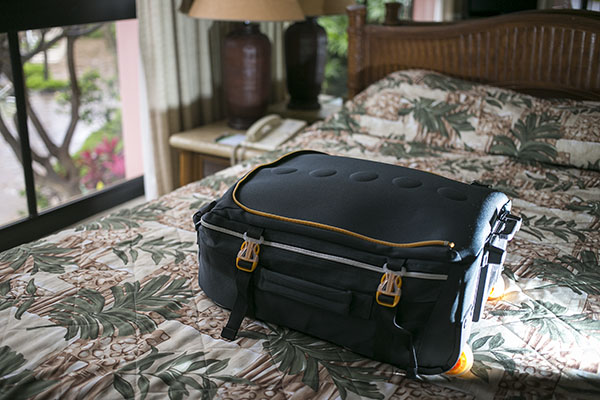
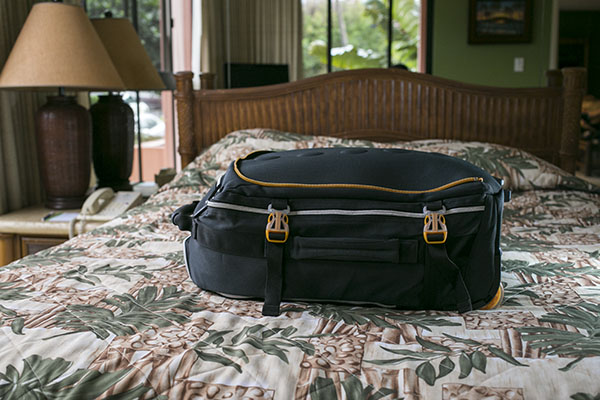
I tested out the Flash Disc during a recent tropical vacation-  using it on food, portrait, and product photography – and was pleased with the overall results. In the below product photo of a carry-on suitcase, the Flash Disc on a Canon 430 EXII was positioned camera right. The flash was in manual mode, dialled down to 1/64 power, and the result is a soft fill light on the bottom of the suitcase.

Flash Disc

For food photography, the Flash Disc’s compact size was crucial as many food photos are taken in restaurants or tight kitchens where there isn’t the space or time to indulge in more elaborate lighting setups. In the image below of a fish taco plate, natural lighting was illuminating most of the dish. The Flash Disc was camera right, fired at 1/64 power to fill in the shadow areas of the dish.

Flash Disc 02

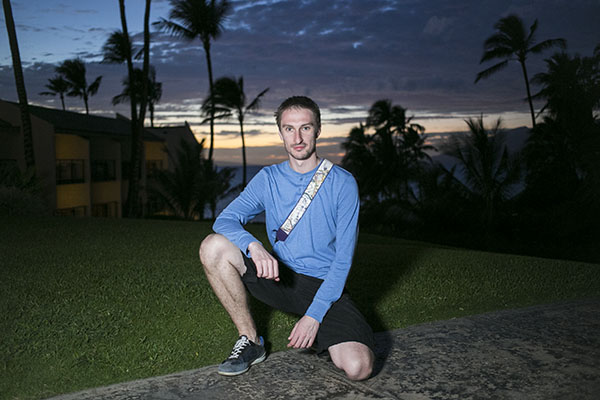
The Flash Disc also came in extremely handy while doing casual location-based outdoor portraits, another scenario in which lugging around a large umbrella or reflector wouldn’t be convenient without an assistant. The portrait below was taken just after sunset, and my subject is lit by the Flash Disc fired at 1/64 power from camera left. This is an example of when the Flash Disc’s light quality is arguably on the harsher side, especially if you’re working as a lone “run and gun” photographer without an assistant, meaning you can only place the Flash Disc as near or far from your subject as your arm can stretch.

Flash Disc Portrait

Has anyone else tested out the Flash Disc? I’d love to hear your thoughts on how useful (or not) you find it.

googletag.cmd.push(function() {
tablet_slots.push( googletag.defineSlot( “/1005424/_dPSv4_tab-all-article-bottom_(300×250)”, [300, 250], “pb-ad-78623” ).addService( googletag.pubads() ) ); } );

googletag.cmd.push(function() {
mobile_slots.push( googletag.defineSlot( “/1005424/_dPSv4_mob-all-article-bottom_(300×250)”, [300, 250], “pb-ad-78158” ).addService( googletag.pubads() ) ); } );

The post Review: Flash Disc Lighting Modifier by Fstoppers by Suzi Pratt appeared first on Digital Photography School.


Digital Photography School

 
Comments Off on Review: Flash Disc Lighting Modifier by Fstoppers

Posted in Photography


X-Transformed? Fujifilm X30 Review

27 Mar

The X30 is the latest iteration of Fujifilm’s line of premium compact cameras. Featuring a 12MP X-Trans sensor coupled with a 28-112mm equivalent fast zoom, the X30 is a capable camera, made more enjoyable compared to its predecessors by the addition of a high-resolution electronic viewfinder. Our man in England, Damien Demolder has been shooting with one and shares his take. Read review

Articles: Digital Photography Review (dpreview.com)

 
Comments Off on X-Transformed? Fujifilm X30 Review

Posted in Uncategorized


Review of the CASE Remote Trigger and App

16 Mar

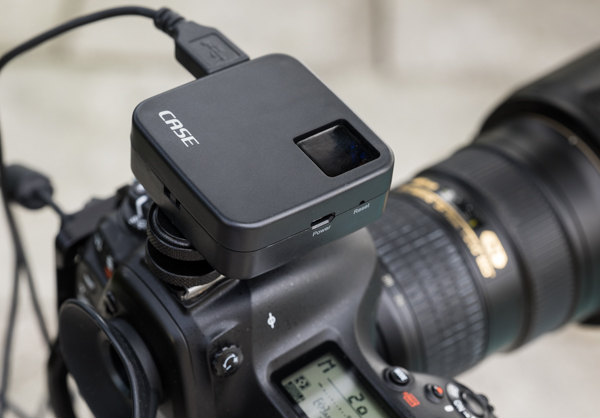
The CASE Remote from Cheering Tech is a small box that connects to a DSLR camera via a USB cable and lets you wirelessly control almost every function, and some more.

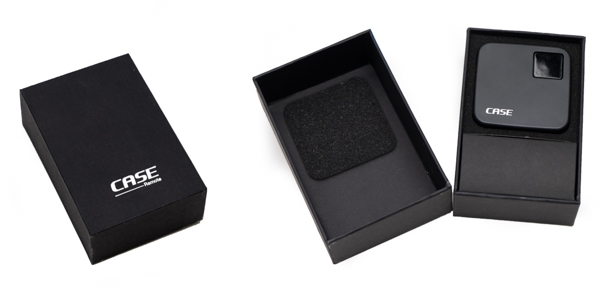
I was offered the device for review from Cheering Tech and decided to try it on without many expectations. When I received the unit I was surprised by the quality of the packaging and presentation. The design of the CASE Remote is really nice, fairly small at two inches square and 70 grams (2.5oz). The size makes the remote convenient, and easy to throw anywhere in the camera bag.

20150214_untitled_0025-Edit

20150214_untitled_0027

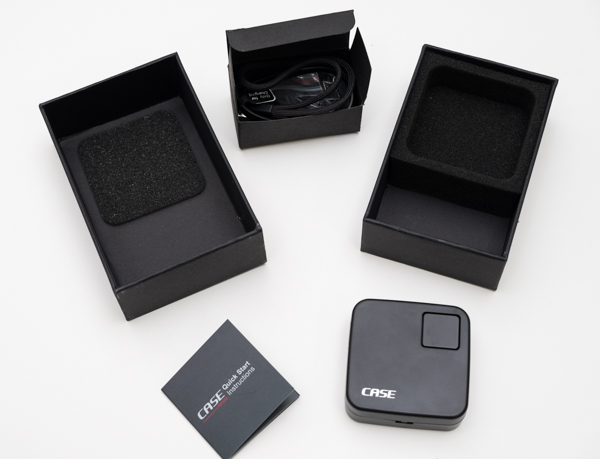
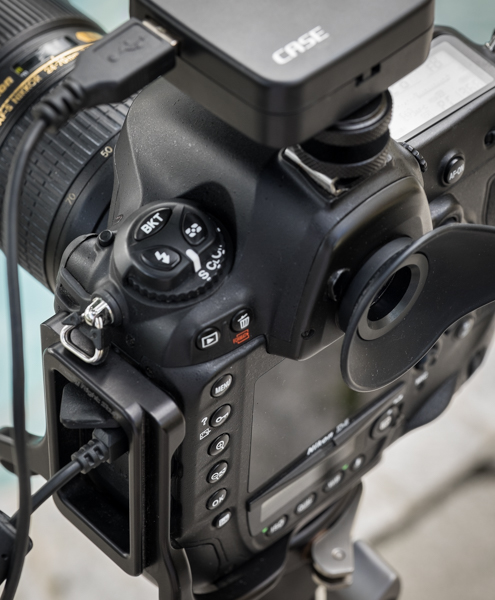
The CASE Remote ships with a convenient hot-shoe adapter so you can easily attach it to the camera, and a USB cable to charge it. Something worth mentioning is that it does not include the USB cable necessary to connect it to the camera though – you need to use your own (one that came with the camera).

Mounting it to the camera was a snap. You turn it on by pressing one square button at the top of the unit, which also contains lights which indicate battery life and system status. Once powered on, the CASE Remote creates its own WiFi network to which you connect your mobile device to access the app. The SSID and password for the connection comes in the back of the little instruction manual. I couldn’t find a way to change it or reset it to my own.

20150221_untitled_0037

20150221_untitled_0040

What you can do with the CASE Remote:

  • Live view support on iOS (iPhone, iPad) and Android devices
  • Download photos to your device
  • Set camera functions right from your phone or tablet
  • HDR function
  • Time-lapse function
  • Focus stacking function
  • GPS function

The device is ideal for different types of shooting, but especially for landscape or architectural work. The app is well designed and easy to use; however, something that I’d love to see improved in future iterations is the shutter lag. There is a delay on the live view function from the camera to the app, and there is also a brief delay when you press the shutter before the camera fires. But this is not usually an issue for the type of photography mentioned above.

IMG_1370

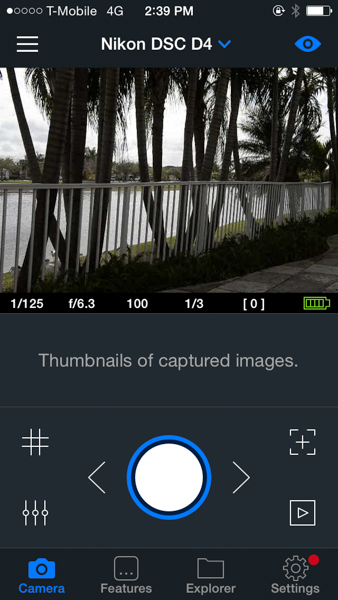
From the main screen of the app, you can control and access almost any function of the camera. Live view can be turned on or off, and you can also activate a grid on top of the image if you want.

IMG_1373
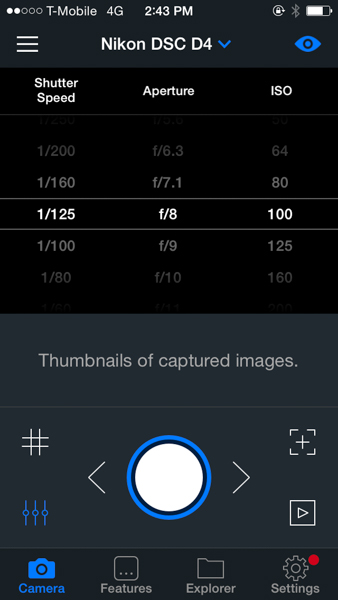
There is a quick way to control shutter speed, aperture and ISO straight from the main screen by just pressing the lower left icon; that really comes handy and is a fast way to change settings.

IMG_1369

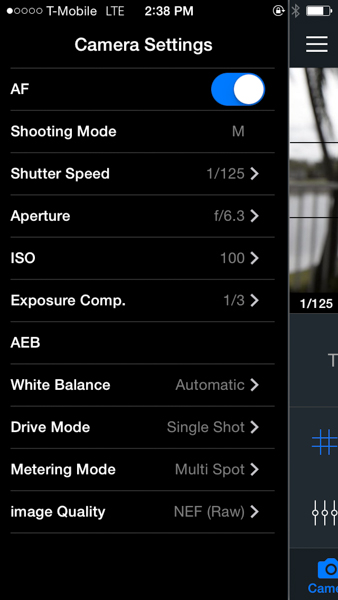
The camera settings menu lets you control almost every aspect of the camera. From there you can turn on and off the autofocus function, the shooting mode, shutter speed, aperture, ISO, exposure compensation, white balance, drive mode, metering mode and image quality. I find this really complete as once you are in the app you don’t really need to go back to the camera to change anything – every function can be handled from there.

IMG_1374

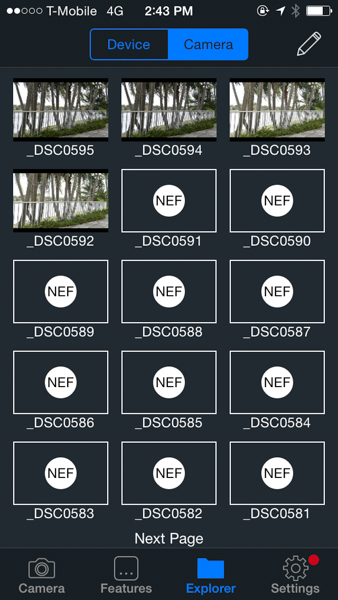
The Explorer function lets you see the photos taken from the camera. You’ll only be able to see JPGs, the RAW files will show as icons. However, you can download both types straight to your phone or tablet from there.

IMG_1380

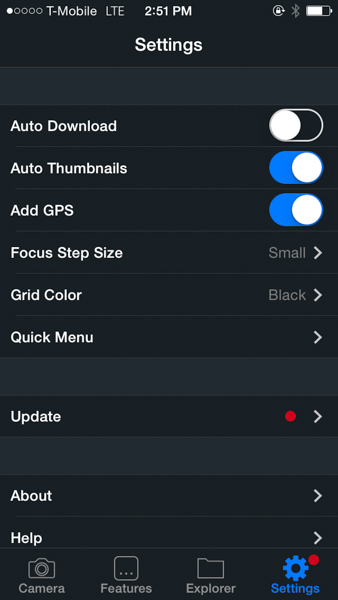
The Settings function lets you control several general settings, like auto-download the photos to your device or add thumbnails to the main screen of the app. You can also control the GPS function from there.

IMG_1382

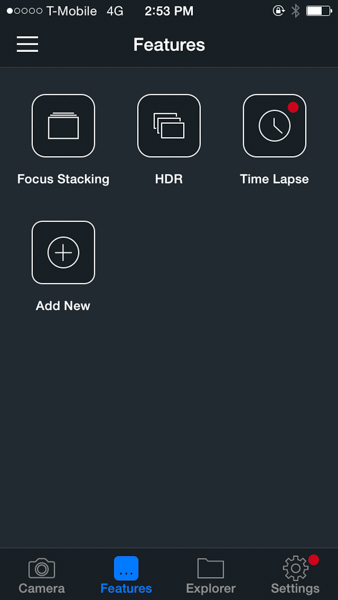
The focus stacking, HDR and time-lapse functions are accessed via the Features menu. As you can see on the screen shot, there is plenty of room for more to be added in the future.

At this time, the CASE Remote is only compatible with Nikon and Canon cameras, you can see the full list of supported models on their website. The company promises lifetime free updates via firmware upgrades and they claim to be working on support for Sony, Pentax and Fuji for later this year. The current asking price is $ 129 – a good value compared to other more expensive alternatives available in the market.

I’d really like to see improvements in the application delay and lag, but I think that overall this is a great product with lots of potential for future developments and features.

googletag.cmd.push(function() {
tablet_slots.push( googletag.defineSlot( “/1005424/_dPSv4_tab-all-article-bottom_(300×250)”, [300, 250], “pb-ad-78623” ).addService( googletag.pubads() ) ); googletag.pubads().enableSingleRequest();
googletag.pubads().disableInitialLoad();
googletag.pubads().collapseEmptyDivs( true );
googletag.enableServices();
} );

googletag.cmd.push( function() { googletag.display( ‘pb-ad-78623’ ); } );

googletag.cmd.push(function() {
mobile_slots.push( googletag.defineSlot( “/1005424/_dPSv4_mob-all-article-bottom_(300×250)”, [300, 250], “pb-ad-78158” ).addService( googletag.pubads() ) ); googletag.pubads().enableSingleRequest();
googletag.pubads().disableInitialLoad();
googletag.pubads().collapseEmptyDivs( true );
googletag.enableServices();
} );

googletag.cmd.push( function() { googletag.display( ‘pb-ad-78158’ ); } );

The post Review of the CASE Remote Trigger and App by Daniel Korzeniewski appeared first on Digital Photography School.


Digital Photography School

 
Comments Off on Review of the CASE Remote Trigger and App

Posted in Photography


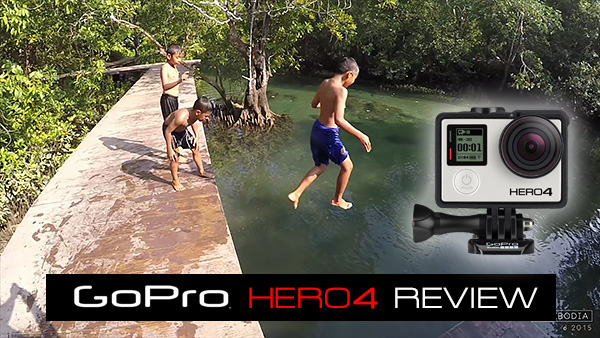
GoPro Hero4 Black – Camera Review

15 Mar

GoPro Hero 4 Black Review

The GoPro Hero 4 Black edition is an action cam for recording video but it’s also a very powerful stills camera if you’re interested in getting super wide angle shots on a budget, especially if you want to shoot underwater.

If you are into shooting video of the 4K variety, don’t overlook this tiny but powerful little camera. Here’s a short test film I put together to show the 4K chops of the GoPro Hero4 Black.

The 4K Image Quality

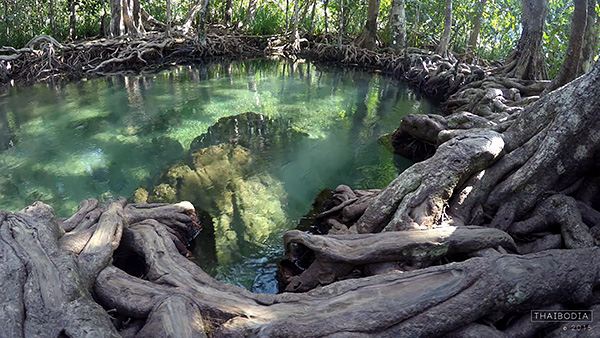
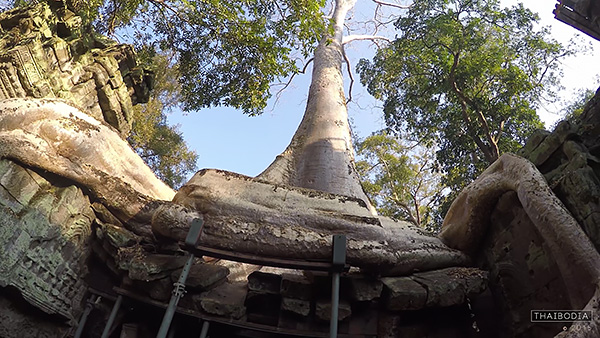
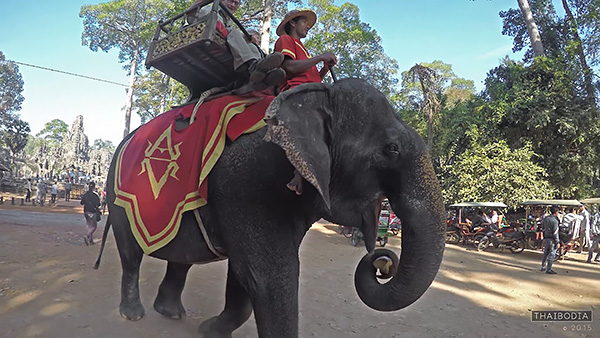
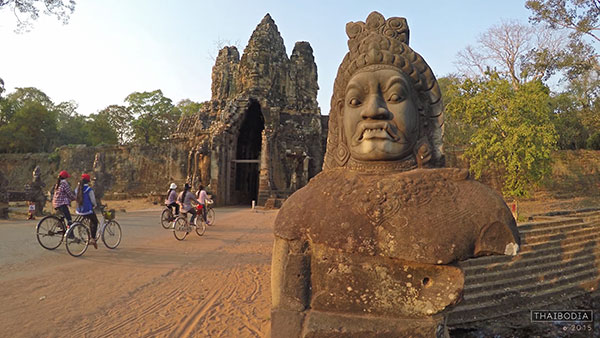
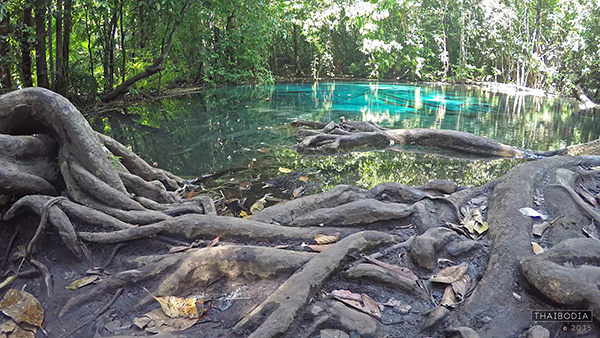
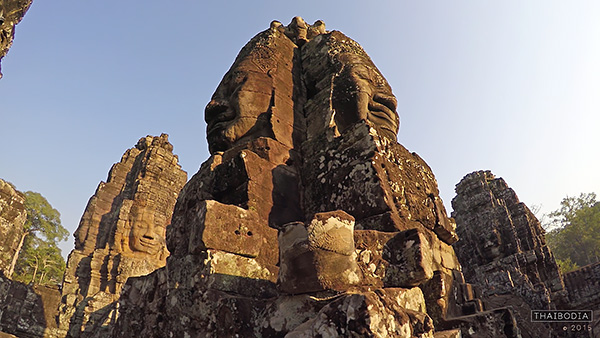
I was so impressed with the clarity of the 4K video captured by the GoPro that I decided to shoot a little film while visiting Thailand and Cambodia. With only a cheap tripod and a slider you can create some beautiful looking 4K footage. To watch the above film in 4K click on the Youtube quality setting and set it to 2160p. Even if you don’t have a 4K capable screen you’ll still benefit from seeing that glorious extra resolution.

The 4K image quality is amazing when you consider the price tag, but only in the right light. When shooting in dark or shaded conditions the image quality takes a massive drop with lots of noise and hardly any shadow detail.

In low light conditions you’ll get better results on your still images by shooting in the 8 Megapixel still mode.

Not Just an Action Cam

With my film I set out to create a little art piece rather than the usual death-defying action or skateboard fails that you usually see from GoPro footage. It’s actually when using the GoPro in a fairly slow and stable setting, that you really get to see that crisp 4k at its best.

Once you start jumping around and adding major vibration to your recordings, you might as well just shoot in 1080p and save yourself some disc space.

Gopro Here 4 Review by Gavin Hardcastle

Shooting Stills

Once I’d gotten over the outrageous fisheye (Wide and SuperWide) perspective of the GoPro, the sharpness of that cheap little piece of glass blew me away. Not only are stills very, very crisp if you keep the camera still, but the 4K footage is so sharp that you can easily grab stills from frames in your video and that is where the GoPro really excels for stills photography.

Yes, you’ll get better dynamic range and overall image quality from hitting the shutter button to actually take a still image, but if you missed the moment, the 4K video recording most likely didn’t.

Imagine having a DSLR that shoots at 30 fps. When that day arrives you’ll never miss a moment of action but I doubt you’ll be paying $ 500 for that kind of power. Until that day, the GoPro Hero4 Black Edition will have to do. It fits in your pocket, weighs less than a muffin, and can go underwater when placed in the skin-tight waterproof housing.

Try doing that with your DSLR. Actually, don’t!

GoPro Hero Camera Review

Ease of Use

In terms of what photography settings you can control, things are very limited. You can’t set focus, do long exposures, or have any control over depth of field. You can change the white balance, ISO, and exposure value by two stops but that’s about it.

The idea with the GoPro is switch it on and start shooting. It’s about as automatic as it gets.

You get three buttons to set the shooting mode and the preferences of those modes. Sounds simple but having used professional cameras for years I have to say this is really frustrating. I was forever switching into the wrong mode accidentally which ruined some shoots. I’d often think I was shooting a 4k video sequence when in fact all I’d done was take a still image.

You’ll get much better control of the GoPro if you use the Smartphone app but even that is limited. The image quality that gets transmitted to your phone is so bad that you won’t be able to clearly see everything in your frame, meaning you’ll get some nasty surprises during editing.

GoPro Here 4 Black Edition Review

The Touch Screen Option

For an additional $ 90 you can attach a touch screen to the back of the GoPro. I found it to be a total waste of money and much prefer using the phone app. Of course, the app option won’t be much help for surfers and water warriors in general, in which case, the touch screen is better than nothing.

I guarantee that it will drive you crazy the first time you try the Unlock Touchscreen swipe action, that you’re forced to use through the plastic housing. It’s kind of like scratching an itch while wearing boxing gloves.

GoPro Hereo 4 Review in Cambodia

Battery Purgatory

I take back all my previous complaints about the battery life on mirrorless cameras. I’ve had sneezes that lasted longer than the battery in the GoPro. If you’re really lucky you’ll get around 20 minutes of battery life in clement temperatures. I shudder to think what the battery life would be in subzero temperatures.

Dynamic Range

I realize I’m totally spoiled with a background using DSLR and mirrorless cameras so it’s unfair to expect the GoPro to perform on that level, especially at just $ 500. I have to say though that the dynamic range of the GoPro 4K footage is pretty feeble. You’ll have to get used to blown out skies and murky shadows that you just can’t recover in post.

I’d happily pay considerably more for a Pro version that allowed for better image quality and some kind of RAW video format that allows better control of shadows and highlights, but I’m not sure if that’s currently possible for such a tiny little camera.

The Gopro Hero 4 Review

There was no chance of recovering the blown out highlights of the trees in the background in this 4K video frame.

Exposure Shifting Issues

I had to scrap a lot of footage due to the fact that you can’t lock the exposure on the GoPro. As you move the camera around it’s constantly adjusting exposure. While that’s an essential requirement for action footage recording, it totally ruins artistic slider shots. If ever a Pro version of the GoPro becomes available I’d like to have a RAW video format and exposure locked where I decide to set it.

Slow Motion

Another cool feature of the latest GoPro is that it can record at 120 fps (frames per second) but unfortunately that’s only at 1080p resolution. When played back at 30 fps in editing software you get super smooth slow motion. I can’t wait for the next generation of GoPro that records 4K at 120 fps.

The Gopro Here 4 Black Edition Camera Review

Should GoPro Owners Upgrade

If you already own a previous version of the GoPro and you’re thinking of upgrading, I’d ask yourself if the 4K recording means that much to you. If you’re recording dirt bike adventures in 4K you’ll not see much of an improvement over upscaled 1080p footage. All that shaking and fast movement really makes the 4k quality pointless.

If you’re filming drone or slider footage, the 4K image quality is a major upgrade and gives you that added option of grabbing sharp stills from the frames of your video.

Things I love about the GoPro4 Black Edition

  • Fits in your pocket
  • Sharp 4K video for under $ 500
  • It’s waterproof (when placed in the housing)
  • Weighs less than a muffin
  • Super wide angle for less than the cost of a DSLR fisheye lens
  • Ideal for drones
  • The phone app

Things I dislike about the GoPro4 Black Edition

  • Battery life is beyond pathetic
  • You cannot lock the exposure value
  • The three button controls are annoying
  • The optional touchscreen is painful to use

Conclusion

Grumbles aside, I’m still impressed by the things I can do with this sub $ 500 camera. Capturing crispy 4k video footage from a palm sized toy is a breath of fresh air for me, especially when you consider the heavy gear I usually lug around on my travels. I’m giving the GoPro Hero4 Black Edition a generous four out of five stars.

googletag.cmd.push(function() {
tablet_slots.push( googletag.defineSlot( “/1005424/_dPSv4_tab-all-article-bottom_(300×250)”, [300, 250], “pb-ad-78623” ).addService( googletag.pubads() ) ); googletag.pubads().enableSingleRequest();
googletag.pubads().disableInitialLoad();
googletag.pubads().collapseEmptyDivs( true );
googletag.enableServices();
} );

googletag.cmd.push( function() { googletag.display( ‘pb-ad-78623’ ); } );

googletag.cmd.push(function() {
mobile_slots.push( googletag.defineSlot( “/1005424/_dPSv4_mob-all-article-bottom_(300×250)”, [300, 250], “pb-ad-78158” ).addService( googletag.pubads() ) ); googletag.pubads().enableSingleRequest();
googletag.pubads().disableInitialLoad();
googletag.pubads().collapseEmptyDivs( true );
googletag.enableServices();
} );

googletag.cmd.push( function() { googletag.display( ‘pb-ad-78158’ ); } );

The post GoPro Hero4 Black – Camera Review by Gavin Hardcastle appeared first on Digital Photography School.


Digital Photography School

 
Comments Off on GoPro Hero4 Black – Camera Review

Posted in Photography


Walk Through and Review of Autopano Giga – Image Stitching Software

14 Mar
A six image photostitch of BC Place in Vancouver

A six image photostitch of BC Place in Vancouver

My first image editing software was Photoshop Elements 6 and the photostitching function was really erratic to say the least. I was doing real estate and architectural photography and needed a reliable and accurate tool that could quickly and properly stitch images together. I tried a few, but was not happy with all the results. The software was difficult to use and the results were irregular.

Then I heard about Autopano. I downloaded a trial and was pretty amazed at how quickly, and more importantly, accurately the software stitched scenes together that other pieces of software had not been able to. The stitching was seamless and effortless. I was impressed with the ease of use and the speed at which the software worked. I had found my tool of choice, Autopano Giga. Autopano Giga is a tool that is made by a company called Kolor. They develop image stitching software, pano tour software and 360 degree software, they are a specialist photography software company.
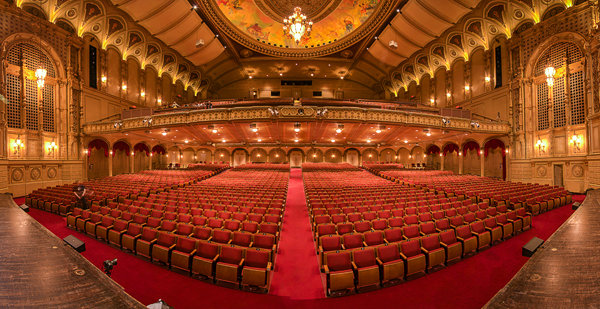
5 shot photo stitched image of the Orpheum Theatre, Vancouver BC

Five shot photo stitched image of the Orpheum Theatre, Vancouver BC

The first step in making effective panoramic images is knowing how to photograph them. That is beyond the scope of this article so for the purpose of this review we’ll assume you have some panoramic images already shot and want to stitch them.

Time to stitch

For the image stitching part of this process, I am going to be referring to the interface in Autopano Giga. This product works extremely well. It has been rated as one of the best stitching packages available. I have used it to stitch some pretty crazy panos together and it has been able to process almost anything I have thrown at it. I have done normal photostitches and I have done some multi-row stitches too. Autopano Giga has handled these with ease, and in some cases I have been pretty surprised how well it worked.

Let’s look at how this process works in Autopano Giga:
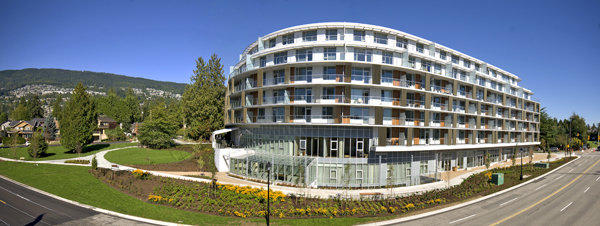
Panoramic images work well for architectural photography

Panoramic images work well for architectural photography

  1. Open Autopano Giga and on the first screen that you see, click on the second icon from the left to select your images to be stitched.
  2. Navigate to the images that you have processed and select them.
  3. Click on Detect on the top left hand side of the screen.
  4. Autopano Giga will now scan your images and do a preliminary stitch. This preview stitched image will be displayed on the right hand side of the screen that is open. This process may take a few minutes.
  5. Once the preview image is displaying, click on the Edit button (right-hand side of the screen) this will open the image in the Autopano edit screen. This is where you want to check the image to see that it has stitched together properly, and verify that there are no errors on the image.
  6. There are a number of options here, below is a high level overview of the most important functions
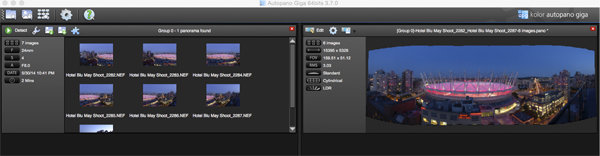
Detection and preview screen in Autopano Giga

Detection and preview screen in Autopano Giga

Autopano functions on the edit screen:

Autopano has a number of options you can use to render your panoramic image. These projections help with distortion and skewing. Below is an explanation of the most commonly used projections.

  • Spherical – The spherical function allows any panorama to be assembled. It is a commonly used option for building panoramic images.
  • Planar or rectilinear projection – This is a good choice if the angle is low. It’s recommended for architectural shots because it is the only mode that does not curve lines that are deemed to be straight lines. Sometimes if the angles are too extreme there may be a loss of sharpness, so just be aware of that.
  • Cylindrical projection – This projection can be used up to 360° (horizontally).
  • Mercator projection – The mercator projection can also be used up to 360° (horizontally). The effect of stretching up and down, the image may seem to become distorted.
  • Pannini projection – Keeps vertical lines vertical and straight radial lines. This can give a strong sense of perspective on views whose horizontal field of view is wide, and has a single and central vanishing point. It can however makes horizon lines seem curved. This can be corrected in the sliders that pop-up when you are editing in this projection.
  • Little planet projection – The Stereographic projection (also called fisheye projection) can be used to create a little planet. A right way up panorama achieves a planet effect and a backward panorama (180° rotation) makes a tunnel effect. Allows you to create an original view of a panorama, mainly using equirectangular panoramas (360°x180°). Using this projection with panoramas, whose horizontal field of view is less than 330°, is neither aesthetic nor usable.
  • Hammer projection – This projection is similar to a flattened world map, mainly used in astronomy applications. I use this for cityscapes too as it can correct some perspective distortion.
  • Orthographic projection – This is the view point of a sphere, whose panorama is viewed from afar, mapped to the outside and not inside like most other projections.
  • Mirror ball projection – This projection is the result of a visualization of the whole panorama on a spherical mirror, like looking into a crystal ball.
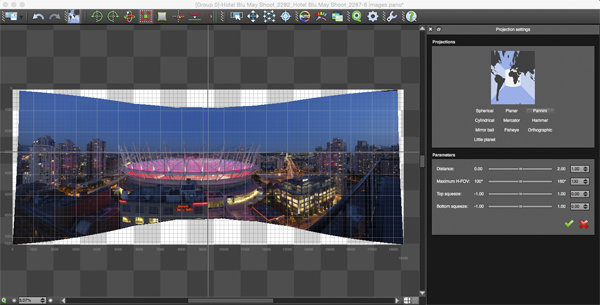
Projection function in Autopano Giga

Projection function in Autopano Giga

 Some of these projections are more useful than others. You may find that you will end up using only two or three. A good idea is click on each of them to see how they affect your image. The key factor in choosing a projection is in how the it affects your image visually. Does it work for the subject matter? Does the image look correct? Is the perspective distortion correct? Ask yourself these questions as you experiment with the projections.

Once you are happy with your projection and the way the image looks, you can now save the image to a folder on your computer.

Rendering

This is the process of saving your panorama.It is called rendering because the software needs to perform the final stitching and edits to your image. On the rendering screen, you will need to take note of the following:
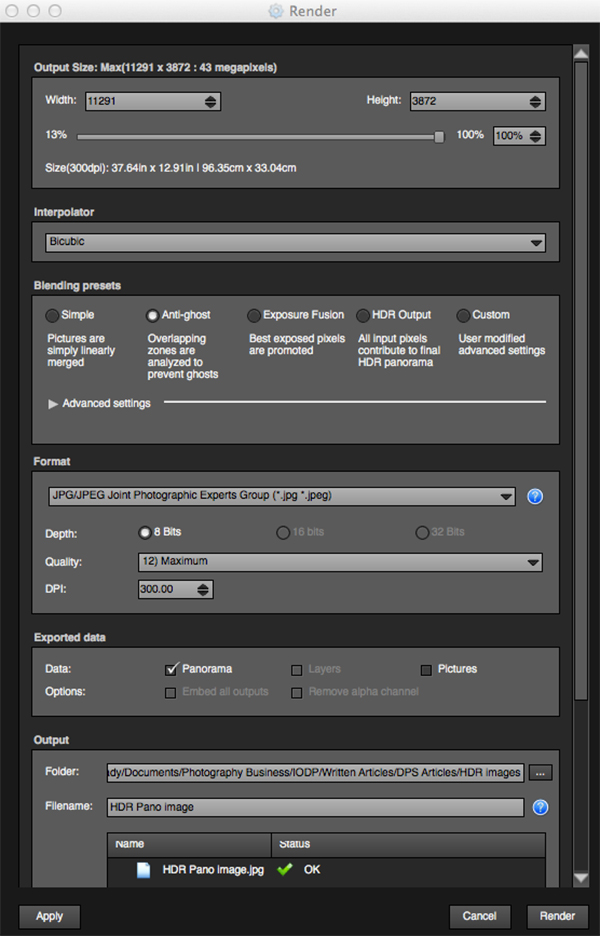
Render and Save screen on Autopano Giga

Render and Save screen on Autopano Giga

Interpolator – The interpolator is the method used to assemble the pixels of your panoramic image, and will determine the quality and sharpness of your image. There are a few different options here, but the most commonly used option is Bicubic. The others are useful for advanced stitching.

Blending settings – The purpose of the blending settings is to allow combining of the overlapped sections of your panoramic to look smooth and seamless. You will notice the following presets:

  • Simple – This is fast, but it is possible that defects may be seen where the areas overlap.
  • Anti-ghost – Conserve the image’s strong characteristics (stops, lines, curves) when mixing while automatically removing objects that have moved
  • Exposure fusion – To be used if the panorama was created with a set of bracketed shoots. Keeps the best of different exposures.
  • HDR output – To be used by users who wish to create a “.hdr” format file in order to create post-production or special effects. Don’t use this on these images if they have already been processed as HDR images.
  • Custom – This is enabled when you manually change the parameters and they no longer correspond to a profile.

On the advanced settings, I generally leave that on the default.

Some of the features that I appreciate in Autopano Giga are as follows:

Exposure and colour blending – The software works hard at sorting out colour and exposure in the blended images. In the past, one of the worst problems with photo stitching was that sometimes the colour or exposure drifted and there was banding in the scene where the light or colour changed. This is a non-issue in Autopano Giga.

Panoramic detection – Sometimes I have shot more than a few panoramic images. When I get back to my computer, I can’t always see or remember which images were which. No problem, you can simply point Autopano Giga to a folder and it will detect all panoramics in that folder.

You can shoot freehand – The software has some really good functionality built-in that can work out multiple viewpoints. So, if you shoot a panoramic without using a tripod or a pano head, the software will be able to detect the scene and make adjustments for it, within reason. Nice to have though, I have shot many handheld panoramic and then dropped them into Autopano and they stitched quite easily.

Format

This section allows you to determine the format in which you want your image to be saved. The two formats I use most are TIFF and JPEG. TIFF is an uncompressed file (which means all the information is still in the file, this is great if you are planning to print the image large) The downside to TIFF is that the files are big. JPEG is a compressed format, that means that some image information has been discarded, the quality will still look the same to the naked eye, but if you print a JPEG image up really big, you may notice some image degradation. Depending on your final output and your space constraints you can choose the format that works best for you. Take the quality up to 12 and set the DPI to 300. This will ensure that you have the best quality image saved.

Output

On this screen, the software needs to know where to save your panoramic and what you want to call it. Choose your destination folder and name the file. Once this is done (it sounds more complicated than it is) click on the render button and the software will begin rendering your image. Depending on the size of the files being stitched, this rendering process can take a few minutes. Once complete, a screen will pop-up to let you know that the image is now rendered.

Edit the final image in Lightroom or Photoshop

Your image is now stitched together, but the final step in the process is to edit the image in your choice of editor. You may want to correct any perspective distortion in Photoshop using the transform tools. If your panoramic image is of a cityscape you will want to make sure that your horizon line is straight and that the buildings are vertical in relation to the horizon. From there you can follow your normal image editing workflow. Once you are done, you will have a fantastic, high resolution, panoramic image.
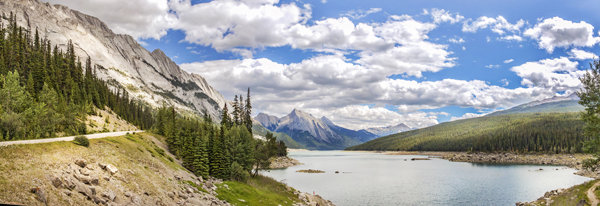
Final edited panoramic image of Medicine Lake in the Canadian Rockies

Final edited panoramic image of Medicine Lake in the Canadian Rockies

My comments on Autopano Giga

Autopano giga has made my editing and processing time much quicker and easier. I do a fair amount of panoramic photography, and the time saving when using this software is significant. I have used it to photograph landscape scenes, hotel rooms, building exteriors and architectural photography. It works exceptionally well in all of those areas. If you make sure that you overlap the images enough, it will stitch your images with ease.

The editing process in Autopano Giga is also very easy to use. Simply click on the projections to see how your image looks, make a choice, and you are done. You can make some technical adjustments within the editing area, but I recommend only doing that if it is absolutely essential.

The perspective control of Autopano Giga is fantastic. For the most part, the final stitched images look correct and I almost never pick up an error on the stitch. It is always a good idea to zoom in to the image to make sure that there are no issues like duplicated areas or bad stitches. This is not normally a problem if your overlap is good.

Autopano Giga is a great tool and if you enjoy shooting panoramic images, download a trial and see how it works for you. Panoramic photography is a lot of fun, I am always excited when I see the final stitched image, very often it is not what I was expecting and thats part of the excitement of these types of images. Having a tool that takes the frustration out of the process is a great advantage. So, go out there and experiment.

googletag.cmd.push(function() {
tablet_slots.push( googletag.defineSlot( “/1005424/_dPSv4_tab-all-article-bottom_(300×250)”, [300, 250], “pb-ad-78623” ).addService( googletag.pubads() ) ); googletag.pubads().enableSingleRequest();
googletag.pubads().disableInitialLoad();
googletag.pubads().collapseEmptyDivs( true );
googletag.enableServices();
} );

googletag.cmd.push( function() { googletag.display( ‘pb-ad-78623’ ); } );

googletag.cmd.push(function() {
mobile_slots.push( googletag.defineSlot( “/1005424/_dPSv4_mob-all-article-bottom_(300×250)”, [300, 250], “pb-ad-78158” ).addService( googletag.pubads() ) ); googletag.pubads().enableSingleRequest();
googletag.pubads().disableInitialLoad();
googletag.pubads().collapseEmptyDivs( true );
googletag.enableServices();
} );

googletag.cmd.push( function() { googletag.display( ‘pb-ad-78158’ ); } );

The post Walk Through and Review of Autopano Giga – Image Stitching Software by Barry J Brady appeared first on Digital Photography School.


Digital Photography School

 
Comments Off on Walk Through and Review of Autopano Giga – Image Stitching Software

Posted in Photography


In the Spotlight: Sony Alpha 7S Review posted

03 Mar

The Sony Alpha 7S is a full-frame interchangeable lens camera sporting a 12.2MP CMOS sensor. It is identical in body design to the Sony a7 and Sony a7R, but don’t let that fool you. Unlike the other two, the a7S is specially geared toward video and low-light shooters. It’s capable of 1080/60p video with full-sensor readout and can turn out uncompressed 4K footage to an external recorder over HDMI. Read review

Articles: Digital Photography Review (dpreview.com)

 
Comments Off on In the Spotlight: Sony Alpha 7S Review posted

Posted in Uncategorized