RSS
 

Posts Tagged ‘REVIEW’

Tokina AT-X 11-16 Pro DX II Review: Best Value from Wide Angle

09 Jun

Tokina 11-16mm f2.8 is an ultra wide angle lens for crop sensor camera bodies (DX) with a moderately fast constant aperture of f2.8. It is Tokina’s top of the line lens (AT-X) with an internal focusing (IF) and Super-low Dispersion glass (SD). It is available in Canon, Nikon and Sony A mounts. Due to its focal length and fast aperture, Continue Reading

The post Tokina AT-X 11-16 Pro DX II Review: Best Value from Wide Angle appeared first on Photodoto.


Photodoto

 
Comments Off on Tokina AT-X 11-16 Pro DX II Review: Best Value from Wide Angle

Posted in Photography


Motorola Moto X Force / Droid Turbo 2 camera review

03 Jun

The Moto X Force is the international version of the Verizon-exclusive US model Droid Turbo 2 and the current flagship model in the Moto line. With a Sony 1/2.4-inch 21MP IMX230 sensor, F2.0 aperture, 4K video and a flash-equipped 5MP front camera, the Force’s imaging specification is very similar to the Moto X Style. However, it comes with higher-end processing components, including a Qualcomm Snapdragon 810 chipset and 3GB RAM.

$ (document).ready(function() { SampleGalleryV2({“containerId”:”embeddedSampleGallery_8561932100″,”galleryId”:”8561932100″,”isEmbeddedWidget”:true,”standalone”:false,”selectedImageIndex”:0,”startInCommentsView”:false,”isMobile”:false}) });

DPReview smartphone reviews are written with the needs of photographers in mind. We focus on camera features, performance, and image quality.

The Moto X Force’s stand-out feature is its AMOLED display. At 5.4″ it is a little smaller than the Moto X Style’s 5.7″ IPS variant but offers Motorola’s new ShatterShield protection which means it’s guaranteed not to crack or shatter. The device body is water-resistant with a solid metal frame and a back that is covered with a rubberized material, making the Moto X Force an ideal phone for use in rougher surroundings. 

Key Photographic / Video Specifications

  • 21MP 1/2.4-inch SONY IMX230 BSI CMOS sensor
  • F2.0 aperture
  • 4K video
  • Dual-LED flash
  • 5MP wide angle front camera with flash

Other Specifications

  • 5.4-inch Quad-HD AMOLED display (540 ppi) with ShatterShield protection
  • Qualcomm Snapdragon 810 Processor with 2.0 GHz octa-core CPUs
  • 3GB RAM 
  • 32/64GB of storage
  • MicroSD support up to 2TB
  • 3760 mAh battery with quick and wireless charging technology (Qi and Powermat)
  • Water-resistant

Our 9-page review

We’ve considered every aspect of the Motorola Moto X Force with the photographer in mind. We examined the user interface of the native camera app and its special features. We experimented with the camera’s performance when taking stills and video, and had a play with the device’s many special feature modes.

Articles: Digital Photography Review (dpreview.com)

 
Comments Off on Motorola Moto X Force / Droid Turbo 2 camera review

Posted in Uncategorized


Setting new standards: Nikon D5 Review

02 Jun

Introduction

The Nikon D5 is the company’s flagship action-oriented DSLR, sporting a 20.8MP full-frame sensor, 153-point autofocus system and a full-size, double-grip chassis that is both tough as nails and exceedingly comfortable to use. Though the core build of this camera remains very similar to the D4S, the sensor and autofocus system are entirely new and – as we’d expect – designed with speed and reliability in mind.

Nikon D5 Key Specifications

  • All new Nikon-designed 20.8MP full-frame image sensor
  • Expeed 5 processor
  • All new 153-point phase detection autofocus system with 99 cross-sensors
  • Automated autofocus fine tune
  • Native ISO range now stretches from 100-102,400
  • 12fps continuous shooting with full autofocus and autoexposure
  • 4K video recording
  • Offered in dual CF and dual XQD memory card configurations
  • Touchscreen functionality during both stills and video shooting
  • CIPA rating of 3,780 shots per charge using the same EN-EL18a battery as D4S

Due to its large size and tip-top placement in Nikon’s lineup, the D5 originally struck me as a somewhat intimidating camera to put through a thorough review. But really, with a little bit of work to get it set up the way I like and the development of some muscle memory as to where all the proper buttons are, the D5 has proven to be one of the most reliable, and as such, one of the least stressful cameras I’ve ever had the pleasure of using. Of course, that doesn’t mean that it isn’t meant to be put through stressful situations. Quite the opposite.

Here’s a quick comparison of the key specs of the D4S, D5 and 1D-X II.

  Nikon D4S   Nikon D5  Canon 1D-X II
MSRP $ 6499 $ 6499 $ 5999
Sensor 16.2MP CMOS 20.8MP CMOS 20.2MP CMOS
ISO range
(native)
100-25,600 100-102,400 100-51,200
AF points 51 153 61
RGB metering sensor resolution 91k pixel 180k pixel 360k pixel
LCD 3.2″ 920k-dot 3.2″ 2.36M-dot touch-enabled 3.2″ 1.62M-dot touch-enabled
Burst rate 11 fps 12 fps 14 fps
Video 1080/60p 4K/30p 4K/60p
Battery life (CIPA) 3020 shots 3780 shots 1210 shots
Dimensions 160 x 157 x 91mm 160 x 159 x 92mm 158 x 168 x 83mm
Weight 1350 g 1405 g (XQD) 1530 g

Clearly, there are some exciting innovations hidden beneath the D5’s skin, but in the end, it’s likely not the most exciting camera to the average consumer. So in an age of decreasing camera sales, why does Nikon bother to continue producing such machines? Well, in the most extreme of situations, phones and lesser digital cameras will simply be unable to capture the same sorts of moments that flagship cameras like the D5 are, from the get-go, built to capture. 

2016 is an Olympic year, and it’s not a coincidence that this year has seen new flagship DSLRs from from both Canon and Nikon.

Of course, the D5 isn’t just for shooting the Olympics. Processed to taste from Raw. Photo by Carey Rose. Nikon 135mm F2D | F4 | 1/200 sec | ISO 400

Here is the beef

There’s no denying that the Nikon D5 is one beefy camera. Without a lens, it weighs 1405g, or just over three pounds. But there’s a good reason for that. The D5 is over-engineered on purpose – it’s built to take a knock, a drop or a flying rock kicked up from a dirt-bike. It might even take a bullet, but we’re not really allowed to test that. And with a properly sealed lens attached, the D5 should also stand up to a downpour and freezing conditions with ease. This camera comes with a tough magnesium-alloy shell, one that feels like you could pound nails with (we didn’t try).

The D5’s robustness means I can focus more on the action and less on whether or not I’m going to hurt the camera. Processed and cropped to taste in Adobe Camera Raw. Photo by Carey Rose. Nikon AF-S 300mm F4 PF | F4 | 1/2000 sec | ISO 200

Another contributor to the D5’s beefiness is its battery. It’s CIPA-rated to 3,780 shots, which not only promises an absurd amount of shooting between charges, but is also a sign of increased efficiencies within the camera. Despite more megapixels, a faster burst rate and a more computationally intensive autofocus system, the rating has increased compared to its predecessor, which uses the same battery pack. (Fun fact: to save you the trouble of opening your calculator app, the CIPA rating of 3,780 shots actually only translates to five minutes and fifteen seconds of shooting at its burst rate of 12fps.)

The Evolution

I’m a long-time Nikon shooter, but not one that’s personally invested in pro-level bodies from the Dx series. At first, if you’ve used even a semi-pro body from Nikon’s recent past, you’ll feel familiar with the D5. But when you get more familiar with the camera (and as we cover in detail on our ‘Body & Design’ page), Nikon’s made some changes to the button layout of the D5 that will have some users scratching their heads, and others praising the ergonomic improvements from the added level of button customization.

Streetlight-and-strobe-lit. Processed to taste from Raw. Photo by Carey Rose. Tamron 85mm F1.8 SP VC | F1.8 | 1/125 sec | ISO 12800

In summary, the D5 is a camera that will be lusted over by a lot of enthusiasts, but largely abused by its intended customer base – working professionals. These photographers will simply pick it up, do their best to re-assign all their buttons the way they had re-assigned them on their D4S’s, and get to work. For long-time sports shooters and wedding photographers, a more comprehensive rethink and redesign of cameras like this would probably not go over well.

Instead, the evolving Dx line continually provides meaningful updates that will make it easier for established pros to capture images that they already know how to take. In this vein, the D5 is indeed a worthy upgrade and successor to the D4S for a number of reasons. So without further ado, let’s take a closer look to find out why.

Articles: Digital Photography Review (dpreview.com)

 
Comments Off on Setting new standards: Nikon D5 Review

Posted in Uncategorized


Fujifilm X70 User Review: Sweet for Street

01 Jun

Fujifilm x70 is the newest little beast in Fujifilm lineup of premium compact cameras. This camera is targeted towards enthusiast and professional photographers (thanks to retro styling and large APS-C sensor) who want to travel light and want image quality at the same time. Fuji x70 is a trade-off between the legendary Fujifilm x100T and more travel oriented point and Continue Reading

The post Fujifilm X70 User Review: Sweet for Street appeared first on Photodoto.


Photodoto

 
Comments Off on Fujifilm X70 User Review: Sweet for Street

Posted in Photography


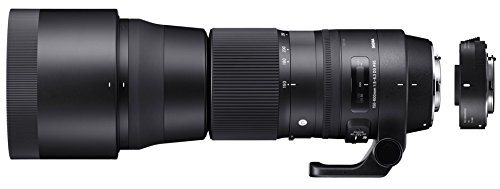
Review of the Sigma 150-600mm Contemporary Lens Plus TC-1401 Teleconverter Bundle

31 May

One of my favorite subjects to photograph is wildlife, so when asked to review the Sigma 150-600mm lens, I was excited about the opportunity to see how its results compared to my Tamron 150-600mm.

Sigma 150-600mm

In addition, Sigma recently began offering a bundle for their 150-600mm with a 1.4x teleconverter. Since I shoot mainly with a Nikon D750 full frame, the lens bundled with a 1.4x TC interested me very much. The 1.4x TC makes the 600mm, an 840mm on a full frame camera, so in theory this allows my full frame camera to shoot wildlife with nearly the same zoom factor as a crop sensor. (Nikon crop sensors are 1.5 and Canon, 1.6)

There are two things to consider when looking at a new lens:

  1. First is its ease of use
  2. Second is the quality of its optics.

In this article I’ll be applying both of these considerations as I review Sigma’s new bundle, and make comparisons between the Sigma and Tamron lenses. All images in this article were captured with the Sigma 150-600mm with the 1.4x TC.

sigma-150-600-4

Focusing

The Tamron features a larger, thicker focusing ring than the Sigma, which makes it easier to manually focus the lens. As for the Sigma, it has an extra setting on the autofocus switch for manual override (MO) which combines autofocus with an option to manually focus. I did not notice any major difference in the focusing responsiveness between the two lenses. Both did a fair job when grabbing focus, though neither lens is going to focus as quickly as a much more costly 600mm prime lens. The minimum focusing distance on the Tamron is just slightly less than the Sigma – not a game changer, but nevertheless a plus for the Tamron.

Focus Limiter switch

While both lenses have a focus limiter switch, with settings between Full and 10m (Sigma) or 15m (Tamron) to infinity, the Sigma features a third option on the limiter switch for 10m to 2.8m. In my testing, this third option proved very useful and was easy to locate and use, in order to focus on closer objects much quicker.

Customization

A feature the Sigma lens offers that the Tamron does not is an extra customization switch, which provides for an optional USB docking station (purchased separately). This allows a photographer to create two customized setting for OS (Optical Stabilization), AF, and focus-distance limits, and can also be used to download firmware updates directly to the lens.

sigma-150-600-5

Zoom Lock

Both the Tamron and the Sigma have a locking switch to prevent zoom creep at 150mm. However, the Sigma can also lock at several other focal settings, and what is even better, a quick twist of the zoom ring will unlock the it, without having to fumble around to find the switch. (In some cases this might be the difference between capturing and missing a killer shot!)

I found that my Tamron lens crept more than the Sigma, but this could be caused by the fact that it is an older lens with more use. Still, the lock switch on the Sigma is a great feature, especially since one can “soft lock” at many focal lengths.

Image Stabilization

Both lenses have their own image stabilization systems: Tamron’s VC (Vibration Compensation) and Sigma’s OS (Optical Stabilization). The Tamron has a simple on and off for the VC, while the Sigma has two settings: #1 is the standard setting for normal lens movement, and setting #2 is used for hand-held panning on a vertical plane, which will correct for up and down movement in subjects, such as birds in flight.

sigma-150-600-3

Zoom Ring

The zoom ring on the Sigma turns counter clock-wise, which is no big deal for Canon shooters. But for Nikon users, this is opposite from the normal zoom rotation on most Nikon lenses. It’s not a big deal, but does take some getting used to.

Tripod Collar

Both lens come standard with a tripod collar, but the foot on the Sigma collar is much smaller than the Tamron’s. This is only a minor problem, but I found a solution for it. I added a 5 inch quick release plate to the foot, which makes a great handle to carry the Sigma lens, as well as a plate to connect to a tripod.

sigma-150-600-1

Image Quality

Here is where the comparison gets tougher, as both lenses are much sharper at the shorter focal lengths, and both are softer at the longer focal lengths. Both are sharper when stopped down to f/8 or f/9, than wide open. In my opinion, the difference in image quality between the two is negligible. There is no clear winner here, both having areas where they are slightly better than the other.

The addition of the 1.4x TC to the Sigma when stopped down, doesn’t seem to affect the image quality. The Sigma seems to have a clear advantage when it comes to chromatic aberration (CA), and even using the 1.4x TC there was noticeably less fringing in high contrast areas, when compared to the Tamron. Of course, CA is very easily corrected in Camera RAW or Lightroom when shooting in RAW.

sigma-150-600-7

sigma-150-600-6

Warranty

The advantage for warranty goes to Tamron, which offers a 6 year one, compared to 4 years with the Sigma. Still, in my opinion, both lenses are well constructed, and I am not convinced how much of an advantage that is, as most warranty issues show up early on.

1.4x Teleconverter

Adding the bundle of the 1.4x TC, and the 150-600mm Sigma can get your full frame camera back in the field when it comes to wildlife photography. While adding the teleconverter seems to slow the autofocus a bit, I shot with this bundle on both my crop sensor and full frame sensor cameras, and I believe the autofocus was more responsive on the full frame.

NOTE: Before purchasing the 1.4x TC, make sure the camera will autofocus at f/8. Many entry model DSLRs will not autofocus above f/5.6, so while this bundle may fit those cameras, manual focus will be necessary. Other models may only autofocus on the center focus point, and still others may have a limited number of focus points with the 1.4x TC.

Adding the 1.4x TC did seem to give a softer image when the lens was extended to 600mm (840mm), but if you stop down to f/10 to f/11 the images are nearly as sharp as at 600mm without the TC. Of course, stopping down means either using a slower shutter speed or a higher ISO, which may add some blur or noise to an image. I did find that the OS on the Sigma did a nice job of reducing camera shake, when hand holding at slower shutter speeds.

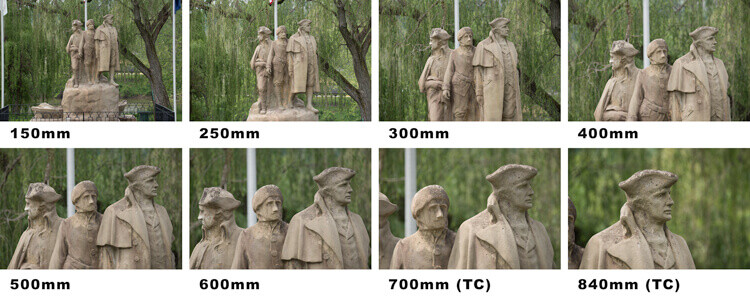
The above images show the range and extra reach of the Sigma 150-600mm with the last 2 images having the 1.4 TC added for an extra 240mm of reach.

The above images show the range and extra reach of the Sigma 150-600mm with the last two images having the 1.4x TC added for an extra 240mm of reach.

Tips

The rule of thumb when shooting with long focal lengths is to set the shutter speed equal to, or greater than the focal length, so remember that when by adding the 1.4x TC to a 600mm, one is now shooting at 840mm on a full frame, and 1260 mm on a crop sensor. For sharp images, a shutter speed over 1/1000th of a second is a must.

When carrying your camera with a large lens such as these 150-600mm lenses, it’s best to hold them by the lens rather than your camera. These lenses weigh much more than your camera and can put a lot of stress on the lens mount if carried by the camera. Likewise, when mounting on a tripod, always use the tripod collar to reduce stress on your camera’s lens mount (it is better balanced using the collar and won’t be front heavy).

Conclusion

Both the Tamron and Sigma lenses are well designed, and for the price range are great equipment investments. As mentioned earlier, I feel the image quality compared very closely. The Sigma does offer some useful extra features, out-weighing the issues of the smaller focusing ring and the counter-clockwise turning of the zoom ring for a Nikon shooter.

If you currently have a Tamron it may not be worth making a switch. But with the addition of the 1.4x TC, the Sigma bundle offers a great setup for full frame cameras, as well as crop sensors for some extra reach. So if you are looking for some extra reach (and we all are) the addition of the 1.4 TC to the Sigma may be a game changer. It was for me!

As a result of my review of the Sigma bundle for this article, I sold my Tamron 150-600mm, and purchased the Sigma 150-600mm bundled with the 1.4 TC, to extend the usage of my full frame Nikon D750, especially for photographing wildlife.

googletag.cmd.push(function() {
tablet_slots.push( googletag.defineSlot( “/1005424/_dPSv4_tab-all-article-bottom_(300×250)”, [300, 250], “pb-ad-78623” ).addService( googletag.pubads() ) ); } );

googletag.cmd.push(function() {
mobile_slots.push( googletag.defineSlot( “/1005424/_dPSv4_mob-all-article-bottom_(300×250)”, [300, 250], “pb-ad-78158” ).addService( googletag.pubads() ) ); } );

The post Review of the Sigma 150-600mm Contemporary Lens Plus TC-1401 Teleconverter Bundle by Bruce Wunderlich appeared first on Digital Photography School.


Digital Photography School

 
Comments Off on Review of the Sigma 150-600mm Contemporary Lens Plus TC-1401 Teleconverter Bundle

Posted in Photography


Back to the action: Nikon D500 Review

25 May

The Nikon D500 is a 21MP APS-C DSLR capable of shooting at up to 10 frames per second and featuring an autofocus system derived from the one in the D5. In other words, it’s exactly the kind of high-end DX format body that appeared to have become extinct with the D300S.

The six-and-a-half years that have passed since the D300S’ launch have seen the camera market move on considerably but the D500 does much to reclaim the position as one of the pre-eminent APS-C camera on the market.

As you might expect, much of the improved capability of the camera centers around sports and high-speed shooting, with significant upgrades to the shooting rate and autofocus system, but there are also major upgrades to the viewfinder, video capabilities and connectivity options which expand its utility beyond one particular niche.

Key Features

  • 20.7 MP APS-C (DX Format) sensor
  • 153 point AF module with 99 cross-type points
  • 180,000 pixel RGB sensor for metering and subject recognition
  • AF point joystick
  • 10 fps shooting for up to 200 shots (lossless compressed 14-bit Raw to XQD card)
  • 4K (UHD) video from 1.5x crop of sensor
  • 100% coverage viewfinder with 1.0x magnification
  • 2.36m dot tilt up/down touchscreen
  • Wi-Fi and Bluetooth connectivity with NFC for setup
  • Mic and headphone sockets
  • USB 3.0 connector
  • Anti-flicker option for working under artificial lighting

A good sport

Much of the D500’s capability is built around the ability to focus and shoot very quickly. Its 153-point AF module offers near full-width coverage and is linked to a 180,000 pixel RGB metering sensor to further improve its AF tracking capabilities. Interestingly, and like the D5, the D500’s AF system now offers two parameters for fine-tuning the autofocus tracking behavior, letting the user specify the type of subject movement and the correct response to another object blocking the targeted subject. Existing Nikons only let you specify duration, suggesting Nikon is trying to expand the range of shooting situations for which the AF system can be optimized.

Only 55 of the camera’s AF points can be directly selected and the D500 gains both a joystick and a touchscreen to make it as fast as possible to select the point you want to use. Add to this the ability to shoot up to 200 Raw frames before slowing down (if you use an XQD card), and it becomes obvious that the D500 is intended as a high-speed pro/semi-pro camera in a way the D7000 series never was.

How’s that for coverage? The D500 doesn’t just boast a lot of autofocus points, it also offers them across most of the width of the frame, which is useful whether you’re manually selecting a point or letting the camera track your subject.

The D500 also gains an anti-flicker option designed to ensure the camera shoots in-sync with the brightest point in the flickering cycle of artificial lights. It’s a feature we first saw on the Canon EOS 7D Mark II and we’d expect it to be particularly valuable for shooting indoor sports such as basketball.

Another sign that this is a true high-end camera is the inclusion of a larger viewfinder. Like previous DX00 class cameras it has 100% coverage but it also offers 1.0x magnification, which is the largest optical viewfinder we can remember seeing in an APS-C camera (electronic viewfinders are a different matter, since size and brightness isn’t constrained by sensor/mirror size).

The D500 can also shoot 4K video and includes both an input for using an external mic and a headphone socket for audio monitoring. The camera also offers a flat picture profile to provide more post-processing flexibility, on-screen highlight warnings and power aperture control that allows you to select and change the aperture when in movie mode. There’s no focus peaking option, though, and you can’t zoom-in while you record to confirm or adjust focus as you record.

Connectivity

One of the other big features Nikon is touting is its Snapbridge system that uses Bluetooth LE (a low-power variant of Bluetooth also known as Bluetooth Smart), and Wi-Fi to maintain a connection between the camera and a smart device. This includes the ability to auto-transfer images from the camera, as well as initiating the Wi-Fi connection for remote shooting or manual image transfer.

Context

To show where the D500 sits in the lineup, here are the major feature differences between it and the less expensive D7200, along with a comparison back to the D300S – not because we expect anyone to be choosing between them, but to show how much of a step forward the camera represents.

   Nikon D500 Nikon D7200 Nikon D300S
Sensor Resolution 21MP 24MP 12MP
AF points 153 (99 cross type) 51 (15 cross-type) 51 (15 cross-type)
Max frame rate 10 fps
  • 6 fps
  • 7 fps in 1.3x crop mode
  • 7 fps
  • 8 fps with battery grip
Buffer depths 200 lossless compressed 14-bit Raw

~17 14-bit Raw
~28 12-bit Raw

30 lossless compressed 14-bit Raw
Shutter durability rating 200,000  150,000  150,000
Viewfinder
  • 1.0x magnification
  • 100% coverage
  • 0.94x mag
  • 100% coverage
  • 0.94x mag
  • 100% coverage
Rear screen
  • 2.36m dots 3.2″
  • Tilting
  • Touch sensitive
  • 1.23m dots 3.2″
  • Fixed
  • 920k dots 3.0″
  • Fixed
Video Resolution
  • UHD/30p
  • 1080/60p
  • 1080/60p
  •  720/24p
Mic/Headphone? Yes/Yes Yes/Yes Yes/No
Wi-Fi? Yes (and Bluetooth) Yes No
Built-in flash? No Yes Yes
AF-On Button? Yes No Yes
Body construction Magnesium Alloy + Carbon fiber composite Magnesium Alloy + Carbon fiber composite Magnesium Alloy
Battery Life (CIPA) 1240 shots/charge 1100 shots/charge 950 shots/charge
Weight (Body Only) 760g 675g

840g

Review History

Review History
26 April 2016 Studio scene and Raw dynamic range published.
16 May 2016 Introduction, Body and Handling, Operation and Controls, Wi-Fi and Connectivity and Video pages published
25 May 2016 Autofocus, Loose Ends and Conclusion pages added. Review Finalized

Articles: Digital Photography Review (dpreview.com)

 
Comments Off on Back to the action: Nikon D500 Review

Posted in Uncategorized


Nikon D500: First impressions review

18 May

The Nikon D500 is a 20MP APS-C DSLR capable of shooting at up to 10 frames per second and featuring an autofocus system derived from the one in the D5. In other words, it’s exactly the kind of high-end DX format body that appeared to have become extinct with the D300S.

The six-and-a-half years that have passed since the D300S’ launch have seen the camera market move on considerably but the D500 does much to reclaim the position as one of the pre-eminent APS-C camera on the market.

As you might expect, much of the improved capability of the camera centers around sports and high-speed shooting, with significant upgrades to the shooting rate and autofocus system, but there are also major upgrades to the viewfinder, video capabilities and connectivity options which expand its utility beyond one particular niche.

Key Features

  • 20.7 MP APS-C (DX Format) sensor
  • 153 point AF module with 99 cross-type points
  • 180,000 pixel RGB sensor for metering and subject recognition
  • AF point joystick
  • 10 fps shooting for up to 200 shots (lossless compressed 14-bit Raw to XQD card)
  • 4K (UHD) video from 1.5x crop of sensor
  • 100% coverage viewfinder with 1.0x magnification
  • 2.36m dot tilt up/down touchscreen
  • Wi-Fi and Bluetooth connectivity with NFC for setup
  • Mic and headphone sockets
  • USB 3.0 connector
  • Anti-flicker option for working under artificial lighting

A good sport

Much of the D500’s capability is built around the ability to focus and shoot very quickly. Its 153-point AF module offers near full-width coverage and is linked to a 180,000 pixel RGB metering sensor to further improve its AF tracking capabilities. Interestingly, and like the D5, the D500’s AF system now offers two parameters for fine-tuning the autofocus tracking behavior, letting the user specify the type of subject movement and the correct response to another object blocking the targeted subject. Existing Nikons only let you specify duration, suggesting Nikon is trying to expand the range of shooting situations for which the AF system can be optimized.

Only 55 of the camera’s AF points can be directly selected and the D500 gains both a joystick and a touchscreen to make it as fast as possible to select the point you want to use. Add to this the ability to shoot up to 200 Raw frames before slowing down (if you use an XQD card), and it becomes obvious that the D500 is intended as a high-speed pro/semi-pro camera in a way the D7000 series never was.

How’s that for coverage? The D500 doesn’t just boast a lot of autofocus points, it also offers them across most of the width of the frame, which is useful whether you’re manually selecting a point or letting the camera track your subject.

The D500 also gains an anti-flicker option designed to ensure the camera shoots in-sync with the brightest point in the flickering cycle of artificial lights. It’s a feature we first saw on the Canon EOS 7D Mark II and we’d expect it to be particularly valuable for shooting indoor sports such as basketball.

Another sign that this is a true high-end camera is the inclusion of a larger viewfinder. Like previous DX00 class cameras it has 100% coverage but it also offers 1.0x magnification, which is the largest optical viewfinder we can remember seeing in an APS-C camera (electronic viewfinders are a different matter, since size and brightness isn’t constrained by sensor/mirror size).

The D500 can also shoot 4K video and includes both an input for using an external mic and a headphone socket for audio monitoring. The camera also offers a flat picture profile to provide more post-processing flexibility, on-screen highlight warnings and power aperture control that allows you to select and change the aperture when in movie mode. There’s no focus peaking option, though, and you can’t zoom-in while you record to confirm or adjust focus as you record.

Connectivity

One of the other big features Nikon is touting is its Snapbridge system that uses Bluetooth LE (a low-power variant of Bluetooth also known as Bluetooth Smart), and Wi-Fi to maintain a connection between the camera and a smart device. This includes the ability to auto-transfer images from the camera, as well as initiating the Wi-Fi connection for remote shooting or manual image transfer.

Context

To show where the D500 sits in the lineup, here are the major feature differences between it and the less expensive D7200, along with a comparison back to the D300S – not because we expect anyone to be choosing between them, but to show how much of a step forward the camera represents.

   Nikon D500 Nikon D7200 Nikon D300S
Sensor Resolution 20MP 24MP 12MP
AF points 153 (99 cross type) 51 (15 cross-type) 51 (15 cross-type)
Max frame rate 10 fps
  • 6 fps
  • 7 fps in 1.3x crop mode
  • 7 fps
  • 8 fps with battery grip
Buffer depths 200 lossless compressed 14-bit Raw

~17 14-bit Raw
~28 12-bit Raw

30 lossless compressed 14-bit Raw
Shutter durability rating 200,000  150,000  150,000
Viewfinder
  • 1.0x magnification
  • 100% coverage
  • 0.94x mag
  • 100% coverage
  • 0.94x mag
  • 100% coverage
Rear screen
  • 2.36m dots 3.2″
  • Tilting
  • Touch sensitive
  • 1.23m dots 3.2″
  • Fixed
  • 920k dots 3.0″
  • Fixed
Video Resolution
  • UHD/30p
  • 1080/60p
  • 1080/60p
  •  720/24p
Mic/Headphone? Yes/Yes Yes/Yes Yes/No
Wi-Fi? Yes (and Bluetooth) Yes No
Built-in flash? No Yes Yes
AF-On Button? Yes No Yes
Body construction Magnesium Alloy + Carbon fiber composite Magnesium Alloy + Carbon fiber composite Magnesium Alloy
Battery Life (CIPA) 1240 shots/charge 1100 shots/charge 950 shots/charge
Weight (Body Only) 760g 675g

840g

Review History

Review History
26 April 2016 Studio scene and Raw dynamic range published.
16 May 2016 Introduction, Body and Handling, Operation and Controls, Wi-Fi and Connectivity and Video pages published

Articles: Digital Photography Review (dpreview.com)

 
Comments Off on Nikon D500: First impressions review

Posted in Uncategorized


Above and beyond: Lenovo Moto G Plus first impressions review

17 May

The Moto G Plus is a brand new model in Motorola’s Moto G mid-range series, but its camera specification looks pretty much top-notch. A 1/2.4-inch Omnivsion OV16860 16MP sensor with a large pixel size of 1.34um is paired with a fast F2.0 aperture. Its contrast detect autofocus is supported by on-sensor phase detection and a laser to measure subject distance. A dual-LED flash is on board for shooting in very dark conditions, and in the camera app a new Professional mode allows for manual control over the most important shooting parameters like shutter speed and ISO.

The new Professional mode allows for manual control over shutter speed and other shooting parameters via a range of virtual dials. It’s also possible to display just one dial at a time.

We have had the chance to use the Moto G Plus for a couple of days before launch and shot a good number of samples in a variety of situations. Read on for our first impressions of the new smartphone and its camera. 

Image Quality

In bright light the Moto G Plus 16MP camera module does a very good job at resolving detail. Thanks to very well balanced sharpening and noise reduction, fine textures and low contrast detail, such as the trees in the distance in the left sample below, are rendered very nicely. The lens in our test unit is sharp,  with only some minor softness toward the edges. Skin tones look natural and color is overall pleasantly neutral, without any white balance issues in natural light. 

 ISO 64, 1/1236 sec  ISO 64, 1/137 sec
 100% crop  100% crop

Some luminance noise is visible in blue skies but it is finely grained and not too intrusive. In the shadow areas some smearing of detail is noticeable, but again this is well within acceptable limits. Shadow noise is very well controlled as well.

 ISO 64, 1/2836 sec  ISO 64, 1/450 sec
 100% crop  100% crop

The well-balanced approach toward noise reduction is maintained throughout the ISO range and while noise and the effects of noise reduction inevitably become more evident in lower light the Moto G Plus performs very well in dimmer conditions. 

 ISO 160, 1/33 sec  ISO 400, 1/30 sec
 100% crop  100% crop

In lower light shutter speeds are reduced down to 1/15 sec which, without optical image stabilization, can result in the occasional shaky image. However, as long as you keep your hands steady the Moto captures very good detail, color and exposures in lower light. Both images below were shot in fairly dim conditions. In the one on the right the camera deals particularly well with the mix of artificial and very low natural light.

 ISO 640, 1/20 sec  ISO 800, 1/15 sec
 100% crop  100% crop

Like on the higher-end Moto models, the Moto G Plus offers a multi-frame Night Mode that kicks in when things get too dark. This allows for decent exposures of even very dark scenes, such as the image on the left below which was captured in a museum in very low light. We also liked the Moto G Plus flash performance which delivered well-exposed images with good color and detail during our brief test. 

 ISO 1250 1/15 sec  ISO 2000, 1/15 sec, flash on
 100% crop  100% crop

Special modes

The Moto G Plus comes with the same panorama mode as previous Moto devices and image output is very similar. Stitching is generally very good but panorama mode does not deal well with moving subjects in the scene. At under 3000 pixels the output size is very small. 

 Vertical panorama, 2472 x 704 pixels

HDR mode works in the conventional way and combines several exposures into one. On the Moto G Plus the effect is much more pronounced in shadow areas, which are noticeably lifted while highlights are only recovered minimally. 

ISO 64, 1/1196 sec,  HDR off  ISO 64, 1/1158 sec, HDR on

In video mode the Moto G Plus can capture 1080p footage at 30 frames per second that is digitally stabilized. Detail is good, the autofocus tends to be stable and the stabilization works efficiently, making for smooth panning and stable hand-held recording.

First impressions

During our testing we were impressed with the image output produced by the Moto G Plus. The large pixels in combination with very well-balanced image processing result in image quality that we would typically expect from devices in a higher price category. Images show good detail and well-controlled noise levels across the ISO range. Colors are pleasantly natural, even in difficult light situations, and thanks to its night mode the Moto is capable of capturing decent exposures even at very low light levels. On the downside, in dim conditions camera shake can lead to some image blur, though it is typically only noticeable at a 100% view.

The new Professional mode is good news for those mobile photographers who want maximum control over the capture process, and the large 1080p display is nice for viewing and composing images. The fingerprint sensor performs very swiftly and increases the security of your image and video files that are stored on the device. The plastic back is in line with a mid-ranger but overall the Moto G Plus looks like a great option for consumers who want excellent camera performance without spending money on a flagship device.

Articles: Digital Photography Review (dpreview.com)

 
Comments Off on Above and beyond: Lenovo Moto G Plus first impressions review

Posted in Uncategorized


Software Review: Macphun Creative Kit 2016

17 May
Image edited in Macphun Intensify CK

Boneyard Beach, Botany Bay Plantation, South Carolina. Edited in Macphun Intensify Creative Kit.

My philosophy on photography has always been that photography starts with the push of the shutter button, but it does not end there. Back when film was king, I spend a lot of time in the darkroom, learning and mastering darkroom techniques, and printing my work. With the advent of the digital age, those processes moved to the digital darkroom. Always one for working smarter, not harder, I have often employed plugins with Photoshop to make the work of editing my images a bit easier. I’m a big fan of plugin suites that offer a soup to nuts solution for editing images, so when Macphun released its Creative Kit 2016, I was excited to give it a try.

Note: all Macphun products are made for Mac only.

Macphun’s Creative Kit 2016 includes six plugins for Photoshop or Lightroom. This is a comprehensive collection that can handle all aspects of image editing, from color and contrast adjustments, to black and white conversion, to removing unwanted elements, sharpening, and noise reduction. The six modules are Intensify, Tonality, Snapheal, FX Photo Studio, Focus, and Noiseless. I’ll explain each one individually to give you an idea of the capabilities of each. Macphun Creative Kit, as the name implies, is only for Mac users, and is currently on sale at Macphun for $ 129 (USD)

Intensify CK
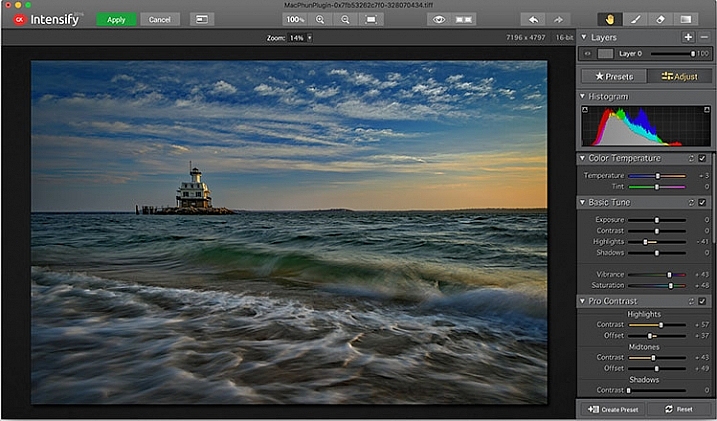
Macphun Intensify CK application window

The Macphun Intensify CK application window.

Macphun Intensify is a plugin in the same vein as Topaz Adjust. You can adjust everything from color temperature and saturation, to contrast, structure, and details.  When you open Intensify, your image will be in the center of the screen with a tool bar on the right, which can alternate between presets and manual adjustments.

The list of presets is broken down into groups: Architecture, Black & White, Creative, Detail Enhancement, Image Tune, Landscape, and Soft. Within each group is a list of presets that pertain to the subject of the main group. For instance, within Landscape is Aerial Photo Enhance -2, Gloomy Day, Natural Enhance, Structured Scape, and Warm Day. When you select a preset, an amount slider appears underneath so you can adjust the amount applied to the image. You also have the option of manually adjusting all the sliders to tweak the preset to to your tastes.
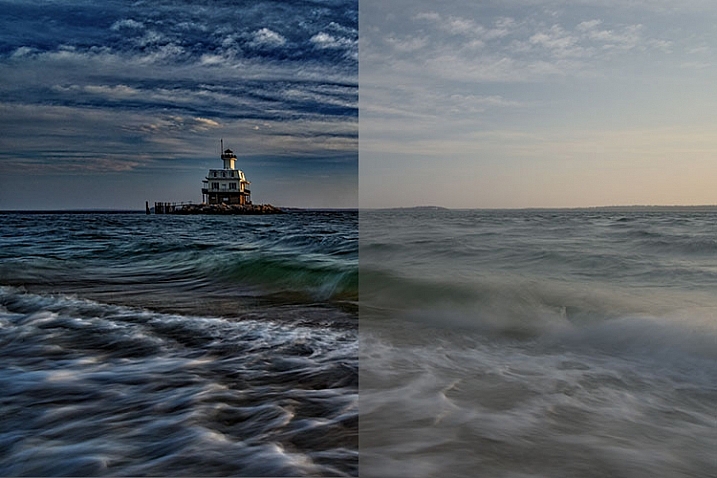
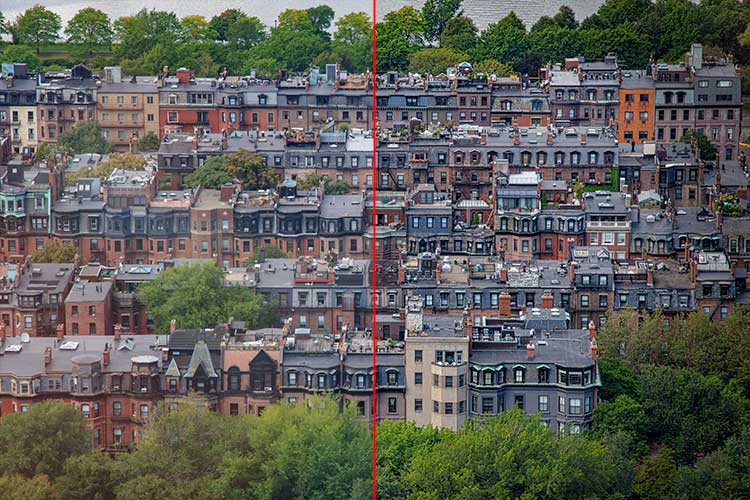
Macphun Intensify CK Comparison Image

Comparison of an image edited in MacPhun Intensify, before (right) and after (left).

While I found many of the presets to be a bit heavy handed, manual adjustments are easy to make, and gave me a much more satisfying result than simply clicking a preset. For a more in-depth look at Intensify, read MacPhun Intensify Pro Software Review. While Macphun Intensify CK is a newer version, the controls and presets are largely the same and Andrew Gibson does an excellent job of breaking them down.
Intensify-Architecture

Before (left) and after (right) Intensify CK

Snapheal CK
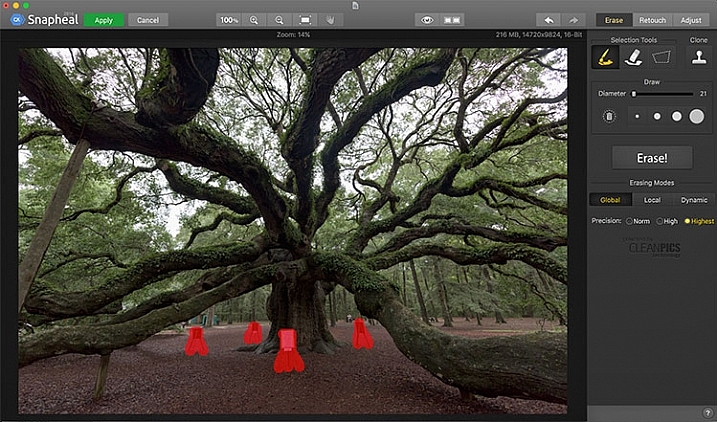
Macphun Snapheal CK application window

The Macphun Snapheal CK application window.

Snapheal CK may very well be the crown jewel of this collection. Think of the healing brush or clone stamp on steroids, and that’s what Snapheal CK is like. Snapheal CK is an amazingly simple way to remove unwanted objects from a scene. When you open Snapheal CK, You’ll notice a tool panel on the right, and a menu bar across the top. You’ll see zoom and move tools, an eyeball icon, which shows the object you’ve removed, a comparison button, arrows to step forward or backward, and finally – Erase, Retouch, or Adjust, which are the different modes you can work in. The selection tools at the top are a paintbrush, an eraser, and a marquee selection. There is also a cloning stamp tool.

Once you have your image in Snapheal CK, if you select Erase mode, you can either use the paint brush or the marquee tool to select the object you want removed from the scene. A red mask will appear over the object you’ve selected. The size of the paintbrush can be adjusted using the slider, or the bracket keys on the keyboard. If you paint in an area you don’t want removed, simply select the eraser tool and erase the painted area.

Image before Macphun Snapheal CK.

An image before using Macphun Snapheal CK. The signs in the scene were not allowed to be moved, so I was resigned to having to clone them out.

Underneath the selection tools, you’ll find the options for each tool, such as brush size, polygonal or free marquee, and for the clone stamp, diameter, softness, and opacity. Beneath the options, is a very large button clearly marked as Erase! Under the erase button are three erasing modes: Global, Local, and Dynamic, as well as three Precision options: Norm, High, Highest.

Once you’ve made your selection, you simply press the Erase button and Snapheal CK goes to work. While you wait, the status bar displays a variety of interesting facts to keep you entertained. It does take a few minutes to do its thing, even on my 2015 Macbook Pro with 16GB of RAM. After the process has finished, if the result is not to your tastes, try changing the erasing mode to one of the other modes. Each one behaves a bit differently and will produce a different result. The same goes for the Precision setting.

After Macphun Snapheal CK

The same image after being edited in Macphun Snapheal CK. The signs and other unwanted objects have been removed.

Retouch mode works similar to erase mode, but instead of erasing, it allows you to adjust the selected area for color, contrast, and more. Adjust mode is similar but instead of working on a selected area, it makes global adjustments to the entire image.

Even without the Retouch and Adjust modes, the object removal mode of Snapheal CK makes it worth the price of admission in my book, saving me time every time I need to clone or remove an object from an image for whatever reason.

Note: if you are a Lightroom user and want a more powerful cloning and healing tool without having to purchase Photoshop, this may be a good option for you to look at.

Tonality CK
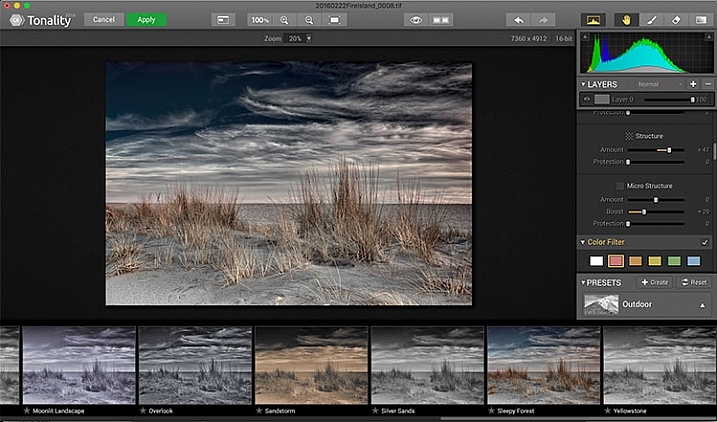
Macphun Tonality

The Macphun Tonality CK application window.

Macphun bills Tonality CK as, “The world’s most advanced black & white photo editor.”  With hundreds of presets available to you, as well as the ability to work in layers and adjust virtually everything about the image, there’s a lot of truth in that statement.

As you open Tonality CK, you will be presented with your image in the main window, a menu bar across the top, tool palette on the right hand side, and preset preview bar across the bottom.  The palette on the right hand side features all of the settings, including; layers, a histogram preview, adjustment sliders for color temperature, tone, clarity and structure, color filter, tone curve, split toning, glow, lens blur, texture overlay, vignette, grain, photo frames, and layer properties. There are a lot of variables to adjust to get exactly the look you want. Beneath these adjustments is a drop-down menu to select various presets, from groups including Basic, Architecture, Portrait, Dramatic, Outdoor, Street, Vintage, Film Emulation, Toning, HDR, a Favorites group, and a group for user defined presets.
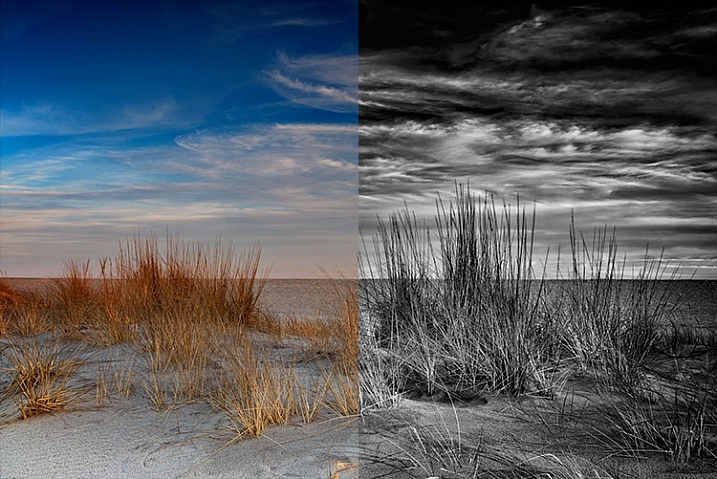
Macphun Tonality CK Comparison

Before (left) and after Macphun Tonality CK (right)

With the use of layers and individual adjustments, there are literally endless combinations and looks that can be creative with Tonality CK. I really like the amount of freedom I have in the editing images, and the ability to create layers with different effects, and mask them off if desired, takes that freedom to a whole new level. For a more in depth review of Tonality, Product Review: Macphun Tonality Black and White Photo Editor goes in depth. As with Intensify CK, Tonality CK is an update to the version reviewed, but both are similar enough that I found the review helpful when I first began using Tonality CK.

Tonality CK applied on a portrait

Tonality CK applied on a portrait

Focus CK
Macphun Focus CK application window

Macphun Focus CK application window.

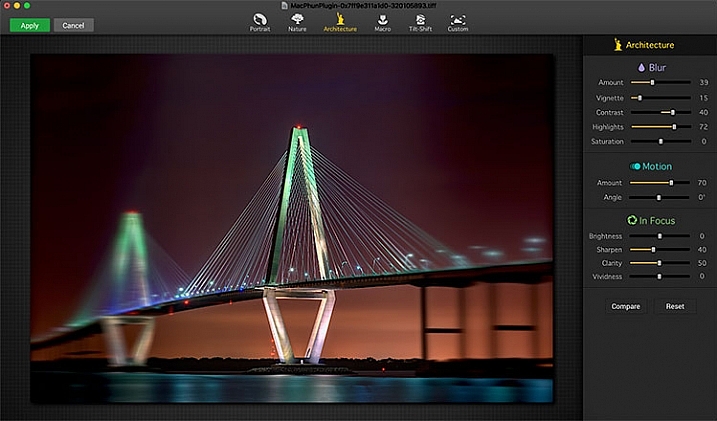
Macphun Focus CK is a plugin that allows you to create lens focus effects easily and quickly. The interface when the plugin is opened is a minimalistic one, with only six presets across the top of the screen, and your image in the main window underneath. The presets are as follows: Portrait, Nature, Architecture, Macro, Tilt-Shift, and Custom. Truth be told, Nature, Architecture and Tilt-Shift are all similar, in that the blur is similar to that created when using a tilt-shift lens. There are subtle differences in each preset, with the most notable being the angle of the blur. This is user-adjustable, however, as are several settings sliders, which are adjusted slightly differently according to the preset selected. The same can be said for the Portrait and Macro settings, except instead of a parallel blur field, they create a circular blur field.

When you select a preset, a series of sliders appear on the right side of the screen, in three groups. The first group is Blur. This set of sliders, as you may have deduced, adjusts the image in the blurred area. The settings include amount of blur, vignette, contrast, highlights, and saturation.  The next group of sliders is Motion, which allows you to add motion to the blur, rather than simply a normal blur. Here you can adjust the amount and the angle of the motion. The final group of sliders is for the In Focus area of the image, and allows you to adjust the brightness, sharpness, clarity, and vividness of this area of the image.  Beneath these sliders are a Compare button, to allow you see before and after the blur is applied, and a Reset button, to allow you to start over if you don’t like what you’ve done.
Before and after comparison of Macphun Focus CK

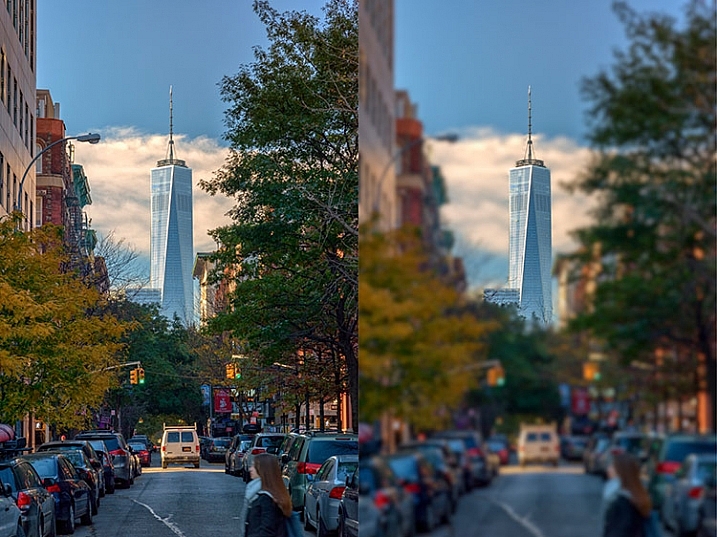
Before (right) and after (left) Macphun Focus CK.

The most fun part of Focus CK is the Custom setting. The custom setting allows you to mask off the areas of the image you wish to remain sharp, using the paint brush. As you paint, you’ll see the effect on the image. There is an eraser tool if you paint in an area you’d like to remain blurred. This custom setting allows you to really create different looks within your image. Have two objects at different depths, and want them both sharp and everything else blurry? No problem. Simply mask each object and adjust the blur of the out of focus areas to taste.

The biggest drawbacks in Focus CK is in this custom mode. There is no ability to zoom in on the area you are masking to do fine detail work, and the brush will not go smaller than 20 pixels, making it very difficult to mask off fine detail, such as the antenna on the building in the example above. If those two deficiencies could be rectified, I could see using Focus CK much more in my personal work.
Focus-CK-Portraiture

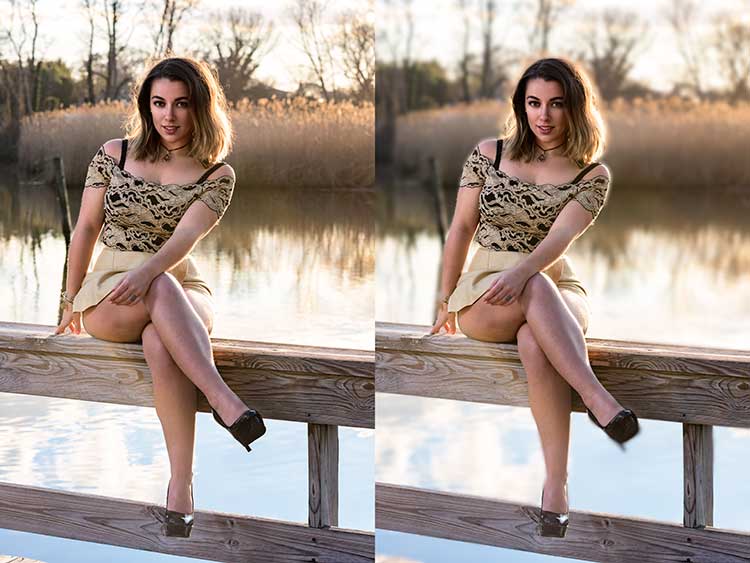
Focus CK applied to a portrait

Focus-CK-Macro

Focus CK applied to a macro image

Noiseless CK

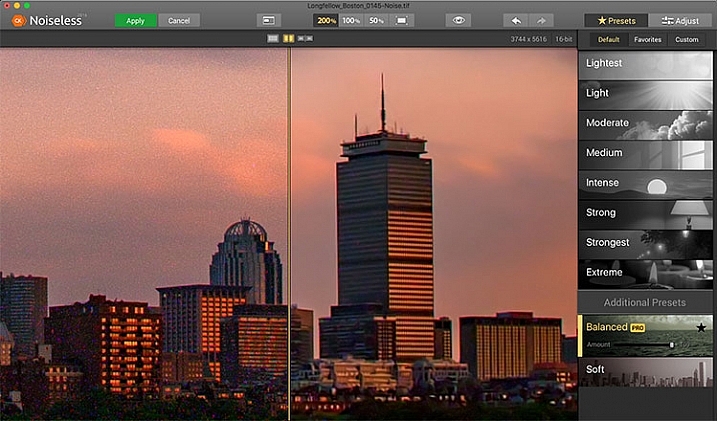
Noiseless CK is Macphun’s entry into the digital noise removal arena. Like the other plugins in the Macphun Creative Kit, the interface features a large window for your image, a button bar across the top, and a palette of sliders on the right, that allows you to adjust a wide array of settings and customize the noise reduction to your preference.
Macphun Noiseless CK application Window

Macphun Noiseless CK application window.

To test out Noiseless CK, I dug out an image I created several years ago that has the worst noise I’ve ever had in an image. It was a four minute exposure, and I had neglected to turn on long exposure noise reduction. I found Noiseless CK was able to subdue the noise pretty easily.

Noiseless is simple to use. Open your image in Photoshop or Lightroom and start the Noiseless Plugin. On this image, I started at the Lightest preset, just to see how that would do with the noise, knowing that most likely it wouldn’t come close to reducing it enough for my taste, due to the heavy noise within the image. As I worked my way down the list of presets, I found that once I hit the Strong preset, it really reduced detail in the image, which I wanted to try and avoid. In addition to the presets ranging from Lightest to Extreme, there are also two additional presets, called Balanced and Soft. The Balanced setting seemed to work the best on this image. There is also an Amount slider to adjust the application of noise reduction using that setting.  From there, I could also select the Adjust tab, and individually adjust the settings individually to get a look I was happy with. If I wanted to save those settings, I can create a custom preset of my own for future use.

Before and after editing in Macphun Noiseless CK

Before (right) and after (left) comparison of an image edited in Macphun Noiseless CK.

I found that using some of the presets resulted in a greater loss of detail than I was happy with, but once I went into the Adjust tab and started using the sliders, I was able to get some detail back, and get a look I was happy with. As I said, this was an extreme image I was using to test, and I have to say Noiseless CK did a great job with it. The ability to adjust the noise reduction using both the amount slider and individual settings sliders, gives me the confidence that Noiseless CK can handle almost anything I need it to.

FX Photo Studio CK
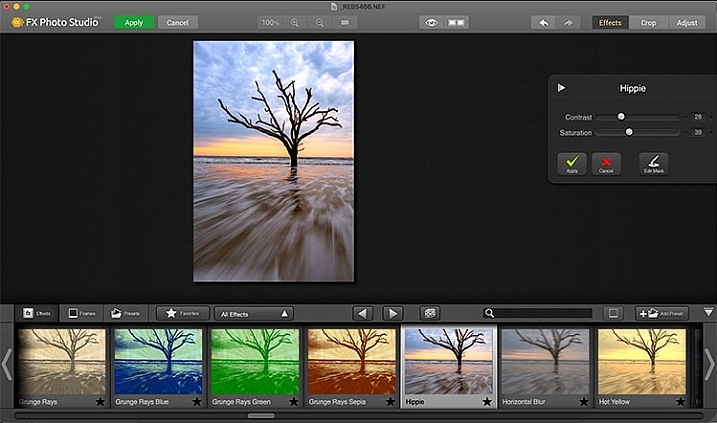
Macphun FX Photo Studio CK

Macphun FX Photo Studio CK application window

FX Photo Studio Ck is a special effects generator and photo editor that, at first glance, looks relatively simple and easy, but doesn’t offer many options. However, if you dig a little deeper, you’ll see there is more than meets the eye here. It offers over 200 different effects and frames, as well as the ability to create your own.

When you first open an image in FX Photo Studio CK, you’ll see your image in the main window, and underneath is a preview bar of presets. You will also notice the menu bar above, and on the right end of that, a mode selector, allowing you to select from Effects, Crop, and Adjust. The presets for Effects include Effects, Frames, and Presets, with Presets in this case meaning user-defined presets. The Effects tab also features a drop down menu with 20 groups of effects. These include Art, Black & White, Blur, Color Fantasy, Color Lenses, Color Strokes, Color Temperature, Cross Processed, Distortion, Glow, Groovy Lo-Fi, Grunge, Hollywood FX, Hue, Photo Styles, SFX, Sketch, Symmetry, Vignettes, and Vintage. When you select the Frames tab, you’ll be presented with a preview of frames below, and a drop-down menu to select different groups of frames appears, allowing you to select between Art, Classic, Grunge & Analog, and Photo Borders.
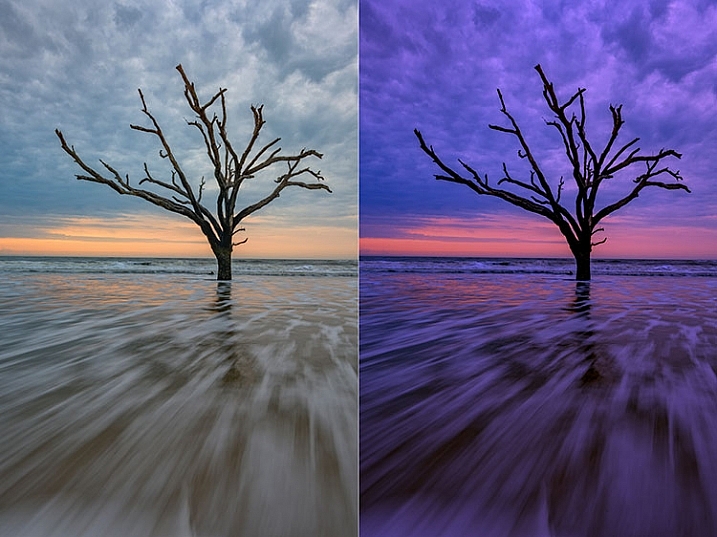
Before and after comparison of Macphun FX Photo Studio CK

An image before editing in Macphun FX Photo Studio CK on the right, and after, on the left.

To be honest, most of the effects and frames do not appeal to me. But there is more to FX Photo Studio CK than just presets and frames. At the right of your image are adjustments for the various effects. These adjustments will vary depending on the effect chosen, and is usually a minimal control of one or two sliders to adjust the effect. You can combine effects, by selecting one, applying it, and then selecting another one to apply to that. FX Photo Studio CK lacks the layer capabilities of Tonality, which would really make it easier to combine multiple effects and adjust how they are applied together. As it stands now, you must commit to one effect before adding another. One great feature of FX Photo Studio CK is the ability to edit the mask on the image, so you can apply the effect only to areas of the image you want, and hide the effect in other areas.


FXPhotoStudio-Frame-Grunge

FXPhottoStudio-Color-Charcoal-Sketch

FXPhotoStudio-Groovy-Lo-Fi-Napa

If you wish to make further adjustments, you can select the Adjust tab, which opens a palette of sliders including Temperature, Saturation, Hue, Exposure, Brightness, Contrast, Shadows, Highlights, Sharpen, Red, Green, and Blue. There are fewer controls available than in Intensify CK, so I’m not sure I see the usefulness of FX Photo Studio CK for in-depth editing, but for someone looking to quickly add an effect or frame to their image, FX Photo Studio CK may be just what they need.

Error using frames

Error using frames

Note: I could not get FX Photo Studio to give me a clean image. Every frame I tried, every file I tried, gave me the same result when I tried to use the Art Frames and Classic Frames. I was able to use a Grunge Frame, and have shown examples above. Not sure if this is a greater bug with MacPhun’s software or a problem with my system specifically.

Conclusion

The Macphun Creative Kit is a full-featured, well thought out, suite of image editing tools that would be welcome in any photographer’s tool kit. While I would prefer more control in certain areas of the suite, Macphun has continued to develop the software for the past several years, and I have no doubt they will continue to make improvements as they move forward.

Overall rating: 3.5 out of 5. I really liked MacPhun Creative Kit and think it has a lot to offer, but I ran into a bug with the FX Photo Studio when trying to add a frame to an image, and I think Focus CK needs a zoom feature and a finer brush to allow for more precise masking. Fix the bug with the frames and add the zoom and finer brushes to Focus CK and I’d give another star.

googletag.cmd.push(function() {
tablet_slots.push( googletag.defineSlot( “/1005424/_dPSv4_tab-all-article-bottom_(300×250)”, [300, 250], “pb-ad-78623” ).addService( googletag.pubads() ) ); } );

googletag.cmd.push(function() {
mobile_slots.push( googletag.defineSlot( “/1005424/_dPSv4_mob-all-article-bottom_(300×250)”, [300, 250], “pb-ad-78158” ).addService( googletag.pubads() ) ); } );

The post Software Review: Macphun Creative Kit 2016 by Rick Berk appeared first on Digital Photography School.


Digital Photography School

 
Comments Off on Software Review: Macphun Creative Kit 2016

Posted in Photography


Aide de Camp Camera Bag Review: Where Function Meets Style

13 May

If you’re a woman in the photography business, you’ve probably heard of Aide de Camp by now. Yeah, it’s the company that has literally took camera bag out of the box (the clumsy black box), and proved that practical can be stylish. In this post I’m sharing my hands-on review of Aide de Camp’s new offering, the elegant Nadine Camera Continue Reading

The post Aide de Camp Camera Bag Review: Where Function Meets Style appeared first on Photodoto.


Photodoto

 
Comments Off on Aide de Camp Camera Bag Review: Where Function Meets Style

Posted in Photography